using IronPdf;

// Disable local disk access or cross-origin requests
Installation.EnableWebSecurity = true;

// Instantiate Renderer
var renderer = new ChromePdfRenderer();

// Create a PDF from a HTML string using C#
var pdf = renderer.RenderHtmlAsPdf("<h1>Hello World</h1>");

// Export to a file or Stream
pdf.SaveAs("output.pdf");

// Advanced Example with HTML Assets
// Load external html assets: Images, CSS and JavaScript.
// An optional BasePath 'C:\site\assets\' is set as the file location to load assets from
var myAdvancedPdf = renderer.RenderHtmlAsPdf("<img src='icons/iron.png'>", @"C:\site\assets\");
myAdvancedPdf.SaveAs("html-with-assets.pdf");
using IronPdf;// Disable local disk access or cross-origin requestsInstallation.EnableWebSecurity = true;// Instantiate Renderervar renderer = new ChromePdfRenderer();// Create a PDF from a HTML string using C#var pdf = renderer.RenderHtmlAsPdf("<h1>Hello World</h1>");// Export to a file or Streampdf.SaveAs("output.pdf");// Advanced Example with HTML Assets// Load external html assets: Images, CSS and JavaScript.// An optional BasePath 'C:\site\assets\' is set as the file location to load assets fromvar myAdvancedPdf = renderer.RenderHtmlAsPdf("<img src='icons/iron.png'>", @"C:\site\assets\");myAdvancedPdf.SaveAs("html-with-assets.pdf");
PDF (Portable Document Format) ファイルは、ドキュメントの共有や提示に広く使用されており、時には PDF を複数のファイルに分割する必要がある場合があります。 特定のページを抽出したり、大きなドキュメントを小さなセクションに分割したり、各章に個別のファイルを作成したりするかどうかにかかわらず、PDF の分割はさまざまなシナリオで価値のある作業となります。
この記事では、C# を使用して PDF をどのように分割するかを学びます。 C# は多用途で強力な言語であり、PDF を比較的簡単に操作できるライブラリがいくつか存在します。 C# で PDF を分割するための次の 2 つのライブラリを検討します。
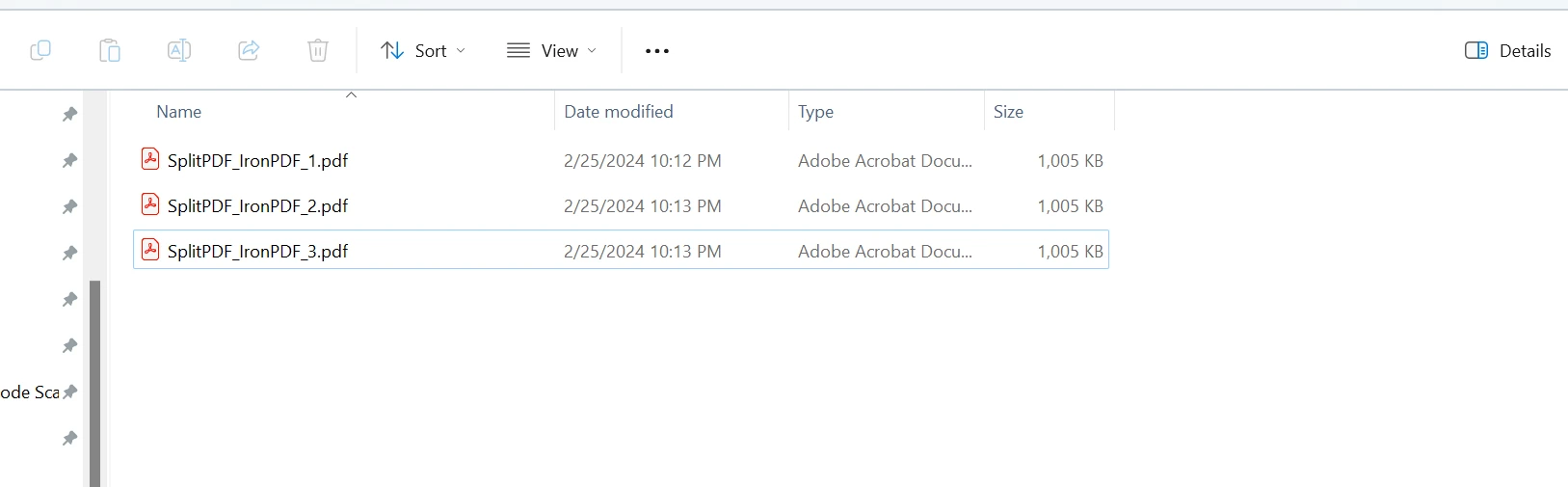
IronPDF を使用して PDF ファイルを複数の PDF ファイルに分割できます。 これを達成するための簡単な方法を提供します。 次のコードは、ソース PDF ファイルを入力として取り、それを複数の PDF ファイルに分割します。
using IronPdf;class Program{ static voidMain(string[] args) { string file = "input.pdf"; // The folder to save the split PDFs string outputFolder = "output_split"; int numberOfSplitFiles = 3; // Specify how many parts you want to split the PDF into // Call the SplitPdf method to split the PDFSplitPdfUsingIronPDF(file, outputFolder, numberOfSplitFiles); } static voidSplitPdfUsingIronPDF(string inputPdfPath, string outputFolder, int numberOfSplitFiles) { // Load the input PDF PdfDocument sourceFile = PdfDocument.FromFile(inputPdfPath); // Initialize page range values int firstPage = 1; int lastPage = 2; int totalPageInOneFile = sourceFile.PageCount / numberOfSplitFiles; for (int i = 1; i <= numberOfSplitFiles; i++) { // Copy multiple pages into a new document PdfDocument newSplitPDF = sourceFile.CopyPages(firstPage, lastPage); // Generate the output file path string name = $@"{outputFolder}\SplitPDF_IronPDF_{i}.pdf"; // Save the new split PDF newSplitPDF.SaveAs(name); // Update page range values for the next iteration firstPage = lastPage + 1; lastPage += totalPageInOneFile; } }}
using IronPdf;

class Program
{
    static void Main(string[] args)
    {
        string file = "input.pdf";
        // The folder to save the split PDFs
        string outputFolder = "output_split";
        int numberOfSplitFiles = 3; // Specify how many parts you want to split the PDF into
        // Call the SplitPdf method to split the PDF
        SplitPdfUsingIronPDF(file, outputFolder, numberOfSplitFiles);
    }

    static void SplitPdfUsingIronPDF(string inputPdfPath, string outputFolder, int numberOfSplitFiles)
    {
        // Load the input PDF
        PdfDocument sourceFile = PdfDocument.FromFile(inputPdfPath);

        // Initialize page range values
        int firstPage = 1;
        int lastPage = 2;
        int totalPageInOneFile = sourceFile.PageCount / numberOfSplitFiles;

        for (int i = 1; i <= numberOfSplitFiles; i++)
        {
            // Copy multiple pages into a new document
            PdfDocument newSplitPDF = sourceFile.CopyPages(firstPage, lastPage);

            // Generate the output file path
            string name = $@"{outputFolder}\SplitPDF_IronPDF_{i}.pdf";

            // Save the new split PDF
            newSplitPDF.SaveAs(name);

            // Update page range values for the next iteration
            firstPage = lastPage + 1;
            lastPage += totalPageInOneFile;
        }
    }
}
ImportsIronPdfClass ProgramShared Sub Main(args AsString()) Dim file AsString = "input.pdf" ' The folder to save the split PDFs Dim outputFolder AsString = "output_split" Dim numberOfSplitFiles AsInteger = 3 ' Specify how many parts you want to split the PDF into ' Call the SplitPdf method to split the PDFSplitPdfUsingIronPDF(file, outputFolder, numberOfSplitFiles) End SubShared Sub SplitPdfUsingIronPDF(inputPdfPath AsString, outputFolder AsString, numberOfSplitFiles AsInteger) ' Load the input PDF Dim sourceFile AsPdfDocument = PdfDocument.FromFile(inputPdfPath) ' Initialize page range values Dim firstPage AsInteger = 1 Dim lastPage AsInteger = 2 Dim totalPageInOneFile AsInteger = sourceFile.PageCount \ numberOfSplitFiles For i AsInteger = 1 To numberOfSplitFiles ' Copy multiple pages into a new document Dim newSplitPDF AsPdfDocument = sourceFile.CopyPages(firstPage, lastPage) ' Generate the output file path Dim name AsString = $"{outputFolder}\SplitPDF_IronPDF_{i}.pdf" ' Save the new split PDF newSplitPDF.SaveAs(name) ' Update page range values for the next iteration firstPage = lastPage + 1 lastPage += totalPageInOneFile Next End SubEnd Class
Imports IronPdf

Class Program
    Shared Sub Main(args As String())
        Dim file As String = "input.pdf"
        ' The folder to save the split PDFs
        Dim outputFolder As String = "output_split"
        Dim numberOfSplitFiles As Integer = 3 ' Specify how many parts you want to split the PDF into
        ' Call the SplitPdf method to split the PDF
        SplitPdfUsingIronPDF(file, outputFolder, numberOfSplitFiles)
    End Sub

    Shared Sub SplitPdfUsingIronPDF(inputPdfPath As String, outputFolder As String, numberOfSplitFiles As Integer)
        ' Load the input PDF
        Dim sourceFile As PdfDocument = PdfDocument.FromFile(inputPdfPath)

        ' Initialize page range values
        Dim firstPage As Integer = 1
        Dim lastPage As Integer = 2
        Dim totalPageInOneFile As Integer = sourceFile.PageCount \ numberOfSplitFiles

        For i As Integer = 1 To numberOfSplitFiles
            ' Copy multiple pages into a new document
            Dim newSplitPDF As PdfDocument = sourceFile.CopyPages(firstPage, lastPage)

            ' Generate the output file path
            Dim name As String = $"{outputFolder}\SplitPDF_IronPDF_{i}.pdf"

            ' Save the new split PDF
            newSplitPDF.SaveAs(name)

            ' Update page range values for the next iteration
            firstPage = lastPage + 1
            lastPage += totalPageInOneFile
        Next
    End Sub
End Class
コードの説明
このコードの目的は、IronPDF ライブラリを使用して指定された PDF ファイルを複数の小さな PDF ファイルに分割することです。 この機能を達成するためにSplitPdfUsingIronPDFメソッドが定義されています。
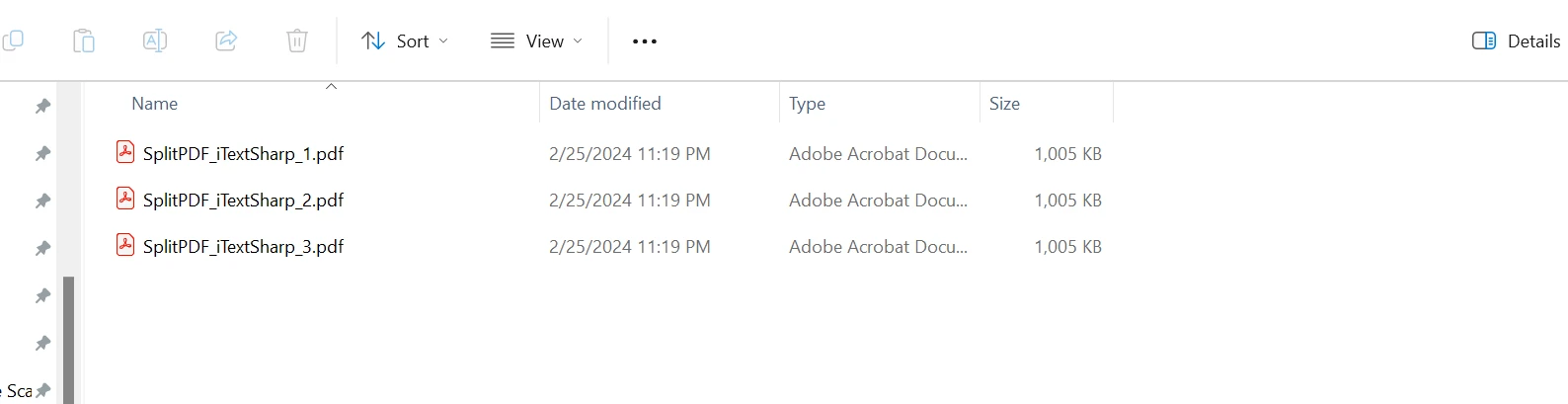
using System;using iText.Kernel.Pdf;class Program{ static voidMain(string[] args) { string inputPath = "input.pdf"; // Output PDF files path (prefix for the generated files) string outputPath = "output_split"; int numberOfSplitFiles = 3; // Specify how many parts you want to split the PDF into // Call the SplitPdf method to split the PDFSplitPdfUsingiTextSharp(inputPath, outputPath, numberOfSplitFiles); } static voidSplitPdfUsingiTextSharp(string inputPdfPath, string outputFolder, int numberOfSplitFiles) { using (PdfReader reader = new PdfReader(inputPdfPath)) { using (PdfDocument doc = new PdfDocument(reader)) { // Calculate the number of pages for each split file int totalPageInOneFile = doc.GetNumberOfPages() / numberOfSplitFiles; int firstPage = 1; int lastPage = totalPageInOneFile; for (int i = 1; i <= numberOfSplitFiles; i++) { // Generate the output file path string filename = $@"{outputFolder}\SplitPDF_iTextSharp_{i}.pdf"; // Create a new document and attach a writer for the specified output file using (PdfDocument pdfDocument = new PdfDocument(new PdfWriter(filename))) { // Copy pages from the original document to the new document doc.CopyPagesTo(firstPage, lastPage, pdfDocument); } // Update page range values for the next iteration firstPage = lastPage + 1; lastPage += totalPageInOneFile; } } } }}
using System;
using iText.Kernel.Pdf;

class Program
{
    static void Main(string[] args)
    {
        string inputPath = "input.pdf";
        // Output PDF files path (prefix for the generated files)
        string outputPath = "output_split";
        int numberOfSplitFiles = 3; // Specify how many parts you want to split the PDF into
        // Call the SplitPdf method to split the PDF
        SplitPdfUsingiTextSharp(inputPath, outputPath, numberOfSplitFiles);
    }

    static void SplitPdfUsingiTextSharp(string inputPdfPath, string outputFolder, int numberOfSplitFiles)
    {
        using (PdfReader reader = new PdfReader(inputPdfPath))
        {
            using (PdfDocument doc = new PdfDocument(reader))
            {
                // Calculate the number of pages for each split file
                int totalPageInOneFile = doc.GetNumberOfPages() / numberOfSplitFiles;
                int firstPage = 1;
                int lastPage = totalPageInOneFile;

                for (int i = 1; i <= numberOfSplitFiles; i++)
                {
                    // Generate the output file path
                    string filename = $@"{outputFolder}\SplitPDF_iTextSharp_{i}.pdf";

                    // Create a new document and attach a writer for the specified output file
                    using (PdfDocument pdfDocument = new PdfDocument(new PdfWriter(filename)))
                    {
                        // Copy pages from the original document to the new document
                        doc.CopyPagesTo(firstPage, lastPage, pdfDocument);
                    }

                    // Update page range values for the next iteration
                    firstPage = lastPage + 1;
                    lastPage += totalPageInOneFile;
                }
            }
        }
    }
}
ImportsSystemImports iText.Kernel.PdfFriend Class ProgramShared Sub Main(ByVal args() AsString) Dim inputPath AsString = "input.pdf" ' Output PDF files path (prefix for the generated files) Dim outputPath AsString = "output_split" Dim numberOfSplitFiles AsInteger = 3 ' Specify how many parts you want to split the PDF into ' Call the SplitPdf method to split the PDFSplitPdfUsingiTextSharp(inputPath, outputPath, numberOfSplitFiles) End Sub PrivateShared Sub SplitPdfUsingiTextSharp(ByVal inputPdfPath AsString, ByVal outputFolder AsString, ByVal numberOfSplitFiles AsInteger)Using reader As New PdfReader(inputPdfPath)Using doc As New PdfDocument(reader) ' Calculate the number of pages for each split file'INSTANT VB WARNING: Instant VB cannot determine whether both operands of this division are integer types - if they are then you should use the VB integer division operator: Dim totalPageInOneFile AsInteger = doc.GetNumberOfPages() / numberOfSplitFiles Dim firstPage AsInteger = 1 Dim lastPage AsInteger = totalPageInOneFile For i AsInteger = 1 To numberOfSplitFiles ' Generate the output file path Dim filename AsString = $"{outputFolder}\SplitPDF_iTextSharp_{i}.pdf" ' Create a new document and attach a writer for the specified output fileUsing pdfDocument As New PdfDocument(New PdfWriter(filename)) ' Copy pages from the original document to the new document doc.CopyPagesTo(firstPage, lastPage, pdfDocument)EndUsing ' Update page range values for the next iteration firstPage = lastPage + 1 lastPage += totalPageInOneFile Next iEndUsingEndUsing End SubEnd Class
Imports System
Imports iText.Kernel.Pdf

Friend Class Program
	Shared Sub Main(ByVal args() As String)
		Dim inputPath As String = "input.pdf"
		' Output PDF files path (prefix for the generated files)
		Dim outputPath As String = "output_split"
		Dim numberOfSplitFiles As Integer = 3 ' Specify how many parts you want to split the PDF into
		' Call the SplitPdf method to split the PDF
		SplitPdfUsingiTextSharp(inputPath, outputPath, numberOfSplitFiles)
	End Sub

	Private Shared Sub SplitPdfUsingiTextSharp(ByVal inputPdfPath As String, ByVal outputFolder As String, ByVal numberOfSplitFiles As Integer)
		Using reader As New PdfReader(inputPdfPath)
			Using doc As New PdfDocument(reader)
				' Calculate the number of pages for each split file
'INSTANT VB WARNING: Instant VB cannot determine whether both operands of this division are integer types - if they are then you should use the VB integer division operator:
				Dim totalPageInOneFile As Integer = doc.GetNumberOfPages() / numberOfSplitFiles
				Dim firstPage As Integer = 1
				Dim lastPage As Integer = totalPageInOneFile

				For i As Integer = 1 To numberOfSplitFiles
					' Generate the output file path
					Dim filename As String = $"{outputFolder}\SplitPDF_iTextSharp_{i}.pdf"

					' Create a new document and attach a writer for the specified output file
					Using pdfDocument As New PdfDocument(New PdfWriter(filename))
						' Copy pages from the original document to the new document
						doc.CopyPagesTo(firstPage, lastPage, pdfDocument)
					End Using

					' Update page range values for the next iteration
					firstPage = lastPage + 1
					lastPage += totalPageInOneFile
				Next i
			End Using
		End Using
	End Sub
End Class