


如何在沒有Adobe的情況下合併PDF文件

Full Comparison
Looking for a detailed feature-by-feature breakdown? See how IronPDF stacks up against Itext on pricing, HTML support, and licensing.
PDF(便攜式文件格式)文件廣泛用於共用和顯示文件,有時您可能需要將一個PDF拆分成多個文件。 無論您想要提取特定頁面,將大型文件劃分為較小部分或為每章建立單獨的文件,拆分PDF在多種情況下都是一項有價值的任務。
在本文中,我們將學習如何使用C#拆分PDF。 C#是一種多功能且強大的語言,而且有多種程式庫使得操控PDF相對簡單。 我們將探討以下兩個用於C#中拆分PDF的程式庫。
如何使用iText在C#中拆分PDF
- 首先,安裝iText程式庫。
- 從輸入PDF文件中建立一個PdfReader。
- 使用PdfDocument來處理PDF內容。
- 計算每個拆分文件的頁數。
- 設定初始頁面範圍值。
- 使用迴圈來處理每個拆分文件。
- 為當前拆分文件建立一個新的PdfDocument。
- 將頁面從原始文件複製到新的文件中。
- 更新下一次迭代的頁面範圍值。
- 保存完成的輸出PDF。
- 重複直到所有文件建立完成。
- 繼續處理指定數量的拆分文件。
IronPDF
IronPDF是一個專門用於處理PDF文件的強大C#程式庫。 它提供用於建立、修改和提取PDF文件內容的功能。 開發者可以從頭生成PDF,編輯現有的PDF,並合併或拆分它們。 此外,IronPDF擅長將HTML內容轉換為PDF格式,這對產生報告或文件非常有用。 IronPDF支援數位簽章、安全功能和高品質輸出,簡化了.NET應用中的PDF相關任務。
iText
iText(iText)是一個廣泛使用的.NET框架中處理PDF文件的程式庫。 它提供了用於程式化地建立、修改和提取PDF文件內容的強大功能。 開發者可以使用iText向PDF新增文字、圖像、表格和其他圖形元素。 此外,它支援文件組裝、數位簽章以及符合歸檔和可存取性標準。 iText最初是一個Java程式庫,被移植到.NET平台,擁有活躍的開發者和使用者社群。
安裝IronPDF程式庫
要在Visual Studio中使用套件管理器主控台安裝IronPDF NuGet包,請按照以下步驟操作:
- 在Visual Studio中,前往工具 -> NuGet套件管理器 -> 套件管理器主控台。
-
使用以下命令安裝IronPDF NuGet包:
Install-Package IronPdf
這將下載並安裝IronPDF包及其依賴項到您的項目中。 安裝完成後,您可以開始在您的C#項目中使用IronPDF進行PDF相關的任務。
或者,您可以在Visual Studio中使用NuGet套件管理器安裝IronPDF,或將套件直接新增到您的項目文件中。另一個選擇是從官方網站下載包並手動將其新增到您的項目中。 每種方法都提供了一種將IronPDF整合到您的C#項目中以實現PDF相關功能的簡單方法。
安裝iText程式庫
要在Visual Studio中使用套件管理器主控台安裝iText,您可以按照以下步驟操作:
- 在Visual Studio中,前往工具 -> NuGet套件管理器 -> 套件管理器主控台。
-
使用以下命令安裝iText NuGet包:
Install-Package itext7Install-Package itext7SHELL
這將下載並安裝iText包及其依賴項到您的項目中。 安裝完成後,您可以開始在您的C#項目中使用iText進行PDF處理。
使用IronPDF在C#中拆分PDF文件
我們可以使用IronPDF將PDF文件拆分為多個PDF文件。 它提供了一種簡單的方法來實現此目標。 以下程式碼將把源PDF文件作為輸入,並將其拆分為多個PDF文件。
using IronPdf;

class Program
{
    static void Main(string[] args)
    {
        string file = "input.pdf";
        // The folder to save the split PDFs
        string outputFolder = "output_split";
        int numberOfSplitFiles = 3; // Specify how many parts you want to split the PDF into
        // Call the SplitPdf method to split the PDF
        SplitPdfUsingIronPDF(file, outputFolder, numberOfSplitFiles);
    }

    static void SplitPdfUsingIronPDF(string inputPdfPath, string outputFolder, int numberOfSplitFiles)
    {
        // Load the input PDF
        PdfDocument sourceFile = PdfDocument.FromFile(inputPdfPath);

        // Initialize page range values
        int firstPage = 1;
        int lastPage = 2;
        int totalPageInOneFile = sourceFile.PageCount / numberOfSplitFiles;

        for (int i = 1; i <= numberOfSplitFiles; i++)
        {
            // Copy multiple pages into a new document
            PdfDocument newSplitPDF = sourceFile.CopyPages(firstPage, lastPage);

            // Generate the output file path
            string name = $@"{outputFolder}\SplitPDF_IronPDF_{i}.pdf";

            // Save the new split PDF
            newSplitPDF.SaveAs(name);

            // Update page range values for the next iteration
            firstPage = lastPage + 1;
            lastPage += totalPageInOneFile;
        }
    }
}
using IronPdf;
class Program
{
static void Main(string[] args)
{
string file = "input.pdf";
// The folder to save the split PDFs
string outputFolder = "output_split";
int numberOfSplitFiles = 3; // Specify how many parts you want to split the PDF into
// Call the SplitPdf method to split the PDF
SplitPdfUsingIronPDF(file, outputFolder, numberOfSplitFiles);
}
static void SplitPdfUsingIronPDF(string inputPdfPath, string outputFolder, int numberOfSplitFiles)
{
// Load the input PDF
PdfDocument sourceFile = PdfDocument.FromFile(inputPdfPath);
// Initialize page range values
int firstPage = 1;
int lastPage = 2;
int totalPageInOneFile = sourceFile.PageCount / numberOfSplitFiles;
for (int i = 1; i <= numberOfSplitFiles; i++)
{
// Copy multiple pages into a new document
PdfDocument newSplitPDF = sourceFile.CopyPages(firstPage, lastPage);
// Generate the output file path
string name = $@"{outputFolder}\SplitPDF_IronPDF_{i}.pdf";
// Save the new split PDF
newSplitPDF.SaveAs(name);
// Update page range values for the next iteration
firstPage = lastPage + 1;
lastPage += totalPageInOneFile;
}
}
}Imports IronPdf
Friend Class Program
Shared Sub Main(ByVal args() As String)
Dim file As String = "input.pdf"
' The folder to save the split PDFs
Dim outputFolder As String = "output_split"
Dim numberOfSplitFiles As Integer = 3 ' Specify how many parts you want to split the PDF into
' Call the SplitPdf method to split the PDF
SplitPdfUsingIronPDF(file, outputFolder, numberOfSplitFiles)
End Sub
Private Shared Sub SplitPdfUsingIronPDF(ByVal inputPdfPath As String, ByVal outputFolder As String, ByVal numberOfSplitFiles As Integer)
' Load the input PDF
Dim sourceFile As PdfDocument = PdfDocument.FromFile(inputPdfPath)
' Initialize page range values
Dim firstPage As Integer = 1
Dim lastPage As Integer = 2
'INSTANT VB WARNING: Instant VB cannot determine whether both operands of this division are integer types - if they are then you should use the VB integer division operator:
Dim totalPageInOneFile As Integer = sourceFile.PageCount / numberOfSplitFiles
For i As Integer = 1 To numberOfSplitFiles
' Copy multiple pages into a new document
Dim newSplitPDF As PdfDocument = sourceFile.CopyPages(firstPage, lastPage)
' Generate the output file path
Dim name As String = $"{outputFolder}\SplitPDF_IronPDF_{i}.pdf"
' Save the new split PDF
newSplitPDF.SaveAs(name)
' Update page range values for the next iteration
firstPage = lastPage + 1
lastPage += totalPageInOneFile
Next i
End Sub
End Class程式碼說明
此程式碼的目的是使用IronPDF程式庫將給定的PDF文件拆分成多個較小的PDF文件。 SplitPdfUsingIronPDF方法被定義為實現此功能。
方法參數
inputPdfPath:一個表示輸入PDF文件路徑的字串(例如,"input.pdf")。outputFolder:一個表示拆分後的PDF文件將被保存的輸出文件夾的字串(例如,"output_split")。numberOfSplitFiles:一個整數,表示原始PDF將被拆分為多少個較小的PDF文件。
拆分過程
在SplitPdfUsingIronPDF方法內:
- 建立了一個
inputPdfPath中載入PDF來建立。 - 初始化了兩個整數變數,
lastPage。 這些代表了拆分的頁面範圍。 numberOfSplitFiles進行計算。- 迴圈從1迭代到
numberOfSplitFiles: - 建立了一個新的
newSplitPDF。 - 從
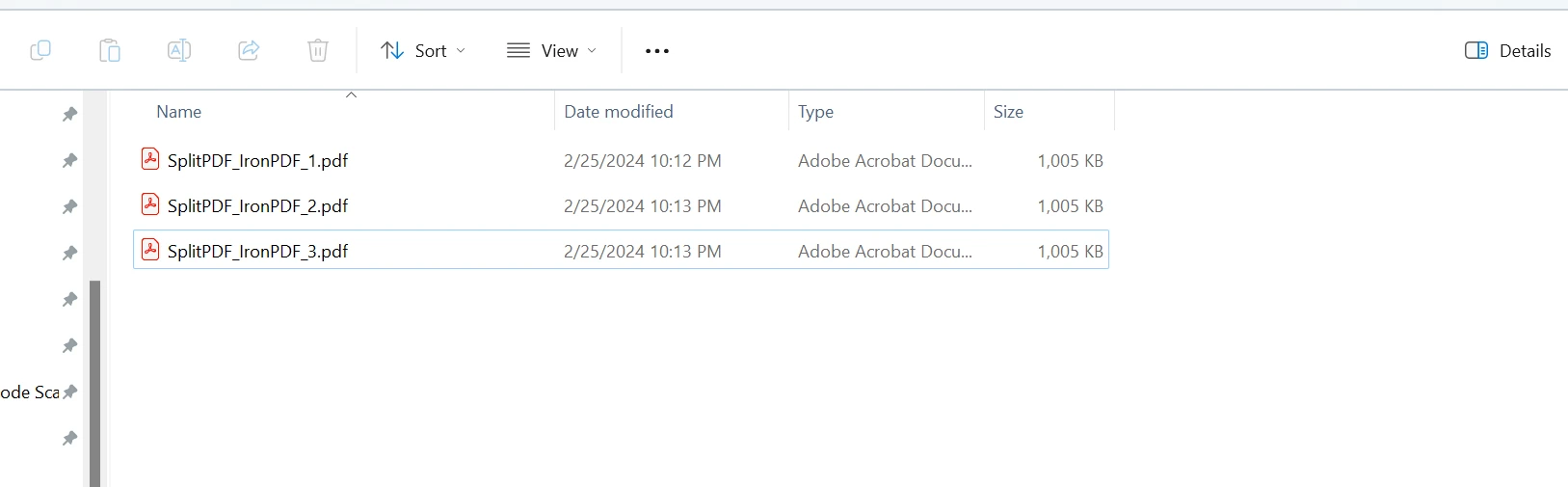
newSplitPDF。 - 生成的較小PDF以檔名如"SplitPDF_IronPDF_1.pdf"(針對第一個拆分)保存到指定的輸出文件夾。
- 更新
lastPage值以進行下一次迭代。
注意
您應該將"input.pdf"替換為您的輸入PDF文件的實際路徑。請確保IronPDF程式庫已正確安裝並在您的項目中引用。
輸出文件建立如下:
使用iText在C#中拆分PDF
現在,我們將使用iText將我們的PDF文件拆分成多個PDF文件。 以下程式碼將採用源文件作為輸入,並將該PDF文件拆分為多個較小的文件。
using System;
using iText.Kernel.Pdf;

class Program
{
    static void Main(string[] args)
    {
        string inputPath = "input.pdf";
        // Output PDF files path (prefix for the generated files)
        string outputPath = "output_split";
        int numberOfSplitFiles = 3; // Specify how many parts you want to split the PDF into
        // Call the SplitPdf method to split the PDF
        SplitPdfUsingiTextSharp(inputPath, outputPath, numberOfSplitFiles);
    }

    static void SplitPdfUsingiTextSharp(string inputPdfPath, string outputFolder, int numberOfSplitFiles)
    {
        using (PdfReader reader = new PdfReader(inputPdfPath))
        {
            using (PdfDocument doc = new PdfDocument(reader))
            {
                // Calculate the number of pages for each split file
                int totalPageInOneFile = doc.GetNumberOfPages() / numberOfSplitFiles;
                int firstPage = 1;
                int lastPage = totalPageInOneFile;

                for (int i = 1; i <= numberOfSplitFiles; i++)
                {
                    // Generate the output file path
                    string filename = $@"{outputFolder}\SplitPDF_iTextSharp_{i}.pdf";

                    // Create a new document and attach a writer for the specified output file
                    using (PdfDocument pdfDocument = new PdfDocument(new PdfWriter(filename)))
                    {
                        // Copy pages from the original document to the new document
                        doc.CopyPagesTo(firstPage, lastPage, pdfDocument);
                    }

                    // Update page range values for the next iteration
                    firstPage = lastPage + 1;
                    lastPage += totalPageInOneFile;
                }
            }
        }
    }
}
using System;
using iText.Kernel.Pdf;
class Program
{
static void Main(string[] args)
{
string inputPath = "input.pdf";
// Output PDF files path (prefix for the generated files)
string outputPath = "output_split";
int numberOfSplitFiles = 3; // Specify how many parts you want to split the PDF into
// Call the SplitPdf method to split the PDF
SplitPdfUsingiTextSharp(inputPath, outputPath, numberOfSplitFiles);
}
static void SplitPdfUsingiTextSharp(string inputPdfPath, string outputFolder, int numberOfSplitFiles)
{
using (PdfReader reader = new PdfReader(inputPdfPath))
{
using (PdfDocument doc = new PdfDocument(reader))
{
// Calculate the number of pages for each split file
int totalPageInOneFile = doc.GetNumberOfPages() / numberOfSplitFiles;
int firstPage = 1;
int lastPage = totalPageInOneFile;
for (int i = 1; i <= numberOfSplitFiles; i++)
{
// Generate the output file path
string filename = $@"{outputFolder}\SplitPDF_iTextSharp_{i}.pdf";
// Create a new document and attach a writer for the specified output file
using (PdfDocument pdfDocument = new PdfDocument(new PdfWriter(filename)))
{
// Copy pages from the original document to the new document
doc.CopyPagesTo(firstPage, lastPage, pdfDocument);
}
// Update page range values for the next iteration
firstPage = lastPage + 1;
lastPage += totalPageInOneFile;
}
}
}
}
}Imports System
Imports iText.Kernel.Pdf
Friend Class Program
Shared Sub Main(ByVal args() As String)
Dim inputPath As String = "input.pdf"
' Output PDF files path (prefix for the generated files)
Dim outputPath As String = "output_split"
Dim numberOfSplitFiles As Integer = 3 ' Specify how many parts you want to split the PDF into
' Call the SplitPdf method to split the PDF
SplitPdfUsingiTextSharp(inputPath, outputPath, numberOfSplitFiles)
End Sub
Private Shared Sub SplitPdfUsingiTextSharp(ByVal inputPdfPath As String, ByVal outputFolder As String, ByVal numberOfSplitFiles As Integer)
Using reader As New PdfReader(inputPdfPath)
Using doc As New PdfDocument(reader)
' Calculate the number of pages for each split file
'INSTANT VB WARNING: Instant VB cannot determine whether both operands of this division are integer types - if they are then you should use the VB integer division operator:
Dim totalPageInOneFile As Integer = doc.GetNumberOfPages() / numberOfSplitFiles
Dim firstPage As Integer = 1
Dim lastPage As Integer = totalPageInOneFile
For i As Integer = 1 To numberOfSplitFiles
' Generate the output file path
Dim filename As String = $"{outputFolder}\SplitPDF_iTextSharp_{i}.pdf"
' Create a new document and attach a writer for the specified output file
Using pdfDocument As New PdfDocument(New PdfWriter(filename))
' Copy pages from the original document to the new document
doc.CopyPagesTo(firstPage, lastPage, pdfDocument)
End Using
' Update page range values for the next iteration
firstPage = lastPage + 1
lastPage += totalPageInOneFile
Next i
End Using
End Using
End Sub
End Class程式碼說明
此程式碼展示了如何使用iText將大型PDF文件拆分成較小的部分。 每個較小的PDF文件將包含原始文件的一部分。
使用iText拆分PDF
- 主要功能封裝在
SplitPdfUsingiTextSharp方法中。 - 上述方法接受三個參數:
numberOfSplitFiles。
使用PdfReader和PdfDocument
在SplitPdfUsingiTextSharp方法內:
- 建立了一個
inputPdfPath中載入PDF來建立。 - 初始化了一個
reader初始化。 - 將源PDF的總頁數除以
numberOfSplitFiles以確定每個較小的PDF應包含的頁數。
拆分過程
一個迴圈從1迭代到numberOfSplitFiles:
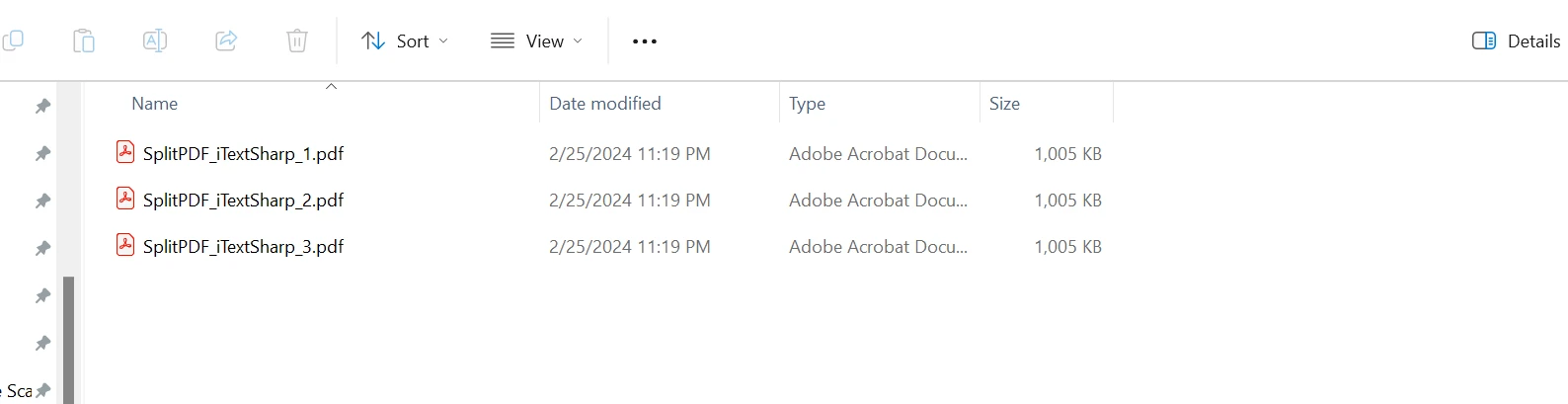
- 建立了一個新的較小的PDF文件,檔名如"SplitPDF_iText_1.pdf"(針對第一個拆分)保存到指定的輸出文件夾。
- 在此新PDF文件(
doc中複製: lastPage(包含)被複製。- 保存較小的PDF。
- 更新
lastPage值以進行下一次迭代。
注意
請確保已在您的項目中正確安裝並引用iText程式庫。 將"input.pdf"替換為您的輸入PDF文件的實際路徑。
比較
為了比較使用iText和IronPDF的兩種拆分方法,我們來從幾個因素進行評估:
- 易用性:
- iText:iText方法涉及建立PdfReader、PdfDocument和PdfWriter。 它計算頁面範圍並將頁面複製到新文件中。 此方法需要了解iText API。
- IronPDF:IronPDF方法涉及從源文件建立PdfDocument,複製頁面,並保存到新文件。它擁有更簡單的API。
- 程式碼可讀性:
- iText:程式碼涉及更多步驟,使其稍長且潛在更難閱讀。
- IronPDF:程式碼簡潔且更可讀,因步驟和方法調用更少。
- 性能:
- iText:性能可能受到反覆建立和處理PdfDocument實例的影響。
- IronPDF:此方法步驟較少,通過有效的頁面複製提供更好的性能。
- 記憶體使用:
- iText:建立多個PdfDocument實例會消耗更多記憶體。
- IronPDF:方法因其簡化方式而更具記憶體效率。
結論
總之,iText和IronPDF都為拆分C#中的PDF文件提供了強大的解決方案,各有優勢。 由於更簡單的方法,IronPDF以其簡單性、可讀性和潛在的更好性能脫穎而出。
尋求靈活性與易用性之間平衡的開發者可能會發現IronPDF是個有吸引力的選擇。此外,IronPDF提供免費試用。 最終,在iText和IronPDF之間的選擇取決於個別項目要求和偏好的開發方式。
常見問題
如何在 C# 中分割 PDF 並保持原始格式?
您可以使用 IronPDF 在 C# 中分割 PDF 同時保持其格式。IronPDF 提供一個簡單的 API,允許您載入 PDF 並指定要分割的頁面範圍,確保分割出的 PDF 保持原始格式。
iTextSharp 與 IronPDF 在 C# 中分割 PDF 的主要區別是什麼?
主要區別在於易用性和性能。IronPDF 提供了一個更簡單的 API,步驟更少,使您更容易分割 PDF 而不丟失格式。另一方面,iTextSharp 需要建立多個實體,如 PdfReader、PdfDocument 和 PdfWriter,這會更複雜。
我可以使用 C# 從 PDF 中提取特定頁面嗎?
是的,使用 IronPDF,您可以輕鬆地從 PDF 中提取特定頁面。在載入 PDF 並指定所需的頁碼後,IronPDF 允許您提取並另存這些頁面為新的 PDF 文件。
IronPDF 如何比其他 PDF 程式庫改進程式碼可讀性?
IronPDF 通過提供清晰且簡潔的 API 改進程式碼可讀性,減少需要的多類和物件。這簡化了 PDF 操作任務(如分割)所需的程式碼,導致更清晰且更容易維護的程式碼。
是否可以在購買程式庫之前測試 C# 中的 PDF 分割功能?
是的,IronPDF 提供免費試用,允許開發者測試其 PDF 分割功能和其他功能。這個試用期讓您能夠評估其功能和性能,然後再做出購買決定。
選擇用於分割文件的 PDF 程式庫時應考慮哪些因素?
在選擇 PDF 程式庫時,應考慮易用性、API 簡單性、性能以及保持文件原始格式的能力。IronPDF 因其使用者友好的 API 和高效的性能而受到偏愛。
如何在 Visual Studio C# 專案中安裝 IronPDF?
要在 Visual Studio C# 專案中安裝 IronPDF,使用 NuGet 套件管理控制台和命令 Install-Package IronPdf。您也可以透過 NuGet 套件管理器 UI 新增它,或從 IronPDF 官方網站下載。
分割 PDF 會影響其質量或格式嗎?
using IronPDF 分割 PDF 可確保原始文件的質量和格式被保留。IronPDF 的高效處理保持了原始內容的完整性。







 免費開始
免費開始 免費開始
免費開始 預訂免費直播演示
















