


C# Thread Sleep Method(開発者向けの動作方法)

マルチスレッドは現代のソフトウェア開発において重要な側面であり、開発者が複数のタスクを同時に実行することで、パフォーマンスと応答性を向上させることができます。 しかし、スレッドを効果的に管理するためには、同期や連携に注意を払う必要があります。 C# 開発者がスレッドのタイミングと調整を管理するための必須ツールの 1 つは、Thread.Sleep() メソッドです。
この記事では、Thread.Sleep() メソッドの複雑な点を詳しく調べ、その目的、使用方法、潜在的な落とし穴、代替案を探ります。 加えて、この記事では、PDFドキュメントのプログラムによる生成を容易にするIronPDF C# PDFライブラリを紹介します。
Thread.Sleep() を理解する
Thread.Sleep() メソッドはC# の System.Threading 名前空間の一部であり、現在のスレッドの実行を指定された時間ブロックするために使用されます。待機中のスレッドまたはブロックされたスレッドは、スリープに指定された時間まで実行を停止します。Sleep メソッドは、スレッドが非アクティブ状態を維持する時間間隔を表す単一の引数を取ります。引数はミリ秒単位または TimeSpan オブジェクトとして指定できるため、希望する一時停止期間を柔軟に表現できます。
using System;
using System.Threading;

class Program
{
    static void Main()
    {
        // Using Thread.Sleep() with a specified number of milliseconds
        Thread.Sleep(1000); // Block for 1 second

        // Using Thread.Sleep() with TimeSpan
        TimeSpan sleepDuration = TimeSpan.FromSeconds(2);
        Thread.Sleep(sleepDuration); // Block for 2 seconds
    }
}
using System;
using System.Threading;
class Program
{
static void Main()
{
// Using Thread.Sleep() with a specified number of milliseconds
Thread.Sleep(1000); // Block for 1 second
// Using Thread.Sleep() with TimeSpan
TimeSpan sleepDuration = TimeSpan.FromSeconds(2);
Thread.Sleep(sleepDuration); // Block for 2 seconds
}
}Imports System
Imports System.Threading
Friend Class Program
Shared Sub Main()
' Using Thread.Sleep() with a specified number of milliseconds
Thread.Sleep(1000) ' Block for 1 second
' Using Thread.Sleep() with TimeSpan
Dim sleepDuration As TimeSpan = TimeSpan.FromSeconds(2)
Thread.Sleep(sleepDuration) ' Block for 2 seconds
End Sub
End ClassThread.Sleep の目的
Thread.Sleep を使用する主な目的は、スレッドの実行に遅延または一時停止を導入することです。 これは、次のようなさまざまなシナリオで役立つことがあります。
- リアルタイム動作のシミュレーション: アプリケーションがリアルタイムの動作をシミュレートする必要がある状況において、遅延を導入することは、モデル化されているシステムの時間的制約を模倣するのに役立ちます。
- 過度なリソース消費を防ぐ: 1つのスレッドを短時間停止することは、常時実行が不要な状況で、不要なリソース消費を防ぐのに役立ちます。
- スレッドの連携: 複数のスレッドを扱う場合、停止を導入することはそれらの実行を同期するのに役立ち、競合状態を防ぎ、秩序ある処理を確保します。
実世界の例
Thread.Sleep() メソッドを使用して交通信号制御システムをシミュレートできる実際の例を考えてみましょう。 このシナリオでは、赤、黄、緑の信号を持つ交通信号の動作をモデル化したシンプルなコンソールアプリケーションを作成します。
using System;
using System.Threading;

public class TrafficLightSimulator
{
    static void Main()
    {
        Console.WriteLine("Traffic Light Simulator");
        while (true)
        {
            // Display the red light
            Console.ForegroundColor = ConsoleColor.Red;
            Console.WriteLine($"Stop! Red light - {DateTime.Now:u}");
            Thread.Sleep(5000); // Pause for 5 seconds

            // Display the yellow light
            Console.ForegroundColor = ConsoleColor.Yellow;
            Console.WriteLine($"Get ready! Yellow light - {DateTime.Now:u}");
            Thread.Sleep(2000); // Pause for 2 seconds

            // Display the green light
            Console.ForegroundColor = ConsoleColor.Green;
            Console.WriteLine($"Go! Green light - {DateTime.Now:u}");
            Thread.Sleep(5000); // Pause for 5 seconds

            // Reset console color and clear screen
            Console.ResetColor();
            Console.Clear();
        }
    }
}
using System;
using System.Threading;
public class TrafficLightSimulator
{
static void Main()
{
Console.WriteLine("Traffic Light Simulator");
while (true)
{
// Display the red light
Console.ForegroundColor = ConsoleColor.Red;
Console.WriteLine($"Stop! Red light - {DateTime.Now:u}");
Thread.Sleep(5000); // Pause for 5 seconds
// Display the yellow light
Console.ForegroundColor = ConsoleColor.Yellow;
Console.WriteLine($"Get ready! Yellow light - {DateTime.Now:u}");
Thread.Sleep(2000); // Pause for 2 seconds
// Display the green light
Console.ForegroundColor = ConsoleColor.Green;
Console.WriteLine($"Go! Green light - {DateTime.Now:u}");
Thread.Sleep(5000); // Pause for 5 seconds
// Reset console color and clear screen
Console.ResetColor();
Console.Clear();
}
}
}Imports System
Imports System.Threading
Public Class TrafficLightSimulator
Shared Sub Main()
Console.WriteLine("Traffic Light Simulator")
Do
' Display the red light
Console.ForegroundColor = ConsoleColor.Red
Console.WriteLine($"Stop! Red light - {DateTime.Now:u}")
Thread.Sleep(5000) ' Pause for 5 seconds
' Display the yellow light
Console.ForegroundColor = ConsoleColor.Yellow
Console.WriteLine($"Get ready! Yellow light - {DateTime.Now:u}")
Thread.Sleep(2000) ' Pause for 2 seconds
' Display the green light
Console.ForegroundColor = ConsoleColor.Green
Console.WriteLine($"Go! Green light - {DateTime.Now:u}")
Thread.Sleep(5000) ' Pause for 5 seconds
' Reset console color and clear screen
Console.ResetColor()
Console.Clear()
Loop
End Sub
End Class上記のプログラム例では、whileループ内に単純な信号機シミュレーションを実行しています。信号機の遷移間に遅延を導入するために、Thread.Sleep()メソッドが使用されています。 例は次のように機能します。
- プログラムは連続的な操作をシミュレートするために無限ループに入ります。
- 赤信号は5秒間表示され、停止信号を表します。
- 5秒経過後、黄信号が2秒間表示され、準備段階を示します。
- 最後に、緑信号が5秒間表示され、車両の進行を許可します。
- コンソールの色はリセットされ、ループが繰り返されます。
出力
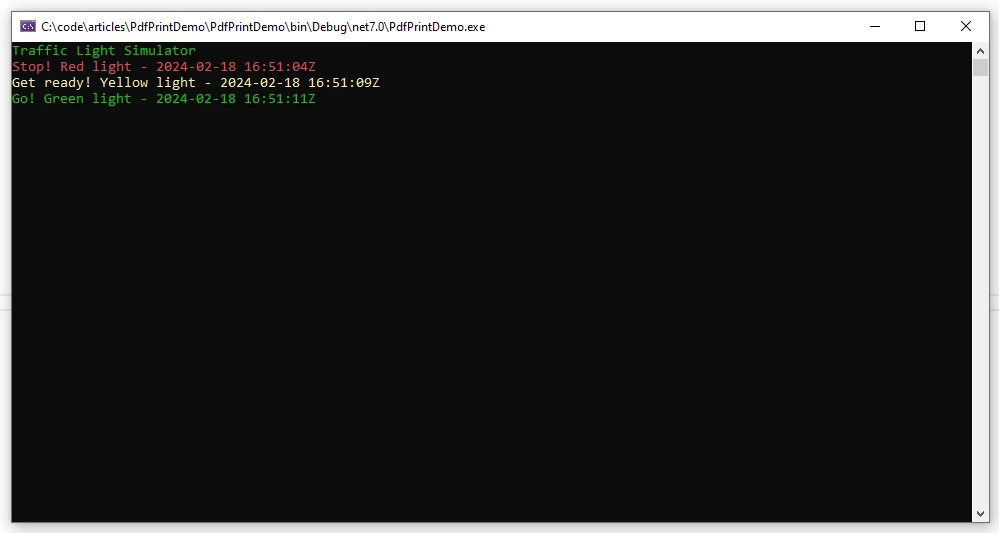
この例では、Thread.Sleep() を使用して信号機シミュレーションのタイミングを制御する方法を示し、現実世界のシステムの動作をモデル化する簡単な方法を提供します。 これが基本的な例であり、複雑なアプリケーションでは、ユーザー入力の処理、複数の交通信号の管理、正確なタイミングの保証のために、より高度なスレッド化や同期技術を探索することが望ましいかもしれません。
Sleep メソッドで TimeSpan タイムアウトを使用する
スリープ期間を指定するには、TimeSpan を Thread.Sleep() メソッドと組み合わせて使用できます。 以下は、TimeSpan を使用して、前の例の信号機シミュレーションを拡張した例です。
using System;
using System.Threading;

class TrafficLightSimulator
{
    public static void Main()
    {
        Console.WriteLine("Traffic Light Simulator");
        while (true)
        {
            // Display the red light
            Console.ForegroundColor = ConsoleColor.Red;
            Console.WriteLine($"Stop! Red light - {DateTime.Now:u}");
            Thread.Sleep(TimeSpan.FromSeconds(5)); // Pause for 5 seconds

            // Display the yellow light
            Console.ForegroundColor = ConsoleColor.Yellow;
            Console.WriteLine($"Get ready! Yellow light - {DateTime.Now:u}");
            Thread.Sleep(TimeSpan.FromSeconds(2)); // Pause for 2 seconds

            // Display the green light
            Console.ForegroundColor = ConsoleColor.Green;
            Console.WriteLine($"Go! Green light - {DateTime.Now:u}");
            Thread.Sleep(TimeSpan.FromSeconds(5)); // Pause for 5 seconds

            // Reset console color and clear screen
            Console.ResetColor();
            Console.Clear();
        }
    }
}
using System;
using System.Threading;
class TrafficLightSimulator
{
public static void Main()
{
Console.WriteLine("Traffic Light Simulator");
while (true)
{
// Display the red light
Console.ForegroundColor = ConsoleColor.Red;
Console.WriteLine($"Stop! Red light - {DateTime.Now:u}");
Thread.Sleep(TimeSpan.FromSeconds(5)); // Pause for 5 seconds
// Display the yellow light
Console.ForegroundColor = ConsoleColor.Yellow;
Console.WriteLine($"Get ready! Yellow light - {DateTime.Now:u}");
Thread.Sleep(TimeSpan.FromSeconds(2)); // Pause for 2 seconds
// Display the green light
Console.ForegroundColor = ConsoleColor.Green;
Console.WriteLine($"Go! Green light - {DateTime.Now:u}");
Thread.Sleep(TimeSpan.FromSeconds(5)); // Pause for 5 seconds
// Reset console color and clear screen
Console.ResetColor();
Console.Clear();
}
}
}Imports System
Imports System.Threading
Friend Class TrafficLightSimulator
Public Shared Sub Main()
Console.WriteLine("Traffic Light Simulator")
Do
' Display the red light
Console.ForegroundColor = ConsoleColor.Red
Console.WriteLine($"Stop! Red light - {DateTime.Now:u}")
Thread.Sleep(TimeSpan.FromSeconds(5)) ' Pause for 5 seconds
' Display the yellow light
Console.ForegroundColor = ConsoleColor.Yellow
Console.WriteLine($"Get ready! Yellow light - {DateTime.Now:u}")
Thread.Sleep(TimeSpan.FromSeconds(2)) ' Pause for 2 seconds
' Display the green light
Console.ForegroundColor = ConsoleColor.Green
Console.WriteLine($"Go! Green light - {DateTime.Now:u}")
Thread.Sleep(TimeSpan.FromSeconds(5)) ' Pause for 5 seconds
' Reset console color and clear screen
Console.ResetColor()
Console.Clear()
Loop
End Sub
End Classこの変更された例では、TimeSpan.FromSeconds() を使用して、必要なスリープ期間を表す TimeSpan オブジェクトを作成します。 これによりコードがより読みやすく表現力豊かになります。
Thread.Sleep() メソッドの TimeSpan プロパティを使用すると、期間を秒単位 (または TimeSpan でサポートされているその他の単位) で直接指定できるため、時間間隔をより直感的に操作できます。 これは、アプリケーションでのより長いまたは複雑なスリープ期間を処理する際に特に便利です。
ユースケース
- リアルタイム動作のシミュレーション: リアルタイムシステムの動作をモデル化する必要があるシミュレーションアプリケーションを考えます。 コード内に
Thread.Sleep()を戦略的に配置することで、実際のシステムで発生する時間遅延を模倣でき、シミュレーションの精度が向上します。
void SimulateRealTimeEvent()
{
    // Simulate some event
}

void SimulateNextEvent()
{
    // Simulate another event
}

// Simulating real-time behavior with Thread.Sleep()
SimulateRealTimeEvent();
Thread.Sleep(1000); // Pause for 1 second
SimulateNextEvent();
void SimulateRealTimeEvent()
{
// Simulate some event
}
void SimulateNextEvent()
{
// Simulate another event
}
// Simulating real-time behavior with Thread.Sleep()
SimulateRealTimeEvent();
Thread.Sleep(1000); // Pause for 1 second
SimulateNextEvent();Private Sub SimulateRealTimeEvent()
' Simulate some event
End Sub
Private Sub SimulateNextEvent()
' Simulate another event
End Sub
' Simulating real-time behavior with Thread.Sleep()
SimulateRealTimeEvent()
Thread.Sleep(1000) ' Pause for 1 second
SimulateNextEvent()- アニメーションとUI更新: グラフィカルウェブ開発アプリケーションやゲーム開発では、滑らかなアニメーションとUI更新が重要です。
Thread.Sleep()を使用すると、フレーム レートを制御し、視覚的に快適なペースで更新が行われるようにすることができます。
void UpdateUIElement()
{
    // Code to update a UI element
}

void UpdateNextUIElement()
{
    // Code to update the next UI element
}

// Updating UI with controlled delays
UpdateUIElement();
Thread.Sleep(50); // Pause for 50 milliseconds
UpdateNextUIElement();
void UpdateUIElement()
{
// Code to update a UI element
}
void UpdateNextUIElement()
{
// Code to update the next UI element
}
// Updating UI with controlled delays
UpdateUIElement();
Thread.Sleep(50); // Pause for 50 milliseconds
UpdateNextUIElement();Private Sub UpdateUIElement()
' Code to update a UI element
End Sub
Private Sub UpdateNextUIElement()
' Code to update the next UI element
End Sub
' Updating UI with controlled delays
UpdateUIElement()
Thread.Sleep(50) ' Pause for 50 milliseconds
UpdateNextUIElement()- 外部サービス呼び出しのスロットリング: 外部サービスやAPIと対話するとき、過剰な要求を防ぐためにレート制限やスロットリングを課すのが一般的です。
Thread.Sleep()を使用すると、レート制限内に留まりながら、連続するサービス呼び出し間に遅延を導入できます。
void CallExternalService()
{
    // Call to external service
}

void CallNextService()
{
    // Call to another external service
}

// Throttling service calls with Thread.Sleep()
CallExternalService();
Thread.Sleep(2000); // Pause for 2 seconds before the next call
CallNextService();
void CallExternalService()
{
// Call to external service
}
void CallNextService()
{
// Call to another external service
}
// Throttling service calls with Thread.Sleep()
CallExternalService();
Thread.Sleep(2000); // Pause for 2 seconds before the next call
CallNextService();Private Sub CallExternalService()
' Call to external service
End Sub
Private Sub CallNextService()
' Call to another external service
End Sub
' Throttling service calls with Thread.Sleep()
CallExternalService()
Thread.Sleep(2000) ' Pause for 2 seconds before the next call
CallNextService()Thread.Sleep() の利点
1.同期と調整: Thread.Sleep() は、スレッド実行の同期、競合状態の防止、複数のスレッドを処理する際の正常な処理の確保に役立ちます。
- リソースの節約: スレッドを一時停止することは、常時実行が不要なシナリオで利点があり、システムリソースを節約します。
- 簡潔で読みやすい: このメソッドは遅延を導入するための簡潔で読みやすい方法を提供し、特にマルチスレッド概念に慣れていない開発者にとってコードがより理解しやすくなります。
潜在的な落とし穴と考慮事項
Thread.Sleep() は遅延を導入するための簡単な解決策ですが、開発者が知っておくべき潜在的な落とし穴と考慮事項があります。
1.スレッドのブロック: Thread.Sleep() を使用してスレッドを一時停止すると、スレッドは事実上ブロックされ、その間は他の作業は実行できません。応答性が極めて重要なシナリオでは、メインスレッドを長時間ブロックすると、ユーザーエクスペリエンスが低下する可能性があります。
2.タイミングの不正確さ:一時停止時間の精度は、基盤となるオペレーティングシステムのスケジューリングに依存し、必ずしも正確ではない可能性があります。開発者は、正確なタイミング要件を得るためにThread.Sleep()に依存する際には注意が必要です。
3.代替アプローチ:最新の C# 開発では、Thread.Sleep() よりも、Task.Delay() メソッドや、async/await を使用した非同期プログラミングなどの代替方法が好まれることが多いです。 これらのアプローチはスレッドをブロックすることなくより良い応答性を提供します。
using System;
using System.Threading.Tasks;

class Program
{
    static async Task Main()
    {
        // Using Task.Delay() instead of Thread.Sleep()
        await Task.Delay(1000); // Pause for 1 second asynchronously
    }
}
using System;
using System.Threading.Tasks;
class Program
{
static async Task Main()
{
// Using Task.Delay() instead of Thread.Sleep()
await Task.Delay(1000); // Pause for 1 second asynchronously
}
}Imports System
Imports System.Threading.Tasks
Friend Class Program
Shared Async Function Main() As Task
' Using Task.Delay() instead of Thread.Sleep()
Await Task.Delay(1000) ' Pause for 1 second asynchronously
End Function
End ClassIronPDFの紹介
IronPDF by Iron Softwareは、PDFジェネレータ兼リーダーとして機能するC# PDFライブラリです。 このセクションでは基本機能を紹介します。 詳細についてはIronPDFのドキュメントをご覧ください。
IronPDFのハイライトは、すべてのレイアウトとスタイルを保持するHTMLからPDFへの変換機能です。 これはレポート、請求書、ドキュメンテーションに便利なウェブコンテンツをPDFに変換します。 HTMLファイル、URL、およびHTML文字列を簡単にPDFに変換できます。
using IronPdf;

class Program
{
    static void Main(string[] args)
    {
        var renderer = new ChromePdfRenderer();

        // 1. Convert HTML String to PDF
        var htmlContent = "<h1>Hello, IronPDF!</h1><p>This is a PDF from an HTML string.</p>";
        var pdfFromHtmlString = renderer.RenderHtmlAsPdf(htmlContent);
        pdfFromHtmlString.SaveAs("HTMLStringToPDF.pdf");

        // 2. Convert HTML File to PDF
        var htmlFilePath = "path_to_your_html_file.html"; // Specify the path to your HTML file
        var pdfFromHtmlFile = renderer.RenderHtmlFileAsPdf(htmlFilePath);
        pdfFromHtmlFile.SaveAs("HTMLFileToPDF.pdf");

        // 3. Convert URL to PDF
        var url = "http://ironpdf.com"; // Specify the URL
        var pdfFromUrl = renderer.RenderUrlAsPdf(url);
        pdfFromUrl.SaveAs("URLToPDF.pdf");
    }
}
using IronPdf;
class Program
{
static void Main(string[] args)
{
var renderer = new ChromePdfRenderer();
// 1. Convert HTML String to PDF
var htmlContent = "<h1>Hello, IronPDF!</h1><p>This is a PDF from an HTML string.</p>";
var pdfFromHtmlString = renderer.RenderHtmlAsPdf(htmlContent);
pdfFromHtmlString.SaveAs("HTMLStringToPDF.pdf");
// 2. Convert HTML File to PDF
var htmlFilePath = "path_to_your_html_file.html"; // Specify the path to your HTML file
var pdfFromHtmlFile = renderer.RenderHtmlFileAsPdf(htmlFilePath);
pdfFromHtmlFile.SaveAs("HTMLFileToPDF.pdf");
// 3. Convert URL to PDF
var url = "http://ironpdf.com"; // Specify the URL
var pdfFromUrl = renderer.RenderUrlAsPdf(url);
pdfFromUrl.SaveAs("URLToPDF.pdf");
}
}Imports IronPdf
Friend Class Program
Shared Sub Main(ByVal args() As String)
Dim renderer = New ChromePdfRenderer()
' 1. Convert HTML String to PDF
Dim htmlContent = "<h1>Hello, IronPDF!</h1><p>This is a PDF from an HTML string.</p>"
Dim pdfFromHtmlString = renderer.RenderHtmlAsPdf(htmlContent)
pdfFromHtmlString.SaveAs("HTMLStringToPDF.pdf")
' 2. Convert HTML File to PDF
Dim htmlFilePath = "path_to_your_html_file.html" ' Specify the path to your HTML file
Dim pdfFromHtmlFile = renderer.RenderHtmlFileAsPdf(htmlFilePath)
pdfFromHtmlFile.SaveAs("HTMLFileToPDF.pdf")
' 3. Convert URL to PDF
Dim url = "http://ironpdf.com" ' Specify the URL
Dim pdfFromUrl = renderer.RenderUrlAsPdf(url)
pdfFromUrl.SaveAs("URLToPDF.pdf")
End Sub
End Classインストール
NuGetパッケージマネージャを使用してIronPDFをインストールするには、NuGetパッケージマネージャコンソールまたはVisual Studioパッケージマネージャのいずれかを使用します。
NuGetパッケージマネージャコンソールを使用してIronPDFライブラリをインストールするには、次のコマンドのいずれかを使用します。
dotnet add package IronPdf
# or
Install-Package IronPdf
Visual Studioのパッケージマネージャを使用してIronPDFライブラリをインストールします。

using System;
using IronPdf;

class Person
{
    public string FirstName { get; set; }
    public string LastName { get; set; }

    public void DisplayFullName()
    {
        if (string.IsNullOrEmpty(FirstName) || string.IsNullOrEmpty(LastName))
        {
            LogError($"Invalid name: {nameof(FirstName)} or {nameof(LastName)} is missing.");
        }
        else
        {
            Console.WriteLine($"Full Name: {FirstName} {LastName}");
        }
    }

    public void PrintPdf()
    {
        Console.WriteLine("Generating PDF using IronPDF.");

        // Content to print to PDF
        string content = $@"<!DOCTYPE html>
<html>
<body>
<h1>Hello, {FirstName}!</h1>
<p>First Name: {FirstName}</p>
<p>Last Name: {LastName}</p>
</body>
</html>";

        // Create a new PDF document
        var pdfDocument = new ChromePdfRenderer();
        pdfDocument.RenderHtmlAsPdf(content).SaveAs("person.pdf");
    }

    private void LogError(string errorMessage)
    {
        Console.ForegroundColor = ConsoleColor.Red;
        Console.WriteLine($"Error: {errorMessage}");
        Console.ResetColor();
    }
}

class Program
{
    public static void Main()
    {
        // Create an instance of the Person class
        Person person = new Person();

        // Attempt to display the full name
        person.DisplayFullName();

        // Set the properties
        person.FirstName = "John"; // Set First Name
        person.LastName = "Doe"; // Set Last Name

        // Display the full name again
        person.DisplayFullName();

        Console.WriteLine("Pause for 2 seconds and Print PDF");
        Thread.Sleep(2000); // Pause for 2 seconds

        // Print the full name to PDF
        person.PrintPdf();
    }
}
using System;
using IronPdf;
class Person
{
public string FirstName { get; set; }
public string LastName { get; set; }
public void DisplayFullName()
{
if (string.IsNullOrEmpty(FirstName) || string.IsNullOrEmpty(LastName))
{
LogError($"Invalid name: {nameof(FirstName)} or {nameof(LastName)} is missing.");
}
else
{
Console.WriteLine($"Full Name: {FirstName} {LastName}");
}
}
public void PrintPdf()
{
Console.WriteLine("Generating PDF using IronPDF.");
// Content to print to PDF
string content = $@"<!DOCTYPE html>
<html>
<body>
<h1>Hello, {FirstName}!</h1>
<p>First Name: {FirstName}</p>
<p>Last Name: {LastName}</p>
</body>
</html>";
// Create a new PDF document
var pdfDocument = new ChromePdfRenderer();
pdfDocument.RenderHtmlAsPdf(content).SaveAs("person.pdf");
}
private void LogError(string errorMessage)
{
Console.ForegroundColor = ConsoleColor.Red;
Console.WriteLine($"Error: {errorMessage}");
Console.ResetColor();
}
}
class Program
{
public static void Main()
{
// Create an instance of the Person class
Person person = new Person();
// Attempt to display the full name
person.DisplayFullName();
// Set the properties
person.FirstName = "John"; // Set First Name
person.LastName = "Doe"; // Set Last Name
// Display the full name again
person.DisplayFullName();
Console.WriteLine("Pause for 2 seconds and Print PDF");
Thread.Sleep(2000); // Pause for 2 seconds
// Print the full name to PDF
person.PrintPdf();
}
}Imports System
Imports IronPdf
Friend Class Person
Public Property FirstName() As String
Public Property LastName() As String
Public Sub DisplayFullName()
If String.IsNullOrEmpty(FirstName) OrElse String.IsNullOrEmpty(LastName) Then
LogError($"Invalid name: {NameOf(FirstName)} or {NameOf(LastName)} is missing.")
Else
Console.WriteLine($"Full Name: {FirstName} {LastName}")
End If
End Sub
Public Sub PrintPdf()
Console.WriteLine("Generating PDF using IronPDF.")
' Content to print to PDF
Dim content As String = $"<!DOCTYPE html>
<html>
<body>
<h1>Hello, {FirstName}!</h1>
<p>First Name: {FirstName}</p>
<p>Last Name: {LastName}</p>
</body>
</html>"
' Create a new PDF document
Dim pdfDocument = New ChromePdfRenderer()
pdfDocument.RenderHtmlAsPdf(content).SaveAs("person.pdf")
End Sub
Private Sub LogError(ByVal errorMessage As String)
Console.ForegroundColor = ConsoleColor.Red
Console.WriteLine($"Error: {errorMessage}")
Console.ResetColor()
End Sub
End Class
Friend Class Program
Public Shared Sub Main()
' Create an instance of the Person class
Dim person As New Person()
' Attempt to display the full name
person.DisplayFullName()
' Set the properties
person.FirstName = "John" ' Set First Name
person.LastName = "Doe" ' Set Last Name
' Display the full name again
person.DisplayFullName()
Console.WriteLine("Pause for 2 seconds and Print PDF")
Thread.Sleep(2000) ' Pause for 2 seconds
' Print the full name to PDF
person.PrintPdf()
End Sub
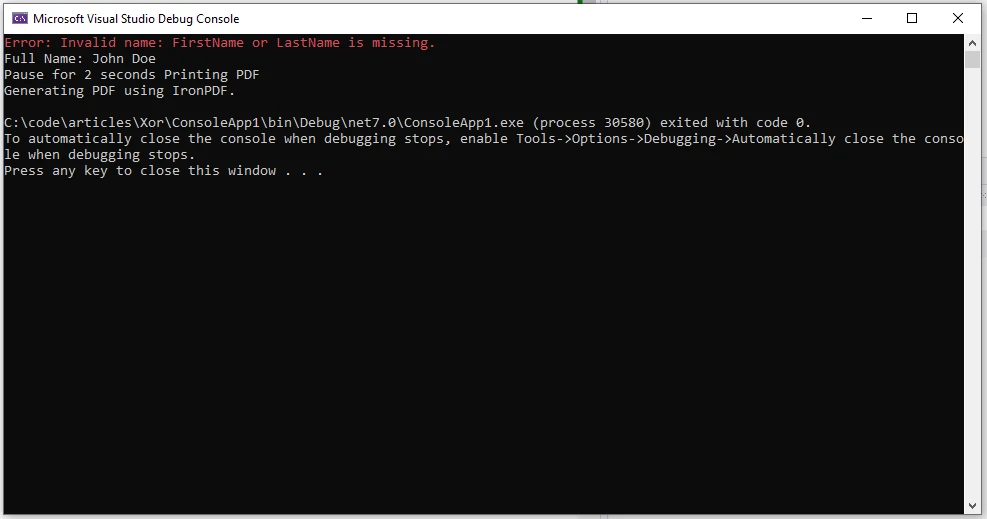
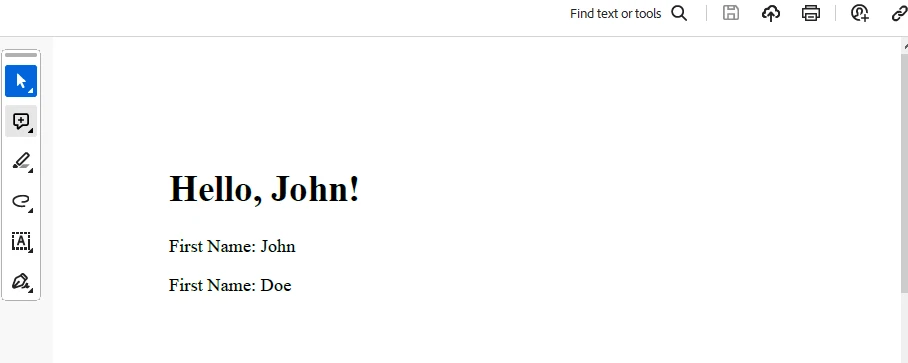
End Classこのプログラムでは、 Thread.Sleep とIronPDF の使用方法を説明します。 コードは最初に、人物の FirstName および LastName プロパティを検証します。 その後、コンソールにその人のフルネームを印刷します。 次に、Thread.Sleep を使用して 2 秒間待機し、その後、PrintPdf() メソッドとIronPDFライブラリを使用して、FullName を PDF に出力します。
出力
生成されたPDF
ライセンス (無料トライアル利用可能)
IronPDFを使用するには、このキーを appsettings.json ファイルに挿入します。
"IronPdf.LicenseKey": "your license key"試用ライセンスを受け取るには、メールアドレスを提供してください。 IronPDFのライセンスに関する詳細は、このIronPDFライセンスページをご覧ください.
結論
C# の Thread.Sleep() メソッドは、スレッドのタイミングと同期を管理するための基本的なツールとして機能します。 遅延を導入するためのシンプルで効果的な解決策である一方で、開発者はその制限とアプリケーションパフォーマンスに対する潜在的な影響に注意する必要があります。 最新の C# 開発が進化するにつれて、応答性に優れた効率的なマルチスレッド アプリケーションを作成するには、Task.Delay() や非同期プログラミングなどの代替アプローチを検討することが不可欠になります。 スレッドの同期の微妙な点を理解し、適切なツールを選択することで、開発者は動的な環境で同時処理の要求に応える堅固で効率的なソフトウェアを作成することができます。
さらに、PDF ドキュメントの生成におけるIronPDF の多様な機能と、それを Thread.Sleep メソッドでどのように使用できるかを確認しました。 IronPDFの使用方法に関する他の例についてはIronPDF例ページを訪問してください。
よくある質問
C# で Thread.Sleep() メソッドは何に使われますか?
C# の `Thread.Sleep()` メソッドは、現在のスレッドの実行を指定された時間だけ一時停止するために使用されます。これにより、リアルタイムのシナリオをシミュレートしたり、リソースの消費を管理したり、複数のスレッドを効果的に調整できます。IronPDF は、このメソッドと組み合わせて、特定の間隔での PDF ドキュメント生成のように、正確なタイミングを必要とするタスクを処理するのに役立ちます。
Thread.Sleep() メソッドはマルチスレッドアプリケーションにどのように影響を与えますか?
マルチスレッドアプリケーションでは、`Thread.Sleep()` メソッドを使用して、スレッドのタイミングと同期を制御するために、一時的に実行を停止させることができます。これにより、リソースの過剰使用を防ぎ、タスクの調整に役立ちます。IronPDF を使用する際、開発者は `Thread.Sleep()` を利用して、PDF 生成タスクのタイミングを効率的に管理できます。
現実世界のアプリケーションにおける Thread.Sleep() の使用例を教えてください。
現実世界の `Thread.Sleep()` のアプリケーションには、信号機のようなシステムのシミュレーションが含まれ、状態変更の間に遅延を作成するために使用されます。同様に、IronPDF を使用するアプリケーションでは、`Thread.Sleep()` を使用して PDF 生成タスクのタイミングを制御し、適切な間隔でドキュメントが作成されるようにします。
なぜ開発者は C# で Thread.Sleep() の代替手段を選択するのでしょうか?
開発者は、`Task.Delay()` や非同期/await パターンなどの `Thread.Sleep()` の代替手段を選択することがあります。これらの方法は現在のスレッドをブロックせず、応答性の向上と効率的なリソース管理を可能にします。IronPDF を使用する際、このような代替手段を使うことでアプリケーションのパフォーマンスを維持し、PDF 生成タスクを処理することができます。
TimeSpan クラスが Thread.Sleep() の使用をどのように強化できますか?
`TimeSpan` クラスは、スリープ時間を指定する方法をより読みやすく柔軟にすることで、`Thread.Sleep()` メソッドを強化できます。例えば、`TimeSpan.FromSeconds(5)` を使用するとコードがより直感的になります。このアプローチは、IronPDF を使用するアプリケーションで、特定の間隔で PDF ドキュメントを生成するような正確なタイミングが必要なタスクにおいて有益です。
Thread.Sleep() を使用する利点と欠点は何ですか?
`Thread.Sleep()` を使用する利点には、スレッドのタイミングと同期を制御するための簡便さと容易さがあります。しかし、欠点には、スレッドをブロックする可能性があり、それがアプリケーションの応答性を低下させたり、OS のスケジューリングによるタイミングの不正確さを招くことがあります。IronPDF のユーザーは、PDF 生成タスクにスレッドの遅延を統合する際に、これらの要因を考慮する必要があります。
Thread.Sleep() を使って信号機システムをシミュレートする方法は?
信号機システムをシミュレートする際には、`Thread.Sleep()` を使って、光の変化の間に遅延を導入します。例えば、赤で5秒、黄で2秒、緑で5秒停止するように設定します。このアプローチは、IronPDF を使用するアプリケーションにも適用可能で、開発者が PDF ドキュメント生成タスクのタイミングを効果的に管理できます。
IronPDF は C# アプリケーション内のスレッドタイミング管理でどのような役割を果たしますか?
IronPDF は、PDF 生成のような正確なタイミングと同期が求められるタスクを行うアプリケーションで使用できる C# PDF ライブラリです。`Thread.Sleep()` などのメソッドと統合することで、開発者は PDF に関連する操作のタイミングとシーケンスを制御し、効率的なマルチスレッドアプリケーションのパフォーマンスを確保します。



















 無料で始めましょう
 無料で始めましょう
 無料ライブデモを予約





 クレジットカードやアカウントの作成は不要です。










