using IronPdf;

// Disable local disk access or cross-origin requests
Installation.EnableWebSecurity = true;

// Instantiate Renderer
var renderer = new ChromePdfRenderer();

// Create a PDF from a HTML string using C#
var pdf = renderer.RenderHtmlAsPdf("<h1>Hello World</h1>");

// Export to a file or Stream
pdf.SaveAs("output.pdf");

// Advanced Example with HTML Assets
// Load external html assets: Images, CSS and JavaScript.
// An optional BasePath 'C:\site\assets\' is set as the file location to load assets from
var myAdvancedPdf = renderer.RenderHtmlAsPdf("<img src='icons/iron.png'>", @"C:\site\assets\");
myAdvancedPdf.SaveAs("html-with-assets.pdf");
using IronPdf;// Disable local disk access or cross-origin requestsInstallation.EnableWebSecurity = true;// Instantiate Renderervar renderer = new ChromePdfRenderer();// Create a PDF from a HTML string using C#var pdf = renderer.RenderHtmlAsPdf("<h1>Hello World</h1>");// Export to a file or Streampdf.SaveAs("output.pdf");// Advanced Example with HTML Assets// Load external html assets: Images, CSS and JavaScript.// An optional BasePath 'C:\site\assets\' is set as the file location to load assets fromvar myAdvancedPdf = renderer.RenderHtmlAsPdf("<img src='icons/iron.png'>", @"C:\site\assets\");myAdvancedPdf.SaveAs("html-with-assets.pdf");
IronPDF는 Chrome 기반 렌더링 엔진을 사용하여 C#에서 직관적인 API와 HTML-을 PDF로 변환하는 완전한 PDF 보기 기능을 제공하는 반면, PDFSharp는 텍스트 추출 및 보기 작업을 위한 복잡한 코드가 필요한 기본 오픈 소스 PDF 조작 기능을 제공합니다.
소프트웨어 개발에서, 다양한 형식의 데이터를 처리하는 것은 중요합니다. PDF(포터블 문서 형식)는 문서 공유를 위한 널리 사용되는 표준입니다. C# 프로그래밍에서, PDF 보기 기능은 전문 문서 작성 및 디지털 콘텐츠 관리에 필수적입니다. IronPDF 라이브러리는 PDF 생성 및 조작을 위한 완전한 도구를 제공합니다.
C#의 다재다능함은 다양한 영역 간 애플리케이션 개발을 위해 인기를 얻고 있습니다. PDF는 다양한 플랫폼에서 문서의 무결성과 일관된 표현을 보장합니다. 귀하의 응용프로그램에 PDF 보기 기능을 통합하면 사용자 경험을 개선할 수 있고, 워크플로를 간소화하며, 문서 처리에 대한 효율적인 솔루션을 제공할 수 있습니다. 스캔한 문서에서 텍스트 인식을 요구하는 애플리케이션의 경우, 보완적 OCR 솔루션이 귀하의 PDF 처리 기능을 향상시킬 수 있습니다. IronPDF 문서는 완벽한 구현 가이드를 제공합니다. 보안 문서를 다루는 경우, 적절한 PDF 처리가 필수적입니다.
이 기사는 C#을 사용하여 PDF를 보는 방법, 두 가지 라이브러리 - PDFSharp와 IronPDF - 를 소개하고, 설치 및 사용하는 방법에 대한 지침을 제공합니다. 라이브러리 선택에 영향을 미칠 아키텍처 차이점, 코드 복잡성 및 유지보수 고려 사항을 검사합니다. 문서 보안을 요구하는 환경에서는 이러한 차이를 이해하는 것이 중요합니다. IronPDF 데모는 실무 구현 예시를 제공하며, API 참조는 상세한 사양을 제공합니다.
PDFSharp는 무엇이며, PDF 보기 기능을 어떻게 처리합니까?
PDFSharp는 C#에서 PDF 조작을 위한 도구 모음을 제공하는 오픈 소스 라이브러리입니다. IronPDF의 Chrome 기반 렌더링 엔진과는 달리, PDFSharp는 기본 PDF 원시를 직접 제어하는 저수준 드로잉 모델로 작동합니다. 이 라이브러리는 PDF 문서 구조에 접근하고 조작할 수 있게 합니다. 그러나, IronPDF의 완전한 기능과 비교하여, PDFSharp는 일반적인 작업에 대해 훨씬 더 많은 수작업 코딩이 필요합니다.
PDFSharp는 이전 .NET Framework 버전을 대상으로 하며, 새로운 .NET 버전 및 클라우드 환경과의 호환성 문제에 직면할 수 있습니다. 라이브러리는 IronPDF의 자동 플랫폼 감지와 달리, 크로스 플랫폼 배포를 위해 수동 구성이 필요합니다. 메모리 사용 패턴은 다르며, PDFSharp는 복잡한 작업에 대해 더 많은 리소스를 소비할 수 있습니다. 고성능 시나리오에서 이러한 차이가 두드러집니다. IronPDF 성능 가이드는 PDFSharp에서 사용할 수 없는 최적화 전략을 제공합니다.
왜 PDFSharp 아키텍처가 성능에 영향을 미칩니까?
PDFSharp의 저수준 아키텍처는 더 많은 CPU 사이클을 요구하는 직접 PDF 객체 조작을 통해 성능에 영향을 미칩니다. 라이브러리는 배치 처리, 병렬 작업 또는 비동기 워크플로에 대한 최적화가 부족합니다. 텍스트 추출 성능은 수동 연산자 파싱으로 인해 복잡한 문서에서 저하됩니다. IronPDF의 Chrome 기반 엔진은 브라우저 최적화 기술을 활용하여 더 빠른 렌더링과 더 나은 메모리 효율성을 제공합니다. 비동기 작업의 경우, IronPDF의 아키텍처는 상당한 이점을 제공합니다.
PDF 뷰어로서 IronPDF가 더 나은 선택인 이유는 무엇인가요?
IronPDF는 PDF 조작을 쉽게 처리할 수 있는 기능이 풍부한 라이브러리입니다. 단순성과 다재다능함을 염두에 두고 설계된 IronPDF는 응용 프로그램 내에서 PDF 문서를 생성, 편집 및 읽을 수 있게 해줍니다. 기본 기능을 넘어, IronPDF는 HTML을 PDF로 변환, 다양한 이미지 포맷 지원, PDF 작업을 효율적으로 처리하는 등의 고급 기능을 제공합니다. 라이브러리는 PDF 보고서 생성과 다양한 파일 포맷 변환에 뛰어납니다.
IronPDF의 아키텍처 기반은 Chrome 렌더링 엔진을 사용하여 웹 콘텐츠의 픽셀 정확한 렌더링을 보장합니다. 이 접근 방식은 폰트 관리, JavaScript 처리, UTF-8 문자 지원과 같은 일반적인 작업을 단순화합니다. 라이브러리는 선형화, PDF 압축, 디지털 서명, 주석을 지원합니다.
IronPDF는 메타 데이터 추출 및 비동기 작업을 지원하여 PDF를 처리하고 데이터를 포맷합니다. Blazor 응용 프로그램의 경우, IronPDF는 부드러운 통합을 제공합니다.
프로젝트에 IronPDF를 어떻게 설치하나요?
NuGet 패키지 관리자 또는 패키지 관리자 콘솔을 사용하여 IronPDF를 설치하세요:
PM > Install-Package IronPdf
Install-Package IronPdf
이 명령은 IronPDF와 그 종속성을 설치합니다. Docker 배포 또는 Linux 환경을 위한 경우 추가 패키지가 필요할 수 있습니다. 빠른 시작 가이드는 설정 지침을 제공합니다.
IronPDF의 API 설계가 우수한 이유는 무엇인가요?
IronPDF의 API는 최신 .NET 패턴을 따르며 유창한 인터페이스와 비동기 지원을 제공합니다. 라이브러리는 직관적인 메서드 이름과 완전한 IntelliSense 문서를 제공합니다. 오류 메시지는 실행 가능한 솔루션을 제공하여 개발 속도를 높입니다. API 참조는 완전한 메서드 세부 정보를 제공합니다.
언제 IronPDF의 Chrome 렌더링 엔진을 사용해야 하나요?
IronPDF의 Chrome 엔진은 반응형 HTML 레이아웃 변환, JavaScript 콘텐츠 렌더링, 최신 CSS 디자인 처리에 사용하세요. 엔진은 웹 폰트, SVG 그래픽, 캔버스 요소를 자동으로 처리합니다. HTML 템플릿에서 인보이스를 생성하거나 시각화가 있는 보고서를 만드는 데 이상적입니다. WebGL 콘텐츠 렌더링의 경우, 엔진은 GPU 가속을 제공합니다.
PDFSharp를 사용하여 PDF 내용을 어떻게 볼 수 있습니까?
이 섹션에서는 PDFSharp를 사용하여 PDF 파일을 보는 방법을 시연합니다. PDFSharp에서는 IronPDF의 간단한 메서드와 달리 저수준 특성으로 인해 텍스트 추출이 복잡합니다:
using System;using System.Text;using PdfSharp.Pdf;using PdfSharp.Pdf.IO;using PdfSharp.Pdf.Content;using PdfSharp.Pdf.Content.Objects;class Program{ static voidMain() { // Specify the path to the PDF file string pdfFilePath = "output.pdf"; // Open the PDF document in import mode // Note: PDFsharp requires specific open modes for different operations PdfDocument document = PdfReader.Open(pdfFilePath, PdfDocumentOpenMode.Import); // Create StringBuilder for extracted text // This approach is less efficient than IronPDF's built-in methods StringBuilder extractedText = new StringBuilder(); // Iterate through each page of the document for (int pageIndex = 0; pageIndex < document.PageCount; pageIndex++) { // Get the current page PdfPage page = document.Pages[pageIndex]; // Extract text using content reader (simplified approach) // Real implementation requires extensive operator parsing CObject content = ContentReader.ReadContent(page); // Parse content objects to extract text // This is where PDFsharp becomes significantly complexExtractText(content, extractedText); // Note: Actual text extraction requires parsing operators // This is a simplified representationConsole.WriteLine($"Page {pageIndex + 1} processed"); }Console.WriteLine("Extracted Text: " + extractedText.ToString());Console.ReadLine(); // Wait for user input before closing the console } static voidExtractText(CObject content, StringBuilder text) { // PDFsharp requires manual parsing of content streams // This is significantly more complex than shown here // Real implementation would need to handle: // - Text operators (Tj, TJ, ', ", etc.) // - Font encoding and character mapping // - Text positioning and transformation matrices // - Unicode mapping and glyph substitution // - Whitespace detection and word boundaries if (content is CArray array) { foreach (var item in array) {ExtractText(item, text); } } else if (content is CString str) { // Simplified text extraction - real implementation needs encoding handling text.Append(str.Value); } // Additional operators would need handling for complete extraction }}
using System;
using System.Text;
using PdfSharp.Pdf;
using PdfSharp.Pdf.IO;
using PdfSharp.Pdf.Content;
using PdfSharp.Pdf.Content.Objects;

class Program
{
    static void Main()
    {
        // Specify the path to the PDF file
        string pdfFilePath = "output.pdf";

        // Open the PDF document in import mode
        // Note: PDFsharp requires specific open modes for different operations
        PdfDocument document = PdfReader.Open(pdfFilePath, PdfDocumentOpenMode.Import);

        // Create StringBuilder for extracted text
        // This approach is less efficient than IronPDF's built-in methods
        StringBuilder extractedText = new StringBuilder();

        // Iterate through each page of the document
        for (int pageIndex = 0; pageIndex < document.PageCount; pageIndex++)
        {
            // Get the current page
            PdfPage page = document.Pages[pageIndex];

            // Extract text using content reader (simplified approach)
            // Real implementation requires extensive operator parsing
            CObject content = ContentReader.ReadContent(page);

            // Parse content objects to extract text
            // This is where PDFsharp becomes significantly complex
            ExtractText(content, extractedText);

            // Note: Actual text extraction requires parsing operators
            // This is a simplified representation
            Console.WriteLine($"Page {pageIndex + 1} processed");
        }

        Console.WriteLine("Extracted Text: " + extractedText.ToString());
        Console.ReadLine(); // Wait for user input before closing the console
    }

    static void ExtractText(CObject content, StringBuilder text)
    {
        // PDFsharp requires manual parsing of content streams
        // This is significantly more complex than shown here
        // Real implementation would need to handle:
        // - Text operators (Tj, TJ, ', ", etc.)
        // - Font encoding and character mapping
        // - Text positioning and transformation matrices
        // - Unicode mapping and glyph substitution
        // - Whitespace detection and word boundaries

        if (content is CArray array)
        {
            foreach (var item in array)
            {
                ExtractText(item, text);
            }
        }
        else if (content is CString str)
        {
            // Simplified text extraction - real implementation needs encoding handling
            text.Append(str.Value);
        }
        // Additional operators would need handling for complete extraction
    }
}
ImportsSystemImportsSystem.TextImportsPdfSharp.PdfImportsPdfSharp.Pdf.IOImportsPdfSharp.Pdf.ContentImportsPdfSharp.Pdf.Content.ObjectsModuleProgram Sub Main() ' Specify the path to the PDF file Dim pdfFilePath AsString = "output.pdf" ' Open the PDF document in import mode ' Note: PDFsharp requires specific open modes for different operations Dim document AsPdfDocument = PdfReader.Open(pdfFilePath, PdfDocumentOpenMode.Import) ' Create StringBuilder for extracted text ' This approach is less efficient than IronPDF's built-in methods Dim extractedText As New StringBuilder() ' Iterate through each page of the document For pageIndex AsInteger = 0 To document.PageCount - 1 ' Get the current page Dim page AsPdfPage = document.Pages(pageIndex) ' Extract text using content reader (simplified approach) ' Real implementation requires extensive operator parsing Dim content AsCObject = ContentReader.ReadContent(page) ' Parse content objects to extract text ' This is where PDFsharp becomes significantly complexExtractText(content, extractedText) ' Note: Actual text extraction requires parsing operators ' This is a simplified representationConsole.WriteLine($"Page {pageIndex + 1} processed") NextConsole.WriteLine("Extracted Text: " & extractedText.ToString())Console.ReadLine() ' Wait for user input before closing the console End Sub Sub ExtractText(content AsCObject, text AsStringBuilder) ' PDFsharp requires manual parsing of content streams ' This is significantly more complex than shown here ' Real implementation would need to handle: ' - Text operators (Tj, TJ, ', ", etc.) ' - Font encoding and character mapping ' - Text positioning and transformation matrices ' - Unicode mapping and glyph substitution ' - Whitespace detection and word boundaries IfTypeOf content IsCArrayThen For Each item InDirectCast(content, CArray)ExtractText(item, text) Next ElseIfTypeOf content IsCStringThen ' Simplified text extraction - real implementation needs encoding handling text.Append(DirectCast(content, CString).Value) End If ' Additional operators would need handling for complete extraction End SubEndModule
Imports System
Imports System.Text
Imports PdfSharp.Pdf
Imports PdfSharp.Pdf.IO
Imports PdfSharp.Pdf.Content
Imports PdfSharp.Pdf.Content.Objects

Module Program
    Sub Main()
        ' Specify the path to the PDF file
        Dim pdfFilePath As String = "output.pdf"

        ' Open the PDF document in import mode
        ' Note: PDFsharp requires specific open modes for different operations
        Dim document As PdfDocument = PdfReader.Open(pdfFilePath, PdfDocumentOpenMode.Import)

        ' Create StringBuilder for extracted text
        ' This approach is less efficient than IronPDF's built-in methods
        Dim extractedText As New StringBuilder()

        ' Iterate through each page of the document
        For pageIndex As Integer = 0 To document.PageCount - 1
            ' Get the current page
            Dim page As PdfPage = document.Pages(pageIndex)

            ' Extract text using content reader (simplified approach)
            ' Real implementation requires extensive operator parsing
            Dim content As CObject = ContentReader.ReadContent(page)

            ' Parse content objects to extract text
            ' This is where PDFsharp becomes significantly complex
            ExtractText(content, extractedText)

            ' Note: Actual text extraction requires parsing operators
            ' This is a simplified representation
            Console.WriteLine($"Page {pageIndex + 1} processed")
        Next

        Console.WriteLine("Extracted Text: " & extractedText.ToString())
        Console.ReadLine() ' Wait for user input before closing the console
    End Sub

    Sub ExtractText(content As CObject, text As StringBuilder)
        ' PDFsharp requires manual parsing of content streams
        ' This is significantly more complex than shown here
        ' Real implementation would need to handle:
        ' - Text operators (Tj, TJ, ', ", etc.)
        ' - Font encoding and character mapping
        ' - Text positioning and transformation matrices
        ' - Unicode mapping and glyph substitution
        ' - Whitespace detection and word boundaries

        If TypeOf content Is CArray Then
            For Each item In DirectCast(content, CArray)
                ExtractText(item, text)
            Next
        ElseIf TypeOf content Is CString Then
            ' Simplified text extraction - real implementation needs encoding handling
            text.Append(DirectCast(content, CString).Value)
        End If
        ' Additional operators would need handling for complete extraction
    End Sub
End Module
이 코드는 PDFSharp를 사용하여 PDF 파일에서 텍스트를 읽고 추출합니다. 프로그램은 '"output.pdf"'를 가져오기 모드에서 열고, 페이지를 반복하여 내용을 추출합니다. IronPDF의 직선적인 API와 다르게, 이 접근 방식은 PDF 내부를 이해해야 합니다. IronPDF 텍스트 추출 예제는 더 간단한 접근 방식을 보여줍니다.
왜 PDFSharp 텍스트 추출이 더 복잡합니까?
PDFSharp의 복잡성은 저수준 접근 방식에서 기인합니다. IronPDF의 고수준 API와 달리, PDFSharp는 PDF 내부 구조를 이해하고 명령어, 인코딩 및 콘텐츠 스트림을 포함하는 지식을 요구합니다:
// PDFsharp: Complex font handling and text positioningPdfDocument document = new PdfDocument();PdfPage page = document.AddPage();XGraphics gfx = XGraphics.FromPdfPage(page);// Must manually specify fonts and handle font embeddingXFont font = new XFont("Arial", 12, XFontStyle.Regular);// Manual text positioning with exact coordinatesgfx.DrawString("Hello World", font, XBrushes.Black, new XRect(0, 0, page.Width, page.Height),XStringFormats.Center);// Must handle coordinate transformations manuallygfx.TranslateTransform(100, 200);gfx.RotateTransform(45);gfx.DrawString("Rotated Text", font, XBrushes.Red, 0, 0);// IronPDF: Simple HTML approach with CSS stylingvar renderer = new ChromePdfRenderer();var doc = renderer.RenderHtmlAsPdf(@" <h1 style='text-align: center;'>Hello World</h1> <p style='transform: rotate(45deg); margin-left: 100px; margin-top: 200px; color: red;'> Rotated Text </p>");// IronPDF automatically handles fonts, positioning, and transformations
// PDFsharp: Complex font handling and text positioning
PdfDocument document = new PdfDocument();
PdfPage page = document.AddPage();
XGraphics gfx = XGraphics.FromPdfPage(page);

// Must manually specify fonts and handle font embedding
XFont font = new XFont("Arial", 12, XFontStyle.Regular);

// Manual text positioning with exact coordinates
gfx.DrawString("Hello World", font, XBrushes.Black,
    new XRect(0, 0, page.Width, page.Height),
    XStringFormats.Center);

// Must handle coordinate transformations manually
gfx.TranslateTransform(100, 200);
gfx.RotateTransform(45);
gfx.DrawString("Rotated Text", font, XBrushes.Red, 0, 0);

// IronPDF: Simple HTML approach with CSS styling
var renderer = new ChromePdfRenderer();
var doc = renderer.RenderHtmlAsPdf(@"
    <h1 style='text-align: center;'>Hello World</h1>
    <p style='transform: rotate(45deg); margin-left: 100px; margin-top: 200px; color: red;'>
        Rotated Text
    </p>");

// IronPDF automatically handles fonts, positioning, and transformations
' PDFsharp: Complex font handling and text positioningDim document As New PdfDocument()Dim page AsPdfPage = document.AddPage()Dim gfx AsXGraphics = XGraphics.FromPdfPage(page)' Must manually specify fonts and handle font embeddingDim font As New XFont("Arial", 12, XFontStyle.Regular)' Manual text positioning with exact coordinatesgfx.DrawString("Hello World", font, XBrushes.Black, New XRect(0, 0, page.Width, page.Height), XStringFormats.Center)' Must handle coordinate transformations manuallygfx.TranslateTransform(100, 200)gfx.RotateTransform(45)gfx.DrawString("Rotated Text", font, XBrushes.Red, 0, 0)' IronPDF: Simple HTML approach with CSS stylingDim renderer As New ChromePdfRenderer()Dim doc = renderer.RenderHtmlAsPdf(" <h1 style='text-align: center;'>Hello World</h1> <p style='transform: rotate(45deg); margin-left: 100px; margin-top: 200px; color: red;'> Rotated Text </p>")' IronPDF automatically handles fonts, positioning, and transformations
' PDFsharp: Complex font handling and text positioning
Dim document As New PdfDocument()
Dim page As PdfPage = document.AddPage()
Dim gfx As XGraphics = XGraphics.FromPdfPage(page)

' Must manually specify fonts and handle font embedding
Dim font As New XFont("Arial", 12, XFontStyle.Regular)

' Manual text positioning with exact coordinates
gfx.DrawString("Hello World", font, XBrushes.Black, New XRect(0, 0, page.Width, page.Height), XStringFormats.Center)

' Must handle coordinate transformations manually
gfx.TranslateTransform(100, 200)
gfx.RotateTransform(45)
gfx.DrawString("Rotated Text", font, XBrushes.Red, 0, 0)

' IronPDF: Simple HTML approach with CSS styling
Dim renderer As New ChromePdfRenderer()
Dim doc = renderer.RenderHtmlAsPdf("
    <h1 style='text-align: center;'>Hello World</h1>
    <p style='transform: rotate(45deg); margin-left: 100px; margin-top: 200px; color: red;'>
        Rotated Text
    </p>")

' IronPDF automatically handles fonts, positioning, and transformations
이러한 아키텍처 차이는 유지보수에 큰 영향을 미칩니다. PDFSharp는 워터마크 추가 및 페이지 방향 관리와 같은 일반 작업에 대해 더 많은 보일러 플레이트 코드가 필요합니다.
PDFSharp를 사용하여 PDF를 볼때의 제한 사항은 무엇입니까?
PDFSharp의 제한 사항은 현대의 PDF 요구 사항을 다룰 때 명확해집니다:
HTML을 PDF로 변환하지 못함: HTML을 직접 변환할 수 없습니다.
복잡한 텍스트 추출: PDF 연산자 이해가 필요
제한된 이미지 지원: 수동으로 크기 조정 및 위치 지정 필요
내장 OCR 없음: OCR 기능이 부족
고급 기능 누락: 디지털 서명 또는 PDF/A 준수 없음
PDFSharp는 메모리 및 성능을 어떻게 처리합니까?
PDFSharp는 전체 PDF를 메모리에 로드하여 큰 파일의 경우 문제를 일으킬 가능성이 있습니다. 스트림 처리가 완전히 지원되지 않아 확장성이 제한됩니다. IronPDF의 향상된 렌더링 파이프라인과 달리, PDFSharp는 내장된 캐싱 메커니즘이 없습니다. 성능 최적화 가이드는 PDFSharp에서 제공되지 않는 전략을 제공합니다.
IronPDF는 C#에서 PDF 보기를 어떻게 간소화합니까?
IronPDF로 PDF를 보는 것은 코드 몇 줄만 필요합니다. 라이브러리는 기본 URL 및 자산 인코딩을 자동으로 관리합니다:
using IronPdf;using System;using System.Collections.Generic;class Program{ static voidMain() { // Load the PDF document with error handling var pdf = PdfDocument.FromFile("output.pdf"); // Extract all the text content from the PDF string text = pdf.ExtractAllText(); // Print the extracted text to the consoleConsole.WriteLine("Full document text:");Console.WriteLine(text); // Additional extraction options demonstrating IronPDF's versatility // Extract text from specific pages with formatting preserved string pageText = pdf.ExtractTextFromPage(0);Console.WriteLine($"\nPage 1 text: {pageText}"); // Extract all images and save them var images = pdf.ExtractAllImages(); for (int i = 0; i < images.Count; i++) { images[i].SaveAs($"extracted_image_{i}.png"); } // Access complete metadata string author = pdf.MetaData.Author; string title = pdf.MetaData.Title; string subject = pdf.MetaData.Subject; DateTime creationDate = pdf.MetaData.CreationDate;Console.WriteLine($"\nDocument Info:");Console.WriteLine($"Title: {title}");Console.WriteLine($"Author: {author}");Console.WriteLine($"Created: {creationDate}"); // Search for specific text var searchResults = pdf.Search("invoice"); foreach (var result in searchResults) {Console.WriteLine($"Found '{result.Text}' on page {result.PageIndex}"); } // Extract form field data var form = pdf.Form; foreach (var field in form.Fields) {Console.WriteLine($"Field: {field.Name} = {field.Value}"); } }}
using IronPdf;
using System;
using System.Collections.Generic;

class Program
{
    static void Main()
    {
        // Load the PDF document with error handling
        var pdf = PdfDocument.FromFile("output.pdf");

        // Extract all the text content from the PDF
        string text = pdf.ExtractAllText();

        // Print the extracted text to the console
        Console.WriteLine("Full document text:");
        Console.WriteLine(text);

        // Additional extraction options demonstrating IronPDF's versatility

        // Extract text from specific pages with formatting preserved
        string pageText = pdf.ExtractTextFromPage(0);
        Console.WriteLine($"\nPage 1 text: {pageText}");

        // Extract all images and save them
        var images = pdf.ExtractAllImages();
        for (int i = 0; i < images.Count; i++)
        {
            images[i].SaveAs($"extracted_image_{i}.png");
        }

        // Access complete metadata
        string author = pdf.MetaData.Author;
        string title = pdf.MetaData.Title;
        string subject = pdf.MetaData.Subject;
        DateTime creationDate = pdf.MetaData.CreationDate;

        Console.WriteLine($"\nDocument Info:");
        Console.WriteLine($"Title: {title}");
        Console.WriteLine($"Author: {author}");
        Console.WriteLine($"Created: {creationDate}");

        // Search for specific text
        var searchResults = pdf.Search("invoice");
        foreach (var result in searchResults)
        {
            Console.WriteLine($"Found '{result.Text}' on page {result.PageIndex}");
        }

        // Extract form field data
        var form = pdf.Form;
        foreach (var field in form.Fields)
        {
            Console.WriteLine($"Field: {field.Name} = {field.Value}");
        }
    }
}
ImportsIronPdfImportsSystemImportsSystem.Collections.GenericClass ProgramShared Sub Main() ' Load the PDF document with error handling Dim pdf = PdfDocument.FromFile("output.pdf") ' Extract all the text content from the PDF Dim text AsString = pdf.ExtractAllText() ' Print the extracted text to the consoleConsole.WriteLine("Full document text:")Console.WriteLine(text) ' Additional extraction options demonstrating IronPDF's versatility ' Extract text from specific pages with formatting preserved Dim pageText AsString = pdf.ExtractTextFromPage(0)Console.WriteLine(vbCrLf & "Page 1 text: " & pageText) ' Extract all images and save them Dim images = pdf.ExtractAllImages() For i AsInteger = 0 To images.Count - 1 images(i).SaveAs($"extracted_image_{i}.png") Next ' Access complete metadata Dim author AsString = pdf.MetaData.Author Dim title AsString = pdf.MetaData.Title Dim subject AsString = pdf.MetaData.Subject Dim creationDate AsDateTime = pdf.MetaData.CreationDateConsole.WriteLine(vbCrLf & "Document Info:")Console.WriteLine("Title: " & title)Console.WriteLine("Author: " & author)Console.WriteLine("Created: " & creationDate) ' Search for specific text Dim searchResults = pdf.Search("invoice") For Each result In searchResultsConsole.WriteLine($"Found '{result.Text}' on page {result.PageIndex}") Next ' Extract form field data Dim form = pdf.Form For Each field Inform.FieldsConsole.WriteLine($"Field: {field.Name} = {field.Value}") Next End SubEnd Class
Imports IronPdf
Imports System
Imports System.Collections.Generic

Class Program
    Shared Sub Main()
        ' Load the PDF document with error handling
        Dim pdf = PdfDocument.FromFile("output.pdf")

        ' Extract all the text content from the PDF
        Dim text As String = pdf.ExtractAllText()

        ' Print the extracted text to the console
        Console.WriteLine("Full document text:")
        Console.WriteLine(text)

        ' Additional extraction options demonstrating IronPDF's versatility

        ' Extract text from specific pages with formatting preserved
        Dim pageText As String = pdf.ExtractTextFromPage(0)
        Console.WriteLine(vbCrLf & "Page 1 text: " & pageText)

        ' Extract all images and save them
        Dim images = pdf.ExtractAllImages()
        For i As Integer = 0 To images.Count - 1
            images(i).SaveAs($"extracted_image_{i}.png")
        Next

        ' Access complete metadata
        Dim author As String = pdf.MetaData.Author
        Dim title As String = pdf.MetaData.Title
        Dim subject As String = pdf.MetaData.Subject
        Dim creationDate As DateTime = pdf.MetaData.CreationDate

        Console.WriteLine(vbCrLf & "Document Info:")
        Console.WriteLine("Title: " & title)
        Console.WriteLine("Author: " & author)
        Console.WriteLine("Created: " & creationDate)

        ' Search for specific text
        Dim searchResults = pdf.Search("invoice")
        For Each result In searchResults
            Console.WriteLine($"Found '{result.Text}' on page {result.PageIndex}")
        Next

        ' Extract form field data
        Dim form = pdf.Form
        For Each field In form.Fields
            Console.WriteLine($"Field: {field.Name} = {field.Value}")
        Next
    End Sub
End Class
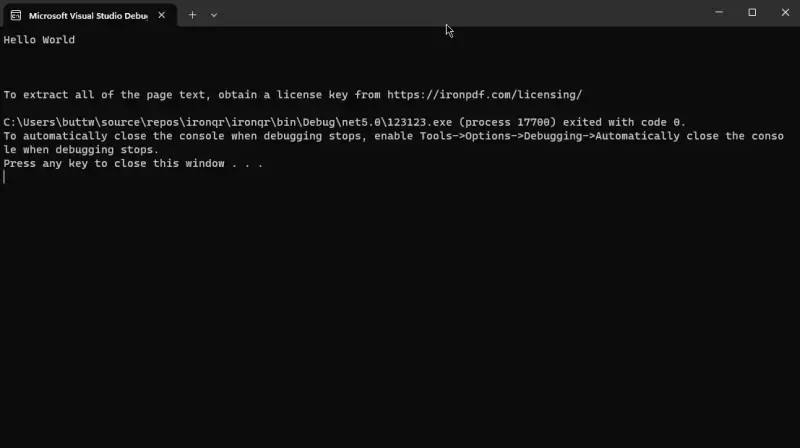
이 코드는 IronPDF를 사용하여 "output.pdf"에서 ExtractAllText 메서드를 사용하여 텍스트를 추출합니다. 구현은 PDF의 복잡성을 자동으로 처리하여 PDFSharp가 필요한 수동 파싱에 비해 명확한 이점을 제공하며, 애플리케이션은 PDF 내부 구조를 이해하지 않고도 이 기능을 즉시 사용할 수 있습니다. 완전한 튜토리얼은 추가적인 예제를 제공합니다.
IronPDF는 어떤 고급 PDF 보기 기능을 제공합니까?
IronPDF는 PDF 분석을 위한 완전한 도구를 제공합니다:
// Advanced PDF analysis with IronPDFvar pdf = PdfDocument.FromFile("complex-document.pdf");// Extract structured content with detailed informationforeach (var page in pdf.Pages){ // Get page dimensions for layout analysis var width = page.Width; var height = page.Height; var rotation = page.Rotation; // Extract form fields with type information var formFields = page.GetFormFields(); foreach (var field in formFields) {Console.WriteLine($"Field: {field.Name}, Type: {field.Type}, Value: {field.Value}"); } // Extract annotations with properties var annotations = page.GetAnnotations(); foreach (var annotation in annotations) {Console.WriteLine($"Annotation: {annotation.Title} - {annotation.Content}"); } // Extract hyperlinks with destinations var links = page.GetLinks(); foreach (var link in links) {Console.WriteLine($"Link: {link.Text} -> {link.Url}"); }}// Advanced search functionality with contextvar searchResults = pdf.Search("invoice", SearchOptions.CaseInsensitive | SearchOptions.WholeWord);foreach (var result in searchResults){Console.WriteLine($"Found on page {result.PageIndex} at position {result.Position}: {result.Text}"); // Get surrounding text for context string context = pdf.ExtractTextFromPage(result.PageIndex) .Substring(Math.Max(0, result.Position - 50), 100);Console.WriteLine($"Context: ...{context}...");}// Extract tables as structured datavar tables = pdf.ExtractTables();foreach (var table in tables){ for (int row = 0; row < table.RowCount; row++) { for (int col = 0; col < table.ColumnCount; col++) {Console.Write($"{table[row, col]}\t"); }Console.WriteLine(); }}
// Advanced PDF analysis with IronPDF
var pdf = PdfDocument.FromFile("complex-document.pdf");

// Extract structured content with detailed information
foreach (var page in pdf.Pages)
{
    // Get page dimensions for layout analysis
    var width = page.Width;
    var height = page.Height;
    var rotation = page.Rotation;

    // Extract form fields with type information
    var formFields = page.GetFormFields();
    foreach (var field in formFields)
    {
        Console.WriteLine($"Field: {field.Name}, Type: {field.Type}, Value: {field.Value}");
    }

    // Extract annotations with properties
    var annotations = page.GetAnnotations();
    foreach (var annotation in annotations)
    {
        Console.WriteLine($"Annotation: {annotation.Title} - {annotation.Content}");
    }

    // Extract hyperlinks with destinations
    var links = page.GetLinks();
    foreach (var link in links)
    {
        Console.WriteLine($"Link: {link.Text} -> {link.Url}");
    }
}

// Advanced search functionality with context
var searchResults = pdf.Search("invoice", SearchOptions.CaseInsensitive | SearchOptions.WholeWord);
foreach (var result in searchResults)
{
    Console.WriteLine($"Found on page {result.PageIndex} at position {result.Position}: {result.Text}");
    // Get surrounding text for context
    string context = pdf.ExtractTextFromPage(result.PageIndex)
        .Substring(Math.Max(0, result.Position - 50), 100);
    Console.WriteLine($"Context: ...{context}...");
}

// Extract tables as structured data
var tables = pdf.ExtractTables();
foreach (var table in tables)
{
    for (int row = 0; row < table.RowCount; row++)
    {
        for (int col = 0; col < table.ColumnCount; col++)
        {
            Console.Write($"{table[row, col]}\t");
        }
        Console.WriteLine();
    }
}
' Advanced PDF analysis with IronPDFDim pdf = PdfDocument.FromFile("complex-document.pdf")' Extract structured content with detailed informationFor Each page In pdf.Pages ' Get page dimensions for layout analysis Dim width = page.Width Dim height = page.Height Dim rotation = page.Rotation ' Extract form fields with type information Dim formFields = page.GetFormFields() For Each field In formFieldsConsole.WriteLine($"Field: {field.Name}, Type: {field.Type}, Value: {field.Value}") Next ' Extract annotations with properties Dim annotations = page.GetAnnotations() For Each annotation In annotationsConsole.WriteLine($"Annotation: {annotation.Title} - {annotation.Content}") Next ' Extract hyperlinks with destinations Dim links = page.GetLinks() For Each link In linksConsole.WriteLine($"Link: {link.Text} -> {link.Url}") NextNext' Advanced search functionality with contextDim searchResults = pdf.Search("invoice", SearchOptions.CaseInsensitiveOrSearchOptions.WholeWord)For Each result In searchResultsConsole.WriteLine($"Found on page {result.PageIndex} at position {result.Position}: {result.Text}") ' Get surrounding text for context Dim context AsString = pdf.ExtractTextFromPage(result.PageIndex).Substring(Math.Max(0, result.Position - 50), 100)Console.WriteLine($"Context: ...{context}...")Next' Extract tables as structured dataDim tables = pdf.ExtractTables()For Each table In tables For row AsInteger = 0 To table.RowCount - 1 For col AsInteger = 0 To table.ColumnCount - 1Console.Write($"{table(row, col)}" & vbTab) NextConsole.WriteLine() NextNext
' Advanced PDF analysis with IronPDF
Dim pdf = PdfDocument.FromFile("complex-document.pdf")

' Extract structured content with detailed information
For Each page In pdf.Pages
    ' Get page dimensions for layout analysis
    Dim width = page.Width
    Dim height = page.Height
    Dim rotation = page.Rotation

    ' Extract form fields with type information
    Dim formFields = page.GetFormFields()
    For Each field In formFields
        Console.WriteLine($"Field: {field.Name}, Type: {field.Type}, Value: {field.Value}")
    Next

    ' Extract annotations with properties
    Dim annotations = page.GetAnnotations()
    For Each annotation In annotations
        Console.WriteLine($"Annotation: {annotation.Title} - {annotation.Content}")
    Next

    ' Extract hyperlinks with destinations
    Dim links = page.GetLinks()
    For Each link In links
        Console.WriteLine($"Link: {link.Text} -> {link.Url}")
    Next
Next

' Advanced search functionality with context
Dim searchResults = pdf.Search("invoice", SearchOptions.CaseInsensitive Or SearchOptions.WholeWord)
For Each result In searchResults
    Console.WriteLine($"Found on page {result.PageIndex} at position {result.Position}: {result.Text}")
    ' Get surrounding text for context
    Dim context As String = pdf.ExtractTextFromPage(result.PageIndex).Substring(Math.Max(0, result.Position - 50), 100)
    Console.WriteLine($"Context: ...{context}...")
Next

' Extract tables as structured data
Dim tables = pdf.ExtractTables()
For Each table In tables
    For row As Integer = 0 To table.RowCount - 1
        For col As Integer = 0 To table.ColumnCount - 1
            Console.Write($"{table(row, col)}" & vbTab)
        Next
        Console.WriteLine()
    Next
Next
IronPDF는 내장된 최적화를 통해 Enterprise 규모의 처리에 뛰어납니다. 라이브러리는 병렬 처리, 일괄 처리 및 메모리 효율적인 스트리밍을 지원합니다. 비동기 메서드는 웹 애플리케이션에서 비차단 작업을 가능하게 합니다. IronPDF의 Chrome 엔진은 동시 요청을 효율적으로 처리하여 마이크로서비스 및 서버리스 기능에 적합합니다.
내 C# 프로젝트에 어떤 PDF 라이브러리를 선택해야 할까요?
PDFSharp와 IronPDF 모두 다양한 솔루션을 찾는 개발자를 위한 기능을 제공합니다. PDFSharp는 기본 PDF 작업에 적합한 경량 도구 모음을 제공합니다. 반면, IronPDF는 전체적인 PDF 작업을 위해 설계되었습니다. 고급 기능들은 정교한 PDF 기능에 효과적입니다.
이 접근 방식은 기존의 HTML/CSS 기술을 사용하고 관심사를 분리함으로써 명확한 이점을 제공합니다. 라이브러리는 완전한 API를 통해 복잡성을 관리합니다.
두 라이브러리가 모두 장점을 가지고 있지만, IronPDF는 광범위한 기능과 단순함으로 두드러집니다. 성능 벤치마크는 IronPDF가 대용량 문서를 효율적으로 처리하는 것을 보여줍니다. 장기적인 유지 관리를 우선시하는 팀을 위해 IronPDF는 완벽한 문서, 전문 지원 및 광범위한 코드 예제를 제공합니다.
IronPDF는 개발 사용에 무료이며, 고급 기능 탐색을 위한 무료 체험판을 포함합니다. PDF 콘텐츠 보기 학습에 대한 자세한 내용은 텍스트 및 이미지 추출 가이드를 참조하세요. 추가 예시는 IronPDF HTML to PDF 코드 예제를 참조하세요. 귀하의 애플리케이션은 IronPDF의 현대적 아키텍처와 완전한 기능을 즉시 활용할 수 있습니다.
참고해 주세요: PDFSharp는 해당 소유자의 등록 상표입니다. 이 사이트는 PDFSharp와 관련이 없으며, PDFSharp의 지지나 후원을 받지 않습니다. 모든 제품 이름, 로고 및 브랜드는 각각의 소유자의 자산입니다. 비교는 정보 제공 목적으로만 사용되며, 작성 시점에 공개적으로 이용 가능한 정보를 반영합니다.
커티스 차우는 칼턴 대학교에서 컴퓨터 과학 학사 학위를 취득했으며, Node.js, TypeScript, JavaScript, React를 전문으로 하는 프론트엔드 개발자입니다. 직관적이고 미적으로 뛰어난 사용자 인터페이스를 만드는 데 열정을 가진 그는 최신 프레임워크를 활용하고, 잘 구성되고 시각적으로 매력적인 매뉴얼을 제작하는 것을 즐깁니다.