


如何在Mac和Windows上將網頁保存為PDF文件

IronPDF在C#中提供了完整的PDF查看功能,其直觀的API以及使用基於Chrome的渲染引擎進行HTML到PDF的轉換,而PDFSharp則提供基本的開源PDF操作,需大量複雜程式碼才能完成文字抽取和查看任務。
在軟體開發中,以各種格式處理資料是至關重要的。 PDF(可攜式文件格式)是一個廣泛使用的文件共享標準。 在C#程式設計中,查看PDF對於建立專業文件以及管理數位內容是必需的。 IronPDF程式庫提供完整的PDF生成和操作工具。
C#的多功能性使其在不同領域開發應用程式時非常受歡迎。 PDF確保文件完整性以及在各個平台上一致的呈現效果。 將PDF查看功能整合到您的應用程式中,能讓您改善使用者體驗、簡化工作流程,並提供有效的文件處理解決方案。 對於需要從掃描文件中提取文字的應用程式,補充的OCR解決方案可以提升您的PDF處理能力。 IronPDF文件提供完整的實施指南。 在處理安全文件時,正確的PDF處理變得至關重要。
本文探討了使用C#查看PDF,介紹了兩個程式庫 - PDFSharp和IronPDF,並提供了安裝和使用的指導。 您將檢視建築差異、程式碼複雜性以及影響您在這些PDF生成解決方案之間選擇的維護考量。 對於需要文件安全性的環境,了解這些差異至關重要。 IronPDF演示展示了實際實施,而API參考提供了詳細的規範。
什麼是PDFSharp,它如何處理PDF查看?
PDFSharp是一個用於C#的開源程式庫,為開發人員提供了一個PDF操作工具包。 與IronPDF的基於Chrome的渲染引擎不同,PDFSharp運行在低級別繪圖模型上,提供PDF基本元素的直接控制。 該程式庫使您可以存取和操作PDF文件結構。 然而,與IronPDF的完整功能相比,PDFSharp需要大量手動編碼來完成常見任務。
PDFSharp的結構遵循文件物件模型方法,您可以直接操作PDF物件。 這不同於IronPDF的HTML到PDF轉換方法,該方法使用網頁技術來生成文件。 雖然PDFSharp擅長建立空白PDF和繪圖操作,但在新增頁眉或嵌入圖片等任務上需要更多程式碼。 高級功能如JavaScript渲染、響應式CSS支持和網頁字體整合在PDFSharp中不可用。
如何在Visual Studio中安裝PDFSharp?
與IronPDF的安裝過程類似,PDFSharp可以使用NuGet安裝。 執行以下命令:
Install-Package PdfSharp
此命令安裝PDFSharp程式庫以便在您的專案中使用。 與IronPDF的高級安裝選項不同,PDFSharp缺乏內建的Docker容器或Linux部署支持。 快速入門指南提供了IronPDF的其他設置說明。
PDFSharp的系統需求是什麼?
PDFSharp針對較舊的.NET Framework版本,可能在較新的.NET版本和雲環境中出現相容性問題。 該程式庫需要手動配置以進行跨平台部署,與IronPDF自動平台檢測不同。 記憶體使用模式不同,PDFSharp在複雜操作中可能消耗更多資源。 對於高性能場景,這些差異變得顯著。 IronPDF性能指南提供PDFSharp無法使用的優化策略。
為何PDFSharp架構會影響性能?
PDFSharp的低級架構通過需要更多CPU週期的直接PDF物件操作影響性能。 該程式庫缺乏對批處理、並行操作或異步工作流程的優化。 由於手動操作符解析,文字提取性能在處理複雜文件時惡化。 IronPDF基於Chrome的引擎使用瀏覽器優化技術,從而提高渲染速度並提升記憶體使用效率。 對於異步操作,IronPDF的架構提供了顯著優勢。
什麼使IronPDF在查看PDF上更具優勢?
IronPDF是一個功能豐富的程式庫,使您能夠輕鬆處理PDF操作。 IronPDF設計上簡單而多功能,允許您在應用程式中建立、編輯和閱讀PDF文件。 超越基本功能,IronPDF提供高級功能,如HTML到PDF轉換、對各種圖像格式的支持以及高效處理PDF操作。 該程式庫在生成PDF報告和轉換不同文件格式方面表現出色。
IronPDF的架構基於其Chrome渲染引擎,確保網頁內容的像素完美渲染。 這種方法簡化了字體管理、處理JavaScript和支持UTF-8字元這樣的常見任務。 該程式庫支持線性化、PDF壓縮、數位簽名和註釋。
IronPDF可以處理PDF並支持元資料提取和異步操作的資料格式。 對於Blazor應用程式,IronPDF提供了流暢的整合。
如何在我的專案中安裝IronPDF?
使用NuGet包管理器或包管理器控制台安裝IronPDF:
Install-Package IronPdf
此命令安裝IronPDF及其依賴項。 對於Docker部署或Linux環境,可能需要額外的套件。 快速入門指南提供設置說明。
什麼使IronPDF的API設計更優越?
IronPDF的API遵循現代.NET模式,具有流暢的接口和異步支持。 該程式庫提供直觀的方法名稱和完整的IntelliSense文件。 錯誤資訊提供可操作的解決方案,加速了開發。 API參考提供完整的方法詳細資訊。
何時應使用IronPDF的Chrome渲染引擎?
使用IronPDF的Chrome引擎來轉換響應式HTML佈局、渲染JavaScript內容或處理現代CSS設計。 引擎會自動處理網頁字體、SVG圖形和Canvas元素。 它非常適合從HTML模板生成發票或建立帶有可視化的報告。 對於渲染WebGL內容,引擎提供GPU加速。
如何使用PDFSharp查看PDF內容?
本部分演示了使用PDFSharp查看PDF文件。由於PDFSharp的低級性質,其文字提取較為繁瑣,與IronPDF的簡單方法不同:
using System;
using System.Text;
using PdfSharp.Pdf;
using PdfSharp.Pdf.IO;
using PdfSharp.Pdf.Content;
using PdfSharp.Pdf.Content.Objects;

class Program
{
    static void Main()
    {
        // Specify the path to the PDF file
        string pdfFilePath = "output.pdf";

        // Open the PDF document in import mode
        // Note: PDFsharp requires specific open modes for different operations
        PdfDocument document = PdfReader.Open(pdfFilePath, PdfDocumentOpenMode.Import);

        // Create StringBuilder for extracted text
        // This approach is less efficient than IronPDF's built-in methods
        StringBuilder extractedText = new StringBuilder();

        // Iterate through each page of the document
        for (int pageIndex = 0; pageIndex < document.PageCount; pageIndex++)
        {
            // Get the current page
            PdfPage page = document.Pages[pageIndex];

            // Extract text using content reader (simplified approach)
            // Real implementation requires extensive operator parsing
            CObject content = ContentReader.ReadContent(page);

            // Parse content objects to extract text
            // This is where PDFsharp becomes significantly complex
            ExtractText(content, extractedText);

            // Note: Actual text extraction requires parsing operators
            // This is a simplified representation
            Console.WriteLine($"Page {pageIndex + 1} processed");
        }

        Console.WriteLine("Extracted Text: " + extractedText.ToString());
        Console.ReadLine(); // Wait for user input before closing the console
    }

    static void ExtractText(CObject content, StringBuilder text)
    {
        // PDFsharp requires manual parsing of content streams
        // This is significantly more complex than shown here
        // Real implementation would need to handle:
        // - Text operators (Tj, TJ, ', ", etc.)
        // - Font encoding and character mapping
        // - Text positioning and transformation matrices
        // - Unicode mapping and glyph substitution
        // - Whitespace detection and word boundaries

        if (content is CArray array)
        {
            foreach (var item in array)
            {
                ExtractText(item, text);
            }
        }
        else if (content is CString str)
        {
            // Simplified text extraction - real implementation needs encoding handling
            text.Append(str.Value);
        }
        // Additional operators would need handling for complete extraction
    }
}
using System;
using System.Text;
using PdfSharp.Pdf;
using PdfSharp.Pdf.IO;
using PdfSharp.Pdf.Content;
using PdfSharp.Pdf.Content.Objects;
class Program
{
static void Main()
{
// Specify the path to the PDF file
string pdfFilePath = "output.pdf";
// Open the PDF document in import mode
// Note: PDFsharp requires specific open modes for different operations
PdfDocument document = PdfReader.Open(pdfFilePath, PdfDocumentOpenMode.Import);
// Create StringBuilder for extracted text
// This approach is less efficient than IronPDF's built-in methods
StringBuilder extractedText = new StringBuilder();
// Iterate through each page of the document
for (int pageIndex = 0; pageIndex < document.PageCount; pageIndex++)
{
// Get the current page
PdfPage page = document.Pages[pageIndex];
// Extract text using content reader (simplified approach)
// Real implementation requires extensive operator parsing
CObject content = ContentReader.ReadContent(page);
// Parse content objects to extract text
// This is where PDFsharp becomes significantly complex
ExtractText(content, extractedText);
// Note: Actual text extraction requires parsing operators
// This is a simplified representation
Console.WriteLine($"Page {pageIndex + 1} processed");
}
Console.WriteLine("Extracted Text: " + extractedText.ToString());
Console.ReadLine(); // Wait for user input before closing the console
}
static void ExtractText(CObject content, StringBuilder text)
{
// PDFsharp requires manual parsing of content streams
// This is significantly more complex than shown here
// Real implementation would need to handle:
// - Text operators (Tj, TJ, ', ", etc.)
// - Font encoding and character mapping
// - Text positioning and transformation matrices
// - Unicode mapping and glyph substitution
// - Whitespace detection and word boundaries
if (content is CArray array)
{
foreach (var item in array)
{
ExtractText(item, text);
}
}
else if (content is CString str)
{
// Simplified text extraction - real implementation needs encoding handling
text.Append(str.Value);
}
// Additional operators would need handling for complete extraction
}
}Imports System
Imports System.Text
Imports PdfSharp.Pdf
Imports PdfSharp.Pdf.IO
Imports PdfSharp.Pdf.Content
Imports PdfSharp.Pdf.Content.Objects
Class Program
Shared Sub Main()
' Specify the path to the PDF file
Dim pdfFilePath As String = "output.pdf"
' Open the PDF document in import mode
' Note: PDFsharp requires specific open modes for different operations
Dim document As PdfDocument = PdfReader.Open(pdfFilePath, PdfDocumentOpenMode.Import)
' Create StringBuilder for extracted text
' This approach is less efficient than IronPDF's built-in methods
Dim extractedText As New StringBuilder()
' Iterate through each page of the document
For pageIndex As Integer = 0 To document.PageCount - 1
' Get the current page
Dim page As PdfPage = document.Pages(pageIndex)
' Extract text using content reader (simplified approach)
' Real implementation requires extensive operator parsing
Dim content As CObject = ContentReader.ReadContent(page)
' Parse content objects to extract text
' This is where PDFsharp becomes significantly complex
ExtractText(content, extractedText)
' Note: Actual text extraction requires parsing operators
' This is a simplified representation
Console.WriteLine($"Page {pageIndex + 1} processed")
Next
Console.WriteLine("Extracted Text: " & extractedText.ToString())
Console.ReadLine() ' Wait for user input before closing the console
End Sub
Shared Sub ExtractText(content As CObject, text As StringBuilder)
' PDFsharp requires manual parsing of content streams
' This is significantly more complex than shown here
' Real implementation would need to handle:
' - Text operators (Tj, TJ, ', ", etc.)
' - Font encoding and character mapping
' - Text positioning and transformation matrices
' - Unicode mapping and glyph substitution
' - Whitespace detection and word boundaries
If TypeOf content Is CArray Then
Dim array As CArray = CType(content, CArray)
For Each item In array
ExtractText(item, text)
Next
ElseIf TypeOf content Is CString Then
Dim str As CString = CType(content, CString)
' Simplified text extraction - real implementation needs encoding handling
text.Append(str.Value)
End If
' Additional operators would need handling for complete extraction
End Sub
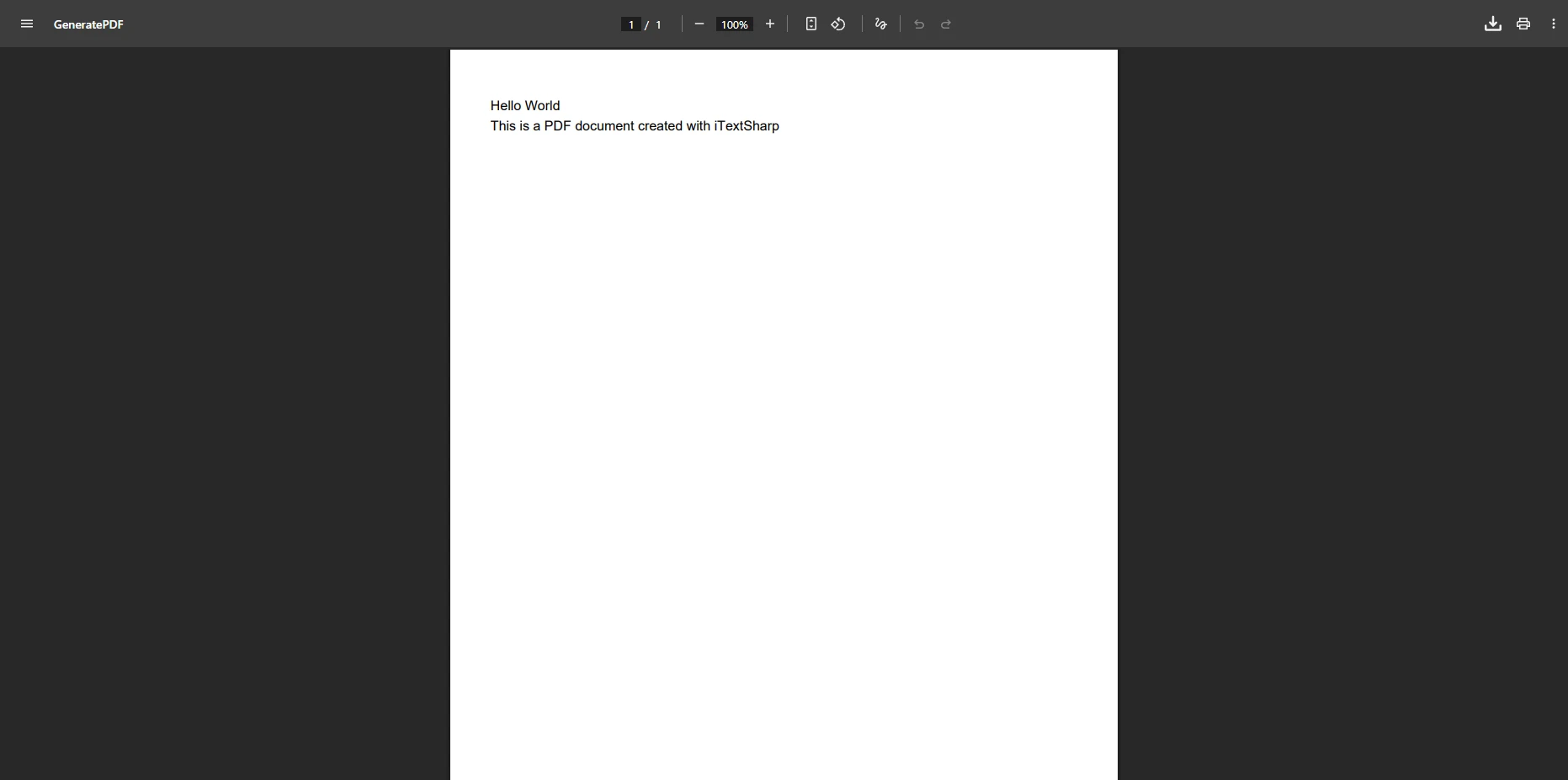
End Class此程式碼使用PDFSharp從PDF文件中讀取並提取文字。程式以導入模式打開"output.pdf"並遍歷頁面以提取內容。 與IronPDF的直觀API不同,該方法需要了解PDF內部細節。 IronPDF文字提取範例展示了一種更簡單的方法。

為何PDFSharp文字提取更為複雜?
PDFSharp的複雜性源於其低級方法。 與IronPDF的高級API不同,PDFSharp需要您理解PDF內部,包括操作符、編碼和內容流:
// PDFsharp: Complex font handling and text positioning
PdfDocument document = new PdfDocument();
PdfPage page = document.AddPage();
XGraphics gfx = XGraphics.FromPdfPage(page);

// Must manually specify fonts and handle font embedding
XFont font = new XFont("Arial", 12, XFontStyle.Regular);

// Manual text positioning with exact coordinates
gfx.DrawString("Hello World", font, XBrushes.Black,
    new XRect(0, 0, page.Width, page.Height),
    XStringFormats.Center);

// Must handle coordinate transformations manually
gfx.TranslateTransform(100, 200);
gfx.RotateTransform(45);
gfx.DrawString("Rotated Text", font, XBrushes.Red, 0, 0);

// IronPDF: Simple HTML approach with CSS styling
var renderer = new ChromePdfRenderer();
var doc = renderer.RenderHtmlAsPdf(@"
    <h1 style='text-align: center;'>Hello World</h1>
    <p style='transform: rotate(45deg); margin-left: 100px; margin-top: 200px; color: red;'>
        Rotated Text
    </p>");

// IronPDF automatically handles fonts, positioning, and transformations
// PDFsharp: Complex font handling and text positioning
PdfDocument document = new PdfDocument();
PdfPage page = document.AddPage();
XGraphics gfx = XGraphics.FromPdfPage(page);
// Must manually specify fonts and handle font embedding
XFont font = new XFont("Arial", 12, XFontStyle.Regular);
// Manual text positioning with exact coordinates
gfx.DrawString("Hello World", font, XBrushes.Black,
new XRect(0, 0, page.Width, page.Height),
XStringFormats.Center);
// Must handle coordinate transformations manually
gfx.TranslateTransform(100, 200);
gfx.RotateTransform(45);
gfx.DrawString("Rotated Text", font, XBrushes.Red, 0, 0);
// IronPDF: Simple HTML approach with CSS styling
var renderer = new ChromePdfRenderer();
var doc = renderer.RenderHtmlAsPdf(@"
<h1 style='text-align: center;'>Hello World</h1>
<p style='transform: rotate(45deg); margin-left: 100px; margin-top: 200px; color: red;'>
Rotated Text
</p>");
// IronPDF automatically handles fonts, positioning, and transformationsImports PdfSharp.Pdf
Imports PdfSharp.Drawing
Imports IronPdf
' PDFsharp: Complex font handling and text positioning
Dim document As New PdfDocument()
Dim page As PdfPage = document.AddPage()
Dim gfx As XGraphics = XGraphics.FromPdfPage(page)
' Must manually specify fonts and handle font embedding
Dim font As New XFont("Arial", 12, XFontStyle.Regular)
' Manual text positioning with exact coordinates
gfx.DrawString("Hello World", font, XBrushes.Black, New XRect(0, 0, page.Width, page.Height), XStringFormats.Center)
' Must handle coordinate transformations manually
gfx.TranslateTransform(100, 200)
gfx.RotateTransform(45)
gfx.DrawString("Rotated Text", font, XBrushes.Red, 0, 0)
' IronPDF: Simple HTML approach with CSS styling
Dim renderer As New ChromePdfRenderer()
Dim doc = renderer.RenderHtmlAsPdf("
<h1 style='text-align: center;'>Hello World</h1>
<p style='transform: rotate(45deg); margin-left: 100px; margin-top: 200px; color: red;'>
Rotated Text
</p>")
' IronPDF automatically handles fonts, positioning, and transformationsPDFSharp在查看PDF上有什麼限制?
PDFSharp的限制在處理現代PDF需求時變得明顯:
- 無法進行HTML到PDF轉換:不能直接轉換HTML
- 複雜的文字提取:需要理解PDF操作符
- 有限的圖像支持:需要手動縮放和定位
- 無內建的OCR:缺乏OCR能力
- 缺少高級功能:沒有數位簽名或PDF/A合規性
PDFSharp如何處理記憶體和性能?
PDFSharp將整個PDF載入到記憶體中,可能在大文件時引起問題。 流處理未得到完全支持,限制了可擴展性。 與IronPDF的改良渲染管線不同,PDFSharp缺乏內建的缓存機制。 性能優化指導提供PDFSharp無法使用的策略。
IronPDF如何將PDF查看簡化為C#中?
使用IronPDF查看PDF只需數行程式碼。 該程式庫自動管理基本URL和資產編碼:
using IronPdf;
using System;
using System.Collections.Generic;

class Program
{
    static void Main()
    {
        // Load the PDF document with error handling
        var pdf = PdfDocument.FromFile("output.pdf");

        // Extract all the text content from the PDF
        string text = pdf.ExtractAllText();

        // Print the extracted text to the console
        Console.WriteLine("Full document text:");
        Console.WriteLine(text);

        // Additional extraction options demonstrating IronPDF's versatility

        // Extract text from specific pages with formatting preserved
        string pageText = pdf.ExtractTextFromPage(0);
        Console.WriteLine($"\nPage 1 text: {pageText}");

        // Extract all images and save them
        var images = pdf.ExtractAllImages();
        for (int i = 0; i < images.Count; i++)
        {
            images[i].SaveAs($"extracted_image_{i}.png");
        }

        // Access complete metadata
        string author = pdf.MetaData.Author;
        string title = pdf.MetaData.Title;
        string subject = pdf.MetaData.Subject;
        DateTime creationDate = pdf.MetaData.CreationDate;

        Console.WriteLine($"\nDocument Info:");
        Console.WriteLine($"Title: {title}");
        Console.WriteLine($"Author: {author}");
        Console.WriteLine($"Created: {creationDate}");

        // Search for specific text
        var searchResults = pdf.Search("invoice");
        foreach (var result in searchResults)
        {
            Console.WriteLine($"Found '{result.Text}' on page {result.PageIndex}");
        }

        // Extract form field data
        var form = pdf.Form;
        foreach (var field in form.Fields)
        {
            Console.WriteLine($"Field: {field.Name} = {field.Value}");
        }
    }
}
using IronPdf;
using System;
using System.Collections.Generic;
class Program
{
static void Main()
{
// Load the PDF document with error handling
var pdf = PdfDocument.FromFile("output.pdf");
// Extract all the text content from the PDF
string text = pdf.ExtractAllText();
// Print the extracted text to the console
Console.WriteLine("Full document text:");
Console.WriteLine(text);
// Additional extraction options demonstrating IronPDF's versatility
// Extract text from specific pages with formatting preserved
string pageText = pdf.ExtractTextFromPage(0);
Console.WriteLine($"\nPage 1 text: {pageText}");
// Extract all images and save them
var images = pdf.ExtractAllImages();
for (int i = 0; i < images.Count; i++)
{
images[i].SaveAs($"extracted_image_{i}.png");
}
// Access complete metadata
string author = pdf.MetaData.Author;
string title = pdf.MetaData.Title;
string subject = pdf.MetaData.Subject;
DateTime creationDate = pdf.MetaData.CreationDate;
Console.WriteLine($"\nDocument Info:");
Console.WriteLine($"Title: {title}");
Console.WriteLine($"Author: {author}");
Console.WriteLine($"Created: {creationDate}");
// Search for specific text
var searchResults = pdf.Search("invoice");
foreach (var result in searchResults)
{
Console.WriteLine($"Found '{result.Text}' on page {result.PageIndex}");
}
// Extract form field data
var form = pdf.Form;
foreach (var field in form.Fields)
{
Console.WriteLine($"Field: {field.Name} = {field.Value}");
}
}
}Imports IronPdf
Imports System
Imports System.Collections.Generic
Module Program
Sub Main()
' Load the PDF document with error handling
Dim pdf = PdfDocument.FromFile("output.pdf")
' Extract all the text content from the PDF
Dim text As String = pdf.ExtractAllText()
' Print the extracted text to the console
Console.WriteLine("Full document text:")
Console.WriteLine(text)
' Additional extraction options demonstrating IronPDF's versatility
' Extract text from specific pages with formatting preserved
Dim pageText As String = pdf.ExtractTextFromPage(0)
Console.WriteLine(vbCrLf & "Page 1 text: " & pageText)
' Extract all images and save them
Dim images = pdf.ExtractAllImages()
For i As Integer = 0 To images.Count - 1
images(i).SaveAs($"extracted_image_{i}.png")
Next
' Access complete metadata
Dim author As String = pdf.MetaData.Author
Dim title As String = pdf.MetaData.Title
Dim subject As String = pdf.MetaData.Subject
Dim creationDate As DateTime = pdf.MetaData.CreationDate
Console.WriteLine(vbCrLf & "Document Info:")
Console.WriteLine("Title: " & title)
Console.WriteLine("Author: " & author)
Console.WriteLine("Created: " & creationDate)
' Search for specific text
Dim searchResults = pdf.Search("invoice")
For Each result In searchResults
Console.WriteLine($"Found '{result.Text}' on page {result.PageIndex}")
Next
' Extract form field data
Dim form = pdf.Form
For Each field In form.Fields
Console.WriteLine($"Field: {field.Name} = {field.Value}")
Next
End Sub
End Module此程式碼使用IronPDF的output.pdf"中提取文字。 此實現自動處理PDF的複雜性,明顯優於PDFSharp所需的手動解析。您的應用程式可以立即使用此功能而不需理解PDF內部細節。 完整教程提供了額外的範例。

IronPDF提供了哪些高級PDF查看功能?
IronPDF提供了完整的PDF分析工具:
// Advanced PDF analysis with IronPDF
var pdf = PdfDocument.FromFile("complex-document.pdf");

// Extract structured content with detailed information
foreach (var page in pdf.Pages)
{
    // Get page dimensions for layout analysis
    var width = page.Width;
    var height = page.Height;
    var rotation = page.Rotation;

    // Extract form fields with type information
    var formFields = page.GetFormFields();
    foreach (var field in formFields)
    {
        Console.WriteLine($"Field: {field.Name}, Type: {field.Type}, Value: {field.Value}");
    }

    // Extract annotations with properties
    var annotations = page.GetAnnotations();
    foreach (var annotation in annotations)
    {
        Console.WriteLine($"Annotation: {annotation.Title} - {annotation.Content}");
    }

    // Extract hyperlinks with destinations
    var links = page.GetLinks();
    foreach (var link in links)
    {
        Console.WriteLine($"Link: {link.Text} -> {link.Url}");
    }
}

// Advanced search functionality with context
var searchResults = pdf.Search("invoice", SearchOptions.CaseInsensitive | SearchOptions.WholeWord);
foreach (var result in searchResults)
{
    Console.WriteLine($"Found on page {result.PageIndex} at position {result.Position}: {result.Text}");
    // Get surrounding text for context
    string context = pdf.ExtractTextFromPage(result.PageIndex)
        .Substring(Math.Max(0, result.Position - 50), 100);
    Console.WriteLine($"Context: ...{context}...");
}

// Extract tables as structured data
var tables = pdf.ExtractTables();
foreach (var table in tables)
{
    for (int row = 0; row < table.RowCount; row++)
    {
        for (int col = 0; col < table.ColumnCount; col++)
        {
            Console.Write($"{table[row, col]}\t");
        }
        Console.WriteLine();
    }
}
// Advanced PDF analysis with IronPDF
var pdf = PdfDocument.FromFile("complex-document.pdf");
// Extract structured content with detailed information
foreach (var page in pdf.Pages)
{
// Get page dimensions for layout analysis
var width = page.Width;
var height = page.Height;
var rotation = page.Rotation;
// Extract form fields with type information
var formFields = page.GetFormFields();
foreach (var field in formFields)
{
Console.WriteLine($"Field: {field.Name}, Type: {field.Type}, Value: {field.Value}");
}
// Extract annotations with properties
var annotations = page.GetAnnotations();
foreach (var annotation in annotations)
{
Console.WriteLine($"Annotation: {annotation.Title} - {annotation.Content}");
}
// Extract hyperlinks with destinations
var links = page.GetLinks();
foreach (var link in links)
{
Console.WriteLine($"Link: {link.Text} -> {link.Url}");
}
}
// Advanced search functionality with context
var searchResults = pdf.Search("invoice", SearchOptions.CaseInsensitive | SearchOptions.WholeWord);
foreach (var result in searchResults)
{
Console.WriteLine($"Found on page {result.PageIndex} at position {result.Position}: {result.Text}");
// Get surrounding text for context
string context = pdf.ExtractTextFromPage(result.PageIndex)
.Substring(Math.Max(0, result.Position - 50), 100);
Console.WriteLine($"Context: ...{context}...");
}
// Extract tables as structured data
var tables = pdf.ExtractTables();
foreach (var table in tables)
{
for (int row = 0; row < table.RowCount; row++)
{
for (int col = 0; col < table.ColumnCount; col++)
{
Console.Write($"{table[row, col]}\t");
}
Console.WriteLine();
}
}Imports System
Imports IronPdf
' Advanced PDF analysis with IronPDF
Dim pdf = PdfDocument.FromFile("complex-document.pdf")
' Extract structured content with detailed information
For Each page In pdf.Pages
' Get page dimensions for layout analysis
Dim width = page.Width
Dim height = page.Height
Dim rotation = page.Rotation
' Extract form fields with type information
Dim formFields = page.GetFormFields()
For Each field In formFields
Console.WriteLine($"Field: {field.Name}, Type: {field.Type}, Value: {field.Value}")
Next
' Extract annotations with properties
Dim annotations = page.GetAnnotations()
For Each annotation In annotations
Console.WriteLine($"Annotation: {annotation.Title} - {annotation.Content}")
Next
' Extract hyperlinks with destinations
Dim links = page.GetLinks()
For Each link In links
Console.WriteLine($"Link: {link.Text} -> {link.Url}")
Next
Next
' Advanced search functionality with context
Dim searchResults = pdf.Search("invoice", SearchOptions.CaseInsensitive Or SearchOptions.WholeWord)
For Each result In searchResults
Console.WriteLine($"Found on page {result.PageIndex} at position {result.Position}: {result.Text}")
' Get surrounding text for context
Dim context As String = pdf.ExtractTextFromPage(result.PageIndex).Substring(Math.Max(0, result.Position - 50), 100)
Console.WriteLine($"Context: ...{context}...")
Next
' Extract tables as structured data
Dim tables = pdf.ExtractTables()
For Each table In tables
For row As Integer = 0 To table.RowCount - 1
For col As Integer = 0 To table.ColumnCount - 1
Console.Write($"{table(row, col)}" & vbTab)
Next
Console.WriteLine()
Next
Next這些功能對於處理表單處理或合規性要求的企業應用程式至關重要。 IronPDF支持PDF/A轉換和PDF/UA可達性標準。
何時應選擇IronPDF而非PDFSharp來查看PDF?
您在IronPDF和PDFSharp之間的選擇取決於您的專案要求:
選擇IronPDF當:
- 您需要HTML到PDF轉換
- 使用動態內容或Web技術
- 需要企業支持
- 構建雲原生應用程式
- 需要高級安全功能
- 實施數位簽名
考慮PDFSharp當:
- 構建簡單的PDF生成工具
- 使用靜態佈局
- 預算限制無法負擔商業授權
IronPDF如何處理大規模的PDF處理?
IronPDF在企業級處理中通過內建優化表現出色。 該程式庫支持並行處理、批次操作和記憶體高效的流式處理。 異步方法允許Web應用程式中的非阻塞操作。 IronPDF的Chrome引擎高效處理並發請求,適合微服務和無伺服器功能。
哪個PDF程式庫應該用於我的C#專案?
PDFSharp和IronPDF都為尋求多功能解決方案的開發者提供了功能。 PDFSharp提供了一個輕量級工具包,適合基本的PDF任務。 相反,IronPDF設計用於完整的PDF操作。 它的高級功能使其在高級PDF處理中有效。
考慮以下範例程式碼,演示IronPDF的簡潔架構:
// IronPDF: Clean, maintainable code following SOLID principles
public class InvoiceService
{
    private readonly ITemplateEngine _templateEngine;
    private readonly IConfiguration _config;

    public async Task<byte[]> GenerateInvoicePdf(Invoice invoice)
    {
        // Render HTML from template with full CSS support
        var html = await _templateEngine.RenderAsync("invoice.html", invoice);

        // Configure rendering with fluent API
        var renderer = new ChromePdfRenderer
        {
            RenderingOptions = new ChromePdfRenderOptions
            {
                MarginTop = 50,
                MarginBottom = 50,
                PaperSize = PdfPaperSize.A4,
                Title = $"Invoice #{invoice.Number}",
                // Enable JavaScript for dynamic content
                EnableJavaScript = true,
                // Wait for AJAX calls to complete
                WaitFor = WaitFor.NetworkIdle0,
                // Custom headers and footers
                HtmlHeader = "<div style='text-align: center;'>{page} of {total-pages}</div>",
                HtmlFooter = "<div style='text-align: center;'>© 2024 Your Company</div>"
            }
        };

        // Render with full Chrome engine support
        var pdf = await renderer.RenderHtmlAsPdfAsync(html);

        // Add security features
        pdf.SecuritySettings.SetPassword("user-password", "owner-password");
        pdf.SecuritySettings.AllowPrinting = true;
        pdf.SecuritySettings.AllowCopy = false;

        // Add digital signature for authenticity
        pdf.SignWithCertificate(certificate, "Authorized Signature");

        // Improve for web delivery
        pdf.CompressImages(90);

        return pdf.BinaryData;
    }
}
// IronPDF: Clean, maintainable code following SOLID principles
public class InvoiceService
{
private readonly ITemplateEngine _templateEngine;
private readonly IConfiguration _config;
public async Task<byte[]> GenerateInvoicePdf(Invoice invoice)
{
// Render HTML from template with full CSS support
var html = await _templateEngine.RenderAsync("invoice.html", invoice);
// Configure rendering with fluent API
var renderer = new ChromePdfRenderer
{
RenderingOptions = new ChromePdfRenderOptions
{
MarginTop = 50,
MarginBottom = 50,
PaperSize = PdfPaperSize.A4,
Title = $"Invoice #{invoice.Number}",
// Enable JavaScript for dynamic content
EnableJavaScript = true,
// Wait for AJAX calls to complete
WaitFor = WaitFor.NetworkIdle0,
// Custom headers and footers
HtmlHeader = "<div style='text-align: center;'>{page} of {total-pages}</div>",
HtmlFooter = "<div style='text-align: center;'>© 2024 Your Company</div>"
}
};
// Render with full Chrome engine support
var pdf = await renderer.RenderHtmlAsPdfAsync(html);
// Add security features
pdf.SecuritySettings.SetPassword("user-password", "owner-password");
pdf.SecuritySettings.AllowPrinting = true;
pdf.SecuritySettings.AllowCopy = false;
// Add digital signature for authenticity
pdf.SignWithCertificate(certificate, "Authorized Signature");
// Improve for web delivery
pdf.CompressImages(90);
return pdf.BinaryData;
}
}Imports System.Threading.Tasks
' IronPDF: Clean, maintainable code following SOLID principles
Public Class InvoiceService
Private ReadOnly _templateEngine As ITemplateEngine
Private ReadOnly _config As IConfiguration
Public Async Function GenerateInvoicePdf(invoice As Invoice) As Task(Of Byte())
' Render HTML from template with full CSS support
Dim html = Await _templateEngine.RenderAsync("invoice.html", invoice)
' Configure rendering with fluent API
Dim renderer = New ChromePdfRenderer With {
.RenderingOptions = New ChromePdfRenderOptions With {
.MarginTop = 50,
.MarginBottom = 50,
.PaperSize = PdfPaperSize.A4,
.Title = $"Invoice #{invoice.Number}",
' Enable JavaScript for dynamic content
.EnableJavaScript = True,
' Wait for AJAX calls to complete
.WaitFor = WaitFor.NetworkIdle0,
' Custom headers and footers
.HtmlHeader = "<div style='text-align: center;'>{page} of {total-pages}</div>",
.HtmlFooter = "<div style='text-align: center;'>© 2024 Your Company</div>"
}
}
' Render with full Chrome engine support
Dim pdf = Await renderer.RenderHtmlAsPdfAsync(html)
' Add security features
pdf.SecuritySettings.SetPassword("user-password", "owner-password")
pdf.SecuritySettings.AllowPrinting = True
pdf.SecuritySettings.AllowCopy = False
' Add digital signature for authenticity
pdf.SignWithCertificate(certificate, "Authorized Signature")
' Improve for web delivery
pdf.CompressImages(90)
Return pdf.BinaryData
End Function
End Class這種方法通過使用現有HTML/CSS技能並保持關注分離提供明顯的好處。 該程式庫通過其完整的API為您管理複雜性。
雖然兩個程式庫都有優勢,但IronPDF以其廣泛功能和簡單性脫穎而出。 性能基準顯示IronPDF有效處理大文件。 對於重視長期可維護性的團隊,IronPDF提供完整的文件、專業支持和廣泛的程式碼範例。
IronPDF免費供開發使用,並包括一個免費試用以探索高級功能。 要了解更多有關查看PDF內容的資訊,請存取提取文字和圖像指南。 有關其他範例,請參閱IronPDF HTML到PDF程式碼範例。 您的應用程式可以立即從IronPDF的現代架構和完整功能中獲益。
常見問題
在C#應用程式中查看PDF有哪些好處?
在C#應用程式中查看PDF能夠透過提供一種標準化的文件格式,提升使用者體驗,且易於導航和操控。像IronPDF這樣的程式庫為開發人員提供了工具,能夠無縫整合PDF查看功能到應用程式中,簡化工作流程並提高效率。
如何在C#中查看PDF文件?
您可以通過使用像IronPDF這樣的程式庫,在C#中查看PDF文件。它提供的方法能夠無縫地將PDF查看功能整合到您的應用程式中,輕鬆載入和渲染PDF文件。
如何選擇適合的C# PDF操作程式庫?
選擇C# PDF操作程式庫時,應考慮功能集、易用性以及對高級功能的支持。IronPDF因其全面的解決方案而受到推薦,包括HTML轉PDF和對各種圖像格式的支持,使得複雜的PDF任務更加簡單。
我可以使用C#程式庫來修改PDF嗎?
是的,您可以使用像IronPDF這樣的程式庫在C#中修改PDF。它提供了強大的工具來編輯和操控PDF文件,使開發者能夠有效地新增、刪除或更新PDF文件中的內容。
如何在C#專案中安裝PDF程式庫?
要在C#專案中安裝PDF程式庫,例如IronPDF,請使用NuGet包管理器並在包管理器控制台中運行命令Install-Package IronPdf。此命令將把程式庫及其依賴項新增到您的專案中。
選擇C# PDF程式庫應考慮哪些功能?
選擇C# PDF程式庫時,應尋找如PDF查看、編輯、HTML轉PDF和支持各種圖像格式等功能。IronPDF提供了豐富的功能集,可以滿足這些需求,為PDF操作提供了多功能的解決方案。
C# PDF程式庫有免費試用版嗎?
是的,IronPDF提供免費試用版,讓開發者探索其先進的PDF功能。這使您可以在購買之前測試程式庫的功能,並將其功能整合到您的C#專案中。
如何使用C#程式庫從PDF中提取文字?
要使用IronPDF在C#中從PDF中提取文字,先用PdfDocument.FromFile()載入PDF文件,然後使用ExtractAllText()檢索文字內容。這一簡單的方法展示了IronPDF在PDF文字提取方面的便捷。
我在哪裡可以找到更多關於C#中使用PDF的程式範例?
使用IronPDF在C#中操作PDF的更多程式範例可以在‘IronPDF HTML轉PDF程式範例’頁面上找到。該資源提供了實際實施方法和整合IronPDF功能到您的C#專案中的見解。
是什麼讓IronPDF成為C# PDF操作的推薦選擇?
IronPDF因其廣泛的功能集、簡單性和多樣性而被推薦。它提供了全面的解決方案來實現高級PDF功能,使得開發者能夠在其C#應用程式中整合複雜的PDF功能,成為首選。







 免費開始
免費開始 免費開始
免費開始 預訂免費直播演示
















