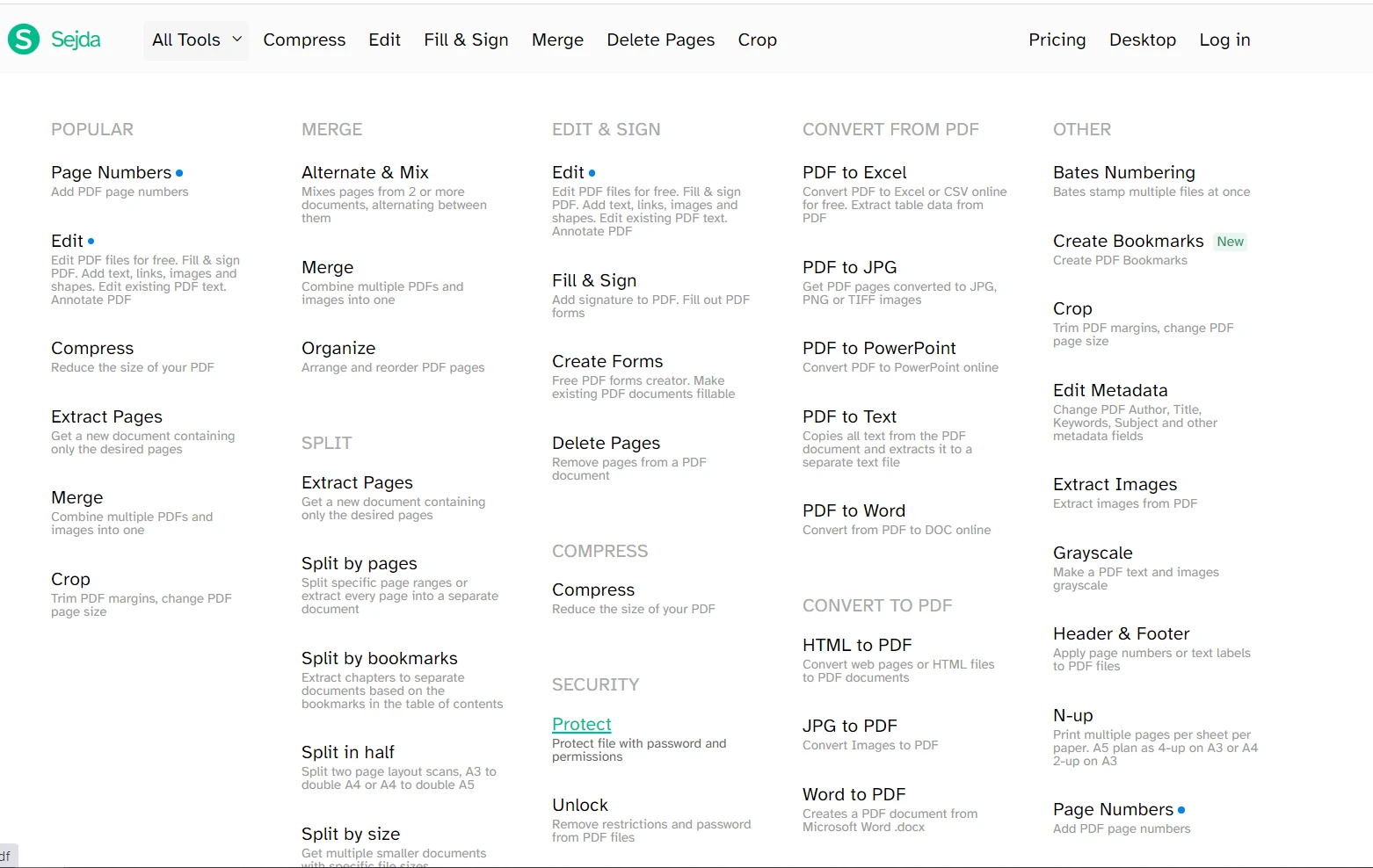
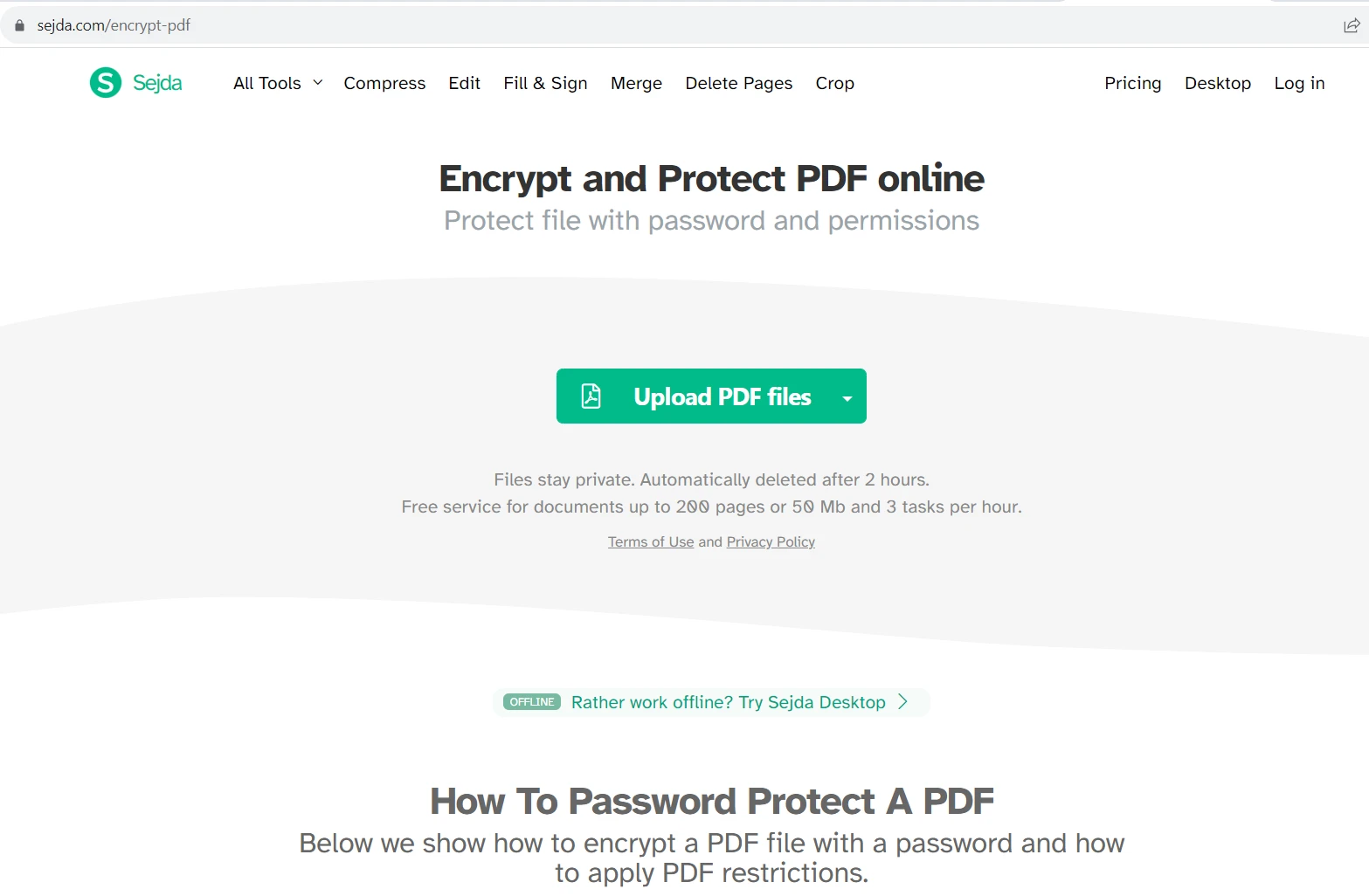
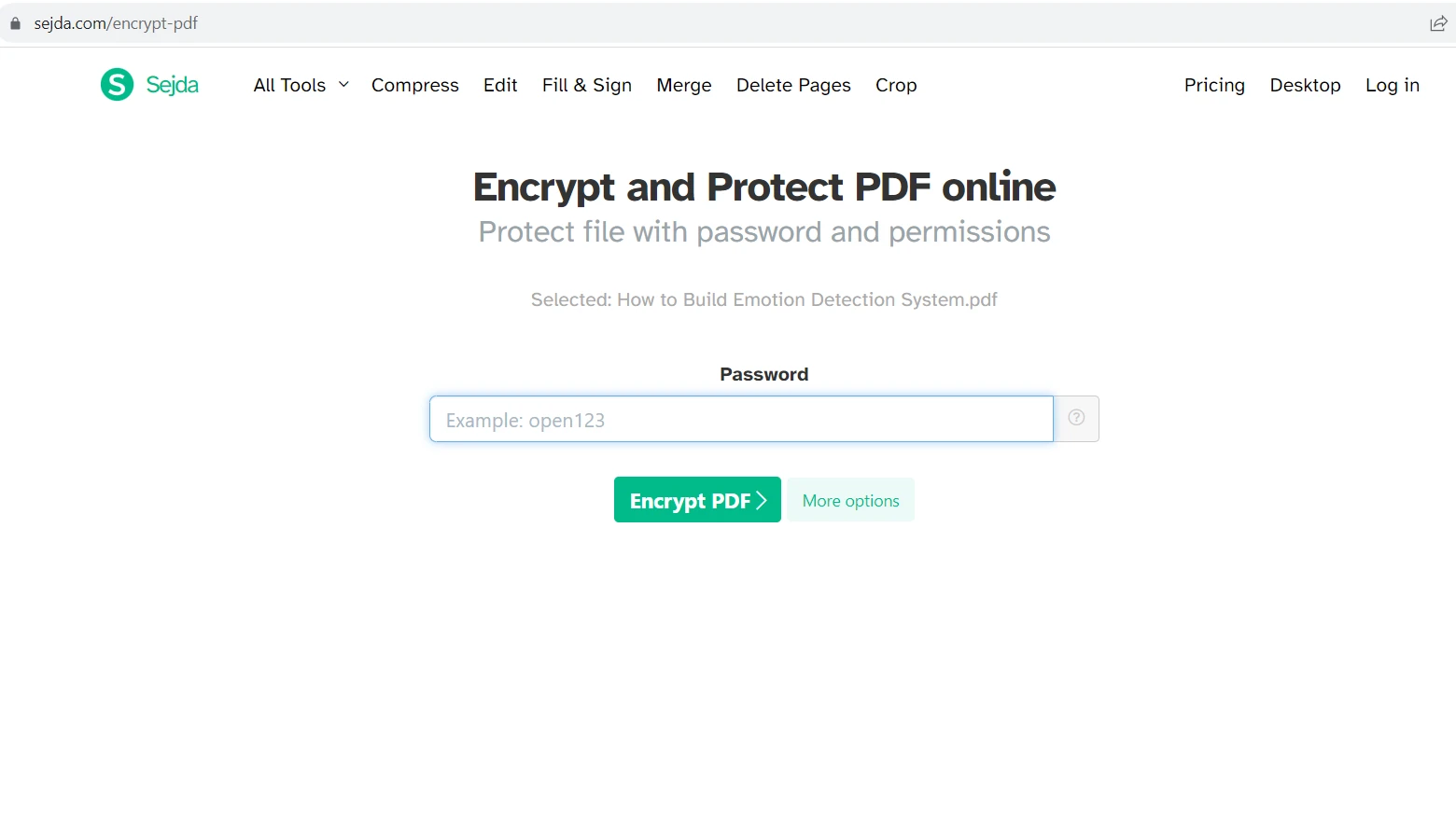
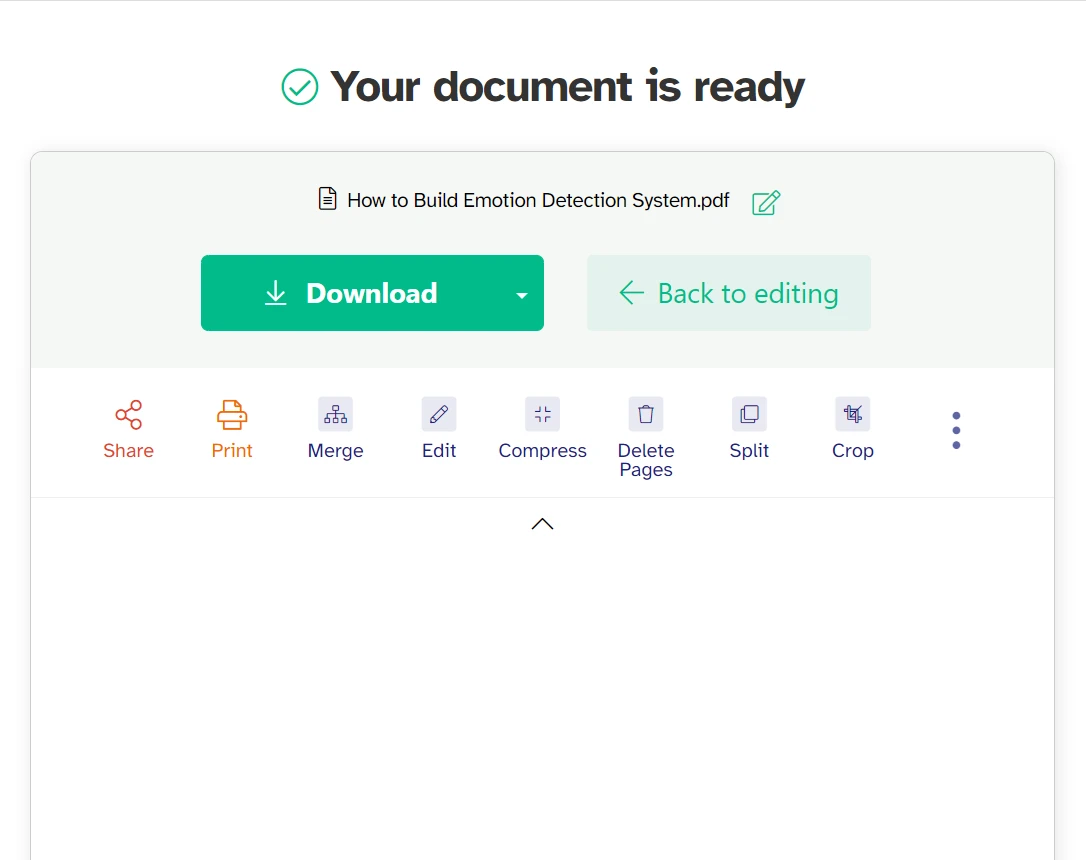
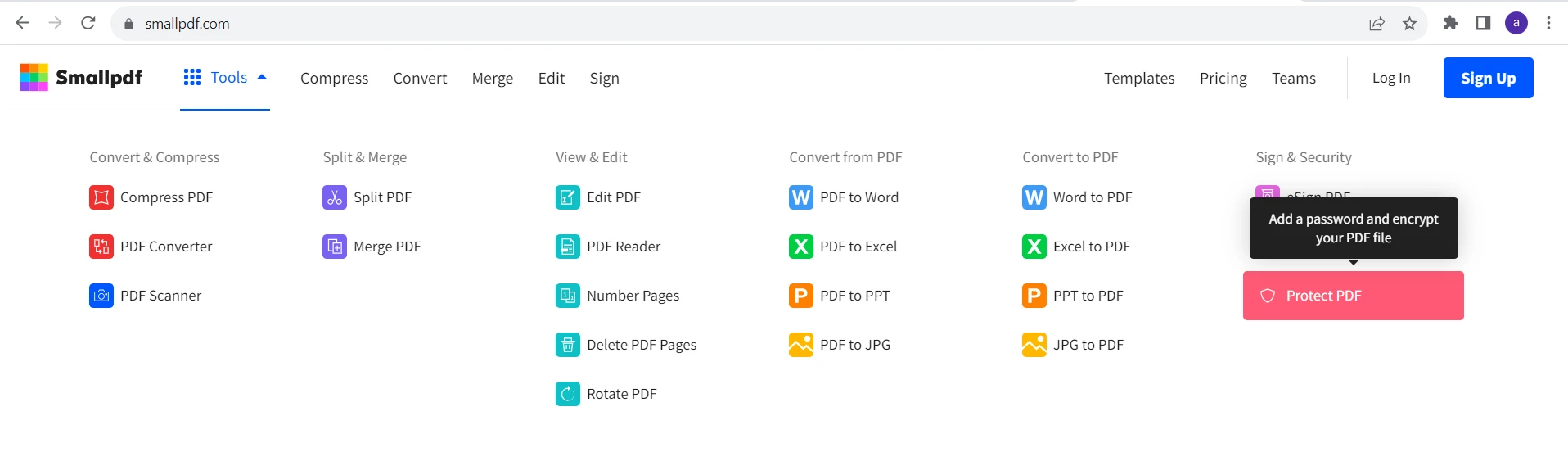
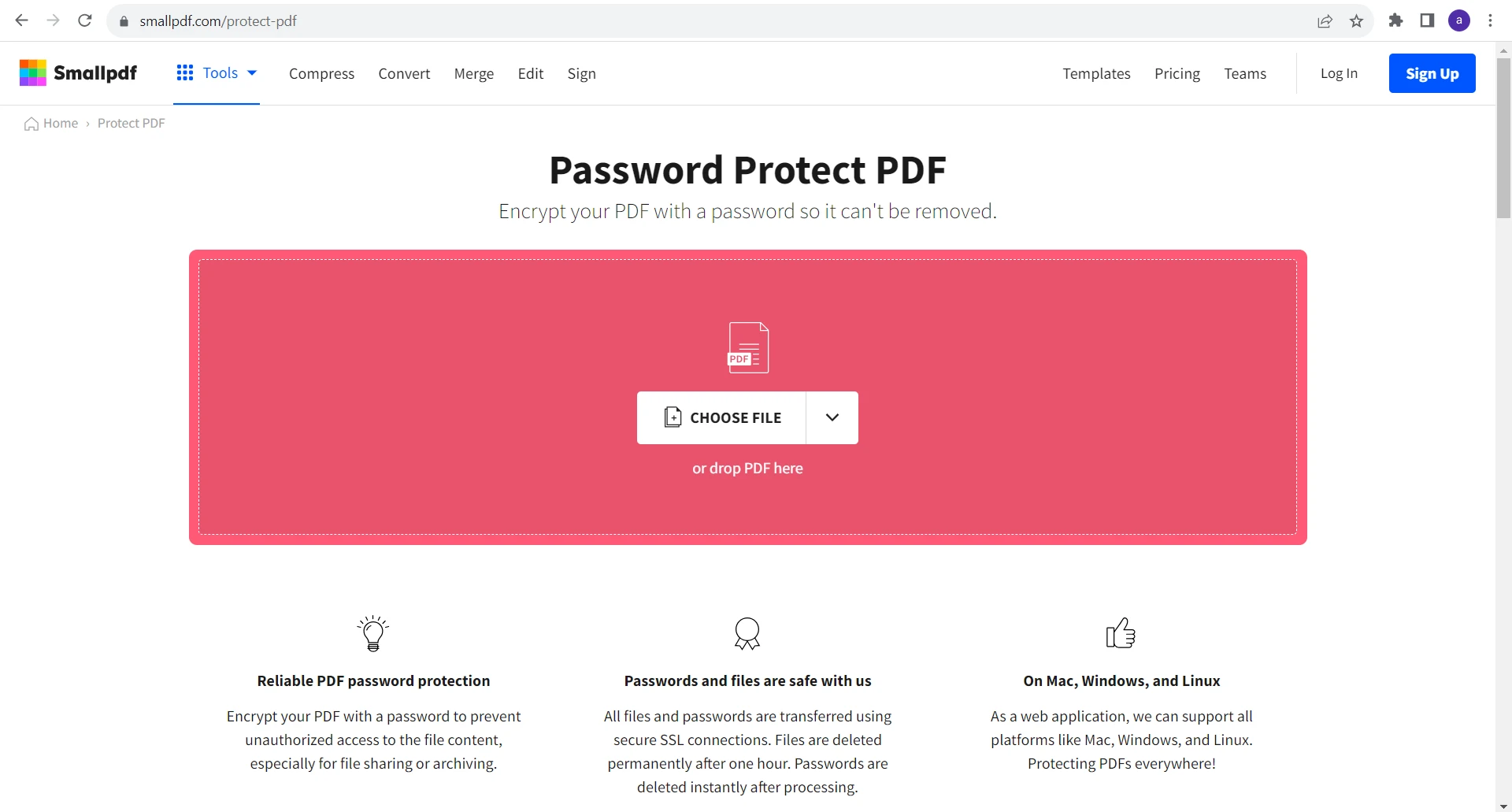
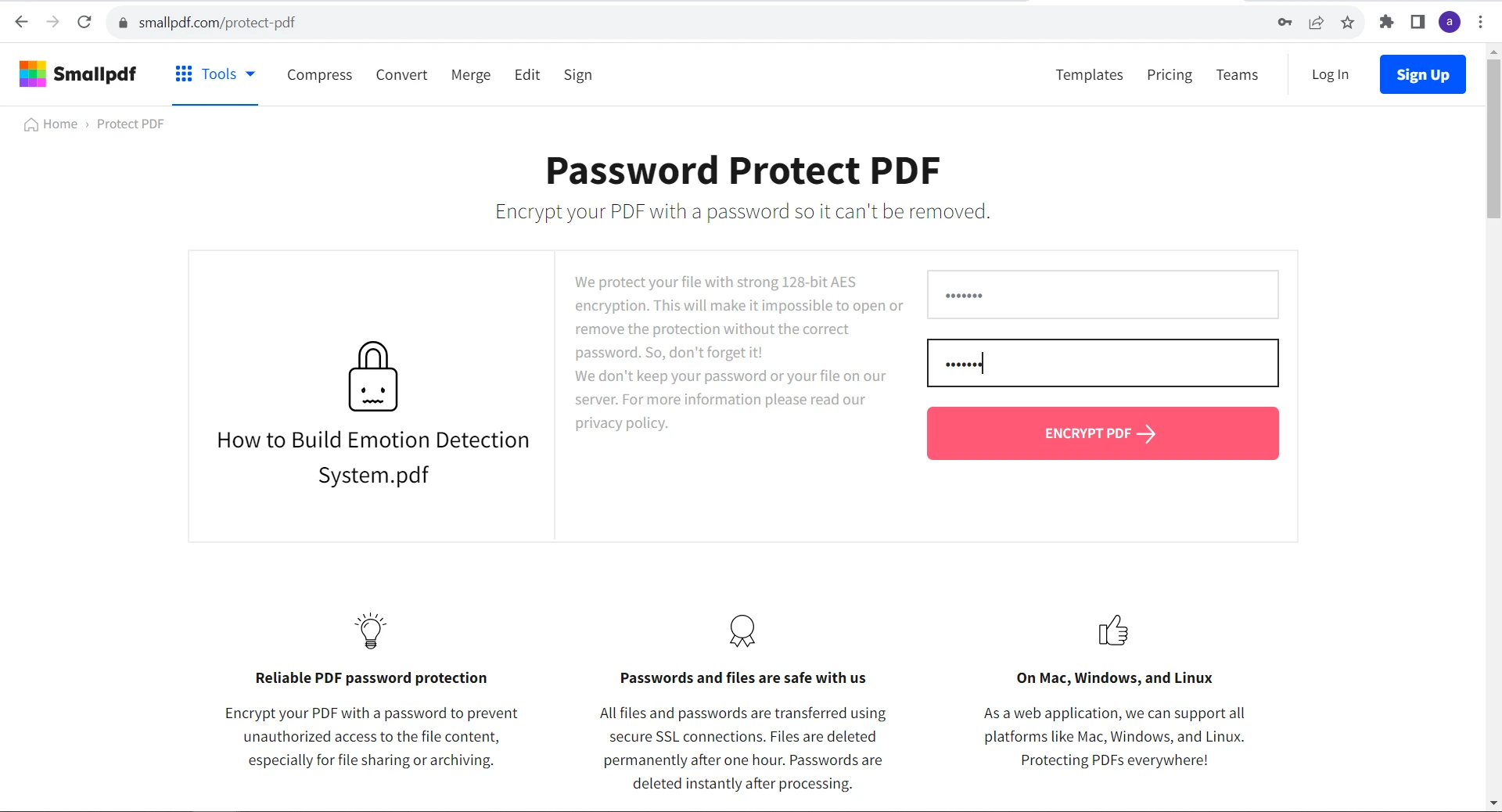
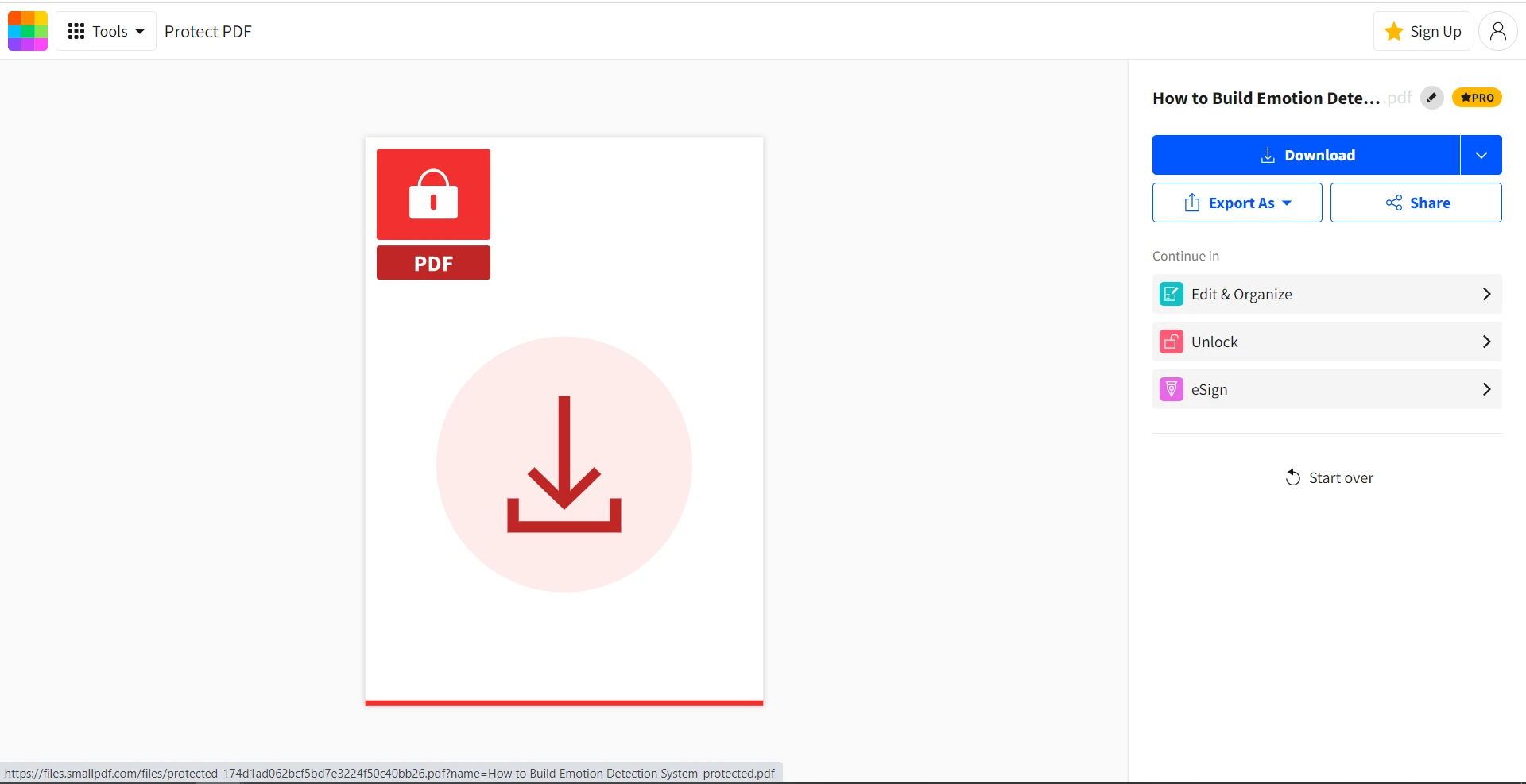
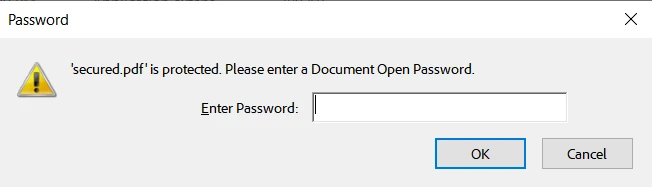
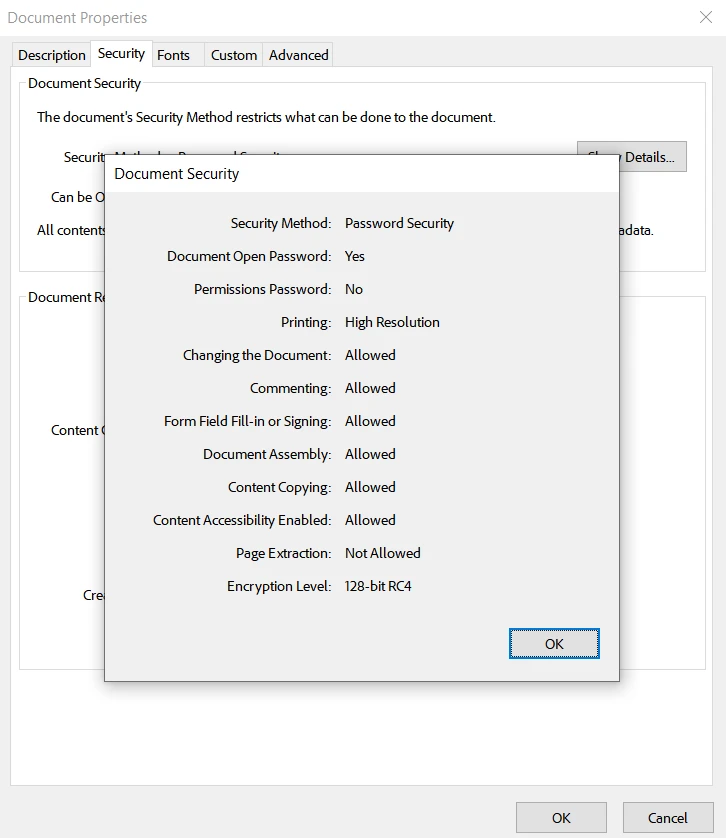
PDF 도구 How to Password Protect a PDF for Free 커티스 차우 업데이트됨:6월 22, 2025 다운로드 IronPDF NuGet 다운로드 DLL 다운로드 윈도우 설치 프로그램 무료 체험 시작하기 LLM용 사본 LLM용 사본 LLM용 마크다운 형식으로 페이지를 복사하세요 ChatGPT에서 열기 ChatGPT에 이 페이지에 대해 문의하세요 제미니에서 열기 제미니에게 이 페이지에 대해 문의하세요 Grok에서 열기 Grok에게 이 페이지에 대해 문의하세요 혼란 속에서 열기 Perplexity에게 이 페이지에 대해 문의하세요 공유하다 페이스북에 공유하기 트위터에 공유하기 LinkedIn에 공유하기 URL 복사 이메일로 기사 보내기 In today's digital world, ensuring the security of your sensitive data is of utmost importance. Whether it's personal information, financial records, or confidential reports, you may want to restrict permissions and access to your PDF files by adding a password. Fortunately, you don't need to invest in expensive software to add a password, as there are many free version PDF tools available other than Adobe Reader. In this article, we'll show you how to password protect a PDF for free using three security methods: online services Sejda and SmallPDF, and IronPDF - a C# PDF library. Sejda - Online PDF Tool Sejda is a popular online PDF editor that offers a range of features, including password protection. Here's how to use Sejda to protect your PDF: Step 1: Visit the Sejda Website Open your web browser and visit the Sejda PDF Editor website. Step 2: Choose "Protect PDF" On the Sejda homepage, find and navigate to the Sejda Protect PDF Tool. Step 3: Upload Your PDF Click the "Upload PDF file" button to upload the PDF file you want to protect. Step 4: Set a Password After uploading the file, you'll have the option to set a password. Set a strong password to limit access to authorized users only. Step 5: Save the Protected PDF Once you've set the password, click the "Encrypt PDF" button. Sejda will process the file and provide you with a download link for the password-protected PDF. Click on the download link to save the successfully protected PDF to your computer. Smallpdf - Online PDF Tool Smallpdf is a popular online PDF editing tool that offers a range of features, including password protection. Here's how to use Smallpdf to protect your PDF: Step 1: Go to the Smallpdf Website Open your web browser and visit the Smallpdf Online PDF Tools website. Step 2: Access the "Protect PDF" Tool On the Smallpdf homepage, find and navigate to the Smallpdf Protect PDF Feature. Step 3: Choose Your PDF Document Click the "Choose file" button to upload the PDF file you want to protect using a password. Step 4: Set a Password After uploading the file, you'll have the option to set a password. Enter a secure password to gain access to only authorized users. Step 5: Save the Protected PDF Document Once you've set the password, click the "Encrypt PDF" button. Smallpdf will process the file and provide you with a download link for the encrypted file. Click on the download link to save the protected PDF to your computer. Introducing IronPDF While both Sejda and Smallpdf are excellent options for password-protecting PDF files with the AES encryption algorithm, they may not be suitable for everyone. Both rely on an internet connection. If you're looking for a more versatile solution with advanced features, you might consider IronPDF. IronPDF is a robust PDF editing tool equipped with an array of functionalities, including the capability to secure PDF files with passwords. It seamlessly operates as a standalone desktop application or can be seamlessly integrated into your web application through the IronPDF API. Moreover, IronPDF extends its compatibility to both Windows and Mac operating systems. IronPDF allows you to encrypt and decrypt PDF documents by setting permissions and password protection on the resulting PDF documents, ensuring document security when necessary. Password Protect a PDF Using IronPDF To password-protect a PDF using IronPDF, follow these steps: Step 1: Install IronPDF Obtain and set up IronPDF by visiting the IronPDF Official Website. Alternatively, you can swiftly install it through the NuGet Package Manager within Visual Studio. Step 2: Import IronPDF and Open Your PDF Open the PDF file you want to protect using IronPDF. using IronPdf; // Open an existing PDF file or create a new PDF from HTML var pdf = PdfDocument.FromFile("input.pdf"); using IronPdf; // Open an existing PDF file or create a new PDF from HTML var pdf = PdfDocument.FromFile("input.pdf"); $vbLabelText $csharpLabel In the code above, we import the IronPdf namespace and create an instance of the PdfDocument class by loading the specified PDF file named "input.pdf". You can replace this with the path to your PDF file. Step 3: Set a Password IronPDF allows you to set a user password for the PDF document to open along with other advanced security settings. pdf.SecuritySettings.UserPassword = "open123"; // Set a user password for the PDF document pdf.SecuritySettings.UserPassword = "open123"; // Set a user password for the PDF document $vbLabelText $csharpLabel In this line, we're setting a user password open123 to restrict access to authorized users only. It's crucial to use a strong password following best practices for password security. IronPDF also provides an OwnerPassword option to allow or restrict editing of the PDF document. Step 4: Save the Protected PDF Save the PDF with the password protection in place with the SaveAs method. pdf.SaveAs("secured.pdf"); pdf.SaveAs("secured.pdf"); $vbLabelText $csharpLabel This command saves the PDF document with the applied security settings to a new file called "secured.pdf". Ensure you provide an appropriate file path as needed. Your PDF is now secured. Users will need the password to open the document. You can even confirm password protection by viewing document properties. IronPDF provides a 128-bit RC4 encryption for optimal security. Conclusion Protecting your PDF documents with passwords is a simple yet effective way to safeguard your sensitive information. Whether you prefer using the Protect tool in Sejda, another online tool like Smallpdf, or a more versatile solution with multiple security options like IronPDF, all methods allow you to add an extra layer of security to your PDF files without any cost. By following the steps outlined in this article, you can keep your documents safe from unauthorized access and ensure your data remains confidential. IronPDF offers stronger security compared to basic password protection like online tools do. It includes features like encryption, document permissions password, and digital signatures, providing enhanced protection against unauthorized access and alterations. All this without the need for Adobe Acrobat Reader. Its flexibility makes it easy to integrate into different systems, making it a versatile choice for safeguarding PDFs. To incorporate IronPDF into your project, you can acquire a commercial license, which begins at $799 for a single developer. Additionally, there's a free trial with complete features and support, allowing you to evaluate its suitability before making a purchase. For those in need of licenses for multiple developers or larger enterprises, various options are accessible. 커티스 차우 지금 바로 엔지니어링 팀과 채팅하세요 기술 문서 작성자 커티스 차우는 칼턴 대학교에서 컴퓨터 과학 학사 학위를 취득했으며, Node.js, TypeScript, JavaScript, React를 전문으로 하는 프론트엔드 개발자입니다. 직관적이고 미적으로 뛰어난 사용자 인터페이스를 만드는 데 열정을 가진 그는 최신 프레임워크를 활용하고, 잘 구성되고 시각적으로 매력적인 매뉴얼을 제작하는 것을 즐깁니다. 커티스는 개발 분야 외에도 사물 인터넷(IoT)에 깊은 관심을 가지고 있으며, 하드웨어와 소프트웨어를 통합하는 혁신적인 방법을 연구합니다. 여가 시간에는 게임을 즐기거나 디스코드 봇을 만들면서 기술에 대한 애정과 창의성을 결합합니다. 관련 기사 업데이트됨 6월 22, 2025 Discover the Best PDF Redaction Software for 2025 Explore top PDF redaction solutions for 2025, including Adobe Acrobat Pro DC, Nitro PDF Pro, Foxit PDF Editor, and PDF-XChange Editor. Learn how IronPDF automates redaction in .NET for enhanced security and compliance. 더 읽어보기 업데이트됨 6월 22, 2025 Best PDF Reader for iPhone (Free & Paid Tools Comparison) In this article, we will explore some of the best PDF readers for iPhone and conclude why IronPDF stands out as the best option. 더 읽어보기 업데이트됨 6월 26, 2025 Best Free PDF Editor for Windows (Free & Paid Tools Comparison) This article explores the top free PDF editors available in 2025 and concludes with the most powerful and flexible option: IronPDF. 더 읽어보기 How to save PDF as JPEG (Beginner Guide)How to Download Webpage as PDF (Beg...
업데이트됨 6월 22, 2025 Discover the Best PDF Redaction Software for 2025 Explore top PDF redaction solutions for 2025, including Adobe Acrobat Pro DC, Nitro PDF Pro, Foxit PDF Editor, and PDF-XChange Editor. Learn how IronPDF automates redaction in .NET for enhanced security and compliance. 더 읽어보기
업데이트됨 6월 22, 2025 Best PDF Reader for iPhone (Free & Paid Tools Comparison) In this article, we will explore some of the best PDF readers for iPhone and conclude why IronPDF stands out as the best option. 더 읽어보기
업데이트됨 6월 26, 2025 Best Free PDF Editor for Windows (Free & Paid Tools Comparison) This article explores the top free PDF editors available in 2025 and concludes with the most powerful and flexible option: IronPDF. 더 읽어보기