디지털 정보의 시대에, 오프라인 사용, 참조 또는 공유를 위해 웹 콘텐츠를 캡처 및 저장해야 하는 필요성이 자주 발생합니다. 웹 페이지나 웹 페이지를 PDF 파일로 다운로드하고 저장하는 것은 휴대 가능한 형태로 웹 페이지의 콘텐츠와 구조를 보존하는 편리한 방법입니다.
이 기사에서는 브라우저의 기본 기능과 Soda PDF의 "HTML to PDF" 온라인 도구를 사용하여 무료로 웹 페이지를 PDF로 다운로드하는 방법을 안내하고, 그런 다음 이 작업을 프로그래밍 방식으로 달성하기 위한 대안 솔루션으로서 IronPDF를 소개합니다.
웹 브라우저 - 기본 기능
대부분의 최신 웹 브라우저에는 추가 도구나 확장 없이 웹 페이지를 PDF로 저장할 수 있는 기본 기능이 포함되어 있습니다.
브라우저 기본 기능을 사용하여 웹 페이지를 PDF로 다운로드하기
다음은 웹 브라우저를 사용하여 웹 페이지를 다운로드하는 방법입니다:
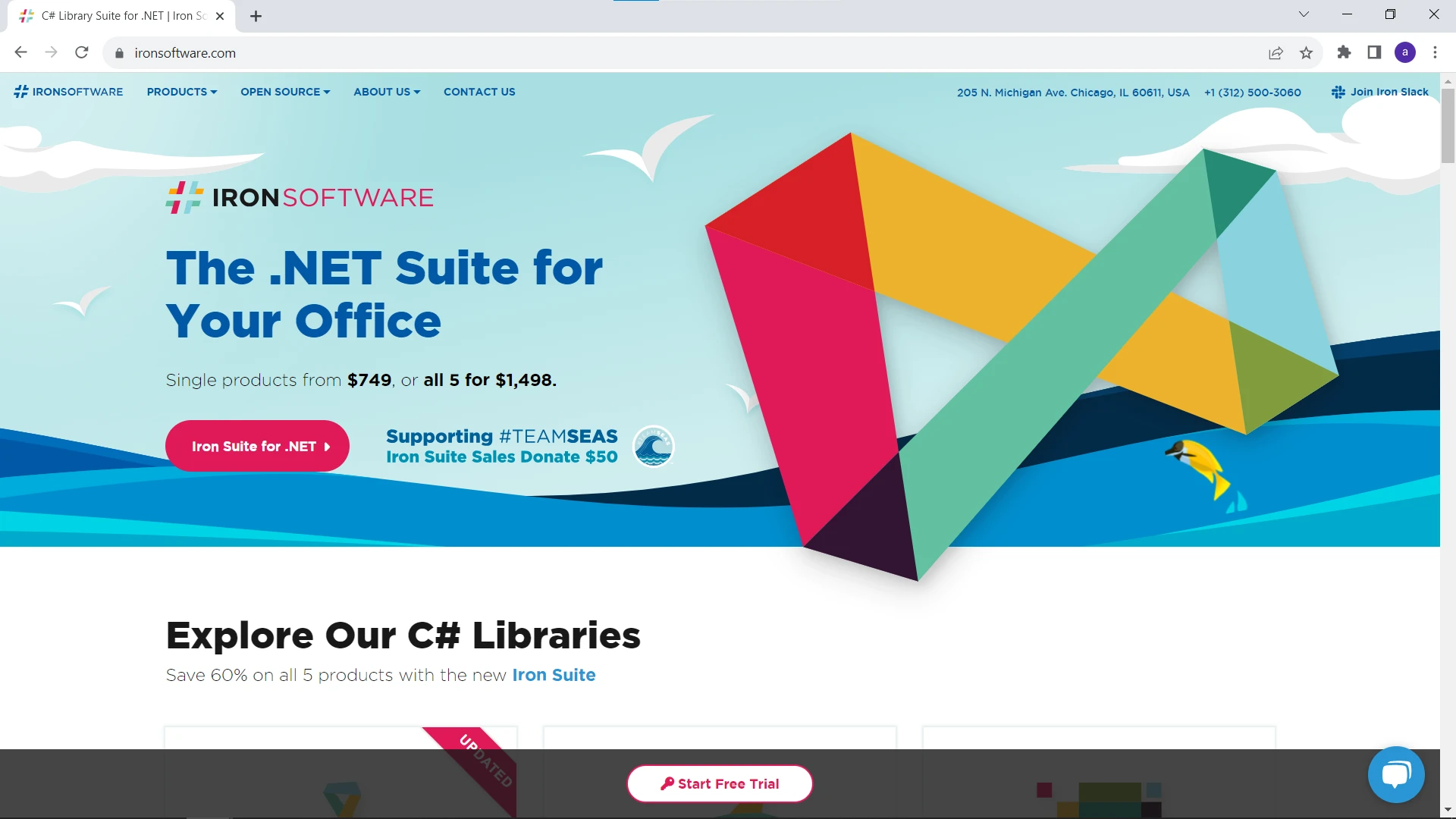
1단계: 웹 페이지 열기
선호하는 웹 브라우저를 실행하고 PDF로 저장하려는 웹 페이지로 이동합니다. Google Chrome과 Microsoft Edge는 인기 있는 웹 브라우저 옵션 중 일부입니다.
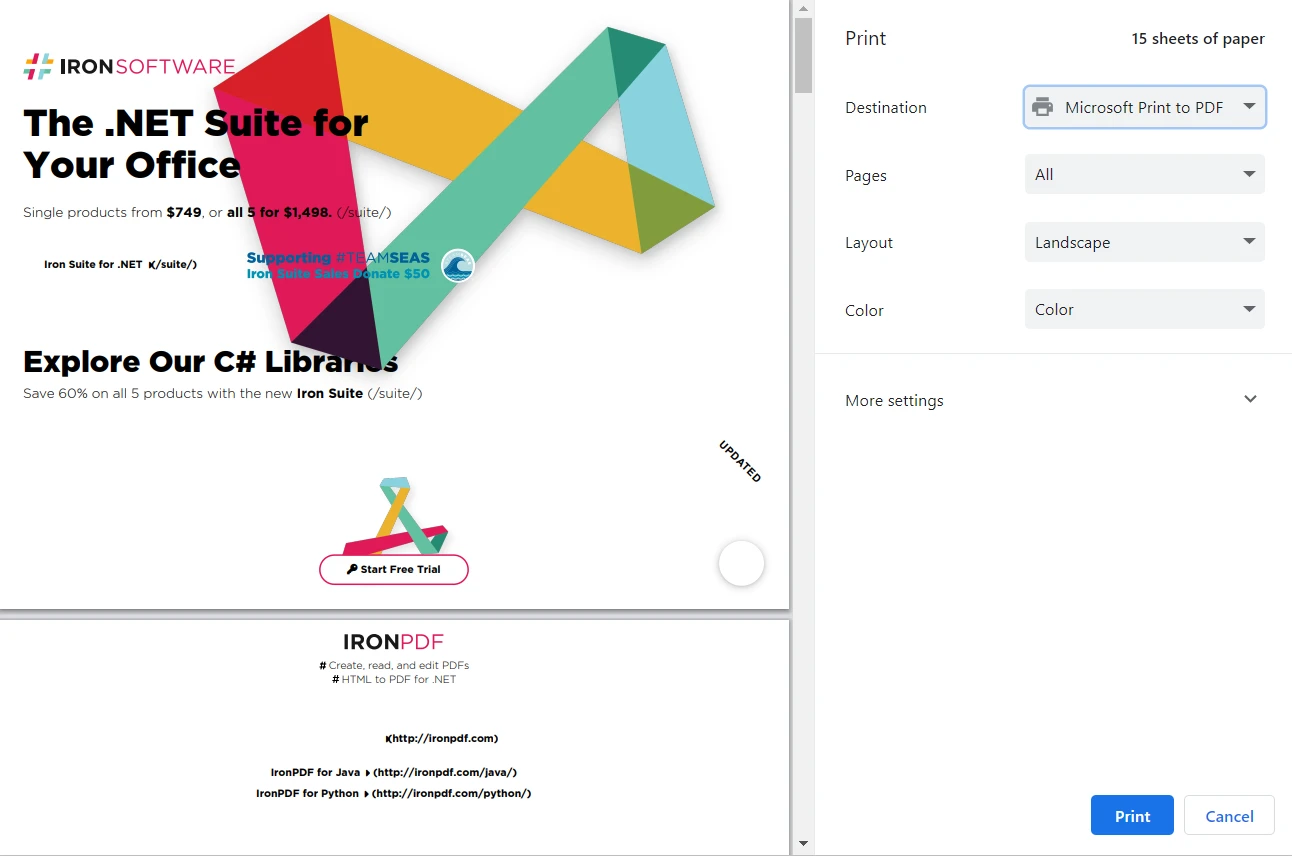
2단계: 인쇄 대화 상자 열기
웹 페이지에 있는 경우, "Ctrl + P" (Mac에서는 "Command + P")를 눌러 인쇄 대화 상자를 엽니다. 또한, 브라우저 메뉴에서 오른쪽 상단의 세로 점 세 개를 클릭한 후 "인쇄"를 선택하여 접근할 수 있습니다. 인쇄 팝업 창이 아래와 같이 표시됩니다:
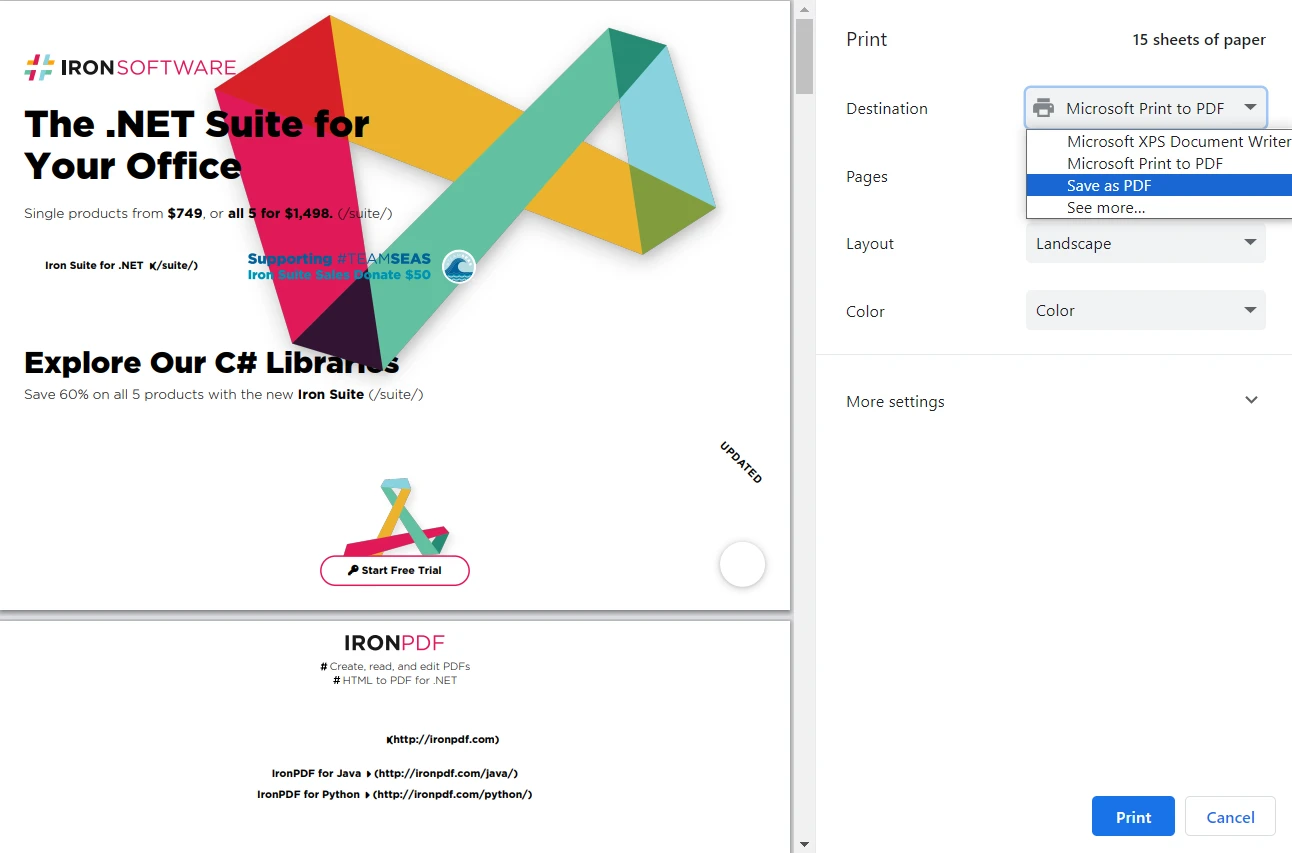
3단계: 대상 선택하기
인쇄 창 대화 상자에서 "대상" 섹션 아래의 드롭다운 메뉴를 클릭하고 사용 가능한 프린터 목록에서 "Microsoft Print to PDF" 또는 "Save as PDF"를 선택합니다. 또한 필요에 따라 웹 페이지를 저장할 페이지 범위를 선택할 수 있습니다.
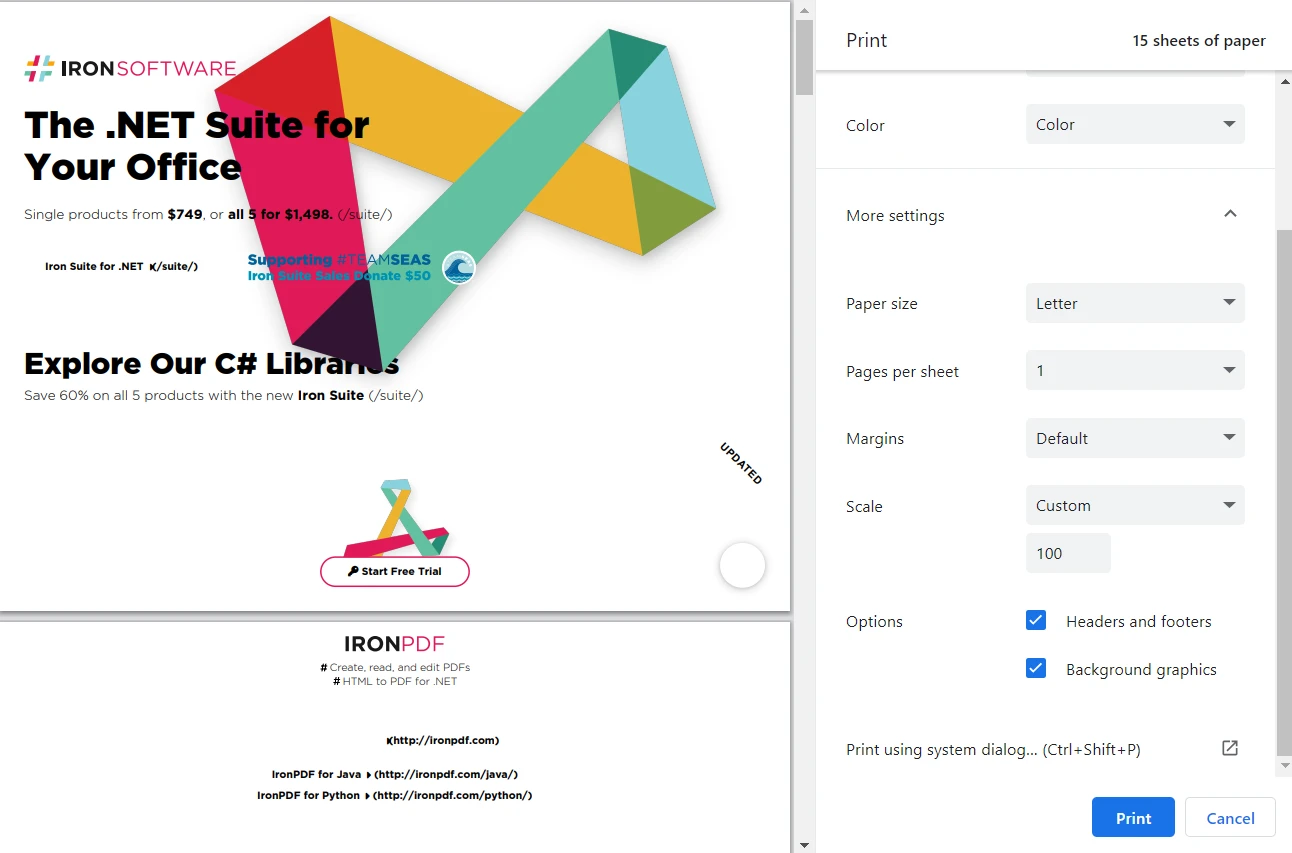
4단계: 설정 사용자 지정
페이지 레이아웃, 용지 크기, 여백과 같은 다양한 설정을 사용자 지정하여 선호에 맞게 조정할 수 있습니다. 캡처하려는 콘텐츠에 맞게 페이지 크기와 레이아웃 옵션을 적절하게 설정하세요. Microsoft Print to PDF를 사용하면 출력 PDF 문서의 색상(흑백/컬러)을 선택할 수 있습니다. 더 많은 설정을 클릭하여 한 장당 페이지 수, 비율, 머리글과 바닥글 및 배경 그래픽을 추가로 설정합니다.
5단계: PDF 파일 저장하기
"인쇄" 버튼을 클릭하면, 출력 저장 대화 상자가 표시됩니다. PDF를 저장할 컴퓨터 위치를 선택하고 이름을 지정합니다. "저장"을 클릭하면, 웹 페이지가 PDF로 변환되어 지정한 위치에 저장됩니다.
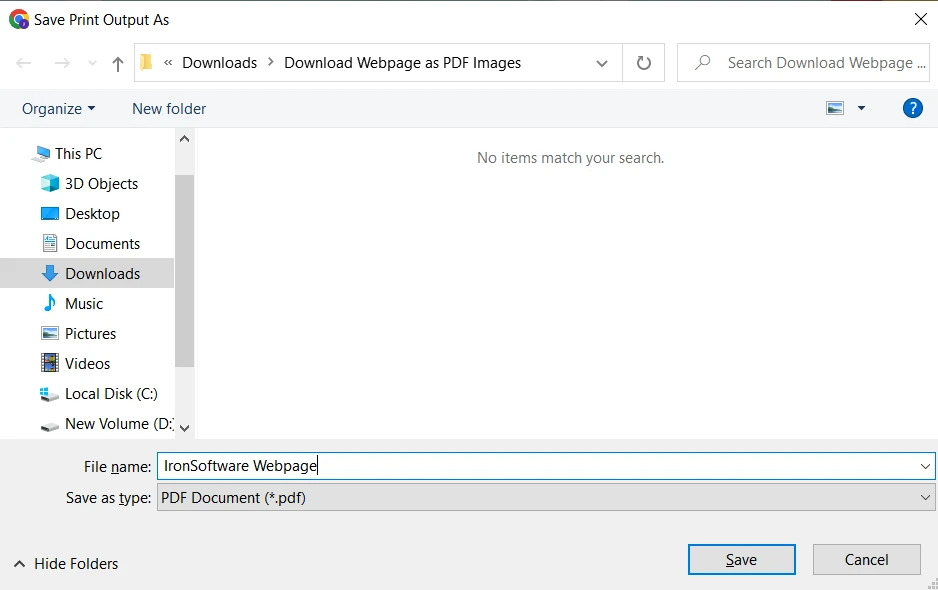
이제 브라우저의 기본 기능을 사용하여 웹 페이지를 PDF로 성공적으로 다운로드했습니다.
HTML을 PDF로 - SodaPDF
브라우저에 의존하지 않고 더 다양한 방법을 선호하는 경우, Soda PDF의 "HTML to PDF" 온라인 도구를 사용할 수 있습니다.
Soda PDF의 "HTML to PDF" 온라인 도구를 사용하여 웹 페이지를 PDF로 다운로드하기
방법은 다음과 같습니다.
1단계: Soda PDF 웹사이트 방문하기
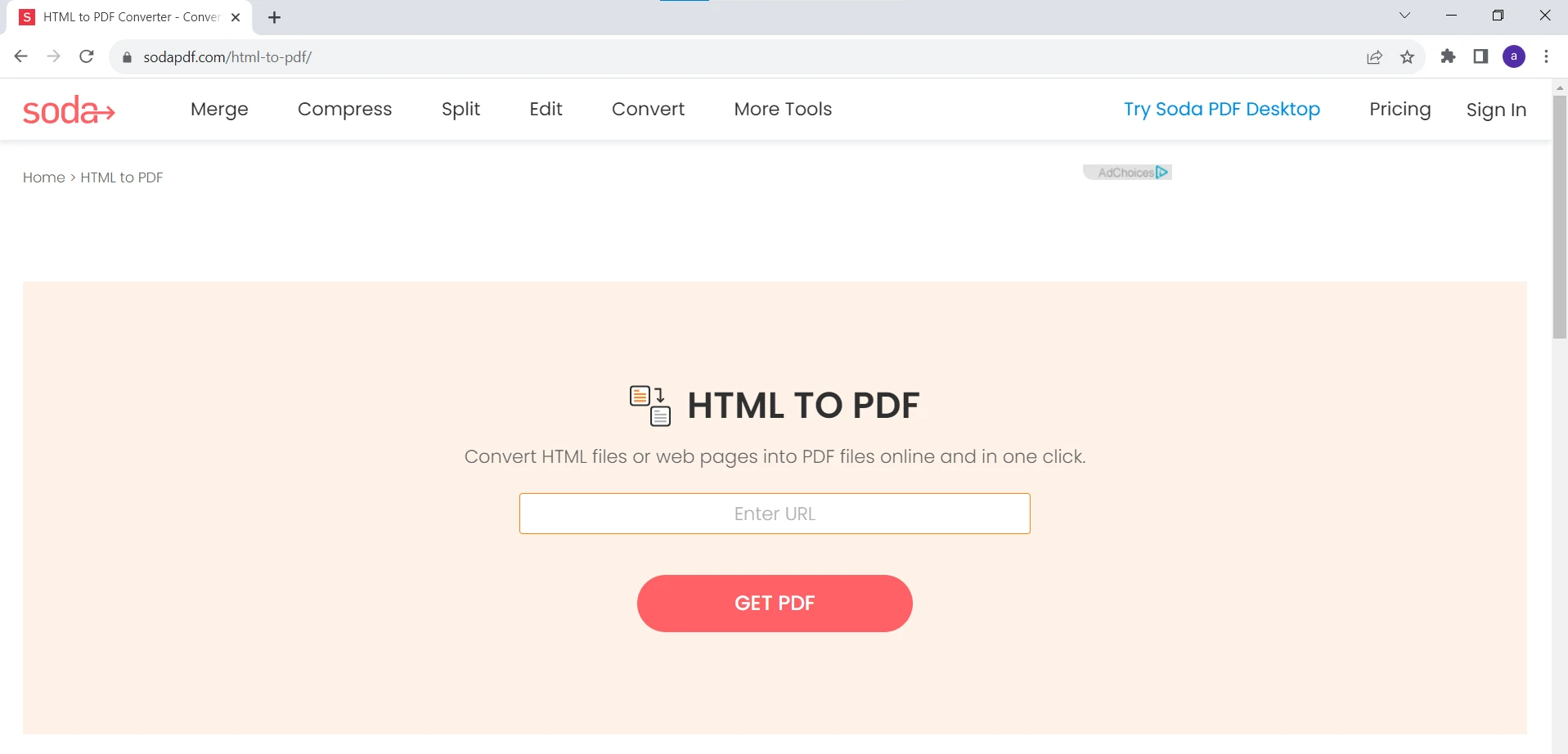
웹 브라우저를 열고 Soda PDF 웹사이트를 방문하십시오. 이 도구를 www.sodapdf.com/html-to-pdf/에서 찾을 수 있거나 온라인 도구 메뉴바에서 검색할 수 있습니다.
2단계: 웹 페이지 URL 입력하기
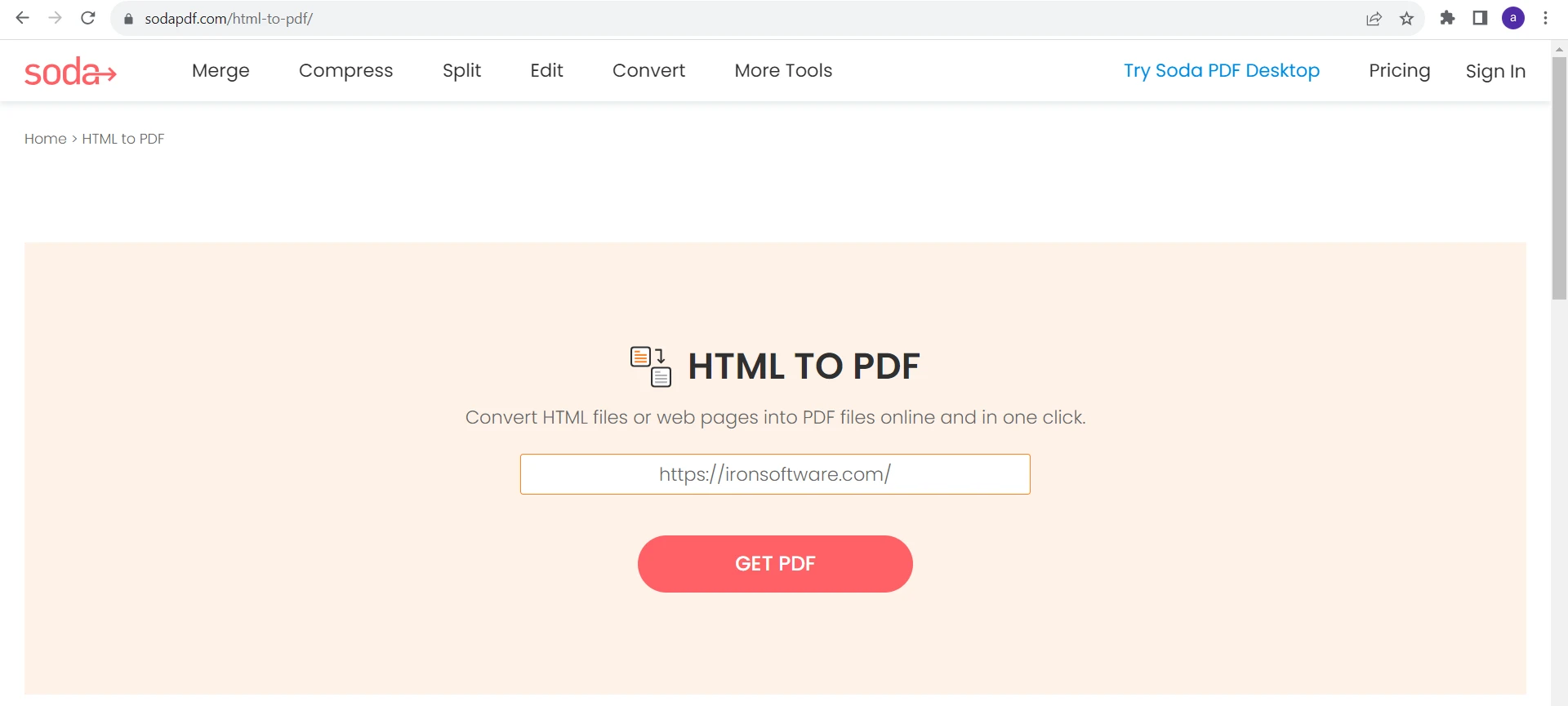
웹 페이지에 제공된 필드에, PDF로 변환하려는 웹 페이지의 URL을 입력합니다.
3단계: PDF로 변환하기
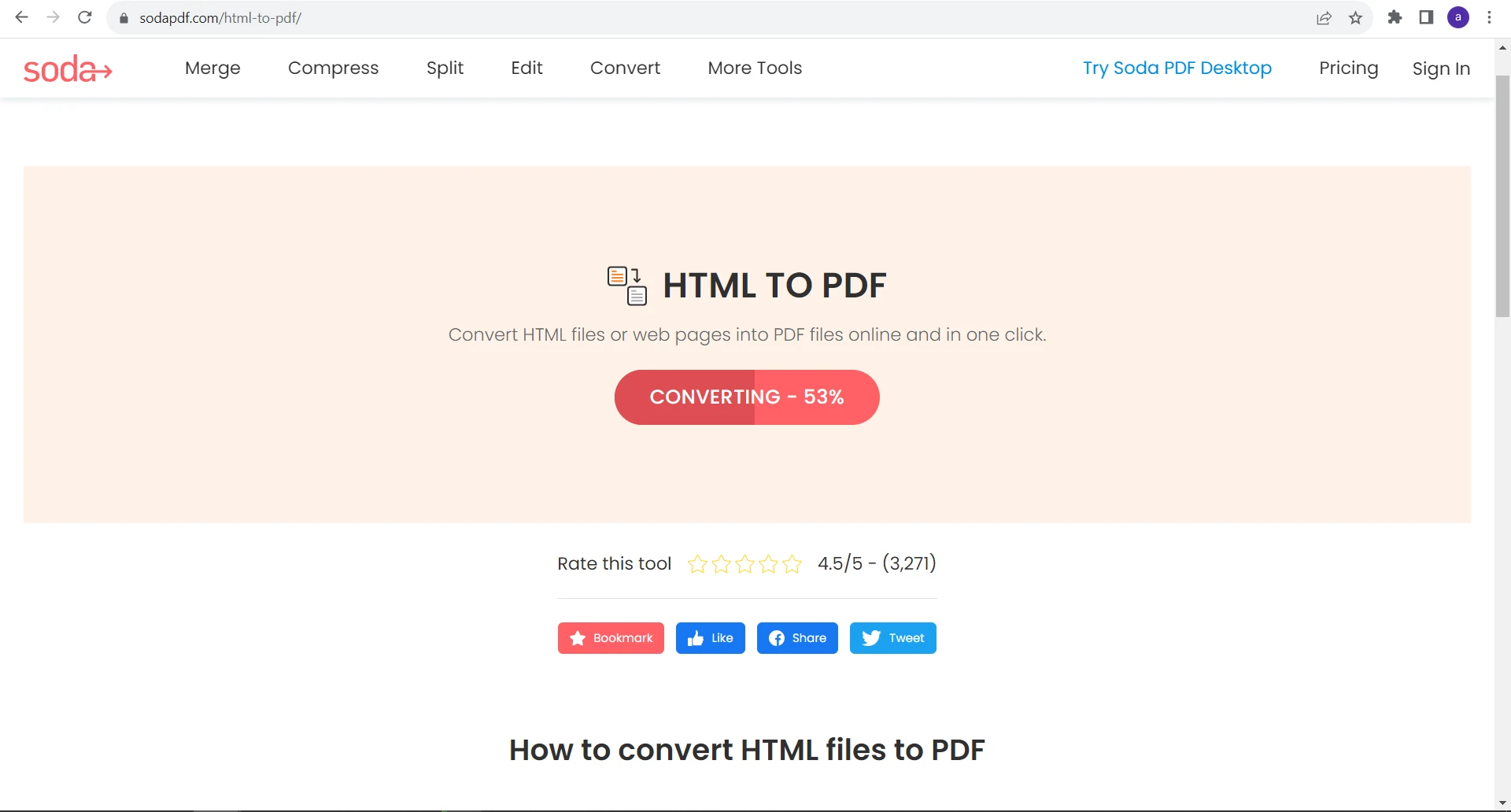
URL을 입력한 후 "Get PDF" 버튼을 클릭합니다. 도구가 웹 페이지를 처리하여 PDF 버전을 생성합니다.
4단계: PDF 다운로드하기
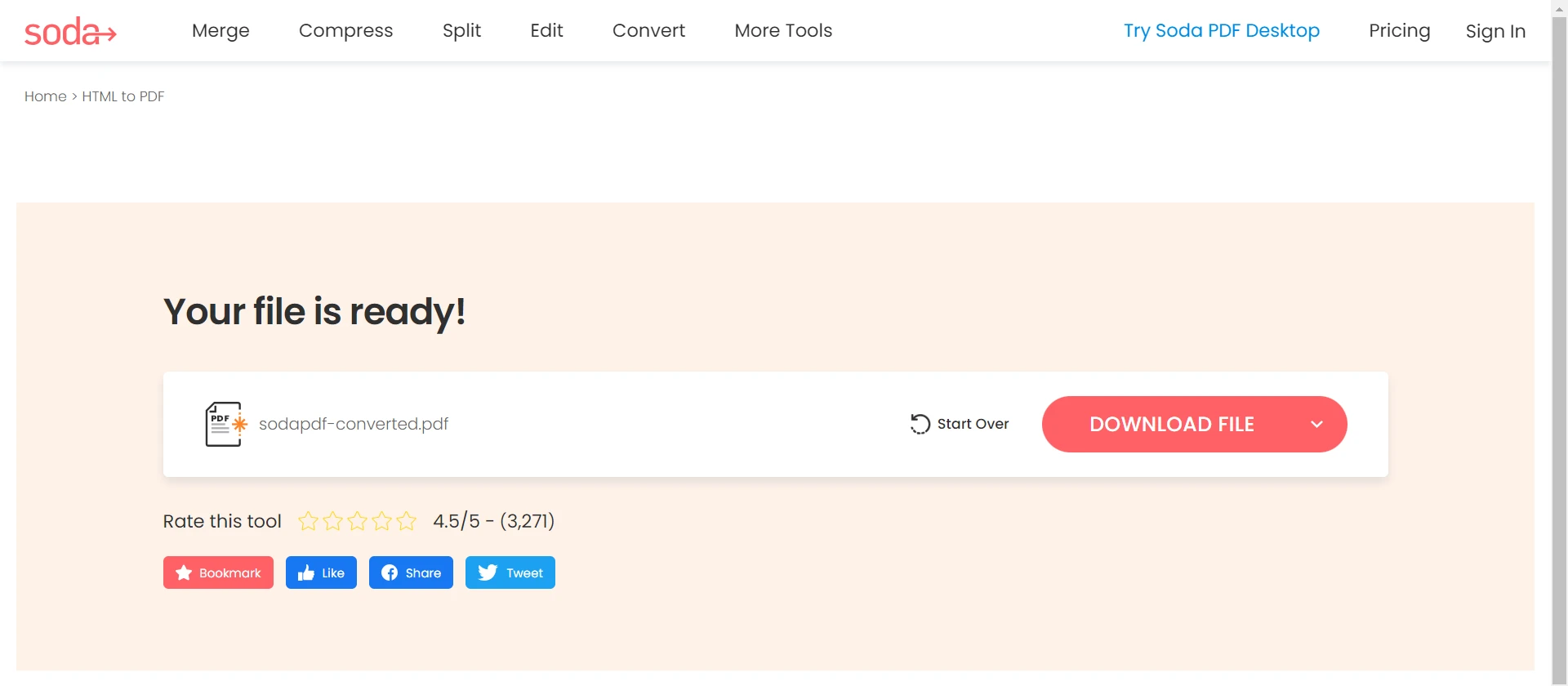
변환이 완료되면 도구가 PDF를 다운로드할 수 있는 링크를 제공합니다. 링크를 클릭하여 컴퓨터에 PDF 파일을 저장합니다.
IronPDF 소개합니다
브라우저 기본 기능 및 Soda PDF의 "HTML to PDF"와 같은 온라인 도구는 웹 페이지를 PDF로 다운로드하기에 편리한 옵션이지만, 모든 사용자가 필요로 할 고급 기능과 유연성을 제공하지 않을 수도 있습니다. 보다 강력한 솔루션이 필요한 경우 IronPDF를 고려해 볼 수 있습니다.
IronPDF의 기능 탐색하기는 웹 페이지를 PDF로 캡처 및 저장할 수 있는 범용 PDF 조작 도구입니다. 단독 데스크탑 애플리케이션으로 사용되거나 IronPDF API를 사용하여 웹 애플리케이션에 통합될 수 있습니다. 또한, IronPDF는 Windows와 Mac 운영 체제 모두와 호환됩니다.
IronPDF를 사용하여 웹 페이지를 PDF로 다운로드하는 방법
IronPDF를 사용하여 URL을 PDF로 변환하려면 다음 단계를 따르십시오:
단계 1: IronPDF 설치
IronPDF를 Iron Software 웹사이트에서 다운로드 및 설치하거나 Visual Studio의 NuGet 패키지 관리자에서 다운로드 및 설치합니다.
단계 2: IronPdf을(를) 가져와 URL을 PDF로 렌더링합니다.
IronPDF 라이브러리를 가져와서 ChromePdfRenderer을 인스턴스화합니다. IronPDF는 페이지 레이아웃, 여백 및 PDF 페이지의 방향을 포함하여 URL 캡처를 사용자 정의할 수 있는 ChromePdfRenderer 옵션도 제공합니다. 그 다음, IronPDF는 RenderUrlAsPdf 메서드를 사용하여 웹페이지를 PDF로 캡처합니다.
using IronPdf;

// Initialize the ChromePdfRenderer, which is used to render the URL into a PDF
ChromePdfRenderer renderer = new ChromePdfRenderer()
{
    RenderingOptions = new ChromePdfRenderOptions
    {
        CssMediaType = IronPdf.Rendering.PdfCssMediaType.Screen, // Set CSS media type
        PrintHtmlBackgrounds = true,                              // Enable printing HTML backgrounds
        EnableJavaScript = true,                                  // Enable JavaScript for the webpage
        GrayScale = false,                                        // Specify if the output PDF should be in grayscale
        PaperOrientation = IronPdf.Rendering.PdfPaperOrientation.Portrait, // Set the paper orientation to portrait
        PaperSize = IronPdf.Rendering.PdfPaperSize.A4,             // Set the paper size to A4
        MarginTop = 0,                                             // Define top margin size
        MarginBottom = 0,                                          // Define bottom margin size
        MarginLeft = 0,                                            // Define left margin size
        MarginRight = 0,                                           // Define right margin size
        UseMarginsOnHeaderAndFooter = IronPdf.UseMargins.None,     // Do not use margins for header and footer
    }
};

// Use Chrome's default rendering settings
renderer.RenderingOptions.PaperFit.UseChromeDefaultRendering();

// Render the webpage as a PDF
var pdf = renderer.RenderUrlAsPdf("https://ironpdf.com/");
using IronPdf;

// Initialize the ChromePdfRenderer, which is used to render the URL into a PDF
ChromePdfRenderer renderer = new ChromePdfRenderer()
{
    RenderingOptions = new ChromePdfRenderOptions
    {
        CssMediaType = IronPdf.Rendering.PdfCssMediaType.Screen, // Set CSS media type
        PrintHtmlBackgrounds = true,                              // Enable printing HTML backgrounds
        EnableJavaScript = true,                                  // Enable JavaScript for the webpage
        GrayScale = false,                                        // Specify if the output PDF should be in grayscale
        PaperOrientation = IronPdf.Rendering.PdfPaperOrientation.Portrait, // Set the paper orientation to portrait
        PaperSize = IronPdf.Rendering.PdfPaperSize.A4,             // Set the paper size to A4
        MarginTop = 0,                                             // Define top margin size
        MarginBottom = 0,                                          // Define bottom margin size
        MarginLeft = 0,                                            // Define left margin size
        MarginRight = 0,                                           // Define right margin size
        UseMarginsOnHeaderAndFooter = IronPdf.UseMargins.None,     // Do not use margins for header and footer
    }
};

// Use Chrome's default rendering settings
renderer.RenderingOptions.PaperFit.UseChromeDefaultRendering();

// Render the webpage as a PDF
var pdf = renderer.RenderUrlAsPdf("https://ironpdf.com/");
Imports IronPdf
' Initialize the ChromePdfRenderer, which is used to render the URL into a PDF
Private renderer As New ChromePdfRenderer() With {
.RenderingOptions = New ChromePdfRenderOptions With {
.CssMediaType = IronPdf.Rendering.PdfCssMediaType.Screen,
.PrintHtmlBackgrounds = True,
.EnableJavaScript = True,
.GrayScale = False,
.PaperOrientation = IronPdf.Rendering.PdfPaperOrientation.Portrait,
.PaperSize = IronPdf.Rendering.PdfPaperSize.A4,
.MarginTop = 0,
.MarginBottom = 0,
.MarginLeft = 0,
.MarginRight = 0,
.UseMarginsOnHeaderAndFooter = IronPdf.UseMargins.None
}
}
' Use Chrome's default rendering settings
renderer.RenderingOptions.PaperFit.UseChromeDefaultRendering()
' Render the webpage as a PDF
Dim pdf = renderer.RenderUrlAsPdf("https://ironpdf.com/")
Imports IronPdf

' Initialize the ChromePdfRenderer, which is used to render the URL into a PDF
Private renderer As New ChromePdfRenderer() With {
	.RenderingOptions = New ChromePdfRenderOptions With {
		.CssMediaType = IronPdf.Rendering.PdfCssMediaType.Screen,
		.PrintHtmlBackgrounds = True,
		.EnableJavaScript = True,
		.GrayScale = False,
		.PaperOrientation = IronPdf.Rendering.PdfPaperOrientation.Portrait,
		.PaperSize = IronPdf.Rendering.PdfPaperSize.A4,
		.MarginTop = 0,
		.MarginBottom = 0,
		.MarginLeft = 0,
		.MarginRight = 0,
		.UseMarginsOnHeaderAndFooter = IronPdf.UseMargins.None
	}
}

' Use Chrome's default rendering settings
renderer.RenderingOptions.PaperFit.UseChromeDefaultRendering()

' Render the webpage as a PDF
Dim pdf = renderer.RenderUrlAsPdf("https://ironpdf.com/")
단계 3: PDF로 저장
이제 SaveAs 메서드를 사용하여 쉽게 렌더링된 URL 웹페이지를 PDF로 저장할 수 있습니다.
// Save the rendered PDF to a file
pdf.SaveAs("example.pdf");
// Save the rendered PDF to a file
pdf.SaveAs("example.pdf");
' Save the rendered PDF to a file
pdf.SaveAs("example.pdf")
' Save the rendered PDF to a file
pdf.SaveAs("example.pdf")
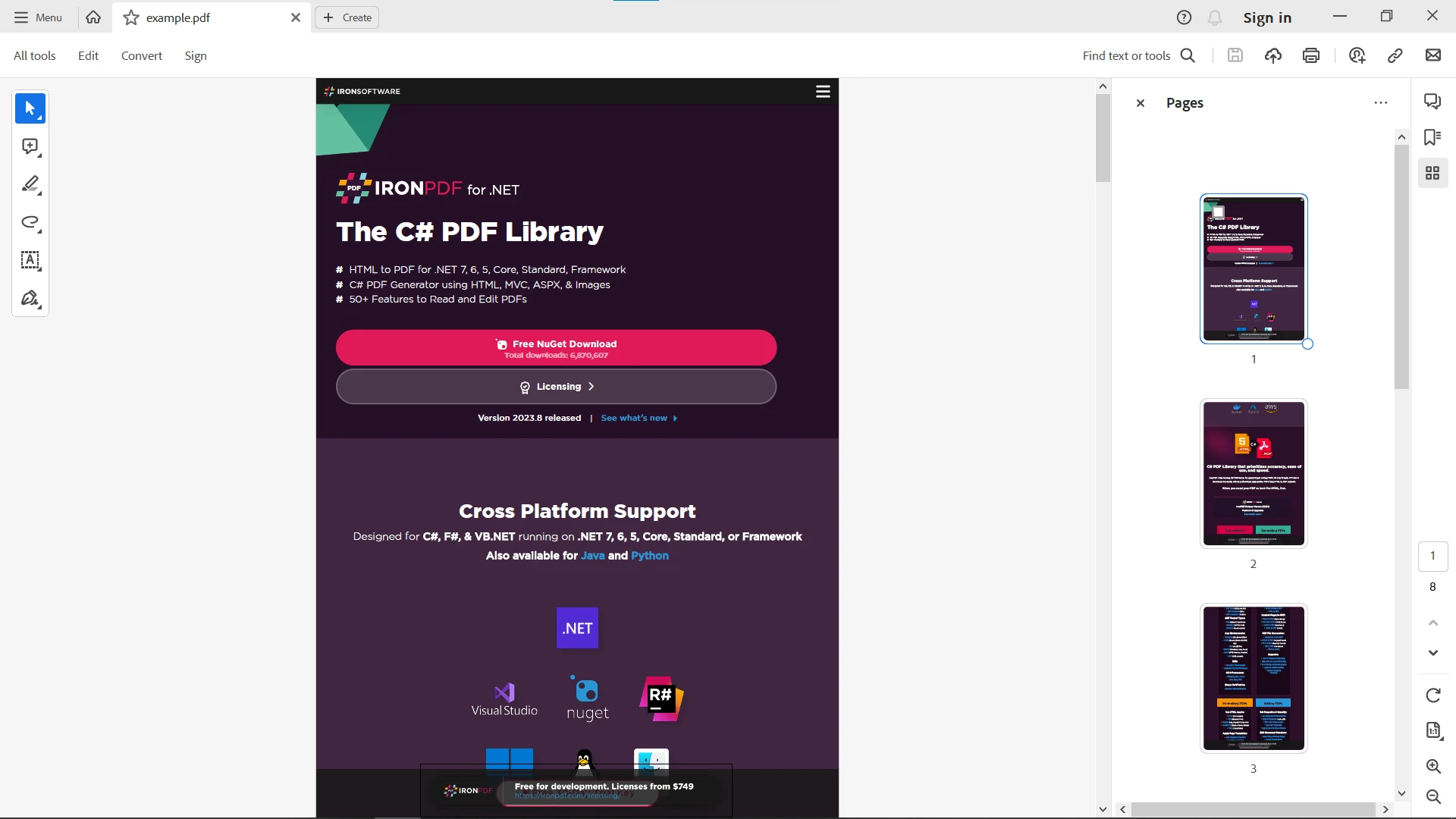
다음은 출력 결과입니다.
결론
웹 페이지를 다운로드하고 페이지를 무료로 PDF로 저장하는 것은 참조, 아카이빙 또는 타인과 공유하기 위해 웹 콘텐츠를 보존하는 실용적인 방법입니다. 최신 웹 브라우저의 내장 기능, Soda PDF의 "HTML을 PDF로"와 같은 온라인 도구, 그리고 IronPDF의 고급 기능을 통해 웹 콘텐츠를 휴대 가능하고 쉽게 공유할 수 있는 형식으로 저장할 수 있는 간편하고 접근 가능한 옵션이 제공됩니다.
IronPDF는 높은 품질과 사용자 정의 옵션 및 배치 처리를 통해 웹 페이지를 PDF로 변환하는 작업을 간소화합니다. 복잡한 HTML 콘텐츠를 처리하고, 워크플로에 통합하며, 보안 기능을 제공합니다. IronPDF는 웹 페이지를 효율적으로 PDF로 변환하는 다재다능하고 사용자 친화적인 도구입니다.
프로젝트에서 IronPDF를 사용하려면 단일 개발자용 $999부터 시작하는 상업용 IronPDF 라이선스를 얻을 수 있습니다. 구매 전 테스트해 볼 수 있도록 모든 기능과 지원이 포함된 IronPDF의 무료 체험판도 있습니다. 라이선스를 구매하기로 결정한 경우 여러 개발자 및 대규모 기업용 옵션을 포함하여 다양한 옵션이 제공됩니다. IronPDF 다운로드













