PDF는 정보를 공유하기에 훌륭하지만, 편집하거나 공유할 때 문제가 될 수 있습니다. 때로는 PDF 파일에서 텍스트를 복사하여 붙여넣을 수 없어서 텍스트를 직접 입력하거나 스크린샷을 찍어야 합니다. 문서를 편집해야 할 때는 PDF 전체를 편집 프로그램에서 열어 새 파일로 저장해야 합니다.
PDF 페이지를 분리하는 것은 복잡한 작업처럼 보이지만, 몇 번의 클릭만으로 수행할 수 있는 많은 방법이 있습니다. 여러 PDF 파일 나누기 방법을 탐색해봅시다.
Adobe Acrobat에서 PDF 파일에서 페이지 분리하기
Adobe Acrobat은 Windows와 Mac 운영 체제에서 사용할 수 있는 인기 있는 PDF 리더 및 생성기입니다. Acrobat Reader 응용 프로그램 편집기는 사용자들이 PDF에 댓글이나 주석을 추가하고, 보험 청구서나 세금 보고서 같은 양식을 작성하고, 문서를 수동으로 서명하는 등 다양한 작업을 할 수 있게 해줍니다. Adobe Acrobat에서 여러 파일을 분리할 수 있습니다. 이제 PDF 파일을 분리하는 방법을 알아봅시다.
단계:
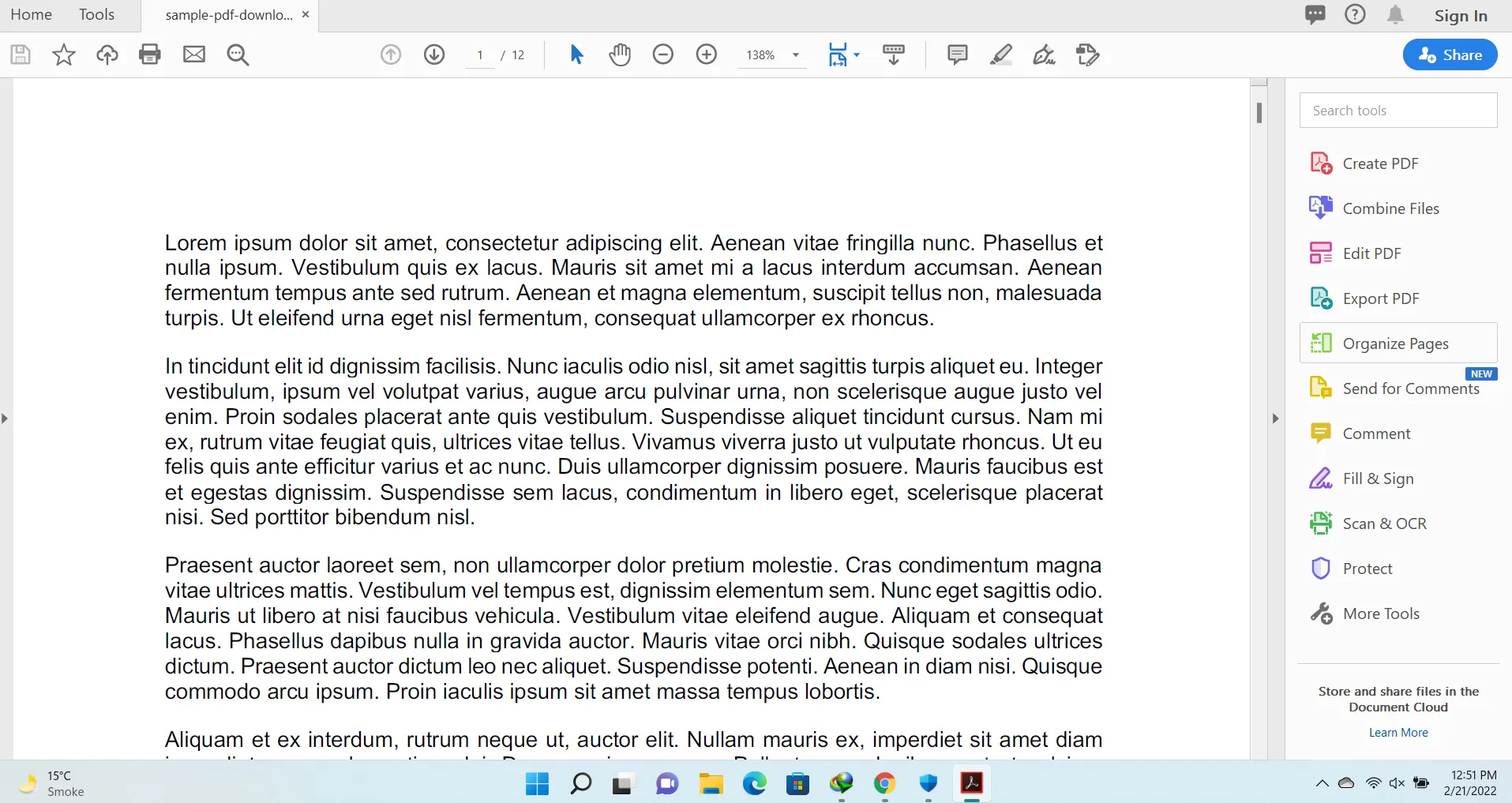 Adobe Acrobat Pro DC에서 PDF 파일 열기
- 편집 인터페이스가 열립니다. 분리 버튼을 클릭합니다.
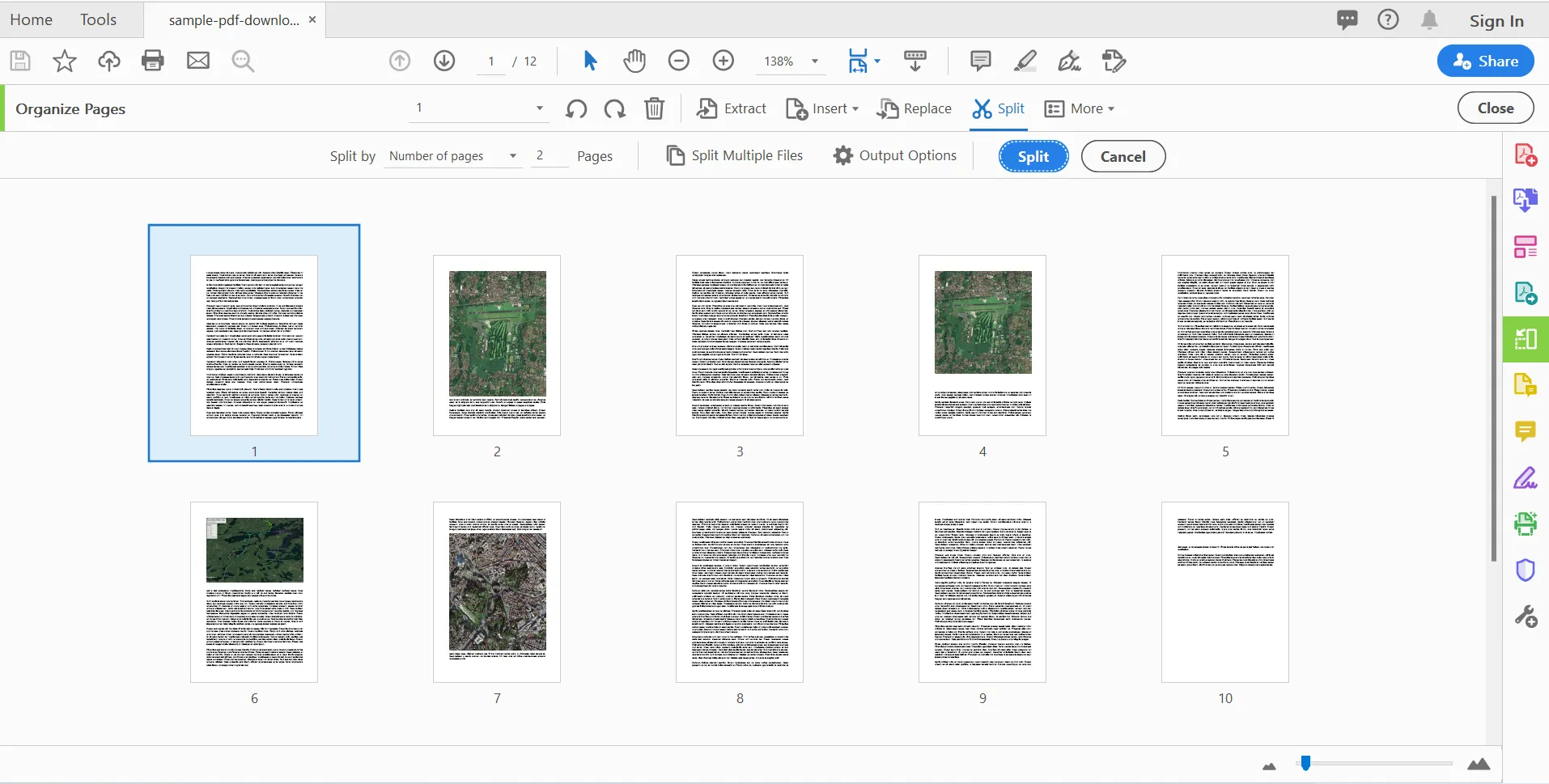 Split 기능이 있는 편집 인터페이스
- 분리하고자 하는 페이지를 선택하고 '분리' 버튼을 클릭합니다. 모든 페이지가 각각의 다른 문서로 분리됩니다.
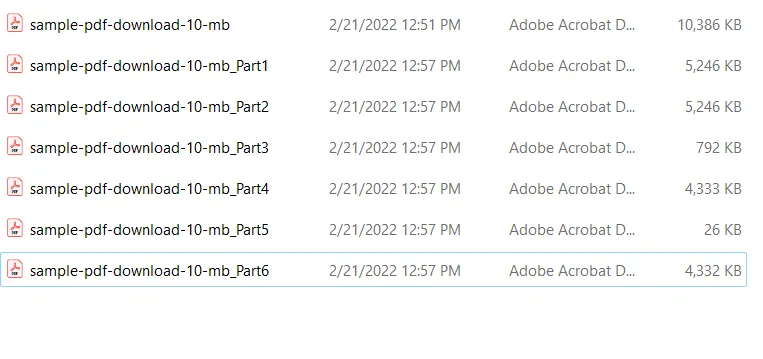 분리 후 결과 파일
Google Chrome에서 PDF 페이지 분리하기
Google Chrome은 모든 주요 운영 체제에서 실행할 수 있는 웹 브라우저입니다. Chrome 브라우저는 매우 다재다능합니다. 인터넷을 탐색하기 위한 브라우저로 가장 많이 사용되지만, PDF 파일 생성과 같은 작업에도 사용할 수 있습니다. Chrome은 내장된 PDF 리더를 가지고 있어, 다른 소프트웨어를 다운로드하지 않고도 PDF를 볼 수 있습니다. PDF 문서의 한 페이지나 특정 범위의 페이지만 저장하려면 Chrome 브라우저를 사용하는 것이 좋습니다. Chrome을 PDF 분할기로 사용할 수 있습니다.
Chrome은 웹 페이지를 PDF로 인쇄할 수 있으며, 이를 컴퓨터에 저장할 수 있습니다. Chrome은 다운로드하거나 직접 생성한 PDF를 열고 읽을 수도 있어, PDF의 분할 화면 보기로도 사용할 수 있습니다.
Google Chrome을 사용하여 PDF 파일을 분리하는 방법을 살펴봅시다.
단계:
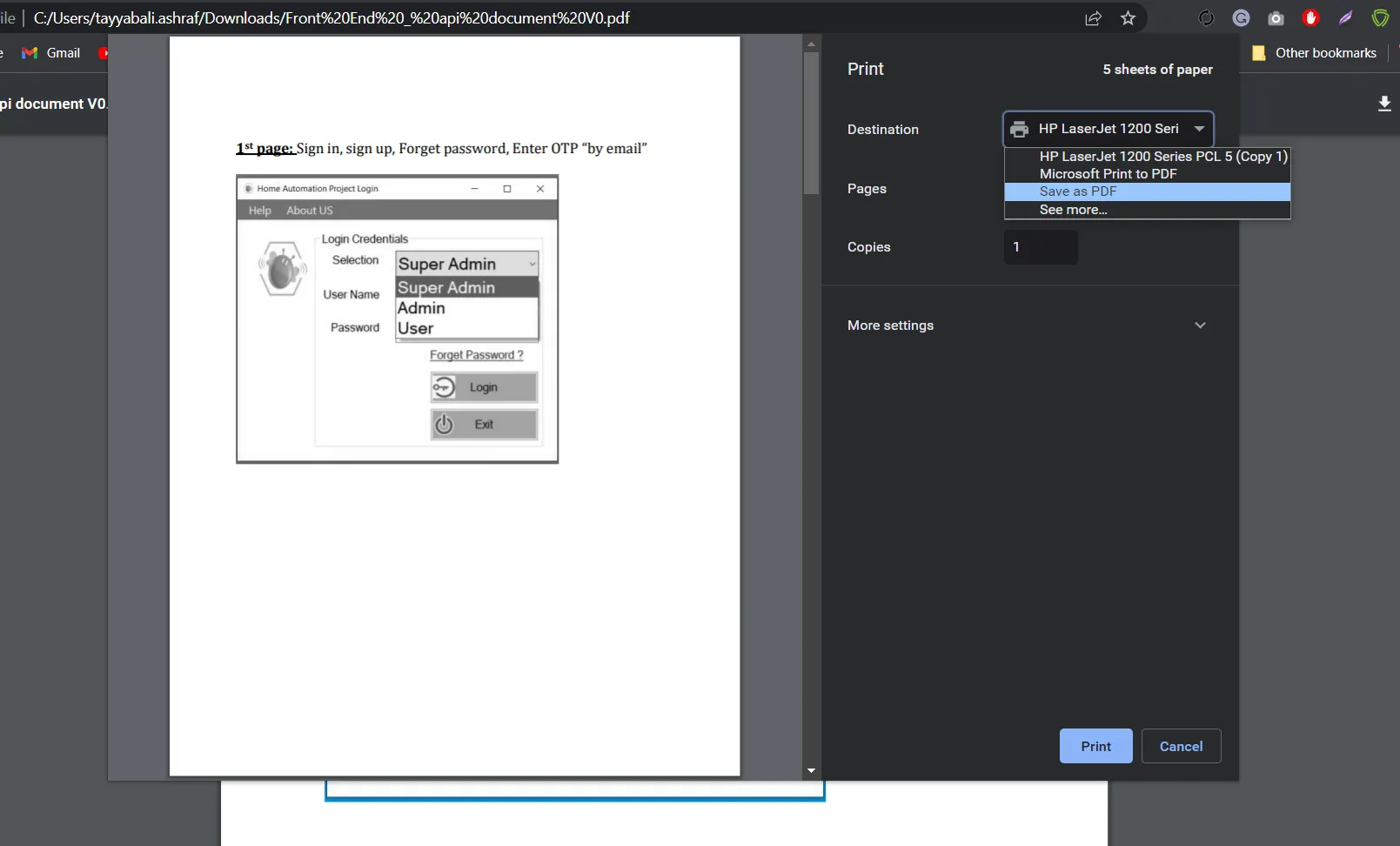 한 페이지를 인쇄할 때 PDF로 저장 옵션 선택
- PDF를 분할하기 위해 페이지 드롭다운 메뉴에서 사용자 정의를 선택하고 사용자 정의 페이지 범위를 추가합니다.
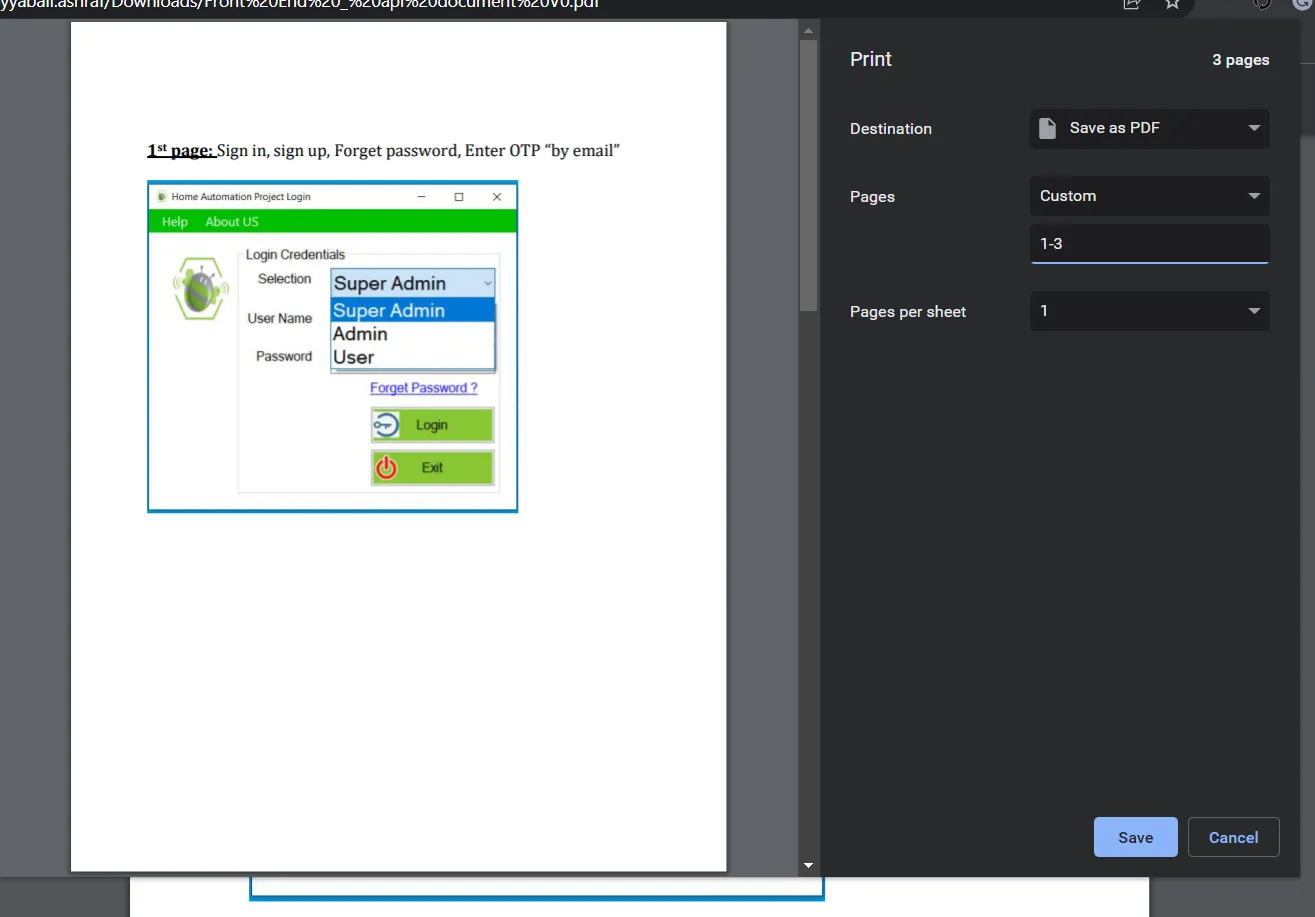 인쇄할 사용자 정의 페이지 수
macOS에서 PDF 페이지 분리
미리보기는 사용자가 문서, PDF 파일 또는 기타 파일 유형의 내용을 볼 수 있게 해주는 macOS 앱입니다. 미리보기에는 사진 자르기 및 회전과 같은 편집 기능도 있습니다. 미리보기는 수년간 macOS의 기본 설치에 포함되어 있었습니다. 미리보기는 강력한 편집기는 아니지만 많은 유용하고 필수적인 도구들을 가지고 있습니다. 미리보기 애플리케이션으로 PDF 페이지를 분할하는 방법을 살펴보겠습니다.
온라인 도구
EasePDF
EasePDF는 PDF 파일을 생성, 편집 및 변환할 수 있는 무료 온라인 PDF 편집기 및 PDF 생성기입니다. 무료로 제공되며 직관적인 인터페이스를 가지고 있습니다. PDF Convert 웹사이트와 동일한 기능을 가지며, 한 번에 어느 정도의 파일도 업로드할 수 있습니다. 문서에 이미지를 추가할 수도 있습니다. 크로스 플랫폼을 지원하는 온라인 PDF 편집기로서, 많은 필수적인 PDF 편집 도구를 제공합니다. PDF 페이지를 회전할 수도 있습니다. 페이지를 분할하는 방법을 아래에서 살펴보겠습니다.
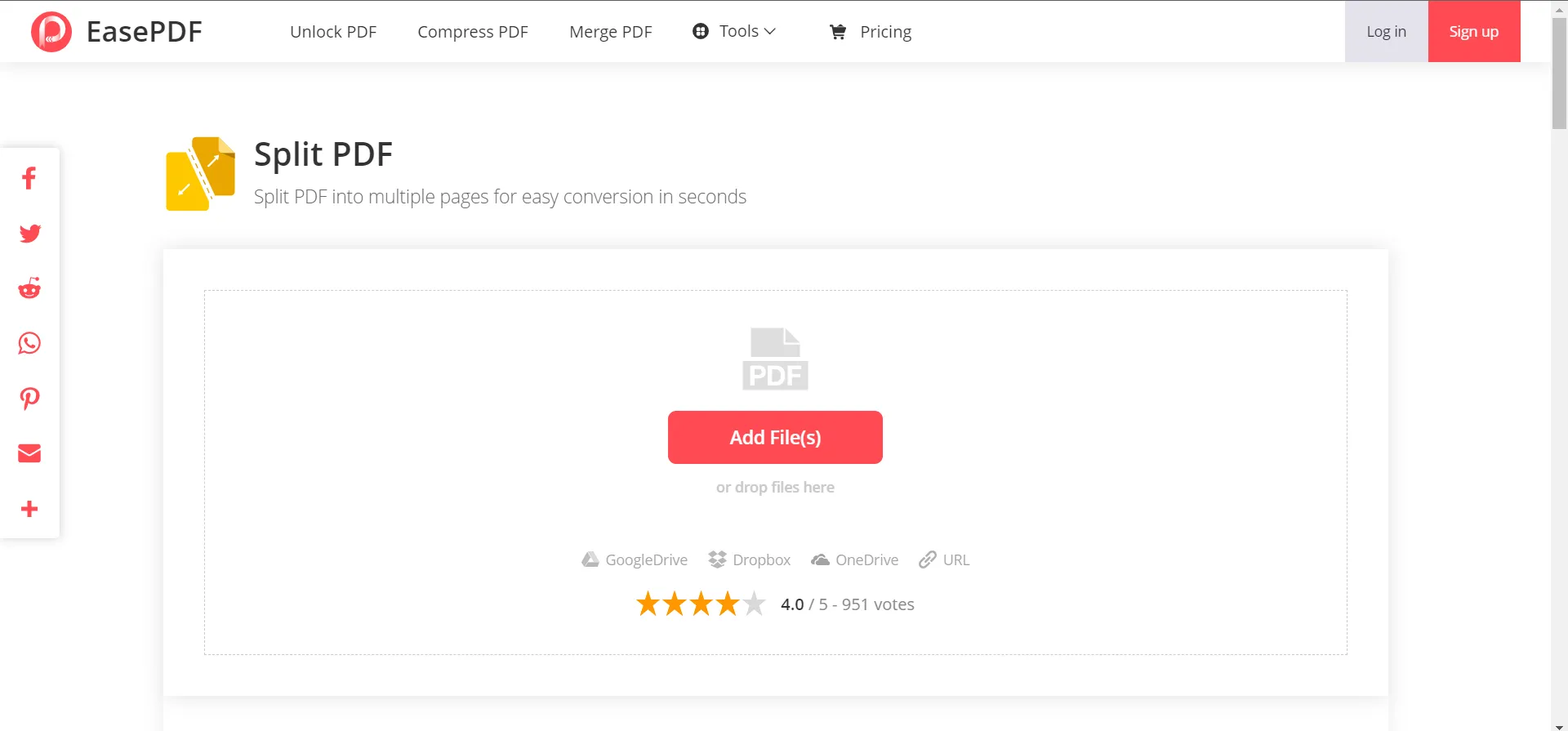 EasePDF에서 PDF 분할하기
단계:
-
EasePDF Split PDF 웹사이트 열기
-
PDF 파일을 추가하거나 PDF 파일을 드래그 앤 드롭하세요
-
업로드 후 PDF 페이지와 PDF 페이지를 분할하기 위한 다양한 옵션이 표시됩니다
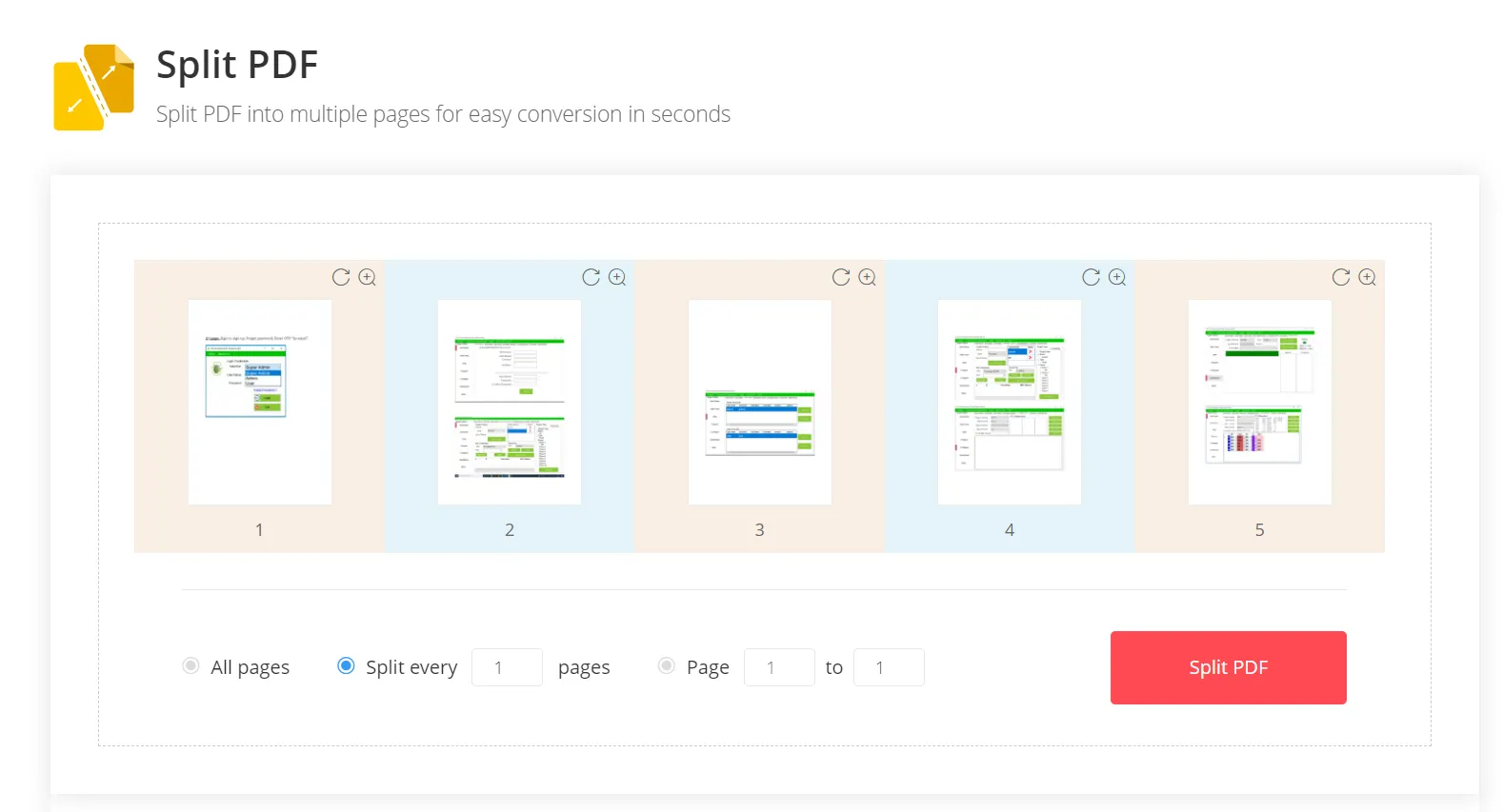 업로드된 파일 미리 보기 및 PDF 페이지 분할 사용자 정의
- 여기에서 개별 페이지를 별도의 PDF 파일로 분할할 수 있습니다. 정기적인 간격으로 PDF 페이지를 분할하거나 범위에서 PDF 페이지를 분할할 수도 있습니다. 원하는 옵션을 선택한 후 PDF 분할 버튼을 클릭하세요. PDF 페이지를 분리하기 시작할 것입니다.
PDFChef
PDFChef의 Split PDF 도구는 PDF를 편집, 변환, 서명 및 공유할 수 있는 온라인 PDF 편집기입니다. PDFChef는 컴퓨터에 설치된 소프트웨어 없이도 PDF를 편집할 수 있는 온라인 편집 도구를 제공합니다. 한 번의 클릭만으로 모든 파일을 PDF 문서로 변환할 수 있습니다. PDFChef를 사용하여 문서를 이메일이나 웹을 통해 다른 사람과 서명하고 공유할 수도 있습니다.
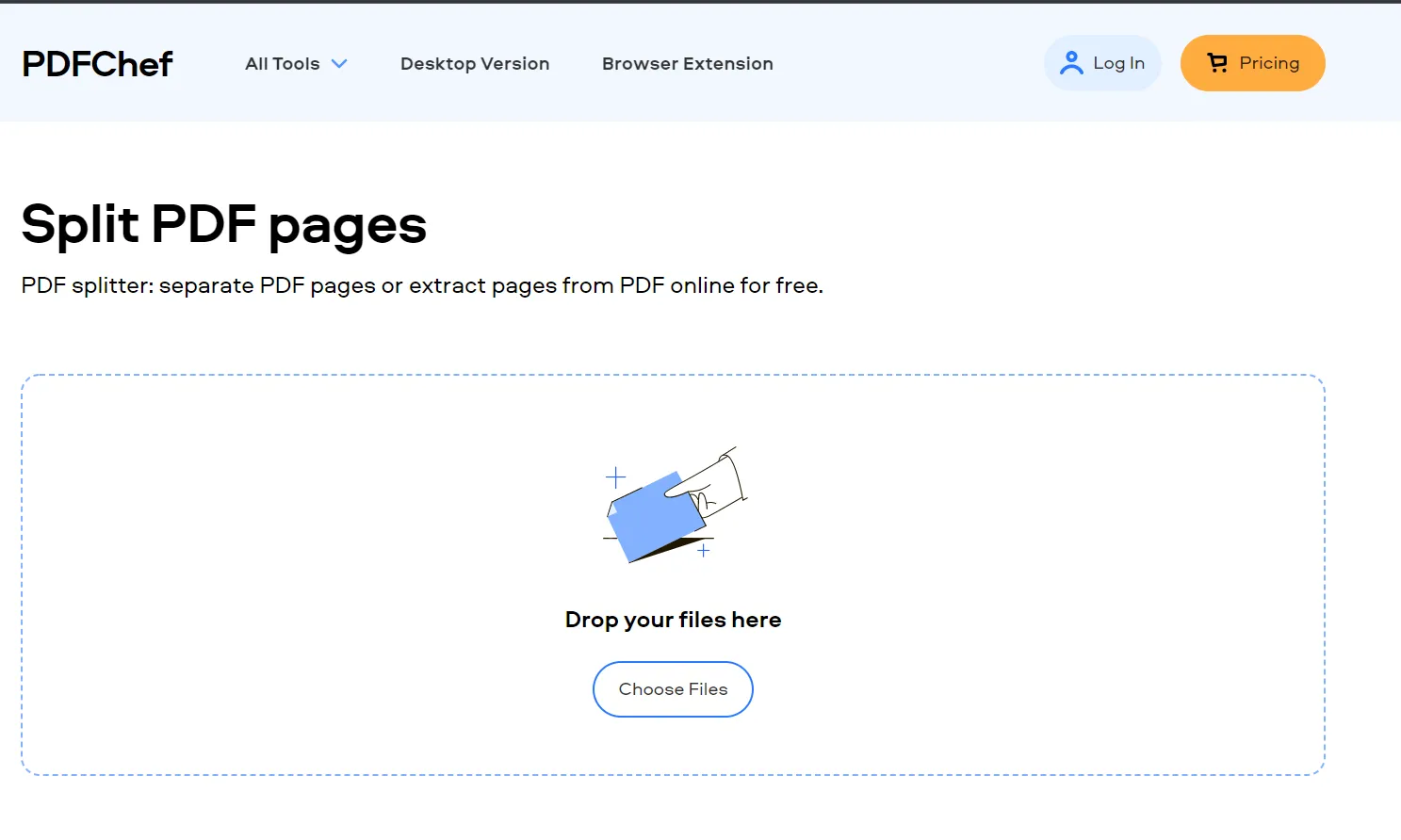 Split PDF 페이지 기능이 있는 PDFChef
PDFChef를 사용해 파일을 분리하는 방법을 살펴보겠습니다.
단계:
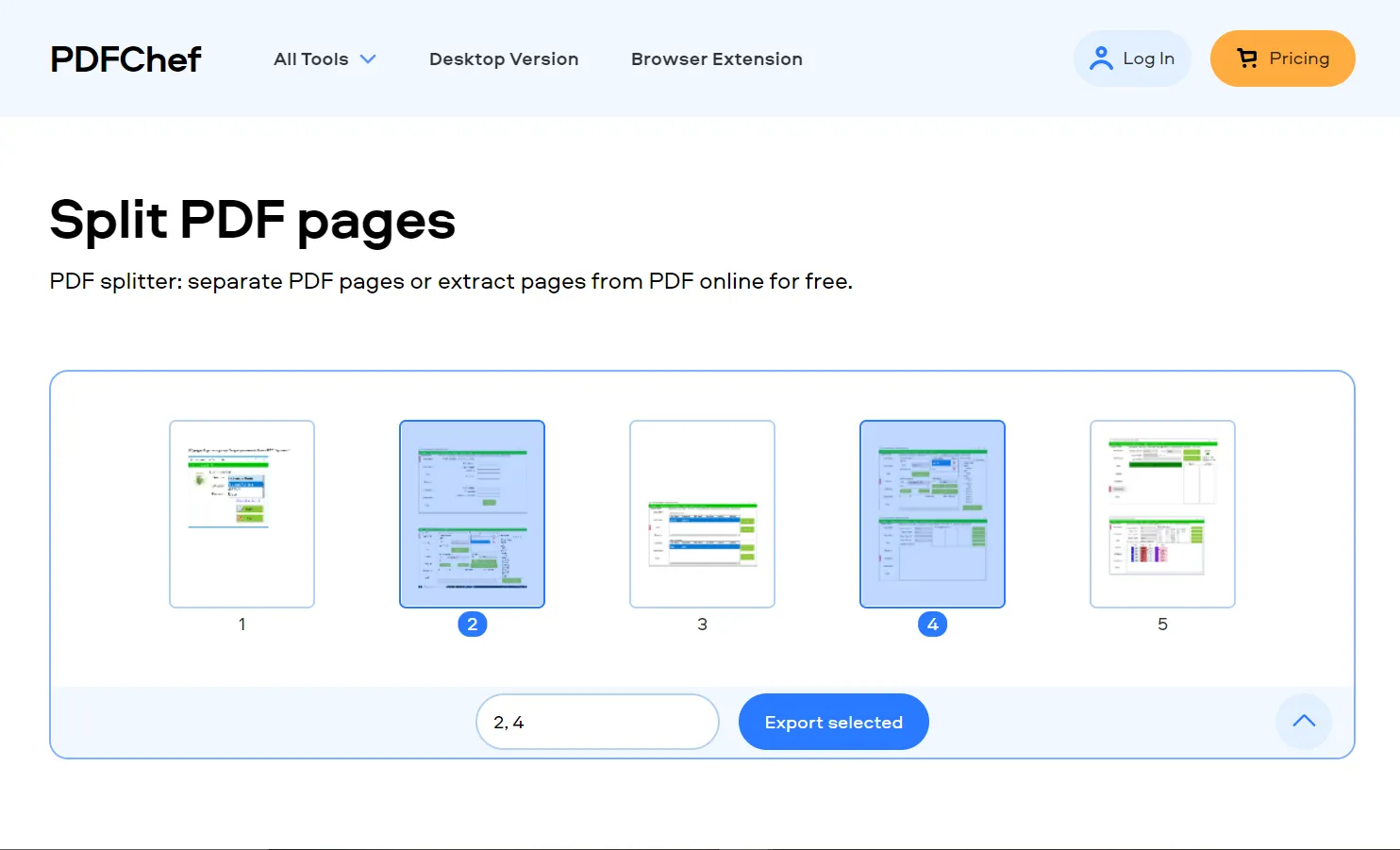 업로드, 미리 보기 및 PDF 파일 분할
- 페이지를 선택한 후 "선택한 항목 내보내기" 버튼을 클릭하세요. 파일이 시스템에 다운로드됩니다.
Smallpdf
Smallpdf는 무료 온라인 PDF 편집기 및 생성기입니다. Smallpdf의 온라인 PDF 편집기는 PDF 파일을 편집하고 생성해야 하는 사람들에게 훌륭한 도구입니다. 전문적인 PDF 편집기에서 기대할 수 있는 모든 기능을 제공하며 사용이 간편합니다. Smallpdf는 추가 소프트웨어나 플러그인 없이 PDF 파일을 작은 부분으로 분할할 수도 있습니다. 원본 파일의 품질이나 크기를 잃지 않고 파일을 원하는 만큼 내보낼 수 있습니다.
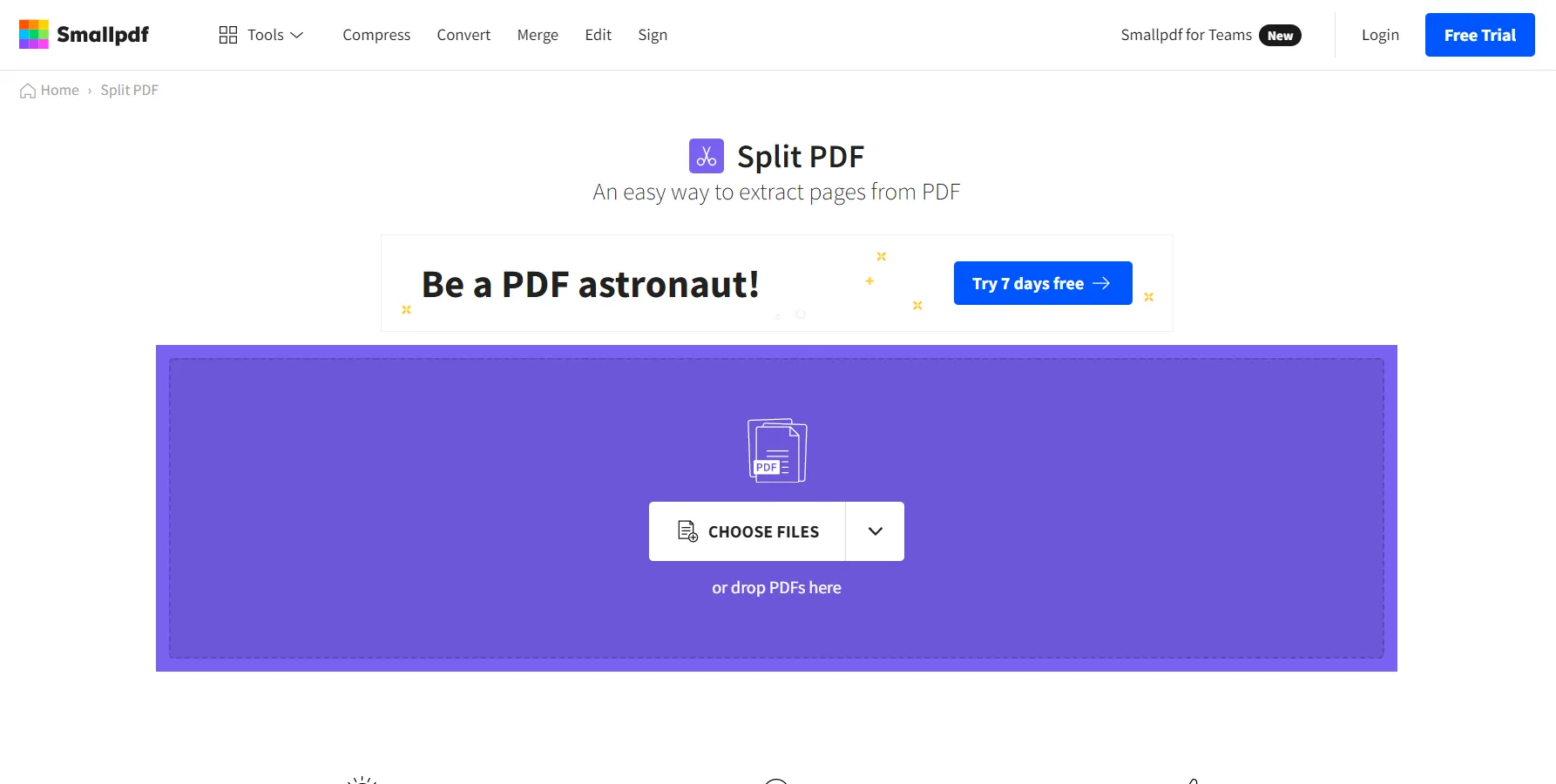 Smallpdf에서 PDF 파일 분할 인터페이스
Smallpdf 웹사이트 도구를 사용해 PDF를 분할하는 방법을 살펴보겠습니다.
단계:
-
브라우저에서 Smallpdf Split PDF 도구를 엽니다.
-
PDF 파일을 선택하거나 분할하려는 PDF 파일을 드래그 앤 드롭하세요. 다수의 문서도 업로드할 수 있습니다. 파일 크기에 대한 제한이 없습니다.
-
업로드 후, 두 가지 옵션을 보게 됩니다: "페이지 추출하기"와 "1개의 PDF를 여러 개로 나누기".
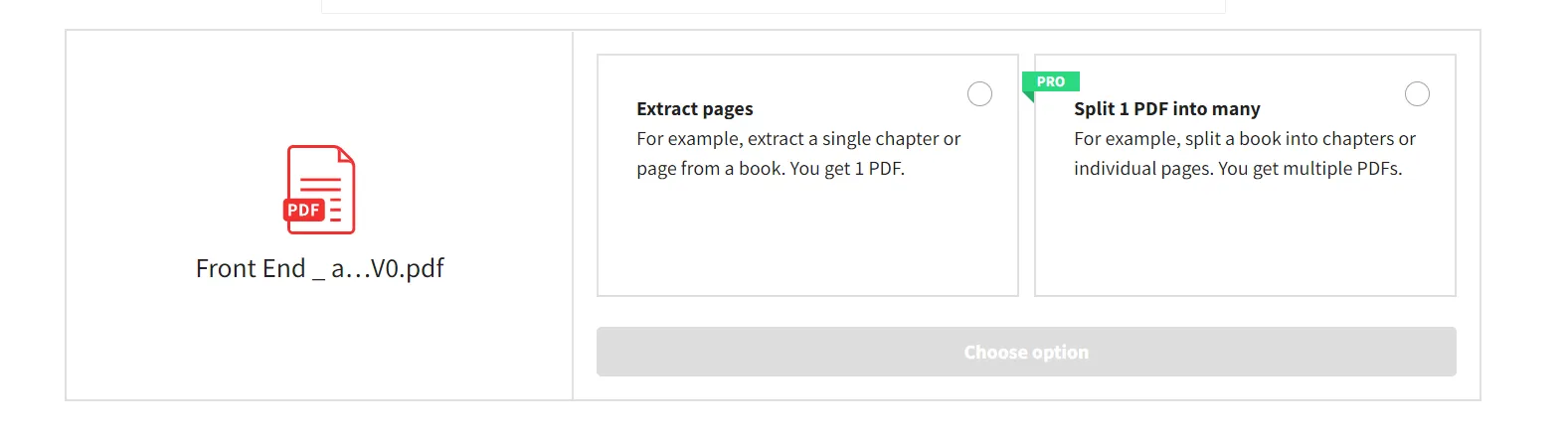 Smallpdf에서 페이지 분할 및 추출 기능
-
"1개의 PDF를 여러 개로 나누기" 옵션은 PRO 회원에게만 제공되며, 그렇지 않은 경우 "페이지 추출하기" 옵션을 선택할 수 있습니다.
-
분리할 페이지를 선택하고 오른쪽 위에 있는 추출 버튼을 클릭합니다.
-
분리 후 다운로드가 가능합니다.
IronPDF: C# PDF 라이브러리
IronPDF C# PDF 라이브러리는 개발자가 .NET 기술을 사용하여 PDF 문서를 신속하게 생성, 편집 및 렌더링할 수 있도록 하는 C# .NET PDF 라이브러리입니다. 이 라이브러리는 전적으로 C#으로 작성되었으며 타사 소프트웨어를 필요로 하지 않습니다. IronPDF는 개발자가 귀찮은 PDF 작업을 크게 번거롭지 않게 수행할 수 있도록 합니다. PDF 문서에서 텍스트를 추출, 텍스트나 이미지를 검색 및 교체하거나 Chrome 렌더링 엔진을 사용하여 PDF를 렌더링하여 문서의 외관을 변경할 수 있습니다. IronPDF는 추가 기능이 많아 다른 뷰어와 차별화됩니다. IronPDF의 데모 페이지로 이동하여 더 포괄적인 예제를 확인하세요.
우리는 IronPDF를 사용하여 PDF 페이지를 분할할 수도 있습니다. 어떻게 하는지 살펴보겠습니다.
// Install the IronPdf package via NuGet Package Manager
// PM> Install-Package IronPdf

using IronPdf;

class PDFSplitter
{
    static void Main()
    {
        // Define the HTML content to be rendered as PDF
        var html = @"
        <p> Hello Iron </p>
        <p> This is 1st Page </p>
        <div style='page-break-after: always;'></div>
        <p> This is 2nd Page</p>
        <div style='page-break-after: always;'></div>
        <p> This is 3rd Page</p>";

        // Initialize the PDF renderer using IronPdf
        var renderer = new IronPdf.ChromePdfRenderer();

        // Render the HTML content as PDF
        var pdfDoc = renderer.RenderHtmlAsPdf(html);

        // Copy and save the first page into a separate PDF file
        var pdfDocPage1 = pdfDoc.CopyPage(0);
        pdfDocPage1.SaveAs("Split1.pdf");

        // Copy pages 2 and 3 and save as a separate PDF file
        var pdfDocPage2_3 = pdfDoc.CopyPages(1, 2);
        pdfDocPage2_3.SaveAs("Split2.pdf");
    }
}
// Install the IronPdf package via NuGet Package Manager
// PM> Install-Package IronPdf

using IronPdf;

class PDFSplitter
{
    static void Main()
    {
        // Define the HTML content to be rendered as PDF
        var html = @"
        <p> Hello Iron </p>
        <p> This is 1st Page </p>
        <div style='page-break-after: always;'></div>
        <p> This is 2nd Page</p>
        <div style='page-break-after: always;'></div>
        <p> This is 3rd Page</p>";

        // Initialize the PDF renderer using IronPdf
        var renderer = new IronPdf.ChromePdfRenderer();

        // Render the HTML content as PDF
        var pdfDoc = renderer.RenderHtmlAsPdf(html);

        // Copy and save the first page into a separate PDF file
        var pdfDocPage1 = pdfDoc.CopyPage(0);
        pdfDocPage1.SaveAs("Split1.pdf");

        // Copy pages 2 and 3 and save as a separate PDF file
        var pdfDocPage2_3 = pdfDoc.CopyPages(1, 2);
        pdfDocPage2_3.SaveAs("Split2.pdf");
    }
}
' Install the IronPdf package via NuGet Package Manager
' PM> Install-Package IronPdf
Imports IronPdf
Friend Class PDFSplitter
Shared Sub Main()
' Define the HTML content to be rendered as PDF
Dim html = "
<p> Hello Iron </p>
<p> This is 1st Page </p>
<div style='page-break-after: always;'></div>
<p> This is 2nd Page</p>
<div style='page-break-after: always;'></div>
<p> This is 3rd Page</p>"
' Initialize the PDF renderer using IronPdf
Dim renderer = New IronPdf.ChromePdfRenderer()
' Render the HTML content as PDF
Dim pdfDoc = renderer.RenderHtmlAsPdf(html)
' Copy and save the first page into a separate PDF file
Dim pdfDocPage1 = pdfDoc.CopyPage(0)
pdfDocPage1.SaveAs("Split1.pdf")
' Copy pages 2 and 3 and save as a separate PDF file
Dim pdfDocPage2_3 = pdfDoc.CopyPages(1, 2)
pdfDocPage2_3.SaveAs("Split2.pdf")
End Sub
End Class
' Install the IronPdf package via NuGet Package Manager
' PM> Install-Package IronPdf

Imports IronPdf

Friend Class PDFSplitter
	Shared Sub Main()
		' Define the HTML content to be rendered as PDF
		Dim html = "
        <p> Hello Iron </p>
        <p> This is 1st Page </p>
        <div style='page-break-after: always;'></div>
        <p> This is 2nd Page</p>
        <div style='page-break-after: always;'></div>
        <p> This is 3rd Page</p>"

		' Initialize the PDF renderer using IronPdf
		Dim renderer = New IronPdf.ChromePdfRenderer()

		' Render the HTML content as PDF
		Dim pdfDoc = renderer.RenderHtmlAsPdf(html)

		' Copy and save the first page into a separate PDF file
		Dim pdfDocPage1 = pdfDoc.CopyPage(0)
		pdfDocPage1.SaveAs("Split1.pdf")

		' Copy pages 2 and 3 and save as a separate PDF file
		Dim pdfDocPage2_3 = pdfDoc.CopyPages(1, 2)
		pdfDocPage2_3.SaveAs("Split2.pdf")
	End Sub
End Class
이 C# 코드는 IronPDF를 사용하여 PDF를 분할하는 방법을 보여줍니다. 먼저 HTML 콘텐츠를 PDF로 렌더링합니다. IronPDF의 CopyPage 메서드를 사용하여 페이지를 분할할 수 있으며, 여러 페이지의 경우 CopyPages 을(를) 사용할 수 있습니다. 원하는 페이지를 분할한 후 SaveAs 을(를) 사용하여 저장할 수 있습니다.
IronPDF의 Chrome 렌더러의 전체 기능 탐색 및 API 참조에서 IronPDF의 PdfDocument 객체에 대해 더 알아보세요.
PDF 파일에서 페이지를 추가하거나 제거하는 방법을 IronPDF를 사용하여 탐색할 수 있는 다른 예제를 방문하세요.
이제 IronPDF C# 라이브러리를 사용하여 PDF 페이지를 쉽게 분할할 수 있는 방법을 보았습니다. 이는 소프트웨어에서 PDF 파일을 조작해야 하는 개발자에게 매우 유용하고 간단합니다. IronPDF의 무료 체험 키를 사용하여 평가할 수 있습니다. 지금 다섯 개의 Iron Software 제품을 단 두 개의 가격으로 받을 수 있는 훌륭한 특별 프로모션도 준비되어 있습니다. 라이선스에 대한 추가 정보를 위해 Iron Software 라이선스 페이지를 방문하세요.























