PDF(Portable Document Format)는 다양한 플랫폼과 장치에서 문서를 공유하고 저장하는 디지털 세계의 표준이 되었습니다. 강의 노트를 검토하는 학생이든, 보고서를 분석하는 전문가든, 디지털 문서를 다루는 누구든, PDF와 같은 텍스트 및 강조 표시 PDF 파일과 같은 주석 도구의 효율적이고 효과적인 사용은 필수적입니다. 인기 있는 주석 도구 중 하나는 PDF 하이라이터로, 사용자들이 중요한 정보를 강조하고 PDF 문서를 더욱 상호작용적으로 만들 수 있게 해줍니다. 이 문서에서는 PDF 하이라이터가 무엇인지, 어떻게 작동하는지, 그 장점 및 고려할 수 있는 최고의 옵션에 대해 탐색해 보겠습니다.
PDF 하이라이터는 사용자가 색상 강조를 통해 PDF 문서의 특정 부분을 표시할 수 있도록 하는 디지털 도구입니다. 이것은 PDF 문서에서 중요한 텍스트에 주의를 끌고 중요 메모를 작성하거나 핵심 포인트를 강조하는 데 도움을 줍니다. PDF 문서는 PDF 하이라이터 Chrome 확장 프로그램을 사용하여 Chrome에서 강조 표시할 수도 있습니다. PDF 하이라이터는 종이 문서에서 형광펜을 사용하는 물리적 동작을 시뮬레이션하지만, 디지털 및 더 다재다능한 방식으로 PDF를 강조 표시합니다.
Adobe Acrobat 없이 PDF를 하이라이트하는 방법을 알아보세요. 무료 온라인 PDF 강조 도구와 IronPDF를 사용한 텍스트 강조 방법을 안내합니다.
Foxit Reader
Foxit Reader는 효율적이고 직관적인 기능으로 유명한 다재다능하고 널리 사용되는 PDF 문서 뷰어입니다. Foxit Software의 제품인 이 응용 프로그램은 PDF 문서를 원활하게 처리하면서 파일 보기, 편집 및 주석 작성을 위한 다양한 도구를 제공하여 인기를 얻고 있습니다. 중요한 문서를 검토해야 하는 전문가이거나 사용하기 쉬운 PDF 리더를 찾고 있는 일상 사용자인 경우 Foxit Reader는 신뢰할 수 있는 솔루션으로 두드러집니다. 이 소개에서는 PDF 보기 및 관리 분야에서 Foxit Reader를 선호하는 선택으로 만드는 주요 기능과 장점을 심도 있게 살펴보겠습니다.
Foxit Reader를 사용하여 PDF 강조 표시
Foxit Reader를 사용하여 PDF의 텍스트를 강조 표시하는 것은 간단한 과정입니다. Foxit Reader를 사용할 때 PDF의 텍스트를 강조 표시하는 단계별 가이드입니다:
-
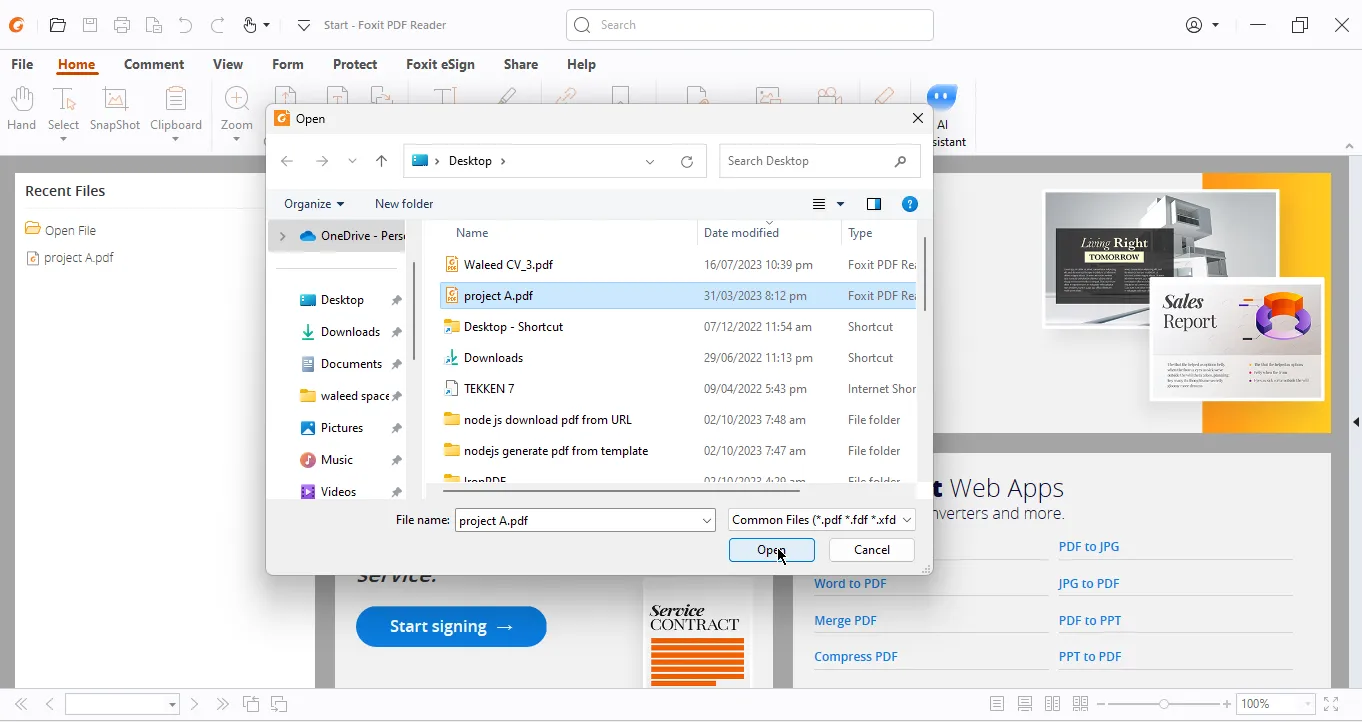
PDF 파일 열기: Foxit Reader를 실행하고 텍스트를 강조 표시하려는 PDF 문서를 엽니다.
-
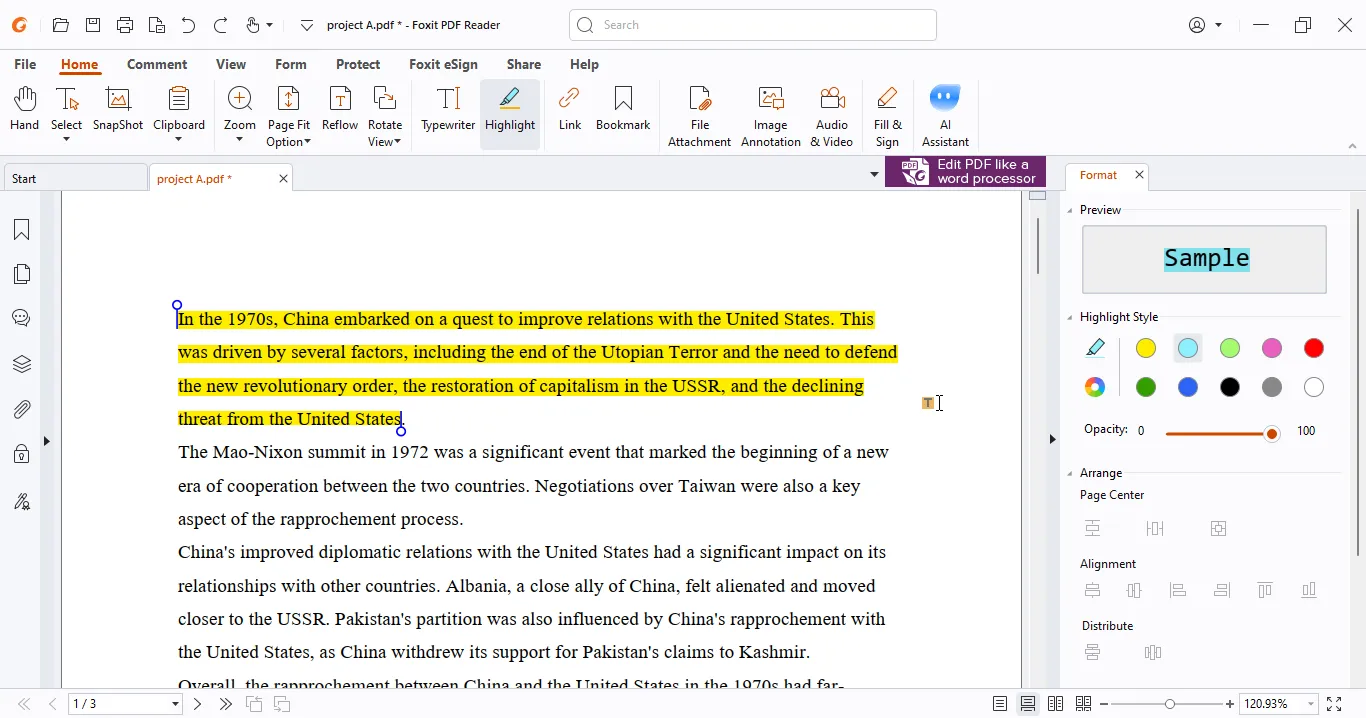
강조 도구 선택: 화면 상단의 툴바에서 '참고' 탭을 클릭합니다. 그런 다음 하이라이터 펜처럼 보이는 '강조 표시' 텍스트 도구를 클릭합니다.

-
텍스트 강조 표시: 강조 표시하려는 텍스트를 선택하려면 클릭하고 드래그합니다. 텍스트 위로 커서를 드래그하면 도구에 연결된 색상으로 강조 표시됩니다.
-
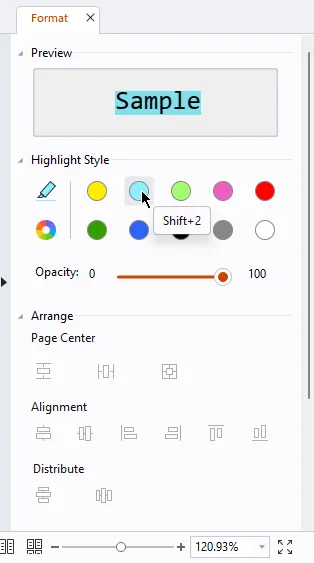
강조 색상 조정: 기본적으로 강조 표시된 텍스트는 특정 색상(일반적으로 노란색)으로 표시됩니다. 색상을 변경하려면 화면 오른쪽의 형식 상자를 사용하여 원하는 색상 및 불투명도를 선택하세요.
-
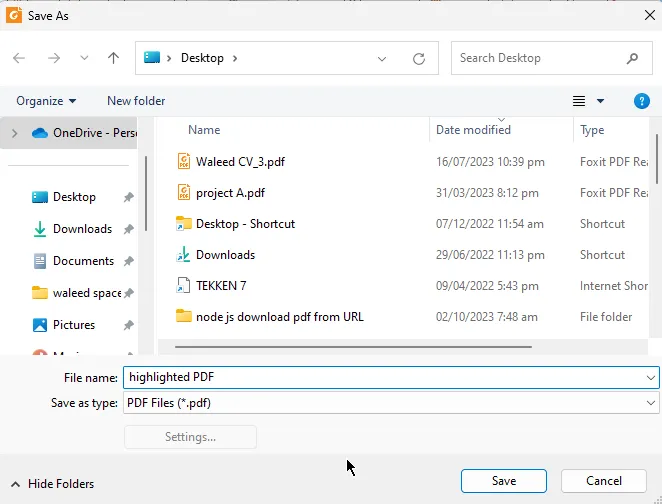
변경 사항 저장: 원하는 텍스트를 강조 표시한 후 변경 사항을 유지하려면 PDF 문서를 저장하세요. 파일 메뉴에서 '저장' 또는 '다른 이름으로 저장' 옵션을 사용하여 수정된 PDF 파일을 저장할 수 있습니다.
이 단계를 따르면 Foxit Reader를 사용하여 PDF의 텍스트를 쉽게 강조 표시하고 페이지 및 선호도에 맞게 강조 색상을 맞춤 설정할 수 있습니다.
PDFelement
Wondershare가 만든 뛰어난 PDFelement는 PDF 편집 및 관리 솔루션의 최전선에 자리 잡고 있습니다. 포괄적인 기능 세트와 사용자 친화적인 인터페이스로 잘 알려진 PDFelement는 개인 및 기업이 PDF 문서를 쉽게 및 정밀하게 처리할 수 있도록 합니다. PDF 문서를 편집, 변환, 주석 달기 및 보안 설정과 상관없이, PDFelement는 매끄럽고 직관적인 경험을 제공하여 전문가와 일반 사용자가 모두 선호하는 도구가 됩니다. 이 소개에서는 PDF 소프트웨어 분야에서 PDFelement를 최고의 선택으로 만드는 기능 및 장점을 탐구하고 문서 관리 및 생산성에 미치는 영향을 보여줍니다.
PDFelement를 사용하여 PDF 강조 표시
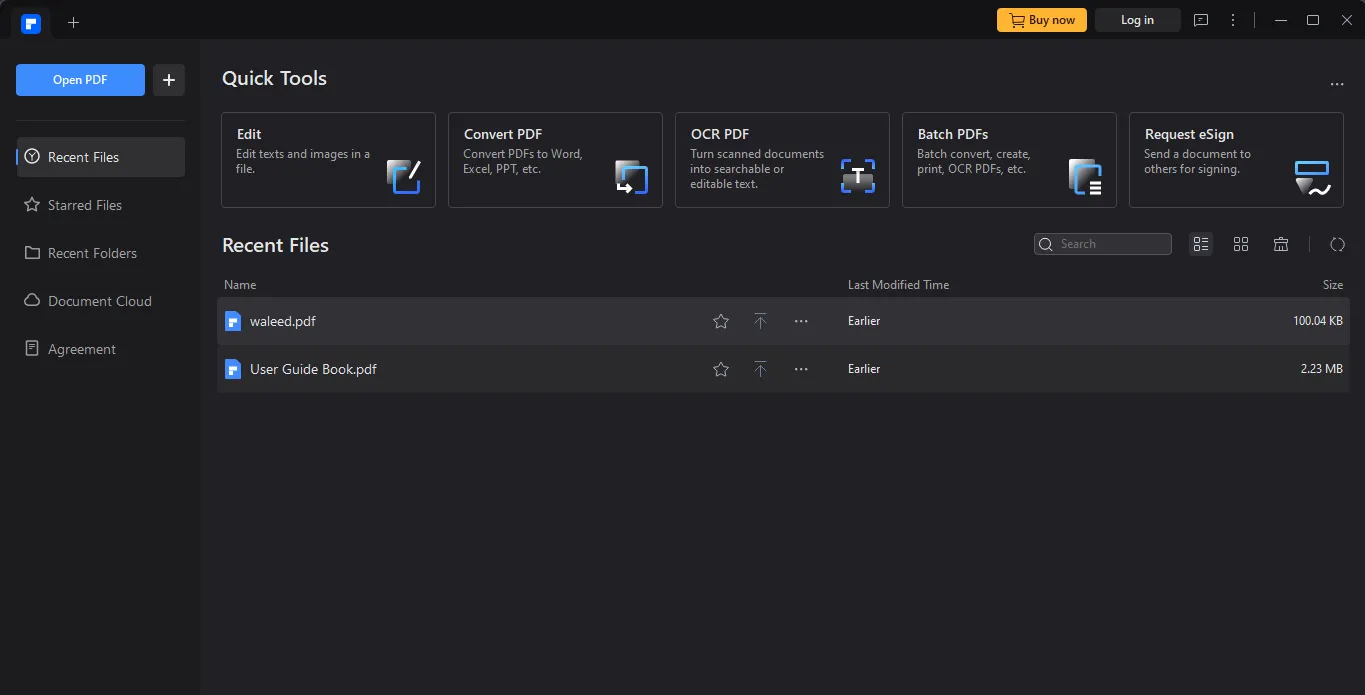
PDFelement는 텍스트 강조 표시를 포함하여 PDF 파일을 편집하고 주석을 추가하는 인기 있는 소프트웨어입니다. PDFelement를 사용하여 텍스트를 강조 표시하는 방법에 대한 단계별 가이드입니다:
-
PDF 파일 열기: PDFelement를 실행하여 작업하려는 PDF 파일을 엽니다.
-
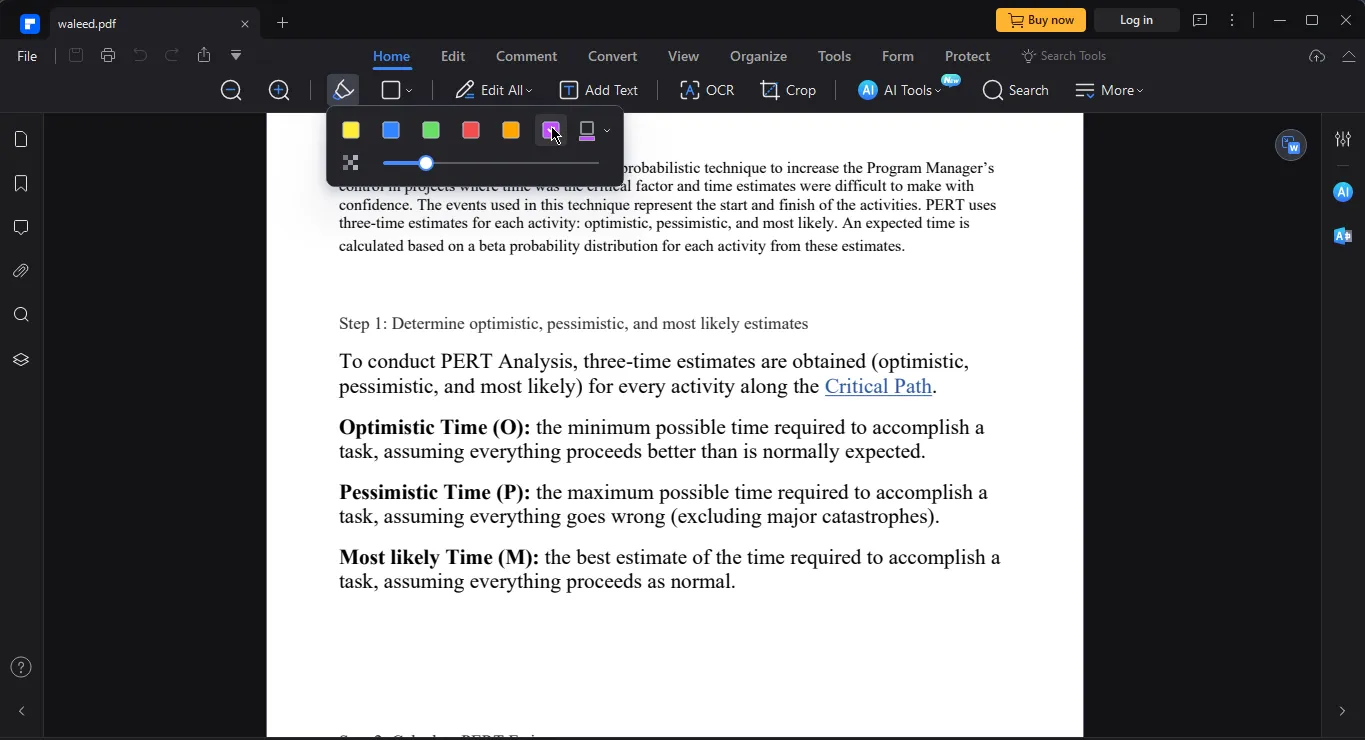
강조 도구 선택: 화면 상단의 툴바에서 '강조' 도구를 클릭합니다. 보통 하이라이터 아이콘처럼 보입니다.
-
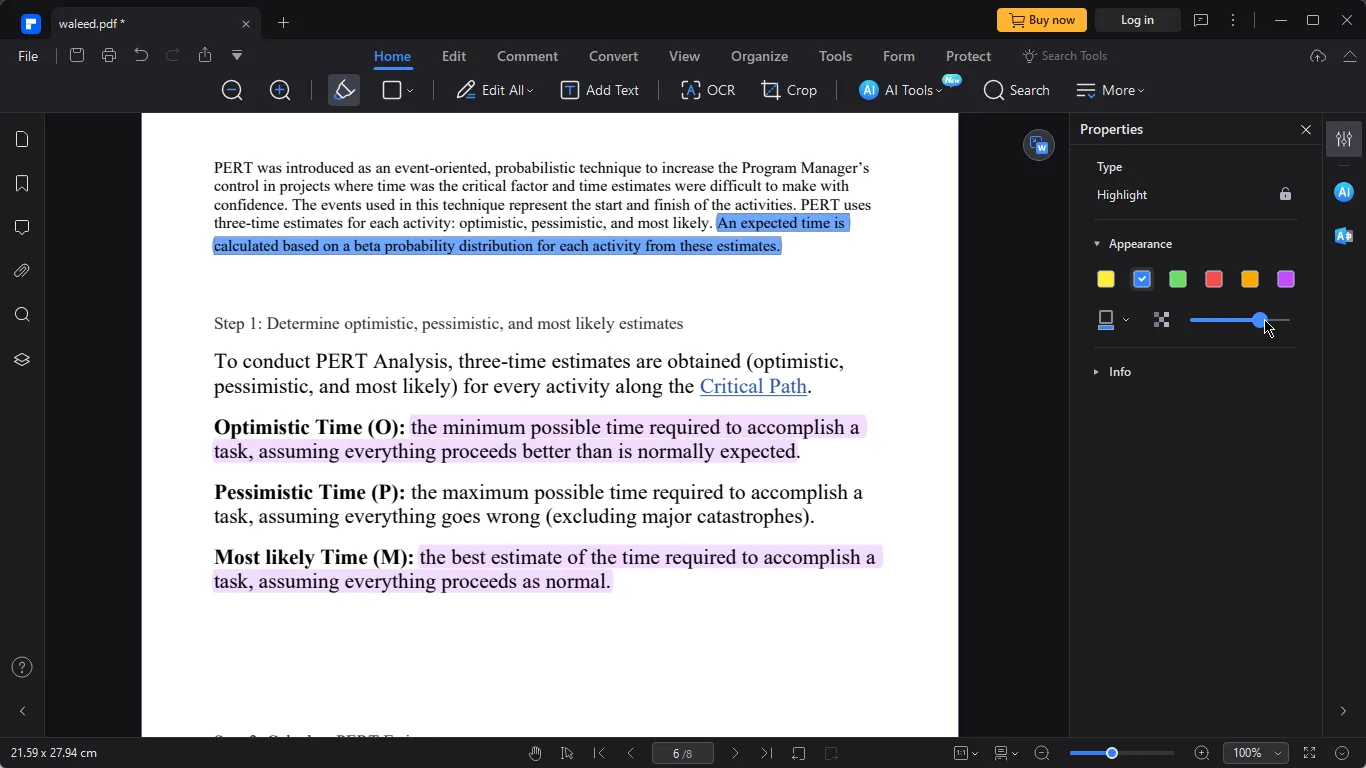
텍스트 강조 표시: 강조 표시하려는 텍스트를 선택하려면 클릭하고 드래그합니다. 드래그하면 선택된 텍스트가 직접 강조 표시됩니다.

-
강조 조정: 강조 영역을 마우스 오른쪽 버튼으로 클릭하고 '속성'을 선택하여 강조의 색상 및 불투명도를 조정할 수 있습니다.
-
변경 사항 저장: 원하는 텍스트를 강조 표시한 후 '파일'을 클릭한 다음 '저장' 또는 '다른 이름으로 저장'을 선택하여 강조 표시된 PDF를 저장하여 변경 사항을 저장합니다.
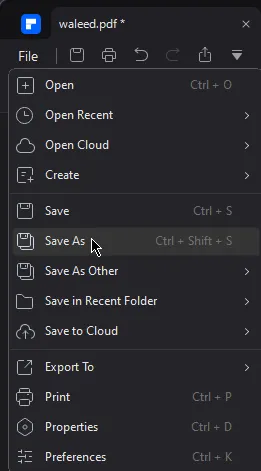
문서를 정기적으로 저장하여 강조 표시가 저장되었는지 확인하세요.
또한, PDFelement는 시간이 지남에 따라 업데이트 및 변경될 수 있으니, 소프트웨어의 사용자 설명서나 온라인 리소스를 참조하여 가장 최신이며 정확한 정보를 얻는 것이 좋습니다.
IronPDF
Foxit Reader 와 PDFelement PDF 에디터를 사용하면 그래픽 인터페이스를 사용하여 PDF 파일을 강조 표시할 수 있습니다. 하지만 프로그래밍 언어를 사용하여 PDF 파일의 텍스트를 강조 표시하고 싶다면 어떻게 해야 할까요? IronPDF는 Java, C#, Node.js 및 Python과 같은 다양한 프로그래밍 언어로 제공되는 PDF 라이브러리로, 코드에서 텍스트를 강조 표시할 수 있습니다.
IronPDF는 Java, C#, Node.js, Python 전반에 걸쳐 매끄럽게 통합되도록 설계된 다재다능하고 견고한 라이브러리로, 개발자가 특정 프로그래밍 환경 내에서 PDF 문서를 생성, 조작 및 관리하는 일을 손쉽게 할 수 있게 합니다. 웹 애플리케이션, 데스크톱 소프트웨어 또는 백엔드 서비스를 만들든, IronPDF는 다양한 PDF 요구사항을 처리하기 위한 포괄적인 기능 세트를 제공합니다. IronPDF는 PDF 생성 및 콘텐츠 수정부터 속성 조정 및 기존 PDF 문서와의 상호작용까지 통합된 접근 방식을 제공하여 개발자가 생산성을 향상시키고 모든 지원 프로그래밍 언어에서 PDF 관련 워크플로우를 간소화할 수 있도록 합니다.
IronPDF 예제
IronPDF는 HTML로부터 PDF를 생성할 때 텍스트를 강조 표시하거나 이미 존재하는 PDF에 하이라이트를 오버레이하는 두 가지 방법으로 텍스트를 강조할 수 있습니다.
PDF를 생성할 때 텍스트 강조
IronPDF가 HTML에서 PDF를 렌더링할 때, 텍스트를 <mark> 태그로 감싸거나 CSS background-color를 적용하여 강조 표시할 수 있습니다. IronPDF의 Chrome 렌더링 엔진은 브라우저가 하는 것처럼 하이라이트를 그립니다.
using IronPdf;

class Program
{
    static void Main()
    {
        var renderer = new ChromePdfRenderer();

        // Wrap text in <mark> (or use a CSS background-color) to highlight it
        string html = @"
            <h1>Quarterly Report</h1>
            <p>Revenue grew steadily this year.
               <mark style='background-color:#fff200;'>Net profit rose by 24%</mark>,
               beating every forecast.</p>";

        // Render the HTML to a PDF, preserving the highlight
        PdfDocument pdf = renderer.RenderHtmlAsPdf(html);
        pdf.SaveAs("highlighted.pdf");
    }
}
using IronPdf;

class Program
{
    static void Main()
    {
        var renderer = new ChromePdfRenderer();

        // Wrap text in <mark> (or use a CSS background-color) to highlight it
        string html = @"
            <h1>Quarterly Report</h1>
            <p>Revenue grew steadily this year.
               <mark style='background-color:#fff200;'>Net profit rose by 24%</mark>,
               beating every forecast.</p>";

        // Render the HTML to a PDF, preserving the highlight
        PdfDocument pdf = renderer.RenderHtmlAsPdf(html);
        pdf.SaveAs("highlighted.pdf");
    }
}
Imports IronPdf
Module Program
Sub Main()
Dim renderer As New ChromePdfRenderer()
' Wrap text in <mark> (or use a CSS background-color) to highlight it
Dim html As String = "
<h1>Quarterly Report</h1>
<p>Revenue grew steadily this year.
<mark style='background-color:#fff200;'>Net profit rose by 24%</mark>,
beating every forecast.</p>"
' Render the HTML to a PDF, preserving the highlight
Dim pdf As PdfDocument = renderer.RenderHtmlAsPdf(html)
pdf.SaveAs("highlighted.pdf")
End Sub
End Module
Imports IronPdf

Module Program
    Sub Main()
        Dim renderer As New ChromePdfRenderer()

        ' Wrap text in <mark> (or use a CSS background-color) to highlight it
        Dim html As String = "
            <h1>Quarterly Report</h1>
            <p>Revenue grew steadily this year.
               <mark style='background-color:#fff200;'>Net profit rose by 24%</mark>,
               beating every forecast.</p>"

        ' Render the HTML to a PDF, preserving the highlight
        Dim pdf As PdfDocument = renderer.RenderHtmlAsPdf(html)
        pdf.SaveAs("highlighted.pdf")
    End Sub
End Module
RenderHtmlAsPdf 메서드는 강조 표시를 유지하면서 HTML을 PDF로 변환합니다. IronPDF의 PrintHtmlBackgrounds 옵션은 기본적으로 활성화되어 있어 추가 설정 없이도 배경색이 렌더링됩니다.
기존 PDF에서 텍스트 강조
이미 가지고 있는 PDF의 텍스트를 강조 표시하려면 ApplyStamp 메서드를 사용하여 반투명의 색상 상자를 오버레이하세요. 일반 CSS로 스타일링된 상자는 페이지를 가로지르는 형광펜 스와이프처럼 작동합니다.
using IronPdf;
using IronPdf.Editing;

class Program
{
    static void Main()
    {
        // Load the PDF you want to mark up
        var pdf = PdfDocument.FromFile("report.pdf");

        // A semi-transparent yellow box acts like a highlighter swipe
        string highlight = "<div style='background:#fff200;opacity:0.4;width:240px;height:20px;'></div>";

        // Overlay the highlight, positioned with alignment options
        pdf.ApplyStamp(highlight,
            verticalAlignment: VerticalAlignment.Top,
            horizontalAlignment: HorizontalAlignment.Left);

        pdf.SaveAs("highlighted.pdf");
    }
}
using IronPdf;
using IronPdf.Editing;

class Program
{
    static void Main()
    {
        // Load the PDF you want to mark up
        var pdf = PdfDocument.FromFile("report.pdf");

        // A semi-transparent yellow box acts like a highlighter swipe
        string highlight = "<div style='background:#fff200;opacity:0.4;width:240px;height:20px;'></div>";

        // Overlay the highlight, positioned with alignment options
        pdf.ApplyStamp(highlight,
            verticalAlignment: VerticalAlignment.Top,
            horizontalAlignment: HorizontalAlignment.Left);

        pdf.SaveAs("highlighted.pdf");
    }
}
Imports IronPdf
Imports IronPdf.Editing
Module Program
Sub Main()
' Load the PDF you want to mark up
Dim pdf = PdfDocument.FromFile("report.pdf")
' A semi-transparent yellow box acts like a highlighter swipe
Dim highlight As String = "<div style='background:#fff200;opacity:0.4;width:240px;height:20px;'></div>"
' Overlay the highlight, positioned with alignment options
pdf.ApplyStamp(highlight, verticalAlignment:=VerticalAlignment.Top, horizontalAlignment:=HorizontalAlignment.Left)
pdf.SaveAs("highlighted.pdf")
End Sub
End Module
Imports IronPdf
Imports IronPdf.Editing

Module Program
    Sub Main()
        ' Load the PDF you want to mark up
        Dim pdf = PdfDocument.FromFile("report.pdf")

        ' A semi-transparent yellow box acts like a highlighter swipe
        Dim highlight As String = "<div style='background:#fff200;opacity:0.4;width:240px;height:20px;'></div>"

        ' Overlay the highlight, positioned with alignment options
        pdf.ApplyStamp(highlight, verticalAlignment:=VerticalAlignment.Top, horizontalAlignment:=HorizontalAlignment.Left)

        pdf.SaveAs("highlighted.pdf")
    End Sub
End Module
ApplyStamp 메서드는 페이지에 HTML 오버레이를 VerticalAlignment 및 HorizontalAlignment 옵션을 사용하여 배치합니다. 더 세밀한 제어를 위해, HtmlStamper 객체는 추가적인 오프셋 속성을 제공합니다.
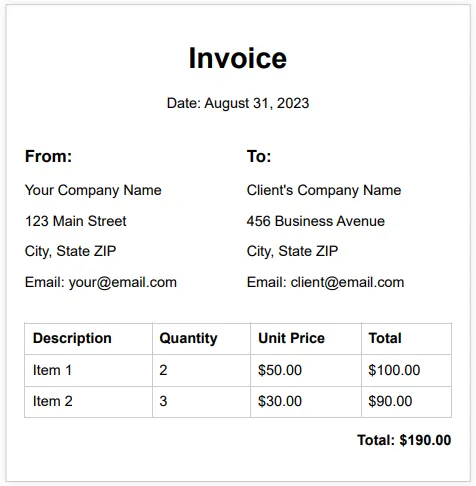
입력 PDF
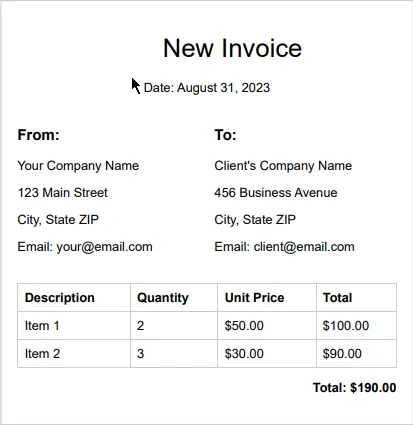
PDF 출력
결론
PDF 하이라이터는 PDF 문서와 상호작용하는 방식을 혁신하는 필수 디지털 도구로, 중요한 정보를 표시하고 강조하는 다재다능하고 효율적인 수단을 제공합니다. 디지털 영역에서 전통적인 하이라이터 펜을 시뮬레이션할 수 있는 기능은 가독성을 높일 뿐만 아니라 조직화와 이해를 용이하게 하여 학생, 전문가, 디지털 콘텐츠를 다루는 누구에게나 중요합니다. 이 글에서는 Foxit Reader와 PDFelement라는 두 가지 유명한 PDF 하이라이터 옵션을 탐색하고, 그 직관적인 기능과 하이라이트 기능을 강조했습니다.
또한 IronPDF, 프로그래밍 친화적인 PDF 라이브러리를 소개하였으며, 이를 통해 발생시간 또는 기존 문서에서 PDF의 텍스트를 프로그래밍적으로 강조할 수 있음을 설명하였습니다. 이는 PDF 도구 및 프로그래밍 언어 간의 원활한 통합의 필요성이 커지고 있음을 나타냅니다. 디지털 문서가 지배하는 세계에서 PDF 하이라이터와 고급 PDF 편집 솔루션은 생산성, 협업 및 다양한 영역의 효과적인 정보 관리를 향상시키는 데 중요한 역할을 합니다.
IronPDF 문서를 방문하여 IronPDF 및 PDF 파일을 편집하는 방법에 대해 더 알아보십시오. IronPDF를 사용하여 PDF 콘텐츠를 스탬프하고 스타일링하는 방법에 대해서는 IronPDF PDF 편집 튜토리얼을 참조하십시오.













