




업데이트됨 2026년 9월 4일
월별 계정 명세서를 PDF 문서로 생성하기
개발자는 IronPDF C# PDF 라이브러리를 사용하여 외부 서비스에 의존하지 않고도 .NET 프로젝트 내에서 HTML을 신뢰할 수 있는 PDF 파일로 변환할 수 있습니다.
더 읽어보기

ChatGPT는 OpenAI가 만든 인공지능(AI) 챗봇입니다. 'ChatGPT'라는 용어는 시스템의 챗봇 기능을 암시하는 'Chat'과 대규모 언어 모델(LLM)인 Generative Pre-trained Transformer를 나타내는 'GPT'를 결합한 것입니다. OpenAI의 기본 GPT 모델, 즉 GPT-3.5와 GPT-4는 ChatGPT의 기반이 되며, 이는 전이 학습 방법으로 대화형 응용 프로그램에 수퍼바이즈드 학습과 강화 학습 기술을 포함한 기계 학습, 자연어 처리, 인공지능을 활용하여 개선되었습니다. ChatGPT는 인간과 유사한 텍스트를 이해하고 생성할 수 있습니다.
이 글에서는 OpenAI ChatGPT API를 사용하여 메시지를 받고 사용자 쿼리에 따른 결과를 제공한 후 IronPDF를 사용하여 PDF 파일로 내보내어 나중에 사용할 수 있는 MAUI 애플리케이션을 개발하는 방법을 보여줍니다.
OpenAI 계정을 등록하려면 다음을 수행하세요:
OpenAI에 접근하려면, 웹사이트에 방문하여 계정 정보를 사용하여 로그인하세요.
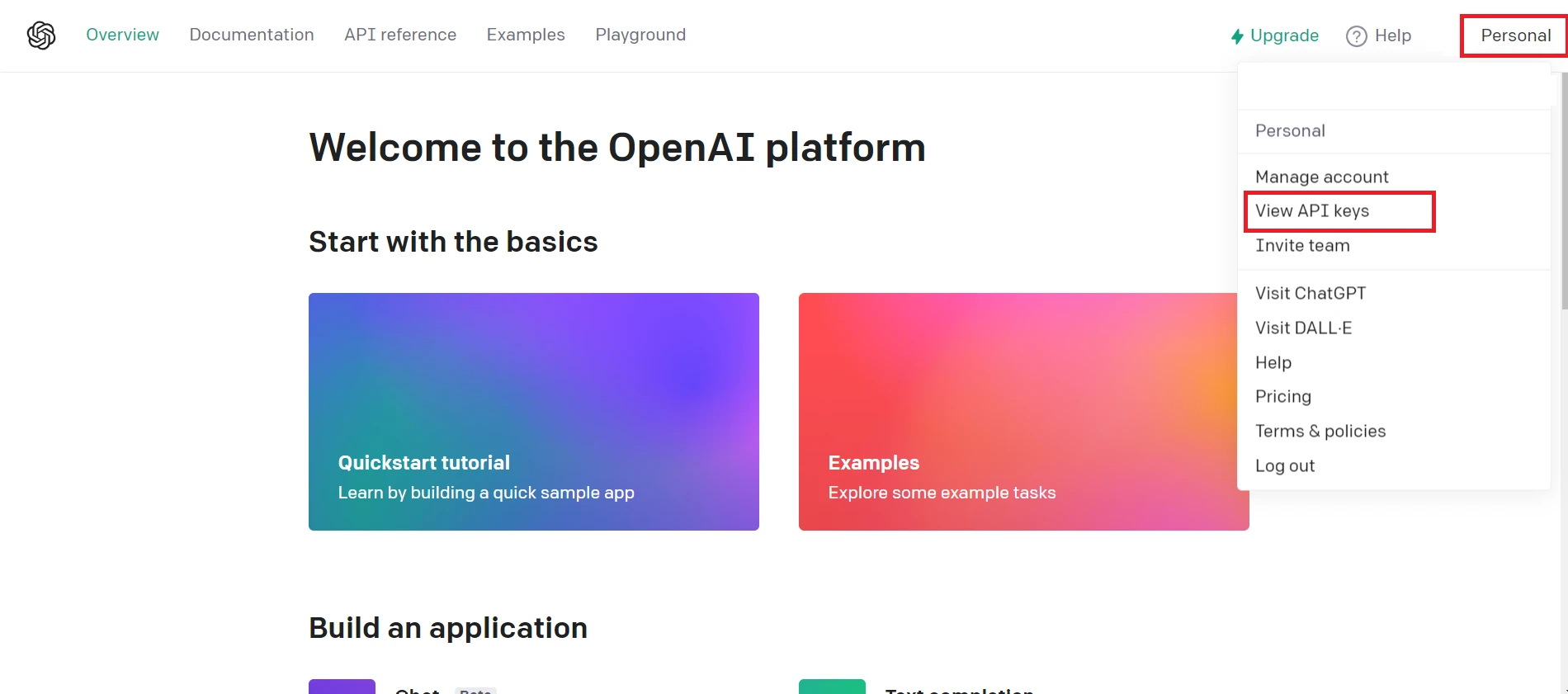 OpenAI 웹사이트 접근
OpenAI 플랫폼의 API 영역으로 이동하세요. 그런 다음 계정 설정 > API 키 보기에서 찾을 수 있습니다.
이제 새 비밀 API 키를 생성할 수 있습니다.
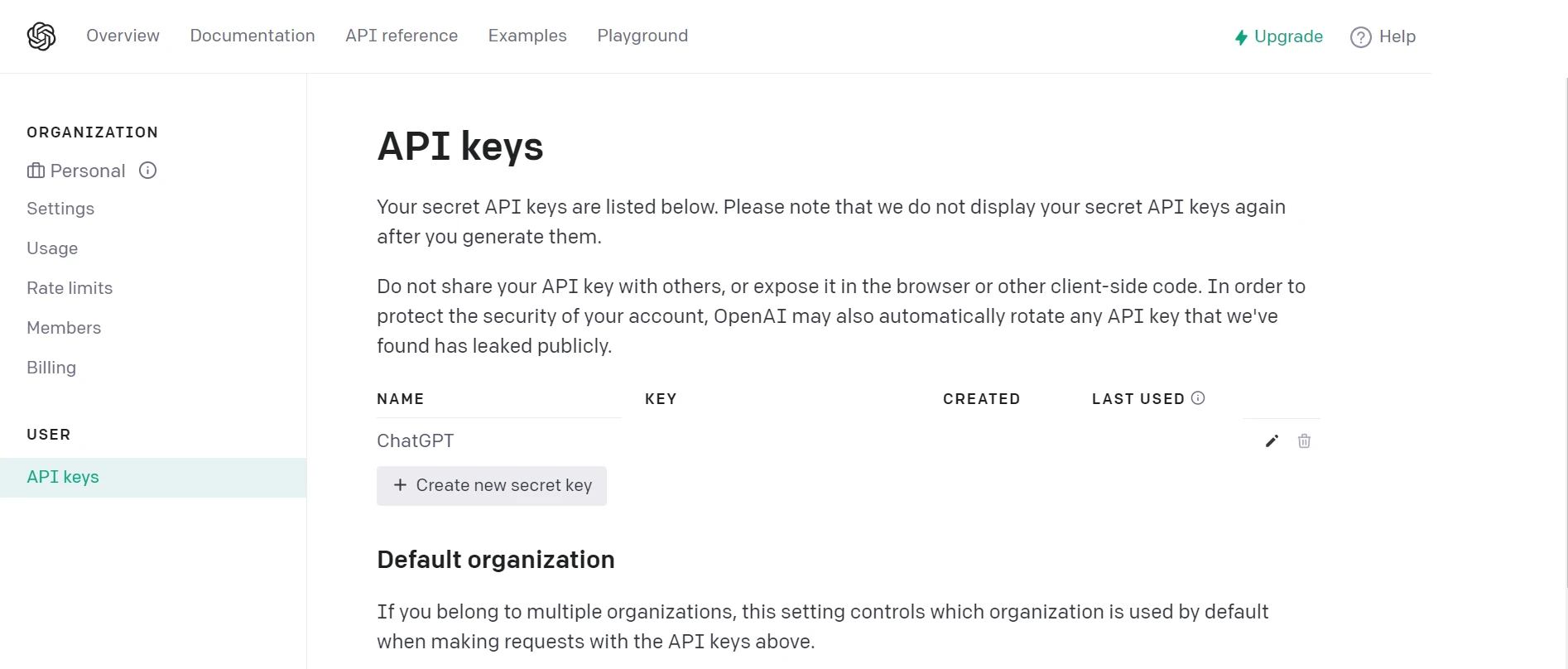 API 키 생성
C#로 작성된 .NET MAUI 응용 프로그램을 생성하려면 Visual Studio 2022와 .NET 7 Framework가 설치되어 있어야 합니다. 그 다음, .NET MAUI 앱을 생성하고 작성하기 위해 다음 단계를 따르세요.
Visual Studio를 열고 메뉴에서 '새 프로젝트 만들기'를 선택한 다음 검색 필드에 '.NET MAUI'를 입력하세요.
Visual Studio에서 검색 결과 목록에서 .NET MAUI 앱 템플릿을 선택하세요. 선택 후 적절한 이름을 지정하고 프로젝트 위치를 선택하세요. 구성이 완료되면 '다음'을 클릭하세요.
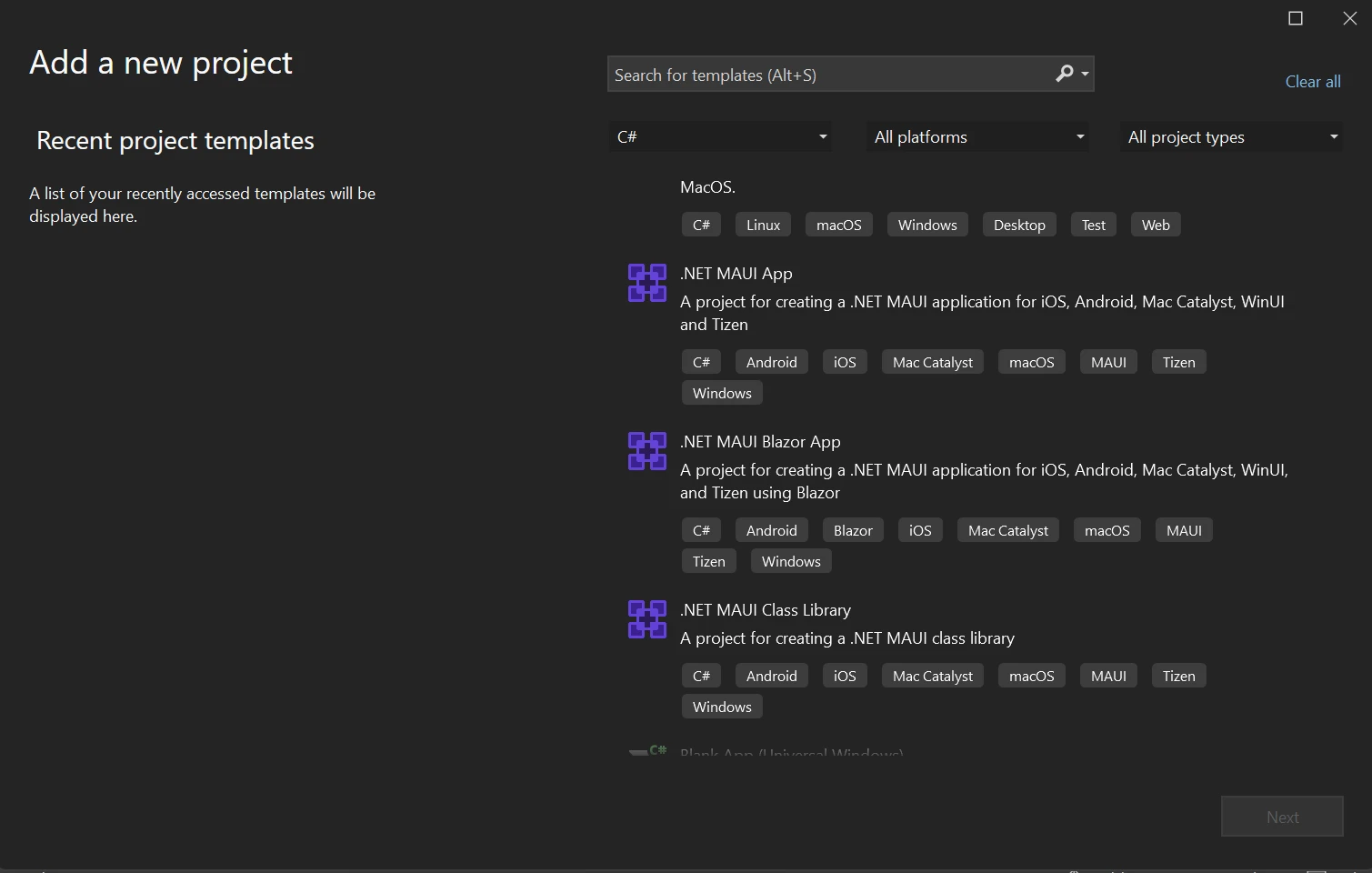 Visual Studio에서 새 .NET MAUI 앱 만들기
필요한 프레임워크를 선택하세요; 그러나 예를 들어 최신 .NET Framework를 선택하는 것이 좋습니다. Visual Studio에서 프레임워크 버전을 선택한 후 생성 버튼을 누르세요.
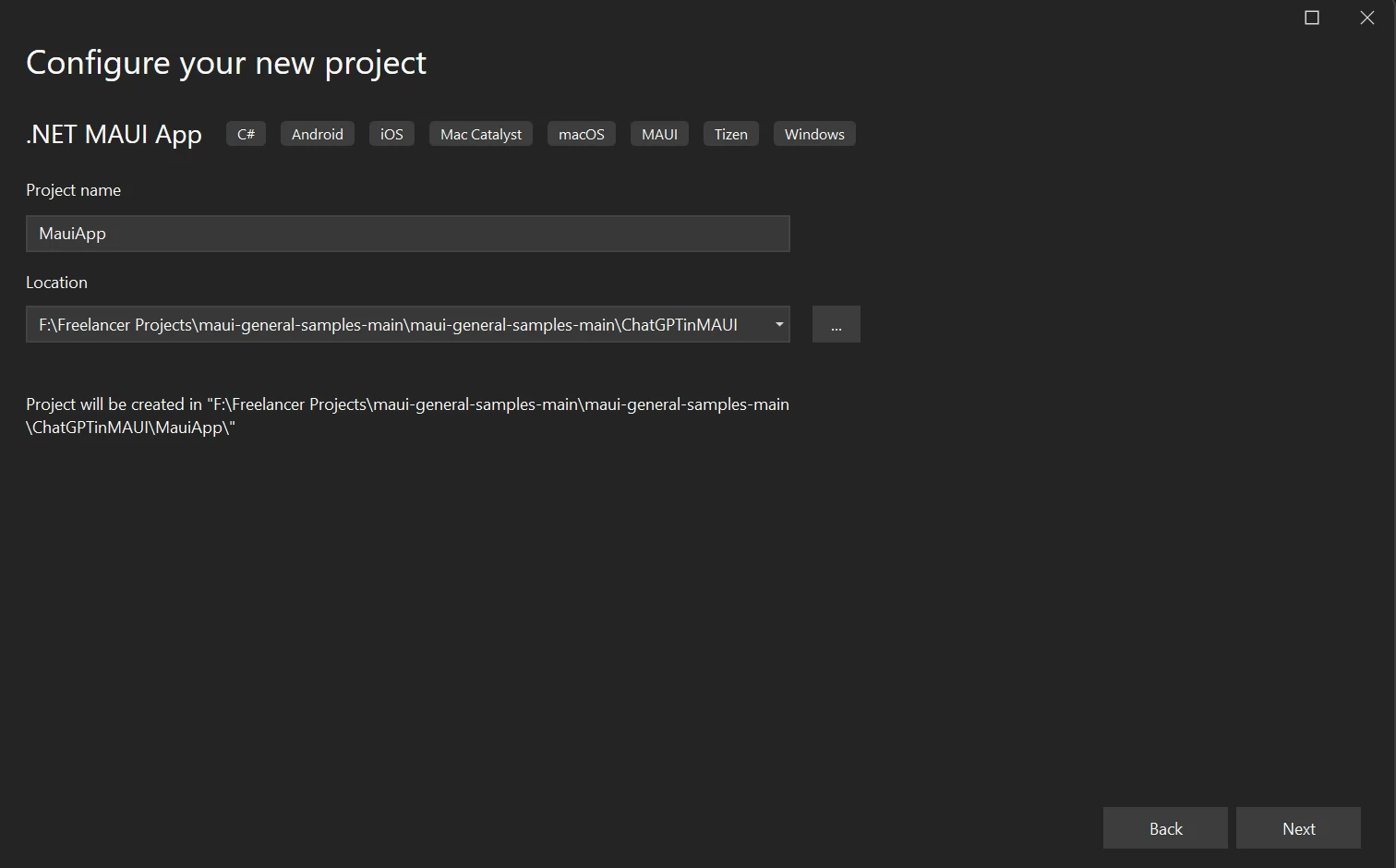 새 프로젝트 구성
Visual Studio 2022에서 새 .NET MAUI 프로젝트가 생성됩니다. .NET MAUI는 기본적으로 간단한 카운터 애플리케이션을 개발합니다.
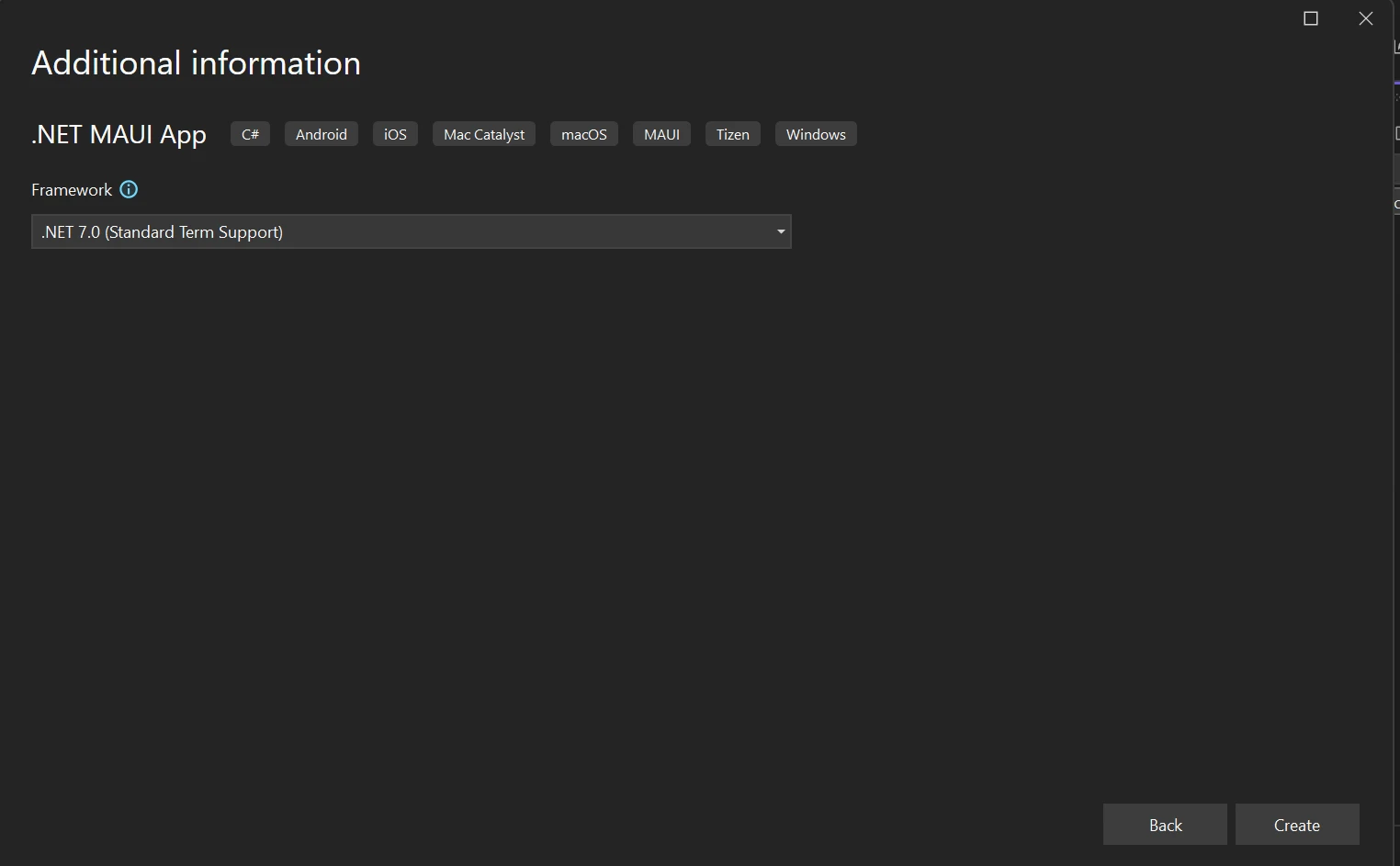 .NET Framework 선택
.NET MAUI 응용 프로그램을 수정하여 이 플랫폼 버전에서 ChatGPT OpenAI를 통합하고 결과를 IronPDF C# PDF 라이브러리를 사용하여 PDF 파일로 내보낼 수 있습니다.
NuGet 패키지 관리자 콘솔에 다음 명령어를 입력하세요.
이 명령어는 C#을 사용하여 ChatGPT와 상호 작용하는 데 필요한 API에 대한 액세스를 제공하는 OpenAI 패키지를 설치합니다.
IronPDF 패키지를 설치하려면 다음 명령을 입력하세요:
위 명령은 IronPDF을 MAUI 프로젝트에 설치합니다. IronPDF는 HTML 콘텐츠를 PDF 파일로 렌더링하는 데 사용되며 앱에서 데이터를 PDF 문서로 내보내는 핵심 부분입니다.
개발자는 IronPDF을 통해 PDF 처리에 대한 견고한 PDF SDK 기반을 바탕으로 PDF 문서를 빠르게 생성, 읽기 및 편집할 수 있습니다. Chrome 엔진은 HTML을 PDF로 변환하기 위해 IronPDF 라이브러리에 사용됩니다. 라이브러리가 지원하는 여러 웹 구성 요소 중에는 MAUI, Xamarin, Blazor, Unity, HoloLens 앱, Windows Forms, HTML, ASPX, Razor HTML, .NET Core, ASP.NET, WPF가 있습니다. Microsoft.NET 및 .NET Core 프로그래밍은 전통적인 Windows 애플리케이션과 ASP.NET 웹 앱 모두에서 사용할 수 있습니다.
IronPDF를 사용하면 HTML5, JavaScript, CSS 및 이미지를 사용하여 제목과 바닥글이 있는 멋진 PDF를 만들 수 있습니다. API 라이브러리에는 PDF를 처리할 수 있는 견고한 HTML-to-PDF 변환기가 포함되어 있으며, 독립적인 외부 소스 없이도 사용 가능한 독립 실행형 PDF 변환 도구와 엔진이 포함되어 있습니다.
IronPDF에 대한 더 많은 정보를 알고 싶다면 HTML-to-PDF 변환 튜토리얼 페이지를 참조하세요.
"MauiProgram.cs" 파일에 아래 코드를 추가하세요:
builder.Services.AddChatGpt(options =>
{
    options.UseOpenAI("API key here"); // Replace with your actual OpenAI API key
    options.DefaultModel = OpenAIChatGptModels.Gpt35Turbo; // Set the default model
    options.MessageLimit = 10; // Limit number of messages per session
    options.MessageExpiration = TimeSpan.FromMinutes(5); // Set message expiration time
});builder.Services.AddChatGpt(Sub(options)
options.UseOpenAI("API key here") ' Replace with your actual OpenAI API key
options.DefaultModel = OpenAIChatGptModels.Gpt35Turbo ' Set the default model
options.MessageLimit = 10 ' Limit number of messages per session
options.MessageExpiration = TimeSpan.FromMinutes(5) ' Set message expiration time
End Sub)이 코드 스니펫은 ChatGPT API에 대한 서비스를 등록하여 애플리케이션의 다른 클래스나 페이지에서 사용할 수 있습니다.
페이지 로드 메소드에서 애플리케이션의 메인 페이지에 다음 코드를 추가하세요. 이것은 ChatGPT 서비스 인스턴스를 얻고 이를 로컬 객체에 저장하는 데 도움을 줍니다.
_chatGptClient = Handler.MauiContext.Services.GetService<IChatGptClient>();_chatGptClient = Handler.MauiContext.Services.GetService(Of IChatGptClient)()이 코드는 서비스 제공자로부터 ChatGPT 클라이언트 인스턴스를 가져와 메인 페이지가 ChatGPT API와 상호 작용할 수 있도록 합니다.
다음의 XAML 코드와 같은 사용자 인터페이스를 만드세요:
<?xml version="1.0" encoding="utf-8" ?>
<ContentPage xmlns="http://schemas.microsoft.com/dotnet/2021/maui"
             xmlns:x="http://schemas.microsoft.com/winfx/2009/xaml"
             x:Class="ChatGPT_MauiApp.MainPage"
             BackgroundColor="black">
    <StackLayout>
        <StackLayout Orientation="Horizontal" Spacing="25" Padding="30,0">
            <ScrollView WidthRequest="700" HeightRequest="200" x:Name="scrollView">
                <TableView Intent="Data" WidthRequest="700" x:Name="Table_View" BackgroundColor="DarkSlateGrey">
                    <TableRoot>
                        <!-- TableSection can be populated with dynamic data -->
                    </TableRoot>
                </TableView>
            </ScrollView>
        </StackLayout>
        <StackLayout Padding="30,0">
            <Editor
                x:Name="Userquest"
                Text=""
                HorizontalOptions="Start"
                FontSize="12"
                Placeholder=" Enter your Queries"
                HeightRequest="25" WidthRequest="700" />
        </StackLayout>
        <StackLayout Padding="30,10,10,0">
            <FlexLayout>
                <Button
                    x:Name="Sendquery"
                    Text="Send Query"
                    SemanticProperties.Hint="Click to send query to BOT"
                    Clicked="SendqueryClicked"
                    HorizontalOptions="Center"
                    BackgroundColor="Green"
                    TextColor="WhiteSmoke" />
                <Button
                    x:Name="Export"
                    Text="Export"
                    SemanticProperties.Hint="Click to export data"
                    Clicked="OnExportClicked"
                    HorizontalOptions="Center"
                    BackgroundColor="DodgerBlue"
                    TextColor="WhiteSmoke" />
            </FlexLayout>
        </StackLayout>
    </StackLayout>
</ContentPage>위의 ContentPage는 애플리케이션의 UI 레이아웃을 정의합니다. 사용자는 쿼리를 입력하고 "쿼리 전송" 버튼을 통해 ChatGPT API와 상호 작용하며 "내보내기" 버튼을 사용하여 결과를 PDF로 내보낼 수 있습니다. 결과는 TableView에 표시됩니다.
다음은 버튼 클릭 및 데이터 내보내기를 처리하는 코드-비하인드 로직입니다:
private void OnExportClicked(object sender, EventArgs e)
{
    StringBuilder db = new();

    foreach (var tableSection in Table_View.Root.ToList())
    {
        foreach (var cell in tableSection)
        {
            if (cell is TextCell textCell)
            {
                db.Append("<p style='color:red;text-align:left;'>" + textCell.Text + "</p>");
                db.Append("<p style='color:black;text-align:justify;'>" + textCell.Detail + "</p>");
            }
        }
    }

    // Create and save the PDF
    var renderer = new IronPdf.ChromePdfRenderer();
    var pdf = renderer.RenderHtmlAsPdf(db.ToString());
    pdf.SaveAs("F:\\Download\\Demo.pdf");
}

private async void SendqueryClicked(object sender, EventArgs e)
{
    if (!string.IsNullOrEmpty(Userquest.Text))
    {
        var query = Userquest.Text;
        Userquest.Text = "";
        var tableSection = AddQueryToTable(query);
        ChatGptResponse response = await _chatGptClient.AskAsync(_sessionGuid, query);
        var resp = response.GetMessage();
        AddResponseToTable(tableSection, resp);
    }
}

private TableSection AddQueryToTable(string query)
{
    var textCell = new TextCell
    {
        Text = query,
        TextColor = Colors.Red,
        DetailColor = Colors.WhiteSmoke,
        Detail = ""
    };

    var tableSection = new TableSection { textCell };
    Table_View.Root.Add(tableSection);
    return tableSection;
}

private void AddResponseToTable(TableSection section, string response)
{
    if (section.FirstOrDefault() is TextCell textCell)
    {
        textCell.Detail = response;
    }
}Private Sub OnExportClicked(ByVal sender As Object, ByVal e As EventArgs)
Dim db As New StringBuilder()
For Each tableSection In Table_View.Root.ToList()
For Each cell In tableSection
Dim tempVar As Boolean = TypeOf cell Is TextCell
Dim textCell As TextCell = If(tempVar, CType(cell, TextCell), Nothing)
If tempVar Then
db.Append("<p style='color:red;text-align:left;'>" & textCell.Text & "</p>")
db.Append("<p style='color:black;text-align:justify;'>" & textCell.Detail & "</p>")
End If
Next cell
Next tableSection
' Create and save the PDF
Dim renderer = New IronPdf.ChromePdfRenderer()
Dim pdf = renderer.RenderHtmlAsPdf(db.ToString())
pdf.SaveAs("F:\Download\Demo.pdf")
End Sub
Private Async Sub SendqueryClicked(ByVal sender As Object, ByVal e As EventArgs)
If Not String.IsNullOrEmpty(Userquest.Text) Then
Dim query = Userquest.Text
Userquest.Text = ""
Dim tableSection = AddQueryToTable(query)
Dim response As ChatGptResponse = Await _chatGptClient.AskAsync(_sessionGuid, query)
Dim resp = response.GetMessage()
AddResponseToTable(tableSection, resp)
End If
End Sub
Private Function AddQueryToTable(ByVal query As String) As TableSection
Dim textCell As New TextCell With {
.Text = query,
.TextColor = Colors.Red,
.DetailColor = Colors.WhiteSmoke,
.Detail = ""
}
Dim tableSection As New TableSection From {textCell}
Table_View.Root.Add(tableSection)
Return tableSection
End Function
Private Sub AddResponseToTable(ByVal section As TableSection, ByVal response As String)
Dim tempVar As Boolean = TypeOf section.FirstOrDefault() Is TextCell
Dim textCell As TextCell = If(tempVar, CType(section.FirstOrDefault(), TextCell), Nothing)
If tempVar Then
textCell.Detail = response
End If
End Sub설명:
OnExportClicked 메서드는 UI에서 수집한 HTML 콘텐츠를 사용하여 IronPDF로 PDF를 생성합니다. 생성된 PDF는 지정된 위치에 저장됩니다.
SendqueryClicked 메서드는 사용자의 쿼리를 받아 _chatGptClient를 사용하여 OpenAI API에 전송 후 응답을 표시합니다. 또한 쿼리와 응답을 TableView에 추가합니다.
도우미 메서드인 AddQueryToTable 및 AddResponseToTable는 사용자 쿼리와 챗봇 응답으로 UI 구성 요소를 업데이트하는 데 도움을 줍니다.
위의 코드를 추가한 후, 솔루션을 실행해 보세요. 쿼리를 입력하고 "쿼리 전송" 버튼을 클릭하여 결과를 가져오세요. 사용자의 쿼리를 ChatGPT API에 전송하고 결과를 가져와 화면에 메시지를 표시합니다.
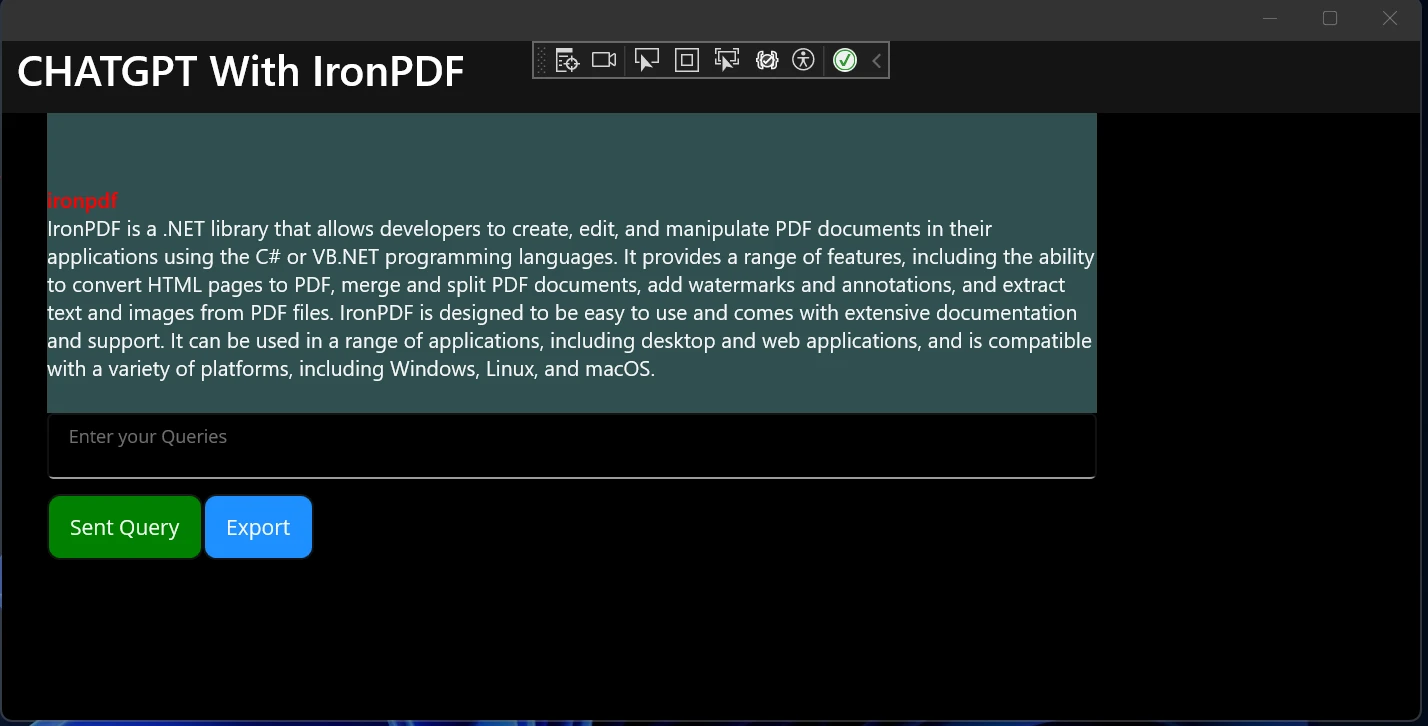 애플리케이션에 텍스트 쿼리 추가
"내보내기" 버튼을 클릭하여 결과를 PDF로 내보내세요.
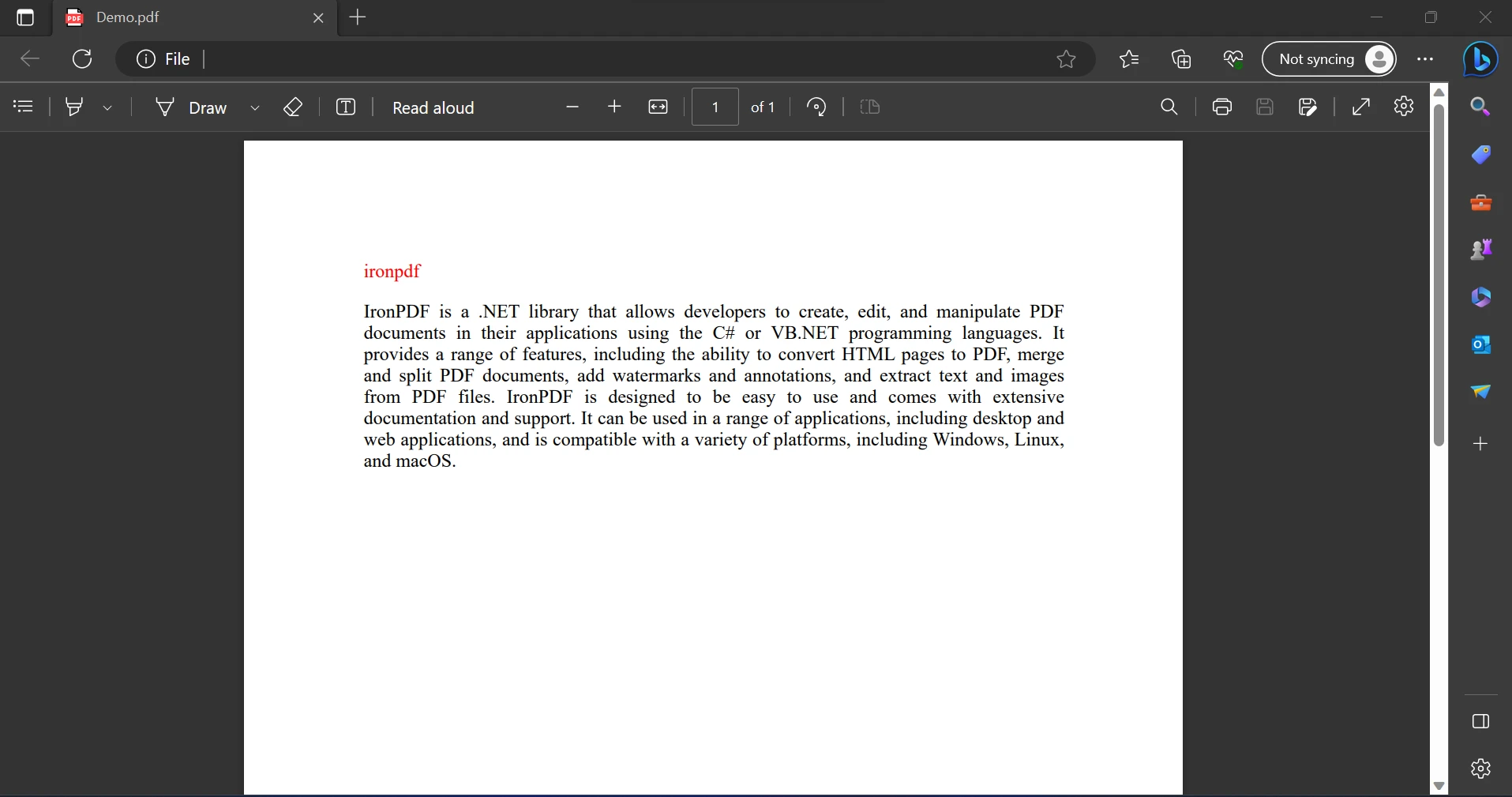 내보낸 PDF 파일
이제 우리는 ChatGPT를 사용하여 챗봇을 만들고 이를 MAUI 앱에서 IronPDF를 사용하여 내보낼 수 있었습니다. 위 개념을 통해 ChatGPT API에서 이미지를 포함하여 더 정확한 결과를 얻기 위해 오디오 및 비디오를 추가할 수 있습니다.
이 기사의 목표는 사용자가 입력한 메시지를 가져오고, 사용자 쿼리에 기반한 결과를 제공하며, 해당 결과를 PDF 파일로 내보낼 수 있는 OpenAI ChatGPT API를 사용하는 MAUI 애플리케이션을 개발하는 것입니다. 제안의 품질을 향상시키기 위해 질문을 변경하며 탐색하는 것을 권장합니다. 다양한 모델이 더 나은 결과를 제공하는지를 확인하기 위해 'MauiProgram.cs'의 AddChatGpt 메서드 내에서 ChatGptModels 열거형 값을 수정하여 실험해 볼 수도 있습니다.
ChatGPT API는 사용자 쿼리에 기반한 결과를 제공할 수 있는 강력한 AI 프로그램입니다. ChatGPT API의 비용은 전송 요청 수에 따라 계산됩니다. IronPDF는 API 요청을 만들고 결과를 PDF로 내보내는 데에 사용되어, 동일한 API 요청을 반복적으로 쿼리하지 않고도 향후 사용할 수 있습니다.
IronPDF로 몇 줄의 코드만으로도 PDF를 만들 수 있습니다. 이 애플리케이션은 초보자에게 적합하며 사용하기 위해 기본적인 지식만 필요합니다. 어떤 패키지도 IronPDF에 의존하지 않습니다. 예를 들어, 단일 패키지로 제공되는 라이브러리입니다. IronPDF 개발자는 요구 사항에 맞게 다양한 라이센스를 선택할 수 있습니다. 무료 체험판도 제공됩니다. IronPDF의 전체 가격 및 라이센스 정보는 IronPDF 라이센스 페이지를 참조하세요.

커티스 차우는 칼턴 대학교에서 컴퓨터 과학 학사 학위를 취득했으며, Node.js, TypeScript, JavaScript, React를 전문으로 하는 프론트엔드 개발자입니다. 직관적이고 미적으로 뛰어난 사용자 인터페이스를 만드는 데 열정을 가진 그는 최신 프레임워크를 활용하고, 잘 구성되고 시각적으로 매력적인 매뉴얼을 제작하는 것을 즐깁니다.



IronPDF는 IRON SUITE 의 일부입니다.
10개의 .NET API 제품, 당신의 사무 문서를 위해

PDF 파일을 HTML처럼 빠르게 변환해야 할 때.


