푸터 콘텐츠로 바로가기
IRONPDF 사용

How to Display PDF Embedded Text in .NET MAUI

Learn how to extract and display embedded text from PDF files in .NET MAUI applications using IronPDF. This powerful C# library enables you to read PDF content and present it in cross-platform apps with just a few lines of code.

.NET Multi-platform App UI (MAUI) simplifies multi-platform app development. With this evolution of Xamarin.Forms, you can create apps for Android, iOS, macOS, and Windows from a single project. PDF files, known for preserving fonts, images, and layout, are commonly managed using this technology.

The IronPDF library offers powerful PDF handling capabilities. You can leverage IronPDF to work with embedded text effortlessly, simplifying the process of generating and manipulating PDF files while maintaining consistent rendering with default settings.

What Is PDF Embedded Text and Font Embedding?

PDF-embedded text refers to text entities embedded in a PDF file. It ensures consistency and accurate rendering across PDF viewer applications, including Adobe InDesign. By embedding fonts within the PDF document, the correct fonts are preserved, regardless of the viewer application or whether the specific font is installed on the viewer's device.

Embedding fonts can increase file size, but it's crucial for maintaining the original document's appearance. Adobe PDF settings often determine whether fonts are embedded. PDF compression techniques can help reduce file size when embedding fonts.

There are three types of embedded fonts in PDFs:

  1. Embedded fonts: The entire font is embedded in the document.
  2. Subset embedded fonts: Only a subset of the fonts used in the original document is embedded.
  3. No embedded fonts: No fonts are embedded in the document.

In Adobe Acrobat, you can verify font embedding by checking the document properties. By default, fonts are embedded in PDFs. However, these settings can be modified using Adobe Acrobat Pro or tools like IronPDF's font management features.

A 'flattened PDF' contains all embedded fonts, making it self-contained and ensuring consistent appearance across all systems. IronPDF supports flattening PDF documents to ensure consistent rendering.

What Is IronPDF C#?

IronPDF Documentation is a powerful C# PDF library that allows you to generate, read, and edit PDF files in .NET applications. You can generate PDF files from HTML with IronPDF.

A key feature is working with embedded text in PDF files. Embedding fonts in PDFs preserves the document's original appearance, even when viewed on systems without the original fonts. Let's explore how to display embedded text using IronPDF in .NET MAUI.

IronPDF offers extensive text extraction capabilities for working with PDF content programmatically. Whether you need to parse PDFs in C# or convert PDF content to other formats, IronPDF provides the necessary tools.

  1. .NET MAUI: Microsoft's unified UI toolkit that allows you to create apps for Android, iOS, macOS, and Windows with a single shared codebase. You can download the .NET MAUI from the Microsoft website.
  2. Visual Studio 2022 (or later): A powerful and user-friendly Integrated Development Environment (IDE) for .NET programming. You can download Visual Studio from the Microsoft website. Ensure you have the .NET MAUI workloads installed on Visual Studio 2022.
  3. IronPDF library: This is a PDF processing library for .NET, and we will use it to interact with the PDF files. You can install IronPDF via NuGet, which is a package manager for the Microsoft development platform.
  4. An Adobe PDF file: For the sake of this tutorial, we will need a PDF file.

Before starting, ensure you have these requirements:

  1. .NET MAUI: Microsoft's unified UI toolkit for creating cross-platform apps. Download from Microsoft's website.
  2. Visual Studio 2022 (or later): A powerful IDE for .NET programming with .NET MAUI workloads installed.
  3. IronPDF library: Install via NuGet package manager. Learn about IronPDF NuGet packages.
  4. A PDF file: Any PDF file for testing purposes.

For platform-specific setup:

How Do I Create a .NET MAUI App?

Follow these steps to create a new .NET MAUI App:

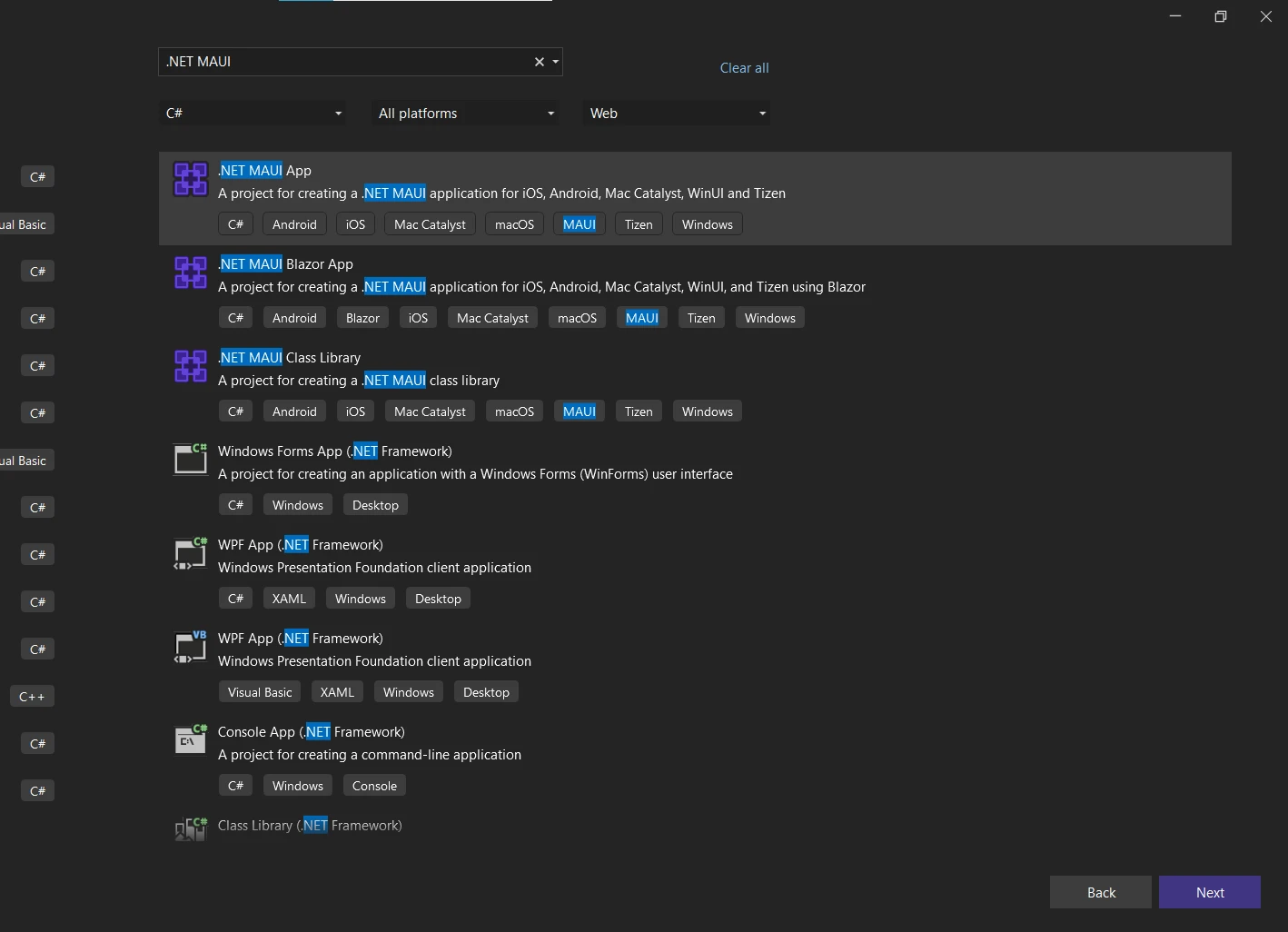
Launch Visual Studio 2022: After launching, navigate to File > New > Project. In the project template window, select .NET MAUI App and then click on Next.

Visual Studio's New Project dialog showing various .NET MAUI project templates including .NET MAUI App, .NET MAUI Blazor App, and .NET MAUI Class Library options. Figure 1: The Visual Studio New Project dialog with .NET MAUI templates highlighted, showing the first step in creating a new .NET MAUI application.

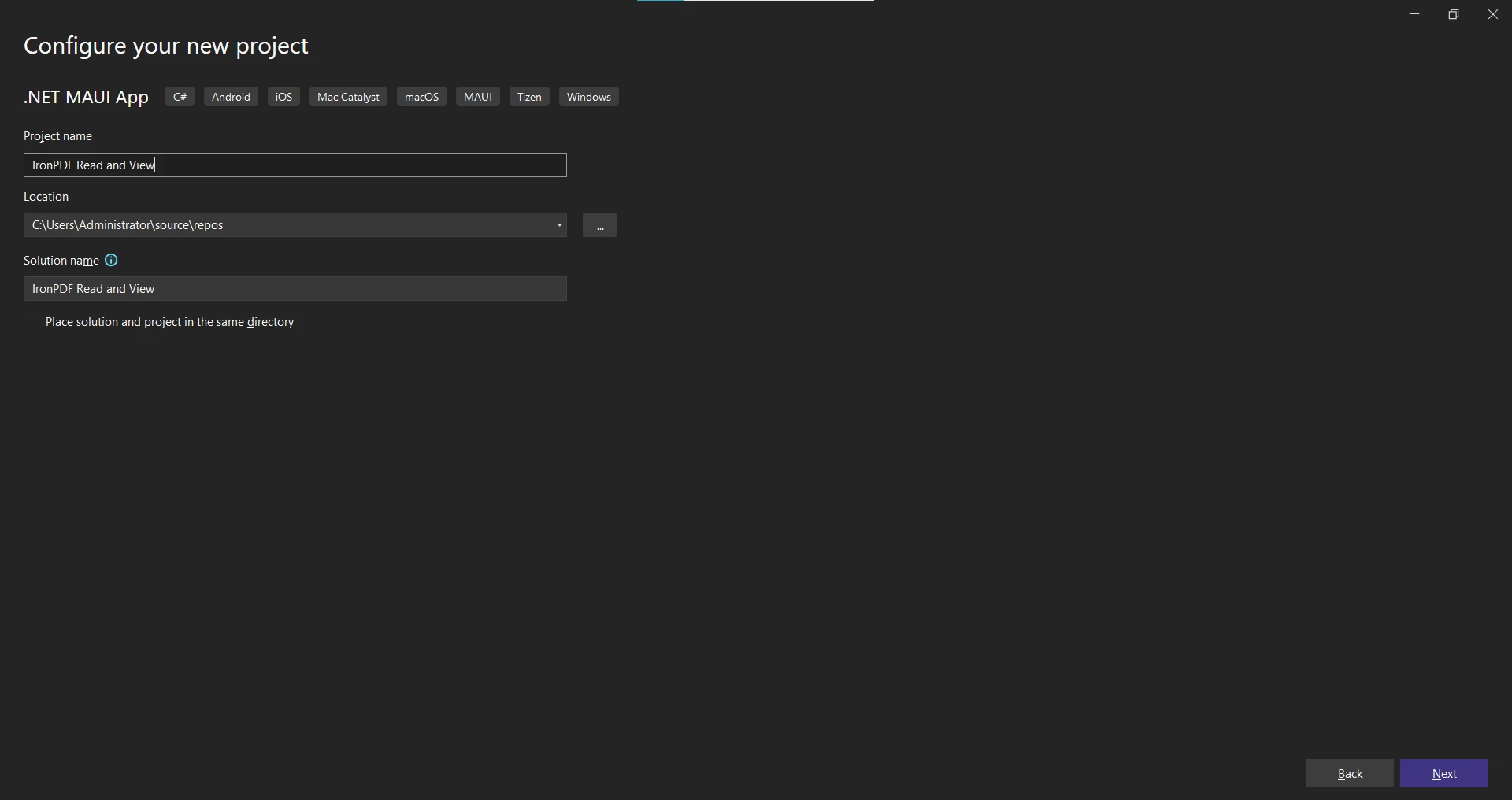
Name your project: In the next window, you'll need to give your project a name. Let's name it IronPDF_Read_and_View. Choose a location to save your project and then click Next.

Visual Studio configuration screen for creating a new .NET MAUI App project named 'IronPDF Read and View' with platform options for Android, iOS, Mac Catalyst, macOS, MAUI, Tizen, and Windows. Figure 2: Configure the project - Setting up a new .NET MAUI application with IronPDF integration for cross-platform PDF viewing capabilities.

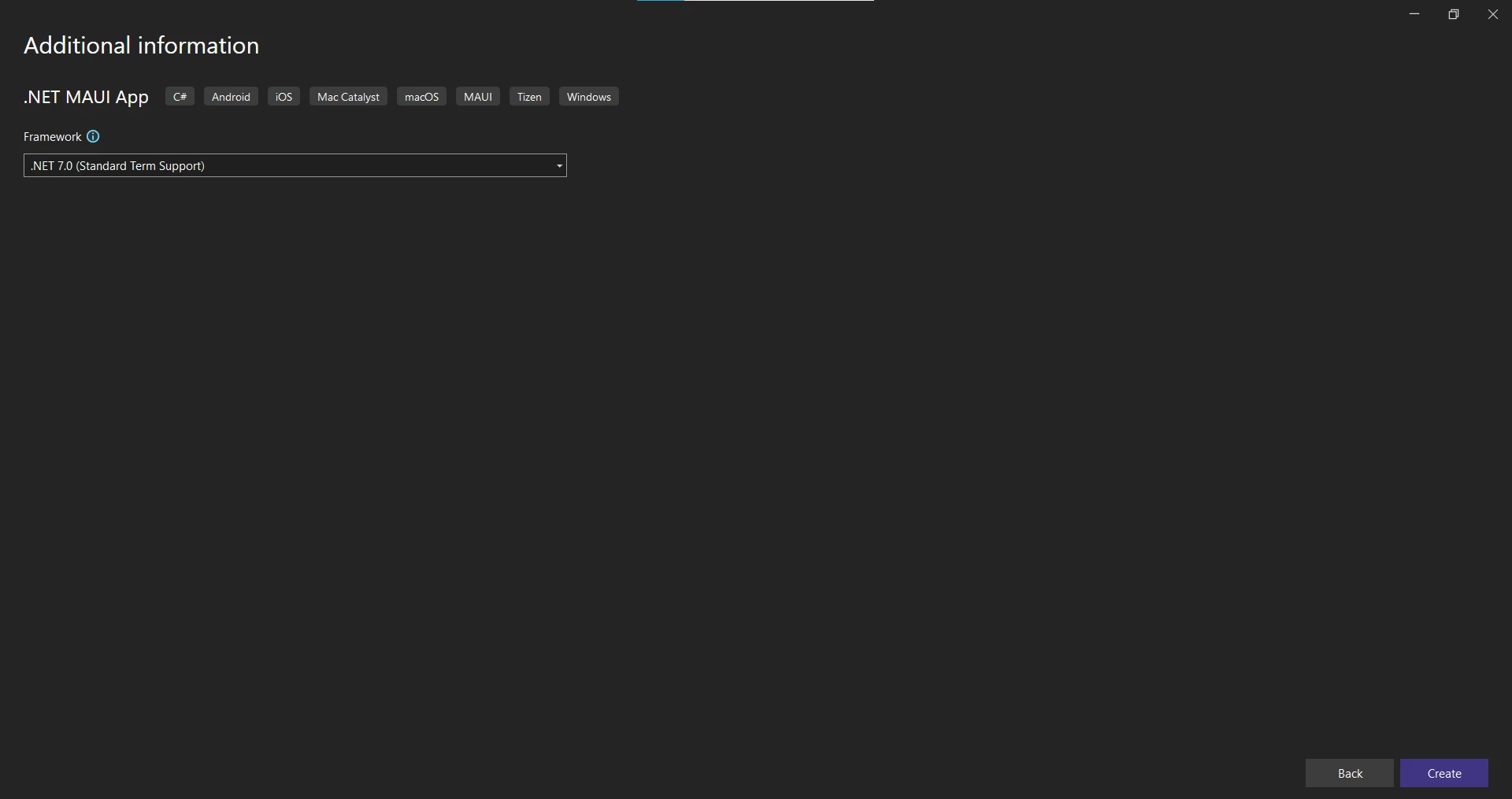
Select Framework: Select .NET Framework from the drop-down list. Select the latest .NET Framework for a smooth process and click the "Create" button.

Visual Studio project creation wizard showing .NET MAUI App configuration with .NET 7.0 framework selected and platform options for Android, iOS, Mac Catalyst, macOS, MAUI, Tizen, and Windows Figure 3: Selecting the .NET framework version and target platforms for a new .NET MAUI application

How Do I Install IronPDF?

After creating the .NET MAUI App, install the IronPDF library:

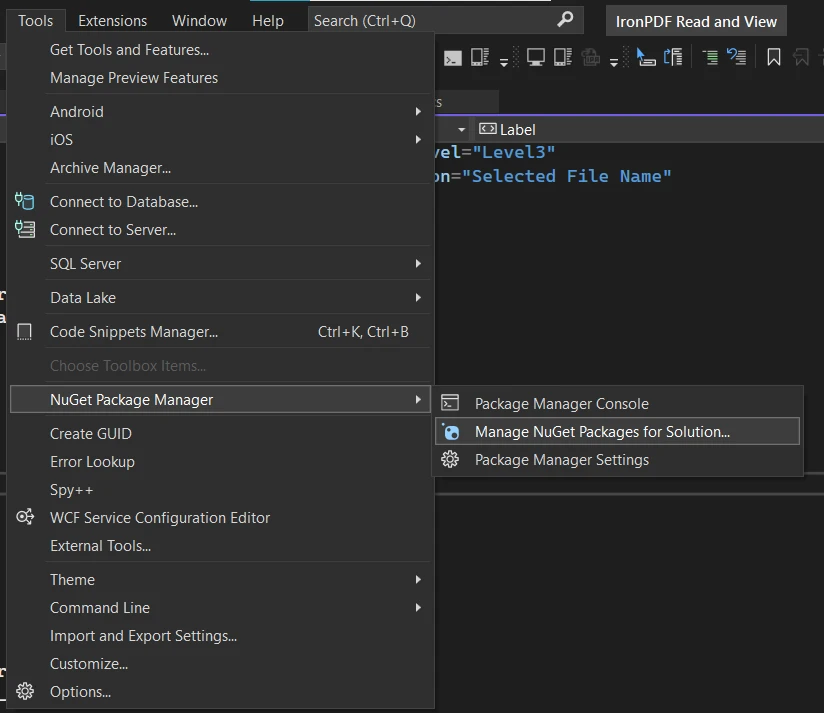
  1. Open the NuGet Package Manager: Navigate to Tools > NuGet Package Manager > Manage NuGet Packages for Solution.

    Visual Studio Tools menu expanded showing NuGet Package Manager options with 'Manage NuGet Packages for Solution' highlighted Figure 4: Access the NuGet Package Manager by navigating to Tools > NuGet Package Manager > Manage NuGet Packages for Solution in Visual Studio

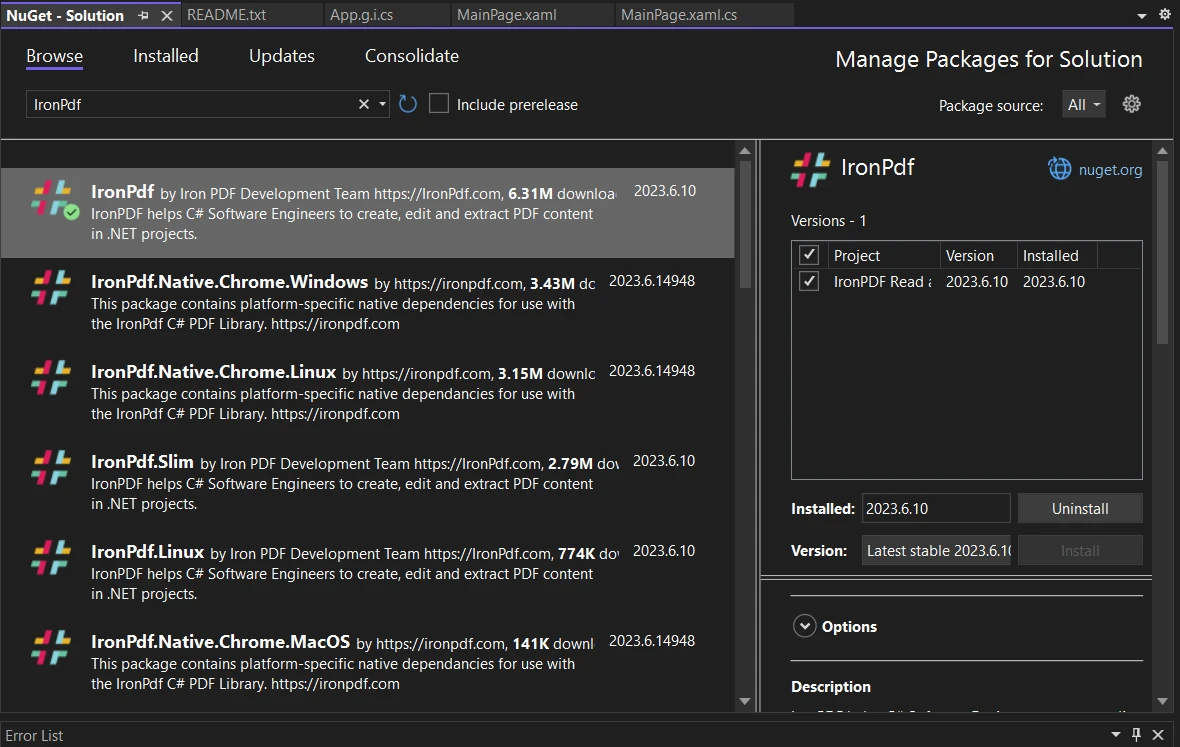
  2. Search for IronPDF: In the opened window, click on Browse and type IronPdf in the search box.

    NuGet Package Manager interface in Visual Studio showing search results for 'IronPdf' with multiple package options and the main IronPdf package selected for installation Figure 5: The NuGet Package Manager UI displaying IronPDF search results. The main IronPdf package (version 2023.6.10) is selected and ready to install, with 6.31M downloads shown.

  3. Install IronPDF: Once you see IronPDF in the search results, click on it. Make sure that the checkbox for your project in the right panel is checked and then click on Install.

Accept any prompts during installation.

You can also install using the Package Manager Console:

Install-Package IronPdf

For advanced installation options, including Docker setup and Azure deployment, see the IronPDF installation overview.

How Do I Build the User Interface?

Let's build the UI for our application. The MainPage.xaml file will have a button to open PDFs and labels to display the file name and content.

Open the MainPage.xaml file: This file contains the layout of the main page. You can find this file under the Pages folder in the Solution Explorer.

Define the Layout: We are going to use a <ScrollView> control which allows the user to scroll through the contents of the page when it cannot fit entirely on the screen. Inside the ScrollView, we will use a <StackLayout> for stacking our controls vertically. Inside the StackLayout, we have three <Frame> controls. Each Frame is used to hold a distinct section of our page, providing a neat and organized appearance.

Add Controls: The first Frame has a <VerticalStackLayout> which holds a Label and a Button. The Label displays the application name, and the Button allows the user to open a PDF file. The Clicked attribute is assigned the method OpenAndReadFile which will be defined later in the code-behind file.

<VerticalStackLayout
    Spacing="25"
    Padding="30,0"
    VerticalOptions="Center">
    <Label
        Text="IronPDF MAUI Application"
        SemanticProperties.HeadingLevel="Level1"
        SemanticProperties.Description="IronPDF MAUI Application"
        FontSize="30"
        HorizontalOptions="Center"
        FontAttributes="Bold"

    />
    <Button
        x:Name="openFileBtn"
        Text="Open PDF File"
        SemanticProperties.Hint="Open PDF File"
        Clicked="OpenAndReadFile"
        HorizontalOptions="Center" />
</VerticalStackLayout>
<VerticalStackLayout
    Spacing="25"
    Padding="30,0"
    VerticalOptions="Center">
    <Label
        Text="IronPDF MAUI Application"
        SemanticProperties.HeadingLevel="Level1"
        SemanticProperties.Description="IronPDF MAUI Application"
        FontSize="30"
        HorizontalOptions="Center"
        FontAttributes="Bold"

    />
    <Button
        x:Name="openFileBtn"
        Text="Open PDF File"
        SemanticProperties.Hint="Open PDF File"
        Clicked="OpenAndReadFile"
        HorizontalOptions="Center" />
</VerticalStackLayout>
XML

The second Frame uses <HorizontalStackLayout> with two Labels: one for static text and another named fileName for displaying the selected file.

<HorizontalStackLayout
    Spacing="25"
    Padding="30,0"
    VerticalOptions="Center">
    <Label
        Text="Selected File Name: "
        SemanticProperties.HeadingLevel="Level2"
        SemanticProperties.Description="Selected File Name"
        FontSize="18"
        HorizontalOptions="Center"
        FontAttributes="Bold"
    />
    <Label
        x:Name="fileName"
        Text=""
        SemanticProperties.HeadingLevel="Level3"
        SemanticProperties.Description="Selected File Name"
        FontSize="18"
        HorizontalOptions="Center" 
     />
</HorizontalStackLayout>
<HorizontalStackLayout
    Spacing="25"
    Padding="30,0"
    VerticalOptions="Center">
    <Label
        Text="Selected File Name: "
        SemanticProperties.HeadingLevel="Level2"
        SemanticProperties.Description="Selected File Name"
        FontSize="18"
        HorizontalOptions="Center"
        FontAttributes="Bold"
    />
    <Label
        x:Name="fileName"
        Text=""
        SemanticProperties.HeadingLevel="Level3"
        SemanticProperties.Description="Selected File Name"
        FontSize="18"
        HorizontalOptions="Center" 
     />
</HorizontalStackLayout>
XML

The third Frame contains a <VerticalStackLayout> with two Labels: one for "PDF Content" and another named content for displaying the PDF text.


<VerticalStackLayout>
    <Label
        Text="PDF Content"
        SemanticProperties.HeadingLevel="Level2"
        FontSize="25"
        FontAttributes="Bold"
        HorizontalOptions="Center" 
    />
    <Label
        x:Name="content"
        FontSize="18"
        HorizontalTextAlignment="Start"
    />
</VerticalStackLayout>

<VerticalStackLayout>
    <Label
        Text="PDF Content"
        SemanticProperties.HeadingLevel="Level2"
        FontSize="25"
        FontAttributes="Bold"
        HorizontalOptions="Center" 
    />
    <Label
        x:Name="content"
        FontSize="18"
        HorizontalTextAlignment="Start"
    />
</VerticalStackLayout>
XML

Your complete MainPage.xaml should look like this:

<?xml version="1.0" encoding="utf-8" ?>
<ContentPage
    xmlns="___PROTECTED_URL_46___"
    xmlns:x="___PROTECTED_URL_47___"
                x:Class="IronPDF_Read_and_View.MainPage">
    <ScrollView>
        <StackLayout>
            <Frame>
                <VerticalStackLayout
                    Spacing="25"
                    Padding="30,0"
                    VerticalOptions="Center">
                    <Label
                        Text="IronPDF MAUI Application"
                        SemanticProperties.HeadingLevel="Level1"
                        SemanticProperties.Description="IronPDF MAUI Application"
                        FontSize="30"
                        HorizontalOptions="Center"
                        FontAttributes="Bold"

                    />
                    <Button
                        x:Name="openFileBtn"
                        Text="Open PDF File"
                        SemanticProperties.Hint="Open PDF File"
                        Clicked="OpenAndReadFile"
                        HorizontalOptions="Center" />
                </VerticalStackLayout>
            </Frame>
            <Frame>
                <HorizontalStackLayout
                        Spacing="25"
                        Padding="30,0"
                        VerticalOptions="Center">
                    <Label
                            Text="Selected File Name: "
                            SemanticProperties.HeadingLevel="Level2"
                            SemanticProperties.Description="Selected File Name"
                            FontSize="18"
                            HorizontalOptions="Center"
                            FontAttributes="Bold"

                        />
                    <Label
                            x:Name="fileName"
                            Text=""
                            SemanticProperties.HeadingLevel="Level3"
                            SemanticProperties.Description="Selected File Name"
                            FontSize="18"
                            HorizontalOptions="Center" 
                        />
                </HorizontalStackLayout>
            </Frame>
            <Frame>
                <VerticalStackLayout>
                    <Label
                            Text="PDF Content"
                            SemanticProperties.HeadingLevel="Level2"
                            FontSize="25"
                        FontAttributes="Bold"
                            HorizontalOptions="Center" 
                        />
                    <Label
                        x:Name="content"
                        FontSize="18"
                        HorizontalTextAlignment="Start"
                        />
                </VerticalStackLayout>
            </Frame>
        </StackLayout>
    </ScrollView>
</ContentPage>
<?xml version="1.0" encoding="utf-8" ?>
<ContentPage
    xmlns="___PROTECTED_URL_46___"
    xmlns:x="___PROTECTED_URL_47___"
                x:Class="IronPDF_Read_and_View.MainPage">
    <ScrollView>
        <StackLayout>
            <Frame>
                <VerticalStackLayout
                    Spacing="25"
                    Padding="30,0"
                    VerticalOptions="Center">
                    <Label
                        Text="IronPDF MAUI Application"
                        SemanticProperties.HeadingLevel="Level1"
                        SemanticProperties.Description="IronPDF MAUI Application"
                        FontSize="30"
                        HorizontalOptions="Center"
                        FontAttributes="Bold"

                    />
                    <Button
                        x:Name="openFileBtn"
                        Text="Open PDF File"
                        SemanticProperties.Hint="Open PDF File"
                        Clicked="OpenAndReadFile"
                        HorizontalOptions="Center" />
                </VerticalStackLayout>
            </Frame>
            <Frame>
                <HorizontalStackLayout
                        Spacing="25"
                        Padding="30,0"
                        VerticalOptions="Center">
                    <Label
                            Text="Selected File Name: "
                            SemanticProperties.HeadingLevel="Level2"
                            SemanticProperties.Description="Selected File Name"
                            FontSize="18"
                            HorizontalOptions="Center"
                            FontAttributes="Bold"

                        />
                    <Label
                            x:Name="fileName"
                            Text=""
                            SemanticProperties.HeadingLevel="Level3"
                            SemanticProperties.Description="Selected File Name"
                            FontSize="18"
                            HorizontalOptions="Center" 
                        />
                </HorizontalStackLayout>
            </Frame>
            <Frame>
                <VerticalStackLayout>
                    <Label
                            Text="PDF Content"
                            SemanticProperties.HeadingLevel="Level2"
                            FontSize="25"
                        FontAttributes="Bold"
                            HorizontalOptions="Center" 
                        />
                    <Label
                        x:Name="content"
                        FontSize="18"
                        HorizontalTextAlignment="Start"
                        />
                </VerticalStackLayout>
            </Frame>
        </StackLayout>
    </ScrollView>
</ContentPage>
XML

When users click "Open PDF File", it triggers the OpenAndReadFile method. The fileName and content labels will display the selected file name and PDF content respectively.

For complex UI layouts, IronPDF supports converting XAML to PDF directly in MAUI applications.

What Goes in the Code Behind MainPage.xaml.cs?

Open MainPage.xaml.cs: Find this file in the Solution Explorer under the Pages folder. This is where we'll add our method.

Add the filePath field: At the top of the MainPage class, declare a string field named filePath. We will use this field to store the path of the selected file.

string filePath = string.Empty;
$vbLabelText   $csharpLabel

Initialize Components: In the MainPage constructor, call the InitializeComponent method. This method is called automatically to initialize the page and its controls.

public MainPage()
{
    InitializeComponent();
}
public MainPage()
{
    InitializeComponent();
}
$vbLabelText   $csharpLabel

Implement the OpenAndReadFile method: This method is marked as async because we're going to use the await keyword inside it. The FilePicker.PickAsync method is used to open the file picker. When the user selects a file, the file name is stored in the fileName label, and the file path in the filePath field. The IronPDF library is used to open the PDF document and extract all text from it. The extracted text is then assigned to the content label.

private async void OpenAndReadFile(object sender, EventArgs e)
{
    FileResult result = await FilePicker.PickAsync();
    fileName.Text = result.FileName;
    filePath = result.FullPath;

    IronPdf.License.LicenseKey = "Your-License-Key";

    // Read PDF File
    var document = PdfDocument.FromFile(filePath);
    var pdfContent = document.ExtractAllText();
    content.Text = pdfContent;
}
private async void OpenAndReadFile(object sender, EventArgs e)
{
    FileResult result = await FilePicker.PickAsync();
    fileName.Text = result.FileName;
    filePath = result.FullPath;

    IronPdf.License.LicenseKey = "Your-License-Key";

    // Read PDF File
    var document = PdfDocument.FromFile(filePath);
    var pdfContent = document.ExtractAllText();
    content.Text = pdfContent;
}
$vbLabelText   $csharpLabel

Replace "Your-License-Key" with your actual IronPDF license key. Learn about using license keys in IronPDF.

Here's the complete code:

using IronPdf;

public partial class MainPage : ContentPage
{
    string filePath = string.Empty;

    public MainPage()
    {
        InitializeComponent();
    }

    private async void OpenAndReadFile(object sender, EventArgs e)
    {
        FileResult result = await FilePicker.PickAsync();
        fileName.Text = result.FileName;
        filePath = result.FullPath;
        IronPdf.License.LicenseKey = "Your-License-Key";

        // Read PDF File
        var document = PdfDocument.FromFile(filePath);
        var pdfContent = document.ExtractAllText();
        content.Text = pdfContent;
    }
}
using IronPdf;

public partial class MainPage : ContentPage
{
    string filePath = string.Empty;

    public MainPage()
    {
        InitializeComponent();
    }

    private async void OpenAndReadFile(object sender, EventArgs e)
    {
        FileResult result = await FilePicker.PickAsync();
        fileName.Text = result.FileName;
        filePath = result.FullPath;
        IronPdf.License.LicenseKey = "Your-License-Key";

        // Read PDF File
        var document = PdfDocument.FromFile(filePath);
        var pdfContent = document.ExtractAllText();
        content.Text = pdfContent;
    }
}
$vbLabelText   $csharpLabel

IronPDF offers additional features beyond text extraction. You can search and replace text, extract images, work with PDF forms, and add annotations programmatically.

How Do I Run the Application?

Start the Application: To run the application, you can either press F5 on your keyboard or click on the green 'Start Debugging' button in the toolbar at the top of Visual Studio. Ensure that the right target device or emulator is selected in the dropdown menu next to the 'Start Debugging' button.

Use the Application: Once the application launches, you will see a screen with the title "IronPDF MAUI Application" and a button labeled "Open PDF File".

Use the Application: You'll see a screen with "IronPDF MAUI Application" and an "Open PDF File" button.

Open a PDF File: Click on the "Open PDF File" button. This will open a file picker, allowing you to browse and select a PDF file from your device or emulator.

Open a PDF File: Click "Open PDF File" to open the file picker and select a PDF from your device.

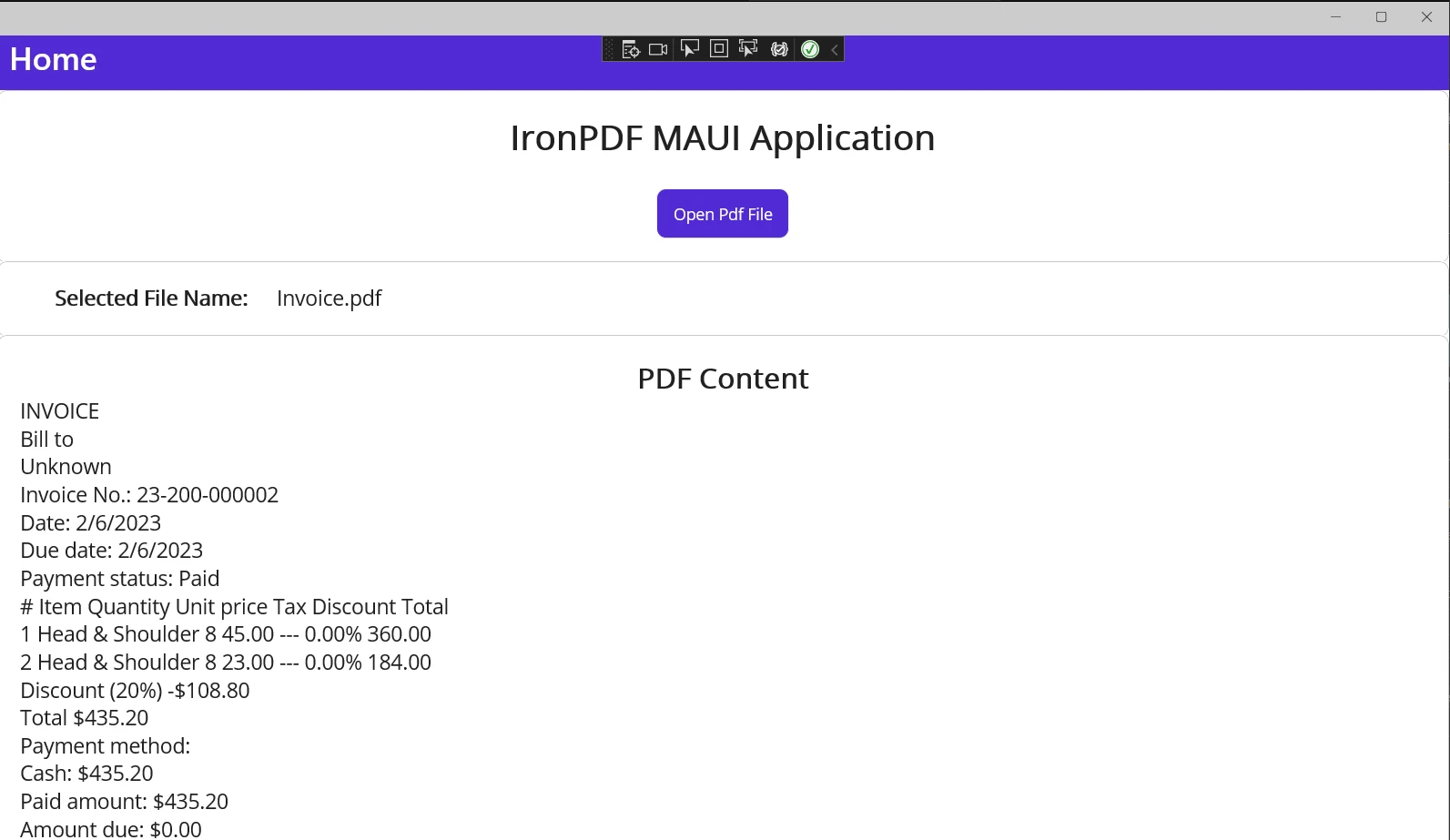
View the Content: Upon selecting a PDF file, the file name will be displayed under "Selected File Name:", and the content of the selected PDF file will be displayed under "PDF Content".

View the Content: After selecting a PDF, the file name appears under "Selected File Name:" and the extracted text under "PDF Content".

IronPDF MAUI application window showing extracted text content from an invoice PDF file, displaying invoice details including items, prices, and payment information. The IronPDF MAUI application successfully extracts and displays text content from a selected invoice PDF file, demonstrating the library's text extraction capabilities in a .NET MAUI desktop application.

Note that large PDFs may take a few seconds to process. The extracted text format may not match the original PDF layout exactly, as the ExtractAllText method extracts embedded text content. For more control, use page-specific extraction methods or work with PDF DOM objects.

What Have We Learned?

This tutorial showed how to build a .NET MAUI application using IronPDF to extract and display PDF text content. This demonstrates the power and versatility of .NET MAUI and IronPDF for PDF processing.

Beyond text extraction, IronPDF supports interacting with PDF forms, splitting PDFs, rasterizing pages to images, authentication with HTML login forms, customizing headers and footers, and supporting CSS for pixel-perfect PDFs. You can explore PDF viewing in MAUI, work with UTF-8 and international languages, and generate PDF reports from data.

IronPDF is a commercial product offering a free trial to test its capabilities. If you find it beneficial for production use, licenses start from $799. Check out the comprehensive IronPDF features overview to learn more about this powerful PDF processing library.

자주 묻는 질문

.NET MAUI 애플리케이션에서 PDF 임베디드 텍스트를 표시하려면 어떻게 해야 하나요?

.NET MAUI 애플리케이션에 PDF 임베디드 텍스트를 표시하려면 IronPDF 라이브러리를 사용할 수 있습니다. IronPDF를 사용하면 PDF 파일에서 텍스트를 추출하여 애플리케이션 내에서 렌더링할 수 있습니다. 사용자가 PDF 콘텐츠를 선택하고 표시할 수 있도록 .NET MAUI에서 사용자 인터페이스를 설정해야 합니다.

PDF 문서에 글꼴을 삽입하는 것이 중요한 이유는 무엇인가요?

PDF 문서에 글꼴을 삽입하는 것은 사용자의 디바이스에 글꼴이 설치되어 있는지 여부에 관계없이 여러 시스템과 PDF 뷰어에서 문서의 모양이 일관되게 유지되도록 하기 때문에 중요합니다.

.NET MAUI 프로젝트에 IronPDF를 어떻게 설치하나요?

.NET MAUI 프로젝트에 IronPDF를 설치하려면 Visual Studio의 NuGet 패키지 관리자를 사용하세요. IronPDF를 검색하여 프로젝트에 설치합니다. 또는 다음 명령과 함께 NuGet 패키지 관리자 콘솔을 사용할 수 있습니다: Install-Package IronPdf.

.NET MAUI 애플리케이션에서 IronPDF를 사용하면 어떤 이점이 있나요?

IronPDF는 PDF 텍스트 추출 및 렌더링, 임베디드 글꼴 관리, 다양한 플랫폼에서 고품질 PDF 렌더링을 보장하는 기능 등 .NET MAUI 애플리케이션을 위한 여러 가지 이점을 제공합니다. 또한 PDF 조작을 위한 강력한 기능 세트를 제공하며 크로스 플랫폼 개발을 지원합니다.

IronPDF는 모든 PDF 파일에서 텍스트를 추출할 수 있나요?

예, IronPDF는 PDF 파일에서 텍스트를 추출할 수 있습니다. 그러나 추출된 텍스트 형식은 PDF가 생성된 방식에 따라 원본 PDF 레이아웃과 약간 다를 수 있습니다.

PDF를 처리하도록 .NET MAUI 애플리케이션을 설정하려면 어떤 단계를 거쳐야 하나요?

PDF를 처리하기 위한 .NET MAUI 애플리케이션을 설정하려면 필요한 워크로드와 함께 .NET MAUI 및 Visual Studio를 설치하고, NuGet을 통해 IronPDF 라이브러리를 통합하고, PDF 파일과 상호 작용할 수 있는 사용자 인터페이스를 개발하는 것이 포함됩니다. 이 과정에는 PDF 콘텐츠를 추출하고 표시하기 위한 C# 코드 작성도 포함됩니다.

개발용으로 사용할 수 있는 IronPDF 무료 버전이 있나요?

IronPDF는 개발자가 기능을 테스트할 수 있는 무료 평가판을 제공합니다. 프로덕션용으로 사용할 경우 다양한 요구 사항에 맞는 다양한 라이선스 플랜을 사용할 수 있습니다.

IronPDF로 어떤 유형의 PDF 조작을 수행할 수 있나요?

IronPDF를 사용하면 텍스트 추출, PDF 양식과 상호 작용, PDF 분할, PDF 페이지를 이미지로 변환, 문서 머리글 및 바닥글 사용자 지정 등 다양한 PDF 조작을 수행할 수 있습니다.

IronPDF는 .NET 10을 지원하며 .NET 10 MAUI 프로젝트와 함께 사용할 수 있나요?

예 - IronPDF는 .NET 10과 완벽하게 호환됩니다. .NET 10 MAUI 프로젝트를 지원하므로 사용자 지정 해결 방법 없이도 .NET 10의 성능 개선 사항과 언어 기능을 즉시 활용할 수 있습니다. IronPDF는 .NET 9, 8, 7, 6, 5, 코어, 표준 및 프레임워크와 함께 .NET 10을 지원합니다. (ironpdf.com)

IOS 또는 Android와 같이 리소스가 제한된 장치에서 MAUI의 대용량 PDF와 함께 IronPDF의 ExtractAllText를 사용할 때 제한 사항이나 알려진 문제가 있나요?

IronPDF의 ExtractAllText는 표준 PDF에서는 잘 작동하지만 모바일 디바이스의 매우 큰 문서에서 임베디드 텍스트를 추출하는 작업은 속도가 느리고 메모리를 많이 사용할 수 있습니다. 개발자는 대용량 파일에 대해 페이지 매김 또는 청크 추출을 구현하고 충분한 디바이스 메모리를 확보하는 것을 고려해야 합니다. 또한 MAUI 앱에서 메인 스레드가 차단되지 않도록 UI 응답성에 백그라운드 스레딩이 필요할 수 있습니다. (.NET MAUI의 일반적인 모범 사례와 IronPDF의 PDF 추출 처리를 기반으로 합니다.)

커티스 차우
기술 문서 작성자

커티스 차우는 칼턴 대학교에서 컴퓨터 과학 학사 학위를 취득했으며, Node.js, TypeScript, JavaScript, React를 전문으로 하는 프론트엔드 개발자입니다. 직관적이고 미적으로 뛰어난 사용자 인터페이스를 만드는 데 열정을 가진 그는 최신 프레임워크를 활용하고, 잘 구성되고 시각적으로 매력적인 매뉴얼을 제작하는 것을 즐깁니다.


커티스는 개발 분야 외에도 사물 인터넷(IoT)에 깊은 관심을 가지고 있으며, 하드웨어와 소프트웨어를 통합하는 혁신적인 방법을 연구합니다. 여가 시간에는 게임을 즐기거나 디스코드 봇을 만들면서 기술에 대한 애정과 창의성을 결합합니다.