




업데이트됨 2026년 5월 8일
월별 계정 명세서를 PDF 문서로 생성하기
개발자는 IronPDF C# PDF 라이브러리를 사용하여 외부 서비스에 의존하지 않고도 .NET 프로젝트 내에서 HTML을 신뢰할 수 있는 PDF 파일로 변환할 수 있습니다.
더 읽어보기

프로덕션 준비 완료된 .NET PDF API를 ASP.NET Core 및 IronPDF를 사용하여 구축하여 PDF 생성 로직을 중앙 집중화하고, HTML에서 PDF 변환, 병합, 워터마크 추가, 동적 템플릿 처리에 대한 RESTful 엔드포인트를 통해 애플리케이션 전반에 일관된 문서 생성을 가능하게 합니다.
최신 응용 프로그램을 다룰 때, .NET 개발자는 중앙 집중식 PDF 생성 서비스를 구축해야 하는 경우가 많습니다. 인쇄, 보고서, 증명서, 계약을 생성하든 간에 전 for .NET PDF API를 갖추면 PDF 생성 워크플로우를 개선합니다. 어떻게 도움이 되나요? 데스크톱 및 웹 애플리케이션 전반에 걸쳐 일관성, 유지보수성, 확장성을 제공합니다. 문서 콘텐츠 관리, PDF 페이지 및 PDF 양식 필드 처리가 간단해집니다.
이 튜토리얼에서는 ASP.NET Core 및 IronPDF라는 강력한 .NET PDF 라이브러리를 사용하여 프로덕션 준비 완료된 PDF API를 구축하는 방법을 배우게 됩니다. 우리는 HTML에서 PDF를 생성하고, 문서를 병합하며, 워터마크를 추가하고, Web API에서 다양한 실제 PDF 시나리오를 처리하는 RESTful 엔드포인트를 생성할 것입니다.
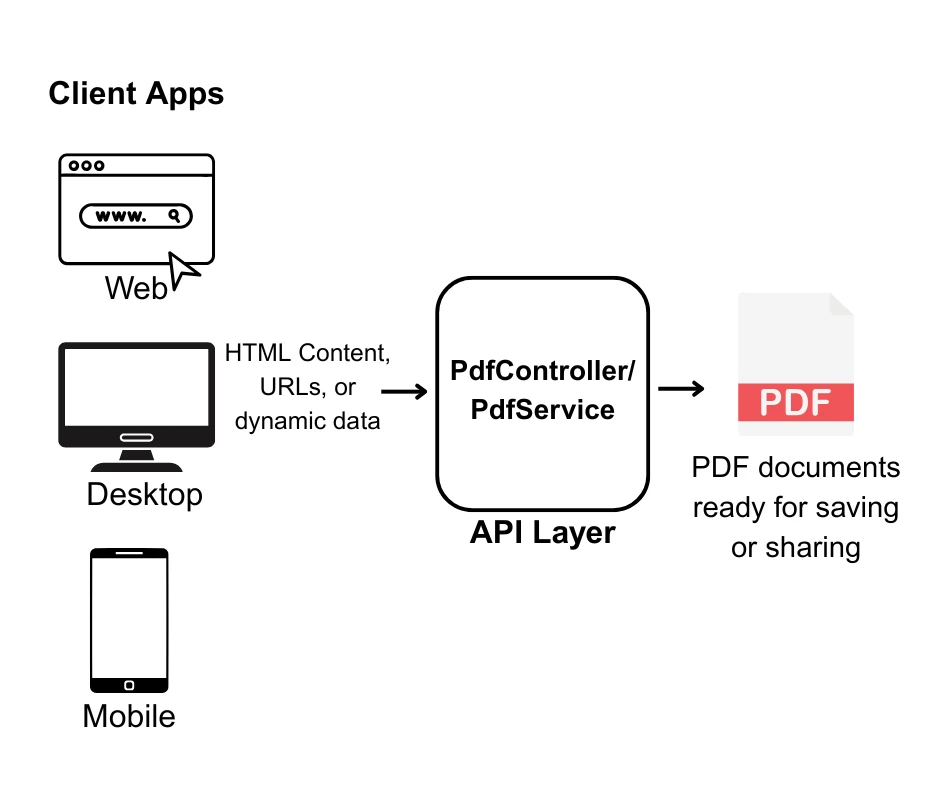
코드를 실행하기 전에, 전용 PDF API를 생성하는 것이 왜 합리적인지 이해해 봅시다:
건축을 시작할 준비가 되셨나요? IronPDF의 무료 체험판을 다운로드하고 이 튜토리얼을 따라가면서 .NET Framework 프로젝트에서 프로그래밍으로 PDF 파일을 생성하세요.
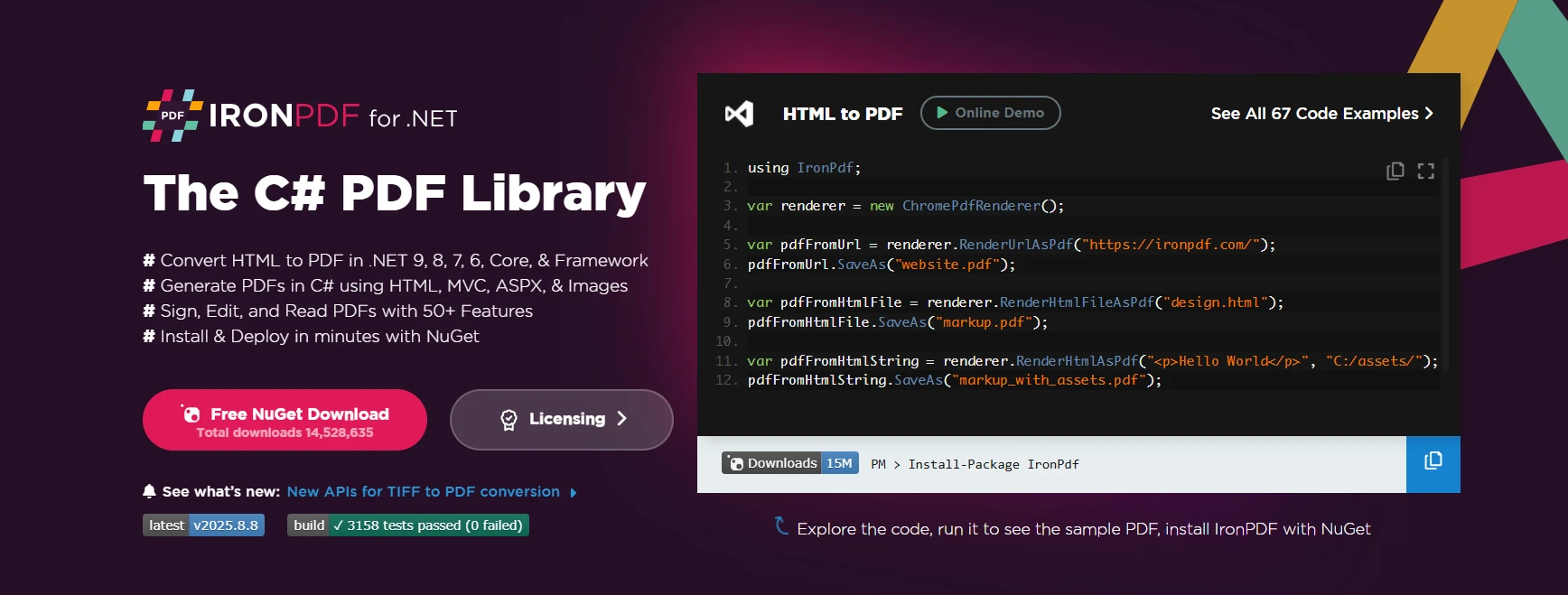
IronPDF는 .NET 개발자를 위한 최고의 PDF 라이브러리로, Web API 프로젝트에서 PDF 생성을 간단하고 신뢰할 수 있게 만드는 종합적인 기능 세트를 제공합니다. Chrome 렌더링 엔진을 기반으로 구축되며, 몇 줄의 코드만으로 HTML-to-PDF 변환을 유지하면서 픽셀 단위로 정확한 HTML-to-PDF 변환을 보장합니다.
.NET PDF API 개발에 적합한 IronPDF의 주요 기능들:
새 ASP.NET Core Web API 프로젝트를 생성하고 필요한 패키지를 설치하는 것부터 시작해 봅시다.
먼저, PDF 생성 도구를 만들 프로젝트를 생성해 보겠습니다.
dotnet new webapi -n PdfApiService
cd PdfApiService다음으로, NuGet을 통해 프로젝트에 IronPDF를 추가하세요.
또는, Visual Studio의 NuGet 패키지 관리 콘솔을 사용하여:
플랫폼별 패키지, 고급 설치 옵션, Docker 설정, 또는 Linux 구성을 포함한 추가 설치 옵션은 IronPDF 설치 문서를 참고하세요.
좋은 C# 개발에는 깨끗하고 잘 구조화된 프로젝트 폴더 유지가 필요합니다. 예를 들어:
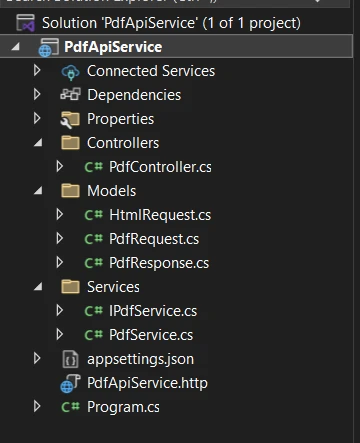
HTML을 PDF 형식으로 변환하는 간단한 엔드포인트를 만들어 봅시다. 먼저 서비스 인터페이스와 구현을 만듭니다:
먼저, 아래 내용을 IPdfService.cs 파일에 추가하십시오:
public interface IPdfService
{
    byte[] GeneratePdfFromHtml(string htmlContent);
    byte[] GeneratePdfFromUrl(string url);
}Public Interface IPdfService
Function GeneratePdfFromHtml(htmlContent As String) As Byte()
Function GeneratePdfFromUrl(url As String) As Byte()
End InterfacePdfService.cs 파일에 이것을 추가하십시오:
using IronPdf;
public class PdfService : IPdfService
{
    private readonly ChromePdfRenderer _renderer;
    public PdfService()
    {
        _renderer = new ChromePdfRenderer();
        // Configure rendering options for optimal PDF generation in .NET
        _renderer.RenderingOptions.MarginTop = 20;
        _renderer.RenderingOptions.MarginBottom = 20;
        _renderer.RenderingOptions.PrintHtmlBackgrounds = true;
    }
    public byte[] GeneratePdfFromHtml(string htmlContent)
    {
        // Generate PDF from HTML using the .NET PDF API
        var pdf = _renderer.RenderHtmlAsPdf(htmlContent);
        return pdf.BinaryData;
    }
    public byte[] GeneratePdfFromUrl(string url)
    {
        // Convert URL to PDF in the REST API
        var pdf = _renderer.RenderUrlAsPdf(url);
        return pdf.BinaryData;
    }
}Imports IronPdf
Public Class PdfService
Implements IPdfService
Private ReadOnly _renderer As ChromePdfRenderer
Public Sub New()
_renderer = New ChromePdfRenderer()
' Configure rendering options for optimal PDF generation in .NET
_renderer.RenderingOptions.MarginTop = 20
_renderer.RenderingOptions.MarginBottom = 20
_renderer.RenderingOptions.PrintHtmlBackgrounds = True
End Sub
Public Function GeneratePdfFromHtml(htmlContent As String) As Byte()
' Generate PDF from HTML using the .NET PDF API
Dim pdf = _renderer.RenderHtmlAsPdf(htmlContent)
Return pdf.BinaryData
End Function
Public Function GeneratePdfFromUrl(url As String) As Byte()
' Convert URL to PDF in the REST API
Dim pdf = _renderer.RenderUrlAsPdf(url)
Return pdf.BinaryData
End Function
End ClassPdfService는 HTML을 PDF로 변환하는 작업을 처리합니다. IronPDF의 ChromePdfRenderer를 사용하여 이 클래스는 페이지 여백 및 배경 렌더링과 같은 기본값을 설정하여 전문적인 결과를 제공합니다. 고급 렌더링 구성을 위해 IronPDF의 렌더링 옵션을 탐색하세요.
컨트롤러가 원시 HTML을 보내면, 서비스는 이를 고품질 PDF로 렌더링하고 다운로드를 위해 바이트 데이터를 반환합니다. URL에서 PDF로 변환을 사용하여 전체 웹 페이지를 직접 PDF로 변환할 수 있습니다.
이제 API를 위한 컨트롤러를 만드세요. 이는 HTML에서 PDF 파일을 생성하는 엔드포인트를 제공하고 PDF 문서를 다운로드하고 저장할 수 있도록 합니다.
// Controllers/PdfController.cs
using Microsoft.AspNetCore.Mvc;
[ApiController]
[Route("api/[controller]")]
public class PdfController : ControllerBase
{
    private readonly IPdfService _pdfService;
    public PdfController(IPdfService pdfService)
    {
        _pdfService = pdfService;
    }
    [HttpPost("html-to-pdf")]
    public IActionResult ConvertHtmlToPdf([FromBody] HtmlRequest request)
    {
        try
        {
            var pdfBytes = _pdfService.GeneratePdfFromHtml(request.HtmlContent);
            // Return as downloadable file
            return File(pdfBytes, "application/pdf", "document.pdf");
        }
        catch (Exception ex)
        {
            return BadRequest($"Error generating PDF: {ex.Message}");
        }
    }
}Imports Microsoft.AspNetCore.Mvc
<ApiController>
<Route("api/[controller]")>
Public Class PdfController
Inherits ControllerBase
Private ReadOnly _pdfService As IPdfService
Public Sub New(pdfService As IPdfService)
_pdfService = pdfService
End Sub
<HttpPost("html-to-pdf")>
Public Function ConvertHtmlToPdf(<FromBody> request As HtmlRequest) As IActionResult
Try
Dim pdfBytes = _pdfService.GeneratePdfFromHtml(request.HtmlContent)
' Return as downloadable file
Return File(pdfBytes, "application/pdf", "document.pdf")
Catch ex As Exception
Return BadRequest($"Error generating PDF: {ex.Message}")
End Try
End Function
End Class그런 다음 HtmlRequest.cs 파일에 이것을 추가하십시오:
// Models/HtmlRequest.cs
public class HtmlRequest
{
    public string HtmlContent { get; set; }
    public string FileName { get; set; } = "document.pdf";
}' Models/HtmlRequest.vb
Public Class HtmlRequest
Public Property HtmlContent As String
Public Property FileName As String = "document.pdf"
End Class이는 HTML을 다운로드 가능한 PDF로 변환하는 API 엔드포인트를 설정합니다. 누군가 HTML을 api/pdf/html-to-pdf으로 전송하면, PdfController이(가) 변환 작업을 서비스로 위임합니다.
생성된 후, 컨트롤러는 PDF를 다운로드 가능한 파일로 반환합니다. 요청은 HTML과 옵션으로 포함된 파일 이름을 보유한 HtmlRequest 모델을 사용합니다. 이를 통해 클라이언트는 HTML을 보내고 세련된 PDF를 쉽게 받을 수 있습니다.
PDF 서비스를 등록하기 위해 Program.cs을 업데이트하십시오:
var builder = WebApplication.CreateBuilder(args);
builder.Services.AddControllers();
builder.Services.AddEndpointsApiExplorer();
builder.Services.AddSwaggerGen();
// Register PDF service
builder.Services.AddSingleton<IPdfService, PdfService>();
var app = builder.Build();
if (app.Environment.IsDevelopment())
{
    app.UseSwagger();
    app.UseSwaggerUI();
}
app.UseHttpsRedirection();
app.MapControllers();
app.Run();Imports Microsoft.AspNetCore.Builder
Imports Microsoft.Extensions.DependencyInjection
Dim builder = WebApplication.CreateBuilder(args)
builder.Services.AddControllers()
builder.Services.AddEndpointsApiExplorer()
builder.Services.AddSwaggerGen()
' Register PDF service
builder.Services.AddSingleton(Of IPdfService, PdfService)()
Dim app = builder.Build()
If app.Environment.IsDevelopment() Then
app.UseSwagger()
app.UseSwaggerUI()
End If
app.UseHttpsRedirection()
app.MapControllers()
app.Run()귀하의 API는 클라이언트 요구 사항에 따라 PDF를 반환하는 다양한 방법을 지원해야 합니다:
[HttpPost("generate")]
public IActionResult GeneratePdf([FromBody] PdfRequest request)
{
    var pdfBytes = _pdfService.GeneratePdfFromHtml(request.HtmlContent);
    switch (request.ResponseType?.ToLower())
    {
        case "base64":
            return Ok(new
            {
                data = Convert.ToBase64String(pdfBytes),
                filename = request.FileName
            });
        case "inline":
            return File(pdfBytes, "application/pdf");
        default: // download
            return File(pdfBytes, "application/pdf", request.FileName);
    }
}Imports Microsoft.AspNetCore.Mvc
<HttpPost("generate")>
Public Function GeneratePdf(<FromBody> request As PdfRequest) As IActionResult
Dim pdfBytes = _pdfService.GeneratePdfFromHtml(request.HtmlContent)
Select Case request.ResponseType?.ToLower()
Case "base64"
Return Ok(New With {
.data = Convert.ToBase64String(pdfBytes),
.filename = request.FileName
})
Case "inline"
Return File(pdfBytes, "application/pdf")
Case Else ' download
Return File(pdfBytes, "application/pdf", request.FileName)
End Select
End Function이는 유연한 PDF 생성 엔드포인트를 추가합니다. 다운로드를 강제하지 않고, GeneratePdf 메서드는 클라이언트가 결과를 받는 방식을 선택할 수 있게 합니다: 다운로드로, 브라우저에 인라인으로, 또는 API 사용을 위한 Base64 인코딩으로.
PdfRequest 모델은 HtmlRequest을(를) 확장하여 ResponseType 옵션을 추가합니다. 이는 사용자에게 PDF 전송에 대한 제어권을 주어 API를 더 다재다능하게 만듭니다. 파일 시스템 접근 없이 메모리 내에서 PDF를 처리하려면 IronPDF의 메모리 스트림 문서를 참조하세요.
프로그램을 실행할 때 스웨거에서 이 출력을 볼 수 있을 것입니다:
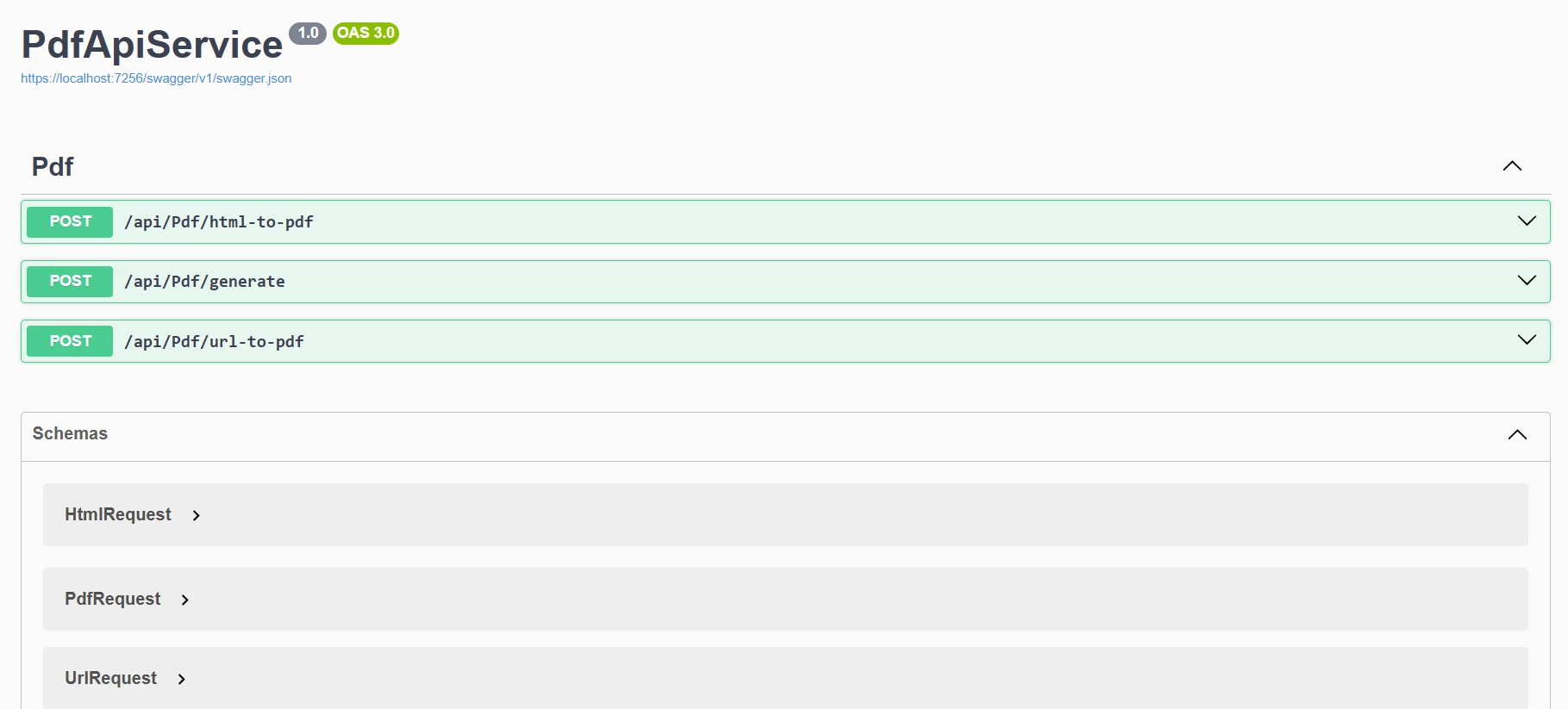
다양한 PDF 생성 시나리오를 처리할 수 있도록 서비스를 확장해 봅시다:
[HttpPost("url-to-pdf")]
public async Task<IActionResult> ConvertUrlToPdf([FromBody] UrlRequest request)
{
    try
    {
        var pdfBytes = await Task.Run(() =>
            _pdfService.GeneratePdfFromUrl(request.Url));
        return File(pdfBytes, "application/pdf",
            $"{request.FileName ?? "website"}.pdf");
    }
    catch (Exception ex)
    {
        return BadRequest($"Failed to convert URL: {ex.Message}");
    }
}
public class UrlRequest
{
    public string Url { get; set; }
    public string FileName { get; set; }
}Imports System.Threading.Tasks
Imports Microsoft.AspNetCore.Mvc
<HttpPost("url-to-pdf")>
Public Async Function ConvertUrlToPdf(<FromBody> request As UrlRequest) As Task(Of IActionResult)
Try
Dim pdfBytes = Await Task.Run(Function() _pdfService.GeneratePdfFromUrl(request.Url))
Return File(pdfBytes, "application/pdf", $"{If(request.FileName, "website")}.pdf")
Catch ex As Exception
Return BadRequest($"Failed to convert URL: {ex.Message}")
End Try
End Function
Public Class UrlRequest
Public Property Url As String
Public Property FileName As String
End Class이 엔드포인트는 URL을 다운로드 가능한 PDF로 변환합니다. POST 요청이 /api/pdf/url-to-pdf에 도달하면, 컨트롤러는 _pdfService을(를) 사용하여 백그라운드에서 URL을 PDF 바이트로 변환하고, 그런 다음 다운로드를 위해 반환합니다. 변환이 실패하면 명확한 오류 메시지를 응답합니다. 인증이 필요한 웹사이트에 대해서는 IronPDF의 로그인 문서를 확인하세요.
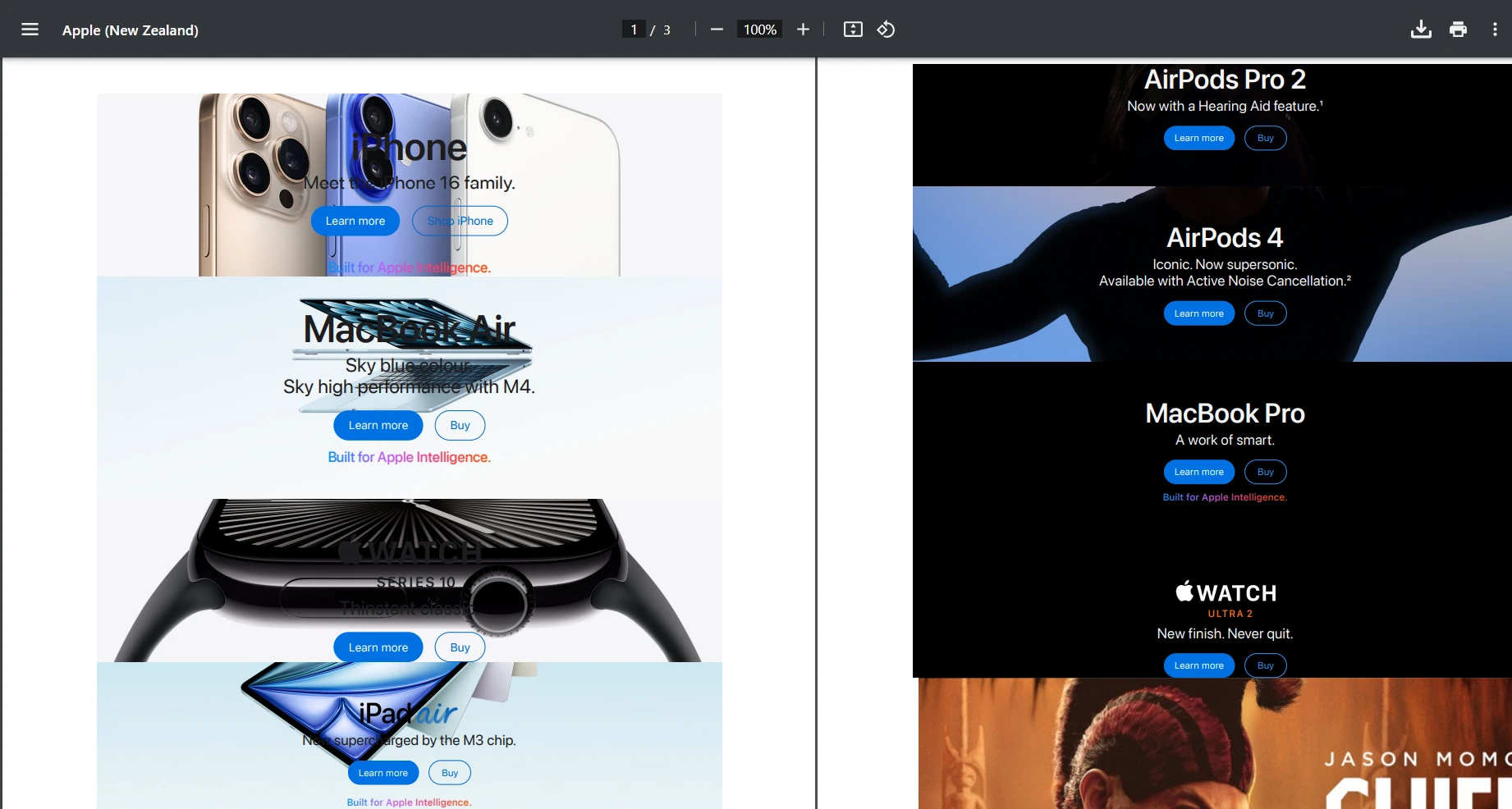
URL "https://www.apple.com/nz"을 사용하고 POST 요청을 테스트해 봅시다. 아래는 우리가 얻은 출력입니다:
public byte[] AddWatermarkFromFile(string filePath, string watermarkText)
{
    // Load PDF directly from file
    var pdf = PdfDocument.FromFile(filePath);
    pdf.ApplyWatermark(
        $"<h1 style='color:red;font-size:72px;'>{watermarkText}</h1>",
        75,
        IronPdf.Editing.VerticalAlignment.Middle,
        IronPdf.Editing.HorizontalAlignment.Center
    );
    return pdf.BinaryData;
}Imports IronPdf
Public Function AddWatermarkFromFile(filePath As String, watermarkText As String) As Byte()
' Load PDF directly from file
Dim pdf = PdfDocument.FromFile(filePath)
pdf.ApplyWatermark(
$"<h1 style='color:red;font-size:72px;'>{watermarkText}</h1>",
75,
IronPdf.Editing.VerticalAlignment.Middle,
IronPdf.Editing.HorizontalAlignment.Center
)
Return pdf.BinaryData
End Function이는 테스트를 위해 로컬 파일을 수동으로 로드합니다. PDF API가 PDF를 생성하고, 사용자 정의 워터마크를 쉽게 적용하도록 이를 조정할 수 있습니다. 이미지 워터마크 및 사용자 정의 위치 설정을 포함한 고급 워터마크 옵션은 워터마킹 가이드를 참조하세요.

실제 애플리케이션의 경우, 종종 동적 데이터로 템플릿에서 PDF를 생성해야 합니다:
[HttpPost("from-template")]
public IActionResult GenerateFromTemplate([FromBody] TemplateRequest request)
{
    // Simple template replacement
    var html = request.Template;
    foreach (var item in request.Data)
    {
        html = html.Replace($"{{{{{item.Key}}}}}", item.Value);
    }
    var pdfBytes = _pdfService.GeneratePdfFromHtml(html);
    return File(pdfBytes, "application/pdf", request.FileName);
}
public class TemplateRequest
{
    public string Template { get; set; }
    public Dictionary<string, string> Data { get; set; }
    public string FileName { get; set; } = "document.pdf";
}Imports Microsoft.AspNetCore.Mvc
<HttpPost("from-template")>
Public Function GenerateFromTemplate(<FromBody> request As TemplateRequest) As IActionResult
' Simple template replacement
Dim html As String = request.Template
For Each item In request.Data
html = html.Replace($"{{{{{item.Key}}}}}", item.Value)
Next
Dim pdfBytes As Byte() = _pdfService.GeneratePdfFromHtml(html)
Return File(pdfBytes, "application/pdf", request.FileName)
End Function
Public Class TemplateRequest
Public Property Template As String
Public Property Data As Dictionary(Of String, String)
Public Property FileName As String = "document.pdf"
End ClassRazor, Handlebars 또는 기타 엔진을 사용하는 고급 템플릿 시나리오의 경우 IronPDF의 HTML to PDF 문서를 참조하십시오. 또한 MVC 애플리케이션을 위한 CSHTML to PDF 변환 및 Blazor 애플리케이션을 위한 Razor to PDF를 탐색할 수 있습니다. 헤드리스 Razor 렌더링에 대해서는 CSHTML 헤드리스 가이드를 참조하십시오.
프로덕션 PDF API를 구축할 때 성능은 매우 중요합니다. 여기에 주요 최적화 전략이 있습니다:
프로젝트에 I/O 작업이 포함된 경우 비동기 코딩을 사용하십시오. 특히 PDF 콘텐츠가 다음과 같은 외부 리소스에서 나올 때 도움이 됩니다:
RenderUrlAsPdf)이러한 작업은 스레드를 차단할 수 있지만, 비동기는 API 스레드가 유휴 상태로 기다리지 않도록 합니다. 포괄적인 비동기 PDF 생성 패턴에 대해서는 비동기 PDF 생성 가이드를 참조하십시오.
예:
public async Task<byte[]> GeneratePdfFromHtmlAsync(string htmlContent)
{
    return await Task.Run(() =>
    {
        var pdf = _renderer.RenderHtmlAsPdf(htmlContent);
        return pdf.BinaryData;
    });
}Imports System.Threading.Tasks
Public Async Function GeneratePdfFromHtmlAsync(htmlContent As String) As Task(Of Byte())
Return Await Task.Run(Function()
Dim pdf = _renderer.RenderHtmlAsPdf(htmlContent)
Return pdf.BinaryData
End Function)
End Function병렬 PDF 생성 시나리오에 대해서는 멀티스레딩과 병렬 처리 기술을 탐색하십시오.
IronPDF를 최적의 성능으로 구성하십시오:
_renderer.RenderingOptions.EnableJavaScript = false; // If JS not needed
_renderer.RenderingOptions.CssMediaType = PdfCssMediaType.Print;
_renderer.RenderingOptions.RenderDelay = 0; // Remove if no JS
_renderer.RenderingOptions.Timeout = 30; // Set reasonable timeoutnet뷰포트 설정, 사용자 지정 용지 크기, 페이지 방향을 포함한 포괄적인 렌더링 구성 옵션에 대해 렌더링 옵션 문서를 참조하십시오.
프로덕션 API에서는 보안이 필수적입니다. 다음은 간단한 API 키 인증 접근 방법입니다:
// Middleware/ApiKeyMiddleware.cs
public class ApiKeyMiddleware
{
    private readonly RequestDelegate _next;
    private const string ApiKeyHeader = "X-API-Key";
    public ApiKeyMiddleware(RequestDelegate next)
    {
        _next = next;
    }
    public async Task InvokeAsync(HttpContext context)
    {
        if (!context.Request.Headers.TryGetValue(ApiKeyHeader, out var apiKey))
        {
            context.Response.StatusCode = 401;
            await context.Response.WriteAsync("API Key required");
            return;
        }
        // Validate API key (in production, check against database)
        var validApiKey = context.RequestServices
            .GetRequiredService<IConfiguration>()["ApiKey"];
        if (apiKey != validApiKey)
        {
            context.Response.StatusCode = 403;
            await context.Response.WriteAsync("Invalid API Key");
            return;
        }
        await _next(context);
    }
}
// In Program.cs
app.UseMiddleware<ApiKeyMiddleware>();Imports Microsoft.AspNetCore.Http
Imports Microsoft.Extensions.Configuration
Imports System.Threading.Tasks
' Middleware/ApiKeyMiddleware.vb
Public Class ApiKeyMiddleware
Private ReadOnly _next As RequestDelegate
Private Const ApiKeyHeader As String = "X-API-Key"
Public Sub New(next As RequestDelegate)
_next = next
End Sub
Public Async Function InvokeAsync(context As HttpContext) As Task
Dim apiKey As String = Nothing
If Not context.Request.Headers.TryGetValue(ApiKeyHeader, apiKey) Then
context.Response.StatusCode = 401
Await context.Response.WriteAsync("API Key required")
Return
End If
' Validate API key (in production, check against database)
Dim validApiKey As String = context.RequestServices.GetRequiredService(Of IConfiguration)()("ApiKey")
If apiKey <> validApiKey Then
context.Response.StatusCode = 403
Await context.Response.WriteAsync("Invalid API Key")
Return
End If
Await _next(context)
End Function
End Class
' In Program.vb
app.UseMiddleware(Of ApiKeyMiddleware)()고급 인증 시나리오에 대해서는 다음을 고려하십시오:
PDF 특정 보안을 위해, 비밀번호 보호, 디지털 서명 및 PDF 정화를 구현하여 잠재적으로 악성 콘텐츠를 제거하십시오.
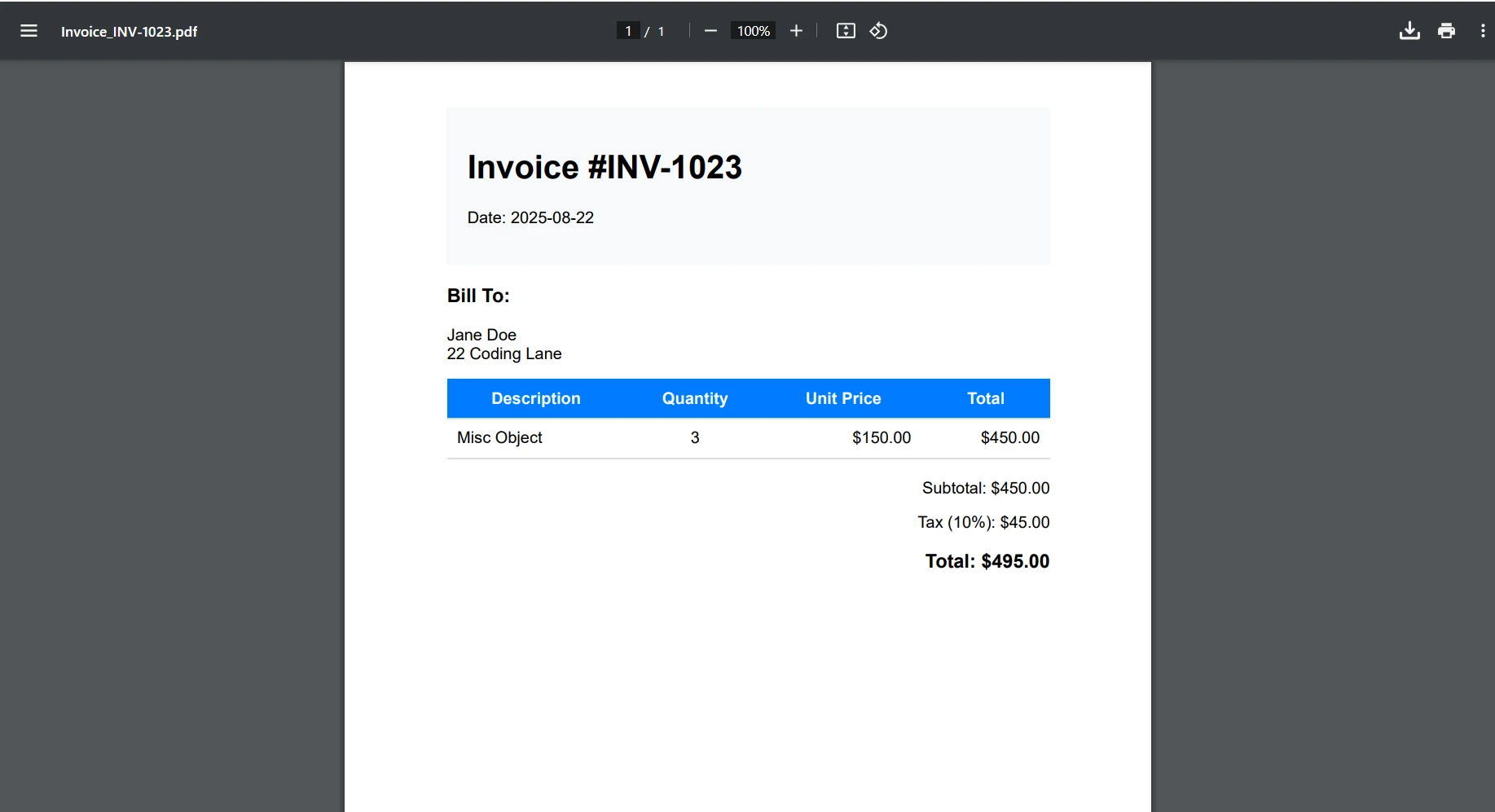
완전한 구현을 데모하는 실용적인 인보이스 생성 엔드포인트를 구축해봅시다. 이 예제는 프로덕션 .NET PDF API가 동적 데이터를 사용하여 전문적인 인보이스를 생성하는 방법을 보여줍니다.

먼저, Models 폴더에 새로운 파일을 생성하십시오. 여기에서는 내 파일을 Invoice.cs라고 불렀습니다. 그런 다음 다음 코드를 추가하십시오:
public class Invoice
{
    public string InvoiceNumber { get; set; }
    public DateTime Date { get; set; }
    public string CustomerName { get; set; }
    public string CustomerAddress { get; set; }
    public List<InvoiceItem> Items { get; set; }
    public decimal Tax { get; set; }
}
public class InvoiceItem
{
    public string Description { get; set; }
    public int Quantity { get; set; }
    public decimal UnitPrice { get; set; }
    public decimal Total => Quantity * UnitPrice;
}Public Class Invoice
Public Property InvoiceNumber As String
Public Property [Date] As DateTime
Public Property CustomerName As String
Public Property CustomerAddress As String
Public Property Items As List(Of InvoiceItem)
Public Property Tax As Decimal
End Class
Public Class InvoiceItem
Public Property Description As String
Public Property Quantity As Integer
Public Property UnitPrice As Decimal
Public ReadOnly Property Total As Decimal
Get
Return Quantity * UnitPrice
End Get
End Property
End Class다음으로, 인보이스 생성기를 위한 새로운 서비스 파일을 생성하십시오. 서비스 폴더에 다음 코드를 추가하세요. 나는 InvoiceService.cs라는 파일을 만들었습니다. 이 코드는 인보이스 PDF의 스타일링과 레이아웃을 처리합니다:
public class InvoiceService
{
    private readonly ChromePdfRenderer _renderer;
    public InvoiceService()
    {
        _renderer = new ChromePdfRenderer();
        _renderer.RenderingOptions.MarginTop = 10;
        _renderer.RenderingOptions.MarginBottom = 10;
        _renderer.RenderingOptions.PrintHtmlBackgrounds = true;
    }
    public byte[] GenerateInvoice(Invoice invoice)
    {
        var html = BuildInvoiceHtml(invoice);
        // Add footer with page numbers
        _renderer.RenderingOptions.HtmlFooter = new HtmlHeaderFooter
        {
            MaxHeight = 15,
            HtmlFragment = "<center><i>{page} of {total-pages}</i></center>",
            DrawDividerLine = true
        };
        var pdf = _renderer.RenderHtmlAsPdf(html);
        return pdf.BinaryData;
    }
    private string BuildInvoiceHtml(Invoice invoice)
    {
        var subtotal = invoice.Items.Sum(i => i.Total);
        var taxAmount = subtotal * (invoice.Tax / 100);
        var total = subtotal + taxAmount;
        var itemsHtml = string.Join("", invoice.Items.Select(item =>
            $@"<tr>
                <td>{item.Description}</td>
                <td class='text-center'>{item.Quantity}</td>
                <td class='text-right'>${item.UnitPrice:F2}</td>
                <td class='text-right'>${item.Total:F2}</td>
            </tr>"));
        return $@"
        <!DOCTYPE html>
        <html>
        <head>
            <style>
                body {{font-family: Arial, sans-serif;}}
                .invoice-header {{background-color: #f8f9fa;
                    padding: 20px;
                    margin-bottom: 20px;}}
                table {{width: 100%;
                    border-collapse: collapse;}}
                th, td {{padding: 10px;
                    border-bottom: 1px solid #ddd;}}
                th {{background-color: #007bff;
                    color: white;}}
                .text-right {{text-align: right;}}
                .text-center {{text-align: center;}}
                .total-section {{margin-top: 20px;
                    text-align: right;}}
            </style>
        </head>
        <body>
            <div class='invoice-header'>
                <h1>Invoice #{invoice.InvoiceNumber}</h1>
                <p>Date: {invoice.Date:yyyy-MM-dd}</p>
            </div>
            <div>
                <h3>Bill To:</h3>
                <p>{invoice.CustomerName}<br/>{invoice.CustomerAddress}</p>
            </div>
            <table>
                <thead>
                    <tr>
                        <th>Description</th>
                        <th>Quantity</th>
                        <th>Unit Price</th>
                        <th>Total</th>
                    </tr>
                </thead>
                <tbody>
                    {itemsHtml}
                </tbody>
            </table>
            <div class='total-section'>
                <p>Subtotal: ${subtotal:F2}</p>
                <p>Tax ({invoice.Tax}%): ${taxAmount:F2}</p>
                <h3>Total: ${total:F2}</h3>
            </div>
        </body>
        </html>";
    }
}마지막으로, API를 사용하여 인보이스를 액세스하고 생성하기 위한 새로운 컨트롤러를 생성하십시오:
[ApiController]
[Route("api/[controller]")]
public class InvoiceController : ControllerBase
{
    private readonly InvoiceService _invoiceService;
    public InvoiceController(InvoiceService invoiceService)
    {
        _invoiceService = invoiceService;
    }
    [HttpPost("generate")]
    public IActionResult GenerateInvoice([FromBody] Invoice invoice)
    {
        try
        {
            var pdfBytes = _invoiceService.GenerateInvoice(invoice);
            var fileName = $"Invoice_{invoice.InvoiceNumber}.pdf";
            return File(pdfBytes, "application/pdf", fileName);
        }
        catch (Exception ex)
        {
            return StatusCode(500, $"Error generating invoice: {ex.Message}");
        }
    }
}Imports Microsoft.AspNetCore.Mvc
<ApiController>
<Route("api/[controller]")>
Public Class InvoiceController
Inherits ControllerBase
Private ReadOnly _invoiceService As InvoiceService
Public Sub New(invoiceService As InvoiceService)
_invoiceService = invoiceService
End Sub
<HttpPost("generate")>
Public Function GenerateInvoice(<FromBody> invoice As Invoice) As IActionResult
Try
Dim pdfBytes = _invoiceService.GenerateInvoice(invoice)
Dim fileName = $"Invoice_{invoice.InvoiceNumber}.pdf"
Return File(pdfBytes, "application/pdf", fileName)
Catch ex As Exception
Return StatusCode(500, $"Error generating invoice: {ex.Message}")
End Try
End Function
End Class고급 인보이스 기능을 위해 바코드, QR 코드, 페이지 번호 및 사용자 지정 헤더/풋터를 추가하는 것을 고려하십시오. 또한 장기 보관을 위한 PDF/A 준수를 구현하거나 전자 서명 워크플로우와 통합할 수 있습니다.
이 튜토리얼은 로컬 개발에 중점을 두지만, PDF API를 컨테이너화하는 간단한 개요는 다음과 같습니다:
FROM mcr.microsoft.com/dotnet/aspnet:6.0 AS base
WORKDIR /app
EXPOSE 80
FROM mcr.microsoft.com/dotnet/sdk:6.0 AS build
WORKDIR /src
COPY ["PdfApiService.csproj", "."]
RUN dotnet restore
COPY . .
RUN dotnet build -c Release -o /app/build
FROM build AS publish
RUN dotnet publish -c Release -o /app/publish
FROM base AS final
WORKDIR /app
COPY --from=publish /app/publish .
# IronPDF requires additional dependencies on Linux
RUN apt-get update && apt-get install -y \
    libgdiplus \
    libc6-dev \
    libx11-dev \
    && rm -rf /var/lib/apt/lists/*
ENTRYPOINT ["dotnet", "PdfApiService.dll"]귀하의 .NET PDF API에 대한 상세한 배포 가이드는 여기를 참조하세요:
실패 허용 프로그램의 경우, 전역 오류 핸들러를 구현하여 일관성 있는 오류 응답을 제공하십시오:
// Middleware/ErrorHandlingMiddleware.cs
public class ErrorHandlingMiddleware
{
    private readonly RequestDelegate _next;
    private readonly ILogger<ErrorHandlingMiddleware> _logger;
    public ErrorHandlingMiddleware(RequestDelegate next, ILogger<ErrorHandlingMiddleware> logger)
    {
        _next = next;
        _logger = logger;
    }
    public async Task InvokeAsync(HttpContext context)
    {
        try
        {
            await _next(context);
        }
        catch (Exception ex)
        {
            _logger.LogError(ex, "An error occurred processing request {Path}", context.Request.Path);
            await HandleExceptionAsync(context, ex);
        }
    }
    private static async Task HandleExceptionAsync(HttpContext context, Exception ex)
    {
        context.Response.ContentType = "application/json";
        context.Response.StatusCode = ex switch
        {
            ArgumentNullException => 400,
            UnauthorizedAccessException => 401,
            _ => 500
        };
        var response = new
        {
            error = "An error occurred processing your request",
            message = ex.Message,
            statusCode = context.Response.StatusCode
        };
        await context.Response.WriteAsync(JsonSerializer.Serialize(response));
    }
}' Middleware/ErrorHandlingMiddleware.vb
Public Class ErrorHandlingMiddleware
Private ReadOnly _next As RequestDelegate
Private ReadOnly _logger As ILogger(Of ErrorHandlingMiddleware)
Public Sub New(ByVal [next] As RequestDelegate, ByVal logger As ILogger(Of ErrorHandlingMiddleware))
_next = [next]
_logger = logger
End Sub
Public Async Function InvokeAsync(ByVal context As HttpContext) As Task
Try
Await _next(context)
Catch ex As Exception
_logger.LogError(ex, "An error occurred processing request {Path}", context.Request.Path)
Await HandleExceptionAsync(context, ex)
End Try
End Function
Private Shared Async Function HandleExceptionAsync(ByVal context As HttpContext, ByVal ex As Exception) As Task
context.Response.ContentType = "application/json"
context.Response.StatusCode = If(TypeOf ex Is ArgumentNullException, 400, If(TypeOf ex Is UnauthorizedAccessException, 401, 500))
Dim response = New With {
.error = "An error occurred processing your request",
.message = ex.Message,
.statusCode = context.Response.StatusCode
}
Await context.Response.WriteAsync(JsonSerializer.Serialize(response))
End Function
End Class특정 IronPDF 문제 해결 시나리오에 대해서는 다음을 참조하십시오:
이제 다양한 문서 생성 시나리오를 처리하는 ASP.NET Core와 IronPDF를 사용하여 견고한 .NET PDF API를 구축했습니다. 이 REST API는 응용 프로그램에서 중앙 집중식 PDF 작업을 위한 견고한 기반을 제공합니다.
핵심 요약:
IronPDF는 개발자가 PDF를 작성하고, PDF 파일을 저장하고, HTML을 효율적으로 변환할 수 있게 하여 현대적인 .NET Framework 응용 프로그램에 필수적인 PDF API입니다.
프로덕션 .NET PDF API에서 IronPDF를 구현할 준비가 되었나요? 여기에서 다음 행동을 취하세요:
오늘 .NET PDF API를 구축하여 IronPDF로 전체 응용 프로그램 생태계의 문서 생성을 간소화 하세요!

커티스 차우는 칼턴 대학교에서 컴퓨터 과학 학사 학위를 취득했으며, Node.js, TypeScript, JavaScript, React를 전문으로 하는 프론트엔드 개발자입니다. 직관적이고 미적으로 뛰어난 사용자 인터페이스를 만드는 데 열정을 가진 그는 최신 프레임워크를 활용하고, 잘 구성되고 시각적으로 매력적인 매뉴얼을 제작하는 것을 즐깁니다.



IronPDF는 IRON SUITE 의 일부입니다.
10개의 .NET API 제품, 당신의 사무 문서를 위해











PDF 파일을 HTML처럼 빠르게 변환해야 할 때.


