푸터 콘텐츠로 바로가기
IRONPDF 사용

How to Convert PDF to PNG in .NET

The article explores the detailed process of converting PDF files into PNG image format using the capabilities of the .NET Framework by using the IronPDF library.

Why Convert PDF to PNG?

The rationale behind converting PDF files into PNG format is grounded in the unique advantages that PNG (Portable Network Graphics) images offer. PNG is renowned for its lossless compression, enabling images to be compressed without compromising quality. Additionally, PNG supports transparent backgrounds, making it an ideal format for retaining intricate visual details while accommodating diverse design elements.

By converting PDFs to PNG, one can ensure that document formatting, full image resolution and fidelity, and intricate graphical components are preserved, making PNG an invaluable choice for applications requiring visual precision and versatility.

This article will use IronPDF's PDF to PNG Conversion Capabilities to convert PDF to PNG images programmatically.

How to Convert PDF to PNG using .NET

  1. Download and install the .NET PDF to PNG library.
  2. Convert PDF files to PNG images.
  3. Open an existing PDF document from the system using the "PdfDocument.FromFile method".
  4. Convert the PDF to images using the "RasterizeToImageFiles method".
  5. Pass the output folder and image format as parameters to the method mentioned above.

1. IronPDF

IronPDF Library Overview is a .NET library that allows developers to create, manipulate, and render PDF documents in .NET applications. It provides a wide range of features for working with PDF files, including creating PDF documents programmatically, converting HTML to PDF documents, merging multiple PDFs, adding text and images to PDFs, extracting content from PDFs, and more. IronPDF is particularly useful when working with Web Applications or any .NET project that requires PDF generation or manipulation capabilities.

2. Setting up the Environment and Installing IronPDF

It is essential to create an ideal environment before beginning the process of PDF transformation with IronPDF. Installing a suitable version of the .NET Framework should be your first step. Once your framework is prepared, start IronPDF installation. Employing NuGet, a well-liked package management for .NET projects, makes this task simple.

2.1. Create a New VB.NET Project

  1. Open Visual Studio and follow these steps to create a new .NET project:

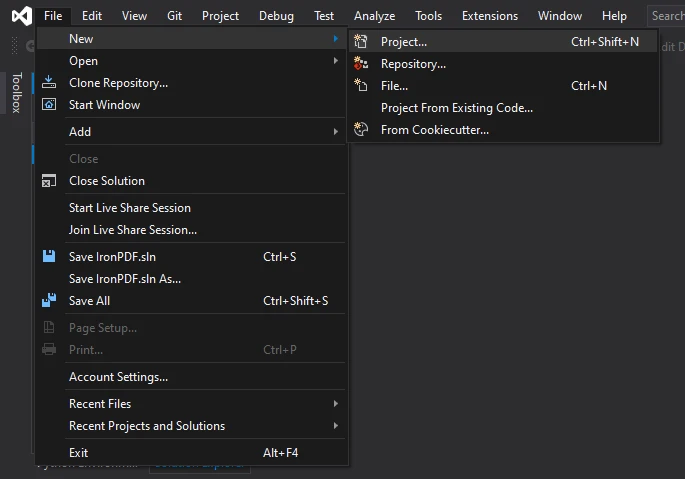
    • Click on "File" > "New" > "Project..."

    How to Convert PDF to PNG in .NET, Figure 1: The Project dropdown in Visual Studio The Project dropdown in Visual Studio

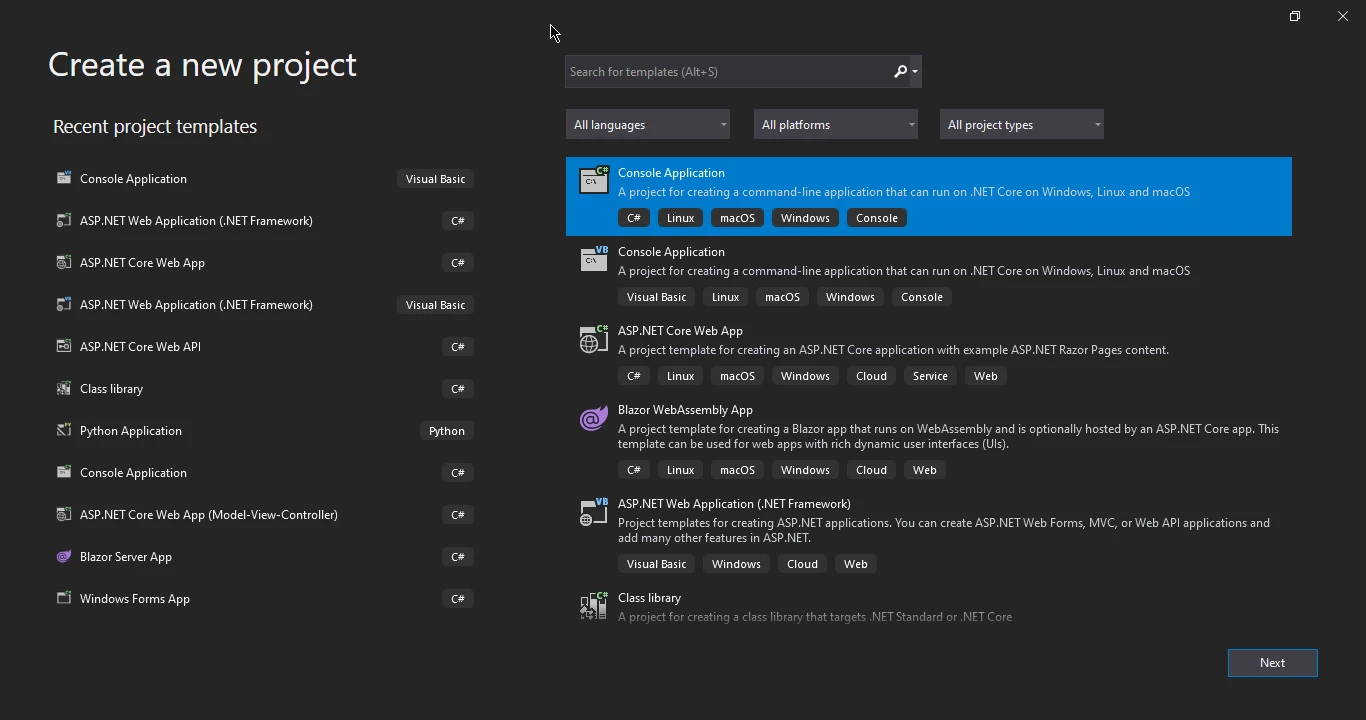
    • Choose a project template based on your application type (e.g., Windows Forms, Console Application, ASP.NET, etc.) and click on next.

    How to Convert PDF to PNG in .NET, Figure 2: Create a new project with Visual Studio Create a new project with Visual Studio

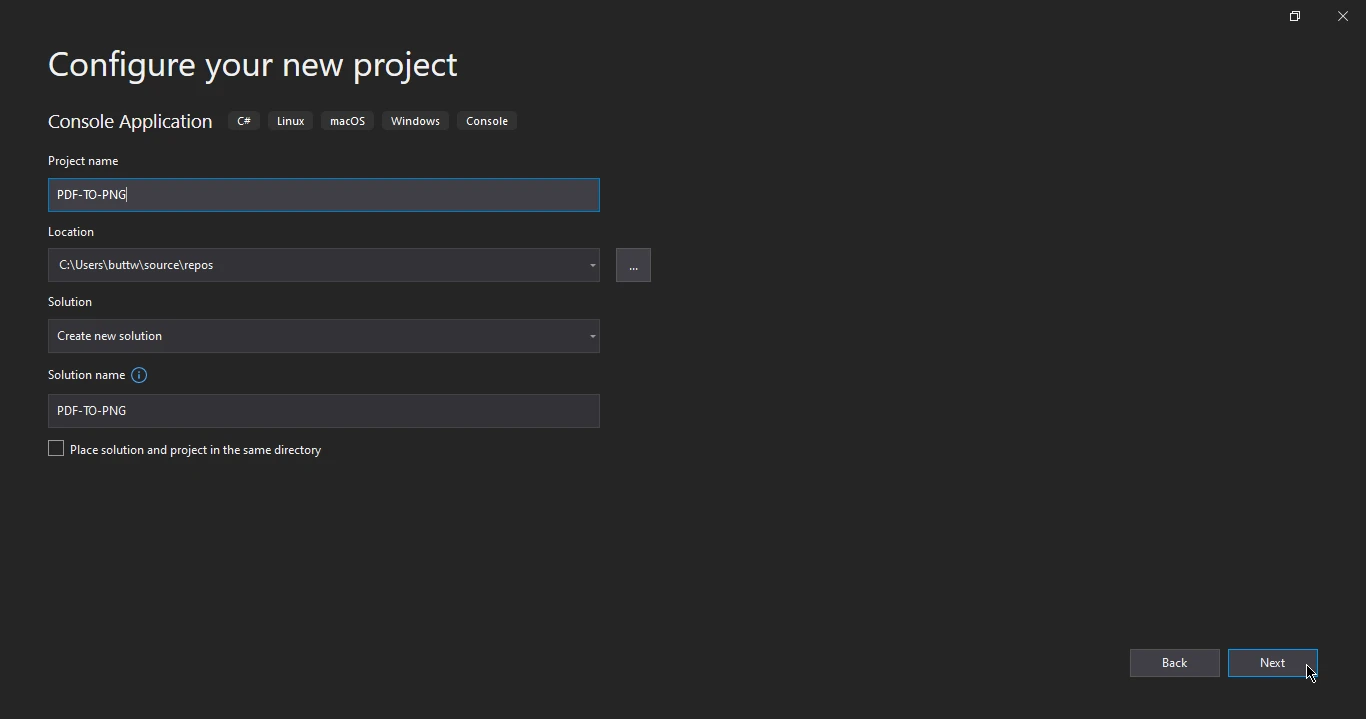
    • Enter a name and location for your project and click on the Next button.

    How to Convert PDF to PNG in .NET, Figure 3: Configure your new project Configure your new project

    • Select the target framework and Click "Create" to create the project.
  2. Install IronPDF:

    After creating the project, you'll need to install the IronPDF library using NuGet. Here's how:

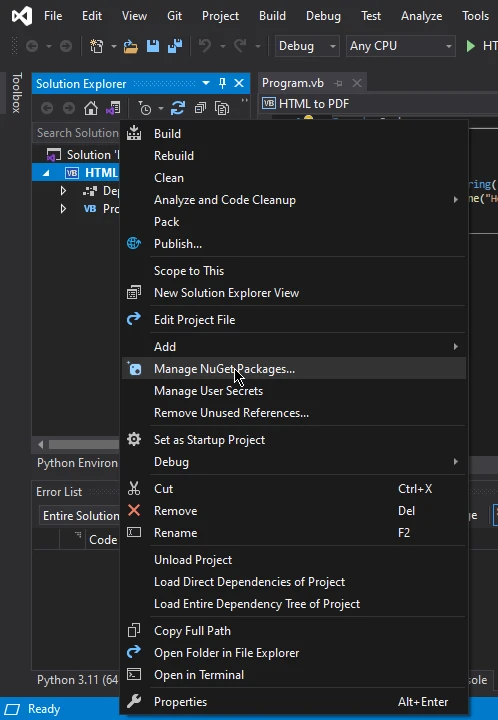
    • Right-click on your project in the Solution Explorer.
    • Select "Manage NuGet Packages..."

    How to Convert PDF to PNG in .NET, Figure 4: The NuGet Package Manager dropdown from the Tools bar in Visual Studio The NuGet Package Manager dropdown from the Tools bar in Visual Studio

    • In the "NuGet Package Manager" window, make sure "Browse" is selected on the left.
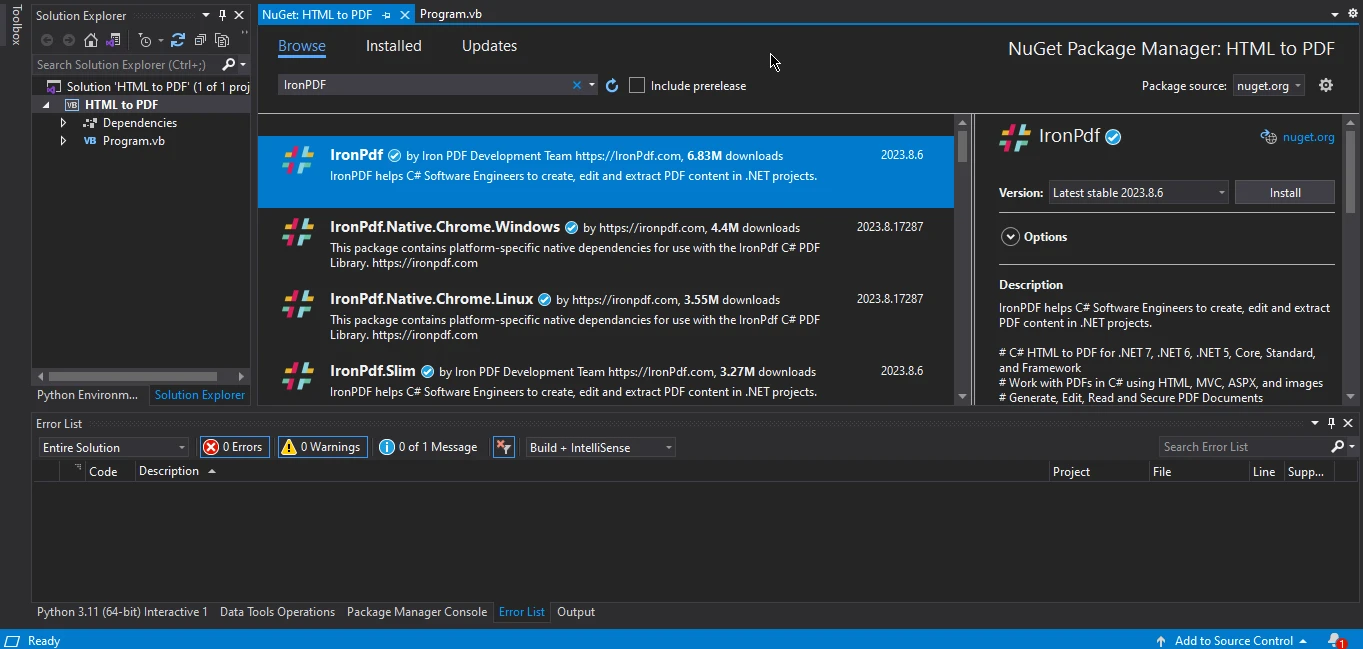
    • In the search box, type "IronPDF."

    How to Convert PDF to PNG in .NET, Figure 5: IronPDF selected in the NuGet Package Manager IronPDF selected in the NuGet Package Manager

    • Select the "IronPDF" package from the search results.
    • Click the "Install" button to install the package.

3. Convert PDF Files to PNG images

The process of converting PDF documents into PNG images is made remarkably straightforward through the utilization of the IronPDF .NET library. Within this segment, we will delve into the streamlined methodology that enables you to seamlessly transform PDFs into PNG images with a mere handful of concise code lines. By harnessing the capabilities of IronPDF, this process becomes an efficient and accessible endeavor. Let's navigate through the steps that empower you to achieve this conversion effortlessly.

3.1. Input PDF files

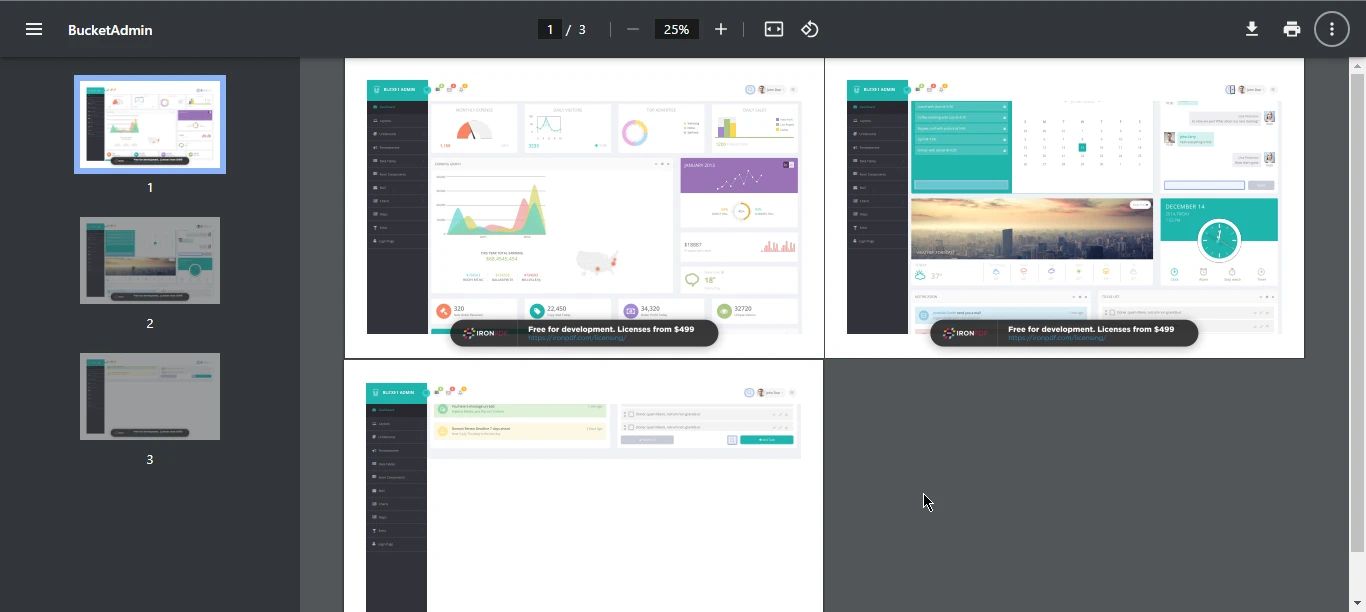
How to Convert PDF to PNG in .NET, Figure 6: A three-page PDF document with a variety of graphs and charts A three-page PDF document with a variety of graphs and charts

using IronPdf;

// Load the PDF document you want to convert
var pdf = PdfDocument.FromFile("bucket.pdf");

// Convert each page of the PDF into a separate PNG image stored in the specified directory
pdf.RasterizeToImageFiles(@"C:\image\folder\*.png");
using IronPdf;

// Load the PDF document you want to convert
var pdf = PdfDocument.FromFile("bucket.pdf");

// Convert each page of the PDF into a separate PNG image stored in the specified directory
pdf.RasterizeToImageFiles(@"C:\image\folder\*.png");
$vbLabelText   $csharpLabel

The above code uses the IronPDF library in a .NET application to convert all pages of a specified PDF file ("bucket.pdf") into a series of PNG files. The FromFile method loads the PDF, and then each page is converted to PNG format. The RasterizeToImageFiles method specifies the output directory and file format, automatically naming files based on input content and producing high-quality PNG images.

3.2. Output Images

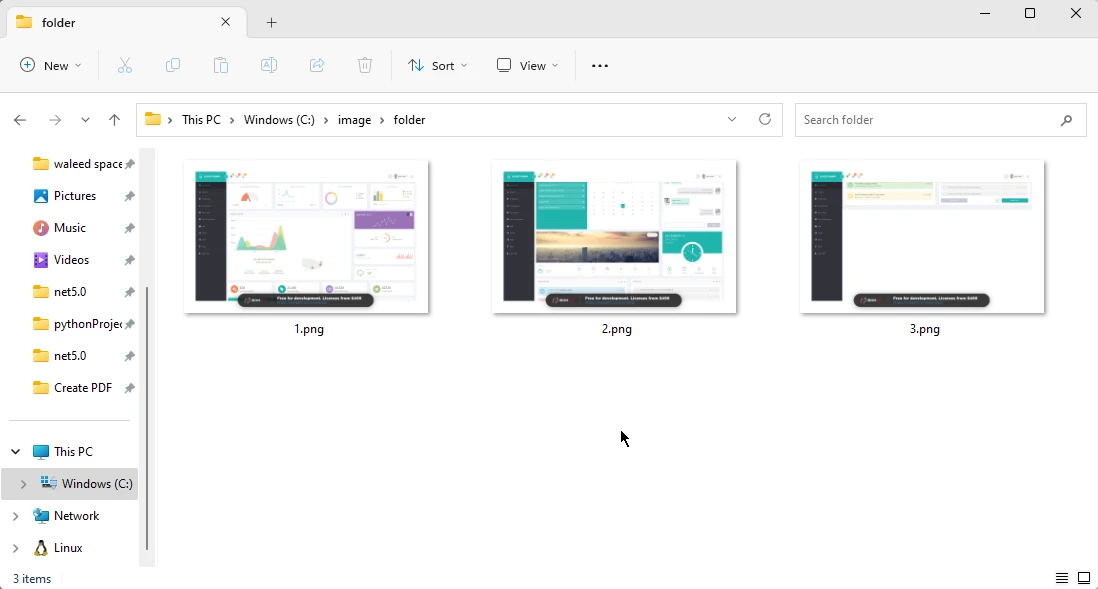
How to Convert PDF to PNG in .NET, Figure 7: Three PNG pictures in the Windows file explorer, one for each of the PDF pages Three PNG pictures in the Windows file explorer, one for each of the PDF pages

4. Conclusion

The ability to convert PDF pages to PNG images using the .NET Framework, specifically leveraging the power of IronPDF, offers a versatile and effective solution for addressing the growing demand for seamless document transformation in today's technology-driven landscape. The unique advantages of PNG format, including lossless compression and support for transparent backgrounds, make it an invaluable choice for preserving document formatting, image fidelity, and intricate graphical elements.

Discover more about IronPDF Features and Capabilities to empower developers to easily integrate the PDF page to PNG conversion functionality into their applications, demonstrating the framework's significance in enhancing visual precision and versatility across various domains. As technology continues to evolve, such tools provide crucial support for meeting the ever-expanding requirements of modern applications.

Make sure to check out this IronPDF PDF-to-PNG Conversion Tutorial, and for more related code examples, visit the IronPDF Rasterize PDF to Images Guide.

자주 묻는 질문

.NET에서 PDF 파일을 PNG 이미지로 변환하려면 어떻게 해야 하나요?

.NET 프로젝트에서 IronPDF 라이브러리를 사용하여 PDF 파일을 PNG 이미지로 변환할 수 있습니다. PdfDocument.FromFile 메서드를 사용하여 PDF를 로드하고 RasterizeToImageFiles 메서드를 사용하여 변환을 수행하면 PDF의 각 페이지를 고품질 PNG 이미지로 쉽게 변환할 수 있습니다.

PDF를 PNG 형식으로 변환하면 어떤 이점이 있나요?

PDF를 PNG 형식으로 변환하면 무손실 압축, 투명 배경 지원 등의 이점을 얻을 수 있어 문서 서식과 복잡한 시각적 세부 사항을 보존하는 데 도움이 됩니다.

PDF 변환을 위해 .NET 프로젝트에 IronPDF를 설치하려면 어떻게 해야 하나요?

Visual Studio를 열고 솔루션 탐색기에서 프로젝트를 마우스 오른쪽 버튼으로 클릭한 다음 'NuGet 패키지 관리...'를 선택하고 'IronPDF'를 검색한 다음 '설치' 버튼을 클릭하면 .NET 프로젝트에 IronPDF를 설치할 수 있습니다.

IronPDF는 여러 페이지의 PDF를 여러 개의 PNG 이미지로 변환할 수 있나요?

예, IronPDF는 여러 페이지로 구성된 PDF의 각 페이지를 별도의 PNG 이미지로 변환하여 각 페이지의 품질과 세부 사항을 보존할 수 있습니다.

PDF를 PNG로 변환하기 위한 새 .NET 프로젝트를 만들려면 어떤 단계를 따라야 하나요?

새 .NET 프로젝트를 만들려면 Visual Studio를 열고 '파일' > '새로 만들기' > '프로젝트...'로 이동하여 적합한 프로젝트 템플릿을 선택하고 프로젝트의 이름과 위치를 입력한 다음 대상 프레임워크를 선택한 후 프로젝트를 만듭니다. 그런 다음 NuGet을 통해 IronPDF를 설치하여 PDF를 PNG로 변환할 수 있도록 합니다.

PDF 변환을 위한 IronPDF 사용에 대한 더 많은 리소스는 어디에서 찾을 수 있나요?

PDF를 PNG로 변환하는 등 다양한 PDF 변환 작업에 IronPDF를 사용하는 방법에 대한 추가 리소스 및 튜토리얼은 IronPDF 웹사이트와 IronPDF PDF를 이미지로 래스터화 가이드에서 찾을 수 있습니다.

PDF 변환 중 이미지 품질을 보존하는 데 IronPDF가 어떻게 도움이 되나요?

IronPDF는 PDF를 PNG로 변환할 때 무손실 압축을 지원하므로 이미지 품질과 복잡한 그래픽 요소의 충실도를 유지하는 데 도움이 됩니다.

IronPDF는 PDF를 PNG로 변환할 때 .NET 10과 호환되나요?

예, IronPDF는 다른 최신 .NET 버전과 함께 .NET 10을 완벽하게 지원합니다. 호환성 문제 없이 .NET 10 프로젝트에서 IronPDF의 PDF-PNG 변환 기능(예: PdfDocument.FromFileRasterizeToImageFiles 등)을 사용할 수 있습니다. 이 라이브러리는 크로스 플랫폼 사용을 위해 설계되었으며 IronPDF의 호환성 설명서에 따라 .NET 10과 완벽하게 호환됩니다.

커티스 차우
기술 문서 작성자

커티스 차우는 칼턴 대학교에서 컴퓨터 과학 학사 학위를 취득했으며, Node.js, TypeScript, JavaScript, React를 전문으로 하는 프론트엔드 개발자입니다. 직관적이고 미적으로 뛰어난 사용자 인터페이스를 만드는 데 열정을 가진 그는 최신 프레임워크를 활용하고, 잘 구성되고 시각적으로 매력적인 매뉴얼을 제작하는 것을 즐깁니다.


커티스는 개발 분야 외에도 사물 인터넷(IoT)에 깊은 관심을 가지고 있으며, 하드웨어와 소프트웨어를 통합하는 혁신적인 방법을 연구합니다. 여가 시간에는 게임을 즐기거나 디스코드 봇을 만들면서 기술에 대한 애정과 창의성을 결합합니다.