




업데이트됨 2026년 9월 4일
월별 계정 명세서를 PDF 문서로 생성하기
개발자는 IronPDF C# PDF 라이브러리를 사용하여 외부 서비스에 의존하지 않고도 .NET 프로젝트 내에서 HTML을 신뢰할 수 있는 PDF 파일로 변환할 수 있습니다.
더 읽어보기

.NET 애플리케이션에서 PDF 작업 흐름을 구축할 때 민감한 문서를 보호하는 것은 중요한 요구 사항입니다. 재무 보고서, 법률 계약, 준수 기록은 액세스 제어 없이 배포될 때 모두 위험을 수반합니다. 누구나 열고, 복사하고, 편집할 수 있는 PDF는 안전한 문서가 아니며, 이는 책임이 됩니다.
IronPDF는 PDF 파일 암호화, 비밀번호 액세스 강제, 그리고 인쇄 및 콘텐츠 복사 같은 권한 제한을 위한 직접적인 API를 제공합니다. 이 튜토리얼은 .NET 10을 목표로 하는 작동 가능한 C# 코드 예제와 함께 각 보안 메커니즘을 다룹니다.
아래 코드 예제를 따라가기 위해 무료 체험판을 시작하십시오.

보안 설정을 적용하기 전에 .NET 프로젝트에 IronPDF를 설치하세요. NuGet 패키지 관리자 콘솔을 열고 다음을 실행합니다:
.NET CLI를 통해 추가할 수도 있습니다:
설치한 후, using IronPdf; 지시문을 파일에 추가하세요. PdfDocument 클래스는 모든 암호화 및 권한 옵션을 제어하는 SecuritySettings 속성을 노출합니다. 추가 설정이 필요 없으며, 비밀번호를 설정할 때 라이브러리는 자동으로 128비트 암호화를 활성화합니다.
IronPDF는 추가 네이티브 종속성 없이 Windows, macOS, 그리고 Linux에서 실행되므로 보안 API는 컨테이너 환경에서도 동일하게 동작합니다. Azure 및 Docker에 플랫폼별 설정 없이 배포할 수 있습니다. IronPDF는 또한 .NET 8 및 .NET 9을 지원하며, .NET Framework 4.6.2+ 같은 유산 애플리케이션에서의 보안 문서 처리를 위해 최대 .NET 10까지 지원합니다.
라이선스 활성화 및 프로젝트 설정을 포함한 전체 설치 설명을 보려면 IronPDF .NET 설치 가이드를 참조하세요.
PDF 사양은 문서 접근 제어에서 다른 역할을 수행하는 두 가지 별개의 암호 유형을 정의합니다. 각각이 어떻게 작동하는지 이해하면 사용 사례에 맞는 적절한 보안 모델을 설계할 수 있습니다.
사용자 암호 (열기는 암호라고도 함)는 PDF를 열고 보는 데 필요합니다. 파일에 접근하려는 사람은 내용이 보이기 전에 이 비밀번호를 입력해야 합니다. 문서를 전혀 읽지 못하게 하려는 경우 이는 적절한 제어입니다.
소유자 암호 (권한 암호라고도 함)는 문서가 열린 이후 허용되는 작업을 관리합니다. 사용자 암호가 읽기 접근을 부여하더라도, 소유자 암호는 인쇄, 콘텐츠 복사, 편집 또는 형식 채우기 허용 여부를 결정합니다. 각기 다른 값으로 두 암호를 설정하면 사용자는 소유자 자격 증명 없이는 보안 구성을 수정할 수 없습니다.
다음 코드 예제는 새 PDF에 두 암호 유형을 적용하는 방법을 보여줍니다.
using IronPdf;

// Create a new PDF document from HTML content
var renderer = new ChromePdfRenderer();
var pdf = renderer.RenderHtmlAsPdf("<h1>Confidential Report</h1><p>Sensitive financial data inside.</p>");

// Set owner password to control editing permissions
pdf.SecuritySettings.OwnerPassword = "owner-secret-123";

// Set user password required to open the document
pdf.SecuritySettings.UserPassword = "user-access-456";

// Save the encrypted PDF
pdf.SaveAs("protected-report.pdf");Imports IronPdf
' Create a new PDF document from HTML content
Dim renderer As New ChromePdfRenderer()
Dim pdf = renderer.RenderHtmlAsPdf("<h1>Confidential Report</h1><p>Sensitive financial data inside.</p>")
' Set owner password to control editing permissions
pdf.SecuritySettings.OwnerPassword = "owner-secret-123"
' Set user password required to open the document
pdf.SecuritySettings.UserPassword = "user-access-456"
' Save the encrypted PDF
pdf.SaveAs("protected-report.pdf")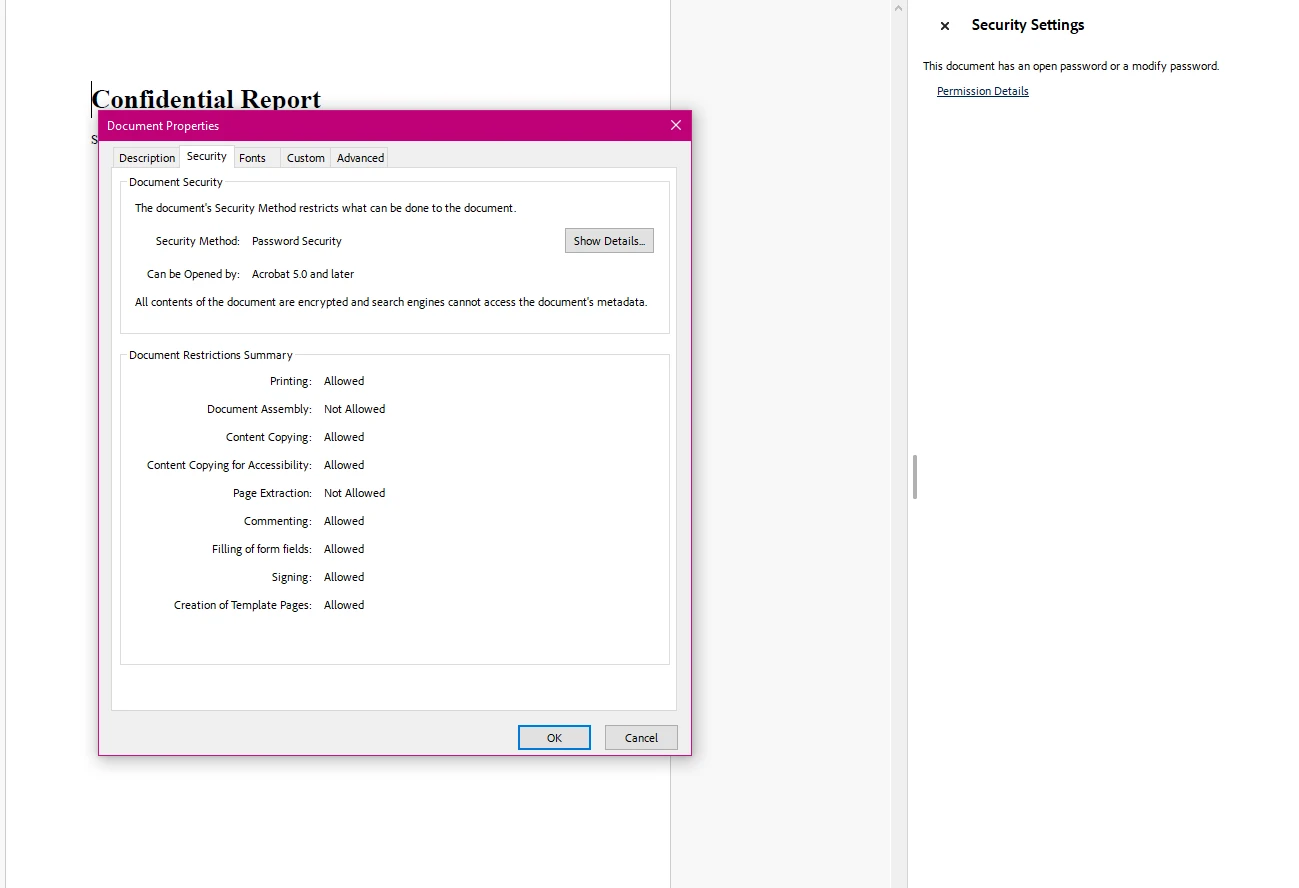
SecuritySettings 속성은 모든 암호화 및 권한 제어에 대한 통합 액세스를 제공합니다. OwnerPassword 설정으로 문서에 128비트 암호화를 활성화합니다. UserPassword 설정으로 파일을 열 때 액세스 장벽을 만듭니다. 두 속성은 독립적으로 설정할 수 있습니다. 소유자 비밀번호로만 보호된 문서는 누구나 읽을 수 있지만, 그들이 할 수 있는 작업을 제한합니다.
전체 SecuritySettings API에 대한 추가 세부 사항은 PdfSecuritySettings 클래스 참조를 참조하십시오.
많은 워크플로우는 HTML 또는 템플릿에서 새 파일을 생성하는 대신 기존 PDF 파일에 보안을 추가하는 것이 필요합니다. 외부 출처에서 문서를 받거나, 웹 애플리케이션에서 업로드를 처리하거나, 보관 전에 파일을 안전하게 보호할 때 적용됩니다.
IronPDF는 동일한 SecuritySettings API로 이를 처리합니다. PdfDocument.FromFile를 사용하여 파일을 로드하고, 보안 구성을 적용한 다음 결과를 저장하세요:
using IronPdf;

// Load an existing PDF document from disk
var pdf = PdfDocument.FromFile("financial-statement.pdf");

// Apply both passwords
pdf.SecuritySettings.OwnerPassword = "admin-key-789";
pdf.SecuritySettings.UserPassword = "reader-key-321";

// Restrict printing and content copying
pdf.SecuritySettings.AllowUserPrinting = IronPdf.Security.PdfPrintSecurity.NoPrint;
pdf.SecuritySettings.AllowUserCopyPasteContent = false;

// Save the secured version
pdf.SaveAs("financial-statement-secured.pdf");Imports IronPdf
' Load an existing PDF document from disk
Dim pdf = PdfDocument.FromFile("financial-statement.pdf")
' Apply both passwords
pdf.SecuritySettings.OwnerPassword = "admin-key-789"
pdf.SecuritySettings.UserPassword = "reader-key-321"
' Restrict printing and content copying
pdf.SecuritySettings.AllowUserPrinting = IronPdf.Security.PdfPrintSecurity.NoPrint
pdf.SecuritySettings.AllowUserCopyPasteContent = False
' Save the secured version
pdf.SaveAs("financial-statement-secured.pdf")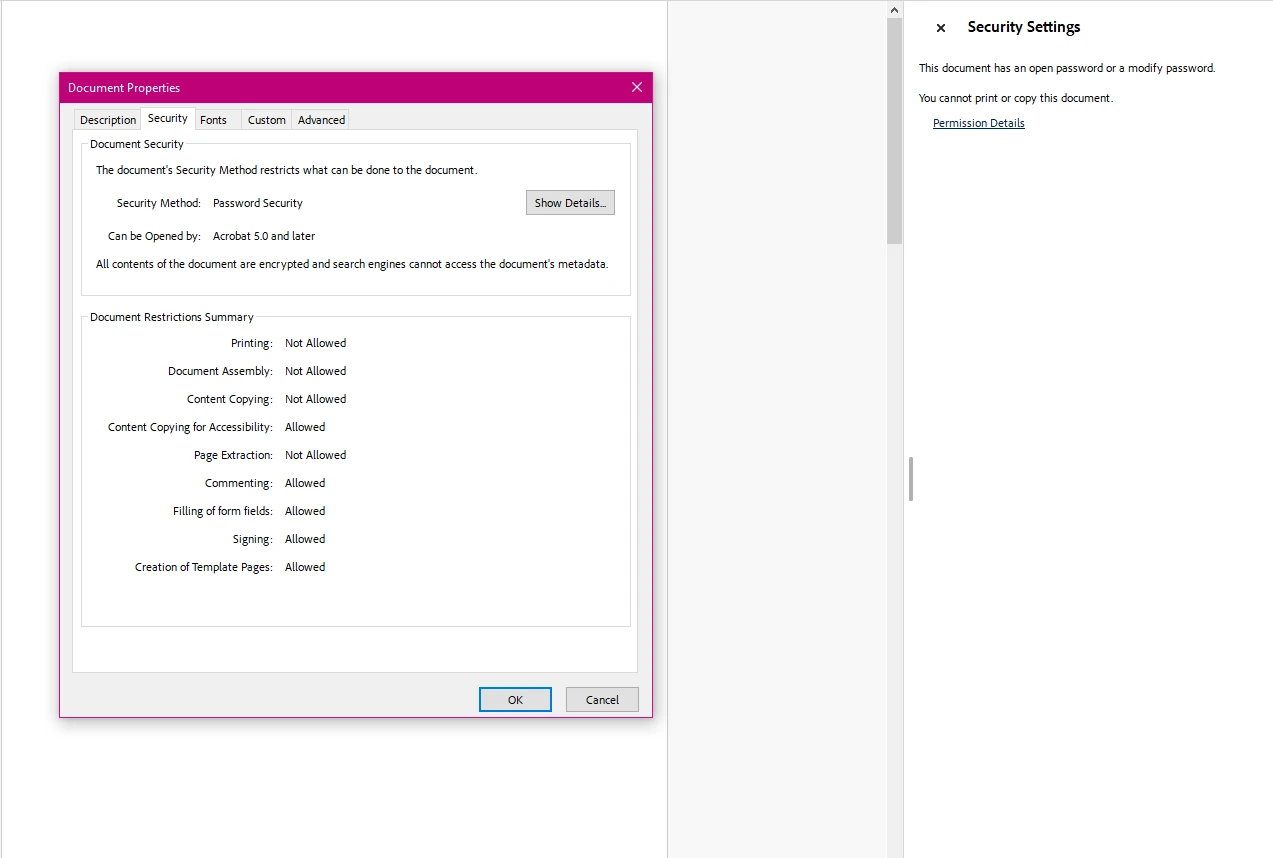
원래 어떻게 생성되었는지에 관계없이 모든 유효한 PDF 파일에서 이 접근 방식이 작동합니다. 라이브러리는 입력 문서를 처리하고 지정된 모든 보안 설정이 적용된 암호화된 복사본을 생성합니다. 다른 경로에 저장할 때 원본 파일은 수정되지 않습니다.
암호화와 해독을 한 워크플로우에서 결합하는 완전한 예제를 보려면 PDF 암호화 및 해독 코드 예제를 참조하세요.
비밀번호 보호 외에도 PDF 보안에는 문서를 연 후 사용자가 할 수 있는 작업을 세밀하게 제어하는 기능이 포함되어 있습니다. PDF 사양의 권한 플래그를 사용하여 인쇄, 콘텐츠 복사, 편집, 주석, 및 양식 데이터 입력을 독립적으로 차단하거나 허용할 수 있습니다.
권한 제한이 적용되려면 소유자 비밀번호 설정이 필요합니다. 없을 경우, 적합한 PDF 리더를 가진 뷰어는 권한 플래그를 우회할 수 있습니다.
다음 예제는 보기 및 작성 가능하지만 편집 또는 인쇄할 수 없는 계약 문서에 대한 권한을 구성하는 방법을 보여줍니다:
using IronPdf;

// Load a contract document
var pdf = PdfDocument.FromFile("contract.pdf");

// Owner password is required for permissions enforcement
pdf.SecuritySettings.OwnerPassword = "contract-admin";

// Allow printing with full print quality
pdf.SecuritySettings.AllowUserPrinting = IronPdf.Security.PdfPrintSecurity.FullPrintRights;

// Prevent content extraction (protects against copy/paste attacks)
pdf.SecuritySettings.AllowUserCopyPasteContent = false;

// Lock down editing
pdf.SecuritySettings.AllowUserEdits = IronPdf.Security.PdfEditSecurity.NoEdit;

// Disable comment additions
pdf.SecuritySettings.AllowUserAnnotations = false;

// Allow form completion while blocking other modifications
pdf.SecuritySettings.AllowUserFormData = true;

// Save with all restrictions
pdf.SaveAs("contract-restricted.pdf");Imports IronPdf
' Load a contract document
Dim pdf = PdfDocument.FromFile("contract.pdf")
' Owner password is required for permissions enforcement
pdf.SecuritySettings.OwnerPassword = "contract-admin"
' Allow printing with full print quality
pdf.SecuritySettings.AllowUserPrinting = IronPdf.Security.PdfPrintSecurity.FullPrintRights
' Prevent content extraction (protects against copy/paste attacks)
pdf.SecuritySettings.AllowUserCopyPasteContent = False
' Lock down editing
pdf.SecuritySettings.AllowUserEdits = IronPdf.Security.PdfEditSecurity.NoEdit
' Disable comment additions
pdf.SecuritySettings.AllowUserAnnotations = False
' Allow form completion while blocking other modifications
pdf.SecuritySettings.AllowUserFormData = True
' Save with all restrictions
pdf.SaveAs("contract-restricted.pdf")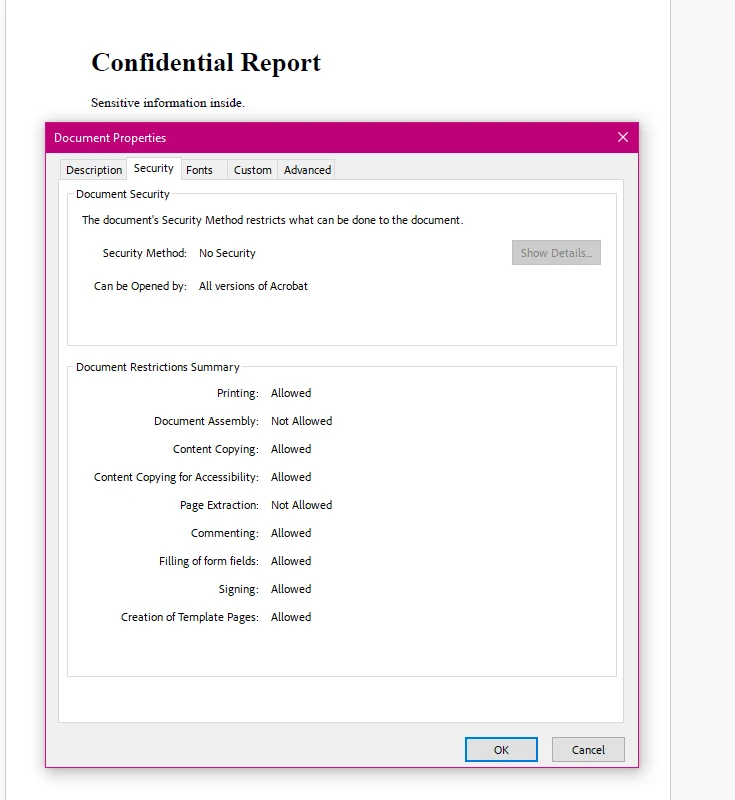
아래 표는 사용 가능한 모든 권한 속성과 그 일반적인 적용을 요약합니다:
| 재산 | 유형 | 설명 | 일반적 사용 사례 |
|---|---|---|---|
AllowUserPrinting | PdfPrintSecurity | 인쇄 접근 제어: NoPrint 또는 FullPrintRights | 기밀 문서의 인쇄 방지 |
AllowUserCopyPasteContent | bool | 텍스트 및 이미지 추출을 활성화 또는 비활성 | 지적 재산권이 추출되지 않도록 보호 |
AllowUserEdits | PdfEditSecurity | 편집 가능성 제어: NoEdit 또는 편집 허용 값 | 계약서와 법률 문서를 수정할 수 없도록 잠금 |
AllowUserAnnotations | bool | 댓글 및 마크업 추가 허용/비허용 | 문서 검토 워크플로우 제어 |
AllowUserFormData | bool | 양식 필드 작성 허용 또는 금지 | 다른 편집을 차단하면서 PDF 양식을 작성할 수 있도록 허용 |
AllowUserCopyPasteContentForAccessibility | bool | 스크린 리더에서의 콘텐츠 추출 관리 | 일반 복사를 제한하면서 접근성 준수 유지 |
권한 플래그를 사용하는 더 많은 코드 예제는 IronPDF 보안 및 메타데이터 예제를 참조하십시오.
사용자 수정(복사, 인쇄, 편집, 주석)을 한 번에 모두 잠그려는 경우, MakePdfDocumentReadOnly 편리한 메서드가 단일 호출로 이를 처리합니다. 각 권한을 개별적으로 구성하지 않고도 최대한의 제한이 필요한 최종 버전 문서에 유용합니다.
using IronPdf;

// Load the document to make read-only
var pdf = PdfDocument.FromFile("final-report.pdf");

// Apply full read-only protection with one method call
// This sets owner password and blocks all modification capabilities
pdf.SecuritySettings.MakePdfDocumentReadOnly("owner-readonly-password");

// Save the protected document
pdf.SaveAs("final-report-readonly.pdf");Imports IronPdf
' Load the document to make read-only
Dim pdf = PdfDocument.FromFile("final-report.pdf")
' Apply full read-only protection with one method call
' This sets owner password and blocks all modification capabilities
pdf.SecuritySettings.MakePdfDocumentReadOnly("owner-readonly-password")
' Save the protected document
pdf.SaveAs("final-report-readonly.pdf")MakePdfDocumentReadOnly 메서드는 제공된 소유자 비밀번호를 설정하고 모든 수정 권한을 동시에 비활성화합니다. 결과 문서는 비밀번호 없이 열어 읽을 수 있지만 인쇄, 복사, 편집 및 주석은 모두 제한됩니다. 개별 권한 조정이 필요하지 않을 때 완전히 잠근 문서로 가는 가장 빠른 길입니다. 일부 권한을 열어둬야 하는 경우(예: 복사를 차단하면서 인쇄를 허용) 위의 권한 섹션에 표시된 대로 개별 SecuritySettings 속성을 구성하십시오.
암호화된 PDF 파일을 프로그래밍 방식으로 작업할 때 컨텐츠에 접근하기 위해 올바른 비밀번호를 제공해야 합니다. PdfDocument.FromFile 메서드는 이 목적을 위한 선택적 비밀번호 매개변수를 수락합니다.
다음 예제는 비밀번호로 보호된 파일을 열고 선택적으로 암호화를 완전히 제거하는 방법을 보여줍니다:
using IronPdf;

// Open a password-protected PDF by supplying the user password
var pdf = PdfDocument.FromFile("protected-report.pdf", "user-access-456");

// Extract text content from the decrypted document
string content = pdf.ExtractAllText();

// Remove all passwords and encryption when you need an unprotected version
pdf.SecuritySettings.RemovePasswordsAndEncryption();

// Save the unencrypted copy
pdf.SaveAs("report-unlocked.pdf");Imports IronPdf
' Open a password-protected PDF by supplying the user password
Dim pdf = PdfDocument.FromFile("protected-report.pdf", "user-access-456")
' Extract text content from the decrypted document
Dim content As String = pdf.ExtractAllText()
' Remove all passwords and encryption when you need an unprotected version
pdf.SecuritySettings.RemovePasswordsAndEncryption()
' Save the unencrypted copy
pdf.SaveAs("report-unlocked.pdf")RemovePasswordsAndEncryption 메서드는 문서에서 모든 보안을 제거하고 표준의 보호되지 않은 PDF로 저장합니다. 이것은 아카이브, 추가 변환 또는 재배포를 위해 문서를 처리할 때 최종 사용자 제한이 더 이상 적절하지 않을 때 유용합니다.
PDF에 디지털 서명이 포함되어 있는 경우, true를 RemovePasswordsAndEncryption(true)에 전달하여 서명을 제거하거나 매개변수를 생략하여 서명을 보존하십시오.
암호화 및 해독 워크플로우의 쌍을 이루어 보는 관점에서, PDF 암호화 및 해독 예제는 두 작업을 단일 실행 파일에서 보여줍니다.
비밀번호 암호화 및 권한 플래그는 가장 일반적인 PDF 보안 요구 사항을 다루지만, IronPDF는 더 특수한 시나리오에 대한 추가적인 문서 보호 레이어를 제공합니다.
디지털 서명: IronPDF는 X.509 인증서를 사용하여 PDF 문서 서명을 지원하여 신뢰성과 변조를 감지합니다. 서명된 문서는 시각적 서명 필드를 보여주며 서명자의 신원에 대한 암호학적 증거를 제공합니다. PDF 서명 방법 가이드에서 구현 세부사항과 인증서 구성을 참조하십시오.
준수 기준: HIPAA, GDPR 또는 금융 규정을 받는 애플리케이션의 경우, 문서 암호화가 일반적으로 필요한 제어입니다. IronPDF의 128비트 암호화는 적절한 키 관리 관행과 결합할 때 대부분의 준수 프레임워크에 대한 기본 요구 사항을 충족합니다. 해당 규제 지침을 검토하여 특정 준수 범위를 확인하십시오.
IronSecureDoc: Enterprise 수준의 문서 보안 요구 사항 -- 포함된 수정, 고급 디지털 서명 워크플로우 및 다중 문서 처리를 포함 -- IronSecureDoc은 일회성 라이선싱이 제공되는 전용 보안 제품입니다.
PDF 사양 자체의 외부 참조는 권한 모델을 이해하는 데 유용합니다. Adobe의 개발자 사이트의 PDF 사양 개요는 암호화 및 권한이 형식 레벨에서 구현되는 방법을 문서화합니다. NIST 특별 간행물 800-111 스토리지 암호화 가이드는 규제된 환경에서 암호화 기술 선택에 대한 배경을 제공합니다. .NET의 문서 보안 모범 사례에 대한 보다 넓은 관점을 위해, Microsoft's .NET 암호화 모델 문서는 PDF 라이브러리가 기반으로 하는 기본 플랫폼 암호화를 설명합니다.
.NET의 PDF 보안은 사용자 암호로 문서를 열 수 있는 사람을 제어하는 것, 권한 플래그로 그들이 할 수 있는 작업을 제한하는 것, 디지털 서명으로 문서의 진위 여부를 확인하는 세 가지 주요 영역을 다룹니다. IronPDF는 SecuritySettings API와 서명 워크플로를 통해 수동 암호화 구현 없이 이 세 가지 모두를 처리합니다.
추가 자료 및 실용적인 코드를 위해:
무료 IronPDF 체험판 시작하여 응용 프로그램에서 이러한 보안 기능을 테스트하세요. 실제 사용 배포를 위해, IronPDF 라이선스 옵션 보기를 통해 프로젝트 규모에 맞는 수준을 찾아보세요.

커티스 차우는 칼턴 대학교에서 컴퓨터 과학 학사 학위를 취득했으며, Node.js, TypeScript, JavaScript, React를 전문으로 하는 프론트엔드 개발자입니다. 직관적이고 미적으로 뛰어난 사용자 인터페이스를 만드는 데 열정을 가진 그는 최신 프레임워크를 활용하고, 잘 구성되고 시각적으로 매력적인 매뉴얼을 제작하는 것을 즐깁니다.



IronPDF는 IRON SUITE 의 일부입니다.
10개의 .NET API 제품, 당신의 사무 문서를 위해

PDF 파일을 HTML처럼 빠르게 변환해야 할 때.


