




업데이트됨 2026년 9월 4일
월별 계정 명세서를 PDF 문서로 생성하기
개발자는 IronPDF C# PDF 라이브러리를 사용하여 외부 서비스에 의존하지 않고도 .NET 프로젝트 내에서 HTML을 신뢰할 수 있는 PDF 파일로 변환할 수 있습니다.
더 읽어보기

이 튜토리얼에서는 IronPDF for C# .NET을 사용하여 PDF를 JPG 이미지로 변환합니다.
IronPDF .NET용은 사용자들이 PDF 파일을 생성, 편집 및 관리할 수 있도록 해주는 라이브러리입니다. PDF 생성 컴포넌트 덕분에 C# 개발자들 사이에서 매우 인기가 많으며, Adobe Acrobat 없이도 PDF 파일을 다룰 수 있게 합니다. IronPDF for .NET은 HTML을 PDF로, URL을 PDF로, 이미지를 PDF로 변환하는 기능을 지원합니다.
또한 사용자 지정 헤더 및 푸터, 디지털 서명, 주석 및 첨부 파일, 사용자 및 소유자 암호, 기타 보안 옵션 추가를 지원합니다. IronPDF는 더 나은 렌더링 경험을 위한 빠른 크로뮴 엔진을 가지고 있습니다. 픽셀 단위로 정확한 PDF를 렌더링합니다. 전체 다중 스레딩 및 비동기 지원도 제공합니다.
이제 다음 섹션에서는 IronPDF를 사용하여 PDF 형식을 PNG나 JPG 같은 이미지 형식으로 프로그래밍 방식으로 변환하는 방법을 논의하겠습니다.
시작하기 전에 Visual Studio 공식 웹사이트에서 가장 최신 버전을 다운로드 및 설치할 것을 권장합니다. 이는 C# 앱을 구축하고, .NET 환경을 설정하며, PDF를 JPG로 변환할 준비를 하는 데 필요합니다.
IronPDF를 설치하는 방법은 여러 가지가 있습니다.
이 프로젝트에 로컬 위치에서 PDF 파일을 로드하려면, IronPDF는 FromFile 메서드를 PdfDocument 클래스에서 제공합니다. 다음 코드 예제는 기존 PDF 파일을 편집용으로 여는 데 도움이 됩니다:
using IronPdf;

// Load the PDF document from a local path
PdfDocument pdf = PdfDocument.FromFile("Example.pdf");Imports IronPdf
' Load the PDF document from a local path
Private pdf As PdfDocument = PdfDocument.FromFile("Example.pdf")이제 파일이 편집용으로 열렸습니다. IronPDF는 PDF 페이지를 이미지 형식으로 변환하기 위해 RasterizeToImageFiles 메서드를 제공합니다. 다음 한 줄의 코드로 전체 PDF 문서를 IronPDF의 Rasterize Method를 사용하여 JPG 이미지로 쉽게 변환할 수 있습니다.
// Convert all pages of the PDF into JPG images and save them to the specified folder
pdf.RasterizeToImageFiles(@"C:\image\folder\*.jpg");' Convert all pages of the PDF into JPG images and save them to the specified folder
pdf.RasterizeToImageFiles("C:\image\folder\*.jpg")위의 코드에서 변환된 파일은 주어진 경로에 저장됩니다. PDF에는 562 페이지가 있으며, IronPDF는 모든 PDF 페이지를 JPG 이미지로 변환하는 데 시간을 걸리지 않습니다. RasterizeToImageFiles 메서드가 어려운 작업을 모두 처리하며, 이미지의 이름은 1부터 시작하여 각 페이지마다 증가하는 숫자입니다.
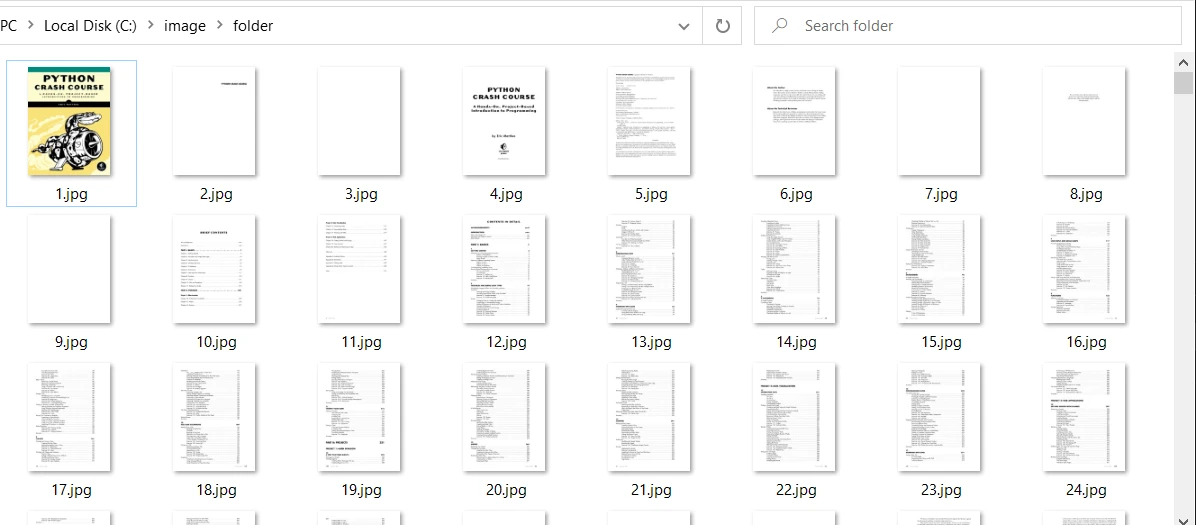 PDF 파일에서 추출한 이미지
RasterizeToImageFiles 메서드는 PDF 페이지를 JPG로 변환하는 것에 대한 더 많은 제어 옵션도 제공합니다. 다음 코드는 11 페이지에서 21 페이지까지 PDF 페이지를 변환하는 데 도움이 됩니다.
using System.Collections.Generic;
using System.Linq;

// Set the Page Range
IEnumerable<int> pageIndexes = Enumerable.Range(10, 11); // Corrected range to cover pages 11 to 21

// Path, PageIndexes, ImageType and Dimensions may be specified
pdf.RasterizeToImageFiles(@"C:\image\folder\example_pdf_image_*.jpg", pageIndexes, 850, 650, IronPdf.Imaging.ImageType.Default, 300);Imports System.Collections.Generic
Imports System.Linq
' Set the Page Range
Private pageIndexes As IEnumerable(Of Integer) = Enumerable.Range(10, 11) ' Corrected range to cover pages 11 to 21
' Path, PageIndexes, ImageType and Dimensions may be specified
pdf.RasterizeToImageFiles("C:\image\folder\example_pdf_image_*.jpg", pageIndexes, 850, 650, IronPdf.Imaging.ImageType.Default, 300)위 IronPDF를 사용한 PDF 페이지 범위를 JPG로 변환 예제에서는 많은 일이 일어납니다. 각각 하나씩 살펴보겠습니다.
pageIndexes는 프로그래밍 방식으로 JPG 이미지로 변환할 페이지 범위를 제공합니다.JPG 변환 출력은 다음과 같습니다:
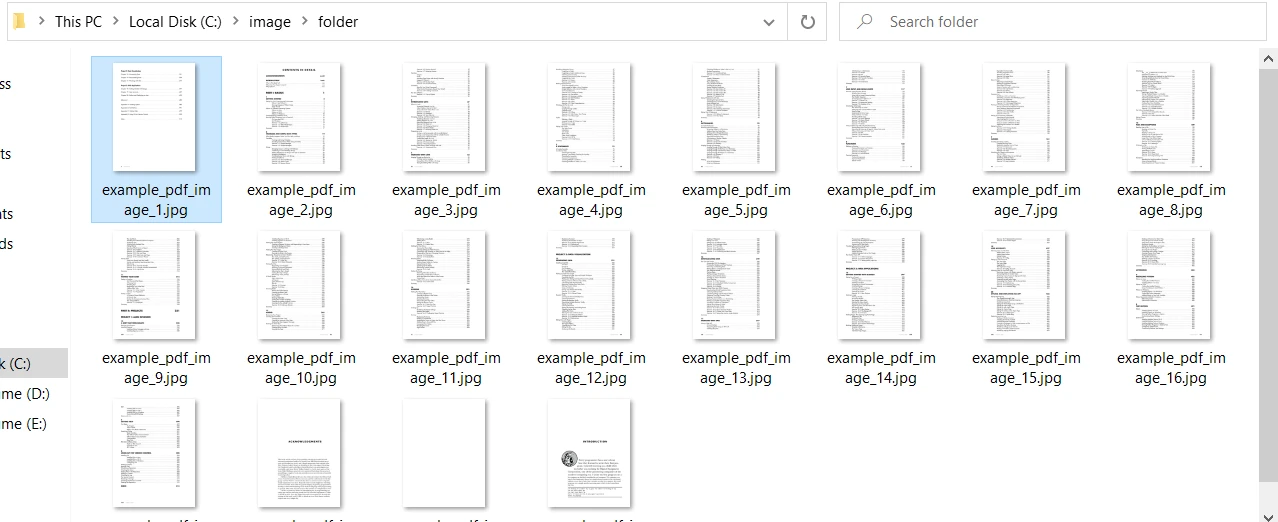 더 많은 제어가 있는 추출된 이미지
때때로 웹사이트에 나열된 제품을 이미지를 목적으로 캡처해야 할 필요가 있습니다. 예를 들어 웹사이트 페이지에 수백 개의 제품이 나열되어 있다고 해봅시다. 스크린샷을 찍는 것은 시간 소모적이고 번거로운 작업이 될 것입니다. IronPDF는 URL을 PDF로 변환하고 생성된 PDF 문서를 사용하여 각 페이지를 이미지로 저장할 수 있는 기능을 제공합니다.
다음 코드는 아마존 웹사이트 페이지를 URL로 가져와 픽셀 단위로 완벽한 PDF로 렌더링합니다. 그 후 생성된 PDF의 각 페이지가 별도의 JPG 파일로 변환됩니다.
using IronPdf;

// Create a PDF renderer using the Chromium rendering engine
ChromePdfRenderer renderer = new ChromePdfRenderer();

// Render the URL to a PDF document
PdfDocument pdf = renderer.RenderUrlAsPdf("https://www.amazon.com/?tag=hp2-brobookmark-us-20");

// Convert each page of the PDF to separate JPG image files
pdf.RasterizeToImageFiles(@"C:\image\folder\amazon_pdf_image_*.jpg");Imports IronPdf
' Create a PDF renderer using the Chromium rendering engine
Private renderer As New ChromePdfRenderer()
' Render the URL to a PDF document
Private pdf As PdfDocument = renderer.RenderUrlAsPdf("https://www.amazon.com/?tag=hp2-brobookmark-us-20")
' Convert each page of the PDF to separate JPG image files
pdf.RasterizeToImageFiles("C:\image\folder\amazon_pdf_image_*.jpg")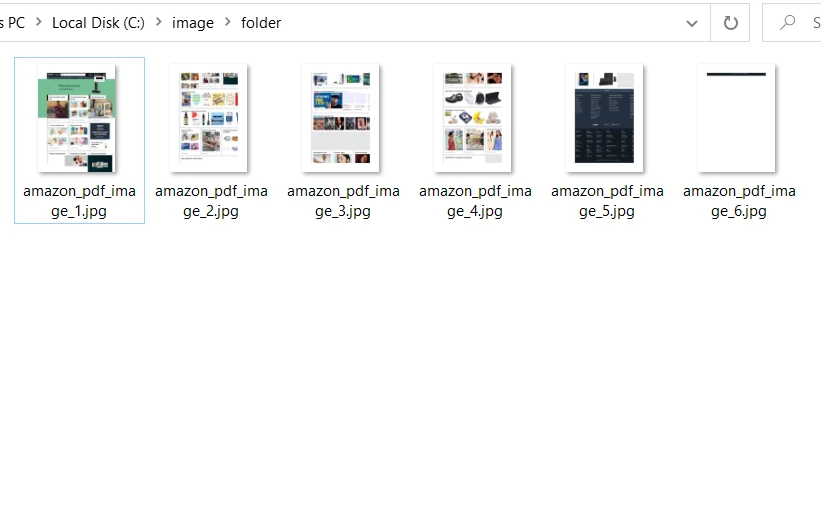 아마존 웹사이트에서 추출한 이미지
이 기사는 .NET Framework를 위한 IronPDF를 사용하여 PDF 문서를 JPG 이미지로 변환하는 방법을 시연했습니다. RasterizeToImageFiles 메서드는 위 코드 예시에서 볼 수 있듯이 문서 이름과 함께 페이지 번호를 포함하는 이미지를 생성합니다. IronPDF는 PDF 페이지를 PNG, JPG, GIF 등 다양한 형식의 이미지로 변환할 수 있습니다.
IronPDF 라이브러리는 사용자가 출력 이미지 형식, 치수 및 해상도를 완전히 제어할 수 있도록 합니다. IronPDF는 또한 PDF 페이지 회전, PDF 텍스트 변경, 여백 설정 등 다양한 PDF 도구를 제공합니다. IronPDF for .NET에 대한 자세한 정보와 PDF 파일 조작을 위해 추가 기능에 액세스하려면 다음 IronPDF 예제를 참조하십시오. PDF를 다양한 형식의 이미지로 변환하는 방법에 대한 자세한 정보는 이 IronPDF JPG 변환에 대한 코드 샘플을 방문하세요.
IronPDF .NET 라이브러리는 개발용으로는 무료이지만 상업적 용도로 사용하려면 Iron Software Licensing Page에서 라이선스를 받아야 합니다.
IronPDF .NET용 Library Zip File을 다운로드하여 사용해 보십시오.

커티스 차우는 칼턴 대학교에서 컴퓨터 과학 학사 학위를 취득했으며, Node.js, TypeScript, JavaScript, React를 전문으로 하는 프론트엔드 개발자입니다. 직관적이고 미적으로 뛰어난 사용자 인터페이스를 만드는 데 열정을 가진 그는 최신 프레임워크를 활용하고, 잘 구성되고 시각적으로 매력적인 매뉴얼을 제작하는 것을 즐깁니다.



IronPDF는 IRON SUITE 의 일부입니다.
10개의 .NET API 제품, 당신의 사무 문서를 위해

PDF 파일을 HTML처럼 빠르게 변환해야 할 때.


