Python에서 이미지를 PDF로 변환하는 방법
This article will explore the world of image-to-PDF conversion in Python, providing you with valuable insights and practical code examples to help you master this invaluable skill. So, let's embark on this journey. The Python file and library will be used in this article is IronPDF for Python.
How to Convert Images to PDF in Python
- Install the Python library for converting images to PDF files.
- Utilize the
ImageToPdfConvertermethod to convert an image to a PDF file. - Save the newly generated PDF documents using the
SaveAsmethod. - Convert multiple images to a single PDF file object.
- Run the project to see the output file.
1. What Is IronPDF?
IronPDF for Python is a versatile library that enables developers to easily generate, manipulate, and work with PDF documents in Python applications. It provides a comprehensive set of tools for creating PDFs from scratch, converting HTML and images into PDFs, and performing various operations on existing PDFs, such as merging, splitting, and adding interactive elements like forms and annotations. With its user-friendly API, IronPDF simplifies PDF generation and manipulation tasks, making it a valuable tool for developers looking to integrate PDF functionality into their Python projects, whether for generating reports, invoices, or interactive documents.
2. Creating a New PyCharm Project and Installing IronPDF
To create a new PyCharm project and install IronPDF, you'll need to follow these steps:
- Install PyCharm: If you haven't already, download and install PyCharm from the JetBrains website (https://www.jetbrains.com/pycharm/). Make sure you have Python installed on your system as well.
- Create a New PyCharm Project: Open PyCharm and follow these steps to create a new project:
- Click on "File" in the top-left corner.
- Select "New Project..."
- Choose the location where you want to create your project and give it a name.
- Select the Python interpreter you want to use for your project (you may need to create a virtual environment if you haven't already).
Install IronPDF: To install the IronPDF library, you can use the Python package manager pip. Open the terminal within PyCharm and run the following command:
pip install ironpdfpip install ironpdfSHELLThis command will download and install the IronPDF library and its dependencies.
3. Convert Images to PDF Files
Once the new PyCharm project folder is created and IronPDF is installed, let's convert an image to a PDF using IronPDF for Python. In the code snippet below, you will see how you can convert an image to a PDF file.
from ironpdf import ImageToPdfConverter
# Convert a single image to PDF
pdf = ImageToPdfConverter.ImageToPdf("win to pay.png")
# Save the converted PDF to a file
pdf.SaveAs("image-to-pdf.pdf")from ironpdf import ImageToPdfConverter
# Convert a single image to PDF
pdf = ImageToPdfConverter.ImageToPdf("win to pay.png")
# Save the converted PDF to a file
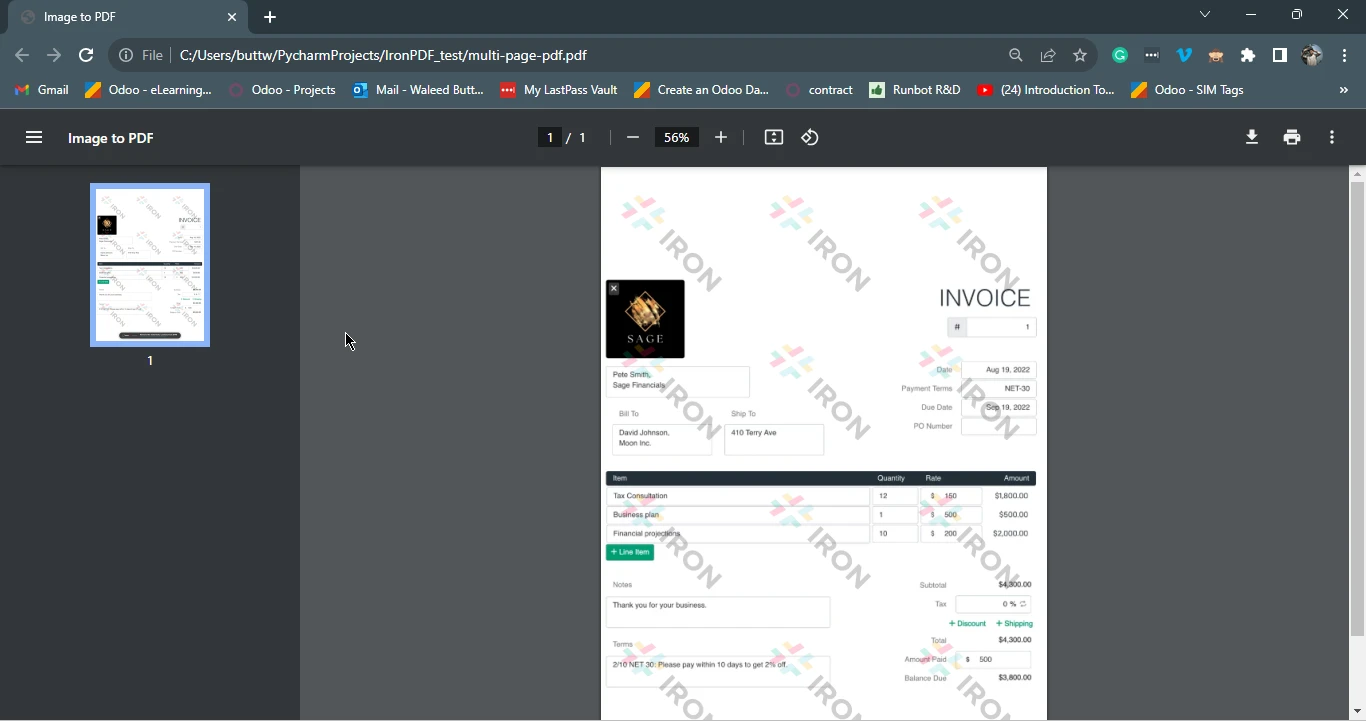
pdf.SaveAs("image-to-pdf.pdf")This code snippet uses the IronPDF library to convert an image file named "win to pay.png" into a PDF document. It first creates an ImageToPdfConverter object, passing the path to the image file as a parameter. Then, it saves the converted PDF with the filename "image-to-pdf.pdf" using the SaveAs method. Essentially, it takes an image and transforms it into a PDF file, which can be useful for various document management and sharing purposes.
3.1. Output PDF File
An invoice output as a PDF
4. Convert Multiple Images to a PDF File
Using IronPDF for Python, you can convert and merge all the images in a folder into a single PDF file with just a few lines of code.
The below Python script will show how to composite multiple images into a single PDF file.
from ironpdf import ImageToPdfConverter
import os
# List of image files in the directory "assets" with .jpg or .jpeg extensions
image_files = [os.path.join("assets", f) for f in os.listdir("assets") if f.lower().endswith(('.jpg', '.jpeg'))]
# Convert list of images into PDF
pdf = ImageToPdfConverter.ImageToPdf(image_files)
# Save the resulting composite PDF
pdf.SaveAs("composite.pdf")from ironpdf import ImageToPdfConverter
import os
# List of image files in the directory "assets" with .jpg or .jpeg extensions
image_files = [os.path.join("assets", f) for f in os.listdir("assets") if f.lower().endswith(('.jpg', '.jpeg'))]
# Convert list of images into PDF
pdf = ImageToPdfConverter.ImageToPdf(image_files)
# Save the resulting composite PDF
pdf.SaveAs("composite.pdf")This code utilizes the IronPDF library to convert a list of image files with the extensions '.jpg' or '.jpeg' from a specified directory ("assets") into a single composite PDF document. Here's a step-by-step explanation:
- It starts by importing the necessary modules from the IronPDF library.
- It uses a list comprehension to generate a list of image file paths from the "assets" directory that meet the criteria of having a '.jpg' or '.jpeg' file extension. This list is stored in the
image_filesvariable. - An
ImageToPdfobject is created from theimage_fileslist, converting all specified images into a single PDF document. - Finally, the composite PDF is saved as "composite.pdf" using the
SaveAsmethod.
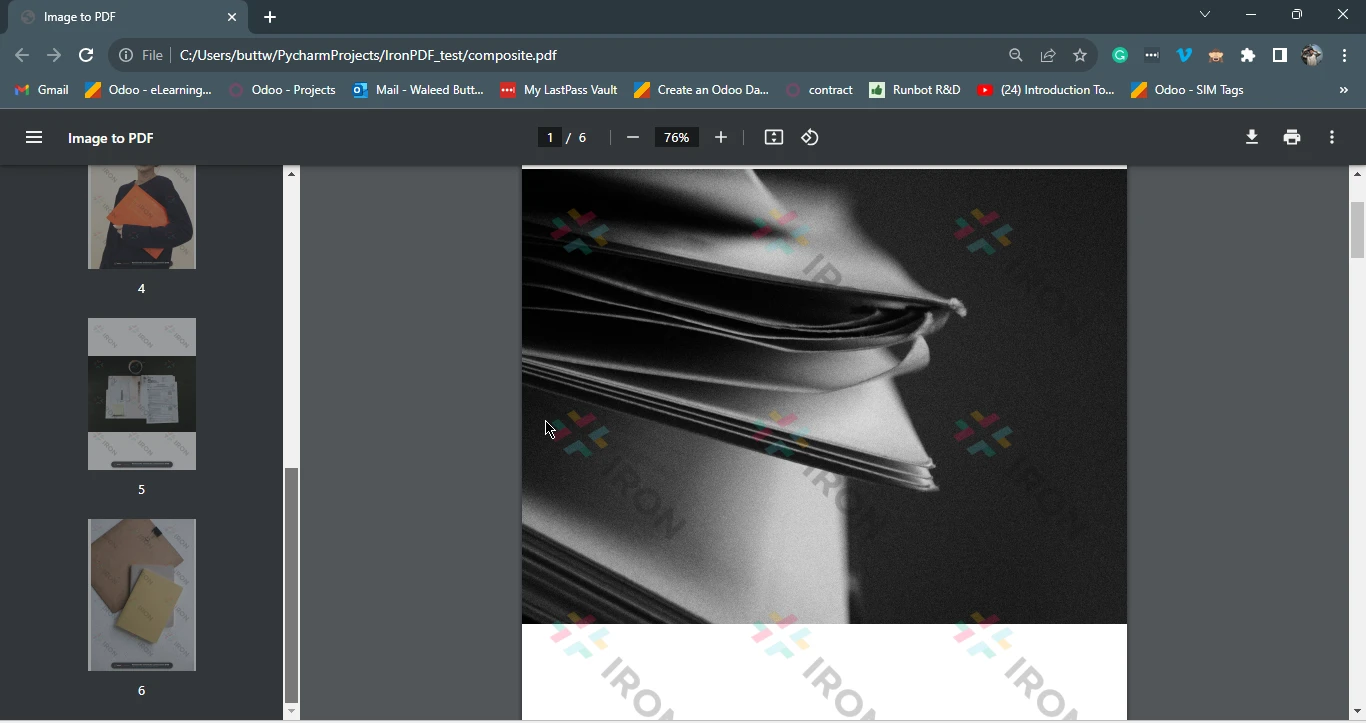
In summary, this code scans a directory for image files with specific extensions, compiles them into a single PDF document, and saves the resulting PDF as "composite.pdf".
4.1. Output Image
A PDF of photos, each taking up one page
5. Conclusion
This article explored the world of image-to-PDF conversion in Python, providing you with practical insights and easy-to-follow examples to help you master this essential skill. Through the example of the use of IronPDF for Python, it demonstrated how you can effortlessly convert individual images into PDF documents and even merge multiple images into a single, cohesive PDF file.
With IronPDF's user-friendly API, Python developers can streamline PDF generation, conversion, and manipulation tasks, making it a valuable resource for projects involving reports, invoices, interactive documents, and more. By following the steps outlined in this article, you can harness the power of Python and elevate your document management capabilities, all while simplifying your workflow and improving efficiency.
If you are wondering how to convert PDF files to images, check out this tutorial. Also, the source code for the example Image to PDF can be found as an example on the IronPDF website.
자주 묻는 질문
Python에서 이미지를 PDF로 변환하려면 어떻게 하나요?
IronPDF를 사용하여 Python에서 이미지를 PDF로 변환하는 방법은 ImageToPdfConverter 메서드를 활용하면 됩니다. 이미지 파일 경로로 변환기 객체를 생성하고 SaveAs 메서드를 사용하여 PDF를 생성하기만 하면 됩니다.
여러 이미지를 하나의 PDF 파일로 컴파일할 수 있나요?
예, IronPDF를 사용하면 여러 이미지를 하나의 PDF로 컴파일할 수 있습니다. 이미지 경로 목록을 ImageToPdfConverter에 전달한 다음 SaveAs 메서드를 사용하여 통합된 PDF를 저장할 수 있습니다.
Python 프로젝트에 IronPDF를 설치하려면 어떻게 해야 하나요?
Python 프로젝트에 IronPDF를 설치하려면 터미널을 열고 pip install ironpdf 명령을 실행하세요. 그러면 프로젝트의 종속성에 IronPDF가 추가됩니다.
IronPDF를 사용하여 이미지를 PDF로 변환하는 일반적인 사용 사례에는 어떤 것이 있나요?
일반적인 사용 사례로는 보고서 생성, 이미지 기반 송장 작성, 이미지를 PDF 문서로 보관하여 쉽게 공유하고 인쇄하는 것 등이 있습니다.
이미지를 PDF로 변환하는 데 실패하면 어떤 문제 해결 단계를 수행해야 하나요?
이미지 파일 경로가 정확하고 이미지에 액세스할 수 있는지 확인합니다. IronPDF가 올바르게 설치되었는지, 코드가 ImageToPdfConverter 및 SaveAs 메서드를 올바르게 사용하고 있는지 확인합니다.
IronPDF를 사용하여 PDF를 이미지로 다시 변환할 수 있나요?
예, IronPDF는 PDF를 이미지로 다시 변환할 수도 있으므로 다양한 애플리케이션을 위해 PDF 파일에서 시각적 데이터를 추출하고 조작할 수 있습니다.