

Python에서 PDF에서 텍스트를 추출하는 방법

This article will demonstrate how to extract all the text from PDF files using IronPDF in Python, providing you with the knowledge and Python code snippets to accomplish this task efficiently.
- Download a Python module for extracting text from PDF
- Use the
FromFilemethod to import the PDF file - Extract text from the imported PDF with the
ExtractTextmethod - Extract text from specific pages with the
ExtractTextFromPagemethod - Output the extracted text to the console or a text file
IronPDF - Python Library
IronPDF for Python is a powerful Python PDF library that allows developers to extract text from PDF documents. With IronPDF, you can automate the data extraction part of textual content from PDF files, making it easier to process and analyze the information contained within PDF documents.
IronPDF provides Python programmers with the ability to manipulate, extract data from, and interact with PDF files using Python, making it easier to automate various PDF-related tasks. Whether you need to generate PDFs, modify existing PDFs, extract data from content, or perform other PDF operations, IronPDF simplifies the process with its intuitive API and powerful capabilities.
Key Features
Some features of the IronPDF for Python library include:
- Create new PDF file from scratch
- Editing existing PDF files
- Extract text, metadata, and images from PDF files
- Converting PDF files to other formats
- Secure PDF files with passwords and restrictions
- Split and merge PDFs
Prerequisites
Before proceeding with text extraction using IronPDF, ensure that you have the following prerequisites in place:
- Python Installation: Make sure you have Python installed on your system. IronPDF is compatible with Python 3.x versions, so ensure that you have a compatible Python installation.
IronPDF Library: Install the IronPDF library using
pip, the Python package manager. Open your command-line interface and execute the following command:pip install ironpdfpip install ironpdfSHELLNote: Python must be added to the PATH environment variable in order to use pip commands.
- Integrated Development Environment (IDE): While not strictly necessary, using an IDE can greatly enhance your development experience. It provides features like code completion, debugging, and a more streamlined workflow. One popular IDE for Python development is PyCharm. You can download and install PyCharm from the JetBrains website https://www.jetbrains.com/pycharm/.
- Text Editor: Alternatively, if you prefer to work with a lightweight text editor, you can use any text editor of your choice, such as Visual Studio Code, Sublime Text, or Atom. These editors provide syntax highlighting and other useful features for Python development. You can also use Python's own IDLE App.
Creating a Python Project using PyCharm
After installing PyCharm IDE, create a PyCharm Python project by following the below steps:
- Launch PyCharm: Open PyCharm from your system's application launcher or desktop shortcut.
Create a New Project: Click on "Create New Project" or open an existing Python project.
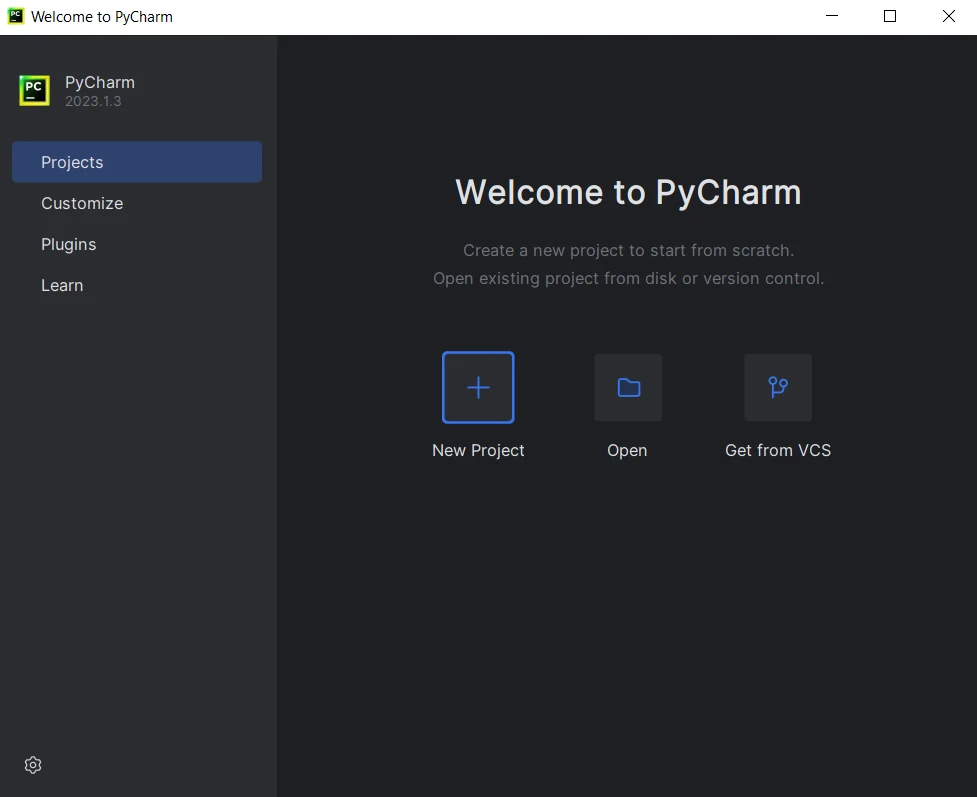 PyCharm IDE
Configure Project Settings: Provide a name for your project and choose the location to create the project directory. Select the Python interpreter for your project. Then click "Create".
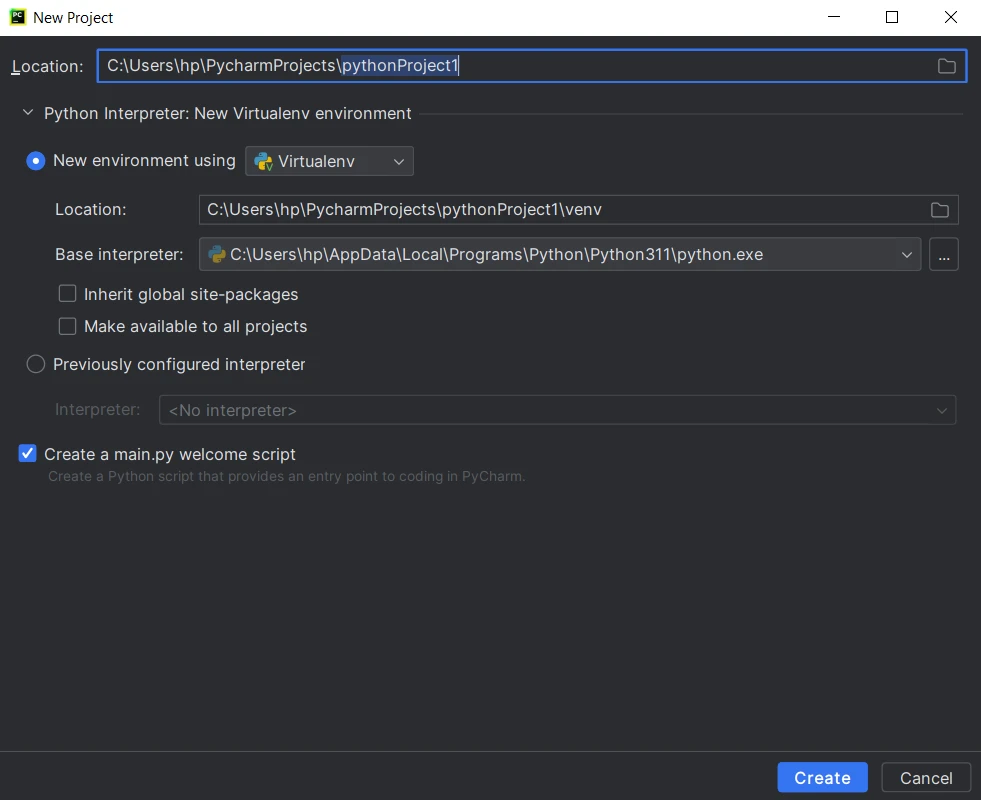 Create a new Python project in Pycharm
- Create Source Files: PyCharm will create the project structure, including a main Python file and a directory for additional source files. Start writing code and click the run button or press Shift+F10 to execute the script.
Extracting Text from PDF in Python using IronPDF
Now let's dive into the steps involved in extracting plain text from PDF files using IronPDF in Python programming language.
Import the Required Libraries
To begin, import the necessary libraries in your Python script. In this case, the code sample needs to import the IronPDF library, which provides the functionality for working with PDF files.
import ironpdfimport ironpdfSet the License Key
In order to extract full text from a PDF file using IronPDF, you need to have IronPDF licensed. Apply the license or trial key using the following command:
# Apply your license key
License.LicenseKey = "YOUR-LICENSE-KEY-HERE"
# Apply your license key
License.LicenseKey = "YOUR-LICENSE-KEY-HERE"Note: Without a license key, IronPDF extracting data is restricted to a few characters only from the PDF extension file. Obtain a license key by purchasing IronPDF or by signing up for a free trial.
Load the PDF Document
Next, load the PDF file using the PdfDocument.FromFile() method from IronPDF. Provide the path to the PDF file as the argument to this method. This will load the PDF file into a PdfDocument object.
pdf = ironpdf.PdfDocument.FromFile("path/to/your/pdf_file.pdf")pdf = ironpdf.PdfDocument.FromFile("path/to/your/pdf_file.pdf")Input File
To extract text from the input PDF file and print it on the screen, the following document is used:
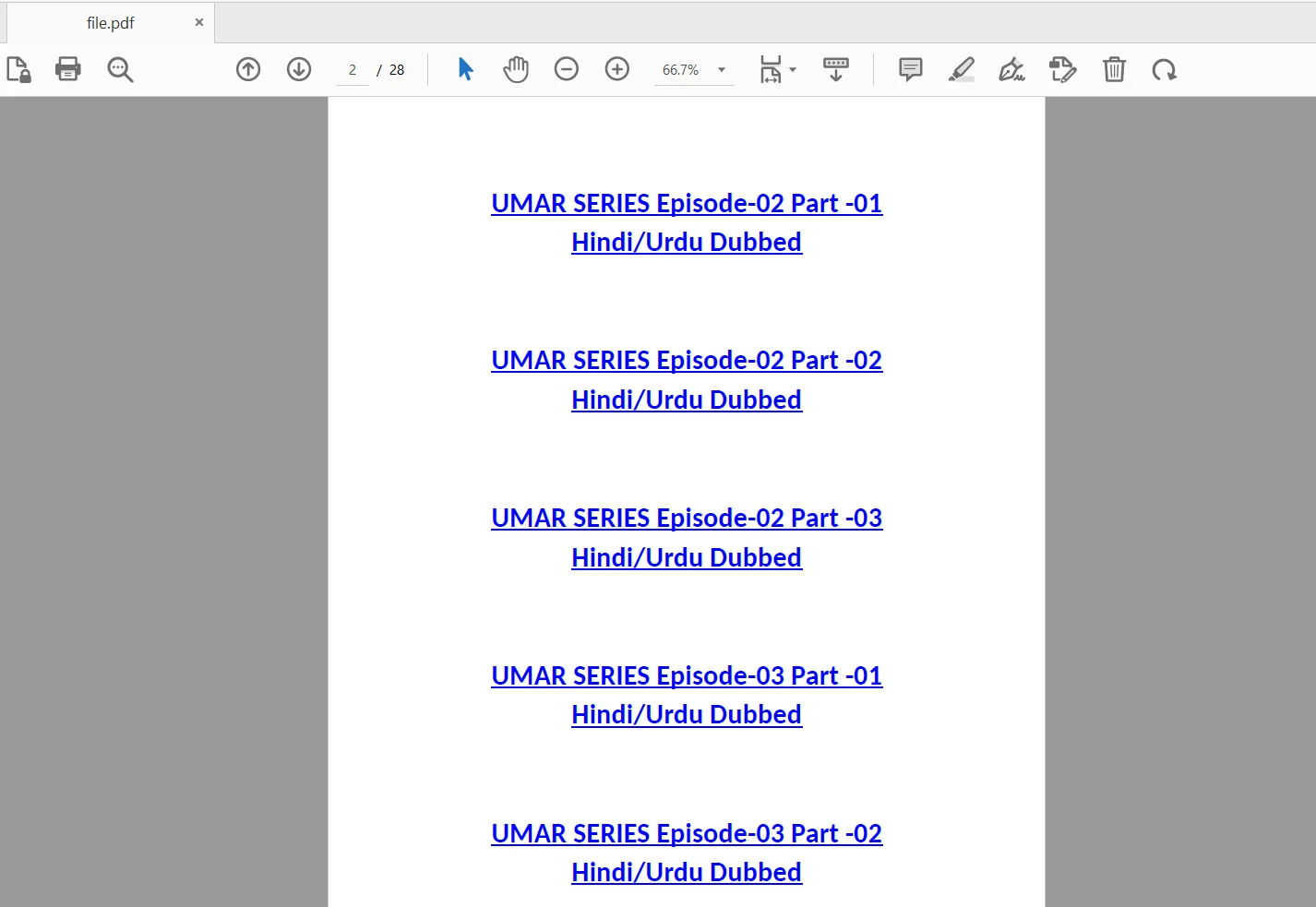 The input file
Extract Text from PDF files
Once the PDF document is loaded, you can extract the text content using the ExtractText method. This method returns the extracted text as a string.
text = pdf.ExtractText()text = pdf.ExtractText()Process and Utilize the Extracted Text
Now that you have extracted the text from the PDF, you can process and utilize it according to your requirements. You can perform tasks such as parsing the text, analyzing it, storing it in a database, or using it for further data processing.
# Process and utilize the extracted text
print(text)
# Perform other operations with the extracted text
# Process and utilize the extracted text
print(text)
# Perform other operations with the extracted textOutput
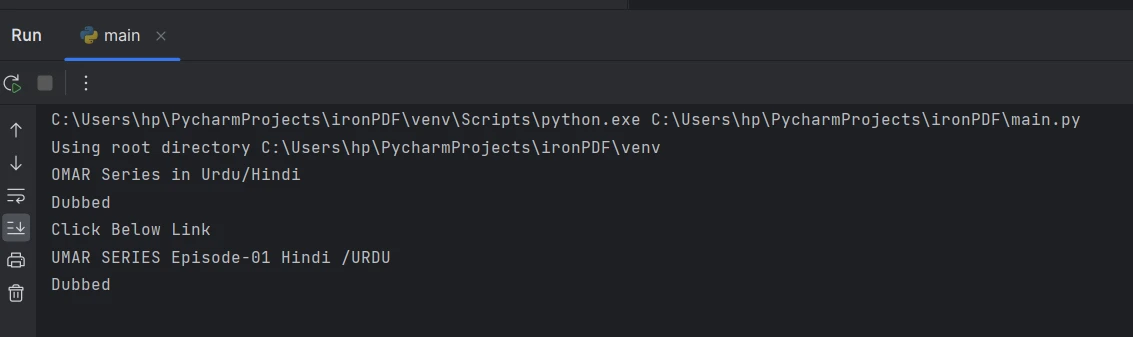 The extracted text from the console
Extract Text from Specific Page in PDF File
IronPDF also provides a convenient method to extract text from specific pages within a PDF file. This section will explore how to extract text from a specific page using the ExtractTextFromPage method provided by IronPDF.
The following code demonstrates how to extract text from a specific page:
# Extract text from a specific page in the document
page_2_text = pdf.ExtractTextFromPage(1)
# Extract text from a specific page in the document
page_2_text = pdf.ExtractTextFromPage(1)In the above sample code, pdf represents the PdfDocument object obtained after loading the PDF document. The ExtractTextFromPage() method is used to extract text from a specific page, indicated by the page index passed as an argument. In this case, the text is extracted from the second page or page number 2, which corresponds to page index 1.
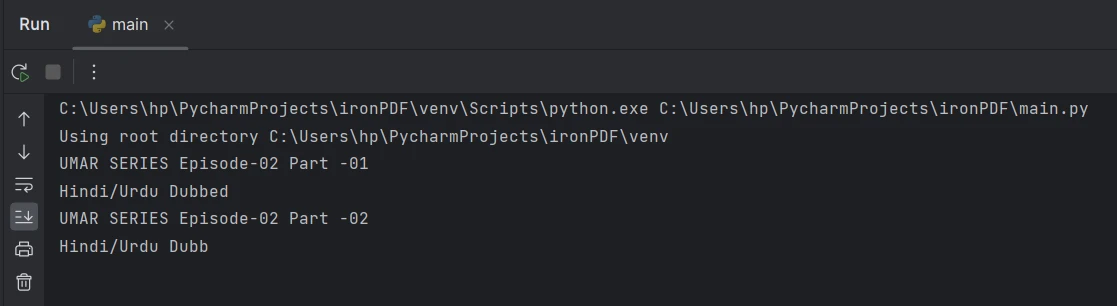 Extract text from page 2
Conclusion
This article explored how to extract text from PDF files using IronPDF in Python. It covered the necessary steps, including importing the required library, loading the PDF document, extracting the text content, and processing the extracted text.
With IronPDF's powerful text extraction capabilities, you can automate the extraction and further processing of text from PDFs, enabling you to process and analyze the textual information within PDF documents easily. Its intuitive API and extensive capabilities make it an ideal choice for a wide range of PDF-related tasks in Python development.
IronPDF is free for development purposes, but it needs to be licensed for commercial use. To use it in production mode for testing, obtain a free trial. Download and install the latest version of IronPDF for Python and give it a try.
자주 묻는 질문
Python을 사용하여 전체 PDF 문서에서 텍스트를 추출하려면 어떻게 해야 하나요?
IronPDF의 PdfDocument.FromFile() 메서드를 사용하여 PDF를 로드한 다음 ExtractText() 메서드를 호출하여 텍스트 콘텐츠를 검색하면 전체 PDF 문서에서 텍스트를 추출할 수 있습니다.
Python에서 PDF의 특정 페이지에서 텍스트를 추출하는 프로세스는 무엇인가요?
PDF의 특정 페이지에서 텍스트를 추출하려면 특정 페이지에서 텍스트를 검색할 페이지 인덱스를 지정할 수 있는 IronPDF의 ExtractTextFromPage() 메서드를 사용하세요.
Python용 IronPDF 라이브러리는 어떻게 설치하나요?
다음 명령을 실행하여 pip 패키지 관리자를 사용하여 Python용 IronPDF 라이브러리를 설치합니다: pip install ironpdf.
Python으로 PDF에서 텍스트를 추출하기 위한 전제 조건은 무엇인가요?
전제 조건으로는 시스템에 Python이 설치되어 있어야 하고, pip를 통해 IronPDF를 설치해야 하며, 개발을 위해 PyCharm과 같은 IDE를 사용해야 합니다.
Python용 IronPDF 라이브러리의 무료 버전이 있나요?
IronPDF는 개발 목적으로는 무료이지만 상업적 용도로 사용하려면 라이선스가 필요합니다. 프로덕션 모드에서 라이브러리를 테스트할 수 있는 무료 평가판을 사용할 수 있습니다.
IronPDF를 사용하여 PDF에서 전체 텍스트를 추출하려면 라이선스가 필요하나요?
예, IronPDF를 사용하여 PDF에서 텍스트를 완전히 추출하려면 라이선스 키가 필요합니다. 라이선스가 없으면 추출이 몇 자로 제한됩니다.
Python용 IronPDF의 주요 기능은 무엇인가요?
Python용 IronPDF의 주요 기능에는 PDF 생성 및 편집, 텍스트, 메타데이터 및 이미지 추출, PDF를 다른 형식으로 변환, 비밀번호와 같은 보안 기능 추가 등이 포함됩니다.
Python용 IronPDF가 PDF 데이터 추출 자동화에 도움이 될 수 있나요?
예, IronPDF는 PDF 데이터 추출을 자동화하여 데이터 분석 및 조작을 지원하는 FromFile 및 ExtractText와 같은 메서드를 제공합니다.
Python에서 IronPDF를 사용하는 데 권장되는 IDE는 무엇인가요?
코드 완성, 디버깅 도구, 간소화된 워크플로우 등의 기능으로 인해 PyCharm은 IronPDF를 사용한 Python 개발에 권장됩니다.
IronPDF는 PDF 문서를 처리하는 워크플로우를 어떻게 개선하나요?
IronPDF는 텍스트 추출, PDF 생성 및 편집, 형식 변환, 보안 설정을 위한 직관적인 API를 제공하여 다양한 PDF 관련 작업을 간소화함으로써 워크플로우를 개선합니다.










 무료로 시작하세요
 무료로 시작하세요
 무료 라이브 데모 예약하기



 신용카드나 계정 생성은 필요하지 않습니다.









