푸터 콘텐츠로 바로가기
PYTHON용 IRONPDF 사용

Python에서 PDF 양식을 생성하는 방법

This article will use IronPDF for Python to create simple PDF documents from templates.

IronPDF for Python

IronPDF is a powerful Python library that revolutionizes the way developers interact with PDF documents. Designed to simplify the creation, editing, and manipulation of PDF files, IronPDF empowers Python programmers to effortlessly integrate sophisticated PDF functionalities into their applications. Whether it's generating PDFs from scratch, converting HTML content into high-quality PDFs, or merging, splitting, and editing existing PDFs, IronPDF's comprehensive set of tools and APIs offer an intuitive and efficient solution. With its user-friendly interface and extensive documentation, IronPDF opens up a world of possibilities for developers seeking to harness the full potential of PDFs in their Python projects, making it an invaluable asset in the realm of document management and automation.

Prerequisites

Generating a PDF from a template in Python requires the following prerequisites to be in place:

  1. Python Installation: Ensure that you have Python installed on your system. The IronPDF library is compatible with Python 3.0 or above versions, so make sure you have a compatible Python installation.
  2. .NET 6.0 SDK: The .NET 6.0 SDK is a prerequisite for utilizing the IronPDF library in Python. IronPDF is built on top of the .NET Framework, which provides the underlying capabilities required for PDF generation and manipulation. Therefore, .NET 6.0 SDK must be installed to use IronPDF in Python.
  3. IronPDF Library: To install the IronPDF library, use pip, the Python package manager. Open your command-line interface and execute the following command:

    pip install ironpdf
    pip install ironpdf
    SHELL
  4. Integrated Development Environment (IDE): While not strictly necessary, using an IDE can greatly enhance your development experience. It offers features like code completion, debugging, and a more streamlined workflow. One popular IDE for Python development is PyCharm. You can download and install PyCharm from the JetBrains website at https://www.jetbrains.com/pycharm/.

Creating a New Python Project

Here are the steps to create a new Python Project in PyCharm.

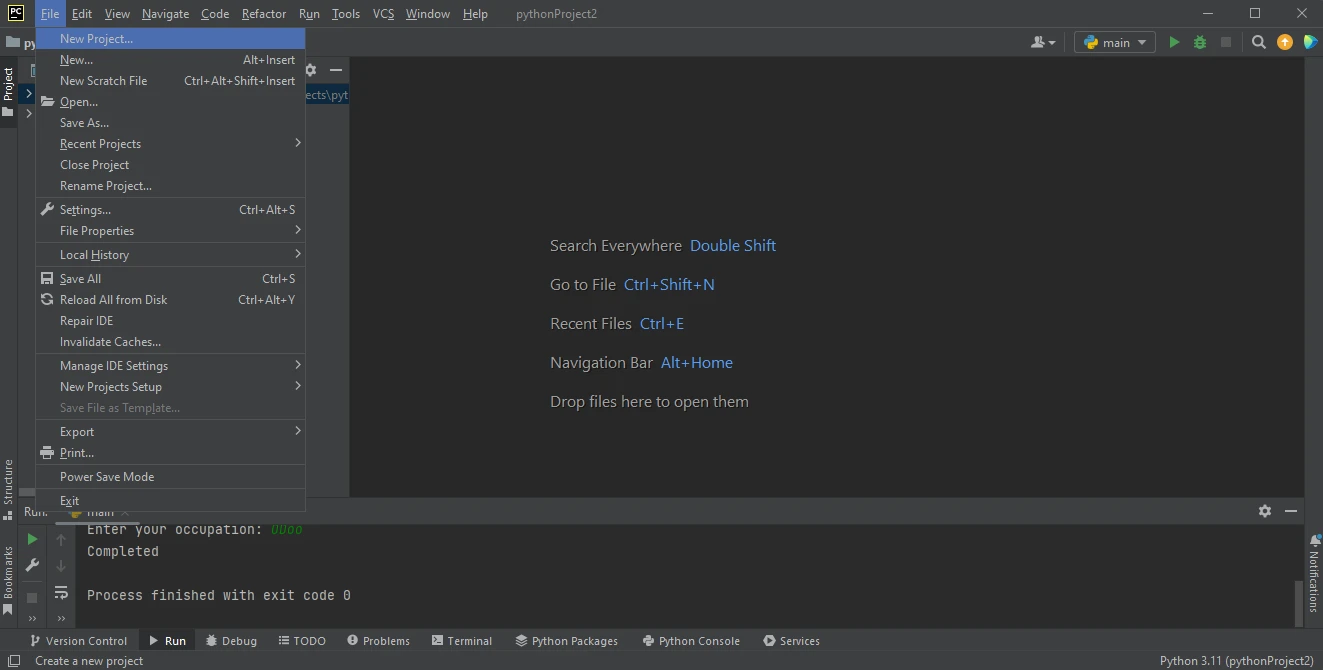
  1. To create a new Python project open PyCharm, go to "File" in the top menu and click on "New Project".

    How to Generate PDF Forms in Python, Figure 1: PyCharm IDE PyCharm IDE

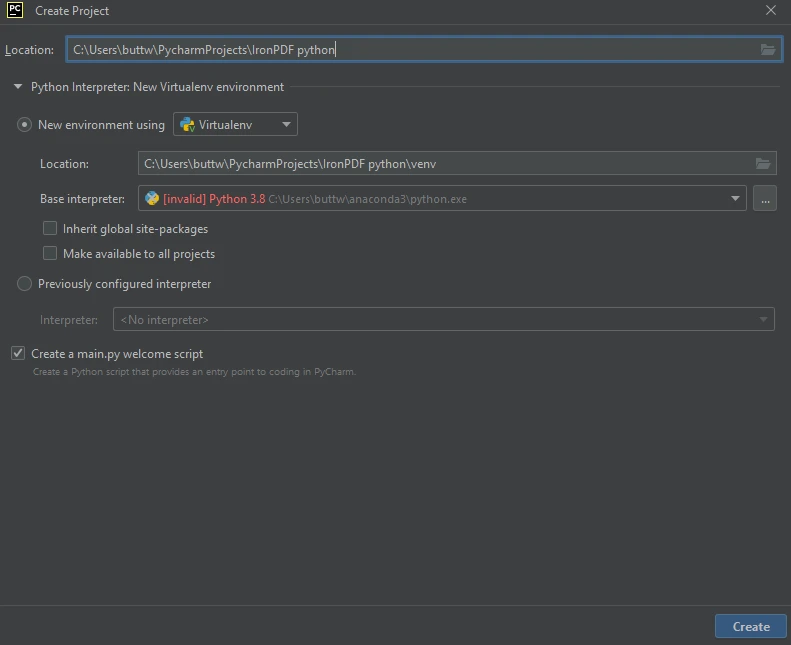
  2. A new window will appear where you can specify the project's environment and location. After selecting the environment click on the Create button.

    How to Generate PDF Forms in Python, Figure 2: Create a new Python project in PyCharm Create a new Python project in PyCharm

  3. Just like that, this demo Python project is created and ready to use.

Installing IronPDF

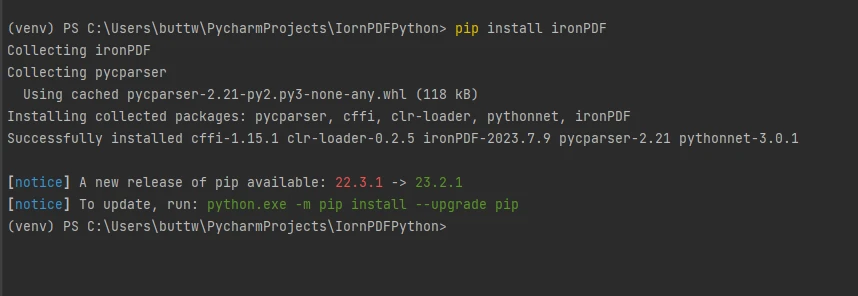
To install IronPDF, just open the terminal and run the following command pip install ironpdf and press enter. The terminal output should look like this.

How to Generate PDF Forms in Python, Figure 3: Install the IronPDF package Install the IronPDF package

Generate PDF files from Template using IronPDF

This section will explain how to generate PDF documents from HTML templates using input data from the console to create PDF files.

Firstly, import some dependencies for creating PDF files.

# Import the required classes from the libraries
from ironpdf import ChromePdfRenderer
from jinja2 import Template
# Import the required classes from the libraries
from ironpdf import ChromePdfRenderer
from jinja2 import Template
PYTHON

Next, declare renderer as a ChromePdfRenderer object and use it to render HTML templates.

# Create a renderer object to generate PDFs
renderer = ChromePdfRenderer()
# Create a renderer object to generate PDFs
renderer = ChromePdfRenderer()
PYTHON

Now, create an HTML template document for reusable purposes to create PDF files. Just create a new variable and populate it with HTML content containing placeholders.

# Define an HTML template with placeholders for dynamic data
html_template = """
<!DOCTYPE html>
<html>
<head>
    <title>{{ title }}</title>
</head>
<body>
    # {{ title }}
    <p>
        Hello, {{ name }}! This is a sample PDF generated from a template using IronPDF for Python.
    </p>
    <p>
        Your age is {{ age }} and your occupation is {{ occupation }}.
    </p>
</body>
</html>
"""
# Define an HTML template with placeholders for dynamic data
html_template = """
<!DOCTYPE html>
<html>
<head>
    <title>{{ title }}</title>
</head>
<body>
    # {{ title }}
    <p>
        Hello, {{ name }}! This is a sample PDF generated from a template using IronPDF for Python.
    </p>
    <p>
        Your age is {{ age }} and your occupation is {{ occupation }}.
    </p>
</body>
</html>
"""
PYTHON

With the design template ready, write code that will take input from the user and store it in a dictionary.

# Gather input from the user
title = input("Enter the title: ")
name = input("Enter your name: ")
age = input("Enter your age: ")
occupation = input("Enter your occupation: ")

# Store the input data into a dictionary for rendering the template
data = {
    "title": title,
    "name": name,
    "age": age,
    "occupation": occupation
}
# Gather input from the user
title = input("Enter the title: ")
name = input("Enter your name: ")
age = input("Enter your age: ")
occupation = input("Enter your occupation: ")

# Store the input data into a dictionary for rendering the template
data = {
    "title": title,
    "name": name,
    "age": age,
    "occupation": occupation
}
PYTHON

Further, the code below will integrate the data into the template document and render HTML templates using the IronPDF renderer object created earlier. Finally, save the PDF file using the SaveAs method.

# Create a Template object with the HTML structure
template = Template(html_template)

# Render the template with the user-provided data
html_content = template.render(**data)

# Generate the PDF from the rendered HTML content
pdf = renderer.RenderHtmlAsPdf(html_content)

# Save the generated PDF to a file
pdf.SaveAs("output.pdf")
# Create a Template object with the HTML structure
template = Template(html_template)

# Render the template with the user-provided data
html_content = template.render(**data)

# Generate the PDF from the rendered HTML content
pdf = renderer.RenderHtmlAsPdf(html_content)

# Save the generated PDF to a file
pdf.SaveAs("output.pdf")
PYTHON

With that, the code to create PDF files dynamically is completed. Let's run the code to see the output.

Output Example 1

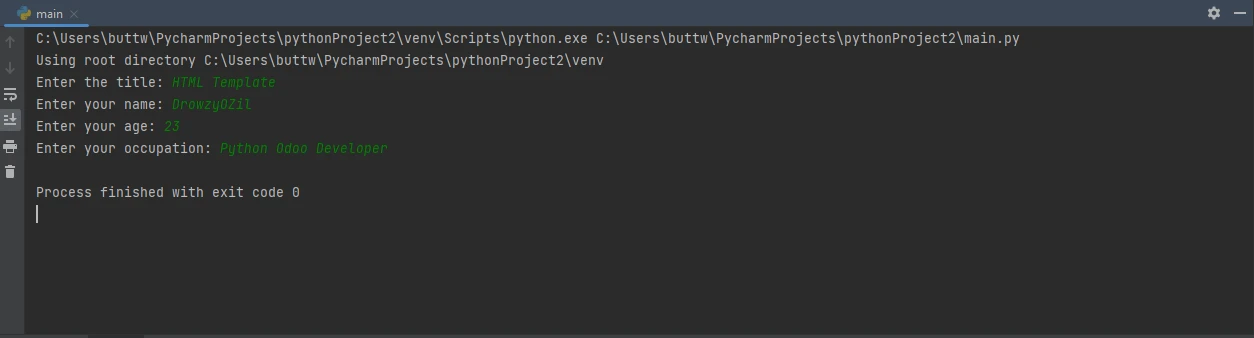
After running the code, it will ask for the following inputs from the user.

How to Generate PDF Forms in Python, Figure 4: The console requires additional input from user The console requires additional input from user

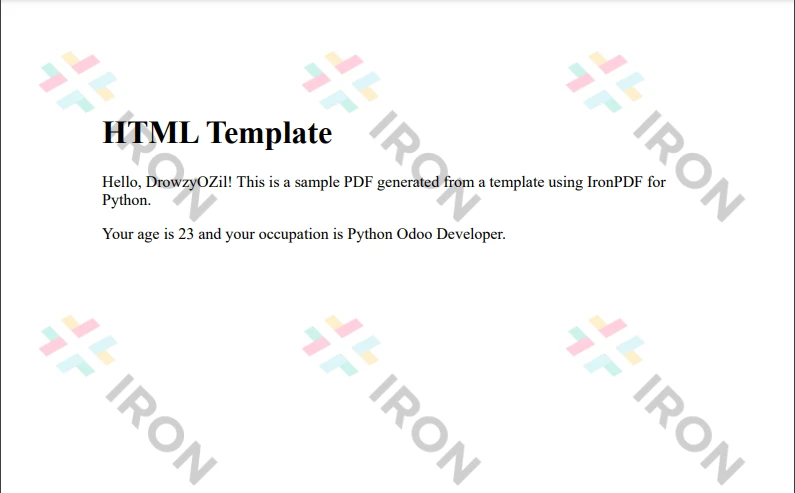
Enter the inputs one by one and press enter after each input. Once all four inputs are entered, it will generate a PDF file.

How to Generate PDF Forms in Python, Figure 5: The output PDF file The output PDF file

Output Example 2

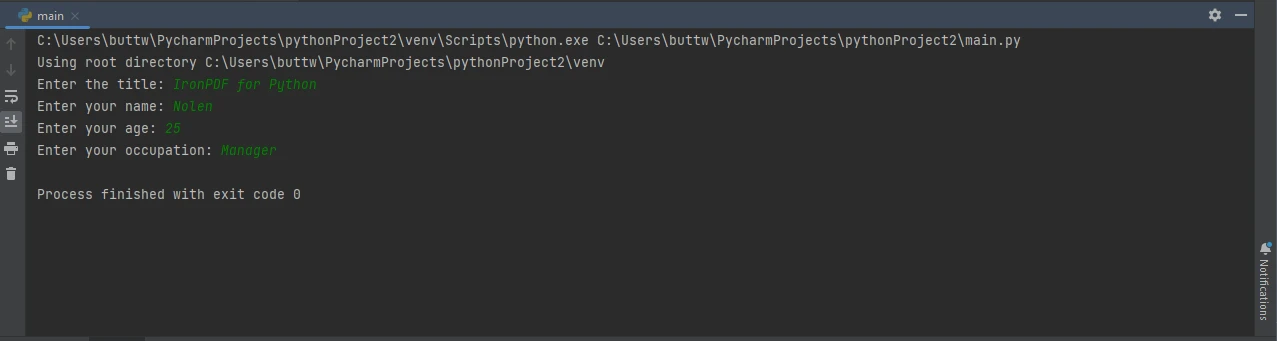
Now, rerun the program and try different inputs.

How to Generate PDF Forms in Python, Figure 6: The console with different input The console with different input

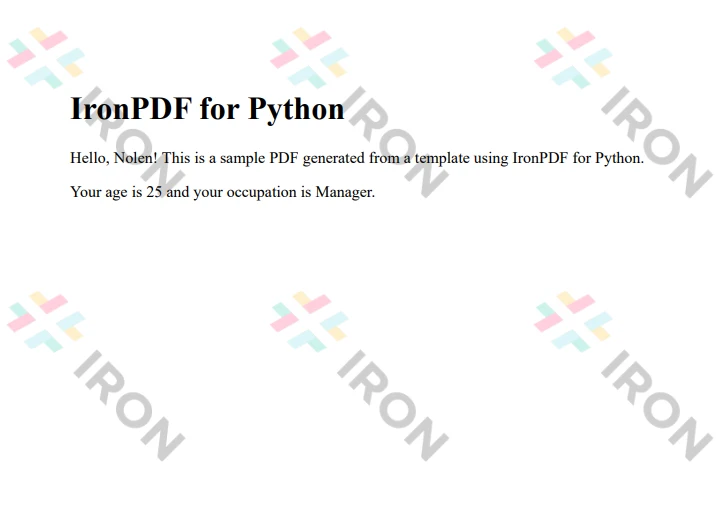
As you can see below, the output file format is the same, but it is updated with the new inputs.

How to Generate PDF Forms in Python, Figure 7: The new output PDF file The new output PDF file

For more information on how to create, modify and read PDF in Python using IronPDF, please visit the documentation page.

Conclusion

In the world of programming and document automation, Python's utilization of the IronPDF library for rendering PDF documents from templates has revolutionized document management and workflow efficiency. This powerful combination empowers developers to effortlessly create tailored PDF files, such as invoices, reports, and certificates, enhancing productivity and user experience. The seamless integration of IronPDF's comprehensive tools and APIs within Python projects enables developers to handle PDF generation, editing, and manipulation tasks with ease, streamlining the development process and ensuring consistent, polished outputs. Python's versatility, coupled with IronPDF's capabilities, makes this dynamic duo an indispensable asset for any developer seeking efficient and automated PDF document solutions. Additionally, it is possible to use the same technique to create PDFs from CSV files by editing your Python code accordingly.

As you may notice, the output files are watermarked. You can easily remove them by purchasing a license. The Lite package comes with a perpetual license, a 30-day money-back guarantee, a year of software support, and upgrade possibilities. IronPDF also offers a free trial license.

자주 묻는 질문

Python 라이브러리를 사용하여 HTML 템플릿에서 PDF를 생성하려면 어떻게 해야 하나요?

IronPDF의 ChromePdfRenderer를 사용하여 HTML 콘텐츠를 PDF로 렌더링할 수 있습니다. 플레이스홀더가 있는 HTML 템플릿을 정의하고 Jinja2를 사용하여 동적 데이터와 통합한 다음 렌더링하여 PDF를 생성합니다.

Python에서 PDF 라이브러리를 사용하기 위한 시스템 요구 사항은 무엇인가요?

Python에서 IronPDF를 사용하려면 Python 3.0 이상, .NET 6.0 SDK 및 pip를 사용하여 설치할 수 있는 IronPDF 라이브러리가 필요합니다.

Python 환경에 IronPDF를 설치하려면 어떻게 해야 하나요?

명령줄 인터페이스에서 pip install ironpdf 명령을 실행하여 IronPDF를 설치할 수 있습니다.

PyCharm에서 새 Python 프로젝트를 시작하려면 어떻게 해야 하나요?

PyCharm에서 새 Python 프로젝트를 만들려면 '파일' > '새 프로젝트'로 이동하여 환경과 위치를 지정한 다음 '만들기'를 클릭합니다.

Python 라이브러리를 사용하여 CSV 데이터를 PDF 파일로 변환할 수 있나요?

예, IronPDF를 사용하여 CSV 데이터를 읽고 HTML 템플릿에 통합한 다음 ChromePdfRenderer를 사용하여 PDF로 렌더링할 수 있습니다.

Python에서 입력 데이터로 PDF를 만들려면 어떤 단계가 필요하나요?

IronPDF를 사용하면 사용자로부터 입력 데이터를 수집하고, Jinja2를 사용하여 HTML 템플릿에 통합하고, ChromePdfRenderer로 템플릿을 렌더링한 다음 결과 PDF 파일을 저장할 수 있습니다.

Python 라이브러리로 만든 PDF에서 워터마크를 제거하려면 어떻게 해야 하나요?

IronPDF로 생성된 PDF에서 워터마크를 제거하려면 영구 라이선스, 30일 환불 보장, 1년 지원 및 업그레이드 옵션이 포함된 라이선스를 구매할 수 있습니다.

Python PDF 라이브러리를 사용하여 문서 워크플로우를 자동화할 수 있나요?

예, IronPDF는 Python 애플리케이션 내에서 프로그래밍 방식으로 PDF 파일을 생성, 편집 및 관리할 수 있도록 하여 문서 워크플로우를 자동화하는 데 사용할 수 있습니다.

커티스 차우
기술 문서 작성자

커티스 차우는 칼턴 대학교에서 컴퓨터 과학 학사 학위를 취득했으며, Node.js, TypeScript, JavaScript, React를 전문으로 하는 프론트엔드 개발자입니다. 직관적이고 미적으로 뛰어난 사용자 인터페이스를 만드는 데 열정을 가진 그는 최신 프레임워크를 활용하고, 잘 구성되고 시각적으로 매력적인 매뉴얼을 제작하는 것을 즐깁니다.


커티스는 개발 분야 외에도 사물 인터넷(IoT)에 깊은 관심을 가지고 있으며, 하드웨어와 소프트웨어를 통합하는 혁신적인 방법을 연구합니다. 여가 시간에는 게임을 즐기거나 디스코드 봇을 만들면서 기술에 대한 애정과 창의성을 결합합니다.