


Jak programowo drukować pliki PDF w ASP.NET

Zadania związane z drukowaniem plików PDF w środowisku ASP .NET często wiążą się z wyjątkowymi wyzwaniami, z którymi programiści spotykają się na co dzień. Niezależnie od tego, czy generujesz dokumenty PDF na potrzeby faktur, raportów czy etykiet wysyłkowych, wdrożenie niezawodnej funkcji drukowania wymaga poruszania się po zawiłościach architektury serwer-klient.
W tym artykule pokażemy, jak obsługiwać zadania drukowania plików PDF przy użyciu potężnej biblioteki PDF firmy IronPDF for .NET.
Zrozumienie wyzwania
Tradycyjne aplikacje desktopowe mają bezpośredni dostęp do domyślnej drukarki, ale aplikacje ASP.NET Core napotykają kilka przeszkód podczas drukowania dokumentów PDF:
// This fails in ASP.NET - wrong approach
Process.Start(@"C:\Files\document.pdf"); // Works locally, crashes on server
// This fails in ASP.NET - wrong approach
Process.Start(@"C:\Files\document.pdf"); // Works locally, crashes on server' This fails in ASP.NET - wrong approach
Process.Start("C:\Files\document.pdf") ' Works locally, crashes on serverPowyższy kod ilustruje typowy błąd. W środowisku serwerowym brakuje bezpośredniego dostępu do drukarki, a system zgłasza błędy z powodu ograniczeń uprawnień IIS. Należy również pamiętać, że aplikacje internetowe muszą skutecznie obsługiwać scenariusze drukowania zarówno po stronie serwera, jak i po stronie klienta.
Pierwsze kroki z IronPDF
IronPDF zapewnia kompletne rozwiązanie .NET Core do generowania dokumentów PDF i drukowania ich bez zewnętrznych zależności, takich jak Adobe Reader. Zainstalujmy pakiet IronPDF za pomocą NuGet:
Install-Package IronPdf
Ta biblioteka .NET działa płynnie na różnych systemach operacyjnych, eliminując problemy z kompatybilnością, które nękają inne biblioteki. Narzędzie to działa dobrze w systemie Microsoft Windows i innych środowiskach operacyjnych.
Tworzenie i drukowanie dokumentów PDF po stronie serwera przy użyciu domyślnej drukarki
Oto jak wygenerować i wydrukować dokument PDF na podstawie kodu HTML w kontrolerze ASP.NET:
using IronPdf;
using Microsoft.AspNetCore.Mvc;
using System.Drawing;
public class PdfController : Controller
{
    public IActionResult Index()
    {
        // Initialize the renderer
        var renderer = new ChromePdfRenderer();
        // Configure print-optimized settings
        renderer.RenderingOptions.PrintHtmlBackgrounds = true;
        renderer.RenderingOptions.MarginBottom = 10;
        renderer.RenderingOptions.CssMediaType = PdfCssMediaType.Print;
        // Generate PDF from HTML
        var pdf = renderer.RenderHtmlAsPdf("<h1>Invoice</h1><p>Total: $799</p>");
        // Print to default printer
        pdf.Print();
        return Ok("Document sent to printer");
    }
}
using IronPdf;
using Microsoft.AspNetCore.Mvc;
using System.Drawing;
public class PdfController : Controller
{
public IActionResult Index()
{
// Initialize the renderer
var renderer = new ChromePdfRenderer();
// Configure print-optimized settings
renderer.RenderingOptions.PrintHtmlBackgrounds = true;
renderer.RenderingOptions.MarginBottom = 10;
renderer.RenderingOptions.CssMediaType = PdfCssMediaType.Print;
// Generate PDF from HTML
var pdf = renderer.RenderHtmlAsPdf("<h1>Invoice</h1><p>Total: $799</p>");
// Print to default printer
pdf.Print();
return Ok("Document sent to printer");
}
}Imports IronPdf
Imports Microsoft.AspNetCore.Mvc
Imports System.Drawing
Public Class PdfController
Inherits Controller
Public Function Index() As IActionResult
' Initialize the renderer
Dim renderer As New ChromePdfRenderer()
' Configure print-optimized settings
renderer.RenderingOptions.PrintHtmlBackgrounds = True
renderer.RenderingOptions.MarginBottom = 10
renderer.RenderingOptions.CssMediaType = PdfCssMediaType.Print
' Generate PDF from HTML
Dim pdf = renderer.RenderHtmlAsPdf("<h1>Invoice</h1><p>Total: $799</p>")
' Print to default printer
pdf.Print()
Return Ok("Document sent to printer")
End Function
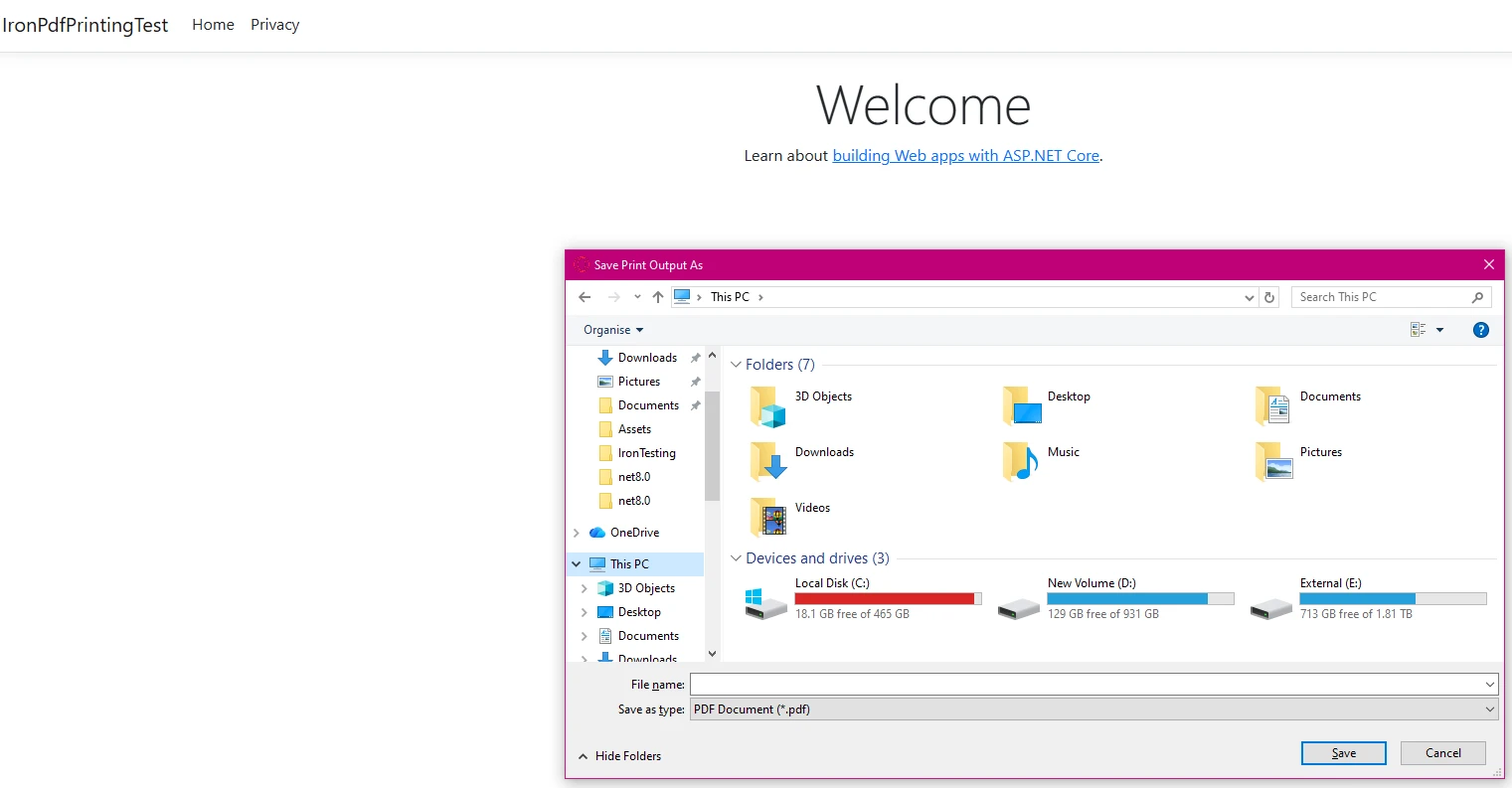
End ClassChromePdfRenderer obsługuje konwersję, zachowując styl CSS i formatowanie rozmiaru czcionki. Ten przykład pokazuje podstawowe drukowanie na domyślnej drukarce bez interakcji użytkownika.
Wynik
Konfiguracja drukarki sieciowej
Dla środowisk Enterprise wymagających określonego routingu drukarek:
public IActionResult PrintToNetworkPrinter(string filePath)
{
    // Load existing PDF file
    var pdfDocument = PdfDocument.FromFile(filePath);
    // Get print document for advanced settings
    var printDocument = pdfDocument.GetPrintDocument();
    // Specify network printer
    printDocument.PrinterSettings.PrinterName = @"\\server\printer";
    printDocument.PrinterSettings.Copies = 2;
    // Configure page settings
    printDocument.DefaultPageSettings.Landscape = false;
    var renderer = printDocument.PrinterSettings.PrinterResolution;
    // Execute print
    printDocument.Print();
    return Json(new { success = true });
}
public IActionResult PrintToNetworkPrinter(string filePath)
{
// Load existing PDF file
var pdfDocument = PdfDocument.FromFile(filePath);
// Get print document for advanced settings
var printDocument = pdfDocument.GetPrintDocument();
// Specify network printer
printDocument.PrinterSettings.PrinterName = @"\\server\printer";
printDocument.PrinterSettings.Copies = 2;
// Configure page settings
printDocument.DefaultPageSettings.Landscape = false;
var renderer = printDocument.PrinterSettings.PrinterResolution;
// Execute print
printDocument.Print();
return Json(new { success = true });
}Public Function PrintToNetworkPrinter(filePath As String) As IActionResult
' Load existing PDF file
Dim pdfDocument = PdfDocument.FromFile(filePath)
' Get print document for advanced settings
Dim printDocument = pdfDocument.GetPrintDocument()
' Specify network printer
printDocument.PrinterSettings.PrinterName = "\\server\printer"
printDocument.PrinterSettings.Copies = 2
' Configure page settings
printDocument.DefaultPageSettings.Landscape = False
Dim renderer = printDocument.PrinterSettings.PrinterResolution
' Execute print
printDocument.Print()
Return Json(New With {.success = True})
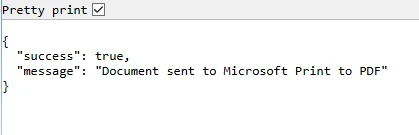
End FunctionTakie podejście zapewnia pełną kontrolę nad ustawieniami drukarki, w tym formatem papieru i rozdzielczością, co ma kluczowe znaczenie dla prawidłowego rysowania i układu.
Wynik
Wydrukuj potwierdzenie
Strategia drukowania po stronie klienta
Ponieważ przeglądarki ograniczają bezpośredni dostęp do drukarki, należy wdrożyć drukowanie po stronie klienta, udostępniając plik PDF do pobrania:
public IActionResult GetRawPrintablePdf()
    {
        var renderer = new ChromePdfRenderer();
        var pdf = renderer.RenderHtmlAsPdf(GetInvoiceHtml());
        // This header tells the browser to display the file inline.
        // We use IHeaderDictionary indexer to prevent ArgumentException.
        **HttpContext context**.Response.Headers["Content-Disposition"] = "inline; filename=invoice.pdf";
        return File(pdf.BinaryData, "application/pdf");
    }
    public IActionResult PrintUsingClientWrapper()
    {
        var printUrl = Url.Action(nameof(GetRawPrintablePdf));
        // Use a simple HTML/JavaScript wrapper to force the print dialog
        var html = new StringBuilder();
        html.AppendLine("<!DOCTYPE html>");
        html.AppendLine("<html lang=\"en\">");
        html.AppendLine("<head>");
        html.AppendLine("    <title>Print Document</title>");
        html.AppendLine("</head>");
        html.AppendLine("<body>");
        // Load the PDF from the 'GetRawPrintablePdf' action into an invisible iframe.
        html.AppendLine($"    <iframe src='{printUrl}' style='position:absolute; top:0; left:0; width:100%; height:100%; border:none;'></iframe>");
        html.AppendLine("    <script>");
        // Wait for the iframe (and thus the PDF) to load, then trigger the print dialog.
        html.AppendLine("        window.onload = function() {");
        html.AppendLine("            // Wait briefly to ensure the iframe content is rendered before printing.");
        html.AppendLine("            setTimeout(function() {");
        html.AppendLine("                window.print();");
        html.AppendLine("            }, 100);");
        html.AppendLine("        };");
        html.AppendLine("    </script>");
        html.AppendLine("</body>");
        html.AppendLine("</html>");
        return Content(html.ToString(), "text/html");
    }
    private string GetInvoiceHtml()
    {
        // Build HTML with proper structure
        return @"
        <html>
        <head>
            <style>
                body { font-family: Arial, sans-serif; }
                .header { font-weight: bold; color: #1e40af; border-bottom: 2px solid #3b82f6; padding-bottom: 5px; }
                .content { padding-top: 10px; }
            </style>
        </head>
        <body>
            <div class='header'>Invoice Summary (Client View)</div>
            <div class='content'>
                <p>Document content: This file is optimized for printing.</p>
                <p>Total Amount: <b>$799.00</b></p>
            </div>
        </body>
        </html>";
    }
public IActionResult GetRawPrintablePdf()
{
var renderer = new ChromePdfRenderer();
var pdf = renderer.RenderHtmlAsPdf(GetInvoiceHtml());
// This header tells the browser to display the file inline.
// We use IHeaderDictionary indexer to prevent ArgumentException.
**HttpContext context**.Response.Headers["Content-Disposition"] = "inline; filename=invoice.pdf";
return File(pdf.BinaryData, "application/pdf");
}
public IActionResult PrintUsingClientWrapper()
{
var printUrl = Url.Action(nameof(GetRawPrintablePdf));
// Use a simple HTML/JavaScript wrapper to force the print dialog
var html = new StringBuilder();
html.AppendLine("<!DOCTYPE html>");
html.AppendLine("<html lang=\"en\">");
html.AppendLine("<head>");
html.AppendLine(" <title>Print Document</title>");
html.AppendLine("</head>");
html.AppendLine("<body>");
// Load the PDF from the 'GetRawPrintablePdf' action into an invisible iframe.
html.AppendLine($" <iframe src='{printUrl}' style='position:absolute; top:0; left:0; width:100%; height:100%; border:none;'></iframe>");
html.AppendLine(" <script>");
// Wait for the iframe (and thus the PDF) to load, then trigger the print dialog.
html.AppendLine(" window.onload = function() {");
html.AppendLine(" // Wait briefly to ensure the iframe content is rendered before printing.");
html.AppendLine(" setTimeout(function() {");
html.AppendLine(" window.print();");
html.AppendLine(" }, 100);");
html.AppendLine(" };");
html.AppendLine(" </script>");
html.AppendLine("</body>");
html.AppendLine("</html>");
return Content(html.ToString(), "text/html");
}
private string GetInvoiceHtml()
{
// Build HTML with proper structure
return @"
<html>
<head>
<style>
body { font-family: Arial, sans-serif; }
.header { font-weight: bold; color: #1e40af; border-bottom: 2px solid #3b82f6; padding-bottom: 5px; }
.content { padding-top: 10px; }
</style>
</head>
<body>
<div class='header'>Invoice Summary (Client View)</div>
<div class='content'>
<p>Document content: This file is optimized for printing.</p>
<p>Total Amount: <b>$799.00</b></p>
</div>
</body>
</html>";
}Imports Microsoft.AspNetCore.Mvc
Imports System.Text
Public Class YourController
Inherits Controller
Public Function GetRawPrintablePdf() As IActionResult
Dim renderer = New ChromePdfRenderer()
Dim pdf = renderer.RenderHtmlAsPdf(GetInvoiceHtml())
' This header tells the browser to display the file inline.
' We use IHeaderDictionary indexer to prevent ArgumentException.
HttpContext.Response.Headers("Content-Disposition") = "inline; filename=invoice.pdf"
Return File(pdf.BinaryData, "application/pdf")
End Function
Public Function PrintUsingClientWrapper() As IActionResult
Dim printUrl = Url.Action(NameOf(GetRawPrintablePdf))
' Use a simple HTML/JavaScript wrapper to force the print dialog
Dim html = New StringBuilder()
html.AppendLine("<!DOCTYPE html>")
html.AppendLine("<html lang=""en"">")
html.AppendLine("<head>")
html.AppendLine(" <title>Print Document</title>")
html.AppendLine("</head>")
html.AppendLine("<body>")
' Load the PDF from the 'GetRawPrintablePdf' action into an invisible iframe.
html.AppendLine($" <iframe src='{printUrl}' style='position:absolute; top:0; left:0; width:100%; height:100%; border:none;'></iframe>")
html.AppendLine(" <script>")
' Wait for the iframe (and thus the PDF) to load, then trigger the print dialog.
html.AppendLine(" window.onload = function() {")
html.AppendLine(" // Wait briefly to ensure the iframe content is rendered before printing.")
html.AppendLine(" setTimeout(function() {")
html.AppendLine(" window.print();")
html.AppendLine(" }, 100);")
html.AppendLine(" };")
html.AppendLine(" </script>")
html.AppendLine("</body>")
html.AppendLine("</html>")
Return Content(html.ToString(), "text/html")
End Function
Private Function GetInvoiceHtml() As String
' Build HTML with proper structure
Return "
<html>
<head>
<style>
body { font-family: Arial, sans-serif; }
.header { font-weight: bold; color: #1e40af; border-bottom: 2px solid #3b82f6; padding-bottom: 5px; }
.content { padding-top: 10px; }
</style>
</head>
<body>
<div class='header'>Invoice Summary (Client View)</div>
<div class='content'>
<p>Document content: This file is optimized for printing.</p>
<p>Total Amount: <b>$799.00</b></p>
</div>
</body>
</html>"
End Function
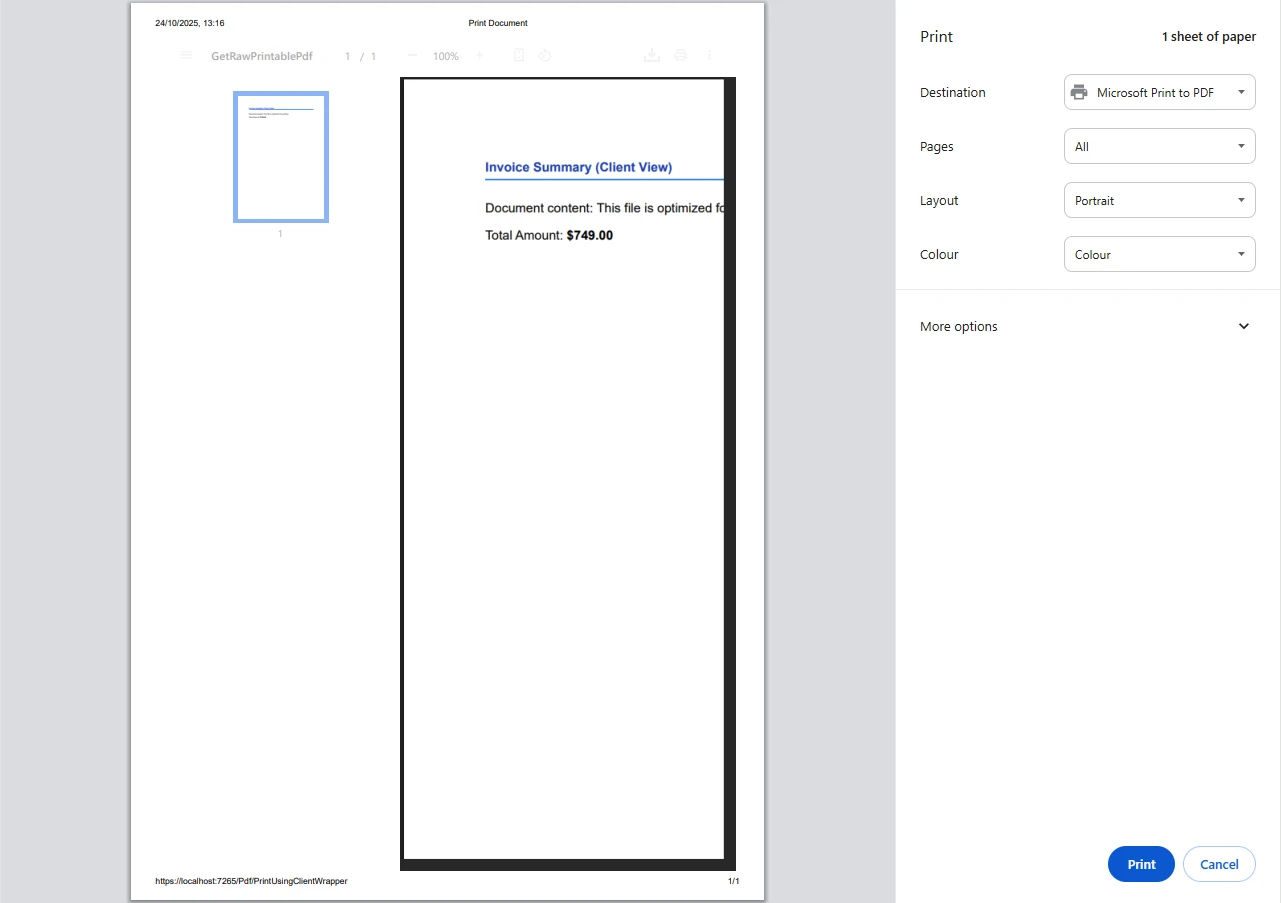
End ClassDokument PDF otwiera się w przeglądarce, gdzie użytkownicy mogą uruchomić drukowanie na swojej domyślnej drukarce, korzystając ze standardowych okien dialogowych drukowania przeglądarki. Takie podejście jest lepsze niż wysyłanie bezpośredniego żądania drukowania po stronie serwera.
Wynik
Praca z różnymi rodzajami kodu źródłowego
IronPDF elastycznie obsługuje różne rodzaje kodu źródłowego, co jest ważne dla programistów chcących tworzyć dynamiczny kod drukowania:
public async Task<IActionResult> PrintFromMultipleSources()
{
    var renderer = new ChromePdfRenderer();
    // From URL
    var pdfFromUrl = await renderer.RenderUrlAsPdfAsync("https://example.com");
    // From HTML file path
    var pdfFromFile = renderer.RenderHtmlFileAsPdf(@"Templates\report.html");
    var pdfToStream = renderer.RenderHtmlAsPdf("<h2>PDF from Memory Stream</h2><p>This content was loaded into memory first.</p>");
// Now, write the valid PDF bytes to the stream
using (var stream = new MemoryStream(pdfToStream.BinaryData))
{
    var pdfFromStream = new PdfDocument(stream);
    // Example: Print the PDF loaded from the stream
    // pdfFromStream.Print();
}
pdfFromUrl.Print();
// Logging the various files handled
    var fileList = new List<string> { "URL", "File Path", "Memory Stream" };
return Ok("PDF documents processed and 'example.com' printed to default server printer.");
}
public async Task<IActionResult> PrintFromMultipleSources()
{
var renderer = new ChromePdfRenderer();
// From URL
var pdfFromUrl = await renderer.RenderUrlAsPdfAsync("https://example.com");
// From HTML file path
var pdfFromFile = renderer.RenderHtmlFileAsPdf(@"Templates\report.html");
var pdfToStream = renderer.RenderHtmlAsPdf("<h2>PDF from Memory Stream</h2><p>This content was loaded into memory first.</p>");
// Now, write the valid PDF bytes to the stream
using (var stream = new MemoryStream(pdfToStream.BinaryData))
{
var pdfFromStream = new PdfDocument(stream);
// Example: Print the PDF loaded from the stream
// pdfFromStream.Print();
}
pdfFromUrl.Print();
// Logging the various files handled
var fileList = new List<string> { "URL", "File Path", "Memory Stream" };
return Ok("PDF documents processed and 'example.com' printed to default server printer.");
}Imports System.Threading.Tasks
Imports Microsoft.AspNetCore.Mvc
Imports System.IO
Public Class YourController
Inherits Controller
Public Async Function PrintFromMultipleSources() As Task(Of IActionResult)
Dim renderer = New ChromePdfRenderer()
' From URL
Dim pdfFromUrl = Await renderer.RenderUrlAsPdfAsync("https://example.com")
' From HTML file path
Dim pdfFromFile = renderer.RenderHtmlFileAsPdf("Templates\report.html")
Dim pdfToStream = renderer.RenderHtmlAsPdf("<h2>PDF from Memory Stream</h2><p>This content was loaded into memory first.</p>")
' Now, write the valid PDF bytes to the stream
Using stream = New MemoryStream(pdfToStream.BinaryData)
Dim pdfFromStream = New PdfDocument(stream)
' Example: Print the PDF loaded from the stream
' pdfFromStream.Print()
End Using
pdfFromUrl.Print()
' Logging the various files handled
Dim fileList = New List(Of String) From {"URL", "File Path", "Memory Stream"}
Return Ok("PDF documents processed and 'example.com' printed to default server printer.")
End Function
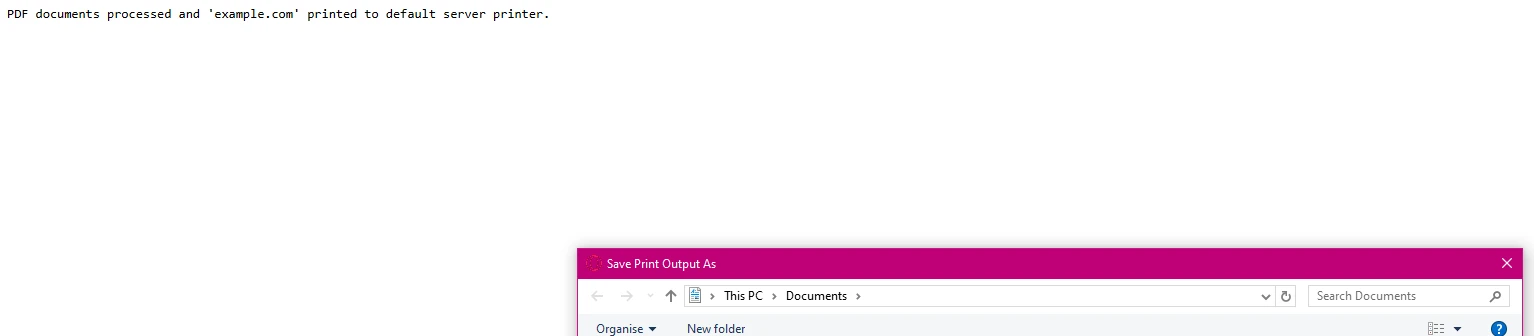
End ClassPowyższe linijki pokazują, jak utworzyć nową listę obsługiwanych źródeł plików. Każda metoda zachowuje strukturę dokumentu i grafikę, jednocześnie zapewniając wysoką jakość wydruku.
Obsługa błędów i rejestrowanie
Wprowadź solidną obsługę błędów dla środowisk produkcyjnych:
using System.Drawing.Printing; // For PrinterSettings
// ... other usings ...
public IActionResult SafePrint(string documentId)
{
    try
    {
        var pdf = LoadPdfDocument(documentId);
        // Verify printer availability
        if (!PrinterSettings.InstalledPrinters.Cast<string>()
            .Contains("Target Printer"))
        {
            // Log error and handle gracefully
            return BadRequest("Printer not available");
        }
        pdf.Print();
        // Log successful output
        return Ok($"Document {documentId} printed successfully");
    }
    catch (Exception ex)
    {
        // Log error details
        return StatusCode(500, "Printing failed");
    }
}
using System.Drawing.Printing; // For PrinterSettings
// ... other usings ...
public IActionResult SafePrint(string documentId)
{
try
{
var pdf = LoadPdfDocument(documentId);
// Verify printer availability
if (!PrinterSettings.InstalledPrinters.Cast<string>()
.Contains("Target Printer"))
{
// Log error and handle gracefully
return BadRequest("Printer not available");
}
pdf.Print();
// Log successful output
return Ok($"Document {documentId} printed successfully");
}
catch (Exception ex)
{
// Log error details
return StatusCode(500, "Printing failed");
}
}Imports System.Drawing.Printing ' For PrinterSettings
' ... other Imports ...
Public Function SafePrint(documentId As String) As IActionResult
Try
Dim pdf = LoadPdfDocument(documentId)
' Verify printer availability
If Not PrinterSettings.InstalledPrinters.Cast(Of String)().Contains("Target Printer") Then
' Log error and handle gracefully
Return BadRequest("Printer not available")
End If
pdf.Print()
' Log successful output
Return Ok($"Document {documentId} printed successfully")
Catch ex As Exception
' Log error details
Return StatusCode(500, "Printing failed")
End Try
End FunctionZapewnia to niezawodne drukowanie nawet wtedy, gdy zasoby systemowe są niedostępne, i stanowi kluczowy element Twojej usługi drukowania.
Scenariusze wynikowe
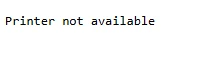
Brak drukarki
Jeśli drukarka określona w kodzie jest niedostępna, kod wyświetli następujący komunikat o błędzie:
Plik PDF został pomyślnie wydrukowany
Jeśli plik PDF zostanie pomyślnie wydrukowany, powinien pojawić się komunikat potwierdzający, np.:

Konfiguracja zaawansowana
Struktura folderów IronPDF obsługuje złożone scenariusze. Wersja biblioteki IronPDF, z której korzystasz, może mieć wpływ na te ustawienia:
public IActionResult ConfigureAdvancedPrinting(object sender, EventArgs e)
{
    var renderer = new ChromePdfRenderer();
    // Configure rendering options
    renderer.RenderingOptions.PaperSize = PdfPaperSize.A4;
    renderer.RenderingOptions.EnableJavaScript = true;
    renderer.RenderingOptions.RenderDelay = 500; // Wait for dynamic content
    // Generate complex PDF documents
    var pdf = renderer.RenderHtmlAsPdf(GetDynamicContent());
    // Apply security settings
    pdf.SecuritySettings.AllowUserPrinting = true;
    pdf.MetaData.Author = "Your Company";
    return File(pdf.BinaryData, "application/pdf");
}
public IActionResult ConfigureAdvancedPrinting(object sender, EventArgs e)
{
var renderer = new ChromePdfRenderer();
// Configure rendering options
renderer.RenderingOptions.PaperSize = PdfPaperSize.A4;
renderer.RenderingOptions.EnableJavaScript = true;
renderer.RenderingOptions.RenderDelay = 500; // Wait for dynamic content
// Generate complex PDF documents
var pdf = renderer.RenderHtmlAsPdf(GetDynamicContent());
// Apply security settings
pdf.SecuritySettings.AllowUserPrinting = true;
pdf.MetaData.Author = "Your Company";
return File(pdf.BinaryData, "application/pdf");
}Public Function ConfigureAdvancedPrinting(sender As Object, e As EventArgs) As IActionResult
Dim renderer = New ChromePdfRenderer()
' Configure rendering options
renderer.RenderingOptions.PaperSize = PdfPaperSize.A4
renderer.RenderingOptions.EnableJavaScript = True
renderer.RenderingOptions.RenderDelay = 500 ' Wait for dynamic content
' Generate complex PDF documents
Dim pdf = renderer.RenderHtmlAsPdf(GetDynamicContent())
' Apply security settings
pdf.SecuritySettings.AllowUserPrinting = True
pdf.MetaData.Author = "Your Company"
Return File(pdf.BinaryData, "application/pdf")
End FunctionPo wygenerowaniu dokumentu wystarczy użyć polecenia PDF.PRINT(), aby go wydrukować.
Alternatywa dla IronPrint
W przypadku specjalistycznych wymagań dotyczących drukowania firma Iron Software oferuje również IronPrint, dedykowaną bibliotekę drukowania .NET z rozszerzoną obsługą wielu platform. Link do dodatkowych informacji można znaleźć na ich stronie internetowej. Głównym parametrem jest po prostu ścieżka do pliku. Opis produktu jest dostępny na ich stronie internetowej.
Wnioski
IronPDF sprawia, że drukowanie plików PDF w ASP.NET przestaje być skomplikowanym wyzwaniem, a staje się prostą implementacją. Bez konieczności korzystania z programu Adobe Reader lub zewnętrznych zależności można generować i drukować pliki PDF przy użyciu minimalnej ilości kodu. Biblioteka PDF obsługuje wszystko, od konwersji HTML po konfigurację drukarki, dzięki czemu idealnie nadaje się zarówno do automatyzacji po stronie serwera, jak i do scenariuszy drukowania po stronie klienta.
Chcesz usprawnić proces drukowania plików PDF? Zacznij już dziś od bezpłatnej wersji próbnej i przekonaj się, jak IronPDF upraszcza przetwarzanie dokumentów w aplikacjach ASP.NET. Dzięki obszernej dokumentacji i bezpośredniemu wsparciu technicznemu w ciągu kilku minut będziesz mieć gotowy do produkcji system drukowania plików PDF.
Często Zadawane Pytania
Jak mogę drukować pliki PDF w ASP.NET?
W ASP.NET można drukować pliki PDF za pomocą IronPDF, który upraszcza ten proces dzięki kompleksowemu API, umożliwiającemu łatwą integrację i niezawodną funkcjonalność drukowania.
Jakie są typowe wyzwania związane z drukowaniem plików PDF w aplikacjach ASP.NET?
Typowe wyzwania obejmują zarządzanie złożonością architektury serwer-klient oraz generowanie spójnych wyników drukowania. IronPDF odpowiada na te wyzwania dzięki funkcjom zaprojektowanym z myślą o płynnej integracji i niezawodnych wynikach.
Czy IronPDF może być używany do generowania dokumentów PDF do konkretnych celów, takich jak faktury lub raporty?
Tak, IronPDF może służyć do generowania plików PDF do różnych celów, w tym faktur, raportów i etykiet wysyłkowych, zapewniając programistom wszechstronne narzędzie do tworzenia dokumentów.
Jakie funkcje oferuje IronPDF w celu obsługi drukowania plików PDF w ASP.NET?
IronPDF oferuje takie funkcje, jak konwersja HTML do PDF, stylizacja CSS i obsługa JavaScript, które ułatwiają efektywne drukowanie plików PDF w aplikacjach ASP.NET.
Czy można zautomatyzować drukowanie plików PDF w ASP.NET za pomocą IronPDF?
Tak, IronPDF umożliwia automatyzację drukowania plików PDF w aplikacjach ASP.NET, pozwalając programistom usprawnić przepływ pracy i zwiększyć wydajność.
W jaki sposób IronPDF radzi sobie ze złożonością architektury serwer-klient?
IronPDF został zaprojektowany z myślą o radzeniu sobie ze złożonością architektury serwer-klient poprzez zapewnienie solidnego API, które upraszcza proces generowania i drukowania plików PDF bezpośrednio po stronie serwera.
Czy IronPDF obsługuje dostosowywanie dokumentów PDF przed drukowaniem?
IronPDF oferuje szerokie możliwości dostosowywania dokumentów PDF, umożliwiając programistom kontrolę nad układem, treścią i wyglądem przed wydrukowaniem.
Jakie języki programowania są kompatybilne z IronPDF w zakresie drukowania plików PDF?
IronPDF jest kompatybilny z C# i innymi językami .NET, co czyni go idealnym wyborem dla programistów pracujących w ramach frameworka ASP.NET.
Czy IronPDF można zintegrować z innymi aplikacjami .NET?
Tak, IronPDF można łatwo zintegrować z innymi aplikacjami .NET, co pozwala na płynne dodawanie do istniejących systemów i zwiększa możliwości zarządzania plikami PDF.
W jaki sposób IronPDF zapewnia spójne wyniki drukowania na różnych urządzeniach?
IronPDF zapewnia spójne wyniki drukowania dzięki obsłudze renderowania o wysokiej wierności oraz dokładnej konwersji HTML, CSS i JavaScript do formatu PDF, niezależnie od urządzenia używanego do drukowania.
Czy IronPDF jest kompatybilny z .NET 10 i jakie korzyści zapewnia aktualizacja?
Tak, IronPDF jest w pełni kompatybilny z .NET 10, w tym z projektami .NET 10 przeznaczonymi dla systemów Windows, Linux, macOS oraz środowisk kontenerowych. Aktualizacja do .NET 10 zapewnia takie ulepszenia, jak mniejsze zużycie pamięci, lepszą wydajność, nowe funkcje języka C# oraz ulepszenia w ASP.NET Core 10, które usprawniają generowanie i integrację plików PDF.










 Rozpocznij za DARMO
 Rozpocznij za DARMO
 Zarezerwuj darmowe Demo na żywo





 Nie wymaga karty kredytowej ani tworzenia konta










