




已更新 2026年9月4日
產生每月帳戶報表(PDF 文件)
using IronPDF C# PDF 庫,開發人員可以在 .NET 專案中將 HTML 轉換為可靠的 PDF 文件,而無需依賴外部服務。
閱讀更多

ASP.NET列印PDF文件的任務經常會遇到開發者經常面臨的獨特挑戰。 無論您是為發票、報告或運送標籤生成PDF文件,實現可靠的列印功能都需要導航伺服器-客戶端架構的複雜性。
在本文中,我們將向您展示如何使用IronPDF的強大PDF程式庫為.NET處理PDF列印任務。
傳統的桌面應用程式可以直接存取預設列印機,但ASP.NET Core應用程式在列印PDF文件時面臨多個障礙:
// This fails in ASP.NET - wrong approach
Process.Start(@"C:\Files\document.pdf"); // Works locally, crashes on server' This fails in ASP.NET - wrong approach
Process.Start("C:\Files\document.pdf") ' Works locally, crashes on server以上程式碼說明了一個常見的錯誤。 伺服器環境缺乏直接的列印機存取權限,系統因為IIS的權限限制而出錯。 另一點要記住的是,網路應用必須有效地處理伺服器端和客戶端的列印場景。
IronPDF提供了一個完整的.NET核心解決方案,用於生成PDF文件並列印它們,無需如Adobe Reader之類的外部依賴。 讓我們使用NuGet安裝套件IronPDF:
這個.NET程式庫在各操作系統上運行無縫,消除了困擾其他程式庫的相容性問題。 這個工具在Microsoft Windows和其他操作系統環境中運行良好。
下面是如何在ASP.NET控制器中從HTML標記生成和列印PDF文件:
using IronPdf;
using Microsoft.AspNetCore.Mvc;
using System.Drawing;
public class PdfController : Controller
{
    public IActionResult Index()
    {
        // Initialize the renderer
        var renderer = new ChromePdfRenderer();
        // Configure print-optimized settings
        renderer.RenderingOptions.PrintHtmlBackgrounds = true;
        renderer.RenderingOptions.MarginBottom = 10;
        renderer.RenderingOptions.CssMediaType = PdfCssMediaType.Print;
        // Generate PDF from HTML
        var pdf = renderer.RenderHtmlAsPdf("<h1>Invoice</h1><p>Total: $999</p>");
        // Print to default printer
        pdf.Print();
        return Ok("Document sent to printer");
    }
}Imports IronPdf
Imports Microsoft.AspNetCore.Mvc
Imports System.Drawing
Public Class PdfController
Inherits Controller
Public Function Index() As IActionResult
' Initialize the renderer
Dim renderer = New ChromePdfRenderer()
' Configure print-optimized settings
renderer.RenderingOptions.PrintHtmlBackgrounds = True
renderer.RenderingOptions.MarginBottom = 10
renderer.RenderingOptions.CssMediaType = PdfCssMediaType.Print
' Generate PDF from HTML
Dim pdf = renderer.RenderHtmlAsPdf("<h1>Invoice</h1><p>Total: $999</p>")
' Print to default printer
pdf.Print()
Return Ok("Document sent to printer")
End Function
End ClassChromePdfRenderer處理轉換,同時保留CSS樣式和字體大小格式。 這個例子顯示了在不進行使用者互動的情況下基本的預設列印機列印。
對於需要特定列印機路由的企業環境:
public IActionResult PrintToNetworkPrinter(string filePath)
{
    // Load existing PDF file
    var pdfDocument = PdfDocument.FromFile(filePath);
    // Get print document for advanced settings
    var printDocument = pdfDocument.GetPrintDocument();
    // Specify network printer
    printDocument.PrinterSettings.PrinterName = @"\\server\printer";
    printDocument.PrinterSettings.Copies = 2;
    // Configure page settings
    printDocument.DefaultPageSettings.Landscape = false;
    var renderer = printDocument.PrinterSettings.PrinterResolution;
    // Execute print
    printDocument.Print();
    return Json(new { success = true });
}Public Function PrintToNetworkPrinter(filePath As String) As IActionResult
' Load existing PDF file
Dim pdfDocument = PdfDocument.FromFile(filePath)
' Get print document for advanced settings
Dim printDocument = pdfDocument.GetPrintDocument()
' Specify network printer
printDocument.PrinterSettings.PrinterName = "\\server\printer"
printDocument.PrinterSettings.Copies = 2
' Configure page settings
printDocument.DefaultPageSettings.Landscape = False
Dim renderer = printDocument.PrinterSettings.PrinterResolution
' Execute print
printDocument.Print()
Return Json(New With {.success = True})
End Function這種方法提供了對列印機設置的完全控制,包括紙張格式和解析度,這對於正確的繪圖和佈局至關重要。
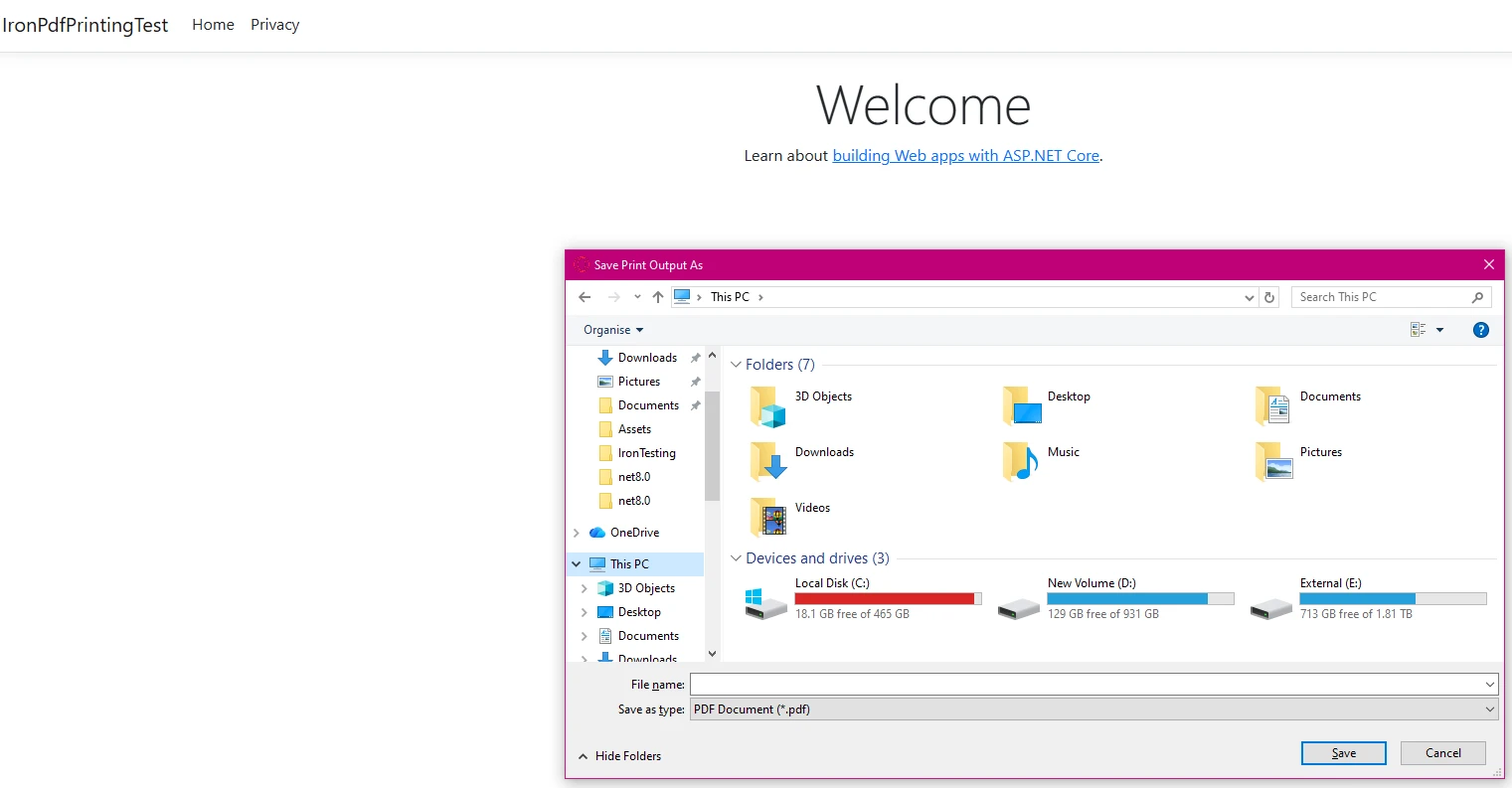
由於瀏覽器限制直接存取列印機,請通過提供PDF文件供下載來實現客戶端列印:
public IActionResult GetRawPrintablePdf()
    {
        var renderer = new ChromePdfRenderer();
        var pdf = renderer.RenderHtmlAsPdf(GetInvoiceHtml());
        // This header tells the browser to display the file inline.
        // We use IHeaderDictionary indexer to prevent ArgumentException.
        **HttpContext context**.Response.Headers["Content-Disposition"] = "inline; filename=invoice.pdf";
        return File(pdf.BinaryData, "application/pdf");
    }
    public IActionResult PrintUsingClientWrapper()
    {
        var printUrl = Url.Action(nameof(GetRawPrintablePdf));
        // Use a simple HTML/JavaScript wrapper to force the print dialog
        var html = new StringBuilder();
        html.AppendLine("<!DOCTYPE html>");
        html.AppendLine("<html lang=\"en\">");
        html.AppendLine("<head>");
        html.AppendLine("    <title>Print Document</title>");
        html.AppendLine("</head>");
        html.AppendLine("<body>");
        // Load the PDF from the 'GetRawPrintablePdf' action into an invisible iframe.
        html.AppendLine($"    <iframe src='{printUrl}' style='position:absolute; top:0; left:0; width:100%; height:100%; border:none;'></iframe>");
        html.AppendLine("    <script>");
        // Wait for the iframe (and thus the PDF) to load, then trigger the print dialog.
        html.AppendLine("        window.onload = function() {");
        html.AppendLine("            // Wait briefly to ensure the iframe content is rendered before printing.");
        html.AppendLine("            setTimeout(function() {");
        html.AppendLine("                window.print();");
        html.AppendLine("            }, 100);");
        html.AppendLine("        };");
        html.AppendLine("    </script>");
        html.AppendLine("</body>");
        html.AppendLine("</html>");
        return Content(html.ToString(), "text/html");
    }
    private string GetInvoiceHtml()
    {
        // Build HTML with proper structure
        return @"
        <html>
        <head>
            <style>
                body { font-family: Arial, sans-serif; }
                .header { font-weight: bold; color: #1e40af; border-bottom: 2px solid #3b82f6; padding-bottom: 5px; }
                .content { padding-top: 10px; }
            </style>
        </head>
        <body>
            <div class='header'>Invoice Summary (Client View)</div>
            <div class='content'>
                <p>Document content: This file is optimized for printing.</p>
                <p>Total Amount: <b>$999.00</b></p>
            </div>
        </body>
        </html>";
}Public Function GetRawPrintablePdf() As IActionResult
Dim renderer = New ChromePdfRenderer()
Dim pdf = renderer.RenderHtmlAsPdf(GetInvoiceHtml())
' This header tells the browser to display the file inline.
' We use IHeaderDictionary indexer to prevent ArgumentException.
HttpContext.Response.Headers("Content-Disposition") = "inline; filename=invoice.pdf"
Return File(pdf.BinaryData, "application/pdf")
End Function
Public Function PrintUsingClientWrapper() As IActionResult
Dim printUrl = Url.Action(NameOf(GetRawPrintablePdf))
' Use a simple HTML/JavaScript wrapper to force the print dialog
Dim html = New StringBuilder()
html.AppendLine("<!DOCTYPE html>")
html.AppendLine("<html lang=""en"">")
html.AppendLine("<head>")
html.AppendLine(" <title>Print Document</title>")
html.AppendLine("</head>")
html.AppendLine("<body>")
' Load the PDF from the 'GetRawPrintablePdf' action into an invisible iframe.
html.AppendLine($" <iframe src='{printUrl}' style='position:absolute; top:0; left:0; width:100%; height:100%; border:none;'></iframe>")
html.AppendLine(" <script>")
' Wait for the iframe (and thus the PDF) to load, then trigger the print dialog.
html.AppendLine(" window.onload = function() {")
html.AppendLine(" // Wait briefly to ensure the iframe content is rendered before printing.")
html.AppendLine(" setTimeout(function() {")
html.AppendLine(" window.print();")
html.AppendLine(" }, 100);")
html.AppendLine(" };")
html.AppendLine(" </script>")
html.AppendLine("</body>")
html.AppendLine("</html>")
Return Content(html.ToString(), "text/html")
End Function
Private Function GetInvoiceHtml() As String
' Build HTML with proper structure
Return "
<html>
<head>
<style>
body { font-family: Arial, sans-serif; }
.header { font-weight: bold; color: #1e40af; border-bottom: 2px solid #3b82f6; padding-bottom: 5px; }
.content { padding-top: 10px; }
</style>
</head>
<body>
<div class='header'>Invoice Summary (Client View)</div>
<div class='content'>
<p>Document content: This file is optimized for printing.</p>
<p>Total Amount: <b>$999.00</b></p>
</div>
</body>
</html>"
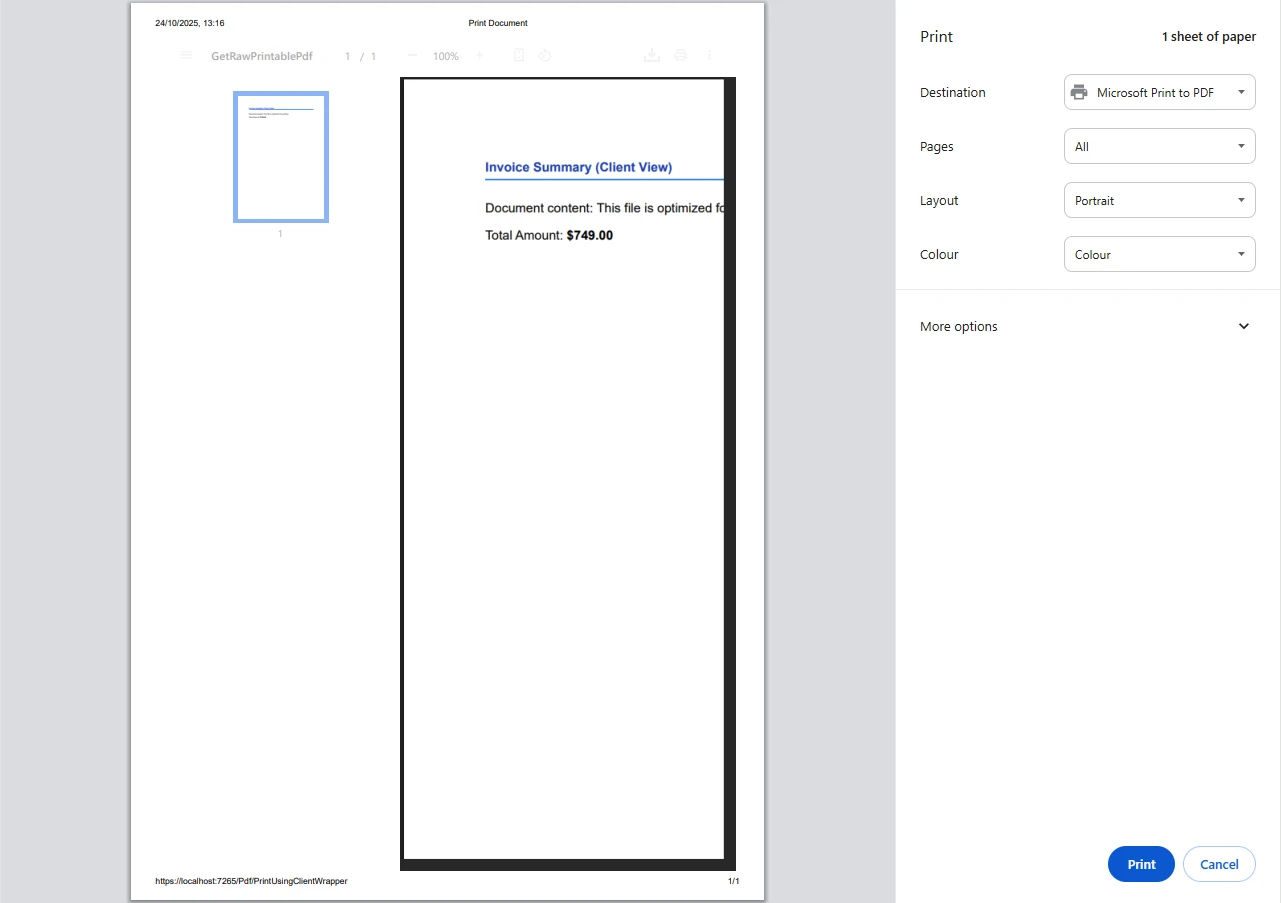
End FunctionPDF文件在瀏覽器中打開,使用者可以通過標準瀏覽器列印對話框用他們的預設列印機觸發列印。 這種方法優於直接發出伺服器端列印請求。
IronPDF靈活地處理各種源程式碼輸入,這對於希望建立動態列印程式碼的開發者來說非常重要:
public async Task<IActionResult> PrintFromMultipleSources()
{
    var renderer = new ChromePdfRenderer();
    // From URL
    var pdfFromUrl = await renderer.RenderUrlAsPdfAsync("https://example.com");
    // From HTML file path
    var pdfFromFile = renderer.RenderHtmlFileAsPdf(@"Templates\report.html");
    var pdfToStream = renderer.RenderHtmlAsPdf("<h2>PDF from Memory Stream</h2><p>This content was loaded into memory first.</p>");
// Now, write the valid PDF bytes to the stream
using (var stream = new MemoryStream(pdfToStream.BinaryData))
{
    var pdfFromStream = new PdfDocument(stream);
    // Example: Print the PDF loaded from the stream
    // pdfFromStream.Print();
}
pdfFromUrl.Print();
// Logging the various files handled
    var fileList = new List<string> { "URL", "File Path", "Memory Stream" };
return Ok("PDF documents processed and 'example.com' printed to default server printer.");
}Imports System.Threading.Tasks
Imports Microsoft.AspNetCore.Mvc
Imports System.IO
Public Class YourController
Inherits Controller
Public Async Function PrintFromMultipleSources() As Task(Of IActionResult)
Dim renderer = New ChromePdfRenderer()
' From URL
Dim pdfFromUrl = Await renderer.RenderUrlAsPdfAsync("https://example.com")
' From HTML file path
Dim pdfFromFile = renderer.RenderHtmlFileAsPdf("Templates\report.html")
Dim pdfToStream = renderer.RenderHtmlAsPdf("<h2>PDF from Memory Stream</h2><p>This content was loaded into memory first.</p>")
' Now, write the valid PDF bytes to the stream
Using stream = New MemoryStream(pdfToStream.BinaryData)
Dim pdfFromStream = New PdfDocument(stream)
' Example: Print the PDF loaded from the stream
' pdfFromStream.Print()
End Using
pdfFromUrl.Print()
' Logging the various files handled
Dim fileList = New List(Of String) From {"URL", "File Path", "Memory Stream"}
Return Ok("PDF documents processed and 'example.com' printed to default server printer.")
End Function
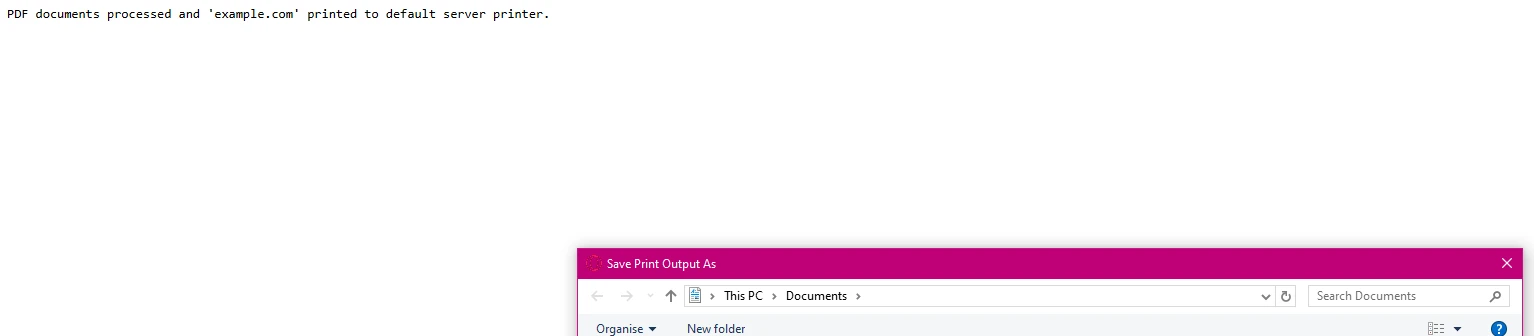
End Class上述行展示了如何建立一個新的處理的文件來源列表。 每一種方法都保留文件結構和圖形,同時保持列印質量。
為生產環境實施穩健的錯誤處理:
using System.Drawing.Printing; // For PrinterSettings
// ... other usings ...
public IActionResult SafePrint(string documentId)
{
    try
    {
        var pdf = LoadPdfDocument(documentId);
        // Verify printer availability
        if (!PrinterSettings.InstalledPrinters.Cast<string>()
            .Contains("Target Printer"))
        {
            // Log error and handle gracefully
            return BadRequest("Printer not available");
        }
        pdf.Print();
        // Log successful output
        return Ok($"Document {documentId} printed successfully");
    }
    catch (Exception ex)
    {
        // Log error details
        return StatusCode(500, "Printing failed");
    }
}Imports System.Drawing.Printing ' For PrinterSettings
' ... other Imports ...
Public Function SafePrint(documentId As String) As IActionResult
Try
Dim pdf = LoadPdfDocument(documentId)
' Verify printer availability
If Not PrinterSettings.InstalledPrinters.Cast(Of String)().Contains("Target Printer") Then
' Log error and handle gracefully
Return BadRequest("Printer not available")
End If
pdf.Print()
' Log successful output
Return Ok($"Document {documentId} printed successfully")
Catch ex As Exception
' Log error details
Return StatusCode(500, "Printing failed")
End Try
End Function這確保即使在系統資源不可用時也能可靠列印,並且是您列印服務的關鍵部分。
如果程式碼中指定的列印機不可用,程式碼將提供此錯誤消息:
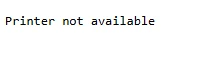
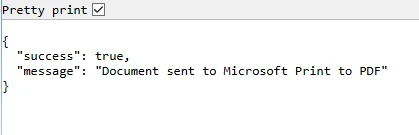
如果您的PDF成功列印,您應該會看到確認消息,例如:

IronPDF的文件夾結構支持複雜的場景。 您使用的IronPDF程式庫版本可能會影響這些設置:
public IActionResult ConfigureAdvancedPrinting(object sender, EventArgs e)
{
    var renderer = new ChromePdfRenderer();
    // Configure rendering options
    renderer.RenderingOptions.PaperSize = PdfPaperSize.A4;
    renderer.RenderingOptions.EnableJavaScript = true;
    renderer.RenderingOptions.RenderDelay = 500; // Wait for dynamic content
    // Generate complex PDF documents
    var pdf = renderer.RenderHtmlAsPdf(GetDynamicContent());
    // Apply security settings
    pdf.SecuritySettings.AllowUserPrinting = true;
    pdf.MetaData.Author = "Your Company";
    return File(pdf.BinaryData, "application/pdf");
}Public Function ConfigureAdvancedPrinting(sender As Object, e As EventArgs) As IActionResult
Dim renderer = New ChromePdfRenderer()
' Configure rendering options
renderer.RenderingOptions.PaperSize = PdfPaperSize.A4
renderer.RenderingOptions.EnableJavaScript = True
renderer.RenderingOptions.RenderDelay = 500 ' Wait for dynamic content
' Generate complex PDF documents
Dim pdf = renderer.RenderHtmlAsPdf(GetDynamicContent())
' Apply security settings
pdf.SecuritySettings.AllowUserPrinting = True
pdf.MetaData.Author = "Your Company"
Return File(pdf.BinaryData, "application/pdf")
End Function生成文件後,列印命令很簡單,就是pdf.Print()。
對於專門的列印需求, Iron Software 也提供 IronPrint,一個專用的.NET列印程式庫,具有增強的跨平台支持。 您可以在他們的網站上找到更多資訊的連結。主要參數只是文件路徑。 產品描述可在他們的網站上找到。
IronPDF將ASP.NET PDF列印從複雜的挑戰轉變為直接的實施。 在不需要Adobe Reader或外部依賴的情況下,您可以生成和列印PDF文件,僅需最小的程式碼。 PDF程式庫處理從HTML轉換到列印機配置的所有事情,使其成為伺服器端自動化和客戶端列印場景的理想選擇。
準備好簡化您的PDF列印工作流程了嗎? 今天就使用免費試用開始體驗,看看IronPDF如何簡化您ASP.NET應用中的文件處理。 憑藉全面的文件和直接的工程支持,您將能在幾分鐘內啟用可供生產使用的PDF列印。

Curtis Chau擁有Carleton大學的電腦科學學士學位,專精於前端開發,擁有Node.js、TypeScript、JavaScript和React的專業知識。Curtis熱衷於建立直觀且美觀的使用者介面,喜愛使用現代框架並建立結構良好、視覺吸引力的手冊。

IronPDF 是 IRONSUITE 的一部分
10 款適用於辦公室文件的 .NET API 產品

當您需要您的PDF看起來像HTML一樣快速。




