




업데이트됨 2026년 9월 4일
월별 계정 명세서를 PDF 문서로 생성하기
개발자는 IronPDF C# PDF 라이브러리를 사용하여 외부 서비스에 의존하지 않고도 .NET 프로젝트 내에서 HTML을 신뢰할 수 있는 PDF 파일로 변환할 수 있습니다.
더 읽어보기

ASP .NET에서 PDF 파일을 인쇄하는 작업은 개발자가 자주 마주치는 고유한 도전 과제를 수반합니다. 청구서, 보고서 또는 배송 라벨을 위해 PDF 문서를 생성하든, 안정적인 인쇄 기능을 구현하려면 서버-클라이언트 아키텍처의 복잡성을 극복해야 합니다.
이 기사에서는 PDF 인쇄 작업을 .NET을 위한 IronPDF의 강력한 PDF 라이브러리를 사용하여 처리하는 방법을 보여드리겠습니다.
전통적인 데스크톱 애플리케이션은 기본 프린터에 직접 접근할 수 있지만, ASP.NET Core 애플리케이션은 PDF 문서를 프린트하는 데 몇 가지 장애물을 마주합니다:
// This fails in ASP.NET - wrong approach
Process.Start(@"C:\Files\document.pdf"); // Works locally, crashes on server' This fails in ASP.NET - wrong approach
Process.Start("C:\Files\document.pdf") ' Works locally, crashes on server위 코드가 흔히 발생하는 실수를 보여줍니다. 서버 환경은 직접 프린터에 접근할 수 없으며, IIS 권한 제한으로 인해 시스템에서 오류가 발생합니다. 또 하나 기억해야 할 것은 웹 애플리케이션이 서버 측 및 클라이언트 측 인쇄 시나리오를 효과적으로 처리해야 한다는 것입니다.
IronPDF는 Adobe Reader와 같은 외부 종속성 없이 PDF 문서를 생성하고 인쇄할 수 있는 완벽한 .NET Core 솔루션을 제공합니다. NuGet을 사용하여 IronPDF 패키지를 설치합시다:
이 .NET 라이브러리는 운영 체제 전반에서 매끄럽게 작동하여 다른 라이브러리에서 발생하는 호환성 문제를 제거합니다. 이 도구는 Microsoft Windows 및 기타 OS 환경에서 잘 작동합니다.
다음은 여러분의 ASP.NET 컨트롤러에서 HTML 마크업으로부터 PDF 문서를 생성하고 인쇄하는 방법입니다:
using IronPdf;
using Microsoft.AspNetCore.Mvc;
using System.Drawing;
public class PdfController : Controller
{
    public IActionResult Index()
    {
        // Initialize the renderer
        var renderer = new ChromePdfRenderer();
        // Configure print-optimized settings
        renderer.RenderingOptions.PrintHtmlBackgrounds = true;
        renderer.RenderingOptions.MarginBottom = 10;
        renderer.RenderingOptions.CssMediaType = PdfCssMediaType.Print;
        // Generate PDF from HTML
        var pdf = renderer.RenderHtmlAsPdf("<h1>Invoice</h1><p>Total: $999</p>");
        // Print to default printer
        pdf.Print();
        return Ok("Document sent to printer");
    }
}Imports IronPdf
Imports Microsoft.AspNetCore.Mvc
Imports System.Drawing
Public Class PdfController
Inherits Controller
Public Function Index() As IActionResult
' Initialize the renderer
Dim renderer = New ChromePdfRenderer()
' Configure print-optimized settings
renderer.RenderingOptions.PrintHtmlBackgrounds = True
renderer.RenderingOptions.MarginBottom = 10
renderer.RenderingOptions.CssMediaType = PdfCssMediaType.Print
' Generate PDF from HTML
Dim pdf = renderer.RenderHtmlAsPdf("<h1>Invoice</h1><p>Total: $999</p>")
' Print to default printer
pdf.Print()
Return Ok("Document sent to printer")
End Function
End ClassChromePdfRenderer는 CSS 스타일링 및 글꼴 크기 형식을 유지하면서 변환을 처리합니다. 이 예시는 사용자 상호 작용없이 기본 프린터에 기본적인 인쇄를 보여줍니다.
특정 프린터 라우팅이 필요한 기업 환경에 적합한 방법:
public IActionResult PrintToNetworkPrinter(string filePath)
{
    // Load existing PDF file
    var pdfDocument = PdfDocument.FromFile(filePath);
    // Get print document for advanced settings
    var printDocument = pdfDocument.GetPrintDocument();
    // Specify network printer
    printDocument.PrinterSettings.PrinterName = @"\\server\printer";
    printDocument.PrinterSettings.Copies = 2;
    // Configure page settings
    printDocument.DefaultPageSettings.Landscape = false;
    var renderer = printDocument.PrinterSettings.PrinterResolution;
    // Execute print
    printDocument.Print();
    return Json(new { success = true });
}Public Function PrintToNetworkPrinter(filePath As String) As IActionResult
' Load existing PDF file
Dim pdfDocument = PdfDocument.FromFile(filePath)
' Get print document for advanced settings
Dim printDocument = pdfDocument.GetPrintDocument()
' Specify network printer
printDocument.PrinterSettings.PrinterName = "\\server\printer"
printDocument.PrinterSettings.Copies = 2
' Configure page settings
printDocument.DefaultPageSettings.Landscape = False
Dim renderer = printDocument.PrinterSettings.PrinterResolution
' Execute print
printDocument.Print()
Return Json(New With {.success = True})
End Function이 접근 방식은 올바른 드로잉 및 레이아웃을 위해 필수적인 용지 형식 및 해상도를 포함한 프린터 설정에 대한 완벽한 제어를 제공합니다.
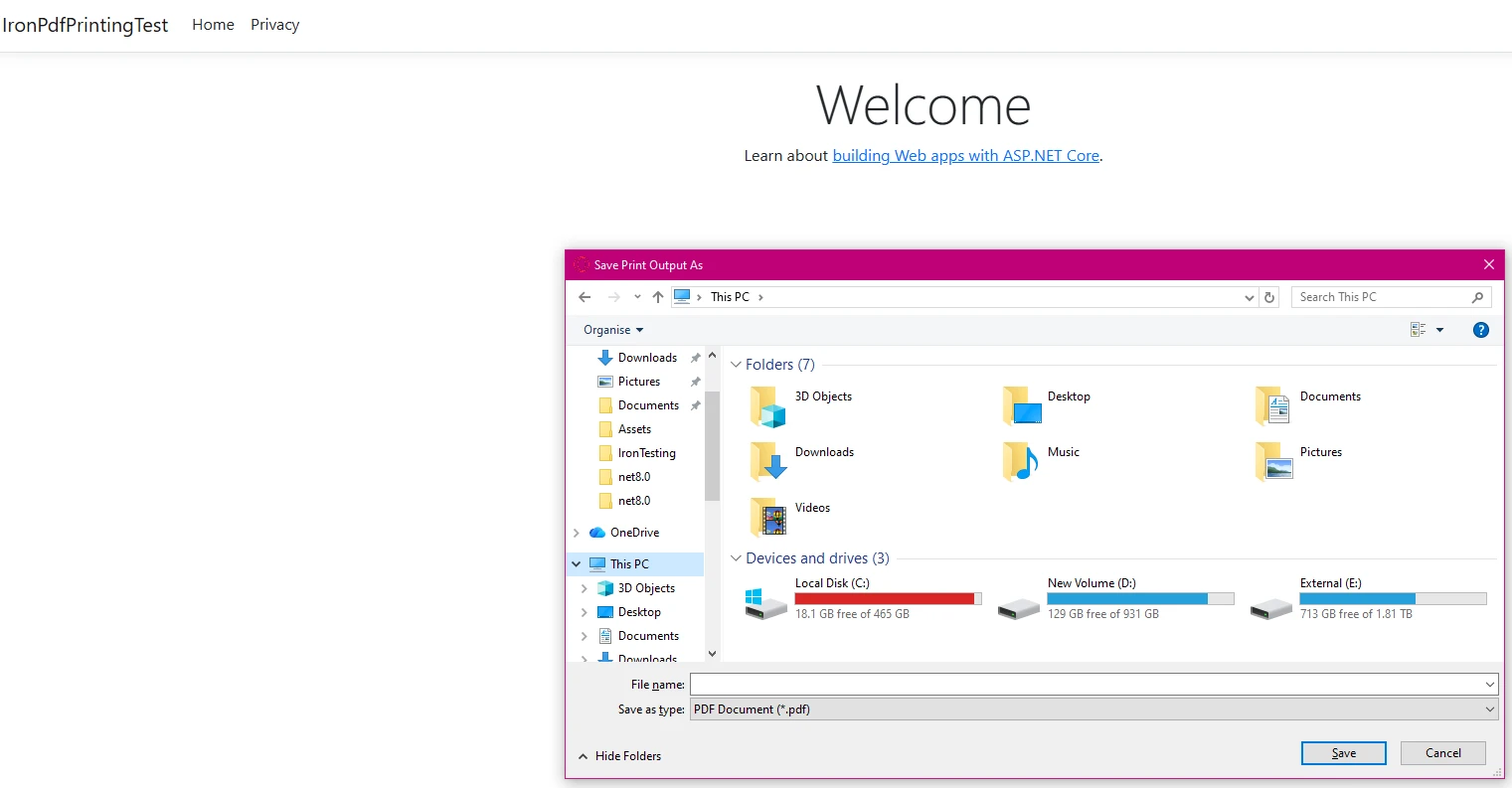
브라우저가 직접적인 프린터 접근을 제한하기 때문에, 클라이언트 측 인쇄를 구현하려면 다운로드를 위해 PDF 파일을 제공해야 합니다:
public IActionResult GetRawPrintablePdf()
    {
        var renderer = new ChromePdfRenderer();
        var pdf = renderer.RenderHtmlAsPdf(GetInvoiceHtml());
        // This header tells the browser to display the file inline.
        // We use IHeaderDictionary indexer to prevent ArgumentException.
        **HttpContext context**.Response.Headers["Content-Disposition"] = "inline; filename=invoice.pdf";
        return File(pdf.BinaryData, "application/pdf");
    }
    public IActionResult PrintUsingClientWrapper()
    {
        var printUrl = Url.Action(nameof(GetRawPrintablePdf));
        // Use a simple HTML/JavaScript wrapper to force the print dialog
        var html = new StringBuilder();
        html.AppendLine("<!DOCTYPE html>");
        html.AppendLine("<html lang=\"en\">");
        html.AppendLine("<head>");
        html.AppendLine("    <title>Print Document</title>");
        html.AppendLine("</head>");
        html.AppendLine("<body>");
        // Load the PDF from the 'GetRawPrintablePdf' action into an invisible iframe.
        html.AppendLine($"    <iframe src='{printUrl}' style='position:absolute; top:0; left:0; width:100%; height:100%; border:none;'></iframe>");
        html.AppendLine("    <script>");
        // Wait for the iframe (and thus the PDF) to load, then trigger the print dialog.
        html.AppendLine("        window.onload = function() {");
        html.AppendLine("            // Wait briefly to ensure the iframe content is rendered before printing.");
        html.AppendLine("            setTimeout(function() {");
        html.AppendLine("                window.print();");
        html.AppendLine("            }, 100);");
        html.AppendLine("        };");
        html.AppendLine("    </script>");
        html.AppendLine("</body>");
        html.AppendLine("</html>");
        return Content(html.ToString(), "text/html");
    }
    private string GetInvoiceHtml()
    {
        // Build HTML with proper structure
        return @"
        <html>
        <head>
            <style>
                body { font-family: Arial, sans-serif; }
                .header { font-weight: bold; color: #1e40af; border-bottom: 2px solid #3b82f6; padding-bottom: 5px; }
                .content { padding-top: 10px; }
            </style>
        </head>
        <body>
            <div class='header'>Invoice Summary (Client View)</div>
            <div class='content'>
                <p>Document content: This file is optimized for printing.</p>
                <p>Total Amount: <b>$999.00</b></p>
            </div>
        </body>
        </html>";
}Public Function GetRawPrintablePdf() As IActionResult
Dim renderer = New ChromePdfRenderer()
Dim pdf = renderer.RenderHtmlAsPdf(GetInvoiceHtml())
' This header tells the browser to display the file inline.
' We use IHeaderDictionary indexer to prevent ArgumentException.
HttpContext.Response.Headers("Content-Disposition") = "inline; filename=invoice.pdf"
Return File(pdf.BinaryData, "application/pdf")
End Function
Public Function PrintUsingClientWrapper() As IActionResult
Dim printUrl = Url.Action(NameOf(GetRawPrintablePdf))
' Use a simple HTML/JavaScript wrapper to force the print dialog
Dim html = New StringBuilder()
html.AppendLine("<!DOCTYPE html>")
html.AppendLine("<html lang=""en"">")
html.AppendLine("<head>")
html.AppendLine(" <title>Print Document</title>")
html.AppendLine("</head>")
html.AppendLine("<body>")
' Load the PDF from the 'GetRawPrintablePdf' action into an invisible iframe.
html.AppendLine($" <iframe src='{printUrl}' style='position:absolute; top:0; left:0; width:100%; height:100%; border:none;'></iframe>")
html.AppendLine(" <script>")
' Wait for the iframe (and thus the PDF) to load, then trigger the print dialog.
html.AppendLine(" window.onload = function() {")
html.AppendLine(" // Wait briefly to ensure the iframe content is rendered before printing.")
html.AppendLine(" setTimeout(function() {")
html.AppendLine(" window.print();")
html.AppendLine(" }, 100);")
html.AppendLine(" };")
html.AppendLine(" </script>")
html.AppendLine("</body>")
html.AppendLine("</html>")
Return Content(html.ToString(), "text/html")
End Function
Private Function GetInvoiceHtml() As String
' Build HTML with proper structure
Return "
<html>
<head>
<style>
body { font-family: Arial, sans-serif; }
.header { font-weight: bold; color: #1e40af; border-bottom: 2px solid #3b82f6; padding-bottom: 5px; }
.content { padding-top: 10px; }
</style>
</head>
<body>
<div class='header'>Invoice Summary (Client View)</div>
<div class='content'>
<p>Document content: This file is optimized for printing.</p>
<p>Total Amount: <b>$999.00</b></p>
</div>
</body>
</html>"
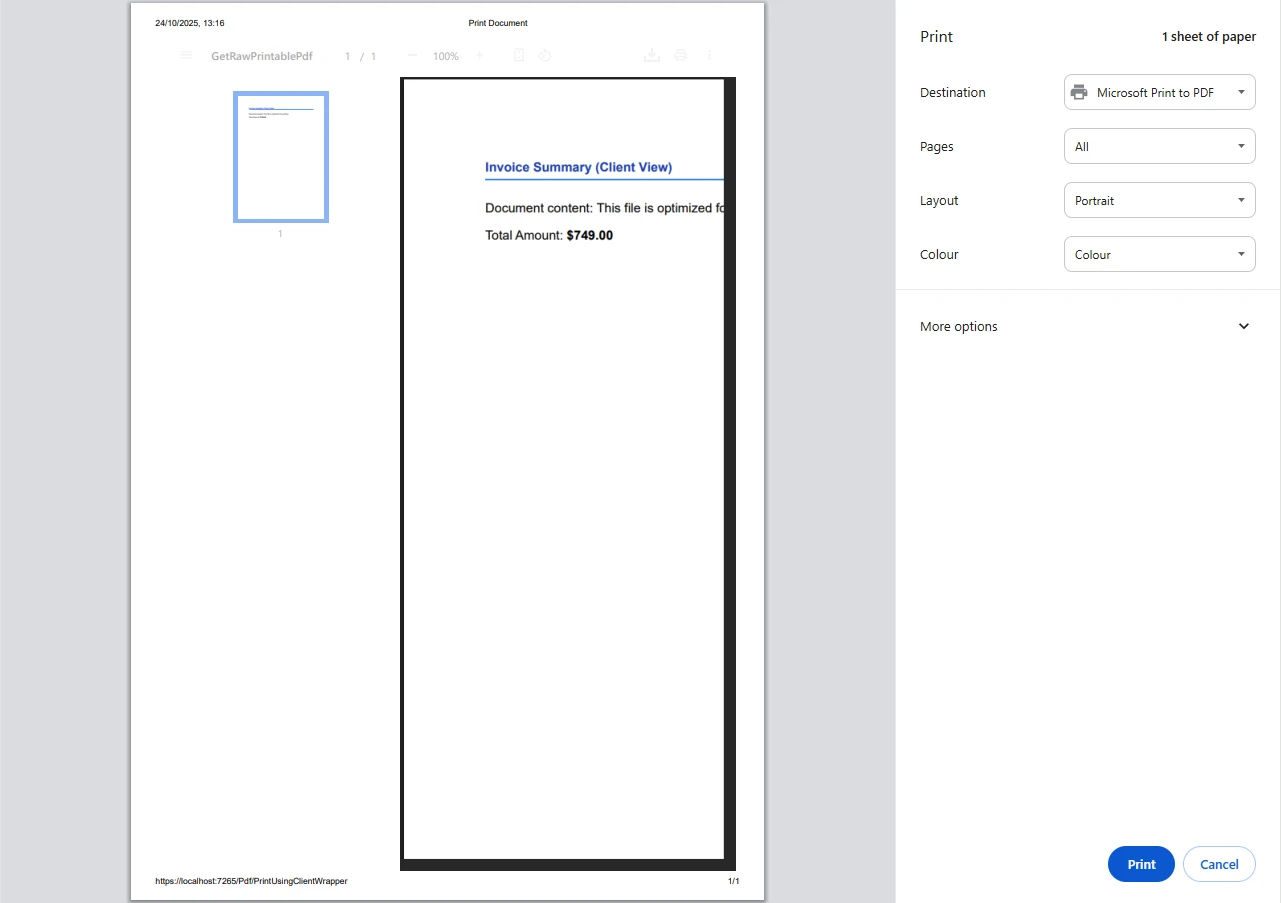
End FunctionPDF 문서는 브라우저에서 열려 사용자가 표준 브라우저 인쇄 대화 상자를 통해 기본 프린터로 인쇄를 트리거할 수 있습니다. 이 접근 방식은 인쇄를 위한 직접적인 서버 측 요청을 만드는 것보다 우수합니다.
IronPDF는 다양한 소스 코드 입력을 유연하게 처리할 수 있으며, 이는 동적 인쇄 코드를 만들려는 개발자에게 중요합니다:
public async Task<IActionResult> PrintFromMultipleSources()
{
    var renderer = new ChromePdfRenderer();
    // From URL
    var pdfFromUrl = await renderer.RenderUrlAsPdfAsync("https://example.com");
    // From HTML file path
    var pdfFromFile = renderer.RenderHtmlFileAsPdf(@"Templates\report.html");
    var pdfToStream = renderer.RenderHtmlAsPdf("<h2>PDF from Memory Stream</h2><p>This content was loaded into memory first.</p>");
// Now, write the valid PDF bytes to the stream
using (var stream = new MemoryStream(pdfToStream.BinaryData))
{
    var pdfFromStream = new PdfDocument(stream);
    // Example: Print the PDF loaded from the stream
    // pdfFromStream.Print();
}
pdfFromUrl.Print();
// Logging the various files handled
    var fileList = new List<string> { "URL", "File Path", "Memory Stream" };
return Ok("PDF documents processed and 'example.com' printed to default server printer.");
}Imports System.Threading.Tasks
Imports Microsoft.AspNetCore.Mvc
Imports System.IO
Public Class YourController
Inherits Controller
Public Async Function PrintFromMultipleSources() As Task(Of IActionResult)
Dim renderer = New ChromePdfRenderer()
' From URL
Dim pdfFromUrl = Await renderer.RenderUrlAsPdfAsync("https://example.com")
' From HTML file path
Dim pdfFromFile = renderer.RenderHtmlFileAsPdf("Templates\report.html")
Dim pdfToStream = renderer.RenderHtmlAsPdf("<h2>PDF from Memory Stream</h2><p>This content was loaded into memory first.</p>")
' Now, write the valid PDF bytes to the stream
Using stream = New MemoryStream(pdfToStream.BinaryData)
Dim pdfFromStream = New PdfDocument(stream)
' Example: Print the PDF loaded from the stream
' pdfFromStream.Print()
End Using
pdfFromUrl.Print()
' Logging the various files handled
Dim fileList = New List(Of String) From {"URL", "File Path", "Memory Stream"}
Return Ok("PDF documents processed and 'example.com' printed to default server printer.")
End Function
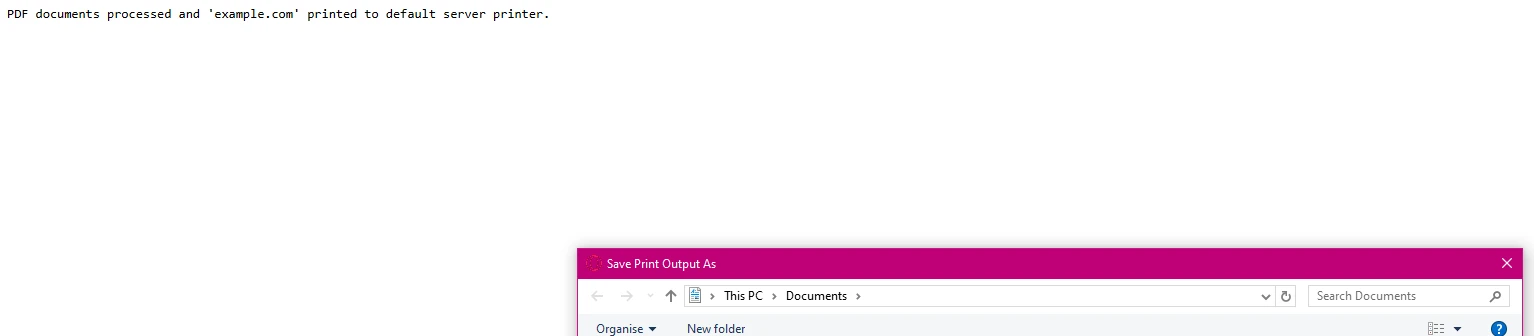
End Class위의 줄은 처리된 파일 소스의 새 목록을 생성하는 방법을 보여줍니다. 각 방법은 프린트 품질을 유지하면서 문서 구조와 그래픽을 보존합니다.
생산 환경을 위해 견고한 오류 처리를 구현하십시오:
using System.Drawing.Printing; // For PrinterSettings
// ... other usings ...
public IActionResult SafePrint(string documentId)
{
    try
    {
        var pdf = LoadPdfDocument(documentId);
        // Verify printer availability
        if (!PrinterSettings.InstalledPrinters.Cast<string>()
            .Contains("Target Printer"))
        {
            // Log error and handle gracefully
            return BadRequest("Printer not available");
        }
        pdf.Print();
        // Log successful output
        return Ok($"Document {documentId} printed successfully");
    }
    catch (Exception ex)
    {
        // Log error details
        return StatusCode(500, "Printing failed");
    }
}Imports System.Drawing.Printing ' For PrinterSettings
' ... other Imports ...
Public Function SafePrint(documentId As String) As IActionResult
Try
Dim pdf = LoadPdfDocument(documentId)
' Verify printer availability
If Not PrinterSettings.InstalledPrinters.Cast(Of String)().Contains("Target Printer") Then
' Log error and handle gracefully
Return BadRequest("Printer not available")
End If
pdf.Print()
' Log successful output
Return Ok($"Document {documentId} printed successfully")
Catch ex As Exception
' Log error details
Return StatusCode(500, "Printing failed")
End Try
End Function이는 시스템 리소스가 사용할 수 없을 때도 안정적인 출력을 보장하며, 인쇄 서비스의 핵심 부분입니다.
코드에서 지정한 프린터를 사용할 수 없으면, 코드가 다음 오류 메시지를 제공합니다:
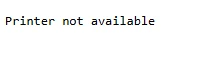
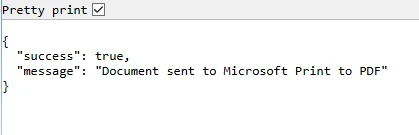
PDF가 성공적으로 인쇄되면 다음과 같은 확인 메시지를 보아야 합니다:

IronPDF의 폴더 구조는 복잡한 시나리오를 지원합니다. 사용 중인 IronPDF 라이브러리의 버전이 이러한 설정에 영향을 미칠 수 있습니다:
public IActionResult ConfigureAdvancedPrinting(object sender, EventArgs e)
{
    var renderer = new ChromePdfRenderer();
    // Configure rendering options
    renderer.RenderingOptions.PaperSize = PdfPaperSize.A4;
    renderer.RenderingOptions.EnableJavaScript = true;
    renderer.RenderingOptions.RenderDelay = 500; // Wait for dynamic content
    // Generate complex PDF documents
    var pdf = renderer.RenderHtmlAsPdf(GetDynamicContent());
    // Apply security settings
    pdf.SecuritySettings.AllowUserPrinting = true;
    pdf.MetaData.Author = "Your Company";
    return File(pdf.BinaryData, "application/pdf");
}Public Function ConfigureAdvancedPrinting(sender As Object, e As EventArgs) As IActionResult
Dim renderer = New ChromePdfRenderer()
' Configure rendering options
renderer.RenderingOptions.PaperSize = PdfPaperSize.A4
renderer.RenderingOptions.EnableJavaScript = True
renderer.RenderingOptions.RenderDelay = 500 ' Wait for dynamic content
' Generate complex PDF documents
Dim pdf = renderer.RenderHtmlAsPdf(GetDynamicContent())
' Apply security settings
pdf.SecuritySettings.AllowUserPrinting = True
pdf.MetaData.Author = "Your Company"
Return File(pdf.BinaryData, "application/pdf")
End Function문서 생성 후 인쇄 명령은 단순히 pdf.Print()입니다.
특수 인쇄 요구 사항에 맞춰 Iron Software는 향상된 크로스 플랫폼 지원을 제공하는 전 for .NET 인쇄 라이브러리 IronPrint를 제공합니다. 자세한 내용은 그들의 웹사이트에서 찾을 수 있습니다. 주요 매개변수는 단순히 파일 경로입니다. 제품 설명은 웹사이트에서 확인할 수 있습니다.
IronPDF는 ASP.NET PDF 인쇄를 복잡한 과제에서 간단한 구현으로 변환합니다. Adobe Reader나 외부 종속성 없이 최소한의 코드로 PDF 파일을 생성하고 인쇄할 수 있습니다. PDF 라이브러리는 HTML 변환에서 프린터 설정까지 모든 것을 처리하므로 서버 측 자동화와 클라이언트 측 인쇄 시나리오 모두에 이상적입니다.
PDF 인쇄 워크플로를 간소화할 준비가 되었나요? 무료 체험으로 오늘 무료로 시작하여 IronPDF가 ASP.NET 애플리케이션에서 문서 처리를 단순화하는 방법을 경험해 보세요. 포괄적인 문서와 직접 엔지니어링 지원을 통해 몇 분 안에 생산 준비가 된 PDF 인쇄를 실행할 수 있습니다.

커티스 차우는 칼턴 대학교에서 컴퓨터 과학 학사 학위를 취득했으며, Node.js, TypeScript, JavaScript, React를 전문으로 하는 프론트엔드 개발자입니다. 직관적이고 미적으로 뛰어난 사용자 인터페이스를 만드는 데 열정을 가진 그는 최신 프레임워크를 활용하고, 잘 구성되고 시각적으로 매력적인 매뉴얼을 제작하는 것을 즐깁니다.



IronPDF는 IRON SUITE 의 일부입니다.
10개의 .NET API 제품, 당신의 사무 문서를 위해

PDF 파일을 HTML처럼 빠르게 변환해야 할 때.


