using IronPdf;

// Disable local disk access or cross-origin requests
Installation.EnableWebSecurity = true;

// Instantiate Renderer
var renderer = new ChromePdfRenderer();

// Create a PDF from a HTML string using C#
var pdf = renderer.RenderHtmlAsPdf("<h1>Hello World</h1>");

// Export to a file or Stream
pdf.SaveAs("output.pdf");

// Advanced Example with HTML Assets
// Load external html assets: Images, CSS and JavaScript.
// An optional BasePath 'C:\site\assets\' is set as the file location to load assets from
var myAdvancedPdf = renderer.RenderHtmlAsPdf("<img src='icons/iron.png'>", @"C:\site\assets\");
myAdvancedPdf.SaveAs("html-with-assets.pdf");
using IronPdf;// Disable local disk access or cross-origin requestsInstallation.EnableWebSecurity = true;// Instantiate Renderervar renderer = new ChromePdfRenderer();// Create a PDF from a HTML string using C#var pdf = renderer.RenderHtmlAsPdf("<h1>Hello World</h1>");// Export to a file or Streampdf.SaveAs("output.pdf");// Advanced Example with HTML Assets// Load external html assets: Images, CSS and JavaScript.// An optional BasePath 'C:\site\assets\' is set as the file location to load assets fromvar myAdvancedPdf = renderer.RenderHtmlAsPdf("<img src='icons/iron.png'>", @"C:\site\assets\");myAdvancedPdf.SaveAs("html-with-assets.pdf");
PM >Install-Package IronPdf
Install-Package IronPdf
KORZYSTANIE Z IRONPDF
Jak stworzyć przeglądarkę PDF Blazor z użyciem IronPDF
Zadania związane z drukowaniem plików PDF w środowisku ASP .NET często wiążą się z wyjątkowymi wyzwaniami, z którymi programiści spotykają się na co dzień. Niezależnie od tego, czy generujesz dokumenty PDF na potrzeby faktur, raportów czy etykiet wysyłkowych, wdrożenie niezawodnej funkcji drukowania wymaga poruszania się po zawiłościach architektury serwer-klient.
W tym artykule pokażemy Ci, jak obsługiwać [zadania drukowania PDF](/how-to/print-pdf/) przy użyciu potężnej biblioteki PDF [IronPDF](https://ironpdf.com) dla .NET.
## Zrozumienie wyzwania
Tradycyjne aplikacje desktopowe mają bezpośredni dostęp do domyślnej drukarki, ale aplikacje ASP.NET Core napotykają kilka przeszkód podczas drukowania dokumentów PDF:
```cs
// This fails in ASP.NET - wrong approach
Process.Start(@"C:\Files\document.pdf"); // Works locally, crashes on server
```
Powyższy kod ilustruje typowy błąd. W środowisku serwerowym brakuje bezpośredniego dostępu do drukarki, a system zgłasza błędy z powodu ograniczeń uprawnień IIS. Należy również pamiętać, że aplikacje internetowe muszą skutecznie obsługiwać scenariusze drukowania zarówno po stronie serwera, jak i po stronie klienta.
## Pierwsze kroki z IronPDF
[IronPDF](https://ironpdf.com) zapewnia kompletne rozwiązanie .NET Core do generowania dokumentów PDF i drukowania ich bez zewnętrznych zależności, takich jak Adobe Reader. Zainstalujmy pakiet IronPDF za pomocą NuGet:
```shell
:ProductInstall
```
Ta biblioteka .NET działa płynnie na różnych systemach operacyjnych, eliminując problemy z kompatybilnością, które nękają inne biblioteki. Narzędzie to działa dobrze w systemie Microsoft Windows i innych środowiskach operacyjnych.
## Tworzenie i drukowanie dokumentów PDF po stronie serwera przy użyciu domyślnej drukarki
Oto jak wygenerować i wydrukować dokument PDF na podstawie kodu HTML w kontrolerze ASP.NET:
```cs
using IronPdf;
using Microsoft.AspNetCore.Mvc;
using System.Drawing;
public class PdfController : Controller
{
public IActionResult Index()
{
// Initialize the renderer
var renderer = new ChromePdfRenderer();
// Configure print-optimized settings
renderer.RenderingOptions.PrintHtmlBackgrounds = true;
renderer.RenderingOptions.MarginBottom = 10;
renderer.RenderingOptions.CssMediaType = PdfCssMediaType.Print;
// Generate PDF from HTML
var pdf = renderer.RenderHtmlAsPdf("<h1>Invoice</h1><p>Total: $999</p>");
// Print to default printer
pdf.Print();
return Ok("Document sent to printer");
}
}
```
ChromePdfRenderer obsługuje konwersję, zachowując styl CSS i formatowanie rozmiaru czcionki. Ten przykład pokazuje podstawowe drukowanie na domyślnej drukarce bez interakcji użytkownika.
### Wynik
## Konfiguracja drukarki sieciowej
Dla środowisk Enterprise wymagających określonego routingu drukarek:
```cs
public IActionResult PrintToNetworkPrinter(string filePath)
{
// Load existing PDF file
var pdfDocument = PdfDocument.FromFile(filePath);
// Get print document for advanced settings
var printDocument = pdfDocument.GetPrintDocument();
// Specify network printer
printDocument.PrinterSettings.PrinterName = @"\\server\printer";
printDocument.PrinterSettings.Copies = 2;
// Configure page settings
printDocument.DefaultPageSettings.Landscape = false;
var renderer = printDocument.PrinterSettings.PrinterResolution;
// Execute print
printDocument.Print();
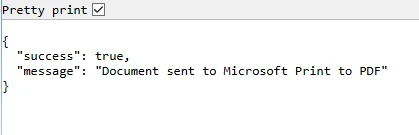
return Json(new { success = true });
}
```
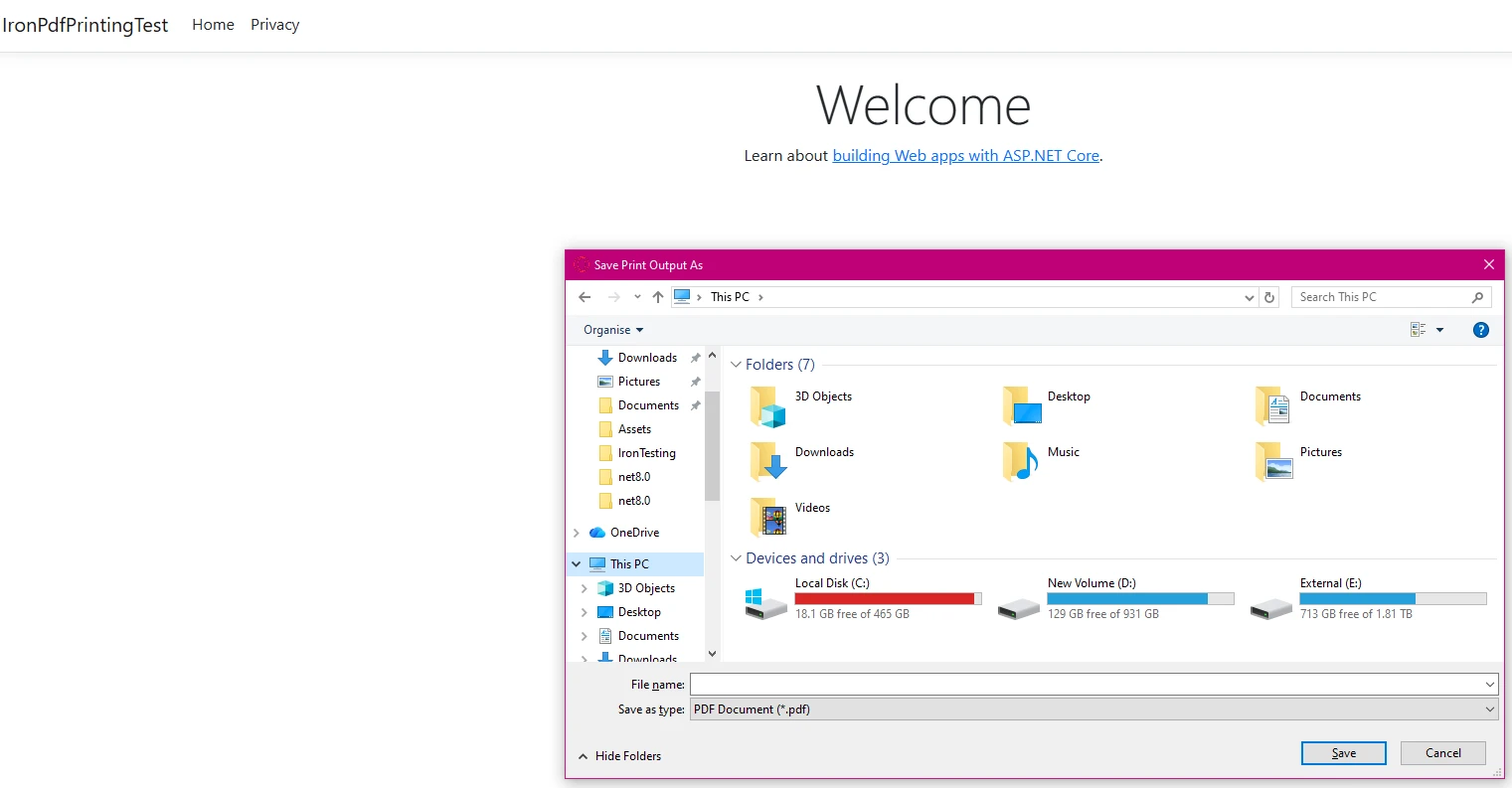
Takie podejście zapewnia pełną kontrolę nad ustawieniami drukarki, w tym formatem papieru i rozdzielczością, co ma kluczowe znaczenie dla prawidłowego rysowania i układu.
### Wynik
### Wydrukuj potwierdzenie
## Strategia drukowania po stronie klienta
Ponieważ przeglądarki ograniczają bezpośredni dostęp do drukarki, należy wdrożyć drukowanie po stronie klienta, udostępniając plik PDF do pobrania:
```cs
public IActionResult GetRawPrintablePdf()
{
var renderer = new ChromePdfRenderer();
var pdf = renderer.RenderHtmlAsPdf(GetInvoiceHtml());
// This header tells the browser to display the file inline.
// We use IHeaderDictionary indexer to prevent ArgumentException.
**HttpContext context**.Response.Headers["Content-Disposition"] = "inline; filename=invoice.pdf";
return File(pdf.BinaryData, "application/pdf");
}
public IActionResult PrintUsingClientWrapper()
{
var printUrl = Url.Action(nameof(GetRawPrintablePdf));
// Use a simple HTML/JavaScript wrapper to force the print dialog
var html = new StringBuilder();
html.AppendLine("<!DOCTYPE html>");
html.AppendLine("<html lang=\"en\">");
html.AppendLine("<head>");
html.AppendLine(" <title>Print Document</title>");
html.AppendLine("</head>");
html.AppendLine("<body>");
// Load the PDF from the 'GetRawPrintablePdf' action into an invisible iframe.
html.AppendLine($" <iframe src='{printUrl}' style='position:absolute; top:0; left:0; width:100%; height:100%; border:none;'></iframe>");
html.AppendLine(" <script>");
// Wait for the iframe (and thus the PDF) to load, then trigger the print dialog.
html.AppendLine(" window.onload = function() {");
html.AppendLine(" // Wait briefly to ensure the iframe content is rendered before printing.");
html.AppendLine(" setTimeout(function() {");
html.AppendLine(" window.print();");
html.AppendLine(" }, 100);");
html.AppendLine(" };");
html.AppendLine(" </script>");
html.AppendLine("</body>");
html.AppendLine("</html>");
return Content(html.ToString(), "text/html");
}
private string GetInvoiceHtml()
{
// Build HTML with proper structure
return @"
<html>
<head>
<style>
body { font-family: Arial, sans-serif; }
.header { font-weight: bold; color: #1e40af; border-bottom: 2px solid #3b82f6; padding-bottom: 5px; }
.content { padding-top: 10px; }
</style>
</head>
<body>
<div class='header'>Invoice Summary (Client View)</div>
<div class='content'>
<p>Document content: This file is optimized for printing.</p>
<p>Total Amount: <b>$999.00</b></p>
</div>
</body>
</html>";
}
```
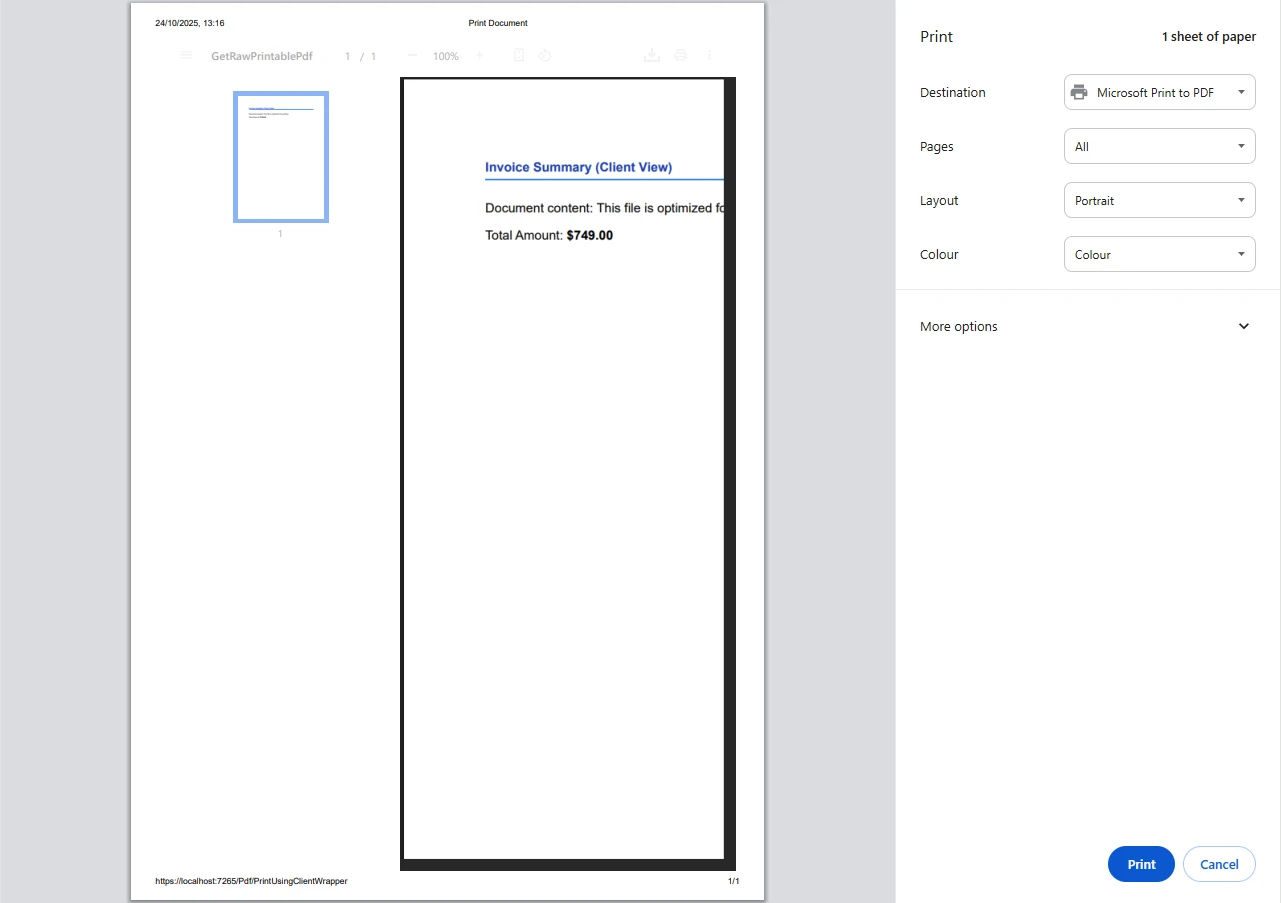
Dokument PDF otwiera się w przeglądarce, gdzie użytkownicy mogą uruchomić drukowanie na swojej domyślnej drukarce, korzystając ze standardowych okien dialogowych drukowania przeglądarki. Takie podejście jest lepsze niż wysyłanie bezpośredniego żądania drukowania po stronie serwera.
### Wynik
## Praca z różnorodnymi wejściami kodu źródłowego
IronPDF elastycznie obsługuje różne rodzaje kodu źródłowego, co jest ważne dla programistów chcących tworzyć dynamiczny kod drukowania:
```cs
public async Task<IActionResult> PrintFromMultipleSources()
{
var renderer = new ChromePdfRenderer();
// From URL
var pdfFromUrl = await renderer.RenderUrlAsPdfAsync("https://example.com");
// From HTML file path
var pdfFromFile = renderer.RenderHtmlFileAsPdf(@"Templates\report.html");
var pdfToStream = renderer.RenderHtmlAsPdf("<h2>PDF from Memory Stream</h2><p>This content was loaded into memory first.</p>");
// Now, write the valid PDF bytes to the stream
using (var stream = new MemoryStream(pdfToStream.BinaryData))
{
var pdfFromStream = new PdfDocument(stream);
// Example: Print the PDF loaded from the stream
// pdfFromStream.Print();
}
pdfFromUrl.Print();
// Logging the various files handled
var fileList = new List<string> { "URL", "File Path", "Memory Stream" };
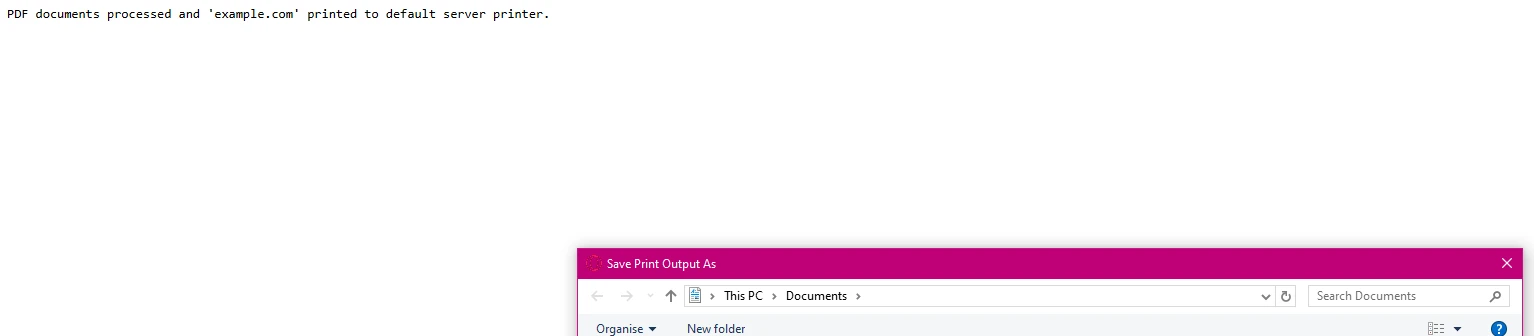
return Ok("PDF documents processed and 'example.com' printed to default server printer.");
}
```
Powyższe linijki pokazują, jak utworzyć nową listę obsługiwanych źródeł plików. Każda metoda zachowuje strukturę dokumentu i grafikę, jednocześnie zapewniając wysoką jakość wydruku.
## Obsługa błędów i rejestrowanie
Wprowadź solidną obsługę błędów dla środowisk produkcyjnych:
```cs
using System.Drawing.Printing; // For PrinterSettings
// ... other usings ...
public IActionResult SafePrint(string documentId)
{
try
{
var pdf = LoadPdfDocument(documentId);
// Verify printer availability
if (!PrinterSettings.InstalledPrinters.Cast<string>()
.Contains("Target Printer"))
{
// Log error and handle gracefully
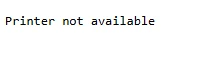
return BadRequest("Printer not available");
}
pdf.Print();
// Log successful output
return Ok($"Document {documentId} printed successfully");
}
catch (Exception ex)
{
// Log error details
return StatusCode(500, "Printing failed");
}
}
```
Zapewnia to niezawodne drukowanie nawet wtedy, gdy zasoby systemowe są niedostępne, i stanowi kluczowy element Twojej usługi drukowania.
### Scenariusze wynikowe
#### Brak drukarki
Jeśli drukarka określona w kodzie jest niedostępna, kod wyświetli następujący komunikat o błędzie:
#### Plik PDF został pomyślnie wydrukowany
Jeśli plik PDF zostanie pomyślnie wydrukowany, powinien pojawić się komunikat potwierdzający, np.:

## Konfiguracja zaawansowana
Struktura folderów IronPDF obsługuje złożone scenariusze. Wersja biblioteki IronPDF, z której korzystasz, może mieć wpływ na te ustawienia:
```cs
public IActionResult ConfigureAdvancedPrinting(object sender, EventArgs e)
{
var renderer = new ChromePdfRenderer();
// Configure rendering options
renderer.RenderingOptions.PaperSize = PdfPaperSize.A4;
renderer.RenderingOptions.EnableJavaScript = true;
renderer.RenderingOptions.RenderDelay = 500; // Wait for dynamic content
// Generate complex PDF documents
var pdf = renderer.RenderHtmlAsPdf(GetDynamicContent());
// Apply security settings
pdf.SecuritySettings.AllowUserPrinting = true;
pdf.MetaData.Author = "Your Company";
return File(pdf.BinaryData, "application/pdf");
}
```
Po wygenerowaniu dokumentu wystarczy użyć polecenia PDF.PRINT(), aby go wydrukować.
## Alternatywa dla IronPrint
W przypadku specjalistycznych wymagań dotyczących drukowania firma Iron Software oferuje również IronPrint, dedykowaną bibliotekę drukowania .NET z rozszerzoną obsługą wielu platform. Link do dodatkowych informacji można znaleźć na ich stronie internetowej. Głównym parametrem jest po prostu ścieżka do pliku. Opis produktu jest dostępny na ich [stronie internetowej](https://ironsoftware.com/csharp/print/).
## Wnioski
IronPDF sprawia, że drukowanie plików PDF w ASP.NET przestaje być skomplikowanym wyzwaniem, a staje się prostą implementacją. Bez konieczności korzystania z programu Adobe Reader lub zewnętrznych zależności można generować i drukować pliki PDF przy użyciu minimalnej ilości kodu. Biblioteka PDF obsługuje wszystko, od konwersji HTML po konfigurację drukarki, dzięki czemu idealnie nadaje się zarówno do automatyzacji po stronie serwera, jak i do scenariuszy drukowania po stronie klienta.
Chcesz usprawnić proces drukowania plików PDF? Zacznij już dziś od bezpłatnej wersji [próbnej](trial-license) i przekonaj się, jak IronPDF upraszcza przetwarzanie dokumentów w aplikacjach ASP.NET. Dzięki obszernej dokumentacji i bezpośredniemu wsparciu technicznemu w ciągu kilku minut będziesz mieć gotowy do produkcji system drukowania plików PDF.
Zadania związane z drukowaniem plików PDF w środowisku ASP .NET często wiążą się z wyjątkowymi wyzwaniami, z którymi programiści spotykają się na co dzień. Niezależnie od tego, czy generujesz dokumenty PDF na potrzeby faktur, raportów czy etykiet wysyłkowych, wdrożenie niezawodnej funkcji drukowania wymaga poruszania się po zawiłościach architektury serwer-klient.
W tym artykule pokażemy Ci, jak obsługiwać zadania drukowania PDF przy użyciu potężnej biblioteki PDF IronPDF dla .NET.
Zrozumienie wyzwania
Tradycyjne aplikacje desktopowe mają bezpośredni dostęp do domyślnej drukarki, ale aplikacje ASP.NET Core napotykają kilka przeszkód podczas drukowania dokumentów PDF:
// This fails in ASP.NET - wrong approachProcess.Start(@"C:\Files\document.pdf"); // Works locally, crashes on server
// This fails in ASP.NET - wrong approach
Process.Start(@"C:\Files\document.pdf"); // Works locally, crashes on server
' This fails in ASP.NET - wrong approachProcess.Start("C:\Files\document.pdf") ' Works locally, crashes on server
' This fails in ASP.NET - wrong approach
Process.Start("C:\Files\document.pdf") ' Works locally, crashes on server
Powyższy kod ilustruje typowy błąd. W środowisku serwerowym brakuje bezpośredniego dostępu do drukarki, a system zgłasza błędy z powodu ograniczeń uprawnień IIS. Należy również pamiętać, że aplikacje internetowe muszą skutecznie obsługiwać scenariusze drukowania zarówno po stronie serwera, jak i po stronie klienta.
Pierwsze kroki z IronPDF
IronPDF zapewnia kompletne rozwiązanie .NET Core do generowania dokumentów PDF i drukowania ich bez zewnętrznych zależności, takich jak Adobe Reader. Zainstalujmy pakiet IronPDF za pomocą NuGet:
PM > Install-Package IronPdf
Install-Package IronPdf
Ta biblioteka .NET działa płynnie na różnych systemach operacyjnych, eliminując problemy z kompatybilnością, które nękają inne biblioteki. Narzędzie to działa dobrze w systemie Microsoft Windows i innych środowiskach operacyjnych.
Tworzenie i drukowanie dokumentów PDF po stronie serwera przy użyciu domyślnej drukarki
Oto jak wygenerować i wydrukować dokument PDF na podstawie kodu HTML w kontrolerze ASP.NET:
using IronPdf;using Microsoft.AspNetCore.Mvc;using System.Drawing; public class PdfController : Controller{ public IActionResultIndex() { // Initialize the renderer var renderer = new ChromePdfRenderer(); // Configure print-optimized settings renderer.RenderingOptions.PrintHtmlBackgrounds = true; renderer.RenderingOptions.MarginBottom = 10; renderer.RenderingOptions.CssMediaType = PdfCssMediaType.Print; // Generate PDF from HTML var pdf = renderer.RenderHtmlAsPdf("<h1>Invoice</h1><p>Total: $999</p>"); // Print to default printer pdf.Print(); returnOk("Document sent to printer"); }}
using IronPdf;
using Microsoft.AspNetCore.Mvc;
using System.Drawing;
public class PdfController : Controller
{
    public IActionResult Index()
    {
        // Initialize the renderer
        var renderer = new ChromePdfRenderer();
        // Configure print-optimized settings
        renderer.RenderingOptions.PrintHtmlBackgrounds = true;
        renderer.RenderingOptions.MarginBottom = 10;
        renderer.RenderingOptions.CssMediaType = PdfCssMediaType.Print;
        // Generate PDF from HTML
        var pdf = renderer.RenderHtmlAsPdf("<h1>Invoice</h1><p>Total: $999</p>");
        // Print to default printer
        pdf.Print();
        return Ok("Document sent to printer");
    }
}
ImportsIronPdfImportsMicrosoft.AspNetCore.MvcImportsSystem.DrawingPublic Class PdfControllerInheritsController Public Function Index() AsIActionResult ' Initialize the renderer Dim renderer = New ChromePdfRenderer() ' Configure print-optimized settings renderer.RenderingOptions.PrintHtmlBackgrounds = True renderer.RenderingOptions.MarginBottom = 10 renderer.RenderingOptions.CssMediaType = PdfCssMediaType.Print ' Generate PDF from HTML Dim pdf = renderer.RenderHtmlAsPdf("<h1>Invoice</h1><p>Total: $999</p>") ' Print to default printer pdf.Print() ReturnOk("Document sent to printer") End FunctionEnd Class
Imports IronPdf
Imports Microsoft.AspNetCore.Mvc
Imports System.Drawing

Public Class PdfController
    Inherits Controller

    Public Function Index() As IActionResult
        ' Initialize the renderer
        Dim renderer = New ChromePdfRenderer()
        ' Configure print-optimized settings
        renderer.RenderingOptions.PrintHtmlBackgrounds = True
        renderer.RenderingOptions.MarginBottom = 10
        renderer.RenderingOptions.CssMediaType = PdfCssMediaType.Print
        ' Generate PDF from HTML
        Dim pdf = renderer.RenderHtmlAsPdf("<h1>Invoice</h1><p>Total: $999</p>")
        ' Print to default printer
        pdf.Print()
        Return Ok("Document sent to printer")
    End Function
End Class
ChromePdfRenderer obsługuje konwersję, zachowując styl CSS i formatowanie rozmiaru czcionki. Ten przykład pokazuje podstawowe drukowanie na domyślnej drukarce bez interakcji użytkownika.
Wynik
Konfiguracja drukarki sieciowej
Dla środowisk Enterprise wymagających określonego routingu drukarek:
public IActionResultPrintToNetworkPrinter(string filePath){ // Load existing PDF file var pdfDocument = PdfDocument.FromFile(filePath); // Get print document for advanced settings var printDocument = pdfDocument.GetPrintDocument(); // Specify network printer printDocument.PrinterSettings.PrinterName = @"\\server\printer"; printDocument.PrinterSettings.Copies = 2; // Configure page settings printDocument.DefaultPageSettings.Landscape = false; var renderer = printDocument.PrinterSettings.PrinterResolution; // Execute print printDocument.Print(); returnJson(new { success = true });}
public IActionResult PrintToNetworkPrinter(string filePath)
{
    // Load existing PDF file
    var pdfDocument = PdfDocument.FromFile(filePath);
    // Get print document for advanced settings
    var printDocument = pdfDocument.GetPrintDocument();
    // Specify network printer
    printDocument.PrinterSettings.PrinterName = @"\\server\printer";
    printDocument.PrinterSettings.Copies = 2;
    // Configure page settings
    printDocument.DefaultPageSettings.Landscape = false;
    var renderer = printDocument.PrinterSettings.PrinterResolution;
    // Execute print
    printDocument.Print();
    return Json(new { success = true });
}
Public Function PrintToNetworkPrinter(filePath AsString) AsIActionResult ' Load existing PDF file Dim pdfDocument = PdfDocument.FromFile(filePath) ' Get print document for advanced settings Dim printDocument = pdfDocument.GetPrintDocument() ' Specify network printer printDocument.PrinterSettings.PrinterName = "\\server\printer" printDocument.PrinterSettings.Copies = 2 ' Configure page settings printDocument.DefaultPageSettings.Landscape = False Dim renderer = printDocument.PrinterSettings.PrinterResolution ' Execute print printDocument.Print() ReturnJson(New With {.success = True})End Function
Public Function PrintToNetworkPrinter(filePath As String) As IActionResult
    ' Load existing PDF file
    Dim pdfDocument = PdfDocument.FromFile(filePath)
    ' Get print document for advanced settings
    Dim printDocument = pdfDocument.GetPrintDocument()
    ' Specify network printer
    printDocument.PrinterSettings.PrinterName = "\\server\printer"
    printDocument.PrinterSettings.Copies = 2
    ' Configure page settings
    printDocument.DefaultPageSettings.Landscape = False
    Dim renderer = printDocument.PrinterSettings.PrinterResolution
    ' Execute print
    printDocument.Print()
    Return Json(New With {.success = True})
End Function
Takie podejście zapewnia pełną kontrolę nad ustawieniami drukarki, w tym formatem papieru i rozdzielczością, co ma kluczowe znaczenie dla prawidłowego rysowania i układu.
Wynik
Wydrukuj potwierdzenie
Strategia drukowania po stronie klienta
Ponieważ przeglądarki ograniczają bezpośredni dostęp do drukarki, należy wdrożyć drukowanie po stronie klienta, udostępniając plik PDF do pobrania:
public IActionResultGetRawPrintablePdf() { var renderer = new ChromePdfRenderer(); var pdf = renderer.RenderHtmlAsPdf(GetInvoiceHtml()); // This header tells the browser to display the file inline. // We use IHeaderDictionary indexer to prevent ArgumentException. **HttpContext context**.Response.Headers["Content-Disposition"] = "inline; filename=invoice.pdf"; returnFile(pdf.BinaryData, "application/pdf"); } public IActionResultPrintUsingClientWrapper() { var printUrl = Url.Action(nameof(GetRawPrintablePdf)); // Use a simple HTML/JavaScript wrapper to force the print dialog var html = new StringBuilder(); html.AppendLine("<!DOCTYPE html>"); html.AppendLine("<html lang=\"en\">"); html.AppendLine("<head>"); html.AppendLine(" <title>Print Document</title>"); html.AppendLine("</head>"); html.AppendLine("<body>"); // Load the PDF from the 'GetRawPrintablePdf' action into an invisible iframe. html.AppendLine($" <iframe src='{printUrl}' style='position:absolute; top:0; left:0; width:100%; height:100%; border:none;'></iframe>"); html.AppendLine(" <script>"); // Wait for the iframe (and thus the PDF) to load, then trigger the print dialog. html.AppendLine(" window.onload = function() {"); html.AppendLine(" // Wait briefly to ensure the iframe content is rendered before printing."); html.AppendLine(" setTimeout(function() {"); html.AppendLine(" window.print();"); html.AppendLine(" }, 100);"); html.AppendLine(" };"); html.AppendLine(" </script>"); html.AppendLine("</body>"); html.AppendLine("</html>"); returnContent(html.ToString(), "text/html"); } private stringGetInvoiceHtml() { // Build HTML with proper structure return @" <html> <head> <style> body { font-family: Arial, sans-serif; } .header { font-weight: bold; color: #1e40af; border-bottom: 2px solid #3b82f6; padding-bottom: 5px; } .content { padding-top: 10px; } </style> </head> <body> <div class='header'>Invoice Summary (Client View)</div> <div class='content'> <p>Document content: This file is optimized for printing.</p> <p>Total Amount: <b>$999.00</b></p> </div> </body> </html>"; }
public IActionResult GetRawPrintablePdf()
    {
        var renderer = new ChromePdfRenderer();
        var pdf = renderer.RenderHtmlAsPdf(GetInvoiceHtml());
        // This header tells the browser to display the file inline.
        // We use IHeaderDictionary indexer to prevent ArgumentException.
        **HttpContext context**.Response.Headers["Content-Disposition"] = "inline; filename=invoice.pdf";
        return File(pdf.BinaryData, "application/pdf");
    }
    public IActionResult PrintUsingClientWrapper()
    {
        var printUrl = Url.Action(nameof(GetRawPrintablePdf));
        // Use a simple HTML/JavaScript wrapper to force the print dialog
        var html = new StringBuilder();
        html.AppendLine("<!DOCTYPE html>");
        html.AppendLine("<html lang=\"en\">");
        html.AppendLine("<head>");
        html.AppendLine("    <title>Print Document</title>");
        html.AppendLine("</head>");
        html.AppendLine("<body>");
        // Load the PDF from the 'GetRawPrintablePdf' action into an invisible iframe.
        html.AppendLine($"    <iframe src='{printUrl}' style='position:absolute; top:0; left:0; width:100%; height:100%; border:none;'></iframe>");
        html.AppendLine("    <script>");
        // Wait for the iframe (and thus the PDF) to load, then trigger the print dialog.
        html.AppendLine("        window.onload = function() {");
        html.AppendLine("            // Wait briefly to ensure the iframe content is rendered before printing.");
        html.AppendLine("            setTimeout(function() {");
        html.AppendLine("                window.print();");
        html.AppendLine("            }, 100);");
        html.AppendLine("        };");
        html.AppendLine("    </script>");
        html.AppendLine("</body>");
        html.AppendLine("</html>");
        return Content(html.ToString(), "text/html");
    }
    private string GetInvoiceHtml()
    {
        // Build HTML with proper structure
        return @"
        <html>
        <head>
            <style>
                body { font-family: Arial, sans-serif; }
                .header { font-weight: bold; color: #1e40af; border-bottom: 2px solid #3b82f6; padding-bottom: 5px; }
                .content { padding-top: 10px; }
            </style>
        </head>
        <body>
            <div class='header'>Invoice Summary (Client View)</div>
            <div class='content'>
                <p>Document content: This file is optimized for printing.</p>
                <p>Total Amount: <b>$999.00</b></p>
            </div>
        </body>
        </html>";
    }
Public Function GetRawPrintablePdf() AsIActionResult Dim renderer = New ChromePdfRenderer() Dim pdf = renderer.RenderHtmlAsPdf(GetInvoiceHtml()) ' This header tells the browser to display the file inline. ' We use IHeaderDictionary indexer to prevent ArgumentException.HttpContext.Response.Headers("Content-Disposition") = "inline; filename=invoice.pdf" ReturnFile(pdf.BinaryData, "application/pdf")End FunctionPublic Function PrintUsingClientWrapper() AsIActionResult Dim printUrl = Url.Action(NameOf(GetRawPrintablePdf)) ' Use a simple HTML/JavaScript wrapper to force the print dialog Dim html = New StringBuilder() html.AppendLine("<!DOCTYPE html>") html.AppendLine("<html lang=""en"">") html.AppendLine("<head>") html.AppendLine(" <title>Print Document</title>") html.AppendLine("</head>") html.AppendLine("<body>") ' Load the PDF from the 'GetRawPrintablePdf' action into an invisible iframe. html.AppendLine($" <iframe src='{printUrl}' style='position:absolute; top:0; left:0; width:100%; height:100%; border:none;'></iframe>") html.AppendLine(" <script>") ' Wait for the iframe (and thus the PDF) to load, then trigger the print dialog. html.AppendLine(" window.onload = function() {") html.AppendLine(" // Wait briefly to ensure the iframe content is rendered before printing.") html.AppendLine(" setTimeout(function() {") html.AppendLine(" window.print();") html.AppendLine(" }, 100);") html.AppendLine(" };") html.AppendLine(" </script>") html.AppendLine("</body>") html.AppendLine("</html>") ReturnContent(html.ToString(), "text/html")End FunctionPrivate Function GetInvoiceHtml() AsString ' Build HTML with proper structure Return " <html> <head> <style> body { font-family: Arial, sans-serif; } .header { font-weight: bold; color: #1e40af; border-bottom: 2px solid #3b82f6; padding-bottom: 5px; } .content { padding-top: 10px; } </style> </head> <body> <div class='header'>Invoice Summary (Client View)</div> <div class='content'> <p>Document content: This file is optimized for printing.</p> <p>Total Amount: <b>$999.00</b></p> </div> </body> </html>"End Function
Public Function GetRawPrintablePdf() As IActionResult
    Dim renderer = New ChromePdfRenderer()
    Dim pdf = renderer.RenderHtmlAsPdf(GetInvoiceHtml())
    ' This header tells the browser to display the file inline.
    ' We use IHeaderDictionary indexer to prevent ArgumentException.
    HttpContext.Response.Headers("Content-Disposition") = "inline; filename=invoice.pdf"
    Return File(pdf.BinaryData, "application/pdf")
End Function

Public Function PrintUsingClientWrapper() As IActionResult
    Dim printUrl = Url.Action(NameOf(GetRawPrintablePdf))
    ' Use a simple HTML/JavaScript wrapper to force the print dialog
    Dim html = New StringBuilder()
    html.AppendLine("<!DOCTYPE html>")
    html.AppendLine("<html lang=""en"">")
    html.AppendLine("<head>")
    html.AppendLine("    <title>Print Document</title>")
    html.AppendLine("</head>")
    html.AppendLine("<body>")
    ' Load the PDF from the 'GetRawPrintablePdf' action into an invisible iframe.
    html.AppendLine($"    <iframe src='{printUrl}' style='position:absolute; top:0; left:0; width:100%; height:100%; border:none;'></iframe>")
    html.AppendLine("    <script>")
    ' Wait for the iframe (and thus the PDF) to load, then trigger the print dialog.
    html.AppendLine("        window.onload = function() {")
    html.AppendLine("            // Wait briefly to ensure the iframe content is rendered before printing.")
    html.AppendLine("            setTimeout(function() {")
    html.AppendLine("                window.print();")
    html.AppendLine("            }, 100);")
    html.AppendLine("        };")
    html.AppendLine("    </script>")
    html.AppendLine("</body>")
    html.AppendLine("</html>")
    Return Content(html.ToString(), "text/html")
End Function

Private Function GetInvoiceHtml() As String
    ' Build HTML with proper structure
    Return "
    <html>
    <head>
        <style>
            body { font-family: Arial, sans-serif; }
            .header { font-weight: bold; color: #1e40af; border-bottom: 2px solid #3b82f6; padding-bottom: 5px; }
            .content { padding-top: 10px; }
        </style>
    </head>
    <body>
        <div class='header'>Invoice Summary (Client View)</div>
        <div class='content'>
            <p>Document content: This file is optimized for printing.</p>
            <p>Total Amount: <b>$999.00</b></p>
        </div>
    </body>
    </html>"
End Function
Dokument PDF otwiera się w przeglądarce, gdzie użytkownicy mogą uruchomić drukowanie na swojej domyślnej drukarce, korzystając ze standardowych okien dialogowych drukowania przeglądarki. Takie podejście jest lepsze niż wysyłanie bezpośredniego żądania drukowania po stronie serwera.
Wynik
Praca z różnorodnymi wejściami kodu źródłowego
IronPDF elastycznie obsługuje różne rodzaje kodu źródłowego, co jest ważne dla programistów chcących tworzyć dynamiczny kod drukowania:
public async Task<IActionResult> PrintFromMultipleSources(){ var renderer = new ChromePdfRenderer(); // From URL var pdfFromUrl = await renderer.RenderUrlAsPdfAsync("https://example.com"); // From HTML file path var pdfFromFile = renderer.RenderHtmlFileAsPdf(@"Templates\report.html"); var pdfToStream = renderer.RenderHtmlAsPdf("<h2>PDF from Memory Stream</h2><p>This content was loaded into memory first.</p>");// Now, write the valid PDF bytes to the streamusing (var stream = new MemoryStream(pdfToStream.BinaryData)){ var pdfFromStream = new PdfDocument(stream); // Example: Print the PDF loaded from the stream // pdfFromStream.Print(); }pdfFromUrl.Print();// Logging the various files handled var fileList = new List<string> { "URL", "File Path", "Memory Stream" };returnOk("PDF documents processed and 'example.com' printed to default server printer.");}
public async Task<IActionResult> PrintFromMultipleSources()
{
    var renderer = new ChromePdfRenderer();
    // From URL
    var pdfFromUrl = await renderer.RenderUrlAsPdfAsync("https://example.com");
    // From HTML file path
    var pdfFromFile = renderer.RenderHtmlFileAsPdf(@"Templates\report.html");
    var pdfToStream = renderer.RenderHtmlAsPdf("<h2>PDF from Memory Stream</h2><p>This content was loaded into memory first.</p>");
// Now, write the valid PDF bytes to the stream
using (var stream = new MemoryStream(pdfToStream.BinaryData))
{
    var pdfFromStream = new PdfDocument(stream);
    // Example: Print the PDF loaded from the stream
    // pdfFromStream.Print();
}
pdfFromUrl.Print();
// Logging the various files handled
    var fileList = new List<string> { "URL", "File Path", "Memory Stream" };
return Ok("PDF documents processed and 'example.com' printed to default server printer.");
}
ImportsSystem.Threading.TasksImportsMicrosoft.AspNetCore.MvcImportsSystem.IOPublic Class YourControllerInheritsController PublicAsync Function PrintFromMultipleSources() AsTask(OfIActionResult) Dim renderer = New ChromePdfRenderer() ' From URL Dim pdfFromUrl = Await renderer.RenderUrlAsPdfAsync("https://example.com") ' From HTML file path Dim pdfFromFile = renderer.RenderHtmlFileAsPdf("Templates\report.html") Dim pdfToStream = renderer.RenderHtmlAsPdf("<h2>PDF from Memory Stream</h2><p>This content was loaded into memory first.</p>") ' Now, write the valid PDF bytes to the streamUsing stream = New MemoryStream(pdfToStream.BinaryData) Dim pdfFromStream = New PdfDocument(stream) ' Example: Print the PDF loaded from the stream ' pdfFromStream.Print() EndUsing pdfFromUrl.Print() ' Logging the various files handled Dim fileList = New List(OfString) From {"URL", "File Path", "Memory Stream"} ReturnOk("PDF documents processed and 'example.com' printed to default server printer.") End FunctionEnd Class
Imports System.Threading.Tasks
Imports Microsoft.AspNetCore.Mvc
Imports System.IO

Public Class YourController
    Inherits Controller

    Public Async Function PrintFromMultipleSources() As Task(Of IActionResult)
        Dim renderer = New ChromePdfRenderer()
        ' From URL
        Dim pdfFromUrl = Await renderer.RenderUrlAsPdfAsync("https://example.com")
        ' From HTML file path
        Dim pdfFromFile = renderer.RenderHtmlFileAsPdf("Templates\report.html")
        Dim pdfToStream = renderer.RenderHtmlAsPdf("<h2>PDF from Memory Stream</h2><p>This content was loaded into memory first.</p>")
        ' Now, write the valid PDF bytes to the stream
        Using stream = New MemoryStream(pdfToStream.BinaryData)
            Dim pdfFromStream = New PdfDocument(stream)
            ' Example: Print the PDF loaded from the stream
            ' pdfFromStream.Print()
        End Using
        pdfFromUrl.Print()
        ' Logging the various files handled
        Dim fileList = New List(Of String) From {"URL", "File Path", "Memory Stream"}
        Return Ok("PDF documents processed and 'example.com' printed to default server printer.")
    End Function
End Class
Powyższe linijki pokazują, jak utworzyć nową listę obsługiwanych źródeł plików. Każda metoda zachowuje strukturę dokumentu i grafikę, jednocześnie zapewniając wysoką jakość wydruku.
Obsługa błędów i rejestrowanie
Wprowadź solidną obsługę błędów dla środowisk produkcyjnych:
using System.Drawing.Printing; // For PrinterSettings// ... other usings ...public IActionResultSafePrint(string documentId){ try { var pdf = LoadPdfDocument(documentId); // Verify printer availability if (!PrinterSettings.InstalledPrinters.Cast<string>() .Contains("Target Printer")) { // Log error and handle gracefully returnBadRequest("Printer not available"); } pdf.Print(); // Log successful output returnOk($"Document {documentId} printed successfully"); } catch (Exception ex) { // Log error details returnStatusCode(500, "Printing failed"); }}
using System.Drawing.Printing; // For PrinterSettings
// ... other usings ...
public IActionResult SafePrint(string documentId)
{
    try
    {
        var pdf = LoadPdfDocument(documentId);
        // Verify printer availability
        if (!PrinterSettings.InstalledPrinters.Cast<string>()
            .Contains("Target Printer"))
        {
            // Log error and handle gracefully
            return BadRequest("Printer not available");
        }
        pdf.Print();
        // Log successful output
        return Ok($"Document {documentId} printed successfully");
    }
    catch (Exception ex)
    {
        // Log error details
        return StatusCode(500, "Printing failed");
    }
}
ImportsSystem.Drawing.Printing' For PrinterSettings' ... other Imports ...Public Function SafePrint(documentId AsString) AsIActionResultTry Dim pdf = LoadPdfDocument(documentId) ' Verify printer availability IfNotPrinterSettings.InstalledPrinters.Cast(OfString)().Contains("Target Printer") Then ' Log error and handle gracefully ReturnBadRequest("Printer not available") End If pdf.Print() ' Log successful output ReturnOk($"Document {documentId} printed successfully")Catch ex AsException ' Log error details ReturnStatusCode(500, "Printing failed")EndTryEnd Function
Imports System.Drawing.Printing ' For PrinterSettings
' ... other Imports ...
Public Function SafePrint(documentId As String) As IActionResult
    Try
        Dim pdf = LoadPdfDocument(documentId)
        ' Verify printer availability
        If Not PrinterSettings.InstalledPrinters.Cast(Of String)().Contains("Target Printer") Then
            ' Log error and handle gracefully
            Return BadRequest("Printer not available")
        End If
        pdf.Print()
        ' Log successful output
        Return Ok($"Document {documentId} printed successfully")
    Catch ex As Exception
        ' Log error details
        Return StatusCode(500, "Printing failed")
    End Try
End Function
Zapewnia to niezawodne drukowanie nawet wtedy, gdy zasoby systemowe są niedostępne, i stanowi kluczowy element Twojej usługi drukowania.
Scenariusze wynikowe
Brak drukarki
Jeśli drukarka określona w kodzie jest niedostępna, kod wyświetli następujący komunikat o błędzie:
Plik PDF został pomyślnie wydrukowany
Jeśli plik PDF zostanie pomyślnie wydrukowany, powinien pojawić się komunikat potwierdzający, np.:
Konfiguracja zaawansowana
Struktura folderów IronPDF obsługuje złożone scenariusze. Wersja biblioteki IronPDF, z której korzystasz, może mieć wpływ na te ustawienia:
public IActionResultConfigureAdvancedPrinting(object sender, EventArgs e){ var renderer = new ChromePdfRenderer(); // Configure rendering options renderer.RenderingOptions.PaperSize = PdfPaperSize.A4; renderer.RenderingOptions.EnableJavaScript = true; renderer.RenderingOptions.RenderDelay = 500; // Wait for dynamic content // Generate complex PDF documents var pdf = renderer.RenderHtmlAsPdf(GetDynamicContent()); // Apply security settings pdf.SecuritySettings.AllowUserPrinting = true; pdf.MetaData.Author = "Your Company"; returnFile(pdf.BinaryData, "application/pdf");}
public IActionResult ConfigureAdvancedPrinting(object sender, EventArgs e)
{
    var renderer = new ChromePdfRenderer();
    // Configure rendering options
    renderer.RenderingOptions.PaperSize = PdfPaperSize.A4;
    renderer.RenderingOptions.EnableJavaScript = true;
    renderer.RenderingOptions.RenderDelay = 500; // Wait for dynamic content
    // Generate complex PDF documents
    var pdf = renderer.RenderHtmlAsPdf(GetDynamicContent());
    // Apply security settings
    pdf.SecuritySettings.AllowUserPrinting = true;
    pdf.MetaData.Author = "Your Company";
    return File(pdf.BinaryData, "application/pdf");
}
Public Function ConfigureAdvancedPrinting(sender AsObject, e AsEventArgs) AsIActionResult Dim renderer = New ChromePdfRenderer() ' Configure rendering options renderer.RenderingOptions.PaperSize = PdfPaperSize.A4 renderer.RenderingOptions.EnableJavaScript = True renderer.RenderingOptions.RenderDelay = 500 ' Wait for dynamic content ' Generate complex PDF documents Dim pdf = renderer.RenderHtmlAsPdf(GetDynamicContent()) ' Apply security settings pdf.SecuritySettings.AllowUserPrinting = True pdf.MetaData.Author = "Your Company" ReturnFile(pdf.BinaryData, "application/pdf")End Function
Public Function ConfigureAdvancedPrinting(sender As Object, e As EventArgs) As IActionResult
    Dim renderer = New ChromePdfRenderer()
    ' Configure rendering options
    renderer.RenderingOptions.PaperSize = PdfPaperSize.A4
    renderer.RenderingOptions.EnableJavaScript = True
    renderer.RenderingOptions.RenderDelay = 500 ' Wait for dynamic content
    ' Generate complex PDF documents
    Dim pdf = renderer.RenderHtmlAsPdf(GetDynamicContent())
    ' Apply security settings
    pdf.SecuritySettings.AllowUserPrinting = True
    pdf.MetaData.Author = "Your Company"
    Return File(pdf.BinaryData, "application/pdf")
End Function
Po wygenerowaniu dokumentu wystarczy użyć polecenia PDF.PRINT(), aby go wydrukować.
Alternatywa dla IronPrint
W przypadku specjalistycznych wymagań dotyczących drukowania firma Iron Software oferuje również IronPrint, dedykowaną bibliotekę drukowania .NET z rozszerzoną obsługą wielu platform. Link do dodatkowych informacji można znaleźć na ich stronie internetowej. Głównym parametrem jest po prostu ścieżka do pliku. Opis produktu jest dostępny na ich stronie internetowej.
Wnioski
IronPDF sprawia, że drukowanie plików PDF w ASP.NET przestaje być skomplikowanym wyzwaniem, a staje się prostą implementacją. Bez konieczności korzystania z programu Adobe Reader lub zewnętrznych zależności można generować i drukować pliki PDF przy użyciu minimalnej ilości kodu. Biblioteka PDF obsługuje wszystko, od konwersji HTML po konfigurację drukarki, dzięki czemu idealnie nadaje się zarówno do automatyzacji po stronie serwera, jak i do scenariuszy drukowania po stronie klienta.
Chcesz usprawnić proces drukowania plików PDF? Zacznij już dziś od bezpłatnej wersji próbnej i przekonaj się, jak IronPDF upraszcza przetwarzanie dokumentów w aplikacjach ASP.NET. Dzięki obszernej dokumentacji i bezpośredniemu wsparciu technicznemu w ciągu kilku minut będziesz mieć gotowy do produkcji system drukowania plików PDF.
Curtis Chau posiada tytuł licencjata z informatyki (Uniwersytet Carleton) i specjalizuje się w front-endowym rozwoju, z ekspertką w Node.js, TypeScript, JavaScript i React. Pasjonuje się tworzeniem intuicyjnych i estetycznie przyjemnych interfejsów użytkownika, Curtis cieszy się pracą z nowoczesnymi frameworkami i tworzeniem dobrze zorganizowanych, atrakcyjnych wizualnie podręczników.