using IronPdf;

// Disable local disk access or cross-origin requests
Installation.EnableWebSecurity = true;

// Instantiate Renderer
var renderer = new ChromePdfRenderer();

// Create a PDF from a HTML string using C#
var pdf = renderer.RenderHtmlAsPdf("<h1>Hello World</h1>");

// Export to a file or Stream
pdf.SaveAs("output.pdf");

// Advanced Example with HTML Assets
// Load external html assets: Images, CSS and JavaScript.
// An optional BasePath 'C:\site\assets\' is set as the file location to load assets from
var myAdvancedPdf = renderer.RenderHtmlAsPdf("<img src='icons/iron.png'>", @"C:\site\assets\");
myAdvancedPdf.SaveAs("html-with-assets.pdf");
using IronPdf;// Disable local disk access or cross-origin requestsInstallation.EnableWebSecurity = true;// Instantiate Renderervar renderer = new ChromePdfRenderer();// Create a PDF from a HTML string using C#var pdf = renderer.RenderHtmlAsPdf("<h1>Hello World</h1>");// Export to a file or Streampdf.SaveAs("output.pdf");// Advanced Example with HTML Assets// Load external html assets: Images, CSS and JavaScript.// An optional BasePath 'C:\site\assets\' is set as the file location to load assets fromvar myAdvancedPdf = renderer.RenderHtmlAsPdf("<img src='icons/iron.png'>", @"C:\site\assets\");myAdvancedPdf.SaveAs("html-with-assets.pdf");
PM >Install-Package IronPdf
Install-Package IronPdf
USANDO O IRONPDF
Como criar um visualizador de PDF em Blazor usando o IronPDF
As tarefas de impressão de arquivos PDF em .NET frequentemente envolvem desafios únicos que os desenvolvedores encontram com frequência. Seja para gerar documentos PDF para faturas, relatórios ou etiquetas de envio, implementar uma funcionalidade de impressão confiável exige lidar com as complexidades da arquitetura cliente-servidor.
Neste artigo, mostraremos como lidar com [tarefas de impressão de PDF](/how-to/print-pdf/) usando a poderosa biblioteca de PDF for .NET do [IronPDF](https://ironpdf.com).
## Entendendo o Desafio
Os aplicativos de desktop tradicionais podem acessar diretamente a impressora padrão, mas os aplicativos ASP.NET Core enfrentam vários obstáculos ao imprimir documentos PDF:
```cs
// This fails in ASP.NET - wrong approach
Process.Start(@"C:\Files\document.pdf"); // Works locally, crashes on server
```
O código acima ilustra um erro comum. O ambiente do servidor não possui acesso direto à impressora e o sistema apresenta erros devido a restrições de permissão do IIS. Outro ponto importante a lembrar é que os aplicativos da web devem lidar de forma eficaz tanto com cenários de impressão do lado do servidor quanto do lado do cliente.
## Primeiros passos com o IronPDF
[O IronPDF](https://ironpdf.com) oferece uma solução completa em .NET Core para gerar e imprimir documentos PDF sem dependências externas como o Adobe Reader. Vamos instalar o pacote IronPDF usando o NuGet:
```shell
:ProductInstall
```
Esta biblioteca .NET funciona perfeitamente em diversos sistemas operacionais, eliminando os problemas de compatibilidade que afetam outras bibliotecas. Essa ferramenta funciona bem no Microsoft Windows e em outros sistemas operacionais.
## Criação e impressão de documentos PDF no servidor com a impressora padrão.
Veja como gerar e imprimir um documento PDF a partir de marcação HTML em seu controlador ASP.NET :
```cs
using IronPdf;
using Microsoft.AspNetCore.Mvc;
using System.Drawing;
public class PdfController : Controller
{
public IActionResult Index()
{
// Initialize the renderer
var renderer = new ChromePdfRenderer();
// Configure print-optimized settings
renderer.RenderingOptions.PrintHtmlBackgrounds = true;
renderer.RenderingOptions.MarginBottom = 10;
renderer.RenderingOptions.CssMediaType = PdfCssMediaType.Print;
// Generate PDF from HTML
var pdf = renderer.RenderHtmlAsPdf("<h1>Invoice</h1><p>Total: $999</p>");
// Print to default printer
pdf.Print();
return Ok("Document sent to printer");
}
}
```
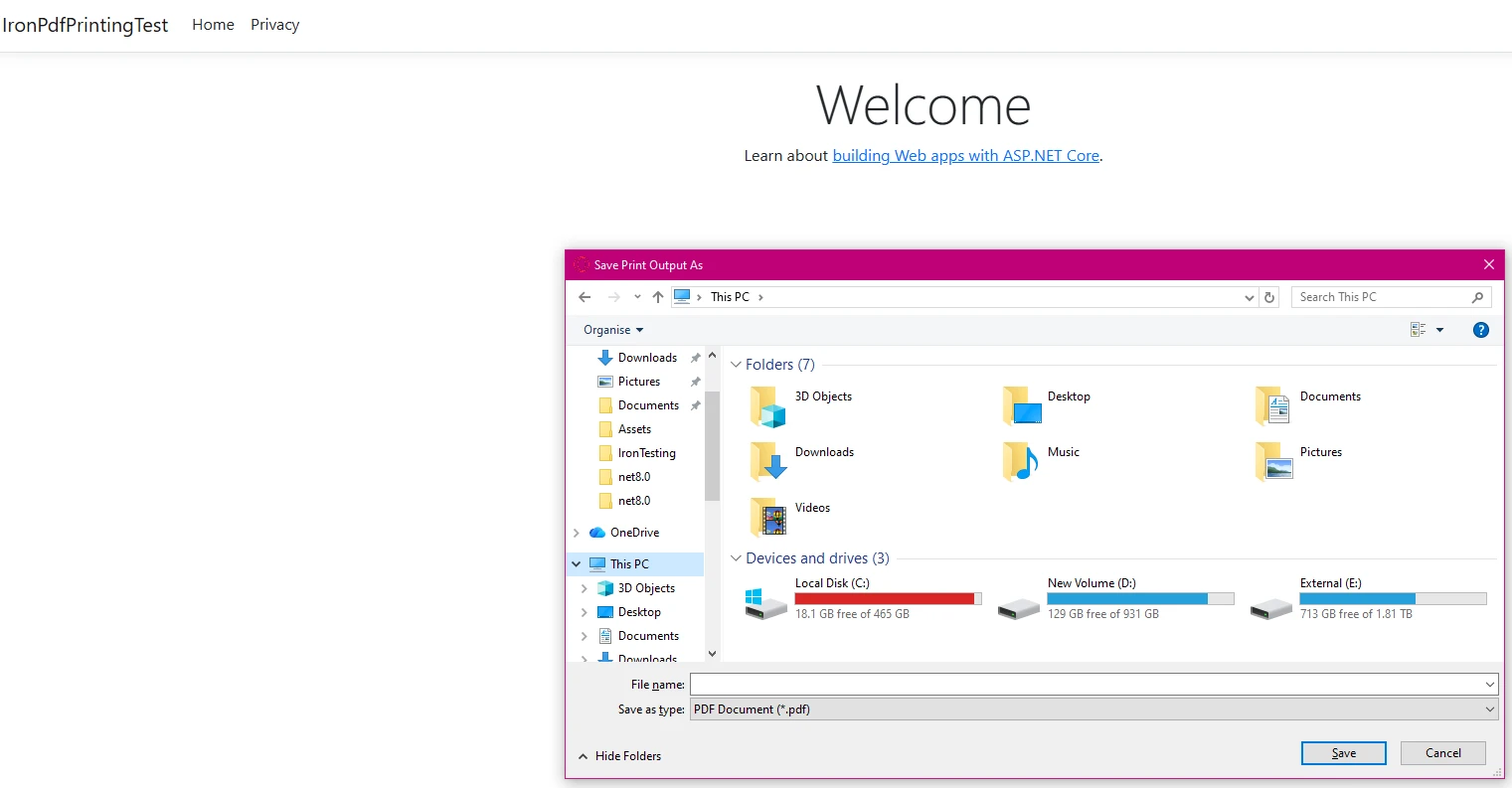
O ChromePdfRenderer lida com a conversão, preservando o estilo CSS e a formatação do tamanho da fonte. Este exemplo mostra a impressão básica na impressora padrão sem interação do usuário.
### Saída
## Configuração de impressora de rede
Para ambientes empresariais que exigem roteamento específico de impressoras:
```cs
public IActionResult PrintToNetworkPrinter(string filePath)
{
// Load existing PDF file
var pdfDocument = PdfDocument.FromFile(filePath);
// Get print document for advanced settings
var printDocument = pdfDocument.GetPrintDocument();
// Specify network printer
printDocument.PrinterSettings.PrinterName = @"\\server\printer";
printDocument.PrinterSettings.Copies = 2;
// Configure page settings
printDocument.DefaultPageSettings.Landscape = false;
var renderer = printDocument.PrinterSettings.PrinterResolution;
// Execute print
printDocument.Print();
return Json(new { success = true });
}
```
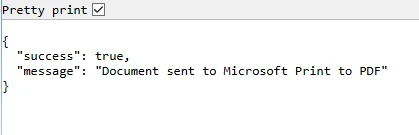
Essa abordagem proporciona controle total sobre as configurações da impressora, incluindo formato e resolução do papel, o que é vital para desenhos e layouts corretos.
### Saída
### Confirmação de impressão
## Estratégia de impressão do lado do cliente
Como os navegadores restringem o acesso direto à impressora, implemente a impressão no lado do cliente, disponibilizando o arquivo PDF para download:
```cs
public IActionResult GetRawPrintablePdf()
{
var renderer = new ChromePdfRenderer();
var pdf = renderer.RenderHtmlAsPdf(GetInvoiceHtml());
// This header tells the browser to display the file inline.
// We use IHeaderDictionary indexer to prevent ArgumentException.
**HttpContext context**.Response.Headers["Content-Disposition"] = "inline; filename=invoice.pdf";
return File(pdf.BinaryData, "application/pdf");
}
public IActionResult PrintUsingClientWrapper()
{
var printUrl = Url.Action(nameof(GetRawPrintablePdf));
// Use a simple HTML/JavaScript wrapper to force the print dialog
var html = new StringBuilder();
html.AppendLine("<!DOCTYPE html>");
html.AppendLine("<html lang=\"en\">");
html.AppendLine("<head>");
html.AppendLine(" <title>Print Document</title>");
html.AppendLine("</head>");
html.AppendLine("<body>");
// Load the PDF from the 'GetRawPrintablePdf' action into an invisible iframe.
html.AppendLine($" <iframe src='{printUrl}' style='position:absolute; top:0; left:0; width:100%; height:100%; border:none;'></iframe>");
html.AppendLine(" <script>");
// Wait for the iframe (and thus the PDF) to load, then trigger the print dialog.
html.AppendLine(" window.onload = function() {");
html.AppendLine(" // Wait briefly to ensure the iframe content is rendered before printing.");
html.AppendLine(" setTimeout(function() {");
html.AppendLine(" window.print();");
html.AppendLine(" }, 100);");
html.AppendLine(" };");
html.AppendLine(" </script>");
html.AppendLine("</body>");
html.AppendLine("</html>");
return Content(html.ToString(), "text/html");
}
private string GetInvoiceHtml()
{
// Build HTML with proper structure
return @"
<html>
<head>
<style>
body { font-family: Arial, sans-serif; }
.header { font-weight: bold; color: #1e40af; border-bottom: 2px solid #3b82f6; padding-bottom: 5px; }
.content { padding-top: 10px; }
</style>
</head>
<body>
<div class='header'>Invoice Summary (Client View)</div>
<div class='content'>
<p>Document content: This file is optimized for printing.</p>
<p>Total Amount: <b>$999.00</b></p>
</div>
</body>
</html>";
}
```
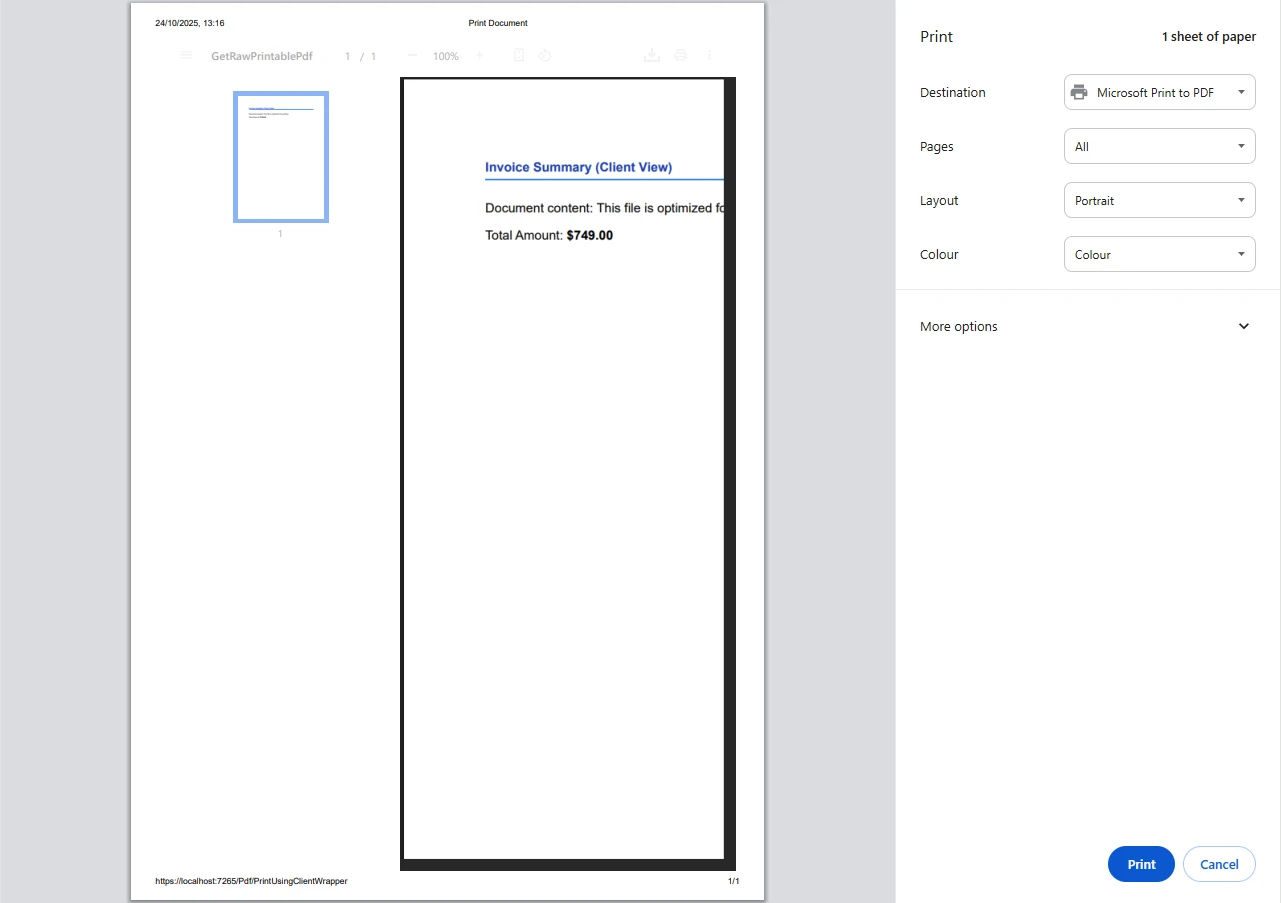
O documento PDF é aberto no navegador, onde os usuários podem iniciar a impressão através de sua impressora padrão, utilizando as caixas de diálogo de impressão padrão do navegador. Essa abordagem é superior a fazer uma solicitação direta de impressão ao servidor.
### Saída
## Trabalhando com Várias Entradas de Código-Fonte
O IronPDF lida de forma flexível com diversas entradas de código-fonte, o que é importante para desenvolvedores que desejam criar código de impressão dinâmico:
```cs
public async Task<IActionResult> PrintFromMultipleSources()
{
var renderer = new ChromePdfRenderer();
// From URL
var pdfFromUrl = await renderer.RenderUrlAsPdfAsync("https://example.com");
// From HTML file path
var pdfFromFile = renderer.RenderHtmlFileAsPdf(@"Templates\report.html");
var pdfToStream = renderer.RenderHtmlAsPdf("<h2>PDF from Memory Stream</h2><p>This content was loaded into memory first.</p>");
// Now, write the valid PDF bytes to the stream
using (var stream = new MemoryStream(pdfToStream.BinaryData))
{
var pdfFromStream = new PdfDocument(stream);
// Example: Print the PDF loaded from the stream
// pdfFromStream.Print();
}
pdfFromUrl.Print();
// Logging the various files handled
var fileList = new List<string> { "URL", "File Path", "Memory Stream" };
return Ok("PDF documents processed and 'example.com' printed to default server printer.");
}
```
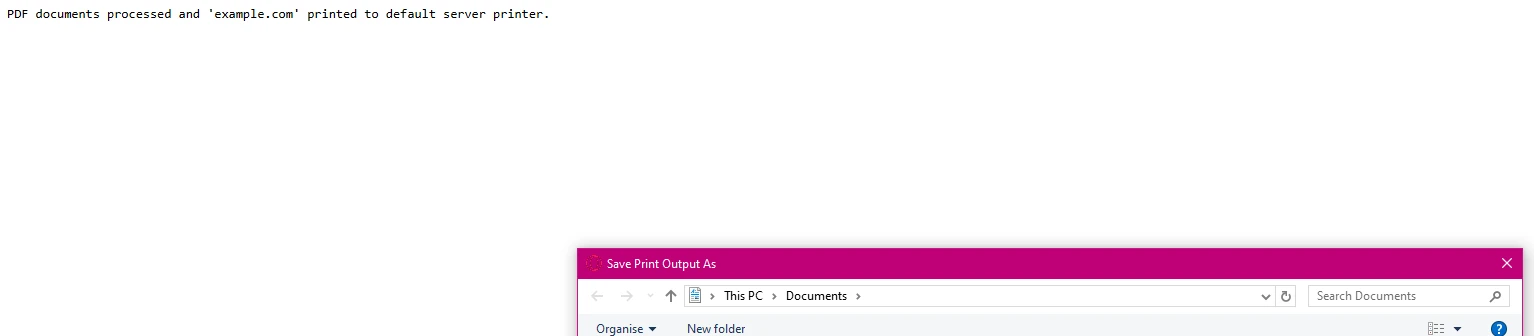
As linhas acima demonstram como criar uma nova lista de fontes de arquivos gerenciadas. Cada método preserva a estrutura e os elementos gráficos do documento, mantendo a qualidade de impressão.
## Tratamento e registro de erros
Implementar um tratamento de erros robusto para ambientes de produção:
```cs
using System.Drawing.Printing; // For PrinterSettings
// ... other usings ...
public IActionResult SafePrint(string documentId)
{
try
{
var pdf = LoadPdfDocument(documentId);
// Verify printer availability
if (!PrinterSettings.InstalledPrinters.Cast<string>()
.Contains("Target Printer"))
{
// Log error and handle gracefully
return BadRequest("Printer not available");
}
pdf.Print();
// Log successful output
return Ok($"Document {documentId} printed successfully");
}
catch (Exception ex)
{
// Log error details
return StatusCode(500, "Printing failed");
}
}
```
Isso garante uma impressão confiável mesmo quando os recursos do sistema não estão disponíveis e é uma parte fundamental do seu serviço de impressão.
### Cenários de saída
#### Impressora não disponível
Se a impressora especificada no código não estiver disponível, o código exibirá esta mensagem de erro:
#### PDF impresso com sucesso.
Se o seu PDF for impresso com sucesso, você deverá ver uma mensagem de confirmação como esta:

## Configuração avançada
A estrutura de pastas do IronPDF suporta cenários complexos. A versão da biblioteca IronPDF que você utiliza pode afetar essas configurações:
```cs
public IActionResult ConfigureAdvancedPrinting(object sender, EventArgs e)
{
var renderer = new ChromePdfRenderer();
// Configure rendering options
renderer.RenderingOptions.PaperSize = PdfPaperSize.A4;
renderer.RenderingOptions.EnableJavaScript = true;
renderer.RenderingOptions.RenderDelay = 500; // Wait for dynamic content
// Generate complex PDF documents
var pdf = renderer.RenderHtmlAsPdf(GetDynamicContent());
// Apply security settings
pdf.SecuritySettings.AllowUserPrinting = true;
pdf.MetaData.Author = "Your Company";
return File(pdf.BinaryData, "application/pdf");
}
```
O comando para imprimir é simplesmente pdf.Print(), uma vez que o documento seja gerado.
## Alternativa ao IronPrint
Para requisitos de impressão especializados, a Iron Software também oferece o IronPrint, uma biblioteca de impressão .NET dedicada com suporte multiplataforma aprimorado. Você pode encontrar um link para mais informações no site deles. O parâmetro principal é simplesmente o caminho do arquivo. A descrição do produto está disponível no [site](https://ironsoftware.com/csharp/print/) deles.
## Conclusão
O IronPDF transforma a impressão de PDFs em ASP.NET , de um desafio complexo para uma implementação simples. Sem precisar do Adobe Reader ou de dependências externas, você pode gerar e imprimir arquivos PDF com o mínimo de código. A biblioteca PDF lida com tudo, desde a conversão de HTML até a configuração da impressora, tornando-a ideal tanto para automação do lado do servidor quanto para cenários de impressão do lado do cliente.
Pronto para otimizar seu fluxo de trabalho de impressão de PDFs? Comece hoje mesmo gratuitamente com o [teste grátis](trial-license) e experimente como o IronPDF simplifica o processamento de documentos em seus aplicativos ASP.NET . Com documentação completa e suporte técnico direto, você terá a impressão de PDFs pronta para produção em minutos.
As tarefas de impressão de arquivos PDF em .NET frequentemente envolvem desafios únicos que os desenvolvedores encontram com frequência. Seja para gerar documentos PDF para faturas, relatórios ou etiquetas de envio, implementar uma funcionalidade de impressão confiável exige lidar com as complexidades da arquitetura cliente-servidor.
Os aplicativos de desktop tradicionais podem acessar diretamente a impressora padrão, mas os aplicativos ASP.NET Core enfrentam vários obstáculos ao imprimir documentos PDF:
// This fails in ASP.NET - wrong approachProcess.Start(@"C:\Files\document.pdf"); // Works locally, crashes on server
// This fails in ASP.NET - wrong approach
Process.Start(@"C:\Files\document.pdf"); // Works locally, crashes on server
' This fails in ASP.NET - wrong approachProcess.Start("C:\Files\document.pdf") ' Works locally, crashes on server
' This fails in ASP.NET - wrong approach
Process.Start("C:\Files\document.pdf") ' Works locally, crashes on server
O código acima ilustra um erro comum. O ambiente do servidor não possui acesso direto à impressora e o sistema apresenta erros devido a restrições de permissão do IIS. Outro ponto importante a lembrar é que os aplicativos da web devem lidar de forma eficaz tanto com cenários de impressão do lado do servidor quanto do lado do cliente.
Primeiros passos com o IronPDF
O IronPDF oferece uma solução completa em .NET Core para gerar e imprimir documentos PDF sem dependências externas como o Adobe Reader. Vamos instalar o pacote IronPDF usando o NuGet:
PM > Install-Package IronPdf
Install-Package IronPdf
Esta biblioteca .NET funciona perfeitamente em diversos sistemas operacionais, eliminando os problemas de compatibilidade que afetam outras bibliotecas. Essa ferramenta funciona bem no Microsoft Windows e em outros sistemas operacionais.
Criação e impressão de documentos PDF no servidor com a impressora padrão.
Veja como gerar e imprimir um documento PDF a partir de marcação HTML em seu controlador ASP.NET :
using IronPdf;using Microsoft.AspNetCore.Mvc;using System.Drawing; public class PdfController : Controller{ public IActionResultIndex() { // Initialize the renderer var renderer = new ChromePdfRenderer(); // Configure print-optimized settings renderer.RenderingOptions.PrintHtmlBackgrounds = true; renderer.RenderingOptions.MarginBottom = 10; renderer.RenderingOptions.CssMediaType = PdfCssMediaType.Print; // Generate PDF from HTML var pdf = renderer.RenderHtmlAsPdf("<h1>Invoice</h1><p>Total: $999</p>"); // Print to default printer pdf.Print(); returnOk("Document sent to printer"); }}
using IronPdf;
using Microsoft.AspNetCore.Mvc;
using System.Drawing;
public class PdfController : Controller
{
    public IActionResult Index()
    {
        // Initialize the renderer
        var renderer = new ChromePdfRenderer();
        // Configure print-optimized settings
        renderer.RenderingOptions.PrintHtmlBackgrounds = true;
        renderer.RenderingOptions.MarginBottom = 10;
        renderer.RenderingOptions.CssMediaType = PdfCssMediaType.Print;
        // Generate PDF from HTML
        var pdf = renderer.RenderHtmlAsPdf("<h1>Invoice</h1><p>Total: $999</p>");
        // Print to default printer
        pdf.Print();
        return Ok("Document sent to printer");
    }
}
ImportsIronPdfImportsMicrosoft.AspNetCore.MvcImportsSystem.DrawingPublic Class PdfControllerInheritsController Public Function Index() AsIActionResult ' Initialize the renderer Dim renderer = New ChromePdfRenderer() ' Configure print-optimized settings renderer.RenderingOptions.PrintHtmlBackgrounds = True renderer.RenderingOptions.MarginBottom = 10 renderer.RenderingOptions.CssMediaType = PdfCssMediaType.Print ' Generate PDF from HTML Dim pdf = renderer.RenderHtmlAsPdf("<h1>Invoice</h1><p>Total: $999</p>") ' Print to default printer pdf.Print() ReturnOk("Document sent to printer") End FunctionEnd Class
Imports IronPdf
Imports Microsoft.AspNetCore.Mvc
Imports System.Drawing

Public Class PdfController
    Inherits Controller

    Public Function Index() As IActionResult
        ' Initialize the renderer
        Dim renderer = New ChromePdfRenderer()
        ' Configure print-optimized settings
        renderer.RenderingOptions.PrintHtmlBackgrounds = True
        renderer.RenderingOptions.MarginBottom = 10
        renderer.RenderingOptions.CssMediaType = PdfCssMediaType.Print
        ' Generate PDF from HTML
        Dim pdf = renderer.RenderHtmlAsPdf("<h1>Invoice</h1><p>Total: $999</p>")
        ' Print to default printer
        pdf.Print()
        Return Ok("Document sent to printer")
    End Function
End Class
O ChromePdfRenderer lida com a conversão, preservando o estilo CSS e a formatação do tamanho da fonte. Este exemplo mostra a impressão básica na impressora padrão sem interação do usuário.
Saída
Configuração de impressora de rede
Para ambientes empresariais que exigem roteamento específico de impressoras:
public IActionResultPrintToNetworkPrinter(string filePath){ // Load existing PDF file var pdfDocument = PdfDocument.FromFile(filePath); // Get print document for advanced settings var printDocument = pdfDocument.GetPrintDocument(); // Specify network printer printDocument.PrinterSettings.PrinterName = @"\\server\printer"; printDocument.PrinterSettings.Copies = 2; // Configure page settings printDocument.DefaultPageSettings.Landscape = false; var renderer = printDocument.PrinterSettings.PrinterResolution; // Execute print printDocument.Print(); returnJson(new { success = true });}
public IActionResult PrintToNetworkPrinter(string filePath)
{
    // Load existing PDF file
    var pdfDocument = PdfDocument.FromFile(filePath);
    // Get print document for advanced settings
    var printDocument = pdfDocument.GetPrintDocument();
    // Specify network printer
    printDocument.PrinterSettings.PrinterName = @"\\server\printer";
    printDocument.PrinterSettings.Copies = 2;
    // Configure page settings
    printDocument.DefaultPageSettings.Landscape = false;
    var renderer = printDocument.PrinterSettings.PrinterResolution;
    // Execute print
    printDocument.Print();
    return Json(new { success = true });
}
Public Function PrintToNetworkPrinter(filePath AsString) AsIActionResult ' Load existing PDF file Dim pdfDocument = PdfDocument.FromFile(filePath) ' Get print document for advanced settings Dim printDocument = pdfDocument.GetPrintDocument() ' Specify network printer printDocument.PrinterSettings.PrinterName = "\\server\printer" printDocument.PrinterSettings.Copies = 2 ' Configure page settings printDocument.DefaultPageSettings.Landscape = False Dim renderer = printDocument.PrinterSettings.PrinterResolution ' Execute print printDocument.Print() ReturnJson(New With {.success = True})End Function
Public Function PrintToNetworkPrinter(filePath As String) As IActionResult
    ' Load existing PDF file
    Dim pdfDocument = PdfDocument.FromFile(filePath)
    ' Get print document for advanced settings
    Dim printDocument = pdfDocument.GetPrintDocument()
    ' Specify network printer
    printDocument.PrinterSettings.PrinterName = "\\server\printer"
    printDocument.PrinterSettings.Copies = 2
    ' Configure page settings
    printDocument.DefaultPageSettings.Landscape = False
    Dim renderer = printDocument.PrinterSettings.PrinterResolution
    ' Execute print
    printDocument.Print()
    Return Json(New With {.success = True})
End Function
Essa abordagem proporciona controle total sobre as configurações da impressora, incluindo formato e resolução do papel, o que é vital para desenhos e layouts corretos.
Saída
Confirmação de impressão
Estratégia de impressão do lado do cliente
Como os navegadores restringem o acesso direto à impressora, implemente a impressão no lado do cliente, disponibilizando o arquivo PDF para download:
public IActionResultGetRawPrintablePdf() { var renderer = new ChromePdfRenderer(); var pdf = renderer.RenderHtmlAsPdf(GetInvoiceHtml()); // This header tells the browser to display the file inline. // We use IHeaderDictionary indexer to prevent ArgumentException. **HttpContext context**.Response.Headers["Content-Disposition"] = "inline; filename=invoice.pdf"; returnFile(pdf.BinaryData, "application/pdf"); } public IActionResultPrintUsingClientWrapper() { var printUrl = Url.Action(nameof(GetRawPrintablePdf)); // Use a simple HTML/JavaScript wrapper to force the print dialog var html = new StringBuilder(); html.AppendLine("<!DOCTYPE html>"); html.AppendLine("<html lang=\"en\">"); html.AppendLine("<head>"); html.AppendLine(" <title>Print Document</title>"); html.AppendLine("</head>"); html.AppendLine("<body>"); // Load the PDF from the 'GetRawPrintablePdf' action into an invisible iframe. html.AppendLine($" <iframe src='{printUrl}' style='position:absolute; top:0; left:0; width:100%; height:100%; border:none;'></iframe>"); html.AppendLine(" <script>"); // Wait for the iframe (and thus the PDF) to load, then trigger the print dialog. html.AppendLine(" window.onload = function() {"); html.AppendLine(" // Wait briefly to ensure the iframe content is rendered before printing."); html.AppendLine(" setTimeout(function() {"); html.AppendLine(" window.print();"); html.AppendLine(" }, 100);"); html.AppendLine(" };"); html.AppendLine(" </script>"); html.AppendLine("</body>"); html.AppendLine("</html>"); returnContent(html.ToString(), "text/html"); } private stringGetInvoiceHtml() { // Build HTML with proper structure return @" <html> <head> <style> body { font-family: Arial, sans-serif; } .header { font-weight: bold; color: #1e40af; border-bottom: 2px solid #3b82f6; padding-bottom: 5px; } .content { padding-top: 10px; } </style> </head> <body> <div class='header'>Invoice Summary (Client View)</div> <div class='content'> <p>Document content: This file is optimized for printing.</p> <p>Total Amount: <b>$999.00</b></p> </div> </body> </html>"; }
public IActionResult GetRawPrintablePdf()
    {
        var renderer = new ChromePdfRenderer();
        var pdf = renderer.RenderHtmlAsPdf(GetInvoiceHtml());
        // This header tells the browser to display the file inline.
        // We use IHeaderDictionary indexer to prevent ArgumentException.
        **HttpContext context**.Response.Headers["Content-Disposition"] = "inline; filename=invoice.pdf";
        return File(pdf.BinaryData, "application/pdf");
    }
    public IActionResult PrintUsingClientWrapper()
    {
        var printUrl = Url.Action(nameof(GetRawPrintablePdf));
        // Use a simple HTML/JavaScript wrapper to force the print dialog
        var html = new StringBuilder();
        html.AppendLine("<!DOCTYPE html>");
        html.AppendLine("<html lang=\"en\">");
        html.AppendLine("<head>");
        html.AppendLine("    <title>Print Document</title>");
        html.AppendLine("</head>");
        html.AppendLine("<body>");
        // Load the PDF from the 'GetRawPrintablePdf' action into an invisible iframe.
        html.AppendLine($"    <iframe src='{printUrl}' style='position:absolute; top:0; left:0; width:100%; height:100%; border:none;'></iframe>");
        html.AppendLine("    <script>");
        // Wait for the iframe (and thus the PDF) to load, then trigger the print dialog.
        html.AppendLine("        window.onload = function() {");
        html.AppendLine("            // Wait briefly to ensure the iframe content is rendered before printing.");
        html.AppendLine("            setTimeout(function() {");
        html.AppendLine("                window.print();");
        html.AppendLine("            }, 100);");
        html.AppendLine("        };");
        html.AppendLine("    </script>");
        html.AppendLine("</body>");
        html.AppendLine("</html>");
        return Content(html.ToString(), "text/html");
    }
    private string GetInvoiceHtml()
    {
        // Build HTML with proper structure
        return @"
        <html>
        <head>
            <style>
                body { font-family: Arial, sans-serif; }
                .header { font-weight: bold; color: #1e40af; border-bottom: 2px solid #3b82f6; padding-bottom: 5px; }
                .content { padding-top: 10px; }
            </style>
        </head>
        <body>
            <div class='header'>Invoice Summary (Client View)</div>
            <div class='content'>
                <p>Document content: This file is optimized for printing.</p>
                <p>Total Amount: <b>$999.00</b></p>
            </div>
        </body>
        </html>";
    }
Public Function GetRawPrintablePdf() AsIActionResult Dim renderer = New ChromePdfRenderer() Dim pdf = renderer.RenderHtmlAsPdf(GetInvoiceHtml()) ' This header tells the browser to display the file inline. ' We use IHeaderDictionary indexer to prevent ArgumentException.HttpContext.Response.Headers("Content-Disposition") = "inline; filename=invoice.pdf" ReturnFile(pdf.BinaryData, "application/pdf")End FunctionPublic Function PrintUsingClientWrapper() AsIActionResult Dim printUrl = Url.Action(NameOf(GetRawPrintablePdf)) ' Use a simple HTML/JavaScript wrapper to force the print dialog Dim html = New StringBuilder() html.AppendLine("<!DOCTYPE html>") html.AppendLine("<html lang=""en"">") html.AppendLine("<head>") html.AppendLine(" <title>Print Document</title>") html.AppendLine("</head>") html.AppendLine("<body>") ' Load the PDF from the 'GetRawPrintablePdf' action into an invisible iframe. html.AppendLine($" <iframe src='{printUrl}' style='position:absolute; top:0; left:0; width:100%; height:100%; border:none;'></iframe>") html.AppendLine(" <script>") ' Wait for the iframe (and thus the PDF) to load, then trigger the print dialog. html.AppendLine(" window.onload = function() {") html.AppendLine(" // Wait briefly to ensure the iframe content is rendered before printing.") html.AppendLine(" setTimeout(function() {") html.AppendLine(" window.print();") html.AppendLine(" }, 100);") html.AppendLine(" };") html.AppendLine(" </script>") html.AppendLine("</body>") html.AppendLine("</html>") ReturnContent(html.ToString(), "text/html")End FunctionPrivate Function GetInvoiceHtml() AsString ' Build HTML with proper structure Return " <html> <head> <style> body { font-family: Arial, sans-serif; } .header { font-weight: bold; color: #1e40af; border-bottom: 2px solid #3b82f6; padding-bottom: 5px; } .content { padding-top: 10px; } </style> </head> <body> <div class='header'>Invoice Summary (Client View)</div> <div class='content'> <p>Document content: This file is optimized for printing.</p> <p>Total Amount: <b>$999.00</b></p> </div> </body> </html>"End Function
Public Function GetRawPrintablePdf() As IActionResult
    Dim renderer = New ChromePdfRenderer()
    Dim pdf = renderer.RenderHtmlAsPdf(GetInvoiceHtml())
    ' This header tells the browser to display the file inline.
    ' We use IHeaderDictionary indexer to prevent ArgumentException.
    HttpContext.Response.Headers("Content-Disposition") = "inline; filename=invoice.pdf"
    Return File(pdf.BinaryData, "application/pdf")
End Function

Public Function PrintUsingClientWrapper() As IActionResult
    Dim printUrl = Url.Action(NameOf(GetRawPrintablePdf))
    ' Use a simple HTML/JavaScript wrapper to force the print dialog
    Dim html = New StringBuilder()
    html.AppendLine("<!DOCTYPE html>")
    html.AppendLine("<html lang=""en"">")
    html.AppendLine("<head>")
    html.AppendLine("    <title>Print Document</title>")
    html.AppendLine("</head>")
    html.AppendLine("<body>")
    ' Load the PDF from the 'GetRawPrintablePdf' action into an invisible iframe.
    html.AppendLine($"    <iframe src='{printUrl}' style='position:absolute; top:0; left:0; width:100%; height:100%; border:none;'></iframe>")
    html.AppendLine("    <script>")
    ' Wait for the iframe (and thus the PDF) to load, then trigger the print dialog.
    html.AppendLine("        window.onload = function() {")
    html.AppendLine("            // Wait briefly to ensure the iframe content is rendered before printing.")
    html.AppendLine("            setTimeout(function() {")
    html.AppendLine("                window.print();")
    html.AppendLine("            }, 100);")
    html.AppendLine("        };")
    html.AppendLine("    </script>")
    html.AppendLine("</body>")
    html.AppendLine("</html>")
    Return Content(html.ToString(), "text/html")
End Function

Private Function GetInvoiceHtml() As String
    ' Build HTML with proper structure
    Return "
    <html>
    <head>
        <style>
            body { font-family: Arial, sans-serif; }
            .header { font-weight: bold; color: #1e40af; border-bottom: 2px solid #3b82f6; padding-bottom: 5px; }
            .content { padding-top: 10px; }
        </style>
    </head>
    <body>
        <div class='header'>Invoice Summary (Client View)</div>
        <div class='content'>
            <p>Document content: This file is optimized for printing.</p>
            <p>Total Amount: <b>$999.00</b></p>
        </div>
    </body>
    </html>"
End Function
O documento PDF é aberto no navegador, onde os usuários podem iniciar a impressão através de sua impressora padrão, utilizando as caixas de diálogo de impressão padrão do navegador. Essa abordagem é superior a fazer uma solicitação direta de impressão ao servidor.
Saída
Trabalhando com Várias Entradas de Código-Fonte
O IronPDF lida de forma flexível com diversas entradas de código-fonte, o que é importante para desenvolvedores que desejam criar código de impressão dinâmico:
public async Task<IActionResult> PrintFromMultipleSources(){ var renderer = new ChromePdfRenderer(); // From URL var pdfFromUrl = await renderer.RenderUrlAsPdfAsync("https://example.com"); // From HTML file path var pdfFromFile = renderer.RenderHtmlFileAsPdf(@"Templates\report.html"); var pdfToStream = renderer.RenderHtmlAsPdf("<h2>PDF from Memory Stream</h2><p>This content was loaded into memory first.</p>");// Now, write the valid PDF bytes to the streamusing (var stream = new MemoryStream(pdfToStream.BinaryData)){ var pdfFromStream = new PdfDocument(stream); // Example: Print the PDF loaded from the stream // pdfFromStream.Print(); }pdfFromUrl.Print();// Logging the various files handled var fileList = new List<string> { "URL", "File Path", "Memory Stream" };returnOk("PDF documents processed and 'example.com' printed to default server printer.");}
public async Task<IActionResult> PrintFromMultipleSources()
{
    var renderer = new ChromePdfRenderer();
    // From URL
    var pdfFromUrl = await renderer.RenderUrlAsPdfAsync("https://example.com");
    // From HTML file path
    var pdfFromFile = renderer.RenderHtmlFileAsPdf(@"Templates\report.html");
    var pdfToStream = renderer.RenderHtmlAsPdf("<h2>PDF from Memory Stream</h2><p>This content was loaded into memory first.</p>");
// Now, write the valid PDF bytes to the stream
using (var stream = new MemoryStream(pdfToStream.BinaryData))
{
    var pdfFromStream = new PdfDocument(stream);
    // Example: Print the PDF loaded from the stream
    // pdfFromStream.Print();
}
pdfFromUrl.Print();
// Logging the various files handled
    var fileList = new List<string> { "URL", "File Path", "Memory Stream" };
return Ok("PDF documents processed and 'example.com' printed to default server printer.");
}
ImportsSystem.Threading.TasksImportsMicrosoft.AspNetCore.MvcImportsSystem.IOPublic Class YourControllerInheritsController PublicAsync Function PrintFromMultipleSources() AsTask(OfIActionResult) Dim renderer = New ChromePdfRenderer() ' From URL Dim pdfFromUrl = Await renderer.RenderUrlAsPdfAsync("https://example.com") ' From HTML file path Dim pdfFromFile = renderer.RenderHtmlFileAsPdf("Templates\report.html") Dim pdfToStream = renderer.RenderHtmlAsPdf("<h2>PDF from Memory Stream</h2><p>This content was loaded into memory first.</p>") ' Now, write the valid PDF bytes to the streamUsing stream = New MemoryStream(pdfToStream.BinaryData) Dim pdfFromStream = New PdfDocument(stream) ' Example: Print the PDF loaded from the stream ' pdfFromStream.Print() EndUsing pdfFromUrl.Print() ' Logging the various files handled Dim fileList = New List(OfString) From {"URL", "File Path", "Memory Stream"} ReturnOk("PDF documents processed and 'example.com' printed to default server printer.") End FunctionEnd Class
Imports System.Threading.Tasks
Imports Microsoft.AspNetCore.Mvc
Imports System.IO

Public Class YourController
    Inherits Controller

    Public Async Function PrintFromMultipleSources() As Task(Of IActionResult)
        Dim renderer = New ChromePdfRenderer()
        ' From URL
        Dim pdfFromUrl = Await renderer.RenderUrlAsPdfAsync("https://example.com")
        ' From HTML file path
        Dim pdfFromFile = renderer.RenderHtmlFileAsPdf("Templates\report.html")
        Dim pdfToStream = renderer.RenderHtmlAsPdf("<h2>PDF from Memory Stream</h2><p>This content was loaded into memory first.</p>")
        ' Now, write the valid PDF bytes to the stream
        Using stream = New MemoryStream(pdfToStream.BinaryData)
            Dim pdfFromStream = New PdfDocument(stream)
            ' Example: Print the PDF loaded from the stream
            ' pdfFromStream.Print()
        End Using
        pdfFromUrl.Print()
        ' Logging the various files handled
        Dim fileList = New List(Of String) From {"URL", "File Path", "Memory Stream"}
        Return Ok("PDF documents processed and 'example.com' printed to default server printer.")
    End Function
End Class
As linhas acima demonstram como criar uma nova lista de fontes de arquivos gerenciadas. Cada método preserva a estrutura e os elementos gráficos do documento, mantendo a qualidade de impressão.
Tratamento e registro de erros
Implementar um tratamento de erros robusto para ambientes de produção:
using System.Drawing.Printing; // For PrinterSettings// ... other usings ...public IActionResultSafePrint(string documentId){ try { var pdf = LoadPdfDocument(documentId); // Verify printer availability if (!PrinterSettings.InstalledPrinters.Cast<string>() .Contains("Target Printer")) { // Log error and handle gracefully returnBadRequest("Printer not available"); } pdf.Print(); // Log successful output returnOk($"Document {documentId} printed successfully"); } catch (Exception ex) { // Log error details returnStatusCode(500, "Printing failed"); }}
using System.Drawing.Printing; // For PrinterSettings
// ... other usings ...
public IActionResult SafePrint(string documentId)
{
    try
    {
        var pdf = LoadPdfDocument(documentId);
        // Verify printer availability
        if (!PrinterSettings.InstalledPrinters.Cast<string>()
            .Contains("Target Printer"))
        {
            // Log error and handle gracefully
            return BadRequest("Printer not available");
        }
        pdf.Print();
        // Log successful output
        return Ok($"Document {documentId} printed successfully");
    }
    catch (Exception ex)
    {
        // Log error details
        return StatusCode(500, "Printing failed");
    }
}
ImportsSystem.Drawing.Printing' For PrinterSettings' ... other Imports ...Public Function SafePrint(documentId AsString) AsIActionResultTry Dim pdf = LoadPdfDocument(documentId) ' Verify printer availability IfNotPrinterSettings.InstalledPrinters.Cast(OfString)().Contains("Target Printer") Then ' Log error and handle gracefully ReturnBadRequest("Printer not available") End If pdf.Print() ' Log successful output ReturnOk($"Document {documentId} printed successfully")Catch ex AsException ' Log error details ReturnStatusCode(500, "Printing failed")EndTryEnd Function
Imports System.Drawing.Printing ' For PrinterSettings
' ... other Imports ...
Public Function SafePrint(documentId As String) As IActionResult
    Try
        Dim pdf = LoadPdfDocument(documentId)
        ' Verify printer availability
        If Not PrinterSettings.InstalledPrinters.Cast(Of String)().Contains("Target Printer") Then
            ' Log error and handle gracefully
            Return BadRequest("Printer not available")
        End If
        pdf.Print()
        ' Log successful output
        Return Ok($"Document {documentId} printed successfully")
    Catch ex As Exception
        ' Log error details
        Return StatusCode(500, "Printing failed")
    End Try
End Function
Isso garante uma impressão confiável mesmo quando os recursos do sistema não estão disponíveis e é uma parte fundamental do seu serviço de impressão.
Cenários de saída
Impressora não disponível
Se a impressora especificada no código não estiver disponível, o código exibirá esta mensagem de erro:
PDF impresso com sucesso.
Se o seu PDF for impresso com sucesso, você deverá ver uma mensagem de confirmação como esta:
Configuração avançada
A estrutura de pastas do IronPDF suporta cenários complexos. A versão da biblioteca IronPDF que você utiliza pode afetar essas configurações:
public IActionResultConfigureAdvancedPrinting(object sender, EventArgs e){ var renderer = new ChromePdfRenderer(); // Configure rendering options renderer.RenderingOptions.PaperSize = PdfPaperSize.A4; renderer.RenderingOptions.EnableJavaScript = true; renderer.RenderingOptions.RenderDelay = 500; // Wait for dynamic content // Generate complex PDF documents var pdf = renderer.RenderHtmlAsPdf(GetDynamicContent()); // Apply security settings pdf.SecuritySettings.AllowUserPrinting = true; pdf.MetaData.Author = "Your Company"; returnFile(pdf.BinaryData, "application/pdf");}
public IActionResult ConfigureAdvancedPrinting(object sender, EventArgs e)
{
    var renderer = new ChromePdfRenderer();
    // Configure rendering options
    renderer.RenderingOptions.PaperSize = PdfPaperSize.A4;
    renderer.RenderingOptions.EnableJavaScript = true;
    renderer.RenderingOptions.RenderDelay = 500; // Wait for dynamic content
    // Generate complex PDF documents
    var pdf = renderer.RenderHtmlAsPdf(GetDynamicContent());
    // Apply security settings
    pdf.SecuritySettings.AllowUserPrinting = true;
    pdf.MetaData.Author = "Your Company";
    return File(pdf.BinaryData, "application/pdf");
}
Public Function ConfigureAdvancedPrinting(sender AsObject, e AsEventArgs) AsIActionResult Dim renderer = New ChromePdfRenderer() ' Configure rendering options renderer.RenderingOptions.PaperSize = PdfPaperSize.A4 renderer.RenderingOptions.EnableJavaScript = True renderer.RenderingOptions.RenderDelay = 500 ' Wait for dynamic content ' Generate complex PDF documents Dim pdf = renderer.RenderHtmlAsPdf(GetDynamicContent()) ' Apply security settings pdf.SecuritySettings.AllowUserPrinting = True pdf.MetaData.Author = "Your Company" ReturnFile(pdf.BinaryData, "application/pdf")End Function
Public Function ConfigureAdvancedPrinting(sender As Object, e As EventArgs) As IActionResult
    Dim renderer = New ChromePdfRenderer()
    ' Configure rendering options
    renderer.RenderingOptions.PaperSize = PdfPaperSize.A4
    renderer.RenderingOptions.EnableJavaScript = True
    renderer.RenderingOptions.RenderDelay = 500 ' Wait for dynamic content
    ' Generate complex PDF documents
    Dim pdf = renderer.RenderHtmlAsPdf(GetDynamicContent())
    ' Apply security settings
    pdf.SecuritySettings.AllowUserPrinting = True
    pdf.MetaData.Author = "Your Company"
    Return File(pdf.BinaryData, "application/pdf")
End Function
O comando para imprimir é simplesmente pdf.Print(), uma vez que o documento seja gerado.
Alternativa ao IronPrint
Para requisitos de impressão especializados, a Iron Software também oferece o IronPrint, uma biblioteca de impressão .NET dedicada com suporte multiplataforma aprimorado. Você pode encontrar um link para mais informações no site deles. O parâmetro principal é simplesmente o caminho do arquivo. A descrição do produto está disponível no site deles.
Conclusão
O IronPDF transforma a impressão de PDFs em ASP.NET , de um desafio complexo para uma implementação simples. Sem precisar do Adobe Reader ou de dependências externas, você pode gerar e imprimir arquivos PDF com o mínimo de código. A biblioteca PDF lida com tudo, desde a conversão de HTML até a configuração da impressora, tornando-a ideal tanto para automação do lado do servidor quanto para cenários de impressão do lado do cliente.
Pronto para otimizar seu fluxo de trabalho de impressão de PDFs? Comece hoje mesmo gratuitamente com o teste grátis e experimente como o IronPDF simplifica o processamento de documentos em seus aplicativos ASP.NET . Com documentação completa e suporte técnico direto, você terá a impressão de PDFs pronta para produção em minutos.
Curtis Chau é bacharel em Ciência da Computação (Universidade Carleton) e se especializa em desenvolvimento front-end, com experiência em Node.js, TypeScript, JavaScript e React. Apaixonado por criar interfaces de usuário intuitivas e esteticamente agradáveis, Curtis gosta de trabalhar com frameworks modernos e criar manuais bem estruturados e visualmente atraentes.



















