




更新日 2026年9月4日
月次口座明細書をPDF文書として生成する
IronPDF C# PDFライブラリを使用することで、開発者は外部サービスに依存することなく、.NETプロジェクト内でHTMLを信頼性の高いPDFファイルに変換することができます。
詳しく読む

ASP.NETのPDFファイルを印刷するタスクには、しばしば開発者が頻繁に直面する独自の課題が伴います。 請求書、レポート、または配送ラベルのPDFドキュメントを生成しているかどうかに関わらず、信頼できる印刷機能を実装するには、サーバーとクライアントのアーキテクチャの複雑さを乗り越える必要があります。
この記事では、PDF印刷タスクを.NET用のIronPDFの強力なPDFライブラリを使用してどのように処理するかを紹介します。
従来のデスクトップアプリケーションはデフォルトのプリンタに直接アクセスできますが、ASP.NET CoreアプリケーションはPDFドキュメントを印刷する際にいくつかの障害に直面します。
// This fails in ASP.NET - wrong approach
Process.Start(@"C:\Files\document.pdf"); // Works locally, crashes on server' This fails in ASP.NET - wrong approach
Process.Start("C:\Files\document.pdf") ' Works locally, crashes on server上記のコードは一般的なミスを示しています。 サーバー環境にはプリンタへの直接アクセスが欠けており、IISのアクセス許可制限によりシステムはエラーを発生させます。 もう一つ覚えておくべきことは、Webアプリケーションではサーバー側とクライアント側の印刷シナリオの両方を効果的に処理する必要があるということです。
IronPDFは、Adobe Readerのような外部依存関係なしでPDFドキュメントを生成し、それを印刷するための完全な.NET Coreソリューションを提供します。 NuGetを使用してIronPDFパッケージをインストールしましょう:
こ for .NETライブラリは、オペレーティングシステム間でスムーズに動作し、他のライブラリに悩まされる互換性の問題を排除します。 このツールは、Microsoft Windowsおよび他のOS環境でうまく機能します。
ASP.NETコントローラでHTMLマークアップからPDFドキュメントを生成し印刷する方法は次のとおりです:
using IronPdf;
using Microsoft.AspNetCore.Mvc;
using System.Drawing;
public class PdfController : Controller
{
    public IActionResult Index()
    {
        // Initialize the renderer
        var renderer = new ChromePdfRenderer();
        // Configure print-optimized settings
        renderer.RenderingOptions.PrintHtmlBackgrounds = true;
        renderer.RenderingOptions.MarginBottom = 10;
        renderer.RenderingOptions.CssMediaType = PdfCssMediaType.Print;
        // Generate PDF from HTML
        var pdf = renderer.RenderHtmlAsPdf("<h1>Invoice</h1><p>Total: $999</p>");
        // Print to default printer
        pdf.Print();
        return Ok("Document sent to printer");
    }
}Imports IronPdf
Imports Microsoft.AspNetCore.Mvc
Imports System.Drawing
Public Class PdfController
Inherits Controller
Public Function Index() As IActionResult
' Initialize the renderer
Dim renderer = New ChromePdfRenderer()
' Configure print-optimized settings
renderer.RenderingOptions.PrintHtmlBackgrounds = True
renderer.RenderingOptions.MarginBottom = 10
renderer.RenderingOptions.CssMediaType = PdfCssMediaType.Print
' Generate PDF from HTML
Dim pdf = renderer.RenderHtmlAsPdf("<h1>Invoice</h1><p>Total: $999</p>")
' Print to default printer
pdf.Print()
Return Ok("Document sent to printer")
End Function
End ClassChromePdfRendererは、CSSスタイリングとフォントサイズのフォーマットを保持しながら変換を処理します。 この例は、ユーザーの操作なしでデフォルトのプリンタに基本的な印刷を示しています。
特定のプリンタルーティングを必要とする企業環境向け:
public IActionResult PrintToNetworkPrinter(string filePath)
{
    // Load existing PDF file
    var pdfDocument = PdfDocument.FromFile(filePath);
    // Get print document for advanced settings
    var printDocument = pdfDocument.GetPrintDocument();
    // Specify network printer
    printDocument.PrinterSettings.PrinterName = @"\\server\printer";
    printDocument.PrinterSettings.Copies = 2;
    // Configure page settings
    printDocument.DefaultPageSettings.Landscape = false;
    var renderer = printDocument.PrinterSettings.PrinterResolution;
    // Execute print
    printDocument.Print();
    return Json(new { success = true });
}Public Function PrintToNetworkPrinter(filePath As String) As IActionResult
' Load existing PDF file
Dim pdfDocument = PdfDocument.FromFile(filePath)
' Get print document for advanced settings
Dim printDocument = pdfDocument.GetPrintDocument()
' Specify network printer
printDocument.PrinterSettings.PrinterName = "\\server\printer"
printDocument.PrinterSettings.Copies = 2
' Configure page settings
printDocument.DefaultPageSettings.Landscape = False
Dim renderer = printDocument.PrinterSettings.PrinterResolution
' Execute print
printDocument.Print()
Return Json(New With {.success = True})
End Functionこのアプローチは、用紙フォーマットや解像度など、正しい描画とレイアウトに不可欠なプリンタ設定を完全に制御することができます。
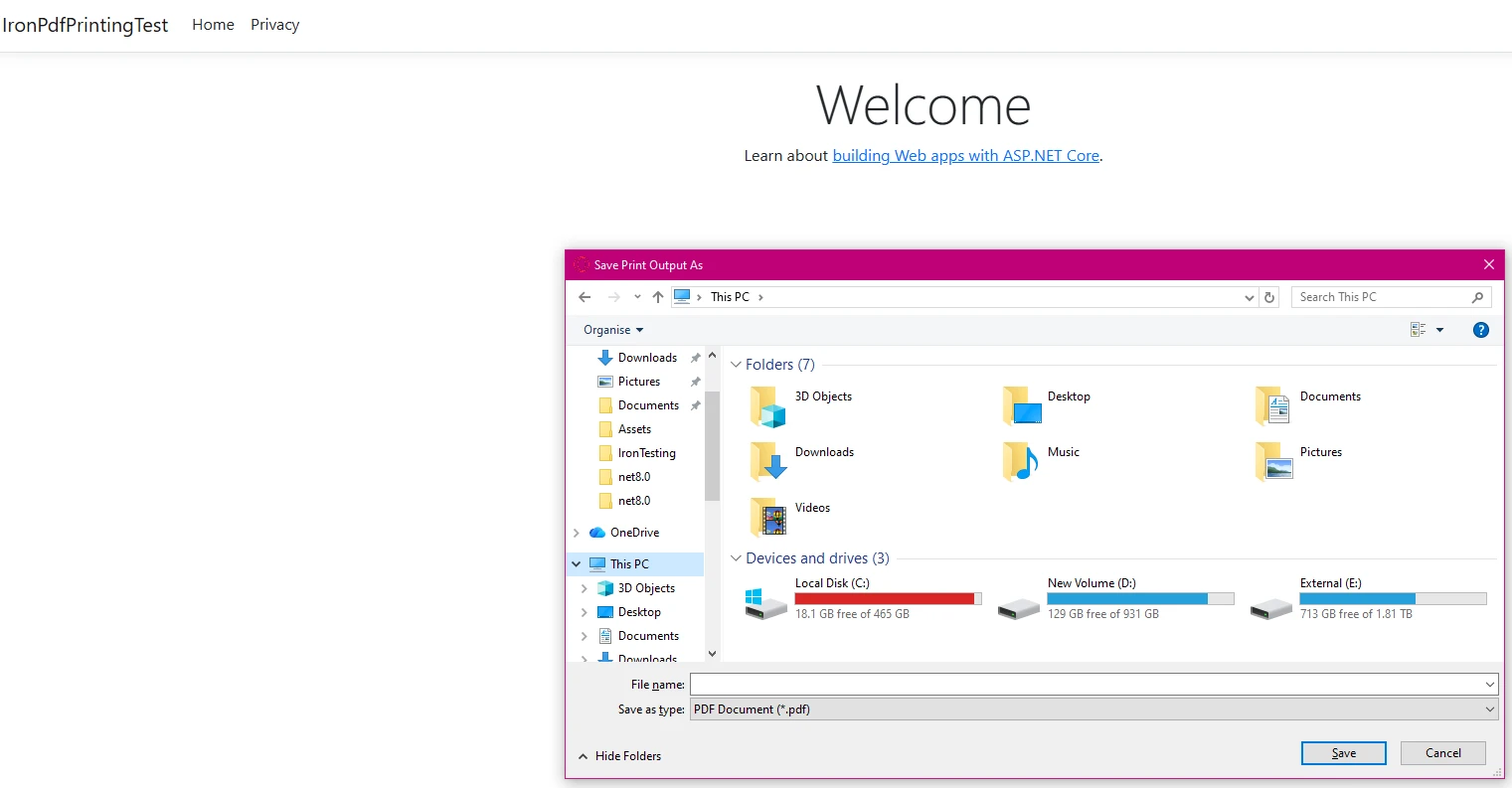
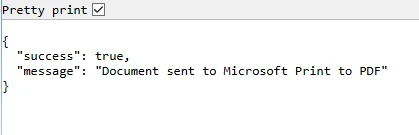
ブラウザが直接プリンタへのアクセスを制限しているため、PDFファイルをダウンロード用に配信することでクライアント側の印刷を実装します:
public IActionResult GetRawPrintablePdf()
    {
        var renderer = new ChromePdfRenderer();
        var pdf = renderer.RenderHtmlAsPdf(GetInvoiceHtml());
        // This header tells the browser to display the file inline.
        // We use IHeaderDictionary indexer to prevent ArgumentException.
        **HttpContext context**.Response.Headers["Content-Disposition"] = "inline; filename=invoice.pdf";
        return File(pdf.BinaryData, "application/pdf");
    }
    public IActionResult PrintUsingClientWrapper()
    {
        var printUrl = Url.Action(nameof(GetRawPrintablePdf));
        // Use a simple HTML/JavaScript wrapper to force the print dialog
        var html = new StringBuilder();
        html.AppendLine("<!DOCTYPE html>");
        html.AppendLine("<html lang=\"en\">");
        html.AppendLine("<head>");
        html.AppendLine("    <title>Print Document</title>");
        html.AppendLine("</head>");
        html.AppendLine("<body>");
        // Load the PDF from the 'GetRawPrintablePdf' action into an invisible iframe.
        html.AppendLine($"    <iframe src='{printUrl}' style='position:absolute; top:0; left:0; width:100%; height:100%; border:none;'></iframe>");
        html.AppendLine("    <script>");
        // Wait for the iframe (and thus the PDF) to load, then trigger the print dialog.
        html.AppendLine("        window.onload = function() {");
        html.AppendLine("            // Wait briefly to ensure the iframe content is rendered before printing.");
        html.AppendLine("            setTimeout(function() {");
        html.AppendLine("                window.print();");
        html.AppendLine("            }, 100);");
        html.AppendLine("        };");
        html.AppendLine("    </script>");
        html.AppendLine("</body>");
        html.AppendLine("</html>");
        return Content(html.ToString(), "text/html");
    }
    private string GetInvoiceHtml()
    {
        // Build HTML with proper structure
        return @"
        <html>
        <head>
            <style>
                body { font-family: Arial, sans-serif; }
                .header { font-weight: bold; color: #1e40af; border-bottom: 2px solid #3b82f6; padding-bottom: 5px; }
                .content { padding-top: 10px; }
            </style>
        </head>
        <body>
            <div class='header'>Invoice Summary (Client View)</div>
            <div class='content'>
                <p>Document content: This file is optimized for printing.</p>
                <p>Total Amount: <b>$999.00</b></p>
            </div>
        </body>
        </html>";
}Public Function GetRawPrintablePdf() As IActionResult
Dim renderer = New ChromePdfRenderer()
Dim pdf = renderer.RenderHtmlAsPdf(GetInvoiceHtml())
' This header tells the browser to display the file inline.
' We use IHeaderDictionary indexer to prevent ArgumentException.
HttpContext.Response.Headers("Content-Disposition") = "inline; filename=invoice.pdf"
Return File(pdf.BinaryData, "application/pdf")
End Function
Public Function PrintUsingClientWrapper() As IActionResult
Dim printUrl = Url.Action(NameOf(GetRawPrintablePdf))
' Use a simple HTML/JavaScript wrapper to force the print dialog
Dim html = New StringBuilder()
html.AppendLine("<!DOCTYPE html>")
html.AppendLine("<html lang=""en"">")
html.AppendLine("<head>")
html.AppendLine(" <title>Print Document</title>")
html.AppendLine("</head>")
html.AppendLine("<body>")
' Load the PDF from the 'GetRawPrintablePdf' action into an invisible iframe.
html.AppendLine($" <iframe src='{printUrl}' style='position:absolute; top:0; left:0; width:100%; height:100%; border:none;'></iframe>")
html.AppendLine(" <script>")
' Wait for the iframe (and thus the PDF) to load, then trigger the print dialog.
html.AppendLine(" window.onload = function() {")
html.AppendLine(" // Wait briefly to ensure the iframe content is rendered before printing.")
html.AppendLine(" setTimeout(function() {")
html.AppendLine(" window.print();")
html.AppendLine(" }, 100);")
html.AppendLine(" };")
html.AppendLine(" </script>")
html.AppendLine("</body>")
html.AppendLine("</html>")
Return Content(html.ToString(), "text/html")
End Function
Private Function GetInvoiceHtml() As String
' Build HTML with proper structure
Return "
<html>
<head>
<style>
body { font-family: Arial, sans-serif; }
.header { font-weight: bold; color: #1e40af; border-bottom: 2px solid #3b82f6; padding-bottom: 5px; }
.content { padding-top: 10px; }
</style>
</head>
<body>
<div class='header'>Invoice Summary (Client View)</div>
<div class='content'>
<p>Document content: This file is optimized for printing.</p>
<p>Total Amount: <b>$999.00</b></p>
</div>
</body>
</html>"
End FunctionPDFドキュメントはブラウザで開かれ、ユーザーは標準のブラウザ印刷ダイアログを通じてデフォルトのプリンタを使用して印刷をトリガーできます。 このアプローチは、印刷のためにサーバー側で直接要求を行うより優れています。
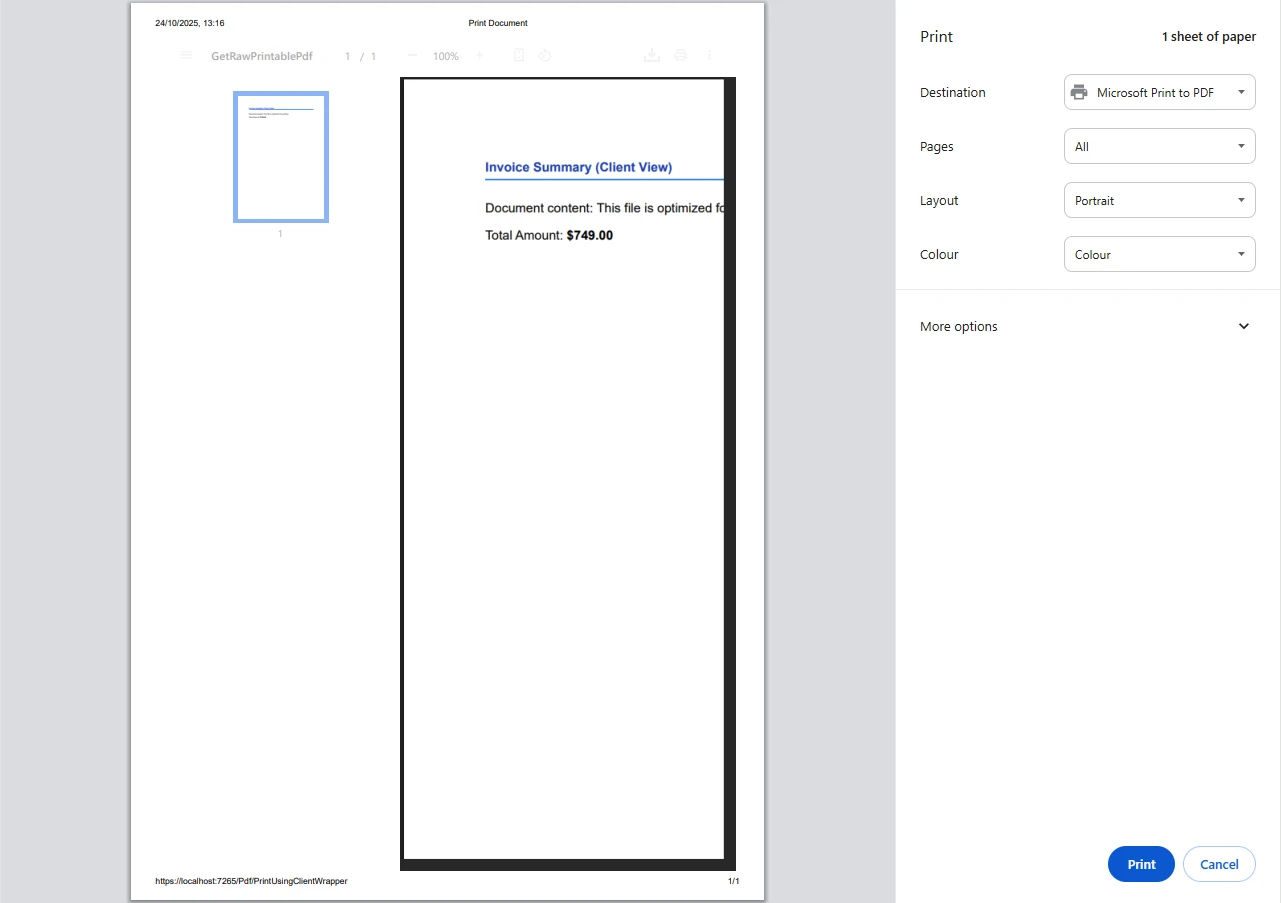
IronPDFはさまざまなソースコード入力を柔軟に扱い、動的な印刷コードを作成しようとする開発者にとって重要な点です:
public async Task<IActionResult> PrintFromMultipleSources()
{
    var renderer = new ChromePdfRenderer();
    // From URL
    var pdfFromUrl = await renderer.RenderUrlAsPdfAsync("https://example.com");
    // From HTML file path
    var pdfFromFile = renderer.RenderHtmlFileAsPdf(@"Templates\report.html");
    var pdfToStream = renderer.RenderHtmlAsPdf("<h2>PDF from Memory Stream</h2><p>This content was loaded into memory first.</p>");
// Now, write the valid PDF bytes to the stream
using (var stream = new MemoryStream(pdfToStream.BinaryData))
{
    var pdfFromStream = new PdfDocument(stream);
    // Example: Print the PDF loaded from the stream
    // pdfFromStream.Print();
}
pdfFromUrl.Print();
// Logging the various files handled
    var fileList = new List<string> { "URL", "File Path", "Memory Stream" };
return Ok("PDF documents processed and 'example.com' printed to default server printer.");
}Imports System.Threading.Tasks
Imports Microsoft.AspNetCore.Mvc
Imports System.IO
Public Class YourController
Inherits Controller
Public Async Function PrintFromMultipleSources() As Task(Of IActionResult)
Dim renderer = New ChromePdfRenderer()
' From URL
Dim pdfFromUrl = Await renderer.RenderUrlAsPdfAsync("https://example.com")
' From HTML file path
Dim pdfFromFile = renderer.RenderHtmlFileAsPdf("Templates\report.html")
Dim pdfToStream = renderer.RenderHtmlAsPdf("<h2>PDF from Memory Stream</h2><p>This content was loaded into memory first.</p>")
' Now, write the valid PDF bytes to the stream
Using stream = New MemoryStream(pdfToStream.BinaryData)
Dim pdfFromStream = New PdfDocument(stream)
' Example: Print the PDF loaded from the stream
' pdfFromStream.Print()
End Using
pdfFromUrl.Print()
' Logging the various files handled
Dim fileList = New List(Of String) From {"URL", "File Path", "Memory Stream"}
Return Ok("PDF documents processed and 'example.com' printed to default server printer.")
End Function
End Class上記の行は、処理されたファイルソースの新しいリストを作成する方法を示しています。 各メソッドはドキュメントの構造とグラフィックスを保持しながら印刷の品質を維持します。
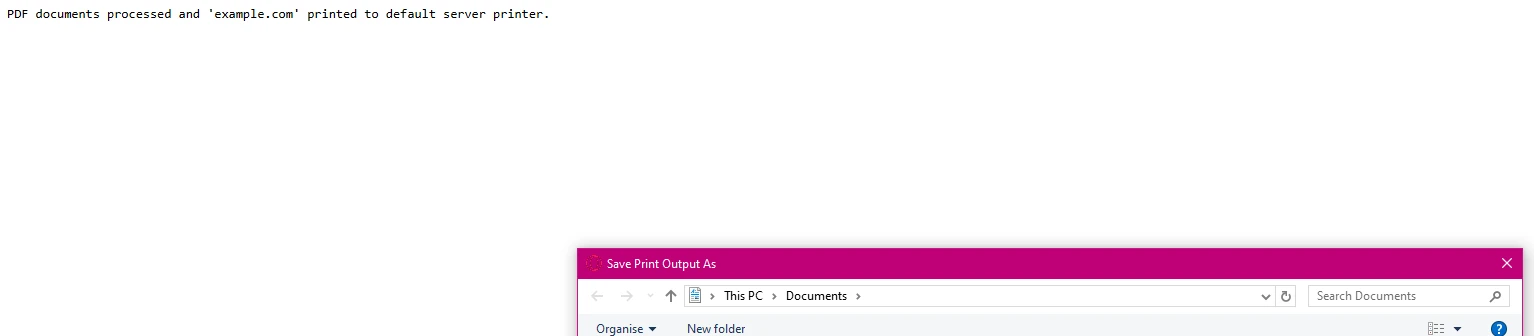
本番環境向けに堅牢なエラーハンドリングを実装します:
using System.Drawing.Printing; // For PrinterSettings
// ... other usings ...
public IActionResult SafePrint(string documentId)
{
    try
    {
        var pdf = LoadPdfDocument(documentId);
        // Verify printer availability
        if (!PrinterSettings.InstalledPrinters.Cast<string>()
            .Contains("Target Printer"))
        {
            // Log error and handle gracefully
            return BadRequest("Printer not available");
        }
        pdf.Print();
        // Log successful output
        return Ok($"Document {documentId} printed successfully");
    }
    catch (Exception ex)
    {
        // Log error details
        return StatusCode(500, "Printing failed");
    }
}Imports System.Drawing.Printing ' For PrinterSettings
' ... other Imports ...
Public Function SafePrint(documentId As String) As IActionResult
Try
Dim pdf = LoadPdfDocument(documentId)
' Verify printer availability
If Not PrinterSettings.InstalledPrinters.Cast(Of String)().Contains("Target Printer") Then
' Log error and handle gracefully
Return BadRequest("Printer not available")
End If
pdf.Print()
' Log successful output
Return Ok($"Document {documentId} printed successfully")
Catch ex As Exception
' Log error details
Return StatusCode(500, "Printing failed")
End Try
End Functionこれは、システムリソースが利用できない場合でも信頼性のある印刷を保証し、印刷サービスの重要な部分です。
コードで指定されたプリンタが利用できない場合、次のエラーメッセージが表示されます:
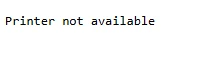
PDFが正常に印刷された場合、次のような確認メッセージが表示されます:

IronPDFのフォルダー構造は複雑なシナリオをサポートします。 使用するIronPDFライブラリのバージョンによって、これらの設定に影響を及ぼす場合があります:
public IActionResult ConfigureAdvancedPrinting(object sender, EventArgs e)
{
    var renderer = new ChromePdfRenderer();
    // Configure rendering options
    renderer.RenderingOptions.PaperSize = PdfPaperSize.A4;
    renderer.RenderingOptions.EnableJavaScript = true;
    renderer.RenderingOptions.RenderDelay = 500; // Wait for dynamic content
    // Generate complex PDF documents
    var pdf = renderer.RenderHtmlAsPdf(GetDynamicContent());
    // Apply security settings
    pdf.SecuritySettings.AllowUserPrinting = true;
    pdf.MetaData.Author = "Your Company";
    return File(pdf.BinaryData, "application/pdf");
}Public Function ConfigureAdvancedPrinting(sender As Object, e As EventArgs) As IActionResult
Dim renderer = New ChromePdfRenderer()
' Configure rendering options
renderer.RenderingOptions.PaperSize = PdfPaperSize.A4
renderer.RenderingOptions.EnableJavaScript = True
renderer.RenderingOptions.RenderDelay = 500 ' Wait for dynamic content
' Generate complex PDF documents
Dim pdf = renderer.RenderHtmlAsPdf(GetDynamicContent())
' Apply security settings
pdf.SecuritySettings.AllowUserPrinting = True
pdf.MetaData.Author = "Your Company"
Return File(pdf.BinaryData, "application/pdf")
End Function印刷のコマンドは、ドキュメントが生成されるとpdf.Print()です。
専門の印刷要件に対して、Iron Softwareは、クロスプラットフォームサポートが強化された専用 for .NET印刷ライブラリであるIronPrintも提供しています。 詳細情報へのリンクは彼らのウェブサイトで見つけることができます。主なパラメータは単にファイルパスです。 製品説明は彼らのウェブサイトでご覧いただけます。
IronPDFは、ASP.NETのPDF印刷を複雑な課題から簡単な実装に変えます。 Adobe Readerや外部依存関係を必要とせず、最小限のコードでPDFファイルを生成して印刷することができます。 PDFライブラリはHTML変換からプリンタ設定までを処理し、サーバー側の自動化とクライアント側の印刷シナリオの両方に最適です。
あなたのPDF印刷ワークフローを簡素化する準備ができましたか? 無料トライアルで今日から始めて、IronPDFがどのようにあなたのASP.NETアプリケーションでのドキュメント処理を簡素化するのかを体験してみてください。 包括的なドキュメントと直接のエンジニアリングサポートにより、数分で本番対応のPDF印刷が稼働します。

Curtis Chauは、カールトン大学でコンピュータサイエンスの学士号を取得し、Node.js、TypeScript、JavaScript、およびReactに精通したフロントエンド開発を専門としています。直感的で美しいユーザーインターフェースを作成することに情熱を持ち、Curtisは現代のフレームワークを用いた開発や、構造の良い視覚的に魅力的なマニュアルの作成を楽しんでいます。

IronPDF はIRONSUITEの一部です
オフィス文書向けの.NET API製品10個

PDFがHTMLのように見える必要があるとき、迅速に。




