using IronPdf;

// Disable local disk access or cross-origin requests
Installation.EnableWebSecurity = true;

// Instantiate Renderer
var renderer = new ChromePdfRenderer();

// Create a PDF from a HTML string using C#
var pdf = renderer.RenderHtmlAsPdf("<h1>Hello World</h1>");

// Export to a file or Stream
pdf.SaveAs("output.pdf");

// Advanced Example with HTML Assets
// Load external html assets: Images, CSS and JavaScript.
// An optional BasePath 'C:\site\assets\' is set as the file location to load assets from
var myAdvancedPdf = renderer.RenderHtmlAsPdf("<img src='icons/iron.png'>", @"C:\site\assets\");
myAdvancedPdf.SaveAs("html-with-assets.pdf");
using IronPdf;// Disable local disk access or cross-origin requestsInstallation.EnableWebSecurity = true;// Instantiate Renderervar renderer = new ChromePdfRenderer();// Create a PDF from a HTML string using C#var pdf = renderer.RenderHtmlAsPdf("<h1>Hello World</h1>");// Export to a file or Streampdf.SaveAs("output.pdf");// Advanced Example with HTML Assets// Load external html assets: Images, CSS and JavaScript.// An optional BasePath 'C:\site\assets\' is set as the file location to load assets fromvar myAdvancedPdf = renderer.RenderHtmlAsPdf("<img src='icons/iron.png'>", @"C:\site\assets\");myAdvancedPdf.SaveAs("html-with-assets.pdf");
PM >Install-Package IronPdf
Install-Package IronPdf
KORZYSTANIE Z IRONPDF
C# Wyodrębnij tekst z PDF (Samouczek z przykładem kodu)
Wiekszosc ludzi otwiera pliki PDF na komputerze za pomoca dedykowanej aplikacji desktopowej, ale inzynierowie oprogramowania moga rowniez uzywac IronPDF do tworzenia, przegladu, otwierania, odczytywania i edytowania zawartosci PDF programistycznie w C#.
IronPDF okazal sie byc bardzo uzytecznym pluginem przy odczytywaniu plikow PDF w ASP.NET i C#.
Mozliwe jest szybkie i latwe tworzenie dokumentow PDF w C# przy pomocy IronPDF.
Wiele z projektu i ukladu dokumentow PDF mozna ostvarzyc uzywajac istniejacych zasobow HTML lub delegujac zadanie pracownikom projektujacym strony web; zajmuje sie czasochlonnym zadaniem integracji generowania PDF-ow do twojej aplikacji i automatyzuje konwersje przygotowanych dokumentow do PDF-ow. Z .NET mozesz:
Konwertowac formularze webowe, lokalne strony HTML i inne strony internetowe do formatu PDF.
Umozliwiac uzytkownikom pobieranie dokumentow, dzielenie sie nimi z innymi za pomoca e-maila lub zapisywanie ich w chmurze.
Faktury klientom i zapewnienie ofert cenowych; przygotowac raporty; negocjowac kontrakty i inne dokumenty.
Pracowac z ASP.NET, ASP.NET Core, Formularzami Webowymi, MVC, Web API na .NET Framework i .NET Core oraz innymi jezykami programowania.
Konfiguracja biblioteki IronPDF
Istnieja dwa sposoby zainstalowania biblioteki:
Instalacja za pomoca Menedzera pakietow NuGet
IronPDF mozna zainstalowac przez dodatki Visual Studio lub Menedzer pakietow NuGet z linii polecen. Przejdz do konsoli, wpisz nastepujace polecenie w Visual Studio:
PM > Install-Package IronPdf
Install-Package IronPdf
Pobierz plik DLL bezposrednio ze strony
Alternatywnie, mozesz pobrac plik DLL bezposrednio ze strony.
Pamietaj, aby na poczatku kazdego pliku klasy cs korzystajacej z IronPDF zamiescic nastepujaca dyrektywe:
Tworzenie pliku PDF z ciagu HTML w C# to efektywna i nagradzajaca metoda tworzenia nowego pliku PDF w C#.
Funkcja RenderHtmlAsPdf z ChromePdfRenderer stanowi latwy sposob na konwersje dowolnego ciagu HTML (HTML5) na dokument PDF, dzieki zastosowanej w IronPDF DLL wbudowanej wersji silnika Google Chromium.
// Create a renderer to convert HTML to PDFvar renderer = new ChromePdfRenderer();// Convert an HTML string to a PDFusing var renderedPdf = renderer.RenderHtmlAsPdf("<h1>My First HTML to Pdf</h1>");// Define the output path for the PDFvar outputPath = "My_First_Html.pdf";// Save the rendered PDF to the specified pathrenderedPdf.SaveAs(outputPath);// Automatically open the newly created PDFSystem.Diagnostics.Process.Start(outputPath);
// Create a renderer to convert HTML to PDF
var renderer = new ChromePdfRenderer();

// Convert an HTML string to a PDF
using var renderedPdf = renderer.RenderHtmlAsPdf("<h1>My First HTML to Pdf</h1>");

// Define the output path for the PDF
var outputPath = "My_First_Html.pdf";

// Save the rendered PDF to the specified path
renderedPdf.SaveAs(outputPath);

// Automatically open the newly created PDF
System.Diagnostics.Process.Start(outputPath);
' Create a renderer to convert HTML to PDFDim renderer = New ChromePdfRenderer()' Convert an HTML string to a PDFDim renderedPdf = renderer.RenderHtmlAsPdf("<h1>My First HTML to Pdf</h1>")' Define the output path for the PDFDim outputPath = "My_First_Html.pdf"' Save the rendered PDF to the specified pathrenderedPdf.SaveAs(outputPath)' Automatically open the newly created PDFSystem.Diagnostics.Process.Start(outputPath)
' Create a renderer to convert HTML to PDF
Dim renderer = New ChromePdfRenderer()

' Convert an HTML string to a PDF
Dim renderedPdf = renderer.RenderHtmlAsPdf("<h1>My First HTML to Pdf</h1>")

' Define the output path for the PDF
Dim outputPath = "My_First_Html.pdf"

' Save the rendered PDF to the specified path
renderedPdf.SaveAs(outputPath)

' Automatically open the newly created PDF
System.Diagnostics.Process.Start(outputPath)
RenderHtmlAsPdf to potezne narzedzie, ktore obsluguje lacznie CSS, JavaScript i obrazy. Koniezne moze byc ustawienie drugiego argumentu RenderHtmlAsPdf, jezeli te materialy sa przechowywane na dysku twardym.
Nastepujacy kod wygeneruje plik PDF:
// Render HTML to PDF with a base path for local assetsvar renderPdf = renderer.RenderHtmlAsPdf("<img src='image_1.png'/>", @"C:\Newproject");
// Render HTML to PDF with a base path for local assets
var renderPdf = renderer.RenderHtmlAsPdf("<img src='image_1.png'/>", @"C:\Newproject");
' Render HTML to PDF with a base path for local assetsDim renderPdf = renderer.RenderHtmlAsPdf("<img src='image_1.png'/>", "C:\Newproject")
' Render HTML to PDF with a base path for local assets
Dim renderPdf = renderer.RenderHtmlAsPdf("<img src='image_1.png'/>", "C:\Newproject")
Wszystkie arkusze stylow CSS, obrazy i pliki JavaScript, do ktorych sie odwolujemy, beda w odniesieniu do BaseUrlPath, co pozwoli zachowac bardziej zorganizowana i logiczna strukture. Możesz oczywiście korzystać z obrazów, arkuszy stylów i zasobów dostępnych w Internecie, takich jak czcionki internetowe, czcionki Google, a nawet jQuery, jeśli chcesz.
Utwórz dokument PDF przy użyciu istniejącego adresu URL HTML
Istniejące adresy URL można efektywnie przekształcić w pliki PDF za pomocą języka C#; umożliwia to również zespołom podział pracy nad projektowaniem plików PDF i renderowaniem plików PDF po stronie serwera na różne sekcje, co jest korzystne.
Poniższy kod pokazuje, jak wyrenderować stronę endeavorcreative.com na podstawie jej adresu URL:
// Create a renderer for converting URLs to PDFvar renderer = new ChromePdfRenderer();// Convert the specified URL to a PDFusing var renderedPdf = renderer.RenderUrlAsPdf("https://endeavorcreative.com/setting-up-wordpress-website-from-scratch/");// Specify the output path for the PDFvar outputPath = "Url_pdf.pdf";// Save the PDF to the specified pathrenderedPdf.SaveAs(outputPath);// Open the newly created PDFSystem.Diagnostics.Process.Start(outputPath);
// Create a renderer for converting URLs to PDF
var renderer = new ChromePdfRenderer();

// Convert the specified URL to a PDF
using var renderedPdf = renderer.RenderUrlAsPdf("https://endeavorcreative.com/setting-up-wordpress-website-from-scratch/");

// Specify the output path for the PDF
var outputPath = "Url_pdf.pdf";

// Save the PDF to the specified path
renderedPdf.SaveAs(outputPath);

// Open the newly created PDF
System.Diagnostics.Process.Start(outputPath);
' Create a renderer for converting URLs to PDFDim renderer = New ChromePdfRenderer()' Convert the specified URL to a PDFDim renderedPdf = renderer.RenderUrlAsPdf("https://endeavorcreative.com/setting-up-wordpress-website-from-scratch/")' Specify the output path for the PDFDim outputPath = "Url_pdf.pdf"' Save the PDF to the specified pathrenderedPdf.SaveAs(outputPath)' Open the newly created PDFSystem.Diagnostics.Process.Start(outputPath)
' Create a renderer for converting URLs to PDF
Dim renderer = New ChromePdfRenderer()

' Convert the specified URL to a PDF
Dim renderedPdf = renderer.RenderUrlAsPdf("https://endeavorcreative.com/setting-up-wordpress-website-from-scratch/")

' Specify the output path for the PDF
Dim outputPath = "Url_pdf.pdf"

' Save the PDF to the specified path
renderedPdf.SaveAs(outputPath)

' Open the newly created PDF
System.Diagnostics.Process.Start(outputPath)
W rezultacie wszystkie hiperłącza (linki HTML), a nawet formularze HTML, są zachowane w wygenerowanym pliku PDF.
Utwórz dokument PDF na podstawie istniejącego dokumentu HTML
W tej sekcji pokazano, jak renderować dowolny lokalny plik HTML. Wyglądać to będzie tak, jakby plik został otwarty przy użyciu protokołu file:/ dla wszystkich zasobów względnych, takich jak między innymi CSS, obrazy i JavaScript.
// Create a renderer for existing HTML filesvar renderer = new ChromePdfRenderer();// Render an HTML file to PDFusing var renderedPdf = renderer.RenderHtmlFileAsPdf("Assets/test1.html");// Specify the output path for the PDFvar outputPath = "test1_pdf.pdf";// Save the PDF to the specified pathrenderedPdf.SaveAs(outputPath);// Open the newly created PDFSystem.Diagnostics.Process.Start(outputPath);
// Create a renderer for existing HTML files
var renderer = new ChromePdfRenderer();

// Render an HTML file to PDF
using var renderedPdf = renderer.RenderHtmlFileAsPdf("Assets/test1.html");

// Specify the output path for the PDF
var outputPath = "test1_pdf.pdf";

// Save the PDF to the specified path
renderedPdf.SaveAs(outputPath);

// Open the newly created PDF
System.Diagnostics.Process.Start(outputPath);
' Create a renderer for existing HTML filesDim renderer = New ChromePdfRenderer()' Render an HTML file to PDFDim renderedPdf = renderer.RenderHtmlFileAsPdf("Assets/test1.html")' Specify the output path for the PDFDim outputPath = "test1_pdf.pdf"' Save the PDF to the specified pathrenderedPdf.SaveAs(outputPath)' Open the newly created PDFSystem.Diagnostics.Process.Start(outputPath)
' Create a renderer for existing HTML files
Dim renderer = New ChromePdfRenderer()

' Render an HTML file to PDF
Dim renderedPdf = renderer.RenderHtmlFileAsPdf("Assets/test1.html")

' Specify the output path for the PDF
Dim outputPath = "test1_pdf.pdf"

' Save the PDF to the specified path
renderedPdf.SaveAs(outputPath)

' Open the newly created PDF
System.Diagnostics.Process.Start(outputPath)
Zaletą tej strategii jest to, że pozwala programistom testować zawartość HTML w przeglądarce podczas jej tworzenia. Silnik renderujący IronPDF jest oparty na przeglądarce internetowej Chrome. Dlatego zaleca się użycie konwersji XML do PDF, ponieważ drukowanie treści XML do formatu PDF można wykonać przy użyciu szablonów XSLT.
Konwersja formularzy internetowych ASP.NET do pliku PDF
Za pomocą jednej linii kodu można przekonwertować formularze online ASP.NET do formatu PDF zamiast HTML. Umiesc linie kodu w metodzie Page_Load w pliku code-behind strony, aby pojawila sie na stronie.
Aplikacje ASP.NET Web Forms można tworzyć od podstaw lub otwierać z poprzedniej wersji.
Zainstaluj pakiet NuGet, jeśli nie jest jeszcze zainstalowany.
Slowo kluczowe using nalezy stosowac do importowania przestrzeni nazw IronPdf.
Przejdź do kodu strony, którą chcesz przekonwertować do formatu PDF. Na przykład plik Default.aspx.cs wykorzystujący ASP.NET.
RenderThisPageAsPdf to metoda klasy AspxToPdf.
using IronPdf;using System;using System.Web.UI;namespace WebApplication7{ public partial class _Default : Page { protected voidPage_Load(object sender, EventArgs e) { // Render the current page as a PDF in the browserAspxToPdf.RenderThisPageAsPdf(AspxToPdf.FileBehavior.InBrowser); } }}
using IronPdf;
using System;
using System.Web.UI;

namespace WebApplication7
{
    public partial class _Default : Page
    {
        protected void Page_Load(object sender, EventArgs e)
        {
            // Render the current page as a PDF in the browser
            AspxToPdf.RenderThisPageAsPdf(AspxToPdf.FileBehavior.InBrowser);
        }
    }
}
ImportsIronPdfImportsSystemImportsSystem.Web.UINamespaceWebApplication7PartialPublic Class _DefaultInheritsPageProtected Sub Page_Load(ByVal sender AsObject, ByVal e AsEventArgs) ' Render the current page as a PDF in the browserAspxToPdf.RenderThisPageAsPdf(AspxToPdf.FileBehavior.InBrowser) End Sub End ClassEndNamespace
Imports IronPdf
Imports System
Imports System.Web.UI

Namespace WebApplication7
	Partial Public Class _Default
		Inherits Page

		Protected Sub Page_Load(ByVal sender As Object, ByVal e As EventArgs)
			' Render the current page as a PDF in the browser
			AspxToPdf.RenderThisPageAsPdf(AspxToPdf.FileBehavior.InBrowser)
		End Sub
	End Class
End Namespace
Dla twórców intranetów i stron internetowych możliwość tworzenia szablonów lub "masowej produkcji" plików PDF jest standardową koniecznością.
Zamiast tworzyć szablon dokumentu PDF, biblioteka IronPDF oferuje sposób na wygenerowanie szablonu HTML, wykorzystując istniejącą, sprawdzoną technologię.
Dynamicznie generowany plik PDF jest tworzony, gdy szablon HTML jest uzupełniany danymi z ciągu zapytania lub bazy danych, jak pokazano poniżej.
Jako przykład rozważmy klasę String w języku C# i jej właściwości. Metoda Format sprawdza się dobrze w przypadku podstawowych operacji typu "korespondencja seryjna".
// Basic HTML String Formattingstring formattedString = String.Format("<h1>Hello {0}!</h1>", "World");
' Basic HTML String Formatting
Dim formattedString As String = String.Format("<h1>Hello {0}!</h1>", "World")
Ponieważ pliki HTML mogą być dość obszerne, często stosuje się dowolne symbole zastępcze, takie jak [[NAME]], a następnie zastępuje się je rzeczywistymi danymi.
Poniższy przykład wygeneruje trzy dokumenty PDF, z których każdy zostanie dostosowany do potrzeb innego użytkownika.
// Define an HTML template with a placeholdervar htmlTemplate = "<p>[[NAME]]</p>";// Sample data to replace placeholdersvar names = new[] { "John", "James", "Jenny" };// Create a new PDF for each nameforeach (var name in names){ // Replace placeholder with actual name var htmlInstance = htmlTemplate.Replace("[[NAME]]", name); // Create a renderer and render the HTML as PDF var renderer = new ChromePdfRenderer(); using var pdf = renderer.RenderHtmlAsPdf(htmlInstance); // Save the PDF with the name in the filename pdf.SaveAs($"{name}.pdf");}
// Define an HTML template with a placeholder
var htmlTemplate = "<p>[[NAME]]</p>";

// Sample data to replace placeholders
var names = new[] { "John", "James", "Jenny" };

// Create a new PDF for each name
foreach (var name in names)
{
    // Replace placeholder with actual name
    var htmlInstance = htmlTemplate.Replace("[[NAME]]", name);

    // Create a renderer and render the HTML as PDF
    var renderer = new ChromePdfRenderer();
    using var pdf = renderer.RenderHtmlAsPdf(htmlInstance);

    // Save the PDF with the name in the filename
    pdf.SaveAs($"{name}.pdf");
}
' Define an HTML template with a placeholderDim htmlTemplate = "<p>[[NAME]]</p>"' Sample data to replace placeholdersDim names = { "John", "James", "Jenny" }' Create a new PDF for each nameFor Each name In names ' Replace placeholder with actual name Dim htmlInstance = htmlTemplate.Replace("[[NAME]]", name) ' Create a renderer and render the HTML as PDF Dim renderer = New ChromePdfRenderer() Dim pdf = renderer.RenderHtmlAsPdf(htmlInstance) ' Save the PDF with the name in the filename pdf.SaveAs($"{name}.pdf")Next name
' Define an HTML template with a placeholder
Dim htmlTemplate = "<p>[[NAME]]</p>"

' Sample data to replace placeholders
Dim names = { "John", "James", "Jenny" }

' Create a new PDF for each name
For Each name In names
	' Replace placeholder with actual name
	Dim htmlInstance = htmlTemplate.Replace("[[NAME]]", name)

	' Create a renderer and render the HTML as PDF
	Dim renderer = New ChromePdfRenderer()
	Dim pdf = renderer.RenderHtmlAsPdf(htmlInstance)

	' Save the PDF with the name in the filename
	pdf.SaveAs($"{name}.pdf")
Next name
Routing ASP.NET MVC: Pobierz wersję PDF tej strony
Dzięki frameworkowi ASP.NET MVC możesz przekierować użytkownika do pliku PDF.
Wybierz tę opcję podczas tworzenia nowej aplikacji ASP.NET MVC lub dodawania istniejącego kontrolera MVC do istniejącej aplikacji. Uruchom kreatora nowego projektu w programie Visual Studio, wybierając z menu rozwijanego opcję Aplikacja internetowa ASP.NET (.NET Framework) > MVC. Alternatywnie można otworzyć istniejący projekt MVC. Zastąp metodę Index w pliku HomeController w folderze Controllers lub utwórz nowy kontroler w folderze Controllers.
Poniżej znajduje się przykład tego, jak powinien wyglądać kod:
using IronPdf;using System;using System.Web.Mvc;namespace WebApplication8.Controllers{ public class HomeController : Controller { public ActionResultIndex() { // Render a URL as PDF and return it in the response using var pdf = HtmlToPdf.StaticRenderUrlAsPdf(new Uri("https://en.wikipedia.org")); returnFile(pdf.BinaryData, "application/pdf", "Wiki.Pdf"); } public ActionResultAbout() {ViewBag.Message = "Your application description page."; returnView(); } public ActionResultContact() {ViewBag.Message = "Your contact page."; returnView(); } }}
using IronPdf;
using System;
using System.Web.Mvc;

namespace WebApplication8.Controllers
{
    public class HomeController : Controller
    {
        public ActionResult Index()
        {
            // Render a URL as PDF and return it in the response
            using var pdf = HtmlToPdf.StaticRenderUrlAsPdf(new Uri("https://en.wikipedia.org"));
            return File(pdf.BinaryData, "application/pdf", "Wiki.Pdf");
        }

        public ActionResult About()
        {
            ViewBag.Message = "Your application description page.";
            return View();
        }

        public ActionResult Contact()
        {
            ViewBag.Message = "Your contact page.";
            return View();
        }
    }
}
ImportsIronPdfImportsSystemImportsSystem.Web.MvcNamespaceWebApplication8.Controllers Public Class HomeControllerInheritsController Public Function Index() AsActionResult ' Render a URL as PDF and return it in the response Dim pdf = HtmlToPdf.StaticRenderUrlAsPdf(New Uri("https://en.wikipedia.org")) ReturnFile(pdf.BinaryData, "application/pdf", "Wiki.Pdf") End Function Public Function About() AsActionResultViewBag.Message = "Your application description page." ReturnView() End Function Public Function Contact() AsActionResultViewBag.Message = "Your contact page." ReturnView() End Function End ClassEndNamespace
Imports IronPdf
Imports System
Imports System.Web.Mvc

Namespace WebApplication8.Controllers
	Public Class HomeController
		Inherits Controller

		Public Function Index() As ActionResult
			' Render a URL as PDF and return it in the response
			Dim pdf = HtmlToPdf.StaticRenderUrlAsPdf(New Uri("https://en.wikipedia.org"))
			Return File(pdf.BinaryData, "application/pdf", "Wiki.Pdf")
		End Function

		Public Function About() As ActionResult
			ViewBag.Message = "Your application description page."
			Return View()
		End Function

		Public Function Contact() As ActionResult
			ViewBag.Message = "Your contact page."
			Return View()
		End Function
	End Class
End Namespace
Dodaj stronę tytułową do dokumentu PDF
Dodaj strone tytulowa do dokumentu PDF
IronPDF upraszcza proces łączenia dokumentów PDF. Najczęstszym zastosowaniem tej techniki jest dodanie strony tytułowej lub tylnej strony do już wygenerowanego dokumentu PDF.
Aby to osiagnac, przygotuj strone tytulowa, a nastepnie skorzystaj z funkcjonalnosci PdfDocument.
// Create a renderer and render a PDF from a URLvar renderer = new ChromePdfRenderer();using var pdf = renderer.RenderUrlAsPdf("https://www.nuget.org/packages/IronPdf/");// Merge the cover page with the rendered PDFusing var merged = PdfDocument.Merge(new PdfDocument("CoverPage.pdf"), pdf);// Save the merged documentmerged.SaveAs("Combined.Pdf");
// Create a renderer and render a PDF from a URL
var renderer = new ChromePdfRenderer();
using var pdf = renderer.RenderUrlAsPdf("https://www.nuget.org/packages/IronPdf/");

// Merge the cover page with the rendered PDF
using var merged = PdfDocument.Merge(new PdfDocument("CoverPage.pdf"), pdf);

// Save the merged document
merged.SaveAs("Combined.Pdf");
' Create a renderer and render a PDF from a URLDim renderer = New ChromePdfRenderer()Dim pdf = renderer.RenderUrlAsPdf("https://www.nuget.org/packages/IronPdf/")' Merge the cover page with the rendered PDFDim merged = PdfDocument.Merge(New PdfDocument("CoverPage.pdf"), pdf)' Save the merged documentmerged.SaveAs("Combined.Pdf")
' Create a renderer and render a PDF from a URL
Dim renderer = New ChromePdfRenderer()
Dim pdf = renderer.RenderUrlAsPdf("https://www.nuget.org/packages/IronPdf/")

' Merge the cover page with the rendered PDF
Dim merged = PdfDocument.Merge(New PdfDocument("CoverPage.pdf"), pdf)

' Save the merged document
merged.SaveAs("Combined.Pdf")
Dodaj znak wodny do dokumentu
Wreszcie, dodanie znaku wodnego do dokumentów PDF można zrealizować za pomocą kodu C#; to moze byc uzywane do dodania ogloszenia na kazda strone dokumentu, ze jest on "poufny" lub "probka."
// Prepare a stamper with HTML content for the watermarkHtmlStamper stamper = new HtmlStamper("<h2 style='color:red'>SAMPLE</h2>"){HorizontalOffset = new Length(-3, MeasurementUnit.Inch),VerticalAlignment = VerticalAlignment.Bottom};// Create a renderer and render a PDF from a URLvar renderer = new ChromePdfRenderer();using var pdf = renderer.RenderUrlAsPdf("https://www.nuget.org/packages/IronPdf");// Apply the watermark to the PDFpdf.ApplyStamp(stamper);// Save the watermarked PDFpdf.SaveAs(@"C:\PathToWatermarked.pdf");
// Prepare a stamper with HTML content for the watermark
HtmlStamper stamper = new HtmlStamper("<h2 style='color:red'>SAMPLE</h2>")
{
    HorizontalOffset = new Length(-3, MeasurementUnit.Inch),
    VerticalAlignment = VerticalAlignment.Bottom
};

// Create a renderer and render a PDF from a URL
var renderer = new ChromePdfRenderer();
using var pdf = renderer.RenderUrlAsPdf("https://www.nuget.org/packages/IronPdf");

// Apply the watermark to the PDF
pdf.ApplyStamp(stamper);

// Save the watermarked PDF
pdf.SaveAs(@"C:\PathToWatermarked.pdf");
' Prepare a stamper with HTML content for the watermarkDim stamper As New HtmlStamper("<h2 style='color:red'>SAMPLE</h2>") With { .HorizontalOffset = New Length(-3, MeasurementUnit.Inch), .VerticalAlignment = VerticalAlignment.Bottom}' Create a renderer and render a PDF from a URLDim renderer = New ChromePdfRenderer()Dim pdf = renderer.RenderUrlAsPdf("https://www.nuget.org/packages/IronPdf")' Apply the watermark to the PDFpdf.ApplyStamp(stamper)' Save the watermarked PDFpdf.SaveAs("C:\PathToWatermarked.pdf")
' Prepare a stamper with HTML content for the watermark
Dim stamper As New HtmlStamper("<h2 style='color:red'>SAMPLE</h2>") With {
	.HorizontalOffset = New Length(-3, MeasurementUnit.Inch),
	.VerticalAlignment = VerticalAlignment.Bottom
}

' Create a renderer and render a PDF from a URL
Dim renderer = New ChromePdfRenderer()
Dim pdf = renderer.RenderUrlAsPdf("https://www.nuget.org/packages/IronPdf")

' Apply the watermark to the PDF
pdf.ApplyStamp(stamper)

' Save the watermarked PDF
pdf.SaveAs("C:\PathToWatermarked.pdf")
Twoj plik PDF mozna zabezpieczyc haslem
Gdy ustawisz wlasciwosc hasla w dokumencie PDF, bedzie on zaszyfrowany, a uzytkownik bedzie musial podac poprawne haslo, aby przeczytac dokument. Ten przyklad mozna uzyc w aplikacji konsolowej .NET Core.
using IronPdf;namespace ConsoleApp{ class Program { static voidMain(string[] args) { // Create a renderer and render a PDF from HTML var renderer = new ChromePdfRenderer(); using var pdfDocument = renderer.RenderHtmlAsPdf("<h1>Hello World</h1>"); // Set password to protect the PDF pdfDocument.Password = "strong!@#pass&^%word"; // Save the secured PDF pdfDocument.SaveAs("secured.pdf"); } }}
using IronPdf;

namespace ConsoleApp
{
    class Program
    {
        static void Main(string[] args)
        {
            // Create a renderer and render a PDF from HTML
            var renderer = new ChromePdfRenderer();
            using var pdfDocument = renderer.RenderHtmlAsPdf("<h1>Hello World</h1>");

            // Set password to protect the PDF
            pdfDocument.Password = "strong!@#pass&^%word";

            // Save the secured PDF
            pdfDocument.SaveAs("secured.pdf");
        }
    }
}
ImportsIronPdfNamespaceConsoleAppFriend Class ProgramShared Sub Main(ByVal args() AsString) ' Create a renderer and render a PDF from HTML Dim renderer = New ChromePdfRenderer() Dim pdfDocument = renderer.RenderHtmlAsPdf("<h1>Hello World</h1>") ' Set password to protect the PDF pdfDocument.Password = "strong!@#pass&^%word" ' Save the secured PDF pdfDocument.SaveAs("secured.pdf") End Sub End ClassEndNamespace
Imports IronPdf

Namespace ConsoleApp
	Friend Class Program
		Shared Sub Main(ByVal args() As String)
			' Create a renderer and render a PDF from HTML
			Dim renderer = New ChromePdfRenderer()
			Dim pdfDocument = renderer.RenderHtmlAsPdf("<h1>Hello World</h1>")

			' Set password to protect the PDF
			pdfDocument.Password = "strong!@#pass&^%word"

			' Save the secured PDF
			pdfDocument.SaveAs("secured.pdf")
		End Sub
	End Class
End Namespace
Bez wyzej wymienionych zalet, przy IronPDF mozna rowniez:
Tworzenie PDF-ow to takie wyzwanie; niektorzy ludzie moze nigdy nie napotkali fundamentalnych pojec, ktore powinni stosowac, aby tworzyc najlepsze dokumenty. W rezultacie, IronPDF jest niezwykle pomocny, poniewaz upraszcza tworzenie PDF-ow, a co za tym idzie, poprawia oryginalna prezentacje dokumentow utworzonych z PDF-ow i HTML.
Na podstawie informacji zawartych w dokumentacji i analizie konkurencji: IronPDF jest najbardziej efektywnym narzedziem do tworzenia PDF-ow, co ulatwia kazdemu, w tym tym, ktorzy pracuja w biurach lub szkolach, wykonywanie swoich zadan wydajnie.
Jak przegladac pliki PDF w ASP.NET za pomoca C# i IronPDF
Curtis Chau posiada tytuł licencjata z informatyki (Uniwersytet Carleton) i specjalizuje się w front-endowym rozwoju, z ekspertką w Node.js, TypeScript, JavaScript i React. Pasjonuje się tworzeniem intuicyjnych i estetycznie przyjemnych interfejsów użytkownika, Curtis cieszy się pracą z nowoczesnymi frameworkami i tworzeniem dobrze zorganizowanych, atrakcyjnych wizualnie podręczników.





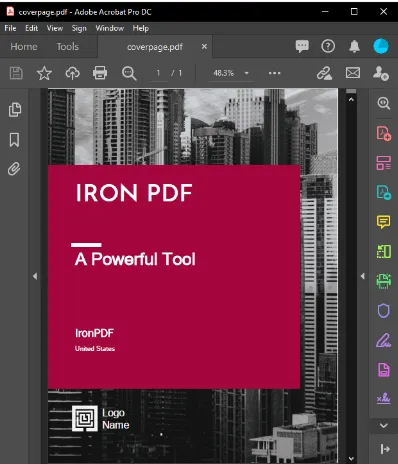 Dodaj strone tytulowa do dokumentu PDF
 Jak przegladac pliki PDF w ASP.NET za pomoca C# i IronPDF

















