


C#從PDF提取文字 (程式碼範例教學)

大多數人使用專用的桌面應用程式在電腦上打開PDF,但軟體工程師也可以使用IronPDF以C#程式方式建立、查看、打開、閱讀和編輯PDF內容。
IronPDF被證明是一個非常有用的插件,當在ASP.NET和C#中閱讀PDF文件時。
您可以下載ASP.NET PDF演示專案。
使用IronPDF,以C#快速且輕鬆地建立PDF文件是可能的。
PDF文件的許多設計和佈局可以通過使用現有的HTML資源或將任務委派給網頁設計員來完成; 它處理將PDF生成整合到您的應用程式中的耗時任務,並自動將準備好的文件轉換為PDF。 使用.NET,您可以:
- 將網頁表單、本地HTML頁面和其他網站轉換為PDF格式。
- 允許使用者下載文件、通過電子郵件分享給其他人或將其儲存在雲端。
- 開具客戶發票並提供報價; 準備報告; 協商合同和其他文書。
- 使用ASP.NET、ASP.NET Core、Web Forms、MVC、在.NET Framework和.NET Core下的Web APIs和其他程式語言合作。
設置IronPDF程式庫
有兩種方式安裝程式庫:
使用NuGet包管理器安裝
IronPDF可以通過Visual Studio插件或NuGet包管理器從命令行安裝。在Visual Studio的控制台中導航,然後輸入以下命令:
Install-Package IronPdf
直接從網站下載DLL文件
或者,您可以直接從網站獲取DLL。
請記得在任何使用IronPDF的cs類文件的頂部包含以下指令:
using IronPdf;using IronPdf;Imports IronPdfIronPDF是必備的插件。 立即獲取您的版本並使用IronPDF NuGet包試用。
Create a PDF File From an HTML String in .NET C
從HTML字串在C#中建立PDF文件是建立C#新PDF文件的一種高效且有成效的方法。
ChromePdfRenderer,提供了一種簡單的方法來將任何HTML(HTML5)字串轉換為PDF文件,這要歸功於IronPDF DLL中嵌入的Google Chromium引擎版本。
// Create a renderer to convert HTML to PDF
var renderer = new ChromePdfRenderer();

// Convert an HTML string to a PDF
using var renderedPdf = renderer.RenderHtmlAsPdf("<h1>My First HTML to Pdf</h1>");

// Define the output path for the PDF
var outputPath = "My_First_Html.pdf";

// Save the rendered PDF to the specified path
renderedPdf.SaveAs(outputPath);

// Automatically open the newly created PDF
System.Diagnostics.Process.Start(outputPath);
// Create a renderer to convert HTML to PDF
var renderer = new ChromePdfRenderer();
// Convert an HTML string to a PDF
using var renderedPdf = renderer.RenderHtmlAsPdf("<h1>My First HTML to Pdf</h1>");
// Define the output path for the PDF
var outputPath = "My_First_Html.pdf";
// Save the rendered PDF to the specified path
renderedPdf.SaveAs(outputPath);
// Automatically open the newly created PDF
System.Diagnostics.Process.Start(outputPath);' Create a renderer to convert HTML to PDF
Dim renderer = New ChromePdfRenderer()
' Convert an HTML string to a PDF
Dim renderedPdf = renderer.RenderHtmlAsPdf("<h1>My First HTML to Pdf</h1>")
' Define the output path for the PDF
Dim outputPath = "My_First_Html.pdf"
' Save the rendered PDF to the specified path
renderedPdf.SaveAs(outputPath)
' Automatically open the newly created PDF
System.Diagnostics.Process.Start(outputPath)RenderHtmlAsPdf是一個強大的工具,完全支持CSS、JavaScript和圖片。 如果這些材料儲存在硬碟上,則可能需要設置RenderHtmlAsPdf的第二個參數。
以下程式碼將生成一個PDF文件:
// Render HTML to PDF with a base path for local assets
var renderPdf = renderer.RenderHtmlAsPdf("<img src='image_1.png'/>", @"C:\Newproject");
// Render HTML to PDF with a base path for local assets
var renderPdf = renderer.RenderHtmlAsPdf("<img src='image_1.png'/>", @"C:\Newproject");' Render HTML to PDF with a base path for local assets
Dim renderPdf = renderer.RenderHtmlAsPdf("<img src='image_1.png'/>", "C:\Newproject")所有參考的CSS樣式表、圖片和JavaScript文件將相對於BaseUrlPath,從而保持更有條理和邏輯的結構。 當然,您可以選擇使用可在網路上獲得的圖片、樣式表和資源,例如Web字體、Google字體,甚至jQuery。
使用現有HTML網址建立PDF文件
使用C#高效地將現有網址轉換為PDF; 這還使團隊能夠將PDF設計與後端PDF渲染工作劃分到各個部分,這是有益的。
以下程式碼展示如何從其網址渲染endeavorcreative.com頁面:
// Create a renderer for converting URLs to PDF
var renderer = new ChromePdfRenderer();

// Convert the specified URL to a PDF
using var renderedPdf = renderer.RenderUrlAsPdf("https://endeavorcreative.com/setting-up-wordpress-website-from-scratch/");

// Specify the output path for the PDF
var outputPath = "Url_pdf.pdf";

// Save the PDF to the specified path
renderedPdf.SaveAs(outputPath);

// Open the newly created PDF
System.Diagnostics.Process.Start(outputPath);
// Create a renderer for converting URLs to PDF
var renderer = new ChromePdfRenderer();
// Convert the specified URL to a PDF
using var renderedPdf = renderer.RenderUrlAsPdf("https://endeavorcreative.com/setting-up-wordpress-website-from-scratch/");
// Specify the output path for the PDF
var outputPath = "Url_pdf.pdf";
// Save the PDF to the specified path
renderedPdf.SaveAs(outputPath);
// Open the newly created PDF
System.Diagnostics.Process.Start(outputPath);' Create a renderer for converting URLs to PDF
Dim renderer = New ChromePdfRenderer()
' Convert the specified URL to a PDF
Dim renderedPdf = renderer.RenderUrlAsPdf("https://endeavorcreative.com/setting-up-wordpress-website-from-scratch/")
' Specify the output path for the PDF
Dim outputPath = "Url_pdf.pdf"
' Save the PDF to the specified path
renderedPdf.SaveAs(outputPath)
' Open the newly created PDF
System.Diagnostics.Process.Start(outputPath)因此,生成的PDF中保留了所有超連結(HTML連結)甚至HTML表單。
從現有HTML文件建立PDF文件
本節展示如何渲染任何本地HTML文件。看起來文件已經使用file:/協議打開,適用於所有相關資源,如CSS、圖片和JavaScript等。
// Create a renderer for existing HTML files
var renderer = new ChromePdfRenderer();

// Render an HTML file to PDF
using var renderedPdf = renderer.RenderHtmlFileAsPdf("Assets/test1.html");

// Specify the output path for the PDF
var outputPath = "test1_pdf.pdf";

// Save the PDF to the specified path
renderedPdf.SaveAs(outputPath);

// Open the newly created PDF
System.Diagnostics.Process.Start(outputPath);
// Create a renderer for existing HTML files
var renderer = new ChromePdfRenderer();
// Render an HTML file to PDF
using var renderedPdf = renderer.RenderHtmlFileAsPdf("Assets/test1.html");
// Specify the output path for the PDF
var outputPath = "test1_pdf.pdf";
// Save the PDF to the specified path
renderedPdf.SaveAs(outputPath);
// Open the newly created PDF
System.Diagnostics.Process.Start(outputPath);' Create a renderer for existing HTML files
Dim renderer = New ChromePdfRenderer()
' Render an HTML file to PDF
Dim renderedPdf = renderer.RenderHtmlFileAsPdf("Assets/test1.html")
' Specify the output path for the PDF
Dim outputPath = "test1_pdf.pdf"
' Save the PDF to the specified path
renderedPdf.SaveAs(outputPath)
' Open the newly created PDF
System.Diagnostics.Process.Start(outputPath)此策略的優勢在於,允許開發者在建立時在瀏覽器中測試HTML內容。 IronPDF的渲染引擎基於Chrome網頁瀏覽器。 因此,建議使用XML轉PDF轉換,因為可以使用XSLT模板來將XML內容列印到PDF。
將ASP.NET Web表單轉換為PDF文件
僅用一行程式碼,您就可以將ASP.NET網上表單轉換為PDF格式,而不是HTML。 將程式碼行放置在頁面後面的程式碼文件中的Page_Load方法中,使其出現在頁面上。
ASP.NET Web表單應用程式可以從頭建立也可以從先前版本打開。
如果尚未安裝,請安裝NuGet包。
IronPdf命名空間。
導航到您想轉換為PDF的頁面程式碼後文件。 例如,使用ASP.NET的文件Default.aspx.cs。
AspxToPdf類上的方法。
using IronPdf;
using System;
using System.Web.UI;

namespace WebApplication7
{
    public partial class _Default : Page
    {
        protected void Page_Load(object sender, EventArgs e)
        {
            // Render the current page as a PDF in the browser
            AspxToPdf.RenderThisPageAsPdf(AspxToPdf.FileBehavior.InBrowser);
        }
    }
}
using IronPdf;
using System;
using System.Web.UI;
namespace WebApplication7
{
public partial class _Default : Page
{
protected void Page_Load(object sender, EventArgs e)
{
// Render the current page as a PDF in the browser
AspxToPdf.RenderThisPageAsPdf(AspxToPdf.FileBehavior.InBrowser);
}
}
}Imports IronPdf
Imports System
Imports System.Web.UI
Namespace WebApplication7
Partial Public Class _Default
Inherits Page
Protected Sub Page_Load(ByVal sender As Object, ByVal e As EventArgs)
' Render the current page as a PDF in the browser
AspxToPdf.RenderThisPageAsPdf(AspxToPdf.FileBehavior.InBrowser)
End Sub
End Class
End Namespace這需要安裝IronPdf.Extensions.ASPX NuGet包。 在.NET Core中不可用,因為ASPX被MVC模型取代。
應用HTML模板化
對於內聯網和網站開發人員來說,具備模板化或"批量生產"PDF的能力是標準需求。
與其為PDF文件建立模板,不如使用IronPDF程式庫提供的方法,通過利用現有、經過充分測試的技術來生成HTML的模板。
當HTML模板使用查詢字串或資料庫中的資料進行補充時,會生成一個動態建立的PDF文件,如下所示。
例如,考慮C#字串類及其屬性。 格式化方法非常適合基本的"郵件合併"操作。
// Basic HTML String Formatting
string formattedString = String.Format("<h1>Hello {0}!</h1>", "World");
// Basic HTML String Formatting
string formattedString = String.Format("<h1>Hello {0}!</h1>", "World");' Basic HTML String Formatting
Dim formattedString As String = String.Format("<h1>Hello {0}!</h1>", "World")由於HTML文件可以非常繁瑣,通常使用任意占位符,如[[NAME]],然後用實際資料替換它們。
以下範例將生成三個PDF文件,每個文件將根據不同的使用者進行自定義。
// Define an HTML template with a placeholder
var htmlTemplate = "<p>[[NAME]]</p>";

// Sample data to replace placeholders
var names = new[] { "John", "James", "Jenny" };

// Create a new PDF for each name
foreach (var name in names)
{
    // Replace placeholder with actual name
    var htmlInstance = htmlTemplate.Replace("[[NAME]]", name);

    // Create a renderer and render the HTML as PDF
    var renderer = new ChromePdfRenderer();
    using var pdf = renderer.RenderHtmlAsPdf(htmlInstance);

    // Save the PDF with the name in the filename
    pdf.SaveAs($"{name}.pdf");
}
// Define an HTML template with a placeholder
var htmlTemplate = "<p>[[NAME]]</p>";
// Sample data to replace placeholders
var names = new[] { "John", "James", "Jenny" };
// Create a new PDF for each name
foreach (var name in names)
{
// Replace placeholder with actual name
var htmlInstance = htmlTemplate.Replace("[[NAME]]", name);
// Create a renderer and render the HTML as PDF
var renderer = new ChromePdfRenderer();
using var pdf = renderer.RenderHtmlAsPdf(htmlInstance);
// Save the PDF with the name in the filename
pdf.SaveAs($"{name}.pdf");
}' Define an HTML template with a placeholder
Dim htmlTemplate = "<p>[[NAME]]</p>"
' Sample data to replace placeholders
Dim names = { "John", "James", "Jenny" }
' Create a new PDF for each name
For Each name In names
' Replace placeholder with actual name
Dim htmlInstance = htmlTemplate.Replace("[[NAME]]", name)
' Create a renderer and render the HTML as PDF
Dim renderer = New ChromePdfRenderer()
Dim pdf = renderer.RenderHtmlAsPdf(htmlInstance)
' Save the PDF with the name in the filename
pdf.SaveAs($"{name}.pdf")
Next nameASP.NET MVC路由:下載此頁面的PDF版本
使用ASP.NET MVC框架,您可以將使用者導向至PDF文件。
無論是構建新的ASP.NET MVC應用程式還是將現有MVC控制器新增到現有應用程式中,請選擇此選項。 通過從下拉選單中選擇ASP.NET Web應用程式 (.NET Framework) > MVC來啟動Visual Studio新專案精靈。 或者,您可以打開現有MVC專案。 替換Controllers資料夾中的HomeController文件中的Index方法,或在Controllers資料夾中建立一個新的控制器。
以下是程式碼應如何編寫的範例:
using IronPdf;
using System;
using System.Web.Mvc;

namespace WebApplication8.Controllers
{
    public class HomeController : Controller
    {
        public ActionResult Index()
        {
            // Render a URL as PDF and return it in the response
            using var pdf = HtmlToPdf.StaticRenderUrlAsPdf(new Uri("https://en.wikipedia.org"));
            return File(pdf.BinaryData, "application/pdf", "Wiki.Pdf");
        }

        public ActionResult About()
        {
            ViewBag.Message = "Your application description page.";
            return View();
        }

        public ActionResult Contact()
        {
            ViewBag.Message = "Your contact page.";
            return View();
        }
    }
}
using IronPdf;
using System;
using System.Web.Mvc;
namespace WebApplication8.Controllers
{
public class HomeController : Controller
{
public ActionResult Index()
{
// Render a URL as PDF and return it in the response
using var pdf = HtmlToPdf.StaticRenderUrlAsPdf(new Uri("https://en.wikipedia.org"));
return File(pdf.BinaryData, "application/pdf", "Wiki.Pdf");
}
public ActionResult About()
{
ViewBag.Message = "Your application description page.";
return View();
}
public ActionResult Contact()
{
ViewBag.Message = "Your contact page.";
return View();
}
}
}Imports IronPdf
Imports System
Imports System.Web.Mvc
Namespace WebApplication8.Controllers
Public Class HomeController
Inherits Controller
Public Function Index() As ActionResult
' Render a URL as PDF and return it in the response
Dim pdf = HtmlToPdf.StaticRenderUrlAsPdf(New Uri("https://en.wikipedia.org"))
Return File(pdf.BinaryData, "application/pdf", "Wiki.Pdf")
End Function
Public Function About() As ActionResult
ViewBag.Message = "Your application description page."
Return View()
End Function
Public Function Contact() As ActionResult
ViewBag.Message = "Your contact page."
Return View()
End Function
End Class
End Namespace向PDF文件新增封面
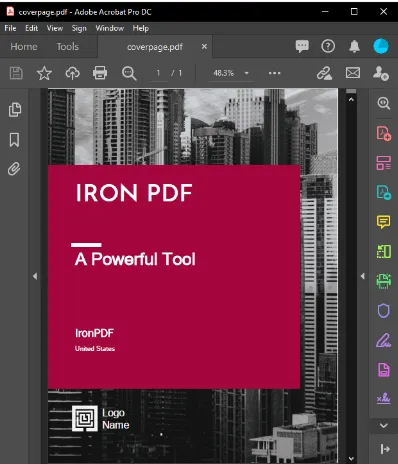 向PDF文件新增封面
IronPDF簡化了合併PDF文件的過程。 此技術最常見的應用是為已渲染的PDF文件新增封面或背面頁面。
為此,準備一個封面頁,然後使用PdfDocument能力。
要合併這兩個文件,使用Merge PDF Documents Method。
// Create a renderer and render a PDF from a URL
var renderer = new ChromePdfRenderer();
using var pdf = renderer.RenderUrlAsPdf("https://www.nuget.org/packages/IronPdf/");

// Merge the cover page with the rendered PDF
using var merged = PdfDocument.Merge(new PdfDocument("CoverPage.pdf"), pdf);

// Save the merged document
merged.SaveAs("Combined.Pdf");
// Create a renderer and render a PDF from a URL
var renderer = new ChromePdfRenderer();
using var pdf = renderer.RenderUrlAsPdf("https://www.nuget.org/packages/IronPdf/");
// Merge the cover page with the rendered PDF
using var merged = PdfDocument.Merge(new PdfDocument("CoverPage.pdf"), pdf);
// Save the merged document
merged.SaveAs("Combined.Pdf");' Create a renderer and render a PDF from a URL
Dim renderer = New ChromePdfRenderer()
Dim pdf = renderer.RenderUrlAsPdf("https://www.nuget.org/packages/IronPdf/")
' Merge the cover page with the rendered PDF
Dim merged = PdfDocument.Merge(New PdfDocument("CoverPage.pdf"), pdf)
' Save the merged document
merged.SaveAs("Combined.Pdf")為您的文件新增水印
最後但同樣重要的是,使用C#程式碼可以在PDF文件中新增水印; 這可以用來在文件的每一頁新增免責聲明,指出其"保密"或"樣本"。
// Prepare a stamper with HTML content for the watermark
HtmlStamper stamper = new HtmlStamper("<h2 style='color:red'>SAMPLE</h2>")
{
    HorizontalOffset = new Length(-3, MeasurementUnit.Inch),
    VerticalAlignment = VerticalAlignment.Bottom
};

// Create a renderer and render a PDF from a URL
var renderer = new ChromePdfRenderer();
using var pdf = renderer.RenderUrlAsPdf("https://www.nuget.org/packages/IronPdf");

// Apply the watermark to the PDF
pdf.ApplyStamp(stamper);

// Save the watermarked PDF
pdf.SaveAs(@"C:\PathToWatermarked.pdf");
// Prepare a stamper with HTML content for the watermark
HtmlStamper stamper = new HtmlStamper("<h2 style='color:red'>SAMPLE</h2>")
{
HorizontalOffset = new Length(-3, MeasurementUnit.Inch),
VerticalAlignment = VerticalAlignment.Bottom
};
// Create a renderer and render a PDF from a URL
var renderer = new ChromePdfRenderer();
using var pdf = renderer.RenderUrlAsPdf("https://www.nuget.org/packages/IronPdf");
// Apply the watermark to the PDF
pdf.ApplyStamp(stamper);
// Save the watermarked PDF
pdf.SaveAs(@"C:\PathToWatermarked.pdf");' Prepare a stamper with HTML content for the watermark
Dim stamper As New HtmlStamper("<h2 style='color:red'>SAMPLE</h2>") With {
.HorizontalOffset = New Length(-3, MeasurementUnit.Inch),
.VerticalAlignment = VerticalAlignment.Bottom
}
' Create a renderer and render a PDF from a URL
Dim renderer = New ChromePdfRenderer()
Dim pdf = renderer.RenderUrlAsPdf("https://www.nuget.org/packages/IronPdf")
' Apply the watermark to the PDF
pdf.ApplyStamp(stamper)
' Save the watermarked PDF
pdf.SaveAs("C:\PathToWatermarked.pdf")您的PDF文件可以使用密碼保護
當您設置PDF文件的密碼屬性時,文件將被加密,使用者將需要提供正確的密碼才能閱讀文件。 此樣本可以在.NET Core控制台應用程式中使用。
using IronPdf;

namespace ConsoleApp
{
    class Program
    {
        static void Main(string[] args)
        {
            // Create a renderer and render a PDF from HTML
            var renderer = new ChromePdfRenderer();
            using var pdfDocument = renderer.RenderHtmlAsPdf("<h1>Hello World</h1>");

            // Set password to protect the PDF
            pdfDocument.Password = "strong!@#pass&^%word";

            // Save the secured PDF
            pdfDocument.SaveAs("secured.pdf");
        }
    }
}
using IronPdf;
namespace ConsoleApp
{
class Program
{
static void Main(string[] args)
{
// Create a renderer and render a PDF from HTML
var renderer = new ChromePdfRenderer();
using var pdfDocument = renderer.RenderHtmlAsPdf("<h1>Hello World</h1>");
// Set password to protect the PDF
pdfDocument.Password = "strong!@#pass&^%word";
// Save the secured PDF
pdfDocument.SaveAs("secured.pdf");
}
}
}Imports IronPdf
Namespace ConsoleApp
Friend Class Program
Shared Sub Main(ByVal args() As String)
' Create a renderer and render a PDF from HTML
Dim renderer = New ChromePdfRenderer()
Dim pdfDocument = renderer.RenderHtmlAsPdf("<h1>Hello World</h1>")
' Set password to protect the PDF
pdfDocument.Password = "strong!@#pass&^%word"
' Save the secured PDF
pdfDocument.SaveAs("secured.pdf")
End Sub
End Class
End Namespace沒有上述優勢,使用IronPDF,您還可以:
建立PDF是一項具有挑戰性的工程; 有些人可能從未接觸過他們應該用來製作最出色文件的基本概念。 因此,IronPDF非常有幫助,因為它簡化了建立PDF的過程,從而改善從PDF和HTML建立的文件的原始展示。
根據文件提供的情報和競爭對手分析:IronPDF是建立PDF時最有效的工具,使任何人都能輕鬆地完成任務,無論是在辦公室還是學校工作的人。
 如何在ASP.NET中使用C#和IronPDF查看PDF文件
IronPDF是一個必備的.NET程式庫。 立即獲取您的版本並使用IronPDF NuGet包試用。
常見問題
如何使用C#在ASP.NET應用程式中查看PDF文件?
您可以使用IronPDF在ASP.NET應用程式中查看PDF文件,通過將PDF渲染為可以嵌入網頁的圖像或HTML元素。
將HTML頁面轉換為PDF在ASP.NET中的步驟是什麼?
要將HTML頁面轉換為ASP.NET中的PDF,您可以使用IronPDF的RenderHtmlAsPdf方法,該方法支持CSS和JavaScript以準確渲染。
如何在C#中合併多個PDF文件?
IronPDF允許您使用PdfDocument.Merge方法合併多個PDF文件,該方法將不同的PDF文件合併為一個單一的文件。
在ASP.NET中是否可以向PDF文件新增水印?
是的,您可以在ASP.NET中使用IronPDF新增水印,透過使用HtmlStamper類別覆蓋自訂的HTML內容。
如何使用C#在PDF文件上實施密碼保護?
您可以使用IronPDF在PDF文件上實施密碼保護,通過在PdfDocument上設置Password屬性來加密文件。
IronPDF是否可以用於將ASP.NET Web Form轉換為PDF?
是的,IronPDF可以使用像RenderThisPageAsPdf的方法來將ASP.NET Web Form轉換為PDF,捕捉整個網頁表單為一個PDF文件。
IronPDF為ASP.NET的PDF生成提供了哪些優勢?
IronPDF提供的優勢包括準確渲染HTML、CSS和JavaScript,使用內建的Google Chromium引擎,這使其成為ASP.NET中靈活的PDF生成工具。
如何在我的ASP.NET專案中安裝IronPDF?
您可以在您的ASP.NET專案中透過NuGet Package Manager或直接從IronPDF網站下載DLL文件來安裝IronPDF。
是什麼讓IronPDF成為軟體開發者的寶貴資產?
IronPDF是軟體開發者的寶貴資產,因為它簡化了複雜的PDF生成任務,並無縫整合到ASP.NET應用程式中以進行高效的PDF操作。
如何使用C#搭配IronPDF從URL建立PDF?
您可以使用IronPDF的RenderUrlAsPdf方法從URL建立PDF,這個方法會從URL中獲取內容並將其轉換為PDF文件。
NET 10的支援:IronPDF在ASP.NET中查看PDF文件是否與.NET 10相容?
是的 — IronPDF完全支援.NET 10,包括使用ASP.NET或ASP.NET Core的網路應用程式。它無需特殊配置就能在.NET 10的專案中無縫運作。您仍然可以使用熟悉的方法,如RenderUrlAsPdf或以MIME型別application/pdf返回FileStreamResult,就像在較早的.NET版本中一樣。IronPDF被設計為支援跨平台,並明確列在支援的框架中。([ironpdf.com](https://ironpdf.com/?utm_source=openai))










 免費開始
免費開始 免費開始
免費開始 預訂免費直播演示
















