




已更新 2026年4月23日
在 .NET 中用 Microsoft.Extensions.AI 簡化 LLM 整合
AI 正在改變軟體開發,但將大型語言模型 (LLM) 整合到 .NET 中一直很複雜。利用 IronPdf.AI 將 AI 整合推向更遠,為 .NET 應用程式帶來由 OpenAI 驅動的 PDF 解析、資料擷取和內容總結。
閱讀更多

斑馬編程語言(ZPL)是一種列印機描述語言,主要用於在Zebra Technologies開發的斑馬標籤列印機上列印標籤。 它提供一組ZPL II資料命令,使使用者能夠格式化和控制標籤上的文件內容,如文字、條碼、標籤寬度和圖形,以及列印預覽功能。 由Zebra Technologies開發,它在製造、物流和醫療等要求精確和標準化標籤的行業中被廣泛使用。
在各種應用中,ZPL被用來動態生成標籤,確保準確和一致的列印以滿足各類需求。 它在需要批量列印、序列化或標籤定制的場景中特別受歡迎。 現在我們對ZPL有了一個簡單的了解,讓我們深入探討BinaryKits.Zpl.Viewer,這是一個旨在幫助可視化和分析ZPL列印驅動程式程式碼的工具。 此外,Labelary API for ZPL viewing可以作為BinaryKits.Zpl的替代選擇。
在本文中,我們將ZPL程式碼轉換為PDF,因為大多數列印機不支持ZPL程式碼,但所有列印機都支持PDF,即使是Zebra Technologies的產品。 我們將使用的PDF程式庫來將ZPL轉換為PDF的是IronPDF - the .NET PDF Library。
在ZPL領域中,有一個突出的工具是BinaryKits.Zpl Viewer。 這個查看器被設計來為開發者提供一個全面的方案來可視化和分析ZPL程式碼。 它是理解ZPL命令將如何被解釋和在斑馬列印機與斑馬標籤上執行的重要資源。
BinaryKits.Zpl Viewer提供了一個使用者友好的介面,使開發者能夠發送ZPL原始命令程式碼並立即看到單個標籤或標記的可視化表現。 這個ZPL功能對於除錯和微調ZPL腳本特別有用,以確保列印輸出與預期設計一致。
BinaryKits.Zpl.Viewer允許使用者打開和查看ZPL文件,提供全面和有組織的標籤內容顯示。 它將ZPL命令呈現成一個可讀格式,使解釋和排除標籤設計問題變得更容易。
查看器結合了語法高亮顯示,以區分ZPL程式碼中的不同元素,提高了程式碼的可讀性,讓使用者更容易接觸。
使用者可以在BinaryKits.Zpl.Viewer介面中互動預覽標籤設計。 這項功能有助於理解標籤列印出的樣子,對設計和除錯過程提供幫助。
BinaryKits.Zpl.Viewer包含錯誤檢測能力,可識別ZPL程式碼中的潛在問題。 這幫助使用者在將程式碼發送給斑馬列印機之前快速識別和糾正錯誤。
要有效利用BinaryKits.Zpl.Viewer,請按照以下步驟操作:
啟動BinaryKits.Zpl.Viewer應用程式,並使用內建文件瀏覽器打開所需文件。
使用查看器的使用者友好介面瀏覽ZPL程式碼。 利用語法高亮顯示和互動預覽等功能來理解標籤設計。
以下是一個在C#中使用BinaryKits.Zpl.Viewer的簡單範例:
using BinaryKits.Zpl.Viewer;
using System;

class Program
{
    static void Main()
    {
        // Instantiate ZplViewer
        var zplViewer = new ZplViewer();

        // Load the ZPL file
        zplViewer.LoadFile("path/to/your/label.zpl");

        // Display the ZPL content in the console
        Console.WriteLine(zplViewer.GetContent());

        // Close the viewer after use
        zplViewer.Close();
    }
}Imports BinaryKits.Zpl.Viewer
Imports System
Friend Class Program
Shared Sub Main()
' Instantiate ZplViewer
Dim zplViewer As New ZplViewer()
' Load the ZPL file
zplViewer.LoadFile("path/to/your/label.zpl")
' Display the ZPL content in the console
Console.WriteLine(zplViewer.GetContent())
' Close the viewer after use
zplViewer.Close()
End Sub
End Class這個範例展示如何使用BinaryKits.Zpl.Viewer程式庫載入ZPL文件、檢索其內容,然後關閉查看器。
通過將BinaryKits.Zpl.Viewer整合到您的工作流程中,可以簡化Zebra標籤列印應用程式的開發和故障排除。
IronPDF是一個強大的程式庫,用於在.NET應用程式中處理PDF文件。 它便於建立、修改和操縱PDF文件,為開發者提供了一套強大的工具,無縫整合PDF功能到其項目中。
IronPDF的一些顯著功能包括從頭建立PDF文件、將HTML和圖像轉換為PDF、從PDF中提取文字和圖像,以及向現有PDF新增註釋和表單字段。 其多功能性使之成為需要PDF生成和操作的應用開發者的理想選擇。
現在,我們探討如何將BinaryKits.Zpl.Viewer與IronPDF無縫整合,將ZPL生成的標籤轉換為PDF。 提供的程式碼範例展示了使用這兩個程式庫的逐步過程。 這個範例是最大數量標籤的簡單建立及其PDF表示,因為並非所有列印機都支持ZPL程式碼。 此範例中使用的.NET程式庫是BinaryKits.Zpl.Viewer和IronPDF。
using BinaryKits.Zpl.Viewer;
using System.IO;
using IronPdf;
using System.Linq;

class Program
{
    static void Main()
    {
        // Initialize printer storage for ZPL elements
        IPrinterStorage printerStorage = new PrinterStorage();

        // Create an instance of ZplElementDrawer using the printer storage
        var drawer = new ZplElementDrawer(printerStorage);

        // Initialize ZPL analyzer and analyze ZPL code
        var analyzer = new ZplAnalyzer(printerStorage);
        var analyzeInfo = analyzer.Analyze("^XA ^MMT ^PW812 ^LL0203 ^LS0^FO0,0^A0N,36,36^FB600,1,0,L,0^FD^FS ^FO53.592,23.142^PW0^LL0^A0N,36,36^FB620,10,0,C,0^FDTest will go here^FS^FO8.932,6.09^GB798.196,1205.82,3,B^FS^FO190.008,247.254^BQN,^PW0^LL02,10,Q,7^FDQA,False^FS^XZ");

        // Iterate through label information and draw ZPL elements
        foreach (var labelInfo in analyzeInfo.LabelInfos)
        {
            // Draw the ZPL elements into an image
            var imageData = drawer.Draw(labelInfo.ZplElements);

            // Write the image data to a PNG file
            File.WriteAllBytes("label.png", imageData);
        }

        // Retrieve image files and convert them to a single PDF
        var imageFiles = Directory.EnumerateFiles("").Where(f => f.EndsWith("label.png"));
        ImageToPdfConverter.ImageToPdf(imageFiles).SaveAs("zpl.pdf");
    }
}Imports BinaryKits.Zpl.Viewer
Imports System.IO
Imports IronPdf
Imports System.Linq
Friend Class Program
Shared Sub Main()
' Initialize printer storage for ZPL elements
Dim printerStorage As IPrinterStorage = New PrinterStorage()
' Create an instance of ZplElementDrawer using the printer storage
Dim drawer = New ZplElementDrawer(printerStorage)
' Initialize ZPL analyzer and analyze ZPL code
Dim analyzer = New ZplAnalyzer(printerStorage)
Dim analyzeInfo = analyzer.Analyze("^XA ^MMT ^PW812 ^LL0203 ^LS0^FO0,0^A0N,36,36^FB600,1,0,L,0^FD^FS ^FO53.592,23.142^PW0^LL0^A0N,36,36^FB620,10,0,C,0^FDTest will go here^FS^FO8.932,6.09^GB798.196,1205.82,3,B^FS^FO190.008,247.254^BQN,^PW0^LL02,10,Q,7^FDQA,False^FS^XZ")
' Iterate through label information and draw ZPL elements
For Each labelInfo In analyzeInfo.LabelInfos
' Draw the ZPL elements into an image
Dim imageData = drawer.Draw(labelInfo.ZplElements)
' Write the image data to a PNG file
File.WriteAllBytes("label.png", imageData)
Next labelInfo
' Retrieve image files and convert them to a single PDF
Dim imageFiles = Directory.EnumerateFiles("").Where(Function(f) f.EndsWith("label.png"))
ImageToPdfConverter.ImageToPdf(imageFiles).SaveAs("zpl.pdf")
End Sub
End Class該程式碼是用C#編寫,並使用BinaryKits.Zpl.Viewer程式庫將Zebra編程語言(ZPL)程式碼轉換為以PNG圖像形式的視覺表示,然後這些圖像被結合為一個單一的PDF文件。 這是一個程式碼的簡單說明:
ZplElementDrawer初始化ZPL列印和儲存的元素。 ZplAnalyzer也設置用來分析ZPL程式碼。ZplAnalyzer分析提供的ZPL程式碼。 分析結果,儲存於analyzeInfo中,包括關於程式碼中各種ZPL元素的資訊。ZplElementDrawer將ZPL元素繪製到圖像上。 每張圖像保存為名為"label.png"的PNG文件。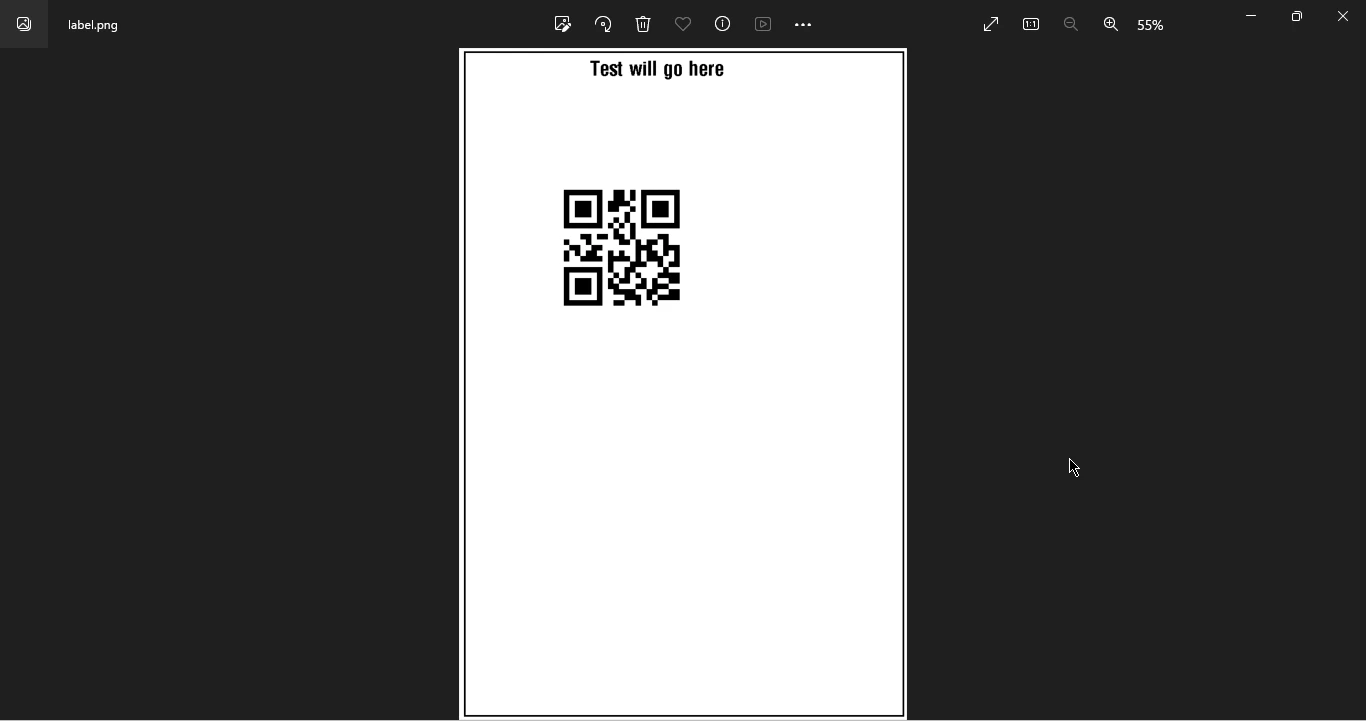
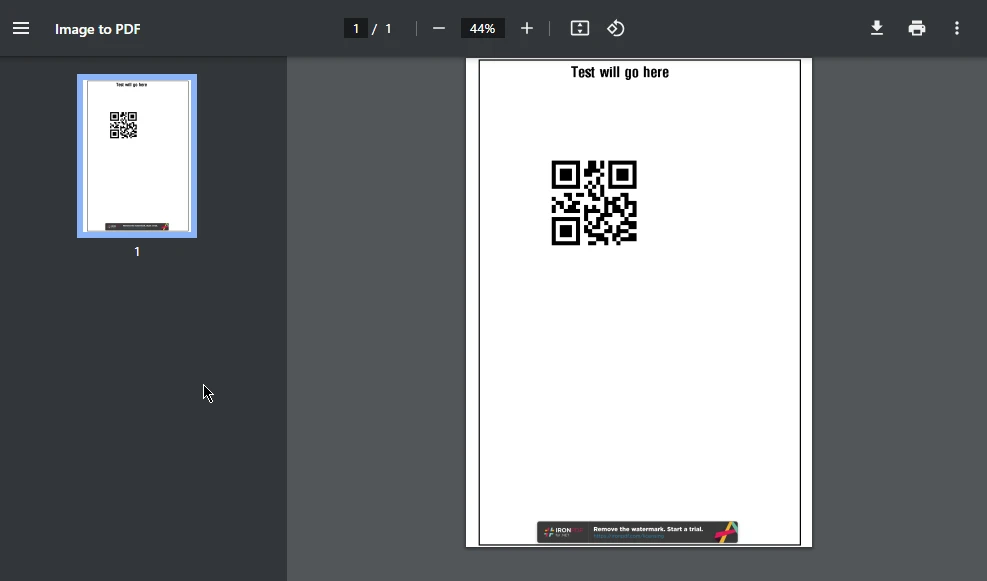
總結來說,BinaryKits.Zpl.Viewer和IronPDF的組合為在.NET應用程式中處理ZPL的開發者提供了一個強大的解決方案。 查看器通過提供ZPL程式碼的視覺表示來增強開發過程,並有助於除錯和理解。 當與IronPDF整合時,從ZPL生成的標籤到PDF文件的轉換變得流暢且高效,擴展了在各行業中建立先進標籤解決方案的可能性。 隨著技術的不斷進步,像BinaryKits.Zpl.Viewer和IronPDF之間的協同作用展示了在現代.NET開發中可實現的創新與多樣性。 如需更多ZPL範例和項目支援,請存取BinaryKits.Zpl GitHub庫。
IronPDF為開發者提供免費試用授權,這是使用者了解其功能的絕佳機會。 詳細的使用IronPDF進行圖像到PDF轉換的教程可以指導開發者在其應用中實現此功能。

Jacob Mellor是Iron Software的首席技術官,一位在C# PDF技術上開創先河的遠見工程師。作為Iron Software核心程式碼庫的原開發者,他從創立以來就一直在塑造公司的產品架構,與首席執行官Cameron Rimington一起將公司轉變為服務於NASA、特斯拉和全球政府公司的50多名人員的公司。



IronPDF 是 IRONSUITE 的一部分
10 款適用於辦公室文件的 .NET API 產品

當您需要您的PDF看起來像HTML一樣快速。


