
已更新 2026年9月4日
產生每月帳戶報表(PDF 文件)
using IronPDF C# PDF 庫,開發人員可以在 .NET 專案中將 HTML 轉換為可靠的 PDF 文件,而無需依賴外部服務。
閱讀更多

生成PDF文件是C#開發人員常見且通常必需的需求。 無論您需要建立發票、詳細的業務報告、轉換網頁內容或管理其他各類業務文件,可靠的C# PDF生成器都是至關重要的。 許多開發人員尋找不僅能簡化這些任務,還提供強大功能的.NET程式庫,例如高保真地將HTML轉換為PDF、編輯現有PDF或從頭程式化建立新的PDF。
如果您在尋找這樣一個強大且易於使用的解決方案,那麼您來對地方了。 本指南側重於IronPDF,這是一個精心設計的領先.NET程式庫,以簡化C#中的PDF生成和操作。 我們將指導您如何使用IronPDF解決常見PDF生成需求,提供實用教程讓您快速上手,並討論為什麼IronPDF在您的開發工具箱中脫穎而出。
我們將涵蓋:
在評估C# PDF程式庫時,開發人員通常優先考慮易用性、渲染準確性(尤其是HTML轉PDF轉換)、全面的功能集和整體性能。 IronPDF旨在在這些方面表現出色:
**簡單性和開發者生產力:**正如您在本教程中所看到的,IronPDF能讓您通過極少的C#程式碼行生成和操作PDF文件。 它抽象掉了與其他PDF操作方法或更詳細的程式庫常常遇到的底層複雜性。
像素完美的HTML到PDF渲染:一個引人注目的特點是IronPDF使用嵌入的Chrome渲染引擎。這確保HTML、CSS以及JavaScript的渲染與現代網頁瀏覽器中一樣的準確和保真。 這對於從網頁內容生成專業外觀的文件非常關鍵,這是某些免費的C# PDF程式庫可能會做不到的挑戰。
全面的PDF功能:IronPDF不僅僅是PDF創作者。 它是一個完整的C# PDF工具,支持各種操作:
**優秀的支持和最新的文件:**作為一個商業支持的程式庫,IronPDF提供專業的技術支持,並維護全面、清晰的文件,使開發者能夠快速、高效地實施解決方案。
**跨平台相容性:**使用IronPDF在Windows、Linux、macOS、Docker和Azure上開發和部署應用程式,目標為.NET(Core、Standard、Framework)。
現在,讓我們深入了解如何在C# Windows Forms應用程式中使用IronPDF生成PDF。
第一步是建立一個Visual Studio項目。 在本教程中,我們將使用Windows Forms App模板,但IronPDF可無縫用於Web應用程式(ASP.NET)、控制臺應用程式、WPF等。
打開Visual Studio。
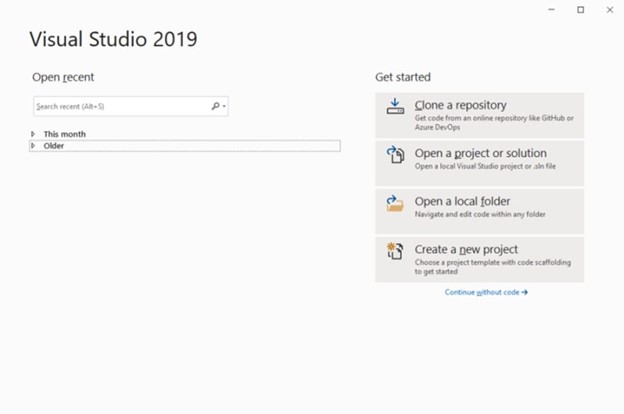
點擊"建立新項目"。
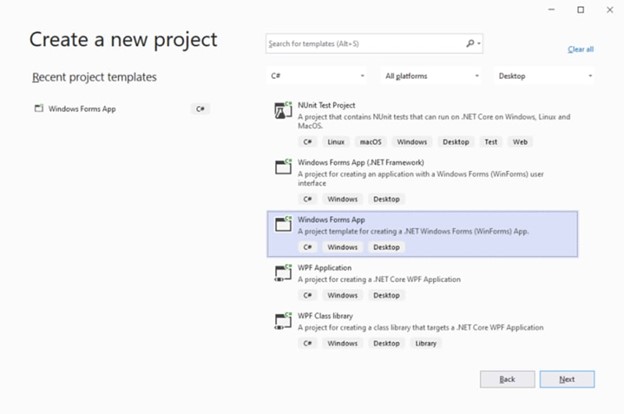
選取"Windows Forms App(.NET Framework或.NET Core)"作為模板,然後點擊'下一步'。 下一個窗口會出現。 命名您的項目(例如,MyCSharpPdfGenerator)。
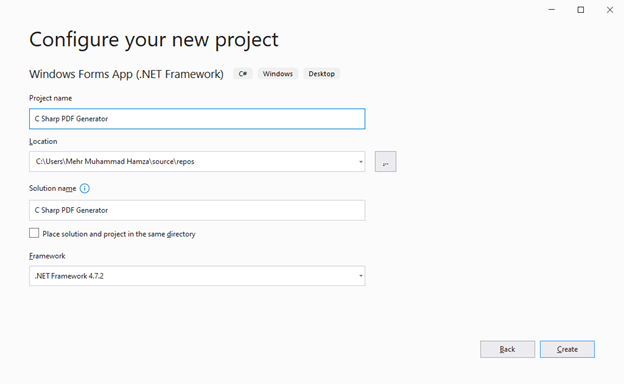 命名項目
命名項目
之後,點擊'下一步'。 從下拉選單中選擇您想要的.NET Framework(IronPDF支持廣泛的範圍)。
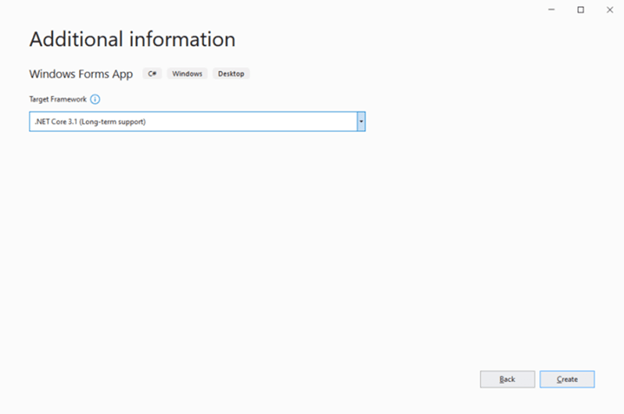 選擇.NET Framework
點擊"建立"按鈕。 項目將建立並準備進入下一步。
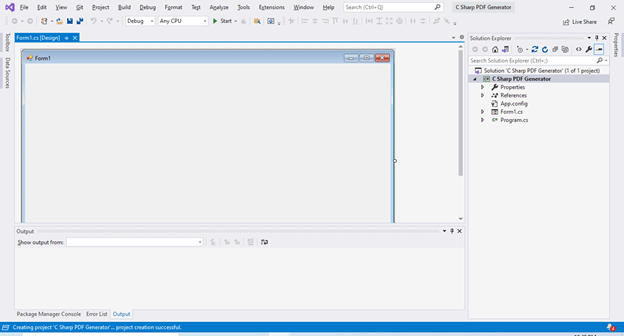
通過NuGet可以輕鬆將IronPDF新增到您的項目中。 這是確保您擁有最新版本和所有必需依賴項的推薦方式。
在Visual Studio中,轉到工具 > NuGet包管理器 > 包管理器控制台。 然後,鍵入以下命令並按Enter:
IronPdf包並點擊"安裝"。
或者,您可以直接從IronPDF網站下載IronPDF DLL。
IronPdf.dll。在本教程中,我們將建立一個基本的UI來觸發PDF生成。 如果您正在構建Web或控制台應用程式,您將直接將IronPDF邏輯整合到您的控制器、服務或類中。
在Visual Studio中轉到工具箱(視圖 > 工具箱)。 拖放以下控件到您的Form1設計表面:
一個Label(例如,將您的應用程式命名為"C# PDF生成器演示")。
一個PdfText)用於輸入HTML/文字。
一個URL)用於輸入URL。
兩個Button控件。
GeneratePDFFromTextButton)。GeneratePDFFromURLButton)。
現在,讓我們新增C#邏輯。 雙擊表單設計器中的"從文字生成PDF"按鈕(GeneratePDFFromTextButton)。 這將在您的Form1.cs文件中建立一個事件處理方法。
首先,在您的Form1.cs文件頂部新增IronPDF命名空間:
using IronPdf;Imports IronPdf然後實現按鈕的click事件處理。 此程式碼將文字(可以是純文字或HTML)從RichTextBox中拿出並轉換為PDF文件。
private void GeneratePDFFromTextButton_Click(object sender, EventArgs e)
{
    // It's recommended to set your license key once at application startup.
    // IronPdf.License.LicenseKey = "YourLicenseKey-GetYourKeyFromIronPdf.com";
    // If no key is set, IronPDF will watermark PDFs after a trial period.

    // Use SaveFileDialog to let the user choose where to save the PDF
    SaveFileDialog saveFileDialog1 = new SaveFileDialog();
    saveFileDialog1.InitialDirectory = Environment.GetFolderPath(Environment.SpecialFolder.MyDocuments); // Default to My Documents
    saveFileDialog1.Title = "Save PDF File As";
    saveFileDialog1.DefaultExt = "pdf";
    saveFileDialog1.Filter = "PDF files (*.pdf)|*.pdf|All files (*.*)|*.*";
    saveFileDialog1.FilterIndex = 1; // Start with PDF files selected
    saveFileDialog1.RestoreDirectory = true;

    if (saveFileDialog1.ShowDialog() == DialogResult.OK)
    {
        string filename = saveFileDialog1.FileName;

        // The core of PDF generation from HTML/Text using IronPDF
        // IronPDF's ChromePdfRenderer accurately renders HTML, CSS, and JavaScript.
        var renderer = new ChromePdfRenderer();

        // The RenderHtmlAsPdf method converts an HTML string to a PDF document.
        // This is incredibly powerful for generating dynamic reports, invoices, tickets, etc.
        // from HTML templates.
        using (var pdfDocument = renderer.RenderHtmlAsPdf(PdfText.Text))
        {
            pdfDocument.SaveAs(filename);
        }

        MessageBox.Show("PDF Generated Successfully at: " + filename, "Success", MessageBoxButtons.OK, MessageBoxIcon.Information);
    }
}Private Sub GeneratePDFFromTextButton_Click(sender As Object, e As EventArgs) Handles GeneratePDFFromTextButton.Click
' It's recommended to set your license key once at application startup.
' IronPdf.License.LicenseKey = "YourLicenseKey-GetYourKeyFromIronPdf.com"
' If no key is set, IronPDF will watermark PDFs after a trial period.
' Use SaveFileDialog to let the user choose where to save the PDF
Dim saveFileDialog1 As New SaveFileDialog()
saveFileDialog1.InitialDirectory = Environment.GetFolderPath(Environment.SpecialFolder.MyDocuments) ' Default to My Documents
saveFileDialog1.Title = "Save PDF File As"
saveFileDialog1.DefaultExt = "pdf"
saveFileDialog1.Filter = "PDF files (*.pdf)|*.pdf|All files (*.*)|*.*"
saveFileDialog1.FilterIndex = 1 ' Start with PDF files selected
saveFileDialog1.RestoreDirectory = True
If saveFileDialog1.ShowDialog() = DialogResult.OK Then
Dim filename As String = saveFileDialog1.FileName
' The core of PDF generation from HTML/Text using IronPDF
' IronPDF's ChromePdfRenderer accurately renders HTML, CSS, and JavaScript.
Dim renderer As New ChromePdfRenderer()
' The RenderHtmlAsPdf method converts an HTML string to a PDF document.
' This is incredibly powerful for generating dynamic reports, invoices, tickets, etc.
' from HTML templates.
Using pdfDocument = renderer.RenderHtmlAsPdf(PdfText.Text)
pdfDocument.SaveAs(filename)
End Using
MessageBox.Show("PDF Generated Successfully at: " & filename, "Success", MessageBoxButtons.OK, MessageBoxIcon.Information)
End If
End SubC# PDF生成程式碼的解釋:
IronPdf.License.LicenseKey:最好設置您的IronPDF授權金鑰。 如果您有,請取消註釋該行並用您的實際金鑰替換"YourLicenseKey..."。 IronPDF在沒有授權金鑰的情況下也可以工作,但試用期後文件將有水印。SaveFileDialog:這為使用者提供了標準的Windows對話框,以選擇其PDF的保存位置和文件名。ChromePdfRenderer:這是IronPDF的HTML轉PDF功能的核心。 它使用嵌入的Chromium引擎以達到最大保真度。RichTextBox中的字串內容(可能是豐富的HTML)轉換為PDF文件物件。SaveAs(filename):此方法將生成的PDF文件保存到使用者指定的路徑。pdfDocument確保資源正確管理。注意IronPDF如何將類似HTML轉PDF這樣潛在複雜的任務簡化為幾個關鍵程式碼行。 這對需要快速且可靠地**生成PDF C#**的開發人員來說是一個顯著的優勢。
按Ctrl + F5(或點擊開始按鈕)運行您的項目。 Windows表單應用程式將出現。
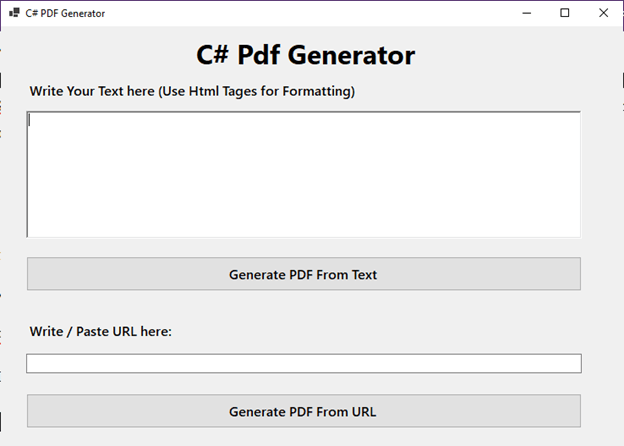
輸入一些HTML內容到豐富文字框內。 例如:
<h1>My First C# PDF Document</h1>
<p>This PDF was generated using <strong>IronPDF</strong> in a C# application.</p>
<p>IronPDF makes it very easy to convert HTML content, including styles and images, into professional PDF files.</p>
<ul>
    <li>Easy to use</li>
    <li>Accurate rendering</li>
    <li>Feature-rich</li>
</ul>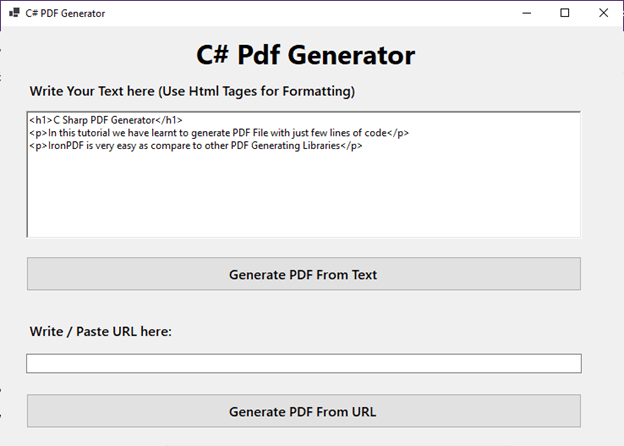
點擊"從文字生成PDF"按鈕。 保存對話框將出現。 選擇一個位置和文件名,然後點擊'保存'。
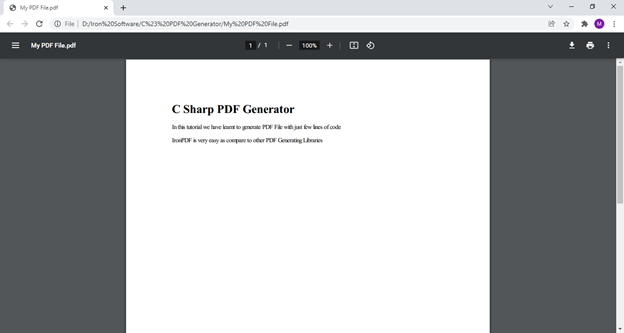
導航到您保存PDF的位置並打開它。 您應該可以看到您的HTML內容精確地呈現在PDF文件中。
從在線網頁生成PDF是另一個常見需求。 IronPDF使這一過程同樣簡單。 雙擊表單設計器中的"從URL生成PDF"按鈕(GeneratePDFFromURLButton)以建立其點擊事件處理程式。
新增以下C#程式碼:
private void GeneratePDFFromURLButton_Click(object sender, EventArgs e)
{
    // IronPdf.License.LicenseKey = "YourLicenseKey-GetYourKeyFromIronPdf.com";

    if (string.IsNullOrWhiteSpace(URL.Text))
    {
        MessageBox.Show("Please enter a valid URL.", "Input Error", MessageBoxButtons.OK, MessageBoxIcon.Warning);
        return;
    }

    SaveFileDialog saveFileDialog1 = new SaveFileDialog();
    saveFileDialog1.InitialDirectory = Environment.GetFolderPath(Environment.SpecialFolder.MyDocuments);
    saveFileDialog1.Title = "Save PDF From URL As";
    saveFileDialog1.DefaultExt = "pdf";
    saveFileDialog1.Filter = "PDF files (*.pdf)|*.pdf|All files (*.*)|*.*";
    saveFileDialog1.FilterIndex = 1;
    saveFileDialog1.RestoreDirectory = true;

    if (saveFileDialog1.ShowDialog() == DialogResult.OK)
    {
        string filename = saveFileDialog1.FileName;
        try
        {
            var renderer = new ChromePdfRenderer();
            // RenderUrlAsPdf fetches the content from the URL and converts it to PDF.
            // This is excellent for archiving web pages or creating PDFs from online reports.
            using (var pdfDocument = renderer.RenderUrlAsPdf(URL.Text))
            {
                pdfDocument.SaveAs(filename);
            }
            MessageBox.Show("PDF from URL Generated Successfully at: " + filename, "Success", MessageBoxButtons.OK, MessageBoxIcon.Information);
        }
        catch (Exception ex)
        {
            MessageBox.Show("Error generating PDF from URL: " + ex.Message, "Error", MessageBoxButtons.OK, MessageBoxIcon.Error);
        }
    }
}Private Sub GeneratePDFFromURLButton_Click(ByVal sender As Object, ByVal e As EventArgs)
' IronPdf.License.LicenseKey = "YourLicenseKey-GetYourKeyFromIronPdf.com";
If String.IsNullOrWhiteSpace(URL.Text) Then
MessageBox.Show("Please enter a valid URL.", "Input Error", MessageBoxButtons.OK, MessageBoxIcon.Warning)
Return
End If
Dim saveFileDialog1 As New SaveFileDialog()
saveFileDialog1.InitialDirectory = Environment.GetFolderPath(Environment.SpecialFolder.MyDocuments)
saveFileDialog1.Title = "Save PDF From URL As"
saveFileDialog1.DefaultExt = "pdf"
saveFileDialog1.Filter = "PDF files (*.pdf)|*.pdf|All files (*.*)|*.*"
saveFileDialog1.FilterIndex = 1
saveFileDialog1.RestoreDirectory = True
If saveFileDialog1.ShowDialog() = DialogResult.OK Then
Dim filename As String = saveFileDialog1.FileName
Try
Dim renderer = New ChromePdfRenderer()
' RenderUrlAsPdf fetches the content from the URL and converts it to PDF.
' This is excellent for archiving web pages or creating PDFs from online reports.
Using pdfDocument = renderer.RenderUrlAsPdf(URL.Text)
pdfDocument.SaveAs(filename)
End Using
MessageBox.Show("PDF from URL Generated Successfully at: " & filename, "Success", MessageBoxButtons.OK, MessageBoxIcon.Information)
Catch ex As Exception
MessageBox.Show("Error generating PDF from URL: " & ex.Message, "Error", MessageBoxButtons.OK, MessageBoxIcon.Error)
End Try
End If
End Sub解釋:
TextBox控件中獲取URL字串。RenderUrlAsPdf(URL.Text):這個強大的IronPDF方法導航到給定的URL,渲染其內容(包括HTML、CSS、JavaScript和圖像),並將其轉換為PDF文件。try-catch),以提高健壯性,因為可能會發生網路問題或無效的URL。再次運行您的項目(Ctrl + F5)。 這次,在URL文字框中輸入完整的URL(例如,https://ironpdf.com)。
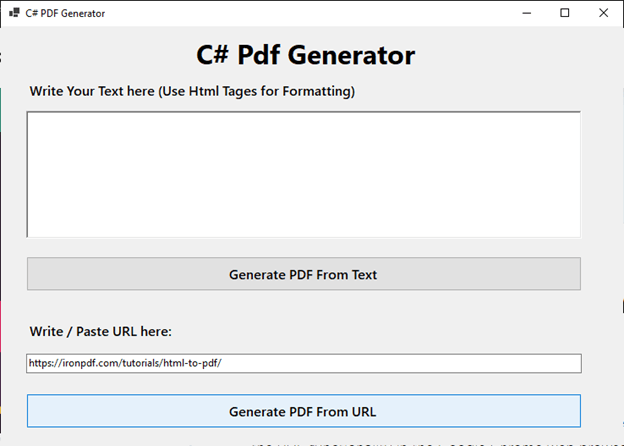
點擊"從URL生成PDF"按鈕。 選擇保存位置和文件名。
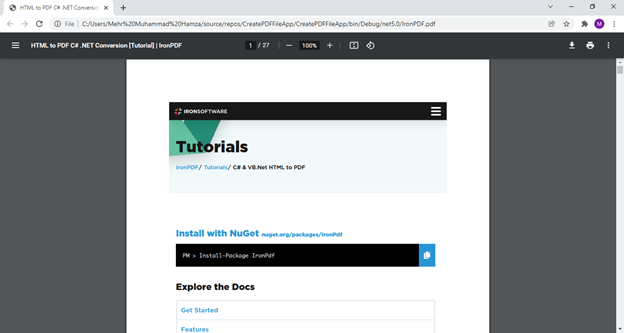
打開生成的PDF。 您將看到網頁已被準確轉換為PDF文件,保留其佈局和內容。
正如本教程所展示的,IronPDF為滿足您所有C# PDF生成需求提供了一個極為強大且簡單的解決方案。 無論您是在處理帶有複雜CSS和JavaScript的複雜HTML頁面、從資料生成動態報告、從即時URL建立PDF,還是在.NET應用程式中需要強大的PDF編輯功能,IronPDF都能提供完成該工作所需的工具和性能。
當您進行生成PDF C#項目時,您經常在渲染保真度或功能集可能有限的免費程式庫和需要大量樣板程式碼的更複雜解決方案之間做出選擇。 IronPDF以其全面且商業支持的.NET PDF程式庫而著稱,它優化了開發過程、確保了高質量的輸出,並提供了基本PDF建立以外的豐富功能集。
準備好體驗生成和操作C#中PDF的最佳方法?
通過選擇IronPDF,您正在為C#專案裝備一個一流的PDF生成和操作引擎,節省寶貴的開發時間,每次都確保專業品質、像素完美的PDF文件。了解有關將HTML轉換為C#中的PDF的更多資訊。

Curtis Chau擁有Carleton大學的電腦科學學士學位,專精於前端開發,擁有Node.js、TypeScript、JavaScript和React的專業知識。Curtis熱衷於建立直觀且美觀的使用者介面,喜愛使用現代框架並建立結構良好、視覺吸引力的手冊。

IronPDF 是 IRONSUITE 的一部分
10 款適用於辦公室文件的 .NET API 產品

當您需要您的PDF看起來像HTML一樣快速。