

Moment.js(開發者的使用方法)

在網頁開發的世界中,處理日期和時間的格式化是一項常見但棘手的任務。 幸運的是,有像Moment.js這樣的程式庫能讓這個過程變得更輕鬆。 在本文中,我們將深入探討JavaScript的日期程式庫Moment.js,探索其特性和優勢,以及如何在您的JavaScript和Node.js專案中有效利用它。
什麼是Moment.js?
Moment.js是個熱門的JavaScript日期程式庫,旨在簡化顯示日期和時間的操作與格式化。 Moment.js的核心是moment物件,提供易於理解的格式進行日期的建立、解析和操作。 藉由其強大的功能,開發者可以在專案中無縫顯示人性化格式的日期,確保顯示日期的清晰性和一致性並驗證日期。 無論是處理舊有專案還是著手新開發,Moment.js仍然是日期處理的首選,賦予開發者進行日期查詢、日期範圍處理、驗證輸入和完善格式化的能力。
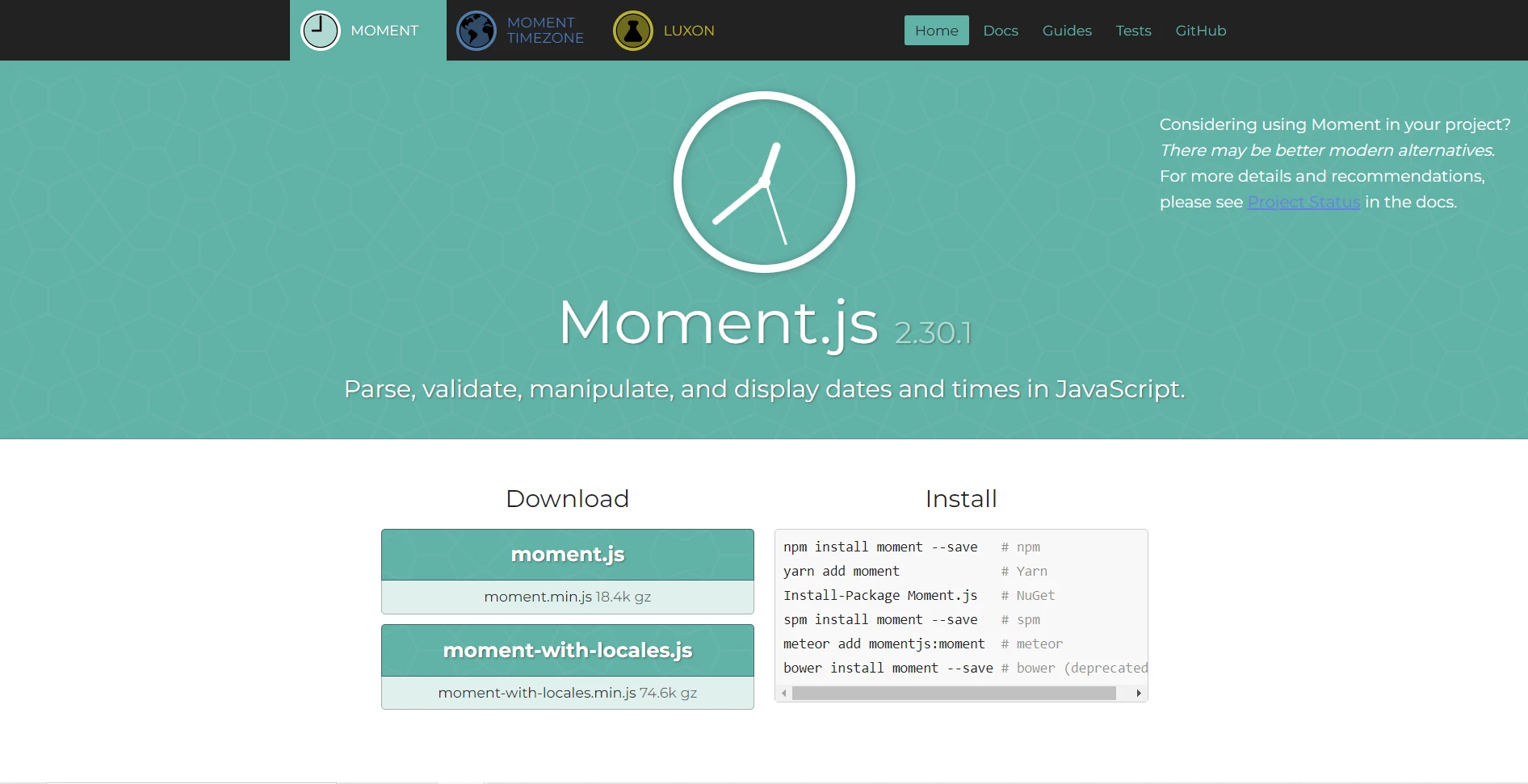
Moment.js的其中一個關鍵優勢在於能夠明確解析日期部分,從而能精準控制日期的操作。 從提取日期範圍到查詢特定日期組件,Moment.js提供了必要的工具來有效解決各種日期相關的任務。 此外,Moment.js的功能不僅限於舊項目中的基本日期操作,也提供了使用Moment Timezone插件進行時區轉換的支持。
儘管處於維護模式中,Moment.js依舊被全球開發者廣泛使用,因其在處理日期和時間操作上的可靠性與多功能性。
特性與優勢
- 簡單的API:Moment.js提供了一個直觀且易於使用的API,抽象化了使用JavaScript處理日期和時間的複雜性。 其語法清晰簡單,適用於所有技能水平的開發者。
- 解析和格式化:使用Moment.js,解析和格式化日期變得非常簡單。 無論您需要將日期字串解析為JavaScript Date物件,還是以特定方式格式化日期以供顯示,Moment.js提供了廣泛的選項以滿足您的需求。
- 操作:需要在日期上新增或減少天、月或年嗎? Moment.js使得日期操作變得簡單,具備增加和減少的方法。 您還可以執行相對日期計算,例如確定兩個日期之間的差異(例如天數、時數、分鐘)。
- 驗證:在許多應用中,驗證日期以確保資料完整性是至關重要的。 Moment.js提供了健全的驗證功能,允許您檢查給定日期字串是否依據指定格式有效。
- 時區支持:處理時區可能會具有挑戰性,但Moment.js透過提供內建的時區工作支持簡化了過程。 您可以輕鬆地在不同時區間轉換日期或在特定時區顯示日期。
- 本地化:Moment.js支持本地化,使您能根據使用者的地域顯示不同語言和格式的日期和時間。
- 插件生態系統:雖然Moment.js自身提供了豐富的功能集合,該程式庫也擁有蓬勃的插件生態系統,進一步擴展了其功能。 無論您需要額外的格式化選項、日曆支持或與其他程式庫的整合,可能都有可用的Moment.js插件來滿足您的需求。
開始使用Moment.js
要在專案中開始使用Moment.js,您可以在HTML檔案中使用script標籤直接包含它:
<script src="https://cdnjs.cloudflare.com/ajax/libs/moment.js/2.29.1/moment.min.js"></script><script src="https://cdnjs.cloudflare.com/ajax/libs/moment.js/2.29.1/moment.min.js"></script>或者,您可以通過npm或yarn安裝Moment.js以在Node.js中使用。 這將會更新您的專案狀態,包括已建立並安裝的moment:
npm install momentnpm install moment在專案中使用Moment.js
一旦將Moment.js包含到您的專案中,您就可以開始使用它的功能:
1. 解析日期字串
const moment = require('moment');
// Parse a date string using Moment.js
const date = moment("2024-05-25");
// Display the parsed date created explicitly
console.log("Date created explicitly:", date);
const moment = require('moment');
// Parse a date string using Moment.js
const date = moment("2024-05-25");
// Display the parsed date created explicitly
console.log("Date created explicitly:", date);說明
這段程式碼示範了如何透過解析日期字串來建立一個moment物件。 字串"2024-05-25"代表2024年5月25日,Moment.js會自動將其轉換為Date物件,然後可以根據需要進行操作和格式化。
2. 格式化日期
const moment = require('moment');
// Parse a date string using moment object
const date = moment("2024-05-25");
// Format and display the date
console.log(date.format("MMMM Do YYYY, h:mm:ss a")); // May 25th 2024, 12:00:00 am
const moment = require('moment');
// Parse a date string using moment object
const date = moment("2024-05-25");
// Format and display the date
console.log(date.format("MMMM Do YYYY, h:mm:ss a")); // May 25th 2024, 12:00:00 am說明
此處,format()方法被用來根據指定的格式字串格式化日期物件。 在此範例中,"MMMM Do YYYY, h:mm:ss a"將日期格式化為"May 25th 2024, 12:00:00 am"。 Moment.js提供了一系列格式選項以依據您的需求自訂輸出。
3. 操作日期
const moment = require('moment');
// Parse a date string
const date = moment("2024-05-25");
// Add 7 days to the date and format it
console.log(date.add(7, 'days').format("YYYY-MM-DD")); // 2024-06-01
const moment = require('moment');
// Parse a date string
const date = moment("2024-05-25");
// Add 7 days to the date and format it
console.log(date.add(7, 'days').format("YYYY-MM-DD")); // 2024-06-01說明
add()方法用於增加或減少指定的時間量來操作日期。在此例中,日期增加了7天,結果為2024年6月1日,然後使用"YYYY-MM-DD"格式化該日期。
4. 驗證日期
const moment = require('moment');
// Validate a date string
console.log(moment("2024-02-30", "YYYY-MM-DD").isValid()); // false
const moment = require('moment');
// Validate a date string
console.log(moment("2024-02-30", "YYYY-MM-DD").isValid()); // false說明
Moment.js提供了isValid()方法以檢查日期的有效性。 它會檢查日期字串是否按照指定格式有效。 在此范例中,日期"2024-02-30"無效,因為二月30日不存在,因此輸出將為false。
5. 時區轉換
const moment = require('moment-timezone');
// Parse a date string
const date = moment("2024-05-25");
// Convert the date to a different timezone and format it
console.log(date.tz('America/New_York').format("YYYY-MM-DD HH:mm:ss")); // 2024-05-24 20:00:00
const moment = require('moment-timezone');
// Parse a date string
const date = moment("2024-05-25");
// Convert the date to a different timezone and format it
console.log(date.tz('America/New_York').format("YYYY-MM-DD HH:mm:ss")); // 2024-05-24 20:00:00說明
Moment.js使用tz()方法支持時區轉換。 在此範例中,原始日期被轉換為"America/New_York"時區,結果為不同的輸出時間。然後使用"YYYY-MM-DD HH:mm:ss"格式化新日期。 注意,為了時區支持,我們使用moment-timezone套件來處理所有地區設定。
使用Moment.js和IronPDF增強PDF:動態新增日期
在現代網頁開發中,動態建立和操作PDF文件是一項常見的需求。 Node.js的IronPDF程式庫提供了毫不費力生成和編輯PDF的強大工具。 結合IronPDF與Moment.js,處理日期和時間,開創了在PDF文件中新增動態日期資訊的新可能性。
IronPDF概覽 - Node.js的PDF程式庫
IronPDF for Node.js作為一個多功能且健全的解決方案,能在Node.js應用中無縫生成、編輯和操作PDF文件。 這個強大的程式庫賦予開發者一套全面的功能組合,包括能毫不費力地從URL、HTML內容或現有文件中建立PDF。 使用IronPDF,像是將文字、圖像或數位簽名新增到PDF這樣的工作成為了精簡的過程,提高了生成文件的功能性和視覺吸引力。
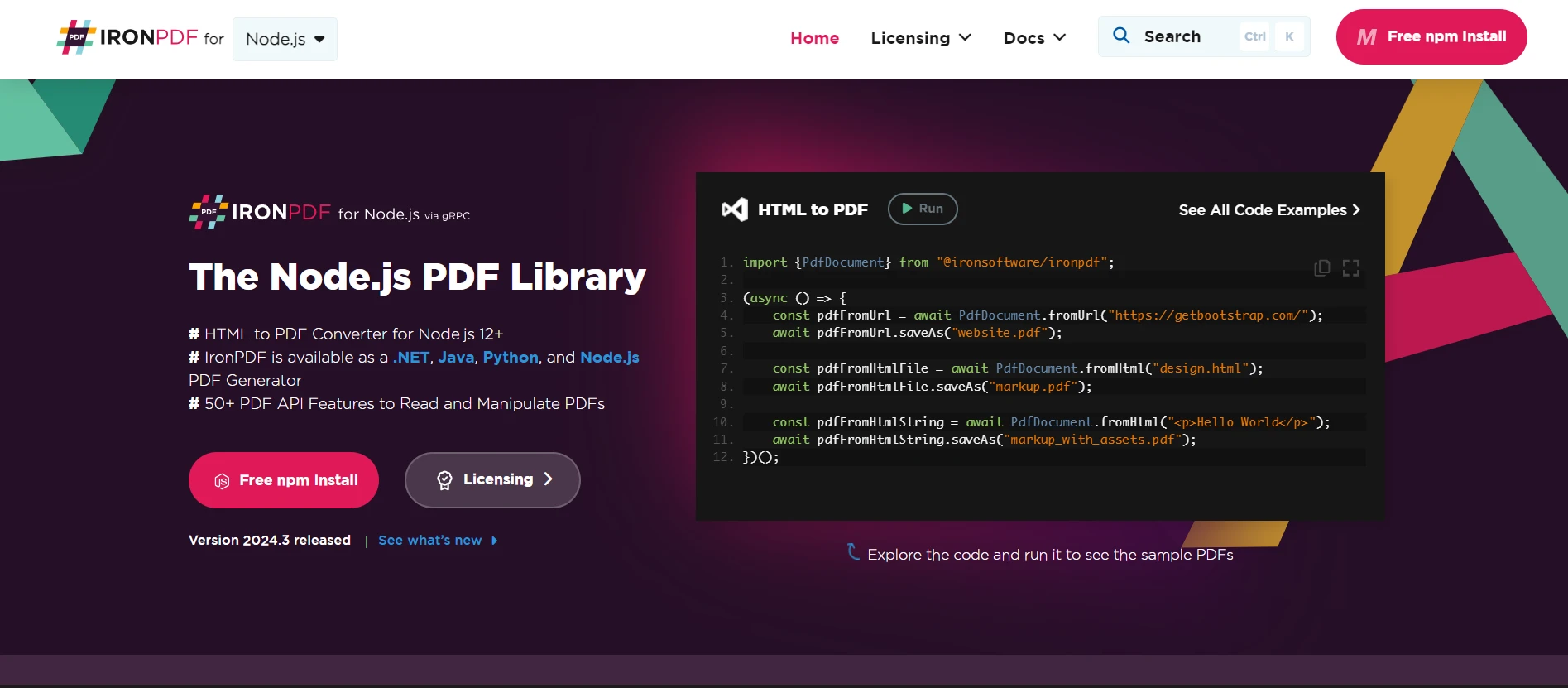
此外,IronPDF提供了對諸如條碼生成、加密和PDF/A合規等先進功能的廣泛支持,以確保在各種用例中保持相容性和可靠性。 無論您是在生成報告、發票還是互動表單,IronPDF提供了提高Node.js專案中PDF生成功能和靈活性所需的工具。
要開始並獲得更多IronPDF功能的詳細資料,請存取此文件頁面。
將Moment.js與IronPDF整合
以下是一個範例演示了Moment.js和IronPDF如何輕鬆融合,展示了這種合作如何改善PDF建立中的動態日期處理。
將當前日期新增到PDF中
import { PdfDocument } from "@ironsoftware/ironpdf";
import moment from "moment";

(async () => {
    // Create a new PDF document
    const pdf = new PdfDocument();
    // Generate current date using Moment.js
    const currentDate = moment().format("MMMM Do YYYY");
    // Add the current date to the PDF
    pdf.append(`<p>Today's Date: ${currentDate}</p>`);
    // Save the PDF
    await pdf.saveAs("pdf_with_date.pdf");
})();
import { PdfDocument } from "@ironsoftware/ironpdf";
import moment from "moment";
(async () => {
// Create a new PDF document
const pdf = new PdfDocument();
// Generate current date using Moment.js
const currentDate = moment().format("MMMM Do YYYY");
// Add the current date to the PDF
pdf.append(`<p>Today's Date: ${currentDate}</p>`);
// Save the PDF
await pdf.saveAs("pdf_with_date.pdf");
})();在這個範例中,使用Moment.js以指定格式("MMMM Do YYYY")生成當前日期,然後附加到使用IronPDF建立的PDF文件中。
將時間戳新增到PDF中
import { PdfDocument } from "@ironsoftware/ironpdf";
import moment from "moment";

(async () => {
    // Create a new PDF document
    const pdf = new PdfDocument();
    // Generate current timestamp using Moment.js
    const timestamp = moment().format("MMMM Do YYYY, h:mm:ss a");
    // Add the timestamp to the PDF
    pdf.append(`<p>Timestamp: ${timestamp}</p>`);
    // Save the PDF
    await pdf.saveAs("pdf_with_timestamp.pdf");
})();
import { PdfDocument } from "@ironsoftware/ironpdf";
import moment from "moment";
(async () => {
// Create a new PDF document
const pdf = new PdfDocument();
// Generate current timestamp using Moment.js
const timestamp = moment().format("MMMM Do YYYY, h:mm:ss a");
// Add the timestamp to the PDF
pdf.append(`<p>Timestamp: ${timestamp}</p>`);
// Save the PDF
await pdf.saveAs("pdf_with_timestamp.pdf");
})();在這個範例中,使用Moment.js以生成包含日期和時間的時間戳,然後將其新增到PDF文件中。
自訂日期格式
import { PdfDocument } from "@ironsoftware/ironpdf";
import moment from "moment";

(async () => {
    // Create a new PDF document
    const pdf = new PdfDocument();
    // Generate a custom date format using Moment.js
    const customDate = moment().format("dddd, MMMM Do YYYY");
    // Add the custom date format to the PDF
    pdf.append(`<p>Custom Date Format: ${customDate}</p>`);
    // Save the PDF
    await pdf.saveAs("pdf_with_custom_date.pdf");
})();
import { PdfDocument } from "@ironsoftware/ironpdf";
import moment from "moment";
(async () => {
// Create a new PDF document
const pdf = new PdfDocument();
// Generate a custom date format using Moment.js
const customDate = moment().format("dddd, MMMM Do YYYY");
// Add the custom date format to the PDF
pdf.append(`<p>Custom Date Format: ${customDate}</p>`);
// Save the PDF
await pdf.saveAs("pdf_with_custom_date.pdf");
})();在這裡,Moment.js允許開發者根據需求定義自訂的日期格式,提供了在PDF文件中顯示日期的靈活性。
您可以造訪這個現成的程式程式碼範例頁面以獲得更多IronPDF的進階用法。 探索其細緻、結構良好的API 參考,以熟悉其架構。
結論
Moment.js是個用於處理JavaScript日期和時間的強大神器。 在其簡化性、靈活性和豐富的功能集合中,使其成為開發者在建立涉及日期和時間操作的Web應用時的無價資產。 無論您在建立簡單的網站還是複雜的Web應用,Moment.js都能幫助簡化您的開發過程,並確保在不同場景中準確處理日期和時間。
Moment.js作為IronPDF的寶貴伴侶,使開發者能輕鬆地動態新增日期資訊到PDF文件中。 透過將Moment.js與IronPDF整合,開發者可提升他們的PDF功能性和視覺吸引力,無論是新增當前日期、時間戳或自訂日期格式。
這個強大的組合賦予開發者建立符合其特定需求的動態和資訊豐富的PDF文件。 無論是生成報告、發票或任何其他型別的文件,Moment.js和IronPDF提供了將日期資訊融入PDF中之無縫的解決方案。
IronPDF提供一個免費試用價格$999,投資IronPDF為您的PDF生成需要解鎖了無限的可能性。 今日就體驗IronPDF的便利、強大和高效,提升您的文件工作流程到新的高度。






 免費開始
免費開始 免費開始
免費開始 預訂免費直播演示
















