



已更新 2026年4月23日
简化 .NET 与 Microsoft.Extensions.AI 的 LLM 集成
AI正在改变软件开发,但将大型语言模型(LLM)集成到.NET中直到现在一直很复杂。通过IronPdf.AI,将AI集成更进一步,该产品为.NET应用程序带来了OpenAI驱动的PDF解析、数据提取和内容摘要。
阅读更多

Humanizer 是一个强大而灵活的 .NET 库,可以简化和人性化数据处理过程,尤其是在以用户友好的格式显示信息时。 无论是需要将日期转换为相对时间字符串("3 天前"),复数化单词,将数字格式化为单词,还是处理枚举、显示字符串、将 Pascal 大小写输入字符串作为句子显示带有自定义描述,底线输入字符串转换为正常标题大小写字符串,和长文本截断,Humanizer 提供了一套丰富的工具和扩展方法,可以在 C#.NET中优雅地处理这些任务,将去人性化的输入字符串转换为句子。
在本文中,我们将讨论 Humanizer 在 C# 中的详细教程。 我们还将讨论如何使用 Humanizer 和 IronPDF 生成 PDF 文档,该文档为 C# PDF 库。
要开始使用 Humanizer,您需要通过 NuGet 安装该库。 在您的项目中,您可以通过包管理器控制台使用以下命令进行安装:
或者,如果您使用的是 .NET Core CLI,您可以使用以下命令添加 Humanizer:
安装后,您可以通过在 C# 文件中包含适当的命名空间来开始使用 Humanizer:
using Humanizer;Imports HumanizerHumanizer最常见的用途之一是使用Humanize方法将日期和时间转换成人类可读的格式、时间跨度、数字和数量。 这对于显示相对时间特别有用,例如"2小时前"或"5天后"。
using System;

class HumanizerDemo
{
    static void Main()
    {
        DateTime pastDate = DateTime.Now.AddDays(-3);
        // Humanize the past date, which converts it to a relative time format
        string humanizedTime = pastDate.Humanize(); // Output: "3 days ago"

        DateTime futureDate = DateTime.Now.AddHours(5);
        // Humanize the future date, presenting it in relative time
        string futureHumanizedTime = futureDate.Humanize(); // Output: "in 5 hours"

        Console.WriteLine("Humanized Past Date: " + humanizedTime);
        Console.WriteLine("Humanized Future Date: " + futureHumanizedTime);
    }
}Imports System
Friend Class HumanizerDemo
Shared Sub Main()
Dim pastDate As DateTime = DateTime.Now.AddDays(-3)
' Humanize the past date, which converts it to a relative time format
Dim humanizedTime As String = pastDate.Humanize() ' Output: "3 days ago"
Dim futureDate As DateTime = DateTime.Now.AddHours(5)
' Humanize the future date, presenting it in relative time
Dim futureHumanizedTime As String = futureDate.Humanize() ' Output: "in 5 hours"
Console.WriteLine("Humanized Past Date: " & humanizedTime)
Console.WriteLine("Humanized Future Date: " & futureHumanizedTime)
End Sub
End ClassHumanizer 扩展方法会自动处理不同的时间单位,甚至会调整语法正确性。
Humanizer C#(开发人员如何工作):图1 - 人性化相对时间输出
Humanizer还可以人性化TimeSpan对象,使显示时长在可读格式中变得容易。
using System;

class TimeSpanHumanizerDemo
{
    static void Main()
    {
        TimeSpan timeSpan = TimeSpan.FromMinutes(123);
        // Humanizing the TimeSpan into hours and minutes
        string humanizedTimeSpan = timeSpan.Humanize(2); // Output: "2 hours, 3 minutes"
        Console.WriteLine("Humanized TimeSpan: " + humanizedTimeSpan);
    }
}Imports System
Friend Class TimeSpanHumanizerDemo
Shared Sub Main()
Dim timeSpan As TimeSpan = System.TimeSpan.FromMinutes(123)
' Humanizing the TimeSpan into hours and minutes
Dim humanizedTimeSpan As String = timeSpan.Humanize(2) ' Output: "2 hours, 3 minutes"
Console.WriteLine("Humanized TimeSpan: " & humanizedTimeSpan)
End Sub
End ClassHumanizer C#(开发人员如何工作):图2 - 人性化TimeSpan输出
Humanizer 提供了几种方法,可将数字转换为人类可读的单词,并处理序数。
using System;

class NumberHumanizerDemo
{
    static void Main()
    {
        int number = 123;
        // Convert number to words
        string words = number.ToWords(); // Output: "one hundred and twenty-three"
        Console.WriteLine("Number in Words: " + words);
    }
}Imports System
Friend Class NumberHumanizerDemo
Shared Sub Main()
Dim number As Integer = 123
' Convert number to words
Dim words As String = number.ToWords() ' Output: "one hundred and twenty-three"
Console.WriteLine("Number in Words: " & words)
End Sub
End ClassHumanizer C#(开发人员如何工作):图3 - 数字转换成文字输出
using System;

class OrdinalHumanizerDemo
{
    static void Main()
    {
        int number = 21;
        // Convert number to ordinal words
        string ordinal = number.ToOrdinalWords(); // Output: "twenty-first"
        Console.WriteLine("Ordinal Number: " + ordinal);
    }
}Imports System
Friend Class OrdinalHumanizerDemo
Shared Sub Main()
Dim number As Integer = 21
' Convert number to ordinal words
Dim ordinal As String = number.ToOrdinalWords() ' Output: "twenty-first"
Console.WriteLine("Ordinal Number: " & ordinal)
End Sub
End ClassHumanizer C#(开发人员如何工作):图4 - 数字转序数输出
Humanizer 可以轻松地在单数和复数形式之间转换单词,这对于根据数量动态生成长文本很有用。
using System;

class PluralizationDemo
{
    static void Main()
    {
        string singular = "car";
        // Pluralize the word
        string plural = singular.Pluralize(); // Output: "cars"

        string word = "people";
        // Singularize the word
        string singularForm = word.Singularize(); // Output: "person"

        Console.WriteLine("Plural of 'car': " + plural);
        Console.WriteLine("Singular of 'people': " + singularForm);
    }
}Imports System
Friend Class PluralizationDemo
Shared Sub Main()
Dim singular As String = "car"
' Pluralize the word
Dim plural As String = singular.Pluralize() ' Output: "cars"
Dim word As String = "people"
' Singularize the word
Dim singularForm As String = word.Singularize() ' Output: "person"
Console.WriteLine("Plural of 'car': " & plural)
Console.WriteLine("Singular of 'people': " & singularForm)
End Sub
End ClassHumanizer 还处理不规则的复数化和单数化,使其对于各种用例都非常强大。
Humanizer C#(开发人员如何工作):图5 - 复数和单数输出
在 C# 应用程序中,枚举经常用于表示一组命名常量。 Humanizer 可以将枚举值转换为人类可读的字符串。
using System;

public enum MyEnum
{
    FirstValue,
    SecondValue
}

class EnumHumanizerDemo
{
    static void Main()
    {
        MyEnum enumValue = MyEnum.FirstValue;
        // Humanizing enum to a readable format
        string humanizedEnum = enumValue.Humanize(); // Output: "First value"

        Console.WriteLine("Humanized Enum: " + humanizedEnum);
    }
}Imports System
Public Enum MyEnum
FirstValue
SecondValue
End Enum
Friend Class EnumHumanizerDemo
Shared Sub Main()
Dim enumValue As MyEnum = MyEnum.FirstValue
' Humanizing enum to a readable format
Dim humanizedEnum As String = enumValue.Humanize() ' Output: "First value"
Console.WriteLine("Humanized Enum: " & humanizedEnum)
End Sub
End Class这种方法对在用户界面中显示用户友好的标签特别有用。
Humanizer C#(开发人员如何工作):图6 - 人性化枚举输出
Humanizer 的另一个方便功能是能够人性化字节大小,将大字节值转换为可读格式,如 KB、MB 或 GB。
using System;

class ByteSizeHumanizerDemo
{
    static void Main()
    {
        long bytes = 1048576;
        // Humanize bytes to a readable size format
        string humanizedBytes = bytes.Bytes().Humanize(); // Output: "1 MB"

        Console.WriteLine("Humanized Byte Size: " + humanizedBytes);
    }
}Imports System
Class ByteSizeHumanizerDemo
Shared Sub Main()
Dim bytes As Long = 1048576
' Humanize bytes to a readable size format
Dim humanizedBytes As String = bytes.Bytes().Humanize() ' Output: "1 MB"
Console.WriteLine("Humanized Byte Size: " & humanizedBytes)
End Sub
End ClassHumanizer C#(开发人员如何工作):图7 - 人性化字节大小输出
Humanizer 不仅限于上述的基本场景。 它支持多种高级功能,如Truncate方法以及多种语言和扩展。
Humanizer还可以处理DateTimeOffset,这对于处理时区的应用程序非常有用。
using System;

class DateTimeOffsetHumanizerDemo
{
    static void Main()
    {
        DateTimeOffset dateTimeOffset = DateTimeOffset.Now.AddDays(-2);
        // Humanize DateTimeOffset
        string humanizedDateTimeOffset = dateTimeOffset.Humanize(); // Output: "2 days ago"

        Console.WriteLine("Humanized DateTimeOffset: " + humanizedDateTimeOffset);
    }
}Imports System
Friend Class DateTimeOffsetHumanizerDemo
Shared Sub Main()
Dim dateTimeOffset As DateTimeOffset = System.DateTimeOffset.Now.AddDays(-2)
' Humanize DateTimeOffset
Dim humanizedDateTimeOffset As String = dateTimeOffset.Humanize() ' Output: "2 days ago"
Console.WriteLine("Humanized DateTimeOffset: " & humanizedDateTimeOffset)
End Sub
End ClassHumanizer C#(开发人员如何工作):图8 - 人性化日期时间偏移输出
Humanizer 旨在提高效率,但与任何库一样,其性能取决于使用方式。 对于需要高性能的应用程序,特别是那些处理大数据集或实时处理的应用程序,考虑频繁的人性化操作的影响至关重要。
IronPDF 是一个全面的 PDF 生成和操控库,适用于 .NET 应用程序。 它使开发人员能够轻松创建、读取、编辑和提取 PDF 文件的内容。 IronPDF 旨在对用户友好,并提供一系列广泛的功能,包括将 HTML 转换为 PDF、合并文档、添加水印等。 其多功能性和强大的功能使其成为在 C# 项目中处理 PDF 文档的优秀选择。
按照以下步骤,通过 NuGet 包管理器安装 IronPDF:
1.在 Visual Studio 中打开您的项目:
2.打开 NuGet 包管理器:
Humanizer C#(开发人员如何工作):图9 - NuGet包管理器
3.安装 IronPDF:
Humanizer C#(开发人员如何工作):图10 - IronPDF
通过执行这些步骤,IronPDF 将被安装并可以在您的 C# 项目中使用,使您可以利用其强大的 PDF 操控能力。
using Humanizer;
using IronPdf;
using System;
using System.Collections.Generic;

class PDFGenerationDemo
{
    static void Main()
    {
        // Instantiate the PDF renderer
        var renderer = new ChromePdfRenderer();

        // Generate humanized content
        List<string> content = GenerateHumanizedContent();

        // HTML content template for the PDF
        string htmlContent = "<h1>Humanizer Examples</h1><ul>";

        // Build the list items to add to the HTML content
        foreach (var item in content)
        {
            htmlContent += $"<li>{item}</li>";
        }
        htmlContent += "</ul>";

        // Render the HTML into a PDF document
        var pdf = renderer.RenderHtmlAsPdf(htmlContent);

        // Save the PDF to a file
        pdf.SaveAs("output.pdf");

        Console.WriteLine("PDF document generated successfully: output.pdf");
    }

    /// <summary>
    /// Generates a list of humanized content examples
    /// </summary>
    /// <returns>List of humanized content as strings</returns>
    static List<string> GenerateHumanizedContent()
    {
        List<string> content = new List<string>();

        // DateTime examples
        DateTime pastDate = DateTime.Now.AddDays(-3);
        DateTime futureDate = DateTime.Now.AddHours(5);
        content.Add($"DateTime.Now: {DateTime.Now}");
        content.Add($"3 days ago: {pastDate.Humanize()}");
        content.Add($"In 5 hours: {futureDate.Humanize()}");

        // TimeSpan examples
        TimeSpan timeSpan = TimeSpan.FromMinutes(123);
        content.Add($"TimeSpan of 123 minutes: {timeSpan.Humanize()}");

        // Number examples
        int number = 12345;
        content.Add($"Number 12345 in words: {number.ToWords()}");
        content.Add($"Ordinal of 21: {21.ToOrdinalWords()}");

        // Pluralization examples
        string singular = "car";
        content.Add($"Plural of 'car': {singular.Pluralize()}");
        string plural = "children";
        content.Add($"Singular of 'children': {plural.Singularize()}");

        // Byte size examples
        long bytes = 1048576;
        content.Add($"1,048,576 bytes: {bytes.Bytes().Humanize()}");

        return content;
    }
}Imports Humanizer
Imports IronPdf
Imports System
Imports System.Collections.Generic
Class PDFGenerationDemo
Shared Sub Main()
' Instantiate the PDF renderer
Dim renderer As New ChromePdfRenderer()
' Generate humanized content
Dim content As List(Of String) = GenerateHumanizedContent()
' HTML content template for the PDF
Dim htmlContent As String = "<h1>Humanizer Examples</h1><ul>"
' Build the list items to add to the HTML content
For Each item In content
htmlContent += $"<li>{item}</li>"
Next
htmlContent += "</ul>"
' Render the HTML into a PDF document
Dim pdf = renderer.RenderHtmlAsPdf(htmlContent)
' Save the PDF to a file
pdf.SaveAs("output.pdf")
Console.WriteLine("PDF document generated successfully: output.pdf")
End Sub
''' <summary>
''' Generates a list of humanized content examples
''' </summary>
''' <returns>List of humanized content as strings</returns>
Shared Function GenerateHumanizedContent() As List(Of String)
Dim content As New List(Of String)()
' DateTime examples
Dim pastDate As DateTime = DateTime.Now.AddDays(-3)
Dim futureDate As DateTime = DateTime.Now.AddHours(5)
content.Add($"DateTime.Now: {DateTime.Now}")
content.Add($"3 days ago: {pastDate.Humanize()}")
content.Add($"In 5 hours: {futureDate.Humanize()}")
' TimeSpan examples
Dim timeSpan As TimeSpan = TimeSpan.FromMinutes(123)
content.Add($"TimeSpan of 123 minutes: {timeSpan.Humanize()}")
' Number examples
Dim number As Integer = 12345
content.Add($"Number 12345 in words: {number.ToWords()}")
content.Add($"Ordinal of 21: {21.ToOrdinalWords()}")
' Pluralization examples
Dim singular As String = "car"
content.Add($"Plural of 'car': {singular.Pluralize()}")
Dim plural As String = "children"
content.Add($"Singular of 'children': {plural.Singularize()}")
' Byte size examples
Dim bytes As Long = 1048576
content.Add($"1,048,576 bytes: {bytes.Bytes().Humanize()}")
Return content
End Function
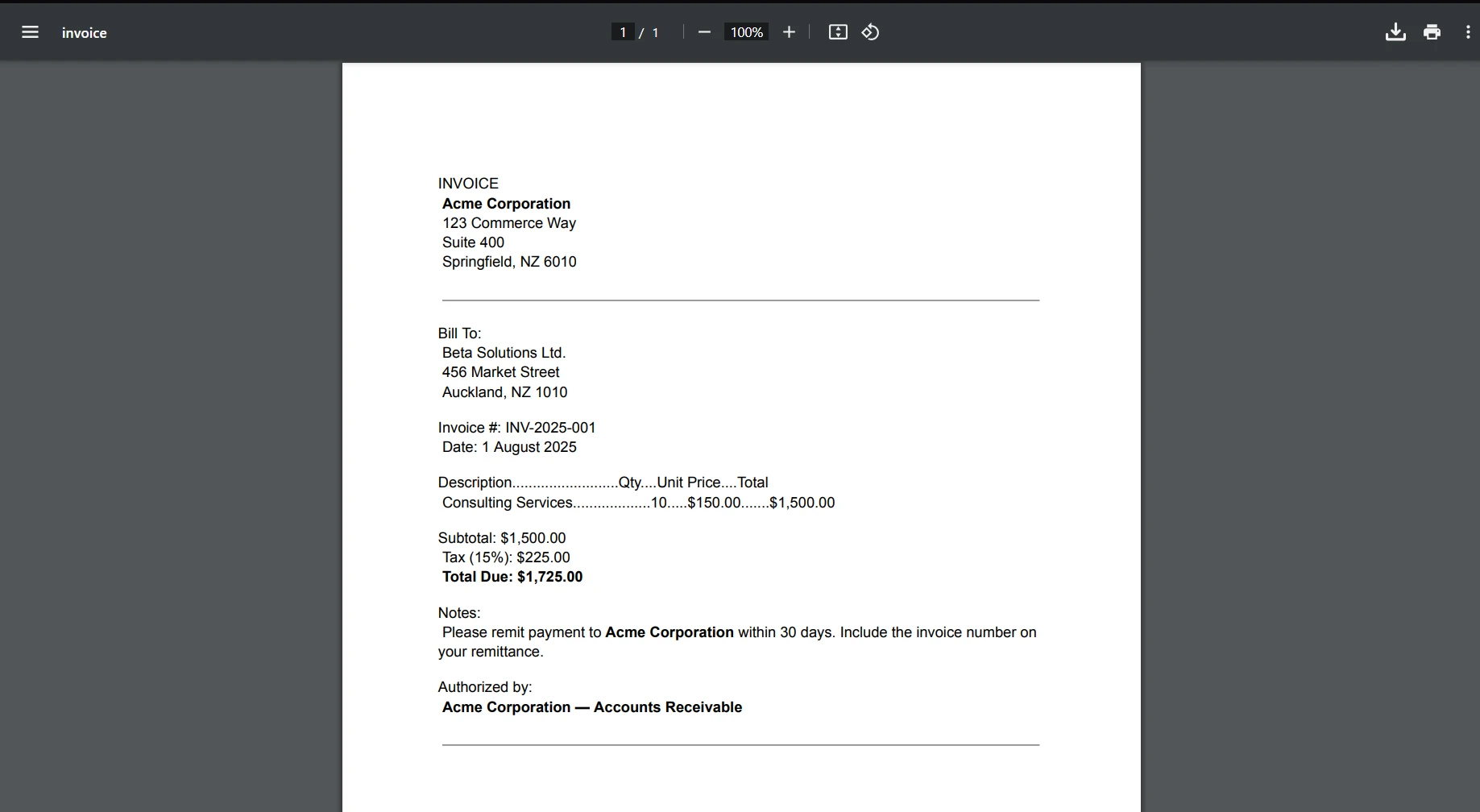
End ClassHumanizer C#(开发人员如何工作):图11 - PDF输出
Humanizer 是面向 .NET 开发者的重要库,旨在创建以用户友好和人类可读形式呈现信息的应用程序。 其从日期和时间人性化到数字和枚举格式化等广泛功能,使其成为提高应用程序可用性的多功能工具。 通过利用 Humanizer,开发人员可以节省时间和精力在实现自定义格式化逻辑上,确保他们的应用程序更有效地向终端用户传达数据。
同样,IronPDF 提供全面的 PDF 生成和操控功能,成为在 C# 项目中创建和处理 PDF 文档的优秀选择。 Humanizer 和 IronPDF 结合使用可以显著增强 .NET 应用程序的功能和呈现效果。 有关 IronPDF 许可的更多详细信息,请查看 IronPDF 许可信息。 要了解更多,请查看我们的HTML 到 PDF 转换详细教程。

Jacob Mellor 是 Iron Software 的首席技术官,也是一位开创 C# PDF 技术的有远见的工程师。作为 Iron Software 核心代码库的原始开发者,他从公司成立之初就开始塑造公司的产品架构,与首席执行官 Cameron Rimington 一起将公司转变为一家拥有 50 多名员工的公司,为 NASA、特斯拉和全球政府机构提供服务。

当您需要PDF看起来像HTML时,速度快。













