


C# Parallel Foreach (How it Works for Developers)

What is Parallel.ForEach in C#?
Parallel.ForEach is a method in C# that allows you to perform parallel iterations over a collection or data source. Instead of processing each item in the collection sequentially, a parallel loop enables concurrent execution, which can significantly improve performance by reducing the overall execution time. Parallel processing works by dividing the work across multiple core processors, allowing tasks to run simultaneously. This is particularly useful when processing tasks that are independent of each other.
In contrast to a normal foreach loop, which processes items sequentially, the parallel approach can handle large datasets much faster by utilizing multiple threads in parallel.
Why Use Parallel Processing with IronPDF?
IronPDF is a powerful library for handling PDFs in .NET, capable of converting HTML to PDF, extracting text from PDFs, merging and splitting documents, and more. When dealing with large volumes of PDF tasks, using parallel processing with Parallel.ForEach can significantly reduce execution time. Whether you're generating hundreds of PDFs or extracting data from multiple files at once, leveraging data parallelism with IronPDF ensures that tasks are completed faster and more efficiently.
This guide is intended for .NET developers who want to optimize their PDF processing tasks using IronPDF and Parallel.ForEach. Basic knowledge of C# and familiarity with the IronPDF library is recommended. By the end of this guide, you will be able to implement parallel processing to handle multiple PDF tasks concurrently, improving both performance and scalability.
Getting Started
Installing IronPDF
To use IronPDF in your project, you need to install the library via NuGet.
NuGet Package Installation
To install IronPDF, follow these steps:
- Open your project in Visual Studio.
- Go to Tools → NuGet Package Manager → Manage NuGet Packages for Solution.
-
Search for IronPDF in the NuGet package manager.

-
Click Install to add the IronPDF library to your project.

Alternatively, you can install it via the NuGet Package Manager Console:
Install-Package IronPdf
Once IronPDF is installed, you're ready to start using it for PDF generation and manipulation tasks.
Basic Concepts of Parallel.ForEach in C#
Parallel.ForEach is part of the System.Threading.Tasks namespace and provides a simple and effective way to execute iterations concurrently. The syntax for Parallel.ForEach is as follows:
Parallel.ForEach(collection, item =>
{
    // Code to process each item
});
Parallel.ForEach(collection, item =>
{
// Code to process each item
});Parallel.ForEach(collection, Sub(item)
' Code to process each item
End Sub)Each item in the collection is processed in parallel, and the system decides how to distribute the workload across available threads. You can also specify options to control the degree of parallelism, such as the maximum number of threads used.
In comparison, a traditional foreach loop processes each item one after the other, whereas the parallel loop can process multiple items concurrently, improving performance when handling large collections.
Step-by-Step Implementation
Setting Up the Project
First, make sure IronPDF is installed as described in the Getting Started section. After that, you can start writing your parallel PDF processing logic.
Writing the Parallel Processing Logic
Code Snippet: Using Parallel.ForEach for HTML to PDF Conversion
string[] htmlFiles = { "page1.html", "page2.html", "page3.html" };
Parallel.ForEach(htmlFiles, htmlFile =>
{
    // Load the HTML content into IronPDF and convert it to PDF
    ChromePdfRenderer renderer = new ChromePdfRenderer();
    PdfDocument pdf = renderer.RenderHtmlAsPdf(htmlFile);
    // Save the generated PDF to the output folder
    pdf.SaveAs($"output_{htmlFile}.pdf");
});
string[] htmlFiles = { "page1.html", "page2.html", "page3.html" };
Parallel.ForEach(htmlFiles, htmlFile =>
{
// Load the HTML content into IronPDF and convert it to PDF
ChromePdfRenderer renderer = new ChromePdfRenderer();
PdfDocument pdf = renderer.RenderHtmlAsPdf(htmlFile);
// Save the generated PDF to the output folder
pdf.SaveAs($"output_{htmlFile}.pdf");
});Dim htmlFiles() As String = { "page1.html", "page2.html", "page3.html" }
Parallel.ForEach(htmlFiles, Sub(htmlFile)
' Load the HTML content into IronPDF and convert it to PDF
Dim renderer As New ChromePdfRenderer()
Dim pdf As PdfDocument = renderer.RenderHtmlAsPdf(htmlFile)
' Save the generated PDF to the output folder
pdf.SaveAs($"output_{htmlFile}.pdf")
End Sub)This code demonstrates how to convert multiple HTML pages to PDFs in parallel.
Handling Parallel Processing Errors
When dealing with parallel tasks, error handling is crucial. Use try-catch blocks inside the Parallel.ForEach loop to manage any exceptions.
Code Snippet: Error Handling in Parallel PDF Tasks
Parallel.ForEach(pdfFiles, pdfFile =>
{
    try
    {
        var pdf = IronPdf.PdfDocument.FromFile(pdfFile);
        string text = pdf.ExtractAllText();
        System.IO.File.WriteAllText($"extracted_{pdfFile}.txt", text);
    }
    catch (Exception ex)
    {
        Console.WriteLine($"Error processing {pdfFile}: {ex.Message}");
    }
});
Parallel.ForEach(pdfFiles, pdfFile =>
{
try
{
var pdf = IronPdf.PdfDocument.FromFile(pdfFile);
string text = pdf.ExtractAllText();
System.IO.File.WriteAllText($"extracted_{pdfFile}.txt", text);
}
catch (Exception ex)
{
Console.WriteLine($"Error processing {pdfFile}: {ex.Message}");
}
});Parallel.ForEach(pdfFiles, Sub(pdfFile)
Try
Dim pdf = IronPdf.PdfDocument.FromFile(pdfFile)
Dim text As String = pdf.ExtractAllText()
System.IO.File.WriteAllText($"extracted_{pdfFile}.txt", text)
Catch ex As Exception
Console.WriteLine($"Error processing {pdfFile}: {ex.Message}")
End Try
End Sub)Practical Use Cases with Full Code Examples
Extracting Text from Multiple PDFs Simultaneously
Another use case for parallel processing is extracting text from a batch of PDFs. When dealing with multiple PDF files, performing text extraction concurrently can save a lot of time. The following example demonstrates how this can be done.
Example: Parallel Text Extraction from Multiple Documents
using IronPdf;
using System.Linq;
using System.Threading.Tasks;

class Program
{
    static void Main(string[] args)
    {
        string[] pdfFiles = { "doc1.pdf", "doc2.pdf", "doc3.pdf" };
        Parallel.ForEach(pdfFiles, pdfFile =>
        {
            var pdf = IronPdf.PdfDocument.FromFile(pdfFile);
            string text = pdf.ExtractText();
            System.IO.File.WriteAllText($"extracted_{pdfFile}.txt", text);
        });
    }
}
using IronPdf;
using System.Linq;
using System.Threading.Tasks;
class Program
{
static void Main(string[] args)
{
string[] pdfFiles = { "doc1.pdf", "doc2.pdf", "doc3.pdf" };
Parallel.ForEach(pdfFiles, pdfFile =>
{
var pdf = IronPdf.PdfDocument.FromFile(pdfFile);
string text = pdf.ExtractText();
System.IO.File.WriteAllText($"extracted_{pdfFile}.txt", text);
});
}
}Imports IronPdf
Imports System.Linq
Imports System.Threading.Tasks
Friend Class Program
Shared Sub Main(ByVal args() As String)
Dim pdfFiles() As String = { "doc1.pdf", "doc2.pdf", "doc3.pdf" }
Parallel.ForEach(pdfFiles, Sub(pdfFile)
Dim pdf = IronPdf.PdfDocument.FromFile(pdfFile)
Dim text As String = pdf.ExtractText()
System.IO.File.WriteAllText($"extracted_{pdfFile}.txt", text)
End Sub)
End Sub
End ClassOutput Documents

In this code, each PDF file is processed in parallel to extract text, and the extracted text is saved in separate text files.
Example: Batch PDF Generation from HTML Files in Parallel
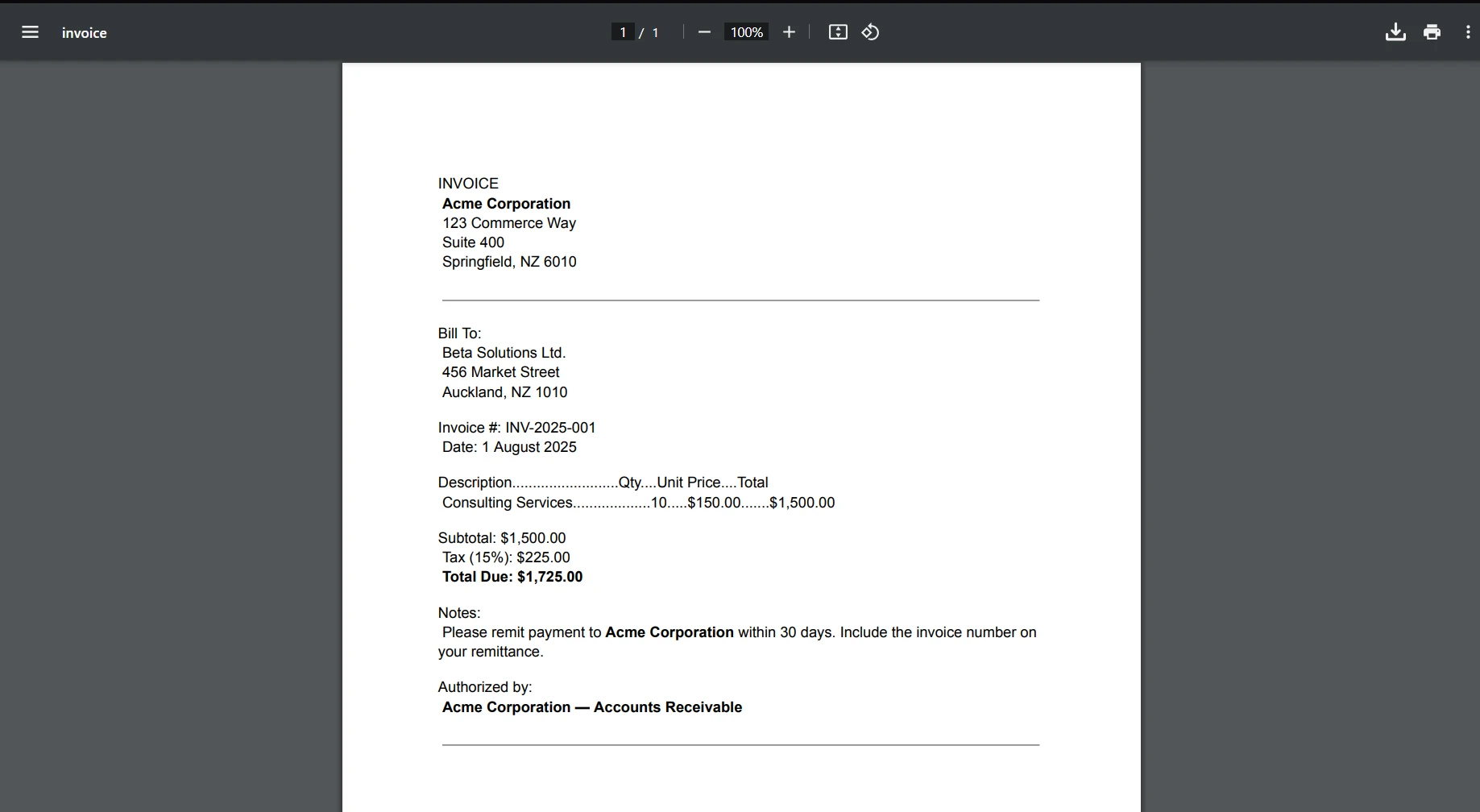
In this example, we will generate multiple PDFs from a list of HTML files in parallel, which could be a typical scenario when you need to convert several dynamic HTML pages to PDF documents.
Code
using IronPdf;
using System;
using System.Threading.Tasks;

class Program
{
    static void Main(string[] args)
    {
        string[] htmlFiles = { "example.html", "example_1.html", "example_2.html" };
        Parallel.ForEach(htmlFiles, htmlFile =>
        {
            try
            {
                // Load the HTML content into IronPDF and convert it to PDF
                ChromePdfRenderer renderer = new ChromePdfRenderer();
                PdfDocument pdf = renderer.RenderHtmlFileAsPdf(htmlFile);
                // Save the generated PDF to the output folder
                pdf.SaveAs($"output_{htmlFile}.pdf");
                Console.WriteLine($"PDF created for {htmlFile}");
            }
            catch (Exception ex)
            {
                Console.WriteLine($"Error processing {htmlFile}: {ex.Message}");
            }
        });
    }
}
using IronPdf;
using System;
using System.Threading.Tasks;
class Program
{
static void Main(string[] args)
{
string[] htmlFiles = { "example.html", "example_1.html", "example_2.html" };
Parallel.ForEach(htmlFiles, htmlFile =>
{
try
{
// Load the HTML content into IronPDF and convert it to PDF
ChromePdfRenderer renderer = new ChromePdfRenderer();
PdfDocument pdf = renderer.RenderHtmlFileAsPdf(htmlFile);
// Save the generated PDF to the output folder
pdf.SaveAs($"output_{htmlFile}.pdf");
Console.WriteLine($"PDF created for {htmlFile}");
}
catch (Exception ex)
{
Console.WriteLine($"Error processing {htmlFile}: {ex.Message}");
}
});
}
}Imports IronPdf
Imports System
Imports System.Threading.Tasks
Friend Class Program
Shared Sub Main(ByVal args() As String)
Dim htmlFiles() As String = { "example.html", "example_1.html", "example_2.html" }
Parallel.ForEach(htmlFiles, Sub(htmlFile)
Try
' Load the HTML content into IronPDF and convert it to PDF
Dim renderer As New ChromePdfRenderer()
Dim pdf As PdfDocument = renderer.RenderHtmlFileAsPdf(htmlFile)
' Save the generated PDF to the output folder
pdf.SaveAs($"output_{htmlFile}.pdf")
Console.WriteLine($"PDF created for {htmlFile}")
Catch ex As Exception
Console.WriteLine($"Error processing {htmlFile}: {ex.Message}")
End Try
End Sub)
End Sub
End ClassConsole Output

PDF Output

Explanation
- HTML Files: The array
htmlFilescontains paths to multiple HTML files that you want to convert into PDFs. -
Parallel Processing:
Parallel.ForEach(htmlFiles, htmlFile => {...})processes each HTML file concurrently, which speeds up the operation when dealing with multiple files.- For each file in the
htmlFilesarray, the code converts it to a PDF usingrenderer.RenderHtmlFileAsPdf(htmlFile);.
- Saving the PDF: After generating the PDF, it is saved using the
pdf.SaveAsmethod, appending the output file name with the original HTML file's name. - Error Handling: If any error occurs (e.g., the HTML file doesn't exist or there's an issue during the conversion), it's caught by the try-catch block, and an error message is printed for the specific file.
Performance Tips and Best Practices
Avoiding Thread Safety Issues with IronPDF
IronPDF is thread-safe for most operations. However, some operations like writing to the same file in parallel may cause issues. Always ensure that each parallel task operates on a separate output file or resource.
Optimizing Parallel Processing for Large Datasets
To optimize performance, consider controlling the degree of parallelism. For large datasets, you may want to limit the number of concurrent threads to prevent system overload.
var options = new ExecutionDataflowBlockOptions
{
    MaxDegreeOfParallelism = 4
};
var options = new ExecutionDataflowBlockOptions
{
MaxDegreeOfParallelism = 4
};Dim options = New ExecutionDataflowBlockOptions With {.MaxDegreeOfParallelism = 4}Memory Management in Parallel PDF Operations
When processing a large number of PDFs, be mindful of memory usage. Try to release resources like PdfDocument objects as soon as they are no longer needed.
Using Extension Methods
An extension method is a special kind of static method that allows you to add new functionality to an existing type without modifying its source code. This can be useful when working with libraries like IronPDF, where you might want to add custom processing methods or extend its functionality to make working with PDFs more convenient, especially in parallel processing scenarios.
Benefits of Using Extension Methods in Parallel Processing
By using extension methods, you can create concise, reusable code that simplifies the logic in parallel loops. This approach not only reduces duplication but also helps you maintain a clean codebase, especially when dealing with complex PDF workflows and data parallelism.
Conclusion
Using parallel loops like Parallel.ForEach with IronPDF provides significant performance gains when processing large volumes of PDFs. Whether you're converting HTML to PDFs, extracting text, or manipulating documents, data parallelism enables faster execution by running tasks concurrently. The parallel approach ensures that operations can be executed across multiple core processors, which reduces the overall execution time and improves performance for batch processing tasks.
While parallel processing speeds up tasks, be mindful of thread safety and resource management. IronPDF is thread-safe for most operations, but it's important to handle potential conflicts when accessing shared resources. Consider error handling and memory management to ensure stability, especially as your application scales.
If you're ready to dive deeper into IronPDF and explore advanced features, the official documentation provides extensive information. Additionally, you can take advantage of their trial license, allowing you to test the library in your own projects before committing to a purchase.
Frequently Asked Questions
How can I convert multiple HTML files to PDFs simultaneously in C#?
You can use IronPDF with the Parallel.ForEach method to convert multiple HTML files to PDFs simultaneously. This approach leverages concurrent processing to enhance performance by reducing the total execution time.
What are the benefits of using Parallel.ForEach with PDF processing in C#?
Using Parallel.ForEach with IronPDF allows for concurrent execution of PDF tasks, significantly improving performance, especially when dealing with large volumes of files. This method leverages multiple cores to handle tasks like HTML to PDF conversion and text extraction more efficiently.
How do I install a .NET PDF library for parallel processing tasks?
To install IronPDF for your .NET project, open Visual Studio and navigate to Tools → NuGet Package Manager → Manage NuGet Packages for Solution. Search for IronPDF and click Install. Alternatively, use the NuGet Package Manager Console with the command: Install-Package IronPdf.
What are the best practices for error handling in parallel PDF processing?
In parallel PDF processing with IronPDF, use try-catch blocks within the Parallel.ForEach loop to handle exceptions. This ensures robust error management and prevents individual task failures from affecting the overall process.
Can IronPDF handle text extraction from multiple PDFs at the same time?
Yes, IronPDF can simultaneously extract text from multiple PDFs by utilizing the Parallel.ForEach method, enabling concurrent processing for efficient handling of large datasets.
Is IronPDF thread-safe for concurrent PDF operations?
IronPDF is designed to be thread-safe for most operations. However, it is important to ensure that each parallel task operates on separate resources, such as different files, to avoid conflicts and ensure data integrity.
How can I improve memory management during parallel PDF operations in C#?
To optimize memory management, release resources such as PdfDocument objects promptly after use, especially when processing a large number of PDFs. This helps in maintaining optimal memory usage and system performance.
What role do extension methods play in parallel PDF processing with C#?
Extension methods allow you to add functionality to existing types without modifying their source code. They are useful in parallel PDF processing with IronPDF for creating reusable, concise code, simplifying operations within parallel loops.
How can I control the degree of parallelism in C# for PDF tasks?
In C#, you can control the degree of parallelism for PDF tasks by using options like ExecutionDataflowBlockOptions to limit the number of concurrent threads. This helps manage system resources effectively and prevents overload.







 Get started for FREE
 Get started for FREE
 Book Free Live Demo
















