Converting HTML to PDF in C# is one of the most common requirements when building modern .NET applications. Whether you're generating invoices, reports, receipts, contracts, or printable documents, converting HTML content into a PDF document allows you to preserve the layout across different devices and operating systems. Since HTML is already used to build web applications, reusing the same HTML code for PDF generation reduces development time and simplifies document creation.
Several PDF libraries are available for HTML to PDF conversion, including wkhtmltopdf-based wrappers, PuppeteerSharp, and other PDF converter libraries. GemBox.Pdf also supports HTML to PDF conversion on Azure Functions. GcHtml can convert HTML to PDF using a headless Chrome browser. However, many legacy solutions struggle with modern CSS, JavaScript execution, responsive layouts, custom fonts, and CSS Grid. Libraries built on outdated rendering engines may also require additional setup, browser installations, or command-line tools before they can generate reliable PDF documents.
In this guide, you'll learn how to convert HTML to PDF in C# using IronPDF, a Chromium-based PDF converter library that accurately renders modern web pages, HTML strings, local HTML files, and URLs. You'll also learn how to customize page settings and generate professional PDF documents using just a few lines of C# code.
What Is IronPDF?
IronPDF is a powerful .NET PDF library that enables developers to create, edit, and manipulate PDF documents using a modern Chromium rendering engine. Unlike older HTML rendering libraries, IronPDF supports current web standards, including HTML5, CSS3, JavaScript execution, CSS Grid, Flexbox, SVG, custom fonts, and responsive layouts.
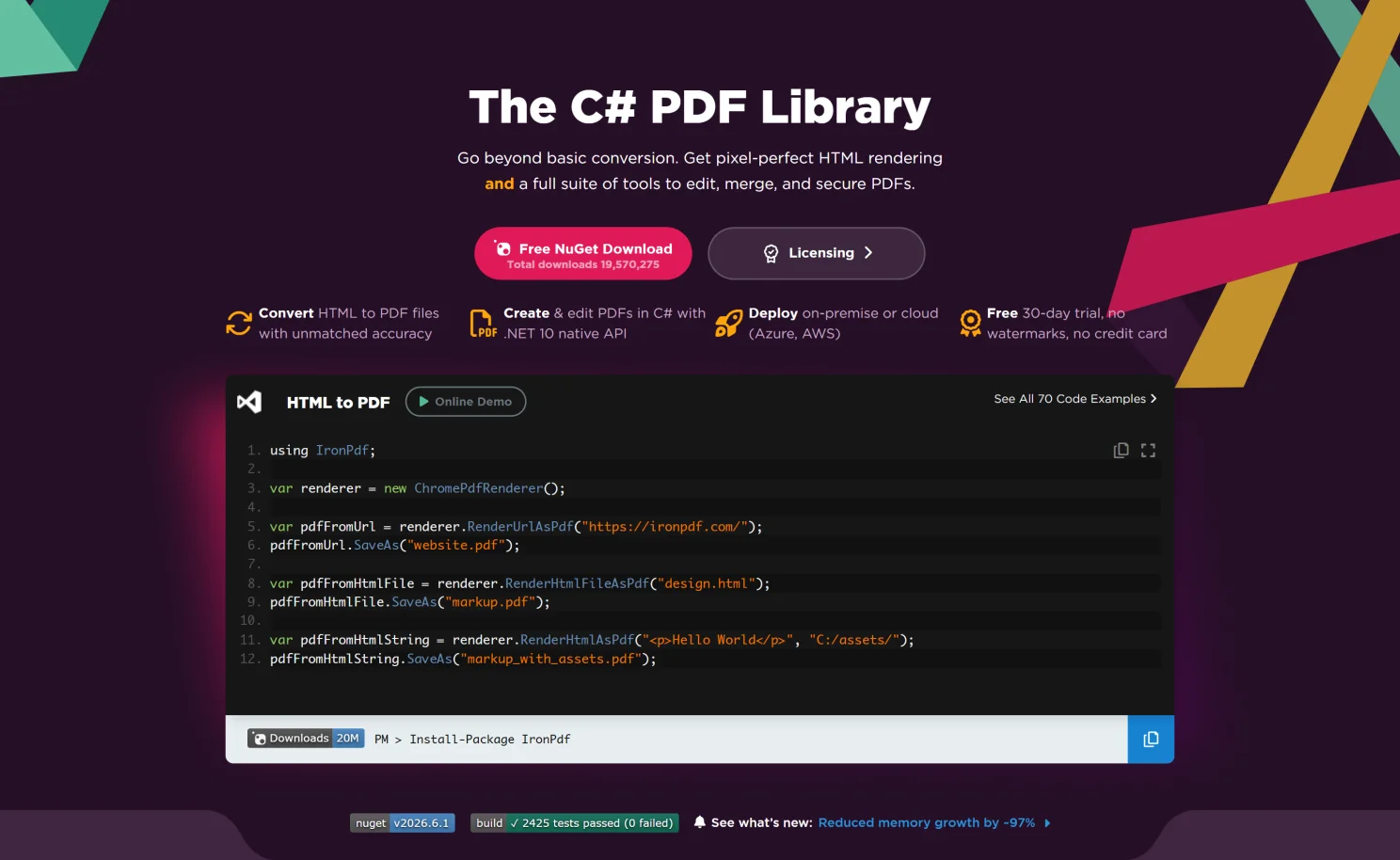 Because IronPDF uses Chromium internally, the generated PDF closely matches what users see in a modern browser. This makes it ideal for converting invoices, dashboards, reports, receipts, certificates, and complete web pages into PDF format.
IronPDF supports:
- HTML strings
- Local HTML page files
- Web URLs
- ASP.NET Core applications
- .NET Framework
- Modern .NET versions
- Azure App Service
- Azure Functions
- Docker containers
- Windows Server and Linux
Additional features include:
Why Use it for HTML to PDF Conversion?
Converting HTML into a PDF isn't simply about rendering text. Modern HTML documents often include CSS frameworks, JavaScript, external resources, images, web fonts, and responsive layouts.
IronPDF uses a Chromium-based rendering engine to accurately render HTML content, making it suitable for both simple HTML documents and complex web applications. Because the rendering engine understands modern web technologies, developers don't need to rewrite HTML specifically for PDF generation.
Some common use cases include:
- Invoice generation
- Sales reports
- Employee contracts
- Purchase orders
- Product catalogs
- Receipts
- PDF Forms
- Email archives
- Printable dashboards
IronPDF also provides configurable rendering options such as pdf page size, margins, headers, footers, JavaScript execution, rendering timeouts, and resource loading controls, making it suitable for production applications.
Note: If your HTML depends on external CSS, images, or JavaScript files, ensure those resources are accessible during rendering or use absolute URLs.
Setting Up Your Project
Before writing any code, install the IronPDF NuGet package using the NuGet Package Manager Console. The following command installs it:
Install-Package IronPdf
Install-Package IronPdf
Text
Or install it using the NuGet Package Manager inside Visual Studio.
After installation, import the required namespace.
using IronPdf;
using IronPdf;
Text
Once installed, you're ready to convert HTML content into PDF documents.
Convert an HTML String to PDF
One of the easiest ways to generate a PDF is by rendering an HTML string. This approach works well for dynamically generated invoices, reports, email templates, and receipts created within your application.
using IronPdf;

var renderer = new ChromePdfRenderer();

// Input HTML in the method
PdfDocument pdf = renderer.RenderHtmlAsPdf(@"
< !DOCTYPE html>
< html>
< head>
    < title>Invoice< /title>
    < style>
        body
        {
            font-family: Arial;
            margin:40px;
        }

        h1
        {
            color:#2563eb;
        }

        table
        {
            width:100%;
            border-collapse:collapse;
        }

        th, td
        {
            border:1px solid #ddd;
            padding:10px;
            text-align:left;
        }
    < /style>
< /head>
< body>

< h1>Invoice< /h1>

< p>Customer: John Smith< /p>

< table>
< tr>
< th>Item< /th>
< th>Price< /th>
< /tr>

< tr>
< td>IronPDF Lite License< /td>
< td>$999< /td>
< /tr>

< /table>

< /body>
< /html>");

pdf.SaveAs("Invoice.pdf");
using IronPdf;

var renderer = new ChromePdfRenderer();

// Input HTML in the method
PdfDocument pdf = renderer.RenderHtmlAsPdf(@"
< !DOCTYPE html>
< html>
< head>
    < title>Invoice< /title>
    < style>
        body
        {
            font-family: Arial;
            margin:40px;
        }

        h1
        {
            color:#2563eb;
        }

        table
        {
            width:100%;
            border-collapse:collapse;
        }

        th, td
        {
            border:1px solid #ddd;
            padding:10px;
            text-align:left;
        }
    < /style>
< /head>
< body>

< h1>Invoice< /h1>

< p>Customer: John Smith< /p>

< table>
< tr>
< th>Item< /th>
< th>Price< /th>
< /tr>

< tr>
< td>IronPDF Lite License< /td>
< td>$999< /td>
< /tr>

< /table>

< /body>
< /html>");

pdf.SaveAs("Invoice.pdf");
Text
The above code snippet shows how html text is passed as string html to the Chromium rendering engine, and practical code snippets like this make it clear how that content is rendered into a PDF file with CSS styles and table formatting intact.
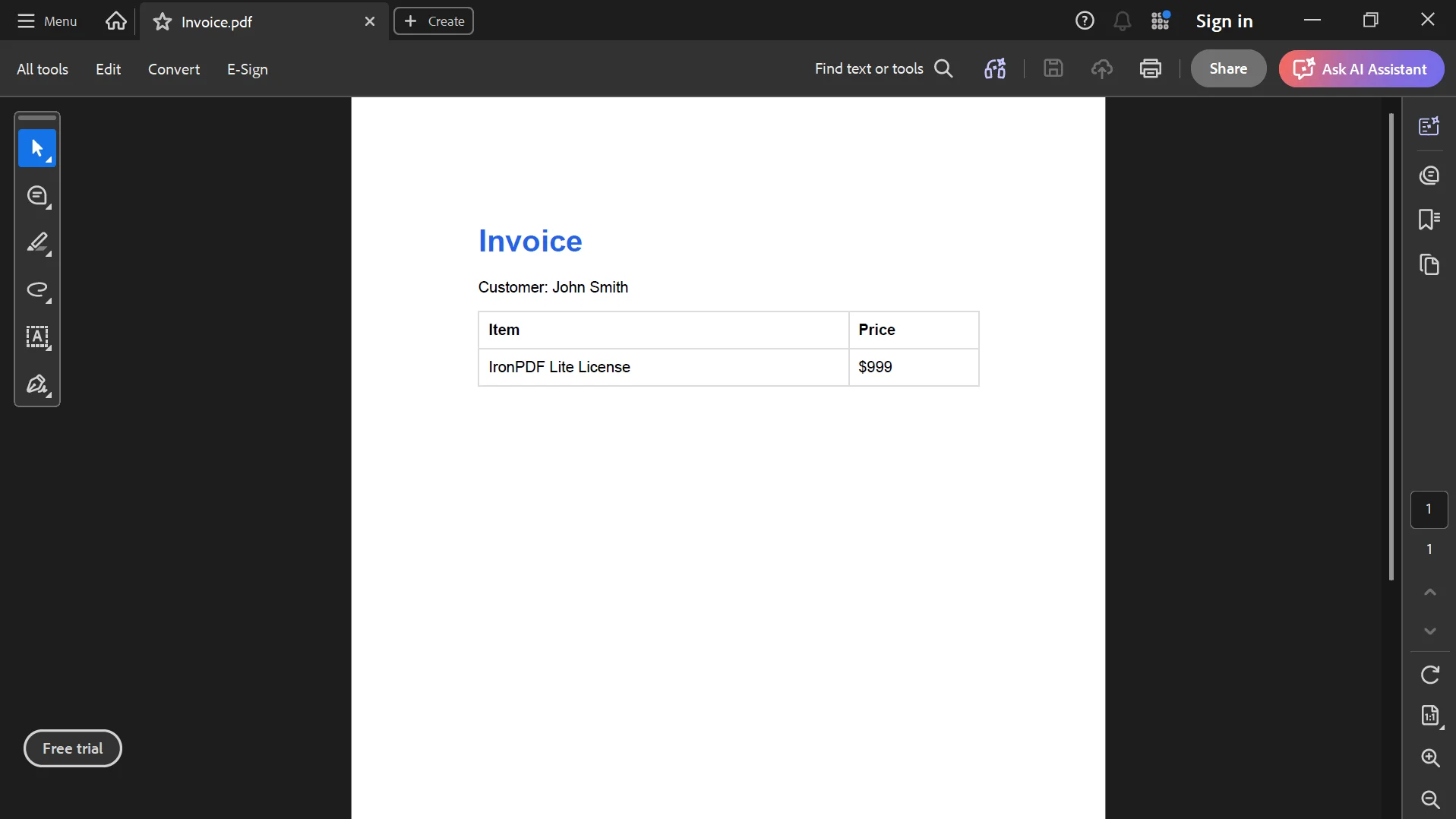 This approach is ideal when HTML is generated dynamically inside your application. GemBox.Pdf converts HTML from files, URLs, or strings to PDF.
Convert a Local HTML File to PDF
If your application already contains HTML templates, you can convert HTML file input from a template directly and easily convert HTML files without reading the contents manually.
using IronPdf;

var renderer = new ChromePdfRenderer();

PdfDocument pdf = renderer.RenderHtmlFileAsPdf("Invoice.html");

pdf.SaveAs("Invoice.pdf");
using IronPdf;

var renderer = new ChromePdfRenderer();

PdfDocument pdf = renderer.RenderHtmlFileAsPdf("Invoice.html");

pdf.SaveAs("Invoice.pdf");
Text
Using local HTML files keeps presentation separate from application logic and makes it easier to maintain reusable templates for invoices, reports, certificates, and other business documents.
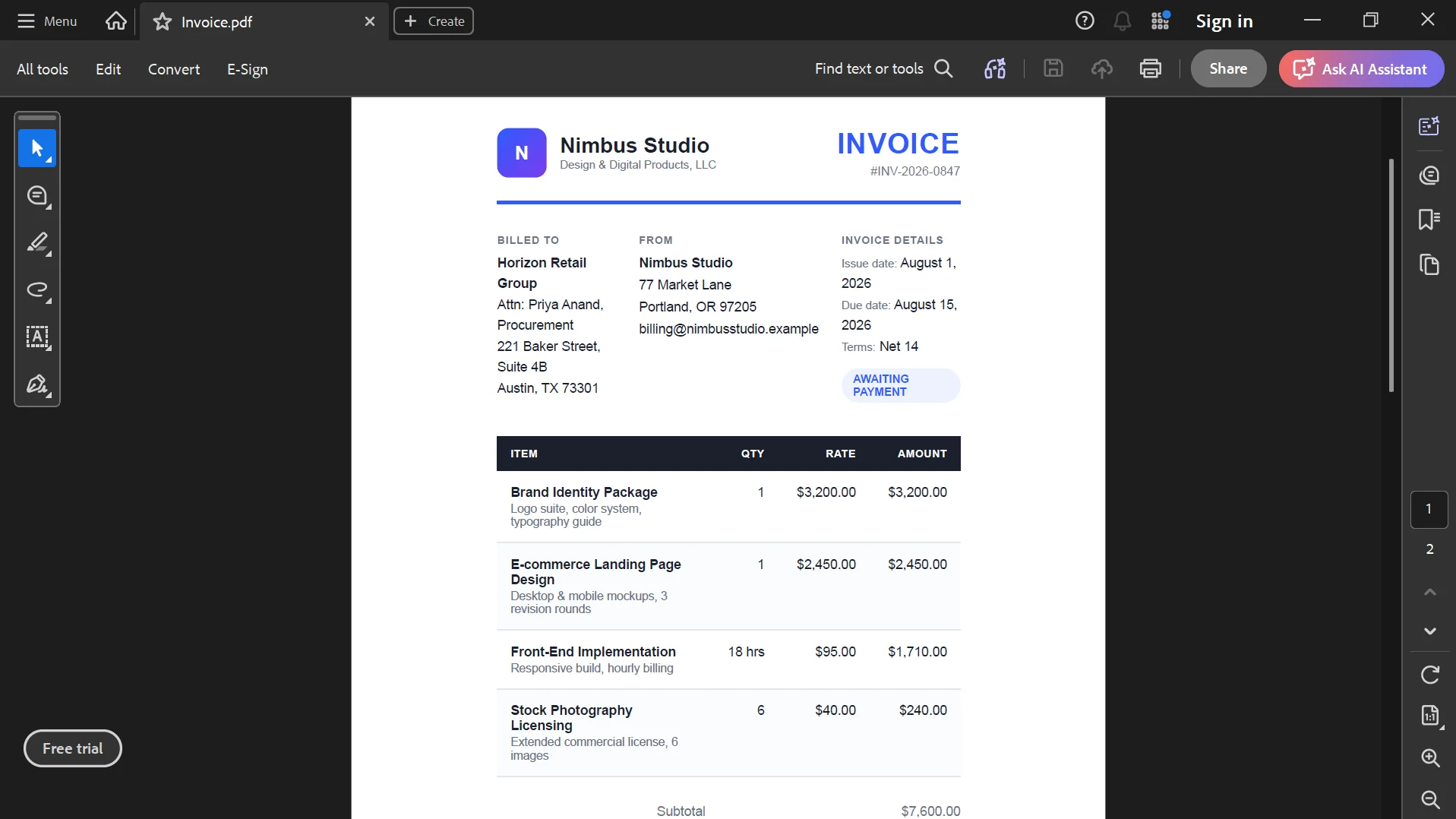 IronPDF automatically loads a local file and can convert HTML file templates without manually reading them into memory, then processes the markup and renders it into a PDF document using Chromium. GemBox.Pdf supports converting HTML from local files or URLs.
Convert a Web Page to PDF
You can also generate PDF documents directly from a live website or internal web application.
using IronPdf;

var renderer = new ChromePdfRenderer();

PdfDocument pdf = renderer.RenderUrlAsPdf("https://ironpdf.com");

pdf.SaveAs("Website.pdf");
using IronPdf;

var renderer = new ChromePdfRenderer();

PdfDocument pdf = renderer.RenderUrlAsPdf("https://ironpdf.com");

pdf.SaveAs("Website.pdf");
Text
This approach uses an html to pdf converter pattern for a live URL and lets you save the output pdf file after the pdf generated.
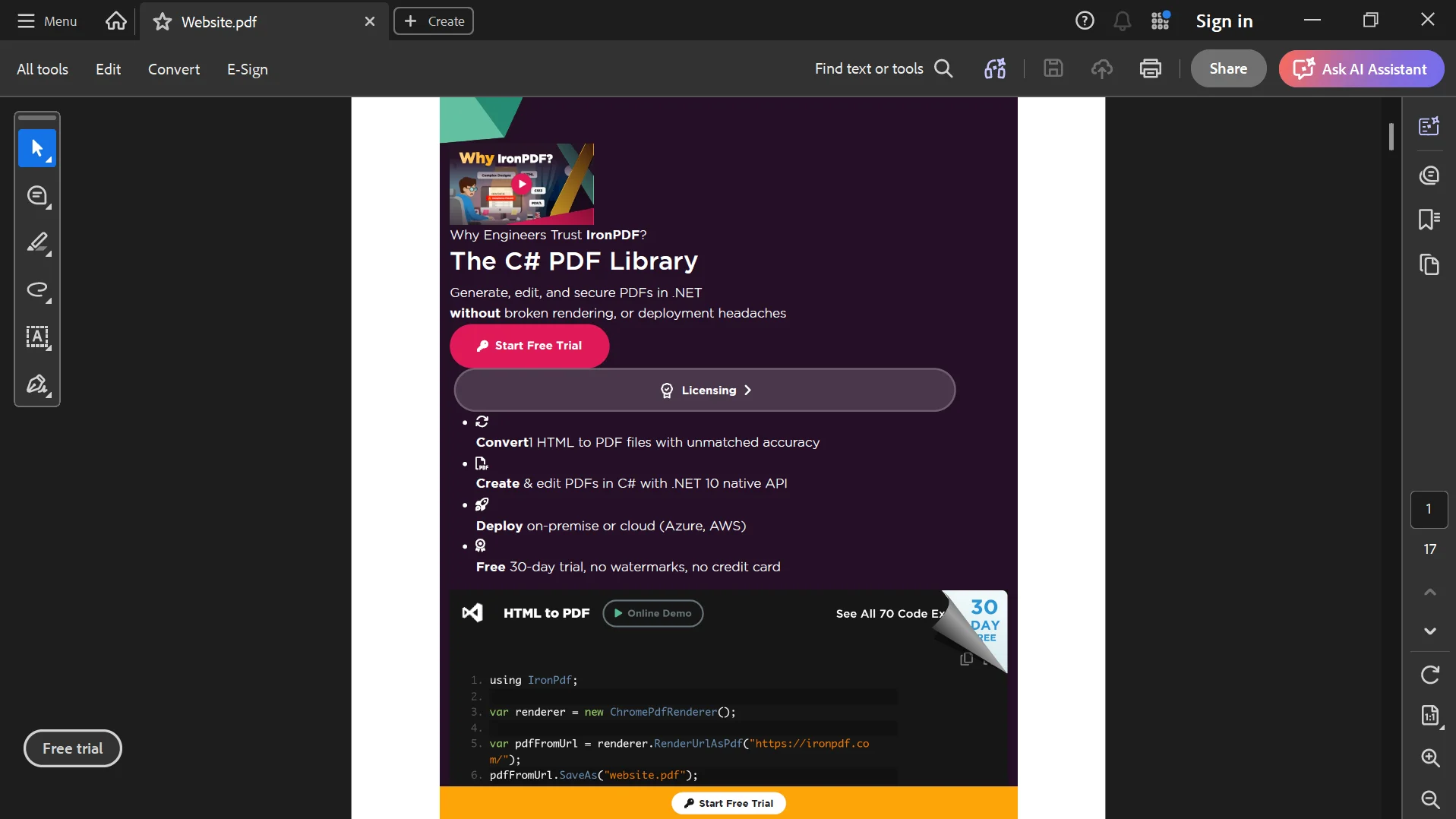 Because IronPDF renders the page using Chromium, JavaScript execution, responsive layouts, and modern CSS features are supported before the PDF is generated. Syncfusion's converter also supports converting ASP.NET MVC views to PDF.
Working with CSS and Modern HTML
Modern websites rely heavily on CSS frameworks and responsive layouts. Older HTML-to-PDF libraries often struggle with CSS Grid, Flexbox, custom fonts, and advanced styling because they use outdated rendering engines.
IronPDF uses Chromium, allowing it to render modern HTML content much more accurately, with more reliable support for advanced features in modern layouts than older engines.
For example, the following code uses CSS Grid.
using IronPdf;

var renderer = new ChromePdfRenderer();

PdfDocument pdf = renderer.RenderHtmlAsPdf(@"
< html>

< head>

< style>

.container
{
display:grid;
grid-template-columns:1fr 1fr;
gap:20px;
}

.card
{
padding:20px;
background:#f5f5f5;
border-radius:8px;
font-family:Arial;
}

< /style>

< /head>

< body>

< div class='container'>

< div class='card'>
< h2>Sales< /h2>
< p>$25,000< /p>
< /div>

< div class='card'>
< h2>Revenue< /h2>
< p>$42,500< /p>
< /div>

< /div>

< /body>

< /html>");

pdf.SaveAs("Dashboard.pdf");
using IronPdf;

var renderer = new ChromePdfRenderer();

PdfDocument pdf = renderer.RenderHtmlAsPdf(@"
< html>

< head>

< style>

.container
{
display:grid;
grid-template-columns:1fr 1fr;
gap:20px;
}

.card
{
padding:20px;
background:#f5f5f5;
border-radius:8px;
font-family:Arial;
}

< /style>

< /head>

< body>

< div class='container'>

< div class='card'>
< h2>Sales< /h2>
< p>$25,000< /p>
< /div>

< div class='card'>
< h2>Revenue< /h2>
< p>$42,500< /p>
< /div>

< /div>

< /body>

< /html>");

pdf.SaveAs("Dashboard.pdf");
Text
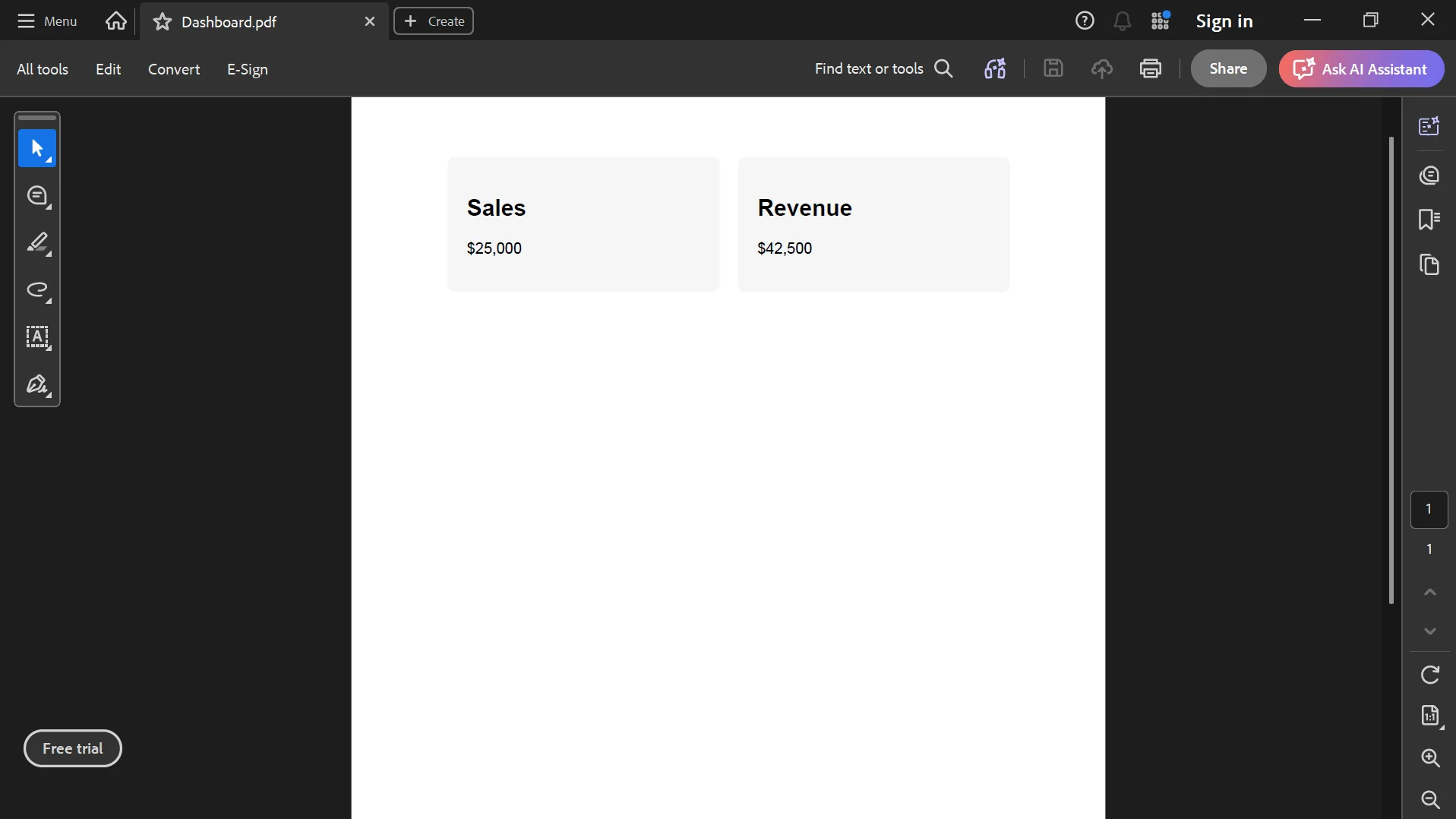
Because Chromium fully supports CSS Grid and modern layout techniques, the resulting PDF closely matches the original HTML document without requiring additional styling changes.
Rendering HTML with JavaScript
Many modern web applications generate content dynamically using JavaScript. Charts, tables, dashboards, and interactive elements may not appear in the HTML source until the page has finished loading. In some cases, the renderer also needs extra time to load external resources before JavaScript-driven content appears.
Since IronPDF uses a Chromium-based rendering engine, it can execute JavaScript before generating the PDF. This allows dynamically generated content to be included in the final document.
using IronPdf;

var renderer = new ChromePdfRenderer();

// Wait for JavaScript to finish executing
renderer.RenderingOptions.WaitFor.JavaScript();

PdfDocument pdf = renderer.RenderUrlAsPdf("https://example.com/dashboard");

pdf.SaveAs("Dashboard.pdf");
using IronPdf;

var renderer = new ChromePdfRenderer();

// Wait for JavaScript to finish executing
renderer.RenderingOptions.WaitFor.JavaScript();

PdfDocument pdf = renderer.RenderUrlAsPdf("https://example.com/dashboard");

pdf.SaveAs("Dashboard.pdf");
Text
Waiting for JavaScript execution is especially useful when converting dashboards, analytics pages, or reports that populate data asynchronously. For example, some pages submit filters with the post method before rendering dashboards or reports.
Configuring PDF Page Settings
IronPDF provides several rendering options that allow you to control the appearance of the generated PDF. You can configure the paper size, orientation, margins, and other page settings before rendering the HTML.
using IronPdf;
using IronPdf.Rendering;

var renderer = new ChromePdfRenderer();

renderer.RenderingOptions.PaperSize = PdfPaperSize.A4;
renderer.RenderingOptions.MarginTop = 20;
renderer.RenderingOptions.MarginBottom = 20;
renderer.RenderingOptions.MarginLeft = 15;
renderer.RenderingOptions.MarginRight = 15;

PdfDocument pdf = renderer.RenderHtmlFileAsPdf("Invoice.html");

pdf.SaveAs("Invoice.pdf");
using IronPdf;
using IronPdf.Rendering;

var renderer = new ChromePdfRenderer();

renderer.RenderingOptions.PaperSize = PdfPaperSize.A4;
renderer.RenderingOptions.MarginTop = 20;
renderer.RenderingOptions.MarginBottom = 20;
renderer.RenderingOptions.MarginLeft = 15;
renderer.RenderingOptions.MarginRight = 15;

PdfDocument pdf = renderer.RenderHtmlFileAsPdf("Invoice.html");

pdf.SaveAs("Invoice.pdf");
C#
Adjusting the page size and margins helps ensure that your HTML content fits correctly within the printable area of each PDF page.
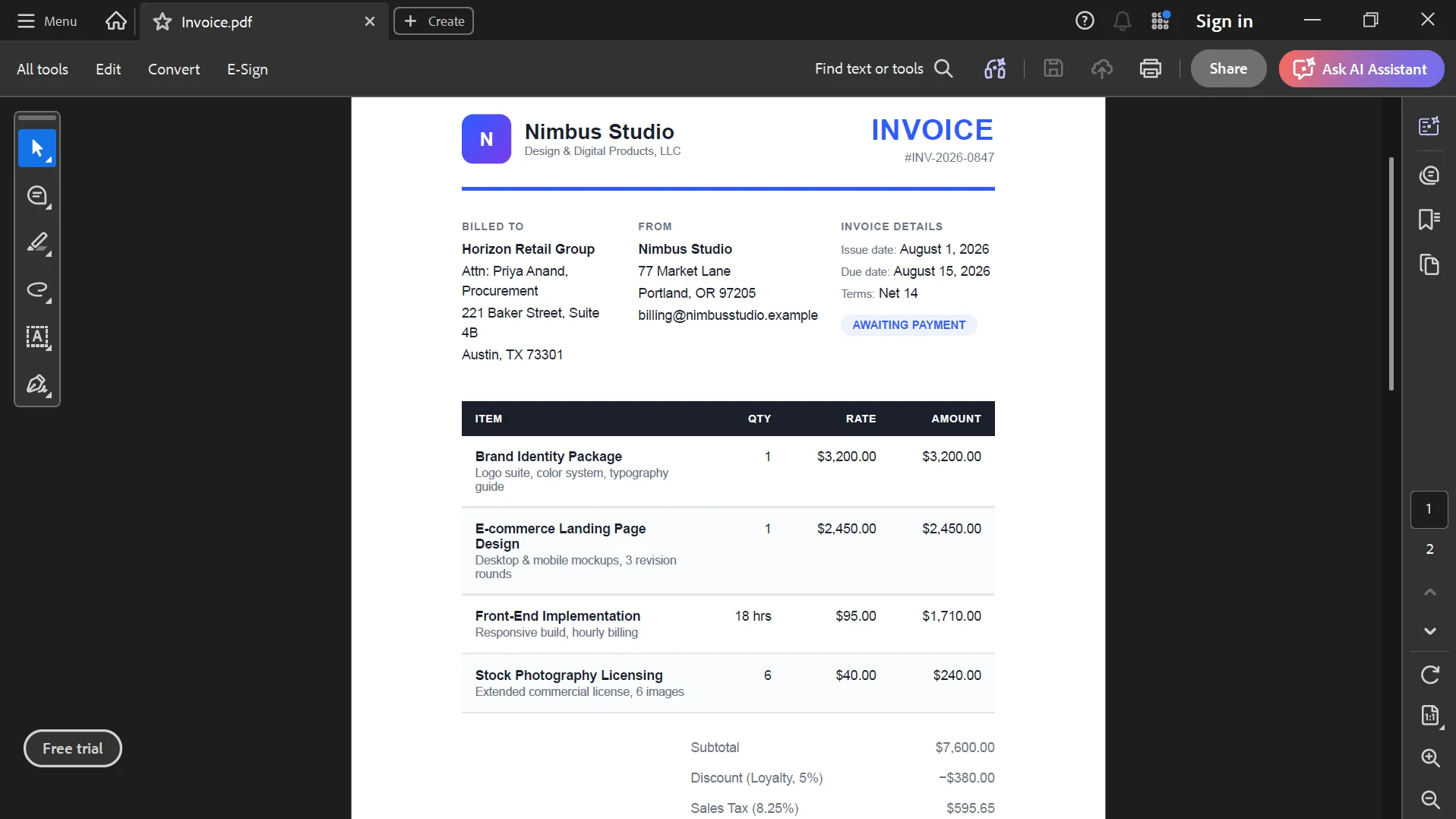
Professional PDF documents often include page numbers, company information, dates, or document titles in the header or footer.
IronPDF allows these elements to be configured before rendering.
using IronPdf;

var renderer = new ChromePdfRenderer();

renderer.RenderingOptions.HtmlFooter = new HtmlHeaderFooter()
{
    MaxHeight = 15,
    HtmlFragment = @"
        <div style='text-align:center;font-size:12px;'>
            Page {page} of {total-pages}
        </div>"
};

PdfDocument pdf = renderer.RenderHtmlFileAsPdf("Report.html");

pdf.SaveAs("Report.pdf");
using IronPdf;

var renderer = new ChromePdfRenderer();

renderer.RenderingOptions.HtmlFooter = new HtmlHeaderFooter()
{
    MaxHeight = 15,
    HtmlFragment = @"
        <div style='text-align:center;font-size:12px;'>
            Page {page} of {total-pages}
        </div>"
};

PdfDocument pdf = renderer.RenderHtmlFileAsPdf("Report.html");

pdf.SaveAs("Report.pdf");
C#
Headers and footers are especially useful when generating reports, manuals, contracts, and printable documents with multiple pages.
HTML-to-PDF generation involves rendering HTML, CSS, JavaScript, and external resources before creating the PDF document. Following a few best practices can significantly improve performance.
- Reuse a ChromePdfRenderer instance whenever practical.
- Minimize unnecessary JavaScript execution.
- Use optimized images to reduce PDF size.
- Keep HTML templates clean and well structured.
- Use a print stylesheet where appropriate to avoid normal website styles affecting PDF generation.
- Avoid loading unnecessary external resources.
- Test rendering in the same environment where the application will be deployed.
IronPDF's 2025.9 release also resolved significant memory leak issue when rendering HTML to PDF.
Because Chromium performs an initial startup when the first document is rendered, the first PDF generation typically takes longer than subsequent renders. With IronPDF, the first render takes about 2.8 seconds, while subsequent renders are typically under one second.
PuppeteerSharp, by comparison, consumes 200-400MB of memory per PDF conversion because each job relies on a separate browser process. It also requires 100-300MB for browser engine deployment and can exceed 1GB in Docker due to Chromium dependencies. Reusing the renderer can improve throughput in applications that generate many PDF documents.
Common Issues and Troubleshooting
Images Don't Appear
Ensure that image URLs are accessible during rendering. If the images are stored locally, use absolute file paths or embed them directly in the HTML.
CSS Styles Are Missing
Verify that all CSS files are available and that the paths are correct. If possible, use absolute URLs for external stylesheets.
JavaScript Content Doesn't Render
If the page loads data asynchronously, configure the renderer to wait for JavaScript execution before generating the PDF.
External Fonts Are Missing
Make sure custom web fonts can be accessed during rendering. Alternatively, embed fonts directly into the HTML using @font-face.
HTML Looks Different in the PDF
Browsers and printed pages use different layouts. Each html element can render differently on paper than it does on screen, so consider creating a dedicated print stylesheet using @media print to optimize the output.
Security Considerations
When converting HTML supplied by users or external systems, validate the input before rendering. Sanitizing HTML helps prevent malicious scripts or unexpected content from being processed.
If your application loads external resources, restrict them to trusted domains whenever possible. Using HTTPS URLs for stylesheets, fonts, and images also improves reliability and security.
Testing the rendering process in your production environment is recommended because network configuration, authentication, resource availability, and the underlying operating system can affect the generated PDF; by contrast, PuppeteerSharp may require custom startup scripts for Azure App Service, which can complicate deployment compared with IronPDF.
Conclusion
Converting HTML to PDF in C# is straightforward with IronPDF. Whether you're generating invoices, reports, receipts, contracts, or exporting complete web pages, IronPDF provides a modern Chromium-based rendering engine that accurately converts HTML strings, local HTML files, and URLs into professional PDF documents.
Beyond basic HTML-to-PDF conversion, IronPDF supports modern CSS, JavaScript execution, custom fonts, headers and footers, page settings, PDF editing, digital signatures, password protection, and many other advanced document processing features. Its simple API allows developers to generate production-ready PDF files using just a few lines of C# code while maintaining compatibility with .NET Framework, .NET Core, and modern .NET apps.
To explore these features in your own projects, download the IronPDF Free Trial and experiment with the examples shown in this guide. For additional tutorials, API reference documentation, and advanced rendering techniques, visit the IronPDF Documentation, which covers everything from HTML-to-PDF conversion to PDF editing, security, digital signatures, and document automation.