


IronPDFとDocraptor - 包括的な比較

今日の急速に進化する開発環境において、HTMLからPDFを生成するための適切なツールを選択することは、効率と出力品質の両面で大きな違いを生むことがあります。 このタスクの主要な候補はIronPDFとDocRaptorです。 どちらのツールもHTMLをPDFに変換するプロセスを簡略化することを目的としていますが、提供される機能、価格モデル、.NETやその他のプラットフォームとの統合レベルは異なります。
この記事では、IronPDFとDocRaptorの詳細な比較を行い、長所、限界、各ツールの最適な使用ケースを強調し、プロジェクトのニーズに最も適したソリューションを決定する手助けをします。
IronPDFとDocRaptorの概要
IronPDFは、.NETアプリケーション内でのPDFの作成、編集、および管理のための広範な機能を提供します。 HTML、CSS、JavaScript、C#へのフルサポートを備え、開発者に対して高いカスタマイズ性と堅牢なツールを提供しています。 このライブラリは、優れたドキュメントを備えており、迅速な導入と.NET環境での使いやすさを保証する開発者に優しい設計です。
DocRaptorは、WebアプリケーションとAPI統合に焦点を当てた、PDFおよびExcelの生成を提供するクラウドベースのソリューションです。 Prince PDFエンジンを使用するDocRaptorは、.NETを含むさまざまなプログラミング言語をサポートし、HTMLをPDFに変換できます。 プラットフォームは基本的なPDF生成に優れていますが、APIにアクセスするためにはインターネット接続が必要で、IronPDFが提供する同じレベルのカスタマイズ性や柔軟性は欠けています。
クロスプラットフォームの互換性
IronPDF
IronPDF は、広範なクロスプラットフォーム互換性で際立っている。 .NET Framework内の幅広い環境をサポートし、異なるプラットフォーム間でのシームレスな動作を保証します。 以下に IronPDF のプラットフォーム互換性の概要を示します。
- .NET バージョン:
-
C#、VB.NET、F#で完全に記述され、サポート
- .NET Core (8, 7, 6, 5, および 3.1+)
- .NET Standard (2.0+)
- .NET Framework (4.6.2+)
-
アプリ環境: IronPDFは、Windows、Linux、Mac、Docker、Azure、AWSなどのさまざまなアプリ環境内で動作します。
-
IDEs: Microsoft Visual Studio、JetBrains Rider & ReSharperなどのIDEsで動作
- OSとプロセッサ: Windows、Mac、Linux、x64、x86、ARMなどのさまざまなOSとプロセッサをサポート
IronPDFの互換性に関する詳細についてはIronPDF Compatibilityをご覧ください。
DocRaptor
DocRaptorは、強力なクロスプラットフォーム互換性と.NETバージョンサポートを提供し、以下を含みます:
- Windows: DocRaptor は Windows 環境でシームレスに動作し、 .NETやその他の一般的な開発スタックと適切に統合されます。
- Linux: DocRaptor は Linux ベースの環境で使用できるため、サーバー側の PDF 生成タスクに適しています。
- macOS: macOS を使用する開発者は、問題なく DocRaptor を開発パイプラインに統合できます。
- .NET Core: DocRaptor は.NET Coreをサポートし、最新 for .NETエコシステムで作業する開発者に最新のクロスプラットフォーム機能を提供します。
- .NET Framework:従来 for .NET Frameworkとも互換性があり、レガシー システム上に構築されたプロジェクトでも PDF 生成機能を活用できます。
- .NET 5 以降: DocRaptor は.NET 5 以降のバージョンと互換性があるため、新しい.NETリリースで作業する開発者は互換性を気にせずにライブラリを使用できます。
主要機能の比較:IronPDFとDocRaptorのPDF機能
IronPDF
-
PDF変換: IronPDFはHTMLをPDFに変換できます。 最新の Web 標準の完全なサポートにより、IronPDF は HTML コンテンツから常にピクセル パーフェクトな PDF を返すことが保証されています。 IronPDFはまた、DOCX、画像、RTFなどからPDFファイルを変換することもできます。
-
PDF 生成: IronPDFを使用すると、URL、ASPX ファイル、または HTML 文字列から PDF を生成できます。
-
セキュリティ機能: IronPDFを使用すると、機密のPDFファイルがセキュリティ機能により常に安全に保たれることが保証されます。 IronPDFを使用してPDFファイルを暗号化し、パスワードを設定し、PDFファイルの権限を設定します。
- PDF編集機能: IronPDFを使用すると、既存のPDFドキュメントを処理し、編集し、読み取ることができます。 IronPDFは、ヘッダーとフッターの追加、テキストや画像のPDFページへのスタンプ、PDFカスタム透かしの追加、PDFフォームの利用、PDFファイルの分割やマージなどの編集機能を提供します。
*統合: ASP.NETおよび MVC アプリケーションとシームレスに統合します。
- PDFバージョンサポート: PDFバージョン1.2-1.7をサポートできます。
IronPDFの機能の包括的なリストについては、IronPDFの機能をご覧ください。
DocRaptor
DocRaptorは、信頼性のあるHTMLからPDFおよびHTMLからExcelへの変換を目的として設計された包括的なセットの機能を提供します。 以下は、その主要な機能の一部です:
*正確なレンダリング: HTML5、CSS3、 JavaScript、SVG をサポートし、最新の Web ページの正確な PDF レンダリングを保証します。
- JavaScript実行:変換前にJavaScriptを処理し、動的なコンテンツが処理され、生成された PDF で正しく表示されるようになります。
*レスポンシブ デザインのサポート:メディア クエリをサポートし、レスポンシブ デザインを PDF のサイズに適応させることができます。
- Excel エクスポート: HTML テーブルを Excel スプレッドシート (.xlsx) に変換します。レポートの生成や構造化データのエクスポートに役立ちます。
*セルの書式設定: Excel 出力のセルのスタイル、フォント、その他の書式設定オプションを保持します。
IronPDFとDocRaptorの注目の機能のコード例の比較
1. HTMLをPDFに変換
IronPDF:
// Convert HTML to PDF using IronPDF
using IronPdf;

// Enable web security to prevent local disk access or cross-origin requests
Installation.EnableWebSecurity = true;

// Instantiate the PDF renderer
var renderer = new ChromePdfRenderer();

// Create a PDF from an HTML string
var pdf = renderer.RenderHtmlAsPdf("<h1>Hello World!</h1>");

// Export to a file or Stream
pdf.SaveAs("output.pdf");

// Advanced Example with HTML Assets
var myAdvancedPdf = renderer.RenderHtmlAsPdf("<img src='icons/iron.png'>", @"C:\site\assets\");
myAdvancedPdf.SaveAs("html-with-assets.pdf");
// Convert HTML to PDF using IronPDF
using IronPdf;
// Enable web security to prevent local disk access or cross-origin requests
Installation.EnableWebSecurity = true;
// Instantiate the PDF renderer
var renderer = new ChromePdfRenderer();
// Create a PDF from an HTML string
var pdf = renderer.RenderHtmlAsPdf("<h1>Hello World!</h1>");
// Export to a file or Stream
pdf.SaveAs("output.pdf");
// Advanced Example with HTML Assets
var myAdvancedPdf = renderer.RenderHtmlAsPdf("<img src='icons/iron.png'>", @"C:\site\assets\");
myAdvancedPdf.SaveAs("html-with-assets.pdf");' Convert HTML to PDF using IronPDF
Imports IronPdf
' Enable web security to prevent local disk access or cross-origin requests
Installation.EnableWebSecurity = True
' Instantiate the PDF renderer
Dim renderer = New ChromePdfRenderer()
' Create a PDF from an HTML string
Dim pdf = renderer.RenderHtmlAsPdf("<h1>Hello World!</h1>")
' Export to a file or Stream
pdf.SaveAs("output.pdf")
' Advanced Example with HTML Assets
Dim myAdvancedPdf = renderer.RenderHtmlAsPdf("<img src='icons/iron.png'>", "C:\site\assets\")
myAdvancedPdf.SaveAs("html-with-assets.pdf")ドクターラプター:
using DocRaptor.Client;
using DocRaptor.Model;
using DocRaptor.Api;
using System;
using System.IO;

// Example of using DocRaptor to convert HTML and JavaScript to PDF
DocApi docraptor = new DocApi();
docraptor.Configuration.Username = "YOUR_API_KEY_HERE";

try
{
    Doc doc = new Doc(
        name: "html-and-javascript",
        test: true, // Test flag to indicate trial mode
        documentType: Doc.DocumentTypeEnum.Pdf, // Specify document type
        documentContent: System.IO.File.ReadAllText(@"html-and-javascript-content.html"), // Load HTML content from file
        javascript: true // Enable JavaScript execution
    );

    byte[] document = docraptor.CreateDoc(doc);
    File.WriteAllBytes("html-and-javascript.pdf", document);
    Console.WriteLine("Successfully created html-and-javascript.pdf!");
}
catch (DocRaptor.Client.ApiException error)
{
    Console.Write(error.ErrorContent);
}
using DocRaptor.Client;
using DocRaptor.Model;
using DocRaptor.Api;
using System;
using System.IO;
// Example of using DocRaptor to convert HTML and JavaScript to PDF
DocApi docraptor = new DocApi();
docraptor.Configuration.Username = "YOUR_API_KEY_HERE";
try
{
Doc doc = new Doc(
name: "html-and-javascript",
test: true, // Test flag to indicate trial mode
documentType: Doc.DocumentTypeEnum.Pdf, // Specify document type
documentContent: System.IO.File.ReadAllText(@"html-and-javascript-content.html"), // Load HTML content from file
javascript: true // Enable JavaScript execution
);
byte[] document = docraptor.CreateDoc(doc);
File.WriteAllBytes("html-and-javascript.pdf", document);
Console.WriteLine("Successfully created html-and-javascript.pdf!");
}
catch (DocRaptor.Client.ApiException error)
{
Console.Write(error.ErrorContent);
}Imports DocRaptor.Client
Imports DocRaptor.Model
Imports DocRaptor.Api
Imports System
Imports System.IO
' Example of using DocRaptor to convert HTML and JavaScript to PDF
Private docraptor As New DocApi()
docraptor.Configuration.Username = "YOUR_API_KEY_HERE"
Try
Dim doc As New Doc(name:= "html-and-javascript", test:= True, documentType:= Doc.DocumentTypeEnum.Pdf, documentContent:= System.IO.File.ReadAllText("html-and-javascript-content.html"), javascript:= True)
Dim document() As Byte = docraptor.CreateDoc(doc)
File.WriteAllBytes("html-and-javascript.pdf", document)
Console.WriteLine("Successfully created html-and-javascript.pdf!")
Catch [error] As DocRaptor.Client.ApiException
Console.Write([error].ErrorContent)
End TryIronPDFは、HTMLからPDFの作成を容易に処理し、最新のウェブ標準への完全な対応により、PDFドキュメントがすべてピクセル完全な形で出力されることを保証します。 DocRaptorはAPIベースのアプローチを使用して、HTMLをPDFに変換するためにAPIキーとクラウドベースの実行を必要とします。
2. PDFファイルの暗号化
IronPDF:
using IronPdf;
using System;

// Load an existing PDF with a password
var pdf = PdfDocument.FromFile("encrypted.pdf", "password");

// Edit file metadata
pdf.MetaData.Author = "Satoshi Nakamoto";
pdf.MetaData.Keywords = "SEO, Friendly";
pdf.MetaData.ModifiedDate = DateTime.Now;

// Edit file security settings
pdf.SecuritySettings.RemovePasswordsAndEncryption();
pdf.SecuritySettings.MakePdfDocumentReadOnly("secret-key");
pdf.SecuritySettings.AllowUserAnnotations = false;
pdf.SecuritySettings.AllowUserCopyPasteContent = false;
pdf.SecuritySettings.AllowUserFormData = false;
pdf.SecuritySettings.AllowUserPrinting = IronPdf.Security.PdfPrintSecurity.FullPrintRights;

// Change or set the document encryption password
pdf.Password = "my-password";
pdf.SaveAs("secured.pdf");
using IronPdf;
using System;
// Load an existing PDF with a password
var pdf = PdfDocument.FromFile("encrypted.pdf", "password");
// Edit file metadata
pdf.MetaData.Author = "Satoshi Nakamoto";
pdf.MetaData.Keywords = "SEO, Friendly";
pdf.MetaData.ModifiedDate = DateTime.Now;
// Edit file security settings
pdf.SecuritySettings.RemovePasswordsAndEncryption();
pdf.SecuritySettings.MakePdfDocumentReadOnly("secret-key");
pdf.SecuritySettings.AllowUserAnnotations = false;
pdf.SecuritySettings.AllowUserCopyPasteContent = false;
pdf.SecuritySettings.AllowUserFormData = false;
pdf.SecuritySettings.AllowUserPrinting = IronPdf.Security.PdfPrintSecurity.FullPrintRights;
// Change or set the document encryption password
pdf.Password = "my-password";
pdf.SaveAs("secured.pdf");Imports IronPdf
Imports System
' Load an existing PDF with a password
Private pdf = PdfDocument.FromFile("encrypted.pdf", "password")
' Edit file metadata
pdf.MetaData.Author = "Satoshi Nakamoto"
pdf.MetaData.Keywords = "SEO, Friendly"
pdf.MetaData.ModifiedDate = DateTime.Now
' Edit file security settings
pdf.SecuritySettings.RemovePasswordsAndEncryption()
pdf.SecuritySettings.MakePdfDocumentReadOnly("secret-key")
pdf.SecuritySettings.AllowUserAnnotations = False
pdf.SecuritySettings.AllowUserCopyPasteContent = False
pdf.SecuritySettings.AllowUserFormData = False
pdf.SecuritySettings.AllowUserPrinting = IronPdf.Security.PdfPrintSecurity.FullPrintRights
' Change or set the document encryption password
pdf.Password = "my-password"
pdf.SaveAs("secured.pdf")ドクターラプター: DocRaptor は PDF 暗号化機能をネイティブにサポートしていません。
IronPDFは、組み込みの暗号化、メタデータ、およびセキュリティコントロールを提供し、DocRaptorでは同様の機能を達成するためにサードパーティツールが必要です。
3. PDFコンテンツのリダクション
IronPDF:
using IronPdf;

// Load the PDF and redact specified text
PdfDocument pdf = PdfDocument.FromFile("novel.pdf");
pdf.RedactTextOnAllPages("are");
pdf.SaveAs("redacted.pdf");
using IronPdf;
// Load the PDF and redact specified text
PdfDocument pdf = PdfDocument.FromFile("novel.pdf");
pdf.RedactTextOnAllPages("are");
pdf.SaveAs("redacted.pdf");Imports IronPdf
' Load the PDF and redact specified text
Private pdf As PdfDocument = PdfDocument.FromFile("novel.pdf")
pdf.RedactTextOnAllPages("are")
pdf.SaveAs("redacted.pdf")DocRaptorは、リダクション機能をサポートしていません。
IronPDFはネイティブなリダクションを提供しており、これは法的文書や機密文書には欠かせない機能であり、DocRaptorにないものです。
4. PDFドキュメントのデジタル署名
IronPDF:
using IronPdf;
using IronPdf.Signing;
using System.Security.Cryptography.X509Certificates;

// Initialize PDF renderer and create a PDF document
ChromePdfRenderer renderer = new ChromePdfRenderer();
PdfDocument pdf = renderer.RenderHtmlAsPdf("<h1>foo</h1>");

// Load the certificate for signing
X509Certificate2 cert = new X509Certificate2("IronSoftware.pfx", "123456", X509KeyStorageFlags.Exportable);

// Create a PdfSignature object
var sig = new PdfSignature(cert);

// Sign the PDF document
pdf.Sign(sig);
pdf.SaveAs("signed.pdf");
using IronPdf;
using IronPdf.Signing;
using System.Security.Cryptography.X509Certificates;
// Initialize PDF renderer and create a PDF document
ChromePdfRenderer renderer = new ChromePdfRenderer();
PdfDocument pdf = renderer.RenderHtmlAsPdf("<h1>foo</h1>");
// Load the certificate for signing
X509Certificate2 cert = new X509Certificate2("IronSoftware.pfx", "123456", X509KeyStorageFlags.Exportable);
// Create a PdfSignature object
var sig = new PdfSignature(cert);
// Sign the PDF document
pdf.Sign(sig);
pdf.SaveAs("signed.pdf");Imports IronPdf
Imports IronPdf.Signing
Imports System.Security.Cryptography.X509Certificates
' Initialize PDF renderer and create a PDF document
Private renderer As New ChromePdfRenderer()
Private pdf As PdfDocument = renderer.RenderHtmlAsPdf("<h1>foo</h1>")
' Load the certificate for signing
Private cert As New X509Certificate2("IronSoftware.pfx", "123456", X509KeyStorageFlags.Exportable)
' Create a PdfSignature object
Private sig = New PdfSignature(cert)
' Sign the PDF document
pdf.Sign(sig)
pdf.SaveAs("signed.pdf")DocRaptorはネイティブにPDFの署名をサポートしていません。
IronPDFは内蔵メカニズムを提供してPDFにデジタル署名を行い、認証や法的文書において優れています。 DocRaptorにはこの重要な機能がなく、このライブラリのユーザーはこのタスクを実行するために追加のライブラリをダウンロードする必要があります。
5. カスタム透かしの適用
IronPDF:
using IronPdf;

// Stamper to apply a watermark on a PDF
var renderer = new ChromePdfRenderer();
var pdf = renderer.RenderUrlAsPdf("https://www.nuget.org/packages/IronPdf");
pdf.ApplyWatermark("<h2 style='color:red'>SAMPLE</h2>", 30, IronPdf.Editing.VerticalAlignment.Middle, IronPdf.Editing.HorizontalAlignment.Center);
pdf.SaveAs(@"C:\Path\To\Watermarked.pdf");
using IronPdf;
// Stamper to apply a watermark on a PDF
var renderer = new ChromePdfRenderer();
var pdf = renderer.RenderUrlAsPdf("https://www.nuget.org/packages/IronPdf");
pdf.ApplyWatermark("<h2 style='color:red'>SAMPLE</h2>", 30, IronPdf.Editing.VerticalAlignment.Middle, IronPdf.Editing.HorizontalAlignment.Center);
pdf.SaveAs(@"C:\Path\To\Watermarked.pdf");Imports IronPdf
' Stamper to apply a watermark on a PDF
Private renderer = New ChromePdfRenderer()
Private pdf = renderer.RenderUrlAsPdf("https://www.nuget.org/packages/IronPdf")
pdf.ApplyWatermark("<h2 style='color:red'>SAMPLE</h2>", 30, IronPdf.Editing.VerticalAlignment.Middle, IronPdf.Editing.HorizontalAlignment.Center)
pdf.SaveAs("C:\Path\To\Watermarked.pdf")ドクターラプター:
using DocRaptor.Client;
using DocRaptor.Model;
using DocRaptor.Api;
using System;
using System.IO;

class DocRaptorExample
{
    static void Main(string[] args)
    {
        DocApi docraptor = new DocApi();
        docraptor.Configuration.Username = "YOUR_API_KEY_HERE";

        try
        {
            Doc doc = new Doc(
                name: "text-based-watermark",
                test: false, // Test documents are free but watermarked
                documentType: Doc.DocumentTypeEnum.Pdf,
                documentContent: System.IO.File.ReadAllText(@"text-based-watermark-content.html")
            );

            byte[] document = docraptor.CreateDoc(doc);
            File.WriteAllBytes("text-based-watermark.pdf", document);
            Console.WriteLine("Successfully created text-based-watermark.pdf!");
        } catch (DocRaptor.Client.ApiException error) {
            Console.Write(error.ErrorContent);
        }
    }
}
using DocRaptor.Client;
using DocRaptor.Model;
using DocRaptor.Api;
using System;
using System.IO;
class DocRaptorExample
{
static void Main(string[] args)
{
DocApi docraptor = new DocApi();
docraptor.Configuration.Username = "YOUR_API_KEY_HERE";
try
{
Doc doc = new Doc(
name: "text-based-watermark",
test: false, // Test documents are free but watermarked
documentType: Doc.DocumentTypeEnum.Pdf,
documentContent: System.IO.File.ReadAllText(@"text-based-watermark-content.html")
);
byte[] document = docraptor.CreateDoc(doc);
File.WriteAllBytes("text-based-watermark.pdf", document);
Console.WriteLine("Successfully created text-based-watermark.pdf!");
} catch (DocRaptor.Client.ApiException error) {
Console.Write(error.ErrorContent);
}
}
}Imports DocRaptor.Client
Imports DocRaptor.Model
Imports DocRaptor.Api
Imports System
Imports System.IO
Friend Class DocRaptorExample
Shared Sub Main(ByVal args() As String)
Dim docraptor As New DocApi()
docraptor.Configuration.Username = "YOUR_API_KEY_HERE"
Try
Dim doc As New Doc(name:= "text-based-watermark", test:= False, documentType:= Doc.DocumentTypeEnum.Pdf, documentContent:= System.IO.File.ReadAllText("text-based-watermark-content.html"))
Dim document() As Byte = docraptor.CreateDoc(doc)
File.WriteAllBytes("text-based-watermark.pdf", document)
Console.WriteLine("Successfully created text-based-watermark.pdf!")
Catch [error] As DocRaptor.Client.ApiException
Console.Write([error].ErrorContent)
End Try
End Sub
End ClassIronPDFは完全な透かし機能を提供しており、わずかなコード行でカスタム透かしを作成し、適用できます。これらの透かしは新規または既存のPDFファイルに適用できます。 DocRaptorの場合、透かしはHTMLとCSSを使用してHTMLコンテンツをPDFに変換する前に追加する必要があります。
6. テキストと画像のスタンプ
IronPDF:
using IronPdf;
using IronPdf.Editing;

// Initialize PDF renderer and create a basic HTML-based PDF
ChromePdfRenderer renderer = new ChromePdfRenderer();
PdfDocument pdf = renderer.RenderHtmlAsPdf("<h1>Example HTML Document!</h1>");

// Create a text stamper
TextStamper textStamper = new TextStamper()
{
    Text = "Text Stamper!",
    FontFamily = "Bungee Spice",
    UseGoogleFont = true,
    FontSize = 30,
    IsBold = true,
    IsItalic = true,
    VerticalAlignment = VerticalAlignment.Top,
};

// Apply the text stamper to the PDF
pdf.ApplyStamp(textStamper);
pdf.SaveAs("stampText.pdf");
using IronPdf;
using IronPdf.Editing;
// Initialize PDF renderer and create a basic HTML-based PDF
ChromePdfRenderer renderer = new ChromePdfRenderer();
PdfDocument pdf = renderer.RenderHtmlAsPdf("<h1>Example HTML Document!</h1>");
// Create a text stamper
TextStamper textStamper = new TextStamper()
{
Text = "Text Stamper!",
FontFamily = "Bungee Spice",
UseGoogleFont = true,
FontSize = 30,
IsBold = true,
IsItalic = true,
VerticalAlignment = VerticalAlignment.Top,
};
// Apply the text stamper to the PDF
pdf.ApplyStamp(textStamper);
pdf.SaveAs("stampText.pdf");Imports IronPdf
Imports IronPdf.Editing
' Initialize PDF renderer and create a basic HTML-based PDF
Private renderer As New ChromePdfRenderer()
Private pdf As PdfDocument = renderer.RenderHtmlAsPdf("<h1>Example HTML Document!</h1>")
' Create a text stamper
Private textStamper As New TextStamper() With {
.Text = "Text Stamper!",
.FontFamily = "Bungee Spice",
.UseGoogleFont = True,
.FontSize = 30,
.IsBold = True,
.IsItalic = True,
.VerticalAlignment = VerticalAlignment.Top
}
' Apply the text stamper to the PDF
pdf.ApplyStamp(textStamper)
pdf.SaveAs("stampText.pdf")DocRaptorはPDF上のテキストと画像をスタンプするためのネイティブ機能を欠いています。
IronPDFは、テキストと画像をスタンプする際に詳細なカスタマイズを可能にし、ドキュメントの注釈やブランディングに優れた選択肢となっています。 DocRaptorは、テキストと画像のスタンプに関するネイティブサポートがなく、透かしがこれに最も近いものとなっています。
7. DOCX to PDF
IronPDF:
using IronPdf;

// Instantiate a renderer specifically for DOCX files
DocxToPdfRenderer renderer = new DocxToPdfRenderer();

// Render a PDF document from a DOCX file
PdfDocument pdf = renderer.RenderDocxAsPdf("Modern-chronological-resume.docx");

// Save the resulting PDF
pdf.SaveAs("pdfFromDocx.pdf");
using IronPdf;
// Instantiate a renderer specifically for DOCX files
DocxToPdfRenderer renderer = new DocxToPdfRenderer();
// Render a PDF document from a DOCX file
PdfDocument pdf = renderer.RenderDocxAsPdf("Modern-chronological-resume.docx");
// Save the resulting PDF
pdf.SaveAs("pdfFromDocx.pdf");Imports IronPdf
' Instantiate a renderer specifically for DOCX files
Private renderer As New DocxToPdfRenderer()
' Render a PDF document from a DOCX file
Private pdf As PdfDocument = renderer.RenderDocxAsPdf("Modern-chronological-resume.docx")
' Save the resulting PDF
pdf.SaveAs("pdfFromDocx.pdf")ドクターラプター:
DOCXからPDFへの変換をネイティブでサポートしていません。
IronPDFは、DOCX to PDF変換のためのよりスムーズでネイティブなプロセスを提供し、DocRaptorのように外部ライブラリを必要とせずにこのタスクを達成できます。
コード例比較の概要
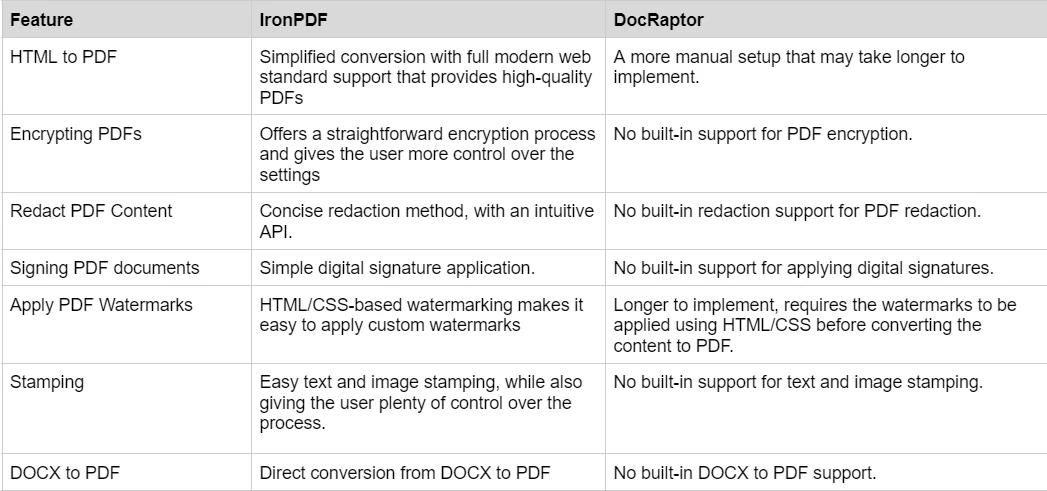
IronPDFが提供する豊富な機能セットについて詳細を知り、それを実際に見るには、IronPDFのハウツーガイドをチェックして、各機能の深い探求を行い、それらがどのように機能するかを学び、PDFの専門家になるために必要なスキルを身につけてください。
BootstrapとモダンCSSフレームワークのレンダリングサポート
Bootstrap、Tailwind、FoundationのようなCSSフレームワークで構築されたモダンなウェブアプリケーションは、これらのフレームワークレイアウトを正確に保持するPDF生成ツールを必要とします。 この機能は、ウェブとPDFの出力におけるデザインの一貫性を維持するために不可欠です。
IronPDF: ネイティブBootstrapとフレームワークサポート
IronPDFのChromiumエンジンは、すべてのモダンCSSフレームワークを完全にサポートします:
- Bootstrap 5:レスポンシブなユーティリティをすべて備えた、フレックスボックスとCSSグリッドの完全サポート
- Bootstrap 4:完全なカードシステム、ナビゲーション、フォームコンポーネント
- Tailwind CSS:すべてのユーティリティクラスとレスポンシブ修飾子 -基盤:完全なグリッドとコンポーネントシステム -モダン CSS3: Flexbox、グリッド、カスタムプロパティ、アニメーション、トランスフォーム
- JavaScriptサポート:フレームワークのインタラクティブ性を完全に実行
実際の検証: Bootstrap ホームページと公式テンプレートは、ブラウザに正確な忠実度で変換されます。
コード例: FAQ アコーディオン with Bootstrap
using IronPdf;

var renderer = new ChromePdfRenderer();

string bootstrapFAQ = @"
<!DOCTYPE html>
<html>
<head>
    <link href='https://cdn.jsdelivr.net/npm/bootstrap@5.3.0/dist/css/bootstrap.min.css' rel='stylesheet'>
</head>
<body>
    <div class='container my-5'>
        <h1 class='text-center mb-5'>Frequently Asked Questions</h1>

        <div class='row'>
            <div class='col-lg-8 mx-auto'>
                <div class='accordion' id='faqAccordion'>
                    <div class='accordion-item'>
                        <h2 class='accordion-header'></h2>
                            <button class='accordion-button' type='button'>
                                What file formats do you support?
                            </button>
                        </h2>
                        <div class='accordion-collapse collapse show'>
                            <div class='accordion-body'>
                                <strong>We support a wide range of formats:</strong> HTML, URL-based conversion, image to PDF,
                                DOCX to PDF, and more. Our Chromium engine ensures accurate rendering of modern web standards.
                            </div>
                        </div>
                    </div>

                    <div class='accordion-item'>
                        <h2 class='accordion-header'></h2>
                            <button class='accordion-button collapsed' type='button'>
                                Do you support responsive designs?
                            </button>
                        </h2>
                        <div class='accordion-collapse collapse'>
                            <div class='accordion-body'>
                                Yes! Our rendering engine fully supports responsive CSS frameworks including Bootstrap, Tailwind,
                                and custom responsive designs. You can specify viewport dimensions and paper sizes to control output.
                            </div>
                        </div>
                    </div>

                    <div class='accordion-item'>
                        <h2 class='accordion-header'></h2>
                            <button class='accordion-button collapsed' type='button'>
                                What about JavaScript rendering?
                            </button>
                        </h2>
                        <div class='accordion-collapse collapse'>
                            <div class='accordion-body'>
                                <div class='alert alert-info mb-3'>
                                    <strong>Full JavaScript Support:</strong> IronPDF executes JavaScript before PDF generation.
                                </div>
                                You can configure render delays to ensure dynamic content loads completely. This includes AJAX calls,
                                React/Vue/Angular components, and dynamic chart libraries.
                            </div>
                        </div>
                    </div>

                    <div class='accordion-item'>
                        <h2 class='accordion-header'></h2>
                            <button class='accordion-button collapsed' type='button'>
                                How does pricing work?
                            </button>
                        </h2>
                        <div class='accordion-collapse collapse'>
                            <div class='accordion-body'>
                                We offer transparent per-developer licensing starting at competitive rates. No per-document fees,
                                no hidden costs. Pricing includes all features, updates, and support for one year.
                                <a href='/licensing/' class='btn btn-sm btn-primary mt-2'>View Pricing Details</a>
                            </div>
                        </div>
                    </div>
                </div>

                <div class='card mt-5 bg-light'>
                    <div class='card-body'>
                        <h5 class='card-title'>Still have questions?</h5>
                        <p class='card-text'>Our support team is here to help you get started.</p>
                        <a href='#' class='btn btn-primary'>Contact Support</a>
                    </div>
                </div>
            </div>
        </div>
    </div>
</body>
</html>";

var pdf = renderer.RenderHtmlAsPdf(bootstrapFAQ);
pdf.SaveAs("faq-page.pdf");
using IronPdf;
var renderer = new ChromePdfRenderer();
string bootstrapFAQ = @"
<!DOCTYPE html>
<html>
<head>
<link href='https://cdn.jsdelivr.net/npm/bootstrap@5.3.0/dist/css/bootstrap.min.css' rel='stylesheet'>
</head>
<body>
<div class='container my-5'>
<h1 class='text-center mb-5'>Frequently Asked Questions</h1>
<div class='row'>
<div class='col-lg-8 mx-auto'>
<div class='accordion' id='faqAccordion'>
<div class='accordion-item'>
<h2 class='accordion-header'></h2>
<button class='accordion-button' type='button'>
What file formats do you support?
</button>
</h2>
<div class='accordion-collapse collapse show'>
<div class='accordion-body'>
<strong>We support a wide range of formats:</strong> HTML, URL-based conversion, image to PDF,
DOCX to PDF, and more. Our Chromium engine ensures accurate rendering of modern web standards.
</div>
</div>
</div>
<div class='accordion-item'>
<h2 class='accordion-header'></h2>
<button class='accordion-button collapsed' type='button'>
Do you support responsive designs?
</button>
</h2>
<div class='accordion-collapse collapse'>
<div class='accordion-body'>
Yes! Our rendering engine fully supports responsive CSS frameworks including Bootstrap, Tailwind,
and custom responsive designs. You can specify viewport dimensions and paper sizes to control output.
</div>
</div>
</div>
<div class='accordion-item'>
<h2 class='accordion-header'></h2>
<button class='accordion-button collapsed' type='button'>
What about JavaScript rendering?
</button>
</h2>
<div class='accordion-collapse collapse'>
<div class='accordion-body'>
<div class='alert alert-info mb-3'>
<strong>Full JavaScript Support:</strong> IronPDF executes JavaScript before PDF generation.
</div>
You can configure render delays to ensure dynamic content loads completely. This includes AJAX calls,
React/Vue/Angular components, and dynamic chart libraries.
</div>
</div>
</div>
<div class='accordion-item'>
<h2 class='accordion-header'></h2>
<button class='accordion-button collapsed' type='button'>
How does pricing work?
</button>
</h2>
<div class='accordion-collapse collapse'>
<div class='accordion-body'>
We offer transparent per-developer licensing starting at competitive rates. No per-document fees,
no hidden costs. Pricing includes all features, updates, and support for one year.
<a href='/licensing/' class='btn btn-sm btn-primary mt-2'>View Pricing Details</a>
</div>
</div>
</div>
</div>
<div class='card mt-5 bg-light'>
<div class='card-body'>
<h5 class='card-title'>Still have questions?</h5>
<p class='card-text'>Our support team is here to help you get started.</p>
<a href='#' class='btn btn-primary'>Contact Support</a>
</div>
</div>
</div>
</div>
</div>
</body>
</html>";
var pdf = renderer.RenderHtmlAsPdf(bootstrapFAQ);
pdf.SaveAs("faq-page.pdf");Imports IronPdf
Dim renderer As New ChromePdfRenderer()
Dim bootstrapFAQ As String = "
<!DOCTYPE html>
<html>
<head>
<link href='https://cdn.jsdelivr.net/npm/bootstrap@5.3.0/dist/css/bootstrap.min.css' rel='stylesheet'>
</head>
<body>
<div class='container my-5'>
<h1 class='text-center mb-5'>Frequently Asked Questions</h1>
<div class='row'>
<div class='col-lg-8 mx-auto'>
<div class='accordion' id='faqAccordion'>
<div class='accordion-item'>
<h2 class='accordion-header'></h2>
<button class='accordion-button' type='button'>
What file formats do you support?
</button>
</h2>
<div class='accordion-collapse collapse show'>
<div class='accordion-body'>
<strong>We support a wide range of formats:</strong> HTML, URL-based conversion, image to PDF,
DOCX to PDF, and more. Our Chromium engine ensures accurate rendering of modern web standards.
</div>
</div>
</div>
<div class='accordion-item'>
<h2 class='accordion-header'></h2>
<button class='accordion-button collapsed' type='button'>
Do you support responsive designs?
</button>
</h2>
<div class='accordion-collapse collapse'>
<div class='accordion-body'>
Yes! Our rendering engine fully supports responsive CSS frameworks including Bootstrap, Tailwind,
and custom responsive designs. You can specify viewport dimensions and paper sizes to control output.
</div>
</div>
</div>
<div class='accordion-item'>
<h2 class='accordion-header'></h2>
<button class='accordion-button collapsed' type='button'>
What about JavaScript rendering?
</button>
</h2>
<div class='accordion-collapse collapse'>
<div class='accordion-body'>
<div class='alert alert-info mb-3'>
<strong>Full JavaScript Support:</strong> IronPDF executes JavaScript before PDF generation.
</div>
You can configure render delays to ensure dynamic content loads completely. This includes AJAX calls,
React/Vue/Angular components, and dynamic chart libraries.
</div>
</div>
</div>
<div class='accordion-item'>
<h2 class='accordion-header'></h2>
<button class='accordion-button collapsed' type='button'>
How does pricing work?
</button>
</h2>
<div class='accordion-collapse collapse'>
<div class='accordion-body'>
We offer transparent per-developer licensing starting at competitive rates. No per-document fees,
no hidden costs. Pricing includes all features, updates, and support for one year.
<a href='/licensing/' class='btn btn-sm btn-primary mt-2'>View Pricing Details</a>
</div>
</div>
</div>
</div>
<div class='card mt-5 bg-light'>
<div class='card-body'>
<h5 class='card-title'>Still have questions?</h5>
<p class='card-text'>Our support team is here to help you get started.</p>
<a href='#' class='btn btn-primary'>Contact Support</a>
</div>
</div>
</div>
</div>
</div>
</body>
</html>"
Dim pdf = renderer.RenderHtmlAsPdf(bootstrapFAQ)
pdf.SaveAs("faq-page.pdf")出力: Bootstrap のアコーディオン コンポーネント、アラート ボックス、カード スタイル、レスポンシブ グリッドを備えたプロフェッショナルな FAQ ページがすべて PDF で正確にレンダリングされます。
DocRaptor: APIの複雑さを伴う良好なBootstrapサポート
DocRaptorは、Prince XMLレンダリングエンジンを使用したクラウドベースのサービスで、良好なCSSサポートを提供します:
- Bootstrap 4/5 のサポート: Bootstrap レイアウトのサポートは概ね良好です
- Prince XML Engine:プロフェッショナルグレードの HTML/CSS レンダリングエンジン
- CSS3 機能:強力なフレックスボックスと最新の CSS サポート
- JavaScript の制限:フルブラウザに比べてJavaScript の実行が制限されています -クラウド依存:すべての変換にはインターネット接続とAPI呼び出しが必要です
DocRaptor に関する重要な考慮事項:
- APIベース:すべての変換はDocRaptorサーバーへのHTTP API呼び出しを介して行われます -インターネット必須:オフラインまたはエアギャップ環境では PDF を生成できません -ドキュメントごとの価格設定: IronPDFの開発者ごとのライセンスとは異なり、DocRaptorはドキュメントごとに料金を請求します。 -データプライバシー: HTMLコンテンツは処理のために外部サーバーに送信されます -ボリュームコスト:ボリュームの多いアプリケーションでは、継続的なAPIコストが大幅に発生する可能性があります。
開発への影響: DocRaptor は Bootstrap を適切に処理しますが、クラウドベースのアーキテクチャでは運用上の考慮事項が発生します。
- すべてのPDF生成は外部サービスの可用性に依存しています。
- ドキュメントごとのコストが高ボリュームで急速に増加する可能性があります。
- 機密性の高いコンテンツはデータ処理ポリシーの評価が必要です。
- 変換のたびにネットワーク往復による遅延が生じます。
オンプレミスでの処理、オフライン能力、および高ボリュームのドキュメント生成が必要なアプリケーションについては、IronPDFのローカル処理モデルがより長期間の価値と制御を提供する可能性があります。
Bootstrapフレームワークのベストプラクティスについては、Bootstrap & Flexbox CSSガイドを参照してください。
価格およびライセンス: IronPDF vs. DocRaptor
IronPDF
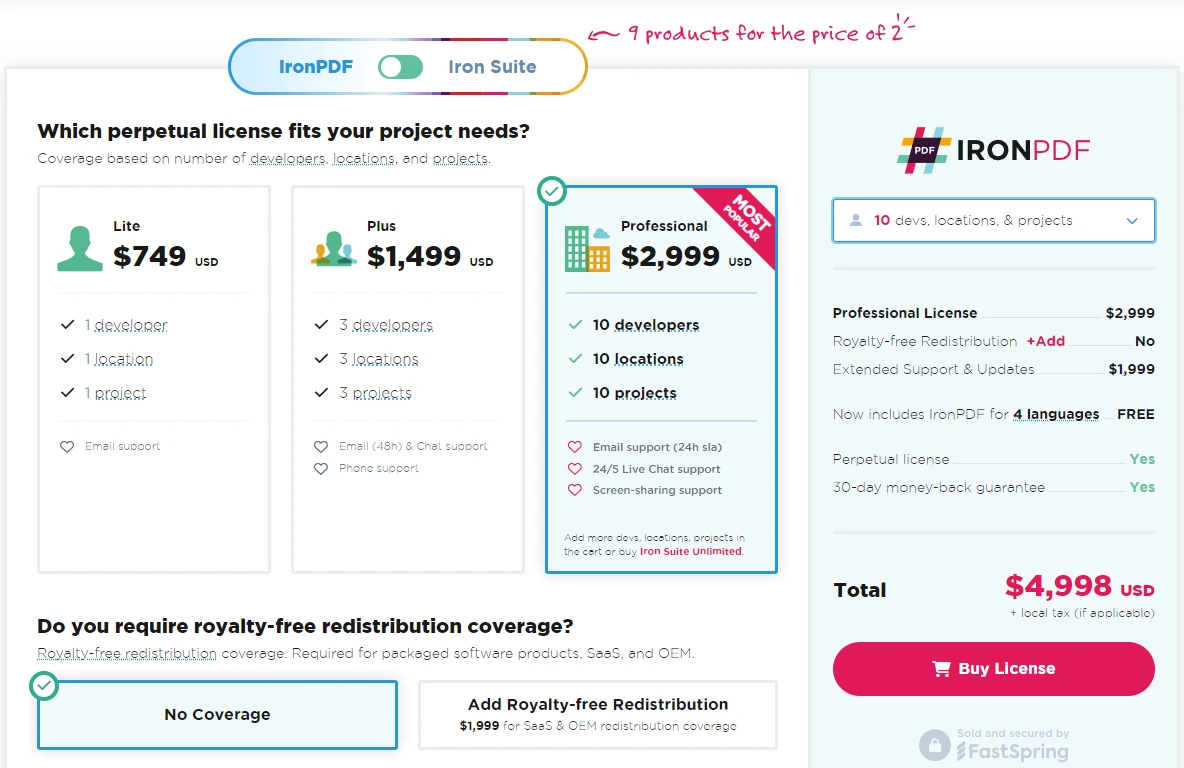
IronPDFは、ライセンス購入のための異なるレベルと追加機能を有しています。 開発者はまた、Iron Softwareの製品を2つの価格で全てアクセスできる[Iron Suite](Iron Suite)を購入することができます。 ライセンスを購入する準備ができていない場合、IronPDFは無償トライアルを提供しており、ライセンスを取得する前に提供するすべての機能を試すことができます。
価格 (2026年4月時点):
-
永続ライセンス: チームのサイズ、プロジェクトのニーズ、拠点数に応じた永続ライセンスの範囲を提供します。 各ライセンスタイプには電子メールサポートが付属しています。
-
Liteライセンス: このライセンスは1人の開発者、1つの拠点、1つのプロジェクトをサポートします。 価格はお問い合わせに応じてご利用いただけます。
-
Plus License: 3人の開発者、3つの場所、3つのプロジェクトをサポートするこのライセンスは、Lite Licenseから次のステップアップであり、$1,499の費用がかかります。 Plusライセンスは、基本的なメールサポートに加えて、チャットサポートと電話サポートを提供します。
-
Professional License: このライセンスは、10人の開発者、10の場所、および10のプロジェクトをサポートする、大きなチームに適しています。費用は$2,399です。 以前の階層と同様の連絡サポートチャンネルを提供し、画面共有サポートも提供しています。
-
ロイヤリティフリー再配布: IronPDFのライセンスは、追加の$2,399でロイヤリティフリーの再配布範囲を提供します。
-
途切れない製品サポート: IronPDFは、継続的な製品更新、セキュリティ機能のアップグレード、およびエンジニアリングチームからのサポートへのアクセスを、年間$2,399から提供します。
- Iron Suite: For $2,998, you get access to all Iron Software products including IronPDF, IronOCR, IronWord, IronXL, IronBarcode, IronQR, IronZIP, IronPrint, and IronWebScraper.
DocRaptor
DocRaptorは、使用量に応じた複数の価格オプションを提供しています。 開始価格は月あたり$15で、使用量に基づいており、生成するドキュメントの量に応じてコストが増加します。 また、DocRaptorを有料プランにコミットする前にサービスを試すための無料トライアルを提供しています。
ドキュメントとサポート: IronPDF vs. DocRaptor
IronPDF
IronPDF は広範なドキュメントとサポートを提供しています:
- 包括的なドキュメンテーション: すべての機能をカバーするユーザーフレンドリーで広範なドキュメンテーション。
- 24/5サポート: アクティブなエンジニアのサポートが利用可能です。
- ビデオチュートリアル: YouTubeで利用可能なステップバイステップのビデオガイド。
- コミュニティフォーラム: 追加サポートのための活発なコミュニティ。
- 定期更新: 最新の機能やセキュリティパッチを提供する毎月の製品更新。
- PDF APIリファレンス: 我々のツールを最大限に活用するためのAPIリファレンスを提供します。
詳細はIronPDFの包括的なドキュメントをご覧になり、Iron Software YouTube チャンネルにアクセスしてください。
DocRaptor
- API リファレンス: PDF と Excel の生成の両方をカバーした、DocRaptor をさまざまなプログラミング言語と統合するための詳細なガイド。 *入門ガイド:*新しいユーザーが HTML から PDF への変換に DocRaptor を設定して使用できるようにするステップバイステップのチュートリアルです。 クライアント ライブラリ:** Java、C#、Python、PHP、Ruby、 Node.jsなどの一般的な言語のコード例とライブラリ。 *メールサポート:サービスに関する技術的なサポートやお問い合わせにご利用いただけます。
結論
結論として、IronPDF とDocRaptorはどちらもHTMLからのPDF生成に対して堅牢なソリューションを提供していますが、それぞれ異なるユーザー層やプロジェクトのニーズに応じています。 IronPDFは、.NET環境とのシームレスな統合に優れ、幅広いカスタマイズオプションとオフライン処理機能を提供します。 .NETフレームワーク内で作業し、PDFの作成と操作に関して正確なコントロールが必要な開発者に最適です。 一方、DocRaptorはクラウドベースのモデルで際立っており、PDF/A標準への準拠を保証し、クロスプラットフォームの使用に対するシンプルなAPIを提供し、複数のプログラミング言語での信頼性のあるスケーラブルなドキュメント生成を必要とするプロジェクトに最適です。
最終的に、IronPDFとDocRaptorのどちらを選ぶかは、開発スタック、制御の必要性、およびクラウドまたはオンプレミスのソリューションを好むかによって異なります。
よくある質問
C# で HTML を PDF に変換するにはどうすればいいですか?
IronPDF の RenderHtmlAsPdf メソッドを使用して、HTML 文字列を PDF に変換できます。RenderHtmlFileAsPdf を使用して HTML ファイルを PDF に変換することもできます。
PDF生成に.NETライブラリを使用する利点は何ですか?
.NETライブラリのIronPDFを使用してPDFを生成すると、.NETアプリケーションとのシームレスな統合が可能です。PDFの作成、編集、管理のための包括的な機能を提供し、さまざまな.NETバージョンとオペレーティングシステムをサポートしています。
既存のPDFを.NETのPDFツールを使って編集することはできますか?
はい、IronPDFを使用することで、豊富なAPIセットを使用して新しいコンテンツを追加したり、テキストを修正したり、画像を挿入したり、注釈を適用したりして既存のPDFを編集できます。
PDFを.NETのPDFライブラリを使用して保護することは可能ですか?
IronPDFは暗号化とデジタル署名を使用してPDFを保護し、文書のセキュリティと信頼性を向上させます。
クラウドベースのPDF処理とオフラインPDF処理の違いは何ですか?
DocRaptorのようなクラウドベースのPDF処理はインターネット接続が必要で、クラウド上のAPIを介してタスクを実行します。IronPDFのようなオフライン処理は、インターネットに依存せずにローカル環境内で直接PDFを生成および操作することが可能です。
DocRaptorはウェブアプリケーション向けのPDF生成をどのように処理しますか?
DocRaptorはクラウドベースのAPIアプローチを採用しており、開発者はAPIキーを使用してウェブアプリケーションでHTMLをPDFに変換し、処理はPrince PDFエンジンを経由して行われます。
IronPDFはPDF生成においてどのプラットフォームをサポートしていますか?
IronPDFは、Windows、Linux、macOS、Docker、Azure、およびAWSを含むさまざまなプラットフォームと互換性があります。.NET Core、.NET Standard、および.NET Frameworkアプリケーションをサポートしています。
DOCXファイルを.NETのPDFライブラリを使ってPDFに変換することはできますか?
はい、IronPDFは外部ライブラリを必要とせず、簡単にDOCXファイルをPDFに変換するプロセスを提供し、.NET開発者にシームレスな体験を提供します。
.NET開発におけるIronPDFの主要な機能は何ですか?
IronPDFの主要な機能には、HTMLからPDFへの変換、PDFの編集、暗号化による文書のセキュリティ、デジタル署名、詳細なスタンプの作成、およびASP.NETアプリケーションとの統合が含まれます。
IronPDFは大量のPDF処理に適していますか?
はい、IronPDFは大量のPDF処理を効率的に行うように設計されており、堅牢でスケーラブルな文書管理ソリューションを必要とするエンタープライズアプリケーションに適しています。









 無料で始めましょう
 無料で始めましょう
 無料ライブデモを予約
















