using IronPdf;

// Disable local disk access or cross-origin requests
Installation.EnableWebSecurity = true;

// Instantiate Renderer
var renderer = new ChromePdfRenderer();

// Create a PDF from a HTML string using C#
var pdf = renderer.RenderHtmlAsPdf("<h1>Hello World</h1>");

// Export to a file or Stream
pdf.SaveAs("output.pdf");

// Advanced Example with HTML Assets
// Load external html assets: Images, CSS and JavaScript.
// An optional BasePath 'C:\site\assets\' is set as the file location to load assets from
var myAdvancedPdf = renderer.RenderHtmlAsPdf("<img src='icons/iron.png'>", @"C:\site\assets\");
myAdvancedPdf.SaveAs("html-with-assets.pdf");
using IronPdf;// Disable local disk access or cross-origin requestsInstallation.EnableWebSecurity = true;// Instantiate Renderervar renderer = new ChromePdfRenderer();// Create a PDF from a HTML string using C#var pdf = renderer.RenderHtmlAsPdf("<h1>Hello World</h1>");// Export to a file or Streampdf.SaveAs("output.pdf");// Advanced Example with HTML Assets// Load external html assets: Images, CSS and JavaScript.// An optional BasePath 'C:\site\assets\' is set as the file location to load assets fromvar myAdvancedPdf = renderer.RenderHtmlAsPdf("<img src='icons/iron.png'>", @"C:\site\assets\");myAdvancedPdf.SaveAs("html-with-assets.pdf");
## IronPDF와 Apryse C# PDF 라이브러리를 비교하는 이유는?
IronPDF와 Apryse C#은 저명한 .NET PDF 라이브러리로 각각 고유한 강점을 가지고 있습니다. IronPDF는 전체 Bootstrap 지원과 광범위한 [편집 기능](https://ironpdf.com/features/edit/)을 통해 [HTML-PDF 변환](https://ironpdf.com/tutorials/html-to-pdf/)에서 뛰어납니다. 반면, Apryse는 문서 주석 및 편집에서 특화되어 있으며, 기업 준수 요구를 충족합니다.
C# 개발자들은 문서를 생성, 편집 또는 표시하는 애플리케이션을 빌드할 때 종종 PDF 관련 작업에 직면합니다. 신뢰할 수 있는 PDF 라이브러리는 효율성을 위해 필수적입니다. 이들 라이브러리는 [문서 변환](https://ironpdf.com/features/convert/), [텍스트 편집](https://ironpdf.com/how-to/find-replace-text/), 및 [PDF 내 이미지 처리](https://ironpdf.com/how-to/add-images-to-pdfs/)와 같은 복잡한 작업을 위한 내장 함수들을 제공합니다. 이것들이 없다면 모든 기능을 처음부터 작성해야 하며, 이는 시간 소모적이고 오류가 발생하기 쉽습니다.
이 비교는 두 가지 인기 있는 PDF 라이브러리: [**IronPDF**](https://ironpdf.com)와 [**Apryse C#**](https://apryse.com/)을 살펴봅니다. IronPDF는 [.NET 환경](https://ironpdf.com/docs/)에서 HTML-PDF 변환에서부터 고급 문서 편집까지 PDF 작업을 간소화하는 신뢰할 수 있는 기능을 제공합니다. Apryse C#은 효율성 및 사용의 용이성에 중점을 두고 PDF 조작에 대한 간단한 접근을 제공합니다. 이 분석은 각 라이브러리의 특정 기능을 탐구하여 프로젝트에 가장 적합한 것을 결정하는 데 도움이 됩니다.
## Apryse C# PDF 라이브러리는 무엇입니까?
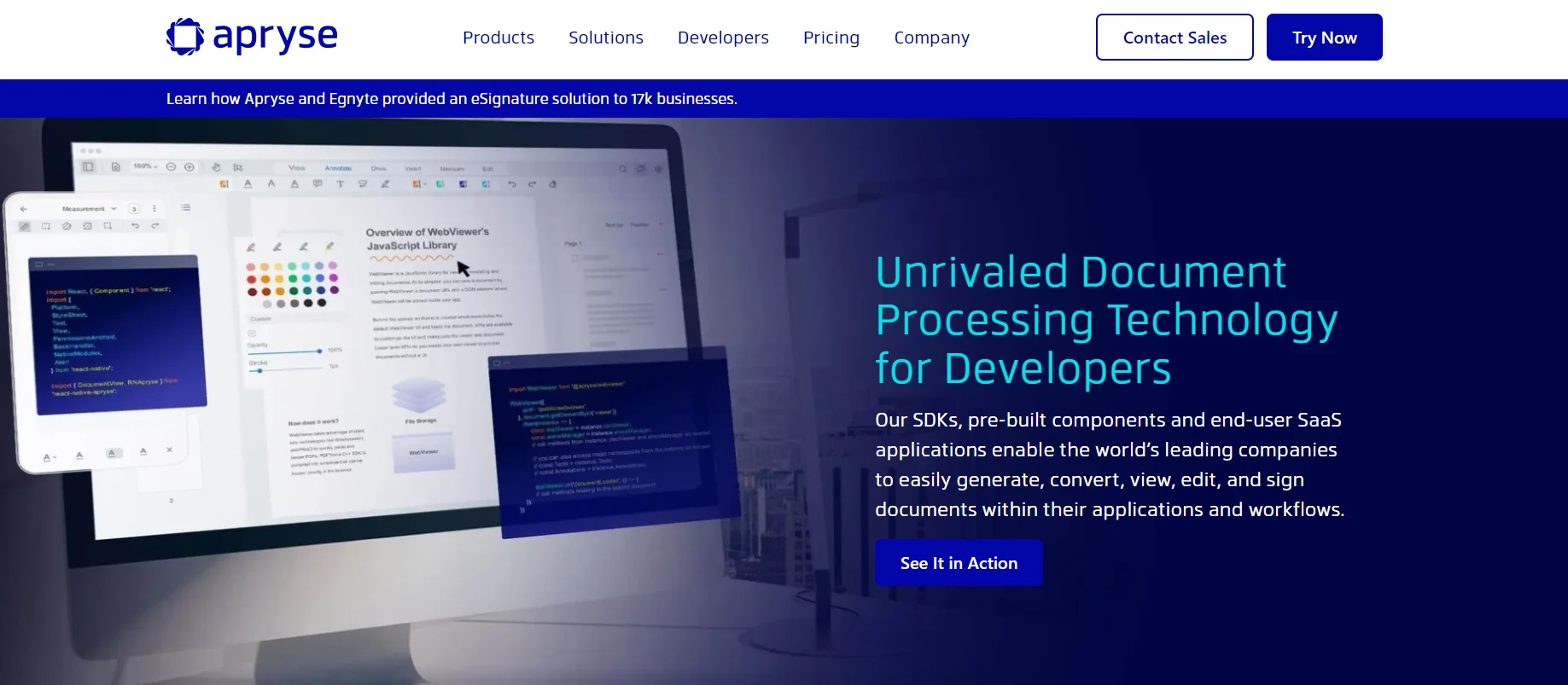
[**Apryse C#**](https://apryse.com/)은 C# 환경 내에서 PDF 조작을 간소화하도록 설계된 .NET 애플리케이션용 완전한 PDF 라이브러리입니다. 이전에는 PDFTron SDK로 알려졌으며, 정확한 PDF 처리 기능을 찾는 개발자에게 다양한 기능과 도구를 제공합니다.
### Apryse C#에서 제공하는 주요 기능은 무엇입니까?
- **.NET 프로젝트와의 쉬운 통합:** [ASP.NET Core](https://ironpdf.com/how-to/aspx-to-pdf/)와 전통적인 .NET Framework 애플리케이션을 포함한 .NET과의 원활한 통합.
- **문서 생성 및 편집:** 텍스트, 이미지, 양식 및 페이지 조작을 포함하여 PDF를 처음부터 생성하거나 기존 문서를 편집합니다—[재배열, 병합 또는 분할](https://ironpdf.com/how-to/merge-or-split-pdfs/).
- **HTML-PDF 변환:** 송장, 보고서 및 웹 페이지 문서를 위해 HTML 콘텐츠를 PDF 형식으로 직접 [변환](https://ironpdf.com/how-to/html-string-to-pdf/).
- **확장된 양식 필드 지원:** 자동화된 워크플로우를 위한 PDF 양식 필드의 신뢰할 수 있는 생성, 편집 및 프로그래밍 채우기.
- **텍스트 및 콘텐츠 추출:** PDF에서 [텍스트 및 콘텐츠](https://ironpdf.com/how-to/extract-text-and-images/)를 추출하여 분석, 검색 도구 및 콘텐츠 관리를 위해 사용.
- **보안 및 암호화:** 문서 암호화, 권한 관리 및 디지털 서명을 포함한 완벽한 보안.
- **고급 PDF 기능:** 상호작용 PDF를 위한 주석, 북마크 및 하이퍼링크를 지원.
## IronPDF C# 라이브러리는 무엇입니까?
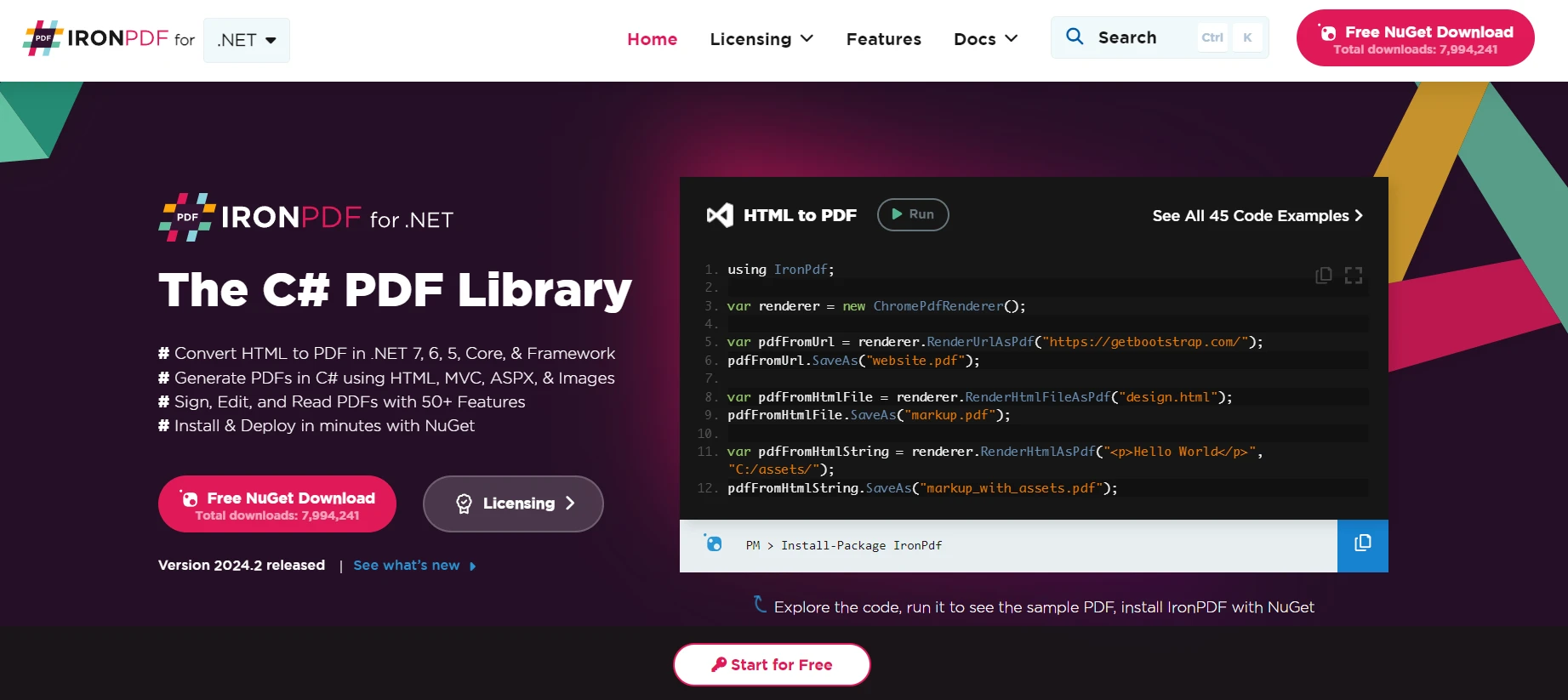
[**IronPDF**](https://ironpdf.com)는 .NET 개발자를 위해 맞춤화된 다재다능한 PDF 라이브러리입니다. 복잡한 PDF 조작을 간소화하여 C# 애플리케이션 내에서 PDF 문서를 [생성](https://ironpdf.com/features/create/), [편집](https://ironpdf.com/features/edit/) 및 [변환](https://ironpdf.com/features/convert/)할 수 있게 합니다. Java, Python, C# 등을 포함한 여러 프로그래밍 언어에 사용 가능하며, IronPDF는 효율성과 신뢰성을 갖춘 다양한 PDF 처리 요구를 만족합니다.
### IronPDF는 어떤 주요 기능을 제공합니까?
- **원활한 .NET 통합:** [.NET Framework](https://ironpdf.com/get-started/windows/)와 [.NET Core](https://ironpdf.com/get-started/quickstart/) 모두를 지원하며, [ASP.NET 프로젝트](https://ironpdf.com/how-to/aspx-to-pdf/)를 포함한 쉬운 통합.
- **HTML-PDF 변환:** 보고서, 영수증, HTML 템플릿에서의 문서화를 위해 고품질로 [**HTML을 PDF로 변환**](https://ironpdf.com/tutorials/html-to-pdf/).
- **고급 PDF 편집:** 텍스트 추가, 이미지, 벡터 그래픽을 포함한 확장된 편집 기능.
- **PDF 양식 처리:** 프로그래밍적으로 자동화된 문서 워크플로우를 위해 [**PDF 양식**](https://ironpdf.com/how-to/edit-forms/)을 생성, 편집, 채웁니다.
- **콘텐츠 추출:** 콘텐츠 분석 및 데이터 마이그레이션을 위해 [텍스트, 이미지, 메타데이터](https://ironpdf.com/how-to/extract-text-and-images/)를 추출합니다.
- **문서 보안:** [**비밀번호 보호**](https://ironpdf.com/examples/security-and-metadata/), 암호화 및 [권한 관리](https://ironpdf.com/how-to/pdf-permissions-passwords/).
- **성능 및 확장성:** 속도 및 [대량 처리](https://ironpdf.com/how-to/async/)가 필요한 대형 응용 프로그램에서도 향상되었습니다.
- **완전한 문서화:** 광범위한 [문서화](https://ironpdf.com/docs/) 및 구현 지원을 위한 응답성 있는 지원 팀.
- **PDF 표준 호환성:** [**PDF/A**](https://ironpdf.com/how-to/pdfa/), [**PDF/UA**](https://ironpdf.com/how-to/pdfua/) 및 기타 산업 규격을 지원.
## C# 콘솔 애플리케이션을 어떻게 만듭니까?
Visual Studio에서 콘솔 애플리케이션을 만드는 것은 IronPDF 또는 Apryse C#과 같은 PDF 라이브러리를 사용하는 것을 포함하여 .NET 개발 프로젝트를 위한 기초를 마련합니다. 시작하려면 다음 단계를 따르세요.
### Visual Studio를 어떻게 실행하나요?
컴퓨터에서 Visual Studio를 엽니다. 아직 Visual Studio를 설치하지 않았다면, 공식 Microsoft 웹사이트에서 다운로드하여 설치하고, 필요에 맞는 적절한 버전을 선택하세요.
### 새 프로젝트를 어떻게 생성하나요?
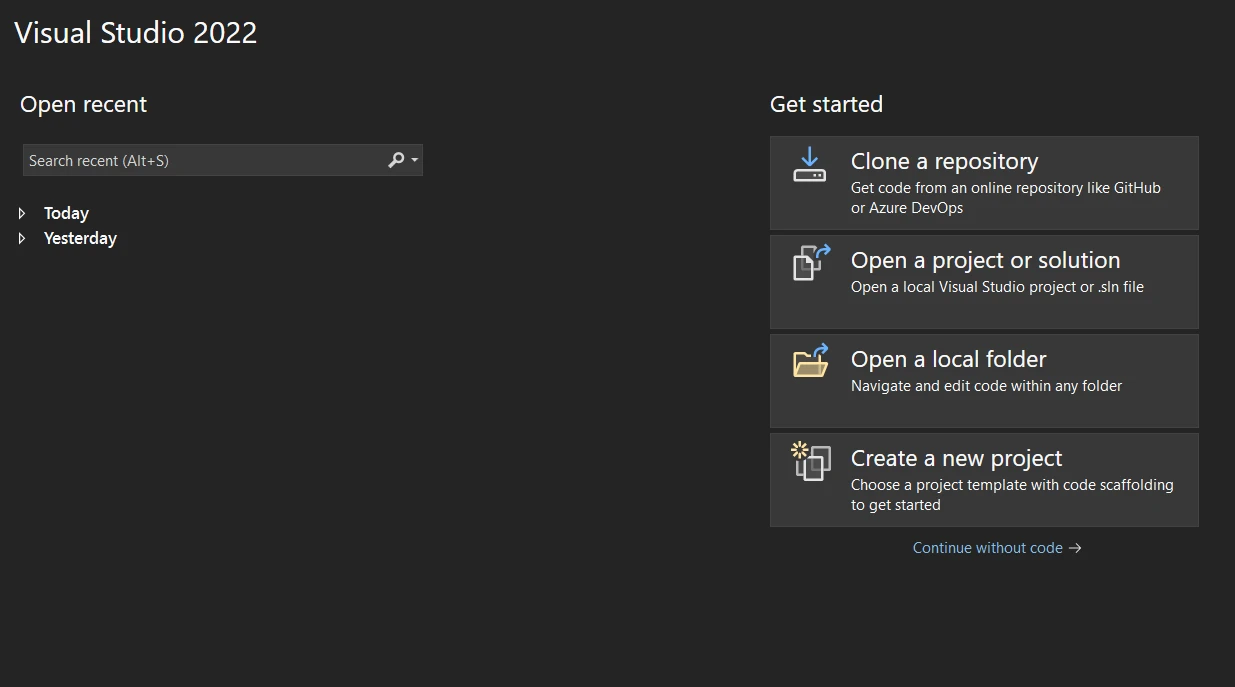
Visual Studio가 열리면 초기 대시보드에서 "새 프로젝트 생성"을 선택하세요.
### 어떤 프로젝트 유형을 선택해야 하나요?
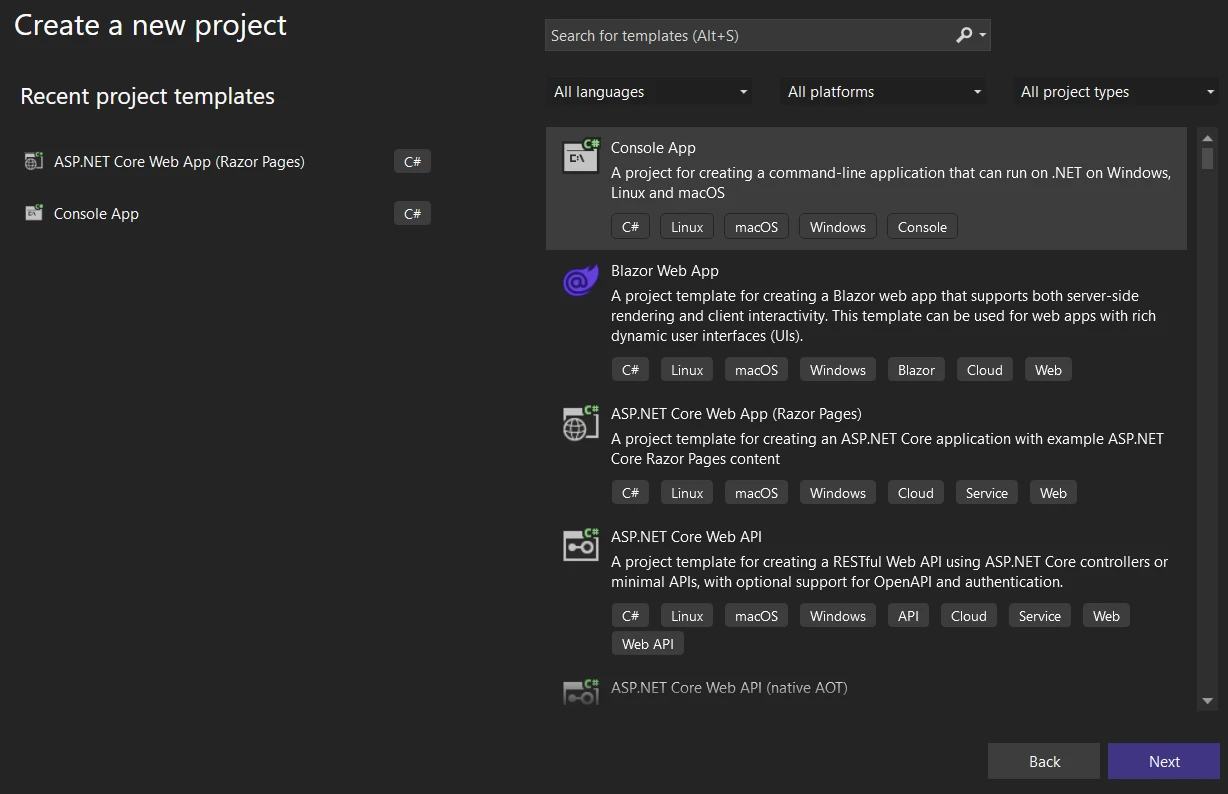
"새 프로젝트 생성" 창에서 다양한 프로젝트 템플릿을 볼 수 있습니다. 검색 상자에 "콘솔"을 입력하거나 목록에서 "콘솔 애플리케이션"을 찾으세요. C# 전용 템플릿을 선택하세요.
### 프로젝트를 어떻게 구성하나요?
"콘솔 애플리케이션"을 선택한 후, "다음"을 클릭하세요. 새 프로젝트를 구성하세요:
- **프로젝트 이름:** 프로젝트에 대한 설명적 이름을 입력하세요.
- **위치:** 선호하는 저장 위치를 선택하세요.
- **솔루션 이름:** 프로젝트 이름으로 기본 설정되지만 커스터마이징할 수 있습니다.
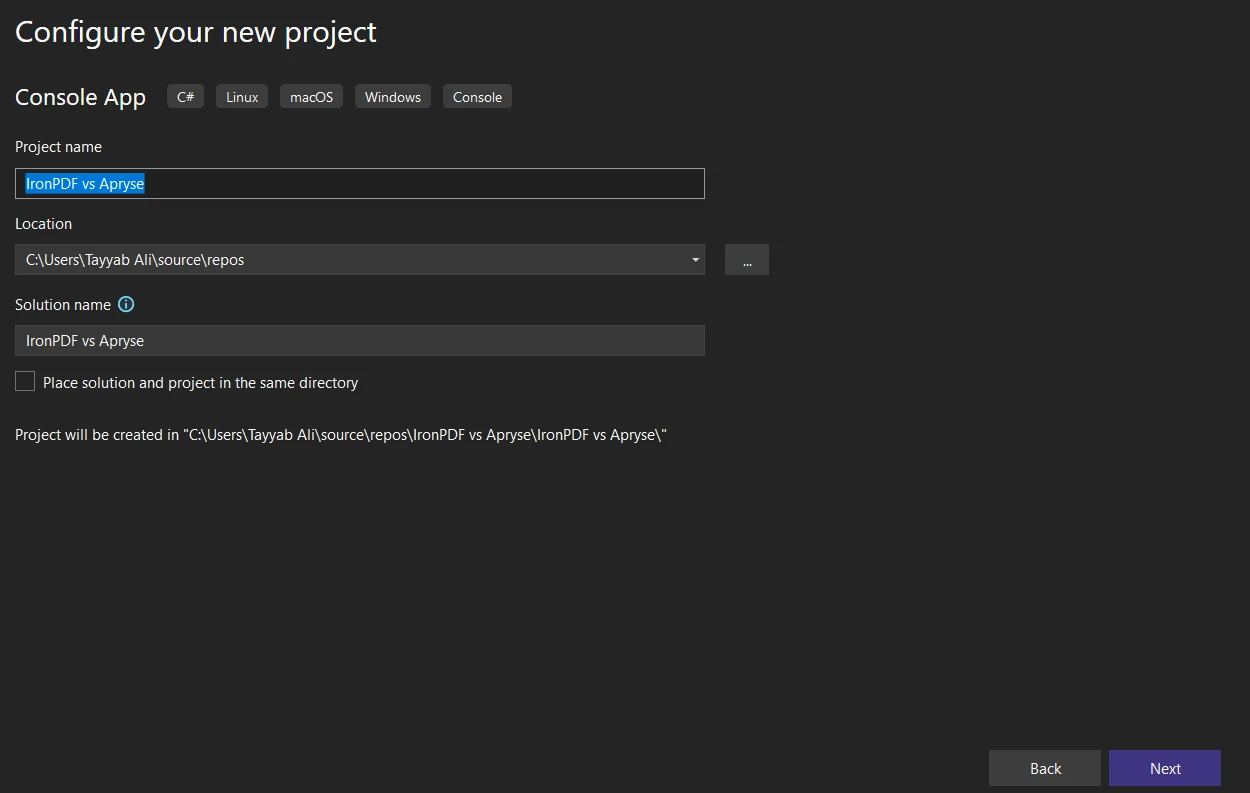
- **프레임워크:** .NET 버전을 선택하세요. [최신 버전](https://ironpdf.com/get-started/installation-overview/)이 일반적으로 권장되지만 특정 요구 사항이 있는 경우엔 예외일 수 있습니다.
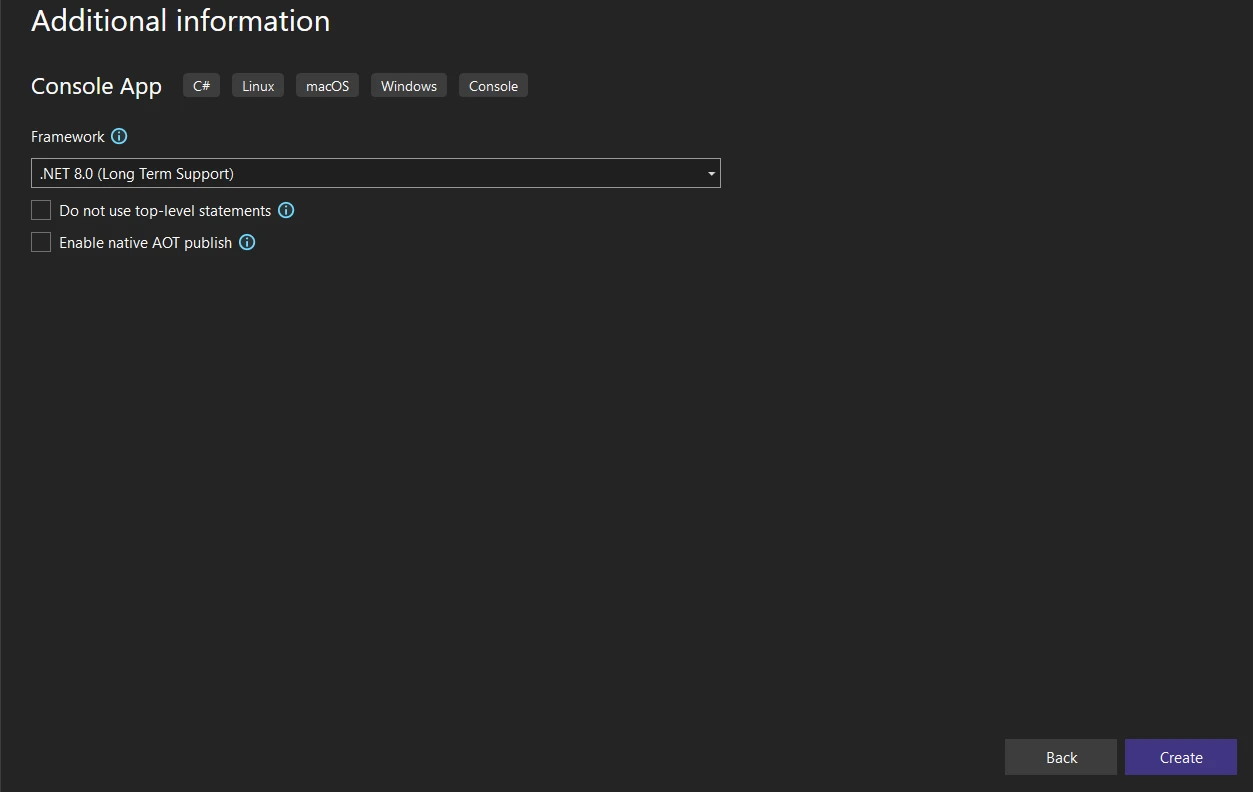
### 프로젝트 생성 완료는 어떻게 하나요?
프로젝트 설정을 구성한 후, "생성"을 클릭하세요. Visual Studio는 기본 **Program.cs** 파일이 포함된 새로운 콘솔 애플리케이션 프로젝트를 설정합니다.
### 프로젝트 구조는 무엇인가요?
솔루션 탐색기 창에서 생성된 프로젝트 구조를 탐색하세요. 주로 **Program.cs** 파일에서 콘솔 애플리케이션을 위한 작업을 하게 되며, 그 안에서 C# 코드를 작성합니다.
## IronPDF 라이브러리를 어떻게 설치하나요?
.NET 프로젝트에 IronPDF를 통합하면 전체 PDF 조작 기능을 사용할 수 있게 됩니다. 여러 설치 방법이 있으며, 워크플로우 선호도에 따라 유연성을 제공합니다.
### NuGet 패키지 관리자로 설치하려면 어떻게 하나요?
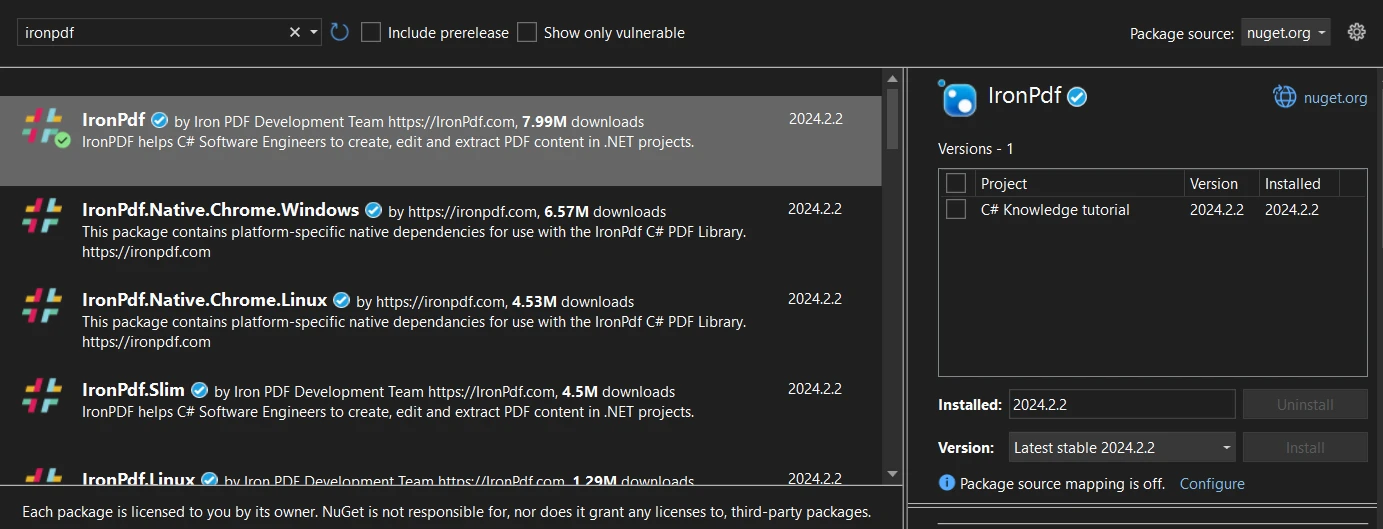
Visual Studio의 [NuGet 패키지 관리자](https://ironpdf.com/get-started/advanced-installation-nuget/)는 라이브러리를 관리하기 위한 그래픽 인터페이스를 제공합니다.
1. Visual Studio에서 프로젝트를 엽니다.
2. 솔루션 탐색기에서 프로젝트를 마우스 오른쪽 버튼으로 클릭하고 "NuGet 패키지 관리"를 선택하세요.
3. "찾기" 탭을 클릭하고 "IronPDF"를 검색하세요.
4. 결과에서 IronPDF를 선택하고 "설치"를 클릭하세요.
### 명령줄을 사용하여 설치하려면 어떻게 하나요?
패키지 관리자 콘솔은 직접 명령줄 설치를 제공합니다.
1. Visual Studio 프로젝트를 엽니다.
2. 도구 > NuGet 패키지 관리자 > 패키지 관리자 콘솔로 이동하세요.
3. 다음 명령을 입력하세요:
```shell
:ProductInstall
```
이 명령은 프로젝트에 최신 IronPDF 버전을 설치합니다.
### NuGet에서 직접 다운로드하려면 어떻게 하나요?
통합 전에 수동으로 패키지를 다운로드할 수 있습니다.
1. [**NuGet 웹사이트**](https://www.nuget.org/)를 방문하여 "IronPDF"를 검색하세요.
2. [**IronPDF 패키지 페이지**](https://www.nuget.org/packages/IronPdf)에서 "패키지 다운로드"를 클릭하여 .nupkg 파일을 받으세요.
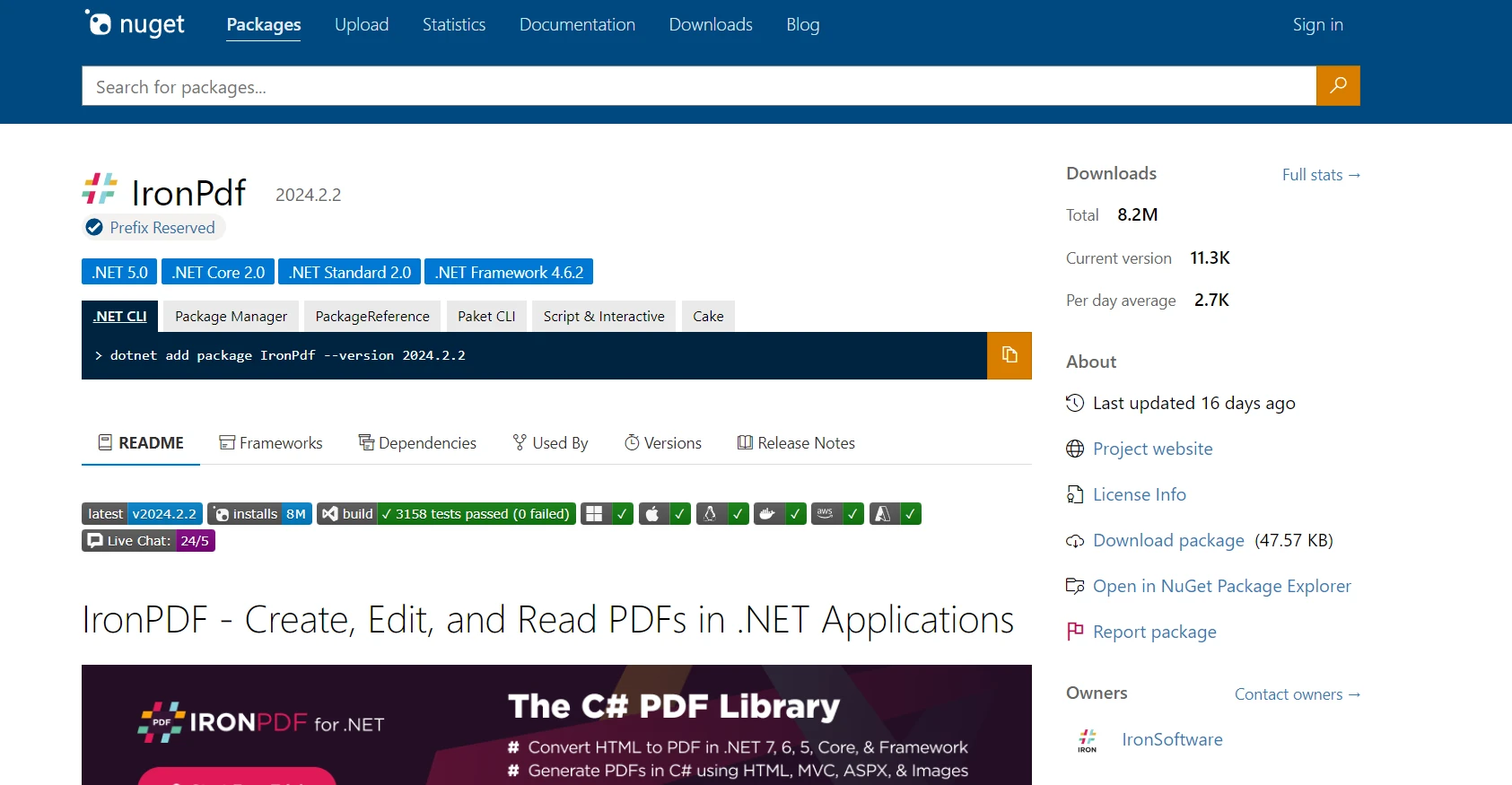
3. 다운로드한 패키지를 솔루션 탐색기에서 수동으로 추가하십시오 > 프로젝트를 마우스 오른쪽 버튼으로 클릭 > "추가 > 참조."
각 방법은 IronPDF를 성공적으로 통합하여 [효과적인 PDF 처리 기능](https://ironpdf.com/features/)을 사용할 수 있게 합니다.
## Apryse C#를 어떻게 설치합니까?
프로젝트에 Apryse C#을 통합하는 것은 .NET Framework 또는 .NET Core 환경에 따라 달라집니다. 다음 단계는 일반 설치 프로세스를 설명합니다:
### Apryse를 .NET Framework에서 설치하는 방법은?
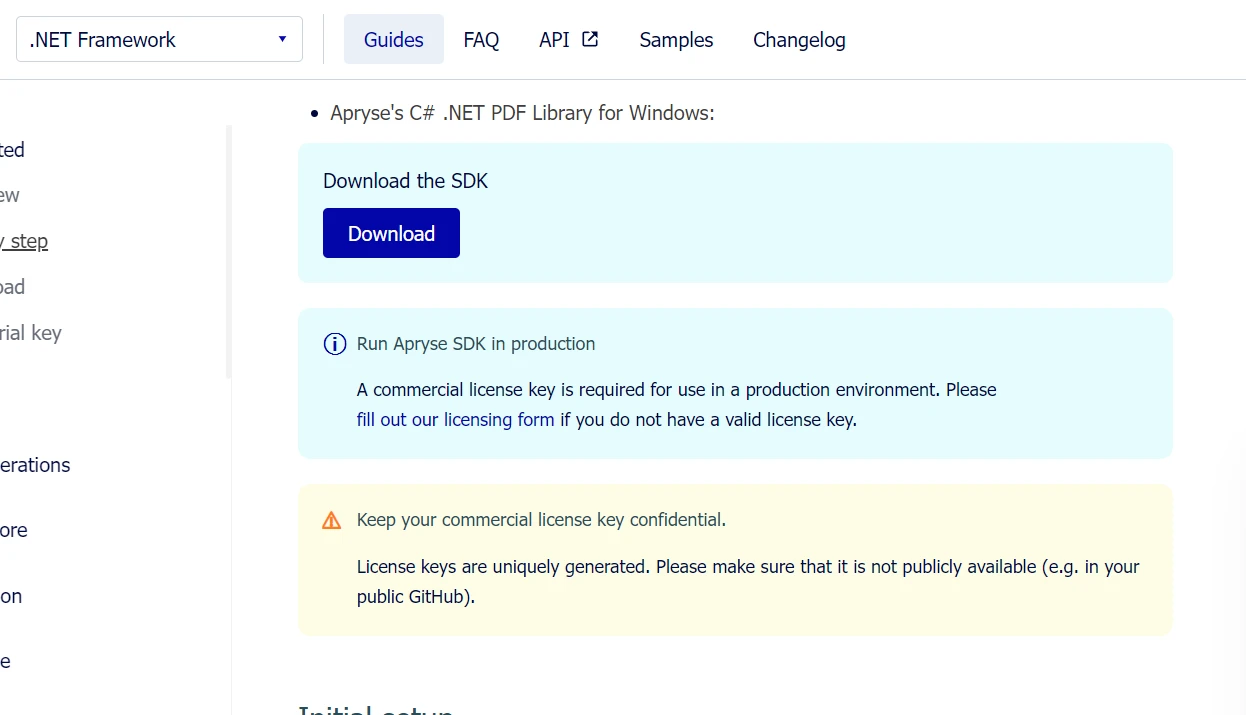
1. **Windows 용 Apryse SDK 다운로드:** [**Apryse SDK for Windows 페이지**](https://docs.apryse.com/documentation/dotnet/get-started/integration/windows/)로 이동하여 .NET Framework 응용 프로그램에 적합한 SDK를 다운로드해야 합니다.
2. **SDK 추출:** 다운로드 후, SDK를 시스템의 알려진 위치에 추출하십시오.
3. **Apryse 체험 키 획득:** Apryse 플랫폼에 등록하여 체험 키를 얻고, 해당 키를 사용하여 SDK의 체험 기능을 활성화하세요.
4. **프로젝트 설정:** Visual Studio에서 새로운 .NET Framework 콘솔 애플리케이션을 만드세요. 그런 다음 추출된 SDK에서 **Lib** 폴더를 프로젝트 디렉토리에 추가하십시오.
5. **참조 추가:** 프로젝트의 참고 항목을 오른쪽 클릭하고 '참조 추가'를 선택한 후, **Lib** 폴더로 이동하여 **PDFNetLoader.dll**과 적절한 구조(x86 또는 x64)에 맞는 **PDFNet.dll**을 추가하세요. **PDFNet.dll**의 '로컬 복사' 속성을 false로 설정해야 합니다.
6. **App.config 구성:** App.config 파일에 **loadFromRemoteSources** 설정이 true로 설정되어 있는지 확인하세요.
SDK에는 샘플 폴더가 포함되어 있으며, 이를 직접 솔루션으로 열고 실행할 수 있습니다.## IronPDF의 고급 기능
### HTML을 PDF로 변환
IronPDF는 HTML을 PDF 문서로 변환하는 데 매우 효과적이며, 보고서, 인보이스, 웹 페이지 스냅숏을 생성하는 웹 애플리케이션에 중요한 기능입니다. 라이브러리는 HTML, CSS, JavaScript를 정확하게 렌더링하며, 생성된 PDF에 웹 콘텐츠의 레이아웃과 스타일을 유지합니다.
#### HTML 문자열을 PDF로 변환
HTML 문자열을 직접 PDF로 변환하면 애플리케이션에서 생성된 콘텐츠나 저장된 변수를 이용해 동적 문서를 생성할 수 있습니다. 이 방법은 사용자 입력을 기반으로 맞춤형 보고서, 영수증 또는 문서를 만드는 데 유용합니다.
```csharp
using IronPdf;

// Secure the server environment to disable local disk access or cross-origin requests
Installation.EnableWebSecurity = true;

// Set your IronPDF license key
IronPdf.License.LicenseKey = "License-Key goes here";

// Instantiate a PDF renderer
var renderer = new ChromePdfRenderer();

// Define a simple HTML string to convert to PDF
string htmlContent = @"
<!DOCTYPE html>
<html lang='en'>
<head>
    <meta charset='UTF-8'>
    <meta name='viewport' content='width=device-width, initial-scale=1.0'>
    <title>My PDF</title>
    <style>
        body {
            font-family: Arial, sans-serif;
        }
        h1 {
            color: #333;
            text-align: center;
        }
        p {
            color: #666;
            text-align: justify;
        }
    </style>
</head>
<body>
    <h1>Welcome to My PDF</h1>
    <p>This is a sample paragraph demonstrating how to create a PDF from HTML using IronPdf in C#.</p>
    <p>You can add more content here as needed.</p>
</body>
</html>";

// Render the HTML string as a PDF
var pdf = renderer.RenderHtmlAsPdf(htmlContent);

// Save the resulting PDF to a file
pdf.SaveAs("output.pdf");
```
#### HTML 파일을 PDF로 변환
디스크에 저장된 HTML 파일이 있는 경우, IronPDF는 이러한 파일을 PDF 문서로 변환할 수 있습니다. 이 방법은 기존의 HTML 문서, 템플릿, 또는 프로젝트나 서버에 저장된 보고서에 이상적입니다.
```csharp
using IronPdf;
// Set your IronPDF license key
IronPdf.License.LicenseKey = "License-Key goes here";
// Secure the server environment to disable local disk access or cross-origin requests
Installation.EnableWebSecurity = true;
// Instantiate a PDF renderer
var renderer = new ChromePdfRenderer();
// Render the HTML file as a PDF
var pdf = renderer.RenderHtmlFileAsPdf("invoice.html");
// Save the resulting PDF to a file
pdf.SaveAs("file.pdf");
```
#### URL을 PDF로 변환
IronPDF는 URL을 제공하여 실시간 웹 페이지를 PDF 문서로 변환할 수 있습니다. 이 기능은 복잡한 레이아웃, CSS, JavaScript로 생성된 콘텐츠를 포함하여 현재 웹 페이지 상태를 캡처합니다.
```csharp
using IronPdf;
// Set your IronPDF license key
IronPdf.License.LicenseKey = "License-Key goes here";
// Secure the server environment to disable local disk access or cross-origin requests
Installation.EnableWebSecurity = true;
// Instantiate a PDF renderer
var renderer = new ChromePdfRenderer();
// Render the URL as a PDF
var pdf = renderer.RenderUrlAsPdf("___PROTECTED_URL_100___");
// Save the resulting PDF to a file
pdf.SaveAs("url.pdf");
```
### 부트스트랩 및 최신 CSS 프레임워크 지원
최신 웹 애플리케이션에서 PDF를 생성할 때 부트스트랩 및 CSS 프레임워크에 대한 완전한 지원이 필수적입니다. 조직은 웹 인터페이스를 위해 부트스트랩에 의존하며, 보고서, 인보이스, 문서를 정확한 PDF로 변환하는 것이 중요합니다.
#### IronPDF에서 지원하는 부트스트랩 기능
### IronPDF: 완전한 부트스트랩 지원
- **Bootstrap 5:** 플렉스박스 레이아웃, CSS 그리드, 유틸리티 클래스, 반응형 구성 요소에 대한 완전한 지원
- **Bootstrap 4:** 완벽한 카드 시스템, 탐색 구성 요소, 및 플렉스 유틸리티
- **Tailwind CSS:** 모든 유틸리티 클래스가 정확히 렌더링됩니다
- **Foundation:** 완전한 그리드 시스템 및 구성 요소 지원
- **Modern CSS3:** 플렉스박스, CSS 그리드, 사용자 정의 속성, 애니메이션, 전환의 완전한 지원
IronPDF는 부트스트랩 홈페이지와 모든 공식 예제를 픽셀 단위로 정확하게 렌더링합니다.
**코드 예제: 비즈니스 메트릭 대시보드**
```csharp
using IronPdf;
// Set your IronPDF license key
IronPdf.License.LicenseKey = "License-Key goes here";
var renderer = new ChromePdfRenderer();
string bootstrapDashboard = @"
<!DOCTYPE html>
<html>
<head>
<link href='___PROTECTED_URL_101___ rel='stylesheet'>
<style>
.metric-card { transition: transform 0.2s; }
.metric-card:hover { transform: translateY(-5px); }
.trend-up { color: #28a745; }
.trend-down { color: #dc3545; }
</style>
</head>
<body>
<div class='container-fluid py-4'>
<div class='d-flex justify-content-between align-items-center mb-4'>
<h1 class='display-5'>Business Performance Dashboard</h1>
<div class='text-muted'>Last updated: March 2025</div>
</div>
<div class='row g-4 mb-4'>
<div class='col-md-3'>
<div class='card metric-card shadow-sm border-start border-primary border-4'>
<div class='card-body'>
<div class='d-flex justify-content-between align-items-center mb-2'>
<h6 class='text-muted text-uppercase mb-0'>Total Revenue</h6>
<span class='badge bg-primary'>Q1 2025</span>
</div>
<h2 class='mb-1'>$2.4M</h2>
<div class='trend-up'>
<i>↑</i> <strong>+18.5%</strong> from last quarter
</div>
</div>
</div>
</div>
<div class='col-md-3'>
<div class='card metric-card shadow-sm border-start border-success border-4'>
<div class='card-body'>
<div class='d-flex justify-content-between align-items-center mb-2'>
<h6 class='text-muted text-uppercase mb-0'>New Customers</h6>
<span class='badge bg-success'>Active</span>
</div>
<h2 class='mb-1'>1,284</h2>
<div class='trend-up'>
<i>↑</i> <strong>+24.3%</strong> growth rate
</div>
</div>
</div>
</div>
<div class='col-md-3'>
<div class='card metric-card shadow-sm border-start border-warning border-4'>
<div class='card-body'>
<div class='d-flex justify-content-between align-items-center mb-2'>
<h6 class='text-muted text-uppercase mb-0'>Avg Order Value</h6>
<span class='badge bg-warning text-dark'>Updated</span>
</div>
<h2 class='mb-1'>$1,847</h2>
<div class='trend-up'>
<i>↑</i> <strong>+5.2%</strong> increase
</div>
</div>
</div>
</div>
<div class='col-md-3'>
<div class='card metric-card shadow-sm border-start border-info border-4'>
<div class='card-body'>
<div class='d-flex justify-content-between align-items-center mb-2'>
<h6 class='text-muted text-uppercase mb-0'>Satisfaction Rate</h6>
<span class='badge bg-info'>Excellent</span>
</div>
<h2 class='mb-1'>94.7%</h2>
<div class='trend-up'>
<i>↑</i> <strong>+2.1pts</strong> improvement
</div>
</div>
</div>
</div>
</div>
<div class='row g-4'>
<div class='col-md-8'>
<div class='card shadow-sm'>
<div class='card-header bg-white d-flex justify-content-between align-items-center'>
<h5 class='mb-0'>Revenue Breakdown by Category</h5>
<div class='btn-group btn-group-sm' role='group'>
<button type='button' class='btn btn-outline-primary active'>Monthly</button>
<button type='button' class='btn btn-outline-primary'>Quarterly</button>
<button type='button' class='btn btn-outline-primary'>Annual</button>
</div>
</div>
<div class='card-body'>
<div class='table-responsive'>
<table class='table table-hover mb-0'>
<thead class='table-light'>
<tr>
<th>Category</th>
<th>Revenue</th>
<th>Orders</th>
<th>Avg Value</th>
<th class='text-end'>Trend</th>
</tr>
</thead>
<tbody>
<tr>
<td><span class='badge bg-primary me-2'>A</span>Enterprise Solutions</td>
<td><strong>$1,245,000</strong></td>
<td>142</td>
<td>$8,768</td>
<td class='text-end'><span class='badge bg-success'>+12%</span></td>
</tr>
<tr>
<td><span class='badge bg-success me-2'>B</span>Professional Services</td>
<td><strong>$687,500</strong></td>
<td>458</td>
<td>$1,501</td>
<td class='text-end'><span class='badge bg-success'>+18%</span></td>
</tr>
<tr>
<td><span class='badge bg-info me-2'>C</span>Standard Packages</td>
<td><strong>$412,300</strong></td>
<td>891</td>
<td>$463</td>
<td class='text-end'><span class='badge bg-success'>+8%</span></td>
</tr>
<tr>
<td><span class='badge bg-warning me-2'>D</span>Custom Development</td>
<td><strong>$55,200</strong></td>
<td>12</td>
<td>$4,600</td>
<td class='text-end'><span class='badge bg-danger'>-3%</span></td>
</tr>
</tbody>
</table>
</div>
</div>
</div>
</div>
<div class='col-md-4'>
<div class='card shadow-sm'>
<div class='card-header bg-white'>
<h5 class='mb-0'>Quick Actions</h5>
</div>
<div class='card-body'>
<div class='d-grid gap-2'>
<button class='btn btn-primary'>Generate Full Report</button>
<button class='btn btn-outline-primary'>Export to Excel</button>
<button class='btn btn-outline-secondary'>Schedule Email</button>
<button class='btn btn-outline-info'>Share Dashboard</button>
</div>
</div>
</div>
<div class='card shadow-sm mt-3'>
<div class='card-header bg-white'>
<h5 class='mb-0'>Key Insights</h5>
</div>
<div class='card-body'>
<div class='alert alert-success mb-2'>
<small><strong>Top Performer:</strong> Enterprise Solutions leading revenue growth</small>
</div>
<div class='alert alert-info mb-2'>
<small><strong>Growth Driver:</strong> Professional Services showing strongest customer acquisition</small>
</div>
<div class='alert alert-warning mb-0'>
<small><strong>Attention Needed:</strong> Custom Development segment requires review</small>
</div>
</div>
</div>
</div>
</div>
</div>
</body>
</html>";
var pdf = renderer.RenderHtmlAsPdf(bootstrapDashboard);
pdf.SaveAs("business-dashboard.pdf");
```
**결과:** Bootstrap 5의 플렉스박스 기반 그리드 시스템, 카드 구성 요소, 테두리 유틸리티, 배지 요소, 반응형 테이블, 색상 코드된 메트릭으로 완벽한 레이아웃 보존과 타이포그래피로 렌더링 된 전문적인 비즈니스 대시보드 PDF.
### Apryse의 CSS 프레임워크 제한사항
Apryse의 HTML2PDF 모듈은 Chromium이 아닌 사용자 정의 렌더링 엔진을 사용하며, 다음과 같은 문서화 된 제한 사항이 있습니다:
- **부분적인 플렉스박스 지원:** 부트스트랩 4/5 레이아웃이 제대로 렌더링되지 않을 수 있음
- **제한적인 CSS 그리드:** 최신 그리드 기반 디자인이 자주 실패함
- **JavaScript 제약:** 브라우저 환경에 비해 최소한의 실행
- **프레임워크 호환성:** 부트스트랩 구성 요소에 대한 철저한 테스트 필요
HTML2PDF 문서는 복잡한 CSS가 예상대로 렌더링되지 않을 수 있다고 명시적으로 경고합니다. 개발자들은 탐색 바, 플렉스 기반 카드 레이아웃, 반응형 유틸리티 측면에서 문제를 보고합니다.
**개발 영향:** Apryse를 사용하는 팀은 평행한 'PDF 안전' CSS를 생성하거나 부트스트랩 레이아웃을 크게 단순화해야 하며, 이로 인해 개발 오버헤드가 증가하고 웹과 PDF 출력 간의 디자인 일관성이 제한됩니다.
완전한 CSS3 렌더링과 완전한 부트스트랩 프레임워크 지원을 위해 [부트스트랩 & 플렉스박스 CSS 가이드](https://ironpdf.com/troubleshooting/bootstrap-flex-css/)를 참조하세요.
### PDF 병합 및 분할
IronPDF는 여러 PDF 문서를 결합하거나 PDF를 더 작은 파일로 나누는 것을 간단하게 만듭니다. 이 기능은 체계적인 PDF 콘텐츠 구조를 필요로 하는 문서 관리 시스템에 필수적입니다.
```csharp
using IronPdf;
// Set your IronPDF license key
IronPdf.License.LicenseKey = "License-Key goes here";
// Secure the server environment to disable local disk access or cross-origin requests
Installation.EnableWebSecurity = true;
// Define HTML content for two PDFs to merge
var htmlA = @"
<h1>PDF A</h1>
<p>This is the content of PDF A.</p>
<p>This is the first page of PDF A.</p>
<div style='page-break-after: always;'></div>
<p>This is the second page of PDF A.</p>";
var htmlB = @"
<h1>PDF B</h1>
<p>This is the content of PDF B.</p>
<p>This is the first page of PDF B.</p>
<div style='page-break-after: always;'></div>
<p>This is the second page of PDF B.</p>";
// Instantiate a PDF renderer
var renderer = new ChromePdfRenderer();
// Render the HTML content as separate PDF documents
var pdfDocA = renderer.RenderHtmlAsPdf(htmlA);
var pdfDocB = renderer.RenderHtmlAsPdf(htmlB);
// Merge the two PDFs into one
var mergedPdf = PdfDocument.Merge(pdfDocA, pdfDocB);
// Save the merged PDF to a file
mergedPdf.SaveAs("Merged.pdf");
```
### PDF에 워터마크 추가하기
IronPDF를 사용하면 PDF 페이지에 브랜드나 문서를 기밀로 표시하기 위한 워터마크를 추가할 수 있습니다. 라이브러리는 텍스트와 이미지 워터마크의 복잡성을 관리하며, 적용과 표시에서 유연성을 제공합니다.
```csharp
using IronPdf;
// Set your IronPDF license key
IronPdf.License.LicenseKey = "License-Key goes here";
// Secure the server environment to disable local disk access or cross-origin requests
Installation.EnableWebSecurity = true;
// Instantiate a PDF renderer
var renderer = new ChromePdfRenderer();
// Render a URL as a PDF
var pdf = renderer.RenderUrlAsPdf("___PROTECTED_URL_102___");
// Apply a watermark to the PDF
pdf.ApplyWatermark("<h2 style='color:red'>SAMPLE</h2>", 30, IronPdf.Editing.VerticalAlignment.Middle, IronPdf.Editing.HorizontalAlignment.Center);
// Save the watermarked PDF to a file
pdf.SaveAs("Watermarked.pdf");
```### How Do I Work with PDF Forms?
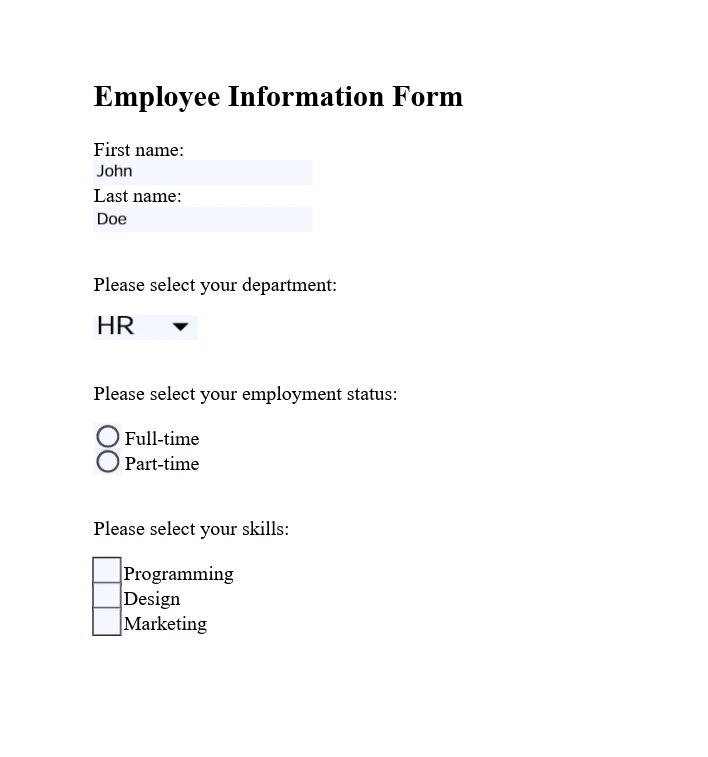
IronPDF supports complete [interactive PDF form handling](https://ironpdf.com/how-to/create-forms/). You can create, fill, and submit PDF forms programmatically, which is particularly useful for automating form processing or integrating form data collection into your workflows.
```csharp
using IronPdf;
// Set your IronPDF license key
IronPdf.License.LicenseKey = "License-Key goes here";
// Secure the server environment to disable local disk access or cross-origin requests
Installation.EnableWebSecurity = true;
// Define HTML content with form elements
const string formHtml = @"
<html>
<body>
<h2>Employee Information Form</h2>
<form>
First name: <br>
Last name: <br>
<br>
<p>Please select your department:</p>
<select name='department'>
<option value='HR'>HR</option>
<option value='Finance'>Finance</option>
<option value='IT'>IT</option>
<option value='Marketing'>Marketing</option>
</select>
<br>
<br>
<p>Please select your employment status:</p>
<label for='fulltime'>Full-time</label> <br>
<label for='parttime'>Part-time</label> <br>
<br>
<p>Please select your skills:</p>
<label for='skill1'> Programming</label><br>
<label for='skill2'> Design</label><br>
<label for='skill3'> Marketing</label><br>
</form>
</body>
</html>";
// Instantiate a PDF renderer
var renderer = new ChromePdfRenderer();
renderer.RenderingOptions.CreatePdfFormsFromHtml = true;
// Render the HTML form content as a PDF
renderer.RenderHtmlAsPdf(formHtml).SaveAs("EmployeeInfoForm.pdf");
```
### PDF 보안 및 암호화 방법
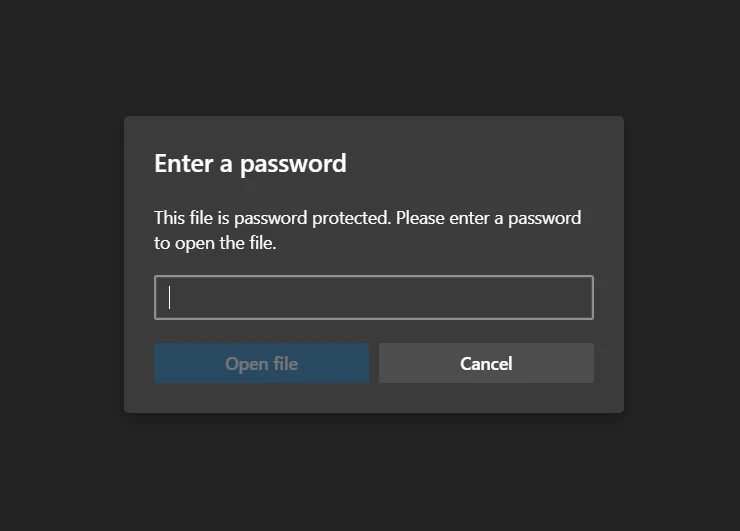
IronPDF는 [PDF 문서 보안](https://ironpdf.com/how-to/pdf-permissions-passwords/)을 위한 암호화, 권한 설정 및 [디지털 서명](https://ironpdf.com/how-to/signing/)을 포함한 신뢰할 수 있는 기능을 제공합니다. 이들은 민감한 정보 보호와 문서 무결성 유지를 보장합니다.
```csharp
using IronPdf;
// Set your IronPDF license key
IronPdf.License.LicenseKey = "License-Key goes here";
// Secure the server environment to disable local disk access or cross-origin requests
Installation.EnableWebSecurity = true;
// Load an existing PDF file
var pdf = PdfDocument.FromFile("invoice.pdf");
// Set document security settings
pdf.SecuritySettings.OwnerPassword = "top-secret"; // Password to edit the PDF
pdf.SecuritySettings.UserPassword = "sharable"; // Password to open the PDF
// Save the secured PDF to a file
pdf.SaveAs("secured.pdf");
```
### 어떤 고급 편집 옵션이 사용 가능한가요?
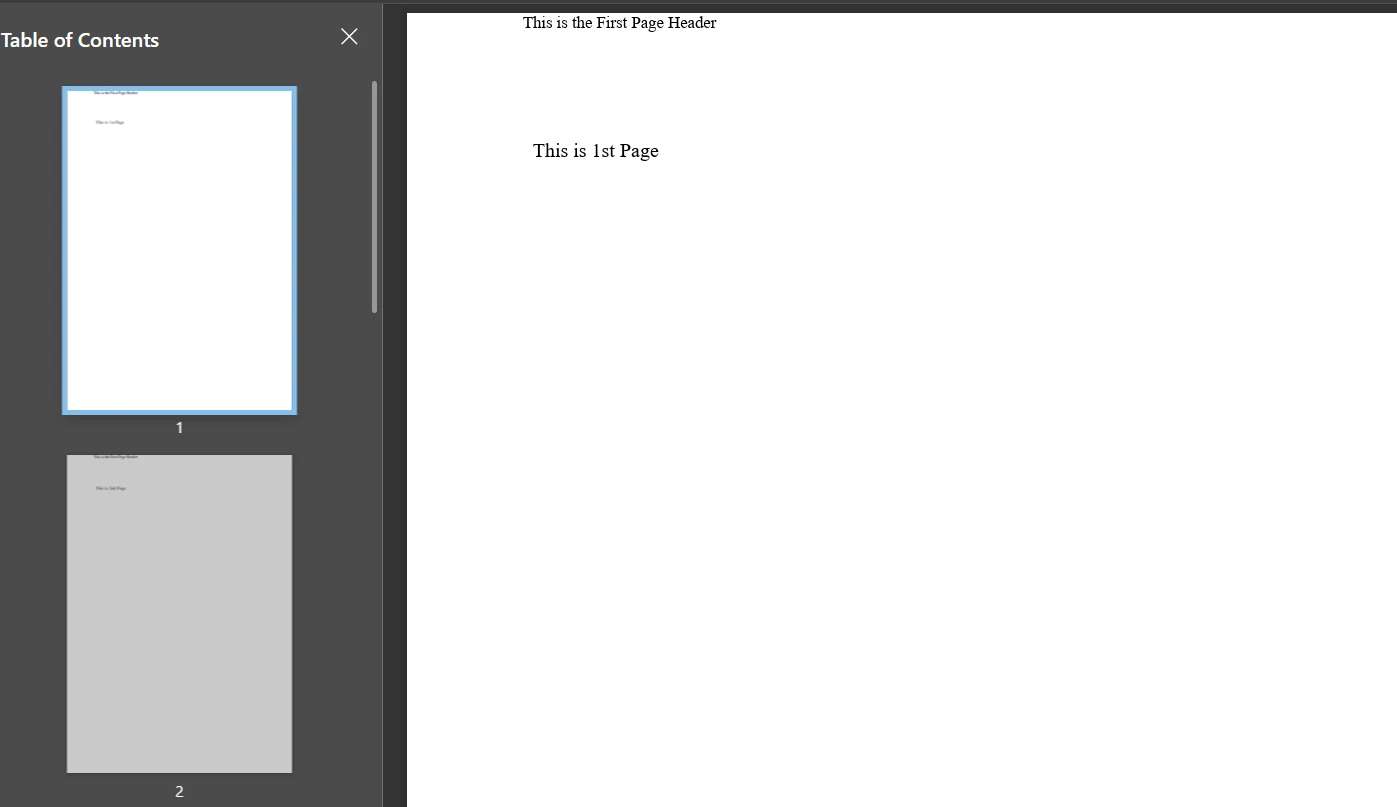
IronPDF는 기본 수정 사항을 넘어 [고급 편집 기능](https://ironpdf.com/features/edit/)을 제공합니다. 여기에는 [헤더와 푸터 추가](https://ironpdf.com/how-to/headers-and-footers/), [페이지 레이아웃 사용자 정의](https://ironpdf.com/how-to/page-orientation-rotation/), [이미지 및 글꼴 포함](https://ironpdf.com/how-to/manage-fonts/)이 포함됩니다. 이 기능들은 특정 애플리케이션 요구 사항에 맞춰 동적 PDF 생성 및 사용자 정의를 가능하게 합니다.
```csharp
using IronPdf;
// Set your IronPDF license key
IronPdf.License.LicenseKey = "License-Key goes here";
// Secure the server environment to disable local disk access or cross-origin requests
Installation.EnableWebSecurity = true;
// Instantiate a PDF renderer
var renderer = new IronPdf.ChromePdfRenderer();
// Define multi-page HTML content with page breaks
var multiPageHtml = @"
<p> This is 1st Page</p>
<div style = 'page-break-after: always;' ></div>
<p> This is 2nd Page</p>
<div style = 'page-break-after: always;' ></div>
<p> This is 3rd Page</p>
<div style = 'page-break-after: always;' ></div>
<p> This is 4th Page</p>
<div style = 'page-break-after: always;' ></div>
<p> This is 5th Page</p>
<div style = 'page-break-after: always;' ></div>
<p> This is 6th Page</p>
<div style = 'page-break-after: always;' ></div>
<p> This is 7th Page</p>";
// Render the HTML content as a PDF
var pdfDoc = renderer.RenderHtmlAsPdf(multiPageHtml);
// Create a header for the first page only
var firstPageHeader = new HtmlHeaderFooter();
firstPageHeader.HtmlFragment = "This is the First Page Header";
pdfDoc.AddHtmlHeaders(firstPageHeader, 1);
// Save the resulting PDF with headers to a file
pdfDoc.SaveAs("PagesWithHeaders.pdf");
```
## Apryse C#가 제공하는 고급 기능은 무엇입니까?
### 어떻게 주석과 마크업을 추가할 수 있나요?
Apryse C#을 사용하면 프로그래밍 방식으로 PDF 문서에 [주석과 마크업](https://ironpdf.com/how-to/annotations/)을 추가할 수 있습니다. 여기에는 텍스트 주석, 하이라이트, 밑줄, 도형 등이 포함되며, 문서 검토 과정이나 추가 정보 제공에 필수적입니다.
```csharp
using pdftron;
using pdftron.PDF;
using pdftron.SDF;
class Program
{
static void Main()
{
// Initialize the PDFNet library with your license key
PDFNet.Initialize("License");
// Open an existing PDF document
using (PDFDoc doc = new PDFDoc("input.pdf"))
{
// Access the first page of the document
Page page = doc.GetPage(1);
// Create a text annotation on the document
Text txt = Text.Create(doc, new Rect(10, 20, 30, 40));
txt.SetIcon("UserIcon");
txt.SetContents("It's an annotation!");
page.AnnotPushBack(txt);
// Save the modified document
doc.Save("output.pdf", SDFDoc.SaveOptions.e_linearized);
}
}
}
```

### 문서를 PDF로 어떻게 변환할 수 있나요?
Apryse C#은 [다양한 문서 형식을 PDF로 변환](https://ironpdf.com/features/convert/)할 수 있으며, 여기에는 [오피스 문서](https://ironpdf.com/how-to/docx-to-pdf/), [이미지](https://ironpdf.com/how-to/image-to-pdf/), HTML이 포함됩니다. 이 기능은 아카이빙, 공유, 디스플레이를 위한 문서 형식의 통일성을 보장합니다.
```csharp
using pdftron;
using pdftron.PDF;
class Program
{
static void Main()
{
// Initialize the PDFNet library
PDFNet.Initialize();
// Create a new PDF document
PDFDoc pdfdoc = new PDFDoc();
// Convert a Word document to PDF and add it to the PDF document
Convert.ToPdf(pdfdoc, "input.docx");
// Save the newly created PDF document
pdfdoc.Save("output.pdf", SDFDoc.SaveOptions.e_linearized);
}
}
```
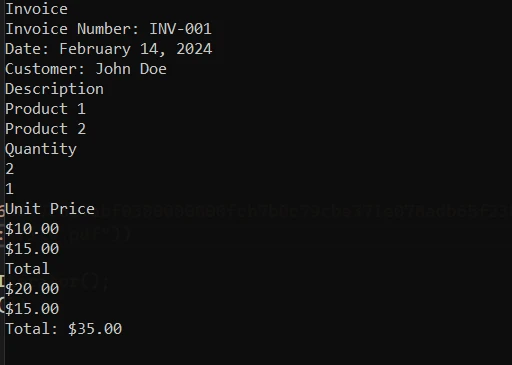
### PDF에서 콘텐츠를 어떻게 추출할 수 있나요?
Apryse C#은 PDF 문서에서 [텍스트, 이미지, 기타 콘텐츠 추출](https://ironpdf.com/how-to/extract-text-and-images/)에 탁월합니다. 이 기능은 콘텐츠 분석, 데이터 추출, 정보 검색 애플리케이션을 지원하여 효율적인 PDF 콘텐츠 처리를 가능하게 합니다.
```csharp
using pdftron;
using pdftron.PDF;
using pdftron.SDF;
class Program
{
static void Main()
{
// Initialize the PDFNet library
PDFNet.Initialize();
// Open an existing PDF document
using (PDFDoc doc = new PDFDoc("input.pdf"))
{
// Iterate through each page of the document
PageIterator itr = doc.GetPageIterator();
for (; itr.HasNext(); itr.Next())
{
Page page = itr.Current();
// Extract text from the page
TextExtractor txt = new TextExtractor();
txt.Begin(page);
// Print the extracted text to the console
Console.WriteLine(txt.GetAsText());
}
}
}
}
```
### Apryse로 PDF를 어떻게 보호할 수 있나요?
Apryse C#은 PDF 문서를 [보호하기 위한 완벽한 도구](https://ironpdf.com/features/secure/)를 제공합니다. 비밀번호 보호를 적용하고 문서를 암호화하며 사용자 권한을 관리하여 민감한 정보를 보호할 수 있습니다.
```csharp
using pdftron;
using pdftron.SDF;
using pdftron.PDF;
class Program
{
static void Main()
{
// Initialize the PDFNet library
PDFNet.Initialize();
// Open an existing PDF document
using (PDFDoc doc = new PDFDoc("input.pdf"))
{
// Initialize the security handler
doc.InitSecurityHandler();
// Create a new security handler
SecurityHandler newHandler = new SecurityHandler();
// Set the user password for the document
newHandler.ChangeUserPassword("new_password");
// Grant permission to print the document
newHandler.SetPermission(SecurityHandler.Permission.e_print, true);
// Apply the security handler to the document
doc.SetSecurityHandler(newHandler);
// Save the secured document
doc.Save("output.pdf", SDFDoc.SaveOptions.e_linearized);
}
}
}
```
### 민감한 정보를 어떻게 검열할 수 있나요?
Apryse C#은 PDF 문서에서 [민감한 정보를 검열](https://ironpdf.com/how-to/redact-text/)할 수 있는 기능을 지원하며, 이는 규정 준수 및 개인정보 보호 문제에 필수적입니다. 이 기능은 PDF 내의 텍스트와 이미지를 영구 제거하거나 흐리게 할 수 있도록 합니다.
```csharp
using pdftron;
using pdftron.PDF;
using pdftron.SDF;
class Program
{
static void Main()
{
// Initialize the PDFNet library
PDFNet.Initialize();
// Open an existing PDF document
using (PDFDoc doc = new PDFDoc("input.pdf"))
{
// Define redaction areas on specific pages
Redactor.Redaction[] redactions = {
new Redactor.Redaction(1, new Rect(100, 100, 200, 200), false, "redacted"),
};
// Apply redactions to the document
Redactor.Redact(doc, redactions);
// Save the redacted document
doc.Save("output.pdf", SDFDoc.SaveOptions.e_linearized);
}
}
}
```
## 사용 가능한 문서와 지원은 무엇인가요?
### IronPDF는 어떤 지원을 제공하나요?
**문서:** IronPDF는 [완전한 문서](https://ironpdf.com/docs/)를 제공하며, 여기에는 [시작 안내서](https://ironpdf.com/get-started/quickstart/)부터 [HTML을 PDF로 변환](https://ironpdf.com/tutorials/html-to-pdf/), [PDF 편집](https://ironpdf.com/tutorials/csharp-edit-pdf-complete-tutorial/), [병합](https://ironpdf.com/how-to/merge-or-split-pdfs/), [분할](https://ironpdf.com/how-to/split-multipage-pdf/), [보안](https://ironpdf.com/tutorials/csharp-pdf-security-complete-tutorial/) 같은 고급 기능을 다루고 있습니다. 문서는 다양한 PDF 기능 구현에 대한 예제 코드와 설명이 풍부한 따라하기 쉬운 콘텐츠를 제공합니다.
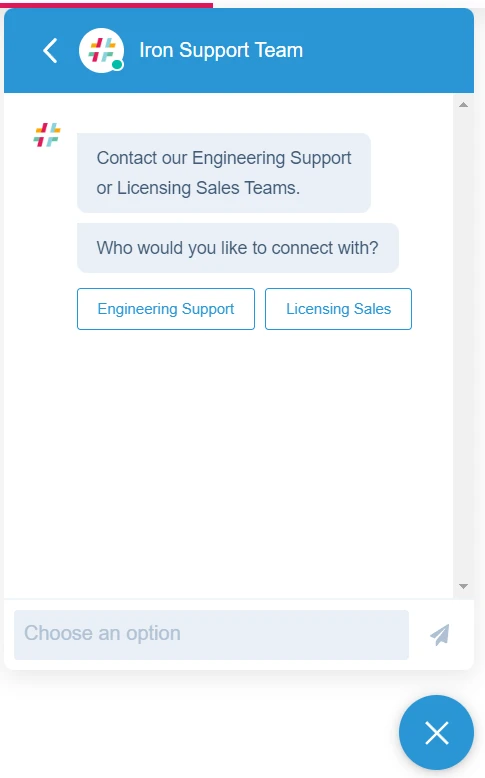
**지원:** IronPDF는 이메일 지원, 티켓 지원, [기술지원 채팅](https://ironpdf.com/troubleshooting/engineering-support-for-ironpdf/) 등 여러 채널을 통해 지원을 제공하며, 특정 문제에 대해 그들의 기술팀과 연결할 수 있습니다. 귀하의 애플리케이션은 즉시 그들의 피드백 시스템의 혜택을 받을 수 있습니다.
### Apryse C#가 제공하는 지원은 무엇입니까?
**문서:** Apryse C#(이전의 .NET용 PDFTron)은 풍부한 API 참조, 개발자 안내서 및 다양한 PDF 조작 작업에 대한 샘플 코드를 포함한 상세한 문서를 제공합니다.
**지원:** Apryse는 문제해결 및 구현 질문에 대해 기술팀과의 직접 이메일 통신을 통해 개발자 지원을 제공합니다. Stack Overflow에서 질문할 수도 있습니다.
## 라이센스 옵션과 가격은 어떻게 되나요?
### IronPDF의 라이선스 옵션은 무엇인가요?
IronPDF는 다양한 프로젝트 필요에 맞춘 여러 [라이선스 옵션](https://ironpdf.com/licensing/)을 제공합니다. Lite 라이선스는 `$liteLicense`부터 시작합니다. 이들 라이선스는 개발자 수, 위치, 프로젝트 범위에 따라 다릅니다. IronPDF는 로열티 없는 재배포 옵션 및 특정 가격의 추가 기능과의 확장 지원도 제공합니다.
IronPDF의 영구 라이선스 옵션은 다음을 포함합니다:
- **Lite Edition:** 비용은 `$liteLicense`이며, 1명의 개발자, 1개의 위치, 1개의 프로젝트에 적합하며 이메일 지원이 포함됩니다.
- **Plus Edition:** 가격은 `$plusLicenseOriginal`이며, 최대 3명의 개발자, 3개의 위치, 3개의 프로젝트를 지원하고 24시간 이메일과 채팅 지원, 전화 지원을 제공합니다.
- **Professional Edition:** `$professionalLicenseOriginal` 가격대이며, 최대 10명의 개발자, 10개의 위치 및 10개의 프로젝트를 위한 것으로, 이메일, 채팅, 전화 및 화면 공유 지원을 포함한 종합적인 지원을 제공합니다.
$500의 월간 구독이 제공되며 10,000개의 API 호출과 추가 호출 당 $0.02가 부과됩니다. 무제한 사용을 위해 IronPDF는 견적 기반 가격의 기업 솔루션을 제공합니다. 이 솔루션은 무제한 영구 라이선스 및 API 호출을 비롯한 다양한 기능을 포함합니다.
### Apryse C#의 라이선스 옵션은 무엇입니까?
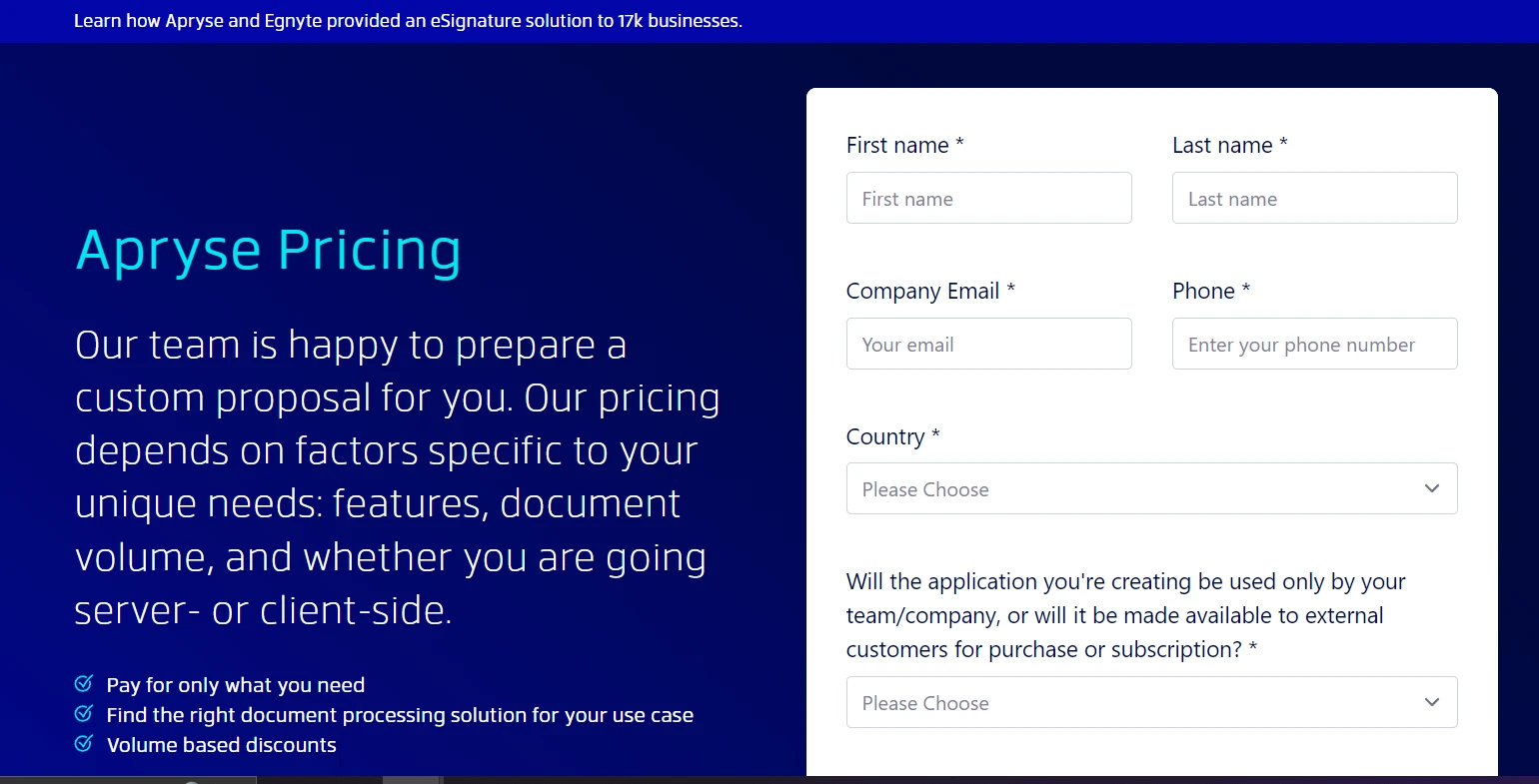
Apryse C#는 기능, 문서량, 배치 시나리오를 포함한 특정 프로젝트 요구 사항에 따라 맞춤형 가격을 제공합니다. [**Apryse 가격 정보**](https://apryse.com/pricing)를 얻으려면 반드시 영업 팀에 연락해야 합니다.
## 어떤 PDF 라이브러리를 선택해야 할까요?
IronPDF와 Apryse C# 둘 다 .NET 개발자가 PDF 작업 시 강력한 기능을 제공합니다. IronPDF는 광범위한 PDF 조작 기능으로 우위를 점합니다. [광범위한 편집](https://ironpdf.com/tutorials/csharp-edit-pdf-complete-tutorial/)과 [**IronPDF를 사용한 PDF 병합**](https://ironpdf.com/examples/merge-pdfs/)을 포함하여 완벽한 기능으로 뛰어납니다. [Iron Suite 패키지](https://ironsoftware.com/enterprise/securedoc/)는 비용 효율적인 가격으로 여러 도구를 제공하여 다양한 필요에 맞는 신뢰할 수 있는 유틸리티를 개발할 수 있도록 지원합니다.
IronPDF는 대부분의 PDF 처리 시나리오에서 전반적인 다재다능함과 가치 제안으로 두드러집니다. 최종 결정은 프로젝트 요구 사항과 개발에 필요한 특정 기능에 맞춰야 합니다.
[[i:(Apryse C#는 해당 소유자의 등록 상표입니다. 이 사이트는 Apryse C#와는 관련이 없으며, 승인을 받거나 후원을 받지 않았습니다. 모든 제품명, 로고 및 브랜드는 해당 소유자의 자산입니다. 비교는 정보 제공 목적으로만 사용되며, 작성 시점에 공개적으로 이용 가능한 정보를 반영합니다.)]]
IronPDF와 Apryse C#은 저명한 .NET PDF 라이브러리로 각각 고유한 강점을 가지고 있습니다. IronPDF는 전체 Bootstrap 지원과 광범위한 편집 기능을 통해 HTML-PDF 변환에서 뛰어납니다. 반면, Apryse는 문서 주석 및 편집에서 특화되어 있으며, 기업 준수 요구를 충족합니다.
C# 개발자들은 문서를 생성, 편집 또는 표시하는 애플리케이션을 빌드할 때 종종 PDF 관련 작업에 직면합니다. 신뢰할 수 있는 PDF 라이브러리는 효율성을 위해 필수적입니다. 이들 라이브러리는 문서 변환, 텍스트 편집, 및 PDF 내 이미지 처리와 같은 복잡한 작업을 위한 내장 함수들을 제공합니다. 이것들이 없다면 모든 기능을 처음부터 작성해야 하며, 이는 시간 소모적이고 오류가 발생하기 쉽습니다.
이 비교는 두 가지 인기 있는 PDF 라이브러리: IronPDF와 Apryse C#을 살펴봅니다. IronPDF는 .NET 환경에서 HTML-PDF 변환에서부터 고급 문서 편집까지 PDF 작업을 간소화하는 신뢰할 수 있는 기능을 제공합니다. Apryse C#은 효율성 및 사용의 용이성에 중점을 두고 PDF 조작에 대한 간단한 접근을 제공합니다. 이 분석은 각 라이브러리의 특정 기능을 탐구하여 프로젝트에 가장 적합한 것을 결정하는 데 도움이 됩니다.
Apryse C# PDF 라이브러리는 무엇입니까?
Apryse C#은 C# 환경 내에서 PDF 조작을 간소화하도록 설계된 .NET 애플리케이션용 완전한 PDF 라이브러리입니다. 이전에는 PDFTron SDK로 알려졌으며, 정확한 PDF 처리 기능을 찾는 개발자에게 다양한 기능과 도구를 제공합니다.
Apryse C#에서 제공하는 주요 기능은 무엇입니까?
.NET 프로젝트와의 쉬운 통합:ASP.NET Core와 전통적인 .NET Framework 애플리케이션을 포함한 .NET과의 원활한 통합.
문서 생성 및 편집: 텍스트, 이미지, 양식 및 페이지 조작을 포함하여 PDF를 처음부터 생성하거나 기존 문서를 편집합니다—재배열, 병합 또는 분할.
HTML-PDF 변환: 송장, 보고서 및 웹 페이지 문서를 위해 HTML 콘텐츠를 PDF 형식으로 직접 변환.
확장된 양식 필드 지원: 자동화된 워크플로우를 위한 PDF 양식 필드의 신뢰할 수 있는 생성, 편집 및 프로그래밍 채우기.
텍스트 및 콘텐츠 추출: PDF에서 텍스트 및 콘텐츠를 추출하여 분석, 검색 도구 및 콘텐츠 관리를 위해 사용.
보안 및 암호화: 문서 암호화, 권한 관리 및 디지털 서명을 포함한 완벽한 보안.
고급 PDF 기능: 상호작용 PDF를 위한 주석, 북마크 및 하이퍼링크를 지원.
IronPDF C# 라이브러리는 무엇입니까?
IronPDF는 .NET 개발자를 위해 맞춤화된 다재다능한 PDF 라이브러리입니다. 복잡한 PDF 조작을 간소화하여 C# 애플리케이션 내에서 PDF 문서를 생성, 편집 및 변환할 수 있게 합니다. Java, Python, C# 등을 포함한 여러 프로그래밍 언어에 사용 가능하며, IronPDF는 효율성과 신뢰성을 갖춘 다양한 PDF 처리 요구를 만족합니다.
Apryse 체험 키 획득: Apryse 플랫폼에 등록하여 체험 키를 얻고, 해당 키를 사용하여 SDK의 체험 기능을 활성화하세요.
프로젝트 설정: Visual Studio에서 새로운 .NET Framework 콘솔 애플리케이션을 만드세요. 그런 다음 추출된 SDK에서 Lib 폴더를 프로젝트 디렉토리에 추가하십시오.
참조 추가: 프로젝트의 참고 항목을 오른쪽 클릭하고 '참조 추가'를 선택한 후, Lib 폴더로 이동하여 PDFNetLoader.dll과 적절한 구조(x86 또는 x64)에 맞는 PDFNet.dll을 추가하세요. PDFNet.dll의 '로컬 복사' 속성을 false로 설정해야 합니다.
App.config 구성: App.config 파일에 loadFromRemoteSources 설정이 true로 설정되어 있는지 확인하세요.
SDK에는 샘플 폴더가 포함되어 있으며, 이를 직접 솔루션으로 열고 실행할 수 있습니다.## IronPDF의 고급 기능
HTML을 PDF로 변환
IronPDF는 HTML을 PDF 문서로 변환하는 데 매우 효과적이며, 보고서, 인보이스, 웹 페이지 스냅숏을 생성하는 웹 애플리케이션에 중요한 기능입니다. 라이브러리는 HTML, CSS, JavaScript를 정확하게 렌더링하며, 생성된 PDF에 웹 콘텐츠의 레이아웃과 스타일을 유지합니다.
HTML 문자열을 PDF로 변환
HTML 문자열을 직접 PDF로 변환하면 애플리케이션에서 생성된 콘텐츠나 저장된 변수를 이용해 동적 문서를 생성할 수 있습니다. 이 방법은 사용자 입력을 기반으로 맞춤형 보고서, 영수증 또는 문서를 만드는 데 유용합니다.
using IronPdf;// Secure the server environment to disable local disk access or cross-origin requestsInstallation.EnableWebSecurity = true;// Set your IronPDF license keyIronPdf.License.LicenseKey = "License-Key goes here";// Instantiate a PDF renderervar renderer = new ChromePdfRenderer();// Define a simple HTML string to convert to PDFstring htmlContent = @"<!DOCTYPE html><html lang='en'><head> <meta charset='UTF-8'> <meta name='viewport' content='width=device-width, initial-scale=1.0'> <title>My PDF</title> <style> body { font-family: Arial, sans-serif; } h1 { color: #333; text-align: center; } p { color: #666; text-align: justify; } </style></head><body> <h1>Welcome to My PDF</h1> <p>This is a sample paragraph demonstrating how to create a PDF from HTML using IronPdf in C#.</p> <p>You can add more content here as needed.</p></body></html>";// Render the HTML string as a PDFvar pdf = renderer.RenderHtmlAsPdf(htmlContent);// Save the resulting PDF to a filepdf.SaveAs("output.pdf");
using IronPdf;

// Secure the server environment to disable local disk access or cross-origin requests
Installation.EnableWebSecurity = true;

// Set your IronPDF license key
IronPdf.License.LicenseKey = "License-Key goes here";

// Instantiate a PDF renderer
var renderer = new ChromePdfRenderer();

// Define a simple HTML string to convert to PDF
string htmlContent = @"
<!DOCTYPE html>
<html lang='en'>
<head>
    <meta charset='UTF-8'>
    <meta name='viewport' content='width=device-width, initial-scale=1.0'>
    <title>My PDF</title>
    <style>
        body {
            font-family: Arial, sans-serif;
        }
        h1 {
            color: #333;
            text-align: center;
        }
        p {
            color: #666;
            text-align: justify;
        }
    </style>
</head>
<body>
    <h1>Welcome to My PDF</h1>
    <p>This is a sample paragraph demonstrating how to create a PDF from HTML using IronPdf in C#.</p>
    <p>You can add more content here as needed.</p>
</body>
</html>";

// Render the HTML string as a PDF
var pdf = renderer.RenderHtmlAsPdf(htmlContent);

// Save the resulting PDF to a file
pdf.SaveAs("output.pdf");
ImportsIronPdf' Secure the server environment to disable local disk access or cross-origin requestsInstallation.EnableWebSecurity = True' Set your IronPDF license keyIronPdf.License.LicenseKey = "License-Key goes here"' Instantiate a PDF rendererDim renderer = New ChromePdfRenderer()' Define a simple HTML string to convert to PDFDim htmlContent AsString = "<!DOCTYPE html><html lang='en'><head> <meta charset='UTF-8'> <meta name='viewport' content='width=device-width, initial-scale=1.0'> <title>My PDF</title> <style> body { font-family: Arial, sans-serif; } h1 { color: #333; text-align: center; } p { color: #666; text-align: justify; } </style></head><body> <h1>Welcome to My PDF</h1> <p>This is a sample paragraph demonstrating how to create a PDF from HTML using IronPdf in C#.</p> <p>You can add more content here as needed.</p></body></html>"' Render the HTML string as a PDFDim pdf = renderer.RenderHtmlAsPdf(htmlContent)' Save the resulting PDF to a filepdf.SaveAs("output.pdf")
Imports IronPdf

' Secure the server environment to disable local disk access or cross-origin requests
Installation.EnableWebSecurity = True

' Set your IronPDF license key
IronPdf.License.LicenseKey = "License-Key goes here"

' Instantiate a PDF renderer
Dim renderer = New ChromePdfRenderer()

' Define a simple HTML string to convert to PDF
Dim htmlContent As String = "
<!DOCTYPE html>
<html lang='en'>
<head>
    <meta charset='UTF-8'>
    <meta name='viewport' content='width=device-width, initial-scale=1.0'>
    <title>My PDF</title>
    <style>
        body {
            font-family: Arial, sans-serif;
        }
        h1 {
            color: #333;
            text-align: center;
        }
        p {
            color: #666;
            text-align: justify;
        }
    </style>
</head>
<body>
    <h1>Welcome to My PDF</h1>
    <p>This is a sample paragraph demonstrating how to create a PDF from HTML using IronPdf in C#.</p>
    <p>You can add more content here as needed.</p>
</body>
</html>"

' Render the HTML string as a PDF
Dim pdf = renderer.RenderHtmlAsPdf(htmlContent)

' Save the resulting PDF to a file
pdf.SaveAs("output.pdf")
HTML 파일을 PDF로 변환
디스크에 저장된 HTML 파일이 있는 경우, IronPDF는 이러한 파일을 PDF 문서로 변환할 수 있습니다. 이 방법은 기존의 HTML 문서, 템플릿, 또는 프로젝트나 서버에 저장된 보고서에 이상적입니다.
using IronPdf;// Set your IronPDF license keyIronPdf.License.LicenseKey = "License-Key goes here";// Secure the server environment to disable local disk access or cross-origin requestsInstallation.EnableWebSecurity = true;// Instantiate a PDF renderervar renderer = new ChromePdfRenderer();// Render the HTML file as a PDFvar pdf = renderer.RenderHtmlFileAsPdf("invoice.html");// Save the resulting PDF to a filepdf.SaveAs("file.pdf");
using IronPdf;

// Set your IronPDF license key
IronPdf.License.LicenseKey = "License-Key goes here";

// Secure the server environment to disable local disk access or cross-origin requests
Installation.EnableWebSecurity = true;

// Instantiate a PDF renderer
var renderer = new ChromePdfRenderer();

// Render the HTML file as a PDF
var pdf = renderer.RenderHtmlFileAsPdf("invoice.html");

// Save the resulting PDF to a file
pdf.SaveAs("file.pdf");
ImportsIronPdf' Set your IronPDF license keyIronPdf.License.LicenseKey = "License-Key goes here"' Secure the server environment to disable local disk access or cross-origin requestsInstallation.EnableWebSecurity = True' Instantiate a PDF rendererDim renderer = New ChromePdfRenderer()' Render the HTML file as a PDFDim pdf = renderer.RenderHtmlFileAsPdf("invoice.html")' Save the resulting PDF to a filepdf.SaveAs("file.pdf")
Imports IronPdf

' Set your IronPDF license key
IronPdf.License.LicenseKey = "License-Key goes here"

' Secure the server environment to disable local disk access or cross-origin requests
Installation.EnableWebSecurity = True

' Instantiate a PDF renderer
Dim renderer = New ChromePdfRenderer()

' Render the HTML file as a PDF
Dim pdf = renderer.RenderHtmlFileAsPdf("invoice.html")

' Save the resulting PDF to a file
pdf.SaveAs("file.pdf")
URL을 PDF로 변환
IronPDF는 URL을 제공하여 실시간 웹 페이지를 PDF 문서로 변환할 수 있습니다. 이 기능은 복잡한 레이아웃, CSS, JavaScript로 생성된 콘텐츠를 포함하여 현재 웹 페이지 상태를 캡처합니다.
using IronPdf;// Set your IronPDF license keyIronPdf.License.LicenseKey = "License-Key goes here";// Secure the server environment to disable local disk access or cross-origin requestsInstallation.EnableWebSecurity = true;// Instantiate a PDF renderervar renderer = new ChromePdfRenderer();// Render the URL as a PDFvar pdf = renderer.RenderUrlAsPdf("___PROTECTED_URL_100___");// Save the resulting PDF to a filepdf.SaveAs("url.pdf");
using IronPdf;

// Set your IronPDF license key
IronPdf.License.LicenseKey = "License-Key goes here";

// Secure the server environment to disable local disk access or cross-origin requests
Installation.EnableWebSecurity = true;

// Instantiate a PDF renderer
var renderer = new ChromePdfRenderer();

// Render the URL as a PDF
var pdf = renderer.RenderUrlAsPdf("___PROTECTED_URL_100___");

// Save the resulting PDF to a file
pdf.SaveAs("url.pdf");
ImportsIronPdf' Set your IronPDF license keyIronPdf.License.LicenseKey = "License-Key goes here"' Secure the server environment to disable local disk access or cross-origin requestsInstallation.EnableWebSecurity = True' Instantiate a PDF rendererDim renderer As New ChromePdfRenderer()' Render the URL as a PDFDim pdf = renderer.RenderUrlAsPdf("___PROTECTED_URL_100___")' Save the resulting PDF to a filepdf.SaveAs("url.pdf")
Imports IronPdf

' Set your IronPDF license key
IronPdf.License.LicenseKey = "License-Key goes here"

' Secure the server environment to disable local disk access or cross-origin requests
Installation.EnableWebSecurity = True

' Instantiate a PDF renderer
Dim renderer As New ChromePdfRenderer()

' Render the URL as a PDF
Dim pdf = renderer.RenderUrlAsPdf("___PROTECTED_URL_100___")

' Save the resulting PDF to a file
pdf.SaveAs("url.pdf")
부트스트랩 및 최신 CSS 프레임워크 지원
최신 웹 애플리케이션에서 PDF를 생성할 때 부트스트랩 및 CSS 프레임워크에 대한 완전한 지원이 필수적입니다. 조직은 웹 인터페이스를 위해 부트스트랩에 의존하며, 보고서, 인보이스, 문서를 정확한 PDF로 변환하는 것이 중요합니다.
IronPDF에서 지원하는 부트스트랩 기능
IronPDF: 완전한 부트스트랩 지원
Bootstrap 5: 플렉스박스 레이아웃, CSS 그리드, 유틸리티 클래스, 반응형 구성 요소에 대한 완전한 지원
Bootstrap 4: 완벽한 카드 시스템, 탐색 구성 요소, 및 플렉스 유틸리티
Tailwind CSS: 모든 유틸리티 클래스가 정확히 렌더링됩니다
Foundation: 완전한 그리드 시스템 및 구성 요소 지원
Modern CSS3: 플렉스박스, CSS 그리드, 사용자 정의 속성, 애니메이션, 전환의 완전한 지원
IronPDF는 부트스트랩 홈페이지와 모든 공식 예제를 픽셀 단위로 정확하게 렌더링합니다.
IronPDF는 여러 PDF 문서를 결합하거나 PDF를 더 작은 파일로 나누는 것을 간단하게 만듭니다. 이 기능은 체계적인 PDF 콘텐츠 구조를 필요로 하는 문서 관리 시스템에 필수적입니다.
using IronPdf;// Set your IronPDF license keyIronPdf.License.LicenseKey = "License-Key goes here";// Secure the server environment to disable local disk access or cross-origin requestsInstallation.EnableWebSecurity = true;// Define HTML content for two PDFs to mergevar htmlA = @" <h1>PDF A</h1> <p>This is the content of PDF A.</p> <p>This is the first page of PDF A.</p> <div style='page-break-after: always;'></div> <p>This is the second page of PDF A.</p>";var htmlB = @" <h1>PDF B</h1> <p>This is the content of PDF B.</p> <p>This is the first page of PDF B.</p> <div style='page-break-after: always;'></div> <p>This is the second page of PDF B.</p>";// Instantiate a PDF renderervar renderer = new ChromePdfRenderer();// Render the HTML content as separate PDF documentsvar pdfDocA = renderer.RenderHtmlAsPdf(htmlA);var pdfDocB = renderer.RenderHtmlAsPdf(htmlB);// Merge the two PDFs into onevar mergedPdf = PdfDocument.Merge(pdfDocA, pdfDocB);// Save the merged PDF to a filemergedPdf.SaveAs("Merged.pdf");
using IronPdf;

// Set your IronPDF license key
IronPdf.License.LicenseKey = "License-Key goes here";

// Secure the server environment to disable local disk access or cross-origin requests
Installation.EnableWebSecurity = true;

// Define HTML content for two PDFs to merge
var htmlA = @"
    <h1>PDF A</h1>
    <p>This is the content of PDF A.</p>
    <p>This is the first page of PDF A.</p>
    <div style='page-break-after: always;'></div>
    <p>This is the second page of PDF A.</p>";

var htmlB = @"
    <h1>PDF B</h1>
    <p>This is the content of PDF B.</p>
    <p>This is the first page of PDF B.</p>
    <div style='page-break-after: always;'></div>
    <p>This is the second page of PDF B.</p>";

// Instantiate a PDF renderer
var renderer = new ChromePdfRenderer();

// Render the HTML content as separate PDF documents
var pdfDocA = renderer.RenderHtmlAsPdf(htmlA);
var pdfDocB = renderer.RenderHtmlAsPdf(htmlB);

// Merge the two PDFs into one
var mergedPdf = PdfDocument.Merge(pdfDocA, pdfDocB);

// Save the merged PDF to a file
mergedPdf.SaveAs("Merged.pdf");
ImportsIronPdf' Set your IronPDF license keyIronPdf.License.LicenseKey = "License-Key goes here"' Secure the server environment to disable local disk access or cross-origin requestsInstallation.EnableWebSecurity = True' Define HTML content for two PDFs to mergeDim htmlA = " <h1>PDF A</h1> <p>This is the content of PDF A.</p> <p>This is the first page of PDF A.</p> <div style='page-break-after: always;'></div> <p>This is the second page of PDF A.</p>"Dim htmlB = " <h1>PDF B</h1> <p>This is the content of PDF B.</p> <p>This is the first page of PDF B.</p> <div style='page-break-after: always;'></div> <p>This is the second page of PDF B.</p>"' Instantiate a PDF rendererDim renderer = New ChromePdfRenderer()' Render the HTML content as separate PDF documentsDim pdfDocA = renderer.RenderHtmlAsPdf(htmlA)Dim pdfDocB = renderer.RenderHtmlAsPdf(htmlB)' Merge the two PDFs into oneDim mergedPdf = PdfDocument.Merge(pdfDocA, pdfDocB)' Save the merged PDF to a filemergedPdf.SaveAs("Merged.pdf")
Imports IronPdf

' Set your IronPDF license key
IronPdf.License.LicenseKey = "License-Key goes here"

' Secure the server environment to disable local disk access or cross-origin requests
Installation.EnableWebSecurity = True

' Define HTML content for two PDFs to merge
Dim htmlA = "
    <h1>PDF A</h1>
    <p>This is the content of PDF A.</p>
    <p>This is the first page of PDF A.</p>
    <div style='page-break-after: always;'></div>
    <p>This is the second page of PDF A.</p>"

Dim htmlB = "
    <h1>PDF B</h1>
    <p>This is the content of PDF B.</p>
    <p>This is the first page of PDF B.</p>
    <div style='page-break-after: always;'></div>
    <p>This is the second page of PDF B.</p>"

' Instantiate a PDF renderer
Dim renderer = New ChromePdfRenderer()

' Render the HTML content as separate PDF documents
Dim pdfDocA = renderer.RenderHtmlAsPdf(htmlA)
Dim pdfDocB = renderer.RenderHtmlAsPdf(htmlB)

' Merge the two PDFs into one
Dim mergedPdf = PdfDocument.Merge(pdfDocA, pdfDocB)

' Save the merged PDF to a file
mergedPdf.SaveAs("Merged.pdf")
PDF에 워터마크 추가하기
IronPDF를 사용하면 PDF 페이지에 브랜드나 문서를 기밀로 표시하기 위한 워터마크를 추가할 수 있습니다. 라이브러리는 텍스트와 이미지 워터마크의 복잡성을 관리하며, 적용과 표시에서 유연성을 제공합니다.
using IronPdf;// Set your IronPDF license keyIronPdf.License.LicenseKey = "License-Key goes here";// Secure the server environment to disable local disk access or cross-origin requestsInstallation.EnableWebSecurity = true;// Instantiate a PDF renderervar renderer = new ChromePdfRenderer();// Render a URL as a PDFvar pdf = renderer.RenderUrlAsPdf("___PROTECTED_URL_102___");// Apply a watermark to the PDFpdf.ApplyWatermark("<h2 style='color:red'>SAMPLE</h2>", 30, IronPdf.Editing.VerticalAlignment.Middle, IronPdf.Editing.HorizontalAlignment.Center);// Save the watermarked PDF to a filepdf.SaveAs("Watermarked.pdf");```### HowDoIWork with PDFForms?IronPDF supports complete [interactive PDF form handling](https://ironpdf.com/how-to/create-forms/). You can create, fill, and submit PDF forms programmatically, which is particularly useful for automating form processing or integrating form data collection into your workflows.```csharpusing IronPdf;// Set your IronPDF license keyIronPdf.License.LicenseKey = "License-Key goes here";// Secure the server environment to disable local disk access or cross-origin requestsInstallation.EnableWebSecurity = true;// Define HTML content with form elementsconst string formHtml = @" <html> <body> <h2>Employee Information Form</h2> <form> First name: <br> Last name: <br> <br> <p>Please select your department:</p> <select name='department'> <option value='HR'>HR</option> <option value='Finance'>Finance</option> <option value='IT'>IT</option> <option value='Marketing'>Marketing</option> </select> <br> <br> <p>Please select your employment status:</p> <label for='fulltime'>Full-time</label> <br> <label for='parttime'>Part-time</label> <br> <br> <p>Please select your skills:</p> <label for='skill1'> Programming</label><br> <label for='skill2'> Design</label><br> <label for='skill3'> Marketing</label><br> </form> </body> </html>";// Instantiate a PDF renderervar renderer = new ChromePdfRenderer();renderer.RenderingOptions.CreatePdfFormsFromHtml = true;// Render the HTML form content as a PDFrenderer.RenderHtmlAsPdf(formHtml).SaveAs("EmployeeInfoForm.pdf");
using IronPdf;

// Set your IronPDF license key
IronPdf.License.LicenseKey = "License-Key goes here";

// Secure the server environment to disable local disk access or cross-origin requests
Installation.EnableWebSecurity = true;

// Instantiate a PDF renderer
var renderer = new ChromePdfRenderer();

// Render a URL as a PDF
var pdf = renderer.RenderUrlAsPdf("___PROTECTED_URL_102___");

// Apply a watermark to the PDF
pdf.ApplyWatermark("<h2 style='color:red'>SAMPLE</h2>", 30, IronPdf.Editing.VerticalAlignment.Middle, IronPdf.Editing.HorizontalAlignment.Center);

// Save the watermarked PDF to a file
pdf.SaveAs("Watermarked.pdf");
```### How Do I Work with PDF Forms?

IronPDF supports complete [interactive PDF form handling](https://ironpdf.com/how-to/create-forms/). You can create, fill, and submit PDF forms programmatically, which is particularly useful for automating form processing or integrating form data collection into your workflows.

```csharp
using IronPdf;

// Set your IronPDF license key
IronPdf.License.LicenseKey = "License-Key goes here";

// Secure the server environment to disable local disk access or cross-origin requests
Installation.EnableWebSecurity = true;

// Define HTML content with form elements
const string formHtml = @"
    <html>
        <body>
            <h2>Employee Information Form</h2>
            <form>
                First name: <br>
                Last name: <br>
                <br>
                <p>Please select your department:</p>
                <select name='department'>
                    <option value='HR'>HR</option>
                    <option value='Finance'>Finance</option>
                    <option value='IT'>IT</option>
                    <option value='Marketing'>Marketing</option>
                </select>
                <br>
                <br>
                <p>Please select your employment status:</p>
                <label for='fulltime'>Full-time</label> <br>
                <label for='parttime'>Part-time</label> <br>
                <br>
                <p>Please select your skills:</p>
                <label for='skill1'> Programming</label><br>
                <label for='skill2'> Design</label><br>
                <label for='skill3'> Marketing</label><br>
            </form>
        </body>
    </html>";

// Instantiate a PDF renderer
var renderer = new ChromePdfRenderer();
renderer.RenderingOptions.CreatePdfFormsFromHtml = true;

// Render the HTML form content as a PDF
renderer.RenderHtmlAsPdf(formHtml).SaveAs("EmployeeInfoForm.pdf");
ImportsIronPdf' Set your IronPDF license keyIronPdf.License.LicenseKey = "License-Key goes here"' Secure the server environment to disable local disk access or cross-origin requestsInstallation.EnableWebSecurity = True' Instantiate a PDF rendererDim renderer As New ChromePdfRenderer()' Render a URL as a PDFDim pdf = renderer.RenderUrlAsPdf("___PROTECTED_URL_102___")' Apply a watermark to the PDFpdf.ApplyWatermark("<h2 style='color:red'>SAMPLE</h2>", 30, IronPdf.Editing.VerticalAlignment.Middle, IronPdf.Editing.HorizontalAlignment.Center)' Save the watermarked PDF to a filepdf.SaveAs("Watermarked.pdf")ImportsIronPdf' Set your IronPDF license keyIronPdf.License.LicenseKey = "License-Key goes here"' Secure the server environment to disable local disk access or cross-origin requestsInstallation.EnableWebSecurity = True' Define HTML content with form elementsConst formHtml AsString = " <html> <body> <h2>Employee Information Form</h2> <form> First name: <br> Last name: <br> <br> <p>Please select your department:</p> <select name='department'> <option value='HR'>HR</option> <option value='Finance'>Finance</option> <option value='IT'>IT</option> <option value='Marketing'>Marketing</option> </select> <br> <br> <p>Please select your employment status:</p> <label for='fulltime'>Full-time</label> <br> <label for='parttime'>Part-time</label> <br> <br> <p>Please select your skills:</p> <label for='skill1'> Programming</label><br> <label for='skill2'> Design</label><br> <label for='skill3'> Marketing</label><br> </form> </body> </html>"' Instantiate a PDF rendererDim renderer As New ChromePdfRenderer()renderer.RenderingOptions.CreatePdfFormsFromHtml = True' Render the HTML form content as a PDFrenderer.RenderHtmlAsPdf(formHtml).SaveAs("EmployeeInfoForm.pdf")
Imports IronPdf

' Set your IronPDF license key
IronPdf.License.LicenseKey = "License-Key goes here"

' Secure the server environment to disable local disk access or cross-origin requests
Installation.EnableWebSecurity = True

' Instantiate a PDF renderer
Dim renderer As New ChromePdfRenderer()

' Render a URL as a PDF
Dim pdf = renderer.RenderUrlAsPdf("___PROTECTED_URL_102___")

' Apply a watermark to the PDF
pdf.ApplyWatermark("<h2 style='color:red'>SAMPLE</h2>", 30, IronPdf.Editing.VerticalAlignment.Middle, IronPdf.Editing.HorizontalAlignment.Center)

' Save the watermarked PDF to a file
pdf.SaveAs("Watermarked.pdf")

Imports IronPdf

' Set your IronPDF license key
IronPdf.License.LicenseKey = "License-Key goes here"

' Secure the server environment to disable local disk access or cross-origin requests
Installation.EnableWebSecurity = True

' Define HTML content with form elements
Const formHtml As String = "
    <html>
        <body>
            <h2>Employee Information Form</h2>
            <form>
                First name: <br>
                Last name: <br>
                <br>
                <p>Please select your department:</p>
                <select name='department'>
                    <option value='HR'>HR</option>
                    <option value='Finance'>Finance</option>
                    <option value='IT'>IT</option>
                    <option value='Marketing'>Marketing</option>
                </select>
                <br>
                <br>
                <p>Please select your employment status:</p>
                <label for='fulltime'>Full-time</label> <br>
                <label for='parttime'>Part-time</label> <br>
                <br>
                <p>Please select your skills:</p>
                <label for='skill1'> Programming</label><br>
                <label for='skill2'> Design</label><br>
                <label for='skill3'> Marketing</label><br>
            </form>
        </body>
    </html>"

' Instantiate a PDF renderer
Dim renderer As New ChromePdfRenderer()
renderer.RenderingOptions.CreatePdfFormsFromHtml = True

' Render the HTML form content as a PDF
renderer.RenderHtmlAsPdf(formHtml).SaveAs("EmployeeInfoForm.pdf")
PDF 보안 및 암호화 방법
IronPDF는 PDF 문서 보안을 위한 암호화, 권한 설정 및 디지털 서명을 포함한 신뢰할 수 있는 기능을 제공합니다. 이들은 민감한 정보 보호와 문서 무결성 유지를 보장합니다.
using IronPdf;// Set your IronPDF license keyIronPdf.License.LicenseKey = "License-Key goes here";// Secure the server environment to disable local disk access or cross-origin requestsInstallation.EnableWebSecurity = true;// Load an existing PDF filevar pdf = PdfDocument.FromFile("invoice.pdf");// Set document security settingspdf.SecuritySettings.OwnerPassword = "top-secret"; // Password to edit the PDFpdf.SecuritySettings.UserPassword = "sharable"; // Password to open the PDF// Save the secured PDF to a filepdf.SaveAs("secured.pdf");
using IronPdf;

// Set your IronPDF license key
IronPdf.License.LicenseKey = "License-Key goes here";

// Secure the server environment to disable local disk access or cross-origin requests
Installation.EnableWebSecurity = true;

// Load an existing PDF file
var pdf = PdfDocument.FromFile("invoice.pdf");

// Set document security settings
pdf.SecuritySettings.OwnerPassword = "top-secret"; // Password to edit the PDF
pdf.SecuritySettings.UserPassword = "sharable";   // Password to open the PDF

// Save the secured PDF to a file
pdf.SaveAs("secured.pdf");
ImportsIronPdf' Set your IronPDF license keyIronPdf.License.LicenseKey = "License-Key goes here"' Secure the server environment to disable local disk access or cross-origin requestsInstallation.EnableWebSecurity = True' Load an existing PDF fileDim pdf = PdfDocument.FromFile("invoice.pdf")' Set document security settingspdf.SecuritySettings.OwnerPassword = "top-secret" ' Password to edit the PDFpdf.SecuritySettings.UserPassword = "sharable" ' Password to open the PDF' Save the secured PDF to a filepdf.SaveAs("secured.pdf")
Imports IronPdf

' Set your IronPDF license key
IronPdf.License.LicenseKey = "License-Key goes here"

' Secure the server environment to disable local disk access or cross-origin requests
Installation.EnableWebSecurity = True

' Load an existing PDF file
Dim pdf = PdfDocument.FromFile("invoice.pdf")

' Set document security settings
pdf.SecuritySettings.OwnerPassword = "top-secret" ' Password to edit the PDF
pdf.SecuritySettings.UserPassword = "sharable" ' Password to open the PDF

' Save the secured PDF to a file
pdf.SaveAs("secured.pdf")
using IronPdf;// Set your IronPDF license keyIronPdf.License.LicenseKey = "License-Key goes here";// Secure the server environment to disable local disk access or cross-origin requestsInstallation.EnableWebSecurity = true;// Instantiate a PDF renderervar renderer = new IronPdf.ChromePdfRenderer();// Define multi-page HTML content with page breaksvar multiPageHtml = @" <p> This is 1st Page</p> <div style = 'page-break-after: always;' ></div> <p> This is 2nd Page</p> <div style = 'page-break-after: always;' ></div> <p> This is 3rd Page</p> <div style = 'page-break-after: always;' ></div> <p> This is 4th Page</p> <div style = 'page-break-after: always;' ></div> <p> This is 5th Page</p> <div style = 'page-break-after: always;' ></div> <p> This is 6th Page</p> <div style = 'page-break-after: always;' ></div> <p> This is 7th Page</p>";// Render the HTML content as a PDFvar pdfDoc = renderer.RenderHtmlAsPdf(multiPageHtml);// Create a header for the first page onlyvar firstPageHeader = new HtmlHeaderFooter();firstPageHeader.HtmlFragment = "This is the First Page Header";pdfDoc.AddHtmlHeaders(firstPageHeader, 1);// Save the resulting PDF with headers to a filepdfDoc.SaveAs("PagesWithHeaders.pdf");
using IronPdf;

// Set your IronPDF license key
IronPdf.License.LicenseKey = "License-Key goes here";

// Secure the server environment to disable local disk access or cross-origin requests
Installation.EnableWebSecurity = true;

// Instantiate a PDF renderer
var renderer = new IronPdf.ChromePdfRenderer();

// Define multi-page HTML content with page breaks
var multiPageHtml = @"
    <p> This is 1st Page</p>
    <div style = 'page-break-after: always;' ></div>
    <p> This is 2nd Page</p>
    <div style = 'page-break-after: always;' ></div>
    <p> This is 3rd Page</p>
    <div style = 'page-break-after: always;' ></div>
    <p> This is 4th Page</p>
    <div style = 'page-break-after: always;' ></div>
    <p> This is 5th Page</p>
    <div style = 'page-break-after: always;' ></div>
    <p> This is 6th Page</p>
    <div style = 'page-break-after: always;' ></div>
    <p> This is 7th Page</p>";

// Render the HTML content as a PDF
var pdfDoc = renderer.RenderHtmlAsPdf(multiPageHtml);

// Create a header for the first page only
var firstPageHeader = new HtmlHeaderFooter();
firstPageHeader.HtmlFragment = "This is the First Page Header";
pdfDoc.AddHtmlHeaders(firstPageHeader, 1);

// Save the resulting PDF with headers to a file
pdfDoc.SaveAs("PagesWithHeaders.pdf");
ImportsIronPdf' Set your IronPDF license keyIronPdf.License.LicenseKey = "License-Key goes here"' Secure the server environment to disable local disk access or cross-origin requestsInstallation.EnableWebSecurity = True' Instantiate a PDF rendererDim renderer = New IronPdf.ChromePdfRenderer()' Define multi-page HTML content with page breaksDim multiPageHtml = " <p> This is 1st Page</p> <div style = 'page-break-after: always;' ></div> <p> This is 2nd Page</p> <div style = 'page-break-after: always;' ></div> <p> This is 3rd Page</p> <div style = 'page-break-after: always;' ></div> <p> This is 4th Page</p> <div style = 'page-break-after: always;' ></div> <p> This is 5th Page</p> <div style = 'page-break-after: always;' ></div> <p> This is 6th Page</p> <div style = 'page-break-after: always;' ></div> <p> This is 7th Page</p>"' Render the HTML content as a PDFDim pdfDoc = renderer.RenderHtmlAsPdf(multiPageHtml)' Create a header for the first page onlyDim firstPageHeader = New HtmlHeaderFooter()firstPageHeader.HtmlFragment = "This is the First Page Header"pdfDoc.AddHtmlHeaders(firstPageHeader, 1)' Save the resulting PDF with headers to a filepdfDoc.SaveAs("PagesWithHeaders.pdf")
Imports IronPdf

' Set your IronPDF license key
IronPdf.License.LicenseKey = "License-Key goes here"

' Secure the server environment to disable local disk access or cross-origin requests
Installation.EnableWebSecurity = True

' Instantiate a PDF renderer
Dim renderer = New IronPdf.ChromePdfRenderer()

' Define multi-page HTML content with page breaks
Dim multiPageHtml = "
    <p> This is 1st Page</p>
    <div style = 'page-break-after: always;' ></div>
    <p> This is 2nd Page</p>
    <div style = 'page-break-after: always;' ></div>
    <p> This is 3rd Page</p>
    <div style = 'page-break-after: always;' ></div>
    <p> This is 4th Page</p>
    <div style = 'page-break-after: always;' ></div>
    <p> This is 5th Page</p>
    <div style = 'page-break-after: always;' ></div>
    <p> This is 6th Page</p>
    <div style = 'page-break-after: always;' ></div>
    <p> This is 7th Page</p>"

' Render the HTML content as a PDF
Dim pdfDoc = renderer.RenderHtmlAsPdf(multiPageHtml)

' Create a header for the first page only
Dim firstPageHeader = New HtmlHeaderFooter()
firstPageHeader.HtmlFragment = "This is the First Page Header"
pdfDoc.AddHtmlHeaders(firstPageHeader, 1)

' Save the resulting PDF with headers to a file
pdfDoc.SaveAs("PagesWithHeaders.pdf")
Apryse C#가 제공하는 고급 기능은 무엇입니까?
어떻게 주석과 마크업을 추가할 수 있나요?
Apryse C#을 사용하면 프로그래밍 방식으로 PDF 문서에 주석과 마크업을 추가할 수 있습니다. 여기에는 텍스트 주석, 하이라이트, 밑줄, 도형 등이 포함되며, 문서 검토 과정이나 추가 정보 제공에 필수적입니다.
using pdftron;using pdftron.PDF;using pdftron.SDF;class Program{ static voidMain() { // Initialize the PDFNet library with your license keyPDFNet.Initialize("License"); // Open an existing PDF document using (PDFDoc doc = new PDFDoc("input.pdf")) { // Access the first page of the document Page page = doc.GetPage(1); // Create a text annotation on the document Text txt = Text.Create(doc, new Rect(10, 20, 30, 40)); txt.SetIcon("UserIcon"); txt.SetContents("It's an annotation!"); page.AnnotPushBack(txt); // Save the modified document doc.Save("output.pdf", SDFDoc.SaveOptions.e_linearized); } }}
using pdftron;
using pdftron.PDF;
using pdftron.SDF;

class Program
{
    static void Main()
    {
        // Initialize the PDFNet library with your license key
        PDFNet.Initialize("License");

        // Open an existing PDF document
        using (PDFDoc doc = new PDFDoc("input.pdf"))
        {
            // Access the first page of the document
            Page page = doc.GetPage(1);

            // Create a text annotation on the document
            Text txt = Text.Create(doc, new Rect(10, 20, 30, 40));
            txt.SetIcon("UserIcon");
            txt.SetContents("It's an annotation!");
            page.AnnotPushBack(txt);

            // Save the modified document
            doc.Save("output.pdf", SDFDoc.SaveOptions.e_linearized);
        }
    }
}
Imports pdftronImports pdftron.PDFImports pdftron.SDFFriend Class ProgramShared Sub Main() ' Initialize the PDFNet library with your license keyPDFNet.Initialize("License") ' Open an existing PDF documentUsing doc As New PDFDoc("input.pdf") ' Access the first page of the document Dim page AsPage = doc.GetPage(1) ' Create a text annotation on the document Dim txt AsText = Text.Create(doc, New Rect(10, 20, 30, 40)) txt.SetIcon("UserIcon") txt.SetContents("It's an annotation!") page.AnnotPushBack(txt) ' Save the modified document doc.Save("output.pdf", SDFDoc.SaveOptions.e_linearized)EndUsing End SubEnd Class
Imports pdftron
Imports pdftron.PDF
Imports pdftron.SDF

Friend Class Program
	Shared Sub Main()
		' Initialize the PDFNet library with your license key
		PDFNet.Initialize("License")

		' Open an existing PDF document
		Using doc As New PDFDoc("input.pdf")
			' Access the first page of the document
			Dim page As Page = doc.GetPage(1)

			' Create a text annotation on the document
			Dim txt As Text = Text.Create(doc, New Rect(10, 20, 30, 40))
			txt.SetIcon("UserIcon")
			txt.SetContents("It's an annotation!")
			page.AnnotPushBack(txt)

			' Save the modified document
			doc.Save("output.pdf", SDFDoc.SaveOptions.e_linearized)
		End Using
	End Sub
End Class
문서를 PDF로 어떻게 변환할 수 있나요?
Apryse C#은 다양한 문서 형식을 PDF로 변환할 수 있으며, 여기에는 오피스 문서, 이미지, HTML이 포함됩니다. 이 기능은 아카이빙, 공유, 디스플레이를 위한 문서 형식의 통일성을 보장합니다.
using pdftron;using pdftron.PDF;class Program{ static voidMain() { // Initialize the PDFNet libraryPDFNet.Initialize(); // Create a new PDF document PDFDoc pdfdoc = new PDFDoc(); // Convert a Word document to PDF and add it to the PDF documentConvert.ToPdf(pdfdoc, "input.docx"); // Save the newly created PDF document pdfdoc.Save("output.pdf", SDFDoc.SaveOptions.e_linearized); }}
using pdftron;
using pdftron.PDF;

class Program
{
    static void Main()
    {
        // Initialize the PDFNet library
        PDFNet.Initialize();

        // Create a new PDF document
        PDFDoc pdfdoc = new PDFDoc();

        // Convert a Word document to PDF and add it to the PDF document
        Convert.ToPdf(pdfdoc, "input.docx");

        // Save the newly created PDF document
        pdfdoc.Save("output.pdf", SDFDoc.SaveOptions.e_linearized);
    }
}
Imports pdftronImports pdftron.PDFFriend Class ProgramShared Sub Main() ' Initialize the PDFNet libraryPDFNet.Initialize() ' Create a new PDF document Dim pdfdoc As New PDFDoc() ' Convert a Word document to PDF and add it to the PDF documentConvert.ToPdf(pdfdoc, "input.docx") ' Save the newly created PDF document pdfdoc.Save("output.pdf", SDFDoc.SaveOptions.e_linearized) End SubEnd Class
Imports pdftron
Imports pdftron.PDF

Friend Class Program
	Shared Sub Main()
		' Initialize the PDFNet library
		PDFNet.Initialize()

		' Create a new PDF document
		Dim pdfdoc As New PDFDoc()

		' Convert a Word document to PDF and add it to the PDF document
		Convert.ToPdf(pdfdoc, "input.docx")

		' Save the newly created PDF document
		pdfdoc.Save("output.pdf", SDFDoc.SaveOptions.e_linearized)
	End Sub
End Class
PDF에서 콘텐츠를 어떻게 추출할 수 있나요?
Apryse C#은 PDF 문서에서 텍스트, 이미지, 기타 콘텐츠 추출에 탁월합니다. 이 기능은 콘텐츠 분석, 데이터 추출, 정보 검색 애플리케이션을 지원하여 효율적인 PDF 콘텐츠 처리를 가능하게 합니다.
using pdftron;using pdftron.PDF;using pdftron.SDF;class Program{ static voidMain() { // Initialize the PDFNet libraryPDFNet.Initialize(); // Open an existing PDF document using (PDFDoc doc = new PDFDoc("input.pdf")) { // Iterate through each page of the document PageIterator itr = doc.GetPageIterator(); for (; itr.HasNext(); itr.Next()) { Page page = itr.Current(); // Extract text from the page TextExtractor txt = new TextExtractor(); txt.Begin(page); // Print the extracted text to the consoleConsole.WriteLine(txt.GetAsText()); } } }}
using pdftron;
using pdftron.PDF;
using pdftron.SDF;

class Program
{
    static void Main()
    {
        // Initialize the PDFNet library
        PDFNet.Initialize();

        // Open an existing PDF document
        using (PDFDoc doc = new PDFDoc("input.pdf"))
        {
            // Iterate through each page of the document
            PageIterator itr = doc.GetPageIterator();
            for (; itr.HasNext(); itr.Next())
            {
                Page page = itr.Current();

                // Extract text from the page
                TextExtractor txt = new TextExtractor();
                txt.Begin(page);

                // Print the extracted text to the console
                Console.WriteLine(txt.GetAsText());
            }
        }
    }
}
Imports pdftronImports pdftron.PDFImports pdftron.SDFFriend Class ProgramShared Sub Main() ' Initialize the PDFNet libraryPDFNet.Initialize() ' Open an existing PDF documentUsing doc As New PDFDoc("input.pdf") ' Iterate through each page of the document Dim itr AsPageIterator = doc.GetPageIterator() Do While itr.HasNext() Dim page AsPage = itr.Current() ' Extract text from the page Dim txt As New TextExtractor() txt.Begin(page) ' Print the extracted text to the consoleConsole.WriteLine(txt.GetAsText()) itr.Next() LoopEndUsing End SubEnd Class
Imports pdftron
Imports pdftron.PDF
Imports pdftron.SDF

Friend Class Program
	Shared Sub Main()
		' Initialize the PDFNet library
		PDFNet.Initialize()

		' Open an existing PDF document
		Using doc As New PDFDoc("input.pdf")
			' Iterate through each page of the document
			Dim itr As PageIterator = doc.GetPageIterator()
			Do While itr.HasNext()
				Dim page As Page = itr.Current()

				' Extract text from the page
				Dim txt As New TextExtractor()
				txt.Begin(page)

				' Print the extracted text to the console
				Console.WriteLine(txt.GetAsText())
				itr.Next()
			Loop
		End Using
	End Sub
End Class
Apryse로 PDF를 어떻게 보호할 수 있나요?
Apryse C#은 PDF 문서를 보호하기 위한 완벽한 도구를 제공합니다. 비밀번호 보호를 적용하고 문서를 암호화하며 사용자 권한을 관리하여 민감한 정보를 보호할 수 있습니다.
using pdftron;using pdftron.SDF;using pdftron.PDF;class Program{ static voidMain() { // Initialize the PDFNet libraryPDFNet.Initialize(); // Open an existing PDF document using (PDFDoc doc = new PDFDoc("input.pdf")) { // Initialize the security handler doc.InitSecurityHandler(); // Create a new security handler SecurityHandler newHandler = new SecurityHandler(); // Set the user password for the document newHandler.ChangeUserPassword("new_password"); // Grant permission to print the document newHandler.SetPermission(SecurityHandler.Permission.e_print, true); // Apply the security handler to the document doc.SetSecurityHandler(newHandler); // Save the secured document doc.Save("output.pdf", SDFDoc.SaveOptions.e_linearized); } }}
using pdftron;
using pdftron.SDF;
using pdftron.PDF;

class Program
{
    static void Main()
    {
        // Initialize the PDFNet library
        PDFNet.Initialize();

        // Open an existing PDF document
        using (PDFDoc doc = new PDFDoc("input.pdf"))
        {
            // Initialize the security handler
            doc.InitSecurityHandler();

            // Create a new security handler
            SecurityHandler newHandler = new SecurityHandler();

            // Set the user password for the document
            newHandler.ChangeUserPassword("new_password");

            // Grant permission to print the document
            newHandler.SetPermission(SecurityHandler.Permission.e_print, true);

            // Apply the security handler to the document
            doc.SetSecurityHandler(newHandler);

            // Save the secured document
            doc.Save("output.pdf", SDFDoc.SaveOptions.e_linearized);
        }
    }
}
Imports pdftronImports pdftron.SDFImports pdftron.PDFFriend Class ProgramShared Sub Main() ' Initialize the PDFNet libraryPDFNet.Initialize() ' Open an existing PDF documentUsing doc As New PDFDoc("input.pdf") ' Initialize the security handler doc.InitSecurityHandler() ' Create a new security handler Dim newHandler As New SecurityHandler() ' Set the user password for the document newHandler.ChangeUserPassword("new_password") ' Grant permission to print the document newHandler.SetPermission(SecurityHandler.Permission.e_print, True) ' Apply the security handler to the document doc.SetSecurityHandler(newHandler) ' Save the secured document doc.Save("output.pdf", SDFDoc.SaveOptions.e_linearized)EndUsing End SubEnd Class
Imports pdftron
Imports pdftron.SDF
Imports pdftron.PDF

Friend Class Program
	Shared Sub Main()
		' Initialize the PDFNet library
		PDFNet.Initialize()

		' Open an existing PDF document
		Using doc As New PDFDoc("input.pdf")
			' Initialize the security handler
			doc.InitSecurityHandler()

			' Create a new security handler
			Dim newHandler As New SecurityHandler()

			' Set the user password for the document
			newHandler.ChangeUserPassword("new_password")

			' Grant permission to print the document
			newHandler.SetPermission(SecurityHandler.Permission.e_print, True)

			' Apply the security handler to the document
			doc.SetSecurityHandler(newHandler)

			' Save the secured document
			doc.Save("output.pdf", SDFDoc.SaveOptions.e_linearized)
		End Using
	End Sub
End Class
민감한 정보를 어떻게 검열할 수 있나요?
Apryse C#은 PDF 문서에서 민감한 정보를 검열할 수 있는 기능을 지원하며, 이는 규정 준수 및 개인정보 보호 문제에 필수적입니다. 이 기능은 PDF 내의 텍스트와 이미지를 영구 제거하거나 흐리게 할 수 있도록 합니다.
using pdftron;using pdftron.PDF;using pdftron.SDF;class Program{ static voidMain() { // Initialize the PDFNet libraryPDFNet.Initialize(); // Open an existing PDF document using (PDFDoc doc = new PDFDoc("input.pdf")) { // Define redaction areas on specific pages Redactor.Redaction[] redactions = { new Redactor.Redaction(1, new Rect(100, 100, 200, 200), false, "redacted"), }; // Apply redactions to the documentRedactor.Redact(doc, redactions); // Save the redacted document doc.Save("output.pdf", SDFDoc.SaveOptions.e_linearized); } }}
using pdftron;
using pdftron.PDF;
using pdftron.SDF;

class Program
{
    static void Main()
    {
        // Initialize the PDFNet library
        PDFNet.Initialize();

        // Open an existing PDF document
        using (PDFDoc doc = new PDFDoc("input.pdf"))
        {
            // Define redaction areas on specific pages
            Redactor.Redaction[] redactions = {
                new Redactor.Redaction(1, new Rect(100, 100, 200, 200), false, "redacted"),
            };

            // Apply redactions to the document
            Redactor.Redact(doc, redactions);

            // Save the redacted document
            doc.Save("output.pdf", SDFDoc.SaveOptions.e_linearized);
        }
    }
}
Imports pdftronImports pdftron.PDFImports pdftron.SDFFriend Class ProgramShared Sub Main() ' Initialize the PDFNet libraryPDFNet.Initialize() ' Open an existing PDF documentUsing doc As New PDFDoc("input.pdf") ' Define redaction areas on specific pages Dim redactions() AsRedactor.Redaction = { New Redactor.Redaction(1, New Rect(100, 100, 200, 200), False, "redacted")} ' Apply redactions to the documentRedactor.Redact(doc, redactions) ' Save the redacted document doc.Save("output.pdf", SDFDoc.SaveOptions.e_linearized)EndUsing End SubEnd Class
Imports pdftron
Imports pdftron.PDF
Imports pdftron.SDF

Friend Class Program
	Shared Sub Main()
		' Initialize the PDFNet library
		PDFNet.Initialize()

		' Open an existing PDF document
		Using doc As New PDFDoc("input.pdf")
			' Define redaction areas on specific pages
			Dim redactions() As Redactor.Redaction = { New Redactor.Redaction(1, New Rect(100, 100, 200, 200), False, "redacted")}

			' Apply redactions to the document
			Redactor.Redact(doc, redactions)

			' Save the redacted document
			doc.Save("output.pdf", SDFDoc.SaveOptions.e_linearized)
		End Using
	End Sub
End Class
사용 가능한 문서와 지원은 무엇인가요?
IronPDF는 어떤 지원을 제공하나요?
문서: IronPDF는 완전한 문서를 제공하며, 여기에는 시작 안내서부터 HTML을 PDF로 변환, PDF 편집, 병합, 분할, 보안 같은 고급 기능을 다루고 있습니다. 문서는 다양한 PDF 기능 구현에 대한 예제 코드와 설명이 풍부한 따라하기 쉬운 콘텐츠를 제공합니다.
지원: IronPDF는 이메일 지원, 티켓 지원, 기술지원 채팅 등 여러 채널을 통해 지원을 제공하며, 특정 문제에 대해 그들의 기술팀과 연결할 수 있습니다. 귀하의 애플리케이션은 즉시 그들의 피드백 시스템의 혜택을 받을 수 있습니다.
Apryse C#가 제공하는 지원은 무엇입니까?
문서: Apryse C#(이전의 .NET용 PDFTron)은 풍부한 API 참조, 개발자 안내서 및 다양한 PDF 조작 작업에 대한 샘플 코드를 포함한 상세한 문서를 제공합니다.
지원: Apryse는 문제해결 및 구현 질문에 대해 기술팀과의 직접 이메일 통신을 통해 개발자 지원을 제공합니다. Stack Overflow에서 질문할 수도 있습니다.
라이센스 옵션과 가격은 어떻게 되나요?
IronPDF의 라이선스 옵션은 무엇인가요?
IronPDF는 다양한 프로젝트 필요에 맞춘 여러 라이선스 옵션을 제공합니다. Lite 라이선스는 $999부터 시작합니다. 이들 라이선스는 개발자 수, 위치, 프로젝트 범위에 따라 다릅니다. IronPDF는 로열티 없는 재배포 옵션 및 특정 가격의 추가 기능과의 확장 지원도 제공합니다.
IronPDF의 영구 라이선스 옵션은 다음을 포함합니다:
Lite Edition: 비용은 $999이며, 1명의 개발자, 1개의 위치, 1개의 프로젝트에 적합하며 이메일 지원이 포함됩니다.
Plus Edition: 가격은 $1,499이며, 최대 3명의 개발자, 3개의 위치, 3개의 프로젝트를 지원하고 24시간 이메일과 채팅 지원, 전화 지원을 제공합니다.
Professional Edition: $2,399 가격대이며, 최대 10명의 개발자, 10개의 위치 및 10개의 프로젝트를 위한 것으로, 이메일, 채팅, 전화 및 화면 공유 지원을 포함한 종합적인 지원을 제공합니다.
$500의 월간 구독이 제공되며 10,000개의 API 호출과 추가 호출 당 $0.02가 부과됩니다. 무제한 사용을 위해 IronPDF는 견적 기반 가격의 기업 솔루션을 제공합니다. 이 솔루션은 무제한 영구 라이선스 및 API 호출을 비롯한 다양한 기능을 포함합니다.
Apryse C#의 라이선스 옵션은 무엇입니까?
Apryse C#는 기능, 문서량, 배치 시나리오를 포함한 특정 프로젝트 요구 사항에 따라 맞춤형 가격을 제공합니다. Apryse 가격 정보를 얻으려면 반드시 영업 팀에 연락해야 합니다.
어떤 PDF 라이브러리를 선택해야 할까요?
IronPDF와 Apryse C# 둘 다 .NET 개발자가 PDF 작업 시 강력한 기능을 제공합니다. IronPDF는 광범위한 PDF 조작 기능으로 우위를 점합니다. 광범위한 편집과 IronPDF를 사용한 PDF 병합을 포함하여 완벽한 기능으로 뛰어납니다. Iron Suite 패키지는 비용 효율적인 가격으로 여러 도구를 제공하여 다양한 필요에 맞는 신뢰할 수 있는 유틸리티를 개발할 수 있도록 지원합니다.
IronPDF는 대부분의 PDF 처리 시나리오에서 전반적인 다재다능함과 가치 제안으로 두드러집니다. 최종 결정은 프로젝트 요구 사항과 개발에 필요한 특정 기능에 맞춰야 합니다.
참고해 주세요: Apryse C#는 해당 소유자의 등록 상표입니다. 이 사이트는 Apryse C#와는 관련이 없으며, 승인을 받거나 후원을 받지 않았습니다. 모든 제품명, 로고 및 브랜드는 해당 소유자의 자산입니다. 비교는 정보 제공 목적으로만 사용되며, 작성 시점에 공개적으로 이용 가능한 정보를 반영합니다.
커티스 차우는 칼턴 대학교에서 컴퓨터 과학 학사 학위를 취득했으며, Node.js, TypeScript, JavaScript, React를 전문으로 하는 프론트엔드 개발자입니다. 직관적이고 미적으로 뛰어난 사용자 인터페이스를 만드는 데 열정을 가진 그는 최신 프레임워크를 활용하고, 잘 구성되고 시각적으로 매력적인 매뉴얼을 제작하는 것을 즐깁니다.







































