using IronPdf;

// Disable local disk access or cross-origin requests
Installation.EnableWebSecurity = true;

// Instantiate Renderer
var renderer = new ChromePdfRenderer();

// Create a PDF from a HTML string using C#
var pdf = renderer.RenderHtmlAsPdf("<h1>Hello World</h1>");

// Export to a file or Stream
pdf.SaveAs("output.pdf");

// Advanced Example with HTML Assets
// Load external html assets: Images, CSS and JavaScript.
// An optional BasePath 'C:\site\assets\' is set as the file location to load assets from
var myAdvancedPdf = renderer.RenderHtmlAsPdf("<img src='icons/iron.png'>", @"C:\site\assets\");
myAdvancedPdf.SaveAs("html-with-assets.pdf");
using IronPdf;// Disable local disk access or cross-origin requestsInstallation.EnableWebSecurity = true;// Instantiate Renderervar renderer = new ChromePdfRenderer();// Create a PDF from a HTML string using C#var pdf = renderer.RenderHtmlAsPdf("<h1>Hello World</h1>");// Export to a file or Streampdf.SaveAs("output.pdf");// Advanced Example with HTML Assets// Load external html assets: Images, CSS and JavaScript.// An optional BasePath 'C:\site\assets\' is set as the file location to load assets fromvar myAdvancedPdf = renderer.RenderHtmlAsPdf("<img src='icons/iron.png'>", @"C:\site\assets\");myAdvancedPdf.SaveAs("html-with-assets.pdf");
## 為什麼要比較IronPDF和Apryse C# PDF程式庫?
IronPDF和Apryse C#是知名的.NET PDF程式庫,每個都有其獨特的優勢。 IronPDF在[HTML到PDF的轉換](https://ironpdf.com/tutorials/html-to-pdf/)中表現出色,全面支持Bootstrap並有豐富的[編輯功能](https://ironpdf.com/features/edit/)。 同時,Apryse專精於文件註釋和刪減,滿足企業合規性需求。
作為C#開發者,您在構建能生成、編輯或顯示文件的應用程式時,經常會面臨PDF相關的任務。 可靠的PDF程式庫是提高效率的關鍵。 這些程式庫提供內建的功能來進行複雜的操作,如[文件轉換](https://ironpdf.com/features/convert/)、[編輯文字](https://ironpdf.com/how-to/find-replace-text/)和[處理PDF內的圖片](https://ironpdf.com/how-to/add-images-to-pdfs/)。 沒有它們,您將需要從頭開始編寫所有功能,這既費時又易出錯。
本文比較了兩個受歡迎的PDF程式庫:[**IronPDF**](https://ironpdf.com)和[**Apryse C#**](https://apryse.com/)。 IronPDF提供可靠的功能,簡化[.NET環境](https://ironpdf.com/docs/)中的PDF操作,從HTML到PDF轉換到高級文件編輯。 Apryse C#提供一個簡單的PDF操作方法,注重效率和易用性。 本分析探討了每個程式庫的具體功能,幫助您為您的專案選擇最合適的。
## Apryse C# PDF程式庫是什麼?

[**Apryse C#**](https://apryse.com/)是一個完整的PDF程式庫,用於.NET應用程式,旨在簡化C#環境中的PDF操作。 以前稱為PDFTron SDK,提供廣泛的功能和工具,適合開發人員尋求精確的PDF處理能力。
### Apryse C#提供哪些主要功能?
- **輕鬆與.NET專案整合:**與.NET順利整合,包括[ASP.NET Core](https://ironpdf.com/how-to/aspx-to-pdf/)和傳統的.NET Framework應用程式。
- **文件建立和編輯:**從頭開始建立PDF或編輯現有的PDF,包括文字、圖像、表單和頁面操作 - [重排序、合併或拆分](https://ironpdf.com/how-to/merge-or-split-pdfs/)。
- **HTML到PDF轉換:**直接[將HTML內容轉換成PDF格式](https://ironpdf.com/how-to/html-string-to-pdf/),適用於發票、報告和網頁文件。
- **豐富的表單欄位支持:**可靠的[PDF表單欄位](https://ironpdf.com/how-to/create-forms/)建立、編輯和程式化填寫,適合自動化工作流程。
- **文字和內容提取:**從PDF中提取[文字和內容](https://ironpdf.com/how-to/extract-text-and-images/)以進行分析、搜尋工具和內容管理。
- **安全和加密:**完整的安全性包括[文件加密](https://ironpdf.com/how-to/pdf-permissions-passwords/)、權限管理和數位簽名。
- **高級PDF功能:**支持[註釋](https://ironpdf.com/how-to/annotations/)、[書籤](https://ironpdf.com/how-to/bookmarks/)和超連結以進行互動式PDF。
## IronPDF C#程式庫是什麼?
[**IronPDF**](https://ironpdf.com)是一個針對.NET開發者設計的多功能PDF程式庫。 它簡化了複雜的PDF操作,使能夠直接在C#應用程式中[建立](https://ironpdf.com/features/create/)、[編輯](https://ironpdf.com/features/edit/)和[轉換](https://ironpdf.com/features/convert/)PDF文件。 IronPDF可用於多個編程語言,包括Java、Python和C#,以滿足多樣的PDF處理需求,並具備高效可靠性。
### IronPDF提供哪些主要功能?
- **順利的.NET整合:**易於整合,支持[.NET Framework](https://ironpdf.com/get-started/windows/)和[.NET Core](https://ironpdf.com/get-started/quickstart/),包括[ASP.NET專案](https://ironpdf.com/how-to/aspx-to-pdf/)。
- **HTML到PDF轉換:**以高質量將[**HTML轉換為PDF**](https://ironpdf.com/tutorials/html-to-pdf/),對於報告、收據和來自HTML模板的文件都很理想。
- **高級PDF編輯:**廣泛的編輯功能,包括[新增文字](https://ironpdf.com/how-to/draw-text-and-bitmap/)、[圖像](https://ironpdf.com/how-to/add-images-to-pdfs/)和[向量圖形](https://ironpdf.com/how-to/draw-line-and-rectangle/)。
- **PDF表單處理:**程式化[**建立、編輯和填寫**](https://ironpdf.com/how-to/edit-forms/)PDF表單,以支持自動化文件工作流程。
- **內容提取:**提取[文字、圖像和元資料](https://ironpdf.com/how-to/extract-text-and-images/)以進行內容分析和資料遷移。
- **文件安全:**[**密碼保護**](https://ironpdf.com/examples/security-and-metadata/)、加密和[權限管理](https://ironpdf.com/how-to/pdf-permissions-passwords/)。
- **效能和可擴展性:**在高需求應用中改進的速度和[大容量處理](https://ironpdf.com/how-to/async/)。
- **完整文件:**廣泛的[文件](https://ironpdf.com/docs/)和即時支持團隊以協助實施。
- **PDF標準相容性:**支持[**PDF/A**](https://ironpdf.com/how-to/pdfa/)、[**PDF/UA**](https://ironpdf.com/how-to/pdfua/)及其他行業規範。
## 如何建立C#控制台應用程式?
在Visual Studio中建立控制台應用程式為.NET開發專案建立基礎,包括那些使用PDF程式庫如IronPDF或Apryse C#。 請按照下列步驟開始:
### 如何啟動Visual Studio?
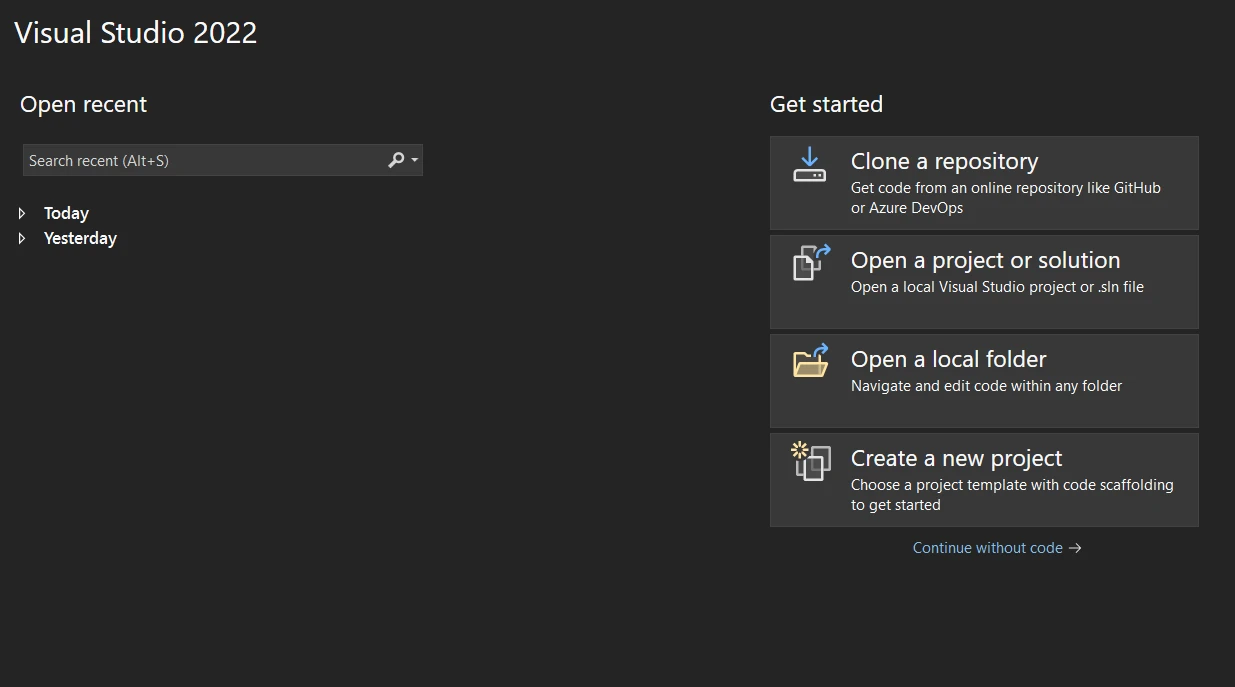
在您的電腦上打開Visual Studio。 如果您還沒有安裝Visual Studio,請從微軟的官方網站下載並安裝,選擇適合您需求的版本。
### 如何建立新專案?
當Visual Studio打開後,從初始儀表板中選擇"建立新專案"。
### 我應該選擇哪種型別的專案?
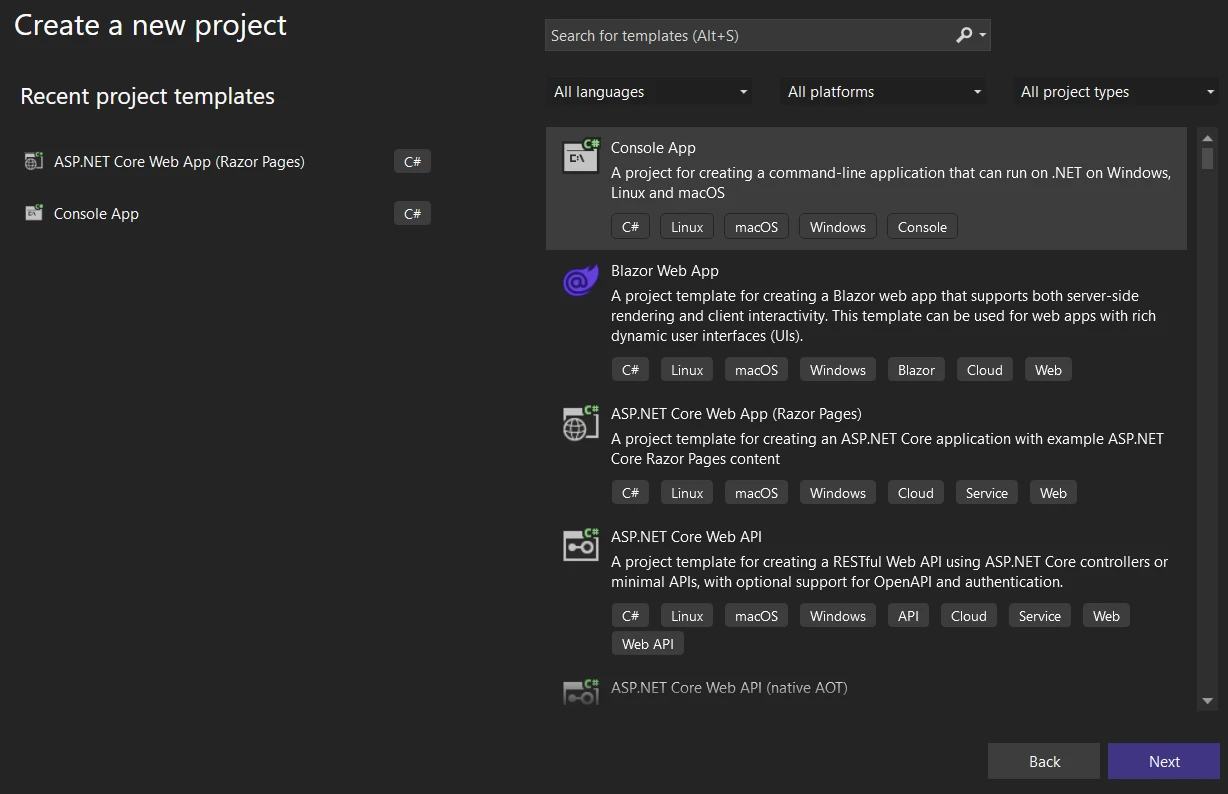
在"建立新專案"窗口中,您會看到各種專案模板。 在搜索框中輸入"Console"或從列表中找到"Console Application",選擇C#專有模板。
### 如何配置我的專案?
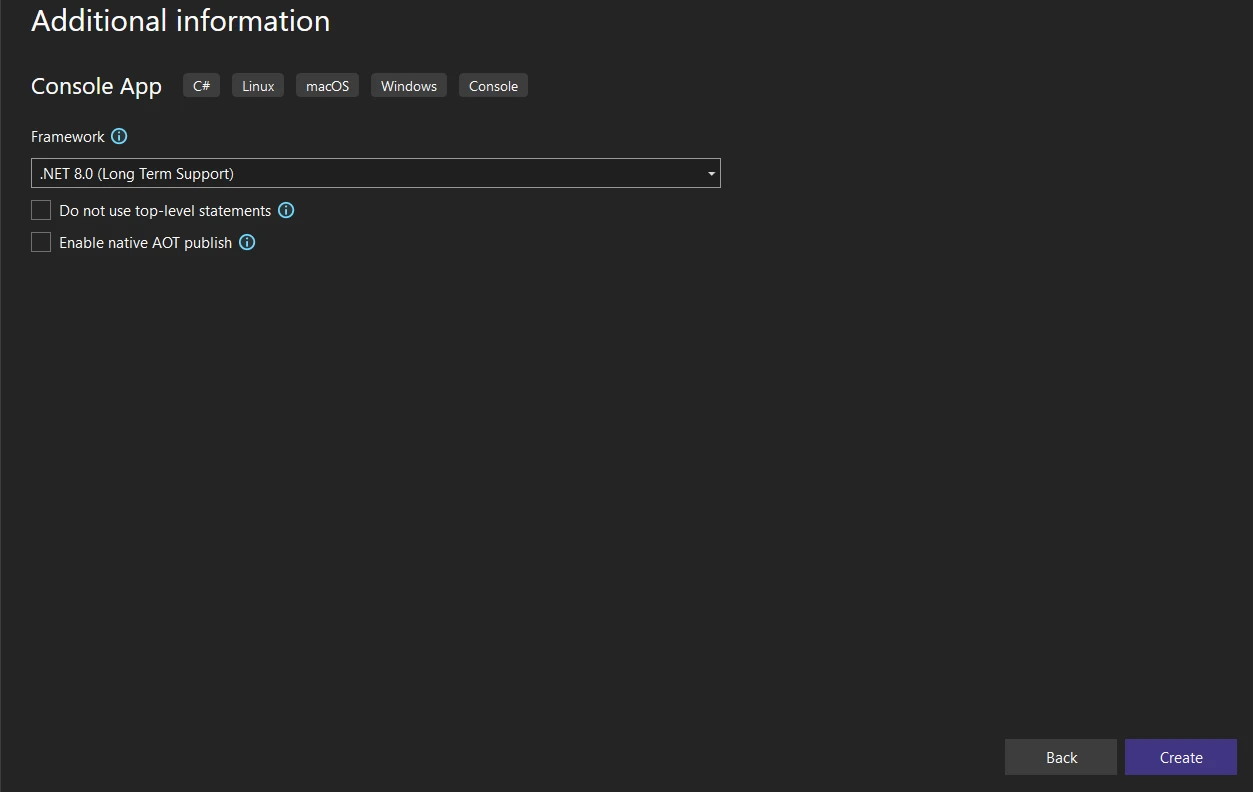
選擇"Console Application"後,點擊"下一步"。配置您的新專案:
- **專案名稱:**輸入一個描述性的專案名稱。
- **位置:**選擇您的首選儲存位置。
- **解決方案名稱:**預設為您的專案名稱,但可以自定義。
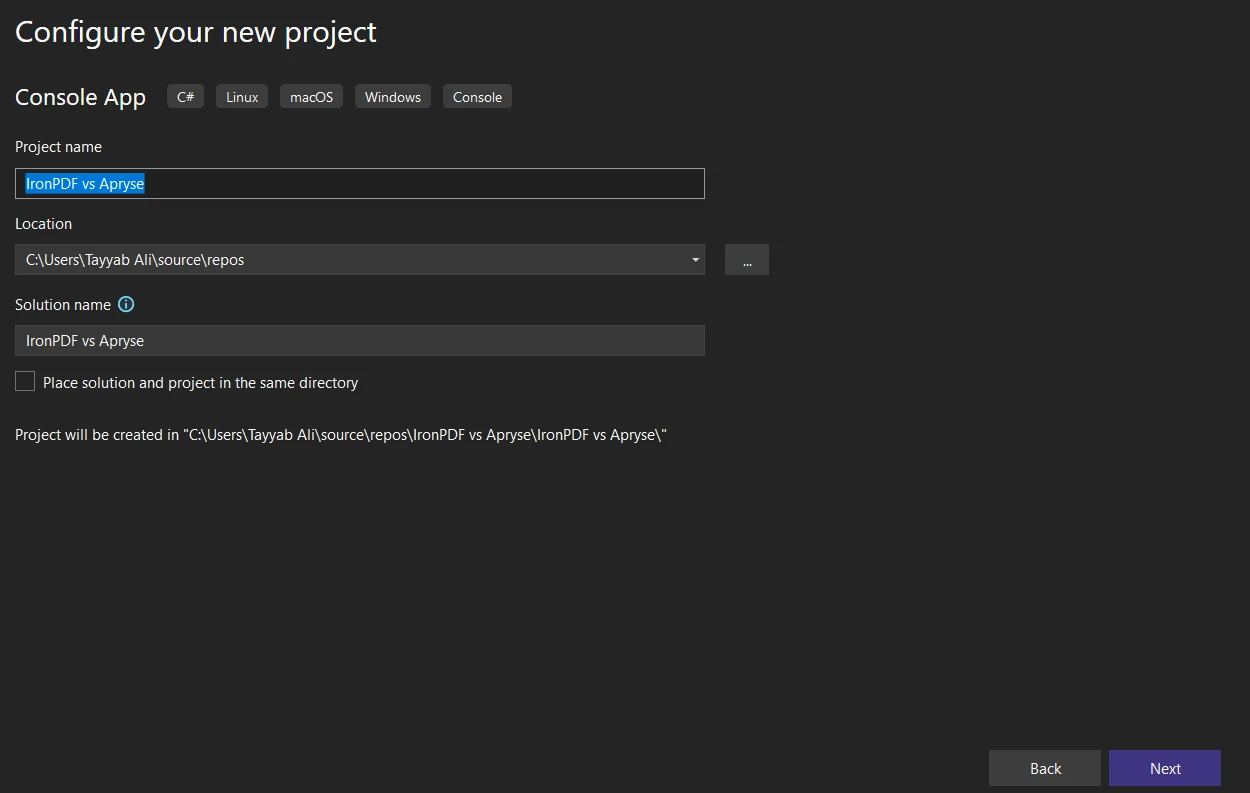
- **框架:**選擇您的.NET版本。 [通常建議使用最新版本](https://ironpdf.com/get-started/installation-overview/),除非有特定要求。
### 如何完成專案建立?
配置專案設定後,點擊"建立"。Visual Studio將建立一個帶有預設**Program.cs**文件的新控制台應用程式專案。
### 專案結構是什麼樣的?
在解決方案資源管理器窗格中探索生成的專案結構。 您將主要在控制台應用程式的**Program.cs**文件中工作,在此處撰寫您的C#程式碼。
## 如何安裝IronPDF程式庫?
將IronPDF整合到您的.NET專案中,使您能夠使用其完整的PDF操作能力。 幾種安裝方法依據您的工作流偏好提供靈活性。
### 如何使用NuGet Package Manager安裝?
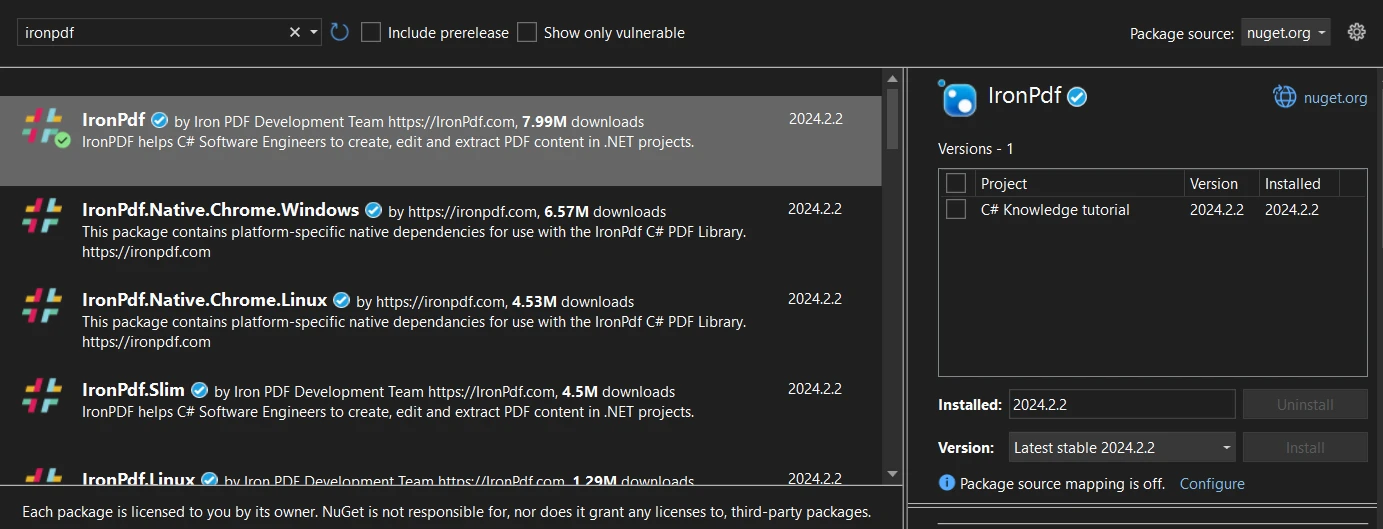
[NuGet Package Manager](https://ironpdf.com/get-started/advanced-installation-nuget/)在Visual Studio中提供一個用於管理程式庫的圖形介面。
1. 在Visual Studio中打開您的專案。
2. 在解決方案資源管理器中右鍵點擊您的專案並選擇"Manage NuGet Packages"。
3. 點擊"瀏覽"標籤並搜索"IronPDF"。
4. 從結果中選擇IronPDF並點擊"安裝"。
### 如何使用命令行安裝?
包管理控制台提供直接的命令行安裝。
1. 打開您的Visual Studio專案。
2. 前往工具 > NuGet套餐管理器 > 套餐管理器控制台。
3. 輸入以下命令:
```shell
:ProductInstall
```
此命令將最近的IronPDF版本安裝到您的專案中。
### 如何直接從NuGet下載?
您可以在整合前手動下載套件。
1. 存取[**NuGet網站**](https://www.nuget.org/)並搜索"IronPDF"。
2. 在[**IronPDF套件頁面**](https://www.nuget.org/packages/IronPdf)中,點擊"下載包"以獲取.nupkg文件。
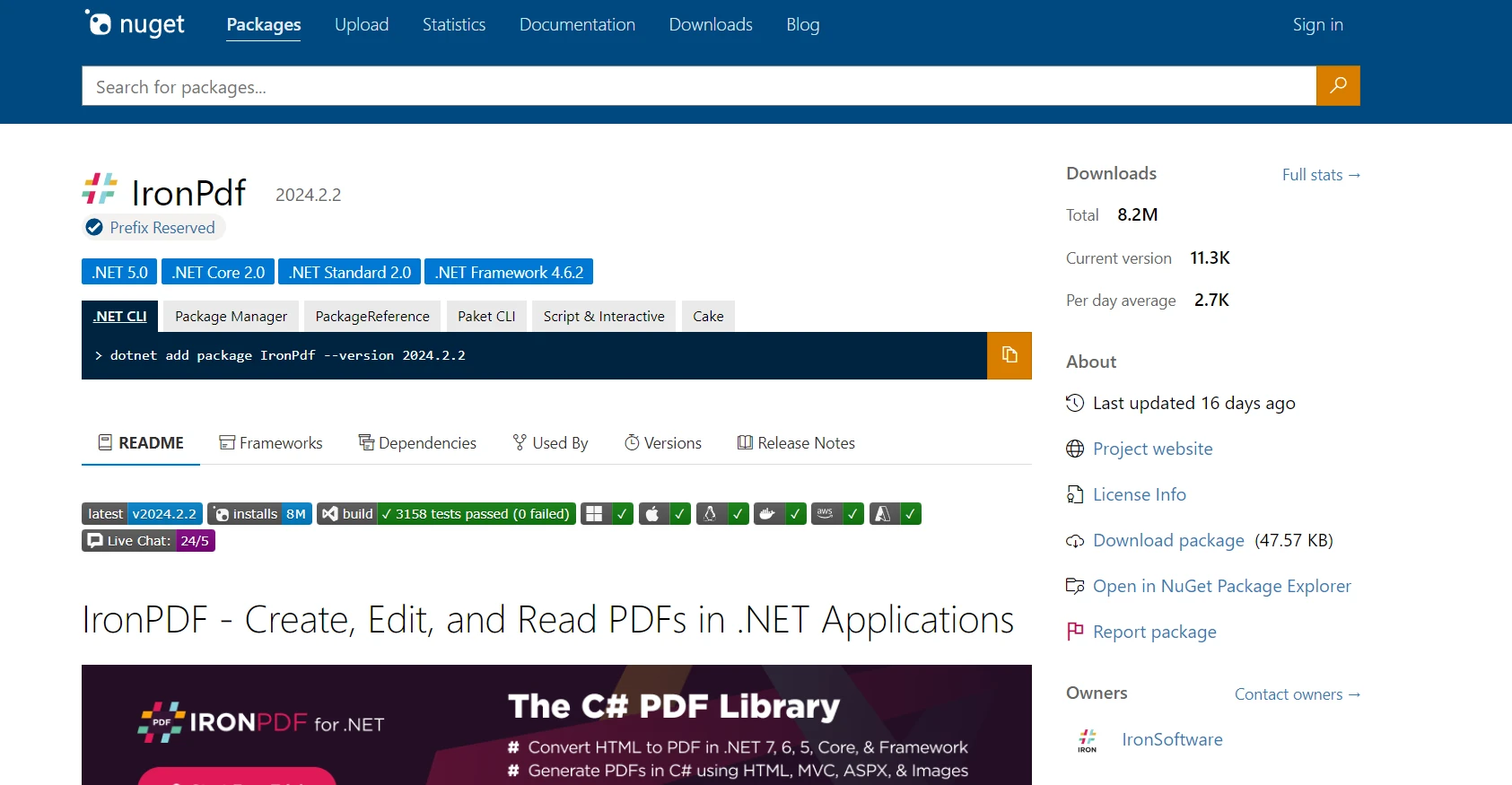
3. 通過解決方案資源管理器手動新增下載的包 > 右鍵點擊專案 > "新增 > 參考"。
每種方法都能成功整合IronPDF,允許您使用其[有效的PDF處理功能](https://ironpdf.com/features/)。
## 如何安裝Apryse C#?
將Apryse C#整合到您的專案中會根據您的.NET Framework或.NET Core環境有所不同。 以下步驟概述了通用的安裝過程:
### 如何安裝Apryse於.NET Framework?
1. **下載適用於Windows的Apryse SDK:**您需要存取[**適用於Windows的Apryse SDK頁面**](https://docs.apryse.com/documentation/dotnet/get-started/integration/windows/)以下載適合.NET Framework應用程式的SDK。
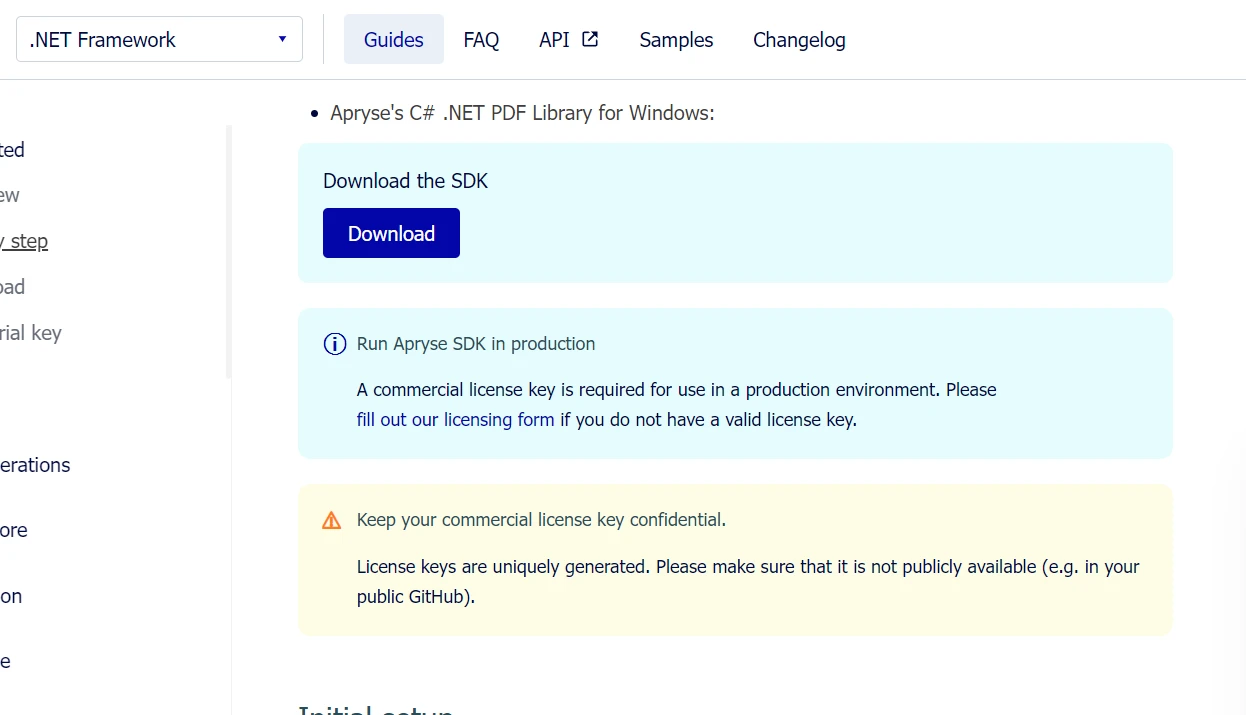
2. **提取SDK:**下載後,將SDK提取到已知的系統位置。
3. **獲取Apryse試用金鑰:**在Apryse平台上註冊以獲取試用金鑰,該金鑰可用於激活SDK的試用功能。
4. **設置您的專案:**在Visual Studio中建立一個新的.NET Framework控制台應用。 然後,將提取的SDK中的**Lib**文件夾新增到您的專案目錄。
5. **新增參考:**在專案中右鍵點擊參考,選擇"新增參考",導航到您已複製**PDFNetLoader.dll**和適用於您架構(x86或x64)的**PDFNet.dll**的**Lib**文件夾。 確認將**PDFNet.dll**的"本地複製"屬性設置為false。
6. **配置App.config:**確保您的App.config文件將**loadFromRemoteSources**設置為true。
SDK包含範例文件夾,您可以直接以解決方案形式打開並運行。## IronPDF的進階功能
### HTML到PDF轉換
IronPDF在將HTML轉換為PDF文件方面非常有效,這對於生成報告、發票或網頁快照的Web應用程式至關重要。 該程式庫準確渲染HTML、CSS和JavaScript,在生成的PDF中保留Web內容的佈局和樣式。
#### 將HTML字串轉換為PDF
直接將HTML字串轉換為PDF允許從應用程式生成的內容或儲存的變數建立動態文件。 此方法對於建立基於使用者輸入的定制報告、收據或文件很有益。
```csharp
using IronPdf;

// Secure the server environment to disable local disk access or cross-origin requests
Installation.EnableWebSecurity = true;

// Set your IronPDF license key
IronPdf.License.LicenseKey = "License-Key goes here";

// Instantiate a PDF renderer
var renderer = new ChromePdfRenderer();

// Define a simple HTML string to convert to PDF
string htmlContent = @"
<!DOCTYPE html>
<html lang='en'>
<head>
    <meta charset='UTF-8'>
    <meta name='viewport' content='width=device-width, initial-scale=1.0'>
    <title>My PDF</title>
    <style>
        body {
            font-family: Arial, sans-serif;
        }
        h1 {
            color: #333;
            text-align: center;
        }
        p {
            color: #666;
            text-align: justify;
        }
    </style>
</head>
<body>
    <h1>Welcome to My PDF</h1>
    <p>This is a sample paragraph demonstrating how to create a PDF from HTML using IronPdf in C#.</p>
    <p>You can add more content here as needed.</p>
</body>
</html>";

// Render the HTML string as a PDF
var pdf = renderer.RenderHtmlAsPdf(htmlContent);

// Save the resulting PDF to a file
pdf.SaveAs("output.pdf");
```
#### 將HTML文件轉換為PDF
如果您將HTML文件儲存在磁碟上,IronPDF可以將這些文件轉換為PDF文件。 這種方法非常適合現有HTML文件、模板或保存於您的專案或伺服器中的報告。
```csharp
using IronPdf;
// Set your IronPDF license key
IronPdf.License.LicenseKey = "License-Key goes here";
// Secure the server environment to disable local disk access or cross-origin requests
Installation.EnableWebSecurity = true;
// Instantiate a PDF renderer
var renderer = new ChromePdfRenderer();
// Render the HTML file as a PDF
var pdf = renderer.RenderHtmlFileAsPdf("invoice.html");
// Save the resulting PDF to a file
pdf.SaveAs("file.pdf");
```
#### 將URL轉換為PDF
IronPDF可以通過提供URL將線上網頁轉換為PDF文件。 此功能捕獲當前網頁狀態,包括複雜的佈局、CSS和JavaScript生成的內容。
```csharp
using IronPdf;
// Set your IronPDF license key
IronPdf.License.LicenseKey = "License-Key goes here";
// Secure the server environment to disable local disk access or cross-origin requests
Installation.EnableWebSecurity = true;
// Instantiate a PDF renderer
var renderer = new ChromePdfRenderer();
// Render the URL as a PDF
var pdf = renderer.RenderUrlAsPdf("___PROTECTED_URL_100___");
// Save the resulting PDF to a file
pdf.SaveAs("url.pdf");
```
### 支持Bootstrap和現代CSS框架
全面支持Bootstrap和CSS框架是從現代Web應用程式生成PDF時必不可少的。 機構依賴Bootstrap建立Web介面,使準確轉換為PDF對於報告、發票和文件非常關鍵。
#### IronPDF支持的Bootstrap功能
### IronPDF:完整的Bootstrap支持
- **Bootstrap 5:**全面支持flexbox佈局、CSS網格、實用程式類以及回應式元件
- **Bootstrap 4:**完整的卡片系統、導航元件和flex實用程式
- **Tailwind CSS:**所有實用程式類均可準確渲染
- **Foundation:**完整的網格系統和元件支持
- **現代CSS3:**完整的flexbox、CSS網格、自定義屬性、動畫和過渡
IronPDF以像素級準確度渲染Bootstrap主頁和所有官方範例。
**程式碼範例:商務指標儀表板**
```csharp
using IronPdf;
// Set your IronPDF license key
IronPdf.License.LicenseKey = "License-Key goes here";
var renderer = new ChromePdfRenderer();
string bootstrapDashboard = @"
<!DOCTYPE html>
<html>
<head>
<link href='___PROTECTED_URL_101___ rel='stylesheet'>
<style>
.metric-card { transition: transform 0.2s; }
.metric-card:hover { transform: translateY(-5px); }
.trend-up { color: #28a745; }
.trend-down { color: #dc3545; }
</style>
</head>
<body>
<div class='container-fluid py-4'>
<div class='d-flex justify-content-between align-items-center mb-4'>
<h1 class='display-5'>Business Performance Dashboard</h1>
<div class='text-muted'>Last updated: March 2025</div>
</div>
<div class='row g-4 mb-4'>
<div class='col-md-3'>
<div class='card metric-card shadow-sm border-start border-primary border-4'>
<div class='card-body'>
<div class='d-flex justify-content-between align-items-center mb-2'>
<h6 class='text-muted text-uppercase mb-0'>Total Revenue</h6>
<span class='badge bg-primary'>Q1 2025</span>
</div>
<h2 class='mb-1'>$2.4M</h2>
<div class='trend-up'>
<i>↑</i> <strong>+18.5%</strong> from last quarter
</div>
</div>
</div>
</div>
<div class='col-md-3'>
<div class='card metric-card shadow-sm border-start border-success border-4'>
<div class='card-body'>
<div class='d-flex justify-content-between align-items-center mb-2'>
<h6 class='text-muted text-uppercase mb-0'>New Customers</h6>
<span class='badge bg-success'>Active</span>
</div>
<h2 class='mb-1'>1,284</h2>
<div class='trend-up'>
<i>↑</i> <strong>+24.3%</strong> growth rate
</div>
</div>
</div>
</div>
<div class='col-md-3'>
<div class='card metric-card shadow-sm border-start border-warning border-4'>
<div class='card-body'>
<div class='d-flex justify-content-between align-items-center mb-2'>
<h6 class='text-muted text-uppercase mb-0'>Avg Order Value</h6>
<span class='badge bg-warning text-dark'>Updated</span>
</div>
<h2 class='mb-1'>$1,847</h2>
<div class='trend-up'>
<i>↑</i> <strong>+5.2%</strong> increase
</div>
</div>
</div>
</div>
<div class='col-md-3'>
<div class='card metric-card shadow-sm border-start border-info border-4'>
<div class='card-body'>
<div class='d-flex justify-content-between align-items-center mb-2'>
<h6 class='text-muted text-uppercase mb-0'>Satisfaction Rate</h6>
<span class='badge bg-info'>Excellent</span>
</div>
<h2 class='mb-1'>94.7%</h2>
<div class='trend-up'>
<i>↑</i> <strong>+2.1pts</strong> improvement
</div>
</div>
</div>
</div>
</div>
<div class='row g-4'>
<div class='col-md-8'>
<div class='card shadow-sm'>
<div class='card-header bg-white d-flex justify-content-between align-items-center'>
<h5 class='mb-0'>Revenue Breakdown by Category</h5>
<div class='btn-group btn-group-sm' role='group'>
<button type='button' class='btn btn-outline-primary active'>Monthly</button>
<button type='button' class='btn btn-outline-primary'>Quarterly</button>
<button type='button' class='btn btn-outline-primary'>Annual</button>
</div>
</div>
<div class='card-body'>
<div class='table-responsive'>
<table class='table table-hover mb-0'>
<thead class='table-light'>
<tr>
<th>Category</th>
<th>Revenue</th>
<th>Orders</th>
<th>Avg Value</th>
<th class='text-end'>Trend</th>
</tr>
</thead>
<tbody>
<tr>
<td><span class='badge bg-primary me-2'>A</span>Enterprise Solutions</td>
<td><strong>$1,245,000</strong></td>
<td>142</td>
<td>$8,768</td>
<td class='text-end'><span class='badge bg-success'>+12%</span></td>
</tr>
<tr>
<td><span class='badge bg-success me-2'>B</span>Professional Services</td>
<td><strong>$687,500</strong></td>
<td>458</td>
<td>$1,501</td>
<td class='text-end'><span class='badge bg-success'>+18%</span></td>
</tr>
<tr>
<td><span class='badge bg-info me-2'>C</span>Standard Packages</td>
<td><strong>$412,300</strong></td>
<td>891</td>
<td>$463</td>
<td class='text-end'><span class='badge bg-success'>+8%</span></td>
</tr>
<tr>
<td><span class='badge bg-warning me-2'>D</span>Custom Development</td>
<td><strong>$55,200</strong></td>
<td>12</td>
<td>$4,600</td>
<td class='text-end'><span class='badge bg-danger'>-3%</span></td>
</tr>
</tbody>
</table>
</div>
</div>
</div>
</div>
<div class='col-md-4'>
<div class='card shadow-sm'>
<div class='card-header bg-white'>
<h5 class='mb-0'>Quick Actions</h5>
</div>
<div class='card-body'>
<div class='d-grid gap-2'>
<button class='btn btn-primary'>Generate Full Report</button>
<button class='btn btn-outline-primary'>Export to Excel</button>
<button class='btn btn-outline-secondary'>Schedule Email</button>
<button class='btn btn-outline-info'>Share Dashboard</button>
</div>
</div>
</div>
<div class='card shadow-sm mt-3'>
<div class='card-header bg-white'>
<h5 class='mb-0'>Key Insights</h5>
</div>
<div class='card-body'>
<div class='alert alert-success mb-2'>
<small><strong>Top Performer:</strong> Enterprise Solutions leading revenue growth</small>
</div>
<div class='alert alert-info mb-2'>
<small><strong>Growth Driver:</strong> Professional Services showing strongest customer acquisition</small>
</div>
<div class='alert alert-warning mb-0'>
<small><strong>Attention Needed:</strong> Custom Development segment requires review</small>
</div>
</div>
</div>
</div>
</div>
</div>
</body>
</html>";
var pdf = renderer.RenderHtmlAsPdf(bootstrapDashboard);
pdf.SaveAs("business-dashboard.pdf");
```
**輸出:**專業商務儀表板PDF,包含Bootstrap 5的flexbox基於網格佈局系統、具有邊界實用程式的卡片元件、徽章元素、回應式表格和按顏色標記的指標 - 所有這些均以完美的佈局保留和排版進行渲染。
### Apryse的CSS框架限制
Apryse的HTML2PDF模組使用自定義渲染引擎(非Chromium),存在已知限制:
- **部分支持flexbox:**Bootstrap 4/5佈局可能無法正確渲染
- **有限的CSS網格:**現代基於網格的設計往往失敗
- **JavaScript約束:**與瀏覽器環境相比執行極少
- **框架相容性:**需要對Bootstrap元件進行大量測試
HTML2PDF文件明確警告複雜的CSS可能無法按預期渲染。 開發者報告導航欄、基於flex的卡片佈局和回應式實用程式存在問題。
**開發影響:**使用Apryse的團隊必須建立平行的"PDF安全"CSS或顯著簡化Bootstrap佈局,增加開發負擔並限制Web和PDF輸出之間的設計一致性。
有關完整的Bootstrap框架支持和全CSS3渲染,請參閱[Bootstrap和Flexbox CSS指南](https://ironpdf.com/troubleshooting/bootstrap-flex-css/)。
### 合併和拆分PDF
IronPDF使合併多個PDF文件或將PDF拆分為更小的文件變得簡單。 該功能對於需要有組織的PDF內容結構的文件管理系統至關重要。
```csharp
using IronPdf;
// Set your IronPDF license key
IronPdf.License.LicenseKey = "License-Key goes here";
// Secure the server environment to disable local disk access or cross-origin requests
Installation.EnableWebSecurity = true;
// Define HTML content for two PDFs to merge
var htmlA = @"
<h1>PDF A</h1>
<p>This is the content of PDF A.</p>
<p>This is the first page of PDF A.</p>
<div style='page-break-after: always;'></div>
<p>This is the second page of PDF A.</p>";
var htmlB = @"
<h1>PDF B</h1>
<p>This is the content of PDF B.</p>
<p>This is the first page of PDF B.</p>
<div style='page-break-after: always;'></div>
<p>This is the second page of PDF B.</p>";
// Instantiate a PDF renderer
var renderer = new ChromePdfRenderer();
// Render the HTML content as separate PDF documents
var pdfDocA = renderer.RenderHtmlAsPdf(htmlA);
var pdfDocB = renderer.RenderHtmlAsPdf(htmlB);
// Merge the two PDFs into one
var mergedPdf = PdfDocument.Merge(pdfDocA, pdfDocB);
// Save the merged PDF to a file
mergedPdf.SaveAs("Merged.pdf");
```
### 向PDF新增水印
IronPDF可讓您將水印新增到PDF頁面中,用於品牌推廣或將文件標記為機密。 該程式庫處理文字和圖像水印的複雜性,提供應用和顯示的靈活性。
```csharp
using IronPdf;
// Set your IronPDF license key
IronPdf.License.LicenseKey = "License-Key goes here";
// Secure the server environment to disable local disk access or cross-origin requests
Installation.EnableWebSecurity = true;
// Instantiate a PDF renderer
var renderer = new ChromePdfRenderer();
// Render a URL as a PDF
var pdf = renderer.RenderUrlAsPdf("___PROTECTED_URL_102___");
// Apply a watermark to the PDF
pdf.ApplyWatermark("<h2 style='color:red'>SAMPLE</h2>", 30, IronPdf.Editing.VerticalAlignment.Middle, IronPdf.Editing.HorizontalAlignment.Center);
// Save the watermarked PDF to a file
pdf.SaveAs("Watermarked.pdf");
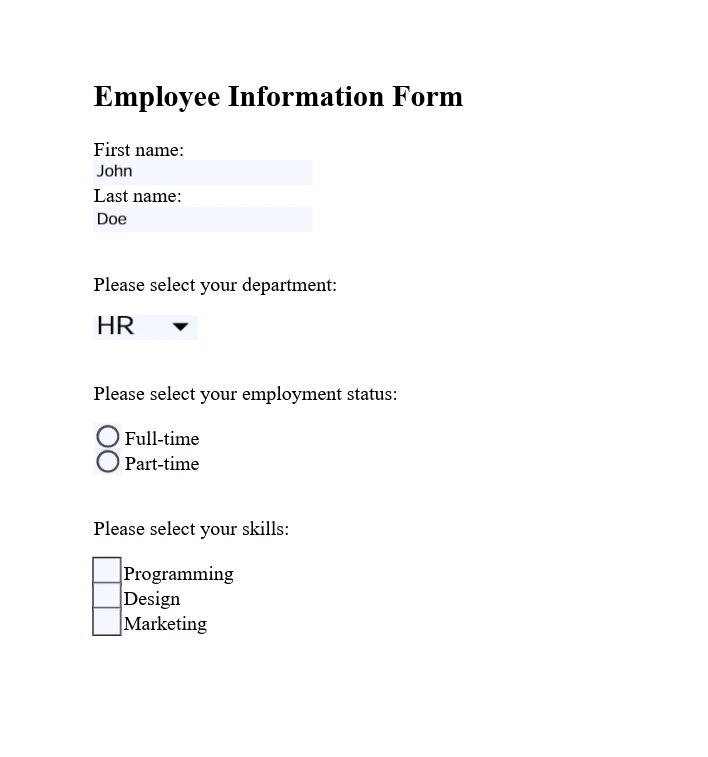
```### How Do I Work with PDF Forms?
IronPDF supports complete [interactive PDF form handling](https://ironpdf.com/how-to/create-forms/). You can create, fill, and submit PDF forms programmatically, which is particularly useful for automating form processing or integrating form data collection into your workflows.
```csharp
using IronPdf;
// Set your IronPDF license key
IronPdf.License.LicenseKey = "License-Key goes here";
// Secure the server environment to disable local disk access or cross-origin requests
Installation.EnableWebSecurity = true;
// Define HTML content with form elements
const string formHtml = @"
<html>
<body>
<h2>Employee Information Form</h2>
<form>
First name: <br>
Last name: <br>
<br>
<p>Please select your department:</p>
<select name='department'>
<option value='HR'>HR</option>
<option value='Finance'>Finance</option>
<option value='IT'>IT</option>
<option value='Marketing'>Marketing</option>
</select>
<br>
<br>
<p>Please select your employment status:</p>
<label for='fulltime'>Full-time</label> <br>
<label for='parttime'>Part-time</label> <br>
<br>
<p>Please select your skills:</p>
<label for='skill1'> Programming</label><br>
<label for='skill2'> Design</label><br>
<label for='skill3'> Marketing</label><br>
</form>
</body>
</html>";
// Instantiate a PDF renderer
var renderer = new ChromePdfRenderer();
renderer.RenderingOptions.CreatePdfFormsFromHtml = true;
// Render the HTML form content as a PDF
renderer.RenderHtmlAsPdf(formHtml).SaveAs("EmployeeInfoForm.pdf");
```
### 如何保護和加密PDF?
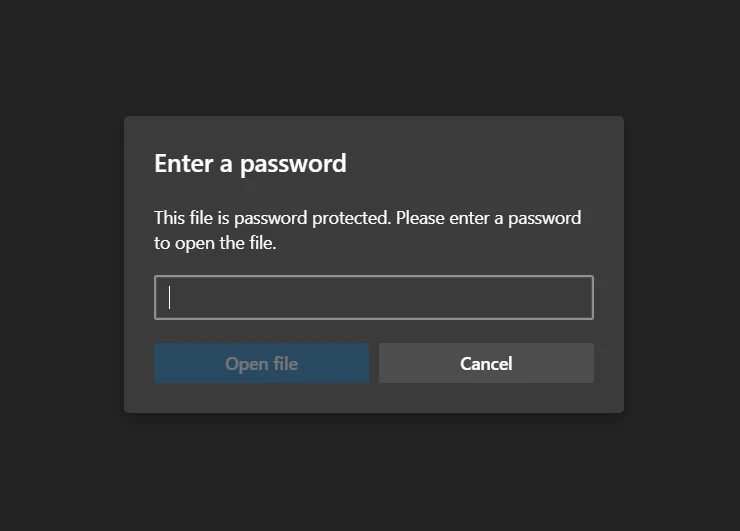
IronPDF提供可靠的功能來[保護PDF文件](https://ironpdf.com/how-to/pdf-permissions-passwords/),包括加密、權限設定和[數位簽名](https://ironpdf.com/how-to/signing/)。 這些功能確保敏感資訊保護和文件完整性維護。
```csharp
using IronPdf;
// Set your IronPDF license key
IronPdf.License.LicenseKey = "License-Key goes here";
// Secure the server environment to disable local disk access or cross-origin requests
Installation.EnableWebSecurity = true;
// Load an existing PDF file
var pdf = PdfDocument.FromFile("invoice.pdf");
// Set document security settings
pdf.SecuritySettings.OwnerPassword = "top-secret"; // Password to edit the PDF
pdf.SecuritySettings.UserPassword = "sharable"; // Password to open the PDF
// Save the secured PDF to a file
pdf.SaveAs("secured.pdf");
```
### 有哪些高級編輯選項可用?
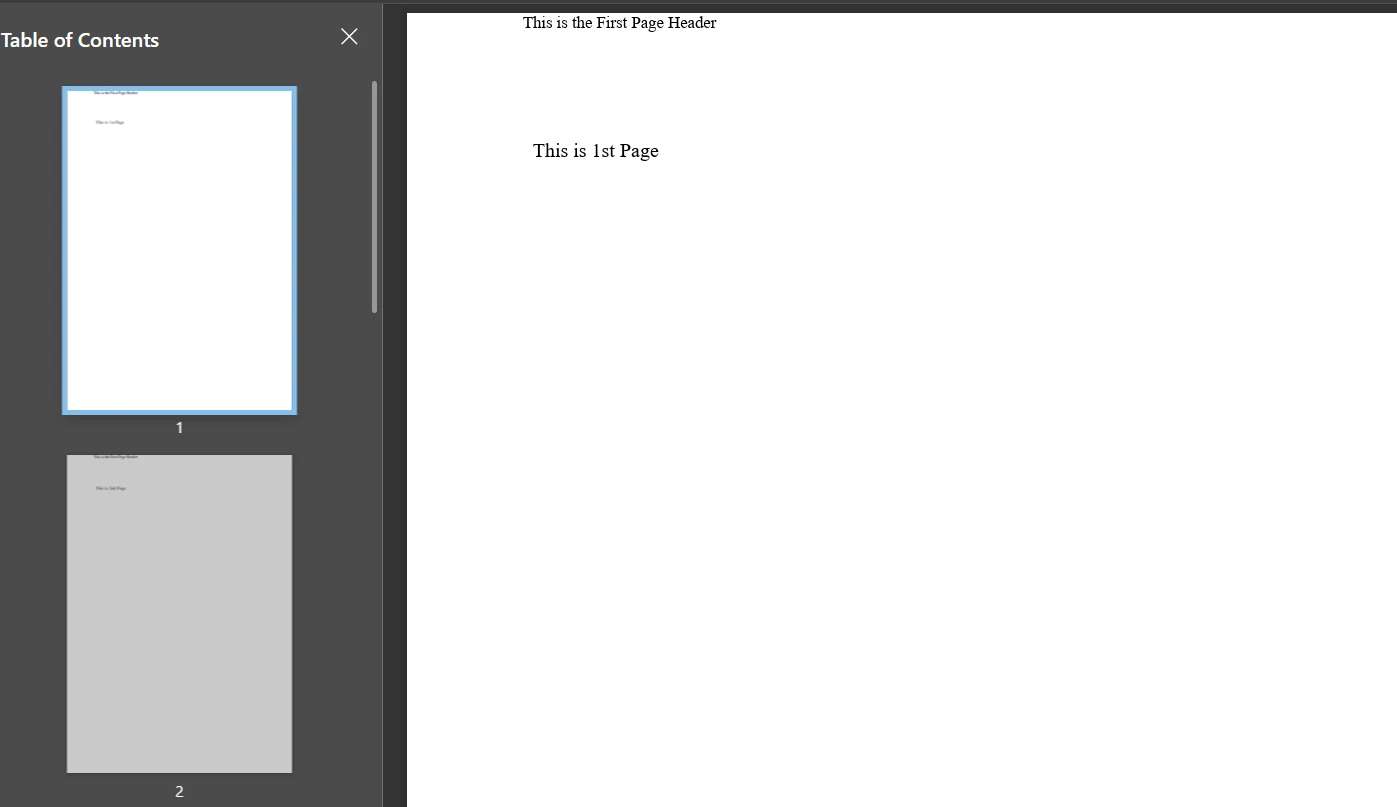
IronPDF提供[超越基本修改的高級編輯能力](https://ironpdf.com/features/edit/)。 這些功能包括[新增頁眉和頁腳](https://ironpdf.com/how-to/headers-and-footers/)、[自定義頁面佈局](https://ironpdf.com/how-to/page-orientation-rotation/)和[嵌入圖像和字體](https://ironpdf.com/how-to/manage-fonts/)。 這些功能支援動態PDF生成和特定應用需求的自定義。
```csharp
using IronPdf;
// Set your IronPDF license key
IronPdf.License.LicenseKey = "License-Key goes here";
// Secure the server environment to disable local disk access or cross-origin requests
Installation.EnableWebSecurity = true;
// Instantiate a PDF renderer
var renderer = new IronPdf.ChromePdfRenderer();
// Define multi-page HTML content with page breaks
var multiPageHtml = @"
<p> This is 1st Page</p>
<div style = 'page-break-after: always;' ></div>
<p> This is 2nd Page</p>
<div style = 'page-break-after: always;' ></div>
<p> This is 3rd Page</p>
<div style = 'page-break-after: always;' ></div>
<p> This is 4th Page</p>
<div style = 'page-break-after: always;' ></div>
<p> This is 5th Page</p>
<div style = 'page-break-after: always;' ></div>
<p> This is 6th Page</p>
<div style = 'page-break-after: always;' ></div>
<p> This is 7th Page</p>";
// Render the HTML content as a PDF
var pdfDoc = renderer.RenderHtmlAsPdf(multiPageHtml);
// Create a header for the first page only
var firstPageHeader = new HtmlHeaderFooter();
firstPageHeader.HtmlFragment = "This is the First Page Header";
pdfDoc.AddHtmlHeaders(firstPageHeader, 1);
// Save the resulting PDF with headers to a file
pdfDoc.SaveAs("PagesWithHeaders.pdf");
```
## Apryse C#提供哪些高級功能?
### 如何新增註釋和標記?
Apryse C# 使您能夠[程式化地向PDF文件新增註釋和標記](https://ironpdf.com/how-to/annotations/)。 這包括文字註釋、標亮、底線和形狀 - 對於文件審核過程或新增補充資訊至關重要。
```csharp
using pdftron;
using pdftron.PDF;
using pdftron.SDF;
class Program
{
static void Main()
{
// Initialize the PDFNet library with your license key
PDFNet.Initialize("License");
// Open an existing PDF document
using (PDFDoc doc = new PDFDoc("input.pdf"))
{
// Access the first page of the document
Page page = doc.GetPage(1);
// Create a text annotation on the document
Text txt = Text.Create(doc, new Rect(10, 20, 30, 40));
txt.SetIcon("UserIcon");
txt.SetContents("It's an annotation!");
page.AnnotPushBack(txt);
// Save the modified document
doc.Save("output.pdf", SDFDoc.SaveOptions.e_linearized);
}
}
}
```

### 如何將文件轉換為PDF?
Apryse C# 使能夠[將各種文件格式轉換為PDF](https://ironpdf.com/features/convert/),包括[Office文件](https://ironpdf.com/how-to/docx-to-pdf/)、[圖片](https://ironpdf.com/how-to/image-to-pdf/)和HTML。 此功能確保統一的文件格式以便存檔、分享或顯示。
```csharp
using pdftron;
using pdftron.PDF;
class Program
{
static void Main()
{
// Initialize the PDFNet library
PDFNet.Initialize();
// Create a new PDF document
PDFDoc pdfdoc = new PDFDoc();
// Convert a Word document to PDF and add it to the PDF document
Convert.ToPdf(pdfdoc, "input.docx");
// Save the newly created PDF document
pdfdoc.Save("output.pdf", SDFDoc.SaveOptions.e_linearized);
}
}
```
### 如何從PDF中提取內容?
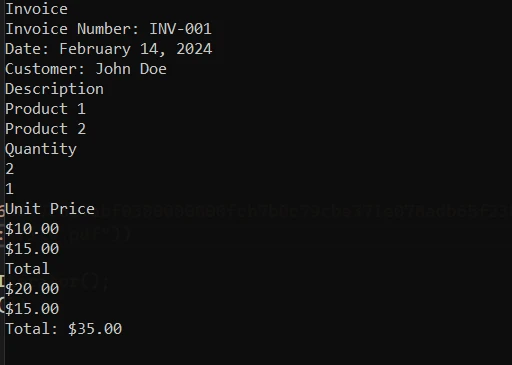
Apryse C# 擅長從PDF文件中[提取文字、圖片和其他內容](https://ironpdf.com/how-to/extract-text-and-images/)。 這一能力支持內容分析、資料提取和資訊檢索應用,實現高效的PDF內容處理。
```csharp
using pdftron;
using pdftron.PDF;
using pdftron.SDF;
class Program
{
static void Main()
{
// Initialize the PDFNet library
PDFNet.Initialize();
// Open an existing PDF document
using (PDFDoc doc = new PDFDoc("input.pdf"))
{
// Iterate through each page of the document
PageIterator itr = doc.GetPageIterator();
for (; itr.HasNext(); itr.Next())
{
Page page = itr.Current();
// Extract text from the page
TextExtractor txt = new TextExtractor();
txt.Begin(page);
// Print the extracted text to the console
Console.WriteLine(txt.GetAsText());
}
}
}
}
```
### 如何使用Apryse保護PDF文件?
Apryse C#提供完整的工具來[保護PDF文件](https://ironpdf.com/features/secure/)。 您可以應用密碼保護,對文件進行加密,並管理使用者權限以保護敏感資訊。
```csharp
using pdftron;
using pdftron.SDF;
using pdftron.PDF;
class Program
{
static void Main()
{
// Initialize the PDFNet library
PDFNet.Initialize();
// Open an existing PDF document
using (PDFDoc doc = new PDFDoc("input.pdf"))
{
// Initialize the security handler
doc.InitSecurityHandler();
// Create a new security handler
SecurityHandler newHandler = new SecurityHandler();
// Set the user password for the document
newHandler.ChangeUserPassword("new_password");
// Grant permission to print the document
newHandler.SetPermission(SecurityHandler.Permission.e_print, true);
// Apply the security handler to the document
doc.SetSecurityHandler(newHandler);
// Save the secured document
doc.Save("output.pdf", SDFDoc.SaveOptions.e_linearized);
}
}
}
```
### 如何刪減敏感資訊?
Apryse C#支持從PDF文件中[刪減敏感資訊](https://ironpdf.com/how-to/redact-text/) - 這對於合規性和隱私問題至關重要。 此功能允許永久刪除或遮擋PDF中的文字和圖片。
```csharp
using pdftron;
using pdftron.PDF;
using pdftron.SDF;
class Program
{
static void Main()
{
// Initialize the PDFNet library
PDFNet.Initialize();
// Open an existing PDF document
using (PDFDoc doc = new PDFDoc("input.pdf"))
{
// Define redaction areas on specific pages
Redactor.Redaction[] redactions = {
new Redactor.Redaction(1, new Rect(100, 100, 200, 200), false, "redacted"),
};
// Apply redactions to the document
Redactor.Redact(doc, redactions);
// Save the redacted document
doc.Save("output.pdf", SDFDoc.SaveOptions.e_linearized);
}
}
}
```
## 有哪些文件和支持可用?
### IronPDF提供了哪些支持?
**文件:** IronPDF提供[完整的文件](https://ironpdf.com/docs/),涵蓋從[入門指南](https://ironpdf.com/get-started/quickstart/)到高級功能,如[HTML到PDF轉換](https://ironpdf.com/tutorials/html-to-pdf/)、[PDF 編輯](https://ironpdf.com/tutorials/csharp-edit-pdf-complete-tutorial/)、[合併](https://ironpdf.com/how-to/merge-or-split-pdfs/)、[拆分](https://ironpdf.com/how-to/split-multipage-pdf/)和[安全](https://ironpdf.com/tutorials/csharp-pdf-security-complete-tutorial/)。 文件提供易於遵循的內容,具備廣泛的程式碼範例和說明,引導您實施各種PDF功能。
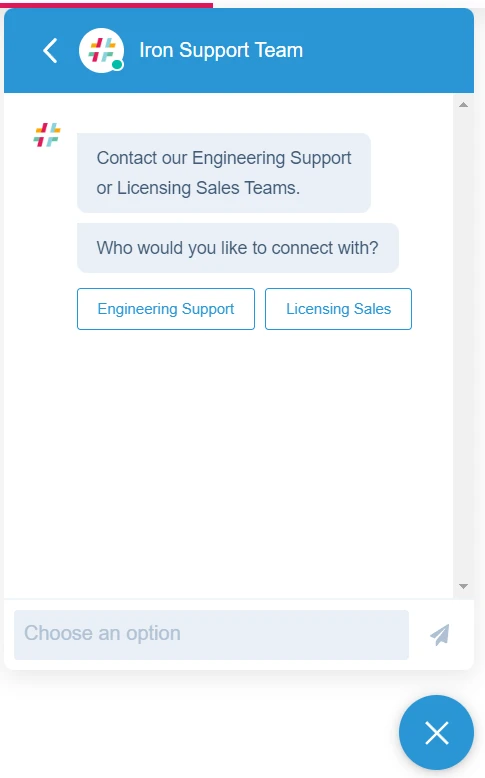
**支持:** IronPDF透過多個渠道提供支持,包括電子郵件支援、工單支持和即時[工程支持聊天](https://ironpdf.com/troubleshooting/engineering-support-for-ironpdf/),您可以就特定問題與其技術團隊聯繫。 您的應用程式可以立即從他們的反饋系統中受益。
### Apryse C# 提供了哪些支持?
**文件:** Apryse C# (前稱為PDFTron for .NET)提供詳細的文件,包括完整的API參考、開發者指南和多樣的PDF操作任務範例程式碼。
**支持:** Apryse提供開發者支持,透過與其技術團隊的直接電子郵件溝通以解決故障和實施問題。 您也可以在Stack Overflow問問題。
## 有哪些授權選項和定價?
### IronPDF 的授權選項有哪些?
IronPDF提供多種[授權選項](https://ironpdf.com/licensing/)以適應不同的專案需求。 定價從`$liteLicense` Lite授權開始。 這些授權基於開發者數量、地點和涵蓋的專案有所不同。 IronPDF還提供免版稅再分發選項,並提供特定定價的擴展支持選項。
IronPDF的永久授權選項包括:
- **Lite Edition:** 價格為`$liteLicense`,適合1名開發者、1個地點和1個專案,並包含電子郵件支持。
- **Plus Edition:** 價格為`$plusLicenseOriginal`,涵蓋最多3名開發者、3個地點和3個專案,提供24小時電子郵件和聊天支持,以及電話支持。
- **Professional Edition:** 價格為`$professionalLicenseOriginal`,此版本適合最多10位開發者、10個地點和10個專案,提供全面支持,包括電子郵件、聊天、電話和螢幕共享支持。
他們還提供每月500美元的訂閱,包括10,000次API呼叫,額外呼叫每次0.02美元。 為了無限使用,IronPDF提供以報價為基礎的企業解決方案。 此解決方案包括無限永久授權和API呼叫等功能。
### Apryse C# 的授權選項有哪些?
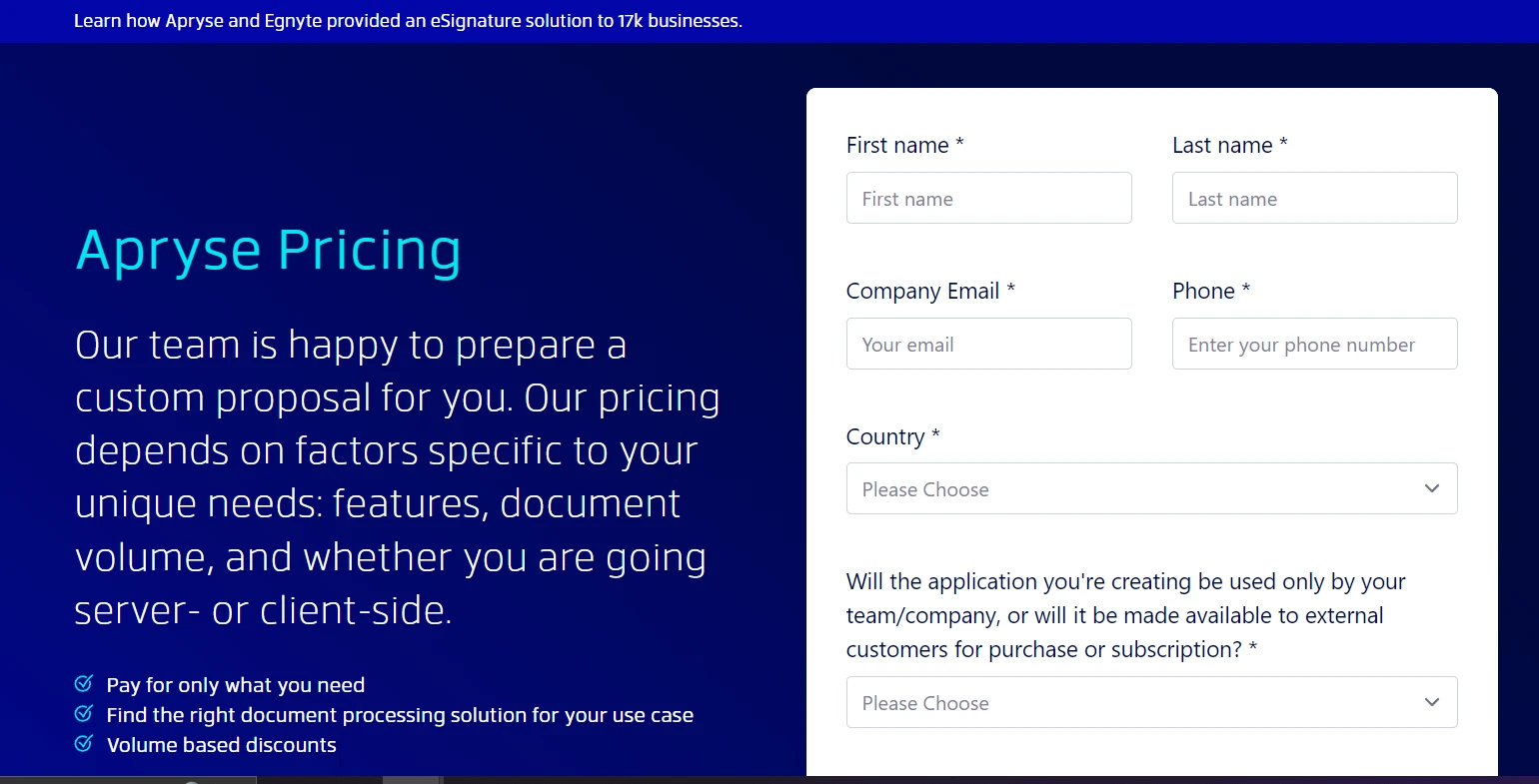
Apryse C# 提供基於特定專案要求的客製化定價,包括功能、文件數量和部署場景。 您必須與他們的銷售團隊聯繫以獲取[**Apryse定價資訊**](https://apryse.com/pricing)。
## 我應該選擇哪個PDF程式庫?
IronPDF和Apryse C#對於從事PDF工作的.NET開發者來說都具備有效的功能。 IronPDF在廣泛的PDF操作功能上有優勢。 它在[廣泛編輯](https://ironpdf.com/tutorials/csharp-edit-pdf-complete-tutorial/)和[**使用IronPDF合併PDF**](https://ironpdf.com/examples/merge-pdfs/)等方面表現出色。 [Iron Suite包](https://ironsoftware.com/enterprise/securedoc/)讓您以具有成本效益的價格獲得多個工具,為您的開發配備可靠的工具以滿足各種需求。
IronPDF以其在大多數PDF處理情境下的全面多功能性和價值建議而脫穎而出。 您的最終決定應符合您的專案需求和開發所需的特定功能。
[[i:(Apryse C#是其各自擁有者的註冊商標。 本網站與Apryse C#無隸屬關係、未經其認可或贊助。 所有產品名稱、徽標和品牌均為其各自所有者的財產。 比較僅供資訊參考,並反映了撰寫時的公開可用資訊。)]]
using IronPdf;// Secure the server environment to disable local disk access or cross-origin requestsInstallation.EnableWebSecurity = true;// Set your IronPDF license keyIronPdf.License.LicenseKey = "License-Key goes here";// Instantiate a PDF renderervar renderer = new ChromePdfRenderer();// Define a simple HTML string to convert to PDFstring htmlContent = @"<!DOCTYPE html><html lang='en'><head> <meta charset='UTF-8'> <meta name='viewport' content='width=device-width, initial-scale=1.0'> <title>My PDF</title> <style> body { font-family: Arial, sans-serif; } h1 { color: #333; text-align: center; } p { color: #666; text-align: justify; } </style></head><body> <h1>Welcome to My PDF</h1> <p>This is a sample paragraph demonstrating how to create a PDF from HTML using IronPdf in C#.</p> <p>You can add more content here as needed.</p></body></html>";// Render the HTML string as a PDFvar pdf = renderer.RenderHtmlAsPdf(htmlContent);// Save the resulting PDF to a filepdf.SaveAs("output.pdf");
using IronPdf;

// Secure the server environment to disable local disk access or cross-origin requests
Installation.EnableWebSecurity = true;

// Set your IronPDF license key
IronPdf.License.LicenseKey = "License-Key goes here";

// Instantiate a PDF renderer
var renderer = new ChromePdfRenderer();

// Define a simple HTML string to convert to PDF
string htmlContent = @"
<!DOCTYPE html>
<html lang='en'>
<head>
    <meta charset='UTF-8'>
    <meta name='viewport' content='width=device-width, initial-scale=1.0'>
    <title>My PDF</title>
    <style>
        body {
            font-family: Arial, sans-serif;
        }
        h1 {
            color: #333;
            text-align: center;
        }
        p {
            color: #666;
            text-align: justify;
        }
    </style>
</head>
<body>
    <h1>Welcome to My PDF</h1>
    <p>This is a sample paragraph demonstrating how to create a PDF from HTML using IronPdf in C#.</p>
    <p>You can add more content here as needed.</p>
</body>
</html>";

// Render the HTML string as a PDF
var pdf = renderer.RenderHtmlAsPdf(htmlContent);

// Save the resulting PDF to a file
pdf.SaveAs("output.pdf");
ImportsIronPdf' Secure the server environment to disable local disk access or cross-origin requestsInstallation.EnableWebSecurity = True' Set your IronPDF license keyIronPdf.License.LicenseKey = "License-Key goes here"' Instantiate a PDF rendererDim renderer = New ChromePdfRenderer()' Define a simple HTML string to convert to PDFDim htmlContent AsString = "<!DOCTYPE html><html lang='en'><head> <meta charset='UTF-8'> <meta name='viewport' content='width=device-width, initial-scale=1.0'> <title>My PDF</title> <style> body { font-family: Arial, sans-serif; } h1 { color: #333; text-align: center; } p { color: #666; text-align: justify; } </style></head><body> <h1>Welcome to My PDF</h1> <p>This is a sample paragraph demonstrating how to create a PDF from HTML using IronPdf in C#.</p> <p>You can add more content here as needed.</p></body></html>"' Render the HTML string as a PDFDim pdf = renderer.RenderHtmlAsPdf(htmlContent)' Save the resulting PDF to a filepdf.SaveAs("output.pdf")
Imports IronPdf

' Secure the server environment to disable local disk access or cross-origin requests
Installation.EnableWebSecurity = True

' Set your IronPDF license key
IronPdf.License.LicenseKey = "License-Key goes here"

' Instantiate a PDF renderer
Dim renderer = New ChromePdfRenderer()

' Define a simple HTML string to convert to PDF
Dim htmlContent As String = "
<!DOCTYPE html>
<html lang='en'>
<head>
    <meta charset='UTF-8'>
    <meta name='viewport' content='width=device-width, initial-scale=1.0'>
    <title>My PDF</title>
    <style>
        body {
            font-family: Arial, sans-serif;
        }
        h1 {
            color: #333;
            text-align: center;
        }
        p {
            color: #666;
            text-align: justify;
        }
    </style>
</head>
<body>
    <h1>Welcome to My PDF</h1>
    <p>This is a sample paragraph demonstrating how to create a PDF from HTML using IronPdf in C#.</p>
    <p>You can add more content here as needed.</p>
</body>
</html>"

' Render the HTML string as a PDF
Dim pdf = renderer.RenderHtmlAsPdf(htmlContent)

' Save the resulting PDF to a file
pdf.SaveAs("output.pdf")
using IronPdf;// Set your IronPDF license keyIronPdf.License.LicenseKey = "License-Key goes here";// Secure the server environment to disable local disk access or cross-origin requestsInstallation.EnableWebSecurity = true;// Instantiate a PDF renderervar renderer = new ChromePdfRenderer();// Render the HTML file as a PDFvar pdf = renderer.RenderHtmlFileAsPdf("invoice.html");// Save the resulting PDF to a filepdf.SaveAs("file.pdf");
using IronPdf;

// Set your IronPDF license key
IronPdf.License.LicenseKey = "License-Key goes here";

// Secure the server environment to disable local disk access or cross-origin requests
Installation.EnableWebSecurity = true;

// Instantiate a PDF renderer
var renderer = new ChromePdfRenderer();

// Render the HTML file as a PDF
var pdf = renderer.RenderHtmlFileAsPdf("invoice.html");

// Save the resulting PDF to a file
pdf.SaveAs("file.pdf");
ImportsIronPdf' Set your IronPDF license keyIronPdf.License.LicenseKey = "License-Key goes here"' Secure the server environment to disable local disk access or cross-origin requestsInstallation.EnableWebSecurity = True' Instantiate a PDF rendererDim renderer = New ChromePdfRenderer()' Render the HTML file as a PDFDim pdf = renderer.RenderHtmlFileAsPdf("invoice.html")' Save the resulting PDF to a filepdf.SaveAs("file.pdf")
Imports IronPdf

' Set your IronPDF license key
IronPdf.License.LicenseKey = "License-Key goes here"

' Secure the server environment to disable local disk access or cross-origin requests
Installation.EnableWebSecurity = True

' Instantiate a PDF renderer
Dim renderer = New ChromePdfRenderer()

' Render the HTML file as a PDF
Dim pdf = renderer.RenderHtmlFileAsPdf("invoice.html")

' Save the resulting PDF to a file
pdf.SaveAs("file.pdf")
using IronPdf;// Set your IronPDF license keyIronPdf.License.LicenseKey = "License-Key goes here";// Secure the server environment to disable local disk access or cross-origin requestsInstallation.EnableWebSecurity = true;// Instantiate a PDF renderervar renderer = new ChromePdfRenderer();// Render the URL as a PDFvar pdf = renderer.RenderUrlAsPdf("___PROTECTED_URL_100___");// Save the resulting PDF to a filepdf.SaveAs("url.pdf");
using IronPdf;

// Set your IronPDF license key
IronPdf.License.LicenseKey = "License-Key goes here";

// Secure the server environment to disable local disk access or cross-origin requests
Installation.EnableWebSecurity = true;

// Instantiate a PDF renderer
var renderer = new ChromePdfRenderer();

// Render the URL as a PDF
var pdf = renderer.RenderUrlAsPdf("___PROTECTED_URL_100___");

// Save the resulting PDF to a file
pdf.SaveAs("url.pdf");
ImportsIronPdf' Set your IronPDF license keyIronPdf.License.LicenseKey = "License-Key goes here"' Secure the server environment to disable local disk access or cross-origin requestsInstallation.EnableWebSecurity = True' Instantiate a PDF rendererDim renderer As New ChromePdfRenderer()' Render the URL as a PDFDim pdf = renderer.RenderUrlAsPdf("___PROTECTED_URL_100___")' Save the resulting PDF to a filepdf.SaveAs("url.pdf")
Imports IronPdf

' Set your IronPDF license key
IronPdf.License.LicenseKey = "License-Key goes here"

' Secure the server environment to disable local disk access or cross-origin requests
Installation.EnableWebSecurity = True

' Instantiate a PDF renderer
Dim renderer As New ChromePdfRenderer()

' Render the URL as a PDF
Dim pdf = renderer.RenderUrlAsPdf("___PROTECTED_URL_100___")

' Save the resulting PDF to a file
pdf.SaveAs("url.pdf")
using IronPdf;// Set your IronPDF license keyIronPdf.License.LicenseKey = "License-Key goes here";// Secure the server environment to disable local disk access or cross-origin requestsInstallation.EnableWebSecurity = true;// Define HTML content for two PDFs to mergevar htmlA = @" <h1>PDF A</h1> <p>This is the content of PDF A.</p> <p>This is the first page of PDF A.</p> <div style='page-break-after: always;'></div> <p>This is the second page of PDF A.</p>";var htmlB = @" <h1>PDF B</h1> <p>This is the content of PDF B.</p> <p>This is the first page of PDF B.</p> <div style='page-break-after: always;'></div> <p>This is the second page of PDF B.</p>";// Instantiate a PDF renderervar renderer = new ChromePdfRenderer();// Render the HTML content as separate PDF documentsvar pdfDocA = renderer.RenderHtmlAsPdf(htmlA);var pdfDocB = renderer.RenderHtmlAsPdf(htmlB);// Merge the two PDFs into onevar mergedPdf = PdfDocument.Merge(pdfDocA, pdfDocB);// Save the merged PDF to a filemergedPdf.SaveAs("Merged.pdf");
using IronPdf;

// Set your IronPDF license key
IronPdf.License.LicenseKey = "License-Key goes here";

// Secure the server environment to disable local disk access or cross-origin requests
Installation.EnableWebSecurity = true;

// Define HTML content for two PDFs to merge
var htmlA = @"
    <h1>PDF A</h1>
    <p>This is the content of PDF A.</p>
    <p>This is the first page of PDF A.</p>
    <div style='page-break-after: always;'></div>
    <p>This is the second page of PDF A.</p>";

var htmlB = @"
    <h1>PDF B</h1>
    <p>This is the content of PDF B.</p>
    <p>This is the first page of PDF B.</p>
    <div style='page-break-after: always;'></div>
    <p>This is the second page of PDF B.</p>";

// Instantiate a PDF renderer
var renderer = new ChromePdfRenderer();

// Render the HTML content as separate PDF documents
var pdfDocA = renderer.RenderHtmlAsPdf(htmlA);
var pdfDocB = renderer.RenderHtmlAsPdf(htmlB);

// Merge the two PDFs into one
var mergedPdf = PdfDocument.Merge(pdfDocA, pdfDocB);

// Save the merged PDF to a file
mergedPdf.SaveAs("Merged.pdf");
ImportsIronPdf' Set your IronPDF license keyIronPdf.License.LicenseKey = "License-Key goes here"' Secure the server environment to disable local disk access or cross-origin requestsInstallation.EnableWebSecurity = True' Define HTML content for two PDFs to mergeDim htmlA = " <h1>PDF A</h1> <p>This is the content of PDF A.</p> <p>This is the first page of PDF A.</p> <div style='page-break-after: always;'></div> <p>This is the second page of PDF A.</p>"Dim htmlB = " <h1>PDF B</h1> <p>This is the content of PDF B.</p> <p>This is the first page of PDF B.</p> <div style='page-break-after: always;'></div> <p>This is the second page of PDF B.</p>"' Instantiate a PDF rendererDim renderer = New ChromePdfRenderer()' Render the HTML content as separate PDF documentsDim pdfDocA = renderer.RenderHtmlAsPdf(htmlA)Dim pdfDocB = renderer.RenderHtmlAsPdf(htmlB)' Merge the two PDFs into oneDim mergedPdf = PdfDocument.Merge(pdfDocA, pdfDocB)' Save the merged PDF to a filemergedPdf.SaveAs("Merged.pdf")
Imports IronPdf

' Set your IronPDF license key
IronPdf.License.LicenseKey = "License-Key goes here"

' Secure the server environment to disable local disk access or cross-origin requests
Installation.EnableWebSecurity = True

' Define HTML content for two PDFs to merge
Dim htmlA = "
    <h1>PDF A</h1>
    <p>This is the content of PDF A.</p>
    <p>This is the first page of PDF A.</p>
    <div style='page-break-after: always;'></div>
    <p>This is the second page of PDF A.</p>"

Dim htmlB = "
    <h1>PDF B</h1>
    <p>This is the content of PDF B.</p>
    <p>This is the first page of PDF B.</p>
    <div style='page-break-after: always;'></div>
    <p>This is the second page of PDF B.</p>"

' Instantiate a PDF renderer
Dim renderer = New ChromePdfRenderer()

' Render the HTML content as separate PDF documents
Dim pdfDocA = renderer.RenderHtmlAsPdf(htmlA)
Dim pdfDocB = renderer.RenderHtmlAsPdf(htmlB)

' Merge the two PDFs into one
Dim mergedPdf = PdfDocument.Merge(pdfDocA, pdfDocB)

' Save the merged PDF to a file
mergedPdf.SaveAs("Merged.pdf")
using IronPdf;// Set your IronPDF license keyIronPdf.License.LicenseKey = "License-Key goes here";// Secure the server environment to disable local disk access or cross-origin requestsInstallation.EnableWebSecurity = true;// Instantiate a PDF renderervar renderer = new ChromePdfRenderer();// Render a URL as a PDFvar pdf = renderer.RenderUrlAsPdf("___PROTECTED_URL_102___");// Apply a watermark to the PDFpdf.ApplyWatermark("<h2 style='color:red'>SAMPLE</h2>", 30, IronPdf.Editing.VerticalAlignment.Middle, IronPdf.Editing.HorizontalAlignment.Center);// Save the watermarked PDF to a filepdf.SaveAs("Watermarked.pdf");```### HowDoIWork with PDFForms?IronPDF supports complete [interactive PDF form handling](https://ironpdf.com/how-to/create-forms/). You can create, fill, and submit PDF forms programmatically, which is particularly useful for automating form processing or integrating form data collection into your workflows.```csharpusing IronPdf;// Set your IronPDF license keyIronPdf.License.LicenseKey = "License-Key goes here";// Secure the server environment to disable local disk access or cross-origin requestsInstallation.EnableWebSecurity = true;// Define HTML content with form elementsconst string formHtml = @" <html> <body> <h2>Employee Information Form</h2> <form> First name: <br> Last name: <br> <br> <p>Please select your department:</p> <select name='department'> <option value='HR'>HR</option> <option value='Finance'>Finance</option> <option value='IT'>IT</option> <option value='Marketing'>Marketing</option> </select> <br> <br> <p>Please select your employment status:</p> <label for='fulltime'>Full-time</label> <br> <label for='parttime'>Part-time</label> <br> <br> <p>Please select your skills:</p> <label for='skill1'> Programming</label><br> <label for='skill2'> Design</label><br> <label for='skill3'> Marketing</label><br> </form> </body> </html>";// Instantiate a PDF renderervar renderer = new ChromePdfRenderer();renderer.RenderingOptions.CreatePdfFormsFromHtml = true;// Render the HTML form content as a PDFrenderer.RenderHtmlAsPdf(formHtml).SaveAs("EmployeeInfoForm.pdf");
using IronPdf;

// Set your IronPDF license key
IronPdf.License.LicenseKey = "License-Key goes here";

// Secure the server environment to disable local disk access or cross-origin requests
Installation.EnableWebSecurity = true;

// Instantiate a PDF renderer
var renderer = new ChromePdfRenderer();

// Render a URL as a PDF
var pdf = renderer.RenderUrlAsPdf("___PROTECTED_URL_102___");

// Apply a watermark to the PDF
pdf.ApplyWatermark("<h2 style='color:red'>SAMPLE</h2>", 30, IronPdf.Editing.VerticalAlignment.Middle, IronPdf.Editing.HorizontalAlignment.Center);

// Save the watermarked PDF to a file
pdf.SaveAs("Watermarked.pdf");
```### How Do I Work with PDF Forms?

IronPDF supports complete [interactive PDF form handling](https://ironpdf.com/how-to/create-forms/). You can create, fill, and submit PDF forms programmatically, which is particularly useful for automating form processing or integrating form data collection into your workflows.

```csharp
using IronPdf;

// Set your IronPDF license key
IronPdf.License.LicenseKey = "License-Key goes here";

// Secure the server environment to disable local disk access or cross-origin requests
Installation.EnableWebSecurity = true;

// Define HTML content with form elements
const string formHtml = @"
    <html>
        <body>
            <h2>Employee Information Form</h2>
            <form>
                First name: <br>
                Last name: <br>
                <br>
                <p>Please select your department:</p>
                <select name='department'>
                    <option value='HR'>HR</option>
                    <option value='Finance'>Finance</option>
                    <option value='IT'>IT</option>
                    <option value='Marketing'>Marketing</option>
                </select>
                <br>
                <br>
                <p>Please select your employment status:</p>
                <label for='fulltime'>Full-time</label> <br>
                <label for='parttime'>Part-time</label> <br>
                <br>
                <p>Please select your skills:</p>
                <label for='skill1'> Programming</label><br>
                <label for='skill2'> Design</label><br>
                <label for='skill3'> Marketing</label><br>
            </form>
        </body>
    </html>";

// Instantiate a PDF renderer
var renderer = new ChromePdfRenderer();
renderer.RenderingOptions.CreatePdfFormsFromHtml = true;

// Render the HTML form content as a PDF
renderer.RenderHtmlAsPdf(formHtml).SaveAs("EmployeeInfoForm.pdf");
ImportsIronPdf' Set your IronPDF license keyIronPdf.License.LicenseKey = "License-Key goes here"' Secure the server environment to disable local disk access or cross-origin requestsInstallation.EnableWebSecurity = True' Instantiate a PDF rendererDim renderer As New ChromePdfRenderer()' Render a URL as a PDFDim pdf = renderer.RenderUrlAsPdf("___PROTECTED_URL_102___")' Apply a watermark to the PDFpdf.ApplyWatermark("<h2 style='color:red'>SAMPLE</h2>", 30, IronPdf.Editing.VerticalAlignment.Middle, IronPdf.Editing.HorizontalAlignment.Center)' Save the watermarked PDF to a filepdf.SaveAs("Watermarked.pdf")ImportsIronPdf' Set your IronPDF license keyIronPdf.License.LicenseKey = "License-Key goes here"' Secure the server environment to disable local disk access or cross-origin requestsInstallation.EnableWebSecurity = True' Define HTML content with form elementsConst formHtml AsString = " <html> <body> <h2>Employee Information Form</h2> <form> First name: <br> Last name: <br> <br> <p>Please select your department:</p> <select name='department'> <option value='HR'>HR</option> <option value='Finance'>Finance</option> <option value='IT'>IT</option> <option value='Marketing'>Marketing</option> </select> <br> <br> <p>Please select your employment status:</p> <label for='fulltime'>Full-time</label> <br> <label for='parttime'>Part-time</label> <br> <br> <p>Please select your skills:</p> <label for='skill1'> Programming</label><br> <label for='skill2'> Design</label><br> <label for='skill3'> Marketing</label><br> </form> </body> </html>"' Instantiate a PDF rendererDim renderer As New ChromePdfRenderer()renderer.RenderingOptions.CreatePdfFormsFromHtml = True' Render the HTML form content as a PDFrenderer.RenderHtmlAsPdf(formHtml).SaveAs("EmployeeInfoForm.pdf")
Imports IronPdf

' Set your IronPDF license key
IronPdf.License.LicenseKey = "License-Key goes here"

' Secure the server environment to disable local disk access or cross-origin requests
Installation.EnableWebSecurity = True

' Instantiate a PDF renderer
Dim renderer As New ChromePdfRenderer()

' Render a URL as a PDF
Dim pdf = renderer.RenderUrlAsPdf("___PROTECTED_URL_102___")

' Apply a watermark to the PDF
pdf.ApplyWatermark("<h2 style='color:red'>SAMPLE</h2>", 30, IronPdf.Editing.VerticalAlignment.Middle, IronPdf.Editing.HorizontalAlignment.Center)

' Save the watermarked PDF to a file
pdf.SaveAs("Watermarked.pdf")

Imports IronPdf

' Set your IronPDF license key
IronPdf.License.LicenseKey = "License-Key goes here"

' Secure the server environment to disable local disk access or cross-origin requests
Installation.EnableWebSecurity = True

' Define HTML content with form elements
Const formHtml As String = "
    <html>
        <body>
            <h2>Employee Information Form</h2>
            <form>
                First name: <br>
                Last name: <br>
                <br>
                <p>Please select your department:</p>
                <select name='department'>
                    <option value='HR'>HR</option>
                    <option value='Finance'>Finance</option>
                    <option value='IT'>IT</option>
                    <option value='Marketing'>Marketing</option>
                </select>
                <br>
                <br>
                <p>Please select your employment status:</p>
                <label for='fulltime'>Full-time</label> <br>
                <label for='parttime'>Part-time</label> <br>
                <br>
                <p>Please select your skills:</p>
                <label for='skill1'> Programming</label><br>
                <label for='skill2'> Design</label><br>
                <label for='skill3'> Marketing</label><br>
            </form>
        </body>
    </html>"

' Instantiate a PDF renderer
Dim renderer As New ChromePdfRenderer()
renderer.RenderingOptions.CreatePdfFormsFromHtml = True

' Render the HTML form content as a PDF
renderer.RenderHtmlAsPdf(formHtml).SaveAs("EmployeeInfoForm.pdf")
using IronPdf;// Set your IronPDF license keyIronPdf.License.LicenseKey = "License-Key goes here";// Secure the server environment to disable local disk access or cross-origin requestsInstallation.EnableWebSecurity = true;// Load an existing PDF filevar pdf = PdfDocument.FromFile("invoice.pdf");// Set document security settingspdf.SecuritySettings.OwnerPassword = "top-secret"; // Password to edit the PDFpdf.SecuritySettings.UserPassword = "sharable"; // Password to open the PDF// Save the secured PDF to a filepdf.SaveAs("secured.pdf");
using IronPdf;

// Set your IronPDF license key
IronPdf.License.LicenseKey = "License-Key goes here";

// Secure the server environment to disable local disk access or cross-origin requests
Installation.EnableWebSecurity = true;

// Load an existing PDF file
var pdf = PdfDocument.FromFile("invoice.pdf");

// Set document security settings
pdf.SecuritySettings.OwnerPassword = "top-secret"; // Password to edit the PDF
pdf.SecuritySettings.UserPassword = "sharable";   // Password to open the PDF

// Save the secured PDF to a file
pdf.SaveAs("secured.pdf");
ImportsIronPdf' Set your IronPDF license keyIronPdf.License.LicenseKey = "License-Key goes here"' Secure the server environment to disable local disk access or cross-origin requestsInstallation.EnableWebSecurity = True' Load an existing PDF fileDim pdf = PdfDocument.FromFile("invoice.pdf")' Set document security settingspdf.SecuritySettings.OwnerPassword = "top-secret" ' Password to edit the PDFpdf.SecuritySettings.UserPassword = "sharable" ' Password to open the PDF' Save the secured PDF to a filepdf.SaveAs("secured.pdf")
Imports IronPdf

' Set your IronPDF license key
IronPdf.License.LicenseKey = "License-Key goes here"

' Secure the server environment to disable local disk access or cross-origin requests
Installation.EnableWebSecurity = True

' Load an existing PDF file
Dim pdf = PdfDocument.FromFile("invoice.pdf")

' Set document security settings
pdf.SecuritySettings.OwnerPassword = "top-secret" ' Password to edit the PDF
pdf.SecuritySettings.UserPassword = "sharable" ' Password to open the PDF

' Save the secured PDF to a file
pdf.SaveAs("secured.pdf")
using IronPdf;// Set your IronPDF license keyIronPdf.License.LicenseKey = "License-Key goes here";// Secure the server environment to disable local disk access or cross-origin requestsInstallation.EnableWebSecurity = true;// Instantiate a PDF renderervar renderer = new IronPdf.ChromePdfRenderer();// Define multi-page HTML content with page breaksvar multiPageHtml = @" <p> This is 1st Page</p> <div style = 'page-break-after: always;' ></div> <p> This is 2nd Page</p> <div style = 'page-break-after: always;' ></div> <p> This is 3rd Page</p> <div style = 'page-break-after: always;' ></div> <p> This is 4th Page</p> <div style = 'page-break-after: always;' ></div> <p> This is 5th Page</p> <div style = 'page-break-after: always;' ></div> <p> This is 6th Page</p> <div style = 'page-break-after: always;' ></div> <p> This is 7th Page</p>";// Render the HTML content as a PDFvar pdfDoc = renderer.RenderHtmlAsPdf(multiPageHtml);// Create a header for the first page onlyvar firstPageHeader = new HtmlHeaderFooter();firstPageHeader.HtmlFragment = "This is the First Page Header";pdfDoc.AddHtmlHeaders(firstPageHeader, 1);// Save the resulting PDF with headers to a filepdfDoc.SaveAs("PagesWithHeaders.pdf");
using IronPdf;

// Set your IronPDF license key
IronPdf.License.LicenseKey = "License-Key goes here";

// Secure the server environment to disable local disk access or cross-origin requests
Installation.EnableWebSecurity = true;

// Instantiate a PDF renderer
var renderer = new IronPdf.ChromePdfRenderer();

// Define multi-page HTML content with page breaks
var multiPageHtml = @"
    <p> This is 1st Page</p>
    <div style = 'page-break-after: always;' ></div>
    <p> This is 2nd Page</p>
    <div style = 'page-break-after: always;' ></div>
    <p> This is 3rd Page</p>
    <div style = 'page-break-after: always;' ></div>
    <p> This is 4th Page</p>
    <div style = 'page-break-after: always;' ></div>
    <p> This is 5th Page</p>
    <div style = 'page-break-after: always;' ></div>
    <p> This is 6th Page</p>
    <div style = 'page-break-after: always;' ></div>
    <p> This is 7th Page</p>";

// Render the HTML content as a PDF
var pdfDoc = renderer.RenderHtmlAsPdf(multiPageHtml);

// Create a header for the first page only
var firstPageHeader = new HtmlHeaderFooter();
firstPageHeader.HtmlFragment = "This is the First Page Header";
pdfDoc.AddHtmlHeaders(firstPageHeader, 1);

// Save the resulting PDF with headers to a file
pdfDoc.SaveAs("PagesWithHeaders.pdf");
ImportsIronPdf' Set your IronPDF license keyIronPdf.License.LicenseKey = "License-Key goes here"' Secure the server environment to disable local disk access or cross-origin requestsInstallation.EnableWebSecurity = True' Instantiate a PDF rendererDim renderer = New IronPdf.ChromePdfRenderer()' Define multi-page HTML content with page breaksDim multiPageHtml = " <p> This is 1st Page</p> <div style = 'page-break-after: always;' ></div> <p> This is 2nd Page</p> <div style = 'page-break-after: always;' ></div> <p> This is 3rd Page</p> <div style = 'page-break-after: always;' ></div> <p> This is 4th Page</p> <div style = 'page-break-after: always;' ></div> <p> This is 5th Page</p> <div style = 'page-break-after: always;' ></div> <p> This is 6th Page</p> <div style = 'page-break-after: always;' ></div> <p> This is 7th Page</p>"' Render the HTML content as a PDFDim pdfDoc = renderer.RenderHtmlAsPdf(multiPageHtml)' Create a header for the first page onlyDim firstPageHeader = New HtmlHeaderFooter()firstPageHeader.HtmlFragment = "This is the First Page Header"pdfDoc.AddHtmlHeaders(firstPageHeader, 1)' Save the resulting PDF with headers to a filepdfDoc.SaveAs("PagesWithHeaders.pdf")
Imports IronPdf

' Set your IronPDF license key
IronPdf.License.LicenseKey = "License-Key goes here"

' Secure the server environment to disable local disk access or cross-origin requests
Installation.EnableWebSecurity = True

' Instantiate a PDF renderer
Dim renderer = New IronPdf.ChromePdfRenderer()

' Define multi-page HTML content with page breaks
Dim multiPageHtml = "
    <p> This is 1st Page</p>
    <div style = 'page-break-after: always;' ></div>
    <p> This is 2nd Page</p>
    <div style = 'page-break-after: always;' ></div>
    <p> This is 3rd Page</p>
    <div style = 'page-break-after: always;' ></div>
    <p> This is 4th Page</p>
    <div style = 'page-break-after: always;' ></div>
    <p> This is 5th Page</p>
    <div style = 'page-break-after: always;' ></div>
    <p> This is 6th Page</p>
    <div style = 'page-break-after: always;' ></div>
    <p> This is 7th Page</p>"

' Render the HTML content as a PDF
Dim pdfDoc = renderer.RenderHtmlAsPdf(multiPageHtml)

' Create a header for the first page only
Dim firstPageHeader = New HtmlHeaderFooter()
firstPageHeader.HtmlFragment = "This is the First Page Header"
pdfDoc.AddHtmlHeaders(firstPageHeader, 1)

' Save the resulting PDF with headers to a file
pdfDoc.SaveAs("PagesWithHeaders.pdf")
using pdftron;using pdftron.PDF;using pdftron.SDF;class Program{ static voidMain() { // Initialize the PDFNet library with your license keyPDFNet.Initialize("License"); // Open an existing PDF document using (PDFDoc doc = new PDFDoc("input.pdf")) { // Access the first page of the document Page page = doc.GetPage(1); // Create a text annotation on the document Text txt = Text.Create(doc, new Rect(10, 20, 30, 40)); txt.SetIcon("UserIcon"); txt.SetContents("It's an annotation!"); page.AnnotPushBack(txt); // Save the modified document doc.Save("output.pdf", SDFDoc.SaveOptions.e_linearized); } }}
using pdftron;
using pdftron.PDF;
using pdftron.SDF;

class Program
{
    static void Main()
    {
        // Initialize the PDFNet library with your license key
        PDFNet.Initialize("License");

        // Open an existing PDF document
        using (PDFDoc doc = new PDFDoc("input.pdf"))
        {
            // Access the first page of the document
            Page page = doc.GetPage(1);

            // Create a text annotation on the document
            Text txt = Text.Create(doc, new Rect(10, 20, 30, 40));
            txt.SetIcon("UserIcon");
            txt.SetContents("It's an annotation!");
            page.AnnotPushBack(txt);

            // Save the modified document
            doc.Save("output.pdf", SDFDoc.SaveOptions.e_linearized);
        }
    }
}
Imports pdftronImports pdftron.PDFImports pdftron.SDFFriend Class ProgramShared Sub Main() ' Initialize the PDFNet library with your license keyPDFNet.Initialize("License") ' Open an existing PDF documentUsing doc As New PDFDoc("input.pdf") ' Access the first page of the document Dim page AsPage = doc.GetPage(1) ' Create a text annotation on the document Dim txt AsText = Text.Create(doc, New Rect(10, 20, 30, 40)) txt.SetIcon("UserIcon") txt.SetContents("It's an annotation!") page.AnnotPushBack(txt) ' Save the modified document doc.Save("output.pdf", SDFDoc.SaveOptions.e_linearized)EndUsing End SubEnd Class
Imports pdftron
Imports pdftron.PDF
Imports pdftron.SDF

Friend Class Program
	Shared Sub Main()
		' Initialize the PDFNet library with your license key
		PDFNet.Initialize("License")

		' Open an existing PDF document
		Using doc As New PDFDoc("input.pdf")
			' Access the first page of the document
			Dim page As Page = doc.GetPage(1)

			' Create a text annotation on the document
			Dim txt As Text = Text.Create(doc, New Rect(10, 20, 30, 40))
			txt.SetIcon("UserIcon")
			txt.SetContents("It's an annotation!")
			page.AnnotPushBack(txt)

			' Save the modified document
			doc.Save("output.pdf", SDFDoc.SaveOptions.e_linearized)
		End Using
	End Sub
End Class
using pdftron;using pdftron.PDF;class Program{ static voidMain() { // Initialize the PDFNet libraryPDFNet.Initialize(); // Create a new PDF document PDFDoc pdfdoc = new PDFDoc(); // Convert a Word document to PDF and add it to the PDF documentConvert.ToPdf(pdfdoc, "input.docx"); // Save the newly created PDF document pdfdoc.Save("output.pdf", SDFDoc.SaveOptions.e_linearized); }}
using pdftron;
using pdftron.PDF;

class Program
{
    static void Main()
    {
        // Initialize the PDFNet library
        PDFNet.Initialize();

        // Create a new PDF document
        PDFDoc pdfdoc = new PDFDoc();

        // Convert a Word document to PDF and add it to the PDF document
        Convert.ToPdf(pdfdoc, "input.docx");

        // Save the newly created PDF document
        pdfdoc.Save("output.pdf", SDFDoc.SaveOptions.e_linearized);
    }
}
Imports pdftronImports pdftron.PDFFriend Class ProgramShared Sub Main() ' Initialize the PDFNet libraryPDFNet.Initialize() ' Create a new PDF document Dim pdfdoc As New PDFDoc() ' Convert a Word document to PDF and add it to the PDF documentConvert.ToPdf(pdfdoc, "input.docx") ' Save the newly created PDF document pdfdoc.Save("output.pdf", SDFDoc.SaveOptions.e_linearized) End SubEnd Class
Imports pdftron
Imports pdftron.PDF

Friend Class Program
	Shared Sub Main()
		' Initialize the PDFNet library
		PDFNet.Initialize()

		' Create a new PDF document
		Dim pdfdoc As New PDFDoc()

		' Convert a Word document to PDF and add it to the PDF document
		Convert.ToPdf(pdfdoc, "input.docx")

		' Save the newly created PDF document
		pdfdoc.Save("output.pdf", SDFDoc.SaveOptions.e_linearized)
	End Sub
End Class
using pdftron;using pdftron.PDF;using pdftron.SDF;class Program{ static voidMain() { // Initialize the PDFNet libraryPDFNet.Initialize(); // Open an existing PDF document using (PDFDoc doc = new PDFDoc("input.pdf")) { // Iterate through each page of the document PageIterator itr = doc.GetPageIterator(); for (; itr.HasNext(); itr.Next()) { Page page = itr.Current(); // Extract text from the page TextExtractor txt = new TextExtractor(); txt.Begin(page); // Print the extracted text to the consoleConsole.WriteLine(txt.GetAsText()); } } }}
using pdftron;
using pdftron.PDF;
using pdftron.SDF;

class Program
{
    static void Main()
    {
        // Initialize the PDFNet library
        PDFNet.Initialize();

        // Open an existing PDF document
        using (PDFDoc doc = new PDFDoc("input.pdf"))
        {
            // Iterate through each page of the document
            PageIterator itr = doc.GetPageIterator();
            for (; itr.HasNext(); itr.Next())
            {
                Page page = itr.Current();

                // Extract text from the page
                TextExtractor txt = new TextExtractor();
                txt.Begin(page);

                // Print the extracted text to the console
                Console.WriteLine(txt.GetAsText());
            }
        }
    }
}
Imports pdftronImports pdftron.PDFImports pdftron.SDFFriend Class ProgramShared Sub Main() ' Initialize the PDFNet libraryPDFNet.Initialize() ' Open an existing PDF documentUsing doc As New PDFDoc("input.pdf") ' Iterate through each page of the document Dim itr AsPageIterator = doc.GetPageIterator() Do While itr.HasNext() Dim page AsPage = itr.Current() ' Extract text from the page Dim txt As New TextExtractor() txt.Begin(page) ' Print the extracted text to the consoleConsole.WriteLine(txt.GetAsText()) itr.Next() LoopEndUsing End SubEnd Class
Imports pdftron
Imports pdftron.PDF
Imports pdftron.SDF

Friend Class Program
	Shared Sub Main()
		' Initialize the PDFNet library
		PDFNet.Initialize()

		' Open an existing PDF document
		Using doc As New PDFDoc("input.pdf")
			' Iterate through each page of the document
			Dim itr As PageIterator = doc.GetPageIterator()
			Do While itr.HasNext()
				Dim page As Page = itr.Current()

				' Extract text from the page
				Dim txt As New TextExtractor()
				txt.Begin(page)

				' Print the extracted text to the console
				Console.WriteLine(txt.GetAsText())
				itr.Next()
			Loop
		End Using
	End Sub
End Class
using pdftron;using pdftron.SDF;using pdftron.PDF;class Program{ static voidMain() { // Initialize the PDFNet libraryPDFNet.Initialize(); // Open an existing PDF document using (PDFDoc doc = new PDFDoc("input.pdf")) { // Initialize the security handler doc.InitSecurityHandler(); // Create a new security handler SecurityHandler newHandler = new SecurityHandler(); // Set the user password for the document newHandler.ChangeUserPassword("new_password"); // Grant permission to print the document newHandler.SetPermission(SecurityHandler.Permission.e_print, true); // Apply the security handler to the document doc.SetSecurityHandler(newHandler); // Save the secured document doc.Save("output.pdf", SDFDoc.SaveOptions.e_linearized); } }}
using pdftron;
using pdftron.SDF;
using pdftron.PDF;

class Program
{
    static void Main()
    {
        // Initialize the PDFNet library
        PDFNet.Initialize();

        // Open an existing PDF document
        using (PDFDoc doc = new PDFDoc("input.pdf"))
        {
            // Initialize the security handler
            doc.InitSecurityHandler();

            // Create a new security handler
            SecurityHandler newHandler = new SecurityHandler();

            // Set the user password for the document
            newHandler.ChangeUserPassword("new_password");

            // Grant permission to print the document
            newHandler.SetPermission(SecurityHandler.Permission.e_print, true);

            // Apply the security handler to the document
            doc.SetSecurityHandler(newHandler);

            // Save the secured document
            doc.Save("output.pdf", SDFDoc.SaveOptions.e_linearized);
        }
    }
}
Imports pdftronImports pdftron.SDFImports pdftron.PDFFriend Class ProgramShared Sub Main() ' Initialize the PDFNet libraryPDFNet.Initialize() ' Open an existing PDF documentUsing doc As New PDFDoc("input.pdf") ' Initialize the security handler doc.InitSecurityHandler() ' Create a new security handler Dim newHandler As New SecurityHandler() ' Set the user password for the document newHandler.ChangeUserPassword("new_password") ' Grant permission to print the document newHandler.SetPermission(SecurityHandler.Permission.e_print, True) ' Apply the security handler to the document doc.SetSecurityHandler(newHandler) ' Save the secured document doc.Save("output.pdf", SDFDoc.SaveOptions.e_linearized)EndUsing End SubEnd Class
Imports pdftron
Imports pdftron.SDF
Imports pdftron.PDF

Friend Class Program
	Shared Sub Main()
		' Initialize the PDFNet library
		PDFNet.Initialize()

		' Open an existing PDF document
		Using doc As New PDFDoc("input.pdf")
			' Initialize the security handler
			doc.InitSecurityHandler()

			' Create a new security handler
			Dim newHandler As New SecurityHandler()

			' Set the user password for the document
			newHandler.ChangeUserPassword("new_password")

			' Grant permission to print the document
			newHandler.SetPermission(SecurityHandler.Permission.e_print, True)

			' Apply the security handler to the document
			doc.SetSecurityHandler(newHandler)

			' Save the secured document
			doc.Save("output.pdf", SDFDoc.SaveOptions.e_linearized)
		End Using
	End Sub
End Class
using pdftron;using pdftron.PDF;using pdftron.SDF;class Program{ static voidMain() { // Initialize the PDFNet libraryPDFNet.Initialize(); // Open an existing PDF document using (PDFDoc doc = new PDFDoc("input.pdf")) { // Define redaction areas on specific pages Redactor.Redaction[] redactions = { new Redactor.Redaction(1, new Rect(100, 100, 200, 200), false, "redacted"), }; // Apply redactions to the documentRedactor.Redact(doc, redactions); // Save the redacted document doc.Save("output.pdf", SDFDoc.SaveOptions.e_linearized); } }}
using pdftron;
using pdftron.PDF;
using pdftron.SDF;

class Program
{
    static void Main()
    {
        // Initialize the PDFNet library
        PDFNet.Initialize();

        // Open an existing PDF document
        using (PDFDoc doc = new PDFDoc("input.pdf"))
        {
            // Define redaction areas on specific pages
            Redactor.Redaction[] redactions = {
                new Redactor.Redaction(1, new Rect(100, 100, 200, 200), false, "redacted"),
            };

            // Apply redactions to the document
            Redactor.Redact(doc, redactions);

            // Save the redacted document
            doc.Save("output.pdf", SDFDoc.SaveOptions.e_linearized);
        }
    }
}
Imports pdftronImports pdftron.PDFImports pdftron.SDFFriend Class ProgramShared Sub Main() ' Initialize the PDFNet libraryPDFNet.Initialize() ' Open an existing PDF documentUsing doc As New PDFDoc("input.pdf") ' Define redaction areas on specific pages Dim redactions() AsRedactor.Redaction = { New Redactor.Redaction(1, New Rect(100, 100, 200, 200), False, "redacted")} ' Apply redactions to the documentRedactor.Redact(doc, redactions) ' Save the redacted document doc.Save("output.pdf", SDFDoc.SaveOptions.e_linearized)EndUsing End SubEnd Class
Imports pdftron
Imports pdftron.PDF
Imports pdftron.SDF

Friend Class Program
	Shared Sub Main()
		' Initialize the PDFNet library
		PDFNet.Initialize()

		' Open an existing PDF document
		Using doc As New PDFDoc("input.pdf")
			' Define redaction areas on specific pages
			Dim redactions() As Redactor.Redaction = { New Redactor.Redaction(1, New Rect(100, 100, 200, 200), False, "redacted")}

			' Apply redactions to the document
			Redactor.Redact(doc, redactions)

			' Save the redacted document
			doc.Save("output.pdf", SDFDoc.SaveOptions.e_linearized)
		End Using
	End Sub
End Class







































