


C# For Each (개발자를 위한 작동 방식)

이 튜토리얼에서는 개발자에게 필수적인 도구인 "C# foreach" 루프에 대해 다룹니다. foreach 루프는 컬렉션을 반복 처리하는 과정을 단순화하여 각 항목에 대한 작업을 수행할 때 기저의 세부 사항에 대해 걱정할 필요가 없도록 해줍니다. 우리는 foreach의 중요성, 사용 사례, 그리고 이를 C# 코드에 구현하는 방법에 대해 논의할 것입니다.
foreach 루프 소개
foreach 루프는 개발자가 컬렉션을 간결하고 가독성 있게 반복 처리할 수 있는 강력한 도구입니다. 코드를 단순화하고, 컬렉션 항목의 인덱스나 개수를 수동으로 관리할 필요가 없으므로 오류 발생 가능성을 줄입니다. 가독성과 단순성 측면에서, foreach 루프는 종종 전통적인 for 루프보다 선호됩니다.
foreach 사용 사례는 다음과 같습니다:
- 컬렉션의 값 합산하기
- 컬렉션에서 항목 검색하기
- 컬렉션의 요소 수정하기
- 컬렉션의 각 요소에 대해 작업 수행하기
컬렉션 이해하기
C#에는 한 개체에 항목 그룹을 저장하는 데 사용되는 여러 유형의 컬렉션이 있습니다. 여기에는 배열, 리스트, 사전 등이 포함됩니다. foreach 루프는 IEnumerable 또는 IEnumerable<t> 인터페이스를 구현한 모든 컬렉션과 함께 사용할 수 있는 유용한 도구입니다.
일반적인 컬렉션 유형은 다음과 같습니다:
- 배열: 동일한 데이터 타입의 요소로 고정된 크기의 컬렉션입니다.
- 리스트: 동일한 데이터 타입의 요소로 동적인 컬렉션입니다.
- 사전: 각 키가 고유한 키-값 쌍의 컬렉션입니다.
System.Collections.Generic 네임스페이스에는 컬렉션 작업을 위한 다양한 타입이 포함되어 있습니다.
Implementing the foreach statement in C
이제 컬렉션과 foreach 루프에 대한 기본적인 이해가 생겼으니, 구문을 자세히 살펴보고 C#에서 어떻게 작동하는지 살펴보겠습니다.
foreach 루프의 구문
foreach (variableType variableName in collection)
{
    // Code to execute for each item
}
foreach (variableType variableName in collection)
{
// Code to execute for each item
}For Each variableName As variableType In collection
' Code to execute for each item
Next variableName여기서 variableType은(는) 컬렉션 항목의 데이터 타입을 나타내고, variableName은(는) 루프 내 현재 항목의 이름(루프 변수)이며, collection은(는) 반복 처리하고자 하는 컬렉션을 가리킵니다.
예
정수 리스트를 가지고 있으며, 리스트의 모든 요소의 합계를 찾고자 하는 예제를 고려해 봅시다.
using System;
using System.Collections.Generic;

class Program
{
    static void Main()
    {
        // Create a list of integers
        List<int> numbers = new List<int> { 1, 2, 3, 4, 5 };

        // Initialize a variable to store the sum
        int sum = 0;

        // Iterate through the list using foreach loop
        foreach (int number in numbers)
        {
            sum += number;
        }

        // Print the sum
        Console.WriteLine("The sum of the elements is: " + sum);
    }
}
using System;
using System.Collections.Generic;
class Program
{
static void Main()
{
// Create a list of integers
List<int> numbers = new List<int> { 1, 2, 3, 4, 5 };
// Initialize a variable to store the sum
int sum = 0;
// Iterate through the list using foreach loop
foreach (int number in numbers)
{
sum += number;
}
// Print the sum
Console.WriteLine("The sum of the elements is: " + sum);
}
}Imports System
Imports System.Collections.Generic
Friend Class Program
Shared Sub Main()
' Create a list of integers
Dim numbers As New List(Of Integer) From {1, 2, 3, 4, 5}
' Initialize a variable to store the sum
Dim sum As Integer = 0
' Iterate through the list using foreach loop
For Each number As Integer In numbers
sum += number
Next number
' Print the sum
Console.WriteLine("The sum of the elements is: " & sum)
End Sub
End Class산출
루프가 실행되면, 다음과 같은 출력을 제공합니다.
The sum of the elements is: 15위 예제에서 우리는 먼저 numbers이라는 정수 목록을 만들고, 요소의 합계를 저장할 변수 sum을(를) 초기화합니다. 그런 다음 foreach 루프를 사용하여 목록을 반복 처리하고 각 요소의 값을 합계에 더합니다. 마지막으로, 합계를 콘솔에 출력합니다. 이 방법은 다른 컬렉션을 유사하게 출력하거나 조작하는 데도 적응할 수 있습니다.
변형 및 최선의 방법
이제 foreach 루프를 사용하는 방법에 대한 기본적인 이해가 생겼으니, 몇 가지 변형 및 모범 사례에 대해 논의해 봅시다.
읽기 전용 반복: foreach 루프는 읽기 전용 반복에 가장 적합하며, 반복 중 컬렉션을 수정하면 예상치 못한 결과 또는 런타임 오류가 발생할 수 있습니다. 반복 중 컬렉션을 수정해야 하는 경우, 전통적인 for 루프를 사용하거나 원하는 수정 사항이 적용된 새로운 컬렉션을 만드는 것을 고려하십시오.
var 키워드 사용: 컬렉션의 요소의 데이터 타입을 명시적으로 지정하는 대신, 컴파일러가 데이터 타입을 추론할 수 있도록 var 키워드를 사용할 수 있습니다. 이것은 코드를 더 간결하고 유지 보수가 용이하게 만듭니다.
예:
foreach (var number in numbers)
{
    Console.WriteLine(number);
}
foreach (var number in numbers)
{
Console.WriteLine(number);
}For Each number In numbers
Console.WriteLine(number)
Next number사전 반복: foreach 루프를 사용하여 사전을 반복 처리할 때는 KeyValuePair 구조체와 함께 작업해야 합니다. 이 구조는 사전의 키-값 쌍을 나타냅니다.
예:
Dictionary<string, int> ageDictionary = new Dictionary<string, int>
{
    { "Alice", 30 },
    { "Bob", 25 },
    { "Charlie", 22 }
};

foreach (KeyValuePair<string, int> entry in ageDictionary)
{
    Console.WriteLine($"{entry.Key} is {entry.Value} years old.");
}
Dictionary<string, int> ageDictionary = new Dictionary<string, int>
{
{ "Alice", 30 },
{ "Bob", 25 },
{ "Charlie", 22 }
};
foreach (KeyValuePair<string, int> entry in ageDictionary)
{
Console.WriteLine($"{entry.Key} is {entry.Value} years old.");
}Dim ageDictionary As New Dictionary(Of String, Integer) From {
{"Alice", 30},
{"Bob", 25},
{"Charlie", 22}
}
For Each entry As KeyValuePair(Of String, Integer) In ageDictionary
Console.WriteLine($"{entry.Key} is {entry.Value} years old.")
Next entryLINQ와 foreach: LINQ(언어 통합 쿼리)는 데이터 조회와 조작을 더 선언적 방식으로 할 수 있게 해주는 C#의 강력한 기능입니다. LINQ를 foreach 루프와 함께 사용하여 더 표현적이고 효율적인 코드를 작성할 수 있습니다.
예:
using System;
using System.Collections.Generic;
using System.Linq;

class Program
{
    static void Main()
    {
        List<int> numbers = new List<int> { 1, 2, 3, 4, 5 };

        // Use LINQ to filter out even numbers
        var evenNumbers = numbers.Where(n => n % 2 == 0);

        // Iterate through the even numbers using foreach loop
        foreach (var number in evenNumbers)
        {
            Console.WriteLine(number);
        }
    }
}
using System;
using System.Collections.Generic;
using System.Linq;
class Program
{
static void Main()
{
List<int> numbers = new List<int> { 1, 2, 3, 4, 5 };
// Use LINQ to filter out even numbers
var evenNumbers = numbers.Where(n => n % 2 == 0);
// Iterate through the even numbers using foreach loop
foreach (var number in evenNumbers)
{
Console.WriteLine(number);
}
}
}Imports System
Imports System.Collections.Generic
Imports System.Linq
Friend Class Program
Shared Sub Main()
Dim numbers As New List(Of Integer) From {1, 2, 3, 4, 5}
' Use LINQ to filter out even numbers
Dim evenNumbers = numbers.Where(Function(n) n Mod 2 = 0)
' Iterate through the even numbers using foreach loop
For Each number In evenNumbers
Console.WriteLine(number)
Next number
End Sub
End ClassC# foreach 튜토리얼에 IronPDF 기능 추가하기
이 섹션에서는 C#의 "foreach" 루프에 대한 튜토리얼을 확장하여 C#에서 PDF 파일 작업을 위한 인기 라이브러리인 IronPDF를 소개합니다. 우리는 IronPDF와 함께 foreach 루프를 사용하여 데이터 컬렉션 기반의 PDF 보고서를 생성하는 방법을 시연할 것입니다.
IronPDF 소개
IronPDF는 C#에서 PDF 파일을 생성, 편집 및 콘텐츠를 추출하는 강력한 라이브러리입니다. 이 라이브러리는 PDF 문서 작업을 위한 사용하기 쉬운 API를 제공하여 응용 프로그램에 PDF 기능을 통합해야 하는 개발자에게 훌륭한 선택입니다.
IronPDF의 주요 기능은 다음과 같습니다:
- HTML, URL 및 이미지를 기반으로 PDF 생성
- 기존 PDF 문서 편집
- PDF에서 텍스트와 이미지 추출
- PDF에 주석, 양식 필드 및 암호화 추가
IronPDF 설치 중
IronPDF를 시작하려면 IronPDF NuGet 패키지를 설치해야 합니다. IronPDF 설명서의 지침을 따르면 됩니다.
IronPDF 및 foreach로 PDF 보고서 생성하기
이 예제에서는 IronPDF 라이브러리와 foreach 루프를 사용하여 제품 목록의 이름과 가격을 포함한 PDF 보고서를 생성할 것입니다.
먼저, 제품을 나타내는 간단한 Product 클래스를 생성해봅시다:
public class Product
{
    public string Name { get; set; }
    public decimal Price { get; set; }

    public Product(string name, decimal price)
    {
        Name = name;
        Price = price;
    }
}
public class Product
{
public string Name { get; set; }
public decimal Price { get; set; }
public Product(string name, decimal price)
{
Name = name;
Price = price;
}
}Public Class Product
Public Property Name() As String
Public Property Price() As Decimal
Public Sub New(ByVal name As String, ByVal price As Decimal)
Me.Name = name
Me.Price = price
End Sub
End Class다음으로, PDF 보고서를 생성하기 위해 Product 객체의 목록을 작성해봅시다:
List<Product> products = new List<Product>
{
    new Product("Product A", 29.99m),
    new Product("Product B", 49.99m),
    new Product("Product C", 19.99m),
};
List<Product> products = new List<Product>
{
new Product("Product A", 29.99m),
new Product("Product B", 49.99m),
new Product("Product C", 19.99m),
};Dim products As New List(Of Product) From {
New Product("Product A", 29.99D),
New Product("Product B", 49.99D),
New Product("Product C", 19.99D)
}이제 우리는 IronPDF와 foreach 루프를 사용하여 제품 정보를 포함하는 PDF 보고서를 생성할 수 있습니다:
using System;
using System.Collections.Generic;
using IronPdf;
class Program
{
static void Main()
{
// Create a list of products
List<Product> products = new List<Product>
{
    new Product("Product A", 29.99m),
    new Product("Product B", 49.99m),
    new Product("Product C", 19.99m),
};
// Initialize an HTML string to store the report content
string htmlReport = "<table><tr><th>Product Name</th><th>Price</th></tr>";
// Iterate through the list of products using foreach loop
foreach (var product in products)
{
// Add product information to the HTML report
htmlReport += $"<tr><td>{product.Name}</td><td>${product.Price}</td></tr>";
}
// Close the table tag in the HTML report
htmlReport += "</table>";
// Create a new instance of the HtmlToPdf class
var htmlToPdf = new ChromePdfRenderer();
// Generate the PDF from the HTML report
var PDF = htmlToPdf.RenderHtmlAsPdf(htmlReport);
// Save the PDF to a file
PDF.SaveAs("ProductReport.PDF");
// Inform the user that the PDF has been generated
Console.WriteLine("ProductReport.PDF has been generated.");
}
}using System;
using System.Collections.Generic;
using IronPdf;
class Program
{
static void Main()
{
// Create a list of products
List<Product> products = new List<Product>
{
new Product("Product A", 29.99m),
new Product("Product B", 49.99m),
new Product("Product C", 19.99m),
};
// Initialize an HTML string to store the report content
string htmlReport = "<table><tr><th>Product Name</th><th>Price</th></tr>";
// Iterate through the list of products using foreach loop
foreach (var product in products)
{
// Add product information to the HTML report
htmlReport += $"<tr><td>{product.Name}</td><td>${product.Price}</td></tr>";
}
// Close the table tag in the HTML report
htmlReport += "</table>";
// Create a new instance of the HtmlToPdf class
var htmlToPdf = new ChromePdfRenderer();
// Generate the PDF from the HTML report
var PDF = htmlToPdf.RenderHtmlAsPdf(htmlReport);
// Save the PDF to a file
PDF.SaveAs("ProductReport.PDF");
// Inform the user that the PDF has been generated
Console.WriteLine("ProductReport.PDF has been generated.");
}
}Imports System
Imports System.Collections.Generic
Imports IronPdf
Friend Class Program
Shared Sub Main()
' Create a list of products
Dim products As New List(Of Product) From {
	New Product("Product A", 29.99D),
	New Product("Product B", 49.99D),
	New Product("Product C", 19.99D)
}
' Initialize an HTML string to store the report content
Dim htmlReport As String = "<table><tr><th>Product Name</th><th>Price</th></tr>"
' Iterate through the list of products using foreach loop
For Each product In products
' Add product information to the HTML report
htmlReport &= $"<tr><td>{product.Name}</td><td>${product.Price}</td></tr>"
Next product
' Close the table tag in the HTML report
htmlReport &= "</table>"
' Create a new instance of the HtmlToPdf class
Dim htmlToPdf = New ChromePdfRenderer()
' Generate the PDF from the HTML report
Dim PDF = htmlToPdf.RenderHtmlAsPdf(htmlReport)
' Save the PDF to a file
PDF.SaveAs("ProductReport.PDF")
' Inform the user that the PDF has been generated
Console.WriteLine("ProductReport.PDF has been generated.")
End Sub
End Class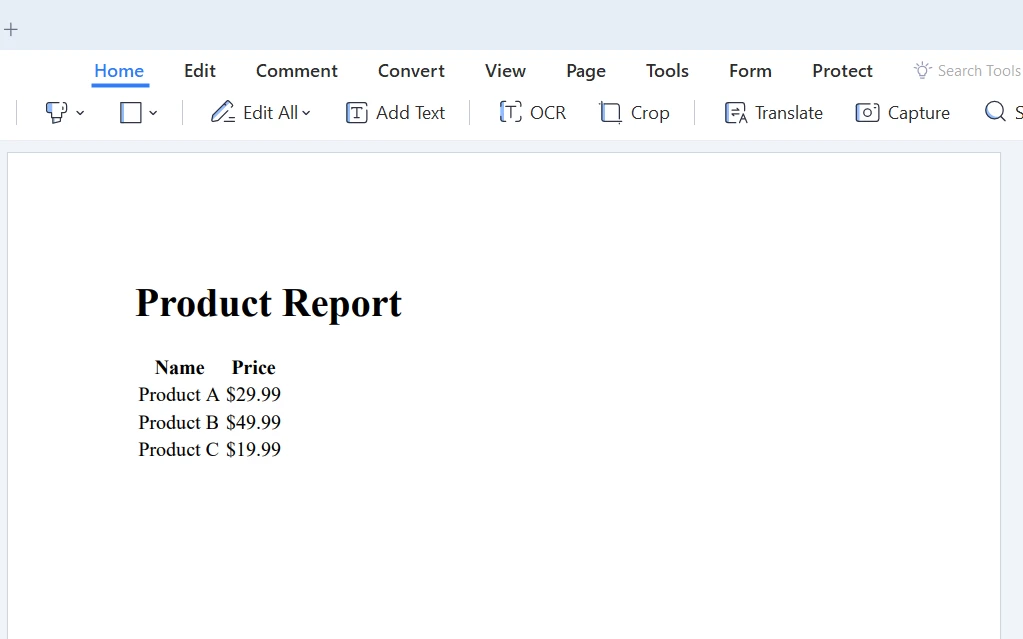
결론
이 튜토리얼을 통해 "C# foreach" 루프의 기초, 중요성, 사용 사례 및 코드를 구현하는 방법을 탐색했습니다. 우리는 또한 C#에서 PDF 파일 작업을 위한 강력한 라이브러리인 IronPDF를 소개하고, 데이터 컬렉션 기반의 PDF 보고서를 생성하기 위해 IronPDF와 함께 foreach 루프를 사용하는 방법을 시연했습니다.
지식을 계속 쌓고 기술을 발전시키면 foreach 루프 및 기타 C# 기능의 잠재력을 충분히 활용하여 견고하고 효율적인 애플리케이션을 만들 수 있을 것입니다. IronPDF에서는 라이브러리 테스트를 위한 무료 체험판을 제공합니다. 구매를 결정하신다면 IronPDF 라이선스는 $999에서 시작합니다.
자주 묻는 질문
C# foreach 루프란 무엇인가요?
C# foreach 루프는 배열, 리스트, 사전과 같은 컬렉션을 반복하는 과정을 단순화하는 프로그래밍 구조입니다. 이는 개발자가 인덱스나 수를 관리하지 않고 컬렉션의 각 항목에 대해 작업을 수행할 수 있도록 합니다.
C#에서 foreach 루프를 사용하여 PDF 보고서를 어떻게 생성할 수 있나요?
IronPDF와 함께 foreach 루프를 사용하여 PDF 보고서를 생성할 수 있습니다. 제품 목록과 같은 데이터 컬렉션을 반복하여 동적으로 HTML 보고서 문자열을 생성한 후 IronPDF의 ChromePdfRenderer를 사용하여 이를 PDF로 변환할 수 있습니다.
C# foreach 루프의 사용 사례는 무엇인가요?
foreach 루프의 일반적인 사용 사례에는 컬렉션 내 값 합산, 항목 검색, 요소 수정 및 컬렉션의 각 요소에 대해 작업 수행이 포함됩니다.
C#에서 foreach 루프는 for 루프와 어떻게 다른가요?
foreach 루프는 가독성과 단순성 때문에 선호됩니다. for 루프와 달리 컬렉션의 인덱스나 수를 수동으로 관리할 필요가 없습니다. foreach 루프는 읽기 전용 반복에 가장 잘 사용됩니다.
foreach 루프에서 var 키워드를 어떻게 사용하나요?
foreach 루프에서 var 키워드를 사용하여 컬렉션의 요소 데이터 타입을 컴파일러가 추론하도록 할 수 있어 코드를 더 간결하고 유지보수할 수 있게 만듭니다.
foreach 루프를 사용하면서 컬렉션을 수정할 수 있나요?
foreach 루프는 반복 중 컬렉션을 수정하기에 적합하지 않으며, 이는 잠재적인 런타임 오류를 초래할 수 있습니다. 수정을 해야 하는 경우, for 루프를 사용하거나 수정된 새로운 컬렉션을 만드는 것을 고려하세요.
C#에서 foreach 루프를 사용하여 사전 반복을 어떻게 처리하나요?
C#에서는 KeyValuePair 구조를 사용하여 사전을 효율적으로 반복할 수 있습니다.
foreach 루프가 반복할 수 있는 컬렉션 유형은 무엇인가요?
C#의 foreach 루프는 IEnumerable 또는 IEnumerable 인터페이스를 구현하는 모든 컬렉션을 순회할 수 있습니다. 여기에는 배열, 리스트, 사전, 그리고 다른 컬렉션 유형들이 포함됩니다.
C#에서 foreach 루프의 문법은 무엇인가요?
C#에서 foreach 루프의 문법은 다음과 같습니다: foreach (variableType variableName in collection) { // 각 항목에 대해 실행할 코드 } 여기서 variableType은 데이터 타입, variableName은 루프 변수, collection은 반복될 컬렉션입니다.
C# 프로젝트에 PDF 라이브러리를 어떻게 설치하나요?
IronPDF는 IronPDF NuGet 패키지를 추가하여 C# 프로젝트에 설치할 수 있습니다. 설치에 대한 지침은 IronPDF 문서에서 확인할 수 있습니다.










 무료로 시작하세요
 무료로 시작하세요
 무료 라이브 데모 예약하기





 신용카드나 계정 생성은 필요하지 않습니다.










