





업데이트됨 2026년 4월 23일
.NET에서 Microsoft.Extensions.AI로 LLM 통합 간소화
AI는 소프트웨어 개발을 변혁하고 있으나, 대규모 언어 모델(LLM)을 .NET에 통합하는 것은 지금까지 복잡했습니다. 현대에는 OpenAI 기반 PDF 파싱, 데이터 추출 및 콘텐츠 요약을 .NET 애플리케이션에 가져오는 IronPdf.AI로 AI 통합을 더욱 확장하세요.
더 읽어보기

LiveCharts는 .NET 개발자를 위한 라이브러리입니다. LiveCharts는 C# 응용 프로그램에서 동적이고 아름다운 차트를 만드는 데 도움을 줍니다. 이는 데이터가 변경될 때 차트가 자동으로 새로 고쳐진다는 것을 의미합니다. LiveCharts는 전통적인 응용 프로그램뿐만 아니라; Windows Presentation Foundation (WPF)을 지원하여 데스크톱 응용 프로그램에 유용한 도구입니다.
데이터 시각화 요구에 대한 답을 찾고 계십니까? LiveCharts는 다양한 기능을 가진 종합적인 솔루션을 제공합니다. 다음은 주요 사항입니다:
LiveCharts는 복잡한 데이터를 상호작용적이고 매력적인 시각적 표현으로 바꿉니다. 이용의 용이성과 유연성 때문에 개발자에게 강력한 도구가 됩니다. 강력한 LiveCharts의 기능을 사용하여 개발자는 복잡한 데이터를 상호작용적이고 매력적인 시각적 표현으로 바꿀 수 있습니다. LiveCharts의 기능과 IronPDF 라이브러리와의 통합을 살펴보겠습니다.
LiveCharts를 사용하기 위해 개발 환경을 설정하는 것은 간단하며, 소스 코드를 액세스하여 사용자 정의와 이해를 향상시킵니다. 이 섹션은 초기 단계에 대한 가이드를 제공하여 첫 번째 차트를 만들 수 있게 도와줍니다.
LiveCharts를 사용하려면 Visual Studio가 설치되어 있는지 확인하세요. 그런 다음 동적 데이터 시각화를 위해 설계된 LiveCharts 패키지를 프로젝트에 추가하세요. 이 작업은 NuGet 패키지 관리자에서 할 수 있습니다. LiveCharts를 검색하고 최신 버전을 설치하세요. 이 과정은 프로젝트에 필요한 모든 참조를 추가합니다.
첫 번째 차트를 만들기 위해 몇 가지 간단한 단계가 필요합니다. 먼저, 응용 프로그램의 UI에 차트 컨트롤을 추가하세요. WPF를 사용하는 경우 XAML이나 C#에서 프로그래밍적으로 할 수 있습니다.
여기 기본적인 XAML 예시가 있습니다:
<lvc:CartesianChart Series="{Binding MySeries}"/>C# 코드에서 차트를 위한 데이터를 준비하세요. 기본 선형 차트를 위해서는 SeriesCollection이 필요합니다. 이 컬렉션에 LineSeries를 추가하고, Values를 데이터 포인트로 설정할 수 있습니다.
public SeriesCollection MySeries { get; set; }

public MainWindow()
{
    InitializeComponent();
    // Initialize the series collection and bind data
    MySeries = new SeriesCollection
    {
        new LineSeries
        {
            Values = new ChartValues<double> { 4, 6, 5, 2, 7 }
        }
    };
    // Bind the data context to this instance
    DataContext = this;
}Public Property MySeries() As SeriesCollection
'INSTANT VB WARNING: The following constructor is declared outside of its associated class:
'ORIGINAL LINE: public MainWindow()
Public Sub New()
InitializeComponent()
' Initialize the series collection and bind data
MySeries = New SeriesCollection
From {
New LineSeries With {
.Values = New ChartValues(Of Double) From {4, 6, 5, 2, 7}
}
}
' Bind the data context to this instance
DataContext = Me
End Sub이 코드 스니펫은 간단한 선형 차트를 생성합니다. 데카르트 차트에 일련의 값을 표시합니다. 차트가 데이터에 바인딩되도록 창이나 컨트롤의 DataContext를 설정하는 것을 잊지 마세요.
이 단계를 따르면 기본 차트가 실행됩니다. 이것은 시작에 불과합니다. LiveCharts는 훨씬 더 복잡하고 상호작용적인 데이터 시각화를 허용합니다.
LiveCharts는 정적 데이터 표시의 전부가 아닙니다. 주요 강점은 실시간으로 업데이트하고 데이터 변경에 반응하며 광범위한 차트 유형을 제공하는 능력에 있습니다. 이 섹션은 이러한 기능을 탐구하며 개념을 이해하도록 예제를 제공합니다.
데이터 바인딩은 LiveCharts의 핵심 개념입니다. 이를 통해 차트가 데이터 변경 사항을 자동으로 반영합니다. 이 기능은 동적 데이터 소스를 다루는 응용 프로그램에 특히 유용합니다.
주식 가격을 추적하는 응용 프로그램을 고려해보세요. 새 데이터가 들어오면 차트를 업데이트하고 싶을 것입니다. LiveCharts를 사용하면 데이터 소스를 업데이트하면 차트가 이러한 변경 사항을 감지하고 자동으로 업데이트합니다.
여기 차트를 데이터 소스에 바인딩하는 방법입니다:
var myValues = new ChartValues<double> { 3, 4, 6, 3, 2 };
var lineSeries = new LineSeries
{
    Values = myValues
};

// Add the line series to the series collection
mySeries.Add(lineSeries);

// When data changes
myValues.Add(5); // The chart updates automaticallyDim myValues = New ChartValues(Of Double) From {3, 4, 6, 3, 2}
Dim lineSeries As New LineSeries With {.Values = myValues}
' Add the line series to the series collection
mySeries.Add(lineSeries)
' When data changes
myValues.Add(5) ' The chart updates automatically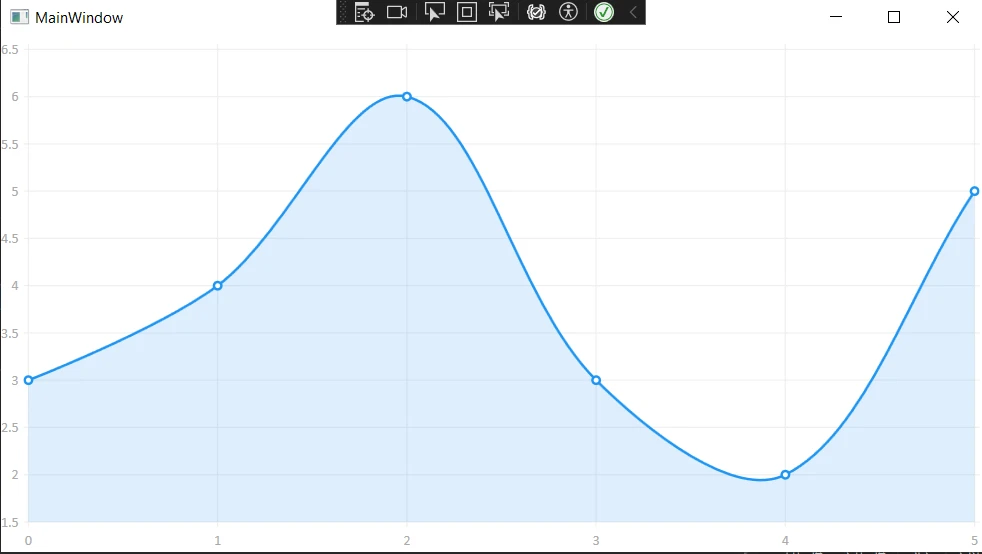
LiveCharts는 다양한 차트 유형을 지원하며, 각각 다른 종류의 데이터 시각화 필요에 적합합니다. 여기 몇 가지 예가 있습니다:
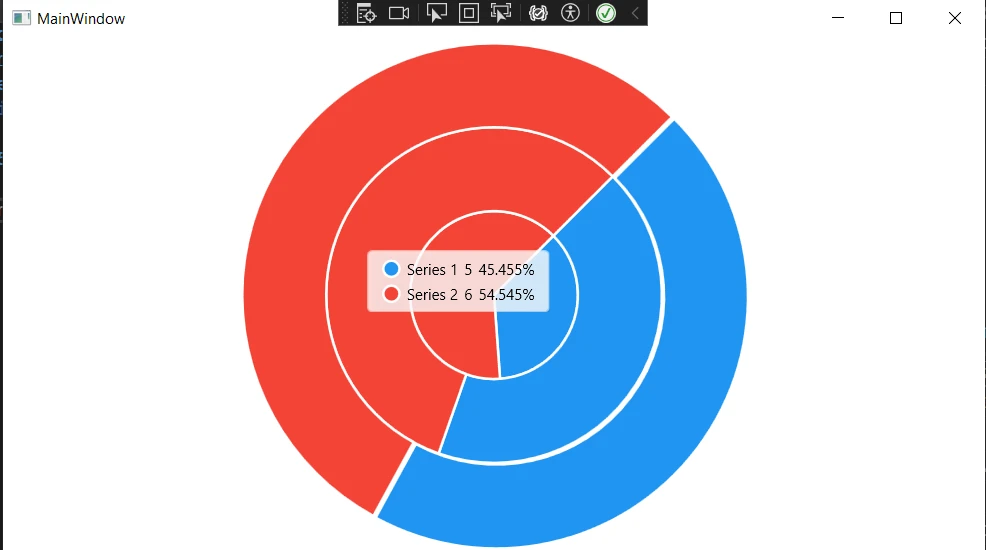
원형 차트를 생성하려면 PieSeries 클래스를 사용합니다. 다음은 빠른 예제입니다:
public SeriesCollection MyPieSeries { get; set; }

public MainWindow()
{
    InitializeComponent();
    // Initialize the pie series collection and bind data
    MyPieSeries = new SeriesCollection
    {
        new PieSeries
        {
            Values = new ChartValues<double> { 4, 6, 5 },
            Title = "Series 1"
        },
        new PieSeries
        {
            Values = new ChartValues<double> { 7, 8, 6 },
            Title = "Series 2"
        }
    };
    // Bind the data context to this instance
    DataContext = this;
}Public Property MyPieSeries() As SeriesCollection
'INSTANT VB WARNING: The following constructor is declared outside of its associated class:
'ORIGINAL LINE: public MainWindow()
Public Sub New()
InitializeComponent()
' Initialize the pie series collection and bind data
MyPieSeries = New SeriesCollection
From {
New PieSeries With {
.Values = New ChartValues(Of Double) From {4, 6, 5},
.Title = "Series 1"
},
New PieSeries With {
.Values = New ChartValues(Of Double) From {7, 8, 6},
.Title = "Series 2"
}
}
' Bind the data context to this instance
DataContext = Me
End Sub이 코드 스니펫은 두 개의 데이터 시리즈를 가진 기본 원형 차트를 설정합니다. 선 차트 예제와 마찬가지로 PieSeries를 Values 속성에 바인딩합니다.
LiveCharts는 또한 차트의 외관과 동작에 대한 유연성과 제어를 제공합니다. 색상과 레이블에서 애니메이션과 상호작용성까지 거의 모든 측면을 사용자 지정할 수 있습니다. 이로 인해 차트를 애플리케이션의 외관과 느낌에 완벽하게 맞출 수 있습니다.
IronPDF와 LiveCharts를 통합하면 동적 데이터 시각화와 정적 보고서 생성 간의 격차를 메울 수 있습니다. IronPDF는 C#에서 프로그래머가 PDF 문서를 생성, 조작 및 변환할 수 있게 하는 강력한 라이브러리입니다.
이를 LiveCharts와 결합하면 대화형 차트가 포함된 PDF 보고서를 만들 수 있습니다. 이 섹션은 IronPDF를 소개하고 프로젝트에서 설정하는 방법을 안내합니다.
IronPDF의 HTML to PDF 변환 기능은 특히 HTML을 PDF로 렌더링하는 능력에서 다른 PDF 라이브러리가 부족한 점을 보완합니다. 이 기능은 LiveCharts와 작업할 때 특히 유용하며, 차트를 HTML 캔버스에 렌더링한 후 해당 캔버스를 PDF 문서로 변환할 수 있습니다. IronPDF는 전체 CSS3, JavaScript 및 HTML5를 지원하여 PDF 출력에서 차트가 의도한 대로 보이도록 합니다.
LiveCharts로 차트를 생성하고, 이를 내보낸 다음 IronPDF를 사용하여 이 차트를 포함한 PDF 보고서를 생성하는 과정을 설명하는 자세한 코드 예제입니다. 이 예제는 LiveCharts 및 IronPDF를 사용하는 기본 지식을 가졌다고 가정합니다.
먼저, LiveCharts와 IronPDF 패키지가 NuGet을 통해 프로젝트에 설치되어 있는지 확인하십시오.
LiveCharts를 사용하여 간단한 선 차트를 생성합니다. 간단히 설명하자면, 이 예제는 차트를 생성하고 이미지를 저장하는 것에 초점을 맞추며, 이는 나중에 PDF에 포함될 것입니다.
private void GenerateChartButton_Click(object sender, RoutedEventArgs e)
{
    CreateAndSaveChartImage();
}

public void CreateAndSaveChartImage()
{
    // Create the series collection for the chart
    var seriesCollection = new SeriesCollection
    {
        new LineSeries
        {
            Values = new ChartValues<double> { 4, 6, 5, 2, 7 },
            Title = "Sample Series"
            // You can set other properties like color, point geometry, etc.
        }
    };

    // Initialize the CartesianChart
    var chart = new CartesianChart
    {
        Series = seriesCollection,
        Width = 400,
        Height = 300,
        Background = Brushes.White
    };

    // Add chart to the UI
    ChartContainer.Child = chart;

    // Force the chart to update
    chart.Update(true, true);

    // Save the rendered chart as an image
    SaveChartToImage(chart);
}

private void SaveChartToImage(CartesianChart chart)
{
    // Measure and arrange the chart to ensure correct layout
    chart.Measure(new Size(chart.Width, chart.Height));
    chart.Arrange(new Rect(0, 0, chart.Width, chart.Height));

    // Create a render target bitmap and render the chart on it
    var renderTargetBitmap = new RenderTargetBitmap(
        (int)chart.ActualWidth, (int)chart.ActualHeight,
        96, 96, PixelFormats.Pbgra32);

    renderTargetBitmap.Render(chart);

    // Encode the rendered image to a PNG format
    var encoder = new PngBitmapEncoder();
    encoder.Frames.Add(BitmapFrame.Create(renderTargetBitmap));

    // Define the path where the chart will be saved
    string path = "chart.png";

    // Save the encoded PNG to the file system
    using (var stream = File.Create(path))
    {
        encoder.Save(stream);
    }

    // Inform the user of the successful save
    MessageBox.Show($"Chart saved as {path}");
}Private Sub GenerateChartButton_Click(sender As Object, e As RoutedEventArgs)
CreateAndSaveChartImage()
End Sub
Public Sub CreateAndSaveChartImage()
' Create the series collection for the chart
Dim seriesCollection = New SeriesCollection From {
New LineSeries With {
.Values = New ChartValues(Of Double) From {4, 6, 5, 2, 7},
.Title = "Sample Series"
' You can set other properties like color, point geometry, etc.
}
}
' Initialize the CartesianChart
Dim chart = New CartesianChart With {
.Series = seriesCollection,
.Width = 400,
.Height = 300,
.Background = Brushes.White
}
' Add chart to the UI
ChartContainer.Child = chart
' Force the chart to update
chart.Update(True, True)
' Save the rendered chart as an image
SaveChartToImage(chart)
End Sub
Private Sub SaveChartToImage(chart As CartesianChart)
' Measure and arrange the chart to ensure correct layout
chart.Measure(New Size(chart.Width, chart.Height))
chart.Arrange(New Rect(0, 0, chart.Width, chart.Height))
' Create a render target bitmap and render the chart on it
Dim renderTargetBitmap = New RenderTargetBitmap(CInt(chart.ActualWidth), CInt(chart.ActualHeight), 96, 96, PixelFormats.Pbgra32)
renderTargetBitmap.Render(chart)
' Encode the rendered image to a PNG format
Dim encoder = New PngBitmapEncoder()
encoder.Frames.Add(BitmapFrame.Create(renderTargetBitmap))
' Define the path where the chart will be saved
Dim path As String = "chart.png"
' Save the encoded PNG to the file system
Using stream = File.Create(path)
encoder.Save(stream)
End Using
' Inform the user of the successful save
MessageBox.Show($"Chart saved as {path}")
End Sub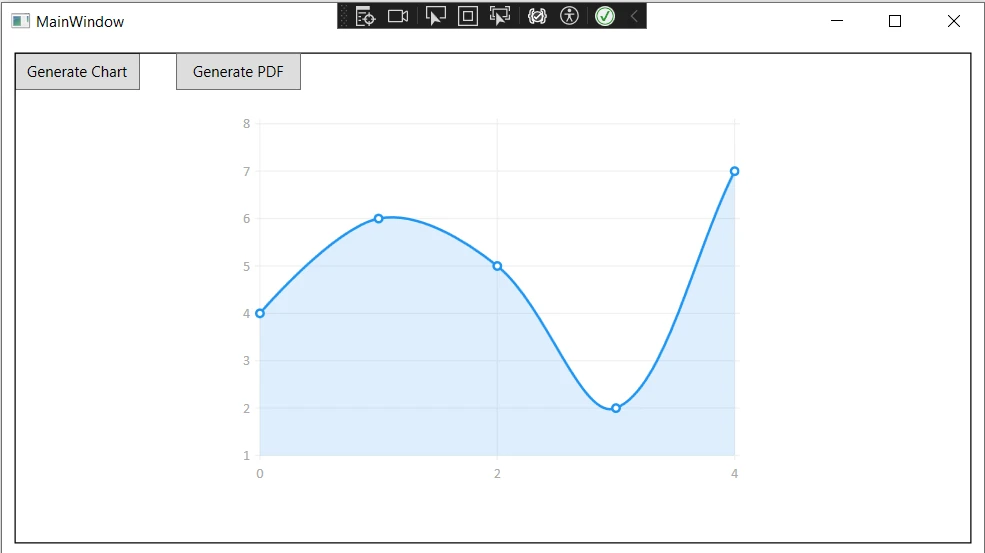
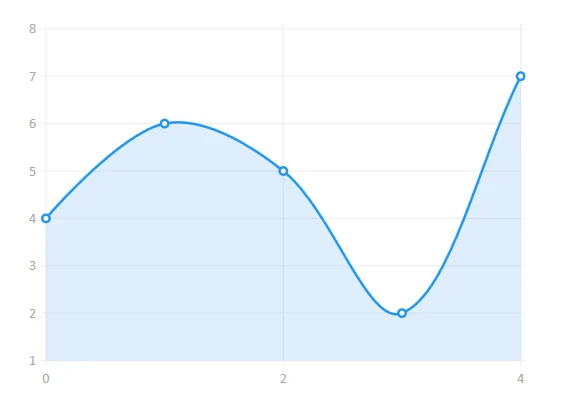
이제 방금 이미지로 저장한 차트를 포함하여 HTML 콘텐츠를 준비합니다.
string htmlContent = @"
<html>
<body>
    <h1>Chart Report</h1>
    <img src='chart.png' alt='Chart'>
    <p>This is a report generated by combining LiveCharts and IronPDF.</p>
</body>
</html>";마지막으로, IronPDF를 사용하여 포함된 차트 이미지가 있는 HTML 콘텐츠를 PDF 문서로 변환합니다.
using IronPdf;

public void CreatePdfReport(string htmlContent)
{
    // Initialize the HTML to PDF converter
    var renderer = new ChromePdfRenderer();

    // Render the HTML content as a PDF
    var pdf = renderer.RenderHtmlAsPdf(htmlContent);

    // Save the rendered PDF to the file system
    pdf.SaveAs("Report.pdf");
}Imports IronPdf
Public Sub CreatePdfReport(htmlContent As String)
' Initialize the HTML to PDF converter
Dim renderer As New ChromePdfRenderer()
' Render the HTML content as a PDF
Dim pdf = renderer.RenderHtmlAsPdf(htmlContent)
' Save the rendered PDF to the file system
pdf.SaveAs("Report.pdf")
End SubhtmlContent 문자열에서 "chart.png"를 애플리케이션의 실행 파일과 같은 디렉터리에 있지 않은 경우 본인의 차트 이미지의 올바른 경로로 대체하십시오.
이 예제는 프로세스를 설명하기 위한 기본 시나리오를 다룹니다. 특정 요구 사항에 따라 코드를 조정해야 할 수도 있으며, 특히 차트를 위한 이미지를 처리하고 출처에 관한 사항에서 말입니다.
통합을 더욱 향상시키려면:
결론적으로, LiveCharts와 IronPDF의 통합은 동적이고 시각적으로 매력적인 차트를 생성하고 이를 전문적으로 스타일링된 PDF 보고서에 포함하려는 .NET 개발자를 위한 강력한 조합을 제공합니다. 이 시너지는 데이터의 프레젠테이션을 향상시킬 뿐만 아니라 동적 데이터셋에서 정적 보고서를 생성함으로써 애플리케이션의 유용성을 확장합니다.
IronPDF의 HTML을 PDF로 렌더링할 수 있는 기능은 전체 CSS3, JavaScript, 및 HTML5 지원을 통해 차트가 스크린에서 인쇄된 페이지로 원활하게 전환되도록 보장합니다. 이 기능을 탐색하고자 하는 분들을 위해 IronPDF는 IronPDF의 무료 체험판 $999을 제공하여 .NET 애플리케이션에서 고품질 보고서를 생성하는 비용 효율적인 솔루션을 제공합니다.
제이콥 멜러는 Iron Software의 최고 기술 책임자(CTO)이자 C# PDF 기술을 개척한 선구적인 엔지니어입니다. Iron Software의 핵심 코드베이스를 최초로 개발한 그는 창립 초기부터 회사의 제품 아키텍처를 설계해 왔으며, CEO인 캐머런 리밍턴과 함께 회사를 NASA, 테슬라, 그리고 전 세계 정부 기관에 서비스를 제공하는 50명 이상의 직원을 보유한 기업으로 성장시켰습니다.



IronPDF는 IRON SUITE 의 일부입니다.
10개의 .NET API 제품, 당신의 사무 문서를 위해

PDF 파일을 HTML처럼 빠르게 변환해야 할 때.


