




업데이트됨 2026년 4월 23일
.NET에서 Microsoft.Extensions.AI로 LLM 통합 간소화
AI는 소프트웨어 개발을 변혁하고 있으나, 대규모 언어 모델(LLM)을 .NET에 통합하는 것은 지금까지 복잡했습니다. 현대에는 OpenAI 기반 PDF 파싱, 데이터 추출 및 콘텐츠 요약을 .NET 애플리케이션에 가져오는 IronPdf.AI로 AI 통합을 더욱 확장하세요.
더 읽어보기

PDF 문서는 정보를 공유하고 표현하는 범용 형식으로서 디지털 생태계의 필수적인 부분이 되었습니다. 소프트웨어 개발 세계에서는 PDF 파일을 효율적으로 생성, 수정 및 변환할 수 있는 도구가 지속적으로 필요합니다. 여기에서 NuGet PDF 생성기가 역할을 하여 개발자가 애플리케이션에 PDF 문서를 생성하고 PDF 기능을 통합하는 번거로움을 없애줍니다.
이러한 강력한 .NET PDF 라이브러리 중 하나는 NuGet 패키지로 제공되는 IronPDF입니다. 이 기사에서는 NuGet의 세계로 깊이 파고들어 IronPDF 라이브러리의 기능을 탐구하고 PDF 파일을 쉽게 생성하고 생성하는 방법을 배웁니다.
NuGet은 .NET Framework와 .NET Core를 포함한 Microsoft 개발 플랫폼을 위한 패키지 관리자입니다. Install-Package, 버전 관리 및 종속성 추적을 자동화하여 프로젝트에 타사 라이브러리 및 도구를 통합하는 과정을 간소화합니다.
10만 개 이상의 패키지로 구성된 거대한 저장소를 갖춘 NuGet을 통해 개발자는 DLL을 수동으로 관리하거나 호환성 문제를 걱정할 필요 없이 기능을 쉽게 추가, 업데이트 및 제거할 수 있습니다. Visual Studio에서 NuGet 패키지를 설치하는 데 사용할 수 있습니다.

IronPDF는 개발자가 애플리케이션 내에서 PDF 문서를 생성, 수정 및 변환할 수 있는 강력하고 다재다능한 .NET 라이브러리입니다. NuGet에서 패키지로 제공되는 IronPDF는 PDF 작업을 간소화하여 .NET Framework 및 .NET Core 프로젝트에서 작업하는 개발자에게 귀중한 도구입니다.
IronPDF의 주요 기능은 새 PDF 문서를 처음부터 생성하고 HTML 콘텐츠를 PDF 파일로 변환하며 기존 PDF 파일을 수정하고 고품질의 렌더링 및 타이포그래피를 제공하는 것입니다. 이 라이브러리는 기존 HTML 페이지에서 PDF를 생성하는 과정을 간소화합니다. HTML 문자열, HTML 파일 또는 URL을 사용하여 PDF 파일을 생성할 수 있습니다.

IronPDF는 HTML 콘텐츠를 PDF 문서로 변환할 수 있는 기능이 있습니다. 이를 통해 개발자는 기존 HTML 페이지에서 PDF 파일을 생성하거나 사용자 생성 콘텐츠에서 동적으로 PDF를 생성할 수 있습니다. HTML 문자열을 PDF 문서로 변환하는 방법의 예는 다음과 같습니다:
using IronPdf;

// Instantiate Renderer
var renderer = new ChromePdfRenderer();

// Create a PDF from an HTML string using C#
var pdf = renderer.RenderHtmlAsPdf("Hello World");

// Export to a file or Stream
pdf.SaveAs("output.pdf");Imports IronPdf
' Instantiate Renderer
Private renderer = New ChromePdfRenderer()
' Create a PDF from an HTML string using C#
Private pdf = renderer.RenderHtmlAsPdf("Hello World")
' Export to a file or Stream
pdf.SaveAs("output.pdf")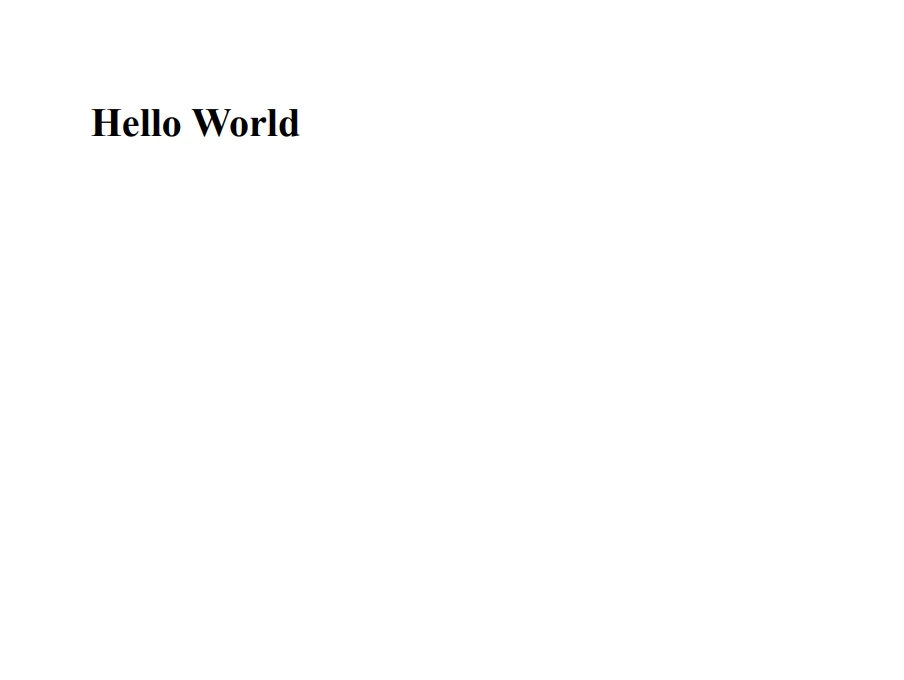
IronPDF는 개발자가 웹 페이지를 직접 PDF 문서로 변환할 수 있도록 허용합니다. 이 기능은 실시간 웹 페이지에서 PDF 문서를 생성해야 하거나 오프라인 보기, 아카이빙 또는 공유를 위해 온라인 콘텐츠를 저장해야 하는 시나리오에서 특히 유용합니다.
IronPDF의 HTML-PDF 변환 기능을 활용하여 개발자는 몇 줄의 코드만으로 텍스트, 이미지, 스타일을 포함한 전체 웹 페이지를 쉽게 PDF 문서로 변환할 수 있습니다. 이 기능이 어떻게 작동하는지 간략한 개요는 다음과 같습니다:
using IronPdf;

// Instantiate Renderer
var renderer = new ChromePdfRenderer();

// Create a PDF from a URL or local file path
var pdf = renderer.RenderUrlAsPdf("https://ironpdf.com/");

// Export to a file or Stream
pdf.SaveAs("url.pdf");Imports IronPdf
' Instantiate Renderer
Dim renderer As New ChromePdfRenderer()
' Create a PDF from a URL or local file path
Dim pdf = renderer.RenderUrlAsPdf("https://ironpdf.com/")
' Export to a file or Stream
pdf.SaveAs("url.pdf")IronPDF는 또한 개발자가 기존 PDF 문서 및 파일을 수정할 수 있도록 하여 콘텐츠를 추가하거나 제거하고 문서를 병합하며 보안 설정을 적용할 수 있도록 합니다. PDF 문서에 워터마크를 추가하는 방법의 예는 다음과 같습니다:
using IronPdf;

// Stamps a Watermark onto a new or existing PDF
var renderer = new ChromePdfRenderer();

var pdf = renderer.RenderUrlAsPdf("https://www.nuget.org/packages/IronPdf");
pdf.ApplyWatermark("SAMPLE", 30, IronPdf.Editing.VerticalAlignment.Middle, IronPdf.Editing.HorizontalAlignment.Center);
pdf.SaveAs(@"C:\Path\To\Watermarked.pdf");Imports IronPdf
' Stamps a Watermark onto a new or existing PDF
Private renderer = New ChromePdfRenderer()
Private pdf = renderer.RenderUrlAsPdf("https://www.nuget.org/packages/IronPdf")
pdf.ApplyWatermark("SAMPLE", 30, IronPdf.Editing.VerticalAlignment.Middle, IronPdf.Editing.HorizontalAlignment.Center)
pdf.SaveAs("C:\Path\To\Watermarked.pdf")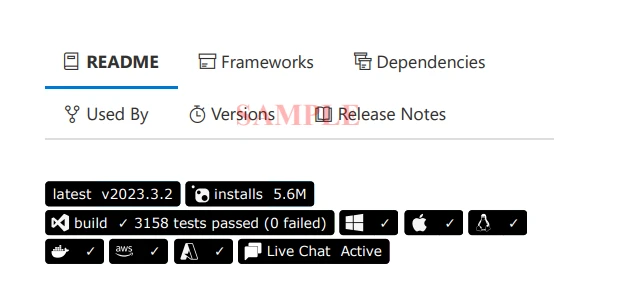
이 예제 프로젝트는 URL에서 PDF 문서를 생성하고 각 페이지에 워터마크를 추가하며 수정된 문서를 새 파일로 저장하는 방법을 보여줍니다.
앞서 논의한 기본 PDF 파일 생성 작업을 넘어 IronPDF는 PDF 문서 생성 및 관리 기능을 더욱 향상시킬 수 있는 고급 기능을 제공합니다. 이러한 기능에는 다음과 같은 것들이 포함됩니다:
PDF 문서 병합: IronPDF는 여러 PDF 파일을 단일 문서로 병합할 수 있어 관련 콘텐츠를 쉽게 컴파일하고 조직할 수 있습니다.
using IronPdf;

var htmlA = @"<h1>[PDF_A]</h1><p>[PDF_A] 1st Page</p><p>[PDF_A] 2nd Page</p>";
var htmlB = @"<h1>[PDF_B]</h1><p>[PDF_B] 1st Page</p><p>[PDF_B] 2nd Page</p>";

var renderer = new ChromePdfRenderer();

var pdfDocA = renderer.RenderHtmlAsPdf(htmlA);
var pdfDocB = renderer.RenderHtmlAsPdf(htmlB);
var merged = PdfDocument.Merge(pdfDocA, pdfDocB);

merged.SaveAs("Merged.pdf");Imports IronPdf
Private htmlA = "<h1>[PDF_A]</h1><p>[PDF_A] 1st Page</p><p>[PDF_A] 2nd Page</p>"
Private htmlB = "<h1>[PDF_B]</h1><p>[PDF_B] 1st Page</p><p>[PDF_B] 2nd Page</p>"
Private renderer = New ChromePdfRenderer()
Private pdfDocA = renderer.RenderHtmlAsPdf(htmlA)
Private pdfDocB = renderer.RenderHtmlAsPdf(htmlB)
Private merged = PdfDocument.Merge(pdfDocA, pdfDocB)
merged.SaveAs("Merged.pdf")PDF 양식: IronPDF는 개발자가 채울 수 있는 필드로 동적이고 상호작용적인 PDF 문서를 생성할 수 있도록 PDF 양식의 생성 및 조작을 지원합니다.
using IronPdf;
using System;

// Step 1. Creating a PDF with editable forms from HTML using form and input tags
// Radio Button and Checkbox can also be implemented with input type 'radio' and 'checkbox'
const string formHtml = @"
    <h1>Editable PDF Form</h1>
    <label>First name: <input type='text' name='firstname' /></label>
    <label>Last name: <input type='text' name='lastname' /></label>
    <p>Please specify your gender:</p>
    <label><input type='radio' name='gender' value='female' /> Female</label>
    <label><input type='radio' name='gender' value='male' /> Male</label>
    <label><input type='radio' name='gender' value='other' /> Non-Binary / Other</label>
    <p>Please select all medical conditions that apply:</p>
    <label><input type='checkbox' name='condition' value='hypertension' /> Hypertension</label>
    <label><input type='checkbox' name='condition' value='heartDisease' /> Heart Disease</label>
    <label><input type='checkbox' name='condition' value='stroke' /> Stroke</label>
    <label><input type='checkbox' name='condition' value='diabetes' /> Diabetes</label>
    <label><input type='checkbox' name='condition' value='kidneyDisease' /> Kidney Disease</label>
";

// Instantiate Renderer
var renderer = new ChromePdfRenderer();
renderer.RenderingOptions.CreatePdfFormsFromHtml = true;
renderer.RenderHtmlAsPdf(formHtml).SaveAs("BasicForm.pdf");

// Step 2. Reading and Writing PDF form values.
var formDocument = PdfDocument.FromFile("BasicForm.pdf");

// Set and Read the value of the "firstname" field
var firstNameField = formDocument.Form.FindFormField("firstname");
firstNameField.Value = "Minnie";
Console.WriteLine("FirstNameField value: {0}", firstNameField.Value);

// Set and Read the value of the "lastname" field
var lastNameField = formDocument.Form.FindFormField("lastname");
lastNameField.Value = "Mouse";
Console.WriteLine("LastNameField value: {0}", lastNameField.Value);

formDocument.SaveAs("FilledForm.pdf");Imports IronPdf
Imports System
' Step 1. Creating a PDF with editable forms from HTML using form and input tags
' Radio Button and Checkbox can also be implemented with input type 'radio' and 'checkbox'
Private Const formHtml As String = "
<h1>Editable PDF Form</h1>
<label>First name: <input type='text' name='firstname' /></label>
<label>Last name: <input type='text' name='lastname' /></label>
<p>Please specify your gender:</p>
<label><input type='radio' name='gender' value='female' /> Female</label>
<label><input type='radio' name='gender' value='male' /> Male</label>
<label><input type='radio' name='gender' value='other' /> Non-Binary / Other</label>
<p>Please select all medical conditions that apply:</p>
<label><input type='checkbox' name='condition' value='hypertension' /> Hypertension</label>
<label><input type='checkbox' name='condition' value='heartDisease' /> Heart Disease</label>
<label><input type='checkbox' name='condition' value='stroke' /> Stroke</label>
<label><input type='checkbox' name='condition' value='diabetes' /> Diabetes</label>
<label><input type='checkbox' name='condition' value='kidneyDisease' /> Kidney Disease</label>
"
' Instantiate Renderer
Private renderer = New ChromePdfRenderer()
renderer.RenderingOptions.CreatePdfFormsFromHtml = True
renderer.RenderHtmlAsPdf(formHtml).SaveAs("BasicForm.pdf")
' Step 2. Reading and Writing PDF form values.
Dim formDocument = PdfDocument.FromFile("BasicForm.pdf")
' Set and Read the value of the "firstname" field
Dim firstNameField = formDocument.Form.FindFormField("firstname")
firstNameField.Value = "Minnie"
Console.WriteLine("FirstNameField value: {0}", firstNameField.Value)
' Set and Read the value of the "lastname" field
Dim lastNameField = formDocument.Form.FindFormField("lastname")
lastNameField.Value = "Mouse"
Console.WriteLine("LastNameField value: {0}", lastNameField.Value)
formDocument.SaveAs("FilledForm.pdf")PDF 보안: IronPDF는 비밀번호 보호 및 암호화를 포함하여 PDF 문서에 보안을 적용하는 옵션을 제공합니다.
using IronPdf;

// Open an Encrypted File, alternatively create a new PDF from Html
var pdf = PdfDocument.FromFile("encrypted.pdf");

//Edit file security settings

//The following code makes a PDF read-only and will disallow copy & paste and printing
pdf.SecuritySettings.RemovePasswordsAndEncryption();
pdf.SecuritySettings.MakePdfDocumentReadOnly("secret-key");
pdf.SecuritySettings.AllowUserAnnotations = false;

//Change or set the document encryption password
pdf.SecuritySettings.OwnerPassword = "top-secret"; // password to edit the pdf
pdf.SaveAs("secured.pdf");Imports IronPdf
' Open an Encrypted File, alternatively create a new PDF from Html
Private pdf = PdfDocument.FromFile("encrypted.pdf")
'Edit file security settings
'The following code makes a PDF read-only and will disallow copy & paste and printing
pdf.SecuritySettings.RemovePasswordsAndEncryption()
pdf.SecuritySettings.MakePdfDocumentReadOnly("secret-key")
pdf.SecuritySettings.AllowUserAnnotations = False
'Change or set the document encryption password
pdf.SecuritySettings.OwnerPassword = "top-secret" ' password to edit the pdf
pdf.SaveAs("secured.pdf")IronPDF의 고급 기능은 .NET 애플리케이션에서 종합적인 PDF 기능이 필요한 개발자에게 귀중한 도구입니다. 문서 병합, 양식 관리에서 콘텐츠 보안 및 사용자 정의 렌더링에 이르기까지 IronPDF는 모든 PDF 요구 사항에 대한 견고한 솔루션을 제공합니다.
NuGet에서 제공되는 IronPDF 라이브러리는 .NET PDF 라이브러리로서 애플리케이션에서 PDF 파일을 생성, 수정 및 변환하는 과정을 간소화합니다. 새 PDF 문서를 생성하고 HTML을 PDF로 변환하며 기존 PDF 파일을 수정하는 등 광범위한 기능을 활용하여 개발자는 .NET Framework 및 .NET Core 프로젝트에 PDF 기능을 원활하게 통합할 수 있습니다. IronPDF로 PDF 문서를 생성하고 관리하는 것이 그 어느 때보다 쉽게 되었습니다.
IronPDF는 개발자가 구매 결정을 내리기 전에 소프트웨어의 기능과 기능을 시도할 수 있도록 라이브러리의 무료 체험판을 제공합니다. 개발자가 체험 기간 후 라이선스를 구입하기로 결정하면, 라이선스의 시작 가격은 $999입니다. 가격은 사용되는 라이센스의 유형 및 소프트웨어를 사용하는 개발자 수에 따라 달라질 수 있습니다. IronPDF는 대량 구매에 대한 할인도 제공합니다.

제이콥 멜러는 Iron Software의 최고 기술 책임자(CTO)이자 C# PDF 기술을 개척한 선구적인 엔지니어입니다. Iron Software의 핵심 코드베이스를 최초로 개발한 그는 창립 초기부터 회사의 제품 아키텍처를 설계해 왔으며, CEO인 캐머런 리밍턴과 함께 회사를 NASA, 테슬라, 그리고 전 세계 정부 기관에 서비스를 제공하는 50명 이상의 직원을 보유한 기업으로 성장시켰습니다.



IronPDF는 IRON SUITE 의 일부입니다.
10개의 .NET API 제품, 당신의 사무 문서를 위해

PDF 파일을 HTML처럼 빠르게 변환해야 할 때.


