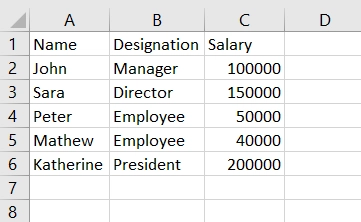
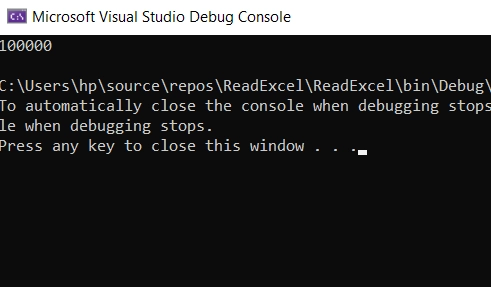
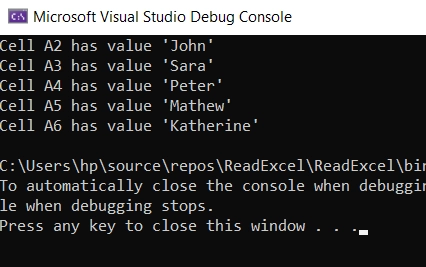
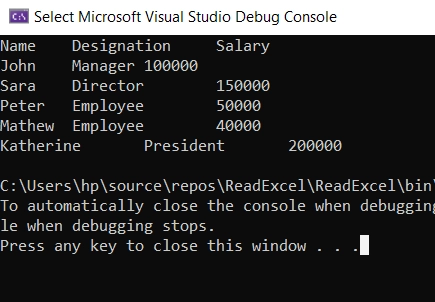
IRONPDF 사용 How to Create PDF in ASP .NET 커티스 차우 업데이트됨:6월 22, 2025 다운로드 IronPDF NuGet 다운로드 DLL 다운로드 윈도우 설치 프로그램 무료 체험 시작하기 LLM용 사본 LLM용 사본 LLM용 마크다운 형식으로 페이지를 복사하세요 ChatGPT에서 열기 ChatGPT에 이 페이지에 대해 문의하세요 제미니에서 열기 제미니에게 이 페이지에 대해 문의하세요 Grok에서 열기 Grok에게 이 페이지에 대해 문의하세요 혼란 속에서 열기 Perplexity에게 이 페이지에 대해 문의하세요 공유하다 페이스북에 공유하기 트위터에 공유하기 LinkedIn에 공유하기 URL 복사 이메일로 기사 보내기 Microsoft Excel is a spreadsheet software that stores and organizes data, and presents it in various formats. It is widely used for financial data due to its useful formulas. The IronXL software library can be used to import and read Excel files in C#. IronXL - Excel Library IronXL - .NET Excel Library is a .NET Excel library that prioritizes ease of use, accuracy, and speed for its users. It helps you import and read Excel documents and create and edit an Excel file efficiently with lightning-fast performance. It works without MS Office Interop. This means even without Excel installed, it provides all the functionalities to read Excel files. This makes IronXL a powerful tool for developers to import and read Excel files in C#. IronXL is available on all platforms like Windows, Linux, macOS, Docker, Azure, and AWS. It is compatible with all .NET Frameworks. IronXL is a versatile library that can be integrated into Console, Desktop, and Web ASP.NET Applications. It supports different workbook formats like XLS and XLSX files, XSLT and XLSM, CSV, and TSV. Some Important Features Open, read Excel files, and search data from different spreadsheet formats like XLS/CSV/TSV/XLSX files. Export Excel Worksheets to XLS/XLSX/CSV/TSV/JSON. Encrypt and decrypt XLSM/XLTX/XLSX files with passwords. Import Excel sheets as System.Data.DataSet and System.Data.DataTable objects. Excel file formulas are recalculated every time a sheet is edited. Intuitive cell range settings with a WorkSheet["A1:B10"] easy syntax. Sort Cell Ranges, Columns, and Rows. Styling Cells - Font, Font Size, Background color, Border, Alignment, and Numbering formats. How to Import Excel Workbook in C# Prerequisites To use IronXL in C# to read Excel files, the first step is to ensure the following components are installed on the local computer: Visual Studio - It is the official IDE for developing C# .NET applications. You can download and install Visual Studio from the Visual Studio Download Page. IronXL - It is the library that helps work with Excel sheets in C#. It must be installed in a C# program before using it. IronXL can be downloaded from the IronXL NuGet Package or Manage NuGet packages in Visual Studio tools. You can also download the .NET Excel DLL from Iron Software's website. Adding Necessary Namespaces Once Visual Studio and IronXL are installed, the IronXL assembly reference for using IronXL should be included in the source code. Add the following line of code at the top of the file within the new project where IronXL functions will be used: using IronXL; using IronXL; $vbLabelText $csharpLabel Open an Existing Excel file in C# Microsoft Excel Spreadsheets are also referred to as Excel Workbook. Each workbook contains multiple worksheets, and a single worksheet contains tabular cells with its value. To open and read an Excel file using IronXL, it should be loaded using the WorkBook class and Load method present in the IronXL library. The code goes as follows: // Supported Excel spreadsheet formats for reading include: XLSX, XLS, CSV, and TSV WorkBook workbook = WorkBook.Load("test.xlsx"); // Supported Excel spreadsheet formats for reading include: XLSX, XLS, CSV, and TSV WorkBook workbook = WorkBook.Load("test.xlsx"); $vbLabelText $csharpLabel This opens the Excel file in the workbook instance reference variable. As it can have multiple worksheets, it can be used to open a specific worksheet or all at once. The following code opens the first WorkSheet in the sheet instance variable: WorkSheet sheet = workbook.WorkSheets.First(); WorkSheet sheet = workbook.WorkSheets.First(); $vbLabelText $csharpLabel This will open the first sheet in the Excel file, and now Excel data can be read from and written to this sheet. Opened Excel file Excel file Read Data from Imported Excel file Once the Excel file is imported, it is ready for reading data. Reading Excel file data in C# using IronXL is very simple and easy. You can read Excel cell values by simply mentioning the cell reference number. The code below retrieves the value of a cell with reference number "C2": // Select cells easily in Excel-notation and return the value int cellValue = sheet["C2"].IntValue; // Display the value Console.WriteLine(cellValue); // Select cells easily in Excel-notation and return the value int cellValue = sheet["C2"].IntValue; // Display the value Console.WriteLine(cellValue); $vbLabelText $csharpLabel The output is as follows: Read Excel Now, let's read data from a range of cells in the opened Excel file. The code goes as follows: // Read from a range of cells elegantly. foreach (var cell in sheet["A2:A6"]) { Console.WriteLine("Cell {0} has value '{1}'", cell.AddressString, cell.Text); } // Read from a range of cells elegantly. foreach (var cell in sheet["A2:A6"]) { Console.WriteLine("Cell {0} has value '{1}'", cell.AddressString, cell.Text); } $vbLabelText $csharpLabel The code is very simple, clean, and clear. The range of cells can be referenced with simple syntax as shown in a foreach loop: sheet["A2:A6"] and each cell can be iterated using a foreach loop to get its value. Here, you will see the names in column A from row 2 to row 6 on the console output: Read Range of Cells For more details on reading and writing cell values, check this tutorial on reading Excel files in C#. Import all Data from an Excel file IronXL can be used to read Excel sheets at once using Rows and Columns indexes. The following IronXL code samples help to get the entire Excel file data in the same format on the console output: WorkBook workbook = WorkBook.Load("test.xlsx"); WorkSheet sheet = workbook.WorkSheets.First(); // Traverse all rows of Excel WorkSheet for (int i = 0; i < sheet.Rows.Count(); i++) { // Traverse all columns of specific Row for (int j = 0; j < sheet.Columns.Count(); j++) { // Get the value as a string string val = sheet.Rows[i].Columns[j].Value.ToString(); Console.Write("{0}\t", val); } Console.WriteLine(); } WorkBook workbook = WorkBook.Load("test.xlsx"); WorkSheet sheet = workbook.WorkSheets.First(); // Traverse all rows of Excel WorkSheet for (int i = 0; i < sheet.Rows.Count(); i++) { // Traverse all columns of specific Row for (int j = 0; j < sheet.Columns.Count(); j++) { // Get the value as a string string val = sheet.Rows[i].Columns[j].Value.ToString(); Console.Write("{0}\t", val); } Console.WriteLine(); } $vbLabelText $csharpLabel Output File The Console output of reading an Excel file Summary In this article, we learned how to import and read an Excel file in C# without any Microsoft Excel installed. Then we considered multiple ways to read data from an Excel spreadsheet. IronXL also helps create Excel files in C# without any Excel installed. IronXL provides an all-in-one solution for all MS Excel document-related tasks to be implemented programmatically. You can perform formula calculation, string or number sorting, trimming and appending, find and replace, merge and unmerge, save files, etc. You can edit cell values and also set cell data formats along with validating spreadsheet data. It also supports CSV files and helps you to work with Excel-like data. Try IronXL for Free and explore its features. It can be licensed for commercial use with its Lite package starting at only $799. 자주 묻는 질문 서식을 잃지 않고 ASP.NET 애플리케이션에서 PDF를 만들려면 어떻게 해야 하나요? IronPDF를 사용하면 원본 서식을 유지하면서 ASP.NET 애플리케이션에서 PDF를 만들 수 있습니다. IronPDF는 HTML 콘텐츠의 레이아웃과 스타일이 결과 PDF에서 정확하게 렌더링되도록 보장합니다. C# 웹 애플리케이션에서 HTML을 PDF로 변환하는 가장 좋은 방법은 무엇인가요? IronPDF는 C# 웹 애플리케이션에서 HTML을 PDF로 변환하는 데 탁월한 선택입니다. 이 도구는 HTML 문자열과 웹 페이지를 고품질 PDF 문서로 변환하는 RenderHtmlAsPdf와 같은 메서드를 제공합니다. 타사 플러그인을 사용하지 않고도 ASP.NET에서 PDF를 생성할 수 있나요? 예, IronPDF를 사용하면 타사 플러그인이나 외부 소프트웨어에 의존하지 않고도 ASP.NET 애플리케이션에서 PDF를 생성할 수 있습니다. IronPDF는 애플리케이션과 직접 통합되어 PDF 생성을 처리합니다. C#에서 HTML로 변환할 때 PDF 레이아웃의 정확성을 어떻게 보장할 수 있을까요? IronPDF는 C#에서 HTML을 PDF로 변환할 때 PDF 레이아웃과 서식을 정밀하게 제어할 수 있습니다. CSS 스타일, 페이지 나누기 및 미디어 쿼리를 유지하여 출력물이 원본 디자인과 일치하도록 보장합니다. IronPDF를 사용하여 PDF 문서를 암호화하고 보호할 수 있나요? 예, IronPDF는 PDF 문서를 암호화하고 보호하는 기능을 제공합니다. 비밀번호 보호를 적용하고 권한을 설정하여 PDF에 대한 액세스 및 편집 기능을 제어할 수 있습니다. IronPDF는 PDF 생성을 위해 어떤 플랫폼을 지원하나요? IronPDF는 Windows, Linux, macOS, Docker, Azure, AWS 등 여러 플랫폼에서 PDF 생성을 지원하므로 다양한 배포 환경에서 다용도로 사용할 수 있습니다. ASP.NET에서 HTML로 PDF를 만들 때 이미지를 어떻게 처리하나요? IronPDF를 사용하면 변환하는 동안 HTML 콘텐츠의 이미지가 PDF에 자동으로 삽입됩니다. 다양한 이미지 형식을 지원하여 최종 문서에 올바르게 표시되도록 합니다. ASP.NET 애플리케이션에서 PDF 생성을 자동화할 수 있나요? 물론 IronPDF를 사용하면 ASP.NET 애플리케이션에서 PDF 생성을 자동화할 수 있습니다. 애플리케이션 내의 이벤트 또는 특정 조건에 따라 PDF 생성을 예약하거나 트리거할 수 있습니다. IronPDF는 ASP.NET용 .NET 10 및 기타 .NET 프로젝트 유형을 완벽하게 지원하나요? 예. IronPDF는 .NET 10과 완벽하게 호환됩니다. 웹, 데스크톱, 콘솔, Blazor 및 MAUI 프로젝트에서 .NET 10을 포함한 모든 최신 .NET 버전을 지원합니다. 이전 .NET 버전에서와 마찬가지로 ChromePdfRenderer, RenderHtmlAsPdf, 비동기 메서드와 같은 동일한 API를 사용할 수 있습니다. 커티스 차우 지금 바로 엔지니어링 팀과 채팅하세요 기술 문서 작성자 커티스 차우는 칼턴 대학교에서 컴퓨터 과학 학사 학위를 취득했으며, Node.js, TypeScript, JavaScript, React를 전문으로 하는 프론트엔드 개발자입니다. 직관적이고 미적으로 뛰어난 사용자 인터페이스를 만드는 데 열정을 가진 그는 최신 프레임워크를 활용하고, 잘 구성되고 시각적으로 매력적인 매뉴얼을 제작하는 것을 즐깁니다. 커티스는 개발 분야 외에도 사물 인터넷(IoT)에 깊은 관심을 가지고 있으며, 하드웨어와 소프트웨어를 통합하는 혁신적인 방법을 연구합니다. 여가 시간에는 게임을 즐기거나 디스코드 봇을 만들면서 기술에 대한 애정과 창의성을 결합합니다. 관련 기사 업데이트됨 1월 22, 2026 How to Create PDF Documents in .NET with IronPDF: Complete Guide Discover effective methods to create PDF files in C# for developers. Enhance your coding skills and streamline your projects. Read the article now! 더 읽어보기 업데이트됨 1월 21, 2026 How to Merge PDF Files in VB.NET: Complete Tutorial Merge PDF VB NET with IronPDF. Learn to combine multiple PDF files into one document using simple VB.NET code. Step-by-step examples included. 더 읽어보기 업데이트됨 1월 21, 2026 C# PDFWriter Tutorial: Create PDF Documents in .NET Learn to create PDFs efficiently using C# PDFWriter with this step-by-step guide for developers. Read the article to enhance your skills today! 더 읽어보기 How to Crop PDF File in C#PDF API C# (Code Example Tutorial)

업데이트됨 1월 22, 2026 How to Create PDF Documents in .NET with IronPDF: Complete Guide Discover effective methods to create PDF files in C# for developers. Enhance your coding skills and streamline your projects. Read the article now! 더 읽어보기
업데이트됨 1월 21, 2026 How to Merge PDF Files in VB.NET: Complete Tutorial Merge PDF VB NET with IronPDF. Learn to combine multiple PDF files into one document using simple VB.NET code. Step-by-step examples included. 더 읽어보기
업데이트됨 1월 21, 2026 C# PDFWriter Tutorial: Create PDF Documents in .NET Learn to create PDFs efficiently using C# PDFWriter with this step-by-step guide for developers. Read the article to enhance your skills today! 더 읽어보기