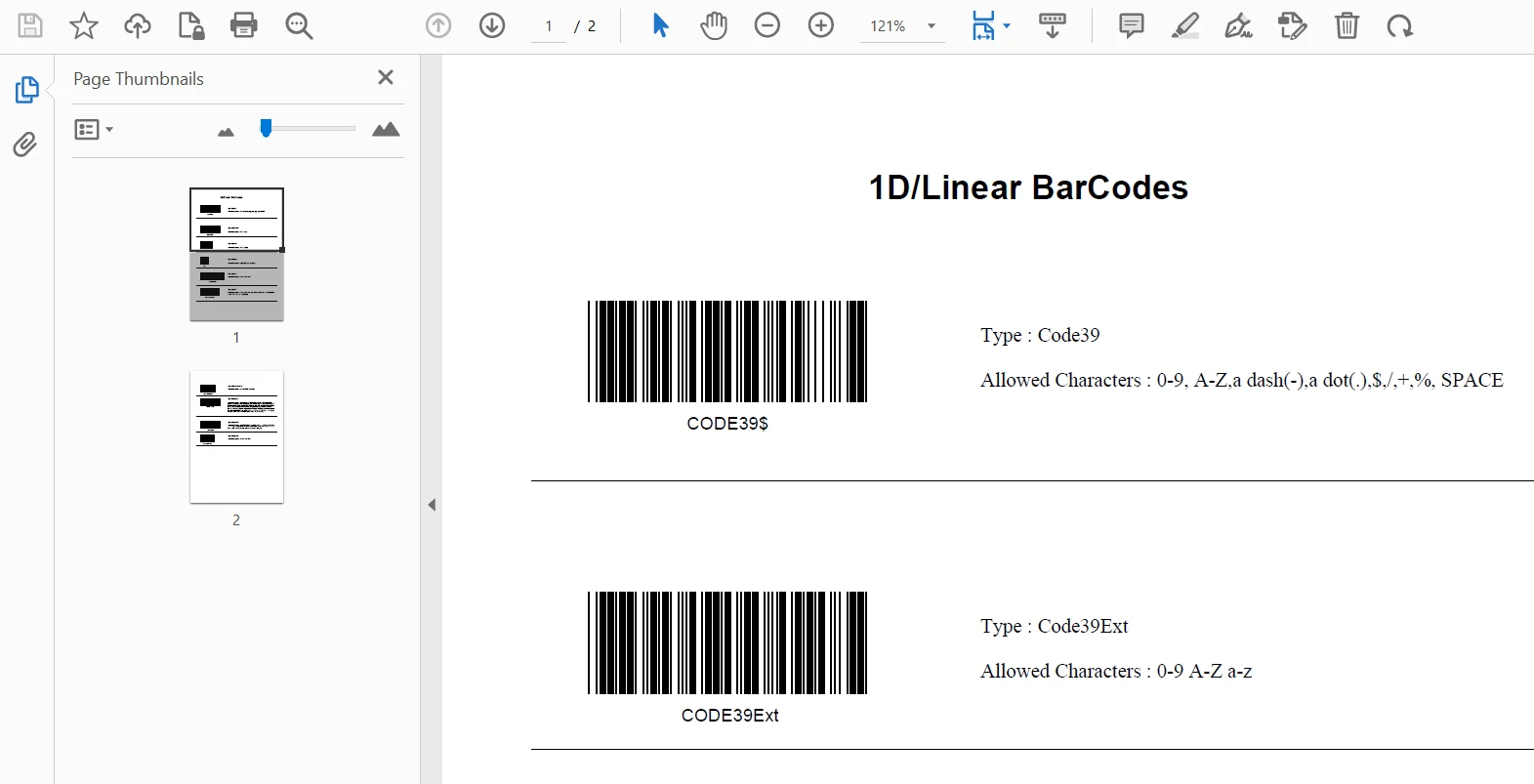
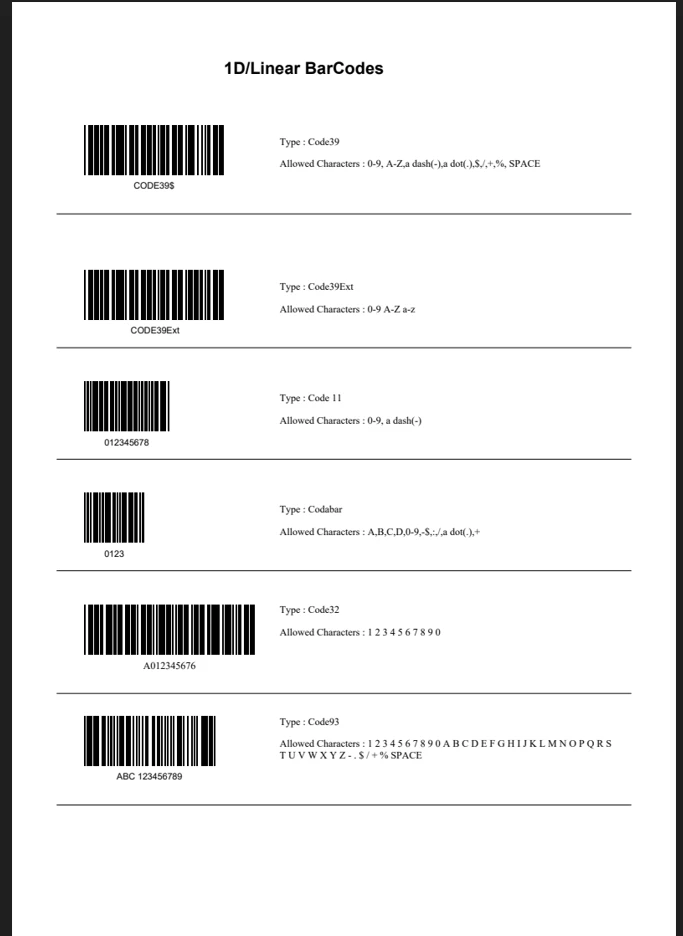
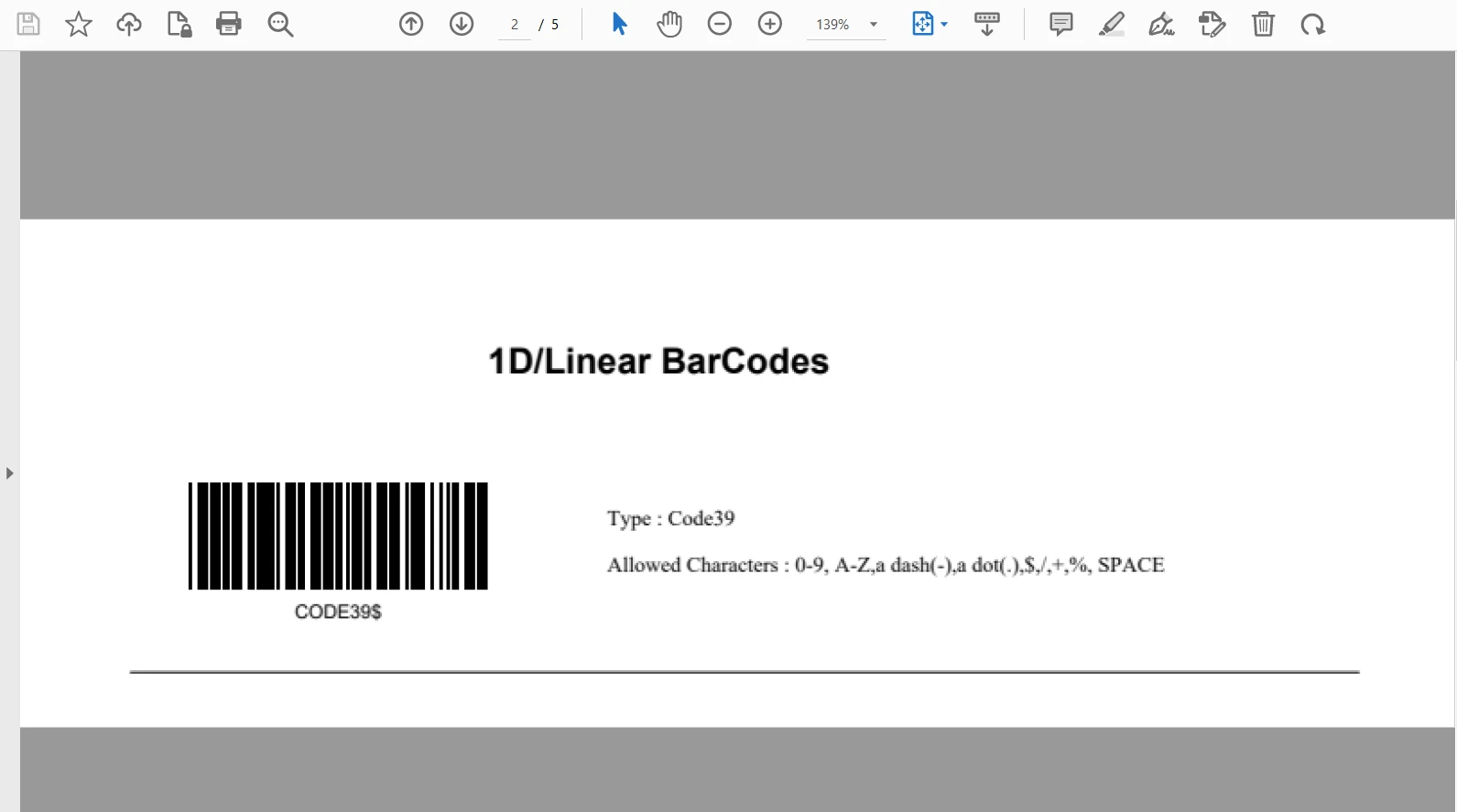
IRONPDF 사용 How to Crop PDF File in C# 커티스 차우 업데이트됨:6월 22, 2025 다운로드 IronPDF NuGet 다운로드 DLL 다운로드 윈도우 설치 프로그램 무료 체험 시작하기 LLM용 사본 LLM용 사본 LLM용 마크다운 형식으로 페이지를 복사하세요 ChatGPT에서 열기 ChatGPT에 이 페이지에 대해 문의하세요 제미니에서 열기 제미니에게 이 페이지에 대해 문의하세요 Grok에서 열기 Grok에게 이 페이지에 대해 문의하세요 혼란 속에서 열기 Perplexity에게 이 페이지에 대해 문의하세요 공유하다 페이스북에 공유하기 트위터에 공유하기 LinkedIn에 공유하기 URL 복사 이메일로 기사 보내기 Cropping and Trimming PDF Pages using IronPDF Library in C# Cropping and trimming PDF pages is always a challenging task for developers in C#. Drawing a crop box around your desired area in a PDF document and then saving only that portion is not straightforward. Fortunately, a solution exists in the IronPDF Library for .NET in C#. The IronPDF .NET Library IronPDF .NET PDF Library is a C# .NET library that allows developers to create, edit, and manipulate PDF files. It is very popular among C# developers because of its PDF generation capability, which allows them to work with PDF files without Adobe Acrobat installed. IronPDF for .NET also allows conversion between different formats like HTML to PDF Conversion, Converting URLs to PDF, and Image to PDF Conversion. It also supports adding Custom Headers and Footers, Digital Signatures in PDFs, annotations and Adding/Removing Attachments from PDFs, user and owner passwords, and other security options. IronPDF has a fast Chromium Engine for a superior rendering experience. It also provides full Multithreading Support and Async Capabilities. Prerequisites Before beginning, Visual Studio 2022 (the latest version) needs to be downloaded and installed. Visual Studio is necessary for building C# apps. The installation will set up the .NET environment, after which the local system will be ready to make a PDF to JPG converter. You can download Visual Studio at this Visual Studio Downloads Page. IronPDF Installation There are multiple ways to install IronPDF: You can download IronPDF from the NuGet Package Manager solution in your C# project, which is created using Visual Studio. Access the NuGet Package Manager via Tools or by right-clicking on Solution Explorer. Browse for the IronPDF package and install it. Another way to install IronPDF is by directly downloading it from the IronPDF NuGet Page. Crop PDF File using IronPDF in C# The following step-by-step process will help you crop a PDF page. It is not straightforward, but we can make use of some methods to achieve this task. Let's get started! Step 1: Load PDF Document To load a PDF file from a local location into this project, IronPDF provides a FromFile method present in the PdfDocument class. The following code example demonstrates how to open an existing PDF file: // Load an existing PDF document from a file PdfDocument pdf = PdfDocument.FromFile("Input.pdf"); // Load an existing PDF document from a file PdfDocument pdf = PdfDocument.FromFile("Input.pdf"); $vbLabelText $csharpLabel The loaded document is as follows: A sample PDF barcode file Step 2: Load a Specific Page from a PDF Document Now that the file is opened for editing, create a separate PdfDocument object and store the specific page that needs to be cropped using the CopyPage method. Simply pass the index of the page that needs to be cropped. Here, the code sample will crop the first page of the PDF document. // Copy the first page of the loaded PDF document PdfDocument loadedPage = pdf.CopyPage(0); // Copy the first page of the loaded PDF document PdfDocument loadedPage = pdf.CopyPage(0); $vbLabelText $csharpLabel Step 3: Convert the Loaded PDF Page to an Image The Convert PDF Page to High-Resolution Image method provides the facility to save the PDF page to a high-resolution image file. The following code helps to convert the selected page to an image for cropping. // Convert the PDF page to a high-resolution PNG image loadedPage.RasterizeToImageFiles(@"C:\Image\Page_to_be_Cropped.png"); // Convert the PDF page to a high-resolution PNG image loadedPage.RasterizeToImageFiles(@"C:\Image\Page_to_be_Cropped.png"); $vbLabelText $csharpLabel Now the page will be converted to an image file. The output is a high-quality PNG image. The output high-quality PNG image file Now, the specific page is separate from the original document and ready to be cropped. Step 4: Retrieve the Dimensions of the Loaded Page To crop the PDF, it is necessary to create a crop box with a certain width and height. For this purpose, a new document will be created using the ChromePdfRenderer class. It provides the option to customize the PDF page size according to the needs, and data is split evenly across pages. Before creating a ChromePdfRenderer, first, get the dimensions of the loaded page in step 2. Then, use these dimensions while setting the custom page size for creating a crop box. The following code sample will help you to get the width and height of the page: // Retrieve dimensions of the loaded PDF page PdfPagesCollection pages = loadedPage.Pages; PdfPage pdfPage = pages[0]; // Dimensions retrieved in mm float width = pdfPage.Width; float height = pdfPage.Height; // Retrieve dimensions of the loaded PDF page PdfPagesCollection pages = loadedPage.Pages; PdfPage pdfPage = pages[0]; // Dimensions retrieved in mm float width = pdfPage.Width; float height = pdfPage.Height; $vbLabelText $csharpLabel Firstly, retrieve the total number of pages in the loaded PDF file using PdfPagesCollection. Then, pass that page to a PdfPage instance to get the page dimension values from the Width and Height properties of the page. All done! Now, let's move to the next step to create a custom crop box. Step 5: Set the Custom PDF Page Size The following code will help create a custom PDF paper size that will work as a crop box, to crop the content in different page segments. // Create a ChromePdfRenderer to set up a custom paper size ChromePdfRenderer pdfRenderer = new ChromePdfRenderer(); pdfRenderer.RenderingOptions.PaperSize = IronPdf.Rendering.PdfPaperSize.Custom; pdfRenderer.RenderingOptions.SetCustomPaperSizeInMillimeters(width, height / 4); pdfRenderer.RenderingOptions.ForcePaperSize = true; // Create a ChromePdfRenderer to set up a custom paper size ChromePdfRenderer pdfRenderer = new ChromePdfRenderer(); pdfRenderer.RenderingOptions.PaperSize = IronPdf.Rendering.PdfPaperSize.Custom; pdfRenderer.RenderingOptions.SetCustomPaperSizeInMillimeters(width, height / 4); pdfRenderer.RenderingOptions.ForcePaperSize = true; $vbLabelText $csharpLabel In the above code, a ChromePdfRenderer is created, which is used to create a new PDF document. Then, the PdfPaperSize property value is set to Custom. Lastly, a custom page margin is set using the dimensions retrieved in step 4. Set the width to the original page width and decrease the height by 1/4th of the original page length. This makes the page work as a rectangle-shaped media box for the content. Note: You can use ForcePaperSize = true to make sure the custom size is applied. For setting custom margins, please visit this Customize PDF Margins Guide. Step 6: Create a New Document using HTML Now, this final step will create a new document using the custom page size PDF and the image saved from the loaded page. // Render HTML to a PDF document with a custom paper size using the cropped image var croppedPdf = pdfRenderer.RenderHtmlAsPdf("<img src='Page_to_be_Cropped.png'/>", @"C:\Image\"); // Render HTML to a PDF document with a custom paper size using the cropped image var croppedPdf = pdfRenderer.RenderHtmlAsPdf("<img src='Page_to_be_Cropped.png'/>", @"C:\Image\"); $vbLabelText $csharpLabel Now let's save the document using the SaveAs method. // Save the newly cropped document croppedPdf.SaveAs("Cropped.pdf"); // Save the newly cropped document croppedPdf.SaveAs("Cropped.pdf"); $vbLabelText $csharpLabel Output The cropped PDF file From the output, you can see that a single image is now split into multiple pages with the custom trim box created. You can copy a specific page you need using the following code: // Copy and save a specific page from the cropped document croppedPdf.CopyPage(1).SaveAs("Cropped_Page1.pdf"); // Copy and save a specific page from the cropped document croppedPdf.CopyPage(1).SaveAs("Cropped_Page1.pdf"); $vbLabelText $csharpLabel Conclusion This article demonstrated how to crop PDF documents by creating a virtual rectangle crop box in terms of pages using IronPDF for .NET Framework. The RasterizeToImageFiles method helps to convert the page into an image which is then used to create a pixel-perfect PDF document. IronPDF also provides other PDF tools that can rotate PDF pages, change PDF text, set margins, format PDFs, convert them, and more. To learn more about IronPDF for .NET and to access additional features to Manipulate PDF Files with IronPDF or how to Customize PDF Paper Size. IronPDF .NET Library is free for development but needs to be licensed for commercial use. Download the powerful IronPDF library for .NET from this IronPDF ZIP Download and give it a try! 자주 묻는 질문 서식을 잃지 않고 C#에서 PDF 페이지를 자르려면 어떻게 해야 하나요? IronPDF를 사용하면 PDF 문서를 로드하고 원하는 페이지를 고해상도 이미지로 변환한 다음 이미지 치수를 사용하여 `ChromePdfRenderer` 클래스로 자르기 상자를 설정하여 C#에서 PDF 페이지를 자를 수 있습니다. 이렇게 하면 서식을 잃지 않고 잘린 PDF를 렌더링할 수 있습니다. C#을 사용하여 PDF를 자르려면 어떤 단계를 거쳐야 하나요? C#을 사용하여 PDF를 자르려면 먼저 `PdfDocument.FromFile`로 PDF를 로드하고 자르려는 특정 페이지를 추출한 다음 `RasterizeToImageFiles`를 사용하여 이미지로 변환한 다음 `ChromePdfRenderer`를 사용하여 자르기 상자를 적용하고 최종 자른 PDF 페이지를 렌더링하면 됩니다. IronPDF를 사용하여 HTML을 PDF로 변환할 수 있나요? 예, IronPDF를 사용하면 HTML 문자열의 경우 `RenderHtmlAsPdf`, HTML 파일의 경우 `RenderHtmlFileAsPdf`와 같은 메서드를 사용하여 HTML을 PDF로 변환할 수 있습니다. 이 기능은 웹 페이지나 HTML 콘텐츠에서 PDF를 생성할 때 유용합니다. PDF 조작을 위해 IronPDF를 사용하려면 특정 소프트웨어가 필요하나요? IronPDF를 사용하려면 C# 애플리케이션에 필요한 .NET 환경을 설정하기 위해 Visual Studio 2022가 설치되어 있어야 합니다. 또한 NuGet 패키지 관리자를 통해 IronPDF를 설치해야 합니다. IronPDF로 PDF에 디지털 서명을 추가할 수 있나요? 예, IronPDF는 PDF에 디지털 서명을 추가하여 문서 보안과 신뢰성을 강화하는 기능을 지원합니다. 이 기능은 PDF 조작을 위한 라이브러리의 광범위한 기능 중 일부입니다. C#에서 IronPDF를 사용하기 위한 문제 해결 팁은 무엇인가요? IronPDF와 관련된 문제가 발생하면 NuGet을 통해 모든 종속성이 올바르게 설치되었는지 확인하고, Visual Studio 환경이 .NET 개발을 위해 설정되었는지 확인한 다음, 특정 방법 및 클래스에 대한 지침은 공식 IronPDF 설명서를 참조하세요. IronPDF에서 `ChromePdfRenderer` 클래스를 사용하는 목적은 무엇인가요? IronPDF의 `ChromePdfRenderer` 클래스는 페이지 크기 및 자르기 상자 설정과 같은 특정 구성으로 PDF 문서를 렌더링하는 데 사용됩니다. 출력 PDF의 모양이나 크기를 사용자 지정해야 할 때 특히 유용합니다. IronPDF를 사용할 때 PDF의 보안을 어떻게 보장할 수 있나요? IronPDF를 사용하면 사용자 및 소유자 비밀번호를 추가하고 디지털 서명을 적용하여 PDF 보안을 강화할 수 있습니다. 이러한 기능은 무단 액세스 및 변경으로부터 문서를 보호하는 데 도움이 됩니다. IronPDF는 .NET 10과 완벽하게 호환되며 C#에서 PDF 자르기를 할 때 어떤 이점이 있나요? 예, IronPDF는 .NET 10과 완벽하게 호환됩니다. 모든 주요 플랫폼에서 .NET 10을 지원하며 향상된 성능, 향상된 메모리 사용량 및 최신 C# 언어 기능으로 렌더링, 자르기, 이미지 처리 등과 같은 PDF 작업에 도움이 됩니다. 커티스 차우 지금 바로 엔지니어링 팀과 채팅하세요 기술 문서 작성자 커티스 차우는 칼턴 대학교에서 컴퓨터 과학 학사 학위를 취득했으며, Node.js, TypeScript, JavaScript, React를 전문으로 하는 프론트엔드 개발자입니다. 직관적이고 미적으로 뛰어난 사용자 인터페이스를 만드는 데 열정을 가진 그는 최신 프레임워크를 활용하고, 잘 구성되고 시각적으로 매력적인 매뉴얼을 제작하는 것을 즐깁니다. 커티스는 개발 분야 외에도 사물 인터넷(IoT)에 깊은 관심을 가지고 있으며, 하드웨어와 소프트웨어를 통합하는 혁신적인 방법을 연구합니다. 여가 시간에는 게임을 즐기거나 디스코드 봇을 만들면서 기술에 대한 애정과 창의성을 결합합니다. 관련 기사 업데이트됨 1월 22, 2026 How to Create PDF Documents in .NET with IronPDF: Complete Guide Discover effective methods to create PDF files in C# for developers. Enhance your coding skills and streamline your projects. Read the article now! 더 읽어보기 업데이트됨 1월 21, 2026 How to Merge PDF Files in VB.NET: Complete Tutorial Merge PDF VB NET with IronPDF. Learn to combine multiple PDF files into one document using simple VB.NET code. Step-by-step examples included. 더 읽어보기 업데이트됨 1월 21, 2026 C# PDFWriter Tutorial: Create PDF Documents in .NET Learn to create PDFs efficiently using C# PDFWriter with this step-by-step guide for developers. Read the article to enhance your skills today! 더 읽어보기 PDF Converter .NET (Developer Tutorial)How to Create PDF in ASP .NET

업데이트됨 1월 22, 2026 How to Create PDF Documents in .NET with IronPDF: Complete Guide Discover effective methods to create PDF files in C# for developers. Enhance your coding skills and streamline your projects. Read the article now! 더 읽어보기
업데이트됨 1월 21, 2026 How to Merge PDF Files in VB.NET: Complete Tutorial Merge PDF VB NET with IronPDF. Learn to combine multiple PDF files into one document using simple VB.NET code. Step-by-step examples included. 더 읽어보기
업데이트됨 1월 21, 2026 C# PDFWriter Tutorial: Create PDF Documents in .NET Learn to create PDFs efficiently using C# PDFWriter with this step-by-step guide for developers. Read the article to enhance your skills today! 더 읽어보기