




업데이트됨 2026년 9월 4일
월별 계정 명세서를 PDF 문서로 생성하기
개발자는 IronPDF C# PDF 라이브러리를 사용하여 외부 서비스에 의존하지 않고도 .NET 프로젝트 내에서 HTML을 신뢰할 수 있는 PDF 파일로 변환할 수 있습니다.
더 읽어보기

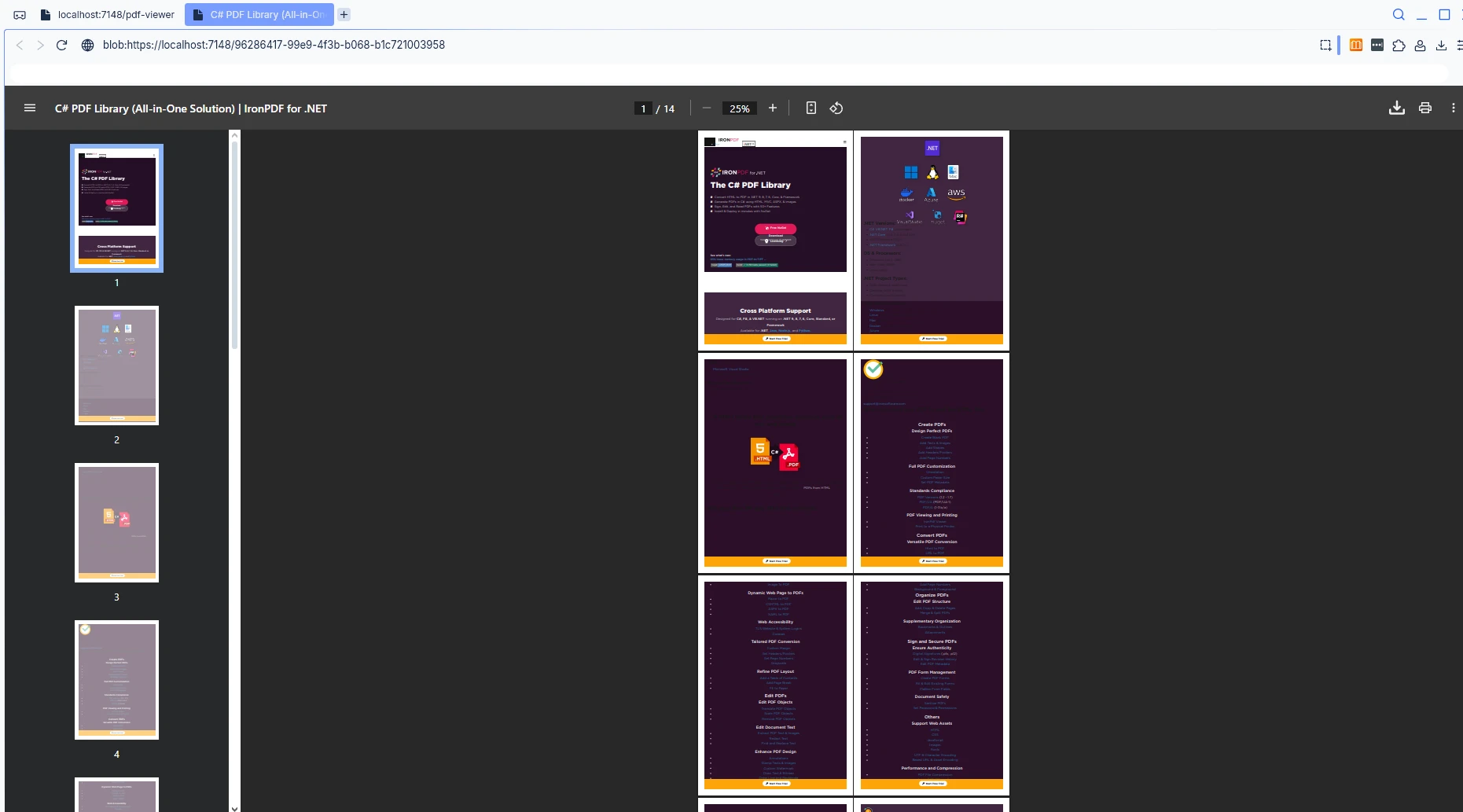
Blazor 웹 애플리케이션에서 새 브라우저 탭에서 PDF 문서를 여는 것은 일반적인 요구 사항입니다. 이 튜토리얼은 IronPDF를 사용하여 PDF를 생성하고 JavaScript interop를 사용하여 새 탭에 표시하여 사용자에게 원활한 문서 뷰잉 경험을 제공하는 방법을 보여줍니다. 이 예시는 Blazor Server 버전에 중점을 둡니다.
Visual Studio 2022에서 새 Blazor Server 프로젝트를 생성하여 시작하십시오. NuGet 패키지 관리자 콘솔을 통해 IronPDF를 설치하십시오:
Program.cs에서 IronPDF 라이선스를 구성하여 전체 기능을 활성화하십시오:
License.LicenseKey = "YOUR-LICENSE-KEY";License.LicenseKey = "YOUR-LICENSE-KEY"Blazor Server 응용 프로그램은 서버의 C# 코드에서 브라우저 탭을 직접 조작할 수 없습니다. 새 탭에서 Blazor의 PDF 열기 작업은 서버 측 PDF 생성과 클라이언트 측 창 관리의 다리를 제공하는 JavaScript InterOp (JS interop)가 필요합니다.
IronPDF는 개발자들이 서버에서 고품질 PDF 문서를 생성할 수 있도록 하며, 이를 JavaScript의 window.open() 기능을 사용하여 표시할 수 있습니다. 이 접근 방식은 순수한 애플리케이션에서의 일반적인 클라이언트-서버 문제를 해결하는 것을 의미합니다.
새 브라우저 탭에서 PDF를 처리하기 위해 _Host.cshtml 파일에 이 JavaScript 코드를 추가하십시오. 다음은 클라이언트 측 창 관리를 담당하는 모듈입니다:
<script>
    window.openPdfInNewTab = function (pdfData, fileName) {
        // Convert base64 to blob
        const byteCharacters = atob(pdfData);
        const byteNumbers = new Array(byteCharacters.length);
        for (let i = 0; i < byteCharacters.length; i++) {
            byteNumbers[i] = byteCharacters.charCodeAt(i);
        }
        const byteArray = new Uint8Array(byteNumbers);
        // The type is 'application/pdf', not 'image/png' or 'image/jpg'
        const blob = new Blob([byteArray], { type: 'application/pdf' });
        // Create URL and open in new tab
        const blobUrl = URL.createObjectURL(blob);
        const newWindow = window.open(blobUrl, '_blank');
        if (newWindow) {
            newWindow.document.title = fileName || 'PDF Document';
        }
        // Clean up
        setTimeout(() => URL.revokeObjectURL(blobUrl), 100);
        return newWindow !== null;
    };
</script>The provided code is JavaScript, not C#. However, I can help you convert it into VB.NET code that would perform a similar function if executed in a VB.NET environment with a web browser control or similar setup. Here's how you might implement similar functionality in VB.NET:
Note: This VB.NET code assumes you are working in a desktop application environment where you can use the `Process.Start` method to open a PDF file with the default PDF viewer. If you are working in a web environment, you would need to adapt this code to fit the web context, possibly using a web server to serve the PDF file to the client.window.openPdfInNewTab JavaScript 함수는 서버에서 새 탭을 여는 문제를 해결하는 데 매우 중요합니다. 이 함수는 PDF 데이터를 Blazor 서버에서 Base64 문자열로 수신하며, 클라이언트 측 코드가 이를 바이너리 Blob 객체로 변환합니다.
이 blob은 임시 URL을 생성하는 데 사용되며, 최종적으로 window.open(blobUrl, '_blank')을 호출하여 브라우저가 새 탭에서 PDF를 열도록 강제합니다.
PDF를 생성하고 새 탭에서 열리는 새로운 Razor 컴포넌트를 만드십시오. 이는 솔루션의 주요 템플릿으로 사용됩니다:
@page "/pdf-viewer"
@using IronPDF @inject IJSRuntime JS
<h3>Open PDF in New Tab</h3>
<div class="mb-3">
    <label>Enter URL:</label>
</div>
<button class="btn btn-primary" @onclick="GenerateAndOpenPdf"
        disabled="@isProcessing">
    @if (isProcessing)
    {
        <span>Generating PDF...</span>
    }
    else
    {
        <span>Generate and Open PDF</span>
    }
</button>
@if (!string.IsNullOrEmpty(errorMessage))
{
    <div class="alert alert-danger mt-3">@errorMessage</div>
}
@code {
    private string targetUrl = "https://ironpdf.com";
    private bool isProcessing = false;
    private string errorMessage = "";
    private async Task GenerateAndOpenPdf()
    {
        isProcessing = true;
        errorMessage = "";
        try
        {
            // Configure Chrome PDF renderer. Note the rendering details
            var renderer = new ChromePdfRenderer
            {
                RenderingOptions = new ChromePdfRenderOptions
                {
                    MarginTop = 10,
                    MarginBottom = 10,
                    MarginLeft = 10,
                    MarginRight = 10,
                    EnableJavaScript = true,
                    RenderDelay = 500
                }
            };
            // Generate PDF from URL
            var pdfDocument = await Task.Run(() =>
                renderer.RenderUrlAsPdf(targetUrl));
            // Convert to base64
            byte[] pdfBytes = pdfDocument.BinaryData;
            string base64Pdf = Convert.ToBase64String(pdfBytes);
            // Open in new tab via JS interop. We run this call to open the PDF
            bool success = await JS.InvokeAsync<bool>("openPdfInNewTab",
                base64Pdf, $"Document_{DateTime.Now:yyyyMMdd_HHmmss}.pdf");
            if (!success)
            {
                // Giving the user an understandable error is key
                errorMessage = "Pop-up blocked. Please allow pop-ups for this site.";
            }
        }
        catch (Exception ex)
        {
            errorMessage = $"Error: {ex.Message}";
        }
        finally
        {
            isProcessing = false;
        }
    }
}Imports IronPDF
Imports Microsoft.JSInterop
@page "/pdf-viewer"
@inject IJSRuntime JS
<h3>Open PDF in New Tab</h3>
<div class="mb-3">
<label>Enter URL:</label>
</div>
<button class="btn btn-primary" @onclick="GenerateAndOpenPdf" disabled="@isProcessing">
@If isProcessing Then
<span>Generating PDF...</span>
Else
<span>Generate and Open PDF</span>
End If
</button>
@If Not String.IsNullOrEmpty(errorMessage) Then
<div class="alert alert-danger mt-3">@errorMessage</div>
End If
@Code
Private targetUrl As String = "https://ironpdf.com"
Private isProcessing As Boolean = False
Private errorMessage As String = ""
Private Async Function GenerateAndOpenPdf() As Task
isProcessing = True
errorMessage = ""
Try
' Configure Chrome PDF renderer. Note the rendering details
Dim renderer As New ChromePdfRenderer With {
.RenderingOptions = New ChromePdfRenderOptions With {
.MarginTop = 10,
.MarginBottom = 10,
.MarginLeft = 10,
.MarginRight = 10,
.EnableJavaScript = True,
.RenderDelay = 500
}
}
' Generate PDF from URL
Dim pdfDocument = Await Task.Run(Function() renderer.RenderUrlAsPdf(targetUrl))
' Convert to base64
Dim pdfBytes As Byte() = pdfDocument.BinaryData
Dim base64Pdf As String = Convert.ToBase64String(pdfBytes)
' Open in new tab via JS interop. We run this call to open the PDF
Dim success As Boolean = Await JS.InvokeAsync(Of Boolean)("openPdfInNewTab", base64Pdf, $"Document_{DateTime.Now:yyyyMMdd_HHmmss}.pdf")
If Not success Then
' Giving the user an understandable error is key
errorMessage = "Pop-up blocked. Please allow pop-ups for this site."
End If
Catch ex As Exception
errorMessage = $"Error: {ex.Message}"
Finally
isProcessing = False
End Try
End Function
End Code이 코드 블록은 주요 상호작용 페이지를 정의합니다. Razor 마크업은 URL 입력 필드와 버튼이 있는 간단한 사용자 인터페이스를 생성합니다. C# @code 블록은 로직을 처리하며, 버튼이 클릭되면 ChromePdfRenderer 인스턴스를 사용하여 사용자가 제공한 URL로부터 PDF를 생성합니다.
그 후 생성된 PDF 바이트 배열을 Base64 문자열로 변환하고 @inject IJSRuntime JS를 사용하여 JavaScript 함수를 호출, 사용자가 문서를 열 수 있도록 합니다.

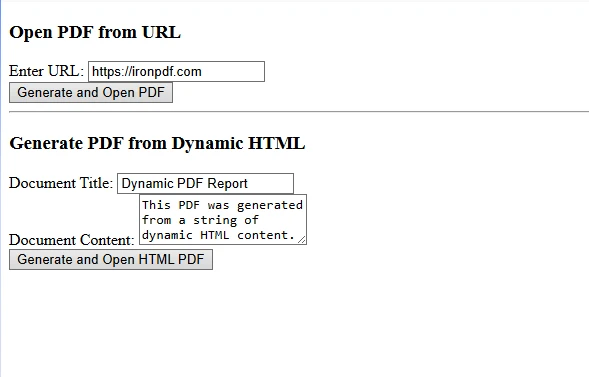
URL 대신 동적 콘텐츠에서 PDF를 생성하려면, RenderHtmlAsPdf를 사용하도록 접근 방식을 변경하세요:
private async Task GenerateFromHtml()
{
    // Define CSS styles inside the HTML string for structure and appearance.
    string htmlContent = $@"
        <!DOCTYPE html>
        <html>
        <head>
            <style>
                body {{font-family: Arial; padding: 20px;}}
                h1 {{color: #2c3e50;}}
            </style>
        </head>
        <body>
            <h1>{documentTitle}</h1>
            <p>{documentContent}</p>
            <div>Generated: {DateTime.Now}</div>
        </body>
        </html>";
    var renderer = new ChromePdfRenderer();
    var pdfDocument = renderer.RenderHtmlAsPdf(htmlContent);
    byte[] pdfBytes = pdfDocument.BinaryData;
    await JS.InvokeVoidAsync("openPdfInNewTab",
        Convert.ToBase64String(pdfBytes), "dynamic.pdf");
}Private Async Function GenerateFromHtml() As Task
' Define CSS styles inside the HTML string for structure and appearance.
Dim htmlContent As String = $"
<!DOCTYPE html>
<html>
<head>
<style>
body {{font-family: Arial; padding: 20px;}}
h1 {{color: #2c3e50;}}
</style>
</head>
<body>
<h1>{documentTitle}</h1>
<p>{documentContent}</p>
<div>Generated: {DateTime.Now}</div>
</body>
</html>"
Dim renderer = New ChromePdfRenderer()
Dim pdfDocument = renderer.RenderHtmlAsPdf(htmlContent)
Dim pdfBytes As Byte() = pdfDocument.BinaryData
Await JS.InvokeVoidAsync("openPdfInNewTab", Convert.ToBase64String(pdfBytes), "dynamic.pdf")
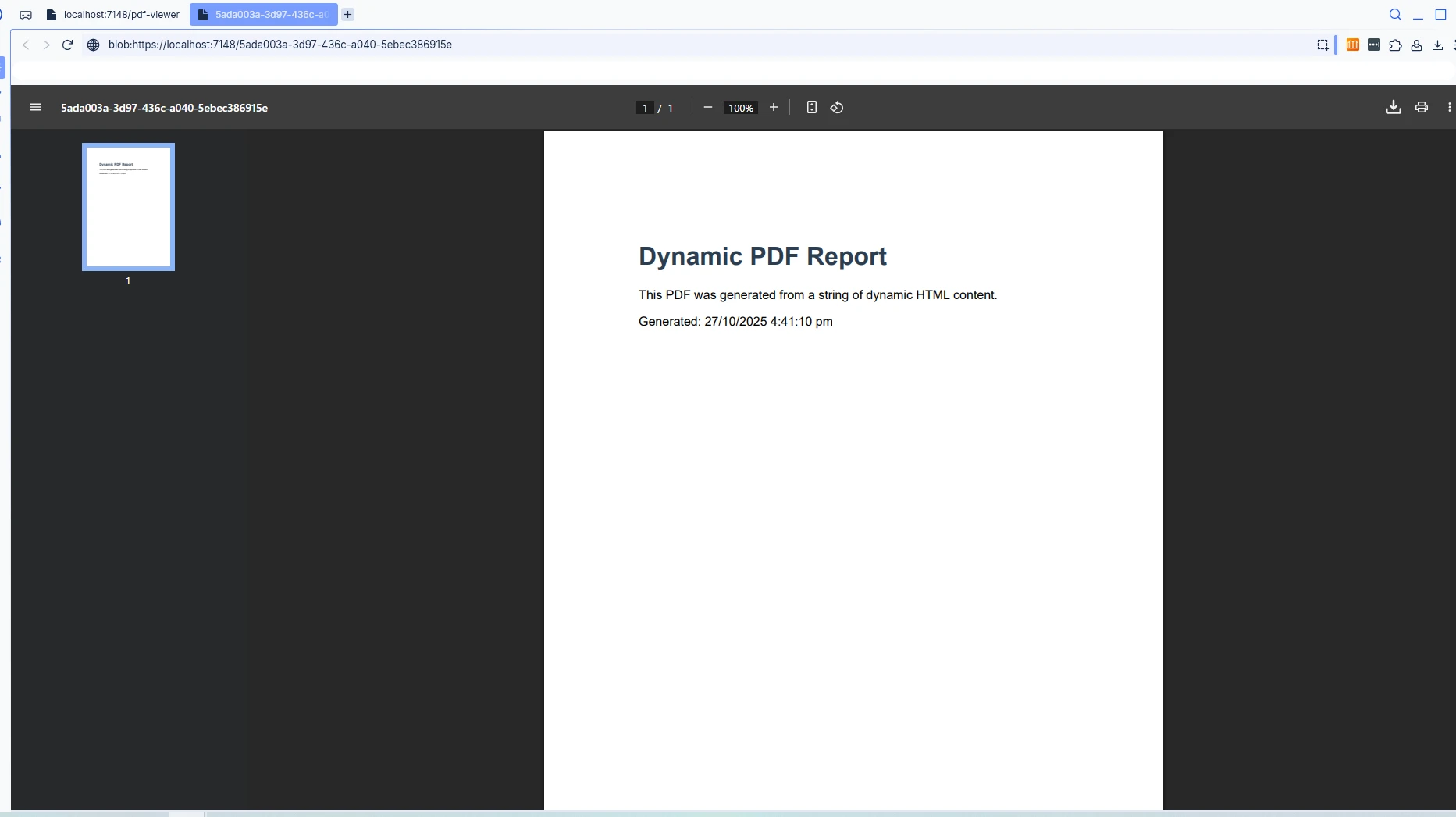
End FunctionGenerateFromHtml 메소드는 IronPDF가 기존 URL 대신 동적으로 생성된 HTML 마크업에서 PDF를 생성할 수 있는 방법을 보여줍니다. 이는 제목, 콘텐츠 및 동적 데이터가 포함된 완전한 HTML 문자열을 구성합니다. 동적 콘텐츠 생성을 위한 해답은 RenderHtmlAsPdf 메소드입니다.
다른 브라우저는 blob URL을 다르게 처리합니다. 일관된 동작을 보장하기 위해 Chrome, Firefox, Edge, Safari에서 구현을 테스트하십시오.
대용량 PDF 문서의 경우, 성능을 향상시키기 위해 서버 측 캐시를 구현하는 것을 고려하십시오:
services.AddMemoryCache();
// Cache generated PDFs to avoid regenerationservices.AddMemoryCache()
' Cache generated PDFs to avoid regenerationJavaScript 상호 운용 외에도 정적 파일 미들웨어를 통해 PDF를 제공하고 다른 네비게이션 옵션으로 표준 HTML 앵커 태그를 사용할 수 있습니다:
<a href="/pdfs/document.pdf" target="_blank">Open PDF</a>The provided input is HTML, not C# code. Please provide valid C# code for conversion to VB.NET.이 접근 방식은 사전에 생성된 PDF에는 잘 작동하지만 JS InterOp 방법의 동적 생성 기능이 부족합니다.
IronPDF의 강력한 PDF 생성 기능과 Blazor의 JavaScript InterOp를 결합하여 새 브라우저 탭에서 PDF를 여는 강력한 솔루션을 제공합니다. 이 접근 방식은 개발자가 Microsoft의 .NET 기술에 기반하여 구축된 최신 Blazor 애플리케이션과 원활하게 통합되는 동적이고 전문적인 PDF 문서를 생성할 수 있게 합니다.
Blazor 프로젝트에서 PDF 기능을 구현할 준비가 되셨습니까? 무료 IronPDF 체험판을 시작하세요. 체험판에는 워터마크 없이 전체 기능과 성공을 보장하기 위한 포괄적인 지원이 포함되어 있습니다.

커티스 차우는 칼턴 대학교에서 컴퓨터 과학 학사 학위를 취득했으며, Node.js, TypeScript, JavaScript, React를 전문으로 하는 프론트엔드 개발자입니다. 직관적이고 미적으로 뛰어난 사용자 인터페이스를 만드는 데 열정을 가진 그는 최신 프레임워크를 활용하고, 잘 구성되고 시각적으로 매력적인 매뉴얼을 제작하는 것을 즐깁니다.



IronPDF는 IRON SUITE 의 일부입니다.
10개의 .NET API 제품, 당신의 사무 문서를 위해

PDF 파일을 HTML처럼 빠르게 변환해야 할 때.


