




已更新 2026年5月8日
生成每月账户报表(PDF 文档)
using IronPDF C# PDF 库,开发人员可以在 .NET 项目中将 HTML 转换为可靠的 PDF 文件,而无需依赖外部服务。
阅读更多

在一个新的浏览器选项卡中打开PDF文档是Blazor网络应用程序的常见需求。 本教程演示了如何使用 IronPDF 生成 PDF 并使用 JavaScript 互操作将其显示在新标签页中,从而为用户提供无缝的文档查看体验。 此示例专注于Blazor Server版本。
首先在Visual Studio 2022中创建一个新的Blazor Server项目。通过NuGet包管理器控制台安装IronPDF:
在 Program.cs 中配置 IronPDF 许可证以启用全部功能:
License.LicenseKey = "YOUR-LICENSE-KEY";License.LicenseKey = "YOUR-LICENSE-KEY"Blazor Server应用程序无法直接从服务器上的C#代码操作浏览器选项卡。 Blazor 在新标签页中打开 PDF 的任务需要 JavaScript InterOp(JS 互操作)来连接服务器端 PDF 生成与客户端窗口管理。
IronPDF使开发人员能够生成高质量的服务器上的PDF文档,然后可以使用JavaScript的window.open()功能进行显示。 这种方法意味着要解决网络应用程序中常见的客户端-服务器问题。
将此 JavaScript 代码添加到您的 _Host.cshtml 文件中,以处理 PDF 在新浏览器标签页中的显示。 这是负责客户端窗口管理的模块:
<script>
    window.openPdfInNewTab = function (pdfData, fileName) {
        // Convert base64 to blob
        const byteCharacters = atob(pdfData);
        const byteNumbers = new Array(byteCharacters.length);
        for (let i = 0; i < byteCharacters.length; i++) {
            byteNumbers[i] = byteCharacters.charCodeAt(i);
        }
        const byteArray = new Uint8Array(byteNumbers);
        // The type is 'application/pdf', not 'image/png' or 'image/jpg'
        const blob = new Blob([byteArray], { type: 'application/pdf' });
        // Create URL and open in new tab
        const blobUrl = URL.createObjectURL(blob);
        const newWindow = window.open(blobUrl, '_blank');
        if (newWindow) {
            newWindow.document.title = fileName || 'PDF Document';
        }
        // Clean up
        setTimeout(() => URL.revokeObjectURL(blobUrl), 100);
        return newWindow !== null;
    };
</script>The provided code is JavaScript, not C#. However, I can help you convert it into VB.NET code that would perform a similar function if executed in a VB.NET environment with a web browser control or similar setup. Here's how you might implement similar functionality in VB.NET:
Note: This VB.NET code assumes you are working in a desktop application environment where you can use the `Process.Start` method to open a PDF file with the default PDF viewer. If you are working in a web environment, you would need to adapt this code to fit the web context, possibly using a web server to serve the PDF file to the client.window.openPdfInNewTab JavaScript函数对于解决从服务器打开新标签页的问题至关重要。 它接受来自Blazor服务器的PDF数据作为Base64字符串,并由客户端代码将其转换为二进制Blob对象。
然后,该 blob 将用于创建一个临时 URL,最后将其传递给 window.open(blobUrl, '_blank'),以强制浏览器在新标签页中打开 PDF。
创建一个新的Razor组件,生成PDF并在新选项卡中打开它们。 这作为解决方案的主要模板:
@page "/pdf-viewer"
@using IronPDF @inject IJSRuntime JS
<h3>Open PDF in New Tab</h3>
<div class="mb-3">
    <label>Enter URL:</label>
</div>
<button class="btn btn-primary" @onclick="GenerateAndOpenPdf"
        disabled="@isProcessing">
    @if (isProcessing)
    {
        <span>Generating PDF...</span>
    }
    else
    {
        <span>Generate and Open PDF</span>
    }
</button>
@if (!string.IsNullOrEmpty(errorMessage))
{
    <div class="alert alert-danger mt-3">@errorMessage</div>
}
@code {
    private string targetUrl = "https://ironpdf.com";
    private bool isProcessing = false;
    private string errorMessage = "";
    private async Task GenerateAndOpenPdf()
    {
        isProcessing = true;
        errorMessage = "";
        try
        {
            // Configure Chrome PDF renderer. Note the rendering details
            var renderer = new ChromePdfRenderer
            {
                RenderingOptions = new ChromePdfRenderOptions
                {
                    MarginTop = 10,
                    MarginBottom = 10,
                    MarginLeft = 10,
                    MarginRight = 10,
                    EnableJavaScript = true,
                    RenderDelay = 500
                }
            };
            // Generate PDF from URL
            var pdfDocument = await Task.Run(() =>
                renderer.RenderUrlAsPdf(targetUrl));
            // Convert to base64
            byte[] pdfBytes = pdfDocument.BinaryData;
            string base64Pdf = Convert.ToBase64String(pdfBytes);
            // Open in new tab via JS interop. We run this call to open the PDF
            bool success = await JS.InvokeAsync<bool>("openPdfInNewTab",
                base64Pdf, $"Document_{DateTime.Now:yyyyMMdd_HHmmss}.pdf");
            if (!success)
            {
                // Giving the user an understandable error is key
                errorMessage = "Pop-up blocked. Please allow pop-ups for this site.";
            }
        }
        catch (Exception ex)
        {
            errorMessage = $"Error: {ex.Message}";
        }
        finally
        {
            isProcessing = false;
        }
    }
}Imports IronPDF
Imports Microsoft.JSInterop
@page "/pdf-viewer"
@inject IJSRuntime JS
<h3>Open PDF in New Tab</h3>
<div class="mb-3">
<label>Enter URL:</label>
</div>
<button class="btn btn-primary" @onclick="GenerateAndOpenPdf" disabled="@isProcessing">
@If isProcessing Then
<span>Generating PDF...</span>
Else
<span>Generate and Open PDF</span>
End If
</button>
@If Not String.IsNullOrEmpty(errorMessage) Then
<div class="alert alert-danger mt-3">@errorMessage</div>
End If
@Code
Private targetUrl As String = "https://ironpdf.com"
Private isProcessing As Boolean = False
Private errorMessage As String = ""
Private Async Function GenerateAndOpenPdf() As Task
isProcessing = True
errorMessage = ""
Try
' Configure Chrome PDF renderer. Note the rendering details
Dim renderer As New ChromePdfRenderer With {
.RenderingOptions = New ChromePdfRenderOptions With {
.MarginTop = 10,
.MarginBottom = 10,
.MarginLeft = 10,
.MarginRight = 10,
.EnableJavaScript = True,
.RenderDelay = 500
}
}
' Generate PDF from URL
Dim pdfDocument = Await Task.Run(Function() renderer.RenderUrlAsPdf(targetUrl))
' Convert to base64
Dim pdfBytes As Byte() = pdfDocument.BinaryData
Dim base64Pdf As String = Convert.ToBase64String(pdfBytes)
' Open in new tab via JS interop. We run this call to open the PDF
Dim success As Boolean = Await JS.InvokeAsync(Of Boolean)("openPdfInNewTab", base64Pdf, $"Document_{DateTime.Now:yyyyMMdd_HHmmss}.pdf")
If Not success Then
' Giving the user an understandable error is key
errorMessage = "Pop-up blocked. Please allow pop-ups for this site."
End If
Catch ex As Exception
errorMessage = $"Error: {ex.Message}"
Finally
isProcessing = False
End Try
End Function
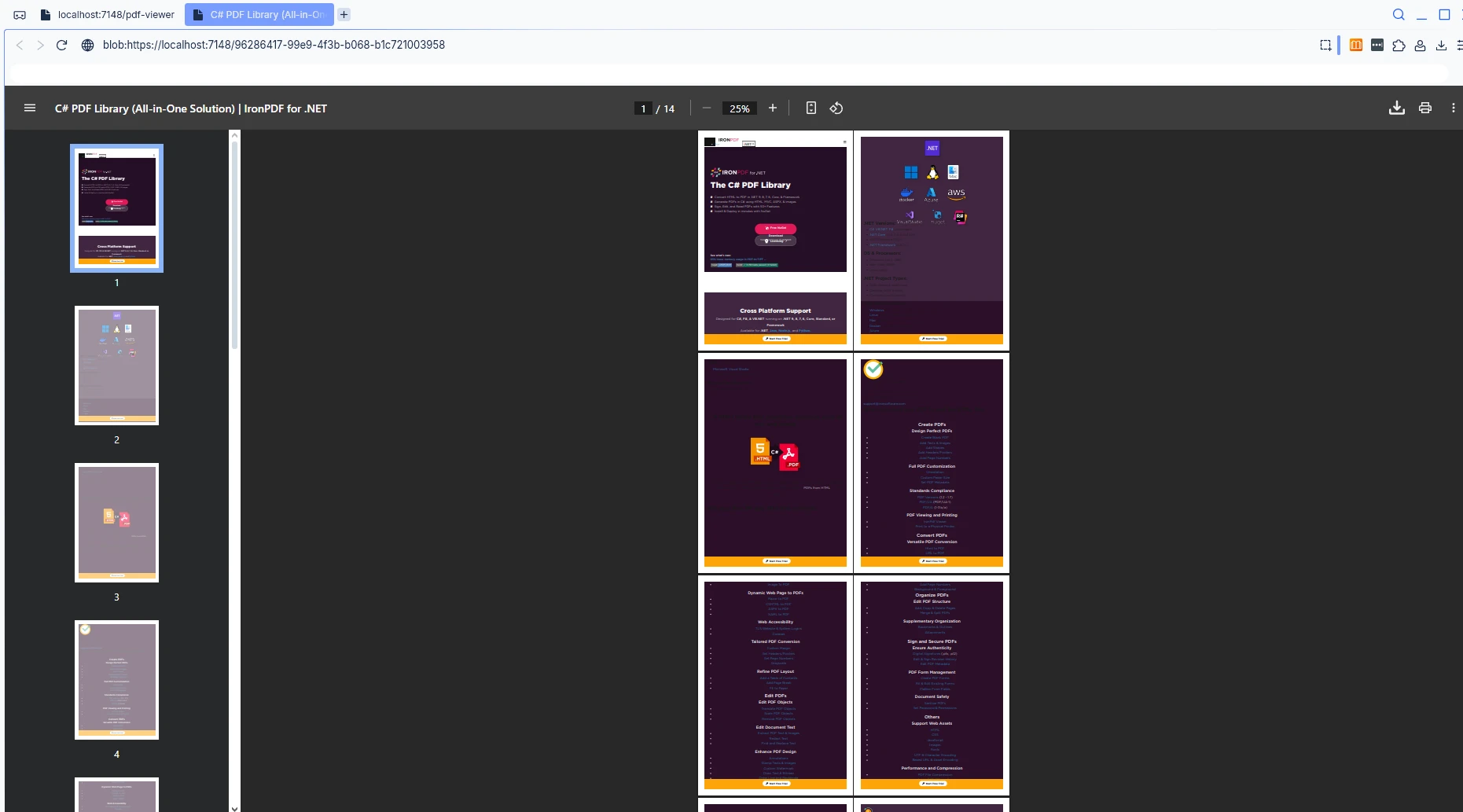
End Code此代码块定义了主要的交互页面。 Razor标记创建了一个简单的用户界面,包括URL输入字段和一个按钮。 C# @code 块负责处理逻辑:点击按钮后,它会使用 ChromePdfRenderer 实例从用户提供的 URL 生成 PDF。
然后将生成的PDF字节数组转换为@inject IJSRuntime JS调用JavaScript函数,为用户打开文档。

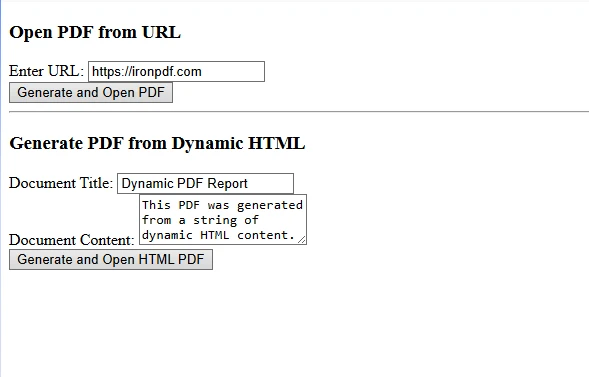
要从动态内容而不是URL生成PDF,请修改您的方法以使用RenderHtmlAsPdf:
private async Task GenerateFromHtml()
{
    // Define CSS styles inside the HTML string for structure and appearance.
    string htmlContent = $@"
        <!DOCTYPE html>
        <html>
        <head>
            <style>
                body {{font-family: Arial; padding: 20px;}}
                h1 {{color: #2c3e50;}}
            </style>
        </head>
        <body>
            <h1>{documentTitle}</h1>
            <p>{documentContent}</p>
            <div>Generated: {DateTime.Now}</div>
        </body>
        </html>";
    var renderer = new ChromePdfRenderer();
    var pdfDocument = renderer.RenderHtmlAsPdf(htmlContent);
    byte[] pdfBytes = pdfDocument.BinaryData;
    await JS.InvokeVoidAsync("openPdfInNewTab",
        Convert.ToBase64String(pdfBytes), "dynamic.pdf");
}Private Async Function GenerateFromHtml() As Task
' Define CSS styles inside the HTML string for structure and appearance.
Dim htmlContent As String = $"
<!DOCTYPE html>
<html>
<head>
<style>
body {{font-family: Arial; padding: 20px;}}
h1 {{color: #2c3e50;}}
</style>
</head>
<body>
<h1>{documentTitle}</h1>
<p>{documentContent}</p>
<div>Generated: {DateTime.Now}</div>
</body>
</html>"
Dim renderer = New ChromePdfRenderer()
Dim pdfDocument = renderer.RenderHtmlAsPdf(htmlContent)
Dim pdfBytes As Byte() = pdfDocument.BinaryData
Await JS.InvokeVoidAsync("openPdfInNewTab", Convert.ToBase64String(pdfBytes), "dynamic.pdf")
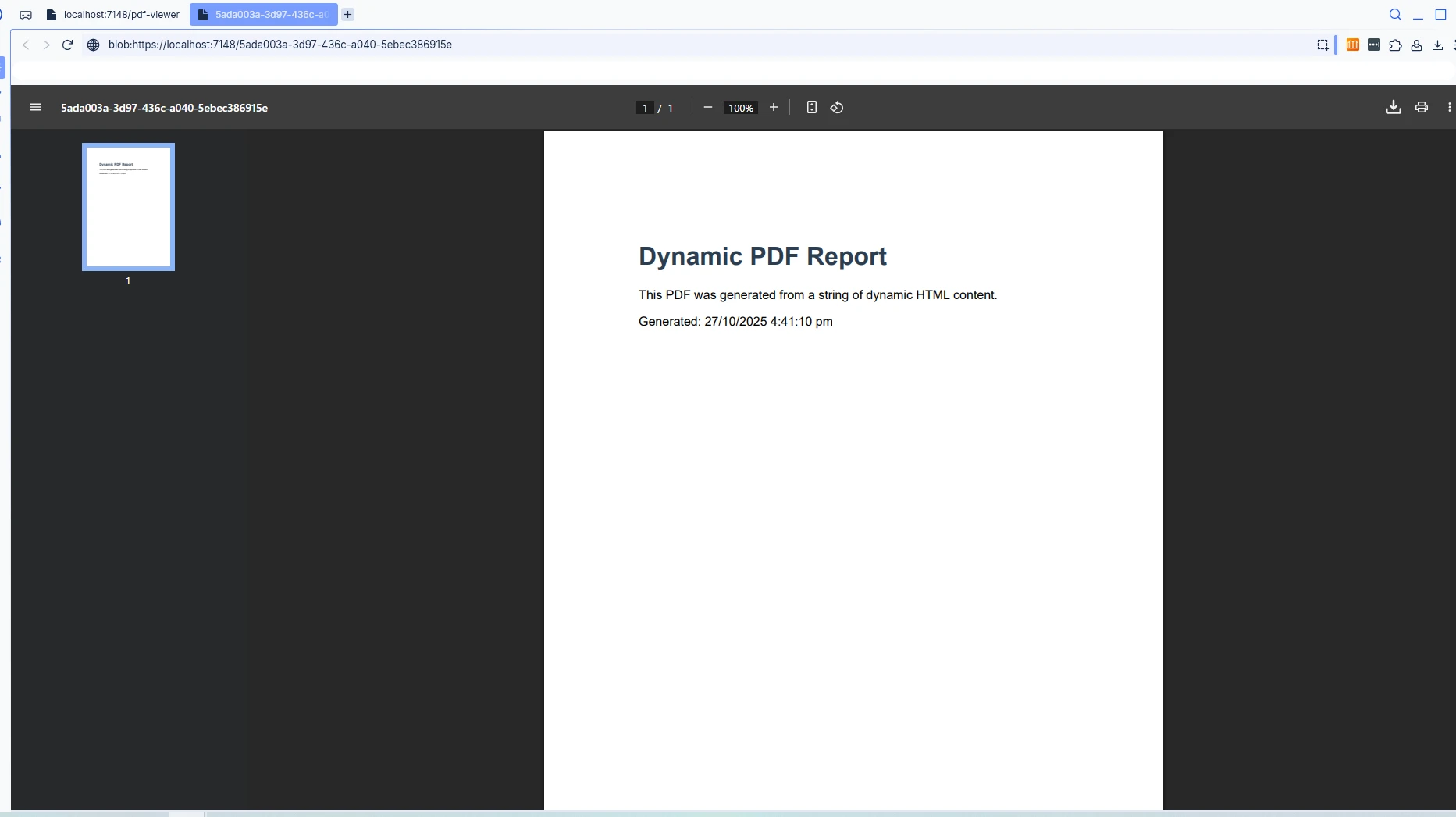
End FunctionGenerateFromHtml方法展示了IronPDF如何从动态生成的HTML标记而不是现有URL生成PDF。 它构造了一个完整的HTML字符串,包含标题、内容和动态数据。 动态内容生成的答案是RenderHtmlAsPdf方法。
不同的浏览器处理Blob URL的方式不同。 在Chrome、Firefox、Edge和Safari中测试您的实现,以确保一致的行为。
对于大型PDF文档,考虑实现服务端缓存以提高性能:
services.AddMemoryCache();
// Cache generated PDFs to avoid regenerationservices.AddMemoryCache()
' Cache generated PDFs to avoid regeneration除了JavaScript互操作,您还可以通过静态文件中间件提供PDF,并使用标准HTML锚标记作为替代导航选项:
<a href="/pdfs/document.pdf" target="_blank">Open PDF</a>The provided input is HTML, not C# code. Please provide valid C# code for conversion to VB.NET.这种方法适用于预生成的 PDF,但缺乏 JS InterOp 方法的动态生成功能。
1.错误处理:始终用 try-catch 块封装 PDF 生成,并在出现问题时向用户提供有意义的错误信息。 2.性能:使用Async/Await模式防止 PDF 生成过程中出现 UI 阻塞。 3. 用户体验:在生成期间显示加载指示器,并优雅地处理弹出阻止程序场景。 4.DOM 操作:请记住,服务器上的 C# 不能直接操作客户端的 DOM; 这就是 JS InterOp 至关重要的原因。 您无需手动设置新窗口的高度或宽度,因为浏览器处理PDF查看器。 5.安全性:在生成PDF之前验证并清理用户输入。
IronPDF 强大的 PDF 生成功能与 Blazor 的 JavaScript InterOp 相结合,为在新浏览器标签页中打开 PDF 提供了强大的解决方案。 此方法使开发人员能够创建动态的、专业的PDF文档,这些文档无缝集成到由Microsoft的.NET技术构建的现代Blazor应用程序中。
准备好在您的Blazor项目中实现PDF功能了吗? 立即开始免费试用 IronPDF。 试用版包括无水印的完整功能和全面的支持,确保您的成功。

Curtis Chau 拥有卡尔顿大学的计算机科学学士学位,专注于前端开发,精通 Node.js、TypeScript、JavaScript 和 React。他热衷于打造直观且美观的用户界面,喜欢使用现代框架并创建结构良好、视觉吸引力强的手册。

IronPDF 是 IRONSUITE的一部分
10 个 .NET API 产品用于您的办公文档

当您需要PDF看起来像HTML时,速度快。




