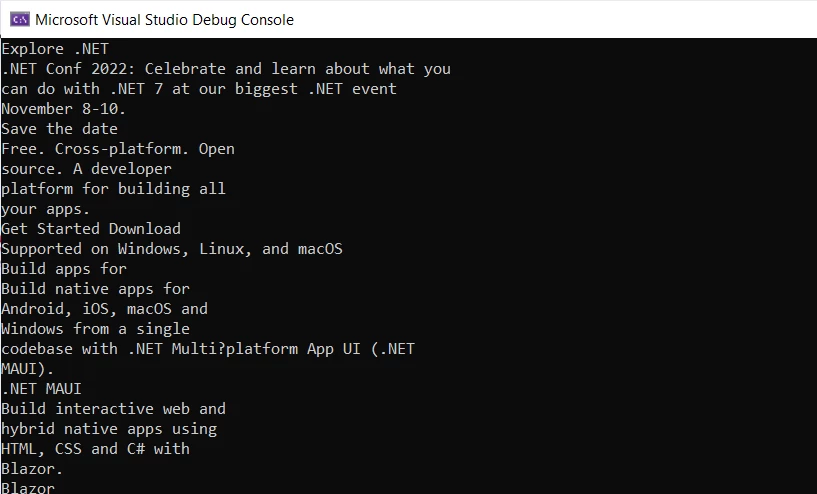
IRONPDF 사용 How to Read PDF Files in C# 커티스 차우 업데이트됨:6월 20, 2025 다운로드 IronPDF NuGet 다운로드 DLL 다운로드 윈도우 설치 프로그램 무료 체험 시작하기 LLM용 사본 LLM용 사본 LLM용 마크다운 형식으로 페이지를 복사하세요 ChatGPT에서 열기 ChatGPT에 이 페이지에 대해 문의하세요 제미니에서 열기 제미니에게 이 페이지에 대해 문의하세요 Grok에서 열기 Grok에게 이 페이지에 대해 문의하세요 혼란 속에서 열기 Perplexity에게 이 페이지에 대해 문의하세요 공유하다 페이스북에 공유하기 트위터에 공유하기 LinkedIn에 공유하기 URL 복사 이메일로 기사 보내기 Programmatic PDF processing is crucial in industries like finance, healthcare, legal, and education, where critical information needs to be processed, analyzed, and extracted from PDF documents for purposes such as data analysis, document management, and automation. Despite its importance, this task can be challenging. IronPDF: A C# PDF Library IronPDF enables you to handle incredibly difficult tasks easily. It allows for the easy editing of text in a PDF document, in a similar way to how you can work with text files in a text document, all the while allowing you to export files in any operating system. The IronPDF application covers the complete process of viewing, modifying, and extracting content from a PDF. Take the Right Step with IronPDF Text can be read and written in PDF file format quickly and easily using any computer with IronPDF software. Installation is a simple task. This is the best way to learn to read PDF files in C#. You may also download IronPDF free of cost for development. If you explore IronPDF you will notice that the library provides extensive functionality that makes it very easy to use PDFs. Explore classes in your free time! There are several C# examples using HTML to create a PDF available to learn how to create an optimal output from reading PDFs. Read PDF Files using IronPDF Step 1: Install the IronPDF Package To begin, you will need to install the IronPDF NuGet package into your .NET project. You can do this by opening the Package Manager Console in Visual Studio and entering the following command: Install-Package IronPdf Step 2: Import the IronPDF Library Next, you need to import the IronPDF library into your code by adding the following statement at the top of your file: using IronPdf; using IronPdf; $vbLabelText $csharpLabel Step 3: Load the PDF Document Once you have imported the IronPDF library, you can load a PDF document into your code by using the following code: // Load the PDF document from file path PdfDocument pdf = PdfDocument.FromFile(@"C:\dotnet.pdf"); // Define the output path for the saved PDF var outputPath = "Example.pdf"; // Save the PDF document to the specified output path pdf.SaveAs(outputPath); // Load the PDF document from file path PdfDocument pdf = PdfDocument.FromFile(@"C:\dotnet.pdf"); // Define the output path for the saved PDF var outputPath = "Example.pdf"; // Save the PDF document to the specified output path pdf.SaveAs(outputPath); $vbLabelText $csharpLabel Step 4: Extract Text from the PDF IronPDF provides a range of methods to extract text from an existing PDF file. For example, you can begin extracting text from a PDF and print it on the console by using the following code snippet: // Extract text from the loaded PDF document string text = pdf.ExtractText(); // Print the extracted text to the console Console.WriteLine(text); // Extract text from the loaded PDF document string text = pdf.ExtractText(); // Print the extracted text to the console Console.WriteLine(text); $vbLabelText $csharpLabel Using the above code, you can extract text from a PDF file. Extracting Text from a PDF Using IronPDF Step 5: Rasterize a PDF to Images Let's rasterize the PDF file to Images with IronPDF using IronPDF. First, import the required libraries: using System.Linq; using IronPdf; using IronSoftware.Drawing; using System.Linq; using IronPdf; using IronSoftware.Drawing; $vbLabelText $csharpLabel The code then uses the RasterizeToImageFiles method to extract all the pages of the PDF document to a folder as image files. The extracted images can be saved as either PNG or JPG files, and the dimensions and page ranges of the images can also be specified. // Extract all pages to a folder as image files with PNG format pdf.RasterizeToImageFiles(@"C:\image\folder\*.png"); // Extract all pages to JPG images with specified dimensions pdf.RasterizeToImageFiles(@"C:\image\folder\example_pdf_image_*.jpg", 100, 80); // Extract all pages to a folder as image files with PNG format pdf.RasterizeToImageFiles(@"C:\image\folder\*.png"); // Extract all pages to JPG images with specified dimensions pdf.RasterizeToImageFiles(@"C:\image\folder\example_pdf_image_*.jpg", 100, 80); $vbLabelText $csharpLabel Finally, the code uses the ToBitmap method to extract all pages of the PDF document as AnyBitmap objects, which can be processed and manipulated further within the code. // Extract all pages as AnyBitmap objects for further processing AnyBitmap[] pdfBitmaps = pdf.ToBitmap(); // Extract all pages as AnyBitmap objects for further processing AnyBitmap[] pdfBitmaps = pdf.ToBitmap(); $vbLabelText $csharpLabel The above code demonstrates how to extract the contents of a PDF file using IronPDF and save the extracted data as image files or AnyBitmap objects for further processing. Step 7: Manipulate PDF Pages Let's learn how to manipulate the pages of a PDF document by working with IronPDF. The code first removes pages two and three from the PDF document using the RemovePages method: // Remove pages two and three from the PDF document pdf.RemovePages(1, 2); // Remove pages two and three from the PDF document pdf.RemovePages(1, 2); $vbLabelText $csharpLabel The RemovePages method takes two arguments: the starting page to remove (in this case, page 2, represented as 1 since page numbering starts at 0) and the number of pages to remove (in this case, 2 pages). Step 6: Save the PDF Finally, you can save the PDF file to your local system using the SaveAs method. The code for saving the PDF file is as follows: // Save the PDF document to a specified output path pdf.SaveAs(outputPath); // Save the PDF document to a specified output path pdf.SaveAs(outputPath); $vbLabelText $csharpLabel IronPDF Compatibility IronPDF is highly compatible with all the latest .NET Frameworks including the .NET 7. It also supports .NET Blazor and .NET MAUI, which are the latest offerings from Microsoft for web development. The library's compatibility with these frameworks makes it possible for developers to seamlessly integrate IronPDF into their applications and take advantage of its powerful features. One of the main features of IronPDF is its ability to read PDF files in .NET Blazor and .NET MAUI. This feature enables developers to quickly and easily read and extract data from PDF files and use them in the .NET applications. This capability can be especially helpful when working with a large volume of data. Developers don't need any other library to use the IronPDF in their .NET project. Get more information about IronPDF working with .NET Blazor in this tutorial and learn about integrating IronPDF with .NET MAUI on IronPDF's website. Conclusion In conclusion, reading PDF files programmatically is crucial in various industries. IronPDF provides a comprehensive solution to handle this task by offering extensive functionality to read, modify, and extract content from a PDF file. IronPDF is easy to install and use with just a few simple steps. The library offers methods to extract text from PDF documents, rasterize a PDF to an image, manipulate pages, and save PDF files. Whether you are new to programmatic PDF processing or an experienced developer, IronPDF is the perfect tool to take your skills to the next level. If you are looking for a reliable and efficient solution for reading PDF files in C#, IronPDF is worth exploring, especially with its license options and pricing information, and a free trial available. You can see more plans provided by IronPDF in the image below. You can select the package that matches your needs. IronPDF Licensing Prices 자주 묻는 질문 C#으로 PDF 파일을 읽으려면 어떻게 해야 하나요? 먼저 .NET 프로젝트에 NuGet 패키지 관리자를 통해 IronPDF를 설치하여 사용할 수 있습니다. 그런 다음 라이브러리를 가져와서 PDF 문서를 로드하고 읽고, 텍스트를 추출하여 콘솔에 표시하는 데 사용합니다. 프로그래밍 방식의 PDF 처리로 어떤 산업에서 이점을 얻을 수 있나요? 금융, 의료, 법률 및 교육과 같은 산업은 IronPDF와 같은 도구를 사용하여 효율적인 데이터 분석, 문서 관리 및 작업 자동화를 수행할 수 있으므로 프로그래밍 방식의 PDF 처리를 통해 상당한 이점을 얻을 수 있습니다. C#을 사용하여 PDF 문서에서 데이터를 추출하려면 어떻게 해야 하나요? IronPDF를 사용하면 PDF를 로드하고 ExtractText와 같은 메서드를 활용하여 프로그래밍 방식으로 콘텐츠를 읽고 처리함으로써 PDF 문서에서 데이터를 추출할 수 있습니다. PDF 파일을 C#에서 이미지로 변환할 수 있나요? 예, IronPDF를 사용하면 RasterizeToImageFiles 메서드를 사용하여 PDF 파일을 이미지로 변환할 수 있으므로 페이지를 PNG 또는 JPG와 같은 형식의 이미지 파일로 저장할 수 있습니다. IronPDF는 최신 .NET 프레임워크와 호환되나요? IronPDF는 .NET 7을 포함한 모든 최신 .NET 프레임워크와 호환됩니다. 또한 .NET Blazor 및 .NET MAUI를 지원하여 다양한 애플리케이션 유형에 통합할 수 있습니다. C#을 사용하여 PDF 파일을 수정하고 저장하려면 어떻게 해야 하나요? IronPDF를 사용하여 PDF 파일을 수정한 후 다른 이름으로 저장 방법을 사용하여 수정된 문서의 출력 경로를 지정하여 변경 사항을 저장할 수 있습니다. .NET 프로젝트에서 PDF 라이브러리를 사용하려면 어떤 단계를 거쳐야 하나요? .NET 프로젝트에서 IronPDF를 사용하려면 NuGet을 통해 라이브러리를 설치하고 프로젝트에 가져온 다음 해당 기능을 사용하여 프로그래밍 방식으로 PDF 문서를 로드, 읽기 및 조작하세요. IronPDF는 .NET에서 PDF 처리를 위해 다른 라이브러리가 필요하나요? 아니요, IronPDF는 추가 라이브러리가 필요 없는 독립형 라이브러리이므로 .NET 프로젝트에 간단하게 통합하여 포괄적인 PDF 처리를 수행할 수 있습니다. PDF 처리를 위한 IronPDF의 주요 기능은 무엇인가요? IronPDF는 텍스트 추출, PDF를 이미지로 래스터화, 페이지 조작, 최신 .NET 프레임워크와의 호환성 등의 기능을 제공하여 C#에서 PDF 파일을 처리하는 데 강력한 도구입니다. IronPDF는 .NET 10과 완벽하게 호환되나요? 예, IronPDF는 .NET 10(및 .NET 9, 8, 7, 6과 같은 이전 버전)을 기본으로 지원합니다. 특별한 구성이나 해결 방법 없이도 .NET 10에서 IronPDF를 사용하여 애플리케이션을 빌드할 수 있습니다. 커티스 차우 지금 바로 엔지니어링 팀과 채팅하세요 기술 문서 작성자 커티스 차우는 칼턴 대학교에서 컴퓨터 과학 학사 학위를 취득했으며, Node.js, TypeScript, JavaScript, React를 전문으로 하는 프론트엔드 개발자입니다. 직관적이고 미적으로 뛰어난 사용자 인터페이스를 만드는 데 열정을 가진 그는 최신 프레임워크를 활용하고, 잘 구성되고 시각적으로 매력적인 매뉴얼을 제작하는 것을 즐깁니다. 커티스는 개발 분야 외에도 사물 인터넷(IoT)에 깊은 관심을 가지고 있으며, 하드웨어와 소프트웨어를 통합하는 혁신적인 방법을 연구합니다. 여가 시간에는 게임을 즐기거나 디스코드 봇을 만들면서 기술에 대한 애정과 창의성을 결합합니다. 관련 기사 업데이트됨 1월 22, 2026 How to Create PDF Documents in .NET with IronPDF: Complete Guide Discover effective methods to create PDF files in C# for developers. Enhance your coding skills and streamline your projects. Read the article now! 더 읽어보기 업데이트됨 1월 21, 2026 How to Merge PDF Files in VB.NET: Complete Tutorial Merge PDF VB NET with IronPDF. Learn to combine multiple PDF files into one document using simple VB.NET code. Step-by-step examples included. 더 읽어보기 업데이트됨 1월 21, 2026 C# PDFWriter Tutorial: Create PDF Documents in .NET Learn to create PDFs efficiently using C# PDFWriter with this step-by-step guide for developers. Read the article to enhance your skills today! 더 읽어보기 How to Convert Word (Docx) to PDF in C# (Tutorial)Should You Buy IronPDF?

업데이트됨 1월 22, 2026 How to Create PDF Documents in .NET with IronPDF: Complete Guide Discover effective methods to create PDF files in C# for developers. Enhance your coding skills and streamline your projects. Read the article now! 더 읽어보기
업데이트됨 1월 21, 2026 How to Merge PDF Files in VB.NET: Complete Tutorial Merge PDF VB NET with IronPDF. Learn to combine multiple PDF files into one document using simple VB.NET code. Step-by-step examples included. 더 읽어보기
업데이트됨 1월 21, 2026 C# PDFWriter Tutorial: Create PDF Documents in .NET Learn to create PDFs efficiently using C# PDFWriter with this step-by-step guide for developers. Read the article to enhance your skills today! 더 읽어보기