푸터 콘텐츠로 바로가기
IRONPDF 사용

How to Build a .NET PDF editor application using IronPDF

Creating a robust and efficient PDF editor is essential for .NET applications, allowing users to modify and manipulate PDF documents according to their needs. In this article, we will explore how to develop a .NET PDF editor application using IronPDF, a powerful library that provides comprehensive tools for working with PDF files.

Overview of IronPDF Library

IronPDF is a feature-rich .NET PDF library that enables developers to seamlessly integrate PDF editing capabilities into their applications. It supports various file formats and provides a wide range of functionalities to create, edit, and manipulate PDF documents programmatically. With its user-friendly API, IronPDF simplifies the process of working with PDFs, allowing developers to efficiently manage text, images, pages, annotations, and other elements within a PDF file.

Our Engineering department has created an all-encompassing tutorial for IronPDF's PDF Editing Capabilities that delves deeply into IronPDF's PDF editing capabilities and covers a lot of ground in the process. By reading this article, you will gain an understanding of how to make full use of IronPDF to modify PDF documents so that they better meet the requirements of your project.

For more information on IronPDF's PDF editing capabilities, please see the code example below.

Edit Document Structure

Edit Document Properties

Edit PDF Content

Stamping and Watermarking

Using Forms in PDFs

The Importance of Editing a PDF Document in .NET Applications

PDF editing plays a crucial role in .NET applications as it empowers users to modify and customize PDF documents as per their requirements.

Whether it's updating content, adding annotations, filling out forms, or rearranging pages, a robust PDF editor is essential for businesses and individuals alike.

By integrating a reliable PDF editing solution like IronPDF into .NET applications, developers can enhance the user experience, streamline document workflows, and provide a seamless editing experience for PDF files.

This article will guide you through the process of creating a .NET PDF editor using IronPDF, enabling you to harness the power of PDF editing in your application development projects.

Setting up the Development Environment

To create a .NET PDF editor application using IronPDF, you need to set up the development environment and configure your project in Visual Studio. Follow the steps below:

1. Install IronPDF Library

Start by installing the IronPDF library, which provides the necessary tools for working with PDF files in .NET applications. You can download and install the library by following the instructions provided in the IronPDF Installation Guide.

2. Create a New Project

Open Visual Studio and create a new project using the .NET Framework or .NET Core, depending on your requirements. Choose the appropriate project template based on the type of application you want to develop, such as a Windows Forms application or a .NET Web Application.

3. Add IronPDF References

Once the project is created, add references to the IronPDF Library in your project. You can do this by right-clicking on the "References" folder in your project within Visual Studio, selecting "Add Reference," and browsing for the IronPDF assembly.

4. Import IronPDF Namespace

In the code file where you want to use IronPDF, import the IronPDF namespace to access the library's classes and methods. Add the following line at the beginning of your file:

using IronPdf;
using IronPdf;
$vbLabelText   $csharpLabel

5. Configuring IronPDF

Configure IronPDF to integrate seamlessly into your project. This step involves setting up the necessary configurations and initializing IronPDF in your application.

Refer to the IronPDF Documentation or the articles mentioned above for detailed instructions on configuring IronPDF for your specific project type.

By following these steps, you will have successfully set up the development environment and configured your project in Visual Studio to work with IronPDF, enabling you to create a .NET PDF editor application that can modify PDF documents, edit PDF pages, add annotations, and more.

A. Creating a New C# Project

To create a basic PDF editor application in C#, start by creating a new project in Visual Studio. Choose the appropriate project template based on the type of application you want to develop, such as a Windows Forms application or a .NET Web Application. You can refer to the provided articles for detailed instructions and examples on creating a C# project for PDF editing.

B. Adding Necessary References

After creating the project, add the necessary references to enable PDF editing functionality. In the case of IronPDF, you need to add references to the IronPDF library. This can be done by right-clicking on the References folder in your project within Visual Studio, selecting "Add Reference," and browsing for the IronPDF assembly. The specific steps may vary based on your project type and version of Visual Studio.

C. Initializing IronPDF in the Application

Once the references are added, you need to initialize IronPDF in your application to start working with PDF documents. This involves configuring IronPDF and setting up any required parameters. The IronPDF Documentation and the provided articles offer guidance on how to initialize IronPDF in your application.

To Create a C# Project

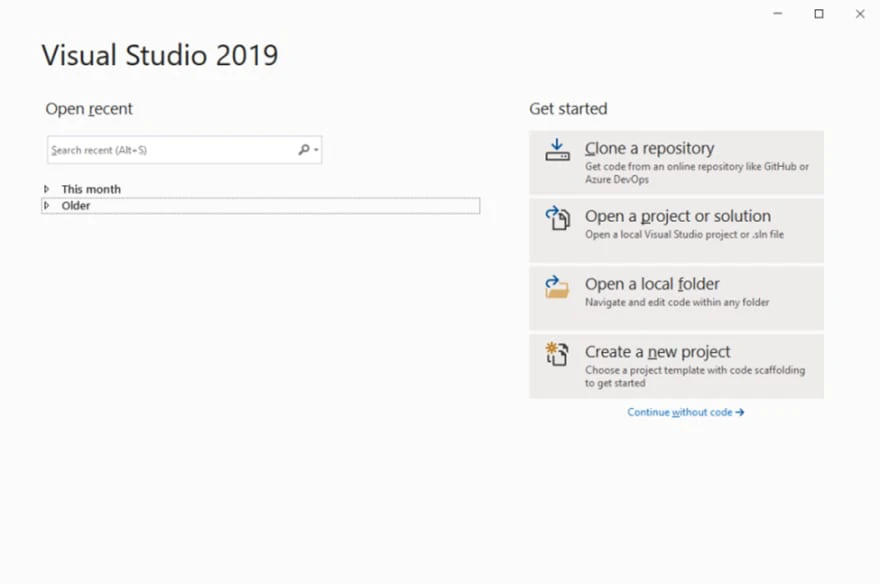
  1. Open Visual Studio, preferably Visual Studio 2019, or any other version you prefer.

    How to Build a .NET PDF editor application using IronPDF, Figure 1: Visual Studio Visual Studio

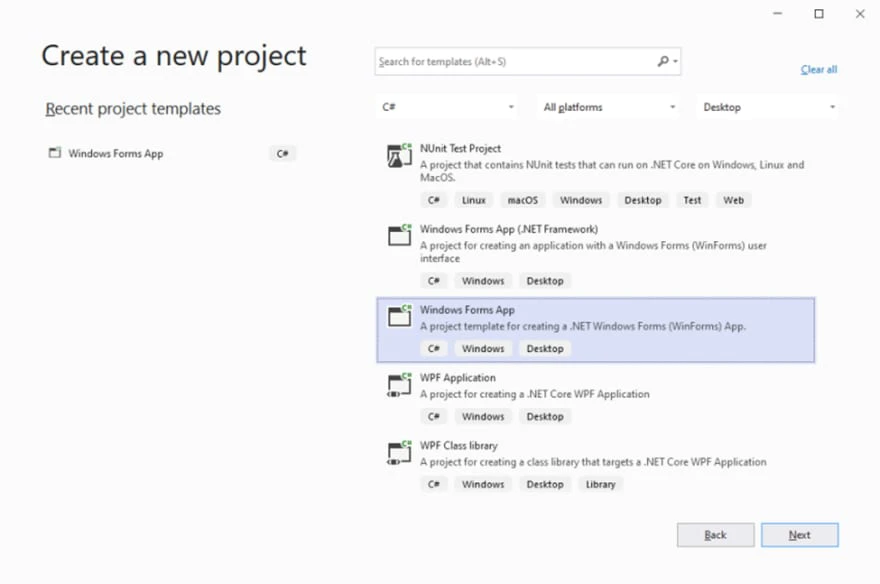
  2. Click on "Create New Project" to start a new project.

    How to Build a .NET PDF editor application using IronPDF, Figure 2: Create a new project Create a new project

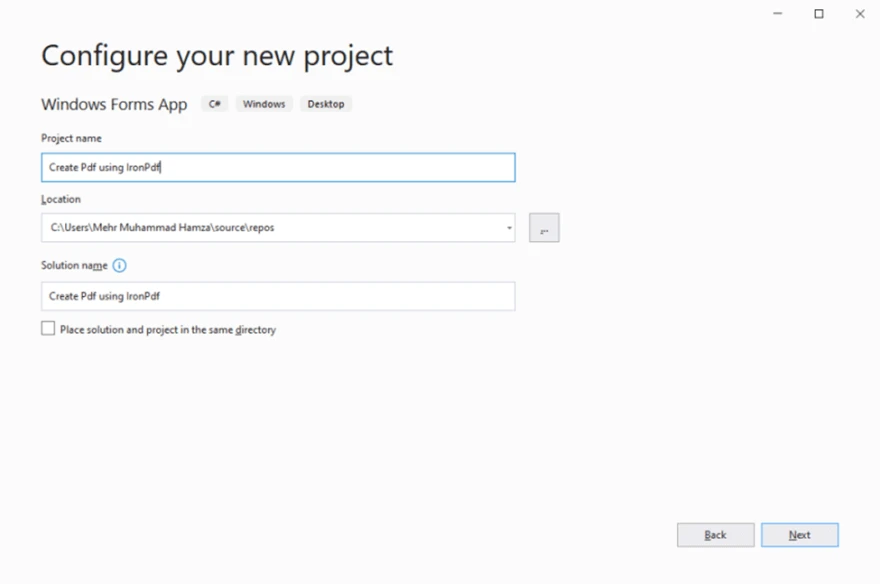
  3. Select the "Windows Forms App" template and click "Next" to proceed. Give the project a suitable name, such as "Create PDF using IronPDF."

    How to Build a .NET PDF editor application using IronPDF, Figure 3: Configure the new project Configure the new project

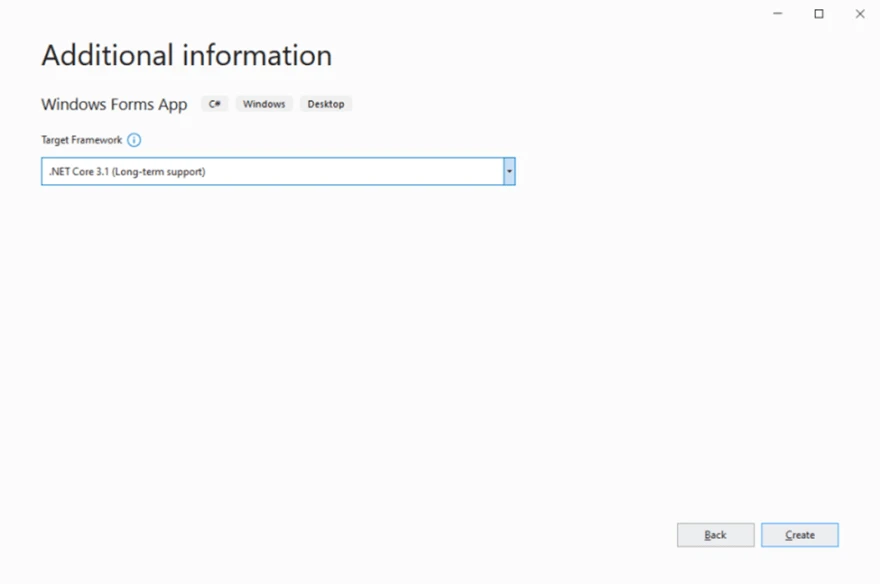
  4. Configure the project by selecting ".NET Core 3.1" from the drop-down menu in the next window. Then click on "Create" to create the project.

    How to Build a .NET PDF editor application using IronPDF, Figure 4: .NET Framework selection .NET Framework selection

    How to Build a .NET PDF editor application using IronPDF, Figure 5: A newly created project A newly created project

Installing IronPDF

To work with IronPDF and generate PDF documents, you need to install the IronPDF NuGet package. Here's how:

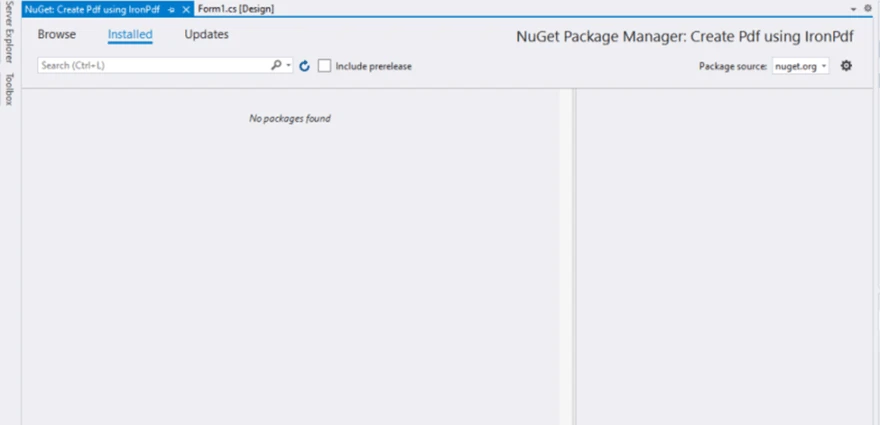
  1. Go to the "Project" menu in Visual Studio and select "Manage NuGet Packages".

    How to Build a .NET PDF editor application using IronPDF, Figure 6: NuGet Package Manager NuGet Package Manager

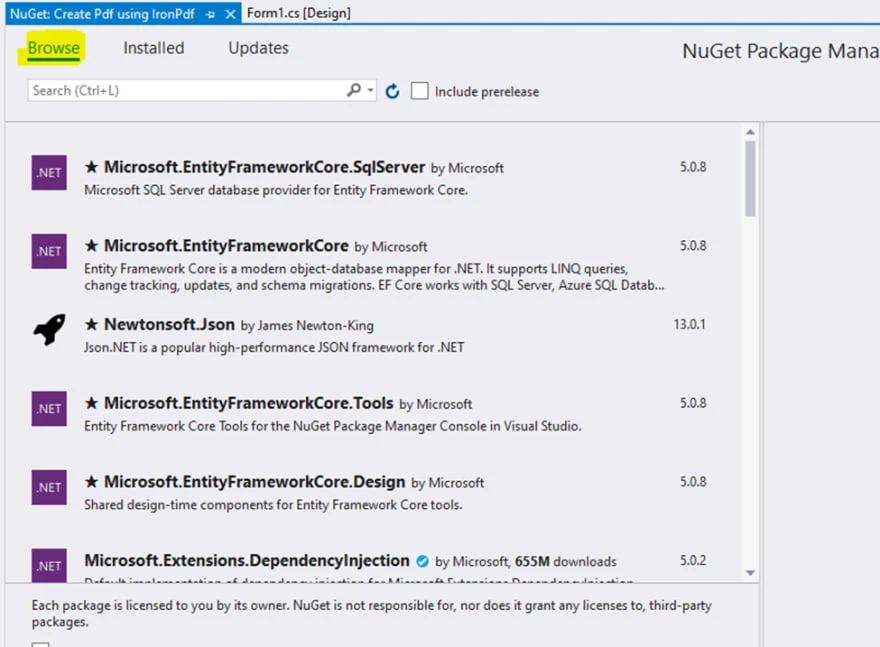
  2. In the NuGet Package Manager, switch to the "Browse" tab and search for "IronPDF".

    How to Build a .NET PDF editor application using IronPDF, Figure 7: Browse for the IronPDF package in NuGet Package Manager UI Browse for the IronPDF package in NuGet Package Manager UI

  3. Select the IronPDF package from the search results and click on the "Install" button. Wait for the installation to complete.

Configuring the Windows Forms Fields

Now, let's design the Windows Forms where users can enter text and save it as a PDF document:

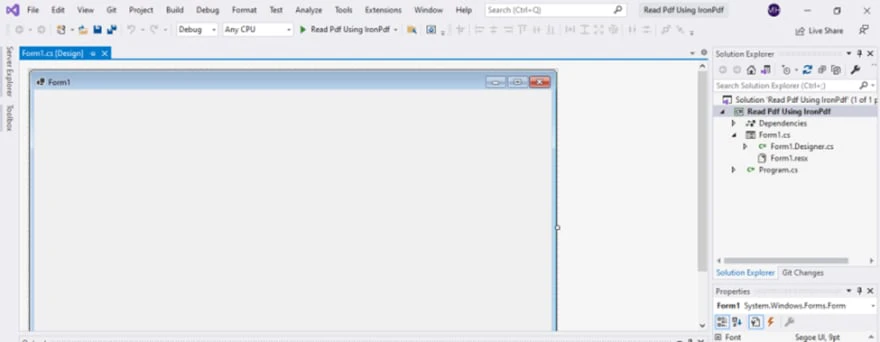
  1. Open the Form1 design view in Visual Studio.

    How to Build a .NET PDF editor application using IronPDF, Figure 8: Form Design View Form Design View

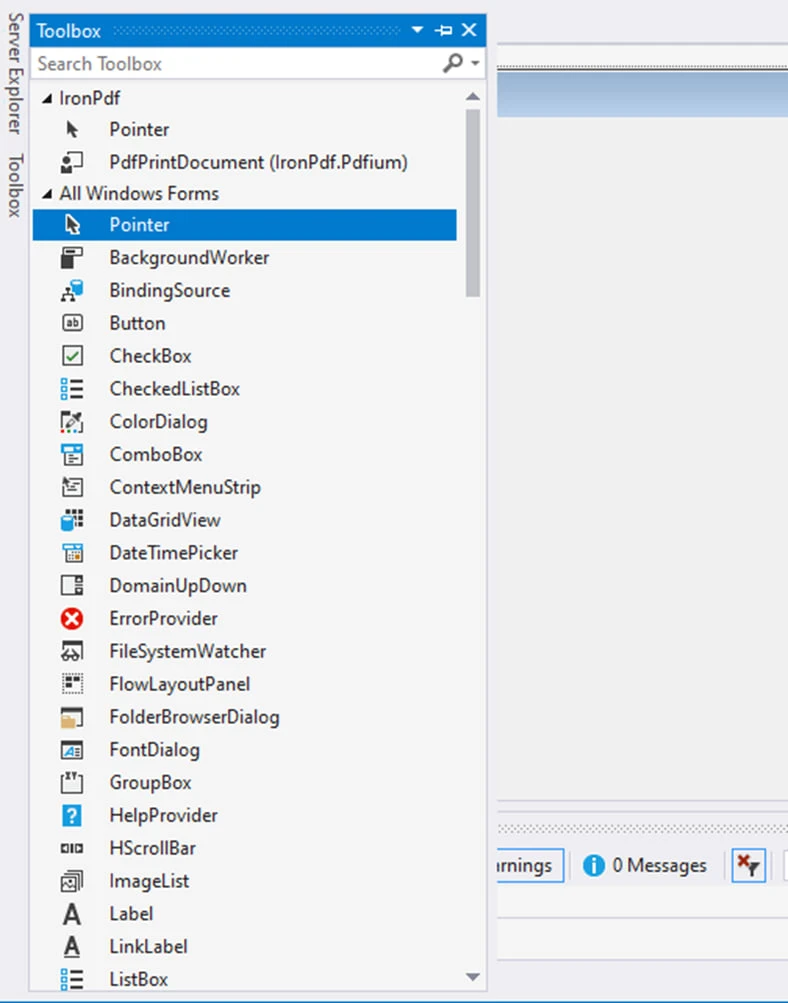
  2. On the left side of the window, locate the toolbar and find the label control. Drag and drop it onto the form design area.

    How to Build a .NET PDF editor application using IronPDF, Figure 9: Form Design Form Design

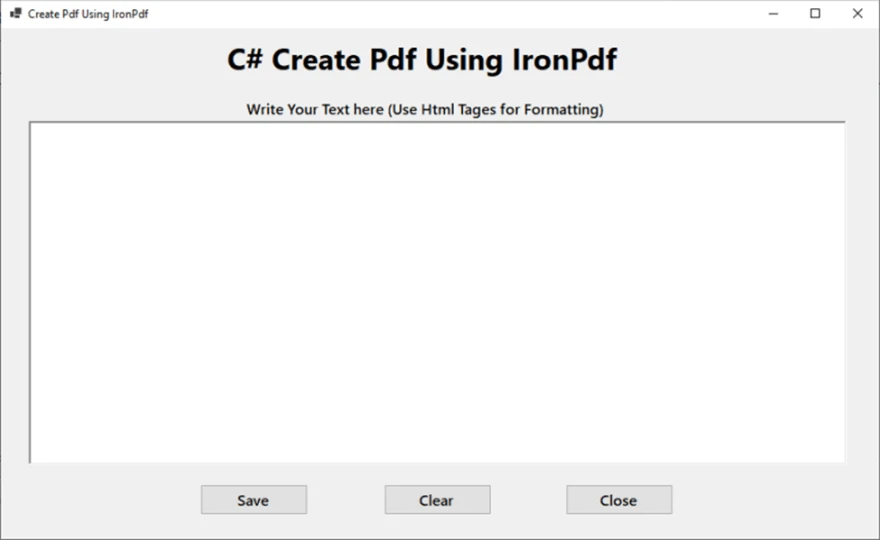
  3. Set the label's text to something like "C# Create PDF using IronPDF."
  4. Drag and drop a RichTextBox control and three buttons onto the form. The buttons will be used for saving the text as a PDF, clearing the text, and closing the window, respectively.

Writing Code for Creating PDF Documents

Next, let's write the necessary code for creating PDF documents when the user clicks the "Save" button:

  1. Double-click on the "Save" button to create the event handler for the button click event.
  2. Inside the event handler function, add the following code to handle the file-saving process:
private void Save_Click(object sender, EventArgs e)
{
    // Open a dialog to select the folder to save the file
    SaveFileDialog saveFileDialog1 = new SaveFileDialog();
    saveFileDialog1.InitialDirectory = @"D:\";      
    saveFileDialog1.Title = "Save Pdf File";
    saveFileDialog1.DefaultExt = "pdf";
    saveFileDialog1.Filter = "PDF files (*.pdf)|*.pdf|All files (*.*)|*.*";
    saveFileDialog1.FilterIndex = 2;
    saveFileDialog1.RestoreDirectory = true;

    // Check if the user clicked OK
    if (saveFileDialog1.ShowDialog() == DialogResult.OK)
    {
        string filename = saveFileDialog1.FileName;
        // Create PDF document from the text in the RichTextBox
        var renderer = new ChromePdfRenderer();
        renderer.RenderHtmlAsPdf(PdfText.Text).SaveAs(filename);
        // Show a message box to confirm the file has been saved
        MessageBox.Show("File Saved Successfully!");
    }
}
private void Save_Click(object sender, EventArgs e)
{
    // Open a dialog to select the folder to save the file
    SaveFileDialog saveFileDialog1 = new SaveFileDialog();
    saveFileDialog1.InitialDirectory = @"D:\";      
    saveFileDialog1.Title = "Save Pdf File";
    saveFileDialog1.DefaultExt = "pdf";
    saveFileDialog1.Filter = "PDF files (*.pdf)|*.pdf|All files (*.*)|*.*";
    saveFileDialog1.FilterIndex = 2;
    saveFileDialog1.RestoreDirectory = true;

    // Check if the user clicked OK
    if (saveFileDialog1.ShowDialog() == DialogResult.OK)
    {
        string filename = saveFileDialog1.FileName;
        // Create PDF document from the text in the RichTextBox
        var renderer = new ChromePdfRenderer();
        renderer.RenderHtmlAsPdf(PdfText.Text).SaveAs(filename);
        // Show a message box to confirm the file has been saved
        MessageBox.Show("File Saved Successfully!");
    }
}
$vbLabelText   $csharpLabel

Adding Back-End Code for the "Clear" and "Close" Buttons

To handle the functionality of the "Clear" and "Close" buttons:

  1. Double-click on the "Clear" button to create the event handler for clearing the text.
  2. Inside the event handler function, add the following code to clear the text fields:
private void Clear_Click(object sender, EventArgs e)
{
    // Clear the text in the RichTextBox
    PdfText.Text = "";
}
private void Clear_Click(object sender, EventArgs e)
{
    // Clear the text in the RichTextBox
    PdfText.Text = "";
}
$vbLabelText   $csharpLabel
  1. Double-click on the "Close" button to create the event handler for closing the window.
  2. Inside the event handler function, add the following code to close the window:
private void Close_Click(object sender, EventArgs e)
{
    // Dispose of the form, essentially closing it
    this.Dispose();
}
private void Close_Click(object sender, EventArgs e)
{
    // Dispose of the form, essentially closing it
    this.Dispose();
}
$vbLabelText   $csharpLabel

Running the Project

Finally, run the project to test the PDF generation functionality:

  1. Press Ctrl + F5 to run the project.
  2. Enter text in the provided text box.
  3. Click on the "Save" button to open the file explorer and select the folder and file name for the PDF.
  4. Once saved, a message box will appear confirming the successful file creation.

By following these steps, you will have created a C# project using IronPDF to generate PDF files. The application allows users to enter text, save it as a PDF, clear the text, and close the window.

Conclusion

IronPDF proves to be a powerful tool for working with PDF documents in C# projects. By following the steps outlined in this article and utilizing the features provided by IronPDF, it is possible to create a C# project that generates PDF files with ease.

The integration of IronPDF into Visual Studio allowed for a seamless development experience. Installing the IronPDF NuGet package provided a comprehensive library for handling PDF operations, such as creating, modifying, and editing PDF documents.

IronPDF's ability to render HTML as PDF and save it with just a few lines of code simplifies the process of generating PDFs from textual content. The ChromePdfRenderer class helps to convert the text entered by the user into a PDF document effortlessly.

Furthermore, IronPDF's support for various file formats, annotations, form fields, and even digital signatures enhances the capabilities of this PDF editor application. The library's compatibility with both .NET Framework and .NET Core can target different platforms and maximize the reach of the application.

Throughout the development process, IronPDF demonstrated its reliability and versatility. It integrated seamlessly with Visual Studio, provided an extensive set of features, and delivered consistent results in generating high-quality PDF files. Its straightforward API and comprehensive documentation allow you to quickly grasp its usage and make the most of its functionalities.

Overall, IronPDF proved to be a valuable asset in C#.

자주 묻는 질문

C#.NET에서 PDF 편집기를 만들려면 어떻게 해야 하나요?

IronPDF 라이브러리를 사용하여 C#.NET에서 PDF 편집기를 만들 수 있습니다. 먼저 Visual Studio에서 개발 환경을 설정하고 NuGet 패키지 관리자를 통해 IronPDF를 설치한 다음 IronPDF 네임스페이스를 가져옵니다. 이렇게 하면 텍스트 관리 및 페이지 조작과 같은 PDF 편집 기능을 애플리케이션에 통합할 수 있습니다.

.NET 프로젝트에서 IronPDF를 설정하려면 어떤 단계를 거쳐야 하나요?

.NET 프로젝트에서 IronPDF를 설정하려면 먼저 Visual Studio의 NuGet 패키지 관리자를 사용하여 라이브러리를 설치합니다. 그런 다음 필요한 참조를 추가하고 IronPDF 네임스페이스를 프로젝트에 가져옵니다. 마지막으로 머리글, 바닥글 및 디지털 서명 추가와 같은 PDF 편집 기능을 통합하도록 애플리케이션을 구성합니다.

.NET 라이브러리를 사용하여 PDF 페이지를 조작하려면 어떻게 해야 하나요?

IronPDF를 사용하면 PDF 페이지를 쉽게 조작할 수 있습니다. 페이지를 추가, 삭제, 재정렬할 수 있을 뿐만 아니라 PDF를 병합하고 분할할 수도 있습니다. 이러한 작업은 IronPDF에서 제공하는 방법을 사용하여 .NET 애플리케이션 내에서 프로그래밍 방식으로 수행할 수 있습니다.

C#.NET 라이브러리를 사용하여 PDF에 디지털 서명을 추가할 수 있나요?

예, IronPDF를 사용하면 C#.NET 애플리케이션의 PDF에 디지털 서명을 추가할 수 있습니다. 라이브러리의 간단한 API를 사용하여 프로그래밍 방식으로 서명을 적용함으로써 문서 보안을 강화하고 신뢰성을 보장할 수 있습니다.

C#을 사용하여 PDF에서 양식 작성 및 편집을 통합하려면 어떻게 해야 하나요?

IronPDF는 C#으로 PDF 내에서 양식 작성 및 편집을 지원합니다. 양식 필드를 정의하고, 기존 양식을 채우고, 양식 데이터를 관리하여 사용자가 직접 참여할 수 있는 동적 대화형 PDF 문서를 만들 수 있습니다.

.NET 애플리케이션에서 PDF에 워터마크를 적용하는 데 사용할 수 있는 방법은 무엇인가요?

IronPDF는 텍스트, 이미지, HTML, 바코드 또는 QR 코드를 스탬핑하여 PDF에 워터마크를 적용할 수 있는 방법을 제공합니다. 이 기능을 사용하면 .NET 애플리케이션 내에서 PDF 문서를 효과적으로 브랜딩하거나 보호할 수 있습니다.

C#에서 PDF 문서를 생성하기 위해 텍스트 입력을 처리하려면 어떻게 해야 하나요?

IronPDF를 사용하면 텍스트 입력을 처리하여 C#으로 PDF 문서를 생성할 수 있습니다. 라이브러리의 API는 텍스트 및 HTML 콘텐츠를 PDF 형식으로 변환하여 .NET 애플리케이션 내에서 저장하거나 추가로 조작할 수 있도록 지원합니다.

.NET에서 PDF 작업에 IronPDF를 사용하면 어떤 이점이 있나요?

IronPDF는 .NET 프로젝트에서 PDF 작업을 위한 다재다능하고 안정적인 솔루션을 제공합니다. 사용자 친화적인 API와 광범위한 설명서를 제공하여 편집, 양식 처리, 페이지 조작과 같은 PDF 기능을 애플리케이션에 쉽게 통합할 수 있습니다.

.NET 10 호환성: IronPDF는 .NET 10을 대상으로 하는 프로젝트를 지원하나요?

예. IronPDF는 .NET 10(.NET 9, 8, 7, 6, 코어, 표준 및 프레임워크와 함께)을 완벽하게 지원합니다. 이전 버전과 동일한 풍부한 PDF 편집, 렌더링, 조작 기능을 갖춘 API를 사용하여 Windows, Linux, macOS 등 다양한 플랫폼의 .NET 10 프로젝트에서 바로 사용할 수 있도록 설계되었습니다.

커티스 차우
기술 문서 작성자

커티스 차우는 칼턴 대학교에서 컴퓨터 과학 학사 학위를 취득했으며, Node.js, TypeScript, JavaScript, React를 전문으로 하는 프론트엔드 개발자입니다. 직관적이고 미적으로 뛰어난 사용자 인터페이스를 만드는 데 열정을 가진 그는 최신 프레임워크를 활용하고, 잘 구성되고 시각적으로 매력적인 매뉴얼을 제작하는 것을 즐깁니다.


커티스는 개발 분야 외에도 사물 인터넷(IoT)에 깊은 관심을 가지고 있으며, 하드웨어와 소프트웨어를 통합하는 혁신적인 방법을 연구합니다. 여가 시간에는 게임을 즐기거나 디스코드 봇을 만들면서 기술에 대한 애정과 창의성을 결합합니다.