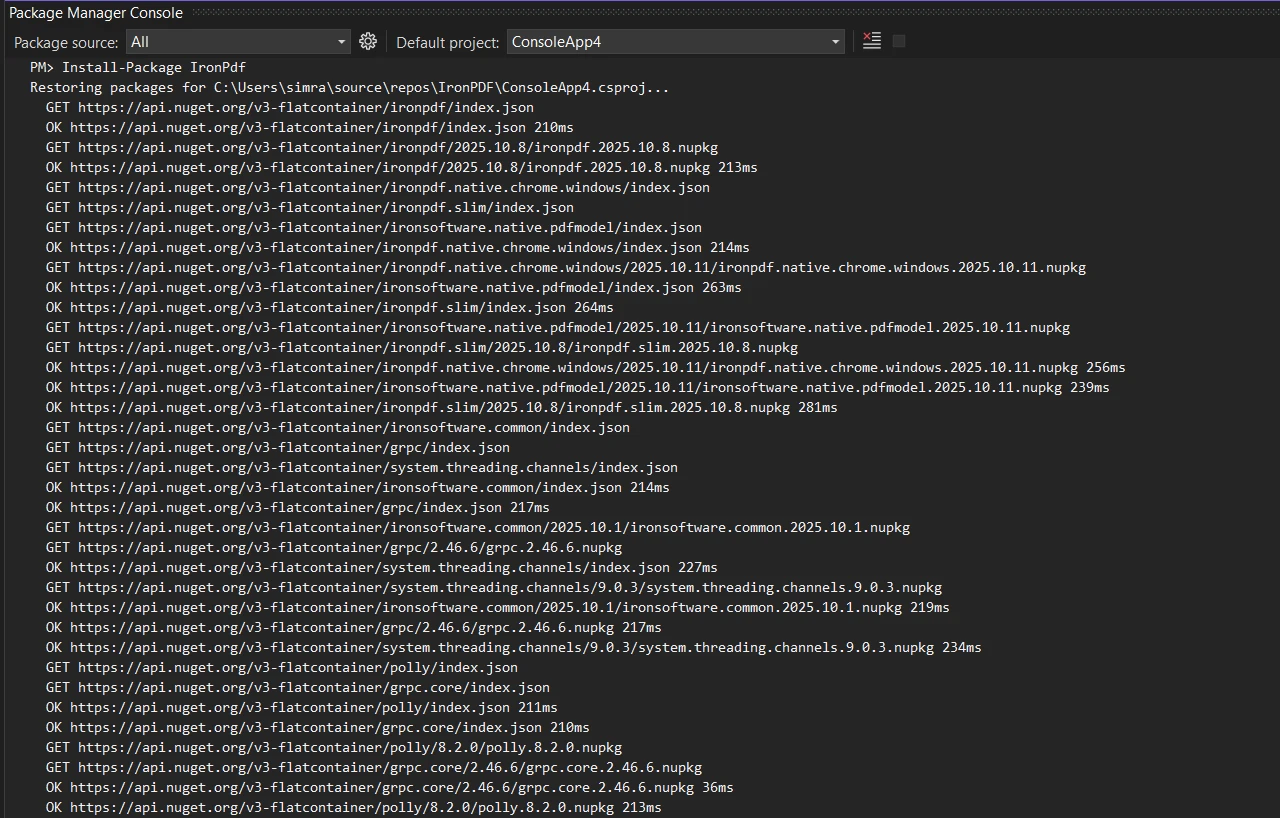
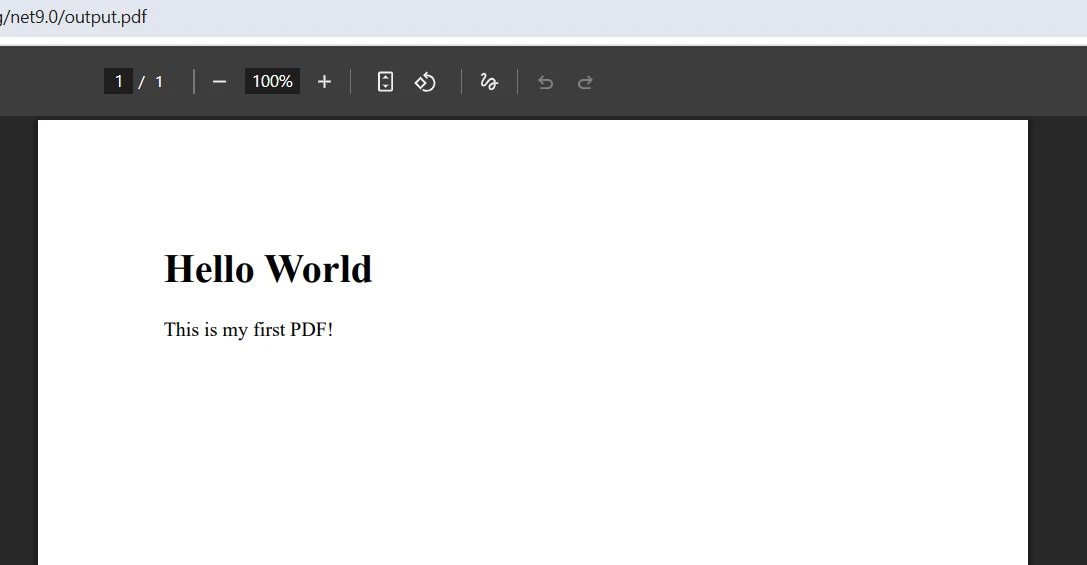
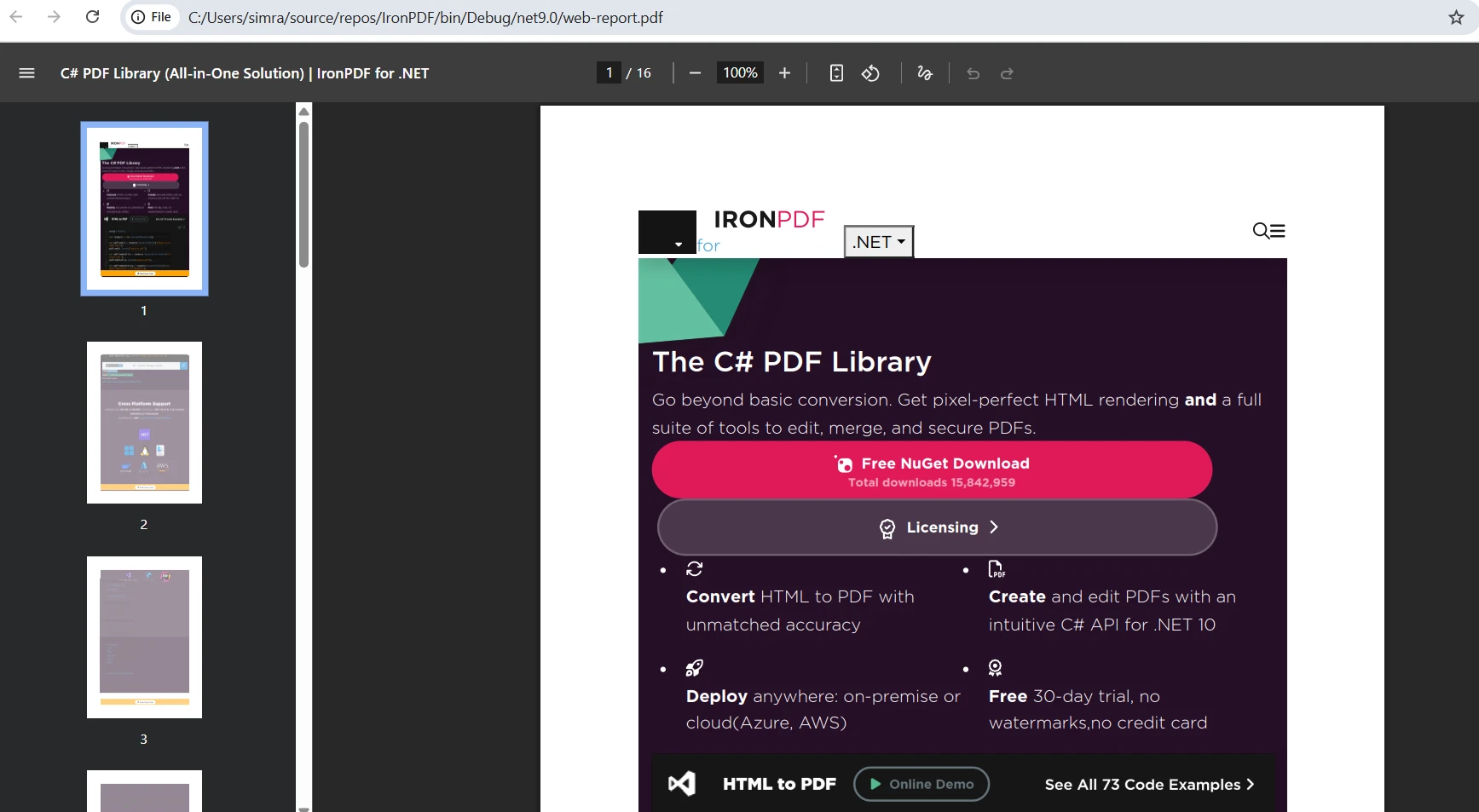
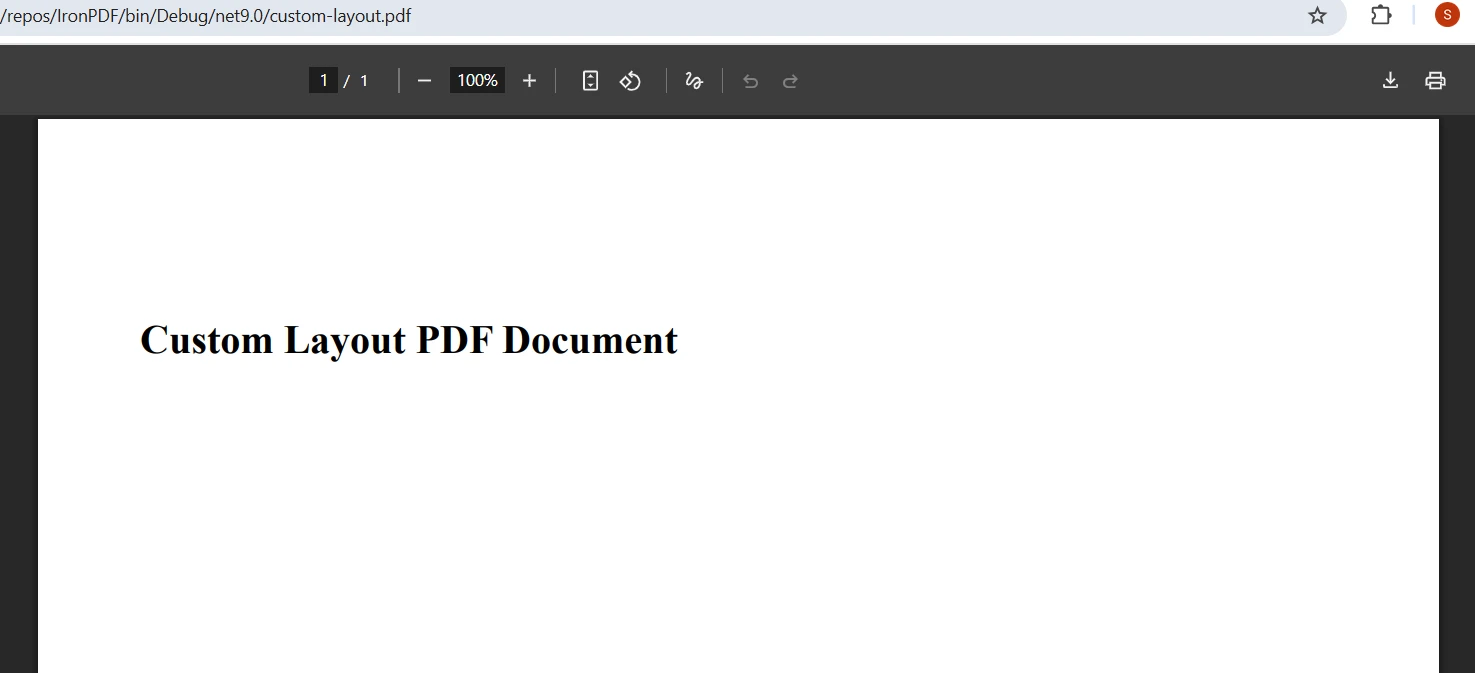
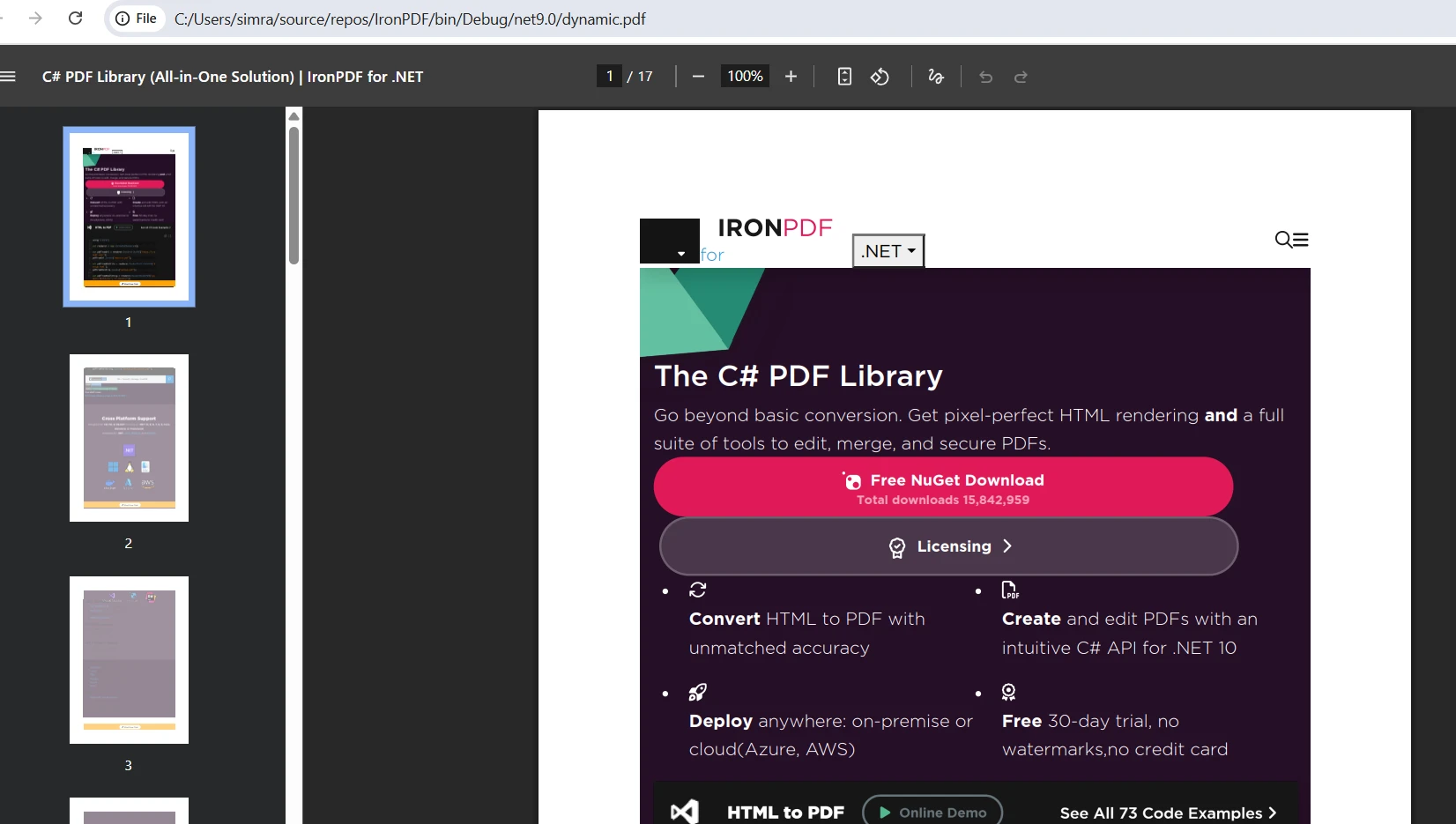
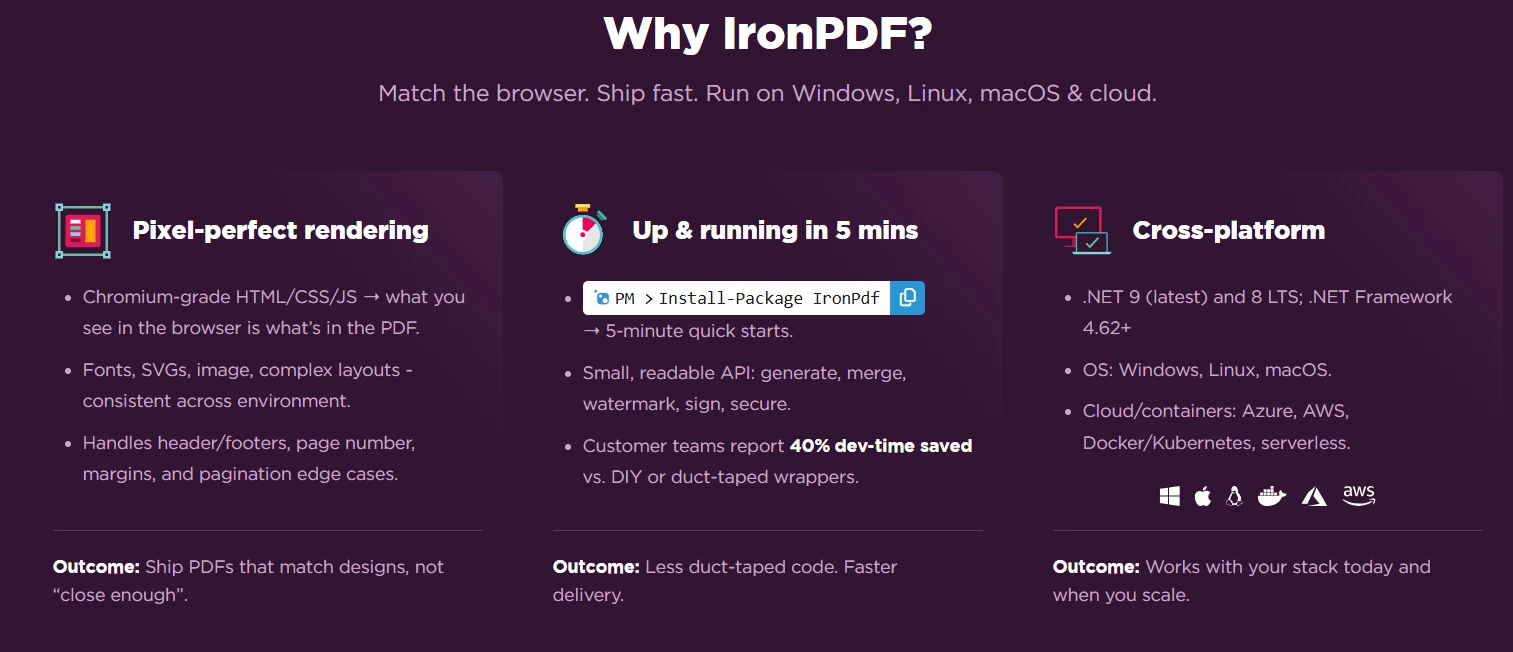
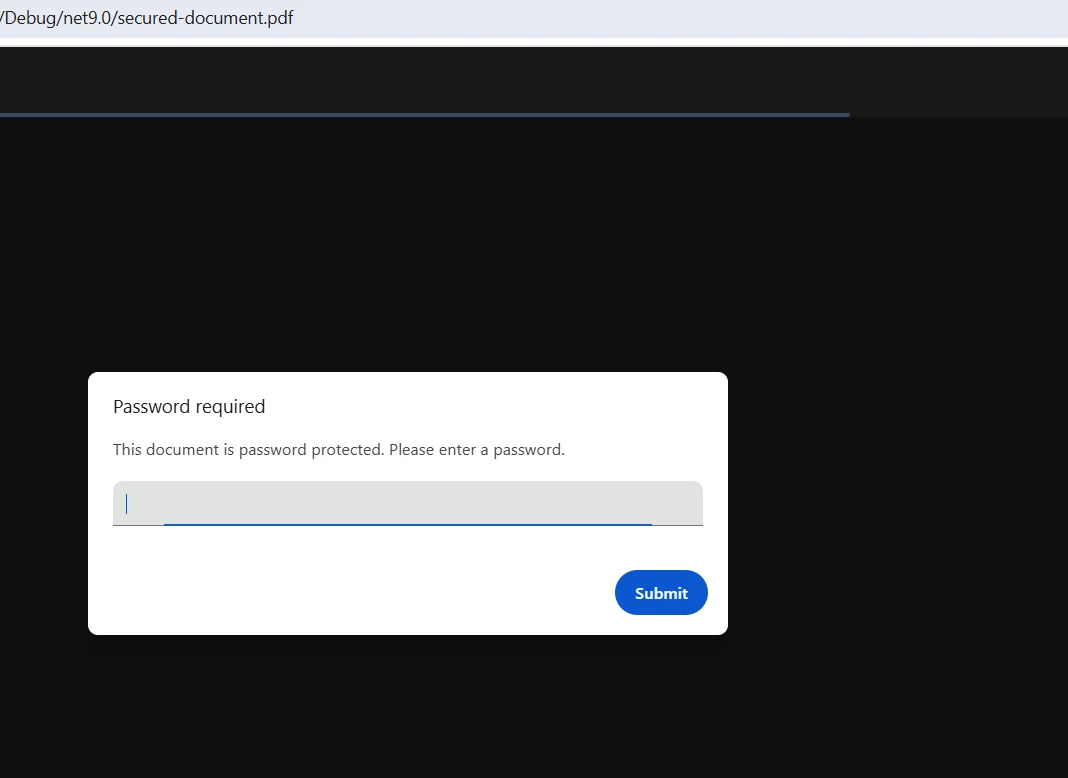
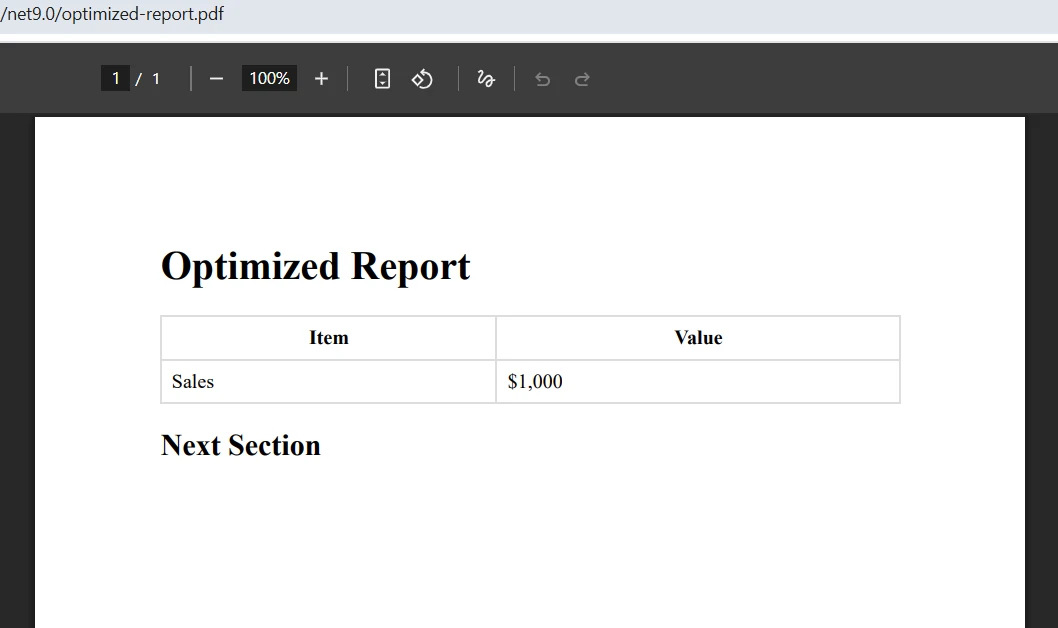
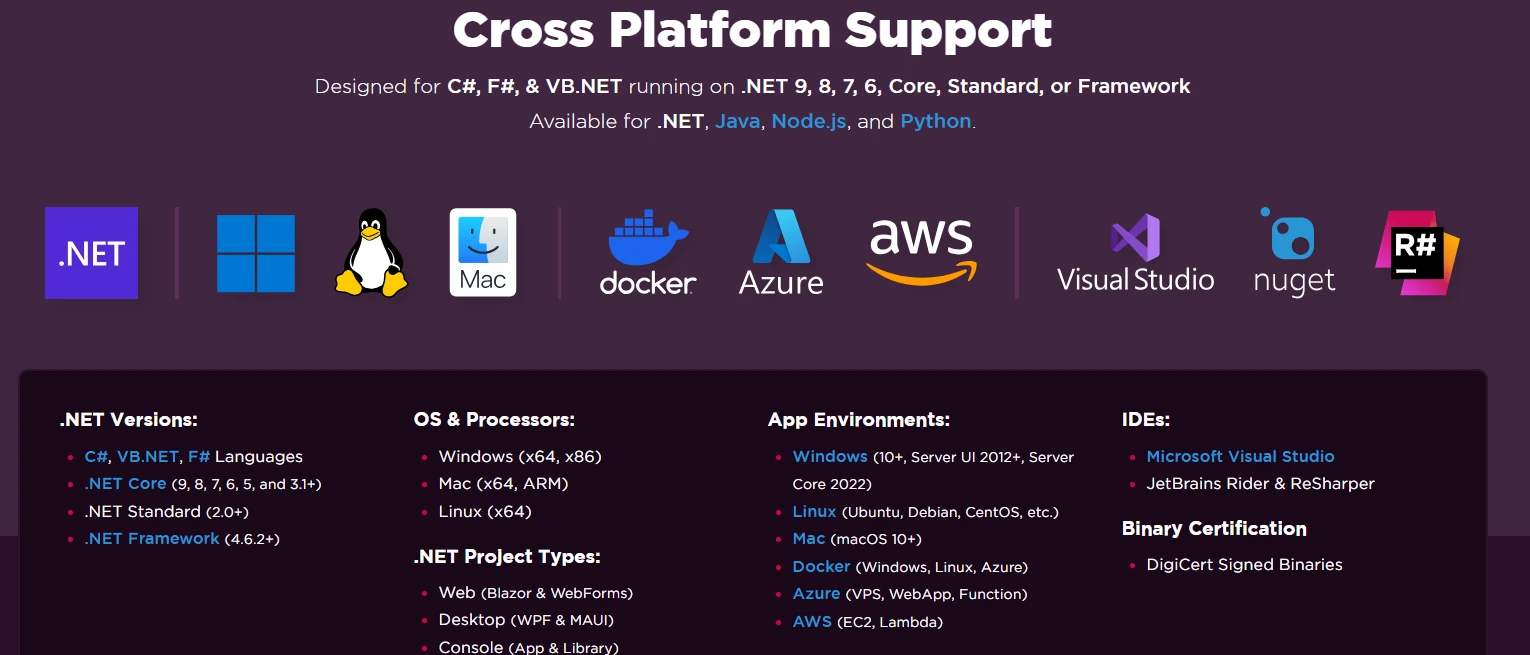
IRONPDF 사용 Discover PDF API .NET Solutions Using IronPDF 커티스 차우 게시됨:1월 21, 2026 다운로드 IronPDF NuGet 다운로드 DLL 다운로드 윈도우 설치 프로그램 무료 체험 시작하기 LLM용 사본 LLM용 사본 LLM용 마크다운 형식으로 페이지를 복사하세요 ChatGPT에서 열기 ChatGPT에 이 페이지에 대해 문의하세요 제미니에서 열기 제미니에게 이 페이지에 대해 문의하세요 Grok에서 열기 Grok에게 이 페이지에 대해 문의하세요 혼란 속에서 열기 Perplexity에게 이 페이지에 대해 문의하세요 공유하다 페이스북에 공유하기 트위터에 공유하기 LinkedIn에 공유하기 URL 복사 이메일로 기사 보내기 In today's digital landscape, generating professional PDF documents programmatically has become a fundamental requirement for .NET applications. Whether developing enterprise reporting systems, creating customer invoices, or producing automated PDF files, developers need a reliable PDF API .NET solution that seamlessly integrates with their .NET projects. IronPDF emerges as a comprehensive PDF library, offering a powerful yet intuitive .NET PDF API that transforms how developers approach PDF document generation and manipulation in the .NET ecosystem. The challenge of PDF file creation in .NET applications has evolved significantly. Traditional approaches to PDF documents often required complex positioning logic, manual layout calculations, and a deep understanding of PDF format specifications. Modern PDF API solutions have revolutionized this process by leveraging familiar web technologies, allowing developers to convert HTML to PDF using existing CSS and JavaScript knowledge to create sophisticated PDF files. The .NET PDF library landscape now offers solutions that handle PDF contents, PDF forms, digital signatures, extract images, and existing documents with just a few lines of code. Learn more about HTML to PDF conversion with code examples to see how this PDF conversion works in practice. What Makes a Great PDF Document API for .NET? A robust PDF API .NET solution must address critical requirements for modern .NET applications working with PDF documents. The foundation of any PDF document API lies in accurate rendering capabilities that preserve visual fidelity when creating PDF files from source content, whether converting HTML, images, or existing documents. The PDF library should handle complex layouts in PDF format, support modern CSS3 features, and execute JavaScript for dynamic PDF content generation in .NET projects. Cross-platform compatibility has become essential as .NET applications deploy across Windows, Linux, macOS, and containerized environments. A truly effective PDF API operates seamlessly across these platforms without requiring platform-specific code when working with PDF files. This flexibility extends to server-side cloud deployments on Azure, AWS, and other hosting platforms where scalability and resource efficiency matter for PDF document generation. The importance of HTML to PDF conversion accuracy in a PDF document API cannot be overstated. Developers invest significant effort creating pixel-perfect web layouts, and a quality .NET PDF library should translate these designs faithfully to PDF format. This includes proper handling of responsive designs, custom fonts, complex CSS layouts, and embedded images in PDF files. The rendering engine becomes the heart of any PDF API .NET, determining both the quality of PDF contents output and the ease of implementation. For best results with your PDF documents, validate your HTML using the W3C Validator before PDF conversion. Getting Started with IronPDF's PDF API IronPDF simplifies PDF file generation in .NET applications through its intuitive PDF document API design and straightforward installation process. The PDF library integrates seamlessly into any .NET project through NuGet, supporting .NET Framework, .NET Core, and the latest .NET versions for creating PDF documents. To begin using IronPDF's PDF API .NET in your .NET projects, install the PDF library via the NuGet Package Manager in Visual Studio: Install-Package IronPdf Once installed, the primary class for PDF document generation is the ChromePdfRenderer. This renderer uses a Chromium-based engine to convert HTML content into PDF files with exceptional accuracy: using IronPdf; var renderer = new ChromePdfRenderer(); var pdf = renderer.RenderHtmlAsPdf("<h1>Hello World</h1><p>This is my first PDF!</p>"); pdf.SaveAs("output.pdf"); using IronPdf; var renderer = new ChromePdfRenderer(); var pdf = renderer.RenderHtmlAsPdf("<h1>Hello World</h1><p>This is my first PDF!</p>"); pdf.SaveAs("output.pdf"); $vbLabelText $csharpLabel This code creates a new ChromePdfRenderer instance for the PDF API, converts an HTML string to a PDF document, and saves PDF files to disk. The ChromePdfRenderer class serves as the central component for all HTML to PDF conversion, providing consistent rendering of PDF contents across different content sources. The renderer handles all the complexity of HTML parsing, CSS application, and PDF file generation internally, allowing developers to focus on their PDF content rather than PDF format specifications. Output Understanding the ChromePdfRenderer architecture helps .NET developers leverage the full potential of this PDF document API. The renderer maintains its own Chromium instance for PDF generation, ensuring consistent PDF file rendering regardless of the host system's browser configuration. This isolation provides predictable PDF documents across different deployment environments while supporting the latest web standards, including HTML5, CSS3, and modern JavaScript frameworks for creating PDFs. How to Generate PDFs from Different Sources? IronPDF's PDF API .NET flexibility shines through its ability to generate PDF documents from various content sources. Each method for creating PDF files addresses different use cases while maintaining consistent PDF content rendering quality and PDF document API simplicity. Converting HTML Strings to PDF Direct HTML string to PDF conversion proves invaluable when generating dynamic PDF documents from templates or building PDF files programmatically in .NET applications: var renderer = new ChromePdfRenderer(); string htmlContent = @" <html> <head> <style> body { font-family: Arial, sans-serif; font-size: 12px; } .header { color: #2c3e50; } </style> </head> <body> <h1>Sales Report PDF Document</h1> <p>Quarterly PDF file results for Q1 2024</p> </body> </html>"; var pdf = renderer.RenderHtmlAsPdf(htmlContent); pdf.SaveAs("sales-report.pdf"); var renderer = new ChromePdfRenderer(); string htmlContent = @" <html> <head> <style> body { font-family: Arial, sans-serif; font-size: 12px; } .header { color: #2c3e50; } </style> </head> <body> <h1>Sales Report PDF Document</h1> <p>Quarterly PDF file results for Q1 2024</p> </body> </html>"; var pdf = renderer.RenderHtmlAsPdf(htmlContent); pdf.SaveAs("sales-report.pdf"); $vbLabelText $csharpLabel This PDF API .NET approach allows complete control over HTML structure and styling when creating PDF files. The renderer processes inline CSS for PDF documents, ensuring styles apply correctly to the PDF contents output. Template engines can generate HTML dynamically for PDF conversion, incorporating data from databases or APIs before creating PDF files. The method handles complex HTML structures for PDF documents, including tables, nested elements, and multimedia content in the PDF format. Creating PDFs from URLs Web page to PDF conversion enables capturing existing web content or generating PDF files from web applications using the PDF document API: var renderer = new ChromePdfRenderer(); renderer.RenderingOptions.PrintHtmlBackgrounds = true; var pdf = renderer.RenderUrlAsPdf("https://ironpdf.com/"); pdf.SaveAs("web-report.pdf"); var renderer = new ChromePdfRenderer(); renderer.RenderingOptions.PrintHtmlBackgrounds = true; var pdf = renderer.RenderUrlAsPdf("https://ironpdf.com/"); pdf.SaveAs("web-report.pdf"); $vbLabelText $csharpLabel The URL rendering method in this PDF API loads complete web pages for PDF conversion, executes JavaScript, and waits for content to render before generating PDF documents. This capability proves especially useful for converting existing web reports to PDF files, capturing dashboard states in PDF format, or archiving web content as PDF documents. The renderer respects page CSS media queries when creating PDFs, allowing sites to provide print-optimized layouts automatically for PDF file generation. Output Working with HTML Files File-based PDF conversion streamlines workflows where HTML templates reside in the file system for creating PDF documents: var renderer = new ChromePdfRenderer(); renderer.RenderingOptions.MarginTop = 25; renderer.RenderingOptions.MarginBottom = 25; var pdf = renderer.RenderHtmlFileAsPdf("template.html"); pdf.SaveAs("document.pdf"); var renderer = new ChromePdfRenderer(); renderer.RenderingOptions.MarginTop = 25; renderer.RenderingOptions.MarginBottom = 25; var pdf = renderer.RenderHtmlFileAsPdf("template.html"); pdf.SaveAs("document.pdf"); $vbLabelText $csharpLabel This PDF API .NET method loads HTML files along with their referenced resources like CSS files, images, and scripts for PDF document creation. Relative paths in HTML resolve correctly for PDF files, maintaining file structure relationships. Organizations often use this approach with version-controlled HTML templates for PDF generation, separating document design from application logic when creating PDFs. The renderer handles external stylesheets and linked resources, ensuring complete PDF document fidelity. For detailed guidance on HTML file to PDF conversion, see the HTML file to PDF documentation. How to Customize PDF Output? IronPDF's PDF API provides extensive customization options through the RenderingOptions property for PDF documents, enabling precise control over PDF file generation. These settings affect everything from page dimensions to PDF content rendering behavior in .NET applications, creating PDF files. Page Setup and Margins for PDF Documents Controlling page layout ensures PDF documents meet specific formatting requirements when using the PDF document API to create PDF files: var renderer = new ChromePdfRenderer(); renderer.RenderingOptions.PaperOrientation = PdfPaperOrientation.Landscape; renderer.RenderingOptions.PaperSize = PdfPaperSize.A4; renderer.RenderingOptions.MarginTop = 40; renderer.RenderingOptions.MarginBottom = 40; renderer.RenderingOptions.MarginLeft = 20; renderer.RenderingOptions.MarginRight = 20; var pdf = renderer.RenderHtmlAsPdf("<h1>Custom Layout PDF Document</h1>"); pdf.SaveAs("custom-layout.pdf"); var renderer = new ChromePdfRenderer(); renderer.RenderingOptions.PaperOrientation = PdfPaperOrientation.Landscape; renderer.RenderingOptions.PaperSize = PdfPaperSize.A4; renderer.RenderingOptions.MarginTop = 40; renderer.RenderingOptions.MarginBottom = 40; renderer.RenderingOptions.MarginLeft = 20; renderer.RenderingOptions.MarginRight = 20; var pdf = renderer.RenderHtmlAsPdf("<h1>Custom Layout PDF Document</h1>"); pdf.SaveAs("custom-layout.pdf"); $vbLabelText $csharpLabel These PDF API .NET settings control the physical page characteristics of generated PDF files. Paper size options for PDF documents include standard formats like A4, Letter, and Legal for PDF format, plus custom dimensions for specialized PDF file requirements. Margins create consistent spacing around PDF content, essential for a professional PDF document appearance. The orientation setting switches between portrait and landscape modes for PDF files, adapting to PDF content requirements in .NET projects. Output Headers and Footers in PDF Files Professional PDF documents often require consistent headers and footers across pages when creating PDFs with the PDF library: var renderer = new ChromePdfRenderer(); renderer.RenderingOptions.TextHeader = new TextHeaderFooter { CenterText = "Confidential PDF Report", RightText = "{date}", DrawDividerLine = true }; renderer.RenderingOptions.TextFooter = new TextHeaderFooter { LeftText = "© 2024 Company PDF Document", CenterText = "Page {page} of {total-pages}" }; var pdf = renderer.RenderHtmlAsPdf("<h1>PDF Document with Headers</h1>"); pdf.SaveAs("headed-document.pdf"); var renderer = new ChromePdfRenderer(); renderer.RenderingOptions.TextHeader = new TextHeaderFooter { CenterText = "Confidential PDF Report", RightText = "{date}", DrawDividerLine = true }; renderer.RenderingOptions.TextFooter = new TextHeaderFooter { LeftText = "© 2024 Company PDF Document", CenterText = "Page {page} of {total-pages}" }; var pdf = renderer.RenderHtmlAsPdf("<h1>PDF Document with Headers</h1>"); pdf.SaveAs("headed-document.pdf"); $vbLabelText $csharpLabel Headers and footers in PDF files support both plain text and HTML content with merge fields for dynamic values in PDF documents. The {page} and {total-pages} tokens automatically populate with page numbers in PDF files, while {date} inserts the current date in PDF format. Divider lines provide visual separation between headers and main PDF content. These elements maintain consistent positioning across all pages in PDF documents, creating professional-looking PDF files with the .NET PDF library. CSS Media Types and JavaScript Support for PDFs Modern web applications often require JavaScript execution and proper CSS media handling when converting to PDF documents using the PDF API: var renderer = new ChromePdfRenderer(); renderer.RenderingOptions.CssMediaType = PdfCssMediaType.Screen; renderer.RenderingOptions.EnableJavaScript = true; renderer.RenderingOptions.WaitFor.RenderDelay(500); var pdf = renderer.RenderUrlAsPdf("https://ironpdf.com/"); pdf.SaveAs("dynamic.pdf"); var renderer = new ChromePdfRenderer(); renderer.RenderingOptions.CssMediaType = PdfCssMediaType.Screen; renderer.RenderingOptions.EnableJavaScript = true; renderer.RenderingOptions.WaitFor.RenderDelay(500); var pdf = renderer.RenderUrlAsPdf("https://ironpdf.com/"); pdf.SaveAs("dynamic.pdf"); $vbLabelText $csharpLabel The CssMediaType setting determines which CSS rules apply during PDF file rendering. Screen media type preserves web appearance in PDF documents, while print media type applies print-specific styles to PDF files. JavaScript enablement allows dynamic PDF content generation, critical for modern single-page applications that create PDFs. The render delay ensures asynchronous content loads completely before PDF document generation begins. These PDF API .NET options bridge the gap between interactive web applications and static PDF files in .NET applications. Output What Advanced Capabilities Does IronPDF Offer? Beyond basic HTML to PDF conversion, IronPDF's PDF API provides sophisticated features for creating interactive PDF documents, securing PDF content, and manipulating existing PDF files. These capabilities transform the .NET PDF library from a simple PDF conversion tool into a comprehensive PDF document API solution for .NET applications working with PDF format. Form Creation and Manipulation in PDF Documents IronPDF's PDF API .NET automatically converts HTML form elements into interactive PDF forms within PDF files. This feature streamlines PDF document workflows by creating fillable PDFs directly from HTML in .NET projects. Form fields in PDF documents enable data collection without printing. Learn more about creating PDF forms in the PDF library documentation: var renderer = new ChromePdfRenderer(); renderer.RenderingOptions.CreatePdfFormsFromHtml = true; string formHtml = @" <form> <label>Name: <label>Email: <label>Subscribe: <button type='submit'>Submit PDF Form</button> </form>"; var pdf = renderer.RenderHtmlAsPdf(formHtml); pdf.SaveAs("interactive-form.pdf"); var renderer = new ChromePdfRenderer(); renderer.RenderingOptions.CreatePdfFormsFromHtml = true; string formHtml = @" <form> <label>Name: <label>Email: <label>Subscribe: <button type='submit'>Submit PDF Form</button> </form>"; var pdf = renderer.RenderHtmlAsPdf(formHtml); pdf.SaveAs("interactive-form.pdf"); $vbLabelText $csharpLabel This PDF document API feature preserves form functionality within PDF files, allowing users to fill form fields directly in PDF readers. Text inputs, checkboxes, radio buttons, and dropdown menus all convert to PDF form equivalents. The resulting PDF forms work with standard PDF readers, enabling data collection in PDF documents without requiring users to print and scan PDF files. You can also export form data to XML format or extract text from PDF forms programmatically for processing, creating seamless digital workflows with PDF documents in .NET applications. Security and Encryption for PDF Files Protecting sensitive PDF documents requires robust security features. IronPDF's PDF API provides comprehensive security options to protect documents: var pdf = new PdfDocument("document.pdf"); pdf.SecuritySettings.UserPassword = "user123"; pdf.SecuritySettings.OwnerPassword = "owner456"; pdf.SecuritySettings.AllowUserPrinting = IronPdf.Security.PdfPrintSecurity.FullPrintRights; pdf.SecuritySettings.AllowUserCopyPasteContent = false; pdf.SecuritySettings.AllowUserFormData = true; pdf.SaveAs("secured-document.pdf"); var pdf = new PdfDocument("document.pdf"); pdf.SecuritySettings.UserPassword = "user123"; pdf.SecuritySettings.OwnerPassword = "owner456"; pdf.SecuritySettings.AllowUserPrinting = IronPdf.Security.PdfPrintSecurity.FullPrintRights; pdf.SecuritySettings.AllowUserCopyPasteContent = false; pdf.SecuritySettings.AllowUserFormData = true; pdf.SaveAs("secured-document.pdf"); $vbLabelText $csharpLabel Security settings protect PDF files through password encryption and permission restrictions in the PDF document API. User passwords control PDF document opening, while owner passwords manage permission changes in PDF files. Granular permissions control printing, copying, editing, and form-filling capabilities in PDF documents. These PDF API .NET features ensure compliance with data protection requirements and prevent unauthorized PDF file manipulation. The encryption uses industry-standard algorithms for PDF format, providing robust protection for sensitive PDF content and digital signatures in .NET applications. Output Document Editing and Merging PDF Files IronPDF's PDF document API enables manipulation of existing PDF documents and PDF files in .NET projects: var pdf1 = PdfDocument.FromFile("report1.pdf"); var pdf2 = PdfDocument.FromFile("report2.pdf"); // Merge PDF documents pdf1.AppendPdf(pdf2); // Add watermark to PDF files pdf1.ApplyWatermark("<h2>CONFIDENTIAL PDF</h2>", rotation: 45, opacity: 50); // Extract pages from PDF document var extracted = pdf1.CopyPages(0, 2); extracted.SaveAs("first-three-pages.pdf"); pdf1.SaveAs("combined-report.pdf"); var pdf1 = PdfDocument.FromFile("report1.pdf"); var pdf2 = PdfDocument.FromFile("report2.pdf"); // Merge PDF documents pdf1.AppendPdf(pdf2); // Add watermark to PDF files pdf1.ApplyWatermark("<h2>CONFIDENTIAL PDF</h2>", rotation: 45, opacity: 50); // Extract pages from PDF document var extracted = pdf1.CopyPages(0, 2); extracted.SaveAs("first-three-pages.pdf"); pdf1.SaveAs("combined-report.pdf"); $vbLabelText $csharpLabel PDF document manipulation features in this PDF API enable complex PDF workflows without external tools. Merging combines multiple PDF files into a single PDF document, useful for report compilation or PDF document packages. Watermarking adds text or image overlays to PDF files for branding or security purposes, with control over image quality and transparency. Page extraction creates new PDF documents from existing page ranges in PDF files, facilitating PDF document splitting or selective sharing. Advanced features like color spaces management ensure consistent PDF rendering across different devices. These operations preserve PDF document quality and PDF format throughout the manipulation process when working with existing documents. Best Practices for PDF Generation Successful PDF generation extends beyond basic API usage to encompass optimization strategies, layout considerations, and deployment planning. These practices ensure reliable, efficient document generation across diverse scenarios. Optimizing HTML for PDF Output Well-structured HTML produces better PDF results. Use semantic HTML elements to create a logical document structure. Tables should use proper thead, tbody, and tfoot elements for consistent rendering across pages. Avoid absolute positioning when possible, as relative layouts adapt better to page boundaries. When working with existing documents, consider file size optimization - large PDFs can impact performance. Include print-specific CSS rules to optimize appearance: string optimizedHtml = @" <style> @media print { .no-print { display: none; } .page-break { page-break-after: always; } } table { border-collapse: collapse; width: 100%; } th, td { border: 1px solid #ddd; padding: 8px; } </style> <div class='content'> <h1>Optimized Report</h1> <table> <thead><tr><th>Item</th><th>Value</th></tr></thead> <tbody><tr><td>Sales</td><td>$1,000</td></tr></tbody> </table> <div class='page-break'></div> <h2>Next Section</h2> </div>"; var renderer = new ChromePdfRenderer(); var pdf = renderer.RenderHtmlAsPdf(optimizedHtml); string optimizedHtml = @" <style> @media print { .no-print { display: none; } .page-break { page-break-after: always; } } table { border-collapse: collapse; width: 100%; } th, td { border: 1px solid #ddd; padding: 8px; } </style> <div class='content'> <h1>Optimized Report</h1> <table> <thead><tr><th>Item</th><th>Value</th></tr></thead> <tbody><tr><td>Sales</td><td>$1,000</td></tr></tbody> </table> <div class='page-break'></div> <h2>Next Section</h2> </div>"; var renderer = new ChromePdfRenderer(); var pdf = renderer.RenderHtmlAsPdf(optimizedHtml); $vbLabelText $csharpLabel This HTML structure includes print media queries, proper table formatting, and explicit page breaks. The CSS ensures consistent styling while the semantic structure improves accessibility and rendering reliability. Page break controls provide precise control over content flow across pages. Output Handling Complex Layouts Complex layouts require careful consideration of rendering behavior. Set appropriate viewport widths to control responsive design breakpoints. Use the FitToPaper options to scale content appropriately. For multi-column layouts, consider using CSS columns instead of floats or flexbox for better page flow. Test layouts with different content volumes to ensure consistent appearance. Deployment Considerations IronPDF supports various deployment scenarios, including Windows services, web applications, Docker containers, and cloud platforms. The library includes native dependencies that must be present in the deployment environment. For Linux deployments, ensure required packages are installed. Docker deployments benefit from using official base images that include necessary dependencies. Azure and AWS deployments work seamlessly with proper configuration. For troubleshooting deployment issues, the Stack Overflow IronPDF tag provides community-driven solutions. Container deployments require specific attention to font availability. Include custom fonts in your container image or reference system fonts consistently. The Chrome rendering engine adapts to available system resources, but adequate memory allocation improves performance for complex documents. Server-side PDF generation benefits from proper resource management and caching strategies. Additionally, IronPDF supports accessibility standards, ensuring generated PDFs comply with Section 508 requirements. For technical issues, creating a support ticket provides direct access to engineering assistance. Conclusion IronPDF provides a comprehensive PDF API for .NET that simplifies document generation while offering advanced capabilities for complex requirements. Its Chrome-based rendering engine ensures accurate HTML to PDF conversion, while extensive customization options enable precise control over output formatting. The API's intuitive design reduces development time, allowing developers to leverage existing web development skills for PDF generation. The library's cross-platform support, security features, and document manipulation capabilities make it suitable for diverse application scenarios. From simple reports to complex interactive forms, IronPDF handles the full spectrum of PDF requirements within the .NET ecosystem. Its thread-safe architecture and async support ensure reliable performance in high-volume production environments. Getting started with IronPDF requires minimal setup, with comprehensive documentation and examples available to guide implementation. The free trial allows evaluation of all features before committing to a license. For teams ready to implement professional PDF generation, IronPDF licensing offers a robust, reliable solution that grows with your application needs. For developers seeking to implement PDF functionality quickly, IronPDF provides the tools and support necessary for success. Explore the documentation to discover the full range of capabilities and begin transforming your document workflows today. Whether building new applications or enhancing existing systems, IronPDF delivers the PDF API functionality modern .NET applications demand. 자주 묻는 질문 IronPDF란 무엇인가요? IronPDF는 .NET 애플리케이션에서 PDF 문서를 생성하고 조작할 수 있는 강력한 .NET PDF API를 제공하는 포괄적인 PDF 라이브러리입니다. .NET 애플리케이션에 PDF API가 중요한 이유는 무엇인가요? PDF API는 개발자가 기업 보고, 고객 송장 및 자동화된 PDF 파일 생성에 필수적인 전문 PDF 문서를 프로그래밍 방식으로 생성할 수 있게 해주므로 .NET 애플리케이션에 매우 중요합니다. IronPDF는 .NET 프로젝트와 어떻게 통합되나요? IronPDF는 .NET 프로젝트와 원활하게 통합되어 개발자에게 .NET 에코시스템 내에서 PDF 문서 생성 및 조작을 위한 신뢰할 수 있는 솔루션을 제공합니다. IronPDF는 PDF 문서 관리를 위해 어떤 기능을 제공하나요? IronPDF는 PDF 문서 생성, 편집, 조작 등의 기능을 제공하여 .NET 애플리케이션에서 PDF 파일을 관리할 수 있는 다용도 도구입니다. 기업 보고 시스템에 IronPDF를 사용할 수 있나요? 예, IronPDF는 상세한 보고서와 데이터 시각화에 필요한 전문적인 PDF 문서를 생성할 수 있으므로 기업 보고 시스템에 이상적입니다. IronPDF는 고객 인보이스 작성에 적합하나요? 물론 IronPDF는 PDF 파일을 자동으로 생성할 수 있어 효율성과 정확성을 보장하므로 고객 송장 작성에 적합합니다. IronPDF가 개발자를 위한 직관적인 솔루션인 이유는 무엇인가요? IronPDF는 사용자 친화적인 인터페이스와 .NET과의 원활한 통합으로 개발자의 PDF 문서 관리 프로세스를 간소화하여 직관적인 솔루션으로 평가받고 있습니다. IronPDF는 .NET에서 PDF 문서 관리를 어떻게 혁신하나요? IronPDF는 PDF 문서 생성, 조작 및 최적화를 위한 강력한 도구 세트를 제공하여 생산성과 효율성을 향상시킴으로써 .NET에서 PDF 문서 관리를 혁신합니다. 커티스 차우 지금 바로 엔지니어링 팀과 채팅하세요 기술 문서 작성자 커티스 차우는 칼턴 대학교에서 컴퓨터 과학 학사 학위를 취득했으며, Node.js, TypeScript, JavaScript, React를 전문으로 하는 프론트엔드 개발자입니다. 직관적이고 미적으로 뛰어난 사용자 인터페이스를 만드는 데 열정을 가진 그는 최신 프레임워크를 활용하고, 잘 구성되고 시각적으로 매력적인 매뉴얼을 제작하는 것을 즐깁니다. 커티스는 개발 분야 외에도 사물 인터넷(IoT)에 깊은 관심을 가지고 있으며, 하드웨어와 소프트웨어를 통합하는 혁신적인 방법을 연구합니다. 여가 시간에는 게임을 즐기거나 디스코드 봇을 만들면서 기술에 대한 애정과 창의성을 결합합니다. 관련 기사 업데이트됨 1월 22, 2026 How to Create PDF Documents in .NET with IronPDF: Complete Guide Discover effective methods to create PDF files in C# for developers. Enhance your coding skills and streamline your projects. Read the article now! 더 읽어보기 업데이트됨 1월 21, 2026 How to Merge PDF Files in VB.NET: Complete Tutorial Merge PDF VB NET with IronPDF. Learn to combine multiple PDF files into one document using simple VB.NET code. Step-by-step examples included. 더 읽어보기 업데이트됨 1월 21, 2026 C# PDFWriter Tutorial: Create PDF Documents in .NET Learn to create PDFs efficiently using C# PDFWriter with this step-by-step guide for developers. Read the article to enhance your skills today! 더 읽어보기 How to Merge PDF VB NET with IronPDFHow to Convert PDF to TIFF VB .NET ...

업데이트됨 1월 22, 2026 How to Create PDF Documents in .NET with IronPDF: Complete Guide Discover effective methods to create PDF files in C# for developers. Enhance your coding skills and streamline your projects. Read the article now! 더 읽어보기
업데이트됨 1월 21, 2026 How to Merge PDF Files in VB.NET: Complete Tutorial Merge PDF VB NET with IronPDF. Learn to combine multiple PDF files into one document using simple VB.NET code. Step-by-step examples included. 더 읽어보기
업데이트됨 1월 21, 2026 C# PDFWriter Tutorial: Create PDF Documents in .NET Learn to create PDFs efficiently using C# PDFWriter with this step-by-step guide for developers. Read the article to enhance your skills today! 더 읽어보기