




업데이트됨 2026년 9월 4일
월별 계정 명세서를 PDF 문서로 생성하기
개발자는 IronPDF C# PDF 라이브러리를 사용하여 외부 서비스에 의존하지 않고도 .NET 프로젝트 내에서 HTML을 신뢰할 수 있는 PDF 파일로 변환할 수 있습니다.
더 읽어보기

Telerik UI의 정교한 PDF 뷰어 구성 요소와 IronPDF의 Chrome 기반 렌더링 엔진을 결합하여 Blazor에서 완전한 PDF 솔루션을 생성합니다. 이 설정은 HTML에서 동적 PDF를 생성하는 동안 사용자가 검색, 확대 및 탐색 제어와 같은 전문적인 뷰잉 기능을 제공할 수 있게 합니다.
현대적인 Blazor 애플리케이션을 구축할 때, 신뢰할 수 있는 PDF 뷰어 기능이 종종 필요합니다. Telerik UI for Blazor는 훌륭한 PDF 뷰어 구성 요소를 제공하지만, IronPDF의 효과적 생성 엔진을 통합하면 애플리케이션에서 PDF 문서 처리를 위한 완전한 솔루션을 제공합니다. 이 통합은 HTML에서 PDF를 생성하고, URL을 PDF로 변환하며, CSHTML 뷰를 PDF로 렌더링하는 것뿐만 아니라 전문적인 뷰어 기능을 제공합니다.
Telerik Blazor PDF 뷰어는 텍스트 검색, 확대 제어 및 사용자 지정 툴바와 같은 기능을 갖춘 PDF 디스플레이에서 뛰어납니다. 그러나 HTML, URL 또는 Razor 뷰에서 동적으로 PDF 파일을 생성해야 할 때 IronPDF는 문서 처리 라이브러리에 포함되지 않은 Chrome 기반 렌더링 엔진을 제공합니다. IronPDF의 Chrome 렌더링 엔진은 웹 콘텐츠를 PDF로 변환할 때 픽셀 단위의 정확성을 보장합니다.
이 하이브리드 접근 방식은 IronPDF의 우수한 PDF 생성 기능을 사용하면서 Telerik의 정교한 UI 구성 요소를 디스플레이에 사용하게 해줍니다. 특히 유산 웹 프로젝트를 현대화하거나 생성 및 뷰 기능 모두가 필요한 새로운 Blazor PDF 솔루션을 만들 때 잘 작동합니다. 헤더와 푸터를 추가하고, 워터마크를 적용하며 생성된 PDF를 표시하기 전에 사용자 지정 여백을 설정할 수도 있습니다.
이 결합은 청구서, 보고서 또는 문서화를 동적으로 생성하면서 사용자가 익숙한 PDF 보기 제어 기능을 제공하는 등 일반적인 PDF 워크플로우 요구 사항을 충족합니다. IronPDF는 JavaScript 실행, CSS3 지원 및 웹 폰트 렌더링을 포함한 복잡한 렌더링 시나리오를 처리하며, Telerik은 사용자가 기대하는 전문적인 인터페이스를 제공합니다.
이 접근 방식은 문서 관리 시스템, 보고 대시보드, 또는 고객 포털과 같은 애플리케이션에서 PDF 생성 및 보기 모두가 필요할 때 최적입니다. 기존 PDF만 표시해야 하는 경우에는 Telerik만으로 충분합니다; 단순 생성만 필요하다면 보기 기능 없이 IronPDF만으로도 완벽히 작동합니다. 디지털 서명, PDF/A 준수 또는 PDF 보안 기능을 요구하는 Enterprise 시나리오의 경우 결합하여 완전한 기능을 제공합니다.
Blazor 프로젝트에서 두 라이브러리를 설정하려면 필요한 NuGet 패키지를 설치해야 합니다. 패키지 관리 콘솔이나 .NET CLI 중 하나를 사용할 수 있습니다. IronPDF는 NuGet.org에서 사용 가능하며 .NET 10 및 이후 버전과 작동합니다. 자세한 내용은 IronPDF NuGet 설치 가이드를 참조하십시오.
설치 후, 서비스 추가를 위해 Program.cs을(를) 구성합니다.
builder.Services.AddTelerikBlazor();
builder.Services.AddSingleton<ChromePdfRenderer>();net이 구성은 애플리케이션에서 Telerik UI for Blazor 구성 요소와 IronPDF의 렌더링 기능을 모두 활성화합니다. Telerik에 익숙한 DevCraft suite 사용자들은 이 통합이 간단하다고 느낄 것입니다. 보다 복잡한 시나리오의 경우 비동기 PDF 생성 또는 사용자 정의 로그 구성 설정을 탐색할 수 있습니다.
기본 설정 외에도 IronPDF의 렌더링 옵션을 전역에서 구성하거나 사용자 정의 PDF 생성 서비스를 위한 의존성 주입을 설정할 수 있습니다. 애플리케이션의 요구 사항을 기반으로 PDF 압축, 렌더링 시간 제한 또는 사용자 정의 폰트 관리에 대한 구성을 추가하는 것을 고려하세요.
두 라이브러리는 상업용 사용을 위해 생산 라이선스가 필요합니다. IronPDF 라이선스는 개발자 수와 배포 기반이며, Telerik UI for Blazor는 보통 DevCraft 번들로 제공됩니다. 배포 시나리오에 대한 적절한 라이선스를 보유하고 있는지 확인하세요. IronPDF 라이선스 옵션 및 애플리케이션에서 라이선스 키를 적용하는 방법에 대해 더 알아보세요. 철 구매 전 통합 테스트를 위해 IronPDF 체험판도 탐색할 수 있습니다.
IronPDF는 HTML 콘텐츠를 Telerik PDF 뷰어가 표시할 수 있는 PDF 파일로 변환합니다. HTML에서 PDF를 생성하고 표시를 준비하는 방법은 다음과 같습니다. HTML 문자열을 PDF로 변환하거나 HTML 파일을 직접 렌더링할 수도 있습니다.
@page "/generate-pdf"
@inject ChromePdfRenderer Renderer
@code {
    private byte[] pdfData;
    private async Task GeneratePDF()
    {
        // Create PDF from HTML content
        var pdf = await Renderer.RenderHtmlAsPdfAsync(@"
            <h1>Invoice Report</h1>
            <table>
                <tr><td>Item</td><td>Amount</td></tr>
                <tr><td>Service</td><td>$100</td></tr>
            </table>");
        // Convert to byte array for Telerik viewer
        pdfData = pdf.BinaryData;
    }
}Imports System.Threading.Tasks
Imports Microsoft.AspNetCore.Components
Imports DinkToPdf
@page "/generate-pdf"
@inject ChromePdfRenderer Renderer
@code
Private pdfData As Byte()
Private Async Function GeneratePDF() As Task
' Create PDF from HTML content
Dim pdf = Await Renderer.RenderHtmlAsPdfAsync("
<h1>Invoice Report</h1>
<table>
<tr><td>Item</td><td>Amount</td></tr>
<tr><td>Service</td><td>$100</td></tr>
</table>")
' Convert to byte array for Telerik viewer
pdfData = pdf.BinaryData
End Function
End Code이 코드는 표시할 준비가 된 PDF 문서를 생성합니다. IronPDF의 렌더링 엔진은 사용자가 PDF 뷰어 컴포넌트를 통해 볼 때 모든 포맷팅을 유지하면서 HTML, CSS, JavaScript 콘텐츠가 완벽하게 렌더링되도록 합니다. PDF에 이미지를 추가하고 Azure Blob Storage에서 이미지를 임베드하거나 이미지를 직접 PDF로 변환할 수도 있습니다. IronPDF 기능 전체 범위를 탐색하여 가능한 것을 이해하십시오.
ChromePdfRenderer 클래스는 광범위한 맞춤 설정 옵션을 제공합니다. 페이지 크기, 여백, 헤더, 푸터를 설정하고 인쇄 미디어용 사용자 정의 CSS를 정의할 수 있으며, 이는 Telerik의 보기 기능을 보완합니다. 고급 시나리오의 경우 페이지 분할 제어, 뷰포트 구성 또는 자산 로딩을 위한 기본 URL 설정을 탐색하십시오.
생성된 PDF는 다음과 같을 것입니다:
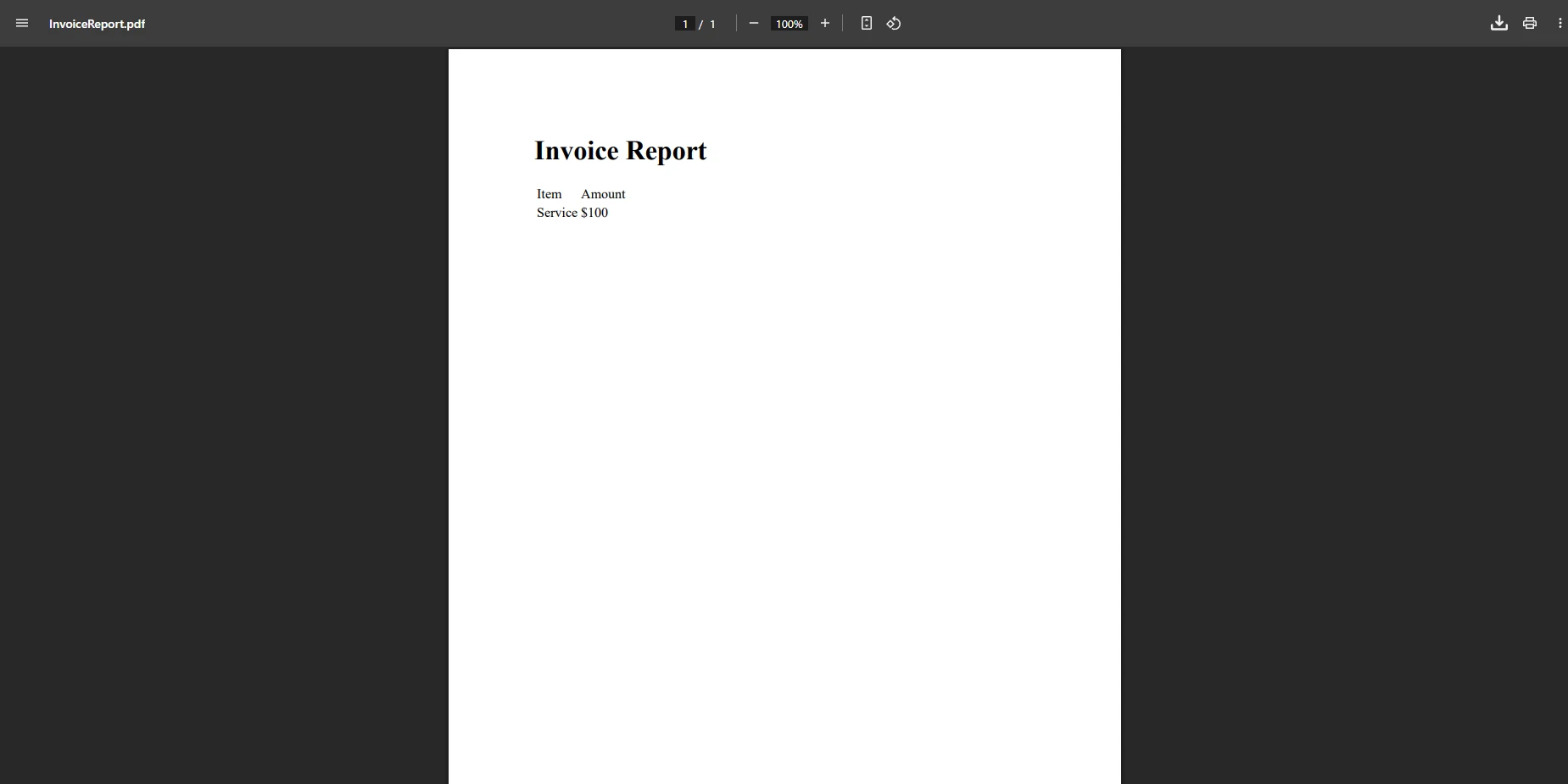
IronPDF는 ChromePdfRenderOptions을 통해 광범위한 맞춤 설정을 제공하여 페이지 방향, 크기, 여백 및 JavaScript 실행을 제어할 수 있습니다. 워터마크 추가, 헤더 및 푸터 적용, 페이지 번호를 프로그래밍적으로 추가하여 PDF를 뷰어로 전달하기 전에 사용자 정의할 수 있습니다. 문서 구성을 위해 북마크를 추가하거나 목차를 만드는 것을 고려해보십시오. IronPDF 문서는 모든 사용 가능한 옵션을 자세히 다룹니다.
IronPDF로 PDF를 생성한 후, Telerik Blazor PDF 뷰어로 표시하는 것은 간단합니다:
<TelerikPdfViewer Data="@pdfData"
                  Height="600px"
                  Zoom="1.0">
    <PdfViewerToolBar>
        <PdfViewerToolBarPagerTool />
        <PdfViewerToolBarZoomTool />
        <PdfViewerToolBarSearchTool />
        <PdfViewerToolBarDownloadTool />
    </PdfViewerToolBar>
</TelerikPdfViewer>net이 컴포넌트 구성은 PDF와 상호 작용하기 위한 기본 도구를 제공합니다. 툴바에는 탐색 버튼, 줌 레벨 제어, 검색 기능이 포함되어 있습니다. 응용 프로그램 필요에 따라 표시할 도구를 사용자 정의할 수 있습니다. Data 속성은 표시할 PDF 값을 제공합니다. 텍스트 추출 또는 PDF 검색 기능을 구현하여 기능을 향상시킬 수 있습니다.
Telerik UI for Blazor 뷰어는 브라우저 호환성을 자동으로 처리하여 최신 브라우저 전반에 걸쳐 플러그인 없이 작동합니다. .NET MAUI를 사용하는 데스크톱 응용 프로그램의 경우, 두 라이브러리는 크로스 플랫폼 배포를 지원하여 웹 및 데스크톱 플랫폼 전반에 걸쳐 일관된 PDF 경험을 만들 수 있습니다.
Telerik의 PDF 뷰어 툴바는 매우 사용자 정의 가능하며, 도구 추가, 제거, 재정렬, 사용자 정의 버튼 생성 및 완전히 사용자 정의된 툴바 빌드가 가능합니다. 일반적인 사용자 정의에는 인쇄 버튼 추가, 전체 화면 전환 또는 응용 프로그램 전용 작업이 포함됩니다. 사용자 정의 툴바에 PDF 인쇄 기능이나 PDF 폼 편집 기능을 통합할 수도 있습니다. Telerik의 공식 문서는 사용자 정의 옵션의 전체 목록을 제공합니다.
큰 PDF의 경우, PDF 메모리 스트림을 사용하여 프로그레시브 로딩이나 스트리밍을 구현하는 것을 고려하십시오. Telerik 뷰어는 URL에서 PDF를 로드하는 것을 지원하여 성능에 도움이 될 수 있습니다. 생성된 PDF의 서버 사이드 캐싱을 구현하여 동일한 문서를 다시 생성할 필요 없이 성능을 향상시킬 수 있습니다. 최적화를 위해 PDF 병합 및 분할 기술을 탐색하여 파일 크기를 줄이거나 관리 가능한 조각으로 문서를 분할하십시오.
이 통합은 IronPDF가 PDF 생성의 무거운 작업을 처리하고 Telerik가 정교한 보기 경험을 제공하는 효과적인 워크플로를 만듭니다. 다음은 동적 콘텐츠로 HTML에서 PDF를 생성하는 것을 시연하는 완전한 예제입니다:
@page "/document-viewer"
@inject ChromePdfRenderer Renderer
<div class="row">
    <div class="col-md-12">
        <TelerikButton OnClick="@LoadDocument">
            Load PDF Document
        </TelerikButton>
        @if (documentData != null)
        {
            <TelerikPdfViewer Data="@documentData"
                            Height="800px">
            </TelerikPdfViewer>
        }
    </div>
</div>
@code {
    private byte[] documentData;
    private async Task LoadDocument()
    {
        // Generate dynamic PDF content
        var html = await GenerateReportHtml();
        var pdf = await Renderer.RenderHtmlAsPdfAsync(html);
        documentData = pdf.BinaryData;
    }
    private async Task<string> GenerateReportHtml()
    {
        // Build HTML dynamically
        return "<h1>Dynamic Report</h1><p>Report content here</p>";
    }
}
@page "/document-viewer"
@inject ChromePdfRenderer Renderer
<div class="row">
<div class="col-md-12">
<TelerikButton OnClick="@LoadDocument">
Load PDF Document
</TelerikButton>
@If documentData IsNot Nothing Then
<TelerikPdfViewer Data="@documentData"
Height="800px">
</TelerikPdfViewer>
End If
</div>
</div>
@code
Private documentData As Byte()
Private Async Function LoadDocument() As Task
' Generate dynamic PDF content
Dim html = Await GenerateReportHtml()
Dim pdf = Await Renderer.RenderHtmlAsPdfAsync(html)
documentData = pdf.BinaryData
End Function
Private Async Function GenerateReportHtml() As Task(Of String)
' Build HTML dynamically
Return "<h1>Dynamic Report</h1><p>Report content here</p>"
End Function
End Code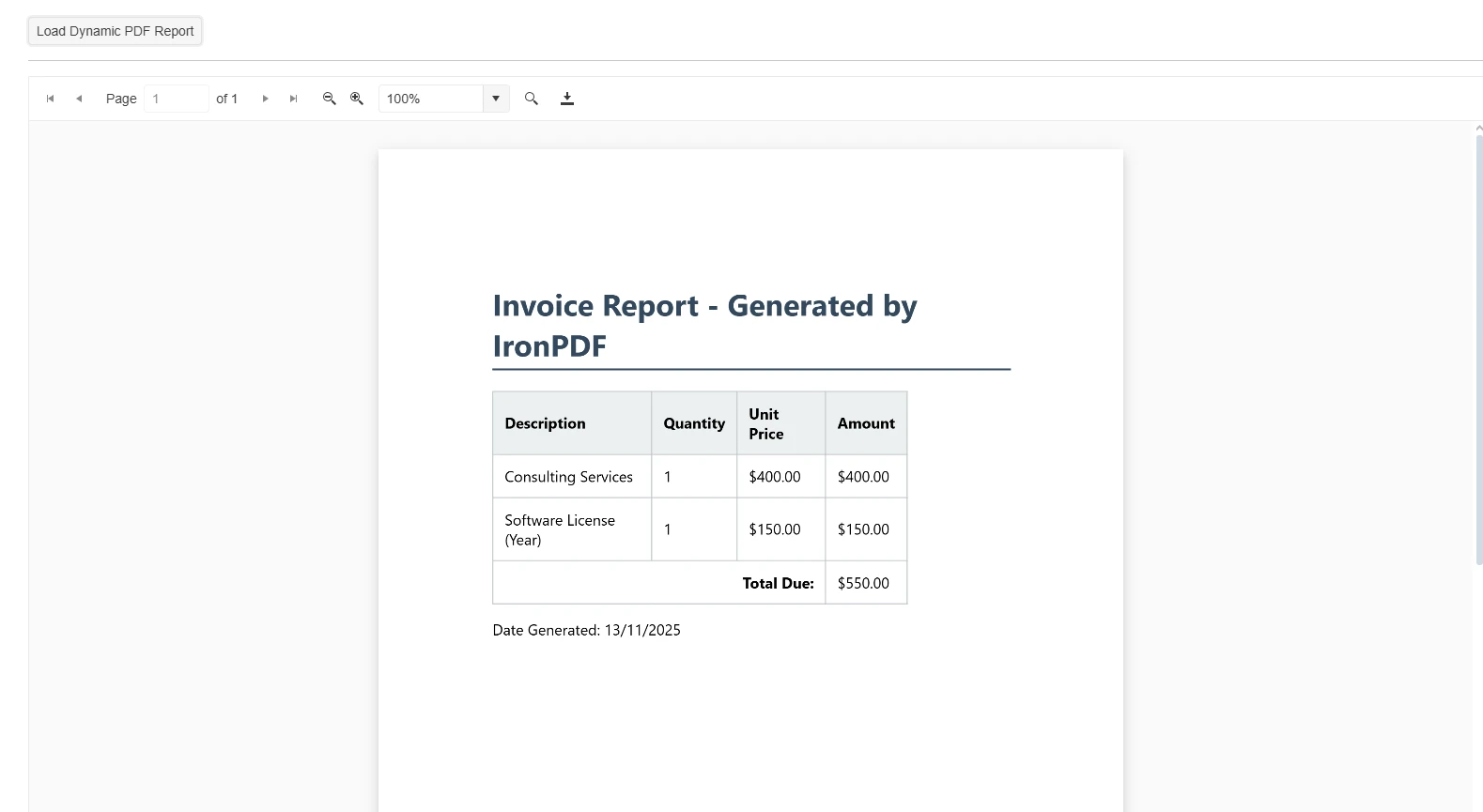
이 패턴은 필요에 따라 PDF를 생성하고 즉시 표시할 수 있게 합니다. 새로운 데이터가 가능할 때 컴포넌트가 반응적으로 업데이트되어 전통적인 다운로드 및 열기 워크플로우에 비해 사용자 경험을 향상시킵니다. OnClick 이벤트는 문서 로딩 과정을 트리거합니다. 여러 PDF를 병합하거나 첨부 파일 추가, 수정 추적 구현 등을 통해 이를 더욱 개선할 수 있습니다.
기존 PDF 파일을 로드해야 하는 시나리오의 경우, IronPDF가 뷰어로 전달하기 전에 이를 처리할 수 있습니다. 이를 통해 워터마크 추가, 페이지 조작, 또는 콘텐츠 추출 같은 기능을 표시 전에 사용할 수 있게 합니다. 고급 사용자는 민감한 문서에 대해 PDF 정화 또는 제거를 구현할 수도 있습니다. 문서를 최종 사용자에게 제시하기 전에 양식을 미리 입력하기 위해 PDF 양식 작업을 할 수도 있습니다.
기본적인 보기 기능을 넘어, PDF를 IronPDF로 처리한 후 양식 채우기, 디지털 서명 또는 주석과 같은 기능을 구현할 수 있습니다. 이를 통해 사용하기 쉬운 Telerik 뷰어 인터페이스를 유지하면서도 인터랙티브한 문서 워크플로를 생성할 수 있습니다. 프로그래밍 방식으로 PDF에 서명하거나 e-서명 워크플로를 위한 서명 필드를 추가할 수 있습니다. 이러한 기능은 엄격한 규제가 필요한 산업에서 감사 가능성과 문서 무결성을 요구하는 접근 방식에 적합합니다.
복잡한 문서에 대해 호스팅 서비스나 큐를 사용하여 백그라운드 PDF 생성을 구현하는 것을 고려하세요. 자주 액세스하는 PDF를 캐시하고, PDF 데이터를 저장하거나 전송할 때 압축을 사용하여 애플리케이션의 응답성을 개선하세요. 대량 처리 시나리오의 경우 비동기 및 멀티스레딩 옵션 또는 병렬 PDF 생성을 탐색하세요. JavaScript가 많은 콘텐츠의 경우 사용자 지정 렌더 지연을 사용하여 렌더링을 개선할 수도 있습니다.
Telerik UI for Blazor는 우수한 보기 기능을 제공하지만 IronPDF의 PDF 생성 기능과는 다릅니다. IronPDF의 Chrome 기반 엔진은 복잡한 레이아웃, 양식, 스타일이 있는 콘텐츠를 렌더링하며, 더 단순한 문서 처리 라이브러리에서는 어려울 수 있습니다. 둘을 결합함으로써 전문적인 PDF 생성과 검증된 보기 인터페이스를 동시에 얻게 됩니다.
이 접근 방식은 다양한 보기 옵션을 탐색해야 하는 개발자에게 유연성을 제공합니다. Telerik 뷰어를 단순한 iframe 디스플레이로 대체하거나 IronPDF의 생성 기능을 유지하면서 사용자 지정 보기 컴포넌트를 개발할 수 있습니다. 이 솔루션은 심플한 HTML을 PDF로 변환하는 것부터 복잡한 보고서 생성 시나리오까지 잘 확장됩니다. IronPDF 홈페이지에서는 지원되는 모든 사용 사례를 개괄적으로 제공합니다.
두 상용 라이브러리를 사용하게 되면 라이선스 비용이 증가하지만, 개발 시간을 절약하고 전문적인 결과를 얻는 데 투자 가치가 있습니다. PDF 생성 및 보기를 처음부터 구축하는 것과 비교하여, 결합된 솔루션은 즉각적이고 생산 준비가 된 기능을 제공합니다. 두 라이브러리 모두 뛰어난 문서를 제공하며, IronPDF는 개발 속도를 높이기 위한 완벽한 사용 가이드와 코드 예제를 제공합니다. IronPDF 라이선스 페이지를 검토하여 팀 규모와 배포 환경에 맞는 계획을 선택하세요.
오픈 소스 라이브러리만 사용하는 대안 접근 방식은 더 많은 개발 작업이 필요하고 기능이나 완성도가 부족할 수 있습니다. 클라우드 기반 PDF 서비스는 지연 시간과 데이터 프라이버시 문제를 도입하게 됩니다. 이 하이브리드 접근 방식은 애플리케이션 내에서 모든 것을 유지하면서도 최고의 기능을 제공합니다. 예를 들어, 외부 서비스로 데이터를 라우팅하지 않고 PDF to image 변환에 대한 완전한 제어를 얻을 수 있습니다. Telerik 문서와 IronPDF 문서를 나란히 확인하여 각 라이브러리가 어떻게 상호 보완되는지 이해하세요.
IronPDF와 함께 Telerik Blazor PDF 뷰어를 만들면 효과적인 PDF 생성 및 세련된 보기 경험을 동시에 누릴 수 있습니다. 이 조합은 오래된 웹 프로젝트를 현대화하고 현대 애플리케이션 요구 사항을 충족할 수 있는 완벽한 PDF 솔루션을 구축하는 데 도움이 됩니다. Windows, Linux, macOS 어디에서 배포하든 두 라이브러리는 크로스 플랫폼 지원을 제공합니다.
문서 관리 시스템, 보고 도구 또는 PDF 기능이 필요한 Blazor 애플리케이션을 구축하든, 이 통합은 프로젝트가 요구하는 기능과 사용자 경험을 제공합니다. 단순한 송장 생성에서 복잡한 보고서 제작에 이르기까지, 결합된 솔루션은 다양한 요구사항을 효과적으로 처리합니다.
이 솔루션을 구현할 준비가 되었습니까? 무료 IronPDF 체험판을 시작하여 Telerik UI for Blazor 프로젝트를 어떻게 향상시킬 수 있는지 탐색하세요. 생산용으로는 IronPDF 라이선스 옵션을 확인하여 귀하의 필요에 맞는 선택을 하세요.

커티스 차우는 칼턴 대학교에서 컴퓨터 과학 학사 학위를 취득했으며, Node.js, TypeScript, JavaScript, React를 전문으로 하는 프론트엔드 개발자입니다. 직관적이고 미적으로 뛰어난 사용자 인터페이스를 만드는 데 열정을 가진 그는 최신 프레임워크를 활용하고, 잘 구성되고 시각적으로 매력적인 매뉴얼을 제작하는 것을 즐깁니다.



IronPDF는 IRON SUITE 의 일부입니다.
10개의 .NET API 제품, 당신의 사무 문서를 위해

PDF 파일을 HTML처럼 빠르게 변환해야 할 때.


