


.NET 10을 사용하여 C#에서 HTML을 PDF로 변환

ASP.NET Core에서 HTML 콘텐츠를 세련된 PDF로 변환하고 이를 브라우저로 직접 스트리밍하여 프로페셔널한 PDF 문서를 동적으로 생성하세요. 디스크 저장소가 필요 없고, 임시 파일을 관리할 필요도 없습니다.
ASP.NET Core에서 현대 웹 애플리케이션을 구축할 때, 필요에 따라 PDF 문서를 생성할 수 있는 기능은 반복적으로 요구됩니다. 결제가 완료되자마자 송장을 다운로드해야 합니다. 컴플라이언스 보고서는 감사자가 "내보내기"를 클릭하면 즉시 나타나야 합니다. 사용자가 무슨 문제가 생겼는지 궁금해하기 전에 증명서는 준비되어야 합니다. IronPDF는 HTML을 변환하는 Chromium 기반의 PDF 라이브러리를 통해 이러한 모든 시나리오를 처리하며, CSS, JavaScript, 웹 폰트까지 포함하여 픽셀 정확도의 PDF 출력을 생성합니다. 디스크에 아무것도 기록하지 않습니다.
이 가이드는 라이브러리 설치, HTML 스트링에서 송장 생성, Entity Framework 데이터를 스트리밍하여 보고서 생성, 페이지 헤더 및 보안 설정 적용, 고급 트래픽의 ASP.NET 애플리케이션이 잘 작동하도록 유지하는 모범 사례를 다룹니다.
PDF를 즉석에서 생성한다는 것은 무엇을 의미합니까?
"즉석에서"란 문서가 HTTP 요청이 발생한 그 순간 메모리에서 구성되어 호출자에게 직접 전송된다는 것을 의미합니다. 어떤 PDF 파일도 파일 시스템에 기록되지 않으며, 배경 작업이 작업을 큐에 넣지도 않으며, 요청 간에 캐시가 결과를 저장하지도 않습니다.
이 접근 방식은 여러 가지 이유로 중요합니다. 첫 번째, 클라우드 배포 대상-- Azure App Service, AWS Lambda, Docker 컨테이너--은 로컬 파일 시스템이 일시적이거나 읽기 전용인 환경에서 종종 실행됩니다. 임시 폴더에 PDF를 생성한 후 이를 다시 읽어들이는 것은 이런 환경에서 불안정합니다. 두 번째, 디스크 기록을 피하면 공격 표면이 줄어듭니다: 이후의 요청이 잘못된 사용자에게 남은 파일을 우연히 반환할 수 없습니다. 세 번째, 메모리 전용 생성은 두 개의 입출력 작업(쓰기 및 읽기)을 기준 경로에서 제거하기 때문에 일반적으로 더 빠릅니다.
IronPDF의 ChromePdfRenderer는 생성된 모든 문서에서 .BinaryData 프로퍼티와 .Stream 프로퍼티를 노출합니다. 어느 것이든 ASP.NET Core FileResult에 직접 전달할 수 있으며, 이것은 실질적으로 스트리밍을 단 한 줄로 만듭니다.

ASP.NET Core 프로젝트에 IronPDF를 설치하는 방법은 무엇입니까?
패키지 관리자 콘솔 또는 .NET CLI를 통해 NuGet 패키지를 추가하세요:
:ProductInstall
dotnet add package IronPdf
:ProductInstall
dotnet add package IronPdf패키지를 설치한 후, 애플리케이션 시작 시에 라이선스 키를 설정하세요 -- 일반적으로 첫 번째 렌더러가 생성되기 전에 Program.cs에서:
using IronPdf;

// Place license activation before any IronPDF call
License.LicenseKey = "YOUR-LICENSE-KEY";

var builder = WebApplication.CreateBuilder(args);
builder.Services.AddControllersWithViews();

// Register ChromePdfRenderer as a singleton so the Chromium engine
// is initialised once and reused across all requests.
builder.Services.AddSingleton<ChromePdfRenderer>();

var app = builder.Build();
app.MapDefaultControllerRoute();
app.Run();
using IronPdf;
// Place license activation before any IronPDF call
License.LicenseKey = "YOUR-LICENSE-KEY";
var builder = WebApplication.CreateBuilder(args);
builder.Services.AddControllersWithViews();
// Register ChromePdfRenderer as a singleton so the Chromium engine
// is initialised once and reused across all requests.
builder.Services.AddSingleton<ChromePdfRenderer>();
var app = builder.Build();
app.MapDefaultControllerRoute();
app.Run();Imports IronPdf
' Place license activation before any IronPDF call
License.LicenseKey = "YOUR-LICENSE-KEY"
Dim builder = WebApplication.CreateBuilder(args)
builder.Services.AddControllersWithViews()
' Register ChromePdfRenderer as a singleton so the Chromium engine
' is initialised once and reused across all requests.
builder.Services.AddSingleton(Of ChromePdfRenderer)()
Dim app = builder.Build()
app.MapDefaultControllerRoute()
app.Run()싱글톤(singleton)으로 ChromePdfRenderer을 등록하는 것이 중요합니다. 렌더러는 처음 사용될 때 내부의 Chromium 하위 프로세스를 시작합니다. 요청마다 새 인스턴스를 생성하면 모든 호출에서 그 시작 비용을 지불하게 되며, 이는 부하가 걸릴 때 수백 밀리초의 지연을 추가합니다. 싱글톤 인스턴스는 스레드 안전성을 갖추고 있으며, 추가적인 설정 없이 동시 렌더 요청을 처리합니다.
개인 피드를 위한 NuGet.config 설정을 포함한 설치 옵션을 넓게 보려면 설치 개요를 참조하십시오.
HTML 문자열에서 송장 PDF를 생성하는 방법은 무엇입니까?
즉석 생성의 가장 일반적인 사용 사례는 거래 문서--송장, 영수증, 주문 확인서--를 생성하는 것입니다. 이 경우 요청마다 내용은 변하지만 레이아웃은 일정하게 유지됩니다.
패턴은 다음과 같습니다: 데이터를 삽입하여 HTML 문자열을 빌드하고, 그것을 RenderHtmlAsPdf에 전달하고, 바이너리 결과를 파일 다운로드로 반환합니다.
using IronPdf;
using Microsoft.AspNetCore.Mvc;
public class DocumentController : Controller
{
private readonly ChromePdfRenderer _renderer;
public DocumentController(ChromePdfRenderer renderer)
{
_renderer = renderer;
}
[HttpGet("invoice/{orderId:int}")]
public IActionResult GetInvoice(int orderId)
{
// In a real application, fetch this from your database or order service.
var order = GetOrderData(orderId);
string html = $"""
<!DOCTYPE html>
<html lang="en">
<head>
<meta charset="utf-8">
<style>
body {{font-family: Arial, sans-serif; margin: 40px; color: #333;}}
h1 {{color: #1a56db;}}
table {{width: 100%; border-collapse: collapse; margin-top: 24px;}}
th, td {{padding: 10px 14px; border: 1px solid #d1d5db; text-align: left;}}
th {{background: #f3f4f6;}}
tfoot td {{font-weight: bold;}}
</style>
</head>
<body>
<h1>Invoice #{order.InvoiceNumber}</h1>
<p>Date: {DateTime.UtcNow:yyyy-MM-dd} | Customer: {order.CustomerName}</p>
<table>
<thead><tr><th>Item</th><th>Qty</th><th>Unit Price</th><th>Subtotal</th></tr></thead>
<tbody>
{string.Join("", order.Items.Select(i =>
$"<tr><td>{i.Name}</td><td>{i.Quantity}</td>" +
$"<td>${i.UnitPrice:F2}</td><td>${i.Quantity * i.UnitPrice:F2}</td></tr>"))}
</tbody>
<tfoot>
<tr><td colspan="3">Total</td><td>${order.Items.Sum(i => i.Quantity * i.UnitPrice):F2}</td></tr>
</tfoot>
</table>
</body>
</html>
""";
var pdf = _renderer.RenderHtmlAsPdf(html);
return File(pdf.BinaryData, "application/pdf", $"invoice-{orderId}.pdf");
}
}using IronPdf;
using Microsoft.AspNetCore.Mvc;
public class DocumentController : Controller
{
private readonly ChromePdfRenderer _renderer;
public DocumentController(ChromePdfRenderer renderer)
{
_renderer = renderer;
}
[HttpGet("invoice/{orderId:int}")]
public IActionResult GetInvoice(int orderId)
{
// In a real application, fetch this from your database or order service.
var order = GetOrderData(orderId);
string html = $"""
<!DOCTYPE html>
<html lang="en">
<head>
<meta charset="utf-8">
<style>
body {{font-family: Arial, sans-serif; margin: 40px; color: #333;}}
h1 {{color: #1a56db;}}
table {{width: 100%; border-collapse: collapse; margin-top: 24px;}}
th, td {{padding: 10px 14px; border: 1px solid #d1d5db; text-align: left;}}
th {{background: #f3f4f6;}}
tfoot td {{font-weight: bold;}}
</style>
</head>
<body>
<h1>Invoice #{order.InvoiceNumber}</h1>
<p>Date: {DateTime.UtcNow:yyyy-MM-dd} | Customer: {order.CustomerName}</p>
<table>
<thead><tr><th>Item</th><th>Qty</th><th>Unit Price</th><th>Subtotal</th></tr></thead>
<tbody>
{string.Join("", order.Items.Select(i =>
$"<tr><td>{i.Name}</td><td>{i.Quantity}</td>" +
$"<td>${i.UnitPrice:F2}</td><td>${i.Quantity * i.UnitPrice:F2}</td></tr>"))}
</tbody>
<tfoot>
<tr><td colspan="3">Total</td><td>${order.Items.Sum(i => i.Quantity * i.UnitPrice):F2}</td></tr>
</tfoot>
</table>
</body>
</html>
""";
var pdf = _renderer.RenderHtmlAsPdf(html);
return File(pdf.BinaryData, "application/pdf", $"invoice-{orderId}.pdf");
}
}Imports IronPdf
Imports Microsoft.AspNetCore.Mvc
Public Class DocumentController
Inherits Controller
Private ReadOnly _renderer As ChromePdfRenderer
Public Sub New(renderer As ChromePdfRenderer)
_renderer = renderer
End Sub
<HttpGet("invoice/{orderId:int}")>
Public Function GetInvoice(orderId As Integer) As IActionResult
' In a real application, fetch this from your database or order service.
Dim order = GetOrderData(orderId)
Dim html As String = $"
<!DOCTYPE html>
<html lang=""en"">
<head>
<meta charset=""utf-8"">
<style>
body {{font-family: Arial, sans-serif; margin: 40px; color: #333;}}
h1 {{color: #1a56db;}}
table {{width: 100%; border-collapse: collapse; margin-top: 24px;}}
th, td {{padding: 10px 14px; border: 1px solid #d1d5db; text-align: left;}}
th {{background: #f3f4f6;}}
tfoot td {{font-weight: bold;}}
</style>
</head>
<body>
<h1>Invoice #{order.InvoiceNumber}</h1>
<p>Date: {DateTime.UtcNow:yyyy-MM-dd} | Customer: {order.CustomerName}</p>
<table>
<thead><tr><th>Item</th><th>Qty</th><th>Unit Price</th><th>Subtotal</th></tr></thead>
<tbody>
{String.Join("", order.Items.Select(Function(i)
$"<tr><td>{i.Name}</td><td>{i.Quantity}</td>" +
$"<td>${i.UnitPrice:F2}</td><td>${i.Quantity * i.UnitPrice:F2}</td></tr>"))}
</tbody>
<tfoot>
<tr><td colspan=""3"">Total</td><td>${order.Items.Sum(Function(i) i.Quantity * i.UnitPrice):F2}</td></tr>
</tfoot>
</table>
</body>
</html>
"
Dim pdf = _renderer.RenderHtmlAsPdf(html)
Return File(pdf.BinaryData, "application/pdf", $"invoice-{orderId}.pdf")
End Function
End ClassRenderHtmlAsPdf는 CSS 그리드, 플렉스박스, 웹 폰트, 심지어 인라인 SVG까지 포함한 전체 HTML 문서를 처리하며, Google Chrome을 구동하는 동일한 Chromium 엔진을 사용합니다. 반환된 PdfDocument는 BinaryData (이는 byte[])와 Stream (이는 MemoryStream)을 노출합니다. BinaryData을 File()에 "application/pdf" 및 파일 이름과 함께 전달하면 브라우저 다운로드가 트리거됩니다.
픽셀 기반의 정확한 레이아웃을 위해 반응형 CSS, 사용자 정의 글꼴 및 JavaScript 렌더링을 다루는 HTML에서 PDF 렌더링 가이드를 참조하세요.
생성된 송장 PDF는 어떤 모습인가요?
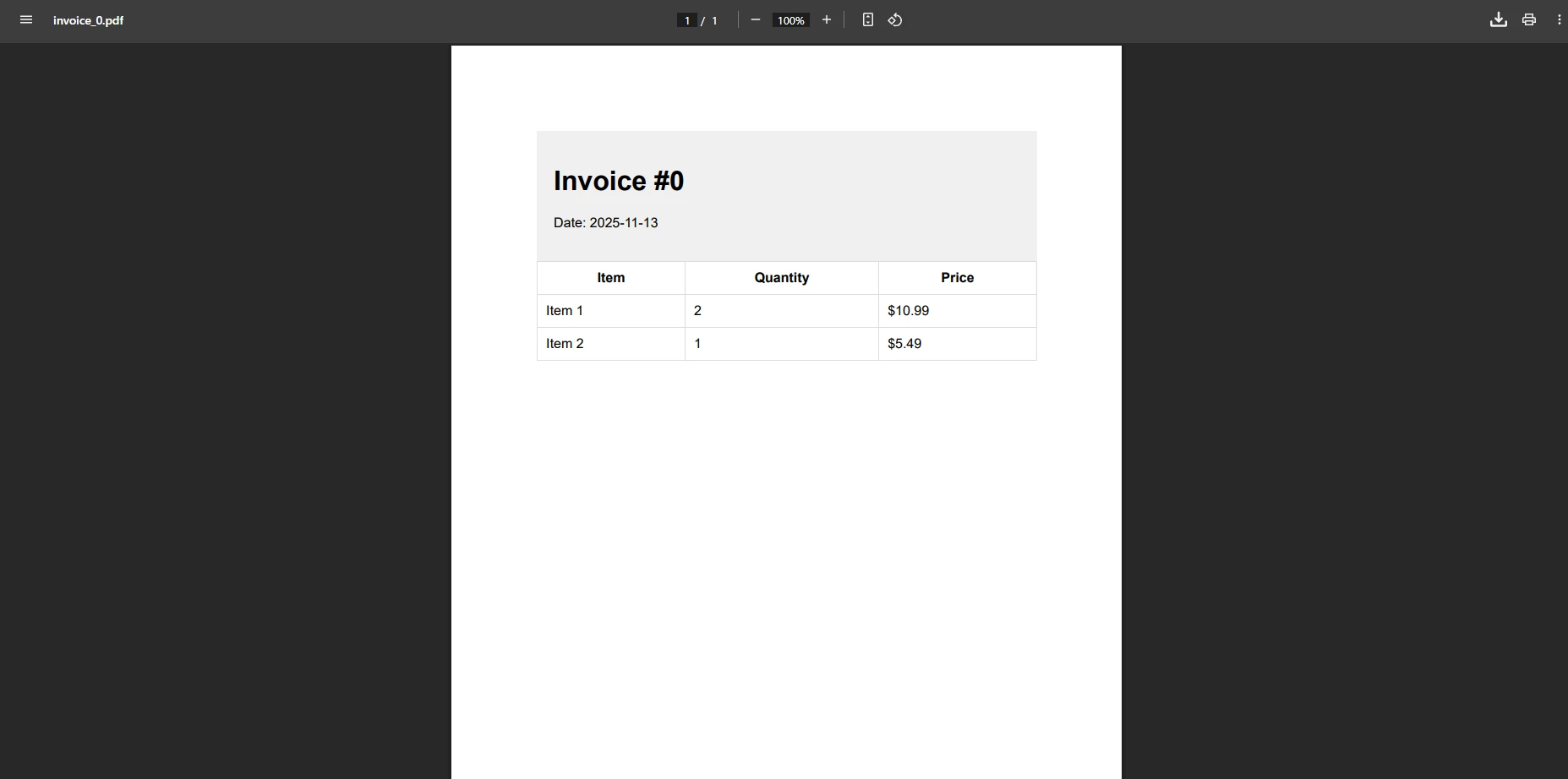
다운로드 대화창 없이 직접 브라우저에 PDF를 스트리밍하려면 어떻게 하나요?
브라우저의 내장 뷰어에서 인라인으로 PDF를 제공하려면 두 가지 작은 변경이 필요합니다: Content-Disposition을 inline로 설정하고 File() 호출에서 파일 이름을 생략해야 합니다.
[HttpPost("report/preview")]
public async Task<IActionResult> PreviewReport([FromBody] ReportRequest request)
{
    string html = BuildReportHtml(request);

    var pdfDocument = await _renderer.RenderHtmlAsPdfAsync(html);

    // "inline" tells the browser to display rather than download.
    Response.Headers["Content-Disposition"] = "inline; filename=report.pdf";

    return new FileContentResult(pdfDocument.BinaryData, "application/pdf");
}
[HttpPost("report/preview")]
public async Task<IActionResult> PreviewReport([FromBody] ReportRequest request)
{
string html = BuildReportHtml(request);
var pdfDocument = await _renderer.RenderHtmlAsPdfAsync(html);
// "inline" tells the browser to display rather than download.
Response.Headers["Content-Disposition"] = "inline; filename=report.pdf";
return new FileContentResult(pdfDocument.BinaryData, "application/pdf");
}Imports Microsoft.AspNetCore.Mvc
<HttpPost("report/preview")>
Public Async Function PreviewReport(<FromBody> request As ReportRequest) As Task(Of IActionResult)
Dim html As String = BuildReportHtml(request)
Dim pdfDocument = Await _renderer.RenderHtmlAsPdfAsync(html)
' "inline" tells the browser to display rather than download.
Response.Headers("Content-Disposition") = "inline; filename=report.pdf"
Return New FileContentResult(pdfDocument.BinaryData, "application/pdf")
End Function비동기 오버로드 RenderHtmlAsPdfAsync은 ASP.NET Core 컨트롤러에 권장되며, Chromium이 렌더링하는 동안 스레드 풀 스레드를 해제하여, 서버가 동시 부하 하에서도 반응성을 유지합니다.
메모리 기반 PDF 생성은 어떻게 작동하나요?

pdfDocument.BinaryData 바이트 배열은 완전히 관리 메모리에 존재합니다. 중간 파일 경로는 포함되지 않습니다. Content-Disposition 헤더는 PDF가 인라인으로 표시될지 다운로드로 제공될지를 제어하며, 이는 HTTP 규격으로 정의된 브라우저 동작입니다. Azure Blob Storage로 스트리밍을 포함하여 MemoryStream 접근 방식에 대한 더 깊은 내용을 보려면 PDF 메모리 스트림 문서를 방문하세요.
Entity Framework Core 쿼리 결과에서 PDF를 생성하려면 어떻게 해야 하나요?
대부분의 비즈니스 애플리케이션은 데이터를 호출 시간에 구성하는 대신 데이터베이스에서 보고 데이터를 가져옵니다. 아래 패턴은 Entity Framework Core를 쿼리하고, HTML 테이블을 작성하고, PDF를 반환하는 모든 것을 단일 컨트롤러 작업 내에서 수행합니다.
[HttpGet("report/monthly")]
public async Task<IActionResult> MonthlyReport(int year, int month)
{
    // Pull aggregated transaction data from EF Core.
    var rows = await _dbContext.Transactions
        .Where(t => t.Date.Year == year && t.Date.Month == month)
        .GroupBy(t => t.Category)
        .Select(g => new { Category = g.Key, Count = g.Count(), Total = g.Sum(t => t.Amount) })
        .OrderByDescending(g => g.Total)
        .ToListAsync();

    string tableRows = string.Join("", rows.Select(r =>
        $"<tr><td>{r.Category}</td><td>{r.Count}</td><td>${r.Total:F2}</td></tr>"));

    string html = $"""
        <html><body style="font-family:Arial,sans-serif;padding:32px">
        <h1>Monthly Report -- {month:D2}/{year}</h1>
        <table style="width:100%;border-collapse:collapse">
          <thead>
            <tr style="background:#e5e7eb">
              <th style="padding:8px;border:1px solid #d1d5db">Category</th>
              <th style="padding:8px;border:1px solid #d1d5db">Transactions</th>
              <th style="padding:8px;border:1px solid #d1d5db">Total</th>
            </tr>
          </thead>
          <tbody>{tableRows}</tbody>
        </table>
        </body></html>
        """;

    var pdf = _renderer.RenderHtmlAsPdf(html);
    pdf.MetaData.Title  = $"Monthly Report {month:D2}/{year}";
    pdf.MetaData.Author = "Reporting System";

    return File(pdf.BinaryData, "application/pdf", $"report-{year}-{month:D2}.pdf");
}
[HttpGet("report/monthly")]
public async Task<IActionResult> MonthlyReport(int year, int month)
{
// Pull aggregated transaction data from EF Core.
var rows = await _dbContext.Transactions
.Where(t => t.Date.Year == year && t.Date.Month == month)
.GroupBy(t => t.Category)
.Select(g => new { Category = g.Key, Count = g.Count(), Total = g.Sum(t => t.Amount) })
.OrderByDescending(g => g.Total)
.ToListAsync();
string tableRows = string.Join("", rows.Select(r =>
$"<tr><td>{r.Category}</td><td>{r.Count}</td><td>${r.Total:F2}</td></tr>"));
string html = $"""
<html><body style="font-family:Arial,sans-serif;padding:32px">
<h1>Monthly Report -- {month:D2}/{year}</h1>
<table style="width:100%;border-collapse:collapse">
<thead>
<tr style="background:#e5e7eb">
<th style="padding:8px;border:1px solid #d1d5db">Category</th>
<th style="padding:8px;border:1px solid #d1d5db">Transactions</th>
<th style="padding:8px;border:1px solid #d1d5db">Total</th>
</tr>
</thead>
<tbody>{tableRows}</tbody>
</table>
</body></html>
""";
var pdf = _renderer.RenderHtmlAsPdf(html);
pdf.MetaData.Title = $"Monthly Report {month:D2}/{year}";
pdf.MetaData.Author = "Reporting System";
return File(pdf.BinaryData, "application/pdf", $"report-{year}-{month:D2}.pdf");
}Imports Microsoft.AspNetCore.Mvc
Imports System.Threading.Tasks
Imports System.Linq
<HttpGet("report/monthly")>
Public Async Function MonthlyReport(year As Integer, month As Integer) As Task(Of IActionResult)
' Pull aggregated transaction data from EF Core.
Dim rows = Await _dbContext.Transactions _
.Where(Function(t) t.Date.Year = year AndAlso t.Date.Month = month) _
.GroupBy(Function(t) t.Category) _
.Select(Function(g) New With {Key .Category = g.Key, Key .Count = g.Count(), Key .Total = g.Sum(Function(t) t.Amount)}) _
.OrderByDescending(Function(g) g.Total) _
.ToListAsync()
Dim tableRows As String = String.Join("", rows.Select(Function(r) $"<tr><td>{r.Category}</td><td>{r.Count}</td><td>${r.Total:F2}</td></tr>"))
Dim html As String = $"
<html><body style='font-family:Arial,sans-serif;padding:32px'>
<h1>Monthly Report -- {month:D2}/{year}</h1>
<table style='width:100%;border-collapse:collapse'>
<thead>
<tr style='background:#e5e7eb'>
<th style='padding:8px;border:1px solid #d1d5db'>Category</th>
<th style='padding:8px;border:1px solid #d1d5db'>Transactions</th>
<th style='padding:8px;border:1px solid #d1d5db'>Total</th>
</tr>
</thead>
<tbody>{tableRows}</tbody>
</table>
</body></html>
"
Dim pdf = _renderer.RenderHtmlAsPdf(html)
pdf.MetaData.Title = $"Monthly Report {month:D2}/{year}"
pdf.MetaData.Author = "Reporting System"
Return File(pdf.BinaryData, "application/pdf", $"report-{year}-{month:D2}.pdf")
End Functionpdf.MetaData.Title 및 pdf.MetaData.Author을 설정하면 해당 정보가 PDF의 문서 속성에 포함됩니다. 이는 컴플라이언스 추적 및 문서 관리 시스템에 유용합니다. 보다 정교한 보고서 레이아웃을 위해 CSS 인쇄 스타일, 명시적인 페이지 나누기 및 임베디드 차트 이미지를 고려하세요.
생성된 PDF에 헤더, 푸터 및 보안을 적용하는 방법은?
생산 문서는 종종 문서 제목이 있는 실행 중인 헤더, 페이지 번호 푸터 및 무단 인쇄 또는 복사를 방지하는 액세스 제어가 필요합니다. IronPDF의 ChromePdfRenderOptions은 이 모든 요구 사항을 충족합니다.
[HttpPost("document/secured")]
public async Task<IActionResult> GenerateSecuredDocument([FromBody] SecuredDocRequest request)
{
    var renderOptions = new ChromePdfRenderOptions
    {
        용지 크기       = PDF용지 크기.A4,
        MarginTop       = 45,
        MarginBottom    = 45,
        MarginLeft      = 25,
        MarginRight     = 25,
        EnableJavaScript = true,
        WaitFor         = new WaitFor { RenderDelay = 500 }
    };

    renderOptions.TextHeader = new 텍스트헤더푸터
    {
        CenterText       = request.DocumentTitle,
        DrawDividerLine  = true,
        FontSize         = 11
    };

    renderOptions.TextFooter = new 텍스트헤더푸터
    {
        LeftText  = "{date} {time}",
        RightText = "Page {page} of {total-pages}",
        FontSize  = 9
    };

    _renderer.RenderingOptions = renderOptions;

    var pdf = await _renderer.RenderHtmlAsPdfAsync(request.HtmlContent);

    if (request.RequirePassword)
    {
        pdf.SecuritySettings.OwnerPassword         = request.OwnerPassword;
        pdf.SecuritySettings.UserPassword          = request.UserPassword;
        pdf.SecuritySettings.AllowUserPrinting     = PdfPrintSecurity.NoPrint;
        pdf.SecuritySettings.AllowUserCopyPasteContent = false;
    }

    return File(pdf.BinaryData, "application/pdf", $"{request.FileName}.pdf");
}
[HttpPost("document/secured")]
public async Task<IActionResult> GenerateSecuredDocument([FromBody] SecuredDocRequest request)
{
var renderOptions = new ChromePdfRenderOptions
{
용지 크기 = PDF용지 크기.A4,
MarginTop = 45,
MarginBottom = 45,
MarginLeft = 25,
MarginRight = 25,
EnableJavaScript = true,
WaitFor = new WaitFor { RenderDelay = 500 }
};
renderOptions.TextHeader = new 텍스트헤더푸터
{
CenterText = request.DocumentTitle,
DrawDividerLine = true,
FontSize = 11
};
renderOptions.TextFooter = new 텍스트헤더푸터
{
LeftText = "{date} {time}",
RightText = "Page {page} of {total-pages}",
FontSize = 9
};
_renderer.RenderingOptions = renderOptions;
var pdf = await _renderer.RenderHtmlAsPdfAsync(request.HtmlContent);
if (request.RequirePassword)
{
pdf.SecuritySettings.OwnerPassword = request.OwnerPassword;
pdf.SecuritySettings.UserPassword = request.UserPassword;
pdf.SecuritySettings.AllowUserPrinting = PdfPrintSecurity.NoPrint;
pdf.SecuritySettings.AllowUserCopyPasteContent = false;
}
return File(pdf.BinaryData, "application/pdf", $"{request.FileName}.pdf");
}Imports Microsoft.AspNetCore.Mvc
<HttpPost("document/secured")>
Public Async Function GenerateSecuredDocument(<FromBody> request As SecuredDocRequest) As Task(Of IActionResult)
Dim renderOptions As New ChromePdfRenderOptions With {
.용지 크기 = PDF용지 크기.A4,
.MarginTop = 45,
.MarginBottom = 45,
.MarginLeft = 25,
.MarginRight = 25,
.EnableJavaScript = True,
.WaitFor = New WaitFor With {.RenderDelay = 500}
}
renderOptions.TextHeader = New 텍스트헤더푸터 With {
.CenterText = request.DocumentTitle,
.DrawDividerLine = True,
.FontSize = 11
}
renderOptions.TextFooter = New 텍스트헤더푸터 With {
.LeftText = "{date} {time}",
.RightText = "Page {page} of {total-pages}",
.FontSize = 9
}
_renderer.RenderingOptions = renderOptions
Dim pdf = Await _renderer.RenderHtmlAsPdfAsync(request.HtmlContent)
If request.RequirePassword Then
pdf.SecuritySettings.OwnerPassword = request.OwnerPassword
pdf.SecuritySettings.UserPassword = request.UserPassword
pdf.SecuritySettings.AllowUserPrinting = PdfPrintSecurity.NoPrint
pdf.SecuritySettings.AllowUserCopyPasteContent = False
End If
Return File(pdf.BinaryData, "application/pdf", $"{request.FileName}.pdf")
End FunctionHTML에 Chart.js 또는 ApexCharts와 같은 차트 라이브러리가 포함되어 비동기 완료를 그리는 경우, WaitFor.RenderDelay 설정이 특히 유용합니다. 300-500ms의 지연 설정으로 Chromium이 최종 렌더된 상태를 캡처할 수 있습니다. 보관 기준을 충족해야 하는 문서의 경우 위 접근 방식을 PDF/A 준수 및 디지털 서명과 결합하세요.
각주 텍스트에 있는 {page} 및 {total-pages} 토큰은 IronPDF가 렌더링 시 자동으로 해결합니다. 추가 헤더 및 각주 옵션에는 로고 배치를 위한 HTML 기반 헤더 및 섹션별 오버라이드 기능이 포함되어 있습니다.
어떤 렌더링 옵션이 있나요?
아래 표는 즉석 생성에 가장 유용한 ChromePdfRenderOptions 프로퍼티를 요약합니다:
| 재산 | 유형 | 목적 |
|---|---|---|
| 용지 크기 | PDF용지 크기 | 페이지 크기 설정 (A4, 레터, 법적, 사용자 정의) |
| 상단 여백 / 하단 여백 | int (mm) | 인쇄 가능한 영역 간격 제어 |
| EnableJavaScript | bool | 캡처 전 JS 실행 허용 |
| WaitFor.RenderDelay | int (ms) | 비동기 렌더링을 위한 캡처 지연 |
| 텍스트 헤더 / 텍스트 푸터 | 텍스트헤더푸터 | 실행 중인 페이지 헤더 및 푸터 |
| HtmlHeader / HtmlFooter | HTML 헤더 푸터 | 이미지가 포함된 HTML 형식의 헤더/푸터 |
| GrayScale | bool | 단색 PDF 출력 |
| FitToPaperWidth | bool | 페이지 맞춤 폭에 맞게 넓은 콘텐츠 조정 |
대량 PDF 생성을 위한 성능 모범 사례는 무엇인가요?
단일 서버가 수백 개의 동시 PDF 요청을 처리할 때, 몇 가지 아키텍처 결정이 처리량 및 지연 시간에 큰 영향을 미칩니다.
싱글톤 렌더러 등록. 설치 섹션에서 보여준 바와 같이, ChromePdfRenderer을 DI 컨테이너의 싱글톤으로 등록하면 요청 당 새로운 Chromium 하위 프로세스를 시작하는 비용을 피할 수 있습니다. Microsoft의 ASP.NET Core 성능 가이드에 따르면 객체 할당을 최소화하고 비용이 많이 드는 리소스를 재사용하는 것이 사용할 수 있는 두 가지 가장 효과적인 최적화입니다.
항상 비동기를 사용하세요. RenderHtmlAsPdfAsync는 Task<PdfDocument>를 반환하고 Chromium이 작업하는 동안 컨트롤러 스레드를 중지합니다. 이것은 스레드 풀이 다른 수신 요청을 병렬로 처리할 수 있도록 하며, 비동기 문서가 웹 호스트에 대해 이 오버로드를 권장하는 이유입니다. 동기 과부하는 콘솔 도구나 백그라운드 서비스에서만 적합하며, 스레드 블로킹이 허용되는 경우에만 적합합니다.
가능한 경우, 중간 배열을 생략하고 직접 스트림하세요. 큰 PDF에 대해서는 .Stream을 전체 바이트 배열을 구현하지 않고 응답 본문에 직접 쓸 수 있습니다:
[HttpGet("document/large")]
public IActionResult StreamLargeDocument(int documentId)
{
    string html = BuildLargeDocumentHtml(documentId);
    var pdf = _renderer.RenderHtmlAsPdf(html);

    // Stream.Position is already at 0; no seek needed.
    return File(pdf.Stream, "application/pdf", $"document-{documentId}.pdf");
}
[HttpGet("document/large")]
public IActionResult StreamLargeDocument(int documentId)
{
string html = BuildLargeDocumentHtml(documentId);
var pdf = _renderer.RenderHtmlAsPdf(html);
// Stream.Position is already at 0; no seek needed.
return File(pdf.Stream, "application/pdf", $"document-{documentId}.pdf");
}Imports Microsoft.AspNetCore.Mvc
<HttpGet("document/large")>
Public Function StreamLargeDocument(documentId As Integer) As IActionResult
Dim html As String = BuildLargeDocumentHtml(documentId)
Dim pdf = _renderer.RenderHtmlAsPdf(html)
' Stream.Position is already at 0; no seek needed.
Return File(pdf.Stream, "application/pdf", $"document-{documentId}.pdf")
End Function사용 후 폐기하세요. PdfDocument은 IDisposable을 구현합니다. 이를 using문에 래핑하면, 많은 큰 PDF를 연달아 생성할 때 중요한 기저 메모리 버퍼를 신속히 해제할 수 있습니다:
using var pdf = _renderer.RenderHtmlAsPdf(html);
byte[] data = pdf.BinaryData;
// pdf is disposed here; data is safely copied to the local array.
return File(data, "application/pdf", "output.pdf");
using var pdf = _renderer.RenderHtmlAsPdf(html);
byte[] data = pdf.BinaryData;
// pdf is disposed here; data is safely copied to the local array.
return File(data, "application/pdf", "output.pdf");Imports System.IO
Using pdf = _renderer.RenderHtmlAsPdf(html)
Dim data As Byte() = pdf.BinaryData
' pdf is disposed here; data is safely copied to the local array.
Return File(data, "application/pdf", "output.pdf")
End UsingAzure, AWS, Docker 및 Linux 환경을 다루는 클라우드 배포 가이드에 대해서는 IronPDF 문서에서 환경별 구성 메모를 제공합니다. 시작 후 첫 번째 렌더링이 느리다면 첫 번째 사용자 요청이 도착하기 전에 렌더러를 사전 초기화하기 위한 전략을 위해 웜업 및 캐싱 가이드를 참조하십시오.
생성된 PDF에 워터마크를 어떻게 추가하나요?
텍스트 또는 이미지 워터마크는 생성된 문서의 모든 페이지에 스트리밍 전에 추가될 수 있습니다:
[HttpGet("document/draft/{id:int}")]
public IActionResult GetDraftDocument(int id)
{
    string html = BuildDocumentHtml(id);
    var pdf = _renderer.RenderHtmlAsPdf(html);

    // Stamp "DRAFT" diagonally across every page.
    pdf.ApplyWatermark(
        "<h1 style='color:rgba(200,0,0,0.25);transform:rotate(-45deg)'>DRAFT</h1>",
        rotation: 45,
        opacity: 30
    );

    return File(pdf.BinaryData, "application/pdf", $"draft-{id}.pdf");
}
[HttpGet("document/draft/{id:int}")]
public IActionResult GetDraftDocument(int id)
{
string html = BuildDocumentHtml(id);
var pdf = _renderer.RenderHtmlAsPdf(html);
// Stamp "DRAFT" diagonally across every page.
pdf.ApplyWatermark(
"<h1 style='color:rgba(200,0,0,0.25);transform:rotate(-45deg)'>DRAFT</h1>",
rotation: 45,
opacity: 30
);
return File(pdf.BinaryData, "application/pdf", $"draft-{id}.pdf");
}<AttributeUsage(AttributeTargets.Method, Inherited:=True, AllowMultiple:=False)>
Public Class HttpGetAttribute
Inherits Attribute
Public Sub New(route As String)
End Sub
End Class
<HttpGet("document/draft/{id:int}")>
Public Function GetDraftDocument(id As Integer) As IActionResult
Dim html As String = BuildDocumentHtml(id)
Dim pdf = _renderer.RenderHtmlAsPdf(html)
' Stamp "DRAFT" diagonally across every page.
pdf.ApplyWatermark(
"<h1 style='color:rgba(200,0,0,0.25);transform:rotate(-45deg)'>DRAFT</h1>",
rotation:=45,
opacity:=30
)
Return File(pdf.BinaryData, "application/pdf", $"draft-{id}.pdf")
End Function이미지 워터마크 및 페이지별 제어를 포함한 전체 워터마크 구성 옵션에 대해서는 워터마크 문서를 참조하세요.
 NuGet을 사용하여 설치하세요
다음 단계는 무엇입니까?
ASP.NET Core에서 동적 PDF 생성은 일관된 패턴을 따릅니다: HTML을 빌드하고, RenderHtmlAsPdf 또는 그 비동기 오버로드를 호출하고, 결과를 FileResult를 통해 반환합니다. IronPDF는 디스크 I/O 없이 중간에서 모든 것을 처리하며 -- 크로뮴 렌더링, CSS 적용, JavaScript 실행을 필요로 하지 않습니다.
여기서부터, 응용 프로그램 요구 사항에 따라 여러 방향으로 탐색할 수 있습니다. PDF에 여러 소스 문서를 결합해야 한다면, 병합 및 분할 가이드에서는 기존 PDF를 새로 렌더된 페이지와 조합하는 방법을 설명합니다. 사용자가 PDF에 삽입된 양식을 작성하고 제출해야 한다면, 인터랙티브 폼 문서는 필드 값을 생성하고 읽는 방법을 보여줍니다. 규제 산업을 위한 경우, PDF/A 준수와 PDF/UA 접근성을 통해 문서가 아카이빙 및 접근성 표준을 충족하도록 보장합니다.
IronPDF를 대안과 비교 평가하고 있다면, iText와 IronPDF 비교는 기술적인 차이를 나란히 나열하여 제공합니다. 프로덕션으로 이동할 준비가 되었다면, 라이선스를 구매하여 모든 기능을 잠금 해제하고 우선 지원을 받을 수 있습니다. 전체 API 참조는 이 가이드에서 논의된 모든 클래스와 메서드를 문서화합니다.
구현 중 질문이나 문제가 발생하면, 엔지니어링 지원 팀에 연락할 수 있습니다. Blazor Server 또는 MAUI와 관련한 플랫폼별 노트에 대해 각 호스트 모델에 대한 구성 차이를 다루는 전용 가이드가 준비되어 있습니다.
자주 묻는 질문
ASP.NET Core에서 동적으로 PDF를 생성하려면 어떻게 해야 하나요?
ASP.NET Core에서 파일을 디스크에 저장하지 않고 IronPDF를 사용하여 PDF를 동적으로 생성할 수 있습니다. 브라우저로 직접 PDF를 스트리밍할 수 있습니다.
IronPDF를 사용하여 PDF를 생성할 때의 장점은 무엇인가요?
IronPDF는 강력한 렌더링 엔진을 제공하여 .NET Core 프로젝트 내에서 즉석에서 PDF를 생성할 수 있으며, 서버 쪽 저장 공간이 필요하지 않습니다.
IronPDF를 사용하여 송장 및 보고서를 만들 수 있습니까?
예, IronPDF는 송장, 보고서 및 증명서와 같은 다양한 유형의 문서를 생성하는 데 적합하며, ASP.NET Core 응용 프로그램에서 즉석에서 생성됩니다.
IronPDF를 사용할 때 서버 쪽 저장 공간이 필요합니까?
아니요, IronPDF는 서버 쪽 저장 공간 없이 브라우저로 직접 PDF를 생성하고 스트리밍할 수 있어 효율적이고 빠릅니다.
즉석 PDF 생성을 통해 어떤 종류의 애플리케이션이 혜택을 받을 수 있습니까?
즉석 PDF 생성을 제공하는 IronPDF로부터 특히 송장 시스템 및 보고 도구와 같이 실시간 문서 생성이 필요한 현대 웹 응용 프로그램은 큰 혜택을 받을 수 있습니다.
IronPDF가 .NET Core 프로젝트를 지원하나요?
네, IronPDF는 .NET Core 프로젝트와 완전히 호환되며 개발자가 응용 프로그램에 PDF 생성 기능을 원활하게 통합할 수 있습니다.







 무료로 시작하세요
 무료로 시작하세요
 무료 라이브 데모 예약하기





 신용카드나 계정 생성은 필요하지 않습니다.










