




更新日 2026年9月4日
月次口座明細書をPDF文書として生成する
IronPDF C# PDFライブラリを使用することで、開発者は外部サービスに依存することなく、.NETプロジェクト内でHTMLを信頼性の高いPDFファイルに変換することができます。
詳しく読む

HTML コンテンツを洗練された PDF に変換し、ブラウザーに直接ストリーミングすることで、 ASP.NET Coreでプロフェッショナルな PDF ドキュメントを動的に生成します。ディスク ストレージは必要なく、一時ファイルの管理も必要ありません。
ASP.NET Coreで最新の Web アプリケーションを構築する場合、オンデマンドでPDF ドキュメントを作成する機能が繰り返し必要になります。 支払いが完了したらすぐに請求書をダウンロードする必要があります。 監査人が"エクスポート"をクリックすると、コンプライアンス レポートが即座に表示される必要があります。ユーザーが何か問題が起きたのではないかと疑う前に、証明書が準備されている必要があります。 IronPDF は、Chromium ベースのPDF ライブラリを通じてこれらすべてのシナリオを処理します。このライブラリは、ディスクに何も書き込まずに、HTML (CSS、 JavaScript、Web フォントを含む) をピクセル精度の PDF 出力に変換します。
このガイドでは、ライブラリのインストール、HTML 文字列からの請求書の生成、Entity Framework データからのレポートのストリーミング、ページ ヘッダーとセキュリティ設定の適用、トラフィック量の多いASP.NETアプリケーションのパフォーマンスを維持するためのベスト プラクティスの採用など、知っておく必要のあるすべての内容について説明します。
"オンザフライ"とは、ドキュメントが HTTP 要求の瞬間にメモリ内に構築され、呼び出し元に直接送信されることを意味します。 PDF ファイルはファイル システムに書き込まれず、バックグラウンド ジョブは作業をキューに入れず、要求間の結果はキャッシュに保存されません。
このアプローチはいくつかの理由で重要です。 まず、クラウド展開ターゲット(Azure App Service、AWS Lambda、Docker コンテナー) は、多くの場合、ローカル ファイル システムが一時的または読み取り専用である環境で実行されます。 このような環境では、PDF を一時フォルダーに生成してそれを読み戻すことは危険です。 2 番目に、ディスク書き込みを回避すると、攻撃対象領域が縮小されます。つまり、後続のリクエストによって誤って間違ったユーザーに提供される可能性のある残留ファイルが存在しないことになります。 3 番目に、メモリのみの生成では、クリティカル パス内の 2 つの I/O 操作 (書き込みと読み取り) がなくなるため、通常は高速になります。
IronPDF の ChromePdfRenderer は、生成されたすべてのドキュメントに対して .BinaryData プロパティと .Stream プロパティを公開します。 どちらもASP.NET CoreのFileResultに直接渡すことができ、実際にはストリーミングを1行で実行できます。

パッケージ マネージャー コンソールまたは.NET CLI を使用してNuGetパッケージを追加します。
パッケージをインストールしたら、アプリケーションの開始時にライセンスキーを設定してください。通常、最初のレンダラーが作成される前の Program.cs で行います。
using IronPdf;

// Place license activation before any IronPDF call
License.LicenseKey = "YOUR-LICENSE-KEY";

var builder = WebApplication.CreateBuilder(args);
builder.Services.AddControllersWithViews();

// Register ChromePdfRenderer as a singleton so the Chromium engine
// is initialised once and reused across all requests.
builder.Services.AddSingleton<ChromePdfRenderer>();

var app = builder.Build();
app.MapDefaultControllerRoute();
app.Run();Imports IronPdf
' Place license activation before any IronPDF call
License.LicenseKey = "YOUR-LICENSE-KEY"
Dim builder = WebApplication.CreateBuilder(args)
builder.Services.AddControllersWithViews()
' Register ChromePdfRenderer as a singleton so the Chromium engine
' is initialised once and reused across all requests.
builder.Services.AddSingleton(Of ChromePdfRenderer)()
Dim app = builder.Build()
app.MapDefaultControllerRoute()
app.Run()ChromePdfRenderer をシングルトンとして登録することが重要です。 レンダラーは、初めて使用されるときに内部の Chromium サブプロセスを開始します。 リクエストごとに新しいインスタンスを作成すると、呼び出しごとに起動コストが発生し、負荷がかかったときに数百ミリ秒の遅延が発生します。 シングルトン インスタンスはスレッドセーフであり、追加の構成なしで同時レンダリング要求を処理します。
プライベート フィード用のNuGet.config セットアップを含むインストール オプションの詳細については、インストールの概要をご覧ください。
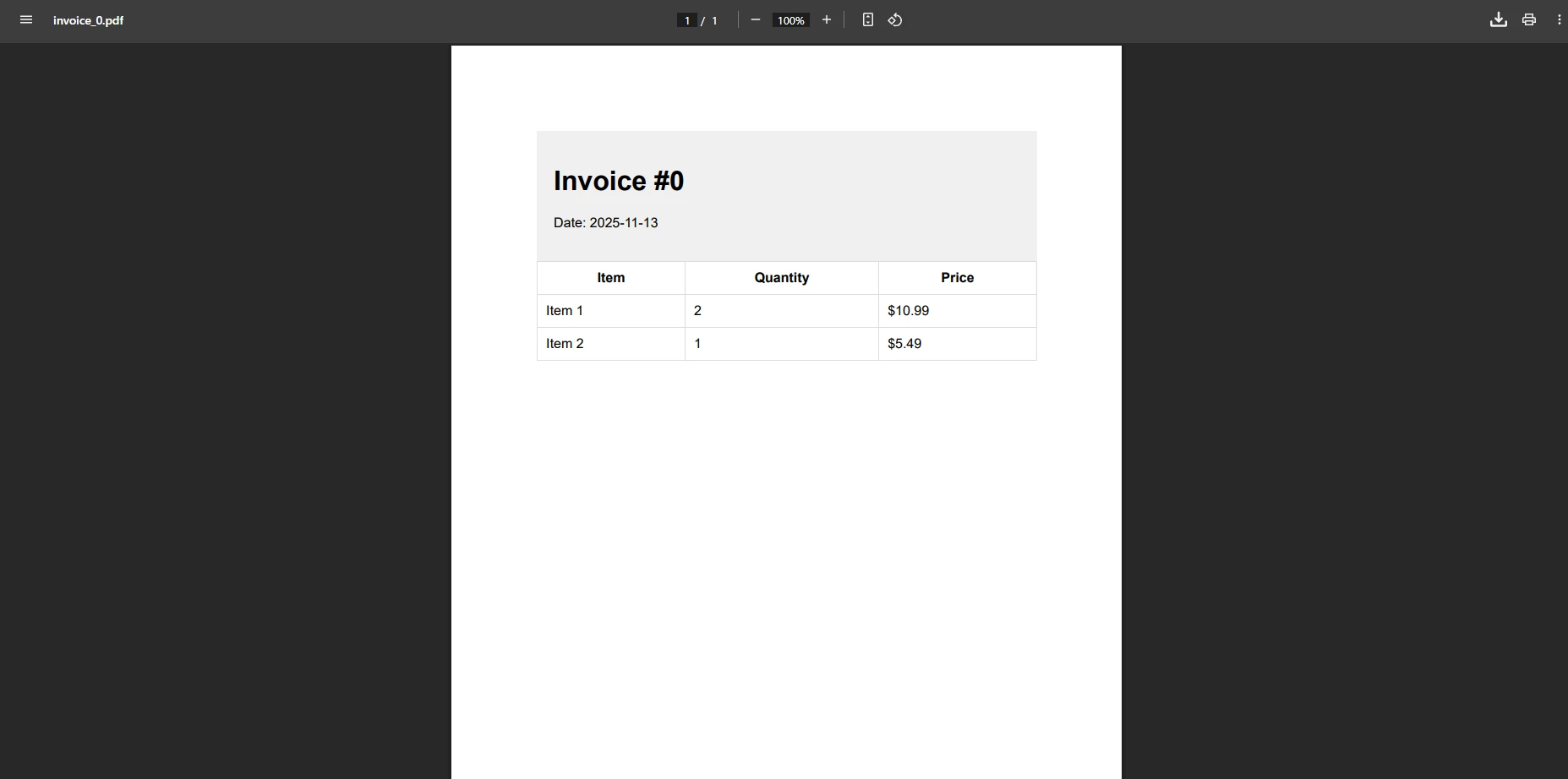
最も一般的なオンザフライの使用例は、リクエストごとに内容は変わりますが、レイアウトは一定のままであるトランザクション ドキュメント (請求書、領収書、注文確認書など) を生成することです。
パターンは、データを補間したHTML文字列を作成し、それを RenderHtmlAsPdf に渡し、バイナリ結果をファイルダウンロードとして返すことです。
using IronPdf;
using Microsoft.AspNetCore.Mvc;
public class DocumentController : Controller
{
private readonly ChromePdfRenderer _renderer;
public DocumentController(ChromePdfRenderer renderer)
{
_renderer = renderer;
}
[HttpGet("invoice/{orderId:int}")]
public IActionResult GetInvoice(int orderId)
{
// In a real application, fetch this from your database or order service.
var order = GetOrderData(orderId);
string html = $"""
<!DOCTYPE html>
<html lang="en">
<head>
<meta charset="utf-8">
<style>
body {{font-family: Arial, sans-serif; margin: 40px; color: #333;}}
h1 {{color: #1a56db;}}
table {{width: 100%; border-collapse: collapse; margin-top: 24px;}}
th, td {{padding: 10px 14px; border: 1px solid #d1d5db; text-align: left;}}
th {{background: #f3f4f6;}}
tfoot td {{font-weight: bold;}}
</style>
</head>
<body>
<h1>Invoice #{order.InvoiceNumber}</h1>
<p>Date: {DateTime.UtcNow:yyyy-MM-dd} | Customer: {order.CustomerName}</p>
<table>
<thead><tr><th>Item</th><th>Qty</th><th>Unit Price</th><th>Subtotal</th></tr></thead>
<tbody>
{string.Join("", order.Items.Select(i =>
$"<tr><td>{i.Name}</td><td>{i.Quantity}</td>" +
$"<td>${i.UnitPrice:F2}</td><td>${i.Quantity * i.UnitPrice:F2}</td></tr>"))}
</tbody>
<tfoot>
<tr><td colspan="3">Total</td><td>${order.Items.Sum(i => i.Quantity * i.UnitPrice):F2}</td></tr>
</tfoot>
</table>
</body>
</html>
""";
var pdf = _renderer.RenderHtmlAsPdf(html);
return File(pdf.BinaryData, "application/pdf", $"invoice-{orderId}.pdf");
}
}RenderHtmlAsPdf は、Google Chrome を動作させるのと同じ Chromium エンジンを使って、CSS グリッド、Flexbox、Web フォント、インライン SVG さえも含む完全な HTML ドキュメントを処理します。 返された PdfDocument は byte[])と MemoryStream)を公開します。 ブラウザーのダウンロードを開始するには、ファイル名と共に BinaryData を File() に渡します。
ピクセル単位の忠実度が必要なレイアウトについては、レスポンシブ CSS、カスタム フォント、 JavaScriptレンダリングについて説明したHTML から PDF へのレンダリング ガイドを参照してください。
PDF をインラインで提供するには(ダウンロードするのではなく、ブラウザのビルトインビューアーで開く)2つの小さな変更が必要です: Content-Disposition を inline に設定し、File() 呼び出しからファイル名を省略します。
[HttpPost("report/preview")]
public async Task<IActionResult> PreviewReport([FromBody] ReportRequest request)
{
    string html = BuildReportHtml(request);

    var pdfDocument = await _renderer.RenderHtmlAsPdfAsync(html);

    // "inline" tells the browser to display rather than download.
    Response.Headers["Content-Disposition"] = "inline; filename=report.pdf";

    return new FileContentResult(pdfDocument.BinaryData, "application/pdf");
}Imports Microsoft.AspNetCore.Mvc
<HttpPost("report/preview")>
Public Async Function PreviewReport(<FromBody> request As ReportRequest) As Task(Of IActionResult)
Dim html As String = BuildReportHtml(request)
Dim pdfDocument = Await _renderer.RenderHtmlAsPdfAsync(html)
' "inline" tells the browser to display rather than download.
Response.Headers("Content-Disposition") = "inline; filename=report.pdf"
Return New FileContentResult(pdfDocument.BinaryData, "application/pdf")
End Function非同期オーバーロード RenderHtmlAsPdfAsync の使用は、ASP.NET Core コントローラーに推奨されます。これは、Chromium がレンダリング中にスレッドプール スレッドを解放し、同時負荷の下でサーバーの応答性を維持するためです。
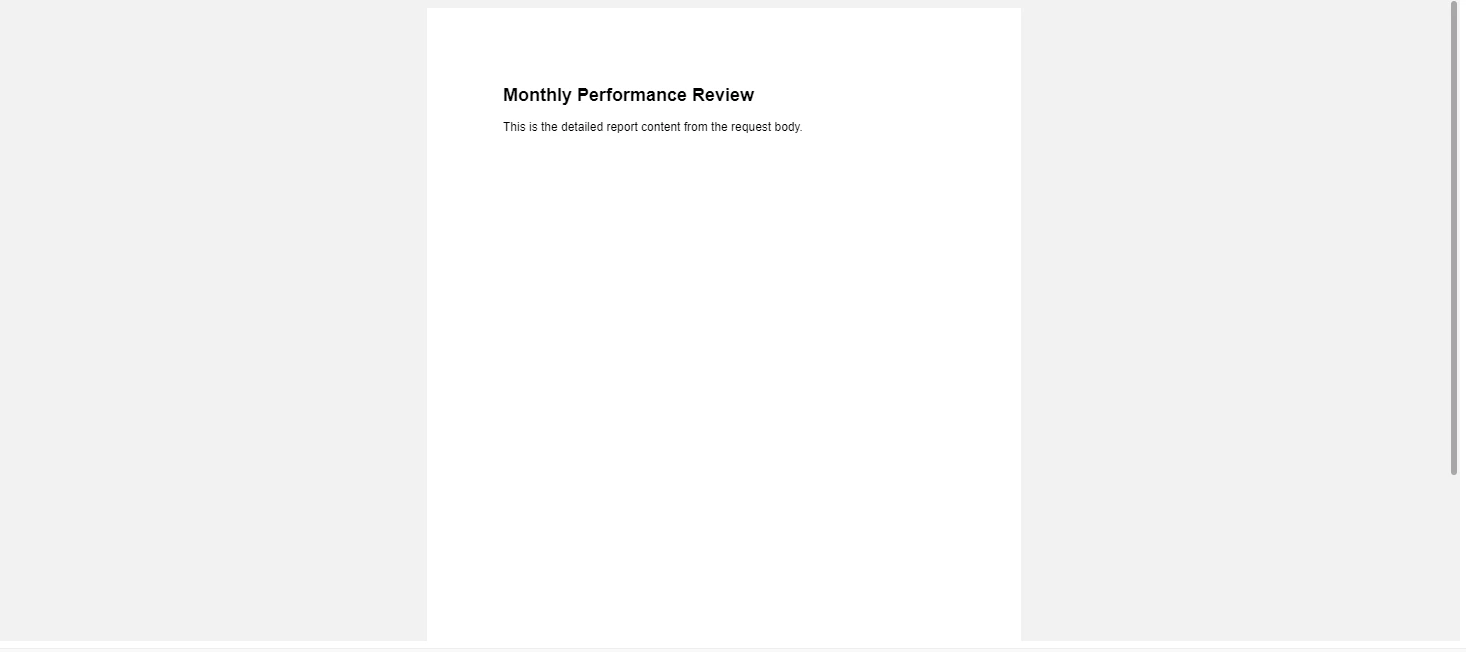
pdfDocument.BinaryData バイト配列は完全に管理メモリ内に存在します。 中間ファイル パスは関係しません。 Content-Disposition ヘッダーは、PDFがインラインで表示されるか、ダウンロードとして提供されるかを制御します。これは、HTTP仕様で定義されたブラウザーの動作です。 Azure Blob Storage へのストリーミングを含む MemoryStream アプローチの詳細については、 PDF メモリ ストリーム ドキュメントをご覧ください。
ほとんどのビジネスアプリケーションは、レポートデータを呼び出し時に構築するのではなく、データベースから取得します。以下のパターンは、 Entity Framework Core にクエリを実行し、HTML テーブルを構築して PDF を返します。これらはすべて、単一のコントローラーアクション内で実行されます。
[HttpGet("report/monthly")]
public async Task<IActionResult> MonthlyReport(int year, int month)
{
    // Pull aggregated transaction data from EF Core.
    var rows = await _dbContext.Transactions
        .Where(t => t.Date.Year == year && t.Date.Month == month)
        .GroupBy(t => t.Category)
        .Select(g => new { Category = g.Key, Count = g.Count(), Total = g.Sum(t => t.Amount) })
        .OrderByDescending(g => g.Total)
        .ToListAsync();

    string tableRows = string.Join("", rows.Select(r =>
        $"<tr><td>{r.Category}</td><td>{r.Count}</td><td>${r.Total:F2}</td></tr>"));

    string html = $"""
        <html><body style="font-family:Arial,sans-serif;padding:32px">
        <h1>Monthly Report -- {month:D2}/{year}</h1>
        <table style="width:100%;border-collapse:collapse">
          <thead>
            <tr style="background:#e5e7eb">
              <th style="padding:8px;border:1px solid #d1d5db">Category</th>
              <th style="padding:8px;border:1px solid #d1d5db">Transactions</th>
              <th style="padding:8px;border:1px solid #d1d5db">Total</th>
            </tr>
          </thead>
          <tbody>{tableRows}</tbody>
        </table>
        </body></html>
        """;

    var pdf = _renderer.RenderHtmlAsPdf(html);
    pdf.MetaData.Title  = $"Monthly Report {month:D2}/{year}";
    pdf.MetaData.Author = "Reporting System";

    return File(pdf.BinaryData, "application/pdf", $"report-{year}-{month:D2}.pdf");
}Imports Microsoft.AspNetCore.Mvc
Imports System.Threading.Tasks
Imports System.Linq
<HttpGet("report/monthly")>
Public Async Function MonthlyReport(year As Integer, month As Integer) As Task(Of IActionResult)
' Pull aggregated transaction data from EF Core.
Dim rows = Await _dbContext.Transactions _
.Where(Function(t) t.Date.Year = year AndAlso t.Date.Month = month) _
.GroupBy(Function(t) t.Category) _
.Select(Function(g) New With {Key .Category = g.Key, Key .Count = g.Count(), Key .Total = g.Sum(Function(t) t.Amount)}) _
.OrderByDescending(Function(g) g.Total) _
.ToListAsync()
Dim tableRows As String = String.Join("", rows.Select(Function(r) $"<tr><td>{r.Category}</td><td>{r.Count}</td><td>${r.Total:F2}</td></tr>"))
Dim html As String = $"
<html><body style='font-family:Arial,sans-serif;padding:32px'>
<h1>Monthly Report -- {month:D2}/{year}</h1>
<table style='width:100%;border-collapse:collapse'>
<thead>
<tr style='background:#e5e7eb'>
<th style='padding:8px;border:1px solid #d1d5db'>Category</th>
<th style='padding:8px;border:1px solid #d1d5db'>Transactions</th>
<th style='padding:8px;border:1px solid #d1d5db'>Total</th>
</tr>
</thead>
<tbody>{tableRows}</tbody>
</table>
</body></html>
"
Dim pdf = _renderer.RenderHtmlAsPdf(html)
pdf.MetaData.Title = $"Monthly Report {month:D2}/{year}"
pdf.MetaData.Author = "Reporting System"
Return File(pdf.BinaryData, "application/pdf", $"report-{year}-{month:D2}.pdf")
End Functionpdf.MetaData.Title および pdf.MetaData.Author を設定することで、その情報がPDFの文書プロパティに埋め込まれ、コンプライアンス追跡や文書管理システムに役立ちます。 より洗練されたレポート レイアウトの場合は、 CSS 印刷スタイル、明示的なページ区切り、埋め込みグラフ画像を検討してください。
制作ドキュメントでは、ドキュメントのタイトルを含むヘッダー、ページ番号のフッター、および不正な印刷やコピーを防ぐアクセス制御が頻繁に必要になります。 IronPDF の ChromePdfRenderOptions は、これらの要件をすべてカバーしています。
[HttpPost("document/secured")]
public async Task<IActionResult> GenerateSecuredDocument([FromBody] SecuredDocRequest request)
{
    var renderOptions = new ChromePdfRenderOptions
    {
        PaperSize       = PdfPaperSize.A4,
        MarginTop       = 45,
        MarginBottom    = 45,
        MarginLeft      = 25,
        MarginRight     = 25,
        EnableJavaScript = true,
        WaitFor         = new WaitFor { RenderDelay = 500 }
    };

    renderOptions.TextHeader = new TextHeaderFooter
    {
        CenterText       = request.DocumentTitle,
        DrawDividerLine  = true,
        FontSize         = 11
    };

    renderOptions.TextFooter = new TextHeaderFooter
    {
        LeftText  = "{date} {time}",
        RightText = "Page {page} of {total-pages}",
        FontSize  = 9
    };

    _renderer.RenderingOptions = renderOptions;

    var pdf = await _renderer.RenderHtmlAsPdfAsync(request.HtmlContent);

    if (request.RequirePassword)
    {
        pdf.SecuritySettings.OwnerPassword         = request.OwnerPassword;
        pdf.SecuritySettings.UserPassword          = request.UserPassword;
        pdf.SecuritySettings.AllowUserPrinting     = PdfPrintSecurity.NoPrint;
        pdf.SecuritySettings.AllowUserCopyPasteContent = false;
    }

    return File(pdf.BinaryData, "application/pdf", $"{request.FileName}.pdf");
}Imports System.Threading.Tasks
Imports Microsoft.AspNetCore.Mvc
<HttpPost("document/secured")>
Public Async Function GenerateSecuredDocument(<FromBody> request As SecuredDocRequest) As Task(Of IActionResult)
Dim renderOptions As New ChromePdfRenderOptions With {
.PaperSize = PdfPaperSize.A4,
.MarginTop = 45,
.MarginBottom = 45,
.MarginLeft = 25,
.MarginRight = 25,
.EnableJavaScript = True,
.WaitFor = New WaitFor With {.RenderDelay = 500}
}
renderOptions.TextHeader = New TextHeaderFooter With {
.CenterText = request.DocumentTitle,
.DrawDividerLine = True,
.FontSize = 11
}
renderOptions.TextFooter = New TextHeaderFooter With {
.LeftText = "{date} {time}",
.RightText = "Page {page} of {total-pages}",
.FontSize = 9
}
_renderer.RenderingOptions = renderOptions
Dim pdf = Await _renderer.RenderHtmlAsPdfAsync(request.HtmlContent)
If request.RequirePassword Then
pdf.SecuritySettings.OwnerPassword = request.OwnerPassword
pdf.SecuritySettings.UserPassword = request.UserPassword
pdf.SecuritySettings.AllowUserPrinting = PdfPrintSecurity.NoPrint
pdf.SecuritySettings.AllowUserCopyPasteContent = False
End If
Return File(pdf.BinaryData, "application/pdf", $"{request.FileName}.pdf")
End FunctionWaitFor.RenderDelay 設定は、Chart.js や ApexCharts などのチャートライブラリを含む HTML が非同期に描画を終了する時に特に便利です。 300 ~ 500 ミリ秒の遅延を設定すると、Chromium が最終的なレンダリング状態をキャプチャできるようになります。 アーカイブ標準を満たす必要があるドキュメントの場合は、上記のアプローチをPDF/A 準拠とデジタル署名と組み合わせます。
フッターテキストの {page} および {total-pages} トークンは、IronPDF がレンダリング時に自動的に解決します。追加のヘッダーおよびフッターオプションには、ロゴ配置用HTMLベースのヘッダーやセクションごとのオーバーライド機能が含まれます。
以下の表は、オンザフライ生成に最も役立つ ChromePdfRenderOptions プロパティを要約しています。
| プロパティ | タイプ | 目的 |
|---|---|---|
| PaperSize | PdfPaperSize | ページのサイズを設定します(A4、レター、リーガル、カスタム) |
| MarginTop / MarginBottom | 整数(mm) | 印刷可能領域の間隔を制御します |
| EnableJavaScript | bool | キャプチャ前にJS実行を許可する |
| WaitFor.RenderDelay | 整数(ミリ秒) | 非同期レンダリングのためにキャプチャを遅延する |
| TextHeader / TextFooter | TextHeaderFooter | ページのヘッダーとフッターの実行 |
| HtmlHeader / HtmlFooter | HtmlHeaderFooter | 画像付きのHTML形式のヘッダー/フッター |
| GrayScale | bool | モノクロPDFを出力 |
| FitToPaperWidth | bool | 幅の広いコンテンツをページに合わせて拡大縮小します |
単一のサーバーで数百の同時 PDF 要求を処理する場合、いくつかのアーキテクチャ上の決定がスループットと待ち時間に大きな影響を与えます。
シングルトンレンダラーの登録。 インストールセクションに示されているように、DIコンテナーに ChromePdfRenderer をシングルトンとして登録することで、リクエストごとに新しい Chromimum サブプロセスを開始するコストを回避できます。Microsoft の ASP.NET Core パフォーマンスガイダンスによれば、オブジェクトのアロケーションを最小限に抑え、高コストのリソースを再利用することが利用可能な2つの最も影響力のある最適化です。
常に非同期を使用。 RenderHtmlAsPdfAsync は Task<PdfDocument> を返し、Chromium が動作中にコントローラスレッドを停止します。 これにより、スレッド プールが解放され、他の着信要求を並行して処理できるようになります。これが、非同期ドキュメントでWeb ホストにこのオーバーロードを推奨している理由です。 同期オーバーロードは、スレッドのブロッキングが許容されるコンソール ツールまたはバックグラウンド サービスにのみ適しています。
直接ストリーム、可能な場合には中間配列をスキップ。 大きな PDF の場合、.Stream は完全なバイト配列を具体化せずに直接応答ボディに書き込むことができます:
[HttpGet("document/large")]
public IActionResult StreamLargeDocument(int documentId)
{
    string html = BuildLargeDocumentHtml(documentId);
    var pdf = _renderer.RenderHtmlAsPdf(html);

    // Stream.Position is already at 0; no seek needed.
    return File(pdf.Stream, "application/pdf", $"document-{documentId}.pdf");
}Imports Microsoft.AspNetCore.Mvc
<HttpGet("document/large")>
Public Function StreamLargeDocument(documentId As Integer) As IActionResult
Dim html As String = BuildLargeDocumentHtml(documentId)
Dim pdf = _renderer.RenderHtmlAsPdf(html)
' Stream.Position is already at 0; no seek needed.
Return File(pdf.Stream, "application/pdf", $"document-{documentId}.pdf")
End Function使用後に破棄。 PdfDocument は IDisposable を実装します。 これを using ステートメントで囲むと、基になるメモリバッファーが迅速に解放されるため、大きなPDFを連続して多く生成するときに重要です:
using var pdf = _renderer.RenderHtmlAsPdf(html);
byte[] data = pdf.BinaryData;
// pdf is disposed here; data is safely copied to the local array.
return File(data, "application/pdf", "output.pdf");Imports System.IO
Using pdf = _renderer.RenderHtmlAsPdf(html)
Dim data As Byte() = pdf.BinaryData
' pdf is disposed here; data is safely copied to the local array.
Return File(data, "application/pdf", "output.pdf")
End UsingAzure 、AWS、Docker、Linux 環境を対象としたクラウド展開ガイダンスについては、 IronPDFドキュメントに環境固有の構成に関する注意事項が記載されています。 起動後の最初のレンダリングが遅い場合は、ウォームアップおよびキャッシングガイドを参照して、最初のユーザーリクエストが到着する前にレンダラーを初期化するための戦略を学んでください。
ストリーミング前に、生成されたドキュメントのすべてのページにテキストまたは画像の透かしを追加できます。
[HttpGet("document/draft/{id:int}")]
public IActionResult GetDraftDocument(int id)
{
    string html = BuildDocumentHtml(id);
    var pdf = _renderer.RenderHtmlAsPdf(html);

    // Stamp "DRAFT" diagonally across every page.
    pdf.ApplyWatermark(
        "<h1 style='color:rgba(200,0,0,0.25);transform:rotate(-45deg)'>DRAFT</h1>",
        rotation: 45,
        opacity: 30
    );

    return File(pdf.BinaryData, "application/pdf", $"draft-{id}.pdf");
}<AttributeUsage(AttributeTargets.Method, Inherited:=True, AllowMultiple:=False)>
Public Class HttpGetAttribute
Inherits Attribute
Public Sub New(route As String)
End Sub
End Class
<HttpGet("document/draft/{id:int}")>
Public Function GetDraftDocument(id As Integer) As IActionResult
Dim html As String = BuildDocumentHtml(id)
Dim pdf = _renderer.RenderHtmlAsPdf(html)
' Stamp "DRAFT" diagonally across every page.
pdf.ApplyWatermark(
"<h1 style='color:rgba(200,0,0,0.25);transform:rotate(-45deg)'>DRAFT</h1>",
rotation:=45,
opacity:=30
)
Return File(pdf.BinaryData, "application/pdf", $"draft-{id}.pdf")
End Function画像の透かしやページごとの制御を含む完全な透かし設定オプションについては、透かしのドキュメントを参照してください。
 NuGetでインストール
ASP.NET Core の動的PDF生成は、一貫したパターンに従います:HTMLを構築し、RenderHtmlAsPdf またはその非同期オーバーロードを呼び出し、FileResult を介して結果を返します。 IronPDF は、どの段階でもディスク I/O を必要とせずに、Chromium レンダリング、CSS アプリケーション、 JavaScript実行など、すべてを処理します。
ここから、アプリケーションの要件に応じていくつかの方向を検討できます。 PDF で複数のソース ドキュメントを結合する必要がある場合は、結合と分割のガイドで、既存の PDF を新しくレンダリングされたページに結合する方法について説明します。 PDF に埋め込まれたフォームにユーザーが入力して送信する必要がある場合は、インタラクティブ フォームのドキュメントでフィールド値を作成して読み取る方法が説明されています。 規制の厳しい業界では、 PDF/A 準拠とPDF/UA アクセシビリティにより、ドキュメントがアーカイブおよびアクセシビリティ標準を満たすことが保証されます。
IronPDF を他の製品と比較して評価している場合は、 iText とIronPDF の比較で技術的な内訳を並べて確認できます。 実稼働に移行する準備ができたら、ライセンスを購入してすべての機能のロックを解除し、優先エンジニアリング サポートにアクセスできるようになります。 完全なAPI リファレンスには、このガイドで説明したすべてのクラスとメソッドが記載されています。
実装中にご質問や問題が発生した場合は、エンジニアリングサポートチームがサポートいたします。Blazor Blazorまたは MAUI に関するプラットフォーム固有の注意事項については、各ホストモデルの構成の違いを解説した専用ガイドをご覧ください。

Curtis Chauは、カールトン大学でコンピュータサイエンスの学士号を取得し、Node.js、TypeScript、JavaScript、およびReactに精通したフロントエンド開発を専門としています。直感的で美しいユーザーインターフェースを作成することに情熱を持ち、Curtisは現代のフレームワークを用いた開発や、構造の良い視覚的に魅力的なマニュアルの作成を楽しんでいます。

IronPDF はIRONSUITEの一部です
オフィス文書向けの.NET API製品10個

PDFがHTMLのように見える必要があるとき、迅速に。














