using IronPdf;

// Disable local disk access or cross-origin requests
Installation.EnableWebSecurity = true;

// Instantiate Renderer
var renderer = new ChromePdfRenderer();

// Create a PDF from a HTML string using C#
var pdf = renderer.RenderHtmlAsPdf("<h1>Hello World</h1>");

// Export to a file or Stream
pdf.SaveAs("output.pdf");

// Advanced Example with HTML Assets
// Load external html assets: Images, CSS and JavaScript.
// An optional BasePath 'C:\site\assets\' is set as the file location to load assets from
var myAdvancedPdf = renderer.RenderHtmlAsPdf("<img src='icons/iron.png'>", @"C:\site\assets\");
myAdvancedPdf.SaveAs("html-with-assets.pdf");
using IronPdf;// Disable local disk access or cross-origin requestsInstallation.EnableWebSecurity = true;// Instantiate Renderervar renderer = new ChromePdfRenderer();// Create a PDF from a HTML string using C#var pdf = renderer.RenderHtmlAsPdf("<h1>Hello World</h1>");// Export to a file or Streampdf.SaveAs("output.pdf");// Advanced Example with HTML Assets// Load external html assets: Images, CSS and JavaScript.// An optional BasePath 'C:\site\assets\' is set as the file location to load assets fromvar myAdvancedPdf = renderer.RenderHtmlAsPdf("<img src='icons/iron.png'>", @"C:\site\assets\");myAdvancedPdf.SaveAs("html-with-assets.pdf");
Generate professional PDF documents dynamically in ASP.NET Core by converting HTML content into polished PDFs and streaming them directly to the browser -- no disk storage required, no temporary files to manage.
When building modern web applications in ASP.NET Core, the ability to produce PDF documents on demand is a recurring requirement. Invoices need to download the moment a payment clears. Compliance reports must appear instantly when an auditor clicks "Export." Certificates should be ready before the user has time to wonder if something went wrong. IronPDF handles all of these scenarios through its Chromium-based PDF library, which converts HTML -- including CSS, JavaScript, and web fonts -- into pixel-accurate PDF output without writing anything to disk.
This guide covers everything you need to know: installing the library, generating invoices from HTML strings, streaming reports from Entity Framework data, applying page headers and security settings, and adopting the best practices that keep high-traffic ASP.NET applications performing well.
What Does Creating PDFs on the Fly Mean?
"On the fly" means the document is constructed in memory at the moment of the HTTP request and sent directly to the caller. No PDF file is written to the file system, no background job queues the work, and no cache stores the result between requests.
This approach matters for several reasons. First, cloud deployment targets -- Azure App Service, AWS Lambda, Docker containers -- often run in environments where the local file system is ephemeral or read-only. Generating a PDF to a temp folder and then reading it back is fragile in these environments. Second, avoiding disk writes reduces attack surface: there is no residual file a subsequent request could accidentally serve to the wrong user. Third, memory-only generation is typically faster because it eliminates two I/O operations (write and read) in the critical path.
IronPDF's ChromePdfRenderer exposes a .BinaryData property and a .Stream property on every generated document. Either can be passed directly to an ASP.NET Core FileResult, making streaming a one-liner in practice.
First Step:
How Do You Install IronPDF in an ASP.NET Core Project?
Add the NuGet package through either the Package Manager Console or the .NET CLI:
PM > Install-Package IronPdf
Install-Package IronPdf
Once the package is installed, set your license key at application startup -- typically in Program.cs before the first renderer is created:
using IronPdf;// Place license activation before any IronPDF callLicense.LicenseKey = "YOUR-LICENSE-KEY";var builder = WebApplication.CreateBuilder(args);builder.Services.AddControllersWithViews();// Register ChromePdfRenderer as a singleton so the Chromium engine// is initialised once and reused across all requests.builder.Services.AddSingleton<ChromePdfRenderer>();var app = builder.Build();app.MapDefaultControllerRoute();app.Run();
using IronPdf;

// Place license activation before any IronPDF call
License.LicenseKey = "YOUR-LICENSE-KEY";

var builder = WebApplication.CreateBuilder(args);
builder.Services.AddControllersWithViews();

// Register ChromePdfRenderer as a singleton so the Chromium engine
// is initialised once and reused across all requests.
builder.Services.AddSingleton<ChromePdfRenderer>();

var app = builder.Build();
app.MapDefaultControllerRoute();
app.Run();
Imports IronPdf' Place license activation before any IronPDF callLicense.LicenseKey = "YOUR-LICENSE-KEY"Dim builder = WebApplication.CreateBuilder(args)builder.Services.AddControllersWithViews()' Register ChromePdfRenderer as a singleton so the Chromium engine' is initialised once and reused across all requests.builder.Services.AddSingleton(Of ChromePdfRenderer)()Dim app = builder.Build()app.MapDefaultControllerRoute()app.Run()
ImportsIronPdf' Place license activation before any IronPDF callLicense.LicenseKey = "YOUR-LICENSE-KEY"Dim builder = WebApplication.CreateBuilder(args)builder.Services.AddControllersWithViews()' Register ChromePdfRenderer as a singleton so the Chromium engine' is initialised once and reused across all requests.builder.Services.AddSingleton(OfChromePdfRenderer)()Dim app = builder.Build()app.MapDefaultControllerRoute()app.Run()
Imports IronPdf

' Place license activation before any IronPDF call
License.LicenseKey = "YOUR-LICENSE-KEY"

Dim builder = WebApplication.CreateBuilder(args)
builder.Services.AddControllersWithViews()

' Register ChromePdfRenderer as a singleton so the Chromium engine
' is initialised once and reused across all requests.
builder.Services.AddSingleton(Of ChromePdfRenderer)()

Dim app = builder.Build()
app.MapDefaultControllerRoute()
app.Run()
Registering ChromePdfRenderer as a singleton is important. The renderer starts an internal Chromium subprocess the first time it is used. If you create a new instance per request you pay that startup cost on every call, which adds hundreds of milliseconds of latency under load. A singleton instance is thread-safe and handles concurrent render requests without additional configuration.
For a broader look at installation options including NuGet.config setups for private feeds, visit the installation overview.
How Do You Generate an Invoice PDF from an HTML String?
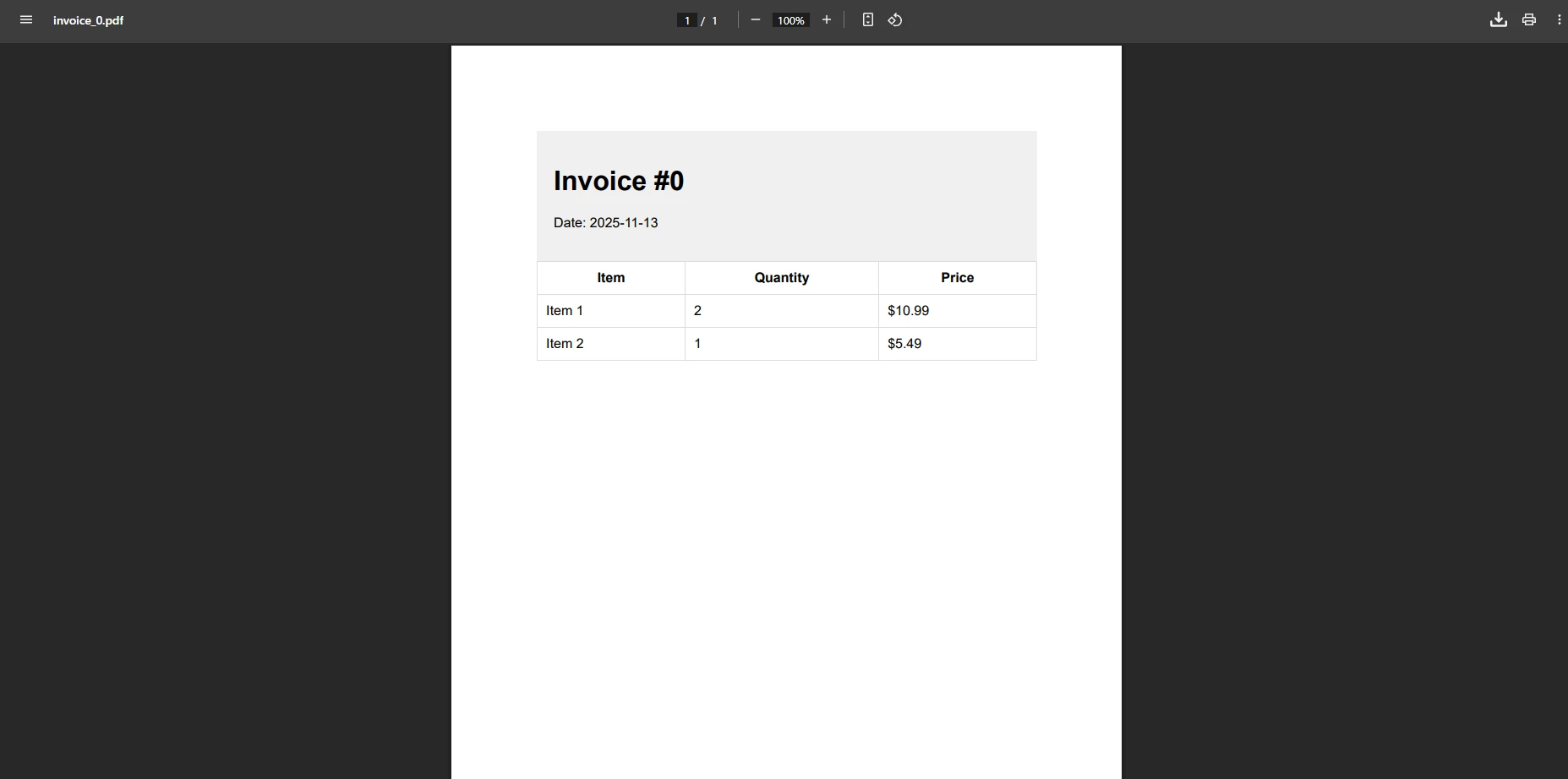
The most common on-the-fly use case is generating transactional documents -- invoices, receipts, order confirmations -- where the content changes per request but the layout stays constant.
The pattern is: build an HTML string with interpolated data, pass it to RenderHtmlAsPdf, and return the binary result as a file download.
using IronPdf;using Microsoft.AspNetCore.Mvc;public class DocumentController : Controller{ private readonly ChromePdfRenderer _renderer; public DocumentController(ChromePdfRenderer renderer) { _renderer = renderer; } [HttpGet("invoice/{orderId:int}")] public IActionResult GetInvoice(int orderId) { // In a real application, fetch this from your database or order service. var order = GetOrderData(orderId); string html = $""" <!DOCTYPE html> <html lang="en"> <head> <meta charset="utf-8"> <style> body {{ font-family: Arial, sans-serif; margin: 40px; color: #333; }} h1 {{ color: #1a56db; }} table {{ width: 100%; border-collapse: collapse; margin-top: 24px; }} th, td {{ padding: 10px 14px; border: 1px solid #d1d5db; text-align: left; }} th {{ background: #f3f4f6; }} tfoot td {{ font-weight: bold; }} </style> </head> <body> <h1>Invoice #{order.InvoiceNumber}</h1> <p>Date: {DateTime.UtcNow:yyyy-MM-dd} | Customer: {order.CustomerName}</p> <table> <thead><tr><th>Item</th><th>Qty</th><th>Unit Price</th><th>Subtotal</th></tr></thead> <tbody> {string.Join("", order.Items.Select(i => $"<tr><td>{i.Name}</td><td>{i.Quantity}</td>" + $"<td>${i.UnitPrice:F2}</td><td>${i.Quantity * i.UnitPrice:F2}</td></tr>"))} </tbody> <tfoot> <tr><td colspan="3">Total</td><td>${order.Items.Sum(i => i.Quantity * i.UnitPrice):F2}</td></tr> </tfoot> </table> </body> </html> """; var pdf = _renderer.RenderHtmlAsPdf(html); return File(pdf.BinaryData, "application/pdf", $"invoice-{orderId}.pdf"); }}
using IronPdf;using Microsoft.AspNetCore.Mvc;public class DocumentController : Controller{ private readonly ChromePdfRenderer _renderer; publicDocumentController(ChromePdfRenderer renderer) { _renderer = renderer; } [HttpGet("invoice/{orderId:int}")] public IActionResultGetInvoice(int orderId) { // In a real application, fetch this from your database or order service. var order = GetOrderData(orderId); string html = $""" <!DOCTYPE html> <html lang="en"> <head> <meta charset="utf-8"> <style> body {{ font-family: Arial, sans-serif; margin: 40px; color: #333; }} h1 {{ color: #1a56db; }} table {{ width: 100%; border-collapse: collapse; margin-top: 24px; }} th, td {{ padding: 10px 14px; border: 1px solid #d1d5db; text-align: left; }} th {{ background: #f3f4f6; }} tfoot td {{ font-weight: bold; }} </style> </head> <body> <h1>Invoice #{order.InvoiceNumber}</h1> <p>Date: {DateTime.UtcNow:yyyy-MM-dd} | Customer: {order.CustomerName}</p> <table> <thead><tr><th>Item</th><th>Qty</th><th>Unit Price</th><th>Subtotal</th></tr></thead> <tbody> {string.Join("", order.Items.Select(i => $"<tr><td>{i.Name}</td><td>{i.Quantity}</td>" + $"<td>${i.UnitPrice:F2}</td><td>${i.Quantity * i.UnitPrice:F2}</td></tr>"))} </tbody> <tfoot> <tr><td colspan="3">Total</td><td>${order.Items.Sum(i => i.Quantity * i.UnitPrice):F2}</td></tr> </tfoot> </table> </body> </html> """; var pdf = _renderer.RenderHtmlAsPdf(html); returnFile(pdf.BinaryData, "application/pdf", $"invoice-{orderId}.pdf"); }}
using IronPdf;
using Microsoft.AspNetCore.Mvc;
public class DocumentController : Controller
{
private readonly ChromePdfRenderer _renderer;
public DocumentController(ChromePdfRenderer renderer)
{
_renderer = renderer;
}
[HttpGet("invoice/{orderId:int}")]
public IActionResult GetInvoice(int orderId)
{
// In a real application, fetch this from your database or order service.
var order = GetOrderData(orderId);
string html = $"""
<!DOCTYPE html>
<html lang="en">
<head>
<meta charset="utf-8">
<style>
body {{ font-family: Arial, sans-serif; margin: 40px; color: #333; }}
h1 {{ color: #1a56db; }}
table {{ width: 100%; border-collapse: collapse; margin-top: 24px; }}
th, td {{ padding: 10px 14px; border: 1px solid #d1d5db; text-align: left; }}
th {{ background: #f3f4f6; }}
tfoot td {{ font-weight: bold; }}
</style>
</head>
<body>
<h1>Invoice #{order.InvoiceNumber}</h1>
<p>Date: {DateTime.UtcNow:yyyy-MM-dd} | Customer: {order.CustomerName}</p>
<table>
<thead><tr><th>Item</th><th>Qty</th><th>Unit Price</th><th>Subtotal</th></tr></thead>
<tbody>
{string.Join("", order.Items.Select(i =>
$"<tr><td>{i.Name}</td><td>{i.Quantity}</td>" +
$"<td>${i.UnitPrice:F2}</td><td>${i.Quantity * i.UnitPrice:F2}</td></tr>"))}
</tbody>
<tfoot>
<tr><td colspan="3">Total</td><td>${order.Items.Sum(i => i.Quantity * i.UnitPrice):F2}</td></tr>
</tfoot>
</table>
</body>
</html>
""";
var pdf = _renderer.RenderHtmlAsPdf(html);
return File(pdf.BinaryData, "application/pdf", $"invoice-{orderId}.pdf");
}
}
Imports IronPdfImports Microsoft.AspNetCore.MvcPublic Class DocumentController Inherits Controller Private ReadOnly _renderer As ChromePdfRenderer Public Sub New(renderer As ChromePdfRenderer) _renderer = renderer End Sub <HttpGet("invoice/{orderId:int}")> Public Function GetInvoice(orderId As Integer) As IActionResult ' In a real application, fetch this from your database or order service. Dim order = GetOrderData(orderId) Dim html As String = $" <!DOCTYPE html> <html lang=""en""> <head> <meta charset=""utf-8""> <style> body {{ font-family: Arial, sans-serif; margin: 40px; color: #333; }} h1 {{ color: #1a56db; }} table {{ width: 100%; border-collapse: collapse; margin-top: 24px; }} th, td {{ padding: 10px 14px; border: 1px solid #d1d5db; text-align: left; }} th {{ background: #f3f4f6; }} tfoot td {{ font-weight: bold; }} </style> </head> <body> <h1>Invoice #{order.InvoiceNumber}</h1> <p>Date: {DateTime.UtcNow:yyyy-MM-dd} | Customer: {order.CustomerName}</p> <table> <thead><tr><th>Item</th><th>Qty</th><th>Unit Price</th><th>Subtotal</th></tr></thead> <tbody> {String.Join("", order.Items.Select(Function(i) $"<tr><td>{i.Name}</td><td>{i.Quantity}</td>" + $"<td>${i.UnitPrice:F2}</td><td>${i.Quantity * i.UnitPrice:F2}</td></tr>"))} </tbody> <tfoot> <tr><td colspan=""3"">Total</td><td>${order.Items.Sum(Function(i) i.Quantity * i.UnitPrice):F2}</td></tr> </tfoot> </table> </body> </html> " Dim pdf = _renderer.RenderHtmlAsPdf(html) Return File(pdf.BinaryData, "application/pdf", $"invoice-{orderId}.pdf") End FunctionEnd Class
ImportsIronPdfImportsMicrosoft.AspNetCore.MvcPublic Class DocumentControllerInheritsController PrivateReadOnly _renderer AsChromePdfRenderer Public Sub New(renderer AsChromePdfRenderer) _renderer = renderer End Sub <HttpGet("invoice/{orderId:int}")> Public Function GetInvoice(orderId AsInteger) AsIActionResult ' In a real application, fetch this from your database or order service. Dim order = GetOrderData(orderId) Dim html AsString = $" <!DOCTYPE html> <html lang=""en""> <head> <meta charset=""utf-8""> <style> body {{ font-family: Arial, sans-serif; margin: 40px; color: #333; }} h1 {{ color: #1a56db; }} table {{ width: 100%; border-collapse: collapse; margin-top: 24px; }} th, td {{ padding: 10px 14px; border: 1px solid #d1d5db; text-align: left; }} th {{ background: #f3f4f6; }} tfoot td {{ font-weight: bold; }} </style> </head> <body> <h1>Invoice #{order.InvoiceNumber}</h1> <p>Date: {DateTime.UtcNow:yyyy-MM-dd} | Customer: {order.CustomerName}</p> <table> <thead><tr><th>Item</th><th>Qty</th><th>Unit Price</th><th>Subtotal</th></tr></thead> <tbody> {String.Join("", order.Items.Select(Function(i) $"<tr><td>{i.Name}</td><td>{i.Quantity}</td>" + $"<td>${i.UnitPrice:F2}</td><td>${i.Quantity * i.UnitPrice:F2}</td></tr>"))} </tbody> <tfoot> <tr><td colspan=""3"">Total</td><td>${order.Items.Sum(Function(i) i.Quantity * i.UnitPrice):F2}</td></tr> </tfoot> </table> </body> </html> " Dim pdf = _renderer.RenderHtmlAsPdf(html) ReturnFile(pdf.BinaryData, "application/pdf", $"invoice-{orderId}.pdf") End FunctionEnd Class
Imports IronPdf
Imports Microsoft.AspNetCore.Mvc
Public Class DocumentController
Inherits Controller
Private ReadOnly _renderer As ChromePdfRenderer
Public Sub New(renderer As ChromePdfRenderer)
_renderer = renderer
End Sub
<HttpGet("invoice/{orderId:int}")>
Public Function GetInvoice(orderId As Integer) As IActionResult
' In a real application, fetch this from your database or order service.
Dim order = GetOrderData(orderId)
Dim html As String = $"
<!DOCTYPE html>
<html lang=""en"">
<head>
<meta charset=""utf-8"">
<style>
body {{ font-family: Arial, sans-serif; margin: 40px; color: #333; }}
h1 {{ color: #1a56db; }}
table {{ width: 100%; border-collapse: collapse; margin-top: 24px; }}
th, td {{ padding: 10px 14px; border: 1px solid #d1d5db; text-align: left; }}
th {{ background: #f3f4f6; }}
tfoot td {{ font-weight: bold; }}
</style>
</head>
<body>
<h1>Invoice #{order.InvoiceNumber}</h1>
<p>Date: {DateTime.UtcNow:yyyy-MM-dd} | Customer: {order.CustomerName}</p>
<table>
<thead><tr><th>Item</th><th>Qty</th><th>Unit Price</th><th>Subtotal</th></tr></thead>
<tbody>
{String.Join("", order.Items.Select(Function(i) $"<tr><td>{i.Name}</td><td>{i.Quantity}</td>" +
$"<td>${i.UnitPrice:F2}</td><td>${i.Quantity * i.UnitPrice:F2}</td></tr>"))}
</tbody>
<tfoot>
<tr><td colspan=""3"">Total</td><td>${order.Items.Sum(Function(i) i.Quantity * i.UnitPrice):F2}</td></tr>
</tfoot>
</table>
</body>
</html>
"
Dim pdf = _renderer.RenderHtmlAsPdf(html)
Return File(pdf.BinaryData, "application/pdf", $"invoice-{orderId}.pdf")
End Function
End Class
RenderHtmlAsPdf processes the full HTML document -- CSS grid, Flexbox, web fonts, even inline SVG -- using the same Chromium engine that powers Google Chrome. The returned PdfDocument exposes BinaryData (a byte[]) and Stream (a MemoryStream). Passing BinaryData to File() with "application/pdf" and a filename triggers a browser download.
How Do You Stream a PDF Directly to the Browser Without a Download Dialog?
Serving a PDF inline -- opening it in the browser's built-in viewer rather than downloading it -- requires two small changes: set Content-Disposition to inline and omit the filename from the File() call.
[HttpPost("report/preview")]public async Task<IActionResult> PreviewReport([FromBody] ReportRequest request){ string html = BuildReportHtml(request); var pdfDocument = await _renderer.RenderHtmlAsPdfAsync(html); // "inline" tells the browser to display rather than download. Response.Headers["Content-Disposition"] = "inline; filename=report.pdf"; return new FileContentResult(pdfDocument.BinaryData, "application/pdf");}
[HttpPost("report/preview")]public async Task<IActionResult> PreviewReport([FromBody] ReportRequest request){ string html = BuildReportHtml(request); var pdfDocument = await _renderer.RenderHtmlAsPdfAsync(html); // "inline" tells the browser to display rather than download.Response.Headers["Content-Disposition"] = "inline; filename=report.pdf"; return new FileContentResult(pdfDocument.BinaryData, "application/pdf");}
[HttpPost("report/preview")]
public async Task<IActionResult> PreviewReport([FromBody] ReportRequest request)
{
    string html = BuildReportHtml(request);

    var pdfDocument = await _renderer.RenderHtmlAsPdfAsync(html);

    // "inline" tells the browser to display rather than download.
    Response.Headers["Content-Disposition"] = "inline; filename=report.pdf";

    return new FileContentResult(pdfDocument.BinaryData, "application/pdf");
}
Imports Microsoft.AspNetCore.Mvc<HttpPost("report/preview")>Public Async Function PreviewReport(<FromBody> request As ReportRequest) As Task(Of IActionResult) Dim html As String = BuildReportHtml(request) Dim pdfDocument = Await _renderer.RenderHtmlAsPdfAsync(html) ' "inline" tells the browser to display rather than download. Response.Headers("Content-Disposition") = "inline; filename=report.pdf" Return New FileContentResult(pdfDocument.BinaryData, "application/pdf")End Function
ImportsMicrosoft.AspNetCore.Mvc<HttpPost("report/preview")>PublicAsync Function PreviewReport(<FromBody> request AsReportRequest) AsTask(OfIActionResult) Dim html AsString = BuildReportHtml(request) Dim pdfDocument = Await _renderer.RenderHtmlAsPdfAsync(html) ' "inline" tells the browser to display rather than download. Response.Headers("Content-Disposition") = "inline; filename=report.pdf" Return New FileContentResult(pdfDocument.BinaryData, "application/pdf")End Function
Imports Microsoft.AspNetCore.Mvc

<HttpPost("report/preview")>
Public Async Function PreviewReport(<FromBody> request As ReportRequest) As Task(Of IActionResult)
    Dim html As String = BuildReportHtml(request)

    Dim pdfDocument = Await _renderer.RenderHtmlAsPdfAsync(html)

    ' "inline" tells the browser to display rather than download.
    Response.Headers("Content-Disposition") = "inline; filename=report.pdf"

    Return New FileContentResult(pdfDocument.BinaryData, "application/pdf")
End Function
Using the async overload RenderHtmlAsPdfAsync is recommended for ASP.NET Core controllers because it frees the thread-pool thread while Chromium renders, keeping the server responsive under concurrent load.
How Does Memory-Based PDF Generation Work?
The pdfDocument.BinaryData byte array lives entirely in managed memory. No intermediate file path is involved. The Content-Disposition header controls whether the PDF is displayed inline or offered as a download -- a browser behavior defined by the HTTP specification. For a deeper look at the MemoryStream approach, including streaming to Azure Blob Storage, visit the PDF memory stream documentation.
How Do You Generate PDFs from Entity Framework Core Query Results?
Most business applications pull report data from a database rather than constructing it at call time. The pattern below queries Entity Framework Core, builds an HTML table, and returns a PDF -- all within a single controller action.
[HttpGet("report/monthly")]public async Task<IActionResult> MonthlyReport(int year, int month){ // Pull aggregated transaction data from EF Core. var rows = await _dbContext.Transactions .Where(t => t.Date.Year == year && t.Date.Month == month) .GroupBy(t => t.Category) .Select(g => new { Category = g.Key, Count = g.Count(), Total = g.Sum(t => t.Amount) }) .OrderByDescending(g => g.Total) .ToListAsync(); string tableRows = string.Join("", rows.Select(r => $"<tr><td>{r.Category}</td><td>{r.Count}</td><td>${r.Total:F2}</td></tr>")); string html = $""" <html><body style="font-family:Arial,sans-serif;padding:32px"> <h1>Monthly Report -- {month:D2}/{year}</h1> <table style="width:100%;border-collapse:collapse"> <thead> <tr style="background:#e5e7eb"> <th style="padding:8px;border:1px solid #d1d5db">Category</th> <th style="padding:8px;border:1px solid #d1d5db">Transactions</th> <th style="padding:8px;border:1px solid #d1d5db">Total</th> </tr> </thead> <tbody>{tableRows}</tbody> </table> </body></html> """; var pdf = _renderer.RenderHtmlAsPdf(html); pdf.MetaData.Title = $"Monthly Report {month:D2}/{year}"; pdf.MetaData.Author = "Reporting System"; return File(pdf.BinaryData, "application/pdf", $"report-{year}-{month:D2}.pdf");}
[HttpGet("report/monthly")]public async Task<IActionResult> MonthlyReport(int year, int month){ // Pull aggregated transaction data from EF Core. var rows = await _dbContext.Transactions .Where(t => t.Date.Year == year && t.Date.Month == month) .GroupBy(t => t.Category) .Select(g => new { Category = g.Key, Count = g.Count(), Total = g.Sum(t => t.Amount) }) .OrderByDescending(g => g.Total) .ToListAsync(); string tableRows = string.Join("", rows.Select(r => $"<tr><td>{r.Category}</td><td>{r.Count}</td><td>${r.Total:F2}</td></tr>")); string html = $""" <html><body style="font-family:Arial,sans-serif;padding:32px"> <h1>Monthly Report -- {month:D2}/{year}</h1> <table style="width:100%;border-collapse:collapse"> <thead> <tr style="background:#e5e7eb"> <th style="padding:8px;border:1px solid #d1d5db">Category</th> <th style="padding:8px;border:1px solid #d1d5db">Transactions</th> <th style="padding:8px;border:1px solid #d1d5db">Total</th> </tr> </thead> <tbody>{tableRows}</tbody> </table> </body></html> """; var pdf = _renderer.RenderHtmlAsPdf(html); pdf.MetaData.Title = $"Monthly Report {month:D2}/{year}"; pdf.MetaData.Author = "Reporting System"; returnFile(pdf.BinaryData, "application/pdf", $"report-{year}-{month:D2}.pdf");}
[HttpGet("report/monthly")]
public async Task<IActionResult> MonthlyReport(int year, int month)
{
    // Pull aggregated transaction data from EF Core.
    var rows = await _dbContext.Transactions
        .Where(t => t.Date.Year == year && t.Date.Month == month)
        .GroupBy(t => t.Category)
        .Select(g => new { Category = g.Key, Count = g.Count(), Total = g.Sum(t => t.Amount) })
        .OrderByDescending(g => g.Total)
        .ToListAsync();

    string tableRows = string.Join("", rows.Select(r =>
        $"<tr><td>{r.Category}</td><td>{r.Count}</td><td>${r.Total:F2}</td></tr>"));

    string html = $"""
        <html><body style="font-family:Arial,sans-serif;padding:32px">
        <h1>Monthly Report -- {month:D2}/{year}</h1>
        <table style="width:100%;border-collapse:collapse">
          <thead>
            <tr style="background:#e5e7eb">
              <th style="padding:8px;border:1px solid #d1d5db">Category</th>
              <th style="padding:8px;border:1px solid #d1d5db">Transactions</th>
              <th style="padding:8px;border:1px solid #d1d5db">Total</th>
            </tr>
          </thead>
          <tbody>{tableRows}</tbody>
        </table>
        </body></html>
        """;

    var pdf = _renderer.RenderHtmlAsPdf(html);
    pdf.MetaData.Title  = $"Monthly Report {month:D2}/{year}";
    pdf.MetaData.Author = "Reporting System";

    return File(pdf.BinaryData, "application/pdf", $"report-{year}-{month:D2}.pdf");
}
Imports Microsoft.AspNetCore.MvcImports System.Threading.TasksImports System.Linq<HttpGet("report/monthly")>Public Async Function MonthlyReport(year As Integer, month As Integer) As Task(Of IActionResult) ' Pull aggregated transaction data from EF Core. Dim rows = Await _dbContext.Transactions _ .Where(Function(t) t.Date.Year = year AndAlso t.Date.Month = month) _ .GroupBy(Function(t) t.Category) _ .Select(Function(g) New With {Key .Category = g.Key, Key .Count = g.Count(), Key .Total = g.Sum(Function(t) t.Amount)}) _ .OrderByDescending(Function(g) g.Total) _ .ToListAsync() Dim tableRows As String = String.Join("", rows.Select(Function(r) $"<tr><td>{r.Category}</td><td>{r.Count}</td><td>${r.Total:F2}</td></tr>")) Dim html As String = $" <html><body style='font-family:Arial,sans-serif;padding:32px'> <h1>Monthly Report -- {month:D2}/{year}</h1> <table style='width:100%;border-collapse:collapse'> <thead> <tr style='background:#e5e7eb'> <th style='padding:8px;border:1px solid #d1d5db'>Category</th> <th style='padding:8px;border:1px solid #d1d5db'>Transactions</th> <th style='padding:8px;border:1px solid #d1d5db'>Total</th> </tr> </thead> <tbody>{tableRows}</tbody> </table> </body></html> " Dim pdf = _renderer.RenderHtmlAsPdf(html) pdf.MetaData.Title = $"Monthly Report {month:D2}/{year}" pdf.MetaData.Author = "Reporting System" Return File(pdf.BinaryData, "application/pdf", $"report-{year}-{month:D2}.pdf")End Function
ImportsMicrosoft.AspNetCore.MvcImportsSystem.Threading.TasksImportsSystem.Linq<HttpGet("report/monthly")>PublicAsync Function MonthlyReport(year AsInteger, month AsInteger) AsTask(OfIActionResult) ' Pull aggregated transaction data from EF Core. Dim rows = Await _dbContext.Transactions _ .Where(Function(t) t.Date.Year = year AndAlso t.Date.Month = month) _ .GroupBy(Function(t) t.Category) _ .Select(Function(g) New With {Key .Category = g.Key, Key .Count = g.Count(), Key .Total = g.Sum(Function(t) t.Amount)}) _ .OrderByDescending(Function(g) g.Total) _ .ToListAsync() Dim tableRows AsString = String.Join("", rows.Select(Function(r) $"<tr><td>{r.Category}</td><td>{r.Count}</td><td>${r.Total:F2}</td></tr>")) Dim html AsString = $" <html><body style='font-family:Arial,sans-serif;padding:32px'> <h1>Monthly Report -- {month:D2}/{year}</h1> <table style='width:100%;border-collapse:collapse'> <thead> <tr style='background:#e5e7eb'> <th style='padding:8px;border:1px solid #d1d5db'>Category</th> <th style='padding:8px;border:1px solid #d1d5db'>Transactions</th> <th style='padding:8px;border:1px solid #d1d5db'>Total</th> </tr> </thead> <tbody>{tableRows}</tbody> </table> </body></html> " Dim pdf = _renderer.RenderHtmlAsPdf(html) pdf.MetaData.Title = $"Monthly Report {month:D2}/{year}" pdf.MetaData.Author = "Reporting System" ReturnFile(pdf.BinaryData, "application/pdf", $"report-{year}-{month:D2}.pdf")End Function
Imports Microsoft.AspNetCore.Mvc
Imports System.Threading.Tasks
Imports System.Linq

<HttpGet("report/monthly")>
Public Async Function MonthlyReport(year As Integer, month As Integer) As Task(Of IActionResult)
    ' Pull aggregated transaction data from EF Core.
    Dim rows = Await _dbContext.Transactions _
        .Where(Function(t) t.Date.Year = year AndAlso t.Date.Month = month) _
        .GroupBy(Function(t) t.Category) _
        .Select(Function(g) New With {Key .Category = g.Key, Key .Count = g.Count(), Key .Total = g.Sum(Function(t) t.Amount)}) _
        .OrderByDescending(Function(g) g.Total) _
        .ToListAsync()

    Dim tableRows As String = String.Join("", rows.Select(Function(r) $"<tr><td>{r.Category}</td><td>{r.Count}</td><td>${r.Total:F2}</td></tr>"))

    Dim html As String = $"
        <html><body style='font-family:Arial,sans-serif;padding:32px'>
        <h1>Monthly Report -- {month:D2}/{year}</h1>
        <table style='width:100%;border-collapse:collapse'>
          <thead>
            <tr style='background:#e5e7eb'>
              <th style='padding:8px;border:1px solid #d1d5db'>Category</th>
              <th style='padding:8px;border:1px solid #d1d5db'>Transactions</th>
              <th style='padding:8px;border:1px solid #d1d5db'>Total</th>
            </tr>
          </thead>
          <tbody>{tableRows}</tbody>
        </table>
        </body></html>
        "

    Dim pdf = _renderer.RenderHtmlAsPdf(html)
    pdf.MetaData.Title = $"Monthly Report {month:D2}/{year}"
    pdf.MetaData.Author = "Reporting System"

    Return File(pdf.BinaryData, "application/pdf", $"report-{year}-{month:D2}.pdf")
End Function
Setting pdf.MetaData.Title and pdf.MetaData.Author embeds that information into the PDF's document properties, which is useful for compliance tracking and document management systems. For more sophisticated report layouts, consider CSS print styles, explicit page breaks, and embedded chart images.
How Do You Apply Headers, Footers, and Security to Generated PDFs?
Production documents often require running headers with the document title, page-number footers, and access controls that prevent unauthorized printing or copying. IronPDF's ChromePdfRenderOptions covers all of these requirements.
Imports System.Threading.TasksImports Microsoft.AspNetCore.Mvc<HttpPost("document/secured")>Public Async Function GenerateSecuredDocument(<FromBody> request As SecuredDocRequest) As Task(Of IActionResult) Dim renderOptions As New ChromePdfRenderOptions With { .PaperSize = PdfPaperSize.A4, .MarginTop = 45, .MarginBottom = 45, .MarginLeft = 25, .MarginRight = 25, .EnableJavaScript = True, .WaitFor = New WaitFor With {.RenderDelay = 500} } renderOptions.TextHeader = New TextHeaderFooter With { .CenterText = request.DocumentTitle, .DrawDividerLine = True, .FontSize = 11 } renderOptions.TextFooter = New TextHeaderFooter With { .LeftText = "{date} {time}", .RightText = "Page {page} of {total-pages}", .FontSize = 9 } _renderer.RenderingOptions = renderOptions Dim pdf = Await _renderer.RenderHtmlAsPdfAsync(request.HtmlContent) If request.RequirePassword Then pdf.SecuritySettings.OwnerPassword = request.OwnerPassword pdf.SecuritySettings.UserPassword = request.UserPassword pdf.SecuritySettings.AllowUserPrinting = PdfPrintSecurity.NoPrint pdf.SecuritySettings.AllowUserCopyPasteContent = False End If Return File(pdf.BinaryData, "application/pdf", $"{request.FileName}.pdf")End Function
ImportsSystem.Threading.TasksImportsMicrosoft.AspNetCore.Mvc<HttpPost("document/secured")>PublicAsync Function GenerateSecuredDocument(<FromBody> request AsSecuredDocRequest) AsTask(OfIActionResult) Dim renderOptions As New ChromePdfRenderOptionsWith { .PaperSize = PdfPaperSize.A4, .MarginTop = 45, .MarginBottom = 45, .MarginLeft = 25, .MarginRight = 25, .EnableJavaScript = True, .WaitFor = New WaitForWith {.RenderDelay = 500} } renderOptions.TextHeader = New TextHeaderFooterWith { .CenterText = request.DocumentTitle, .DrawDividerLine = True, .FontSize = 11 } renderOptions.TextFooter = New TextHeaderFooterWith { .LeftText = "{date} {time}", .RightText = "Page {page} of {total-pages}", .FontSize = 9 } _renderer.RenderingOptions = renderOptions Dim pdf = Await _renderer.RenderHtmlAsPdfAsync(request.HtmlContent) If request.RequirePasswordThen pdf.SecuritySettings.OwnerPassword = request.OwnerPassword pdf.SecuritySettings.UserPassword = request.UserPassword pdf.SecuritySettings.AllowUserPrinting = PdfPrintSecurity.NoPrint pdf.SecuritySettings.AllowUserCopyPasteContent = False End If ReturnFile(pdf.BinaryData, "application/pdf", $"{request.FileName}.pdf")End Function
Imports System.Threading.Tasks
Imports Microsoft.AspNetCore.Mvc

<HttpPost("document/secured")>
Public Async Function GenerateSecuredDocument(<FromBody> request As SecuredDocRequest) As Task(Of IActionResult)
    Dim renderOptions As New ChromePdfRenderOptions With {
        .PaperSize = PdfPaperSize.A4,
        .MarginTop = 45,
        .MarginBottom = 45,
        .MarginLeft = 25,
        .MarginRight = 25,
        .EnableJavaScript = True,
        .WaitFor = New WaitFor With {.RenderDelay = 500}
    }

    renderOptions.TextHeader = New TextHeaderFooter With {
        .CenterText = request.DocumentTitle,
        .DrawDividerLine = True,
        .FontSize = 11
    }

    renderOptions.TextFooter = New TextHeaderFooter With {
        .LeftText = "{date} {time}",
        .RightText = "Page {page} of {total-pages}",
        .FontSize = 9
    }

    _renderer.RenderingOptions = renderOptions

    Dim pdf = Await _renderer.RenderHtmlAsPdfAsync(request.HtmlContent)

    If request.RequirePassword Then
        pdf.SecuritySettings.OwnerPassword = request.OwnerPassword
        pdf.SecuritySettings.UserPassword = request.UserPassword
        pdf.SecuritySettings.AllowUserPrinting = PdfPrintSecurity.NoPrint
        pdf.SecuritySettings.AllowUserCopyPasteContent = False
    End If

    Return File(pdf.BinaryData, "application/pdf", $"{request.FileName}.pdf")
End Function
The WaitFor.RenderDelay setting is particularly useful when your HTML includes charting libraries such as Chart.js or ApexCharts that finish drawing asynchronously. Setting a delay of 300-500 ms ensures Chromium captures the final rendered state. For documents that need to meet archival standards, combine the approach above with PDF/A compliance and digital signatures.
The {page} and {total-pages} tokens in footer text are resolved automatically by IronPDF at render time. Additional header and footer options include HTML-based headers for logo placement and per-section override capabilities.
What Rendering Options Are Available?
The table below summarizes the most useful ChromePdfRenderOptions properties for on-the-fly generation:
Commonly Used ChromePdfRenderOptions Properties
Property
Type
Purpose
PaperSize
PdfPaperSize
Sets page dimensions (A4, Letter, Legal, custom)
MarginTop / MarginBottom
int (mm)
Controls printable area spacing
EnableJavaScript
bool
Allows JS execution before capture
WaitFor.RenderDelay
int (ms)
Delays capture for async rendering
TextHeader / TextFooter
TextHeaderFooter
Running page headers and footers
HtmlHeader / HtmlFooter
HtmlHeaderFooter
HTML-formatted headers/footers with images
GrayScale
bool
Outputs monochrome PDF
FitToPaperWidth
bool
Scales wide content to fit page
What Are the Performance Best Practices for High-Volume PDF Generation?
When a single server handles hundreds of concurrent PDF requests, a few architectural decisions have an outsized impact on throughput and latency.
Singleton renderer registration. As shown in the installation section, registering ChromePdfRenderer as a singleton in the DI container avoids the cost of starting a new Chromium subprocess per request. According to Microsoft's ASP.NET Core performance guidance, minimizing object allocations and reusing expensive resources are the two most impactful optimizations available.
Always use async.RenderHtmlAsPdfAsync returns a Task<PdfDocument> and suspends the controller thread while Chromium works. This frees the thread pool to handle other incoming requests in parallel, which is why the async documentation recommends this overload for web hosts. The synchronous overload is appropriate only for console tools or background services where thread blocking is acceptable.
Stream directly, skip the intermediate array when possible. For large PDFs, .Stream can be written directly to the response body without materializing the full byte array:
[HttpGet("document/large")]public IActionResult StreamLargeDocument(int documentId){ string html = BuildLargeDocumentHtml(documentId); var pdf = _renderer.RenderHtmlAsPdf(html); // Stream.Position is already at 0; no seek needed. return File(pdf.Stream, "application/pdf", $"document-{documentId}.pdf");}
[HttpGet("document/large")]public IActionResultStreamLargeDocument(int documentId){ string html = BuildLargeDocumentHtml(documentId); var pdf = _renderer.RenderHtmlAsPdf(html); // Stream.Position is already at 0; no seek needed. returnFile(pdf.Stream, "application/pdf", $"document-{documentId}.pdf");}
[HttpGet("document/large")]
public IActionResult StreamLargeDocument(int documentId)
{
    string html = BuildLargeDocumentHtml(documentId);
    var pdf = _renderer.RenderHtmlAsPdf(html);

    // Stream.Position is already at 0; no seek needed.
    return File(pdf.Stream, "application/pdf", $"document-{documentId}.pdf");
}
Imports Microsoft.AspNetCore.Mvc<HttpGet("document/large")>Public Function StreamLargeDocument(documentId As Integer) As IActionResult Dim html As String = BuildLargeDocumentHtml(documentId) Dim pdf = _renderer.RenderHtmlAsPdf(html) ' Stream.Position is already at 0; no seek needed. Return File(pdf.Stream, "application/pdf", $"document-{documentId}.pdf")End Function
ImportsMicrosoft.AspNetCore.Mvc<HttpGet("document/large")>Public Function StreamLargeDocument(documentId AsInteger) AsIActionResult Dim html AsString = BuildLargeDocumentHtml(documentId) Dim pdf = _renderer.RenderHtmlAsPdf(html) ' Stream.Position is already at 0; no seek needed. ReturnFile(pdf.Stream, "application/pdf", $"document-{documentId}.pdf")End Function
Imports Microsoft.AspNetCore.Mvc

<HttpGet("document/large")>
Public Function StreamLargeDocument(documentId As Integer) As IActionResult
    Dim html As String = BuildLargeDocumentHtml(documentId)
    Dim pdf = _renderer.RenderHtmlAsPdf(html)

    ' Stream.Position is already at 0; no seek needed.
    Return File(pdf.Stream, "application/pdf", $"document-{documentId}.pdf")
End Function
Dispose after use.PdfDocument implements IDisposable. Wrapping it in a using statement releases the underlying memory buffer promptly, which matters when generating many large PDFs back to back:
using var pdf = _renderer.RenderHtmlAsPdf(html);byte[] data = pdf.BinaryData;// pdf is disposed here; data is safely copied to the local array.return File(data, "application/pdf", "output.pdf");
using var pdf = _renderer.RenderHtmlAsPdf(html);byte[] data = pdf.BinaryData;// pdf is disposed here; data is safely copied to the local array.returnFile(data, "application/pdf", "output.pdf");
using var pdf = _renderer.RenderHtmlAsPdf(html);
byte[] data = pdf.BinaryData;
// pdf is disposed here; data is safely copied to the local array.
return File(data, "application/pdf", "output.pdf");
Imports System.IOUsing pdf = _renderer.RenderHtmlAsPdf(html) Dim data As Byte() = pdf.BinaryData ' pdf is disposed here; data is safely copied to the local array. Return File(data, "application/pdf", "output.pdf")End Using
ImportsSystem.IOUsing pdf = _renderer.RenderHtmlAsPdf(html) Dim data AsByte() = pdf.BinaryData ' pdf is disposed here; data is safely copied to the local array. ReturnFile(data, "application/pdf", "output.pdf")EndUsing
Imports System.IO

Using pdf = _renderer.RenderHtmlAsPdf(html)
    Dim data As Byte() = pdf.BinaryData
    ' pdf is disposed here; data is safely copied to the local array.
    Return File(data, "application/pdf", "output.pdf")
End Using
For cloud deployment guidance covering Azure, AWS, Docker, and Linux environments, the IronPDF documentation provides environment-specific configuration notes. If the first render after startup is slow, consult the warm-up and caching guide for strategies to pre-initialize the renderer before the first user request arrives.
How Do You Add a Watermark to a Generated PDF?
A text or image watermark can be added to every page of the generated document before streaming:
[HttpGet("document/draft/{id:int}")]public IActionResult GetDraftDocument(int id){ string html = BuildDocumentHtml(id); var pdf = _renderer.RenderHtmlAsPdf(html); // Stamp "DRAFT" diagonally across every page. pdf.ApplyWatermark( "<h1 style='color:rgba(200,0,0,0.25);transform:rotate(-45deg)'>DRAFT</h1>", rotation: 45, opacity: 30 ); return File(pdf.BinaryData, "application/pdf", $"draft-{id}.pdf");}
[HttpGet("document/draft/{id:int}")]public IActionResultGetDraftDocument(int id){ string html = BuildDocumentHtml(id); var pdf = _renderer.RenderHtmlAsPdf(html); // Stamp "DRAFT" diagonally across every page. pdf.ApplyWatermark( "<h1 style='color:rgba(200,0,0,0.25);transform:rotate(-45deg)'>DRAFT</h1>", rotation: 45, opacity: 30 ); returnFile(pdf.BinaryData, "application/pdf", $"draft-{id}.pdf");}
[HttpGet("document/draft/{id:int}")]
public IActionResult GetDraftDocument(int id)
{
    string html = BuildDocumentHtml(id);
    var pdf = _renderer.RenderHtmlAsPdf(html);

    // Stamp "DRAFT" diagonally across every page.
    pdf.ApplyWatermark(
        "<h1 style='color:rgba(200,0,0,0.25);transform:rotate(-45deg)'>DRAFT</h1>",
        rotation: 45,
        opacity: 30
    );

    return File(pdf.BinaryData, "application/pdf", $"draft-{id}.pdf");
}
<AttributeUsage(AttributeTargets.Method, Inherited:=True, AllowMultiple:=False)>Public Class HttpGetAttribute Inherits Attribute Public Sub New(route As String) End SubEnd Class<HttpGet("document/draft/{id:int}")>Public Function GetDraftDocument(id As Integer) As IActionResult Dim html As String = BuildDocumentHtml(id) Dim pdf = _renderer.RenderHtmlAsPdf(html) ' Stamp "DRAFT" diagonally across every page. pdf.ApplyWatermark( "<h1 style='color:rgba(200,0,0,0.25);transform:rotate(-45deg)'>DRAFT</h1>", rotation:=45, opacity:=30 ) Return File(pdf.BinaryData, "application/pdf", $"draft-{id}.pdf")End Function
<AttributeUsage(AttributeTargets.Method, Inherited:=True, AllowMultiple:=False)>Public Class HttpGetAttributeInheritsAttribute Public Sub New(route AsString) End SubEnd Class<HttpGet("document/draft/{id:int}")>Public Function GetDraftDocument(id AsInteger) AsIActionResult Dim html AsString = BuildDocumentHtml(id) Dim pdf = _renderer.RenderHtmlAsPdf(html) ' Stamp "DRAFT" diagonally across every page. pdf.ApplyWatermark( "<h1 style='color:rgba(200,0,0,0.25);transform:rotate(-45deg)'>DRAFT</h1>", rotation:=45, opacity:=30 ) ReturnFile(pdf.BinaryData, "application/pdf", $"draft-{id}.pdf")End Function
<AttributeUsage(AttributeTargets.Method, Inherited:=True, AllowMultiple:=False)>
Public Class HttpGetAttribute
    Inherits Attribute

    Public Sub New(route As String)
    End Sub
End Class

<HttpGet("document/draft/{id:int}")>
Public Function GetDraftDocument(id As Integer) As IActionResult
    Dim html As String = BuildDocumentHtml(id)
    Dim pdf = _renderer.RenderHtmlAsPdf(html)

    ' Stamp "DRAFT" diagonally across every page.
    pdf.ApplyWatermark(
        "<h1 style='color:rgba(200,0,0,0.25);transform:rotate(-45deg)'>DRAFT</h1>",
        rotation:=45,
        opacity:=30
    )

    Return File(pdf.BinaryData, "application/pdf", $"draft-{id}.pdf")
End Function
For full watermark configuration options including image watermarks and per-page control, see the watermark documentation.
Install with NuGet
PM > Install-Package IronPdf
Install-Package IronPdf
Install IronPDF by running the command above in the NuGet Package Manager Console, or search for the package in the NuGet Package Manager.
What Are Your Next Steps?
Dynamic PDF generation in ASP.NET Core follows a consistent pattern: build your HTML, call RenderHtmlAsPdf or its async overload, and return the result via a FileResult. IronPDF handles everything in between -- Chromium rendering, CSS application, JavaScript execution -- without requiring disk I/O at any stage.
From here, you can explore several directions depending on your application requirements. If your PDFs need to combine multiple source documents, the merge and split guide covers joining existing PDFs with freshly rendered pages. If you need users to fill and submit forms embedded in a PDF, the interactive forms documentation shows how to create and read field values. For regulated industries, PDF/A compliance and PDF/UA accessibility ensure documents meet archival and accessibility standards.
If you are evaluating IronPDF against alternatives, the iText vs IronPDF comparison provides a side-by-side technical breakdown. When you are ready to move to production, purchase a license to unlock all features and gain access to priority engineering support. The full API reference documents every class and method discussed in this guide.
For questions or issues during implementation, the engineering support team is available to help. For platform-specific notes on Blazor Server or MAUI, dedicated guides cover the configuration differences for each host model.
Curtis Chau holds a Bachelor’s degree in Computer Science (Carleton University) and specializes in front-end development with expertise in Node.js, TypeScript, JavaScript, and React. Passionate about crafting intuitive and aesthetically pleasing user interfaces, Curtis enjoys working with modern frameworks and creating well-structured, visually appealing manuals.







 Install with NuGet