




已更新 2026年9月4日
產生每月帳戶報表(PDF 文件)
using IronPDF C# PDF 庫,開發人員可以在 .NET 專案中將 HTML 轉換為可靠的 PDF 文件,而無需依賴外部服務。
閱讀更多

在ASP.NET Core中通過將HTML內容轉換為精美的PDF動態生成專業PDF文件,並且直接流式傳輸到瀏覽器—不需要磁碟儲存,無需管理臨時文件。
在ASP.NET Core中建立現代Web應用程式時,根據需求生成PDF文件是一個經常出現的需求。 發票需要在付款清算時立即下載。 合規報告必須在審核員點擊"導出"時立即出現。證書應在使用者還未懷疑有問題之前准備好。 IronPDF通過其基於Chromium的PDF函式庫處理所有這些情景,該函式庫將包括CSS, JavaScript和Web字體在內的HTML轉換為像素精確的PDF輸出,而不會將任何內容寫入磁碟。
本指南涵蓋了您需要知道的所有內容:安裝函式庫,從HTML字串生成發票,從Entity Framework資料流式傳輸報告,應用頁眉和安全設置,以及採用最佳實踐以保持高流量的ASP.NET應用程式良好運行。
"即時生成"指的是文件在HTTP請求的時刻構建在記憶體中,並直接發送給調用者。 沒有將PDF文件寫入文件系統,不需要背景作業隊列無需快取儲存結果。
這種方法對多種因素很重要。 首先,雲部署目標—Azure App Service、AWS Lambda、Docker容器—通常在本地文件系統是臨時或只讀的環境中運行。 在這些環境中生成PDF到臨時資料夾然後再讀回是不穩定的。 其次,避免磁碟寫入可減少攻擊面:不會有任何殘留文件會被後續請求意外送達錯誤的使用者。 第三,僅在記憶體中生成通常更快,因為它消除了在關鍵路徑中的兩個I/O操作(寫入和讀取)。
IronPDF的ChromePdfRenderer在每個生成的文件上暴露了.Stream屬性。 兩者都可以直接傳遞給ASP.NET Core的FileResult,實際上使流式傳輸成為一行程式碼的工作。

通過封裝管理器控制台或.NET CLI新增NuGet封裝:
安裝封裝後,請在應用程式啟動時設置您的授權金鑰,通常在建立第一個渲染引擎之前的Program.cs中進行:
using IronPdf;

// Place license activation before any IronPDF call
License.LicenseKey = "YOUR-LICENSE-KEY";

var builder = WebApplication.CreateBuilder(args);
builder.Services.AddControllersWithViews();

// Register ChromePdfRenderer as a singleton so the Chromium engine
// is initialised once and reused across all requests.
builder.Services.AddSingleton<ChromePdfRenderer>();

var app = builder.Build();
app.MapDefaultControllerRoute();
app.Run();Imports IronPdf
' Place license activation before any IronPDF call
License.LicenseKey = "YOUR-LICENSE-KEY"
Dim builder = WebApplication.CreateBuilder(args)
builder.Services.AddControllersWithViews()
' Register ChromePdfRenderer as a singleton so the Chromium engine
' is initialised once and reused across all requests.
builder.Services.AddSingleton(Of ChromePdfRenderer)()
Dim app = builder.Build()
app.MapDefaultControllerRoute()
app.Run()註冊ChromePdfRenderer為單例很重要。 渲染引擎在第一次使用時啟動一個內部的Chromium子進程。 如果您為每個請求建立一個新實例,您就要為此付出啟動成本,這會在高負載下增加數百毫秒的延遲。 單例實例是執行緒安全的並且可以處理並發渲染請求而無需額外配置。
要了解更多安裝選項,包括專用供應源的NuGet.config設置,請存取安裝概述。
最常見的即時使用情景是生成交易文件—發票、收據、訂單確認—內容每次請求都會改變,但佈局保持不變。
模式是:構建一個帶有插入資料的HTML字串,將其傳遞給RenderHtmlAsPdf,並將二進位結果作為文件下載返回。
using IronPdf;
using Microsoft.AspNetCore.Mvc;
public class DocumentController : Controller
{
private readonly ChromePdfRenderer _renderer;
public DocumentController(ChromePdfRenderer renderer)
{
_renderer = renderer;
}
[HttpGet("invoice/{orderId:int}")]
public IActionResult GetInvoice(int orderId)
{
// In a real application, fetch this from your database or order service.
var order = GetOrderData(orderId);
string html = $"""
<!DOCTYPE html>
<html lang="en">
<head>
<meta charset="utf-8">
<style>
body {{font-family: Arial, sans-serif; margin: 40px; color: #333;}}
h1 {{color: #1a56db;}}
table {{width: 100%; border-collapse: collapse; margin-top: 24px;}}
th, td {{padding: 10px 14px; border: 1px solid #d1d5db; text-align: left;}}
th {{background: #f3f4f6;}}
tfoot td {{font-weight: bold;}}
</style>
</head>
<body>
<h1>Invoice #{order.InvoiceNumber}</h1>
<p>Date: {DateTime.UtcNow:yyyy-MM-dd} | Customer: {order.CustomerName}</p>
<table>
<thead><tr><th>Item</th><th>Qty</th><th>Unit Price</th><th>Subtotal</th></tr></thead>
<tbody>
{string.Join("", order.Items.Select(i =>
$"<tr><td>{i.Name}</td><td>{i.Quantity}</td>" +
$"<td>${i.UnitPrice:F2}</td><td>${i.Quantity * i.UnitPrice:F2}</td></tr>"))}
</tbody>
<tfoot>
<tr><td colspan="3">Total</td><td>${order.Items.Sum(i => i.Quantity * i.UnitPrice):F2}</td></tr>
</tfoot>
</table>
</body>
</html>
""";
var pdf = _renderer.RenderHtmlAsPdf(html);
return File(pdf.BinaryData, "application/pdf", $"invoice-{orderId}.pdf");
}
}RenderHtmlAsPdf處理完整的HTML文件—CSS網格、Flexbox、Web字體,甚至是內聯SVG—使用的是推動Google Chrome的同一Chromium引擎。 返回的MemoryStream)。 將"application/pdf"和文件名傳遞給瀏覽器下載。
對於需要像素完美精確的佈局,請參考HTML到PDF渲染指南,其中涵蓋自適應CSS、自定義字體和JavaScript渲染。
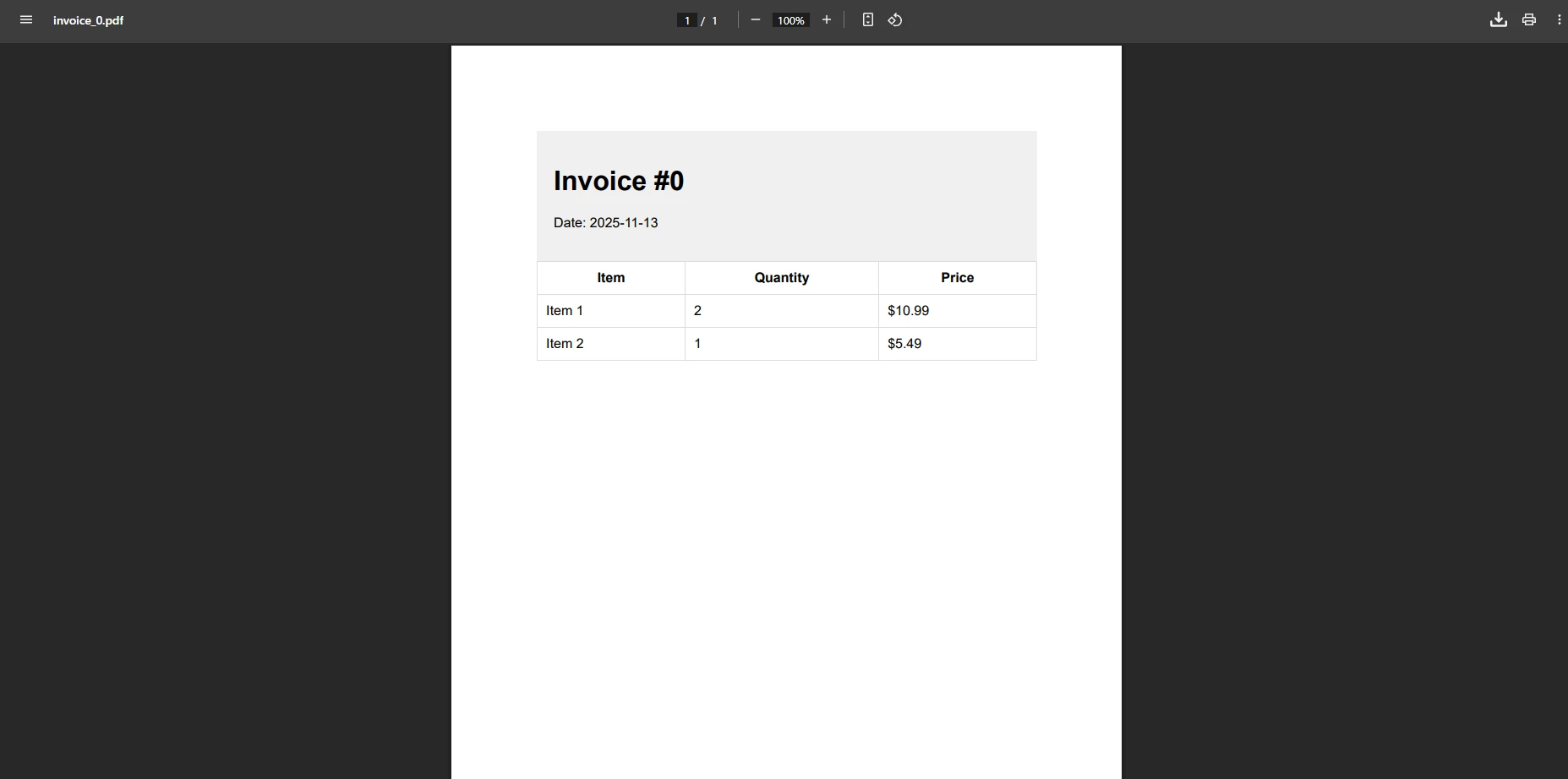
內聯提供PDF—在瀏覽器內建的查看器中打開而不是下載它—需要進行兩個小修改:將File()調用中省略文件名。
[HttpPost("report/preview")]
public async Task<IActionResult> PreviewReport([FromBody] ReportRequest request)
{
    string html = BuildReportHtml(request);

    var pdfDocument = await _renderer.RenderHtmlAsPdfAsync(html);

    // "inline" tells the browser to display rather than download.
    Response.Headers["Content-Disposition"] = "inline; filename=report.pdf";

    return new FileContentResult(pdfDocument.BinaryData, "application/pdf");
}Imports Microsoft.AspNetCore.Mvc
<HttpPost("report/preview")>
Public Async Function PreviewReport(<FromBody> request As ReportRequest) As Task(Of IActionResult)
Dim html As String = BuildReportHtml(request)
Dim pdfDocument = Await _renderer.RenderHtmlAsPdfAsync(html)
' "inline" tells the browser to display rather than download.
Response.Headers("Content-Disposition") = "inline; filename=report.pdf"
Return New FileContentResult(pdfDocument.BinaryData, "application/pdf")
End Function對於ASP.NET Core控制器,建議使用異步重載RenderHtmlAsPdfAsync,因為它釋放了執行緒池執行緒,在Chromium渲染時使伺服器能夠響應並發負載。

pdfDocument.BinaryData字節陣列完全存在於託管記憶體中。 不涉及中間文件路徑。 Content-Disposition頭控制PDF是在內聯顯示還是作為下載提供—瀏覽器行為由HTTP規範定義。 要深入了解MemoryStream方法,包括流式傳輸到Azure Blob儲存,請存取PDF記憶體流文件。
大多數業務應用程式從資料庫中提取報告資料,而不是在呼叫時構建它。以下模式查詢Entity Framework Core,構建HTML表格,並輸出PDF—這一切都在單個控制器操作中完成。
[HttpGet("report/monthly")]
public async Task<IActionResult> MonthlyReport(int year, int month)
{
    // Pull aggregated transaction data from EF Core.
    var rows = await _dbContext.Transactions
        .Where(t => t.Date.Year == year && t.Date.Month == month)
        .GroupBy(t => t.Category)
        .Select(g => new { Category = g.Key, Count = g.Count(), Total = g.Sum(t => t.Amount) })
        .OrderByDescending(g => g.Total)
        .ToListAsync();

    string tableRows = string.Join("", rows.Select(r =>
        $"<tr><td>{r.Category}</td><td>{r.Count}</td><td>${r.Total:F2}</td></tr>"));

    string html = $"""
        <html><body style="font-family:Arial,sans-serif;padding:32px">
        <h1>Monthly Report -- {month:D2}/{year}</h1>
        <table style="width:100%;border-collapse:collapse">
          <thead>
            <tr style="background:#e5e7eb">
              <th style="padding:8px;border:1px solid #d1d5db">Category</th>
              <th style="padding:8px;border:1px solid #d1d5db">Transactions</th>
              <th style="padding:8px;border:1px solid #d1d5db">Total</th>
            </tr>
          </thead>
          <tbody>{tableRows}</tbody>
        </table>
        </body></html>
        """;

    var pdf = _renderer.RenderHtmlAsPdf(html);
    pdf.MetaData.Title  = $"Monthly Report {month:D2}/{year}";
    pdf.MetaData.Author = "Reporting System";

    return File(pdf.BinaryData, "application/pdf", $"report-{year}-{month:D2}.pdf");
}Imports Microsoft.AspNetCore.Mvc
Imports System.Threading.Tasks
Imports System.Linq
<HttpGet("report/monthly")>
Public Async Function MonthlyReport(year As Integer, month As Integer) As Task(Of IActionResult)
' Pull aggregated transaction data from EF Core.
Dim rows = Await _dbContext.Transactions _
.Where(Function(t) t.Date.Year = year AndAlso t.Date.Month = month) _
.GroupBy(Function(t) t.Category) _
.Select(Function(g) New With {Key .Category = g.Key, Key .Count = g.Count(), Key .Total = g.Sum(Function(t) t.Amount)}) _
.OrderByDescending(Function(g) g.Total) _
.ToListAsync()
Dim tableRows As String = String.Join("", rows.Select(Function(r) $"<tr><td>{r.Category}</td><td>{r.Count}</td><td>${r.Total:F2}</td></tr>"))
Dim html As String = $"
<html><body style='font-family:Arial,sans-serif;padding:32px'>
<h1>Monthly Report -- {month:D2}/{year}</h1>
<table style='width:100%;border-collapse:collapse'>
<thead>
<tr style='background:#e5e7eb'>
<th style='padding:8px;border:1px solid #d1d5db'>Category</th>
<th style='padding:8px;border:1px solid #d1d5db'>Transactions</th>
<th style='padding:8px;border:1px solid #d1d5db'>Total</th>
</tr>
</thead>
<tbody>{tableRows}</tbody>
</table>
</body></html>
"
Dim pdf = _renderer.RenderHtmlAsPdf(html)
pdf.MetaData.Title = $"Monthly Report {month:D2}/{year}"
pdf.MetaData.Author = "Reporting System"
Return File(pdf.BinaryData, "application/pdf", $"report-{year}-{month:D2}.pdf")
End Function設置pdf.MetaData.Author可將該資訊嵌入到PDF的文件屬性中,這對符合性跟踪和文件管理系統很有用。 欲獲得更複雜的報告佈局,請考慮CSS列印樣式,明確的頁面分隔和嵌入式圖表圖像。
生產文件經常需要運行標題加上文件標題,頁碼腳注以及防止未授權列印或複製的存取控制。 IronPDF的ChromePdfRenderOptions涵蓋了所有這些要求。
[HttpPost("document/secured")]
public async Task<IActionResult> GenerateSecuredDocument([FromBody] SecuredDocRequest request)
{
    var renderOptions = new ChromePdfRenderOptions
    {
        PaperSize       = PdfPaperSize.A4,
        MarginTop       = 45,
        MarginBottom    = 45,
        MarginLeft      = 25,
        MarginRight     = 25,
        EnableJavaScript = true,
        WaitFor         = new WaitFor { RenderDelay = 500 }
    };

    renderOptions.TextHeader = new TextHeaderFooter
    {
        CenterText       = request.DocumentTitle,
        DrawDividerLine  = true,
        FontSize         = 11
    };

    renderOptions.TextFooter = new TextHeaderFooter
    {
        LeftText  = "{date} {time}",
        RightText = "Page {page} of {total-pages}",
        FontSize  = 9
    };

    _renderer.RenderingOptions = renderOptions;

    var pdf = await _renderer.RenderHtmlAsPdfAsync(request.HtmlContent);

    if (request.RequirePassword)
    {
        pdf.SecuritySettings.OwnerPassword         = request.OwnerPassword;
        pdf.SecuritySettings.UserPassword          = request.UserPassword;
        pdf.SecuritySettings.AllowUserPrinting     = PdfPrintSecurity.NoPrint;
        pdf.SecuritySettings.AllowUserCopyPasteContent = false;
    }

    return File(pdf.BinaryData, "application/pdf", $"{request.FileName}.pdf");
}Imports System.Threading.Tasks
Imports Microsoft.AspNetCore.Mvc
<HttpPost("document/secured")>
Public Async Function GenerateSecuredDocument(<FromBody> request As SecuredDocRequest) As Task(Of IActionResult)
Dim renderOptions As New ChromePdfRenderOptions With {
.PaperSize = PdfPaperSize.A4,
.MarginTop = 45,
.MarginBottom = 45,
.MarginLeft = 25,
.MarginRight = 25,
.EnableJavaScript = True,
.WaitFor = New WaitFor With {.RenderDelay = 500}
}
renderOptions.TextHeader = New TextHeaderFooter With {
.CenterText = request.DocumentTitle,
.DrawDividerLine = True,
.FontSize = 11
}
renderOptions.TextFooter = New TextHeaderFooter With {
.LeftText = "{date} {time}",
.RightText = "Page {page} of {total-pages}",
.FontSize = 9
}
_renderer.RenderingOptions = renderOptions
Dim pdf = Await _renderer.RenderHtmlAsPdfAsync(request.HtmlContent)
If request.RequirePassword Then
pdf.SecuritySettings.OwnerPassword = request.OwnerPassword
pdf.SecuritySettings.UserPassword = request.UserPassword
pdf.SecuritySettings.AllowUserPrinting = PdfPrintSecurity.NoPrint
pdf.SecuritySettings.AllowUserCopyPasteContent = False
End If
Return File(pdf.BinaryData, "application/pdf", $"{request.FileName}.pdf")
End Function當您的HTML包含Chart.js或ApexCharts等異步完成繪圖的圖表庫時,WaitFor.RenderDelay設置特別有用。 設置300-500毫秒的延遲可確保Chromium捕獲到的渲染狀態為最終狀態。 對於需要滿足存檔標準的文件,結合上述方法與PDF/A符合性和數位簽名。
在標題文字中的{total-pages}標記在渲染時被IronPDF自動解決,其他標題和頁腳選項包括基於HTML的標題可放置商標徽標及每節覆寫功能。
下表總結了對即時生成最有用的ChromePdfRenderOptions屬性:
| 屬性 | 型別 | 用途 |
|---|---|---|
| PaperSize | PdfPaperSize | 設置頁面尺寸(A4、信紙、Legal、自定義) |
| MarginTop / MarginBottom | int(毫米) | 控制可列印區域間距 |
| EnableJavaScript | bool | 允許JS在捕獲前執行 |
| WaitFor.RenderDelay | int(毫秒) | 延遲捕獲以實現異步渲染 |
| TextHeader / TextFooter | TextHeaderFooter | 運行的頁首頁尾 |
| HtmlHeader / HtmlFooter | HtmlHeaderFooter | 帶有圖像的HTML格式化頁首頁尾 |
| GrayScale | bool | 輸出黑白PDF |
| FitToPaperWidth | bool | 縮放寬內容以適應頁面 |
當單個伺服器處理數百個並發PDF請求時,一些架構決策對吞吐量和延遲有重大影響。
註冊為單例渲染器。 如安装部分所示,在DI容器中将ChromePdfRenderer註冊為單例,避免了每個請求啟動新Chromium子進程的費用。根據Microsoft的ASP.NET Core性能指南,最有影響力的兩個優化是最小化物件分配和重用昂貴的資源。
始終使用異步。Task<PdfDocument>,並在Chromium工作時暫停控制器執行緒。 這釋放了執行緒池可以並行處理其他傳入請求,這也是為什麼異步文件推薦此重載用於網路主機。 同步重載僅適用於允許執行緒堵塞的控制台工具或後台服務。
直接流式傳輸,儘可能跳過中間陣列。 對於大型PDF,.Stream可以直接寫入響應正文而不需要全陣列材料:
[HttpGet("document/large")]
public IActionResult StreamLargeDocument(int documentId)
{
    string html = BuildLargeDocumentHtml(documentId);
    var pdf = _renderer.RenderHtmlAsPdf(html);

    // Stream.Position is already at 0; no seek needed.
    return File(pdf.Stream, "application/pdf", $"document-{documentId}.pdf");
}Imports Microsoft.AspNetCore.Mvc
<HttpGet("document/large")>
Public Function StreamLargeDocument(documentId As Integer) As IActionResult
Dim html As String = BuildLargeDocumentHtml(documentId)
Dim pdf = _renderer.RenderHtmlAsPdf(html)
' Stream.Position is already at 0; no seek needed.
Return File(pdf.Stream, "application/pdf", $"document-{documentId}.pdf")
End Function用後即舍,謹記釋放。 IDisposable。 將它包裹在using語句中可以及時釋放底層内存緩衝區,特別重要的是在一直運行大量生成大的PDF時:
using var pdf = _renderer.RenderHtmlAsPdf(html);
byte[] data = pdf.BinaryData;
// pdf is disposed here; data is safely copied to the local array.
return File(data, "application/pdf", "output.pdf");Imports System.IO
Using pdf = _renderer.RenderHtmlAsPdf(html)
Dim data As Byte() = pdf.BinaryData
' pdf is disposed here; data is safely copied to the local array.
Return File(data, "application/pdf", "output.pdf")
End Using對於雲部署的指導,包括Azure、AWS、Docker和Linux環境,IronPDF文件提供了基於環境的配置說明。 如果啟動後的首次渲染較慢,請參閲預熱和快取指南以獲得在首次使用者請求到來之前預先初始化渲染器的策略。
可以在流式傳輸之前將文字或圖像水印新增到生成文件的每一頁:
[HttpGet("document/draft/{id:int}")]
public IActionResult GetDraftDocument(int id)
{
    string html = BuildDocumentHtml(id);
    var pdf = _renderer.RenderHtmlAsPdf(html);

    // Stamp "DRAFT" diagonally across every page.
    pdf.ApplyWatermark(
        "<h1 style='color:rgba(200,0,0,0.25);transform:rotate(-45deg)'>DRAFT</h1>",
        rotation: 45,
        opacity: 30
    );

    return File(pdf.BinaryData, "application/pdf", $"draft-{id}.pdf");
}<AttributeUsage(AttributeTargets.Method, Inherited:=True, AllowMultiple:=False)>
Public Class HttpGetAttribute
Inherits Attribute
Public Sub New(route As String)
End Sub
End Class
<HttpGet("document/draft/{id:int}")>
Public Function GetDraftDocument(id As Integer) As IActionResult
Dim html As String = BuildDocumentHtml(id)
Dim pdf = _renderer.RenderHtmlAsPdf(html)
' Stamp "DRAFT" diagonally across every page.
pdf.ApplyWatermark(
"<h1 style='color:rgba(200,0,0,0.25);transform:rotate(-45deg)'>DRAFT</h1>",
rotation:=45,
opacity:=30
)
Return File(pdf.BinaryData, "application/pdf", $"draft-{id}.pdf")
End Function詳細的水印配置選項包括圖像水印和每頁控制,請參閱水印文件。
 使用NuGet安裝
在ASP.NET Core中,動態PDF生成遵循一致的模式:構建您的HTML,調用FileResult返回結果。 IronPDF處理中間的所有內容—Chromium渲染、CSS應用、JavaScript執行—無需在任何階段執行磁碟I/O。
從這裡開始,根據您的應用需求可以探索幾個方向。 如果您的PDF需要合併多個源文件,合併和分割指南涵蓋將現有PDF與新渲染的頁面合併。 如果需要使用者填寫並提交嵌入在PDF中的表單,互動表單文件展示如何建立和讀取字段值。 對於受監管行業,PDF/A符合性和PDF/UA可存取性可確保文件滿足存檔和可存取性的標準。
如果您正在評估IronPDF與替代方案,iText vs IronPDF比較提供並排的技術對比。 當您準備投入生產時,購買授權以解鎖所有功能並獲得優先技術支持。 完整的API參考文件記錄了本指南中討論的每個類和方法。
如果實施中有問題或疑問,技術支持團隊提供協助。針對Blazor Server或MAUI的特定平台筆記,專用指南涵蓋每個主機模型的配置差異。

Curtis Chau擁有Carleton大學的電腦科學學士學位,專精於前端開發,擁有Node.js、TypeScript、JavaScript和React的專業知識。Curtis熱衷於建立直觀且美觀的使用者介面,喜愛使用現代框架並建立結構良好、視覺吸引力的手冊。

IronPDF 是 IRONSUITE 的一部分
10 款適用於辦公室文件的 .NET API 產品

當您需要您的PDF看起來像HTML一樣快速。














